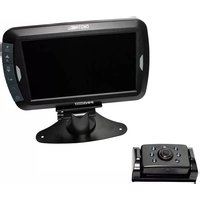
DRC7010 - Dashcam Pro-User - Free user manual and instructions
Find the device manual for free DRC7010 Pro-User in PDF.



| Product Type | Wireless Backup Camera with Monitor |
| Brand | Pro-User |
| Model | DRC7010 |
| Category | Dashcam (backup system) |
| Screen Size | 17.8 cm (7 inches) |
| Screen Resolution | 800 × 480 pixels |
| Camera Sensor | CMOS |
| Camera Resolution | 800 × 480 pixels |
| Transmission Frequency | 2.4 GHz |
| Maximum Range | 100 m (open field) |
| Camera Power Supply | 8-30 V DC |
| Camera Power Consumption | < 120 mA (IR off), < 170 mA (IR on) |
| Monitor Power Supply | 8-30 V DC |
| Monitor Power Consumption | < 30 mA (min), < 300 mA (max) |
| Night Vision | Automatic Infrared LED |
| Main Features | Pairing up to 2 cameras, image reversal, auto display, distance grid, brightness/contrast/color settings |
| Installation | Camera on license plate, monitor on dashboard or sun visor (adhesive/straps) |
| Operating Temperature | -10 °C to +45 °C |
| Warranty | 2 years |
| Maintenance and Cleaning | Clean with a soft, dry cloth. Do not use abrasive products. |
| Safety | Do not look directly at the infrared LEDs. Entrust electrical installation to a professional if necessary. |
Frequently Asked Questions - DRC7010 Pro-User
User questions about DRC7010 Pro-User
0 question about this device. Answer the ones you know or ask your own.
Ask a new question about this device
Download the instructions for your Dashcam in PDF format for free! Find your manual DRC7010 - Pro-User and take your electronic device back in hand. On this page are published all the documents necessary for the use of your device. DRC7010 by Pro-User.
USER MANUAL DRC7010 Pro-User
with 17,8cm / 7" monitor
natural_image
Front view of a black digital display device with control buttons and a stand (no visible text or symbols on the device body)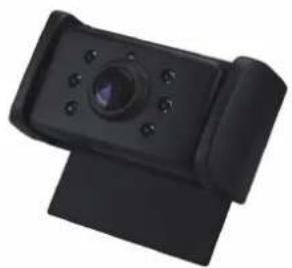
natural_image
Close-up of a black camera module with lens and buttons (no visible text or symbols)
natural_image
Close-up of a black camera lens with adjustment knobs and a central aperture (no text or symbols visible)*

10R-041407
C€0560


PROUSER®
INTRODUCTION
The Pro-User DRC7010 is a member of the family of advanced car backup systems manufactured by Pro-User International Ltd. The Pro-User Digital Backup Camera and Monitor with built in transmitter box will improve your ability to see behind your car, camper or trailer. We have taken numerous measures in quality control to ensure that your product arrives in top condition and will perform to your satisfaction.
For optimal performance and safety, please read the following instructions carefully!
IMPORTANT SAFETY INSTRUCTIONS
If you are not confident working with 12V/24V DC vehicle wiring, removing and reinstalling interior panels, carpeting, dashboards or other components of your vehicle, contact the vehicle's manufacturer, or consider having the camera system professionally installed.
Interference
By using a digital transmission system, this device is free from interferences coming from Bluetooth ® , cell phones, Wi-Fi routers, power lines and other various electrical equipment.
Maintenance
The camera system is maintenance-free and must not be opened. Any attempt at modification or repair by the user will entail the loss of your guarantee.
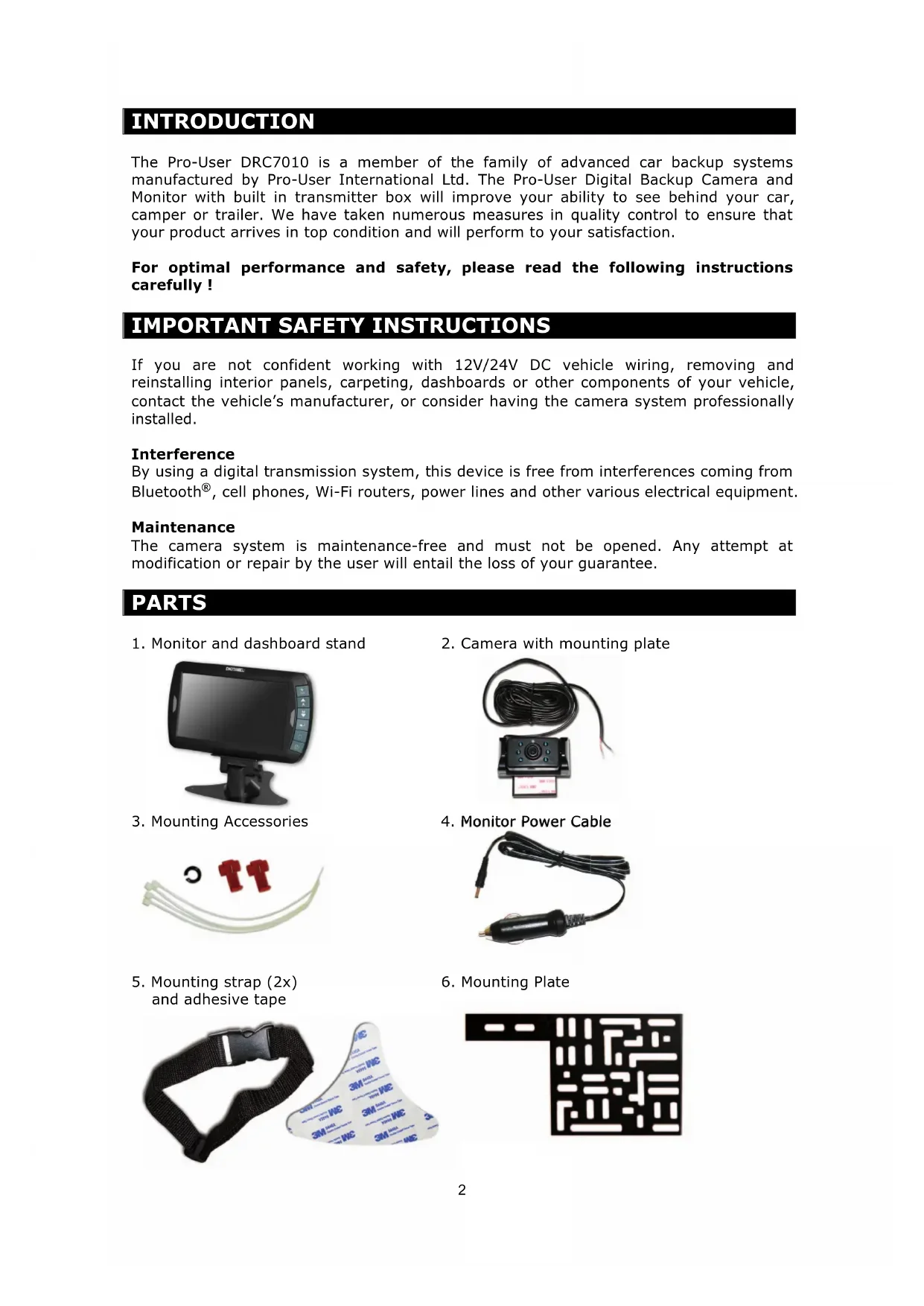
PARTS
- Monitor and dashboard stand
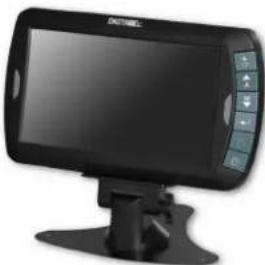
natural_image
Black handheld electronic device with control panel and display screen (no visible text or symbols)- Mounting Accessories
natural_image
Pure electrical circuit lines without any symbols-
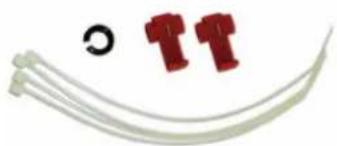
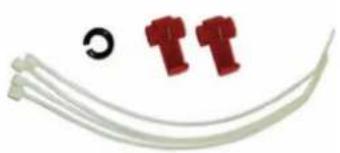
Mounting strap (2x) and adhesive tape
-
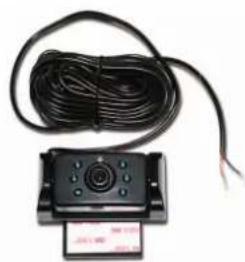
Camera with mounting plate
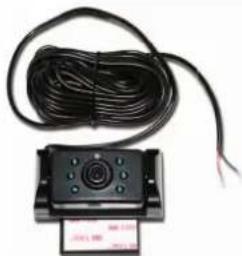
natural_image
Close-up of a black electronic component with a coiled cable and a small rectangular device (no visible text or symbols)- Monitor Power Cable
natural_image
Black and white photo of a handheld electric plug with wires (no text or symbols visible)- Mounting Plate

natural_image
Medical device with black bandage and white printed label (no readable text or symbols)
natural_image
Abstract geometric pattern with interlocking rectangular shapes (no text or symbols)INSTALLATION
These instructions are only meant as a general guide due to the number of different makes & models. For vehicle specific questions contact your vehicle's manufacturer.
Camera installation
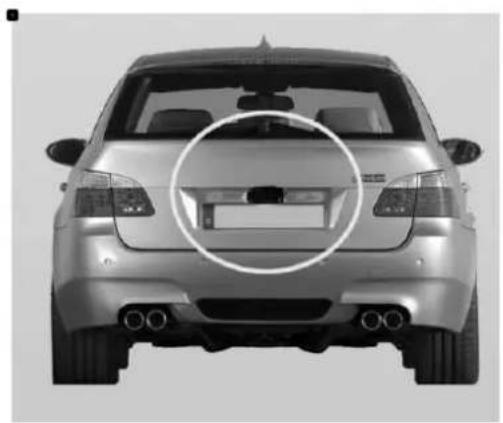
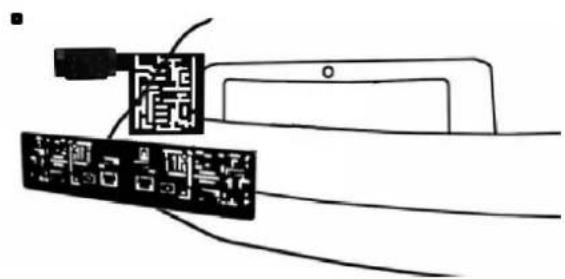
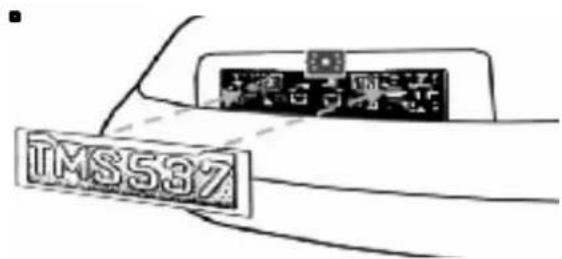
The camera can be tilted vertically to adjust the viewing angle. Make sure that its field of view is not obstructed. There are several ways to mount the camera on the back of your car. But the most convenient is to mount it near the license plate. Supplied is a mounting plate that can be fixed behind the license plate. The camera itself can fixed on this mounting plate.
natural_image
Front view of a silver sedan car with visible license plate and side exhaust pipes (no text or symbols)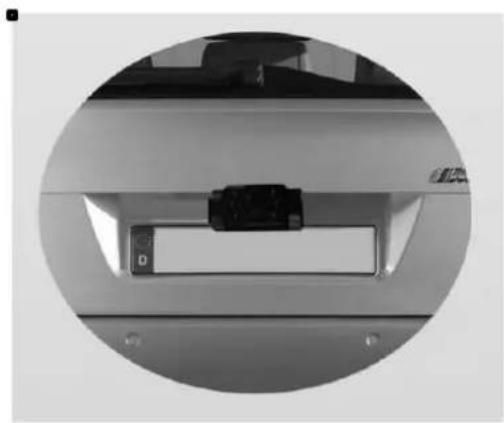
natural_image
Close-up of a car door panel with a black plastic clip and 'D' label, enclosed in a circular frame (no readable text or symbols)Please note: At some vehicles it may not be possible to mount the camera near the license plate. You may have to find another spot at the back of your car to mount it.
- Remove the rear license plate, and then loosen the license plate's bolts/screws.
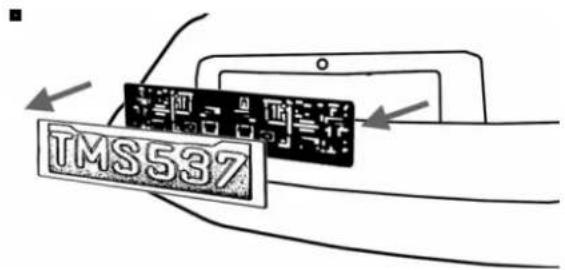
- Position the supplied mounting plate (together with the camera) behind the license plate bracket. Secure both license plate bracket and mounting plate with the license plate bracket bolts/screws.
natural_image
Diagram showing two connected electronic components with wires, no text or symbols present- Reinsert the license plate on the license plate bracket.
-
Choose a routing path for the camera's power cable through the vehicle's body to the backup light circuit.
-
Some vehicles may have a hole available to pass the wire through the trunk, such as where the license plate light is mounted. Otherwise you probably could drill a hole close to where the power cable is attached to the camera. Once you have chosen where the cable will enter the vehicle's body, remove the camera. If you are able to use an existing opening, skip the next two steps.
-
Remove the license plate and camera before drilling. ATTENTION: Before drilling any hole, remove the camera and the licence plate and carefully examine the area around and behind the installation position. Make sure that there are no parts that can be damaged (especially electrical cables, components of the vehicle's fuel system or any liquid tanks). Please take every reasonable precaution. Choose a drill that is suitable for the supplied grommet and material.
-
After drilling the hole, insert the supplied grommet and pass the camera cables through the grommet into the vehicle.
-
Next you'll need to find the vehicle's backup lights. Turn the vehicle's ignition key to the accessory position, engage the parking brake and go into reverse. Look at the vehicle's tail lights to see where the reverse lights are located (usually the white lights). To locate the backup light's 12V/24V (+) wire, it probably will be necessary to gain access to the rear of the vehicle's taillight. For help locating the vehicle's reverse light circuit contact your vehicle's manufacturer for vehicle specific wiring diagrams.
-
Once you have located the reverse light circuit you will have to route the camera cable to that location. Securely fasten the power cable to prevent it from being caught on any vehicle component such as the trunk hinge. Never route the cable on the outside of the vehicle!
-
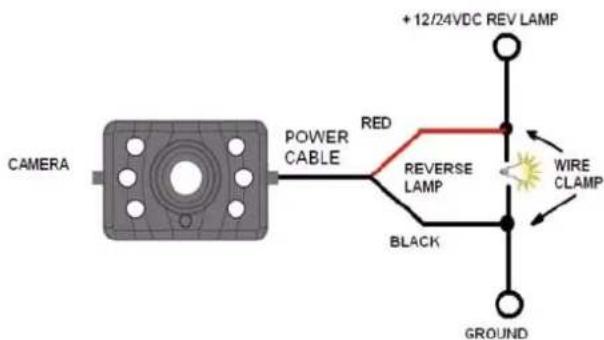
The reverse light sockets on most vehicles have two wires connected to them. Usually the negative wire is black and the positive wire is a colored wire. If you are uncertain about the wiring, you can use a 12V/24V multimeter available at most auto parts stores, to determine which is the positive wire. Follow the manufacturer's instructions for the safe use of the multimeter.
-
After determining which wire is the positive and which is the negative, turn off the ignition key and remove the battery's negative cable (ground -).
-
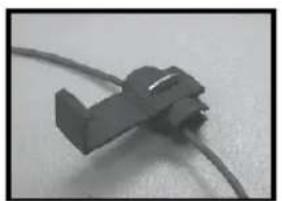
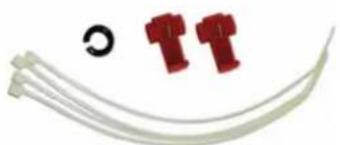
Connect the camera's red wire using the supplied in-line wire connectors to the reverse light's positive (+) wire. Use a set of slip joint pliers to squeeze them and insure a good connection.
natural_image
Close-up of a black plastic electrical plug with wires (no visible text or symbols)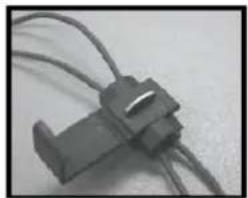
natural_image
Close-up of a black plastic connector with coiled wires (no visible text or symbols)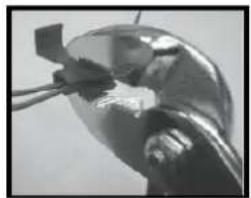
natural_image
Close-up of a metallic object with a small rectangular object attached, possibly a tool or component (no visible text or symbols)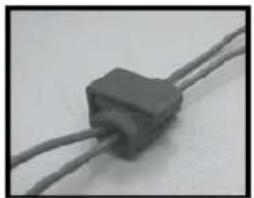
natural_image
Close-up of a gray electrical component with two wires (no visible text or symbols)-
Connect the black wire of the camera's power cable to the reverse light's negative (-) wire or ground.
-
Reinstall the reverse light bulb and the light socket. Secure all the wires with cable ties or electrical tape.
-
Re-attach the negative battery cable to the battery.
Monitor Installation
When choosing a location for the monitor, make sure the monitor is mounted in an area that will not obstruct your vision while driving.
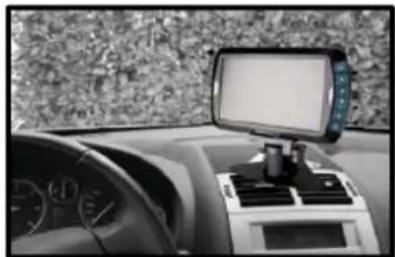
The DRC7010 can be fixed in your vehicle in several ways. The monitor can be placed on your (A) dashboard via the dashboard stand or (B) fixed via the supplied straps on you visor or a headrest.
natural_image
Interior view of a car dashboard with steering wheel and navigation screen (no visible text or symbols)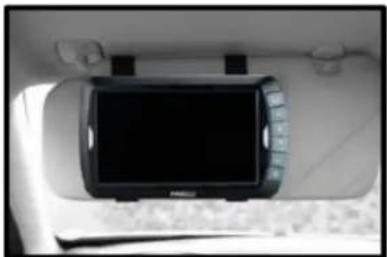
natural_image
Top-down view of a car backrest with a black digital display mounted on the rim (no visible text or symbols)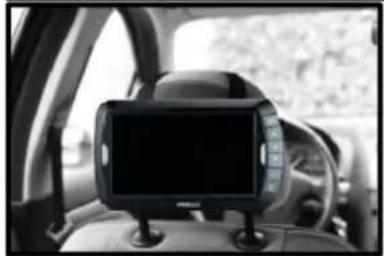
natural_image
Interior view of a car showing a mounted tablet device on the windshield (no visible text or symbols)A. Dashboard stand \*
-
Before mounting the monitor, clean all adherends well. Put one side of the double-faced adhesive tape on the bottom of the dashboard stand.
-
Position the stand onto the dashboard
-
Press the stand against the dashboard surface to fix the location.
-
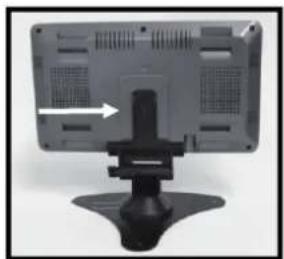
Snap in the monitor to the stand's mounting arm.
-
Adjust the mounting arm to suit your viewing angle to the monitor.
-
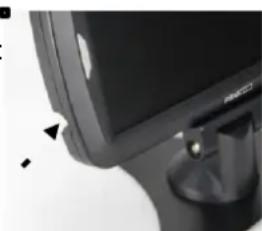
In order to remove the monitor, press the arrow sign on the mounting arm to release.
natural_image
Top-down view of a tablet device with a black stand and arrow pointing to the front panel (no text or symbols visible)* to maximize the bond strength of the adhesive, it is recommended to applicate the tape under the following conditions:
- All surfaces must be clean, dry, dust and grease free.
- The adherents temperature should be between 21 and 38 degrees Celsius. Don't applicate below 10 degrees or under direct sunlight.
- If possible, choose a mounting position where no direct sunlight can heat up the dashboard stand.
B. Visor and Headrest Mount
- Use the supplied two straps and pull them through the recesses at the back of the monitor unit.
- Position the monitor on the visor or headrest.
- Pull the straps across the visor or headrest.
- Fasten the straps.
Monitor 12/24V connection
-
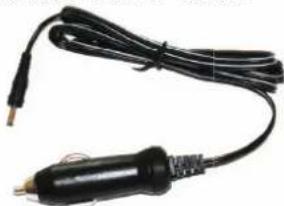
Route the supplied power cable to the vehicle's cigarette lighter socket/12V power outlet. The cable routing must not interfere with the safe operation of the vehicle.
-
Insert the small DC plug of the power cable into the side of the monitor.
-
Plug in the 12/24 Volt cigarette lighter plug into the vehicle's cigarette lighter socket.
natural_image
Close-up of a computer monitor with a stand and a small circular button, no visible text or symbolsTesting the System
- Check if the vehicle's negative battery cable (ground) has been reattached.
- Turn the ignition key to the accessory position - do not start the vehicle.
- Engage the parking brake, and put the vehicle's shifter in the reverse position. The System should activate itself. If not, press the Power-button on the Monitor.
- If not already done: Please pair your camera(s) to the monitor (as described in chapter OPERATION)
- After testing (and re-adjusting if needed) the unit, all cabling should be installed permanently: Route all wires behind interior panels or under carpeting. Use the supplied cable ties to keep excess wires neat and compact.
NOTE: UNDER EXTREME BRIGHT LIGHT CONDITIONS, THE SCREEN IMAGE MAY TAKE A FEW SECONDS TO STABILIZE. PLEASE WAIT UNTIL THE IMAGE HAS STABILIZED BEFORE BACKING UP.
OPERATION
Before the 1 st operation: Please pair the monitor to your camera(s) ! (Please refer to the instructions below)
The monitor unit can be paired with a maximum of 2 cameras. Use the Up/Down buttons in order to switch between the connected cameras or to show a splitted screen.
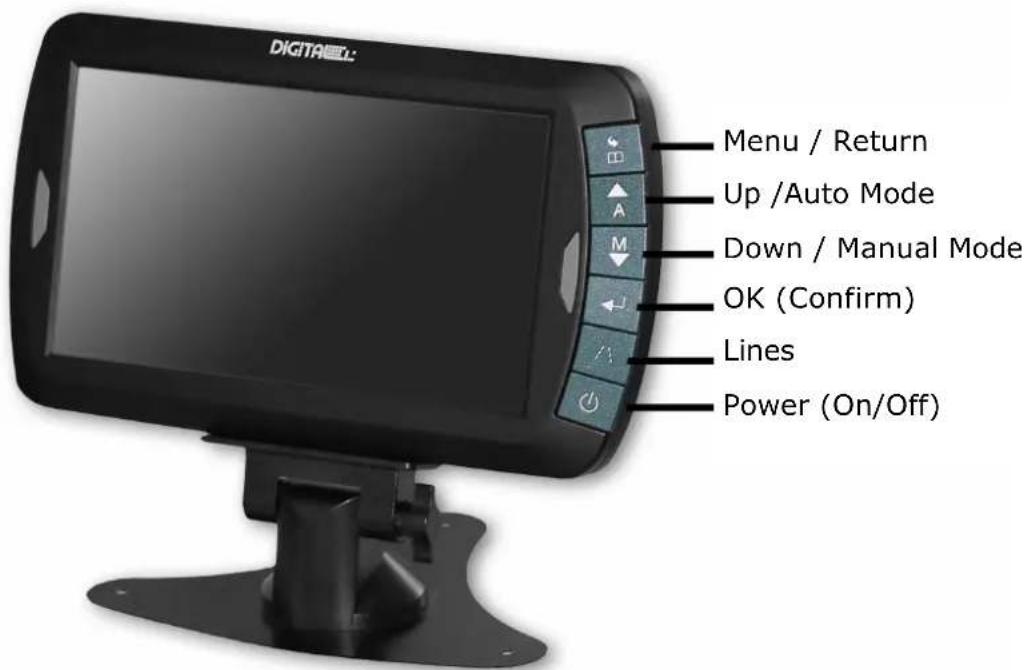
General Usage:
Select the desired menu item by using the Up/Down buttons. Then confirm your choice with the OK button. Press the Menu button to exit a submenu or wait a few seconds without any input to exit automatically.
Power button
Press the Power button to power-on the monitor. The screen on the monitor will turn on automatically when the vehicle is in reverse gear (when already paired to the camera(s) as described below). When the monitor is on and gets a signal, the blue LED will light up, otherwise it will blink. When the monitor is off, no picture will appear on the screen and the blue LED will be off.
MENU
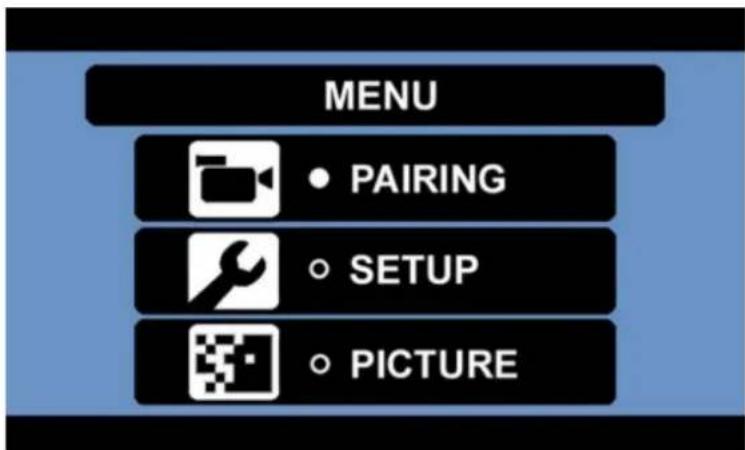
Press the Menu button to enter the main menu screen.
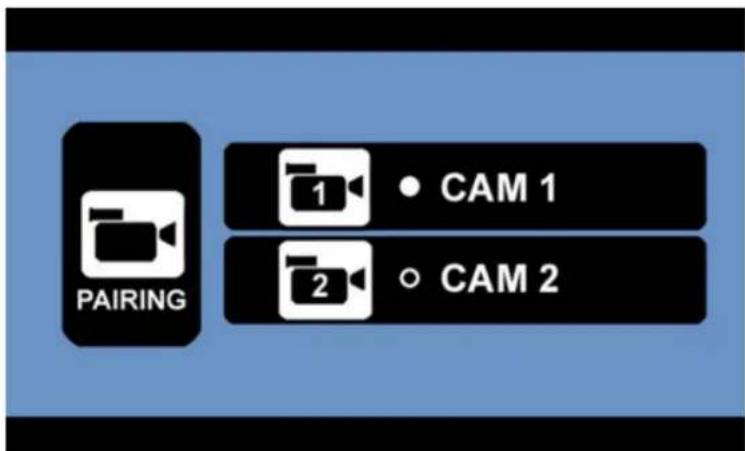
PAIRING Menu
Here you can pair up to 2 cameras. Select CAM1 or CAM2 and press the OK button to start the pairing process.
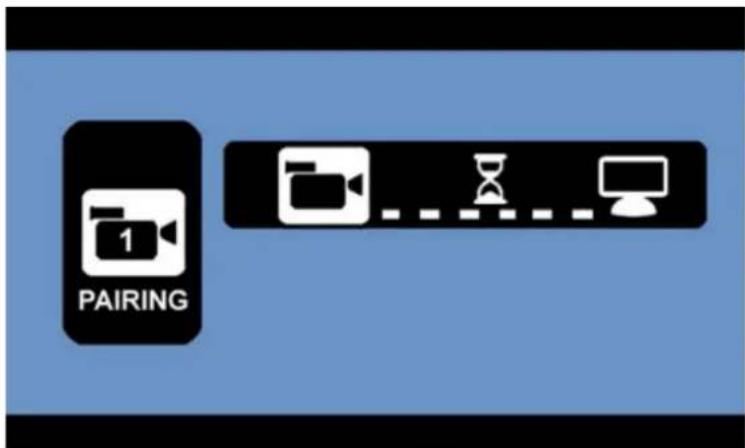
The device is now ready to pair to the camera (example: CAM1) Now press the rubber button at the bottom of the camera!
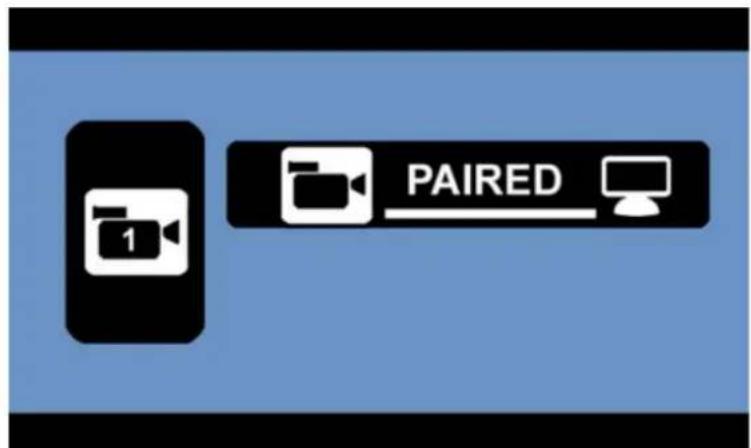
Pairing successful.
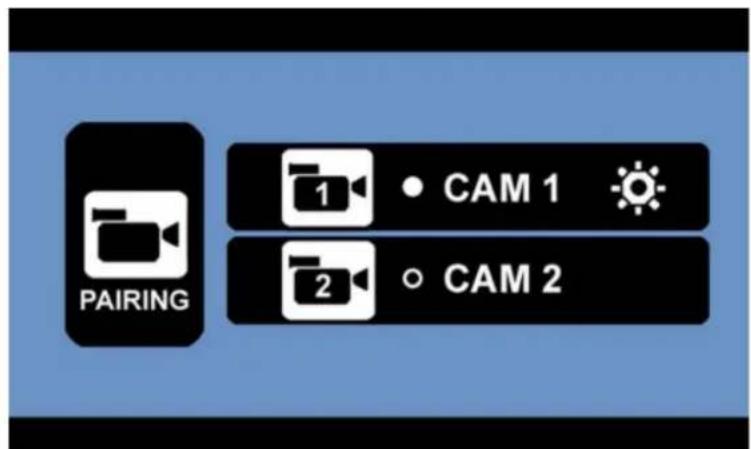
Back in the PAIRING Menu a symbol appears next to the paired camera CAM1. The unit will now pair automatically to the camera when powered on. If you have 2 cameras (optional), please repeat the pairing process as described. Press the Menu button to exit.
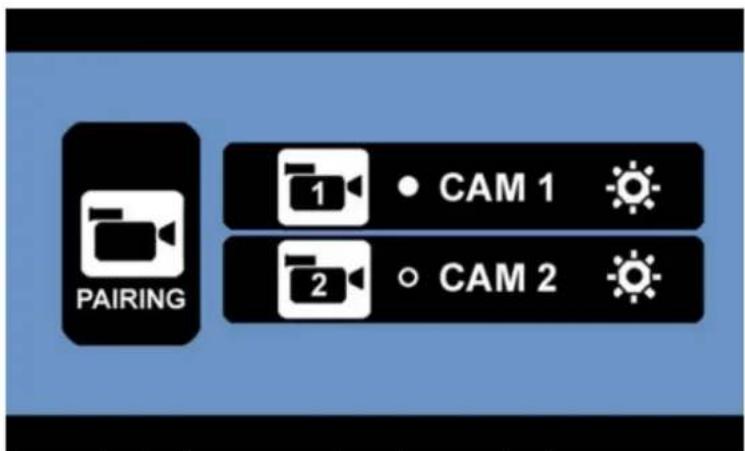
Example: Both cameras have been paired.
SETUP Menu
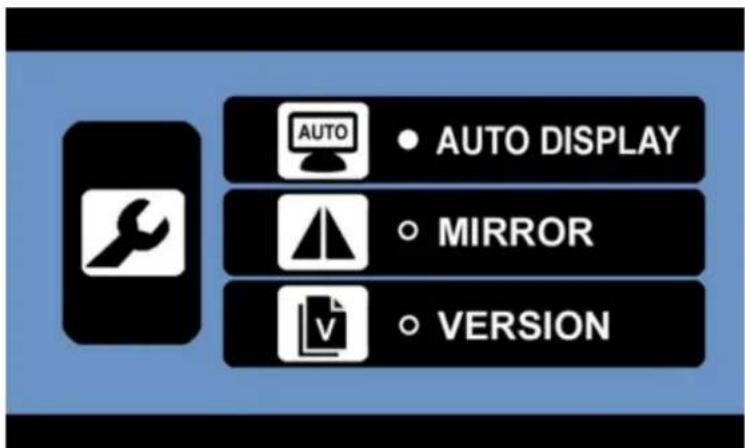
Select the desired sub-menu with the Up/Down buttons and confirm with the OK button. The respective functions of the sub-menus are being described below.
SETUP-AUTO DISPLAY
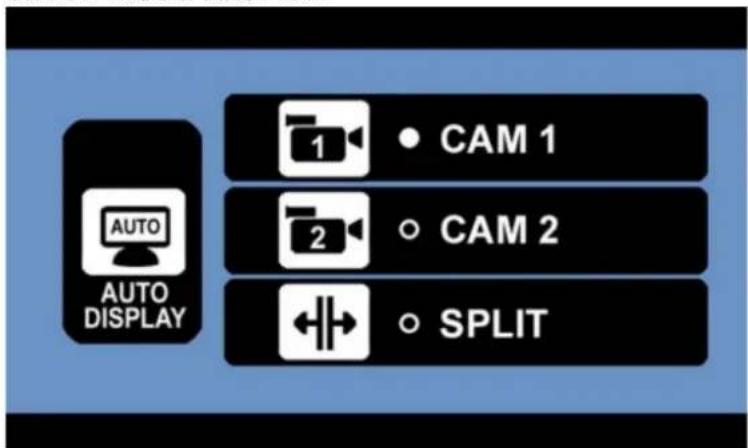
This setting allows you to set your main view: The selected camera (CAM1 or CAM2) will be displayed automatically when backing up. In order to show the picture of both cameras at the same time, please select SPLIT in the menu (only if both signals can be received – otherwise the monitor will show the available picture in fullscreen).
SETUP-MIRROR
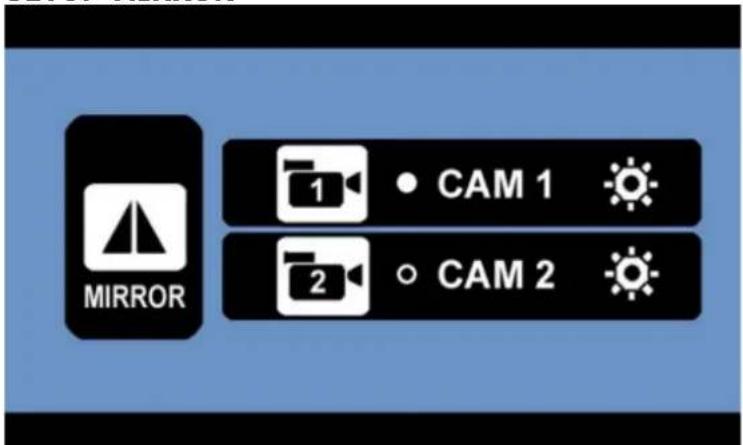
Select CAM1 or CAM2 in order to mirror the displayed picture horizontally or vertically.
SETUP-VERSION
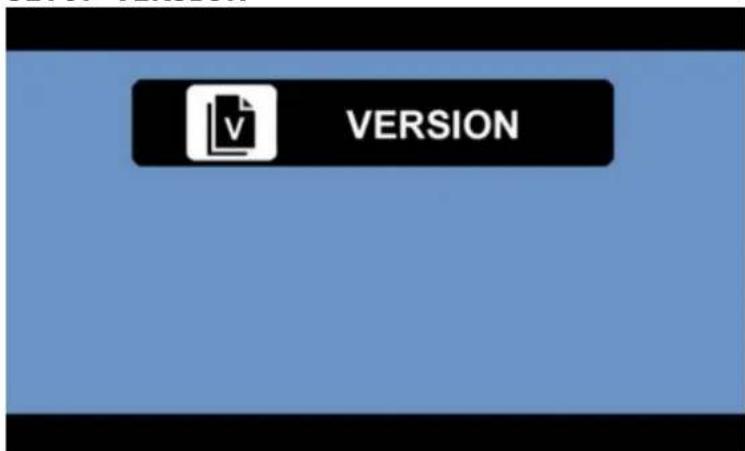
Shows the software-version of the monitor system.
IMPORTANT:
By pressing the Up-button in the VERSION menu for 5 seconds, all cameras will be un-paired!
PICTURE Menu
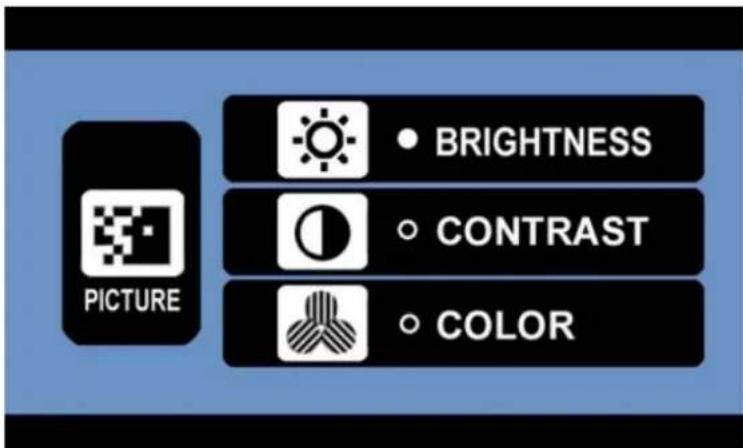
After selecting the concerning camera, you can adjust the BRIGHTNESS, CONTRAST or COLOR of the displayed picture: Choose the desired function with the Up/Down buttons, confirm by pressing the OK button and change the values with the arrow buttons. Save the settings with the OK button and exit the screen by pressing the Menu button.
LINES button
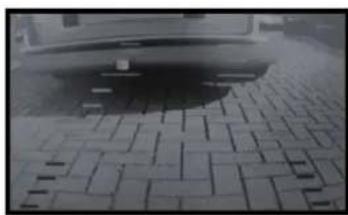
This camera system has the option to show guidelines on the display. This may help you to visually estimate the distances between objects and your car. By pressing the Lines button, you can switch this option on and off.
natural_image
Black-and-white photo of a car's rearview on a paved pavement with brick patterns (no visible text or symbols)NightVision:
The camera modules have an automatic NightVision infrared function: During night time or in dark areas the IR LEDs will turn on automatically.
ATTENTION: Protect your eyes! Do not look directly into the IR LED light.
TECHNICAL SPECIFICATIONS
| Camera | |
| Operating Voltage | 8-30V DC |
| Operating Current | <120mA(IRLED OFF); <170mA(IRLED ON); |
| Sensor Type | CMOS |
| Resolution | 800x480 |
| Optical lens | F1.7mm / F2.0 |
| Transmission frequency | 2.4 GHz (ISM band) |
| RF transmission distance | up to 100 meters (open area) |
| LCD monitor | |
| Operating Voltage | 8-30V DC |
| Standby Current | ! 30mA |
| Operating Current | !300mA |
| LCD Screen Size | 17,8cm / 7 inch |
| Resolution | 800x480 |
| Environmental Temperature | -10 to +45 degree Celsius |
This model may be operated in EU countries.

10R-041407
C€0560



ENVIRONMENTAL PROTECTION
The product is classed as Electrical or Electronic Equipment and should not be disposed of with other household or commercial waste at the end of its working life. Please recycle where facilities exist. Ask your local authority or retailer for recycling advice.
WARRANTY
Pro-User warrants this product for a period of 2 years from the date of purchase to the original purchaser. Warranty is not transferable. Warranty covers defect against workmanship and materials only. To obtain warranty service, please return the unit to the place of purchase or authorized Pro-User dealer together with your proof of purchase. The warranty is void if the product has been damaged or not used as described in this manual. Warranty is void if a non-authorized repair has been performed. Pro-User makes no other warranty expressed or implied. Pro-User is only responsible for repair or replacement (at Pro-Users' Discretion) of the defective product and is not responsible for any consequential damage or inconvenience caused by the defect.
EINLEITUNG
natural_image
Black handheld electronic device with a screen and control buttons (no visible text or symbols)- Installations-Material
natural_image
Coiled white cable with two red T-shaped connectors and a black circular symbol (no text or labels)natural_image
Close-up of a black electrical component with coiled cable and a small rectangular device (no visible text or symbols)natural_image
Black and white photo of a car charger with two cables (no text or symbols visible)natural_image
Medical device with black arm strap and white printed label (no visible text or symbols on the device itself)
natural_image
Abstract geometric pattern with interlocking rectangular shapes (no text or symbols)MONTAGE
natural_image
Front view of a silver sedan car with visible headlights and exhaust pipes (no text or symbols)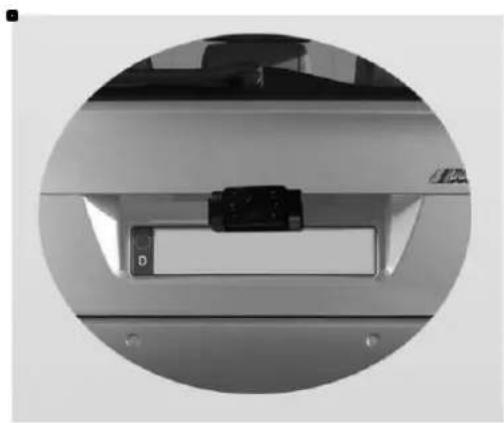
natural_image
Close-up of a car door handle with a small black object on the side (no visible text or symbols)natural_image
Pure electrical circuit lines without any symbolsnatural_image
Close-up of a black plastic connector with a coiled cable (no visible text or symbols)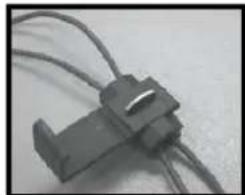
natural_image
Close-up of a black plastic connector with coiled wires (no visible text or symbols)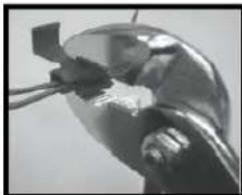
natural_image
Close-up of a metallic mechanical component with a small rectangular component attached (no visible text or symbols)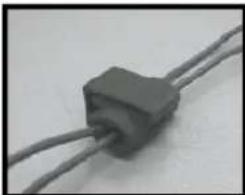
natural_image
Close-up of a black rectangular electronic component with two wires, no visible text or symbolsnatural_image
Interior view of a car showing dashboard and steering wheel (no visible text or symbols)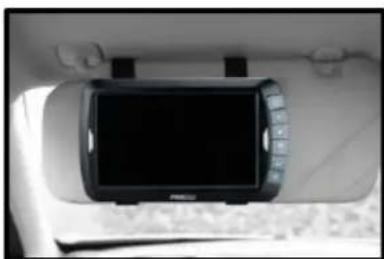
natural_image
Interior view of a car showing a mounted digital camera module (no visible text or symbols)natural_image
Back view of a desktop monitor with a stand and ventilation slots, no visible text or symbolsnatural_image
Close-up of a computer monitor with a knob and a small circular button, no visible text or symbols.System Test
natural_image
Close-up of a car's wheel and dashboard on a paved pavement, showing no text or symbolsnatural_image
Black handheld electronic device with a screen and control buttons (no visible text or symbols)- Accessoires de fixation
natural_image
Pure electrical circuit lines without any symbols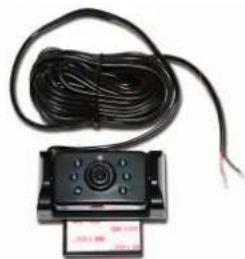
natural_image
Close-up of a black electrical component with coiled cable and a small rectangular device (no visible text or symbols)natural_image
Black and white photo of a car charger with cable, no visible text or symbolsnatural_image
Medical device with black belt and white IEC patch, no visible text or symbols on the device itself- Plaque de fixation
natural_image
Abstract geometric pattern with interlocking rectangular shapes (no text or symbols)INSTALLATION
natural_image
Front view of a silver sedan car with visible license plate and side exhaust pipes (no text or symbols)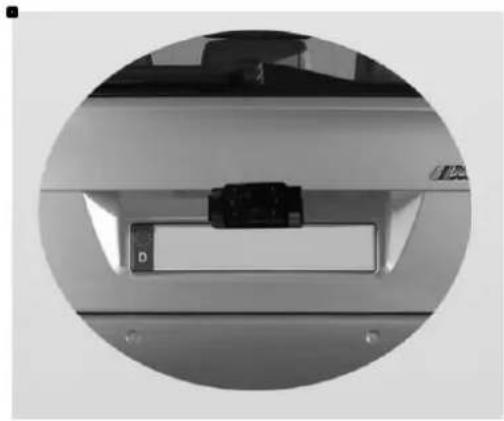
natural_image
Close-up of a mechanical component with a labeled part 'D' and mounting holes (no readable text or symbols)natural_image
Pure electrical circuit lines without any symbolsnatural_image
Close-up of a black plastic clip attached to a wire, no visible text or symbols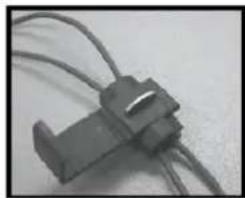
natural_image
Close-up of a black plastic connector with coiled wires (no visible text or symbols)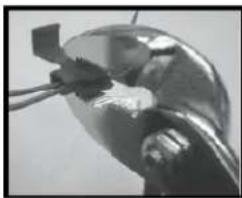
natural_image
Close-up of a metallic mechanical component with a small rectangular object inserted, possibly part of a tool or fixture (no visible text or symbols)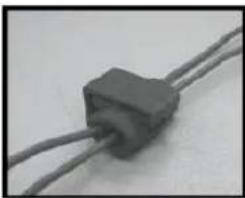
natural_image
Close-up of a black rectangular electronic component with two wires (no visible text or symbols)natural_image
Interior view of a car dashboard and rearview mirror (no visible text or symbols)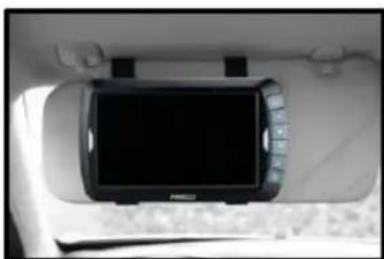
natural_image
Interior view of a car showing a mounted digital display with control buttons (no visible text or symbols)natural_image
Back view of a desktop monitor with a stand and a small screen showing ventilation slots (no text or symbols visible)natural_image
Close-up of a computer monitor with a knob and scroll wheel (no visible text or symbols)natural_image
Black-and-white photo of a car parked on a paved pavement with visible brick patterns (no text or symbols)natural_image
Black rectangular electronic device with control panel and display screen (no visible text or symbols)natural_image
Coiled white cable with two red TT connectors and a black circular symbol (no text or labels)natural_image
Close-up of a black and white bandage with '3M HBC' printed on it, no visible text or symbols beyond the label.- Camera en snoer
natural_image
Close-up of a black electronic device with coiled cable and a small rectangular component, no visible text or symbols.natural_image
Black and white photo of a car charger with coiled cable (no text or symbols visible)- Bevestigingsplaat
natural_image
Abstract geometric pattern with interlocking rectangular shapes (no text or symbols)INSTALLATIE
natural_image
Front view of a silver sedan car with visible headlights and exhaust pipes (no text or symbols)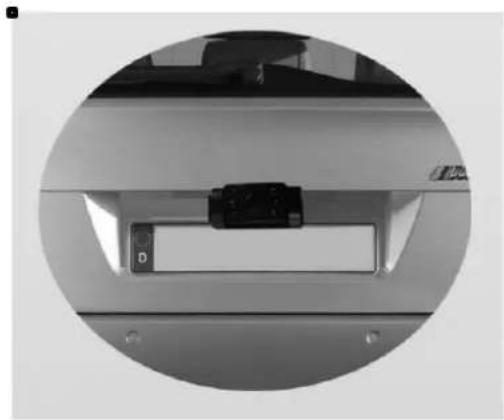
natural_image
Close-up of a car door handle with a black clip and label D, enclosed in a circular frame (no visible text or symbols)natural_image
Pure electrical circuit lines without any symbolsnatural_image
Close-up of a black mechanical component with a curved handle and attached cable (no visible text or symbols)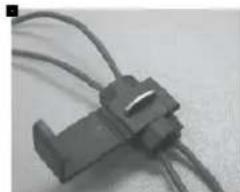
natural_image
Close-up of a black plastic clamp or connector with coiled wires (no visible text or symbols)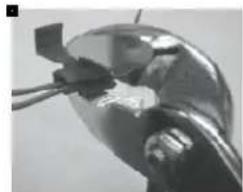
natural_image
Close-up of a metallic mechanical component with a curved handle and protruding rod (no visible text or symbols)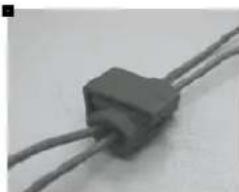
natural_image
Close-up of a black rectangular electronic component with two wires, no visible text or symbolsnatural_image
Interior view of a car dashboard with steering wheel and mounted camera (no visible text or symbols)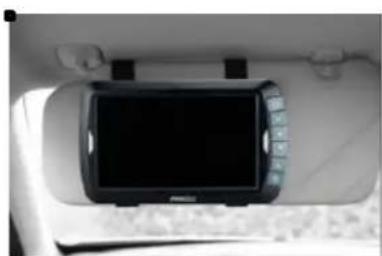
natural_image
Interior view of a car backseat showing a mounted digital display with control buttons (no visible text or symbols)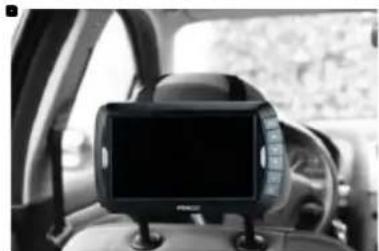
natural_image
Interior view of a car showing a mounted tablet device on the backrest (no visible text or symbols)A. Dashboard standaard \*
natural_image
Back view of a computer monitor with a black stand and a white arrow pointing to the front panel (no text or symbols visible)natural_image
Close-up of a computer monitor with a knob and a small stand (no visible text or symbols)natural_image
Black-and-white photo of a car parked on a paved pavement with a shadow (no visible text or symbols)EU – Declaration of Conformity
We herewith confirm that the appliance as detailed below complies with the mentioned directives.
Artikelbezeichnung:
Article description:
Digital Wireless Backup Camera System
Low voltage directive
2006/95/EC

The article complies with the standards as mentioned below which are necessary to obtain the CE-symbol:
| Zu 1.EN55022:2010+AC2011EN55024:2010 | Zu 3.EN 300 440-1 V1.6.1:2010EN 300 440-2 V1.4.1:2010EN 301 489-1 V1.9.2:2011EN 301 489-3 V1.4.1:2002 |
| Zu 2.EN 60950-1: 2006+A11:2009+A1:2010+A12:2011 | Zu 4.IEC62231:2008 |
Unterschrift / Signature & Firmenstempel / Company Chop


- INTRODUCTION
- IMPORTANT SAFETY INSTRUCTIONS
- Interference
- Maintenance
- PARTS
- INSTALLATION
- Camera installation
- Monitor Installation
- When choosing a location for the monitor, make sure the monitor is mounted in an area that will not obstruct your vision while driving.
- Dashboard stand \*
- Visor and Headrest Mount
- Monitor 12/24V connection
- Testing the System
- OPERATION
- General Usage:
- Power button
- MENU
- PAIRING Menu
- SETUP Menu
- SETUP-AUTO DISPLAY
- SETUP-MIRROR
- SETUP-VERSION
- IMPORTANT:
- PICTURE Menu
- LINES button
- NightVision:
- TECHNICAL SPECIFICATIONS
- ENVIRONMENTAL PROTECTION
- WARRANTY
- EINLEITUNG
- MONTAGE
- System Test
- INSTALLATIE
- Dashboard standaard \*
- EU – Declaration of Conformity
- Artikelbezeichnung:
- Digital Wireless Backup Camera System
Brand : Pro-User
Model : DRC7010
Category : Dashcam