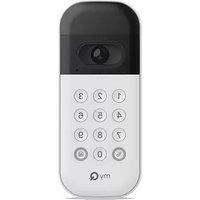
myQ Smart Garage Video Keypad - Keyboard CHAMBERLAIN - Free user manual and instructions
Find the device manual for free myQ Smart Garage Video Keypad CHAMBERLAIN in PDF.


| Product Type | Smart Garage Video Keypad with HD Camera |
| Brand | Chamberlain |
| Model | myQ Smart Garage Video Keypad (VKP1-MYQ, VKP1-LM, VKP1-RJO) |
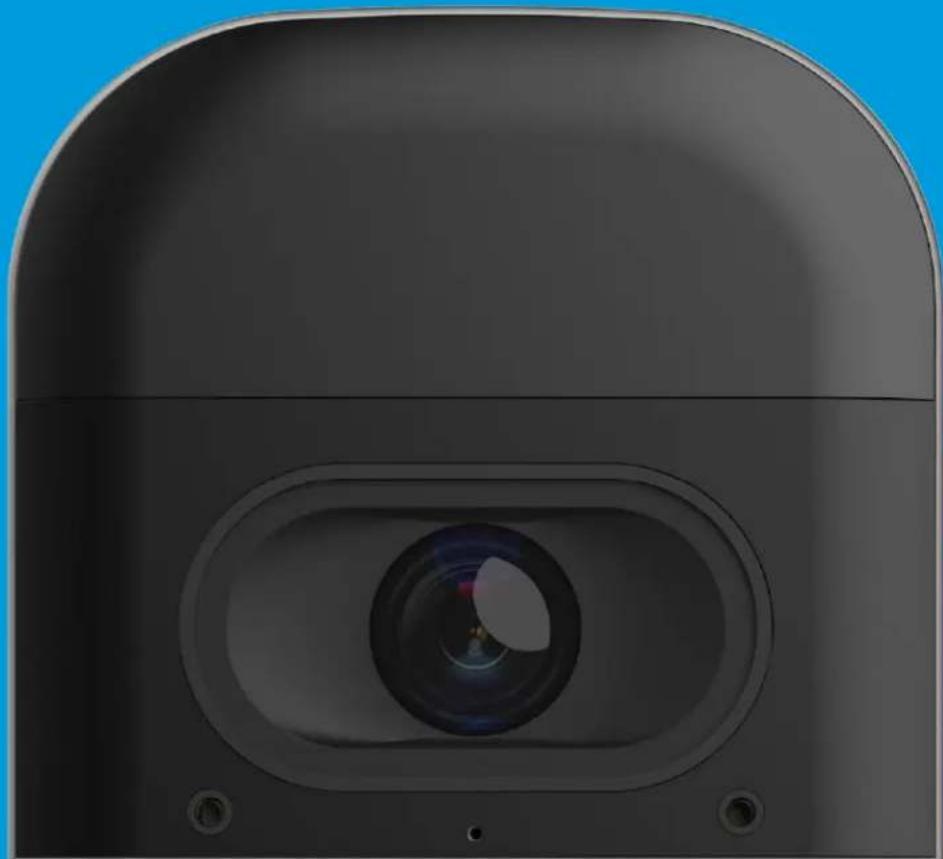
| Camera | HD 1080p wide-angle with night vision |
| Audio | Two-way with microphone and speaker |
| Sensors | PIR motion detection, ambient light sensor |
| Power | Rechargeable lithium-ion battery (charges via included USB cable, up to 10 h) |
| Estimated battery life | Several months depending on usage (not specified) |
| Connectivity | Wi-Fi 2.4 GHz, Bluetooth for setup |
| Weather resistance | Sealed for -20 to 50°C (-4 to 122°F) |
| Main functions | PIN code open/close, video call, live streaming, motion detection, customizable notifications |
| Number of PIN codes | Up to 16 unique PIN codes |
| Buttons | Illuminated keys, call button, home button, reset button |
| LED indicators | Multiple colors for status (white, blue, green, red, magenta, orange) |
| Mounting | 20° tilt or swivel bracket included, wall mount with anti-theft security screw |
| Recommended mounting height | Minimum 1.5 m (5 ft) out of reach of children |
| Video storage | myQ Video Storage subscription (30-day free trial) — 30-day recording, person detection, enriched notifications |
| Compatibility | Residential garage door openers manufactured after January 1, 1993 |
| Mobile app | myQ (iOS/Android) for setup and control |
| Warranty | 1-year limited |
| Box contents | Video keypad, battery, USB cable, mounting bracket, screws, anchors, security screw |
Frequently Asked Questions - myQ Smart Garage Video Keypad CHAMBERLAIN
User questions about myQ Smart Garage Video Keypad CHAMBERLAIN
0 question about this device. Answer the ones you know or ask your own.
Ask a new question about this device
Download the instructions for your Keyboard in PDF format for free! Find your manual myQ Smart Garage Video Keypad - CHAMBERLAIN and take your electronic device back in hand. On this page are published all the documents necessary for the use of your device. myQ Smart Garage Video Keypad by CHAMBERLAIN.
USER MANUAL myQ Smart Garage Video Keypad CHAMBERLAIN
Product and Accessory
User Guide
natural_image
Close-up of a black camera lens mounted on a curved base, against a solid blue background (no text or symbols visible)
text_image
1 2 3Overview
What's in the Box
Specifications
Video Keypad Setup
Video Storage Plan
Additional Resources
Troubleshooting
my
Q®
Overview
What's in the Box: VKP1-MYQ MC | VKP1-LM MC
Hardware Bag:
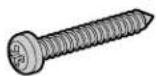
1" Mounting Screws (Qty. 2)
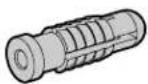
Wall Anchors (Qty. 2)

5/16" Security Screw
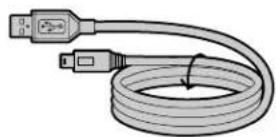
Charging Cable
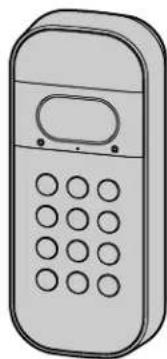
natural_image
Illustration of a mobile phone with keypad and control panel (no text or symbols)Video Keypad with Battery

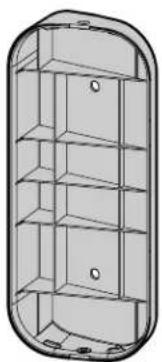
natural_image
3D wireframe diagram of a cylindrical container with multiple shelves and mounting holes (no text or symbols)20° Mounting Bracket Model: VKP1-MYQ
OR
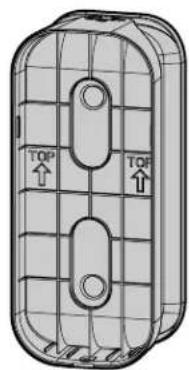
natural_image
Technical line drawing of a 3D object with grid pattern and two labeled 'TOP' arrows (no text or symbols beyond labels)Swivel Mounting Bracket Model: VKP1-LM
Video Keypad Accessories:
VKP1-MYQ-BT1
VKP1-MYQ-SMW
VKP1-MYQ-20DEG
VKP1-MYQ-0DEG
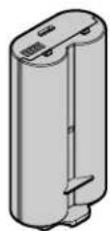
Rechargeable Battery + Charging Cable
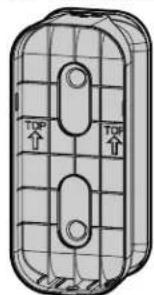
natural_image
Technical line drawing of a 3D rectangular component with grid lines and two circular features, no text or symbols present.Swivel Mount + Hardware Bag
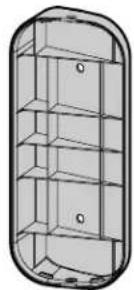
20° Mount + Hardware Bag
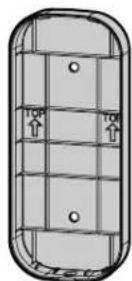
0° Mount + Hardware Bag
Recommended Tools:
Measure
Phillips
Screwdriver
Pencil
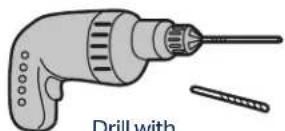
Drill with 1/4" Masonry Bit (Optional)
Overview
What's in the Box
Specifications
Video Keypad Setup
Video Storage Plan
Additional Resources
Troubleshooting

text_image
myQ®Overview
Specifications
For use with residential garage door openers manufactured after January 1, 1993. Make sure your garage door opener has a working light bulb because it is a programming indicator.
text_image
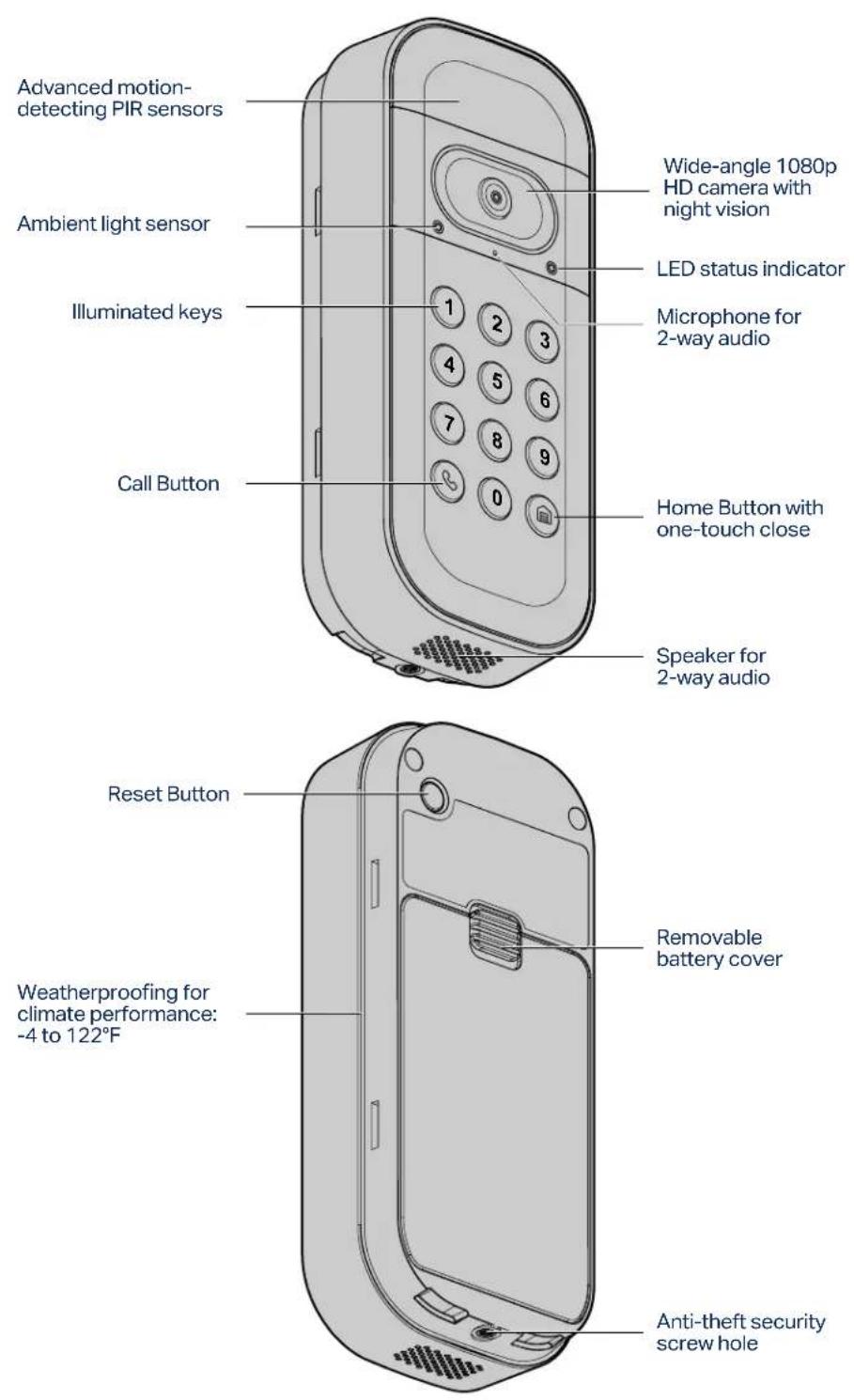
Advanced motion- detecting PIR sensors Ambient light sensor Illuminated keys Call Button Wide-angle 1080p HD camera with night vision LED status indicator Microphone for 2-way audio Home Button with one-touch close Speaker for 2-way audio Reset Button Removable battery cover Weatherproofing for climate performance: -4 to 122°F Anti-theft security screw holeOverview
Video Keypad Setup
Charge the Battery
Download the myQ App
Get Connected
Install Mounting Bracket
Secure to Mounting Bracket
Using Your Video Keypad
Video Storage Plan
Additional Resources
Troubleshooting

text_image
myQ®Video Keypad Setup
Charge the Battery
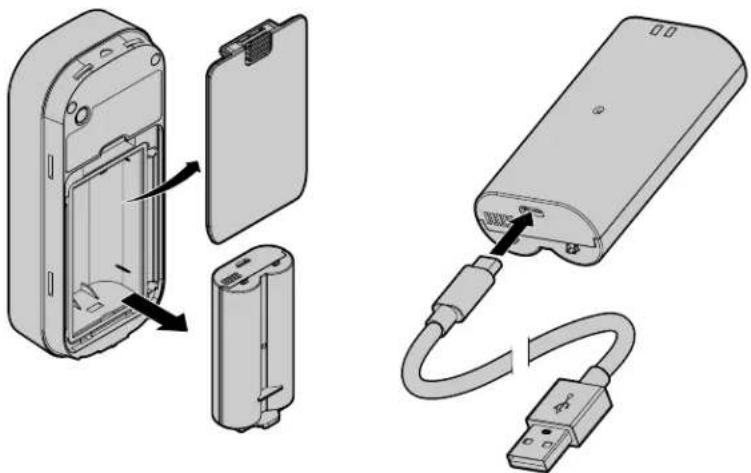
Detach the back cover of your Video Keypad, remove the battery by pushing the battery's bottom tab up, and remove the protective cover.
Plug the battery into a USB power source using the cable provided. Please fully charge the battery before setting up your Video Keypad. The battery is fully charged and ready to use when the LED light on the battery changes from red to green.
NOTE: Charging your battery can take up to 10 hours.
natural_image
Diagram showing two views of an electronic device: one open with battery casing and internal components, the other connected via USB cable (no text or symbols present)Re-insert the battery and attach the back cover. The cover will click into place once secure. Your device will begin to power on and the Video Keypad's LED indicator will cycle through multiple colors during the reboot sequence before flashing blue.
Download the myQ App
The myQ mobile app will guide you through setting up your Video Keypad. With your smart phone, download myQ by either:
- Scanning the second QR code on the packaging insert
- Searching for "myQ" in your phone's app store
- Visiting myQ.com/app on your phone's browser
Have your Wi-Fi password available before proceeding.
Get Connected
To connect your Video Keypad, stay near your installed garage door opener. Do not mount the keypad until a later step.
In the myQ app, select the + icon from the home screen and select Device.
When prompted, select Video Solution, followed by Video Keypad, and follow the in-app instructions.
Once you've completed setup within the app, let's verify your keypad is connected to your opener and able to operate the garage door:
- Enter the PIN you created on your keypad
- Press the Home Button
- Confirm the door has moved

Overview
Video Keypad Setup
Charge the Battery
Download the myQ App
Get Connected
Install Mounting Bracket
Secure to Mounting Bracket
Using Your Video Keypad
Video Storage Plan
Additional Resources
Troubleshooting

text_image
myQ®Video Keypad Setup
Install Mounting Bracket
Select a location to mount your Video Keypad at a minimum height of 5 feet (1.5 m) out of reach of small children. When selecting a mounting location, consider the visual you want the camera to capture and the convenience of its placement:
- Are there any other entry points to my home I want to view?
• Is there a direction down the street I would prefer to see? - Which side of my home is more likely to have activity I'd like to view?
- Is the keypad installed in a location that is convenient to access?
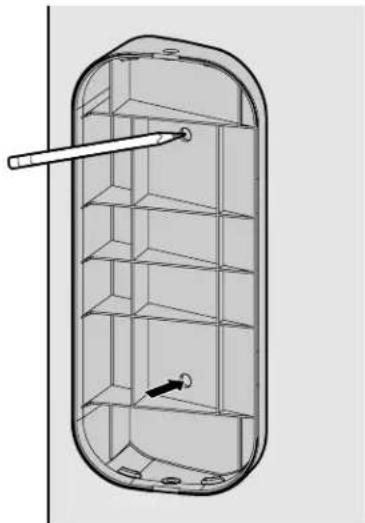
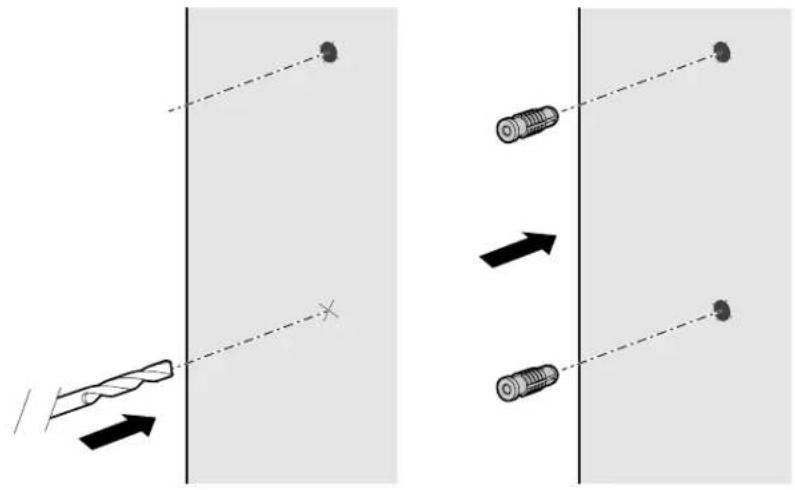
Begin by using the included mounting bracket as a template to mark the position of the bracket's mounting holes with a pen or pencil. Please note, the location of the holes may differ from your existing keypad (if applicable).
natural_image
Technical line drawing of a cylindrical device with internal shelves and a pointer, no text or symbols presentIf installing your Video Keypad on stucco, brick, or concrete:
Drill holes in your wall with a 1/4" masonry bit, then insert the included wall anchors by pushing them into place or lightly tapping with a hammer. If installing on wood or vinyl siding the wall anchors are not needed, and you can skip this step.
text_image
Diagram illustrating a mechanical or optical setup with labeled components and directional arrows, likely illustrating a motion or interaction.Overview
Video Keypad Setup
Charge the Battery
Download the myQ App
Get Connected
Install Mounting Bracket
Secure to Mounting Bracket
Using Your Video Keypad
Video Storage Plan
Additional Resources
Troubleshooting

text_image
myQ®Video Keypad Setup
Install Mounting Bracket
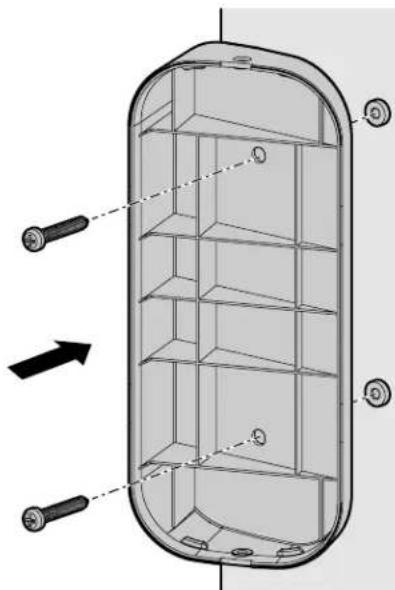
Position the mounting bracket so that the Video Keypad is at your preferred orientation. If using the 20^ mount, the bracket can be flipped to adjust the angle depending on your surroundings. We recommend positioning the keypad to be angled toward your driveway.
Using the two Mounting Screws and a Phillips screwdriver, secure the bracket by driving the screws into the wall (or anchors, if installed) through the mounting holes until flush with the bracket.
natural_image
Technical diagram of a cylindrical device with internal shelves and mounting holes, showing no text or symbols.Secure to Mounting Bracket
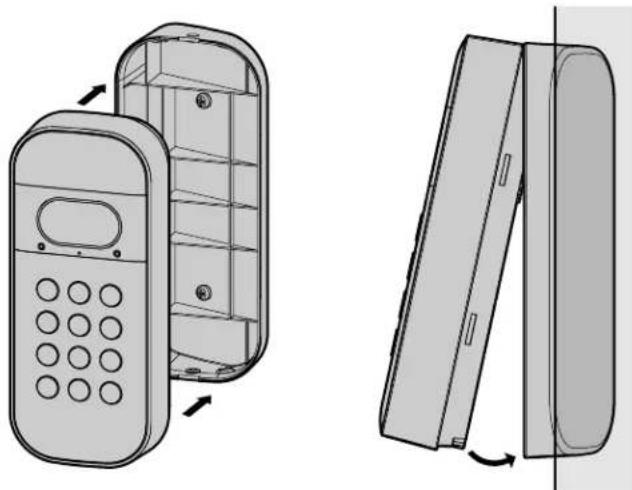
If using the 20^ or 0^ mounting bracket, slide the top of the Video Keypad into the ridges at the top of the bracket, then push the bottom of the keypad into the bracket.
If using the swivel mount, push the Video Keypad directly into the mount to snap it into place with the ridges on the sides of the bracket.
natural_image
Technical line drawing of a mobile phone casing and its internal panel, showing front and side views with no text or symbols.When removing the Video Keypad from any of the mounting brackets, firmly grasp the device from the bottom, then pull out and up.
Overview
Video Keypad Setup
Charge the Battery
Download the myQ App
Get Connected
Install Mounting Bracket
Secure to Mounting Bracket
Using Your Video Keypad
Video Storage Plan
Additional Resources
Troubleshooting

text_image
myQ®Video Keypad Setup
Secure to Mounting Bracket
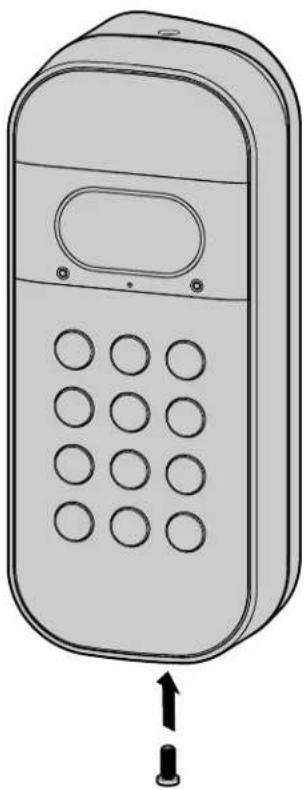
Once your Video Keypad is attached to the mounting bracket, use a Phillips screwdriver to tighten the included short security screw into the bottom of your device to secure it into place.
natural_image
Line drawing of a mobile phone with keypad and buttons (no text or symbols)DO NOT USE any screw other than the included short security screw to secure your Video Keypad. Using the wrong screw could damage the device.
Using Your Video Keypad
- To open your garage, enter an assigned PIN and then press the Home Button
- For one-touch close when your garage is open, press the Home Button

- To create an alert in the myQ app and see video in real time, press the Call Button 🔒
- Assign up to 16 unique PIN codes for family, friends and guests to open the garage door in the myQ app
• Live stream HD video 24/7 with night vision and 2-way audio
- Customize notifications and settings using the myQ app
Overview
Video Keypad Setup
Video Storage Plan
What Is a myQ Video Storage Plan?
What Additional Features Do I Get?
How Much Does It Cost?
How Do I Explore These Features?
Additional Resources
Contact Us
One Year Limited Warranty
Troubleshooting

text_image
myQ®Video Storage Plan
What Is a myQ Video Storage Plan?
A myQ Video Storage Plan allows you to record and view videos for up to 30-days so you can see what's happening in and around your garage even when you've missed a live event.
What Additional Features Do I Get?
Enhanced features such as People Detection and Rich Notifications enable more meaningful and actionable insights. View and filter recordings in the app or download and share your videos.
How Much Does It Cost?
Plans start at \$3.99 USD/month, with additional savings options for annual plans.
How Do I Explore These Features?
Your Video Keypad automatically comes with a free 30-day trial. Easily subscribe to a myQ Video Storage Plan at any time via the account settings of your app.
CLICK HERE for additional information.
| Features Included Subscription | ||
| Personalized PINs | √ | √ |
| Video Calling | √ | √ |
| 2-Way Audio | √ | √ |
| Live Video Streaming | √ | √ |
| Motion Detection | √ | √ |
| Activity Alerts | √ | √ |
| Person Detection | √ | |
| Video Event History | √ | |
| Rich Notifications | √ | |
Additional Resources
Contact Us
For additional information or assistance, please visit:
support.chamberlaingroup.com
Or give us a call:
+1 (800) 528-5880
One Year Limited Warranty
The Chamberlain Group LLC warrants to the first consumer purchaser of this product that it is free from defect in materials and/or worksmanship for a period of 1 year from the date of purchase.
Please refer to the label on the battery to properly recycle and dispose of the battery.
Overview
Video Keypad Setup
Video Storage Plan
Additional Resources
Troubleshooting

text_image
myQ®Troubleshooting
Reset Wi-Fi
To clear existing Wi-Fi settings and connect to a new network, press and hold the Reset Button for 10 or more seconds before releasing. The LED will become solid blue before slowly blinking blue. Once the LED is blinking blue, open myQ and follow the in-app instructions to connect to a new network.
Factory Reset
To reset the device and clear all settings, reset the Wi-Fi following the instructions above. Once the LED is blinking blue, press and hold the Reset Button again for an additional 10 or more seconds before releasing. The LED will become solid magenta before transitioning to the device boot sequence.
| LED Color What It Means | ||
 | Solid White Device online and recording | |
 | Slow Blinking White Call Button pressed | |
 | Solid Blue | Bluetooth connected |
| Reset Button pressed to clear Wi-Fi (first press) | ||
 | Slow Blinking Blue Bluetooth discovery mode | |
 | Solid Green User viewing the live stream | |
 | Slow Blinking Green | Device connected to Wi-Fi and is connecting to the Video Cloud |
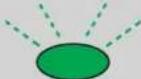 | Fast Blinking Green | Valid PIN entered and Home Button pressed |
| Home Button pressed (one-touch close) | ||
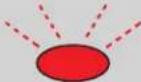 | Fast Blinking Red | Invalid PIN entered and Home Button pressed (PIN failed) |
 | Solid Magenta | Reset Button pressed to factory reset the device and clear all settings (second press) |
 | Slow Blinking Magenta | Firmware update in progress |
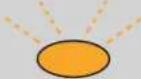 | Fast Blinking Amber | Valid PIN entered and Home Button pressed with remaining battery capacity 5% or less |
 | Alternating:Blue → Green | Device has Wi-Fi credentials, connecting to network |
 | Alternating: Magenta → Amber → Blue → Green | Device reboot in progress |
 | ||
Overview
Video Keypad Setup Video Storage Plan Additional Resources Troubleshooting

text_image
myQ®WARNING
To prevent possible SERIOUS INJURY or DEATH from a moving gate or garage door:
- Install Keyless Entry Control within sight of garage door, out of reach of small children at a minimum height of 5 feet (1.5 m) above floors, landings, steps or any other adjacent walking surface, and away from ALL moving parts of door.
- ALWAYS keep remote controls out of reach of children. NEVER permit children to operate or play with remote controls.
- Activate gate or door ONLY when it can be seen clearly, is properly adjusted, and there are no obstructions to door travel.
- ALWAYS keep gate or garage door in sight until completely closed. NEVER permit anyone to cross path of moving gate or door.

WARNING: This product can expose you to chemicals including lead, which are known to the State of California to cause cancer or birth defects or other reproductive harm. For more information go to www.P65Warnings.ca.gov.
NOTICE: This device complies with Part 15 of the FCC rules and Industry Canada's license-exempt RSSs. Operation is subject to the following two conditions: (1) this device may not cause harmful interference, and (2) this device must accept any interference received, including interference that may cause undesired operation.
Any changes or modifications not expressly approved by the party responsible for compliance could void the user's authority to operate the equipment.
This device must be installed to ensure a minimum 20 cm (8 in.) distance is maintained between users/bystanders and device.
This device has been tested and found to comply with the limits for a Class B digital device, pursuant to part 15 of the FCC rules and Industry Canada ICES standard. These limits are designed to provide reasonable protection against harmful interference in a residential installation. This equipment generates, uses and can radiate radio frequency energy and, if not installed and used in accordance with the instructions, may cause harmful interference to radio communications. However, there is no guarantee that interference will not occur in a particular installation. If this equipment does cause harmful interference to radio or television reception, which can be determined by turning the equipment off and on, the user is encouraged to try to correct the interference by one or more of the following measures:
- Reorient or relocate the receiving antenna.
- Increase the separation between the equipment and receiver.
- Connect the equipment into an outlet on a circuit different from that to which the receiver is connected.
- Consult the dealer or an experienced radio/TV technician for help.
The device for operation in the band 5150-5250 MHz is only for indoor use to reduce the potential for harmful interference to co-channel mobile satellite systems.
myQ® and the myQ logo are registered trademarks of The Chamberlain Group LLC. Wi-Fi® and the Wi-Fi logo are registered trademarks of Wi-Fi Alliance. The Bluetooth® word mark and logos are registered trademarks owned by Bluetooth SIG, Inc. All other trademarks and trade names are those of their respective owners and any use of such marks by The Chamberlain Group is under license. Patented and patents pending. See ChamberlainGroup.com/patents.
© 2023 myQ All Rights Reserved. Your opening and use constitutes acceptance of, and is subject to, License Agreement and Terms of Use available at myQ.com/agreement.
©2023 The Chamberlain Group LLC
All Rights Reserved.
114-5890-000
Guía del usuario
natural_image
Close-up of a black camera lens mounted on a flat-screen device (no text or symbols visible)
text_image
1 2 3Vista general
Qué hay en la caja
Especificaciones
natural_image
Illustration of a mobile phone with keypad and control panel (no text or symbols)natural_image
3D wireframe diagram of a cylindrical container with shelves and mounting holes (no text or symbols)natural_image
Technical line drawing of a 3D mechanical component with grid pattern and two vertical arrows labeled 'TOP' (no text or symbols beyond directional indicators)natural_image
Diagram showing two views of a device with internal components and connected cable (no text or symbols)natural_image
Technical line drawing of a cylindrical device with internal shelves and a pointer, no text or symbols presentnatural_image
Diagram showing two scenarios of a mechanical or optical setup with directional arrows and components, no text or symbols present.Vista general
natural_image
Technical diagram of a cylindrical device with internal compartments and mounting holes, showing no text or symbols.natural_image
Technical line drawing of a mobile phone casing and its internal panel, showing front and side views with no text or symbols.natural_image
Line drawing of a mobile phone with keypad and control panel (no text or symbols)support.chamberlaingroup.com
©2023 The Chamberlain Group LLC
natural_image
Illustration of a mobile phone with keypad and control panel (no text or symbols)natural_image
Technical line drawing of a cylindrical device with internal shelves and mounting holes (no text or symbols)natural_image
Technical line drawing of a 3D rectangular component with internal grid structure and two circular features (no text or symbols)natural_image
Diagram showing two views of a mobile phone battery pack and its connected cable, with no visible text or symbols.natural_image
Technical line drawing of a cylindrical device with shelves and a pointer, no text or symbols presenttext_image
Diagram illustrating a mechanical or optical setup with labeled components and directional arrows, possibly representing motion or signal propagation.Aperçu
natural_image
Technical diagram of a cylindrical device with internal shelves and mounting holes, showing no text or symbols.natural_image
Technical line drawing of a mobile phone casing and its internal panel, showing front and side views with no text or symbols.natural_image
Line drawing of a mobile phone with keypad and control buttons (no text or symbols)support.chamberlaingroup.com
Ou appelez-nous :
+1 (800) 528-5880
©2023 The Chamberlain Group LLC