
NDIS - Intercom CHAMBERLAIN - Free user manual and instructions
Find the device manual for free NDIS CHAMBERLAIN in PDF.


| Product Type | Wireless Doorbell and Intercom |
| Brand | Chamberlain |
| Model | NDIS / NDISC |
| Power Source | 4 x AA Alkaline batteries (not included); optional DC adapter 12V/300mA (intercom only, center positive) |
| Range | Up to 1000 ft (300 m) in open air |
| Frequency | 900 MHz secure digital radio link |
| Number of Channels | 4 secure channels plus paging channel |
| Communication Modes | Two-way, Voice Activation (VOX), Conference Mode, Monitor Mode |
| Volume Control | Up/Down buttons on intercom; doorbell volume adjustable via dipswitch #4 |
| Mounting Options | Doorbell: screws or double-sided tape; Intercom: rubber pads (or adhesive) |
| Battery Life | Up to 1 year depending on use; low battery alert (3 beeps every 10 min) |
| Temperature Recommendation | Lithium batteries recommended for colder environments |
| Maximum Intercoms per Network | Up to 12 intercoms |
| Warranty | 1 year limited warranty |
| Technical Support | 1-800-528-9131 |
| Website | www.chamberlain.com |
| Accessories Included | Mounting screws, double-sided tape, rubber pads |
| Optional Accessories | 41B238 12 Vdc 300mA Adapter |
| Dimensions (Approximate) | Doorbell: 5.5 x 3.5 x 1.5 in; Intercom: 5.5 x 3.5 x 1.5 in |
| Weight (with batteries) | Approximately 0.6 lb each |
| Cleaning and Maintenance | Clean with a dry cloth; avoid water and solvents |
| Safety and Compliance | FCC Part 15 Class B; IC compliant; no user-serviceable parts except battery |
Frequently Asked Questions - NDIS CHAMBERLAIN
User questions about NDIS CHAMBERLAIN
0 question about this device. Answer the ones you know or ask your own.
Ask a new question about this device
Download the instructions for your Intercom in PDF format for free! Find your manual NDIS - CHAMBERLAIN and take your electronic device back in hand. On this page are published all the documents necessary for the use of your device. NDIS by CHAMBERLAIN.
USER MANUAL NDIS CHAMBERLAIN
Models NDIS and NDISC
WIRELESS DOORBELL AND INTERCOM
Carton InventoryOverview
The Wireless Doorbell and Intercom can determine who is at the door from anywhere in the house. The doorbell and intercom have up to a 1000 foot (300 m) range and use a 900 MHz secure digital radio link. The intercom is compatible with various Chamberlain Wireless Products. The doorbell and intercom can be programmed to create a new network or add to an existing network.
THEORY OF OPERATION
To place a call to the intercom press the call button on the front of the doorbell. To answer the call press and hold the talk button on the intercom. Once the call is answered, a secure connection is made between the two devices. The call button on the doorbell does not need to be pressed to talk, however the talk button on the intercom must be held to talk. Release the talk button to hear a response. After 30 seconds of inactivity the doorbell and intercom will time out and the call is ended. If a call is not answered within 30 seconds the intercom/doorbell will time out. Refer to the Operation section for more information.

Doorbell
1
111
Mounting Tape


Intercom
○○
Rubber Pads
Assemble
INTERCOM
1 Install 4 AA Alkaline batteries (not provided).
2 Adhere rubber pads to bottom.
Repeat Steps 1 and 2 for any additional intercoms.
NOTE: A DC Adapter (not provided) can also be used to power the intercom. In this case, the channel lights will remain on.


DOORBELL
1 Install 4 AA Alkaline batteries (not provided). (Lithium batteries recommended for colder environments.)

Program Doorbell to Intercom to Create New Network
To create a new network between the intercom and doorbell follow the steps below. To add the intercom and doorbell into an existing network refer to the "Program Intercom and Doorbell into Existing Network" section on the following page.
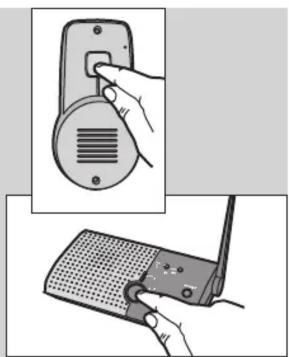
1 Press and hold the learn button on the intercom until a beep is heard.
2 Within 10 seconds press and hold the Learn button on the doorbell until a beep is heard.


3 Wait about 30 seconds for the devices to sync, then test by pressing the call button on the doorbell. The call will be heard on the intercom. Press and hold the talk button on the intercom to answer the call.
NOTE: If after pressing the call button a connection is not made, wait until the devices have timed out and try again.
Program Intercom and Doorbell into Existing Network
Do not program the new intercom and doorbell to each other before adding them to the existing network or they will form a separate network and the memory will need to be cleared. First, program the intercom to the existing network, then program the doorbell. Before beginning, ensure that all intercom are on the same channel (refer to Channel Button in the Operation section).
INTERCOM
1 Press and hold the learn button on the new intercom until a beep is heard.

2 Within 10 seconds press and hold the learn button on any intercom in the existing network until a beep is heard. Wait until all the lights go out on the intercom (it may take up to 3-1/2 minutes for a secure network to be established).
3 Test by holding the talk button on the new intercom until a beep is heard. This will initiate a call to the other intercoms in the network. Press and hold the talk button on any network intercom to answer the call.

DOORBELL
1 To add the doorbell to the network, press and hold the learn button on any intercom in the existing network until a beep is heard.
2 Within 10 seconds press and hold the learn button on the new doorbell until a beep is heard.
3 Wait about 30 seconds for the intercoms to sync, then test by pressing the call button on the doorbell. The call will be heard on the intercoms in the network. Press and hold the talk button on any intercom to reply.


Repeat for any additional intercoms or doorbells.
Mount Doorbell
Choose a mounting location for the doorbell that is within range of the intercom(s) to ensure the doorbell will work properly. The doorbell can be mounted using the provided screws or by using the double-sided mounting tape. It is recommended to use the mounting tape on surfaces such as metal or glass.
MOUNTING WITH SCREWS
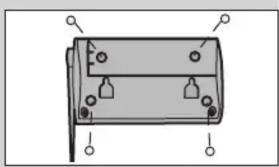
1 Mount doorbell with small silver screws. Screw the top two screws halfway into the mounting surface. Place back of doorbell over screws. Tighten screws.

2 Put the remaining silver screws into the bottom holes of doorbell. Tighten screws.

MOUNTING WITH TAPE
1 Clean back of doorbell and mounting surface using the alcohol wipe.
2 Peel off white paper from mounting tape. Firmly press mounting tape on back of doorbell.
3 Peel paper from mounting tape. Firmly press doorbell onto mounting surface.


Secure Cover
1 Secure cover with the two large black screws.


On/Off: To turn intercom ON, press talk button. To turn intercom OFF, hold down the Volume DOWN button for 3 seconds.
Volume: Pressing the Volume DOWN button will lower the volume and pressing the Volume UP button will increase the volume.
Talk Button
To answer a call: Press and hold the Talk button on the intercom to talk (the Active Light will come on). Release the Talk button when done talking to hear a response.
To initiate a call*: To initiate a call from one intercom to another, press and hold the talk button until a beep is heard. All intercoms in the network that are on the same channel or on the paging channel will receive the call. Once a call is answered a secure connection is made between the two intercoms and other intercoms in the network cannot hear the conversation.
Channel Button: The intercom can be set to one of four secure channels or the paging channel (all channel lights are lit). The default channel for the intercom is the paging channel. An intercom on a channel can only hear an intercom on the same channel or on the paging channel. To choose a channel press the channel button to set intercom to one of four channels or the paging channel.
Voice Activation Mode (VOX): Voice Activation Mode (VOX) allows a call to be answered without pressing the Talk button. Once a call is heard on an intercom which has been set to VOX, a response can be given by speaking loudly into the intercom. There will be a slight delay when VOX is first activated by a voice, but the intercom will continue to transmit audio until the
speaking stops. To put intercom into VOX, place Dipswitch #1 to the UP position.

Conference Mode*: Conference Mode allows multiple intercoms to participate in a conversation compared to Normal Mode in which only two intercoms can communicate. All intercoms must be set to the same channel or the paging channel to be in Conference Mode. To put intercom in Conference Mode set Dipswitch #2 to UP position on all intercoms to be included in the conference.

Monitor Mode*: Monitor mode is used to monitor noise in a specific room. Place the intercom in the room that is to be monitored and press and hold the monitor button until a beep is heard. Any other intercom in the network can listen to that room. If a specific channel is selected for monitor mode then only other intercoms on that channel or on the paging channel can listen. Press the talk button to exit monitor mode. A beep will be heard indicating monitor mode is no longer active. Monitor mode functions only between intercoms, not with the doorbell. For extended monitor usage, consider using a plug-in transformer.
Battery: The AA Alkaline batteries (not provided) will last up to a year depending on use. When batteries are low intercom will emit three beeps every ten minutes.
DOORBELL
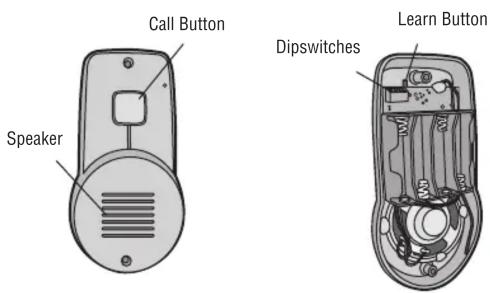
Call Button: To make a call, press and release the call button and all intercoms in the network will receive the signal. When the call is answered by an intercom, a secure channel is created between the two and the other intercoms in the network do not hear the conversation. Once a secure connection is made, the call button on the doorbell does not need to be pressed to speak.
Battery: The AA Alkaline batteries (not provided) will last up to a year depending on use. (Lithium batteries recommended for colder environments.)
Alternate Chimes: The doorbell can be set to ring with two different chime patterns, to identify which doorbell is signaling. To change chime pattern, set Dipswitch #2 to the OFF position.
Volume: To increase the doorbell volume, set Dipswitch #4 to the OFF position.
Sensitivity: To increase sensitivity on the doorbell set Dipswitch #3 to the OFF position.

* This feature is used for networks with multiple intercoms ONLY
Troubleshooting
Intercom does not function.
Check batteries in intercom. If using a DC Adapter ensure that it is plugged in. Ensure intercom is connected to a network. See Program. Ensure that intercoms are on the same channel. See Operation.
Intercom is not getting expected transmission range.
Keep antenna vertical. Keep intercom away from metal objects and electrical wiring. Cell phones, cordless phones, or other radio devices may also limit range.
Intercom beeps every ten minutes.
The battery is low in the intercom. Replace with AA Alkaline batteries or operate it with DC Adapter (not provided). A 12 volt, 300mA DC Adapter may be used (center positive polarity on the round plug).
Need to clear intercom's memory.
Press and hold Learn button, an initial beep will be heard. Continue to hold until a second beep is heard (about 6 seconds). Ensure other intercoms are not activated during this time. Once memory is clear the intercom can be programmed to a new network.
Static and feedback is heard in intercom.
The intercoms are too close to each other. A cordless phone, cell phone, or other radio devices can also cause static.
Intercom is sending audio while no buttons are pressed.
The sending intercom is set to Monitoring Mode or Voice Activation Mode and will activate when sound is heard. It can be taken out of Monitoring Mode by pressing the Talk button. It can be taken out of Voice Activation Mode (VOX) by setting Dipswitch #1 to DOWN position. See Operation.
Doorbell does not function.
Check batteries in doorbell. When you press the Call button you should hear a tone. Ensure doorbell is connected to a network. See Program Doorbell to Intercom.
The doorbell will not function when an intercom is in Monitor Mode.
Doorbell is not getting expected transmission range.
Keep doorbell away from metal objects and electrical wiring. Do not mount doorbell on a tree, masonry, or metal surface. When used in buildings with stucco or cement walls, the range is greatly reduced.
Doorbell beeps every ten minutes.
The battery is low in the doorbell. Replace with AA Alkaline batteries.
Need to clear doorbell's memory.
Press and hold Learn button, an initial beep will be heard. Continue to hold until a second beep is heard (about 6 seconds). Once memory is clear the doorbell can be programmed to a new network.
Intercom cannot be programmed to network.
A network may contain up to 12 intercoms. It may be necessary to clear the network and reprogram all the intercoms to the network. See Program Intercom and Doorbell into Existing Network.
The intercom does not connect to another intercom and a green light is on longer than 3-1/2 minutes.
The intercom is out of range. Place the intercom closer to the other intercoms in the network, with the antenna pointing up. The other intercom in the network has no power. Replace the batteries.
The intercom has not completed programming. Clear the intercom's memory and reprogram.
The intercom VOX mode is not working.
The intercom will take about 40 seconds to reactivate after responding to a doorbell call.
NOTE: Manufacturer is not responsible for any radio or TV interference caused by unauthorized modifications to this equipment. Changes or modifications not expressly approved by the manufacturer could void the authority to operate the equipment.
Warranty
ONE YEAR LIMITED WARRANTY
The Chamberlain Group, Inc. warrants to the fi rst retail purchaser of this product that it is free from defect in materials and/or workmanship for a period of 1 year from the date of purchase.
This equipment has been tested and found to comply with the limits for a Class B digital device, pursuant to Part 15 of the FCC Rules. These limits are designed to provide reasonable protection against harmful interference in a residential installation. This equipment generates, uses and can radiate radio frequency energy and, if not installed and used in accordance with the instructions, may cause harmful interference to radio communications. However, there is no guarantee that interference will not occur in a particular installation. If this equipment does cause harmful interference to radio or television reception, which can be determined by turning the equipment off and on, the user is encouraged to try to correct the interference by one or more of the following measures:
- Reorient or relocate the receiving antenna.
- Increase the separation between the equipment and receiver.
- Connect the equipment into an outlet on a circuit different from that to which the receiver is connected.
- Consult the dealer or an experienced radio/TV technician for help.
Accessories
41B238 12 Vdc 300mA Adapter
FOR TECHNICAL SUPPORT DIAL OUR TOLL FREE NUMBER:
1-800-528-9131
www.chamberlain.com
NOTICE: To comply with FCC and or Industry Canada rules (IC), adjustment or modifications of this receiver and/or transmitter are prohibited, except for changing the code setting or replacing the battery. THERE ARE NO OTHER USER SERVICEABLE PARTS.
Tested to Comply with FCC Standards FOR HOME OR OFFICE USE. Operation is subject to the following two conditions: (1) this device may not cause harmful interference, and (2) this device must accept any interference received, including interference that may cause undesired operation.


- MODELS NDIS AND NDISC
- WIRELESS DOORBELL AND INTERCOM
- CARTON INVENTORYOVERVIEW
- THEORY OF OPERATION
- ASSEMBLE
- INTERCOM
- DOORBELL
- PROGRAM DOORBELL TO INTERCOM TO CREATE NEW NETWORK
- PROGRAM INTERCOM AND DOORBELL INTO EXISTING NETWORK
- MOUNT DOORBELL
- MOUNTING WITH SCREWS
- MOUNTING WITH TAPE
- SECURE COVER
- TALK BUTTON
- TROUBLESHOOTING
- INTERCOM DOES NOT FUNCTION
- INTERCOM IS NOT GETTING EXPECTED TRANSMISSION RANGE
- INTERCOM BEEPS EVERY TEN MINUTES
- NEED TO CLEAR INTERCOM'S MEMORY
- STATIC AND FEEDBACK IS HEARD IN INTERCOM
- INTERCOM IS SENDING AUDIO WHILE NO BUTTONS ARE PRESSED
- DOORBELL DOES NOT FUNCTION
- DOORBELL IS NOT GETTING EXPECTED TRANSMISSION RANGE
- DOORBELL BEEPS EVERY TEN MINUTES
- NEED TO CLEAR DOORBELL'S MEMORY
- INTERCOM CANNOT BE PROGRAMMED TO NETWORK
- THE INTERCOM DOES NOT CONNECT TO ANOTHER INTERCOM AND A GREEN LIGHT IS ON LONGER THAN 3-1/2 MINUTES
- THE INTERCOM VOX MODE IS NOT WORKING
- WARRANTY
- ONE YEAR LIMITED WARRANTY
- ACCESSORIES
- FOR TECHNICAL SUPPORT DIAL OUR TOLL FREE NUMBER
Brand : CHAMBERLAIN
Model : NDIS
Category : Intercom