
NTD2 - Intercom CHAMBERLAIN - Free user manual and instructions
Find the device manual for free NTD2 CHAMBERLAIN in PDF.


| Product Type | Wireless Portable Indoor/Outdoor Intercom |
| Brand | Chamberlain |
| Model | NTD2 |
| Communication Range | Up to 1000 ft (304.8 m) |
| Frequency | 900 MHz Secure Digital Radio Link |
| Network Capacity | Up to 12 Intercoms per Network |
| Power Source | 4 AA Alkaline Batteries (not included) |
| Battery Life | Up to 1 Year (alkaline); Lithium recommended for cold |
| Mounting Options | Screws or Double-Sided Tape |
| Weight (with batteries) | Approximately 0.5 lbs (227 g) |
| Dimensions (approx.) | 5.5 x 3.5 x 1.2 in (140 x 89 x 30 mm) |
| Talk Button | Press and hold to broadcast; creates secure private channel |
| Dip Switches | Switch 1: Call Mode; Switch 3: Sensitivity; Switch 4: Volume; Switch 2: Not used |
| Programming | Learn button; automatic secure network setup (up to 3.5 min) |
| Memory Clear | Press and hold Learn button until second beep (~6 sec) |
| Low Battery Warning | 3 beeps every 10 minutes |
| FCC Compliance | Part 15 Class B; for home or office use |
| Warranty | 1 Year Limited Warranty |
| Customer Support | Toll-free: 1-800-528-9131; www.chamberlain-DIY.com |
| Included Accessories | Mounting screws, double-sided tape, alcohol wipe, black screws for cover |
Frequently Asked Questions - NTD2 CHAMBERLAIN
User questions about NTD2 CHAMBERLAIN
0 question about this device. Answer the ones you know or ask your own.
Ask a new question about this device
Download the instructions for your Intercom in PDF format for free! Find your manual NTD2 - CHAMBERLAIN and take your electronic device back in hand. On this page are published all the documents necessary for the use of your device. NTD2 by CHAMBERLAIN.
USER MANUAL NTD2 CHAMBERLAIN
Wireless Portable Indoor/Outdoor
Intercom
Overview
The Intercom has up to a 1000' range and allows multiple simultaneous conversations, using a 900 MHz secure digital radio link. The intercoms form an exclusive network and respond only to other intercoms in the network.
Carton Inventory

Call Mode: In Call Mode the intercom may only be used to call the intercom network and will not be able to hear conversation from within the network.
To put intercom into Call Mode place Dipswitch #1 to the UP position.

Volume: To increase the intercom volume, place Dipswitch #4 to the UP position.

Sensitivity: To increase sensitivity on the intercom set Dipswitch #3 to the UP position.
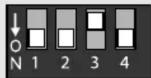
NOTE: Dipswitch #2 is not used.
Operation & Features
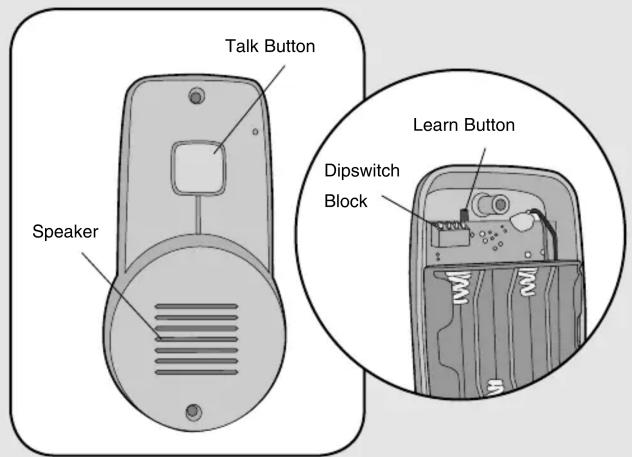
Talk Button: To talk, hold down the Talk button and all intercoms in the network will receive the signal. When holding down the Talk button on a different intercom, a secure channel is created and the other intercoms in the network do not hear the conversation.
Battery: The AA Alkaline batteries (not provided) will last up to a year depending on use (Lithium batteries recommended for colder environments). When the batteries are low it will emit three beeps every ten minutes.
Mounting Intercom
The Intercom can be mounted by using the included screws or by using the double-sided mounting tape. It is recommended to use the mounting tape on surfaces such as metal or glass.
Mounting with Screws
Step 1

Mount Intercom with small silver screws. See mounting template on page 3. Screw the top two screws halfway into the mounting surface. Place back of intercom over screws. Tighten screws.
Step 2
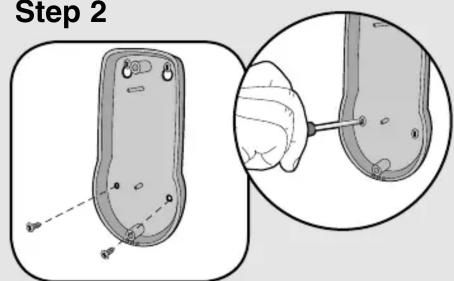
Put the remaining silver screws into the bottom holes of intercom. Tighten screws.
Mounting with Tape
Step 1
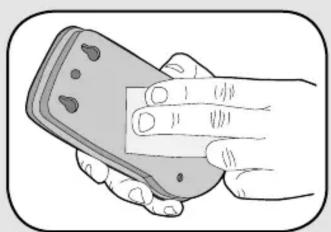
Clean back of intercom and mounting surface using the alcohol wipe.
Step 2

Peel off white paper from mounting tape. Firmly press mounting tape on back of intercom.
Step 3
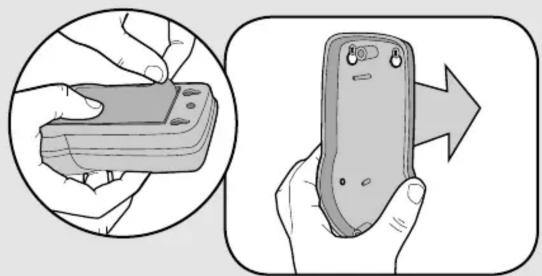
Peel paper from mounting tape. Firmly press intercom onto mounting surface.
Assemble Intercom

Install 4 AA Alkaline batteries (not provided). (Lithium batteries recommended for colder environments.)
Programming Intercom
The intercom must be programmed to at least one other intercom to become a network or it can be programmed into an existing network.
Create New Network

Before programming, clear memory on all intercoms. Press the Learn button on the new intercom until a beep is heard. Within 10 seconds put the second intercom into Learn Mode (refer to table below).

Each intercom will emit a tone when entering programming mode. It may take up to 3-1/2 minutes for a secure network to be established.
Add to an Existing Network
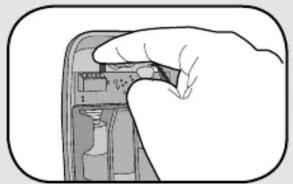
Press the Learn button on the new intercom until a beep is heard. Within 10 seconds put any networked intercom into Learn Mode (refer to table below).

Each intercom will emit a tone when entering programming mode. It may take up to 3-1/2 minutes for a secure network to be established. Repeat for any additional intercoms.
NOTE: Do not program new intercoms to each other before adding them to the network or they will form a separate network and the memory will need to be cleared.
Secure Cover

Secure cover with the two large black screws.
Troubleshooting
Intercom does not function.
Check batteries in Intercom. When you press the Talk button you should hear a tone.
Ensure Intercom is connected to a network.
See Assemble & Program.
Intercom is not getting expected transmission range.
Keep Intercom away from trees, metal objects and electrical wiring. Do not mount intercom on a tree, masonry, or metal surface.
Intercom beeps every ten minutes.
The battery is low in the intercom. Replace with AA Alkaline batteries.
Need to clear intercom's memory.
Press and hold Learn button, an initial beep will be heard. Continue to hold until a second beep is heard (about 6 seconds). Ensure other intercoms are not activated during this time. Once memory is clear the intercom can be programmed to a new network.
Intercom can not be programmed to network.
A network may contain up to 12 intercoms. It may be necessary to clear the network and reprogram all the intercoms to the network. See Programming Intercom.
NOTE: Manufacturer is not responsible for any radio or TV interference caused by unauthorized modifications to this equipment. Changes or modifications not expressly approved by the manufacturer could void the authority to operate the equipment.
One Year Limited Warranty
The Chamberlain Group, Inc. warrants to the first retail purchaser of this product that it is free from defect in materials and/or workmanship for a period of 1 year from the date of purchase.
This equipment has been tested and found to comply with the limits for a Class B digital device, pursuant to Part 15 of the FCC Rules. These limits are designed to provide reasonable protection against harmful interference in a residential installation. This equipment generates, uses and can radiate radio frequency energy and, if not installed and used in accordance with the instructions, may cause harmful interference to radio communications. However, there is no guarantee that interference will not occur in a particular installation. If this equipment does cause harmful interference to radio or television reception, which can be determined by turning the equipment off and on, the user is encouraged to try to correct the interference by one or more of the following measures:
- Reorient or relocate the receiving antenna.
- Increase the separation between the equipment and receiver.
- Connect the equipment into an outlet on a circuit different from that to which the receiver is connected.
- Consult the dealer or an experienced radio/TV technician for help.
FOR TECHNICAL SUPPORT DIAL OUR TOLL FREE NUMBER:
1-800-528-9131
www.chamberlain-DIY.com
NOTICE: To comply with FCC and or Industry Canada rules (IC), adjustment or modifications of this receiver and/or transmitter are prohibited, except for changing the code setting or replacing the battery. THERE ARE NO OTHER USER SERVICEABLE PARTS.
Tested to Comply with FCC Standards FOR HOME OR OFFICE USE. Operation is subject to the following two conditions: (1) this device may not cause harmful interference, and (2) this device must accept any interference received, including interference that may cause undesired operation.


- WIRELESS PORTABLE INDOOR/OUTDOOR
- INTERCOM
- OVERVIEW
- MOUNTING INTERCOM
- MOUNTING WITH SCREWS
- MOUNTING WITH TAPE
- PROGRAMMING INTERCOM
- TROUBLESHOOTING
- INTERCOM DOES NOT FUNCTION
- INTERCOM IS NOT GETTING EXPECTED TRANSMISSION RANGE
- INTERCOM BEEPS EVERY TEN MINUTES
- NEED TO CLEAR INTERCOM'S MEMORY
- INTERCOM CAN NOT BE PROGRAMMED TO NETWORK
- ONE YEAR LIMITED WARRANTY
Brand : CHAMBERLAIN
Model : NTD2
Category : Intercom