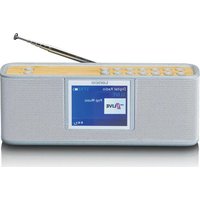
PDR-046 - Radio LENCO - Free user manual and instructions
Find the device manual for free PDR-046 LENCO in PDF.



| Product Type | Portable DAB+/FM Radio with Bluetooth and Alarm Clock |
| Brand and Model | Lenco PDR-046 |
| Dimensions | 180 x 55 x 68 mm (L x W x H) |
| Weight | 407 g |
| Power Supply | USB Type-C port, 5 V DC, 2 A (power adapter not included) |
| Built-in Battery | Lithium-ion 3.7 V, 2500 mAh (rechargeable, non-replaceable) |
| Battery Life | Not specified in the manual, estimate about 8-10 hours depending on usage |
| Display | 2.4-inch TFT color display |
| Connectivity | Bluetooth 5.0 (A2DP, AVRCP, HSP), 3.5 mm auxiliary input, USB Type-C port (charging) |
| Radio Reception | DAB+ (Band III: 174.928 - 239.2 MHz) and FM (87.5 - 108 MHz) with telescopic antenna |
| Number of Presets | 30 stations for DAB, 30 stations for FM |
| Audio Power | 2 x 3 W RMS |
| Frequency Response | 80 Hz - 16 kHz |
| Functions | DAB/FM radio, Bluetooth, auxiliary input, dual alarm, snooze, sleep timer, equalizer (Normal/Classic/Jazz/Pop/Rock/Voice), brightness adjustment |
| Care and Cleaning | Use a soft, dry cloth. Do not use solvents or petroleum-based liquids. |
| Safety | Do not open the device, avoid moisture and heat sources, use only the recommended adapter, keep batteries out of reach of children |
| Spare Parts and Repairability | No spare parts available. Battery non-replaceable. Repair only by an authorized professional. |
| General Information | Operating temperature: 0 to 40 °C. Warranty according to European legislation, contact the retailer. |
Frequently Asked Questions - PDR-046 LENCO
User questions about PDR-046 LENCO
0 question about this device. Answer the ones you know or ask your own.
Ask a new question about this device
Download the instructions for your Radio in PDF format for free! Find your manual PDR-046 - LENCO and take your electronic device back in hand. On this page are published all the documents necessary for the use of your device. PDR-046 by LENCO.
USER MANUAL PDR-046 LENCO
Model: PDR-045/PDR-046
USER MANUAL Portable DAB+/FM radio with Bluetooth
Usage of controls or adjustments or performance of procedures other than those specified herein may result in hazardous radiation exposure.
KEEP THESE INSTRUCTIONS IN MIND:
-
Do not cover or block any ventilation openings. When placing the device on a shelf, leave 5 cm (2") free space around the whole device.
-
Install in accordance with the supplied user manual.
-
Keep the device away from heat sources such as radiators, heaters, stoves, candles and other heat-generating products or naked flame. The device can only be used in moderate climates. Extremely cold or warm environments should be avoided. Working temperature between 0° and 35°C.
-
Avoid using the device near strong magnetic fields.
-
Electrostatic discharge can disturb normal usage of this device. If so, simply reset and restart the device following the instruction manual. During file transmission, please handle with care and operate in a static-free environment.
-
Warning! Never insert an object into the product through the vents or openings. High voltage flows through the product and inserting an object can cause electric shock and/or short circuit internal parts. For the same reason, do not spill water or liquid on the product.
-
Do not use in wet or moist areas such as bathrooms, steamy kitchens or near swimming pools.
-
The device shall not be exposed to dripping or splashing and make sure that no objects filled with liquids, such as vases, are placed on or near the apparatus.
-
Do not use this device when condensation may occur. When the unit is used in a warm wet room with damp, water droplets or condensation may occur inside the unit and the unit may not function properly; let the unit stand in power OFF for 1 or 2 hours before turning on the power: the unit should be dry before getting any power.
-
Although this device is manufactured with the utmost care and checked several times before leaving the factory, it is still possible that problems may occur, as with all electrical appliances. If you notice smoke, an excessive build-up of heat or any other unexpected phenomena, you should disconnect the plug from the main power socket immediately.
-
This device must operate on a power source as specified on the specification label. If you are not sure of the type of power supply used in your home, consult your dealer or local power company.
-
Keep away from animals. Some animals enjoy biting on power cords.
-
To clean the device, use a soft dry cloth. Do not use solvents or petrol based fluids. To remove severe stains, you may use a damp cloth with dilute detergent.
-
The supplier is not responsible for damage or lost data caused by malfunction, misuse, modification of the device or battery replacement.
-
Do not interrupt the connection when the device is formatting or transferring files. Otherwise, data may be corrupted or lost.
-
If the unit has USB playback function, the USB memory stick should be plugged into the unit directly. Don't use an USB extension cable because it can cause interference resulting in failing of data.
-
The rating label has been marked on the bottom or back panel of the device.
-
This device is not intended for use by people (including children) with physical, sensory or mental disabilities, or a lack of experience and knowledge, unless they're under supervision or have received instructions about the correct use of the device by the person who is responsible for their safety.
-
This product is intended for non professional use only and not for commercial or industrial use.
-
Make sure the unit is adjusted to a stable position. Damage caused by using this product in an unstable position vibrations or shocks or by failure to follow any other warning or precaution contained within this user manual will not be covered by warranty.
-
Never remove the casing of this device.
-
Never place this device on other electrical equipment.
-
Do not allow children access to plastic bags.
-
Only use attachments/accessories specified by the manufacturer.
-
Refer all servicing to qualified service personnel. Servicing is required when the device has been damaged in any way, such as the power supply cord or the plug, when liquid has been spilled or objects have fallen into the device, when the device has been exposed to rain or moisture, does not operate normally, or has been dropped.
-
Long exposure to loud sounds from personal music players may lead to temporary or permanent hearing loss.
-
If the product is delivered with power cable or AC power adaptor:
- If any trouble occur, disconnect the AC power cord and refer servicing to qualified personnel.
- Don't step on or pinch the power adaptor. Be very careful, particularly near the plugs and the cable's exit point. Do not place heavy items on the power adaptor, which may damage it. Keep the entire device out of children's reach! When playing with the power cable, they can seriously injure themselves.
- Unplug this device during lightning storms or when unused for a long period.
- The socket outlet must be installed near the equipment and must be easily accessible.
- Do not overload ac outlets or extension cords. Overloading can cause fire or electric shock.
● Devices with class 1 construction should be connected to a main socket outlet with a protective earthed connection.
- Devices with class 2 construction do not require a earthed connection.
● Always hold the plug when pulling it out of the main supply socket. Do not pull the power cord. This can cause a short circuit.
- Do not use a damaged power cord or plug or a loose outlet. Doing so may result in fire or electric shock.
- If the product contains or is delivered with a remote control containing coin/cell batteries:
Warning:
- "Do not ingest battery, Chemical Burn Hazard" or equivalent working.
- [The remote control supplied with] This product contains a coin/button cell battery. If the battery is swallowed, it can cause severe internal burns in just 2 hours and can lead to death.
- Keep new and used batteries away from children.
- If the battery compartment does not close securely, stop using the product and keep it away from children.
- If you think batteries might have been swallowed or placed inside any part of the body, seek immediate medical attention.
- Caution about the use of Batteries:
- Danger of explosion if battery is incorrectly replaced. Replace only with the same or equivalent type.
● Battery cannot be subjected to high or low extreme temperatures, low air pressure at high altitude during use, storage or transportation.
● Replacement of a battery with an incorrect type that can result in an explosion or the leakage of flammable liquid or gas.
- Disposal of a battery into fire or a hot oven, or mechanically crushing or cutting of a battery, that can result in an explosion.
- Leaving a battery in an extremely high temperature surrounding environment that can result in an explosion or that leakage of flammable liquid or gas.
● A battery subjected to extremely low air pressure that may result in an explosion or the leakage of flammable liquid or gas.
- Attention should be drawn to the environmental aspects of battery disposal.
INSTALLATION
- Unpack all parts and remove protective material.
- Do not connect the unit to the mains before checking the mains voltage and before all other connections have been made.
*Those instruction are related only to products using power cable or AC power adaptor.
Accessories:
User manual

TYPE-C USB Cable

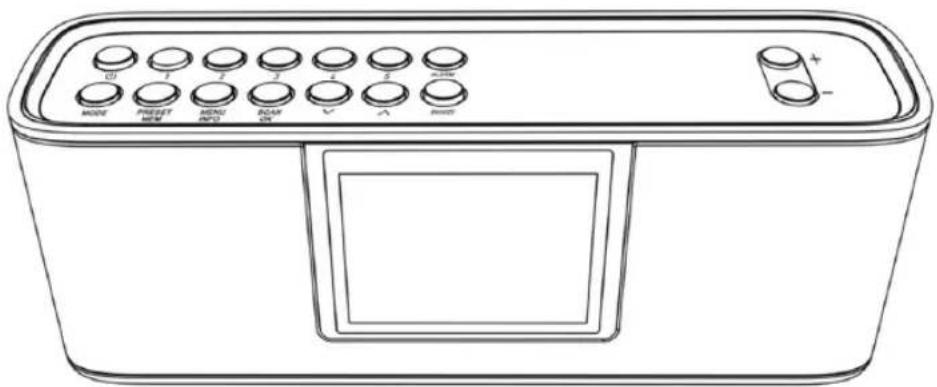
Device Overview
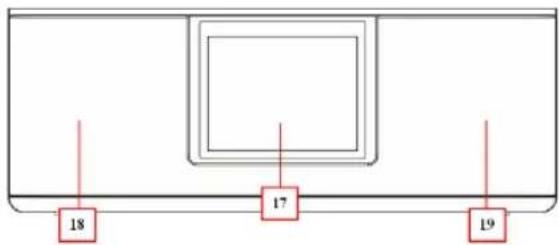
Front View
Top View
flowchart
graph TD
    A["5"] --> B["1"]
    C["9"] --> D["2"]
    E["15"] --> F["3"]
    G["8"] --> H["4"]
    I["7"] --> J["6"]
    K["10"] --> L["11"]
    M["12"] --> N["13"]
    O["14"] --> P["15"]
    Q["16"] --> R["17"]
    S["+"] --> T["-"]
    U["MODL"] --> V["PRISCAT"]
    W["MINI"] --> X["MINTU"]
    Y["ACAN"] --> Z["LUE"]
    AA["XLMIN"] --> AB["SMOOS"]
    AC["+"] --> AD["-"]
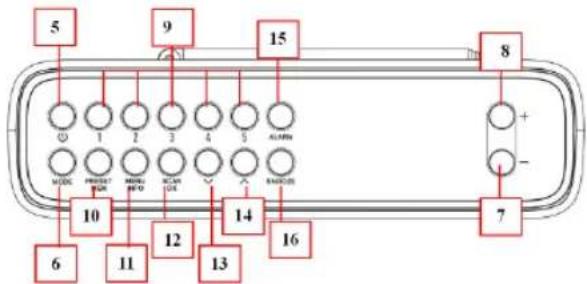
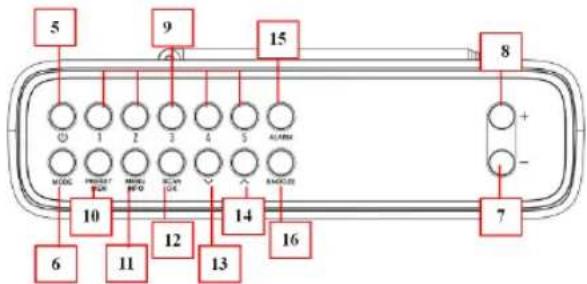
| Item | Description | |
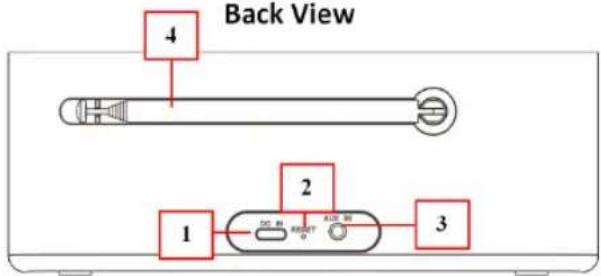
| 01 | DC IN | DC 5V-2A, TYPE-C USB charging port |
| 02 | RESET | Soft reset |
| 03 | AUX IN | For audio input |
| 04 | Telescopic Antenna | Improve DAB/FM reception |
| 05 | [0360] | When charger is connected: Longpress to switch on/offIn battery mode: Shortpress to switch on,longpress to switch off.When the clock alarm sounds, pressing this button will turn off the alarm. |
| 06 | Mode | Switch between FM radio, DAB radio, Bluetooth & AUX in mode |
| 07 | Volume — | Short press to reduce volume at one level.Long press to fast reduce volume |
| 08 | Volume + | Short press to increase volume at one level.Long press to fast increase volume |
| 09 | 1 | In DAB/FM mode:Long press to directly store to Preset 1, 2, 3, 4 or 5Short press to directly access Preset 1, 2, 3, 4 or 5 |
| 2 | ||
| 3 | ||
| 4 | ||
| 5 | ||
| 10 | PRESET/MEM | In DAB/FM mode: Short press to Preset Recall.Long press to store a preset. |
| 11 | MENU/ INFO | In DAB/FM mode: Short press change screen display information. Long press enter settings menu.In menu page: short press Menu/info to go back to previous menu page/option.Long press to exit the menu/option. |
| 12 | SCAN/OK | Confirms the current setting/selection.In DAB/FM mode: Long press to starts ATS/AMS.shortpress to change displayed tile view of current station (when available)In BT/Auxiliary Input mode: Long press to start BT |
| pairing mode.Play/Pause music | ||
| 13 |  | Short press to next of the menu/option/songLong press to fast forward themenu/option/song. |
| 14 |  | Short press to previous the menu/option/songLong press to fast Previous themenu/option/song. |
| 15 | ALARM | Set Alarm/Activate alarm |
| 16 | SNOOZE | Snooze function |
| 17 | Display | Color display |
| 18 | Left LoudSpeaker | |
| 19 | Right LoudSpeaker |
1. Adjusting/Fixing the Telescopic antenna (metal antenna)
The number and quality of broadcast stations depends on the reception conditions at the location of the device as well as the radio antenna. Optimum reception can be achieved with the telescopic antenna when it fixed and placed at the right position.
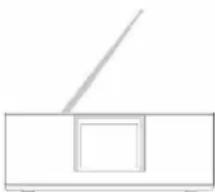
▶ To improve the DAB/FM reception, extend the telescopic antenna to the full length and alter the position. (Figure 1)
- When the reception is still not better after extending the antenna, move the radio to another position/room
natural_image
Simple line drawing of a rectangular box with a diagonal line above it, no text or symbols present.Figure 1
▶ Bad weather conditions may influence the reception
2. Charging the Battery
2.1. The Lenco PDR-045/PDR-046 has a rechargeable lithium battery (not exchangeable). On first use, charge the battery for about 3.5\~4 hours or until the battery icon on the display shows the battery full symbol.
2.2. Recharge the battery every month to maintain the battery life, if the unit is not going to be used for a long time.
2.3. How to charge the built-in battery:
2.3.1. Connect the supplied TYPE-C USB charging cable to the "DC IN (01)". Connect the other end of the cable to the supplied external 5V 1.5A USB Charger or use your Computer's USB port. when charging, the battery symbol appear on the right corner, rolling until full charged.
2.3.2. Disconnect the USB cable when charging is completed.
3. Power on the Lenco PDR-045/PDR-046 radio
Short press the “(05)” button to power on. It will automatically go to your last used mode.
4. Power off/Standby the Lenco PDR-045/PDR-046
4.1. Press and hold the “(05)” button for 3 seconds to power off the device when in battery mode (USB charging cable not connected) (When the USB charging cable is connected the device will go into standby mode and charges the internal battery)
5. Mode switching (BT/FM/DAB/AUX IN)
You can switch between BT/FM/DAB and AUX IN mode by short pressing "mode (06)" when the unit is powered on, and short pressing "SCAN/OK (12)" after switch the mode.
6. Select the information shown on LED display
When listening to a DAB radio station, FM radio station, you are streaming a track from your Bluetooth device or playback via external audio devices, you can change the information that is displayed on PDR-045/PDR-046's display.
• DAB Radio station
When listening to a DAB radio station, short press "MENU/INFO (11)" to toggle the information displayed on PDR-045/PDR-046's screen between "scrolling text" "signal strength" "programming type" "station name" "frequency" "signal error" "Bitrate" "Battery level" "Time" and "Data"
• FM Radio station
When listening to a FM radio station, short press "MENU/INFO (11)" to toggle the information displayed on PDR-045/PDR-046's screen between "scrolling text" "PTY" "programming type" "station name" "Stereo/mono" "Battery level" "Time" and "Date"
- Bluetooth
When streaming a track from Bluetooth device to PDR-045/PDR-046, short press "MENU/INFO (11)" to toggle the information displayed on PDR-045/PDR-046's screen between "Time" and "Date"
- AUX IN
When playback via external audio device, short press "MENU/INFO (11)" to toggle the information displayed on PDR-045/PDR-046's screen between "Time" and "Date"
7. System Settings
When the Lenco PDR-045/PDR-046 is powered on, press and hold the "MENU/INFO (11)" button to enter the settings menu. (This works in BT, FM, DAB and AUX IN mode)
Within the settings menu, press “√ (13)” or “^ (14)” button repeatedly to select “system settings” in the menu on display, press “SCAN/OK (12)” after select “system settings”.
The selectable sub-menus of the system menu:
7.1. Sleep setting and Turn off Sleep timer
- Press “√ (13)” or “^ (14)” button to select
in the menu, press “SCAN/OK (12)” enter sleep setting menu. - Press “√ (13)” or “^ (14)” button to select the desired sleep time. You can select <15 minutes>, <30 minutes>, <45 minutes> <60 minutes>, <90 minutes>, or
. - Press "SCAN/OK (12)" or wait few seconds for back to sub-menu to activate the selected duration.
- Press "MENU/INFO (11)" to return previous menu.
Note: when a sleep time is active, the remaining time digits will display on the bottom of LED display, and then it will start counting down every minute, e. g. 14, means this device will go into standby after 14 minutes. The time digits and battery symbol will appear alternatively on the top right corner of LED display.
7.2. Alarm setting
Important note: The alarm can not be used when Lenco PDR-045/PDR-046 is powered off.
This means that the alarm can only be used when the device is connected to an external power source, it will never work on the battery to avoid that the battery could be empty when you need to wake up.
You can set up two separate Alarms on this device, for the Alarm tone, you can select DAB radio, FM radio or Buzzer.
Setting the Alarm 1:
- Short press "Alarm (15)" to set up the alarm, or you also can set the alarm under System settings>Alarm.
- Press “√ (13)” or “^ (14)” button to select
, , short press “SCAN/OK (12)” after select.
The selectable sub-menus of the Alarm menu:
- Press “√ (13)” or “^ (14)” button to select
(12)" for turn on or off the alarm,
- Press “√ (13)” or “^ (14)” button to select
, set the alarm repeat, you can choose , , , as you desired. Press “SCAN/OK (12)” after selected. - Press “√ (13)” or “^ (14)” button to select
to set up the alarm time, press “SCAN/OK (12)” to go to set up the alarm date & time. Press or press and hold “√ (13)” or “^ (14)” button to set the Date, Month, Year, Hour & minutes, press “SCAN/OK (12)” after each setting Now you can set the source.
- Press “√ (13)” or “^ (14)” button to select
- You can select Buzzer/Digital Radio/FM as Alarm tone by press “√ (13)” or “^ (14)” button to select which you desired and short press “SCAN/OK (12)” after select.
- If you select "Digital Radio" or "FM" as alarm tone, you need to select the preset station
- Press “√ (13)” or “^ (14)” button to select
Note: Presets have to be stored first before you can select a preset as sound source
- Press “√ (13)” or “^ (14)” button to select < duration> and the time 15, 30, 45, 60, 90 and 120 minutes, short press “SCAN/OK (12)” after each select,
Now you can set the alarm volume level.
- Press “√ (13)” or “^ (14)” button to select
, short press “SCAN/OK (12)” after select, - Press “√ (13)” or “^ (14)” button repeatedly to adjust the volume level.
After alarm activate, you can see the time of alarm at the bottom of display.
You can repeat the above steps for setting Alarm 2.
When the alarm is triggered:
Press the "↓/MODE" button to stop the alarm.
Note: the Alarm can be set in on- or standby mode.
7.2.1. Snooze
- When the alarm is triggered, short press the "SNOOZE (16)" button to snooze the alarm
To set the snooze time, short press the "SNOOZE (16)" button for 5 minutes at a time (The overall snooze duration is 30 minutes). - The snooze time will count down at the bottom of the display.
- Press the "↓/MODE" button to stop the alarm snooze.
7.3. Equaliser settings
- Press “√ (13)” or “^ (14)” button to select
- Press “√ (13)” or “^ (14)” button to select the desired Equaliser. You can select
, , , , or . Press “SCAN/OK (12)” after your selection. - Press "MENU/INFO (11)" to return previous menu.
7.4. Time/Date setting
First enter the system menu, Press "√ (13)" or "^ (14)" button to select the
Short press "Rotary button (07)" to go into the menu which selects.
7.4.1. Set the Time/Date
- Press “√ (13)” or “^ (14)” button repeatedly to select
in the menu. Press “SCAN/OK (12)” to confirm the setting. - the date digits will flash on the display.
Press “√ (13)” or “^ (14)” button repeatedly to adjust the date, month, year, hours and minutes, Press “SCAN/OK (12)” after each adjusted, “Time Saved” will be show after the date and time set.
7.4.2. Auto Update
- Press "∨ (13)" or "∧ (14)" button to select
from the menu, Press "SCAN/OK (12)" to enter the auto update sub-menu. - Press “√ (13)” or “^ (14)” button to select auto update mode from the menu. You can select
, , or , Press SCAN/OK (12)” to confirm the update mode setting.
7.4.3. Setting 12/24 Hour format
- Press "√ (13)" or "^ (14)" button to select
from the menu. Press ress SCAN/OK (12)" button to enter the time format sub-menu. - “√ (13)” or “^ (14)” button to select the desired format (12-hour format/24-hour format) and Press SCAN/OK (12)” button to confirm the selection.
7.4.4. Setting the date format
- Press “√ (13)” or “^ (14)” button to select the
from the menu, Press SCAN/OK (12)” to enter the date format sub-menu. - Press “√ (13)” or “^ (14)” button to select the desired format, it has 2 format for select, MM-DD-YYYY and DD-MM-YYYY, Press SCAN/OK (12)” button to confirm the selection.
- If you do not want to save the settings, Press SCAN/OK (12)" button to confirm the selection.
- If you do not want to save the settings, press the "MENU/INFO (11)" button to cancel the settings.
7.5. Backlight
7.5.1. After entering System settings menu Press “√ (13)” or “^ (14)” button to select
7.5.2. Timeout
- Press “√ (13)” or “^ (14)” button to select
from the menu, Press SCAN/OK (12)” button to enter the Timeout sub-menu. - Press “√ (13)” or “^ (14)” button to select duration from menu, you
can select <10 sec>, <20 sec>, <30 sec>, <45 sec>, <60 sec>, <90 sec>, <120 sec>, <180 sec> and
- If you do not want to save the settings, press the "MENU/INFO (11)" button to cancel the settings.
7.5.3. On Level
- Press “√ (13)” or “^ (14)” button to select the
- Press “√ (13)” or “^ (14)” button to select the On level from the menu. You can select
- If you do not want to save the settings, press the "MENU/INFO (11)" button to cancel the settings.
7.5.4. DIM Level
- Press “√ (13)” or “^ (14)” button to select the
- Press “√ (13)” or “^ (14)” button to select the On level from the menu. You can select
- If you do not want to save the settings, press the "MENU/INFO (11)" button to cancel the settings.
7.6. Language
7.6.1. After entering System settings menu, Press “√ (13)” or “^ (14)” button to select
7.6.2. Press “√ (13)” or “^ (14)” button to select the language you want and Press SCAN/OK (12)” button to confirm the language settings
- If you do not want to save the settings, press the "MENU/INFO (11)" button to cancel the settings.
7.7. Factory Reset
In some circumstances the device needs to be reset to factory defaults NOTE: All settings/presets will be lost when doing a factory reset.
7.7.1. After entering the System settings mode, Press “√ (13)” or “^ (14)” button to select
7.7.2. Press “√ (13)” or “^ (14)” button to select
- The screen will show "All settings will be restored to factory defacuts! Are you sure", after select "Yes", the device will reset and turn off.
- If you do not want to save the settings, press the "MENU/INFO (11)" button to cancel the settings.
7.8. Software upgrade
NOTE: Software update can only be done if you have received an approved update file from our service department. Upgrade with other software files will make a Permanent damage to this apparatus.
7.9. SW version
7.9.1. After entering the System settings menu, Press “√ (13)” or “^ (14)” button
7.9.2. Press "MENU/INFO (11)" button to return to previous menu.
8. How do use the DAB Radio
8.1. General functions
8.1.1. Switching On and Off
- Short press the “(05)” button to power on the Lenco PDR-045/PDR-046. Then Press “MODE (6)” button to select DAB mode. Press “SCAN/OK (12)” button to enter sub-menu.
8.1.2. Adjusting the volume
- Press “— (07)” or “+ (08)” button to adjust the volume. The Display will show the volume bar
8.1.3. Speaker mute.
- In DAB radio listening mode, short press the "SCAN/OK (12)" button to mute the speaker. The Display will show: < Volume Muted > for \~2 seconds, and a mute icon will show on the display.
- Short press the "SCAN/OK (12)" button again to resume the volume or Press "— (07)" or "+ (08)" button to adjust the volume again.
8.2. General Setting
In DAB mode, Press and hold the "MENU/INFO (11)" button to open the DAB setting menu.
8.2.1. Station list
After the automatic station search, all radio stations will be stored in the station list. You can store your favored DAB radio stations into presets memory 1-30.
8.2.2. Full scan
- Press “√ (13)” or “^ (14)” button to select
Then you can store your favorite station as a preset: Press and hold the "PRESET(05)" button.
Press “ (13) ” or “ (14) ” button to select a storage location. You then can select storage location (P1-P30) and press “SCAN/OK (12)” button to store the station into the selected preset, “Preset saved” will appear on screen.
Note: Press and hold preset button 1 – 5 to directly store current radio station to preset 1 till 5
If there is already a DAB station stored to the preset you have selected, the new station replaces it.
8.2.3. Manual Tune
- Press “√ (13)” or “^ (14)” button to select
from the menu. and press “SCAN/OK (12)” button to enter sub-menu. - Press “√ (13)” or “^ (14)” button to tune to a DAB Radio station. Press “SCAN/OK (12)” button to confirm.
- The DAB radio stations of the selected channel will be stored into Station list (program list).
- Press "MENU/INFO (11)" button to return to previous menu.
See 8.4.3 for more information
8.2.4. PRUNE Invalid
Removing inactive DAB radio stations from the Station list
you can remove inactive DAB radio stations, which are no longer available from the program list. These DAB radio stations are marked with “?”.
- In DAB mode, Press and hold the "MENU/INFO (11)" button to open the menu. Press "SCAN/OK (12)" button to enter.
- Press “√ (13)” or “^ (14)” button to select
- Press "SCAN/OK (12)" button to confirm the set.
Press the "MENU/INFO (11)" button to return to previous menu.
8.2.5. DRC
Dynamic Range Control (DRC) is used to make quieter sounds in a digital radio broadcast easier to hear at low volume or in a noisy environment. Check with the broadcasters to find out if they use DRC.
Setting Dynamic Range Control (DRC) for DAB stations
When you activate Dynamic Range Control, you can hear lower sounds better in a loud environment.
- Press “√ (13)” or “^ (14)” button to select
from the menu. Press “SCAN/OK (12)” button to open DRC sub-menu. - Press “√ (13)” or “^ (14)” button to select to set DRC. You can select
, , , press “SCAN/OK (12)” button to confirm the settings
- Press "MENU/INFO (11)" button to return to previous menu.
High: Applies maximum compression to the DRC level.
Low: Applies reduced compression to the DRC level.
Off: Removes DRC compression.
8.2.6. Note: The selected DAB station must support DRC.
[Non-Text]
8.3. DAB mode
8.3.1. Selecting a DAB radio station
- Tune the desired station from the station list (program list) step by step by press “√ (13)” or “^ (14)” button repeatedly and press “SCAN/OK (12)” button to confirm the selection.
8.3.2. Displaying DAB station information
- To display information on the current DAB station, short press the "MENU/INFO (11)" button repeatedly.
Display: The following information will appear on screen in sequence:
- Information from the provider (e. g. the title of the song, the e-mail address), the battery level, the signal strength, the genre, the ensemble (e. g. BR Bayern), the current channel and frequency, the bit rate, the broadcasting format, the current time and date.
8.4. Preset and Auto scanning
8.4.1. You can follow 8. 2. 1 to auto full scan for DAB stations or,
8.4.2. In DAB mode, press "SCAN/OK (12)" button to start auto scan the DAB stations.
8.4.3. You can manually store the DAB stations to the program list. You can store your favorite DAB radio stations into presets memory P1-P30.
8.4.4. Access/broadcast stored DAB stations
- Short press the "PRESET (10)" button to open program list. You will find your stored stations.
- Press “√ (13)” or “^ (14)” button or Press the “Number button (09)” to select the stored stations and Press “SCAN/OK (12)” button to broadcast the stored Station.
8.5. Manually Store/select a DAB Station
8.5.1. Manually store stations in DAB mode,
- Press “√ (13)” or “^ (14)” button to tune a digital radio station.
- Press and hold "PRESET (10)" button and Press "√ (13)" or "^ (14)" button to select store location (P1-P30) and "SCAN/OK (12)" button to store the station.
- Press and hold the "Number button (09)" to directly store the stations. (refer to 8.5.3)
8.5.2. Access preset stored DAB stations
- Short press "PRESET (10)" button to open preset list. You will find you stored stations here (P1 to P30).
- Press “√ (13)” or “^ (14)” button or Press the “Number button (09)” to select the stored stations and Press “√ (13)” or “^ (14)” button to listen to the stored Station.
8.5.3. Store preset 1, 2, 3, 4 or 5
Directly store to preset
When you found a favorite DAB stations during listening.
- You can simply long press one of the preset number buttons (1, 2, 3, 4, or 5) to directly store the current station into a preset memory.
- Display shows: < Preset (Number) stored >.
NOTE: If there is already a DAB station stored in the preset you have selected, the new station replaces it.
8.5.4. Direct selecting preset 1, 2, 3, 4 or 5
In DAB mode, short press one of the preset number buttons (1, 2, 3, 4, or 5) to directly access your favorite DAB station stored in the presets list.
IMPORTANT INFORMATION REGARDING DAB+ RECEPTION
DAB+ radio reception is different from FM radio reception.
- In FM, you can often still receive a weak station, but probably with a rustling or crackling sound.
- DAB + reception works digitally and if there is not enough signal you hear nothing. No hiss or crackle as with FM. This is not due to the radio, but to the fact that there is not enough DAB+ signal at that location.
• DAB + rule is: no or weak reception = no sound.
What can you do if you do not have direct DAB+ reception.
• Always point the antenna straight up vertically first.
- Do not place the radio too close to potential sources of interference such as, battery chargers, rotating machinery, computers, large metal surfaces, etc.
- Move the radio a few meters.
• Turn on the radio and activate a full scan in the DAB+ menu
- In the display of the radio you will see the progress of the scan and the number of stations found in the current position of the radio.
Important
- With DAB+ reception, there can be a very big difference in reception level between one location and "a few meters away". In case of a local weak DAB+ signal, move the radio to find a stronger signal.
- If you take the radio to another location, perform a full scan again. This will show you which DAB+ stations can be received there.
9. How do use FM Radio
9.1. General functions
9.1.1. Switching On and Off
- Short press the “(05)” button to power on the Lenco
PDR-045/PDR-046. Then Press "MODE (6)" button to select FM mode. Press "SCAN/OK (12)" button to enter sub-menu. - Display shows: < name of a FM radio station >.
9.1.2. Adjusting the volume
- Press “— (07)” or “+ (08)” button to adjust the volume level.
- Display shows the volume bar
9.1.3. Speaker mute/resume volume
- In radio listening mode, short press the "SCAN/OK (12)" button to mute the speaker.
- Display shows: < Volume Muted > for \~2 seconds, and muted icon will
show at the bottom of the display.
- Short press the "SCAN/OK (12)" button again to resume volume.
9.2. General Setting
In FM mode, Press and hold the "MENU/INFO (11)" button to open the FM Setting menu.
9.2.1. Scan setting
You can choose whether PDR-045/PDR-046 automatically store a scannable FM station or a scannable FM station with a strong signal when scanning for an FM station. To change the FM scan setting:
- Press “∨ (13)” or “∧ (14)” button to select
- Press “√ (13)” or “^ (14)” button to select or
All stations: Choose this option to change the scan setting to automatically store all scannable FM stations.
Strong Station: Choose this option to change the scan setting to automatically store scannable FM station with a strong signal.
9.2.2. Audio setting
You can choose between the "Stereo allowed" or "Forced Mono" reception setting when listening to FM radio. Mono may improve clarity where stereo signals are week. To change between stereo or Mono reception:
- Press “√ (13)” or “^ (14)” button to select
- Press “√ (13)” or “^ (14)” button to select
9.3. FM mode
Select FM mode
- Short press the “(5)” button to select FM mode.
Display shows: < Frequency and name of a FM radio station >.
9.3.1. Preset and Auto scanning
In FM mode, Press and hold the "SCAN/OK (12)" button to execute the auto scan function. Autoscan searches and stores all available radio stations. After the automatic station search, all available radio stations are stored in the program list, up to 30 stations can be saved.
9.3.2. Selecting Stored FM stations
- Short press "PRESET (10)" button, then Press "√ (13)" or "^ (14)" button to select the station you like to listen. Press "SCAN/OK (12)" button to confirm the selection.
- Or press "Number button (09)" to listen to the stored Station.
9.3.3. Tuning FM radio station
- Tune the desired station from the station list (program list) step by step by short SCAN/OK (12)" button button repeatedly, each short press is 0.05MHZ and short press the SCAN/OK (12)" button, to confirm the selection.
9.3.4. Displaying FM station information
- To display information on the current FM station, short press the "MENU/INFO (11)" button repeatedly.
- The display will show the Information from the provider (e.g. the title of the song,) battery level, the current channel and frequency, the current time and date.
9.4. Manually Store/Access FM Stations
9.4.1. Manually store the stations. In FM mode.
- Short press“√ (13)” or “^ (14)” button to tune a radio station. - Display shows the Frequency and/or < the name of the radio station >.
- Press and hold "PRESET (10)" button and Rotate the press"√ (13)" or "^ (14)" button to select store location (P1 to P30) and short press SCAN/OK (12)" button to store the station to the selected preset.
- Press and hold "Number button (09)", you could choose 1-5 which you like to directly store the preset stations. (refer to 9.5.3)
9.4.2. Select stored FM stations
- Short press the "PRESET (10)" button to open program list. You will find your stored stations here (P1 to P30).
- press“√ (13)” or “^ (14)” button to select the stored Station. Or press the “Number button (09)” to select the stored stations.
9.4.3. Store preset 1, 2, 3, 4 or 5
Directly store to a preset button
When you found a favorite FM station
- You can simply long press one of the preset number buttons (1, 2, 3, 4, or 5) to directly store the current station into a preset list.
- Display shows: < Preset (Number) stored >.
NOTE: If there is already a FM station stored in the preset you have selected, the new station replaces it.
9.4.4. Access preset 1, 2, 3, 4 or 5
Directly access preset buttons 1 - 5
In FM mode, short press one of the preset number buttons (1, 2, 3, 4, or 5) to directly access the favorite FM stations stored in presets memory
10. How to use the PDR-045/PDR-046 as a Bluetooth speaker
10.1. Selecting BT mode
10.1.1. short Press the “(5)” button to power on the device and short press the “MODE (6)” button repeatedly to select BT mode. Press the “SCAN/OK (12)” button to enter the menu.
10.1.2. The device will automatically find and pair the last paired device within 5 seconds, if this device cannot find any paired devices, it will automatically enter search mode 5 seconds later. The display shows: < BT searching; >
10.2. Connecting Bluetooth devices
10.2.1. Now enable the Bluetooth function on your mobile device and
search for new Bluetooth devices. Select the device named "Lenco PDR-045/PDR-046".
Wait for a few seconds and you will see the connected message your mobile device. (For some Bluetooth devices, you may need to input "0000" as pairing password)
Display shows: < BT connected > and < Time >.
Note: Set the external device's volume to maximum, then use the volume dial on the Lenco PDR-045/PDR-046 as main volume.
10.3. Music play
When you are playing music,
10.3.1. Press “— (07)” or “+ (08)” button to adjust the desired volume level.
10.3.2. Press the "SCAN/OK (12)" button to pause play.
10.3.3. Press the "SCAN/OK (12)" button again to resume playing.
10.3.4. Press the “^ (14)” button to go to the previous music track.
10.3.5. Press the “√ (13)” button to go to the next music track.
10.4. Auto-Re-connect with Paired devices and new Paring
10.4.1. Short press the “(5) button to power on the device, short press the “MODE (6)” button repeatedly to select BT mode. Press the “SCAN/OK (12)” button to enter the BT menu.
10.4.2. It will firstly search for the mobile device which has been paired previously. The Lenco PDR-045/PDR-046 will re-connect the last connected mobile device as priority if that one is in Bluetooth search mode.
10.4.3. When no previously paired devices are found, the Lenco PDR-045/PDR-046 will switch to pairing mode.
10.4.4. Now you can process for new mobile device pair. (refer to 10.2)
10.5. Disconnect a paired device (to enable pairing a new device)
10.5.1. Long press the "SCAN/OK (12)" button to disconnect the Bluetooth connection directly. The Lenco PDR-045/PDR-046 will switch to Bluetooth pairing mode.
- Display shows:
10.5.2. Now you can pair the Lenco PDR-045/PDR-046 with another external BT device.
Note: In Bluetooth mode, this device will automatically go into standby mode 15 minutes later if no external Bluetooth device is connected or no operation activity.
11. How to use AUX IN
11.1.1. short Press the “(5)” button to power on the device and short press the “MODE (6)” button repeatedly to select AUX IN mode. Press the “SCAN/OK {12}” button to enter the menu.
The display shows:
11.2. Playback Via external audio device
11.2.1. Connect the headphone output of the playback device to the audio
connection port on the speaker using an audio cable (not included)
11.3. Music play
When you are playing music,
11.3.1. Press “— (07)” or “+ (08)” button to adjust the desired volume level.
11.3.2. Start or stop playback on the playback device.
12. Troubleshooting
If a fault occurs, first check whether you can resolve the problem yourself. You might find this overview useful.

CAUTION!
Risk of injury!
Opening the device can cause injuries.
| Fault | Possible cause/action |
| No function | - If the device has been disrupted by a thunderstorm, a static charge or another external factor, follow this procedure to resolve the problem: Power off this device and power on it again 10 seconds later. |
| No sound | - The volume may be set too low or in mute mode.- In Bluetooth / AUX in mode: Set the volume of the external device to the maximum and then control the volume by using “— (07)” or “+ (08)” button. |
| No/bad radio reception | - If necessary, select another location to improve the radio signal.- Adjust the telescopic antenna to optimize the radio reception. |
| No Bluetooth® connection | - Take care to ensure that all settings have been made correctly on all devices. The Bluetooth® function may be deactivated on the external device. (re) activate it, if necessary.- Check whether the device to be connected is switched on and is in search mode. |
| Device freezed (no reaction on buttons/screen) | - Take use a small paperclip and insert it carefully into the reset hole on the back until you feel a click. This will do a soft reset. (all presets and setting will remain). |
- Specification
| Device: Portable Bluetooth DAB Radio | |
| Unit Dimension | 180 (L) *55mm (W) *68mm (H) |
| Unit Weight | 407g |
| Display | Type | TFT color Display |
| Size | 2.4inch | |
| Bluetooth | Specification | V5.0 |
| Supported Profile | A2DP, AVRCP, HSP | |
| Connection Distance | In 10 meters (open area) | |
| Power | Class II | |
| DAB | Tuning Range | Band III; 174.928MHz – 239.2MHz |
| Preset Memory | 30 stations | |
| FM | Tuning Range | 87.5 - 108MHz |
| Stereo/Mono | Selectable | |
| Preset Memory | 30 stations | |
| Antenna | telescopic type | |
| Audio Output Power | Output Power | 2 x 3 W RMS |
| Freq. Responses | 80Hz to 16, 000Hz | |
| Power Source Input | TYPE-C USB Port | |
| PC's USB port Power or DC 5V, 2A | ||
| Built-in-Battery | Lithium-ion 3.7V 2500mAh | |
| Operating Temperature | 0-40°C | |
Guarantee
Lenco offers service and warranty in accordance to European law, which means that in case of repairs (both during and after the warranty period) you should contact your local dealer.
Important note: It is not possible to send products that need repairs to Lenco directly.
Important note: If this unit is opened or accessed by a non-official service center in any way, the warranty expires.
This device is not suitable for professional use. In case of professional use, all warranty obligations of the manufacturer will be voided.
Disclaimer
Updates to Firmware and/or hardware components are made regularly. Therefore some of the instruction, specifications and pictures in this documentation may differ slightly from your particular situation. All items described in this guide for illustration purposes only and may not apply to particular situation. No legal right or entitlements may be obtained from the description made in this manual.
Disposal of the Old Device
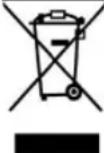
This symbol indicates that the relevant electrical product or battery should not be disposed of as general household waste in Europe. To ensure the correct waste treatment of the product and battery, please dispose them in accordance to any applicable local laws of requirement for disposal of electrical equipment or batteries. In so doing, you will help to conserve natural resources and improve standards of environmental protection in treatment and disposal of electrical waste (Waste Electrical and Electronic Equipment Directive).
Declaration of Conformity
Hereby, Commaxx declares that the radio equipment type [Lenco PDR-045/PDR-046] is in compliance with directive 2014/53/EU. The full text of the EU declaration of conformity is available at the following internet address: https://commaxx-certificates.com/doc/pdr-045_doc.pdf
| Type RF | Frequency range (MHz) | Power (dBm) |
| Bluetooth | 2402-2480 | <6 |
| DAB | 174-240 | - |
| FM | 87.5-108 | - |
Service
For more information and helpdesk support, please visit www.lenco.com Commaxx B.V. Wiebachstraat 37, 6466 NG Kerkrade, The Netherlands.
Nederlands
OPGELET:
natural_image
Simple line drawing of a rectangular block with a diagonal line and a small square cutout (no text or symbols)Figuur 1
natural_image
Simple line drawing of an open book and a connected rectangular object with a label (no text or symbols on the objects)natural_image
Simple line drawing of a rectangular box with a diagonal line above it, no text or symbols present.Abbildung 1
natural_image
Simple line drawing of a rectangular box with a diagonal line above it, no text or symbols present.Figure1
natural_image
Simple line drawing of a rectangular box with a diagonal line and a square cutout (no text or symbols)Figura 1
| EN | DA |
| Front View | Front View (Set fra forsiden) |
Top View
flowchart
graph TD
    A["5"] --> B["1"]
    C["9"] --> D["2"]
    E["15"] --> F["3"]
    G["8"] --> H["4"]
    I["10"] --> J["5"]
    K["14"] --> L["6"]
    M["16"] --> N["7"]
    O["6"] --> P["11"]
    Q["12"] --> R["13"]
    S["14"] --> T["15"]
    U["15"] --> V["ALARM"]
    W["16"] --> X["ALARM"]
    Y["10"] --> Z["MODG"]
    AA["11"] --> AB["PHRDA"]
    AC["12"] --> AD["MOSL"]
    AE["13"] --> AF["LIC"]
    AG["14"] --> AH["AGPAT"]
    AI["15"] --> AJ["ALARM"]
    AK["16"] --> AL["ALARM"]
natural_image
Simple line drawing of a rectangular box with a diagonal line above it, no text or symbols present.Figur 2
natural_image
Simple line drawing of a rectangular box with a diagonal line above it, no text or symbols present.Bild 3

- Model: PDR-045/PDR-046
- KEEP THESE INSTRUCTIONS IN MIND:
- Warning:
- INSTALLATION
- Adjusting/Fixing the Telescopic antenna (metal antenna)
- Charging the Battery
- Power on the Lenco PDR-045/PDR-046 radio
- Power off/Standby the Lenco PDR-045/PDR-046
- Mode switching (BT/FM/DAB/AUX IN)
- Select the information shown on LED display
- System Settings
- Sleep setting and Turn off Sleep timer
- Alarm setting
- Setting the Alarm 1:
- Note: Presets have to be stored first before you can select a preset as sound source
- Snooze
- Equaliser settings
- Time/Date setting
- Set the Time/Date
- Auto Update
- Setting 12/24 Hour format
- Setting the date format
- Backlight
- Timeout
- On Level
- DIM Level
- Language
- Factory Reset
- Software upgrade
- SW version
- How do use the DAB Radio
- General functions
- Switching On and Off
- Adjusting the volume
- Speaker mute.
- General Setting
- Station list
- Full scan
- Manual Tune
- PRUNE Invalid
- Removing inactive DAB radio stations from the Station list
- DRC
- Setting Dynamic Range Control (DRC) for DAB stations
- Note: The selected DAB station must support DRC.
- DAB mode
- Selecting a DAB radio station
- Displaying DAB station information
- Preset and Auto scanning
- Manually Store/select a DAB Station
- Access preset stored DAB stations
- Store preset 1, 2, 3, 4 or 5
- Directly store to preset
- NOTE: If there is already a DAB station stored in the preset you have selected, the new station replaces it.
- IMPORTANT INFORMATION REGARDING DAB+ RECEPTION
- DAB+ radio reception is different from FM radio reception.
- What can you do if you do not have direct DAB+ reception.
- Important
- How do use FM Radio
- General functions
- Switching On and Off
- Adjusting the volume
- Speaker mute/resume volume
- General Setting
- Scan setting
- Audio setting
- FM mode
- Select FM mode
- Preset and Auto scanning
- Selecting Stored FM stations
- Tuning FM radio station
- Displaying FM station information
- Manually Store/Access FM Stations
- Select stored FM stations
- Store preset 1, 2, 3, 4 or 5
- Directly store to a preset button
- Access preset 1, 2, 3, 4 or 5
- How to use the PDR-045/PDR-046 as a Bluetooth speaker
- Selecting BT mode
- Connecting Bluetooth devices
- Music play
- Auto-Re-connect with Paired devices and new Paring
- How to use AUX IN
- Music play
- Troubleshooting
- CAUTION!
- Risk of injury!
- Guarantee
- Disclaimer
- Disposal of the Old Device
- Declaration of Conformity
- Service
- Nederlands
- OPGELET:
Brand : LENCO
Model : PDR-046
Category : Radio