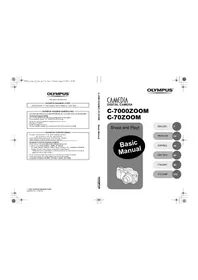
Camedia C7000 Zoom - Camera OLYMPUS - Free user manual and instructions
Find the device manual for free Camedia C7000 Zoom OLYMPUS in PDF.



| Product type | Compact digital camera |
| Effective resolution | 7.1 million pixels |
| Sensor | CCD 1/1.8 inch, 7.41 million pixels (gross) |
| Lens | Olympus 7.9–39.5 mm, f/2.8–f/4.8 (equiv. 38–190 mm in 35 mm) |
| Aperture | f/2.8 to f/8.0 |
| Shutter speed | 15 to 1/2000 s |
| Viewfinder | Real-image optical |
| LCD screen | TFT 2.0 inches, 206,000 pixels |
| Storage media | xD-Picture Card (16 to 512 MB) |
| Recording formats | RAW, TIFF, JPEG, Wave, QuickTime Motion JPEG |
| Connections | USB (multi-connector), A/V OUT jack, DC input |
| Power supply | Olympus LI-12B lithium-ion battery (3.7 V, 1230 mAh) or optional AC adapter |
| Weight | 220 g (without battery and card) |
| Operating temperature | 0°C to 40°C |
| Operating humidity | 30% to 90% |
| Main functions | Shooting and playback, scene modes, built-in flash, TTL focusing, ESP and spot metering |
| Maintenance and cleaning | Clean with a damp cloth; do not use liquid or aerosol products |
| Safety | Do not expose to water, do not open the case, have repairs carried out by a qualified technician |
| Spare parts and repairability | Use only parts recommended by Olympus; repair by qualified personnel |
| General information | Brand Olympus, model Camedia C7000 Zoom, camera category |
Frequently Asked Questions - Camedia C7000 Zoom OLYMPUS
User questions about Camedia C7000 Zoom OLYMPUS
0 question about this device. Answer the ones you know or ask your own.
Ask a new question about this device
Download the instructions for your Camera in PDF format for free! Find your manual Camedia C7000 Zoom - OLYMPUS and take your electronic device back in hand. On this page are published all the documents necessary for the use of your device. Camedia C7000 Zoom by OLYMPUS.
USER MANUAL Camedia C7000 Zoom OLYMPUS
d4228 c basic 01 cover 6c 7.fm Page 1 Tuesday, August 17, 2004 1:36 PM
OLYMPUS®
http://www.olympus.com/
OLYMPUS IMAGING CORP.
Shinjuku Monolith, 3-1 Nishi-Shinjuku 2-chome, Shinjuku-ku, Tokyo, Japan
OLYMPUS IMAGING AMERICA INC.
Two Corporate Center Drive. PO Box 9058 Melville, NY 11747-9058, U.S.A. Tel. 631-844-5000
Technical Support (USA)
24/7 online automated help: http://www.olympusamerica.com/support
Phone customer support: Tel. 1-888-553-4448 (Tall-free)
Our phone customer support is available from 8 am to 10 pm
(Monday to Friday) ET
E-Mail: distec@olympus.com
Olympus software updates can be obtained at: http://www.olympus.com/digital
OLYMPUS EUROPA GMBH
Premises: Wendenstrasse 14-18, 20097 Hamburg, Germany
Tel: +49 40-23 77 3-0 / Fax: +49 40-23 07 61
Goods delivery: Bredowstrasse 20, 22113 Hamburg, Germany
Letters: Postfach 10 49 08, 20034 Hamburg, Germany
European Technical Customer Support
European Technical Customer Support:
Please visit our homepage http://www.olympus-europa.com
or call our TOLL FREE NUMBER: 00800 - 67 10 83 00
for Austria, Belgium, Denmark, Finland, France, Germany, Italy, Luxembourg, Netherlands,
Norway, Portugal, Spain, Sweden, Switzerland, United Kingdom
* Please note some (mobile) phone services/provider do not permit access or request an
additional prefix to +800 numbers.
For all not listed European Countries and in case that you can't get connected
to the above mentioned number please make use of the following
CHARGED NUMBERS: +49 180 5 - 67 10 83 or +49 40 - 237 73 899
© 2004 OLYMPUS IMAGING CORP.
1AG6P1P2272--VT987401
OLYMPUS®
C-7000 ZOOM/C-70 ZOOM
Basic Manual
OLYMPUS
CAMEDIA
DIGITAL CAMERA
C-7000ZOOM
C-70ZOOM
Shoot and Play!
Basic Manual

ENGLISH
2
FRANÇAIS
24
ESPAÑOL
46
DEUTSCH
68
ITALIANO
90
РУССКИЙ
112

text_image
d4228_basic_e_00_bookfile_7.book Page 2 Tuesday, August 17, 2004 1:42 PMFor customers in North and South America
For customers in USA
Declaration of Conformity
Model Number : C-7000 ZOOM/C-70 ZOOM
Trade Name : OLYMPUS
Responsible Party : OLYMPUS IMAGING AMERICA INC.
Address: Two Corporate Center Drive, PO Box 9058, Melville, NY
11747-9058 U.S.A.
Telephone Number: 1-631-844-5000
Tested To Comply With FCC Standards
FOR HOME OR OFFICE USE
This device complies with Part 15 of the FCC rules. Operation is subject to the following two conditions:
(1) This device may not cause harmful interference.
(2) This device must accept any interference received, including interference that may cause undesired operation.
FCC Notice
• Radio and Television Interference
Change or modifications not expressly approved by the manufacturer may void the user's authority to operate this equipment. This equipment has been tested and found to comply with the limits for a Class B digital device, pursuant to Part 15 of the FCC Rules. These limits are designed to provide reasonable protection against harmful interference in a residential installation.
This equipment generates, uses, and can radiate radio frequency energy and, if not installed and used in accordance with the instructions, may cause harmful interference to radio communications.
However, there is no guarantee that interference will not occur in a particular installation. If this equipment does cause harmful interference to radio or television reception, which can be determined by turning the equipment off and on, the user is encouraged to try to correct the interference by one or more of the following measures:
- Adjust or relocate the receiving antenna.
- Increase the distance between the camera and receiver.
- Connect the equipment to an outlet on a circuit different from that to which the receiver is connected.
- Consult your dealer or an experienced radio/TV technician for help. Only the OLYMPUS-supplied USB cable should be used to connect the camera to USB enabled personal computers (PC).
Any unauthorized changes or modifications to this equipment would void the user's authority to operate.
For customers in Canada
This Class B digital apparatus meets all requirements of the Canadian Interference-Causing Equipment Regulations.
For customers in Europe

"CE" mark indicates that this product complies with the European requirements for safety, health, environment and customer protection. "CE" mark cameras are intended for sales in Europe.

natural_image
Pure geometric diagram with crosshair and circular elements, no text or symbols present
natural_image
Pure geometric diagram with concentric circles and crosshairs, no text or symbols presentManual Contents
How to use the camera 4
Safety Precautions 6
UNPACKING THE BOX CONTENTS......10
CHARGING THE BATTERY ....12
INSERTING THE BATTERY AND CARD 13
TURNING THE CAMERA ON ....16
TAKING A PICTURE....18
REVIEWING A PICTURE ....20
TURNING THE CAMERA OFF 21
Specifications 22
En


natural_image
Pure geometric diagram with intersecting lines and circles, no text or symbols present
3

natural_image
Pure geometric diagram with intersecting lines and circles, no text or symbols present
text_image
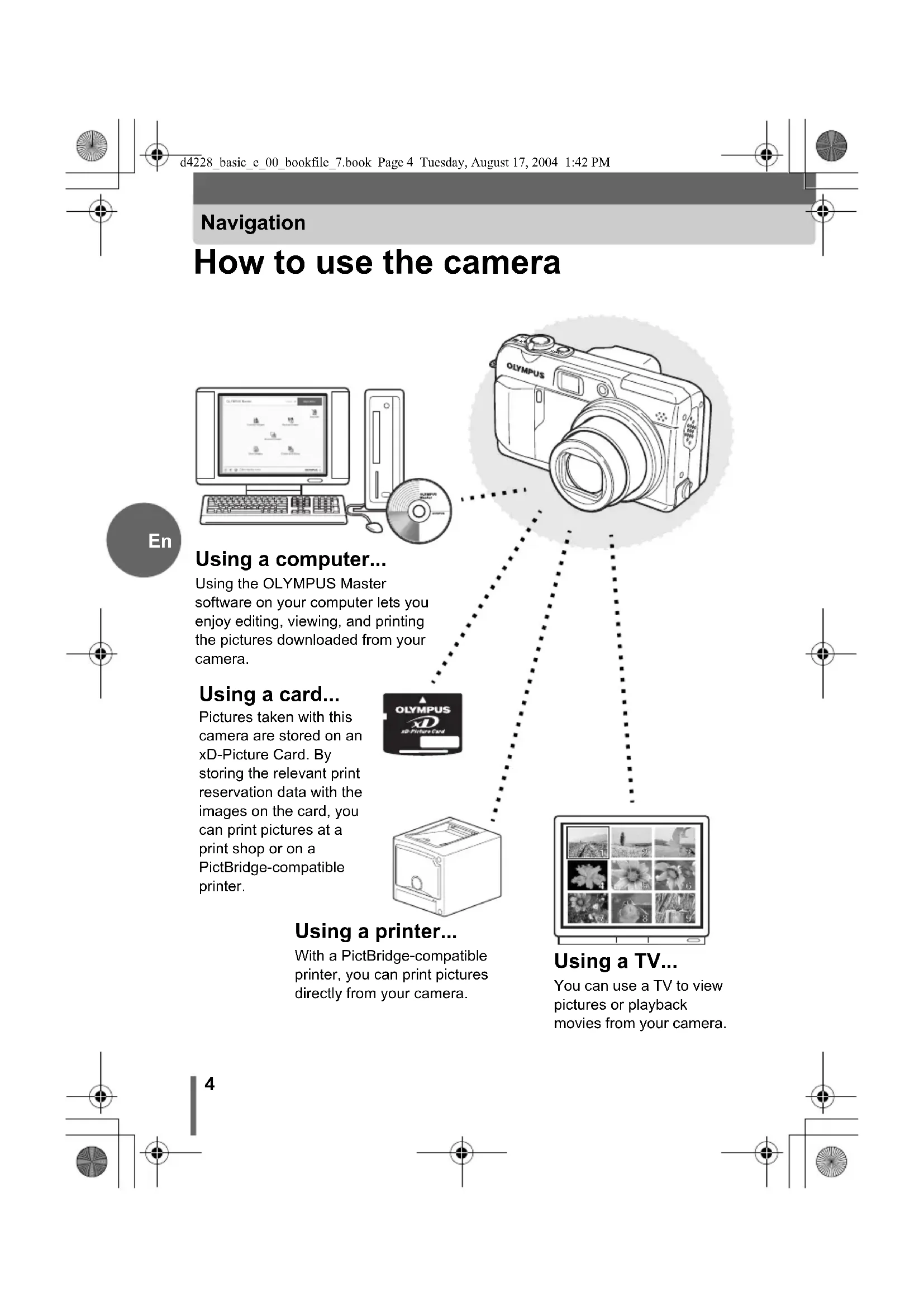
d4228_basic_e_00_bookfile_7.book_Page_4_Tuesday,August 17,2004 1:42 PM Navigation How to use the camera En Using a computer... Using the OLYMPUS Master software on your computer lets you enjoy editing, viewing, and printing the pictures downloaded from your camera. Using a card... Pictures taken with this camera are stored on an xD-Picture Card. By storing the relevant print reservation data with the images on the card, you can print pictures at a print shop or on a PictBridge-compatible printer. Using a printer... With a PictBridge-compatible printer, you can print pictures directly from your camera. Using a TV... You can use a TV to view pictures or playback movies from your camera. 4
text_image
d4228_basic_e_00_bookfile_7.book Page 5 Tuesday, August 17, 2004 1:42 PM Using the direct buttons... Direct buttons let you perform functions such as erasing or protecting pictures or setting the flash mode, making camera operation easy. Using the mode dial... Use the mode dial to select a shooting or playback mode. SCENE lets you select the optimum settings for the shooting conditions from 5 different situations. Using the arrow pad and button... The arrow pad and button are for selecting and setting menu options as well as viewing pictures frame by frame. Using the menus... Shooting and playback-related functions are set from the menus displayed on the monitor.
natural_image
Pure technical diagram with geometric symbols and lines, no readable text or labels
natural_image
Pure geometric diagram with intersecting lines and circles, no text or symbols presentd4228_basic_e_00_bookfile_7.book Page 6 Tuesday, August 17, 2004 1:42 PM
Safety Precautions

CAUTION
RISK OF ELECTRIC SHOCK DO NOT OPEN

CAUTION: TO REDUCE THE RISK OF ELECTRICAL SHOCK, DO NOT REMOVE COVER (OR BACK). NO USER-SERVICEABLE PARTS INSIDE. REFER SERVICING TO QUALIFIED OLYMPUS SERVICE PERSONNEL.

Lightning flash with an arrowhead, enclosed in a triangle, alerts you to the presence of uninsulated voltage points inside the product which could cause a serious electrical shock.

An exclamation mark enclosed in a triangle alerts you to important operating and maintenance instructions in the documentation provided with the product.
WARNING!
TO AVOID THE RISK OF FIRE OR ELECTRICAL SHOCK, NEVER EXPOSE THIS PRODUCT TO WATER OR OPERATE IN A HIGH HUMIDITY ENVIRONMENT.
En
General Precautions
Read All Instructions — Before you use the product, read all operating instructions.
Save These Instructions — Save all safety and operating instructions for future reference.
Heed Warnings — Read carefully and follow all warning labels on the product and those described in the instructions.
Follow Instructions — Follow all instructions provided with this product.
Cleaning — Always unplug this product from the wall outlet before cleaning. Use only a damp cloth for cleaning. Never use any type of liquid or aerosol cleaner, or any type of organic solvent to clean this product.
Attachments — For your safety, and to avoid damaging the product, use only accessories recommended by Olympus.
Water and Moisture — Never use this product around water (near a bathtub, kitchen sink, laundry tub, wet basement, swimming pool or in the rain). For precautions on products with weatherproof designs, read the weatherproofing sections of their manuals.
natural_image
Pure electrical circuit lines without any symbols6

natural_image
Pure geometric diagram with intersecting lines and circles, no text or symbols present
natural_image
Pure geometric diagram with concentric circles and crosshairs, no text or symbols presentSafety Precautions
Location — To avoid damage to the product and prevent personal injury, never place this product on an unstable stand, tripod, bracket, table or cart. Mount only on a stable tripod, stand, or bracket. Follow the instructions that describe how to safely mount the product, and use only the mounting devices recommended by the manufacturer.
Power Sources — Connect this product only to the power source described on the product label. If you are not sure about the type of power supply in your home, consult your local power company. Refer to your operating instructions for information on using the product with a battery.
Grounding, Polarization — If this product can be used with a specified AC adapter, the adapter may be equipped with a polarized alternating current line plug (a plug with one blade wider than the other). This safety feature allows the plug to fit into the power outlet only one way. If you cannot insert the plug into the wall outlet, pull it out, reverse it, and then reinsert it. If the plug still fails to fit, contact an electrician and have the receptacle replaced.
Protecting the Power Cord — The power supply cord should be placed so it will not be walked on. Never put a heavy object on the power cord or wrap it around the leg of a table or chair. Keep the area around the power cord connection points, at the power outlet, and at the product connection, free of all AC adapter or accessory power cords.
Lightning — If a lightning storm occurs while using a specified AC adapter, remove it from the wall outlet immediately. To avoid damage from unexpected power surges, always unplug the AC adapter from the power outlet and disconnect it from the camera when the camera is not in use.
Overloading — Never overload wall outlets, extension cords, power strips, or other power connection points with too many plugs.
Foreign Objects, Liquid Spillage — To avoid personal injury caused by fire or electrical shock from contact with internal high voltage points, never insert a metal object into the product. Avoid using the product where there is a danger of spillage.
Heat — Never use or store this product near any heat source such as a radiator, heat register, stove, or any type of equipment or appliance that generates heat, including stereo amplifiers.
Servicing — Refer all servicing to qualified personnel. Attempting to remove the covers or disassemble the product, could expose you to dangerous high voltage points.


natural_image
Pure geometric diagram with intersecting lines and circles, no text or symbols present
7

text_image
d4228_basic_e_00_bookfile_7.book Page 8 Tuesday, August 17, 2004 1:42 PM Safety Precautions Damage Requiring Service — If you notice any of the conditions described below while using a specified AC adapter, unplug it from the wall outlet and refer servicing to qualified service personnel: a) Liquid has been spilled onto the product or some other object has fallen into the product. b) The product has been exposed to water. c) The product does not operate normally despite following operating instructions. Adjust only the controls described in the operating instructions as improper adjustment of other controls could damage the product and require extensive repair work by a qualified technician. d) The product has been dropped or damaged in any way. e) The product exhibits a distinct change in performance. Replacement Parts — When replacement parts are required, make sure that the service center uses only parts with the same characteristics as the originals, as recommended by the manufacturer. Unauthorized substitution of parts could result in fire, electrical shock, or create other hazards. Safety Check — Upon completion of servicing or repairs, ask the service technician to perform safety checks to determine that the product is in good working order.
Legal and other notices
- Olympus makes no representations or warranties regarding any damages, or benefit expected by using this unit lawfully, or any request from a third person, which are caused by the inappropriate use of this product.
- Olympus makes no representations or warranties regarding any damages or any benefit expected by using this unit lawfully which are caused by erasing picture data.
Disclaimer of Warranty
- Olympus makes no representations or warranties, either expressed or implied, by or concerning any content of these written materials or software, and in no event shall be liable for any implied warranty of merchantability or fitness for any particular purpose or for any consequential, incidental or indirect damages (including but not limited to damages for loss of business profits, business interruption and loss of business information) arising from the use or inability to use these written materials or software or equipment. Some countries do not allow the exclusion or limitation of liability for consequential or incidental damages, so the above limitations may not apply to you.
• Olympus reserves all rights to this manual.
natural_image
Pure electrical circuit lines without any symbols8
natural_image
Pure geometric diagram with intersecting lines and circular shapes (no text or symbols)
text_image
d4228_basic_e_00_bookfile_7.book Page 9 Tuesday, August 17, 2004 1:42 PM Safety Precautions WARNING Unauthorized photographing or use of copyrighted material may violate applicable copyright laws. Olympus assumes no responsibility for unauthorized photographing, use or other acts that infringe upon the rights of copyright owners. Copyright Notice All rights reserved. No part of these written materials or this software may be reproduced or used in any form or by any means, electronic or mechanical, including photocopying and recording or the use of any type of information storage and retrieval system, without the prior written permission of Olympus. No liability is assumed with respect to the use of the information contained in these written materials or software, or for damages resulting from the use of the information contained therein. Olympus reserves the right to alter the features and contents of this publication or software without obligation or advance notice. Trademarks • IBM is a registered trademark of International Business Machines Corporation. • Microsoft and Windows are registered trademarks of Microsoft Corporation. • Macintosh is a trademark of Apple Computer Inc. • All other company and product names are registered trademarks and/or trademarks of their respective owners. • The standards for camera file systems referred to in this manual are the "Design Rule for Camera File System/DCF" standards stipulated by the Japan Electronics and Information Technology Industries Association (JEITA).
natural_image
Pure geometric line drawings with no text, numbers, or symbols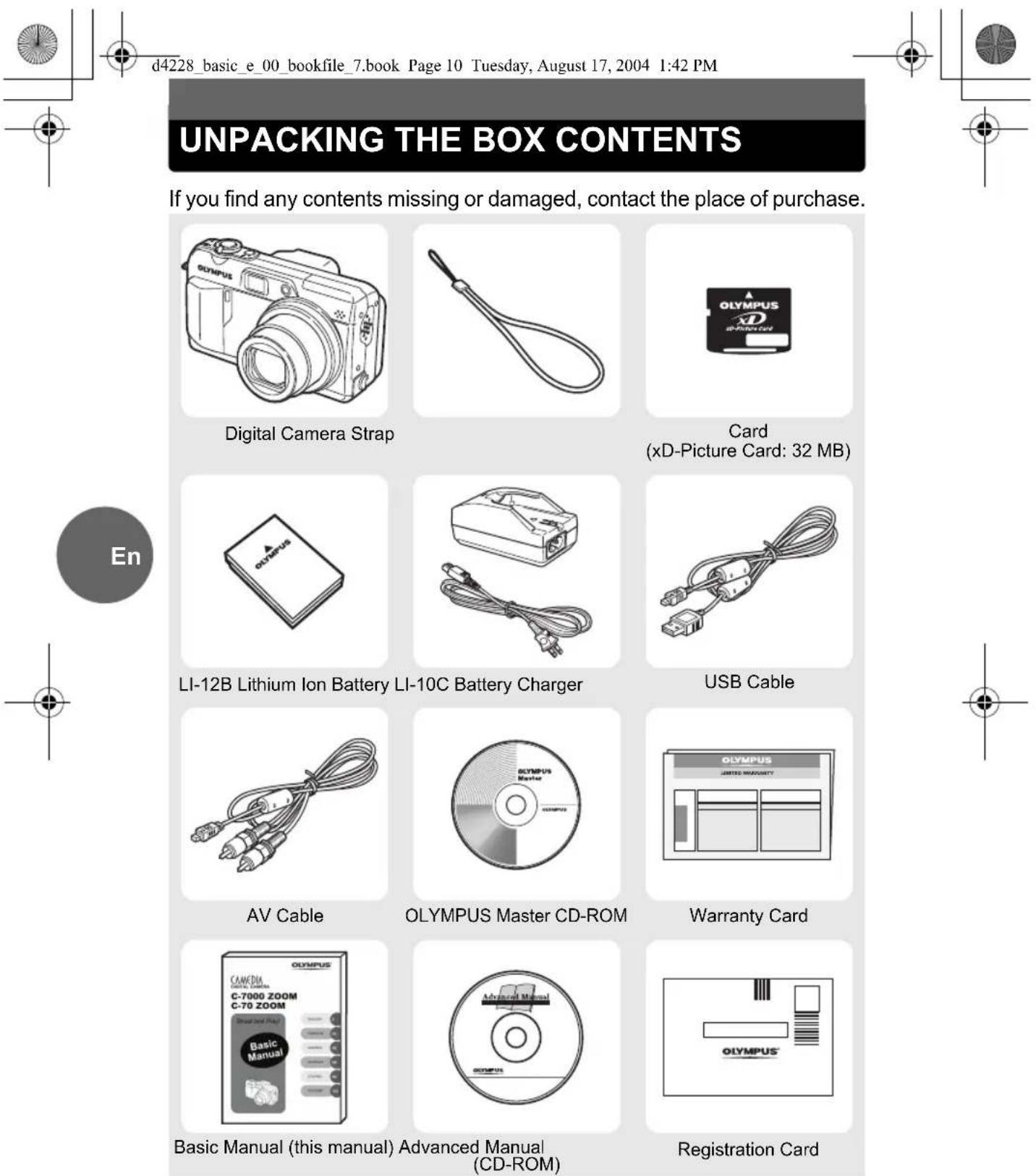
d4228 basic e 00 bookfile 7.book Page 10 Tuesday, August 17, 2004 1:42 PM
UNPACKING THE BOX CONTENTS
If you find any contents missing or damaged, contact the place of purchase.

Contents vary depending on the area where you purchased this camera.

text_image
10
text_image
d4228_basic_e_00_bookfile_7.book Page 11 Tuesday, August 17, 2004 1:42 PM UNPACKING THE BOX CONTENTS Attaching the strap 1 Attach the strap as shown. ● Pull the strap tight so that it does not come loose. ● Note ● Be careful with the strap when you carry the camera, as it can easily catch on stray objects, causing injury or damage. ● Attach the strap correctly as shown above so that the camera does not fall off. If the strap is attached incorrectly and the camera falls off, Olympus is not responsible for any damages.
natural_image
Pure technical diagram with geometric symbols and lines, no readable text or labels
d4228 basic e 00 bookfile 7.book Page 12 Tuesday, August 17, 2004 1:42 PM
CHARGING THE BATTERY
The battery is not fully charged at the time of purchase. Charge the battery fully with the LI-10C charger before use.
1 Connect the power cable.
LI-10C battery charger
En
Insert the battery into the charger.
- When charging starts, the indicator lights red.
- When fully charged, the indicator turns green.
TIPS
● The LI-12B battery takes approximately 120 minutes to charge.
Note
- This camera uses an Olympus LI-12B/LI-10B lithium ion battery. No other type of battery can be used.
● Battery life varies depending on shooting conditions, etc. - The charger can be used within the range of AC100V to AC240V (50/60Hz). When using the charger abroad, you may need a plug adapter to convert the plug to the shape of the AC wall outlet. For details, ask at your local electrical shop or travel agent.
- Do not use voltage converters sold in stores traveling overseas as this could damage your charger.
12

text_image
d4228_basic_e_00_bookfile_7.book Page 13 Tuesday, August 17, 2004 1:42 PM INSERTING THE BATTERY AND CARD1 Make sure the camera is off.
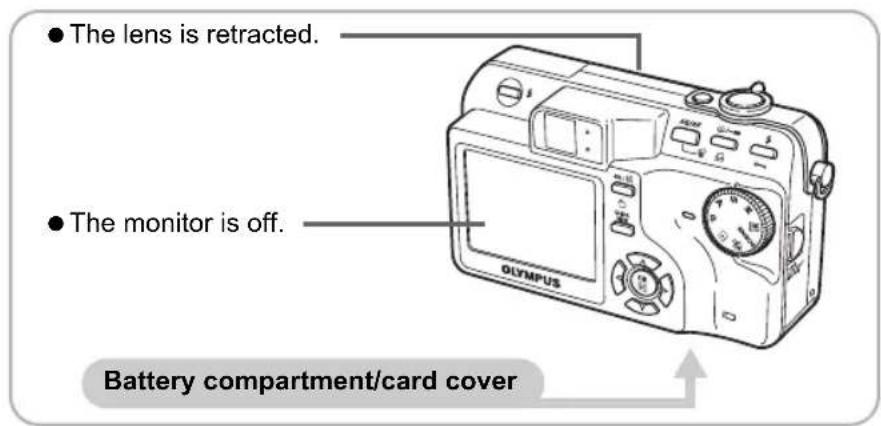
text_image
● The lens is retracted. ● The monitor is off. Battery compartment/card coverOpen the battery compartment/card cover.
① Slide

② Lift
3 Insert the battery.

text_image
Battery lock knob● ● The battery is locked into place when inserted correctly.
To remove the battery
Slide the lock knob as shown. The battery pops up allowing you to grasp it.

natural_image
Mechanical device interior view showing internal components and a directional arrow (no text or symbols)Battery lock knob

text_image
d4228_basic_e_00_bookfile_7.book Page 14 Tuesday, August 17, 2004 1:42 PM INSERTING THE BATTERY AND CARD4 Insert the card.
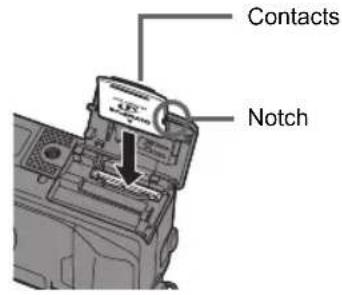
text_image
Contacts Notch● Make sure that the card is oriented correctly and insert while keeping it straight, otherwise the contacts on the card may be damaged or the card may get stuck.
To remove the card
Push the card all the way in and release slowly.
Grasp and remove.


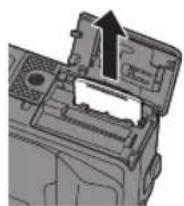

Note
● The card may not record properly if it is not inserted all the way in.
● Releasing your finger quickly after pushing the card all the way in may cause it to eject forcefully out of the slot.
5 Close the battery compartment/card cover.
② Slide

① Close
- Press down on the center of the cover when sliding.
14

text_image
14
natural_image
Pure geometric diagram with concentric circles and crosshairs, no text or symbols presentINSERTING THE BATTERY AND CARD
The battery

Note
● The amount of power consumed by the camera varies considerably depending on shooting conditions, etc.
● Power is consumed continuously during the conditions described below. This discourages the power from lasting longer.
- When the monitor is on.
- When the monitor is in playback mode for an extended period of time.
● ● Repeated zoom adjustments.
● Repeated auto focus by depressing the shutter button halfway. - When fulltime AF is on.
- When connected to a computer or printer.
- If you use an exhausted battery, the camera may turn off without displaying the battery level warning.
The card
This camera uses an xD-Picture Card (16 - 512MB).
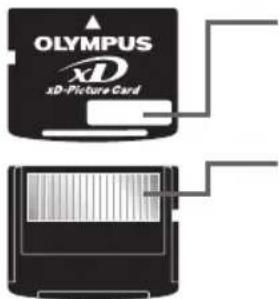
text_image
OLYMPUS XD xD-Picture CardIndex area
You can use this space to write the contents of the card.
Contacts
The part where the data transferred from the camera enters the card.

Note
- This camera may not recognize a non-OLYMPUS card or a card that was formatted on another device (such as a computer, etc.). Before use, be sure to format the card on this camera.
- Do not press on the card with hard or pointed items such as ballpoint pens.
- ● Never open the battery compartment/card cover, or remove the card or the battery while the camera is turned on. Doing so could destroy the data stored on the card. Once destroyed, data cannot be restored.
- Do not place a sticker or label on the card as this could prevent the card from being ejected.
En

natural_image
Pure geometric diagram with intersecting lines and circles, no text or symbols present
15


d4228_basic_e_00_bookfile_7.book Page 16 Tuesday, August 17, 2004 1:42 PM
TURNING THE CAMERA ON
1 Set the mode dial to P and press the POWER switch.
En
2 Press the flash button.
● ● The flash pops up.
16

text_image
d4228_basic_e_00_bookfile_7.book Page 17 Tuesday, August 17, 2004 1:42 PM TURNING THE CAMERA ON TIPS The first time you use the camera, "Y/M/D" is displayed prompting you to set the date and time. See "Setting the date and time" in Chapter 7 of the Advanced Manual. Although the camera operates without making this setting, the correct dates may not be displayed on the calendar display. Note To save battery power, the camera automatically enters the sleep mode and stops operating after about 3 minutes of non-operation. The camera activates again as soon as you operate the shutter button or zoom lever. 4 hours after the camera enters sleep mode, the camera retracts the lens and turns off automatically. Turn the camera on to use. If the camera is continuously used for a long period of time, the internal temperature of the camera may rise. In such cases, the power may automatically turn off. Please wait before using again. Battery power The battery check indicator changes according to how much power is remaining. Lit (green) (Disappears after a while.) Ready to shoot. Blinking (red) The battery needs charging soon. "BATTERY EMPTY" is displayed. No power is left. Charge the battery.
natural_image
Pure technical drawing lines with geometric shapes and no text or symbols
natural_image
Pure geometric diagram with intersecting lines and circles, no text or symbols presentTAKING A PICTURE
1 Compose your picture.

text_image
Shutter button Olympus Card access lampAF target mark

text_image
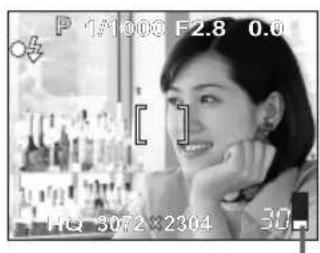
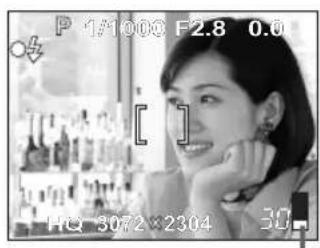
P 1/1000 F2.8 0.0 [ ] HQ 3072 x 2304 30● Using the monitor, place the AF target mark on your subject.
En
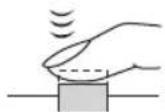
Focus on your subject.
Green lamp

text_image
mark P 1/1000 F2.8 0.0 HQ 3072x2304 30- Press the shutter button halfway and hold.
● The green lamp lights when the focus and exposure are locked (Focus lock).
● The ↓ mark lights when the flash is about to fire.
● ● The AF target mark moves to where the focus is locked.
● The monitor displays the shutter speed and aperture determined by the camera.
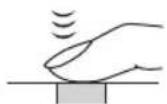
Take the picture.
text_image
P 1/1000 F2.8 0.0 HQ 3072×2304 30Memory gauge
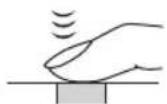
- Press the shutter button completely.
● The card access lamp blinks while the picture is recorded onto the card.

Note
- Press the shutter button gently. If it is pressed hard, the camera may move and pictures may come out blurred.
- Recorded pictures are saved on the card regardless of whether the camera is turned off or the battery is replaced or removed.
- Never open the battery compartment/card cover, remove the battery or disconnect the AC adapter while the card access lamp is blinking. Doing so could destroy stored pictures and prevent storage of pictures you have just taken.
- When taking pictures against strong backlight, the area of the picture in shadow may appear colored.
Memory gauge
Every time you press the shutter button, the memory gauge lights indicating that the picture you have just taken is being recorded onto the card. The memory gauge changes according to how many pictures the camera is processing. This indicator is not displayed while recording movies.

flowchart
graph LR
    A["Black rectangle"] -->|Shoot| B["Black rectangle"]
    B -->|Shoot| C["White rectangle"]
    C -->|Shoot| D["White rectangle"]
    D -->|Wait| E["White rectangle"]
Before taking any pictures (Off)
After taking one picture (Lit)
After taking several pictures (Lit)
Maximum reached (All lit)
Wait until the indicator turns off again before taking more pictures.

natural_image
Pure geometric diagram with intersecting lines and circles, no text or symbols presentd4228 basic e 00 bookfile 7.book Page 20 Tuesday, August 17, 2004 1:42 PM
REVIEWING A PICTURE
1 Press the QUICK VIEW button.
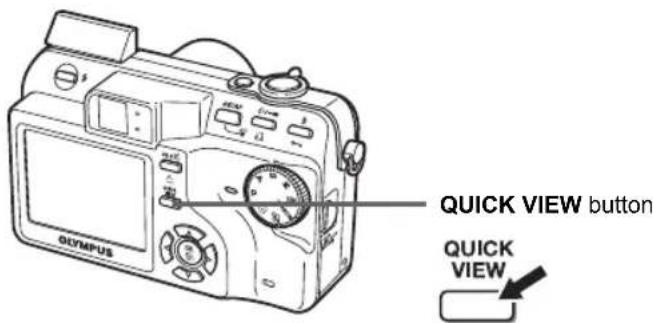
text_image
QUICK VIEW button QUICK VIEW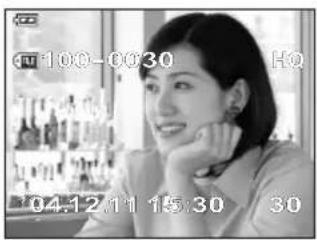
text_image
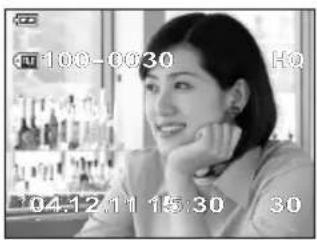
100-0030 HQ 04.12.11 15:30 30● ● You can display the last picture you took while staying in any shooting mode.
- Press the QUICK VIEW button again or press the shutter button lightly when you are ready to take another picture.
Use the arrow pad to display the picture you want.

natural_image
Black-and-white photo of three women sitting together, no visible text or symbols10 pictures back

natural_image
Pure mechanical or electrical symbol diagram with no text, numbers, or symbols10 pictures forward

natural_image
Black-and-white photo of a smiling woman at night with city lights in the background (no visible text or symbols)Next picturePrevious picture
d4228_basic_e_00_bookfile_7.book Page 21 Tuesday, August 17, 2004 1:42 PM
TURNING THE CAMERA OFF
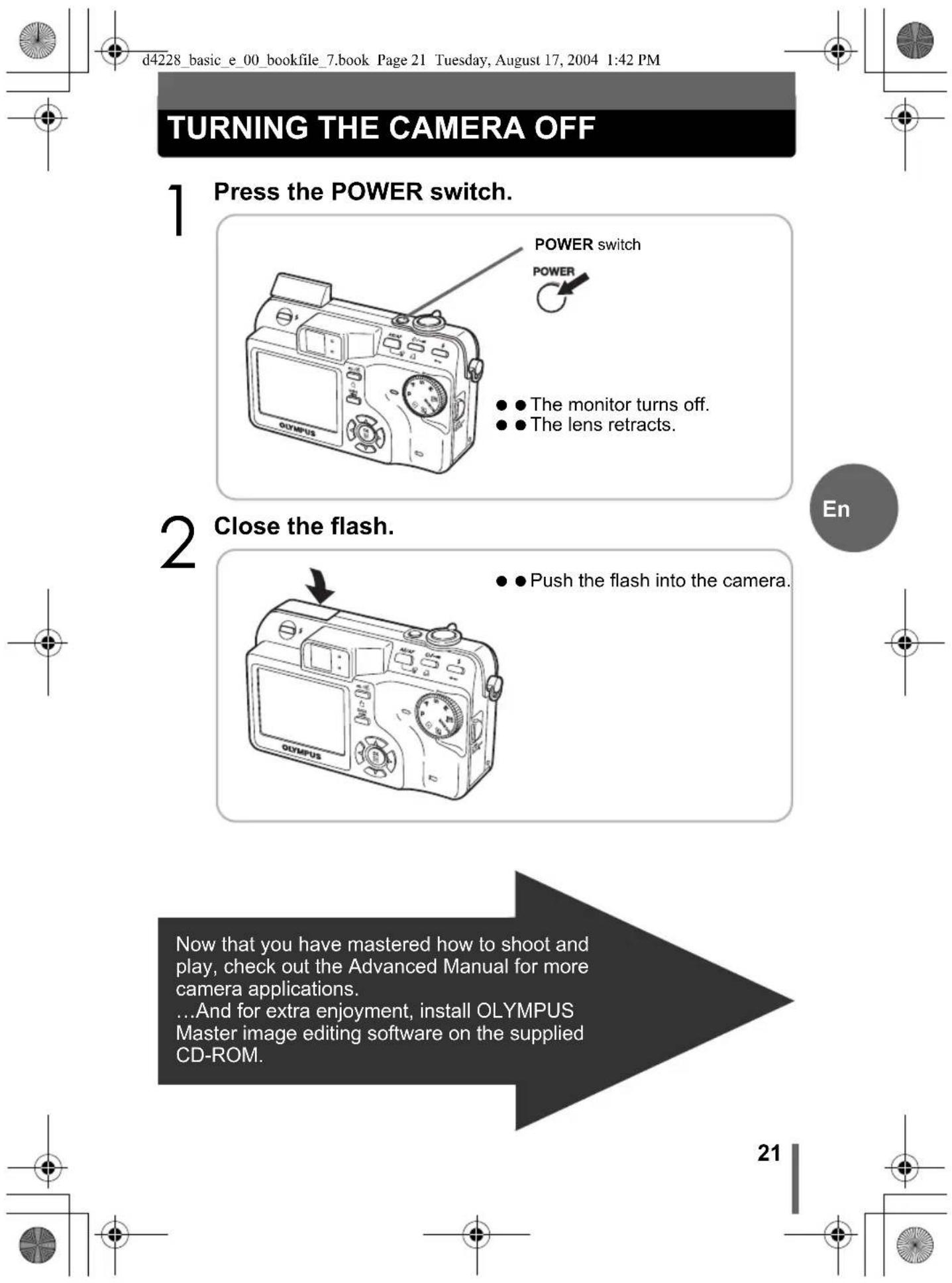
1 Press the POWER switch.
2 Close the flash.
En
Now that you have mastered how to shoot and play, check out the Advanced Manual for more camera applications.
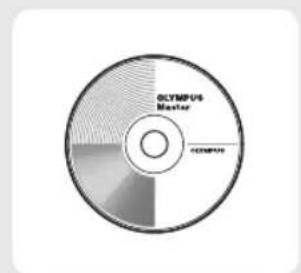
...And for extra enjoyment, install OLYMPUS Master image editing software on the supplied CD-ROM.
21

natural_image
Pure geometric diagram with concentric circles and crosshairs, no text or symbols presentSpecifications
Camera
Product type : Digital camera (for shooting and displaying)
Recording system
Still picture : Digital recording, TIFF (non-compression), JPEG (in accordance with Design rule for Camera File system (DCF)), RAW data
Applicable standards : Exif 2.2, Digital Print Order Format (DPOF), PRINT Image Matching II, PictBridge
Sound with still pictures : Wave format
Movie : QuickTime Motion JPEG support
Memory : xD-Picture Card (16 - 512 MB)
Resolution : 3,072 × 2,304 pixels(RAW/TIFF/SHQ/HQ) 3,072 × 2,048 pixels(3:2 SHQ/HQ) 2,592 × 1,944 pixels(SQ1) 2,288 × 1,712 pixels(SQ1) 2,048 × 1,536 pixels(SQ1) 1,600 × 1,200 pixels(SQ1) 1,280 × 960 pixels (SQ2) 1,024 × 768 pixels (SQ2) 640 × 480 pixels (SQ2)
No. of storable pictures
when using a 32 MB : Approx. 3 frames (RAW : 3,072 × 2,304) card (without sound) Approx. 1 frame (TIFF : 3,072 × 2,304) Approx. 6 frames (SHQ : 3,072 × 2,304) Approx. 18 frames (HQ : 3,072 × 2,304) Approx. 64 frames (SQ1 : 1,600 × 1,200 NORMAL) Approx. 331 frames (SQ2 : 640 × 480 NORMAL)
No. of effective pixels : 7,100,000 pixels
Image pickup device : 1/1.8" CCD solid-state image pickup, 7,410,000 pixels (gross)
Lens : Olympus lens 7.9 mm to 39.5 mm, f2.8 to f4.8 (equivalent to 38 mm to 190 mm lens on a 35 mm camera)
Photometric system : Digital ESP metering, spot metering system
Aperture : f2.8 to f8.0
Shutter speed : 15 to 1/2000 sec.
Shooting range : 0.6 m (2.0 ft.) to ∞ (W), 1.2 m (3.9 ft.) to ∞ (T) (NORMAL) 8 cm (0.3 ft.) to ∞ (W), 0.6 m (2.0 ft.) to ∞ (T) (macro mode)
Viewfinder : Optical real image viewfinder
Monitor : 2.0" TFT color LCD display, 206,000 pixels
Auto focus : TTL system autofocus Contrast Detection Method
Outer connector : DC-IN jack, USB connector (Multi-connector), A/V OUT jack (Multi-connector)



natural_image
Pure geometric diagram with intersecting lines and circular shapes, no text or symbols present
natural_image
Pure geometric diagram with concentric circles and crosshairs, no text or symbols presentSpecifications
Automatic calendar system : 2000 up to 2099
Operating environment
Temperature : 0°C to 40°C (32°F to 104°F) (operation)/ -20°C to 60°C (-4°F to 140°F) (storage)
Humidity : 30% to 90% (operation)/10% to 90% (storage)
Power supply : Only an Olympus LI-12B lithium ion battery AC adapter specified by Olympus (optional)
Dimensions : 102 mm (W) × 59 mm (H) × 42.5 mm (D) (4.0" × 2.3" × 1.7") (excluding protrusions)
Weight : 220 g (0.49 lb.) (without battery and card)
xD-Picture Card
Memory type : NAND flash EEP-ROM
Operating environment
Temperature : 0°C to 55°C (32°F to 131°F) (operation)/ -20°C to 65°C (-4°F to 149°F) (storage)
Humidity : 95% or lower
Power : 3V (3.3V)
Dimensions : 20 × 25 × 1.7 mm (0.8" × 1.0" × 0.1")
LI-12B Lithium ion Battery
Type : Lithium ion rechargeable battery
Standard voltage : DC 3.7V
Standard capacity : 1,230 mAh
Battery life : Approx. 300 full recharges (varies on usage)
Recommended temperature : 0°C to 40°C/32°F to 104°F (charging)/-10°C to 60°C/14°F to 140°F (operation)/0°C to 30°C/32°F to 86°F (storage)
Dimensions : 31.9 × 45.8 × 10 mm (1.3" × 1.8" × 0.4")
Weight : Approx. 36 g/1.2 oz.
LI-10C Battery Charger
Power requirements : AC 100 to 240V (50 to 60 Hz) 9 VA (100V) to 16 VA (240V)
Output: DC 4.2V 860 mA
Charging time : Approx. 120 minutes
Recommended temperature : 0°C to 40°C/32°F to 104°F (operation)/-20°C to 60°C/-4°F to 140°F (storage)
Dimensions : 46 × 37.5 × 86 mm (1.8" × 1.5" × 3.4")
Weight : Approx. 75 g/2.6 oz. (without battery)
Design and specifications subject to change without notice.

natural_image
Pure geometric diagram with intersecting lines and circles, no text or symbols present


text_image
d4228_basic_f_00_bookfile_7.book Page 24 Tuesday, August 17, 2004 1:55 PMAdresse: Two Corporate Center Drive, PO Box 9058, Melville,
NY 11747-9058 U.S.A.
natural_image
Pure geometric diagram with concentric circles and crosshairs, no text or symbols presentContenu du manuel
Comment utiliser l'appareil photo.... 26
Précautions de sécurité....28
DÉBALLAGE DES PIÈCES DU CARTON....32
CHARGEMENT DE LA BATTERIE ....34
INSERTION DE LA BATTERIE ET DE LA CARTE...35
MISE EN MARCHE DE L'APPAREIL PHOTO .....38
PRISE D'UNE PHOTO....40
CONTRÔLE D'UNE PHOTO....42
ARRÊT DE L'APPAREIL PHOTO....43
Caractéristiques .... 44
Fr

natural_image
Pure geometric diagram with intersecting lines and circles, no text or symbols present
25

natural_image
Pure geometric diagram with intersecting lines and shapes, no text or symbols present
natural_image
Pure geometric diagram with intersecting lines and circles, no text or symbols present
natural_image
Pure geometric lines and shapes without any text, numbers, or symbolsNavigation
natural_image
Pure technical drawing lines with geometric shapes and no text or symbols
natural_image
Pure geometric diagram with intersecting lines and circles, no text or symbols presentnatural_image
Pure geometric lines and shapes without any text, numbers, or symbols
natural_image
Pure geometric diagram with intersecting lines and circles, no text or symbols present
natural_image
Pure geometric diagram with concentric circles and crosshairs, no text or symbols presentnatural_image
Pure geometric diagram with intersecting lines and circles, no text or symbols present
natural_image
Pure geometric diagram with intersecting lines and shapes, no text or symbols present
natural_image
Pure geometric diagram with concentric circles and crosshairs, no text or symbols presentnatural_image
Abstract geometric diagram with intersecting lines and circular shapes (no text or symbols)

natural_image
Pure geometric lines and shapes without any text, numbers, or symbols

natural_image
Pure geometric diagram with intersecting lines and circular shapes (no text or symbols)AVERTISSEMENT
natural_image
Pure geometric diagram with intersecting lines and circles, no text or symbols present
31

natural_image
Pure geometric diagram with intersecting lines and circles, no text or symbols present
natural_image
Pure geometric diagram with intersecting lines and circles, no text or symbols presentDÉBALLAGE DES PIÈCES DU CARTON
natural_image
Line drawing of a Olympus digital camera with lens and control buttons (no text or symbols on body)
natural_image
Simple line drawing of a knotted rope or cord with a black handle (no text or symbols)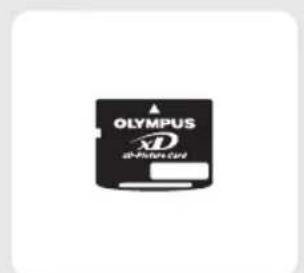
text_image
OLYMPUS 3D at-Peasure Cardnatural_image
Line drawing of a device with a rectangular box and a coiled cable (no text or symbols)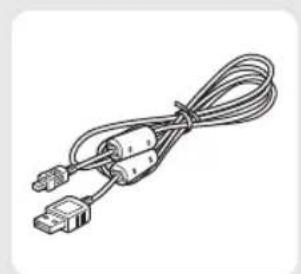
natural_image
Line drawing of a USB cable with two connectors (no text or symbols)natural_image
Line drawing of a triple-voltage audio cable with two connectors and a central connector (no text or symbols)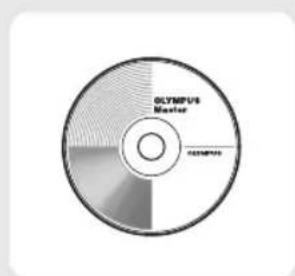
text_image
OLYMPUS Master Olympus
text_image
OLYMPUS UNITED WARRANTY
text_image
Câble AV CAMEDIA DIGITAL ZAMINA C-7000 ZOOM C-70 ZOOM Basic Manual OYMPUS
text_image
CD-ROM OLYMPUS Master Advanced Manual COMPUT
text_image
Carte de garantie OLYMPUS®Manuel de Base (ce manuel)
Manuel Avancé (CD-ROM)
natural_image
Pure geometric lines and shapes without any text, numbers, or symbols

natural_image
Pure geometric diagram with intersecting lines and a central circular pattern (no text or symbols)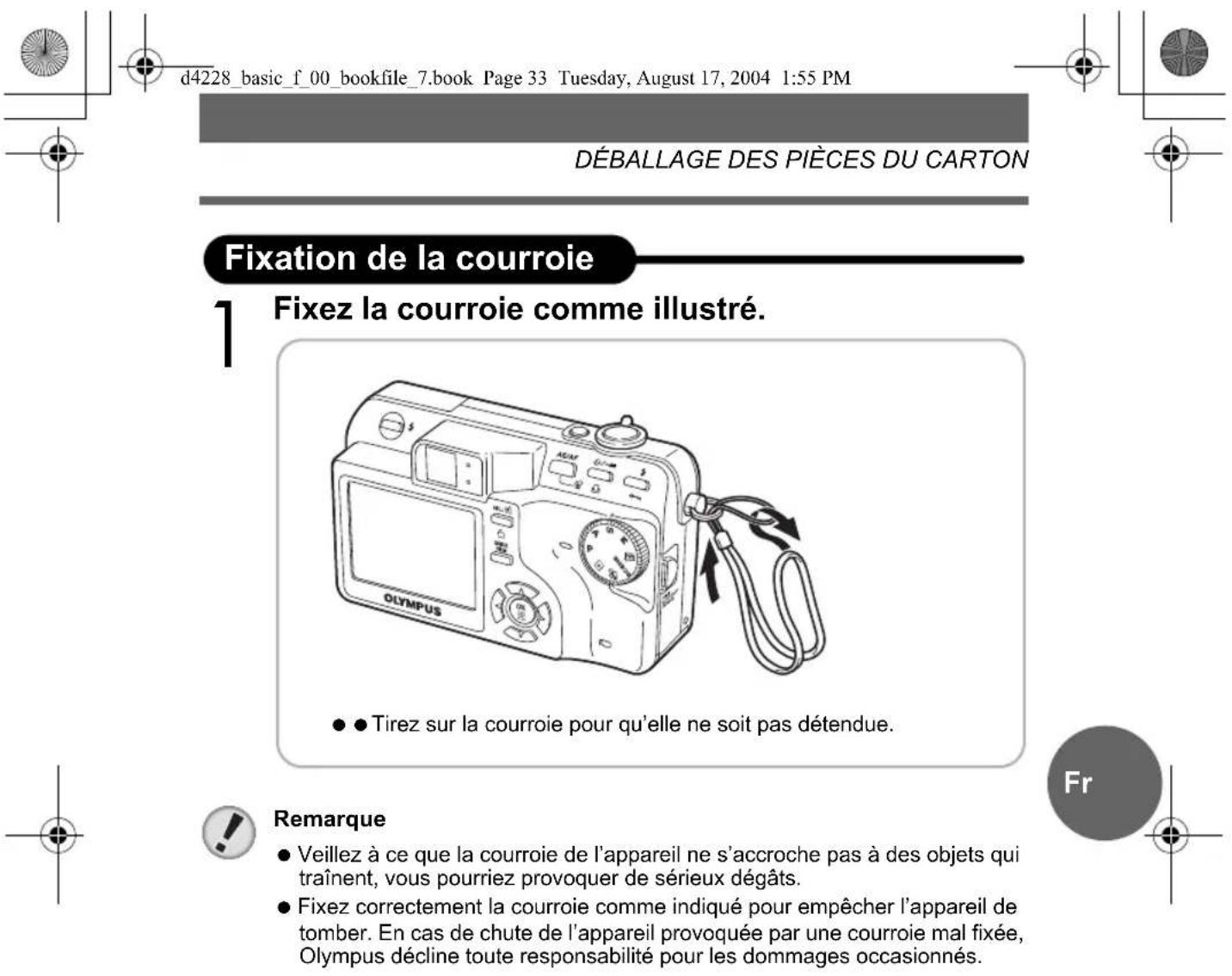
d4228_basic_f_00_bookfile_7.book Page 33 Tuesday, August 17, 2004 1:55 PM
DÉBALLAGE DES PIÈCES DU CARTON
natural_image
Pure geometric diagram with intersecting lines and circles, no text or symbols present
33

natural_image
Pure geometric diagram with intersecting lines and shapes, no text or symbols present
natural_image
Pure geometric diagram with intersecting lines and circles, no text or symbols presentCHARGEMENT DE LA BATTERIE
natural_image
Pure geometric lines and shapes without any text, numbers, or symbols34


natural_image
Pure geometric diagram with intersecting lines and circles, no text or symbols present
natural_image
Pure geometric diagram with intersecting lines and circles, no text or symbols presentINSERTION DE LA BATTERIE ET DE LA CARTE
natural_image
Diagram of a device interior showing a printer with an open lid and directional arrows indicating movement or force (no text or symbols present)natural_image
Diagram of a device with an open lid and internal components, showing a directional arrow (no text or symbols)natural_image
Pure geometric diagram with concentric circles and crosshairs, no text or symbols presentd4228_basic_f_00_bookfile_7.book Page 36 Tuesday, August 17, 2004 1:55 PM
INSERTION DE LA BATTERIE ET DE LA CARTE
4 Insérez la carte.
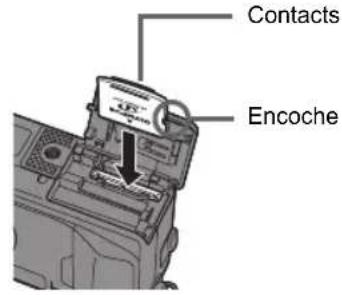
text_image
Contacts Encochenatural_image
Pure geometric diagram with intersecting lines and a circular pattern (no text or symbols)INSERTION DE LA BATTERIE ET DE LA CARTE
La batterie

Remarque
text_image
OLYMPUS XD xD-Picture CardZone d'index
natural_image
Pure geometric diagram with intersecting lines and circles, no text or symbols present
natural_image
Pure geometric diagram with intersecting lines and circles, no text or symbols presentMISE EN MARCHE DE L'APPAREIL PHOTO
natural_image
Pure geometric lines and symbols without any text, numbers, or symbols38


natural_image
Pure geometric diagram with intersecting lines and circular shapes, no text or symbols present
natural_image
Pure technical drawing lines with geometric shapes and no text or symbols
natural_image
Pure geometric diagram with intersecting lines and circles, no text or symbols presentPRISE D'UNE PHOTO
natural_image
Pure geometric lines and shapes without any text, numbers, or symbols

natural_image
Pure geometric diagram with intersecting lines and circles, no text or symbols present
natural_image
Pure geometric diagram with intersecting lines and circles, no text or symbols presentPRISE D'UNE PHOTO
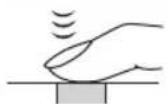
3 Prenez la photo.

text_image
P 1/1000 F2.8 0.0 HQ 3072×2304 30Bloc mémoire
natural_image
Pure geometric diagram with intersecting lines and circles, no text or symbols present

natural_image
Pure geometric diagram with intersecting lines and circles, no text or symbols present
natural_image
Pure geometric diagram with intersecting lines and circles, no text or symbols presentd4228_basic_f_00_bookfile_7.book Page 42 Tuesday, August 17, 2004 1:55 PM
CONTRÔLE D'UNE PHOTO
natural_image
Black-and-white photo of three women sitting together, no visible text or symbolsnatural_image
Circular mechanical or electrical component with four symmetrical arms and a central 'OK' button (no text or symbols beyond the label)10 photos suivantes

natural_image
Black-and-white photo of a smiling woman standing at night with a city skyline in the background (no visible text or symbols)natural_image
Pure geometric diagram with intersecting lines and shapes, no text or symbols present
natural_image
Pure geometric diagram with intersecting lines and circular shapes (no text or symbols)
d4228_basic_f_00_bookfile_7.book Page 43 Tuesday, August 17, 2004 1:55 PM
ARRÊT DE L'APPAREIL PHOTO
natural_image
Pure geometric diagram with intersecting lines and circles, no text or symbols presentCaractéristiques
Appareil photo
natural_image
Pure geometric diagram with concentric circles and crosshairs, no text or symbols presentCaractéristiques
Dimensions : 102 mm (L) × 59 mm (H) × 42,5 mm (P) (hors saillies)
natural_image
Pure geometric lines and shapes without any text, numbers, or symbols

natural_image
Pure geometric diagram with concentric circles and crosshairs, no text or symbols presentnatural_image
Pure geometric lines and shapes without any text, numbers, or symbols
natural_image
Pure geometric diagram with intersecting lines and circles, no text or symbols presentnatural_image
Pure geometric diagram with concentric circles and crosshairs, no text or symbols presentnatural_image
Pure geometric diagram with intersecting lines and circles, no text or symbols presentnatural_image
Pure geometric diagram with intersecting lines and circles, no text or symbols present

natural_image
Pure geometric diagram with intersecting lines and circles, no text or symbols presentnatural_image
Pure geometric lines and shapes without any text, numbers, or symbols
natural_image
Pure geometric diagram with intersecting lines and circles, no text or symbols present
text_image
d4228_basic_sp_00_bookfile_7.book Page 53 Tuesday, August 17, 2004 12:40 PM Precauciones de seguridad ADVERTENCIAADVERTENCIA
natural_image
Pure technical drawing lines with geometric shapes and no text or symbols
natural_image
Pure geometric diagram with intersecting lines and circles, no text or symbols presentDESEMBALAJE DEL CONTENIDO DEL PAQUETE
natural_image
Pure geometric diagram with concentric circles and crosshairs, no text or symbols presentd4228_basic_sp_00_bookfile_7.book Page 55 Tuesday, August 17, 2004 12:40 PM
DESEMBALAJE DEL CONTENIDO DEL PAQUETE
natural_image
Line drawing of a Olympus digital camera with attached cable and adjustment knobs (no text or symbols on main body)natural_image
Pure geometric diagram with intersecting lines and circles, no text or symbols present
55

natural_image
Pure geometric diagram with intersecting lines and circles, no text or symbols present
natural_image
Pure geometric diagram with concentric circles and crosshairs, no text or symbols presentCARGA DE LA BATERÍA
natural_image
Pure electrical circuit lines without any symbols

natural_image
Pure geometric diagram with intersecting lines and circular shapes (no text or symbols)
natural_image
Pure geometric diagram with intersecting lines and circles, no text or symbols presentnatural_image
Mechanical device interior showing open lid and internal compartments with a directional arrow (no text or symbols)natural_image
Pure geometric diagram with intersecting lines and circles, no text or symbols presentd4228_basic_sp_00_bookfile_7.book Page 58 Tuesday, August 17, 2004 12:40 PM
natural_image
Pure geometric diagram with intersecting lines and shapes, no text or symbols present

natural_image
Pure geometric diagram with intersecting lines and circles, no text or symbols presenttext_image
OLYMPUS XD xD-Picture CardÁrea de índice
natural_image
Pure geometric diagram with intersecting lines and circles, no text or symbols presentd4228_basic_sp_00_bookfile_7.book Page 60 Tuesday, August 17, 2004 12:40 PM
ENCENDIDO DE LA CÁMARA
natural_image
Pure geometric lines and shapes without any text, numbers, or symbols
natural_image
Pure geometric diagram with intersecting lines and circular shapes, no text or symbols present
natural_image
Pure technical drawing lines with geometric shapes and no text or symbols
natural_image
Pure geometric diagram with intersecting lines and circles, no text or symbols presentCÓMO TOMAR UNA FOTOGRAFÍA
natural_image
Line drawing of a digital camera with visible ports and control knobs (no text or symbols)text_image
P 1/000 F2.8 0.0 [ ] F:3072×2304 30natural_image
Pure geometric diagram with intersecting lines and circles, no text or symbols presentd4228_basic_sp_00_bookfile_7.book Page 63 Tuesday, August 17, 2004 12:40 PM
CÓMO TOMAR UNA FOTOGRAFÍA
natural_image
Pure geometric diagram with intersecting lines and circles, no text or symbols present
natural_image
Pure geometric diagram with intersecting lines and circles, no text or symbols present
natural_image
Pure geometric diagram with intersecting lines and circles, no text or symbols presentd4228_basic_sp_00_bookfile_7.book Page 64 Tuesday, August 17, 2004 12:40 PM
CÓMO REVISAR UNA FOTOGRAFÍA
natural_image
Line drawing of a Olympus digital camera with control panel and display (no text or symbols on device body)natural_image
Black-and-white photo of three people sitting together, no visible text or symbols
natural_image
Circular mechanical or electrical component with four cross-shaped arms and a central 'OK' symbol (no text or labels)natural_image
Black-and-white photo of a smiling woman at night with city lights in the background (no visible text or symbols)natural_image
Pure geometric diagram with intersecting lines and circular patterns (no text or symbols)
d4228_basic_sp_00_bookfile_7.book Page 65 Tuesday, August 17, 2004 12:40 PM
natural_image
Pure geometric diagram with concentric circles and intersecting lines, no text or symbols presentEspecificaciones
Cámara
Conector exterior : Jack DC-IN, conector USB (multiconector), Jack A/V OUT (multiconector)




natural_image
Pure geometric diagram with intersecting lines and circular shapes, no text or symbols present
natural_image
Pure geometric diagram with intersecting lines and circles, no text or symbols presentd4228_sp_basic_06_battery_7.fm Page 67 Monday, August 23, 2004 10:37 AM
Especificaciones
natural_image
Pure geometric diagram with intersecting lines and circles, no text or symbols present

natural_image
Pure geometric diagram with concentric circles and crosshairs, no text or symbols present

natural_image
Pure geometric lines and shapes without any text, numbers, or symbols

natural_image
Pure geometric diagram with intersecting lines and circles, no text or symbols present
natural_image
Pure geometric diagram with concentric circles and crosshairs, no text or symbols presentManual Contents
natural_image
Pure geometric diagram with intersecting lines and circles, no text or symbols present
69
natural_image
Pure geometric diagram with intersecting lines and circles, no text or symbols present
natural_image
Pure technical drawing lines with geometric shapes and crosshair markers, no text or symbols present
natural_image
Pure geometric diagram with concentric circles and crosshairs, no text or symbols presentSicherheitshinweise

VORSICHT
natural_image
Pure geometric diagram with concentric circles and crosshairs, no text or symbols presentSicherheitshinweise
natural_image
Pure geometric diagram with intersecting lines and circles, no text or symbols present


natural_image
Pure geometric diagram with intersecting lines and circles, no text or symbols presentd4228_basic_d_00_bookfile_7.book Page 74 Tuesday, August 17, 2004 12:10 PM
Sicherheitshinweise
natural_image
Pure geometric lines and shapes without any text, numbers, or symbols

natural_image
Pure geometric diagram with intersecting lines and circular shapes (no text or symbols)
natural_image
Pure geometric diagram with concentric circles and crosshairs, no text or symbols presentSicherheitshinweise
ZU IHRER BEACHTUNG
natural_image
Pure geometric diagram with intersecting lines and circles, no text or symbols present
75


natural_image
Pure geometric diagram with intersecting lines and circles, no text or symbols presentAUSPACKEN DES VERPACKUNGSINHALTS
natural_image
Pure geometric diagram with intersecting lines and circles, no text or symbols present
natural_image
Pure geometric diagram with intersecting lines and circles, no text or symbols presentd4228_basic_d_00_bookfile_7.book Page 77 Tuesday, August 17, 2004 12:10 PM
AUSPACKEN DES VERPACKUNGSINHALTS
natural_image
Line drawing of a Olympus digital camera with control knobs and a strap (no text or symbols on main body)natural_image
Pure geometric diagram with intersecting lines and circles, no text or symbols present
77

natural_image
Pure geometric diagram with intersecting lines and circles, no text or symbols present
natural_image
Pure geometric diagram with concentric circles and crosshairs, no text or symbols presentAUFLADEN DES AKKUS
natural_image
Pure geometric lines and shapes without any text, numbers, or symbols

natural_image
Pure geometric diagram with intersecting lines and circles, no text or symbols present
natural_image
Pure geometric diagram with intersecting lines and circles, no text or symbols presentnatural_image
Diagram of a device with an open lid and internal components, showing a directional arrow (no text or symbols)Akkuverriegelung
De
natural_image
Pure geometric diagram with concentric circles and crosshairs, no text or symbols presentd4228_basic_d_00_bookfile_7.book Page 80 Tuesday, August 17, 2004 12:10 PM
natural_image
Pure geometric lines and shapes without any text, numbers, or symbols

natural_image
Pure geometric diagram with intersecting lines and circular shapes, no text or symbols presentnatural_image
Pure diagram of a rectangular device with internal vertical bars and a small connected line (no text or symbols)Kontakte
natural_image
Pure geometric diagram with intersecting lines and circles, no text or symbols presentnatural_image
Pure geometric lines and symbols without any text, numbers, or symbols

natural_image
Pure geometric diagram with intersecting lines and circular shapes (no text or symbols)
natural_image
Pure technical drawing lines with geometric shapes and no text or symbols
natural_image
Pure geometric diagram with intersecting lines and circles, no text or symbols presentnatural_image
Pure geometric diagram with intersecting lines and circles, no text or symbols presentd4228_basic_d_00_bookfile_7.book Page 85 Tuesday, August 17, 2004 12:10 PM
natural_image
Pure geometric diagram with intersecting lines and circles, no text or symbols present
natural_image
Pure geometric diagram with intersecting lines and circles, no text or symbols present
natural_image
Pure geometric diagram with intersecting lines and circles, no text or symbols presentd4228_basic_d_00_bookfile_7.book Page 86 Tuesday, August 17, 2004 12:10 PM
natural_image
Line drawing of a Olympus digital camera with control panel and display (no text or symbols on device body)QUICK VIEW-Taste

text_image
100-0030 HQ 04.12.11 15:30 30natural_image
Pure electrical circuit lines without any symbols
natural_image
Pure geometric diagram with intersecting lines and a circular pattern (no text or symbols)
natural_image
Pure geometric diagram with concentric circles and crosshairs, no text or symbols presentnatural_image
Pure geometric diagram with intersecting lines and circles, no text or symbols present

natural_image
Pure geometric diagram with intersecting lines and circles, no text or symbols present
natural_image
Pure geometric diagram with concentric circles and crosshairs, no text or symbols presentTechnische Daten
Kamera
natural_image
Pure geometric diagram with intersecting lines and circular patterns (no text or symbols)
natural_image
Pure geometric diagram with concentric circles and crosshairs, no text or symbols presentTechnische Daten
(Multi-Connector), A/V OUT-Buchse (Multi-Connector)
natural_image
Pure geometric diagram with intersecting lines and circles, no text or symbols present

text_image
d4228_basic_i_00_bookfile_7.book Page 90 Monday, August 16, 2004 6:38 PMIndirizzo: Two Corporate Center Drive, PO Box 9058, Melville, NY
11747-9058 U.S.A.
Telefono : 1-631-844-5000
text_image
d4228_basic_i_00_bookfile_7.book Page 91 Monday, August 16, 2004 6:38 PM Sommarionatural_image
Pure technical diagram with geometric symbols and lines, no readable text or labels
natural_image
Pure technical drawing lines with geometric shapes and no text or symbolsMisure di sicurezza

PERICOLO
natural_image
Pure geometric diagram with intersecting lines and circles, no text or symbols present

text_image
d4228_basic_i_00_bookfile_7.book Page 96 Monday, August 16, 2004 6:38 PM Misure di sicurezzaMisure di sicurezza
text_image
d4228_basic_i_00_bookfile_7.book Page 97 Monday, August 16, 2004 6:38 PM Misure di sicurezza ATTENZIONEATTENZIONE
natural_image
Pure technical diagram with geometric symbols and lines, no readable text or labels
natural_image
Pure geometric diagram with intersecting lines and circles, no text or symbols presentnatural_image
Pure geometric diagram with intersecting lines and circular patterns (no text or symbols)
d4228 basic i 00 bookfile 7.book Page 99 Monday, August 16, 2004 6:38 PM
natural_image
Pure geometric diagram with intersecting lines and circles, no text or symbols present
99


natural_image
Pure geometric diagram with concentric circles and crosshairs, no text or symbols presentnatural_image
Pure geometric lines and shapes without any text, numbers, or symbols

natural_image
Pure geometric diagram with intersecting lines and circles, no text or symbols present
natural_image
Pure geometric diagram with intersecting lines and circles, no text or symbols presentnatural_image
Mechanical device interior showing open lid and internal components with a directional arrow (no text or symbols)natural_image
Pure geometric diagram with concentric circles and crosshairs, no text or symbols presentd4228 basic i 00 bookfile 7.book Page 102 Monday, August 16, 2004 6:38 PM
natural_image
Pure geometric diagram with intersecting lines and shapes, no text or symbols present

natural_image
Pure geometric diagram with intersecting lines and circular shapes, no text or symbols present
natural_image
Pure geometric diagram with concentric circles and crosshairs, no text or symbols presenttext_image
OLYMPUS XD xD-Picture Cardnatural_image
Pure geometric diagram with intersecting lines and circles, no text or symbols present103

natural_image
Pure geometric diagram with intersecting lines and shapes, no text or symbols present
natural_image
Pure geometric diagram with intersecting lines and circles, no text or symbols presentd4228 basic i 00 bookfile 7.book Page 104 Monday, August 16, 2004 6:38 PM
ACCENSIONE DELLA FOTOCAMERA
natural_image
Pure geometric lines and shapes without any text, numbers, or symbols

natural_image
Pure geometric diagram with intersecting lines and circular shapes, no text or symbols present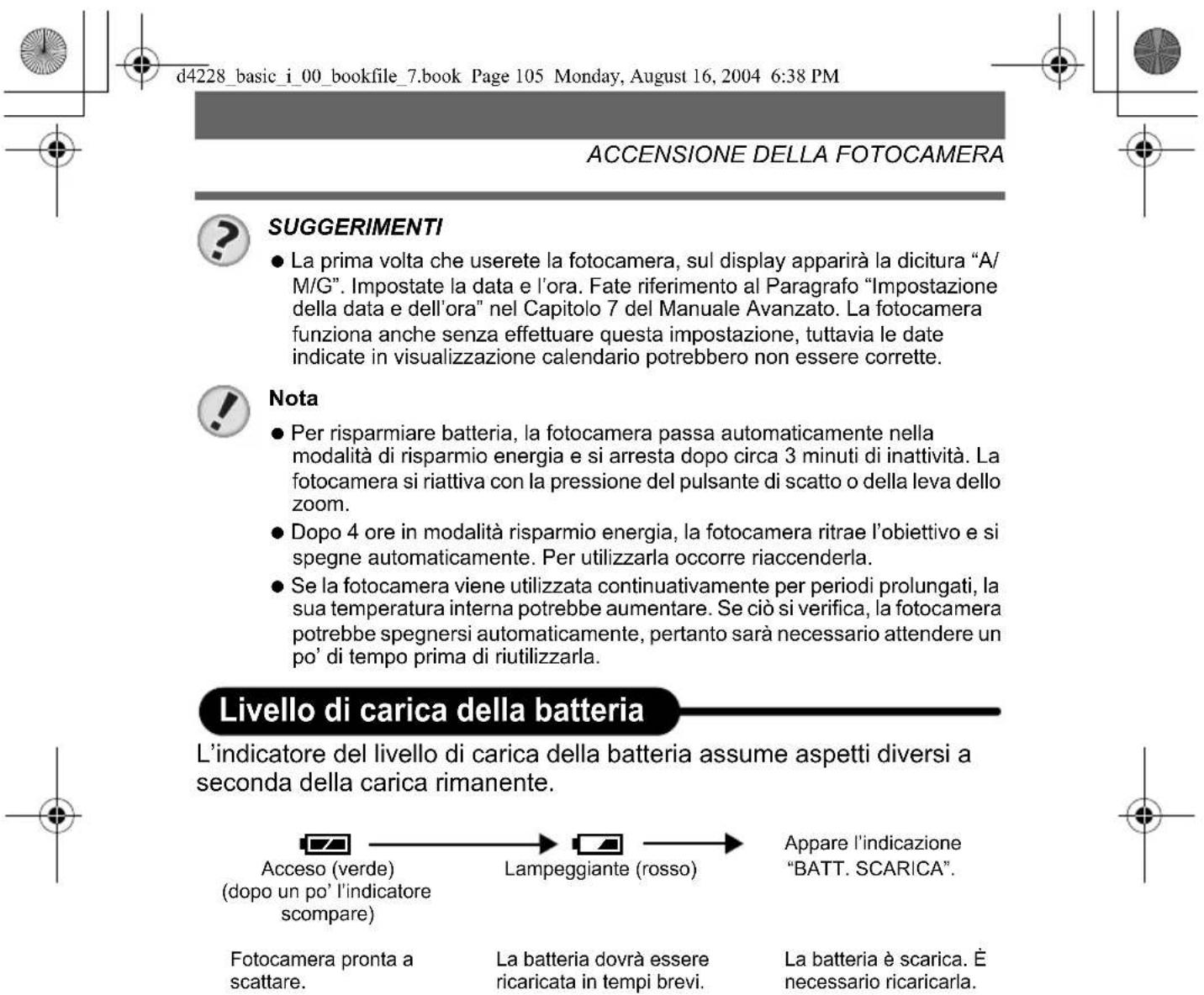
natural_image
Pure technical drawing lines with geometric shapes and no text or symbols
natural_image
Pure geometric diagram with intersecting lines and circles, no text or symbols presentCOME FOTOGRAFARE
natural_image
Pure geometric diagram with intersecting lines and shapes, no text or symbols present

natural_image
Pure geometric diagram with intersecting lines and circles, no text or symbols present
natural_image
Pure geometric diagram with intersecting lines and circles, no text or symbols presentCOME FOTOGRAFARE
3 Scattate la foto.
text_image
P 1/1000 F2.8 0.0 HQ 3072×2304 30natural_image
Pure geometric diagram with intersecting lines and circles, no text or symbols present
natural_image
Pure geometric diagram with intersecting lines and shapes, no text or symbols present
natural_image
Pure geometric diagram with intersecting lines and circles, no text or symbols presentd4228 basic i 00 bookfile 7.book Page 108 Monday, August 16, 2004 6:38 PM
natural_image
Black-and-white photo of two women sitting together, one holding a large object (no visible text or symbols)Indietro di 10 foto

natural_image
Pure electrical circuit symbol diagram without any text or labelsAvanti di 10 foto

natural_image
Black-and-white photo of a smiling woman standing at night with a city skyline in the background (no visible text or symbols)natural_image
Pure geometric diagram with intersecting lines and shapes, no text or symbols present
natural_image
Pure geometric diagram with intersecting lines and circular shapes (no text or symbols)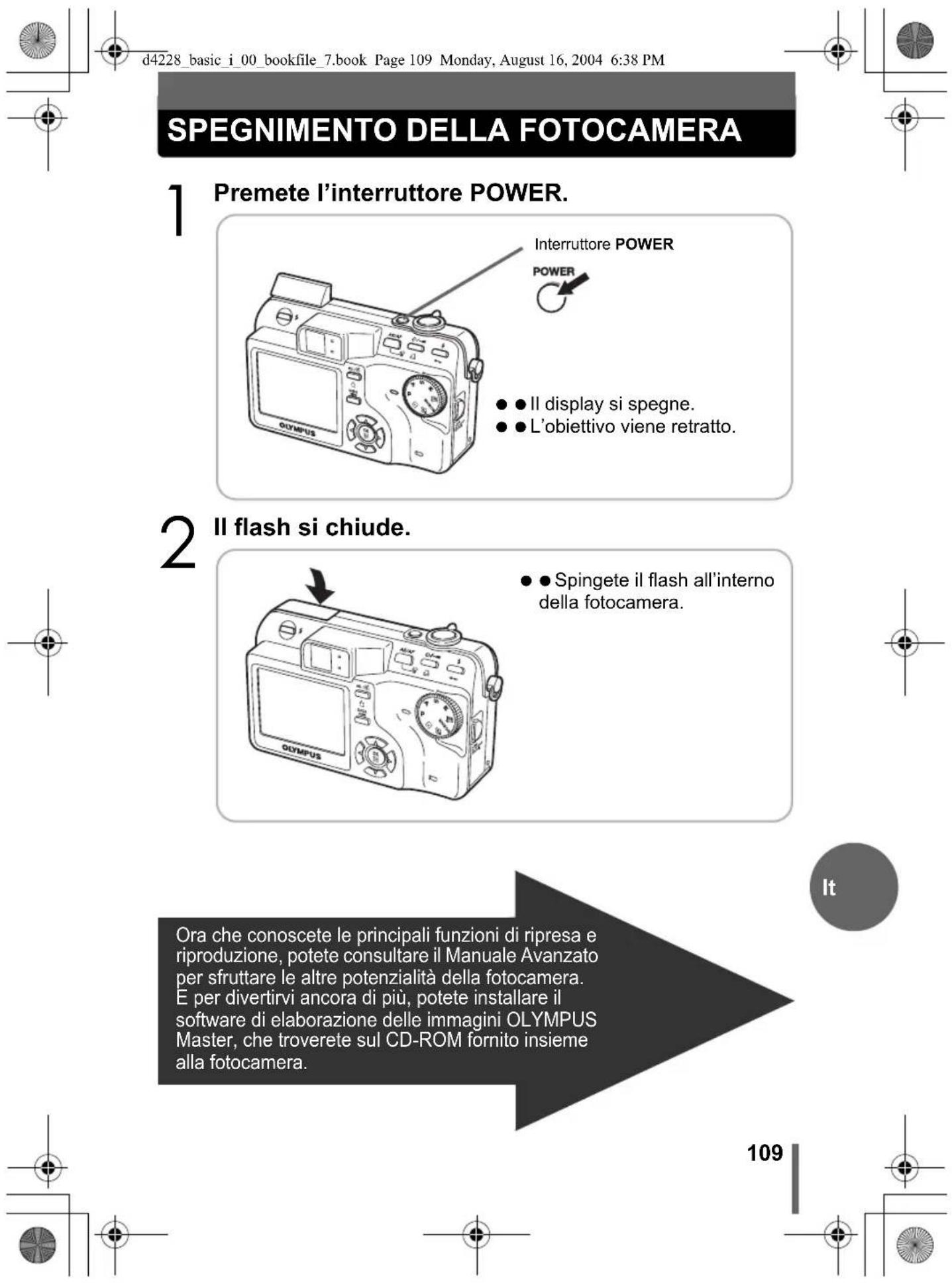
d4228_basic_i_00_bookfile_7.book Page 109 Monday, August 16, 2004 6:38 PM
SPEGNIMENTO DELLA FOTOCAMERA
natural_image
Pure geometric diagram with concentric circles and crosshairs, no text or symbols presentStandard applicabili : Exif 2.2, Digital Print Order Format (DPOF), PRINT Image Matching II, PictBridge
natural_image
Pure geometric diagram with concentric circles and crosshairs, no text or symbols presentnatural_image
Pure geometric diagram with intersecting lines and circles, no text or symbols present
natural_image
Pure geometric diagram with concentric circles and crosshairs, no text or symbols presentd4228_basic_r_00_bookfile_7.book Page 112 Thursday, August 5, 2004 3:08 PM
natural_image
Pure geometric diagram with intersecting lines and circular patterns (no text or symbols)natural_image
Pure geometric diagram with intersecting lines and circles, no text or symbols present113


natural_image
Pure geometric diagram with intersecting lines and shapes, no text or symbols present
natural_image
Pure geometric diagram with intersecting lines and circles, no text or symbols present
natural_image
Pure geometric diagram with intersecting lines and shaded regions, no text or symbols presentНавигация
natural_image
Pure technical drawing lines with geometric shapes and no text or symbolsnatural_image
Pure geometric diagram with concentric circles and crosshairs, no text or symbols presentnatural_image
Pure geometric diagram with intersecting lines and circular patterns (no text or symbols)ПРЕДУПРЕЖДЕНИЕ
natural_image
Pure geometric diagram with intersecting lines and circles, no text or symbols present119

natural_image
Line drawing of a Olympus digital camera with lens and control buttons (no text or symbols on body)Цифровая фотокамера

natural_image
Simple line drawing of a knotted rope or cord with a loop handle (no text or symbols)Ремешок

text_image
OLYMPUS 3D at-Perman cardnatural_image
Line drawing of a portable electronic device with two cables (no text or symbols)natural_image
Line drawing of a USB cable with two connectors (no text or symbols)Кабель USB

natural_image
Line drawing of a triple-voltage audio cable with two connectors and a central connector (no text or symbols)Аудио-видео кабель
text_image
OLYMPUS Master CENPUSnatural_image
Pure geometric diagram with intersecting lines and circular patterns (no text or symbols)
natural_image
Pure geometric diagram with concentric circles and crosshairs, no text or symbols presentd4228_basic_r_00_bookfile_7.book Page 121 Thursday, August 5, 2004 3:08 PM
natural_image
Line drawing of a Olympus digital camera with attached cable and dials (no text or symbols on main body)natural_image
Pure geometric diagram with intersecting lines and circles, no text or symbols present
121
natural_image
Pure geometric diagram with intersecting lines and circles, no text or symbols present
natural_image
Pure geometric diagram with intersecting lines and circles, no text or symbols presentnatural_image
Pure geometric diagram with intersecting lines and shapes, no text or symbols present
natural_image
Pure geometric diagram with intersecting lines and circles, no text or symbols presentnatural_image
Line drawing of a Olympus digital camera with control knobs and dials (no text or symbols on body)natural_image
Diagram of a printer's internal structure showing paper feeding into a box with arrows indicating direction (no text or symbols)natural_image
Mechanical device interior showing open lid and internal components with a directional arrow (no text or symbols)natural_image
Pure geometric diagram with intersecting lines and circles, no text or symbols present


natural_image
Pure geometric diagram with concentric circles and crosshairs, no text or symbols presentd4228_r_basic_06_battery_7.fm Page 124 Thursday, August 5, 2004 4:33 PM
natural_image
Pure geometric diagram with intersecting lines and shapes, no text or symbols present
natural_image
Pure geometric diagram with intersecting lines and circular shapes (no text or symbols)Аккумулятор

Примечание
text_image
OLYMPUS XD 3D-Picture CardМесто указателя
natural_image
Pure geometric diagram with intersecting lines and circles, no text or symbols presentd4228_basic_r_00_bookfile_7.book Page 126 Thursday, August 5, 2004 3:08 PM
ВКЛЮЧЕНИЕ ФОТОКАМЕРЫ
natural_image
Pure geometric lines and symbols without any text, numbers, or symbols126


natural_image
Pure geometric diagram with intersecting lines and circular shapes, no text or symbols present
natural_image
Pure geometric diagram with intersecting lines and circles, no text or symbols presentВКЛЮЧЕНИЕ ФОТОКАМЕРЫ

HA 3AMETKY
natural_image
Pure geometric diagram with intersecting lines and circles, no text or symbols presentd4228_basic_r_00_bookfile_7.book Page 128 Thursday, August 5, 2004 3:08 PM
ФОТОСЪЕМКА
natural_image
Line drawing of a digital camera with visible lens, control buttons, and display (no text or symbols on main body)Кнопка спуска затвора
natural_image
Pure geometric diagram with intersecting lines and circles, no text or symbols present

natural_image
Pure geometric diagram with intersecting lines and circles, no text or symbols presentd4228_basic_r_00_bookfile_7.book Page 130 Thursday, August 5, 2004 3:08 PM
ПРОСМОТР СНИМКОВ
natural_image
Line drawing of a digital camera with visible screen, buttons, and dial (no text or symbols)Кнопка QUICK VIEW


text_image
100-0030 HQ 04.12.11 15:30 30natural_image
Black-and-white photo of three women sitting together, no visible text or symbolsПредыдущий снимок
На 10 снимков назад

natural_image
Pure electrical circuit symbol diagram without any text or labelsnatural_image
Black-and-white photo of a smiling woman holding a feather, with city lights in the background (no visible text or symbols)Следующий снимок
Ru
text_image
130130

natural_image
Pure geometric diagram with intersecting lines and circles, no text or symbols present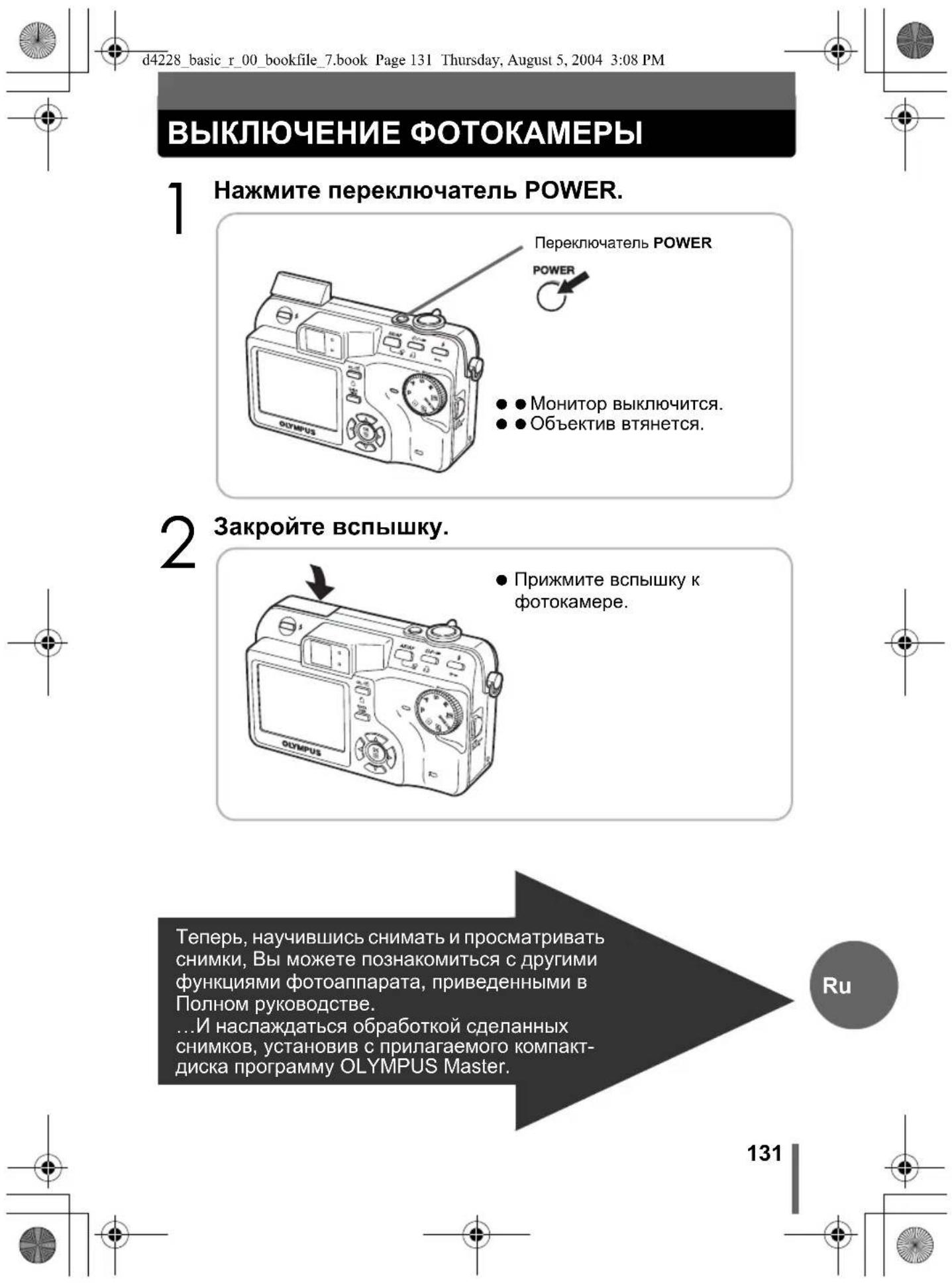
d4228_basic_r_00_bookfile_7.book Page 131 Thursday, August 5, 2004 3:08 PM
ВЫКЛЮЧЕНИЕ ФОТОКАМЕРЫ
text_image
d4228_r_basic_06_battery_7.fm Page 134 Tuesday, August 10, 2004 1:30 PM MEMO Ru 134
text_image
d4228 r basic 06 battery 7.fm Page 135 Tuesday, August 10, 2004 1:30 PM MEMO Ru 135
text_image
d4228_r_basic_06_battery_7.fm Page 136 Tuesday, August 10, 2004 1:30 PM MEMO Ru 136
text_image
d4228_r_basic_06_battery_7.fm Page 137 Tuesday, August 10, 2004 1:30 PM MEMO Ru 137
text_image
d4228_r_basic_06_battery_7.fm Page 138 Tuesday, August 10, 2004 1:30 PM MEMO Ru 138