
PowerEdge M605 - Server DELL - Free user manual and instructions
Find the device manual for free PowerEdge M605 DELL in PDF.



| Product Type | Blade server for Dell PowerEdge M1000e chassis |
| Dimensions (H x W x D) | 18.9 cm x 5 cm x 48.6 cm |
| Weight (maximum configuration) | 5.2 to 6.4 kg |
| Power supply | Via M1000e chassis: 2360 W power supply units, 200-240 V |
| Processor | 1 or 2 AMD Opteron 2000 Series dual or quad core processors |
| Memory | DDR2 677/800 MHz, minimum 1 GB (2 x 512 MB), expandable up to 64 GB (8 slots) |
| Storage | 1 or 2 hot-swappable 2.5-inch SATA or SAS hard drives |
| Integrated network controller | 2 x 1 Gb Ethernet ports via 2 Broadcom 5708S controllers (TOE and iSCSI boot support) |
| Remote management controller | iDRAC (Integrated Dell Remote Access Controller) |
| USB connectors | 2 USB 2.0 ports (front of chassis) |
| Video display | ATI RN50 controller, 32 MB SDRAM, max resolution 1280x1024 |
| Supported operating systems | Windows Server 2003/2008, Red Hat Enterprise Linux, SUSE Linux Enterprise Server, VMware ESX |
| Security | System password and setup password (setup program) |
| Maintenance and cleaning | Clean with dry compressed air; avoid liquids and moisture |
| Spare parts and repairability | Hard drives, memory modules, processors, optional RAID controller card; hot-swap possible for drives |
| Operating environment | Temperature: 10°C to 35°C; Humidity: 8% to 85% non-condensing |
Frequently Asked Questions - PowerEdge M605 DELL
User questions about PowerEdge M605 DELL
0 question about this device. Answer the ones you know or ask your own.
Ask a new question about this device
Download the instructions for your Server in PDF format for free! Find your manual PowerEdge M605 - DELL and take your electronic device back in hand. On this page are published all the documents necessary for the use of your device. PowerEdge M605 by DELL.
USER MANUAL PowerEdge M605 DELL
M905, M805, M605, and M600
Getting Started With Your System
M905, M805, M605, and M600
Getting Started
With Your System
Notes, Notices, and Cautions

NOTE: A NOTE indicates important information that helps you make better use of your computer.

NOTICE: A NOTICE indicates either potential damage to hardware or loss of data and tells you how to avoid the problem.

CAUTION: A CAUTION indicates a potential for property damage, personal injury, or death.
Information in this document is subject to change without notice.
© 2008 Dell Inc. All rights reserved.
Reproduction in any manner whatsoever without the written permission of Dell Inc. is strictly forbidden.
Trademarks used in this text: Dell, the DELL logo, and Dell OpenManage are trademarks of Dell Inc.; Microsoft, Windows, and Windows Server are either trademarks or registered trademarks of Microsoft Corporation in the United States and/or other countries; AMD and AMD Opteron are trademarks of Advanced Micro Devices, Inc.; Intel and Xeon are registered trademarks of Intel Corporation; SUSE is a registered trademark of Novell, Inc.; Red Hat and Enterprise Linux are registered trademarks of Red Hat, Inc.; VMware is a registered trademarks of VMware, Inc. in the United States and/or other jurisdictions.
Other trademarks and trade names may be used in this document to refer to either the entities claiming the marks and names or their products. Dell Inc. disclaims any proprietary interest in trademarks and trade names other than its own.
Model BMX01
May 2008 P/N R431C Rev. A00
System Features
This section describes the major hardware and software features of your system. It also provides information about other documents you may need when setting up your system and how to obtain technical assistance.
System Enclosure Features
The M1000e system enclosure (chassis) includes the following features:
Scalability Features
- Support for up to 16 half-height or 8 full-height blades (server modules).
- Support for three layers of I/O fabric, selectable between combinations of Ethernet, Infiniband, and Fibre Channel modules.
Up to six I/O modules may be installed in the enclosure, chosen from Fibre Channel switches, Fibre Channel passthroughs, Infiniband switches, Ethernet switches, and Ethernet passthrough modules.
Reliability Features
- Nine redundant, hot-pluggable system fan modules.
- Three 2360-watt, hot-pluggable power supplies and three power supply blanks, or six 2360-watt, hot-pluggable power supplies. (Three power supplies provide power to the system; adding three additional power supplies provides 3 + 3 redundancy.)

NOTICE: Power supplies can only connect to a power distribution unit (PDU). They cannot connect directly to an electrical outlet.

NOTICE: The system enclosure requires a 200-240V power source.
Systems Management Features
- A Chassis Management Controller (CMC), which provides several essential systems management features:
- Enclosure-level power management and thermal management:
- The CMC monitors system power requirements and supports the optional Dynamic Power Supply Engagement mode so that the CMC can enable or place power supplies in standby dynamically, depending on load and redundancy requirements, to improve power efficiency.
- The CMC reports real-time power consumption.
- The CMC supports an optional power ceiling, which will either trigger an alert or actions to keep the enclosure power consumption under the predefined ceiling.
-
The CMC monitors and controls cooling fans based on actual ambient and internal temperature measurements.
-
The CMC provides comprehensive enclosure inventory and status/error reporting.
- The CMC allows centralized configuration of the following settings:
- The CMC's network and security settings
• Power redundancy and power ceiling settings
• I/O switches and iDRAC network settings
- First boot device on the blades
- The CMC will check I/O fabric consistency between the I/O modules and blades and will disable system components if necessary to protect the system hardware.
- User access security.
- An SD card slot on the CMC card supports an optional persistent WWN/MAC feature that allows slot-based WWN/MACs for the blades, simplifying blade installation and replacement.
The CMC has two Ethernet ports. "Gbl" is used to connect to the external management network. "Stack" allows CMCs in adjacent enclosures to be daisy-chained. A 24-port Ethernet switch provides internal 100-Mb communication with the blades, I/O modules, optional iKVM, and optional second, redundant CMC, and provides a 10/100/1000-Mb connection to the external management network.

NOTE: The 24-port Ethernet switch is reserved for internal communication between the iDRAC on the blades to the CMC, then to the external management network.
A second, optional CMC can be installed for hot-plug failover redundancy.
- An enclosure control panel that includes an LCD display which provides current infrastructure and blade information, and error reporting.
-
An optional Avocent integrated Keyboard, Video and Mouse (iKVM) module, which includes the following features:
-
The iKVM maintains all blade connections as input is switched from each blade.
- Local iKVM access can be remotely disabled on a per blade basis via the iDRAC user interface.
- One VGA connector.
- Two USB ports for keyboard and mouse connections.

NOTE: USB functionality is contingent on the connection of a video interface, such as a monitor cable.
- An RJ-45 ACI port for tiering with external Dell and Avocent analog KVM and KVM over IP switches with ARI ports. The ACI connection takes precedence over the rear panel KVM ports.
- The iKVM can also be accessed from the control panel in the front of the enclosure. Either front or rear KVM functionality is supported (simultaneous functionality is not supported).

NOTE: The front iKVM is enabled by default if contention exists between the front and rear iKVM ports. Front iKVM access can be disabled via the CMC user interface.
Blade Features
Performance Features
PowerEdge M905
- Four AMD™ Opteron™ 8000 Series dual-core or quad-core processors.
- A minimum of 8 GB of 677 MHz DDR2 memory modules, upgradable to a maximum of 192 GB by installing pairs of 1-GB, 2-GB, 4-GB, or 8-GB modules in the 24 memory module sockets on the blade system board. The blade also supports memory sparing if eight or sixteen memory module sockets are populated with identical memory modules.
- An SD (Secure Digital) card slot for embedded Hyperviser support.
PowerEdge M805
- Two AMD Opteron 2000 Series dual-core or quad-core processors.
- A minimum of 4 GB of 677 MHz DDR2 memory modules, upgradable to a maximum of 128 GB by installing pairs of 1-GB, 2-GB, 4-GB, or 8-GB modules in the 16 memory module sockets on the blade system board. The blade also supports memory sparing if eight or sixteen memory module sockets are populated with identical memory modules.
- An SD card slot for embedded Hyperviser support.
PowerEdge M600
- One or two Intel ^ Xeon ^ dual-core or quad-core processors
- A minimum of 1 GB of 677-MHz FBD memory modules, upgradable to a maximum of 64 GB by installing pairs of 512-MB, 1-GB, 2-GB, 4-GB, or 8-GB modules in the eight memory module sockets on the blade system board. The blade also supports memory sparing or memory mirroring if all eight memory module sockets are populated with identical memory modules.
PowerEdge M605
- One or two AMD Opteron 2000 Series dual-core or quad-core processors.
- A minimum of 1 GB of 677-MHz or 800-MHz DDR2 memory modules, upgradable to a maximum of 64 GB by installing pairs of 512-MB, 1-GB, 2-GB, 4-GB, or 8-GB modules in the eight memory module sockets on the blade system board. The blade also supports memory sparing.
Common Features
- The PowerEdge M805 and M905 blades support one or two 2.5 inch SAS hard drives.
- The PowerEdge M600 and M605 blades support one or two 2.5-inch SATA hard drives, or one or two 2.5 inch SAS hard drives.

NOTE: SAS and SATA hard drives cannot be mixed within a blade.
Hot-plug drive operation is supported if an optional RAID controller card is installed in the blade.
- Three USB 2.0-compliant ports (PowerEdge M805 and M905) or two USB 2.0-compliant ports (PowerEdge M605 and M600) support devices such as a mouse, keyboard, flash drive, diskette drive, or an optical drive.

NOTE: Only Dell-supplied USB devices are supported.
- An integrated VGA-compatible video subsystem with an ATI RN50 video controller. This video subsystem contains 32 MB of SDRAM video memory (nonupgradable). Maximum resolution is 1280 x 1024 x 65,000 colors (noninterlaced).
- An Integrated Dell Remote Access Controller (iDRAC), which provides remote system management, blade-level power management, virtual KVM and virtual media support, remote alerting and event logging.
- Four 1-GB Ethernet ports supported by two integrated dual-port Broadcom 5709S controllers (PowerEdge M805 and M905), or two 1-GB Ethernet ports supported by two integrated Broadcom 5708S controllers (PowerEdge M600 and M605). TCP/IP Offload Engine (TOE) and iSCSI boot are supported.
For a complete list of system features, see "Technical Specifications" on page 15.
The following software is included with your system:
- A System Setup program for quickly viewing and changing system configuration information. For more information on this program, see "Using the System Setup Program" in your Hardware Owner's Manual.
- Enhanced security features, including a system password and a setup password, available through the System Setup program.
- System diagnostics for evaluating system components and devices. For information about the system diagnostics, see "Running the System Diagnostics" in your Hardware Owner's Manual.
- Video drivers for displaying many popular application programs in high-resolution modes.
- Systems management software and documentation. Systems management software is used to manage and monitor each individual blade as well as the system as a whole, including all of the blades, network switch modules, power supplies, and fans. Systems management software manages the system locally and remotely on a network. Dell recommends that you use the systems management software provided with this system.
- Optional solutions software for Web hosting, caching, or load balancing. See your solutions software documentation for more information.
Supported Operating Systems
- Microsoft ^ Windows Server ^TM 2003, Web, Standard and Enterprise (32-bit x86) Editions with SP2
- Microsoft Windows Server 2003, Standard, Enterprise, and DataCenter (x64) Editions SP1, SP2
- Microsoft Windows Server 2003 R2 Standard and Enterprise (32-bit x86) Editions with SP1, SP2
- Microsoft Windows Server 2003 R2 Standard, Enterprise, and DataCenter (x64) Editions with SP1, SP2
- Microsoft Windows Server 2008, Standard Edition with SP1, SP2, DataCenter, and EM64T
• R e d ^ Enterprise Linux ^ AS, ES, and WS (version 4) and EM64T -
Red Hat Enterprise Linux AS and ES (version 4) (ia32)
-
Red Hat Enterprise Linux Server AS and ES (version 5) (ia32)
- Red Hat Enterprise Linux Server AS, ES, and WS (version 5) and EM64T
• S U® ISinuE Enterprise Server 9 (x86_64) with SP3 and EM64T - SUSE Linux Enterprise Server 10 (x86_64) and EM64T
• V M WESX3.lr e - VMWare ESX 3.5
Other Information You May Need

CAUTION: See the safety and regulatory information that shipped with your system. Warranty information may be included within this document or as a separate document.
- The Configuration Guide provides information on configuring the system enclosure and the blades.
- The Rack Installation Guide or Rack Installation Instructions included with your rack solution describes how to install your system into a rack.
- The Hardware Owner's Manual provides information about system features and describes how to troubleshoot the system and install or replace system components. This document may be found on the CDs that came with your system or at support.dell.com.
- The Dell Chassis Management Controller User's Guide provides detailed information on using the remote management features of the system.
- CDs or DVDs included with your system provide documentation and tools for configuring and managing your system.
- Systems management software documentation describes the features, requirements, installation, and basic operation of the software.
- Operating system documentation describes how to install (if necessary), configure, and use the operating system software.
- Documentation for any components you purchased separately provides information to configure and install these options.
- Updates are sometimes included with the system to describe changes to the system, software, and/or documentation.

NOTE: Always check for updates on support.dell.com and read the updates first because they often supersede information in other documents.
- Release notes or readme files may be included to provide last-minute updates to the system or documentation or advanced technical reference material intended for experienced users or technicians.
Obtaining Technical Assistance
If you do not understand a procedure in this guide or if the system does not perform as expected, see your Hardware Owner's Manual.
Dell Enterprise Training and Certification is available; see dell.com/training for more information. This service may not be offered in all locations.
Installation and Configuration

CAUTION: Before performing the following procedure, read and follow the safety instructions and important regulatory information that shipped with your system. For additional safety best practices information, see www.dell.com/regulatory_compliance.
This section describes the steps required to set up your system for the first time.
Unpack the System
Unpack your system and identify each item. Keep all shipping materials in case you need them later.
Install the System in a Rack
Install the system in the rack once you have read the "Safety Instructions" located in the rack installation documentation for your system.
See your rack installation documentation for instructions on installing your system in a rack. For power and cooling guidelines, see the rack capacity planner tool on www.dell.com.
natural_image
Diagram of a wall-mounted air conditioner unit with blue directional arrows indicating airflow or movement (no text or symbols present)Install the Blades
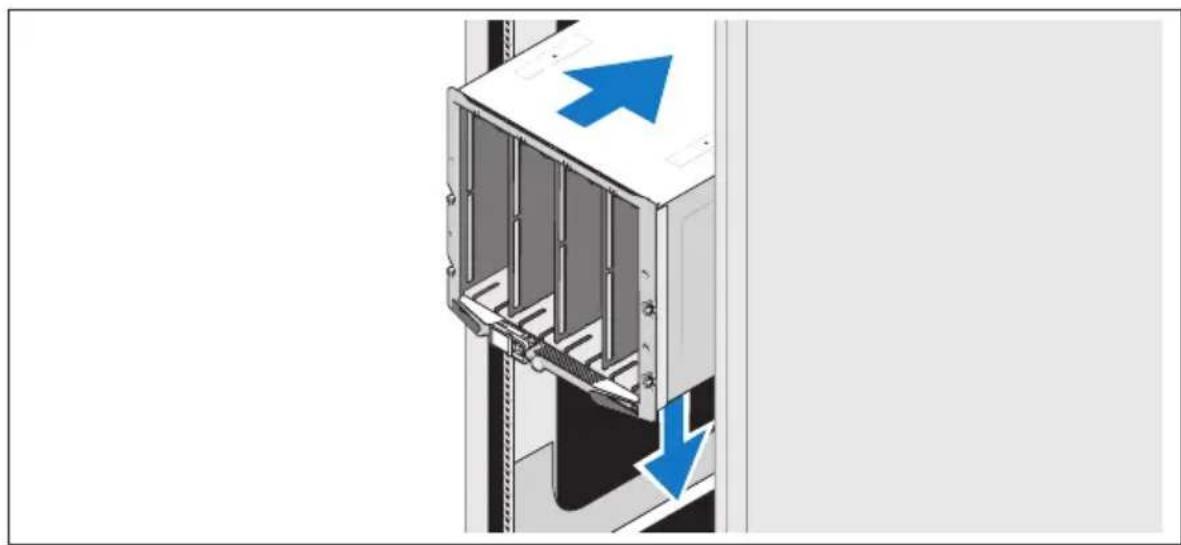
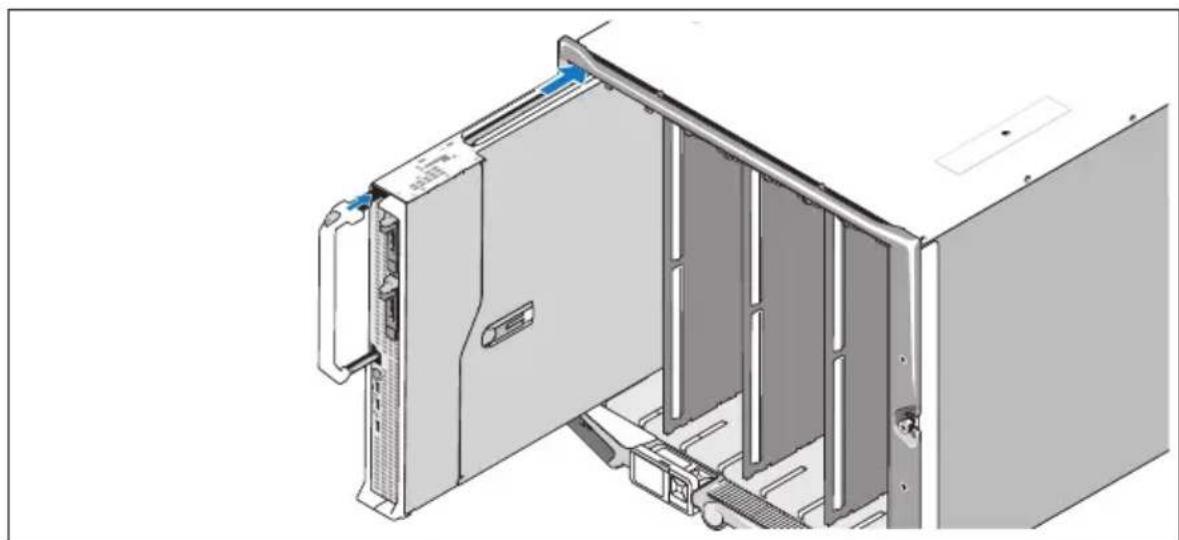
Beginning at the top, slide the modules into the enclosure from left to right. When the blade is securely installed, the handle returns to the closed position.
natural_image
3D technical illustration of a server rack unit with internal components and mounting brackets (no text or symbols)Connect the CMC and KVM Modules
Connect the serial cable and network cable from the management system to the CMC module. If a second, optional CMC module is installed, connect it as well. (If your chassis was shipped with M805 or M905 blades pre-installed, the included CMC firmware will be version 1.2 or greater.)
Connect the keyboard, mouse, and monitor to the optional iKVM module.

text_image
Diagram showing network connection between computer ports with labeled connectors and cable linksConnect the System to Power
Connect the system's power cables to the system power supplies.

NOTICE: To prevent the power cables from being disconnected accidentally, use the plastic clip on each power supply to secure the power cable to the power supply, and use the Velcro strap to secure the cable to the strain-relief bar.
Next, plug the other end of the power cables into a separate power source such as an uninterruptible power supply (UPS) or a power distribution unit (PDU).

natural_image
Mechanical assembly diagram showing connected components with wires and a blue arrow indicating a specific connection point (no text or symbols present)Turn on the System
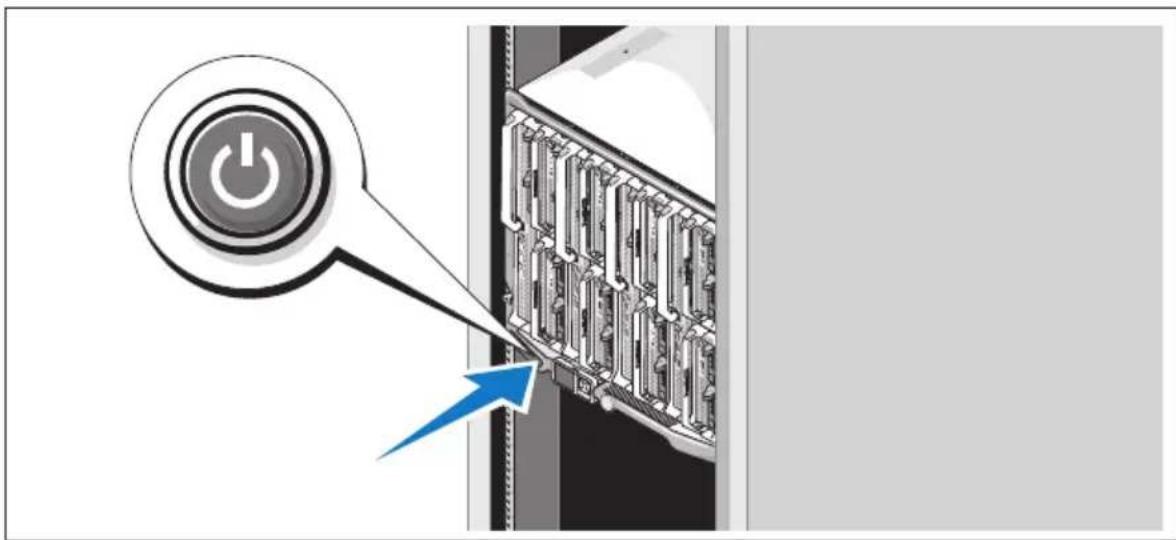
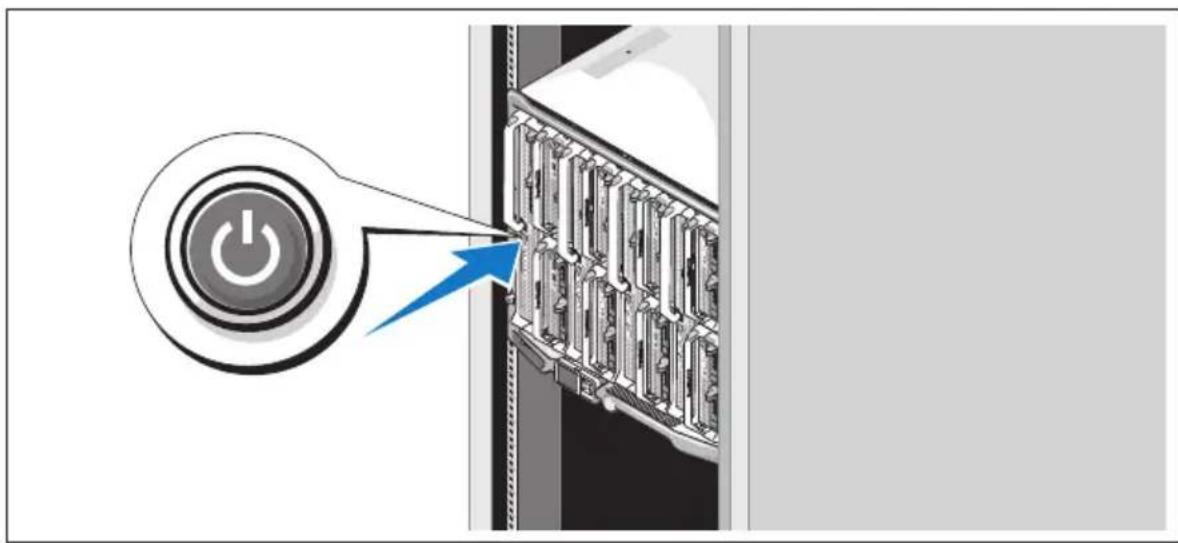
Press the power button on the enclosure. The power indicator should light.
text_image
Diagram showing a power button icon pointing to a server rack with an arrow pointing to it, indicating a power switch or connection point.Turn on the Blades
Press the power button on each blade, or power on the blades using the systems management software.
text_image
Diagram showing a power button icon pointing to a server rack with a blue arrow indicating direction or flow.Complete the Operating System Setup
If you purchased a preinstalled operating system, see the operating system documentation that ships with your system. To install an operating system for the first time, see the Quick Installation Guide. Be sure the operating system is installed before installing hardware or software not purchased with the system.
Technical Specifications
Blade Specifications
| Processor | |
| Processor type | |
| PowerEdge M905 | Four dual-core or quad-core AMD Opteron 8000 Series processors |
| PowerEdge M805 | Two dual-core or quad-core AMD Opteron 2000 Series processors |
| PowerEdge M600 | One or two dual-core or quad-core Intel Xcon processors |
| PowerEdge M605 | One or two dual-core or quad-core AMD Opteron 2000 Series processors |
Memory
| Architecture | |
| PowerEdge M600 | FBD memory modules, rated for 677-MHz operation |
| PowerEdge M905, M805, M605 | DDR2 memory modules, rated for 677-MHz operation |
Memory module sockets
| PowerEdge M905 | 24 240-pin sockets |
| PowerEdge M805 | 16 240-pin sockets |
| PowerEdge M605, M600 | Eight 240-pin sockets |
| Memory module capacities 512 MB (PowerEdge M605 and M600), 1 GB, 2 GB, 4 GB, or 8 GB |
Minimum RAM Two memory modules per processor
| PowerEdge M905 | 8 GB (Eight 1-GB memory modules) |
| PowerEdge M805 | 4 GB (Four 1-GB memory modules) |
| PowerEdge M600, M605 | 1 GB (two 512-MB memory modules) |
Memory
| Maximum RAM | |
| PowerEdge M905 | 192 GB |
| PowerEdge M805 | 128 GB |
| PowerEdge M600, M605 | 64 GB |
Drives
Hard Drives
PowerEdge M805, M905 One or two 2.5-inch SAS hard drives
PowerEdge M600, M605
SATA configuration One or two 2.5-inch SATA hard drives
SAS configuration One or two 2.5-inch SAS hard drives
NOTE: SAS and SATA hard drives cannot be mixed within a M600 or M605 blade.
Connectors
External
USB
| PowerEdge M805, M905 | Three 4-pin, USB 2.0 compliant |
| PowerEdge M600, M605 | Two 4-pin, USB 2.0 compliant |
Internal
SD Card (PowerEdge M805, M905) Onc SD card connector
Ethernet Controllers
Chipset
| PowerEdge M805, M905 | Four Ethernet ports with TOE and iSCSI boot support, provided by two integrated dual-port Broadcom 5709S Ethernet controllers |
| PowerEdge M600, M605 | Two Ethernet ports with TOE and iSCSI boot support, provided by two integrated Broadcom 5708S controllers |
Video Controller
Video type ATI RN50 video controller
Video memory 32 MB
Physical
| PowerEdge M905, M805 | |
| Height | 38.5cm (15.2 in) |
| Width | 5 cm (2 in) |
| Depth | 48.6 cm (19.2 in) |
| Weight (maximum configuration) | 11.1 kg (24.5 lb) |
| PowerEdge M605, M600 | |
| Height | 18.9 cm (7.4 in) |
| Width | 5 cm (2 in) |
| Depth | 48.6 cm (19.2 in) |
| Weight (maximum configuration) | 5.2-6.4 kg (11.5-14.0 lb) |
Battery
Blade battery CR 2032 3.0-V lithium ion coin cell
System Enclosure Specifications
Physical
| Height 44.0 cm (17.3 in) |
| Width 44.7 cm (17.6 in) |
| Depth 75.5 cm (29.7 in) |
| Weight (maximum configuration) 178.3 kg (392.2 lb) |
| Weight (empty) 44.6 kg (98.1 lb) |
Power Supply Module
| AC/DC power supply (per power supply) | |
| Wattage | 2360 W |
| Connector | NEMA C20 receptacle |
| Heat dissipation | 1205 BTU/hr. maximum |
| Maximum inrush current | Under typical line conditions and over the entire system ambient operating range, the inrush current may reach 55 A per power supply for 10 ms or less. |
| System Voltage Requirements | 200 - 240V, 16A, 3-Phase, 50 /60Hz200 - 240V, 40.5A, Single Phase, 50 /60Hz |
Optional Avocent iKVM Module
| Rear externally accessible connectors | |
| USB | Two 4-pin, USB 2.0-compliant connectors for keyboard and mouse support |
| ACI port | RJ-45 |
| Video | 15-pin VGA |
Chassis Management Controller Module
| Externally accessible connectors | |
| Remote management | Two dedicated 10/100/1000 Mb RJ-45 ports for integrated Ethernet remote access controller. |
| Serial | 9-pin, DTE, 16550-compatible |
| Video | 15-pin VGA |
Battery CR 2032 3.0-V lithium ion coin cell
SD Card Onc dedicated internal SD (Secure
Digital) flash card memory slot for FlexAddress support.
Enclosure Control Panel
Externally accessible connectors
USB
PowerEdge M905, M805 Three 4-pin, USB 2.0-compliant connectors for keyboard and mouse support
PowerEdge M605, M600 Two 4-pin, USB 2.0-compliant connectors for keyboard and mouse support
Video
15-pin VGA
Navigation Panel
Features
Four cursor-control keys, one select key, LCD screen
I/O Module Specifications
PowerConnect M6220 Ethernet Switch Module
Externally accessible connectors
| 10/100/1000 Mbps Ethernet | Four autonegotiating RJ-45 ports |
| Serial | One 4-pin, USB 2.0 type A connector.(Use provided USB type A to DB9 adapter to connect to terminal) |
| Optional Modules | Two option bays. Each bay supports a module with two 24-Gb stacking ports,two 10-Gb CX4 copper uplinks, or two 10-Gb optical XFPs. |
Cisco M7000E Infiniband Switch Module
Externally accessible connectors Eight DDR Infiniband uplink ports
Gb Ethernet Pass-Through Module
Externally accessible connectors Sixteen RJ-45
Ethernet ports
Fibre Channel Pass-Through Module
| Externally accessible connectors | |
| Fibre Channel transceiver | Sixteen external SFP ports that support 1/2/4-Gbps FC speeds |
Brocade Fibre Channel Switch Module
| Externally accessible connectors | |
| Fibre Channel | Eight physical FC ports (four enabled by default, upgradeable to eight) supporting 1/2/4-Gbps Fibre Channel connections |
| Serial Port | RJ-45 |
Environmental
NOTE: For additional information about environmental measurements for specific system configurations, see dell.com/environmental_datasheets. The system is not for use in an office environment.
Temperature
| Operating | 10° to 35°C (50° to 95°F)NOTE: Decrease the maximum temperature by 1°C (1.8°F) per 300 m (985 ft) above 900 m (2955 ft). |
| Storage | -40° to 65°C (-40° to 149°F) |
| Relative humidity | |
| Operating | 8% to 85% (noncondensing) with a maximum humidity gradation of 10% per hour |
| Storage | 5% to 95% (noncondensing) |
| Maximum vibration | |
| Operating | 0.26 Grms at 10–350 Hz for 15 min |
| Storage | 1.54 Grms at 10–250 Hz for 15 min |
| Maximum shock | |
| Operating | One shock pulse in the positive z axis of 31 G for up to 2.6 ms |
| Storage | |
| PowerEdge M905, M805 | Six consecutively-executed shock pulses in the positive and negative x, y, and z axis of 71 G up to 2 ms |
| PowerEdge M605, M600 | Six consecutively-executed shock pulses in the positive and negative x, y, and z axis of 71 G up to 2 ms |
| Altitude | |
| Operating | -16 to 3048 m (-50 to 10,000 ft) |
| Storage | -16 to 10,600 m (-50 to 35,000 ft) |
Dell™ PowerEdge™
M905, M805, M605 a M600
natural_image
Diagram of a mechanical or electrical component with blue directional arrows indicating flow or movement (no text or symbols present)Instalace modulü blade
natural_image
Technical illustration of a server rack unit with visible internal components and mounting brackets (no text or symbols)text_image
Diagram showing network connection between two computer hardware units with labeled ports and cable linksnatural_image
Mechanical assembly diagram showing connections between components with a blue arrow pointing to a specific component (no text or symbols present)Zapnutí systému
natural_image
Diagram showing a power button icon pointing to a server rack with an arrow pointing to it (no text or symbols present)text_image
Diagram showing a power button icon pointing to a server rack with a blue arrow indicating direction or flow.natural_image
Diagram of a wall-mounted air conditioner unit with blue directional arrows indicating airflow or movement (no text or symbols present)Installation des lames
natural_image
Technical illustration of a server rack unit with ventilation ducts and mounting hardware (no text or symbols)text_image
Diagram showing network connection between two computer ports with labeled connectors and cable linksnatural_image
Mechanical assembly diagram showing connections between components with a blue arrow pointing to a specific component (no text or symbols present)text_image
Diagram showing a power button icon pointing to a server rack with an arrow pointing to it, indicating a power switch or connection point.text_image
Diagram showing a power button icon pointing to a server rack with a blue arrow indicating the direction of connection.I Hautcur 44,0 cm (17,3 pouccs)
natural_image
Diagram of a wall-mounted air conditioner unit with blue directional arrows indicating airflow or movement (no text or symbols present)natural_image
Technical illustration of a server rack unit with ventilation ducts and mounting hardware (no text or symbols)text_image
Diagram showing network connection between two computer ports with labeled connectors and cable routing arrowsnatural_image
Mechanical assembly diagram showing connections between components with a blue arrow pointing to a specific component (no text or symbols present)text_image
Diagram showing a power button icon pointing to a server rack with an arrow pointing to it, indicating a power switch or connection point.text_image
Diagram showing a power button icon pointing to a server rack with a blue arrow indicating the direction of connection.natural_image
3D diagram of a mechanical assembly with blue directional arrows indicating flow or movement (no text or symbols)natural_image
Technical illustration of a server rack unit with ventilation ducts and mounting hardware (no text or symbols)text_image
Diagram showing cable connections between two computer ports with labeled connectors and cablesnatural_image
Mechanical assembly diagram showing connections between components with a blue arrow pointing to a specific component (no text or symbols present)text_image
Diagram showing a power button icon pointing to a server rack with an arrow pointing to it, indicating a power switch or navigation.text_image
Diagram showing a power button icon pointing to a server rack with a blue arrow indicating the direction of connection.natural_image
3D diagram of a mechanical assembly with blue directional arrows indicating flow or movement (no text or symbols)natural_image
Technical illustration of a server rack unit with ventilation ducts and mounting hardware (no text or symbols)text_image
Diagram showing cable connections between two computer ports with labeled connectors and cable linksnatural_image
Mechanical assembly diagram showing wiring connections and a blue arrow pointing to a component (no text or symbols present)Włączanie komputera
text_image
Diagram showing a power button icon pointing to a server rack with an arrow pointing to it, indicating a power switch or navigation.text_image
Diagram showing a power button icon pointing to a server rack with a blue arrow indicating the direction of connection.natural_image
3D diagram of a mechanical assembly with blue directional arrows indicating flow or movement (no text or symbols)natural_image
Technical illustration of a server rack unit with ventilation ducts and mounting hardware (no text or symbols)text_image
Diagram showing cable connections between two computer ports with labeled connectors and cable linksnatural_image
Mechanical assembly diagram showing connections between metal components and cables (no text or symbols)Включите систему.
text_image
Diagram showing a power button icon pointing to a server rack with an arrow pointing to it, indicating a power switch or navigation.Включите модули
text_image
Diagram showing a power button icon pointing to a server rack with a blue arrow indicating direction, likely illustrating a power switch or server interface.natural_image
3D diagram of a mechanical assembly with blue directional arrows indicating flow or movement (no text or symbols)natural_image
Technical illustration of a server rack unit with internal components and mounting base (no text or symbols)text_image
Diagram showing network connection between two computer ports with labeled connectors and cable linksnatural_image
Mechanical assembly diagram showing wiring connections and a blue arrow pointing to a component (no text or symbols present)text_image
Diagram showing a power button icon pointing to a server rack with an arrow pointing to it, indicating a power switch or navigation.text_image
Diagram showing a power button icon pointing to a server rack with a blue arrow indicating the direction of connection.הכלה,הכלההוּרָהוּרָהוּרָהוּרָהוּרָהוּרָהוּרָהוּרָהוּרָהוּרָהוּרָהוּרָהוּרָהוּרָהוּרָה: www.dell.com/environmental_datasheets
תְרָה בְּרָה
תְרָהִיַעֹן
35^ ty 10^
הכלה
| Ethernet | |
| הכלה | |
| TOE-הכלה of Ethernet (הכלה) and (הכלה) is not to be a form, iSCSI is not to be a form, and is not to be a form, Broadcom 5709S Ethernet (is not to be a form) | M905 ,PowerEdge M805 |
| TOE-הכלה of Ethernet (is not to be a form, iSCSI is not to be a form, and is not to be a form, Broadcom 5708S Ethernet | M605 ,PowerEdge M600 |
| INTI 772 | |
| ATI RN50 1771 772 | INTI 772 |
| ロジコ-772 32 | INTI 772 |
text_image
Diagram showing a power button icon pointing to a server rack with a blue arrow indicating direction of operation or connection.natural_image
Mechanical assembly diagram showing connections between components with a blue arrow pointing to a specific component (no text or symbols present)תְרָה בַלְבָר
natural_image
Diagram showing a power button connected to a server rack with an arrow pointing to the rack (no text or symbols present)תְקָרִי אַלְאָה
natural_image
Technical illustration of a server rack unit with visible internal components and mounting brackets (no text or symbols)text_image
Diagram showing network connection between two computer ports with labeled ports and cable linksnatural_image
Diagram of a mechanical assembly with blue arrows indicating direction (no text or symbols present), Support.dell.com Support.

הכלהה (M905-1) – (M605-1) – (M605-1) – (M605-1) – (M605-1) – (M605-1) – (M605-1) – (M605-1) – (M605-1) – (M605-1) – (M605-1) – (M605-1) – (M6)
• Among Android AMD Opteron 2000 Among Android Among Android. Among Android, Among Android among Android 1 among Android among Android 800 among Android among Android 677 DDR2 among Android among Android 64-7 among Android among Android 8 in Android among Android 4, among Android among Android 2, among Android among Android 512 among Android among Android. Among Android among Android among Android among Android among Android among Android. Among Android among Android among Android among Android