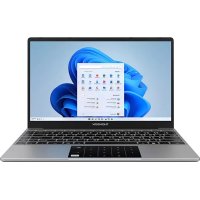
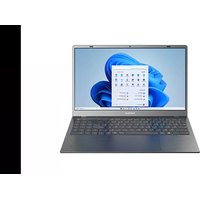
NEO TOUCH - Laptop THOMSON - Free user manual and instructions
Find the device manual for free NEO TOUCH THOMSON in PDF.



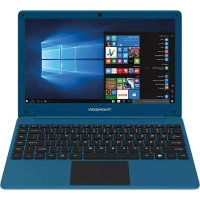
| Product type | Laptop |
| Brand | Thomson |
| Model | NEO TOUCH |
| Screen | 14.1 inches |
| Operating system | Windows 11 |
| Wireless connectivity | Wi-Fi, Bluetooth |
| Ports | 2x USB Type-A, 1x USB Type-C, 1x HDMI, headphone/microphone jack, micro-SD card reader |
| Power supply | AC adapter, rechargeable lithium-ion battery |
| Webcam | Integrated front camera |
| Keyboard | Keyboard with function keys |
| Touchpad | Multi-gesture touchpad |
| Operating temperature | 5 °C to 35 °C |
| Maintenance and cleaning | Use a soft, dry cloth. Do not use solvents or liquid detergents. |
| Safety | Do not expose to water, dust, or magnetic fields. Keep away from heat sources. |
| Battery | Replacement only by a Thomson certified technician. Risk of explosion if replaced by an incorrect model. |
| Repairability | Send to Thomson authorized after-sales service. Do not disassemble yourself. |
| Warranty | Refer to the general warranty conditions provided with the device. |
| Included accessories | AC adapter, power cable |
| Documents | User manual (125 pages) |
Frequently Asked Questions - NEO TOUCH THOMSON
User questions about NEO TOUCH THOMSON
0 question about this device. Answer the ones you know or ask your own.
Ask a new question about this device
Download the instructions for your Laptop in PDF format for free! Find your manual NEO TOUCH - THOMSON and take your electronic device back in hand. On this page are published all the documents necessary for the use of your device. NEO TOUCH by THOMSON.
USER MANUAL NEO TOUCH THOMSON
natural_image
Person typing on a laptop at a desk with books and curtains in the background (no visible text or symbols)MANUEL DE L'UTILISATEUR / USER'S MANUAL / MANUAL DE USUARIO / MANUAL DO USUÁRIO
Thank you for choosing a Thomson Computing device. To ensure that you are fully satisfied with your device, we invite you to read the information in this user manual.
natural_image
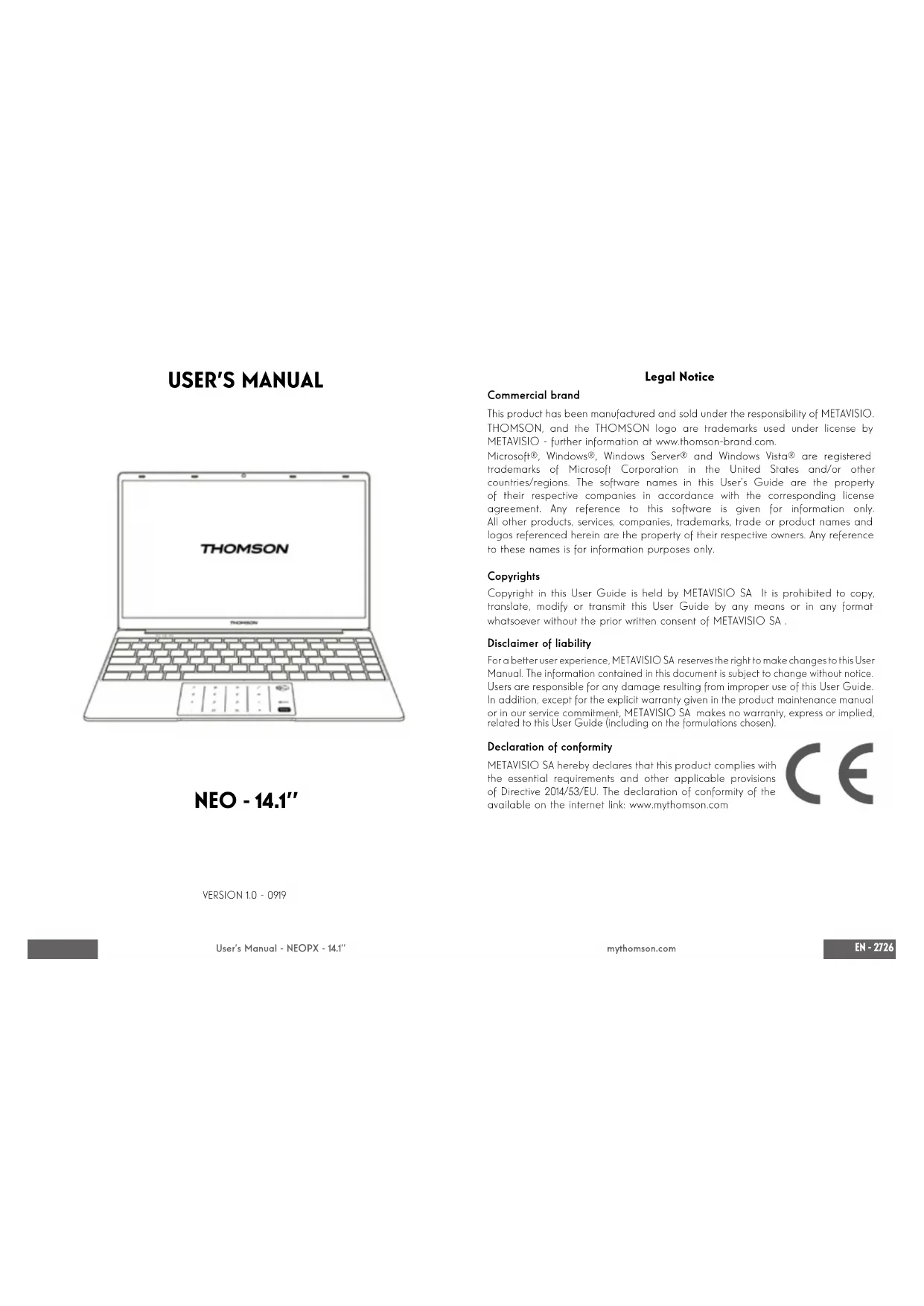
Line drawing of a THOMSON laptop with a keyboard and control panel (no text or symbols on the device)NEO - 14.1"
VERSION 1.0 - 0919
AVERTISSEMENT :
natural_image
Three hand-drawn diagrams showing finger positioning on a document with directional arrows (no text or symbols)Clic / Double-clic
natural_image
Hand pointing at a small dark object on a light surface (no text or symbols)Défilement
natural_image
Illustration of two hands performing a precision or scanning process on a flat surface, with no text or symbols present.natural_image
Line drawing of a THOMSON laptop with a keyboard and control panel (no text or symbols on the device itself)NEO - 14.1"
VERSION 1.0 - 0919
Legal Notice
Commercial brand
This product has been manufactured and sold under the responsibility of METAVISIO. THOMSON, and the THOMSON logo are trademarks used under license by METAVISIO - further information at www.thomson-brand.com.
Microsoft ^® , Windows ^® , Windows Server ^® and Windows Vista ^® are registered trademarks of Microsoft Corporation in the United States and/or other countries/regions. The software names in this User's Guide are the property of their respective companies in accordance with the corresponding license agreement. Any reference to this software is given for information only. All other products, services, companies, trademarks, trade or product names and logos referenced herein are the property of their respective owners. Any reference to these names is for information purposes only.
Copyrights
Copyright in this User Guide is held by METAVISIO SA. It is prohibited to copy, translate, modify or transmit this User Guide by any means or in any format whatsoever without the prior written consent of METAVISIO SA.
Disclaimer of liability
For a better user experience, METAVISIO SA reserves the right to make changes to this User Manual. The information contained in this document is subject to change without notice. Users are responsible for any damage resulting from improper use of this User Guide. In addition, except for the explicit warranty given in the product maintenance manual or in our service commitment, METAVISIO SA makes no warranty, express or implied, related to this User Guide (including on the formulations chosen).
Declaration of conformity
METAVISIO SA hereby declares that this product complies with the essential requirements and other applicable provisions of Directive 2014/53/EU. The declaration of conformity of the available on the internet link: www.mythomson.com

- Important safety instructions -
This unit should be used in an environment with an ambient temperature between 5^ C ( 41^ F) and 35^ C ( 95^ F).
Do not expose the unit to rain or moisture and keep it away from liquids. In case of splashing water or other liquid on the unit, immediately switch off the unit and wait until it is completely dry before turning it on again.
Do not expose the device directly to solar radiation
Do not use strong solvents, liquid detergents or other chemicals on or near the surface of the unit to prevent corrosion or deterioration of the surface of the unit.
Do not expose the camera to a dusty environment.
Do not use the unit during a gas leak.
Do not expose the device to strong magnetic or electric fields.
You can run the device through airport x-ray detectors. However, it is recommended not to pass your device through the magnetic detection portals or expose it to portable detectors.
Do not place any objects on the device.
Do not place the unit on an uneven or unstable surface.
Make sure to protect the unit from falls or any other impact that may damage it.
Do not leave the appliance on or loaded on your lap or any other part of your body to avoid any risk of heat-related injuries.
Switch off the unit before transporting it or covering it with a material that does not allow optimal air circulation.
Do not use damaged power cords, accessories or other devices with your device.
We recommend the exclusive use of the accessories (power supply, cables, etc.) supplied with the unit.
Use only original batteries. Replacing the battery with an incorrect battery can cause an explosion risk.
Do not disassemble, modify or repair the unit yourself, as this may void the warranty.
Please back up your important content regularly to avoid data loss.
Our company accepts no responsibility for the loss or removal of items contained in the device due to improper use of the hardware or software, lack of maintenance or any other accidental event.

This product has been designed to allow proper recycling of parts and components. The symbol representing a crossed-out wheeled bin indicates that the device should not be disposed of with municipal waste. Consult local regulations for disposal of electronic devices.

The symbol representing a crossed-out wheeled bin indicates that the battery should not be disposed of with municipal waste. Consult local regulations for battery disposal.

To avoid possible hearing damage, do not listen to high sound levels for long periods of time.
- Presentation of the device -
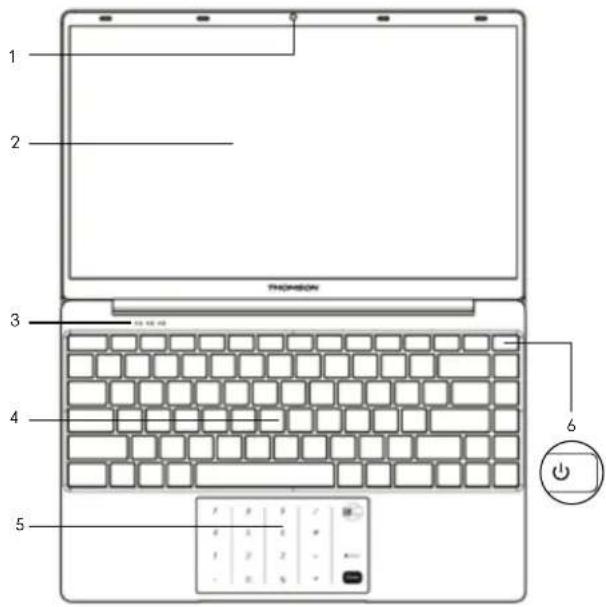
Front view
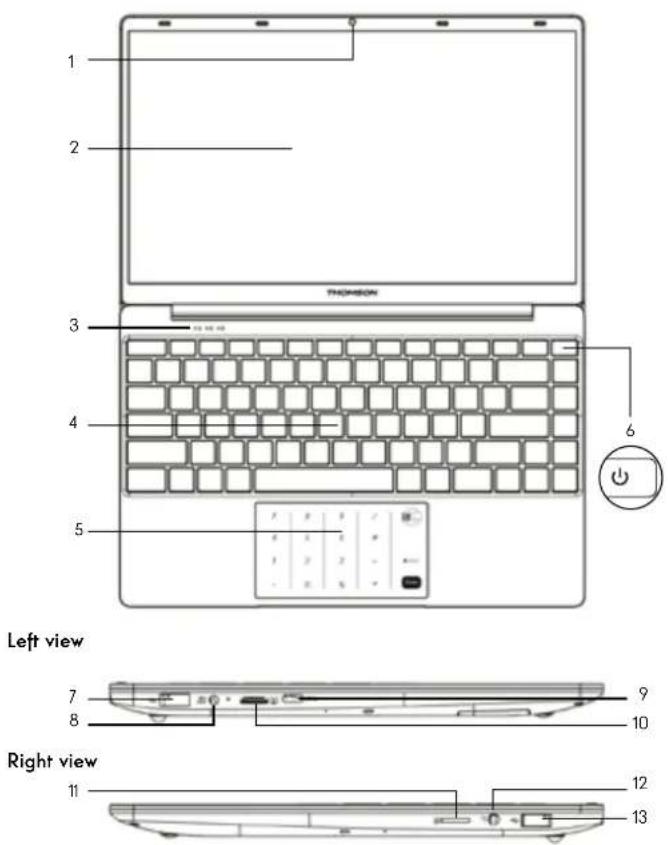
Note : The presentation of the device and some features may vary by country, model or version.
Front view
- Front camera - Webcom Use this camera for video calls or to take pictures.
- Screen
- Speakers
- Keyboard
- Touchpad The touchpad allows you to enjoy the features of a mouse. It offers an intuitive interface thanks to its multi-gestures features.
- Power button A long press of this button allows you to turn your device on or off.
Left view
7 USB port type A
This port is compatible with USB devices such as a keyboard, mouse, flash drive (USB sticks, memory card readers...), external hard disk, printer.
8. Mains power port
This port provides power when connected to an adapter.
9. HDMI port (High - Definition Multimedia Interface)
This port allows you to connect your device to an HDMI-compatible device such as a TV, monitor or projector.
10. USB Type-C port
This new-generation USB port has the particularity of being versatile, since it allows data, video and audio streams, and energy to be transmitted. The use of an adapter (not supplied) will be necessary to use some of the connector's features.
Right view
- Micro-SD card reader The micro-SD card reader allows you to read or write to micro-SDHC / micro-SDXC memory cards.
- Headset/microphone socket Use this port to connect external speakers or headphones to your device. You can also connect headphones with an external microphone.
- USB port type A
- Switching on -
Note : Charge your Thomson device before using it for the first time.
Charging the battery of your device
Connect the AC adapter to an earthed electrical outlet.

WARNING :
Read carefully the following instructions concerning the battery of your THOMSON device:
- Only a technician authorized by Thomson is authorized to remove and handle the battery.
- The battery in your Thomson device may present a fire or burn hazard if it is removed or disassembled.
- Comply with the information on the device's warning labels to avoid any risk of injury.
- There is a risk of explosion if the battery is replaced by an incorrect model.
Do not dispose of the battery in a fire. - Do not attempt to short-circuit the battery of the Thomson camera.
- Do not attempt to disassemble the battery or reassemble the battery.
- Stop using the battery if it leaks.
• The battery and its components must be recycled or disposed of properly. - Keep the battery and its components out of reach of children.
Turning your device on / off
Turn on your device by pressing and holding the power button for a long time.
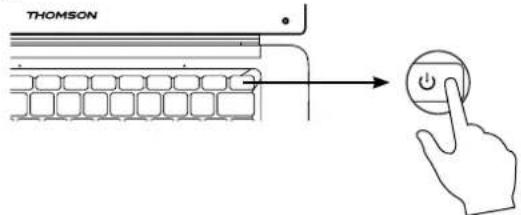
To turn off your device, go to the Start menu and select Start/Stop > Stop.
First start of your device
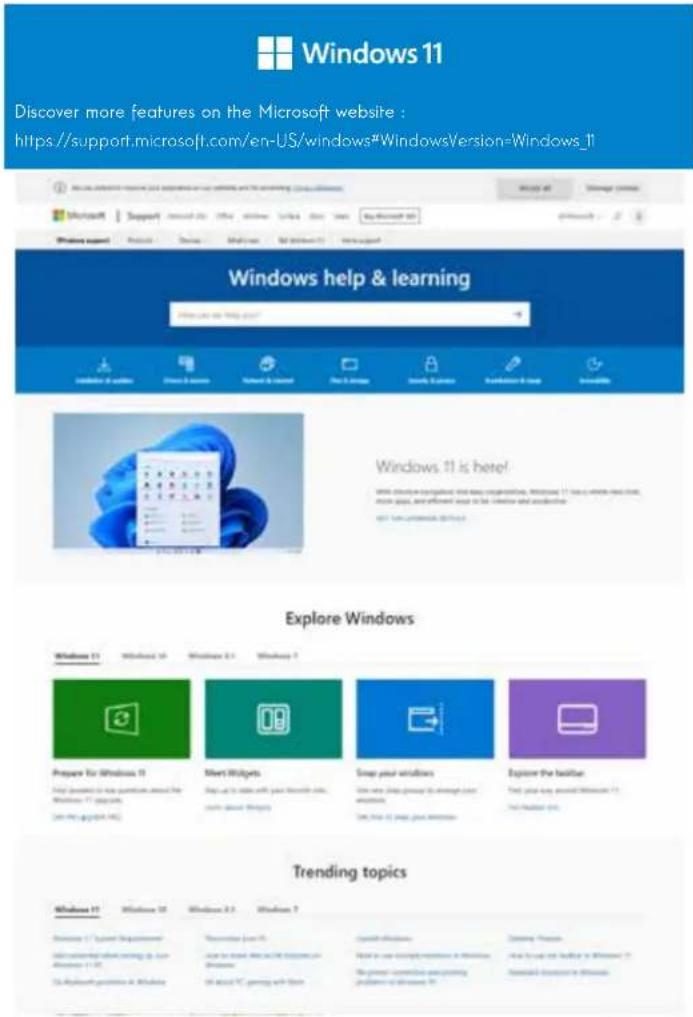
During the first boot, the Windows® 11 operating system will guide you through the configuration steps.
Once these configuration steps are completed, the system completes the installation and applies your customized settings. Do not turn off the unit and ensure that there is sufficient battery power during this step.
The Windows® 11 home screen appears after installation and configuration is complete.
Note: If you want to restore the factory configuration or reinstall your operating system, we recommend using the Windows Reset function. For this reason,
- Open the start menu and choose «Settings».
- Select «Update and Update and Security» then «Recovery» from the Right menu.
- Click on the «Start» button in the «Reset this PC» section.
- Let us guide you
- Using the touchpad -
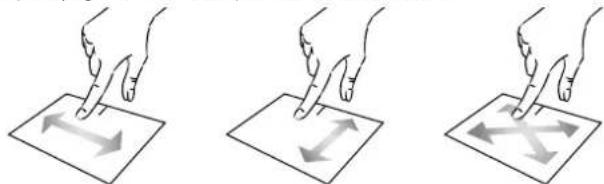
Move the pointer
Slide your finger on the touchpad to move the cursor.
natural_image
Three hand-drawn diagrams showing finger positioning on a document with directional arrows (no text or symbols)Click / Double-click
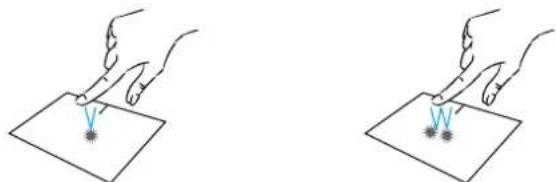
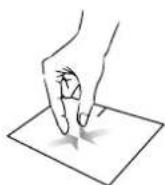
Press briefly once to make a click. Press briefly twice to make a double. For example, to select an item on the click. For example, on the desktop or desktop or in the file explorer or to in the file explorer, this function will open an application from the start allow you to open the selected item. menu.
natural_image
Two hand-drawn diagrams showing a V-shaped object on a flat surface with a small star-like mark, no text or symbols present.Drag and drop
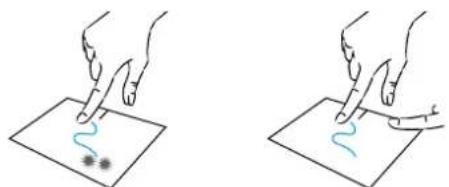
Press the trackpad briefly twice to select the item and hold your finger on the trackpad by sliding it to the desired position and releasing. You can also select an element and hold down a left click while sliding another finger on the touchpad to drag and move an element.
natural_image
Two hand-drawn diagrams showing finger pressing down on a surface with wavy lines, no text or symbols presentUser's Manual - NEOPX - 14.1"
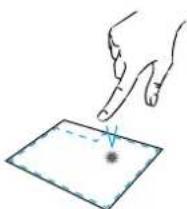
Left click
Briefly press the touchpad once to Press briefly once at the bottom right make a left click of the touchpad to make a right click
natural_image
Hand pointing at a small dark object on a flat surface (no text or symbols)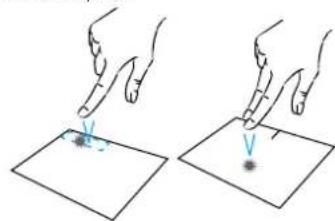
natural_image
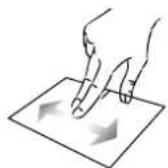
Illustration of two hands performing a precision or scanning operation on a flat surface, with no text or symbols present.Scrolling
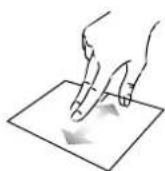
Slide two fingers up or down to scroll vertically. Slide two fingers left or right to scroll horizontally.

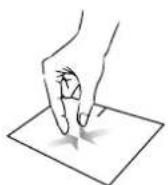
Zoom
Move two fingers closer to the touchpad area to zoom out (zoom -). Move two fingers away from the touchpad area to zoom in (zoom +).

mythomson.com
Show all applications running
Slide three fingers upwards to display all applications running.

View the desktop
Slide three fingers down to display the Windows® 11 desktop.

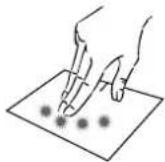
Open the action center
Briefly press with four fingers to open the Windows® 11 action center.
User's Manual - NEOPX - 14.1"
- Using the keyboard -
Function keys
The keypad on your device is equipped with function keys for performing actions or settings.
Note : The key icons displayed and the functions offered may vary depending on the model.
Fn + Put the computer into standby mode
Fn + 🏠 Opens the default web browser
Fn + 📋 Enables or disables the touchpad
Fn + 📄 Lower the volume level
Fn + 📄 Increases the volume level
Fn + ☒ Enables or disables sound
Fn + ♪ Opens the default media player
Fn + ▶/II Media player playback or pause function
Fn + Previous music or video
Fn + ➤ Next music or video
Fn + * - Decreases the brightness of the screen
Fn + ⚙️ + Increases the brightness of the screen
Fn + 📧 Opens the default email software
Fn + ☐ Enables the use of an external display
Fn + ⚙ Opens the settings menu
Fn + ♂ Opens the search pane
Fn + ΔI*Δ* Enables / Disables the wireless network
Fn - □ Displays applications running at runtime
Fn - ◦ Opens the sharing pane
Fn - ↑ Vertical scrolling upwards
Fn - Vertical scrolling down
Fn - Start function
Fn - ↘ Fine function
Fn - ☑Activate or deactivate the keyboard backlight
Pause Cancels the current program (example: a game)
PrtScr/ Saves a screenshot of your Impedr screen
Numick/ Enables/disables the numeric VerrNum keypad
ScrLk Enables/disables scrolling
Ins Enables/disables the Refresh mode
mythomson.com
Shortcut keys
Using the shortcut keys makes it easier to navigate under Windows® 11.
Open or close Start.
+ A Open Quick Settings.
+ C Open Chat from Microsoft Teams.
+ D Display and hide the desktop.
+ E Open File Explorer.
+ G Open Xbox Game Bar when a game is open.
+1 Open Settings.
+ L Lock your PC or switch accounts.
+ M Minimize all windows.
+ P Choose a presentation display mode.
+ S Open search.
+ T Cycle through apps on the taskbar.
- Windows® 11 Overview -
Presentation of the interface
Note: The interface may vary by country, model or version of Windows ^ 11

The Start menu is the entry point for your device. It allows you to access applications, folders and settings.
The taskbar displays the applications in use and allows you to switch between them.
The notification area displays important information about the use of your device.
The search pane allows you to easily search through your files, applications and other items on your device.
Presentation of the Start Menu
Note: The interface may vary by country, model or version of Windows® 10
The Start menu is the entry point for your device. It allows you to access applications, folders and settings.

Displays your favorite applications as icons for quick and easy access.
Note: To display an item as a tile, right-click on it and select the «Pin to Start Menu» option. To remove a tile, right-click on it and select the option: «Detach from the start menu».
The applications installed on your device are listed here.
Note: To open an application, move the mouse pointer over it and click to open it.
Find your notifications
Note: The interface may vary by country, model or version of Windows® 11
Windows 11 puts notifications in Notification Center—right on the taskbar—where you can get to them instantly.

Notifications at a glance
Select the date and time in the taskbar to open the Notification Center. (You can also swipe in from the right edge of your screen, or press + N.)
Select the notification to read more or take action. Don't want to take any action? Clear a specific notification by selecting the X next to the notification you want to clear. If you want to clear all your notifications, select the Clear all button.
Connecting to a wireless Wi-Fi network
Your device is equipped with a Wi-Fi module. Connecting to a Wi-Fi wireless network will allow you to access the Internet, check your e-mails, perform device updates or access a home or business network. To connect, follow these steps:
Click on the 🔔 in the notification area.
If Wi-Fi is not enabled, click on the
Select your wireless network from the list.
Click on «Connect». If your wireless network requires a security key, fill in the key before making the connection.
Pairing your device with a Bluetooth device
Your device is equipped with a Bluetooth module. This one allows you to connect it to a Bluetooth device (mouse, portable speakers...). To connect the two devices, follow these steps:
On the taskbar, select the Network icon ▼ ▶ Select the Bluetooth quick setting to turn it On or Off.
Select Start > Settings > Bluetooth & devices, then turn Bluetooth on or off.
Activate the Airplane mode
Airplane mode disables wireless Wi-Fi and Bluetooth connectivity. To activate the airplane mode :
Click on the icon 🎨 in the notification area.
Click on the button * .
To disable the airplane mode
Click on the icon 🔔 in the notification area.
Click on the button
System restoration
WARNING:
Make a backup of your important data before running this option.
Windows ^® 11 offers several recovery options to restore the factory configuration :
- Keep my files: Reset your device by keeping your personal files.
- Delete All: Restores the factory configuration of your device. Make a backup of your important data before running this option.
- Retrograde to the previous version of Windows® 11: Use this option if you are having trouble with your device after the system update.
- Advanced boot: This option allows you to boot from an external device or access the device's firmware settings or change Windows boot settings or restore Windows from a disk image.
To perform a restoration operation, follow the following steps:
Select Start > Settings > System > Recovery.
Next to Reset this PC, select Reset PC. Then choose from the options and/or settings in the table below.
Select the restoration option to be executed.
- FAQ -
A black or colored dot appears on the screen!
This does not affect the performance of your device. If the problem persists, please consult the general warranty conditions and then contact Thomson Customer Service.
The touchpad doesn't work!
Check that the touchpad is correctly activated using the function keys Fn +
The battery charge indicator does not light up!
Make sure that the AC charger is properly connected to an AC outlet and the power port of the unit. If the problem persists, contact Thomson Customer Service.
How to optimize battery life?
To optimize the battery life, you can adjust the screen brightness, disable Wi-Fi and Bluetooth if you are not using it and close applications you are not using.
I lost the AC adapter!
Contact Thomson Customer Service.
The battery doesn't work anymore!
Contact Thomson Customer Service.
The device does not emit any sound!
Check that the sound has not been disabled by using the function key Fn + or by increasing the volume by using the function key Fn + Make sure that no headphones are connected to your device.
When the device starts, the power indicator lights up but the operating system does not start!
Force the device to turn off by pressing the power button for 10 seconds and then disconnect all connected USB devices. Connect the device to a socket with the charger. Turn on the device.
If the problem persists, contact Thomson Customer Service.
The computer does not wake up from sleep mode!
Use the power button to exit the standby mode. Check that the battery level is sufficient by plugging the unit into an AC outlet using the charger. Press the power button again.
Where to find the drivers for your Thomson device?
The drivers necessary for the proper functioning of your device are present in the following folder :
C:\WINDOWS\DRIVERS\
We recommend that you backup the entire folder to an external storage medium (external hard disk, USB sticks, CD-R) in order to keep a copy of these drivers.
MANUAL DE USUARIO

natural_image
Line drawing of a THOMSON laptop with a keyboard and control panel (no text or symbols on the device)NEO - 14.1"
VERSIÓN 1.0 - 0919
ADVERTENCIA :
natural_image
Three hand-drawn diagrams showing finger positioning on a document with arrows indicating movement (no text or symbols)Clic / Doble clic
natural_image
Two hand-drawn diagrams showing a V-shaped object on a flat surface, with no text or symbols present.Arrastrar y soltar
natural_image
Two hand-drawn diagrams showing finger pressing down on a surface with a wavy line and small dots (no text or symbols)natural_image
Hand pointing at a small dark object on a light surface (no text or symbols)Desplazamiento
natural_image
Illustration of two hands performing a precision or scanning process on a flat surface, with no text or symbols present.natural_image
Line drawing of a THOMSON laptop with a keyboard and control panel (no text or symbols on the device)NEO - 14.1"
VERSÃO 1.0 - 0919
AVISO :
Para desligar o dispositivo, vá para o menu Iniciar e seleccione Iniciar/Parar > Parar
Clique / Duplo-clique
natural_image
Illustration of a hand pointing at a small dark object on a flat surface (no text or symbols)
natural_image
Illustration of two hands pointing at a small object on a flat surface, with no text or symbols present.Rolagem
Fn + 📌 Abre o media player padrão
natural_image
Line drawing of a THOMSON laptop with a keyboard and control panel (no text or symbols on the device itself)NEO - 14.1"
VERSIONE 1.0 - 0919
ATTENZIONE :
natural_image
Three hand gestures pointing at a document with bidirectional arrows (no text or symbols)natural_image
Two hand-drawn diagrams showing a V-shaped object on a flat surface, with no text or symbols present.natural_image
Two hand-drawn diagrams showing finger pressing on a surface with abstract marks (no text or symbols)natural_image
Illustration of a hand pointing at a small dark object on a flat surface (no text or symbols)
natural_image
Illustration of two hands performing a precision or scanning process on a flat surface, with no text or symbols present.Scorrimento
natural_image
Line drawing of a THOMSON laptop with a keyboard and control panel (no text or symbols on the device)NEO - 14.1"
VSIE 1.0 - 0919
WAARSCHUWING:
natural_image
Hand pointing at a small dark dot on a light surface, with no text or symbols present.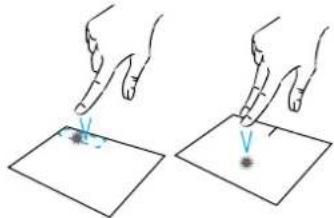
natural_image
Illustration of two hands performing a precision or scanning process on a flat surface, with no text or symbols present.Scrollen
natural_image
Line drawing of a THOMSON laptop with a keyboard and control panel (no text or symbols on the device)NEO - 14.1"
VERSION 1.0 - 0919
- Presentation of the device -
Vorderansicht
Linke Ansicht

Rechte Ansicht

WARNUNG :
natural_image
Illustration of a hand pointing at a small dark dot on a light surface (no text or symbols)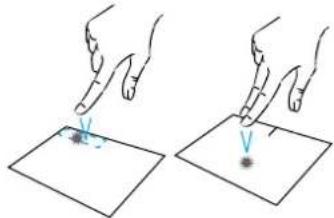
natural_image
Illustration of two hands performing a precision or scanning process on a flat surface, with no text or symbols present.Scrollen
natural_image
Line drawing of a THOMSON laptop with a keyboard and control panel (no text or symbols on the device)NEO - 14.1"
VERSION 1.0 - 0919
Brugervejledning - NEOPX - 14.1"
Juridisk meddelelse
Varemaerke
ADVARSEL :
natural_image
Three hand-drawn diagrams showing finger positioning on a square sheet, with arrows indicating movement direction (no text or symbols)Klik / dobbeltklik
natural_image
Two hand-drawn diagrams showing a tool interacting with a surface, no text or symbols presentTræk og slip
natural_image
Two hand-drawn diagrams showing finger pressing down on a surface with wavy lines, no text or symbols presentBrugervejledning - NEOPX - 14.1"
Venstre-klik på
natural_image
Hand pointing at a small dark object on a light surface (no text or symbols)Rul
Skub to fingre op eller ned for at rulle vertikalt.
Zoom
Saml to fingre på touchpad-området for at zoome ud (zoom -).
mythomson.com
Højreklik på
natural_image
Illustration of two hands performing a precision or scanning operation on a flat surface, with no text or symbols present.Fn + ☒ Åbner standard-e-mailprogrammer


natural_image
Line drawing of a THOMSON laptop with a keyboard and control panel (no text or symbols on the device)NEO - 14.1"
VERSION 1.0 - 0919
WARNING :
natural_image
Hand pointing at a small dark object on a light surface (no text or symbols)Högerklicka på
natural_image
Illustration of two hands performing a precision or scanning operation on a flat surface, with no text or symbols present.Rulla
| Populära ämnen | |||
| Bruttist 11 | Wärkma 12 | Wärkma 63 | Wärkma 7 |
- VANLIGA FRÅGOR OCH SVAR -
natural_image
Line drawing of a THOMSON laptop with a keyboard and control panel (no text or symbols on the device itself)NEO - 14.1"
VERSION 1.0 - 0919
VAROITUS :
natural_image
Three hand gestures pointing at a document with bidirectional arrows (no text or symbols)natural_image
Two hand-drawn diagrams showing a V-shaped object on a flat surface, with no text or symbols present.Vedä ja pudota
natural_image
Two line drawings showing hands pointing at a surface with a wavy line and scattered particles (no text or symbols)natural_image
Hand pointing at a small dark object on a light surface (no text or symbols)Scroll
natural_image
Line drawing of a THOMSON laptop with visible keyboard, keyboard, and mouse (no text or symbols beyond branding)NEO - 14.1"
VERSION 1.0 - 0919
Brukerhändbok - NEOPX - 14.1"
Rettsråd
Varemerke
ADVARSEL :
natural_image
Hand pointing at a small dark object on a light surface (no text or symbols)Rull
natural_image
Illustration of two hands performing a manual task with a small object on a surface, no text or symbols presentFn + 🏠 Åpne standard nettleser
Fn + 010 Aktiverer eller deaktiverer styre- platen
Fn + Senk lydvolumet
Fn + 🔵k lydvolumet
Fn + ✗ Aktiver eller deaktiver lyden

- MANUEL DE L'UTILISATEUR / USER'S MANUAL / MANUAL DE USUARIO / MANUAL DO USUÁRIO
- AVERTISSEMENT :
- Clic / Double-clic
- Défilement
- Legal Notice
- Commercial brand
- Copyrights
- Disclaimer of liability
- Declaration of conformity
- - Important safety instructions -
- - Presentation of the device -
- Front view
- Left view
- Right view
- - Switching on -
- Charging the battery of your device
- WARNING :
- Turning your device on / off
- First start of your device
- - Using the touchpad -
- Move the pointer
- Click / Double-click
- Drag and drop
- Left click
- Scrolling
- Zoom
- Show all applications running
- View the desktop
- Open the action center
- - Using the keyboard -
- Function keys
- Shortcut keys
- - Windows® 11 Overview -
- Presentation of the interface
- Presentation of the Start Menu
- Find your notifications
- Connecting to a wireless Wi-Fi network
- Pairing your device with a Bluetooth device
- Activate the Airplane mode
- System restoration
- WARNING:
- - FAQ -
- A black or colored dot appears on the screen!
- The touchpad doesn't work!
- The battery charge indicator does not light up!
- How to optimize battery life?
- I lost the AC adapter!
- The battery doesn't work anymore!
- The device does not emit any sound!
- When the device starts, the power indicator lights up but the operating system does not start!
- The computer does not wake up from sleep mode!
- Where to find the drivers for your Thomson device?
- C:\WINDOWS\DRIVERS\
- MANUAL DE USUARIO
- ADVERTENCIA :
- Clic / Doble clic
- Arrastrar y soltar
- Desplazamiento
- AVISO :
- Clique / Duplo-clique
- Rolagem
- ATTENZIONE :
- Scorrimento
- WAARSCHUWING:
- Scrollen
- WARNUNG :
- Juridisk meddelelse
- Varemaerke
- ADVARSEL :
- Klik / dobbeltklik
- Træk og slip
- Venstre-klik på
- Rul
- Højreklik på
- Högerklicka på
- Rulla
- - VANLIGA FRÅGOR OCH SVAR -
- VAROITUS :
- Vedä ja pudota
- Scroll
- Rettsråd
- Varemerke
- Rull
Brand : THOMSON
Model : NEO TOUCH
Category : Laptop