 EasyManual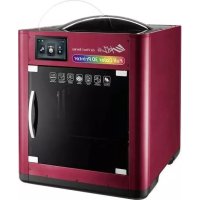
da Vinci Color - 3D Printer XYZ PRINTING - Free user manual and instructions
Find the device manual for free da Vinci Color XYZ PRINTING in PDF.


User questions about da Vinci Color XYZ PRINTING
0 question about this device. Answer the ones you know or ask your own.
Ask a new question about this device
Download the instructions for your 3D Printer in PDF format for free! Find your manual da Vinci Color - XYZ PRINTING and take your electronic device back in hand. On this page are published all the documents necessary for the use of your device. da Vinci Color by XYZ PRINTING.
USER MANUAL da Vinci Color XYZ PRINTING
Safety Precautions 2 Product Descriptions 3 Unpacking and Installation 5 Touch Screen Menu, Functions and Messages 7 Function Operation and Instructions 8 Printing 21 Scanning 22 Support detail 25 User manual ENG The manual is mainly intended for users to understand how to use the PartPro200 xTCS 3D printer (“200 xTCS”) correctly. In this manual, users can learn more about the operating tips, application skills and maintenance of the 200 xTCS 3D printer. New member is required to register account on http://support. xyzprinting.com before able to download latest manual & software for better user experience. For more information on the 200 xTCS, please contact your local dealer or visit the ofcial website of XYZprinting: http://www. xyzprinting.com. HD23FC1S166 PartPro200 xTCSP2P2 Safety Precautions Safety and Compliance Important Safety Precautions Trademarks Maintenance and Service CAUTION Heavy object.2 person liftrequiredWatch Your Hands.
Do not move the machine by yourself as it is heavy.
Do not place the printer in a dusty, humid or outdoor environment.
Do not place the printer on a soft or tilted surface. Otherwise, the machine will fall / ip over and become damaged or cause personal injury.
Do not leave the product or power cord to unattended children. Otherwise, personal injury or electric shock might occur.
Use the provided power cord. Otherwise, incorrect grounding might lead to damage.
Do not place any liquid container on top of the product. Otherwise, overow or spill might go into the machine and pose the risks of danger or safety concern.
Do not wipe the printer with alcohol or ammable chemicals. Otherwise, danger might occur.
Do not move the machine when it’s powered on.
Do not reach into the machine with your hands during operation. Otherwise, risks of impact from moving printing parts or burn from high temperature might occur.
The machine becomes hot during operation and thus run in high temperature. Do not touch or replace parts when they are not cooled down.
After startup, the parts in the machine will heat up or move depending on the user’s instructions. During product operation, do not touch or block the operation of the parts.
Weak odors may be generated during the printing process. We recommend working in a well-ventilated and open area to ensure operational comfort.
Defect reparation must be carried out according to the contents of this instruction manual. Where the defect cannot be repaired, please contact your printer dealer or the customer service center. When the printer needs to be serviced during the term of the warranty, it is recommended that the machine is packed with original packaging materials prior to shipment. For this purpose, the packaging materials are better to be kept. If other packaging materials are used instead, the printer might be damaged during transportation. We reserve the right to assess relevant service fees. Please read through this manual and all safety precautions carefully before using, operating, unpacking, replacing, remov- ing any part or maintaining this product. Please also comply with the instructions of relevant safety precautions. All trademarks and registered trademarks are the properties of their respective owners.P3P3 Product Descriptions Product exterior
Product Descriptions Specications The following tools are intended for use under the guidance or guardianship of an adult only. Do not allow children unfamiliar with the tools to have access to them in case of danger.
Make sure the maintenance work of the printer is carried out when the print bed has cooled down.
When printing is completed and the print bed is cooled down to room temperature, the printed object can be removed from the print bed with the scraper.
Filament residues generated during the course of printing may be stuck on the print head and gears of the printing module. The printing quality and printer operation as well as the measurement of the print bed may be affected. When this happens, clean the printing module with the wire brush.
Scraper Wire brush Gear cleaning brush Feed hole cleaning wire Print head cleaning wire Precautions and Instructions of Maintenance Tools Accessory Checklist
Move the printer to a table or plat- form. (Do not move the printer by yourself as it is heavy.)
Remove the foam next to the guide screws on both sides, and then remove the foam under the print bed. Remove the tape on the body (4 in total).
Open the front door. Remove the tape from the supporting materials and print bed.
Remove the foam on the cartridge holder.
Open front door, remove the tape at mark printer door post.
Remove the cable tie and foam in front and back of the front door. 9P6P6 Unpacking and Installation There is a sheet of PC lm to rubber magnet with a double sided adhesive, this PC lm is replaceable, please replace it when it's dirty or broken. Note
2. Used to 2 thumb to push up the printbed
to release the calibration screw. Precautions Conrm the rubber magnet is well placed on the print bed.
Please follow the order as image instruction, attach the PC mylar (accessory 9) and mask tape(accessory 10) on the EZ removable rubber magnet(accessory 6).
Ensure that the one end of guide tube(Accessory 8) has been tightly. inserted into the printing module port, then insert the other end into the clear tube (Accessory 13) to the end.
Mask TapePC MylarEZ Removable Rubber Magnet
Insert the other end of the guide tube into the feed module and secure it tightly. Feed the guide tube through the top cover then attach the top cover to the machine.P7P7 Touch Screen Menu, Functions and Messages This includes Filament, Ink Load and Unload. Filament/Ink loading and unloading This menu can be used to import les (.3cp) from a USB drive to the machine for printing without a com- puter. This includes the functions in Home Page 1: Settings of the Print-Bed, Print- Head, Filament, Ink and Scan Module. Next page includes WiFi, Sound, Statistics, Language and Display. The last page includes Model, Version, Reset and Legal Info. Settings USB Printing Menu Main screenP8P8 Function Operation and Instructions
2. Place the lament on the
1. Please cut the lament at 45
angle before auto loading the lament into the printer. During loading lament process, the lament should be straighten at least 4” of the Filament end as shown in pictures. A. Load/unload laments Make sure the lament rotates clockwise when pulled. Note
3. Tap Filament Load and
Unload in the main screen and select Filament.
5. Tap Load. 6. Conrm the operation. 7. Insert the lament into the feed module, it will be automatically loaded.
8. Check if the temperature of the print head goes up to its operating temperature (Color PLA from
XYZprinting) after the lament is loaded. Once the set temperature is reached, the feeding motor will feed the lament along the guide tube into the print head.
9. Once lament has extruded
from the print head, the lament will be successfully loaded. Tap the screen to conrm and continue. Load laments
1. Tap Filament Load and
Unload on the main screen.
2. Tap “Unload” and conrm the
4. When the print head has
been warmed up to 220 °C, the feeding motor will eject the lament.
5. When the unloading
operation completes, tap to conrm.P9P9 Function Operation and Instructions 200 xTCS will prompt you to rell material. Rell Material A3 Filament Unload the prints
1. Check if the USB drive is
plugged to the machine.
2. Tap the USB Printing Menu in
3. Select the file you want to
5. The screen will show the
print percentage when printing. The Pause, Stop, and Rell are shown below the print percentage.
4. Check file information and
tap “Print”. B. USB printing By default, the front door will be locked when printing. If you want to change this setting, go to Setting > Door Lock to change it. Note Please removed the EZ Removable Rubber Magnet with printed object together from the printer.And peel off the printed object from the rubber magnet.
Please avoid touch- ing the led strip of the printer because the LED strip will be slight hot due to long hours of been light on.
1. Tap the icon when printing.
7. The lament will be
automatically loaded.
5. Replace the empty spool with a new one. (please refer to the
LOADING section in this manual) and then tap "PROCEED" .
2. The screen will show lament
status, please tap "Rell" .
8. Check if lament is extruded from the nozzle, after conrmation,
the printer will resume printing.
3. Conrm the operation.
6. The nozzle will be preheat and notify you when to insert lament
into the feed module.
4. The nozzle will be preheated
and the lament will be unloaded automatically.P10P10 The 200 xTCS uses four color inks which can be replaced separately. C. Ink Cartridge Installation Function Operation and Instructions
1. Prepare several paper towels and the
2. Unpack the ink cartridge. 3. Remove the cartridge cover.
6. Check if the ink transferred to the
paper towel displays two straight lines. If so, ink guidance is successfully completed. Once ink guidance is done, install the ink cartridge.
4. Press the cartridge head against the
paper towel to transfer some ink onto it.
5. If the ink did not transfer well, try
putting the paper towel on the table and hold the ink pressed on the paper towel.
7. If the ink did not transfer well, please
wet the paper towel with 75% Alcohol to wipe the ink. After you clean the inkjet, check to see if the ink transferred. To prevent the opened ink cartridge from drying out when a print is nished or the printer will be idle for days, follow the procedure to store the cartridge:
1. Clean the nozzle of the ink cartridge with alcohol.
2. Seal the ink cartridge with the protective cover, and store the cartridge
in room temperature at 15 ~ 35 degree. For the best print quality, clean the nozzle of the cartridge with alcohol after removing the protective cover from the cartridge, and then install the cartridge back to the printer before the next print. NoteP11P11 Function Operation and Instructions 3.Wait until the cartridge moves to the center of the print bed, and then change the ink.
1. Tap Change Ink and tap to
4. Tap the PROCEED after you
2. Conrm the operation.
1. Lift up the plate upwards.
2. Take out the cartridge.
3. Put in a new cartridge.
4. Check if the cartridge is placed properly.
5. Press down the plate on top.
6. Check if the order of the ink color is K(Black),
C(Cyan), M(Magenta) and Y(Yellow) from left to right. Note : Replacement of any ink cartridge, please conduct inkjet calibration test. Cartridge Installation
Change InkC1 Ink Tap the ink, the screen will show the status of the ink, including "Ink Low", "No Ink", "Invalid Ink", and "Invalid Color"P12P12
2. Tap “PLA Test Page" to print. 3. Wait for the extruder to heat
up to operating temperature.
1. You can also choose to print
the "PLA Test Page" to conrm the ink status.
6. Taken off the printing object
and check the coloring status.
4. Printing "PLA Test Page".
5. Conrm if the print job is
completed. Function Operation and Instructions We suggest you print a test page after you install the ink cartridge. Please prepare a sheet of paper.
. Test Page.1. Tap Calibration.
9. Remove the test page and
tap PROCEED. Calibration Test Page Ink Paper Test Page C2-1
8. Fix the paper onto the print
bed and then tap PROCEED, the printer will do a test print.
6. Fold tightly the excess A4 paper to the back of the rubber
it is at(no gap) on the rubber magnet.
4. Take out the EZ Removable
Rubber Magnet. Use tape to secure the A4 in the portrait direction on the front side of the rubber magnet.
7. Put the rubber magnet back
to print bed accordingly. Calibration Test PageInk PLA Test PageC2-1P13P13 Please reinstall the cartridge and print the test page. If problem not solved, please proceed with step 2. Stept 1 Pic 3 Ink Calibration Ink Cartridge TroubleshootC2-2 Ink Check for any torn cable or damaged contacting pad in shown example. If found torn cable, please change new cartridge If found damaged contacting pad and also the pin in cartridge station was also damaged, contact support for replacement. Check for possible clog ink head cartridge as exam- ple shown. Please conduct cartridge cleaning process in Pg 10 ink guidance paragraph. If problem not solved, please proceed with step 4. Note : Please refer to our support website for latest ink cartridge cleaning procedure. Please refer C2-1 for preparing the A4 test page. Stept 2 Stept 3 Using paper towel to cover the ink cartdrigde as shown in the picture 4 and downward. If the ink comes out, please print the test page. If not solved, please change the new ink cartridge. Stept 4 Clean Ink Head Clog/dirty Ink Head Normal Cartridge NG Cartridge (Torn cable & pad) Function Operation and Instructions Picture 3 show example of no good test page. While line was shown horizontal and vertical color of bars. Please conduct the below steps accordingly. Pic 1 Pic 2 Pic 2-1 Picture 1 shows an example of normal test page. Picture 2 show some slight color offset on horizontal part of test page. It is under acceptance range. If the rprint of the test page gets worst, please proceed with the cleaning procedure. Picture 2-1 shown some slighly black ink smudge on the horizon- tal & vertical part, it may happen to other color. This is within accaptable rangeP14P14
4. Take out the printed paper and tap
7. For vertical alignment, enter each
color’s corresponding number. After entering the number, tap PROCEED.
5. Check the printed calibration chart using the on-
screen instructions. For each color select the line that is the best aligned with black (K).
8. Confirm the numbers entered in the
boxes and tap PROCEED.
6. For horizontal alignment, enter each
color’s corresponding number. After entering the number, tap PROCEED.
3. Please x the printing paper onto the print bed.1. Tap Calibration. 2. Tap Color.
Calibration Inkjet CalibrationC2-4 Ink Calibration Color CalibrationC2-3 Ink Function Operation and Instructions
3. Check that the print bed is
clear, then close the door.
1. Tap Inkjet Calibration. 2. Inkjet Calibration.
7. Horizontally and vertically,
nd the box where the ink is the most aligned, and then tap PROCEED.
9. Horizontal direction: Enter
the number of the box you think the lament and ink align the most, and then tap PROCEED.
4. The printing operation will
start once the print nozzle is warmed up.
8. Vertical direction: Enter the
number of the box you think the lament and ink align the most, and then tap PROCEED.
10. After the calibration is
completed, tap PROCEED to nish the ink calibration.
5. The printer will print the
calibration card automatically. This takes approximately 15 minutes. (Make sure you have loaded the lament.)
6. After the printing is completed,
take out the calibration card. Caution: Please ensure the EZ Removable Rubber Magnet had placed in the printbed.P15P15
2. The adjustment position
of X-Axis and Y-Axis was the sample position, when facing the printer.
1. After the color object is printed, if you nd color shift, you can
adjust the print position manually. Manually adjust the movement of X-Axis Select “X-AXIS” to move right- wards and leftwards.Press the “Left” or “Right” button to select the direction and distance to be adjusted, each adjust has a step of 0.05 mm. Y-Axis X-Axis Manually adjust the movement of Y-Axis Select “Y-AXIS” to move up- wards and downwards.Press the “Up” or “Down” button to select the direction and distance to be adjusted, each adjust has a step of 0.05 mm. Once parameter settings are completed, tap "PROCEED" to save and apply the settings that you have specied. If you want to reset, select “Re- Type” to return to the X-Axis moving position setting. Function Operation and Instructions Calibration Inkjet Calibration C2-4 InkP16P16Jog mode lets manually move the print head via the touch screen. How to move the print head: 1. Return to the Home point. Always return to the Home point prior to any move-ment in any direction. 2. Move along the X-axis. 3. Move along the Y-axis.
4. Move along the Z-axis. (Do not increase/shift upwards when print head at home
position avoid hitting the print bed.)1. Tap Z-offset. 3. Users can tap the icon to higher or lower the print bed, the higher value the bigger distance and vice versa.2. Move the print head to the center of the print bed. It is recommended that the space between the print head and the print bed just touch and the nozzle can move smoothly on the print bed.
D. Setting Function Operation and Instructions
1. Select Calibration. 2. Conrm the operation. 4. After the calibration is successfully completed, tap to conrm.
Calibration (leveling) D1-1 Print-Bed Z-offset D1-2 Print-Bed Jog ModeD1-3 Print-Bed 3. Wait while the sensor measures the height of the print bed at three different locations. Once the measurement is complete, the printer will automatically level the print bed. Caution: Please ensure the EZ Removable Rubber Magnet had placed in the printbedP17P17
2. Tap to conrm that you want to change the
6. Change the print head from above the
1. Tap Change Nozzle. 3. Wait until the print head moves to a proper
position for change.
7. Press the white release button to separate
4. The position of the print head change is
5. Turn off the power before changing the
8. Hold the print head with one hand and
remove the bus with the other. The removal of the print head is completed. Function Operation and Instructions Clean Nozzle D2-1 Print-Head Change Nozzle D2-2 Print-Head Installation sequence of new print head:
2. Press the white release button on the print head
and assemble the print head and the mechanism. After attaching the print head, check to see that it is secure and does not shake.
3. Turn on and use the printer.
2. Tap Clean Nozzle in the print
1. Please clean the nozzle after
3. Check if cleaning is necessary. Tap Check to clean it.
Note: do not touch the metal part of the print head as it becomes hot during the operation.
4. Inset the feed hole cleaning wire
into the feed hole and push it down- wards to drive out the lament from the print head. (It is recommended that the operation is performed from the top of the machine.)
6. Insert the print head cleaning wire
into the nozzle from the bottom to clean it.
5. Remove the lament residue from
the print head with a wire brush.
7. After the cleaning operation is
completed, tap DONE. When the temperature of the print head reaches the operating temperature, the cleaning operation will start. In order to prevent print quality from impact due to residual and accumulated lament, which results in poor discharge, after long-term use of print nozzle, it is recommended to enable the "CLEAN NOZZLE" (nozzle cleaning) function of the printer every 60 hours of print to clear residuals with nozzle cleaning wire or feeding path cleaning wire. (Filament should be unloaded from the extruder before cleaning the feeding path.) NoteP18P18 Refer to the Change Filament function in the main screen. Unused lament for one day of longer should be stored in zip-lock bag. Before turning on the printer and setting up the WiFi network, please insert the WiFi dongle into the USB port on the top of printer.
1. Tap ADD and the printer will
start to search for available access points.
4. Conrm the connection is
2. Tap the access point to be
3. Enter the password for the
access point. Function Operation and Instructions
Use a USB cable to connect the printer to the computer and run the XYZmaker.
Check if the WiFi function is activated on the computer and connect to the access point. PRINT: Set printing parameters and quality. If only a le conversion is needed, tap “PRE- PARE”. DASHBOARD: Monitor print head tempera- ture, filament used and filament loading / unloading.
3. When the software displays ”
READY ”, the connection is established successfully. Now, you can click on “DASHBOARD” to monitor the printer or “PRINT” to print a le.
1. Run the XYZmaker. Click on File > Print > da Vinci Printer Plugin. 2. Select the printer to be used.
Use the XYZmaker to verify if the WiFi connection is established successfullyP19P19
Sound The Sound option can be set to ON or OFF to control the sound emitted when the touch screen is tapped Ink Cartridge Last Calibration Print Job Nozzle Filament Temperature Uptime
Statistics The Statistics function can record the history data since the printer was turned on, including: Function Operation and Instructions
Language The 200 xTCS provides eight display languages, including traditional and simplied Chinese, English, Japanese, German, Italian, Spanish and French. The language setting can be changed by tapping Settings > Languages in the main screen. Change Language Setting The Display setting can set the touch screen to turn off when it remains in- active after a set time. There are five settings, including one minute, two min- utes, three minutes, five minutes and always on.
DisplayP20P20 Printer information will be deleted, and returned to factory settings. D10 Reset
the door will be locked; 60 sec after the print ends, the door will unlock. The door will be unlocked when users tap Pause or Stop during printing. The door will lock again, when the door is closed and printing is resumed.
2. Door lock off (OFF) : the door won't
be locked during printing, pause, or stop status. Function Operation and InstructionsP21P21 Users are able to do a rst print by following the steps below. Internet access is required for product registration and software login. Connect the printer and computer with a USB cable and install the “XYZmaker” on the computer to transfer the les you want to print. The “XYZmaker” is compatible with 64 bit operating systems of Windows and Mac OS 10.10 10.11 and 10.12. You can install it by using the included USB drive or downloading the installer from the ofcial XYZprinting website. The user manual of the software can also be downloaded from the ofcial website. For details, visit the ofcial website: http://www.xyzprinting.com/ First-time printing Transfer les to be printed via the computer software “XYZmaker” 2. Click on OPEN to select the model le to be printed from the folder. You can adjust the object size, printing position and angle once the le is loaded. To print color objects, save the le to be printed in the obj format and load it in the XYZmaker. 4. The Prepare function can convert a obj le to a .3cp le. Once the le is edited and adjusted, click on Print to output the object. The printing operation will start after the le is sliced. 1. Connect the computer and printer and select PartPro200 xTCS. 3. You can change related settings to the desired printing result and effect. Printing D1-1 B C C A Calibration Z-offset Load Filament Change Ink Calibration Prepare the le and then execute the printing - Test Page- Color Calibration- Ink Calibration D1-2P22P22 Mount the scan module in the machine (see the installation steps) and install the “XYZscan Color” software on your computer to operate the scanning fuction of your 3D printer. Face the front side of the object to be scanned toward the scan module and it takes about 10-40 minutes to scan it, depending on computer performance and scanning quality. When you scan an object, the turntable rotates clockwise. At this time, the camera on the scan module will capture continuous images at a speed of 30 images per minute. When the scan is completed, “XYZscan Color” will display the 3D image captured in the 3D image. Product Overview Scanning Scan Module Hardware Requirements Operating systems Windows 7, 8.1, 10 (64-bit) Minimum system requirements CPU 4th Generation Intel® Core™ i5 USB 2.0 8GB/ Hard disk or more Support the OpenGL 2.1 or above graphic card Scan Specication Scan Technology Photogrammetry 3D Scan Resolution (Diameter x H) 5cm ϕ x 5 cm – 14cm ϕ x 14 cm (H) Scan Software XYZscan Color Turntable Payload
3 Kg/6.6lbs Rescolution 5M pixel Scan Accuracy 1.48 mm File Types OBJ, STL To install the scan module, align it with the scanner base, press and hold the button, and attach it to the base vertically. Install the scan module Attach scan module to the base vertically. Scan Module Slot ButtonP23P23 Scanning Scan steps - Install the scan backboard
The object should be stable and stationery. It must not be shaken or moved during the rotation of the turntable.
The object should not be reective, tranparent, or translucent ones.
The object with a reective surface, metal, or transparent material will have an impact on the scanning quallity. If you want to scan an object like this, it is recommended to spray the developer on the surface before scanning it.
If the object has a solid color, or does not have obvious textures or an obvious shape, you may not have the best scan- ning results.
The round object will have scanning results, while the slime and long or sharp objects won’t have good scanning re- sults. The limitations of the object to be scanned Scan steps
7. When the scan is completed,
you can nish the scan job and perform other jobs.
2. Empty the printer platform.
3. Install the scan backboard.
4. Wait until the printer platform
6. The object is being scanned.
1. Remove the object from the
2. Wait until the scan turntable
3. Install the scan backboard.
The installation of the scan backboard is completed. Direction of the latch.Insert the two sides at the bottom of the scan backboard into the holes and secure them.P24P24 Scanning Make sure that the scan backboard is properly installed in your 3D printer and press the "Scan" button on the machine, make sure the machine enters scan mode.
1. Open the scan software.
2. Check the ambient brightness in the preview screen.
Adjust the preliminary settings. If no error is found, click "Scan" to perform the process.
3. In the Model Preview area, the model slowly rotates. Wait
until the scan point clouds are created.
4. Wait until the scan point clouds are created. Press
Continue and perform meshing.
5. The scan is completed.
1. Remove the object from the tumtable.
2. Perform "Settings" > "Calibrate" in the main menu of "XYZscan Color."
3. Use the calibration plate.
When the screen prompt asks you to place the calibration plate follow the instructions and place the calibration plate in the middle of the turntable. (The side with the checkered patten faces the scan module and then snap the bottom latch into the middle notch of the turntable) Click "Calibrate Now" in the software. 4. Check if the calibration plate is properly displayed in the preview screen. If correct, click "Calibrate" to perform the calibration process.
5. Wait for the XYZscan Color performs calibraiton with the printer (it takes about 2 miniutes.)
6. When the XYZscan Color prompts that the cabiliation is completed, remove the calibration plate from the turntable.
7. Click "Conrm" in the software to exit this function to proceed with scanning.
When the printer is relocated, or the scan result is not accurate, peform the following steps to calibrate the scan module: Scan software: Operate XYZscan Color Use the calibration plate
1. You can have better performance under good
lighting conditions.