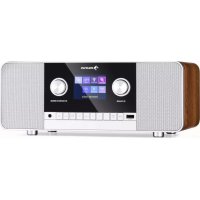
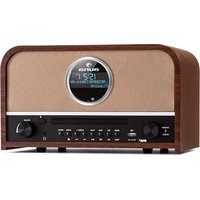
USER MANUAL Connect 120 MKII Auna

Member of Berlin Brands Group
Handwerkerstr. 11
15366 Dahlwitz-Hoppegarten
Deutschland
Berlin Brands Group UK Limited
PO Box 42
272 Kensington High Street
London, W8 6ND
United Kingdom
Congratulations on purchasing this equipment. Please read this manual carefully and take care of the following hints to avoid damages. Any failure caused by ignoring the items and cautions mentioned in the instruction manual are not covered by our warranty and any liability. Scan the QR code to get access to the latest user manual and other information about the product.

CONTENTS
Specifications 38
Safety Instructions 40
Product Description 42
Remote Control 44
Getting started 47
Operation 50
Listening to Internet Content 51
Streaming BT Audio 52
UNDOK 54
Listening to DAB or FM Radio 55
Using Radio Presets 56
USB Operation 57
Aux in Mode 58
AUX OUT 58
Settings 59
Disposal Considerations 64
Declaration of Conformity 64
SPECIFICATIONS
| Item number 10040159, 10040160, 10040161 |
| Radio: Digital (DAB/DAB+), FM and internet radio (via Wi-Fi). |
| Frequencies Digital Band III 174–240 MHz, FM 87.5-108 MHz (with RDS). |
|
|
| Display 2.8", 320 x 240, TFT colour display |
| WLAN Wi-Fi: 802.11b, 802.11g and 802.11n supported with WEP and WPA/WPA2 encryption, WPS 2.412 GHz – 2.472 GHz (channels 1 to 13). Maximum power: 16.00 dBm (EIRP) 0.5 MB broadband speed recommended. |
| Media streaming Audio codecs supported include WMA, AAC, MP3, FLAC. |
| Mains power adapter 9 V DC, 2500 mA |
| Output connectors: 3.5mm stereo phone out socket |
| Power consumption Standby mode: <1 W. |
The specification presents only as a reference. The value of weight and size are approximation. Our product is improved ceaselessly and the specification and function may be changed without prior notice.
EXPLANATION OF THE WARNING SYMBOLS

CAUTION
RISK OF ELECTRIC SHOCK
DO NOT OPEN

AUTION: TO REDUCE THE RISK OF ELECTRIC SHOCK AND SERIOUS PERSONAL INJURY, DO NOT REMOVE ANY COVER. NO USER-SERVICABLE PARTS INSIDE. REFER SERVICING TO QUALIFIED SERVICE PERSONNEL ONLY.
WARNING. TO REDUCE THE RISK OF FIRE OR ELECTRICAL SHOCK, DO NOT EXPOSE THIS PRODUCT TO WATER, RAIN OR MOISTURE.

Triangle with lightning plus explanation as follows:
DANGEROUS VOLTAGE: The lightning flash with arrowhead symbol within the equilateral triangle is intended to alert the user to the presence of uninsulated dangerous voltage within the product's enclosure that may be of sufficient magnitude to constitute a risk of electric shock to persons.

Triangle with exclamation point plus explanation as follows:
ATTENTION: The exclamation point within the equilateral triangle is intended to alert the user to the presence of important operating and maintenance (servicing) instructions in the literature accompanying this product.
SAFETY INSTRUCTIONS
Read these instructions. All uses guidelines must be read before using the device. Keep the instructions for future use.
- Children over the age of 8 and persons with reduced physical, sensory or mental capabilities or those with a lack of experience and knowledge may only use the device if they are instructed on how to do so by a person responsible for their safety, or if they are supervised and understand the hazards associated with the use of the device.
- Use and security guidelines must be respected.
- The device must not be used near water or be put in contact with moisture.
- Make sure has no liquid is spilled on device and device openings.
- Move device carefully, avoid shocks.
- Do not block the breakdown of the device outputs.
- Do not place the device near from a heat source (e.g. radiator). Do not expose it to the Sun.
- Plug the device as indicate on this information form.
- This device has a connection with overload protection. Replacement should only be done by an experienced technician or the device manufacturer.
- For cleaning the device, please follow the recommendations of the manual.
- The power cord should be unplugged when not using for a long period of time.
- The device shall be repaired by a qualified person when:
a. the power cord is damaged,
b. objects have fallen into the apparatus or a liquid has been spilled into device,
c. device was exposed to the rain,
d. device does not work correctly without notable exterior change,
e. device is broken.
- The user shall not try to maintain the device beyond that which is described in this manual.
- The device must not be exposed to dripping or splashing and that no objects filled with liquids, such as vases, shall be placed on apparatus.
- To be completely disconnect the power input, the mains plug of apparatus must be disconnected from the mains, as the disconnect devices is the mains plug of apparatus.
- The mains plug of apparatus should not be obstructed OR should be
easily accessed during intended use.
- Excessive sound pressure form earphones and headphones can cause hearing loss.
- No naked flame sources such as lighted candles should be placed on the apparatus;
- Attention should be drawn to the environmental aspects of battery disposal;
- The device can be used in moderate climates.
PRODUCT DESCRIPTION
Front

Back

1 STANDBY/ VOLUME dial
2 LCD display
3 OK/NAVIGATE/SNOOZE dial
4 PHONE jack
5 ALARM SET button
6 BACK button
7 MENU/INFO button
8 PRESET 5+/PROG button
9 PRESET 4 button
BT PAIR button
10 PRESET 3 button
11 PRESET 2 button
12 PRESET 1 button
13 SCAN button
PLAY/PAUSE button
14 HOME button
15 USB jack
16 DC IN jack
17 AUX OUT jack
18 AUX IN jack
19 DAB/FM ANT
REMOTE CONTROL

1 ON/STANDBY button
2 NUMERIC button
3 VOLUME + button
4 CURSOR DOWN button
5 HOME button
6 MENU/INFO button
7 SLEEP button
8 SCAN button
9 USB/BT SKIP PREVIOUS FM TUNER- button
10 SNOOZE button
11 PROG button
12 CURSOR UP button
13 OK button
14 VOLUME - button
15 MUTE button
16 BACK button
17 ALARM button
18 FM ST/MONO button
19 REPEAT/RANDOM button
20 PLAY/PAUSE button
21 USB/BT SKIP NEXT/
FM TUNER+ button
22 STOP button
Putting the batteries into the remote
- Open the battery cover.
- Insert the supplied battery according to the terminal indicated in the battery compartment. When inserting or removing the battery, push it towards the (−) battery terminals.
- Close the cover.
Attention
- Remove the battery if the unit will not be used for a long period of time. This will prevent potential damage due to battery leakage.
- Do not use rechargeable battery (nickel-cadmium battery, etc.).
- Installing the battery incorrectly may cause the unit to malfunction.
- Batteries (battery pack or batteries installed) shall not be exposed to excessive heat such as sunshine, fire or the like.
Notes concerning use:
- Replace the battery if the operating distance is reduced or if the operation becomes erratic. Purchase an "AAA" size battery (LR03)
- Periodically clean the transmitter on the remote control and the sensor on the unit with a soft cloth.
- Exposing the sensor on the unit to strong light may interfere with operation. Change the lighting or the direction of the unit if this occurs.
- Keep the remote control away from moisture, heat, shock, and vibrations.
GETTING STARTED
Accessories included
Carefully remove the unit and all accessories from the package.
Please verify that you have all the following accessories before recycling the gift box.
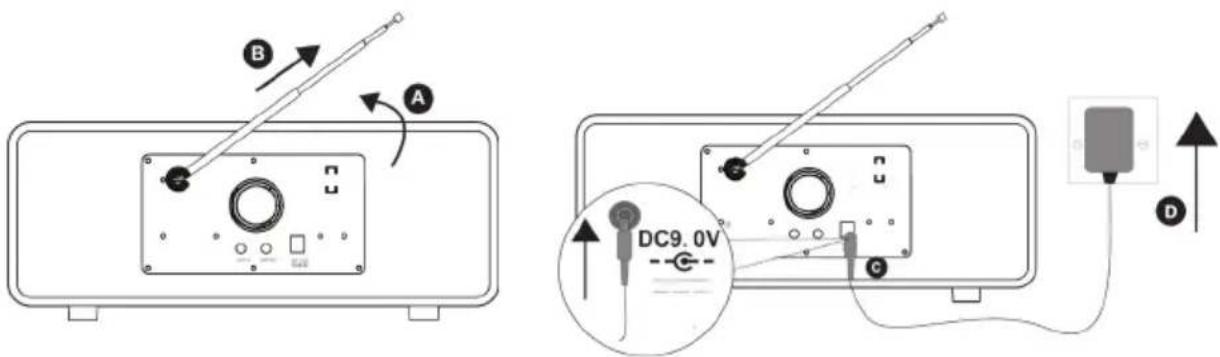
Insert the jack of the supplied mains adapter into the socket on the rear of the radio (C).
Plug the mains adapter into the mains supply (D)
- Press the Standby button to power on.
3. Setup wizard
When turning on for the first time, it runs through a setup wizard to configure settings for date/time and network. Once this has finished, the system is ready to use in most modes.
To change these settings later, select Menu >System settings > and select the required settings option(s). To run the setup wizard again, select Menu > System settings > Setup wizard.
The Network settings can be reset later by manually running the Network wizard, select Menu > System settings > Network > Network wizard.
Select Yes to start the setup wizard. If you choose No, a second screen asks
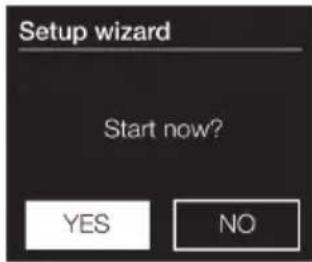
if you would like to run the wizard next time, select Yes or No. The system then starts without configuring time/date and network settings and enters the Main Menu.
Note: If power is removed while the wizard is in progress, the wizard will run again next time.
Network Connection
Compatible with all common network protocols and encryption methods, including Wi-Fi Protected Setup (WPS). To connect your network, you need a Wi-Fi wireless router, together with password key if set.
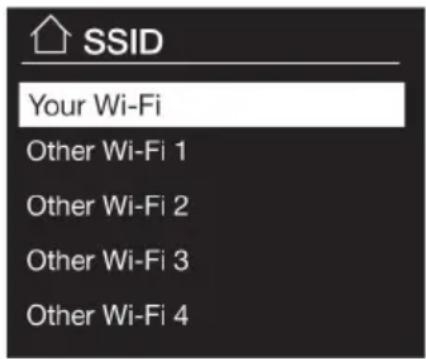
Password protected network
To enter the network's key (password), use the NAVIGATE DIAL to highlight the next relevant character and press to select each character in turn.
Backspace, OK and Cancel are included on the right of the password screen. These can be accessed just using the NAVIGATE dial, Pressing the MENU/INFO button moves the selection highlight to the Back Space option and back again.

WPS Setup
WPS encrypted networks are identified by '[WPS]' at the start of the Network name, and have two methods of connection.
Select one and follow the prompts:
- Push Button > Prompts you to press the connect button on the router. It then presses the select control.
- Pin > (code number) Generates an 8-digit code number which you enter into the wireless router, access point.
- Skip WPS > Enter key as for a standard encrypted network, above. For more information on setting up a WPS encrypted network, see your WPS router's instructions.
On completion
Connection to the selected network.
If connecting fails, the system returns to a previous screen to try again. To exit the process use the Back or MENU/INFO button.
The system remembers the last four wireless networks it has connected to, and automatically tries to connect to whichever one of them it can find. You can see the list of registered networks through Menu > System settings > Network > Network profile > From here you can delete unwanted networks by turning and pressing NAVIGATE dial then confirm delete Yes. There are also other options for viewing and manually altering network settings from Menu > System settings > Network.
OPERATION
Main unit operation:
- Press the Power button for turning on the Internet radio
- Press and hold the Power button for 2 seconds to switch 'standby'
Remote control operation
- In standby mode, tap the POWER Button on remote control to turn the unit ON. The unit will turn on.
- To turn the unit into standby mode, tap the POWER button on remote control again.
Adjusting and muting the volume
Turn the Volume dial to increase or decrease the volume.
- Press the MUTE button on the remote control to mute the unit.
- Press the MUTE button on the remote control again to resume play.
EQ operation
You can enjoy different EQ sound effect modes.
- Press and hold the MENU/INFO button on main unit or remote control and turn and press the NAVIGATE dial to select 'System settings'.
- Turn and press the NAVIGATE dial to or use the VOL+/VOL- buttons on the remote control to select the 'Equalizer'.
- Press the OK Button on main unit or remote control to select.
- Turn and press the NAVIGATE dial to or use the VOL+/VOL- buttons on the remote control to choose between 'Normal', 'Flat', 'Jazz', 'Rock', 'Movie', 'Classic', 'Pop', 'News', 'My EQ', 'My EQ profile setup'.
Setting the bass and treble manually
- Press and hold the MENU/INFO button to view the main menu.
- Turn and press the NAVIGATE dial to select 'System settings' > 'Equalizer' > 'My EQ profile setup'.
- Turn and press the NAVIGATE dial to choose 'Bass' or 'Treble'.
- Turn and press the NAVIGATE dial to set the level from '-6dB' (low) to '+6dB' (high).
LISTENING TO INTERNET CONTENT
You can connect the Connect 120 MKII to your network to access to thousands of internet radio stations and podcasts from around the world. Thousands of radio stations around the world broadcast online. To listen to an internet radio station or podcast:
- Press the HOME button to display the 'function' menu.
- Turn and press the NAVIGATE dial to select 'Internet radio'.
- Press and hold the MENU/INFO button to view the main menu.
- Turn and press the NAVIGATE dial to select one of the following options:
Station list: Select this option to see a list of currently available Internet stations or listen to podcasts (see 'Station list' below for more information).
Country: This menu item is localized for each country, for example, 'UK'. Selecting 'UK' presents a sub-menu to search for stations using a variety of categories, for example, local stations, BBC stations, Genres or stations from a specific city.
Choose the required category and either a further list of sub categories is shown, or (if there are no further sub-categories) the available stations for the chosen category are listed.
Last listened: When Internet radio mode restarts, the last-listened station is selected. To select another recently used station, select Menu > Last listened then one of the stations listed. Most recent stations appear at the top of the list
Search: You can also search through Internet broadcasts for stations with particular keywords in their title. To search, select Menu > Station List > Search. Enter a keyword by selecting characters in turn, then OK. The search entry screens are similar in operation to the Wi-Fi passphrase entry screen.
Location: To select an Internet broadcast from a particular location, select Menu > Station List > Location > Select a continent from the menu and a list of countries available is presented, select a country and the available internet radio stations are presented. Choose a radio station from the list to tune to that station.
Popular: Presents a list of the most popular internet stations from around the world.
Discover: Discover allows you to select from a list of stations defined by either their origin (Country), Genre (style of music) or language. Navigate
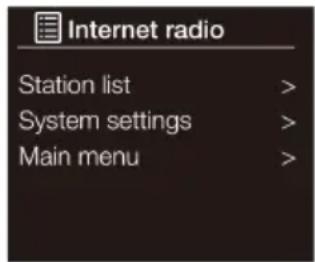
Internet radio menu
through the category options; once you have made your selection a screen confirms your selected category and the number of stations within that category. To see the list, select the option showing the number of available stations.
Now playing information: While the stream is playing, the screen shows its name and description. If artist and track information is available, this is also shown. To view further information, press MENU/INFO button. Each time you press MENU/INFO button, another set of information is displayed, cycling through the following details:
- Artist
- Slogan (default; where available)
- Language/Location
• Codec and sampling rate
- Playback buffer
- Today's Date.
STREAMING BT AUDIO
Streaming using BT
You can use BT to stream any audio from your phone or tablet.
Pairing a mobile device
Before you can stream audio, you will need to pair your phone or tablet.
Note: BT pairing varies on different mobile devices. See your mobile device manual for specific information.
To pair using BT:
- Press the HOME button and turn and press the NAVIGATE dial to select 'BT'.display the BT input display and the BT icon will start to flash.
Note: If the BT icon is displayed, is already connected to another BT device. See below for more information.
-
On your mobile device, select the option to add a new BT device. On some mobile devices you may need to select the search or scan option.
-
Start the pairing process on your mobile device. Do this by selecting 'Connect 120 MKII' from the list of available devices that appear on the mobile device's screen. Your mobile device will connect to automatically once paired.
-
After selecting your favorite song, press PLAY/PAUSE Button on the unit to play or pause the song.
Disconnecting a mobile device
You can only have one mobile device connected to via BT at any one time. If you want to stream audio from a different mobile device, you will need to disconnect any mobile device that is currently connected to via BT first.
To disconnect a mobile device:
- Press and hold the BT PAIR Button for 3 seconds or turn off the BT function of device currently paired with Connect 120 MKII then repeat step 3 above.
- Turn and press the NAVIGATE dial to select 'Yes' to disconnect your mobile device. If your mobile device goes out of BT range (this is usually around 10 m (30 ft)) the mobile device's BT connection is disconnected automatically. To manually disconnect your mobile device, you will need to open the BT settings on your mobile device (see your mobile device's manual for more information).
When you disconnect a mobile device. Will remain in the 'BT' source. To listen to another source, e.g. digital radio, press the HOME button to display the home menu and turn and press the NAVIGATE dial to choose the source you want to listen to.
UNDOK
The device gives a feature of network remote by smartphone or tablet in iOS or Android system. By downloading the assigned app named UNDOK, you can view all the modes the device.
Search UNDOK from Google Play or Apple Store, and install it to your smartphone or tablet.

For Android system (Google Play Store)
Before using the UNDOK app, make sure the device and the smartphone / tablet are in the same WiFi network.
Launch the app. The app initializes and scans for Internet Radio in the network. Tap the device to make the connection.
When prompted, enter the current PIN code. The default PIN is "1234".
You can view and edit the current PIN on the Internet Radio in the menu
Select your desired mode in the main page. You may then control the selected mode on your smartphone / tablet and on the display of the device simultaneously.
NOTE: Be aware that if another smartphone / tablet with the app in the same network have access with the device, the original connection will be cut off.
LISTENING TO DAB OR FM RADIO
Changing DAB stations
Press the HOME button and turn and press the NAVIGATE dial to select 'DAB radio' from the Home screen. During the scan the display will show "Scanning...". The first time you select DAB radio, Will perform an auto tune to find all available stations and will tune into one when finished.
Station List
- Press and hold the MENU/INFO button to view the main menu.
- Turn and press the NAVIGATE dial to select 'station list'.
- A list of DAB stations will show on the display.
Scan
- Press and hold the MENU/INFO button to view the main menu.
- Turn and press the NAVIGATE dial to select 'Scan'.
- All the stations that have been found will be stored automatically.
Manual Tune
As well as the auto tune function, you can manually tune the receiver. This can help you when aligning your aerial or when adding stations that were missed while auto tuning.
- Press and hold the MENU/INFO button to view the main menu.
- Turn and press the NAVIGATE dial to select 'Manual Tune'.
Prune Invalid
You may remove all unavailable stations from the list.
- Press and hold the MENU/INFO button to view the main menu.
- Turn and press the NAVIGATE dial to select 'Prune invalid'.
- Press NAVIGATE dial to select YES and press OK button to confirm. Or select NO to cancel.
DRC (Dynamic Range Compression)
If you are listening to music with high dynamic range in a noisy environment, you may wish to compress the audio dynamic range.
- Press and hold the MENU/INFO button to view the main menu.
- Turn and press the NAVIGATE dial to select ' DRC

- Press NAVIGATE dial to select DRC high/low/off and press OK button to confirm the setting.
Changing FM stations
Seek tuning
- Press the Home button and turn and press the NAVIGATE dial to select 'FM radio' from the Home screen.
- Press the NAVIGATE dial to seek to the next FM radio station that has a strong signal.
- Turn the NAVIGATE dial to step up or down 0.05 MHz.
Auto Scan
- Press the Home button and turn and press the NAVIGATE dial to select 'FM radio' from the Home screen.
- Press the SCAN button to search the FM radio station that has a strong signal.

Recall from Preset
- BBC Radio 1
- BBC Radio 2
- Absolute radio
- [Not set]
- [Not set]
Selecting a preset
USING RADIO PRESETS
You can store up to 20 DAB, 20 FM and 20 Internet radio stations for quick access.
Tune to the DAB, FM or internet radio station you want to store. Press and hold one of the numbered Preset buttons (1-4) on remote control for two seconds until you see a message to confirm that the preset has been stored.
To store a station to the preset list (5-20)
- Tune to the DAB, FM or Internet radio station you want to store.
- Press and hold the 5+ button to view the numerical list of stored presets, then turn and press the NAVIGATE dial to choose any Preset number between 5 and 20. You can overwrite existing presets. Press the OK button on main unit or remote control to store the preset.
To recall a preset when listening to digital radio, FM radio or internet radio
- To tune to Presets 1 to 4, press the corresponding numbered button on the front panel or on the remote control (1 to 4).
- To access presets 5 to 20 on the front panel press the 5+ button, turn the NAVIGATE dial right or left to scroll through the list of presets, then press the OK button to tune to the selected preset.
USB OPERATION
- Press the HOME button to display the 'function' menu.
- Turn and press the NAVIGATE dial to select 'Music Player'.
| ▶II | Press to pause the track that is currently playing. If you have paused a track, press again to resume playback. |
| ▶▶I | Press to skip to the next track. Press and hold to fast forward the track that is currently playing. |
| ◀◀ | Press to skip to the previous track. Press and hold to fast rewind the track that is currently playing. |
Notes
- The unit can only play MP3 and WMA le formats in USB operation.
• This unit supports USB version 2.0 and 3.0.
- The unit can support USB devices with up to 128 GB of memory.
- The unit may not compatible with all USB devices; this is not an indication of a problem of the unit.
Repeat playback
- Press the REPEAT button once on the remote control, 📋 will show on the display. It will play the current folder repeatedly.
- Press the REPEAT button once more again, the repeat function will turn off.
Random playback
All tracks on the USB can be played in a random order.
- During playback mode, Press and hold the RANDOM button on the remote control. The indicator will show on the display. All tracks will be played randomly.
- Press the ◀◀ or ▶▶ buttons to playback the next random track.
- After all the tracks have played, the playback will stop automatically.
- To cancel random playback, press and hold the RANDOM button during RANDOM playback. Normal playback will resume.
Charge your device
You can charge your device through the USB socket on this unit with a USB cable (not supplied).
Notes
- The maximum current for USB charging is 1 A.
- All devices for USB charging are not guaranteed.
- The USB charging is supported during power ON mode, it is not support during STANDBY mode.
AUX IN MODE
Connecting a device with an auxiliary cable.
You can use an auxiliary cable to connect a device, such as an MP3 player. To connect a device with an auxiliary cable:
- Press HOME button, Turn and press the NAVIGATE dial to Select AUX IN.
- Insert an auxiliary cable into the Aux in socket on the back.
- Insert the other end of the auxiliary cable into the device you want to connect.
AUX OUT
Audio-out socket (3.5-mm jack)
A 3.5-mm audio out socket located on the rear of your radio is provided for connecting the audio signal to an external amplifier. Set the volume control on the radio to minimum if desired.
SETTINGS
Setting an alarm
- Press and hold the MENU/INFO button to view the main menu.
- Turn and press the NAVIGATE dial to select 'Alarms'
- Turn and press the NAVIGATE dial to select 'Alarm 1' or 'Alarm 2'.
- Turn the NAVIGATE dial to scroll through each alarm setting. If you want to change a setting, press the NAVIGATE dial. You can set the following alarm options:
| Enable Turn and press the NAVIGATE dial to choose when you want the alarm to repeat. The available options are 'Off','Daily', 'Once', 'Weekends' or 'Weekdays'. |
| Time Turn and press the NAVIGATE dial to adjust the hour of the alarm. Note: If you have set to use the 12 hour time format, make sure that you select the 'AM' or 'PM' version of the hour before pressing the NAVIGATE dial. Repeat to set the minutes of the alarm. |
| Mode Turn and press the NAVIGATE dial to choose between 'Buzz', 'Internet radio', 'DAB', 'FM'. |
| Volume Turn and press the NAVIGATE dial to set the volume when the alarm sounds. |
| Save Turn and press the NAVIGATE dial to save the alarm. |
Sleep setting
This function allows you to program the unit to turn to standby mode by itself after a set period of time.
- Tap the SLEEP button on remote control, the sleep time icon "SLEEP OFF" appears on the display.
- Repeatedly tap the SLEEP button to select a sleep time. The unit will turn off after "Sleep off-15mins - 30mins - 45mins - 60mins" Wait for 3 seconds after your selection for the unit to confirm the selection, the unit will play for the selected length of time then automatically turn off.
- To cancel the sleep timer, tap the SLEEP button repeatedly until timer shows "SLEEP OFF", the sleep time icon "SLEEP OFF" disappears on the display.
Snoozing a sounding alarm
To snooze a sounding alarm, press the NAVIGATE dial. The display will show a countdown timer to show how long the alarm will snooze for. To adjust the amount of time the alarm will be snoozed by, press the NAVIGATE dial to change the snooze duration in 5 minute intervals up to 15 minutes, and then 30 minutes.
To cancel a snoozing alarm press the Standby button.
Time and date settings
The clock will automatically set itself using your Network, digital or FM radio signal. If the time or date does not update automatically, you can manually set it using this option.
Note: Any time or date updates received by a digital broadcast will override manual settings.
Setting the time and date manually
- Press and hold the MENU/INFO button to view the main menu.
- Turn and press the NAVIGATE dial to select 'System settings' > 'Time/Date'.
- Turn and press the NAVIGATE dial to choose 'Set Time/Date'.
- Turn and press the NAVIGATE dial to set the day of the month. Repeat to set the month and year.
- Turn and press the NAVIGATE dial to set the hour. Repeat to adjust the minutes.
Note: If you have set the time format to 12 hour time format, make sure that you select the 'AM' or 'PM' version of the hour before pressing the NAVIGATE dial.
Time and date synchronization options
You can synchronize the time and date on the FM, digital radio or network signal.
To specify the clock synchronization options:
- Press and hold the MENU/INFO button to view the main menu.
- Turn and press the NAVIGATE dial to select 'System settings' > 'Time/Date'.
- Turn and press the NAVIGATE dial to choose 'Auto update'.
- Turn and press the NAVIGATE dial to choose between the 'Update from DAB', 'Update from FM', 'Update from Network' and 'No Update' clock synchronization options.
- Press and hold the MENU/INFO button to view the main menu.
- Turn and press the NAVIGATE dial to select 'System settings' > 'Time/Date'.
- Turn and press the NAVIGATE dial to choose 'Set format'.
- Turn and press the NAVIGATE dial to choose between '12' or '24' hours.
Changing the time zone
- Press and hold the MENU/INFO button to view the main menu.
- Turn and press the NAVIGATE dial to select 'System settings' > 'Time/Date'.
- Turn and press the NAVIGATE dial to choose 'Set time zone'.
- Turn and press the NAVIGATE dial to choose your Time zone
Daylight saving time options
- Press and hold the MENU/INFO button to view the main menu.
- Turn and press the NAVIGATE dial to select 'System settings' > 'Time/Date'.
- Turn and press the NAVIGATE dial to choose 'Daylight savings'.
- Turn and press the NAVIGATE dial to choose 'On' if you want to enable daylight savings time. Turn and press the NAVIGATE dial to choose 'Off' if you want to disable daylight savings time.
Changing your preferred language
You can select the language for menus and options.
- Press and hold the MENU/INFO button on main unit or remote control and turn and press the NAVIGATE dial to select 'Main Menu'.
- Turn and press the NAVIGATE dial to choose 'System settings' > 'Language'.
- Turn and press the NAVIGATE dial to select a menu language.
Inactive Standby
With this option, the radio will go into standby automatically, when there was no interaction with the radio within a certain time span. This should avoid the radio playing endlessly, when you leave the house, while it's still playing.
- Press and hold the MENU/INFO button to view the main menu.
-
Turn and press the NAVIGATE dial to select 'System settings' > 'Inactive Standby'.
-
Turn and press the NAVIGATE dial to choose 'Inactive Standby'.
- Turn and press the NAVIGATE dial to choose between the Off > 2 hours > 4 hours > 5 hours > 6 hours.
Backlight
You can adjust the duration that the screen is illuminated for and the brightness of the screen when it times out.
To adjust the duration of the screen backlight before dimming:
- Press and hold the MENU/INFO button on main unit or remote control and turn and press the NAVIGATE dial to select 'Main Menu'.
- Turn and press the NAVIGATE dial to choose 'System settings' > 'Backlight'.
- Turn and press the NAVIGATE dial to choose 'Timeout'.
- Turn and press the NAVIGATE dial to choose a timeout setting. To specify that the backlight should always remain on, choose 'On'.
Power-on level
- Press and hold the MENU/INFO button view the 'Main Menu'.
- Turn and press the NAVIGATE dial to choose 'System settings' > 'Backlight'.
- Turn and press the NAVIGATE dial to choose 'On Level'.
- Turn and press the NAVIGATE dial to choose between 'High', 'Medium' or 'Low'.
Dim level in standby
- Press and hold the MENU/INFO button to view the 'Main Menu'.
- Turn and press the NAVIGATE dial to choose 'System settings' > 'Backlight'.
- Turn and press the NAVIGATE dial to choose 'Dim Level'.
- Turn and press the NAVIGATE dial to choose between 'Medium' or 'Low'.
Carrying out a factory reset
Resetting removes all presets, stored stations, alarms and resets all other options to default settings.
- Press and hold the MENU/INFO button on main unit or remote control and turn and press the NAVIGATE dial to select 'Main Menu'.
- Turn and press the NAVIGATE dial to choose 'System settings' > 'Factory Reset'.
- Turn and press the NAVIGATE dial to select 'Yes' to reset factory settings. Select 'No' if you do not want to reset to factory settings.
Network setting
Connecting to your Wi-Fi using the setup wizard
- Press and hold the MENU/INFO button to view the main menu.
- Turn and press the NAVIGATE dial to select 'System settings' > 'Network' > 'Network wizard'.
- Turn and press the NAVIGATE dial to select your region. Will search for available Wi-Fi networks.
- Turn and press the NAVIGATE dial to select the name (SSID) of your Wi-Fi network. If your network requires a key, follow steps 5-6.
- Enter your network key or password by turning and pressing the NAVIGATE dial to highlight and select characters. If you want to delete the last character, turn the NAVIGATE dial to select 'BKSP' and push to confirm.
- Turn and press the NAVIGATE dial to select 'OK'. will connect to your network.
Helpful hint: Your Wi-Fi key is case sensitive, make sure to enter it exactly as shown.
DISPOSAL CONSIDERATIONS
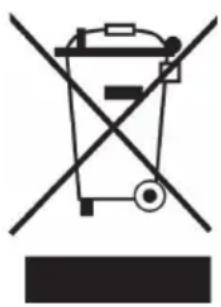
If there is a legal regulation for the disposal of electrical and electronic devices in your country, this symbol on the product or on the packaging indicates that this product must not be disposed of with household waste. Instead, it must be taken to a collection point for the recycling of electrical and electronic equipment. By disposing of it in accordance with the rules, you are protecting the environment and the health of your fellow human beings from negative consequences. For information about the recycling and disposal of this product, please contact your local authority or your household waste disposal service.
This product contains batteries. If there is a legal regulation for the disposal of batteries in your country, the batteries must not be disposed of with household waste. Find out about local regulations for disposing of batteries. By disposing of them in accordance with the rules, you are protecting the environment and the health of your fellow human beings from negative consequences.

Manufacturer:
Chal-Tec GmbH, Wallstrasse 16, 10179 Berlin, Germany.
Importer for Great Britain:
Berlin Brands Group UK Limited
PO Box 42
272 Kensington High Street
London, W8 6ND
United Kingdom
Hereby, Chal-Tec GmbH declares that the radio equipment type Connect 120 MKII is in compliance with Directive 2014/53/EU. The full text of the EU declaration of conformity is available at the following internet address: use.berlin/10040159
For Great Britain: Hereby, Chal-Tec GmbH declares that the radio equipment type Connect 120 MKII is in compliance with the relevant statutory requirements. The full text of the declaration of conformity is available at the following internet address: use.berlin/10040159
Cher client, chère cliente,
SOMMAIRE
Fiche technique 66

3. Assistant de configuration
Pour Android (Google Play)

Changer les stations DAB
DRC (Dynamic Range Compression)

Fabricant :
Chal-Tec GmbH, Wallstraße 16, 10179 Berlin, Allemagne.
Berlin Brands Group UK Limited
PO Box 42
272 Kensington High Street
London, W8 6ND
United Kingdom
INDICE
Dati tecnici 98

Per Android (Google Play)

Per IOS
(Apple store)
Berlin Brands Group UK Limited
PO Box 42
272 Kensington High Street
London, W8 6ND
United Kingdom
CONTENIDO
Datos técnicos 130

para Android (Google Play)
Berlin Brands Group UK Limited
PO Box 42
272 Kensington High Street
London, W8 6ND
United Kingdom