Prime Trail 119932C - Camera BUSHNELL - Free user manual and instructions
Find the device manual for free Prime Trail 119932C BUSHNELL in PDF.


| Product Type | Digital scouting camera (trail camera) |
| Brand | Bushnell |
| Model | Prime Trail 119932C / 119932CB |
| Image Sensor | 3 megapixel color CMOS |
| Maximum Photo Resolution | 24 MP (6528x3672) |
| Maximum Video Resolution | 1920x1080 at 15 fps (HD) |
| Lens | F=2.8; 42° field of view; automatic IR cut |
| IR Flash Range | Up to 30 meters (100 feet) |
| Display Screen | 1.5 inch (24x32 mm) black and white LCD |
| Memory Card Type | SD / SDHC card up to 32 GB |
| Power Source | 6 AA batteries (Lithium recommended); optional solar panel (119756C) |
| Standby Current | Less than 0.08 mA (less than 7 mAh/day) |
| Operating Temperature | -20°C to 60°C (storage -30°C to 70°C) |
| Operating Humidity | 5% to 90% |
| Main Features | PIR sensor, photos (1-5 per trigger), videos (5-60 s), field scan, timestamp, day/night/24h mode, adjustable sensitivity |
| Interface | USB (Micro-B), SD slot, DC In jack for solar panel |
| Mounting | Adjustable strap or 1/4-20 tripod socket |
| Warranty | 2 years (limited) |
| Maintenance and Cleaning | Clean with a soft cloth; avoid humidity; remove batteries during prolonged storage |
| Safety | Do not mix old/new batteries; use only lithium or alkaline batteries; avoid rechargeable batteries |
| Spare Parts and Repairability | Repairs only by Bushnell authorized center; USB cable not included; strap included |
Frequently Asked Questions - Prime Trail 119932C BUSHNELL
User questions about Prime Trail 119932C BUSHNELL
0 question about this device. Answer the ones you know or ask your own.
Ask a new question about this device
Download the instructions for your Camera in PDF format for free! Find your manual Prime Trail 119932C - BUSHNELL and take your electronic device back in hand. On this page are published all the documents necessary for the use of your device. Prime Trail 119932C by BUSHNELL.
USER MANUAL Prime Trail 119932C BUSHNELL
natural_image
Top-down view of a black tactical camera with multiple lenses and a central display (no visible text or symbols)PRIME TRAIL CAMERA
INSTRUCTION MANUAL
Model# 119932C / 119932CB 08-20
IMPORTANT NOTE
Congratulations on your purchase of one of the best trail camer-as on the market! Bushnell is very proud of this little unit and we are sure you will be pleased with it as well. We appreciate your business and want to earn your trust. Please refer to the notes below and the instructions in this manual to ensure that you are completely satisfied with this product.
If your Bushnell Prime Trail Camera does not seem to be functioning properly or if you are having photo/video quality issues, please check the Troubleshooting/FAQsection.
Problems are often due to something simple that was overlooked, or require only changing one setting to solve.
If your problem continues after trying the solutions in the Troubleshooting/FAQ section, please call Bushnell Customer Service at (800) 423-3537. In Canada, call (800) 361-5702. For EU owners, email: contact@bushnell.eu
Bushnell recommends using 6 Energizer® Lithium AA batteries in this Prime Trail Camera model to obtain maximum battery life.
Do not mix old and new batteries. Do not mix battery types-use ALL lithium or ALL alkaline. Rechargeable batteries are NOT recommended.
Bushnell recommends using SanDisk® SD and SDHC Cards (up to 32GB capacity) in all Prime Trail Camera.
INTRODUCTION
About the Prime Trail Camera
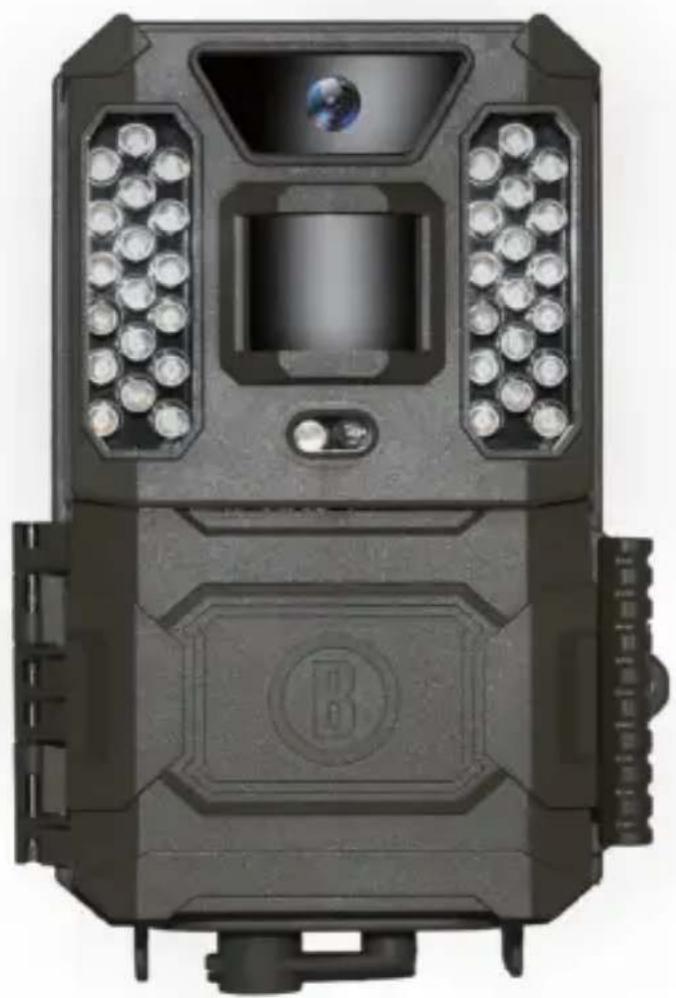
The Bushnell Prime Trail Camera is a digital scouting camera. It can be triggered by any movement of game in a location, detected by a highly sensitive Passive Infra-Red (PIR) motion sensor, and then take high quality pictures (up to 24MP still photos), or 720p HD video clips.
The Prime Trail Camera consumes very little power (less than 0.08 mA) in a standby (surveillance) state. This means it can deliver up to twelve months stand-by operation time when the device is powered by six AA alkaline batteries. Once motion in the monitored area is detected, the digital camera unit will be triggered at once (typically less than half a second) and then automatically take images according to previously programmed settings. The Prime Trail Camera is equipped with built-in infrared LEDs that function as a flash, so that it delivers clear photos or videos (in black & white) even in the dark, and it can take color photos or videos under sufficient daylight. The Prime Trail Camera is designed for outdoor use and is resistant against water and snow.
Applications
The Prime Trail Camera can be used as a trail camera for hunting or scouting game. It is also suitable for surveillance usage.
PARTS AND CONTROLS
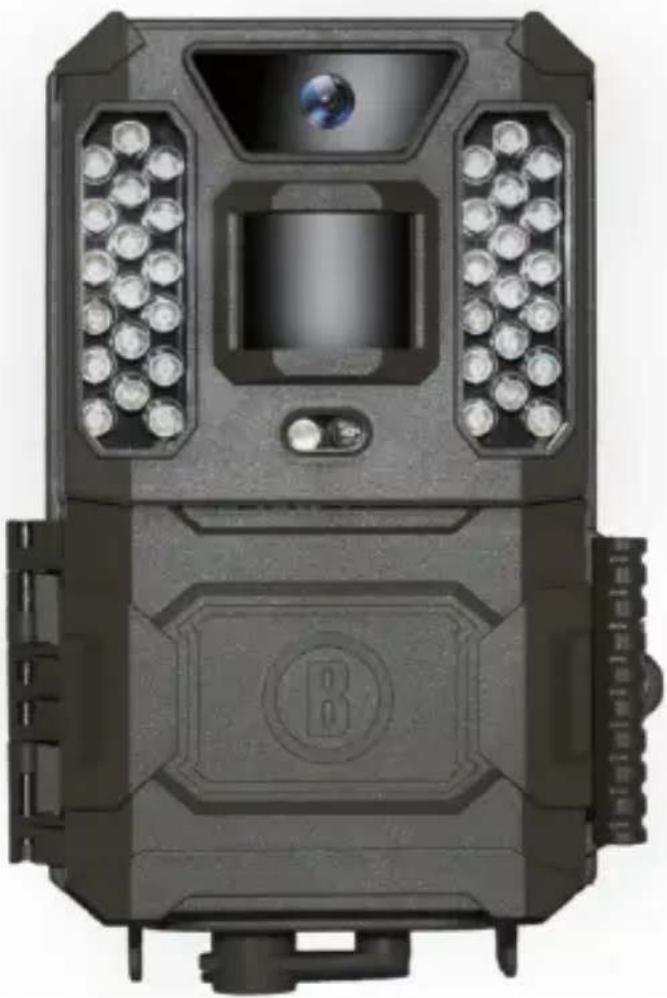
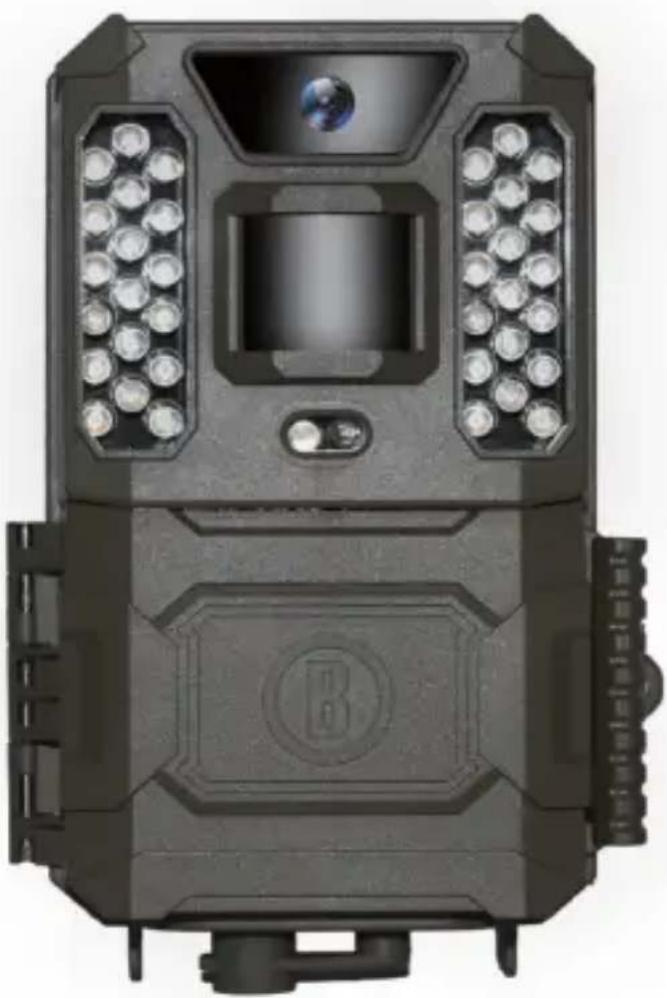
The Prime Trail Camera provides the following connections for external devices: USB port and SD card slot (Fig. 4).
A 3-way power switch is used to select the main operating modes: OFF, AIM, and ON (Fig. 3).
A D-Pad interface with 5-way keys is primarily used in AIM mode to select operational functions and parameters. As shown in Fig. 3, these keys are: UP, DOWN, LEFT, RIGHT, OK and MENU. Three of the keys can also perform a second function (shortcut operations in AIM mode) in addition to their main function: The DOWN key can be used to set the camera to Photo mode (still camera icon), and the UP key can set the camera to Video mode (movie camera icon). The RIGHT key also serves as the manual shutter (“SHOT”) button of the camera. These secondary functions are indicated by icons or text above the key as shown in Fig. 3.
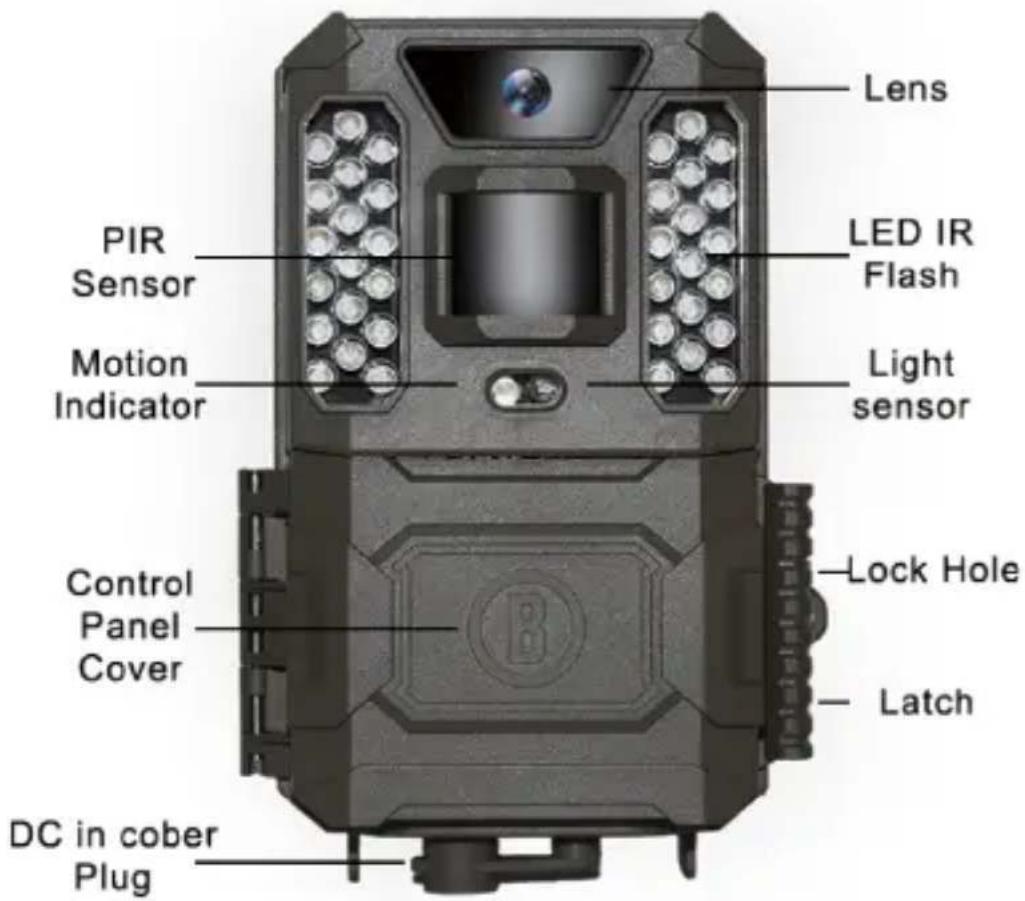
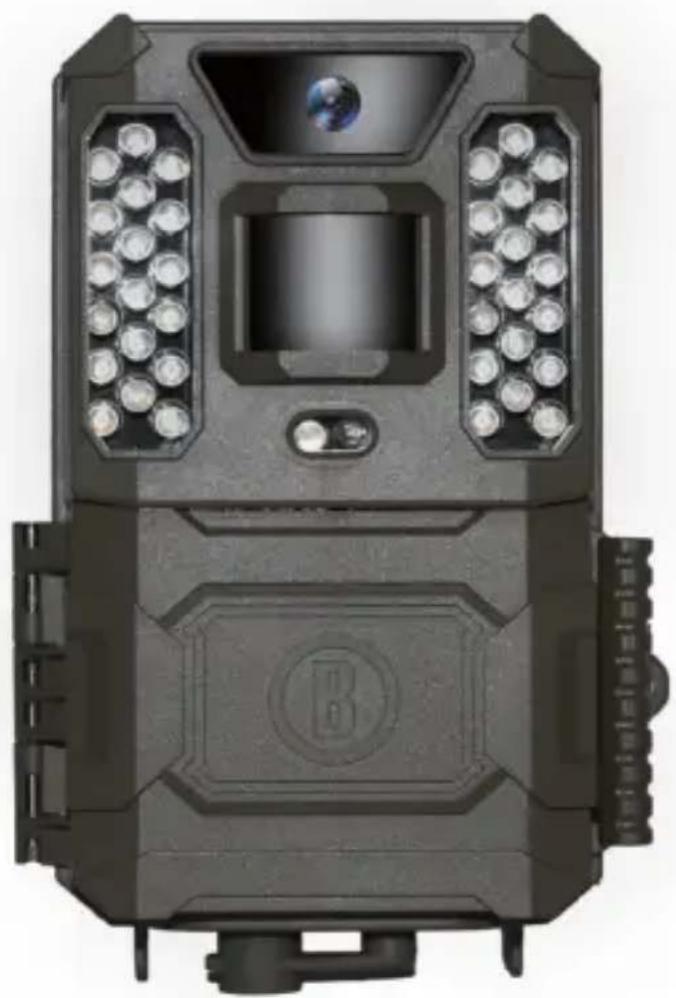
Fig. 1
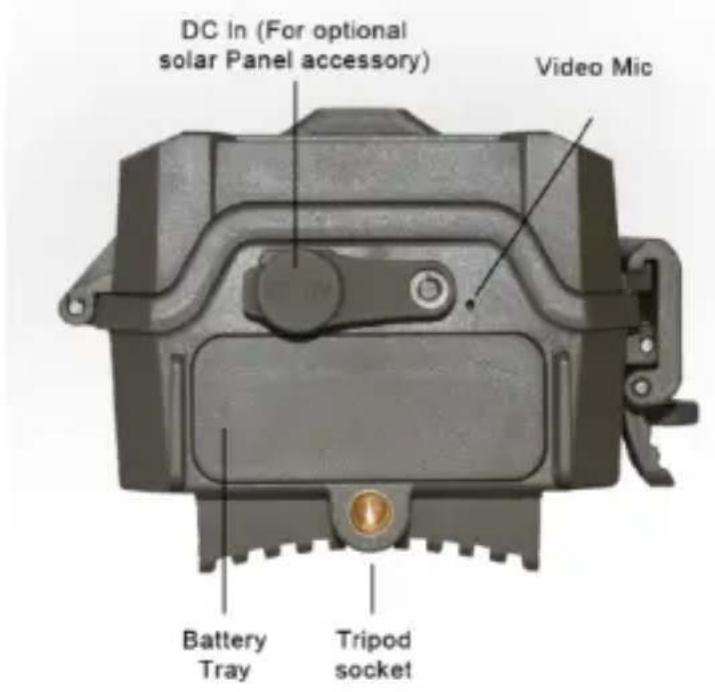
Fig. 2
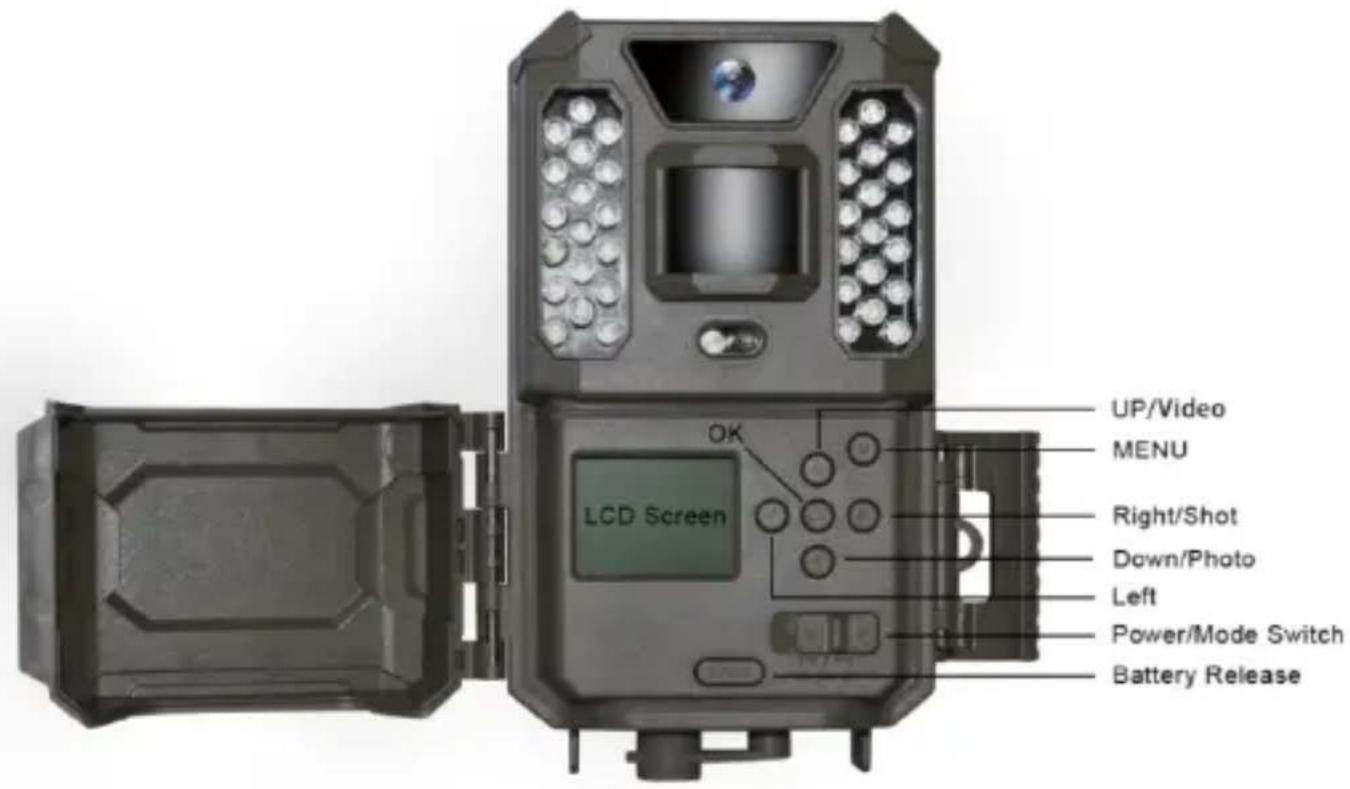
Fig. 3
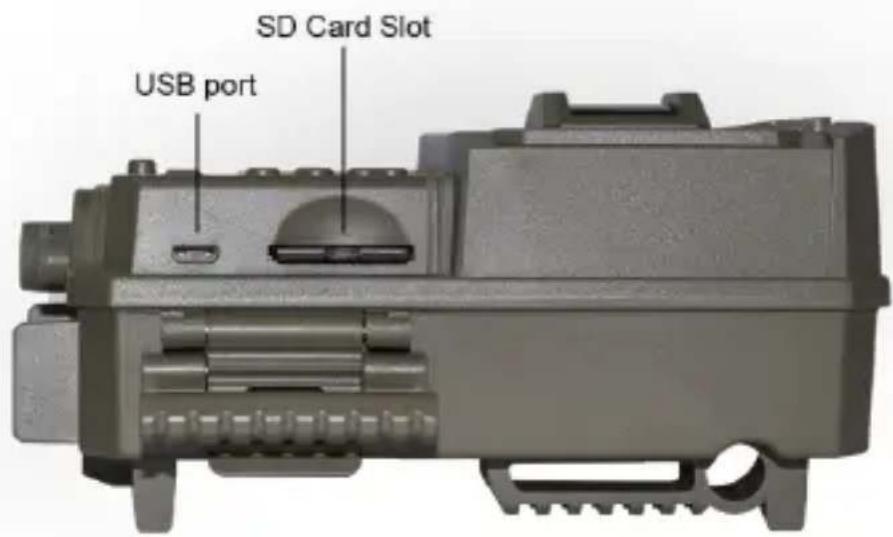
Fig. 4
INSTALLING THE BATTERIES AND SD CARD
Before you begin learning how to use your Prime Trail Camera, you will first need to install a set of batteries and insert an SD card. Although that may only take you a minute, there are some important notes about both batteries and SD cards you should be aware of, so please take the time to read the following directions and cautions:
Loading Batteries
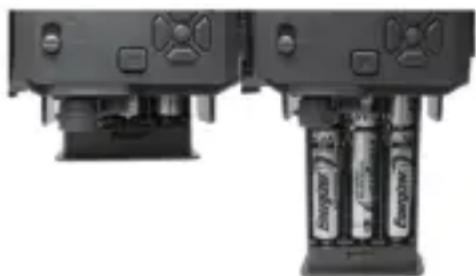
After opening the latch on the right side of the Prime Trail Camera, you will see that the Prime Trail Camera has a battery release button. Depress this button and a battery tray will drop out of the bottom of the camera. The battery tray will stop about 12 inch out of the device, this is a latch system to prevent the tray from dropping onto the ground. Just apply a little pressure when pulling and the tray will release. The battery tray has six battery slots. Install a full set of 6 batteries. Be sure to insert each battery with correct polarity (negative or “flat” end against the long spring of each battery slot).
Bushnell recommends using a full set of new lithium AA (Energizer® brand) or alkaline AA batteries. NiMh Rechargeable batteries are not recommended, as the lower voltage they produce can cause operational issues.
natural_image
Close-up of two black electronic devices with batteries and indicator lights, no visible text or symbolsYou can also connect an optional Solar Panel accessory (model# 119756C –please visit www.bushnell.com for more information) to the “DC In” jack at the bottom of the Prime Trail Camera (other external power supplies should not be used, as the camera and/or display may not function correctly). If the solar panel is connected and AA batteries are installed, the Prime Trail Camera will be powered by the solar panel's rechargeable lith-ion battery, as long as it provides adequate voltage (if not, the camera will switch to battery power). The solar panel's battery will power the camera at night.
Inserting the SD Card
Insert the SD card (with the camera's power switch in the OFF position) before beginning to operate the camera. Don't insert or remove the SD card when the power switch is in the ON position.
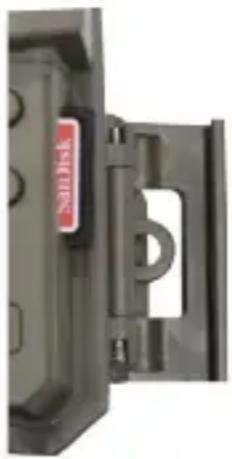
The Prime Trail Camera uses a standard SD (Secure Digital) memory card to save photos (in .jpg format) and/or videos (in .avi format). SD and SDHC (High Capacity) cards up to a maximum 32GB capacity are supported. Before inserting the SD card into the card slot after opening the camera's front cover, please make sure that the write-protect switch on the side of the card is "off" (NOT in the "Lock" position). The following describes how to insert and remove the SD card:
- Insert the SD card into the card slot with its label side upwards (see above). A “click” sound indicates that the card is installed successfully. If the wrong side of the card is facing up, you will not be able to insert it without force-there is only one correct way to insert cards. If the SD card is not installed correctly, the device will not display an SD card icon on the LCD in SETUP mode (the SD card icon displayed after switching to SETUP mode will have a “lock” symbol inside it in it if the card is locked). Formatting the SD card by using the Prime Trail Camera “Format” parameter before using it for the first time is recommended, especially when a card has been used in other devices (see “Changing Menu Parameter Settings” for details).
- To take out the SD card, just gently push in the card (do not try to pull it out without pushing in first). The card is released from the slot and ready to be removed when you hear the click. Be sure the camera's power is switched OFF before inserting or removing SD cards or batteries.
natural_image
Close-up of a black mechanical door with a red label and a circular cutout, no visible text or symbols.USING THE Prime Trail Camera
Once you've prepared your Prime Trail Camera by properly installing batteries and an SD card, you could simply take it outside, strap it to a tree, switch it on and leave-and you might get some great photos that are exactly what you wanted.
However, we highly recommend that you first spend some additional time indoors with this manual and your camera until you know a bit more about what the 3-way switch and direction keys do. If nothing else, you'll probably want to at least set the date and time so the camera will imprint them (or not-it's your option) on your photos as they are taken, learn how to set the camera to shoot video clips instead of still photos if you like, and read some tips about mounting it on a tree.
THE OFF, ON, AND AIM MODES
The Prime Trail Camera has three basic operational modes:
• OFF mode: Power switch in the OFF position.
• ON mode: Power switch in the ON position (LCD screen is off.)
- AIM mode: Power switch at AIM position (LCD screen is on).
OFF MODE
The OFF mode is the “safe” mode when any actions must be taken, e.g., replacing the SD card or batteries, or transporting the device. You will also use OFF mode if you connect the camera to a computer’s USB port later to download your photos/videos. And of course, when you are storing or not using the camera, you will switch it to OFF. Please note that even in the OFF mode the Prime Trail Camera still consumes power at a very low level. Therefore, it’s a good idea to take the batteries out of the battery compartment if the camera will not be used for a long time.
ON MODE
Any time after the batteries and SD card have been inserted, you can switch on the camera. When the power switch is moved to the far left position, the camera will enter into the ON (Live) mode. The motion indicator LED (Fig.1, “Front View”) will blink red for about 10 seconds. This interval allows time for you to close the Prime Trail Camera’s front cover, lock it, and leave the monitored area. Once in the ON mode, no manual controls are needed or possible (the control keys have no effect). The Prime Trail Camera will take photos or videos automatically (according to its current parameter settings) when it is triggered by the PIR sensor’s detection of activity in the area it covers.
You can either move the power switch directly from OFF to ON mode, or stop at the AIM position first to change one or more settings, then move the switch to ON after you have finished doing so.
AIM MODE
In the AIM mode you can check and change the settings of the Prime Trail Camera with the help of its built-in LCD. These settings, found in the SETUP Menu, let you change the photo or video resolution, interval between photos, switch the time imprint on, etc. Moving the power switch to the AIM position will turn on the LCD display, and you will see an information screen that shows how many images have been taken, the battery level, camera or video mode, etc (see Fig. 5).
NOTE: Always move the power switch from OFF to AIM mode. It is possible that the camera could lockup if it is switched from ON to AIM mode. If this occurs, simply move the switch to OFF and then push it up to AIM again.
AIM Mode Shortcut Keys/Functions
As mentioned earlier in “Parts & Controls”, three of the keys below the LCD have secondary, “shortcut” functions when the camera is switched to AIM mode (but the MENU key has not been pressed):
- Press the UP key to quickly set the camera to shoot video clips.
- Press the DOWN key to quickly set the camera to take still photos.
- Press the RIGHT key to manually trigger the shutter. This is useful for testing the camera-make sure you are in AIM mode, press the RIGHT key, and a few seconds later a photo or video (depending on how the camera was set) will be saved to the SD card. The “number of images taken” counter on the bottom left of the LCD will increase by one. If the display indicates “SD PROTECTED” when you press the SHOT key, switch the camera OFF, remove the SD card and slide its protect switch off.
Fig.5: SETUP Information Screen
![Still Photo Mode Time Lapse mode Image Size (Resolution) 3MP 01-01-2020 02:59:35 [00007/16853] of Photos Taken Remaining Photo Capacity Battery Level Date: Day: Month: Year Time Hour: Minute: Second](/content/2026/04/625458/images/f03827e5cc2ed3632e0b2658c4e78b2c6c11ad5ce7aee105ec2c4734952a0a8a.jpg)
![Video Mode Video Resolution HD 01-01-2020 22:19:37 [01:15:19] Available Video Recording Time](/content/2026/04/625458/images/24f1a0993c0fabccee294e96627f52306fc5fdaac2c6f9887a8b7832db40eb83.jpg)
USING THE SETUP MENU TO CHANGE SETTINGS
The main purpose of the AIM mode is to allow you to change the settings of the camera's parameters so your Prime Trail Camera operates exactly the way you want it to. You will do this by entering the SETUP Menu and pressing the keys beside the LCD display, which will show you each parameter and its setting.
Changing Parameter Settings in SETUP Mode
A wide range of options or “parameters” are provided to allow you to set the Prime Trail Camera to your operational preferences. To change the setting of any parameter you must first switch to the AIM mode. Once in AIM mode, pressing the MENU button will allow you to select any parameter and change its setting. The name of the parameter and its current setting will be shown on the LCD. Pressing the RIGHT or LEFT key scrolls to the next or previous parameter (RIGHT key to move on to the next parameter and LEFT key to go back to the previous parameter), and pressing the UP or DOWN key lets you select a different setting for the currently displayed parameter. Once you have selected your preferred new setting for a parameter, press the OK button to save the new setting (actually change it). When you are finished changing the settings of one or more parameters, press MENU again to exit the SETUP menu. MENU can also be pressed anytime you want to cancel changing a parameter’s setting after a new setting has been selected (but OK has not been pressed yet). After setting the parameters to your preferences, be sure to move the switch to ON to begin actually taking photos or videos. No images will be captured if the switch is left in the AIM position (unless you press the RIGHT/Shot key after exiting the menu) - in fact, the camera will power off automatically after a few seconds with no key pressed.
To make the Parameter Settings easier, we have made the camera with 3 basic settings (Set Clock / Mode / Interval) and an “Additional Set” which allows customer to access to the full suite of settings if you turn the “Additional Set” on.
Parameter Setting Display
The settings for each parameter are shown on the display screen of your Prime Trail Camera. Only one setting is displayed at a time, starting with the current setting for the parameter when it is first selected (Fig. 6a). To change the setting, use the UP/DOWN keys to display the new setting you want (Fig. 6b), then press OK to “Execute” (make the actual change to this setting). If you want to confirm this setting is now the current one, just press the RIGHT key to scroll to the next parameter, then press LEFT to go back again to the previous one. You should see the parameter setting you just made.
Fig. 6: Selecting Parameter Settings
Press Menu (6a)
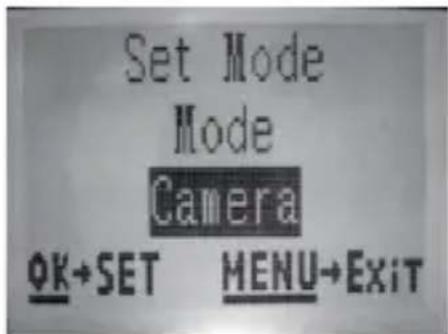
Press DOWN to select new setting for the highlighted parameter
(6b)
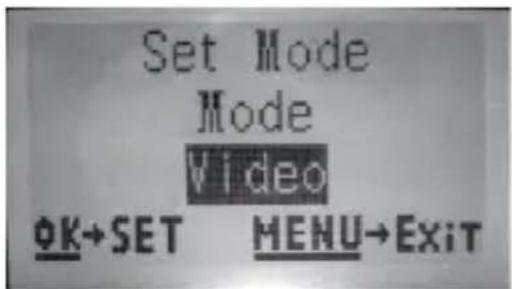
Press OK to confirm and execute the new setting
EXAMPLES-Changing the Settings of Some Common Parameters
Following this page, you will find tables listing all of the parameters found in the SETUP Menu, along with their possible settings (or range of settings), and a detailed description of what the parameter controls and what the settings do. If you read the previous section detailing how to select parameters and change their settings, you should be able to dive right in, find the parameter(s) you want, and setup the camera to your preferences. But maybe you'd rather walk through an example or two first:
To change any parameter's setting, always start with the power switch in the AIM position. After the LCD comes on, press the MENU key.
The first parameter you will see when you enter the SETUP Menu is “Set Clock”. As the Time Stamp feature is “On” by default, the camera will normally imprint the date and time on each photo or video, based on your settings here. Press OK and use the UP/DOWN keys to set the hour (24- hr format, “00”=midnight, “12”=noon), then press the RIGHT key move to the minute field and set it (again using UP/DOWN). Press RIGHT to move to the lower row and set the year, month and date using the same method. When finished, press the OK key to confirm the new time and date settings you made.
Now press the RIGHT key to move to another parameter in the Menu. The next parameter you will see is “Mode”. To change it from its default setting of “Camera” (still photos) to “Video” (shoot video clips), press the DOWN key to select the “Video” setting. Press the OK key to “Execute” (Set) the new setting you’ve selected for this parameter.
Now press the RIGHT key to move to another parameter in the Menu. Pressing it 2 times will take you to “Additional Set”. Try using the UP and DOWN keys to choose to turn ON / OFF the “Additional Set”. You will get to the full suite of settings if you turn the “Additional Set” on.
Field Scan 2x with Live Trigger Feature
Field Scan is a revolutionary new feature for the Bushnell Prime Trail Camera, which allows you to monitor your food plots or field edges with time lapse images. When set to “On”, the Prime Trail Camera will take a photo automatically at your choice of intervals (for example, once every five minutes) during one or two blocks of time you set up for each day, without requiring a trigger from an active animal. This has the advantage of giving you the ability to monitor the edge of a field that might be 50 or 150 yards away from the camera out of the PIR sensor’s
range. The result is an effective range much greater than it would normally be, with the camera dependant on triggers generated by nearby animals. This is a great tool for hunters to scout an entire field with only one camera.
Here's how to setup and use Field Scan (be sure you've set the current time in "Set Clock" first, so your Field Scan recording will stop and start at the correct times of day):
- Move the main switch to AIM, then press MENU.
- Keep pressing the RIGHT key, stepping through the Setup Menu until you reach "Additional Set" and turn it on. Then keep pressing the RIGHT key until you reach Field Scan.
-
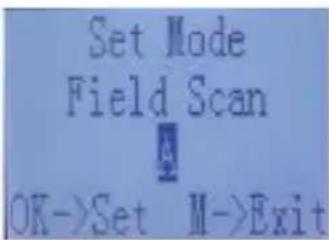
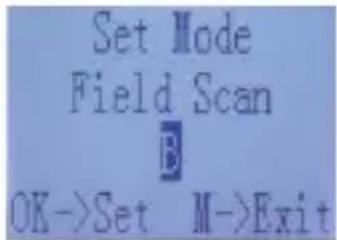
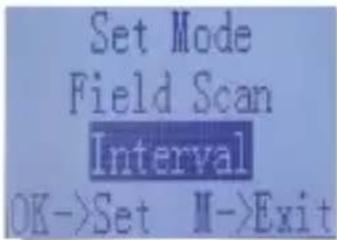
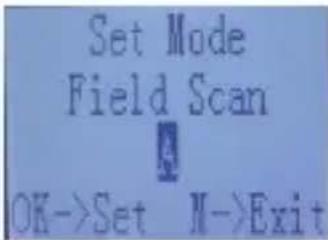
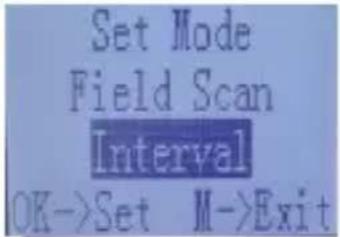
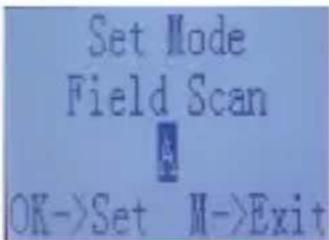
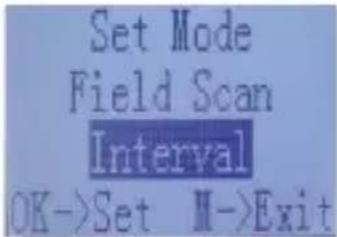
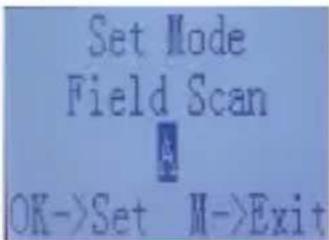
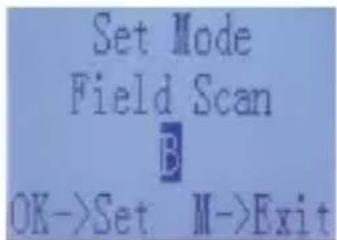
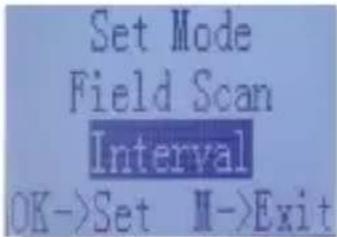
Press the UP key to select On, and press OK (Step 1), you will see "Interval". Then press OK key entering into the interval settings. The Field Scan "Interval" setting lets you control how often a photo is captured during the block(s) of time you defined with the Start and Stop settings. Your options are 60 minutes, 30 minutes, 15 minutes, 5 minutes (this is the default), or 1 minute. Use the UP/DOWN keys to select your preference, then press OK to save it (Step 7). Then press DOWN key, you will see "A", representing the first block of time you can define (a second block of time later in the day, "B" can also be setup if you wish). Press OK (Step 2). This takes you to the screen to set Start and Stop times, which determines the clock times when the first block of Field Scan recording will begin and end for each day. You can set these times to the exact hour and minute you want, for a recording "window" that lasts anywhere from just a minute to a full 24 hours.
-
Set the [Start] and [Stop] times, beginning with the Start hour, using the UP/DOWN keys to change the setting (Step 3). The hour setting is based on a 24-hour clock, with "00" hours = midnight, "12" hours
= noon, "23" hrs = 11PM, etc. To move to the next setting, press the RIGHT key, change the minute for the Start time with UP/DOWN, then on to the hour and minute settings for the Stop time.
-
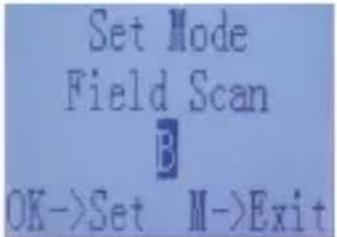
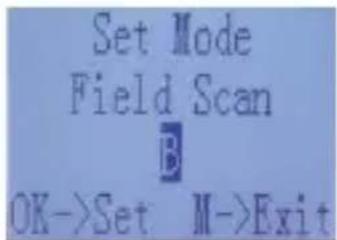
After you finish setting the Stop minutes, press OK to confirm your settings for the first block of Field Scan recording. If desired, you can create a second block of time by pressing the DOWN key to select "B" (Step 4), then press OK and follow the same process to set Start and Stop times for Field Scan block "B" (Step 5). As an example of how you might use these two available time blocks, you could setup Field Scan time block "A" for the dawn hours from 6 AM to 8 AM, and block "B" to capture images between 5:30 and 7 PM. No Field Scan recording would occur from 8AM to 5:30PM, or from 7PM to 6AM.
-
Here's an example of how the camera would operate, based on the following
Field Scan settings:
Field Scan: On
Field Scan A: [Start]: 6:00 [Stop]: 8:00
Field Scan B: [Start]: 17:30 [Stop]: 19:00
Interval: 15M
Note: avoid any “overlap” of Field Scan A & B recording blocks when setting their start and stop times, to assure correct operation.
These settings would cause the camera to capture a photo once every 15 minutes, beginning at 6 AM, until the Field Scan "A" recording block stops at 8:00 AM. Later that day, the camera would again take a photo every 15 minutes between 5:30 PM and 7:00 PM (during Field Scan time block "B"). The next day, the camera would again record an image once every 15 minutes between 6:00 and 8:00 AM, and between 5:30 and 7:00 PM. No Field Scan recording would occur from 8AM to 5:30PM, or from 7PM to 6AM. Remember, Field Scan recording is independent of normal triggers due to animal activity – even if no animals enter the IR sensor coverage zone, an image will still be captured every 15 minutes during the block(s) of time. Note: Field Scan settings of frequent intervals and/or long periods between start and stop time can reduce battery life.
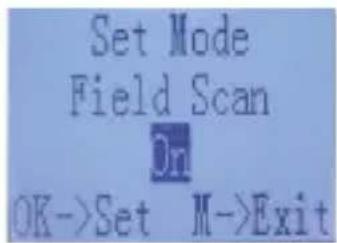
(Step 1)-set Field Scan Mode to "On"
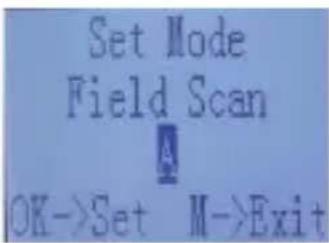
(Step 2)-select Field Scan "A" (press OK)
![Set Field Scan A [Start] 05:00 [Stop] 08:00 OK->Set M->Exit](/content/2026/04/625458/images/c6ec26845a2309e219626f84bebc4b84ddf12ca69f7a00d2f5a5b9ac42e3b42a.jpg)
(Step 3)-set Field Scan "A" Stop & Start
Steps 4 & 5 are optional (only required if you want to set up a second block of Field Scan recording with different stop and start times)
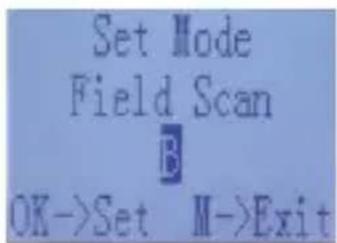
[Step 4] (opt)-select Field Scan "B" (press OK)
![Set Field Scan B [Start] 17:30 [Stop] 19:00 OK->Set M->Exit](/content/2026/04/625458/images/98e5cc18c2fe7068b494b29e7175993c4d5c603aa5086c8dae03414d6f1cb877.jpg)
[Step 5] (opt)-set Field Scan "B" Stop & Start
Note: the Interval Setting sets the timing between each image for both Field Scan "A" and "B" recording blocks.
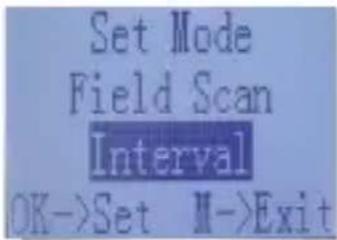
(Step 6)-select Field Scan "Interval"
![Set Mode [interval] 15π OK->Set II->Exit](/content/2026/04/625458/images/42f920c1c1038d8eec1af19feba3e5bb02ebceac30a9f6b9fe432f23b435e101.jpg)
(Step 7)-set Field Scan Interval
The SETUP Menu – Parameters and Setting List w / Descriptions
| Parameter | Settings (Bold=default) | Description |
| Set Clock | Set | Press OK and use the UP/DOWN keys (to change the setting) and LEFT/RIGHT keys ( to move to the next field) to set the hour (24-hr format only, “00”=midnight, “12”=noon) and minute, and then (on the lower row), the year, month and date. |
| Mode | Camera or Video | Selects whether still photos or video clips are captured when the camera is triggered. |
| Interval | 5S(second) default, with a 60M (minute) to 1S (second) range of settings available.(60M-1M are set in one minute increments, 59S-1S are set in one second increments) | Selects the length of time that the camera will “wait” until it responds to any additional triggers from the PIR after an animal is first detected and remains within the sensor’s range. During this user set “ignore triggers” interval, the camera will not capture photos/videos. This prevents the card from filling up with too many redundant images. Settings begin with the default 5 seconds when parameter is first selected.Notes: after setting down past “1S”, settings start over at “60M”.Setting the Interval time to 1 second will capture the maximum # of images, but some may appear "washed out" if animal is too close to camera at night. |
| Addition Set | On or Off | Select ON to access to the full suite of settings. |
| Image Size(only affects still photos) | 3M=2304x129612M=4608x259224M=6528x3672 | Selects resolution for still photos. Higher resolution provides more pixels, but creates larger files that take up more of the SD card capacity (fills up faster). 12M is a good compromise between resolution and filesize. |
| Capture Number(only affects still photos) | 1 Photo, 2 Photo, 3 Photo, 4 Photo, 5 Photo | Selects how many photos are taken in sequence per trigger in Camera mode. Please note that the capture number can only be set to 1 photo when the Field Scan is On. |
| Video Size(only affects video clips) | 1920x1080 15FPS1280x720 30FPS640x368 30FPS | Selects video resolution (in pixels per frame). Higher resolution produces better quality videos, but creates larger files that take up more of the SD card capacity (fills up faster). 640x368 is VGA video in widescreen 16:9 format. The highest setting provides HD video. Using high speed SD cards (SanDisk® SDHC class 6 or higher) is recommended if you will use the 1280x720 or 1920x1080 video settings. |
| Video Length(only affects video clips) | 10S (second) default, with 60S to 5S possible range | Sets length per captured video clip. Settings begin with 10 second default when parameter is first selected. After stepping down to 5S, video length settings start over at60S. |
| Sensor Level | Low, Normal, High | Selects the sensitivity of the PIR sensor. The “High” setting will make the camera more sensitive to infrared (heat) and more easily triggered by motion, and the “Low” setting makes it less sensitive to heat and motion. The High setting can be useful when the ambient temperature is warm (making it more difficult for the sensor to detect animals), and the Low setting may help in cold weather if the camera is being triggered too often by anything warmer than the surroundings.“Normal” is for average or moderate conditions. |
| Field Scan | On, Off (After On is selected): “A” Start/Stop, “B” Start/Stop, Interval | Turns Field Scan (Time Lapse) recording mode on/off. When activated, Field Scan forces the camera to take photos even when it is not triggered by a nearby live animal, useful for constant monitoring of an area that might be far away from the camera. The user can set the start and stop times for up to two independent “blocks” of Field Scan recording, as well as the interval time between each photo. To ensure correct operation, avoid setting overlapping start/stop times for Field Scan A and B. Please read the “Field Scan 2x...” section of this manual for details on using this feature. |
| Flash mode | Auto, Long Range, Fast Motion | Long Range - High LED output Low Shutter SpeedFast Motion - High LED output Fast Shutter SpeedAuto - allow the camera to determine the LED luminance and Medium Shutter Speed |
| Video Sound(only affects video clips) | Off, On | Select “On” to record audio along with the video when the camera is set to video mode (saved file sizes will be slightly larger). |
| Time Stamp | On, Off | Select “On” if you want the date & time (that the photo or video was recorded) imprinted on every photo or video, select “Off” for no imprint. |
| Camera Mode | 24 Hrs, Day, Night | Allows user to limit operation to only day or night period if desired. An ambient light level sensor determines "Day" vs "Night" automatically. |
| Camera Name | Input | Allows user to set up the camera name at 6 characters. |
| Format | No, Yes | Deletes (erases) all files stored on a card to prepare it for reuse. Always format a card that has been previously used in other devices. Caution! Make sure you have downloaded and backed up any files you want to preserve first! Press OK to execute, press MENU (or select NO then press OK) to exit without formatting. |
| Version | n/a | Displays firmware version |
| Default Set | No, Yes | Select “Yes” and press OK to restore all parameters to the original factory default settings. If the camera is behaving oddly and you think you may have changed the setting for something accidentally (but aren’t sure which one), this will reset all parameters to their most commonly used or “generic” settings. |
| FW Update | No, Yes | Allows users to update the FW when the updated FW in the SD card. |
MOUNTING AND POSITIONING THE
Prime Trail Camera
Mounting
After you've set up the camera's parameters to your personal preferences at home or in your truck, you're ready to take it outside and slide the power switch to "ON". When setting up the Prime Trail Camera for scouting game or other outdoor applications, you must be sure to mount it in place correctly and securely. We recommend mounting the Prime Trail Camera on a sturdy tree with a diameter of about 6 in. (15cm). To get the optimal picture quality, the tree should be about 16-17 ft. (5 meters) away from the place to be monitored, with the camera placed at a height of 3.5-5 ft. (1\~1.5 m). Also, keep in mind that you will get the best results at night when the subject is within the ideal flash range, no farther than 100' (30m) and no closer than 10' (3m) from the camera.
There are two ways to mount the Prime Trail Camera: using the provided adjustable web belt, or the tripod socket.
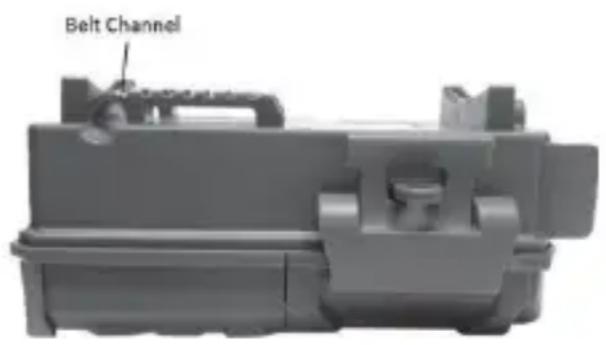
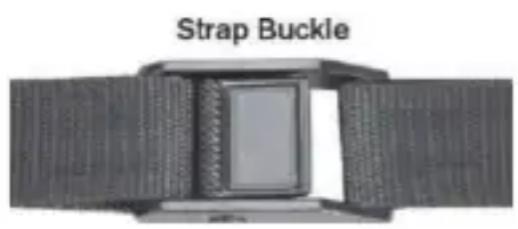
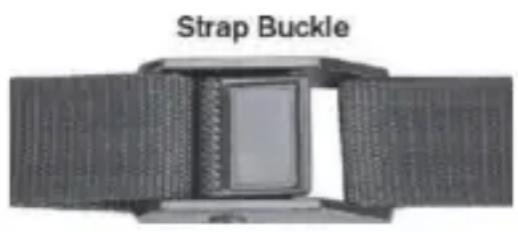
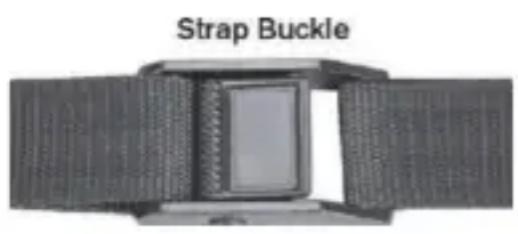
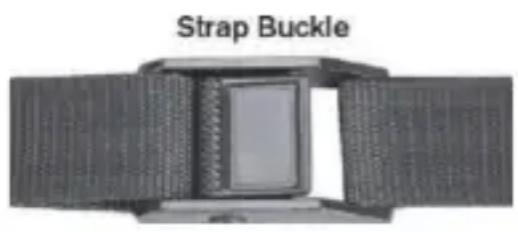
Using the adjustable web belt: Fig. 7 illustrates using the web belt on the Prime Trail Camera. Push one end of the belt through the two brackets on the back of the Prime Trail Camera. Thread the end of the strap through the buckle. Fasten the belt securely around the tree trunk by pulling the end of the strap firmly so there is no slack left.
Fig. 7: Attaching the Belt
natural_image
Close-up of a strap buckle component (no text or symbols visible)Using the tripod socket: The camera is equipped with a socket at the bottom end to enable mounting on a tripod or other mounting accessories with a standard1/4-20 thread.
Note: an accessory solar panel supplemental power source (#119756C) is also available - please visit www.bushnell.com for more information.
Sensing Angle and Distance Test
To test whether the Prime Trail Camera can effectively monitor the area you choose, this test is recommended to check the sensing angle and monitoring distance of the Prime Trail Camera. To perform the test:
- Switch the Prime Trail Camera to the AIM mode.
- Make movements in front of the camera at several positions within the area where you expect the game or subjects to be. Try different distances and angles from the camera.
- If the motion indicator LED light blinks, it indicates that position can be sensed. If it does not blink, that position is outside of the sensing area.
The results of your testing will help you find the best placement when mounting and aiming the Prime Trail Camera. The height away from the ground for placing the device should vary with the animal size appropriately. In general, 3 to 6 feet is preferred.
You can avoid potential false triggers due to temperature and motion disturbances in front of the camera by not aiming it at a heat source or nearby tree branches or brush (especially on windy days).
Switching ON the Camera
Once you switch to the ON mode, the motion indicator LED (red) will blink for about 10 seconds. This gives you time to close and lock the front cover of the Prime Trail Camera and then walk away. During this time, the motion indicator LED will blink red continuously. After it stops blinking, the PIR is active, and any motion that is detected by it will trigger the capture of photos or videos as programmed in the SETUP Menu. Be sure you have read the descriptions of the Capture Number, Video Length, Interval and Sensor Level parameters. Please note, the PIR is strongly sensitive to ambient temperature. The greater the temperature difference between the environment and your subject, the farther the possible sensing distance. The average sensing distance is about 60 ft Before leaving the camera unattended, please check for the following:
- Are the batteries inserted with correct polarity and is their power level sufficient?
- Does the SD card have sufficient available space and is its write-protection (lock) switch off?
- Is the Power switch in the ON position? (do not leave it in AIM).
PLAYING BACK/DELETING THE PHOTOS/VIDEOS
After you have setup, mounted and activated your Prime Trail Camera, you will of course be eager to return later and review the images it has captured for you. There are several different ways this can be done.
Reviewing Images Directly From the SD Card
This is the most popular method of viewing images. Since unmounting the camera and taking it to your computer isn't very convenient, you may find it easier to just take the card out. By removing the SD card (swapping it for a new empty card if you like) and taking it to your home or campsite to view the images by using an SD card “reader” (user supplied) connected to your computer (some computers and TVs have a built in SD card slot), you can leave the camera in place ready to capture more images. Once connected, the card reader works the same way as described below- please read that section if you have any problem finding your files.
Reviewing Images by Connecting the Camera to a Computer
You can always unmount the entire camera from the tree and connect its USB port to a computer-it will be recognized as a “removable disk”, without the need to install any drivers or software. When using a PC (or Mac*) to view photos (or video clips*), first connect the device to the computer with a USB cable (not included, available at most electronics/ computer retailers) that has a “Micro-B” USB plug on one end (camera) and a “Standard-A” USB plug at the other end (computer). Then use commercial software with an image browser feature, or an image browser included with the PC’s operating system to view images saved on the SD card in the folder \DCIM\100EK001. Each new image or video will be numbered incrementally in order of the time it was captured (first four digits are the same “DCIM”). For example, you will see file names such as “DCIM0001.JPG” or “DCIM0001.AVI”. Through the file format suffix you can distinguish whether the file is a still photo (with suffix .JPG) or a video (with suffix .AVI).
The Prime Trail Camera supports 2 kinds of file system formats, FAT16 and FAT32. The default value is FAT32 to save photos and videos. Here are some
related notes:
- You don’t need to be concerned about the file system format of the Prime Trail Camera unless your equipment has problems reading the SD card. If this happens, please format the SD card with the Prime Trail Camera or in your computer first and then insert the card into your Prime Trail Camera and try again.
- The default file system format of the Prime Trail Camera is FAT32, which most computers can read. If you format an SD card for the Prime Trail Camera in your computer, you should choose the file system format FAT32. Normally FAT32 is recommended unless you have another image viewer that uses FAT16 format.
Deleting Photos or Videos
All files may be deleted from the card by using the Format parameter.
NOTE: after formatting the card, the deleted files can't be restored!
To download your photos/videos to a PC or Mac*, first make sure the Prime Trail Camera power switch is in the OFF position. Connect a USB cable to the camera's USB port, then directly to a main USB port on your computer-do not use front panel/keyboard USB ports or unpowered "hubs".
The Prime Trail Camera will be recognized as a standard “USB Mass Storage” device (this may take several seconds the first time you connect it). If you would rather leave your camera in the woods and just pull its SD card out, an SD card reader works the same way as described in this section once the card is inserted and the reader is connected to your computer.
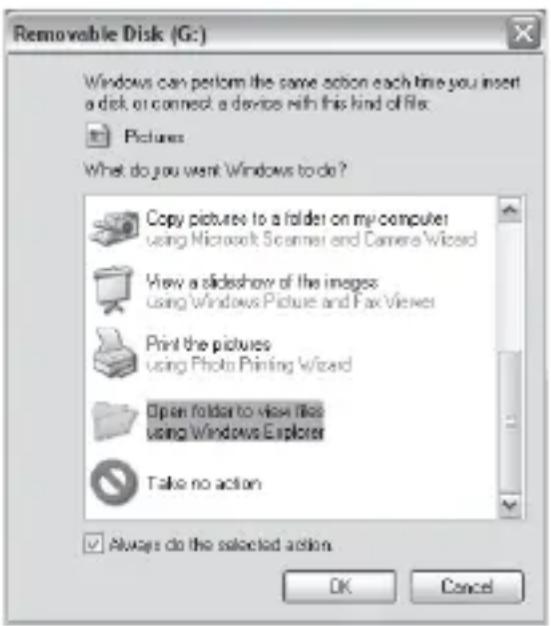
With Windows XP or later, you can then simply use the options in the pop-up window to copy, view, or print your photos (right).
On all Windows OS, the Prime Trail Camera will also be listed as a “Removable Disk” if you open the “MyComputer” window (on Macs, an icon will appear on your desktop). The Prime Trail Camera’s photo files are named “DCIM0001.-JPG” etc, and are located in the
"DCIM\100EK001" folder on this "Removable Disk". Video file names will end with ".AVI". You may copy the photos/videos to your hard drive as you would any file- just copy/paste or drag the file names or icons to your drive or desktop.
After the photos are copied to your hard drive, you can disconnect the Prime Trail Camera. (On Mac computers, drag the “disk” that appeared on your desktop when the camera was connected into your Trash to “eject” it before disconnecting.) The .jpg standard files from the Prime Trail Camera may be viewed and edited with any photo software you choose to use. The .avi video files may be viewed with Windows Media Player (version 7 or later) as well as other video playback programs that may have been supplied with your computer, or are available online.
TROUBLESHOOTING / FAQ
Camera takes continuous images of no subject
A camera has what is known as a “false trigger” if the PIR sensor thinks that there is motion and heat in front of the camera lens when there is no subject in the image. These “False Triggers” are the result of placing the camera in an environment where there is motion associated with tree branches creating motion in front of the camera or an area where there is high heat in the foreground and any motion from wind could set off the camera. Setting a camera up over water is also a potential cause for this issue. To remedy this situation:
- Try moving the camera to an area that does not have any of these issues or try changing the sensor level on the menu settings.
- If the camera continues to take images when there is no subject in them, try placing the camera in an inside environment and aiming at a location where there is no motion.
- If the camera continues to show issues, then there is probably an electronic component issue. If this is the case, please contact our customer service to send the camera back for repair.
Battery life is shorter than expected
- Battery life will vary with operating temperature and the number of images taken over time. Typically, the Prime Trail Camera will be able to capture several thousand images before the batteries die.
Check to make sure you have used new alkaline or lithium batteries. Bushnell recommends using Energizer® Lithium AA batteries in your
-
Prime Trail Camera to obtain maximum battery life.
-
Make sure that the power switch was turned to the "On" position and that the camera was not left in "AIM" mode while in the field.
-
Make sure that you are using a good quality name brand SD card in your camera. Bushnell recommends SanDisk® brand SD Cards up to 32GB. Our experience indicates that poor quality SD cards can sometimes reduce your Prime Trail
Camera battery life.
Camera stops taking images or won't take images
- Please make sure that the SD card is not full. If the card is full, the camera will stop taking images.
- Check the batteries to make sure that they are new alkaline or lithium AA batteries. See note above about short battery life.
- Make sure that the camera power switch is in the "On" position and not in the "Off" or "AIM" modes.
- Make sure that you are using a good quality SD card in your camera. Bushnell recommends SanDisk® SD Cards up to 32GB.
- If the SD card has its write protect switch in the lock position, the camera will not take images.
- If you have used an SD card in another device before inserting it in your Prime Trail Camera, you might want to try formatting the card using the "Format" parameter in Setup mode (make sure you have backed up any important files first, as formatting will erase all previous files). In some cases, other devices may change the formatting of the SD card so that it will not work properly with the Prime Trail Camera.
Camera won't power up
- Make sure that you have installed all six batteries in the battery compartment. Bushnell recommends using Energizer® Lithium AA batteries in all Prime Trail Camera.
- Make sure that the batteries are installed correctly, observing proper polarity. Always place the negative (flat) end of each battery in contact with the spring side of its slot inside the camera.
- After moving the switch from “Off” to “AIM” or “On”, make sure that the switch is correctly in position to ensure the proper mode (avoid positions “between” two modes).
- Do not move the switch directly from "On" to "AIM"-always move the switch all the way down to "Off" first, then back up to "AIM".
Still Photo and/or Video Quality Problems
Night photos or videos appear too dark
a. Check the battery indicator icon to see if battery power is full. The flash will stop operating near the end of the battery life.
b. You will get the best results when the subject is within the ideal flash range, no farther than 100' (30m) from the camera. Subjects may appear too dark at greater
distances.
c. Please note that when the Capture Number parameter is set higher than "1 Photo", or with very short Interval settings, some images may appear darker than others due to the quick response and rapid retriggering of the camera, allowing less time for the flash to fully recharge before firing again.
- Daytime photos or videos appear too dark
a. Make sure that the camera is not aimed at the sun or other light sources during the day, as this may cause the auto exposure to produce darker results.
- Night photos or videos appear too bright
a. You will get the best results when the subject is within the ideal flash range, no closer than 10' (3m) from the camera. Subjects may appear too light at closer distances.
b. Change the Interval setting from 1S to 3S or higher. The camera will be in auto exposure mode to avoid "whiteout" photos.
- Daytime photos or videos appear too bright
a. Make sure that the light sensor will not be in the shade (from tree leaves/branches) while the camera lens is aimed into a bright area.
- Photos with streaked subject
a. In some cases with low lighting conditions and fast moving subjects, the 12MP or 24MP resolution settings may not perform as well as the 3MP setting.
b. If you have multiple images where fast moving subjects produce streaks on the photo, try the 3MP setting instead.
c. Change the Interval setting from 1S to 3S or higher to minimize motion blur.
- Red, green or blue color cast
a. Under certain lighting conditions, the sensor can become confused resulting in poor color images.
b. If this is seen on a consistent basis, then the sensor may need servicing. Please contact Bushnell customer service.
- Short video clips—not recording to the length set
a. Check to make sure that the SD card is not full.
b. Make sure that the camera has good batteries in it. Near the end of the battery life, the camera may choose to record shorter video clips to conserve power.
Date/Time Stamp not appearing on images
Make sure that the "Time Stamp" parameter is set to "On".
Photos Do Not Capture Subject of Interest
- Check the "Sensor Level" (PIR sensitivity) parameter setting. For warm environmental conditions, set the Sensor Level to "High" and for cold weather use, set the sensor for "Low".
- Try to set your camera up in an area where there is not a heat source in the camera's line of sight.
- In some cases, setting the camera near water will make the camera take images with no subject in them. Try aiming the camera overground.
- Try to avoid setting the camera up on small trees that are prone to being moved by strong winds.
- Remove any limbs which are right in front of the camera lens.
PIR Sensor LED Flashes/Doesn't Flash
- When the camera is in the “AIM” mode, a special LED on the front of the camera will flash when it senses motion. This is for setup purposes only and will help the user aim the camera.
- During use, the LED will not flash when the camera takes an image. This is to help keep the camera hidden from game.
LCD Screen Issues
- LCD screen powers on but no text is present.
a. After moving the switch from "Off" to "AIM" or "On", make sure that the switch is correctly in position to ensure the proper mode (avoid positions "between" two modes).
b. Do not move the switch directly from “On” to “AIM”-always move the switch all the way down to “Off” first, then back up to “AIM”.
- LCD screen shows a faint black line after turning from "AIM" to "On".
a. The LCD will turn off when you slide the switch to the “On” position. In some cases, this black line will appear and then fade in about 1 second. This is normal and the camera will function properly.
- Screen comes on but then powers off
a.Make sure that you have installed the SD card correctly.
Camera won't retain settings
Make sure that you have been saving the changes to any parameter settings that you made while in Setup mode, by pressing “OK” after changing the setting. If you don’t save your new setting after changing it, the camera will continue to use the
original default setting for that parameter.
Field Scan (Time Lapse) not working properly
- Make sure that the stop and start times of Field Scan "A" and "B" do not overlap (for example, do not set the start time of "B" to 8AM if the stop time of "A" is 10AM).
CAUTION!: DO NOT USE the 1s Interval setting for Video at night at a feeder or similar environment. It may cause the LEDs to continue firing over a long period of time, which may overheat and shorten the operating life of the internal electronic components.
Do not mix old and new batteries. Do not mix battery types-use ALL lithium or ALL alkaline. Rechargeable batteries are not recommended.
TECHNICAL SPECIFICATIONS
| Image Sensor | 3 Megapixel Color CMOS |
| Maximum Pixel Size | 6528x3672 (24 MP) |
| Lens | F = 2.8; FOV=42°; Auto IR-Cut-Remove (at night) |
| IR-Flash Range | Up to 100' (30m) |
| Display Screen | Std B&W Display: 24x32mm (1.5") |
| Memory Card | SD or SDHC Card, Maximum capacity 32GB |
| Picture Size | 3M=2304x1296,12M=4608x2592,24M=6528x3672 |
| Video Size | 1920x1080, 1280x720, 640x368 |
| PIR sensitivity | PIR with 4 sensitivity levels: High/Normal/Low |
| Operation | User selectable: 24 Hour, Day only, or Night only (based on ambient light level) |
| Response Time | 0.3 sec |
| Triggering Interval | 1 sec. - 60 min. programmable |
| Shooting Numbers | 1 - 5 programmable |
| Video Length | 5-60sec. programmable |
| Power Supply | 6xAA required |
| Stand-by Current | < 0.08mA (<7mAh/day) |
| User Interface | LCD display |
| Interface | USB; SD card holder |
| Security | Strap; 1⁄4-20 attachment |
| Operating Temperature | -20 - 60°C (Storage temperature: -30 - 70°C) |
| Operating Humidity | 5% - 90% |
Specifications and designs are subject to change without any notice or obligation on the part of the manufacturer.
TWO YEARS LIMITED WARRANTY
Your Bushnell® product is warranted to be free of defects in materials and workmanship for two years after the date of purchase. In the event of a defect under this warranty, we will, at our option, repair or replace the product, provided that you return the product postage prepaid. This warranty does not cover damages caused by misuse, improper handling, installation, or maintenance provided by someone other than a Bushnell Authorized Service Department.
Any return made under this warranty must be accompanied by the items listed below:
- A check/money order in the amount of \$10.00 to cover the cost of postage and handling.
- Name, address and daytime phone # for product return.
- An explanation of the defect.
- Copy of your dated proof of purchase.
- Do not send in accessories (batteries, SD cards, cables), only the product for repair. Product should be well packed in a sturdy outside shipping carton to prevent damage in transit, and shipped to the address listed below:
IN U.S.A. Send To:
Bushnell Outdoor Products
Attn.: Repairs
9200 Cody
Overland Park, Kansas 66214
IN CANADA Send To:
Bushnell Outdoor Products
Attn.: Repairs
140 Great Gulf Drive, Unit B
Vaughan, Ontario L4K 5W5
For products purchased outside the United States or Canada please contact your local dealer for applicable warranty information. In Europe you may also contact Bushnell at:
Bushnell Germany GmbH European
Service Centre Mathias-Brüg-
gen-Str. 80
D-50827 Köln GERMANY
This warranty gives you specific legal rights.
You may have other rights which vary from country to country.
©2020 Bushnell Outdoor Products
FCC COMPLIANCE
STATEMENT:
CE FC UK CA
This equipment has been tested and found to comply with the limits for a Class B digital device, pursuant to part 15 of the FCC Rules. These limits are designed to provide reasonable protection against harmful interference in a residential installation. Operation is subject to the following two conditions: (1) This device may not cause harmful interference, and (2) this device must accept any interference received, including interference that may cause undesired operation.
This equipment generates, uses and can radiate radio frequency energy and, if not installed and used in accordance with the instructions, may cause harmful interference to radio communications. However, there is no guarantee that interference will not occur in a particular installation. If this equipment does cause harmful interference to radio or television reception, which can be determined by turning the equipment off and on, the user is encouraged to try to correct the interference by one or more of the following measures:
- Reorient or relocate the receiving antenna.
- Increase the separation between the equipment and receiver.
- Connect the equipment into an outlet on a circuit different from that to which the receiver is connected.
- Consult the dealer or an experienced radio/TV technician for help.
The device does not contain any user-serviceable parts. Repairs should only be made by an Authorized Bushnell repair center. Unauthorized repairs or modifications could result in permanent damage to the equipment, and will void your warranty and your authority to operate this device under Part 15 regulations.
The shielded interface cable which is provided must be used with the equipment in order to comply with the limits for a digital device pursuant to Subpart B of Part 15 of FCC Rules.

For further questions or additional information
please contact:
Bushnell Outdoor Products
9200 Cody, Overland Park, Kansas 66214
(800) 423-3537
www.bushnell.com
©2020 Bushnell Outdoor Products

Bushnell®
natural_image
Top-down view of a black tactical camera with multiple lenses and a central display (no visible text or symbols)CAMÉRA DE SENTIERS PRIME
MANUEL D'INSTRUCTIONS
Figure 1
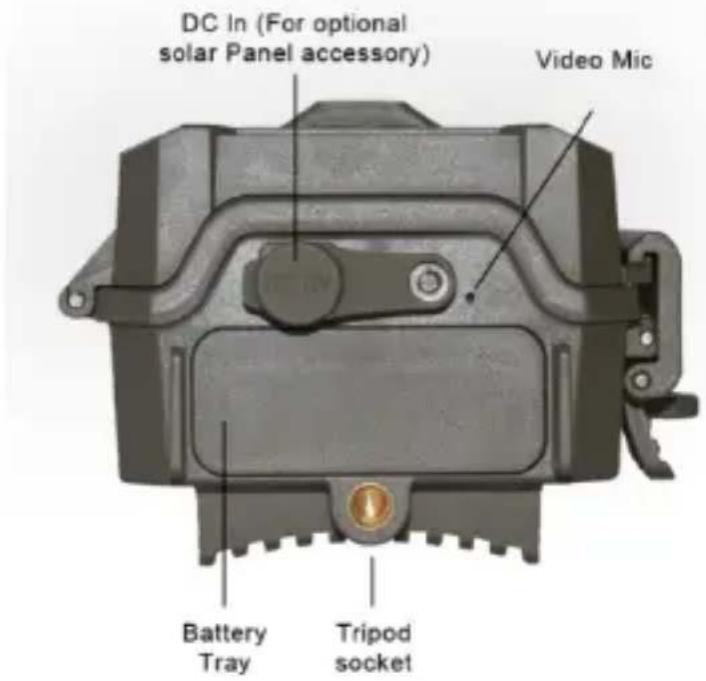
Figure 2
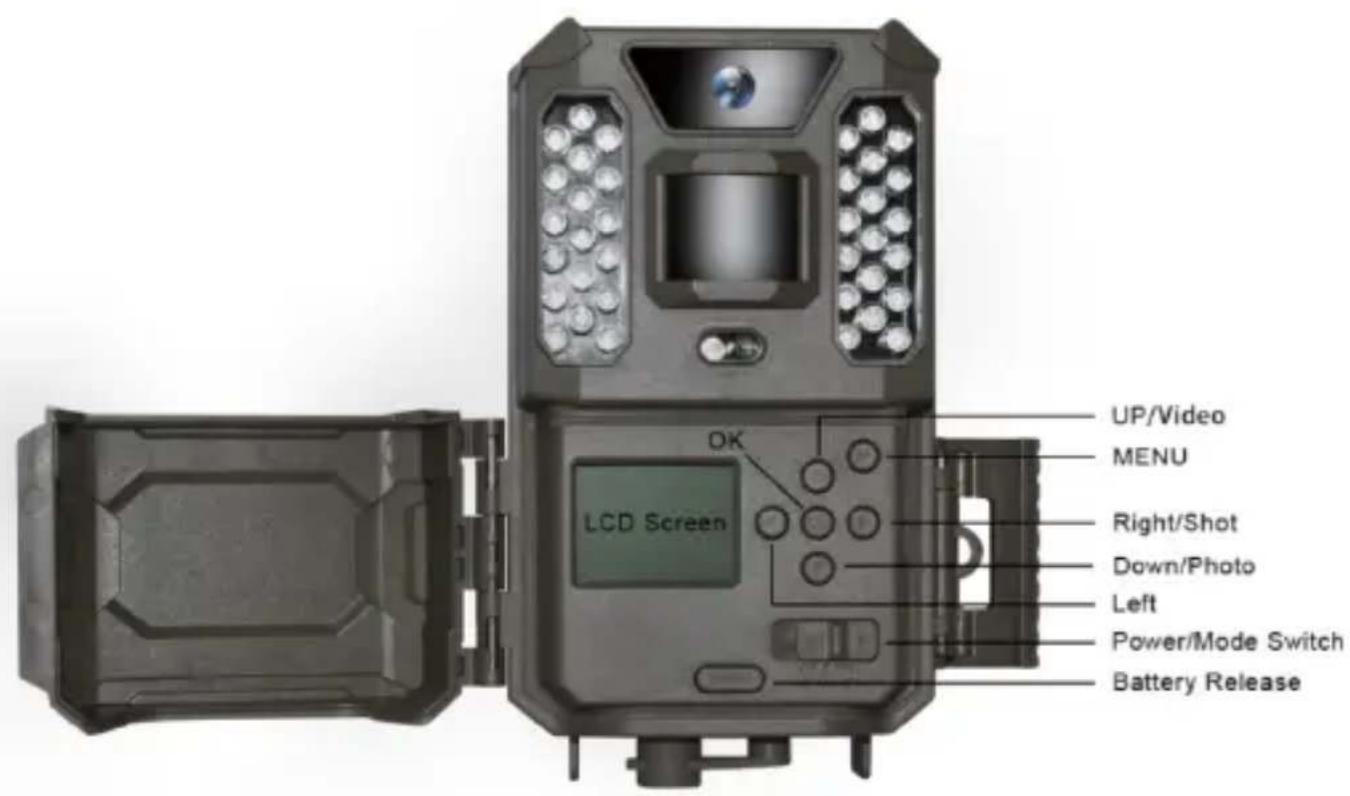
Figure 3
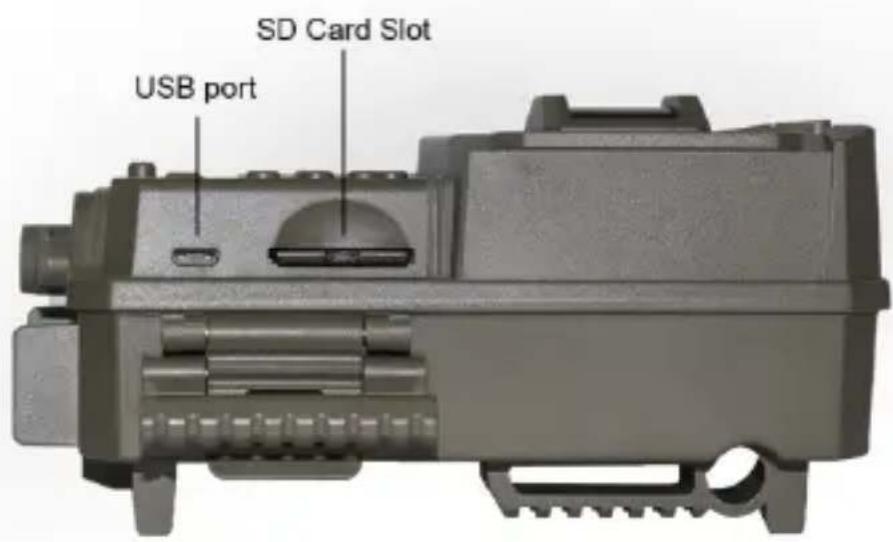
Figure 4
INSTALLATION DES PILES ET DE LA CARTE SD
natural_image
Close-up of two black electronic devices with battery packs, no visible text or symbolsnatural_image
Close-up of a black plastic door with a red label and a curved handle (no visible text or symbols)UTILISER LA CAMÉRA DE SENTIERS PRIME
![Video Mode Video Resolution HD 01-01-2020 22:19:37 [01:15:19] Available Video Recording Time](/content/2026/04/625458/images/cb2ffc527e80326c6f11fc4c24c55cdb70d1f4e0c57071f7d104976ec6b30a41.jpg)
UTILISER LE MENU DE CONFIGURATION POUR MODIFIER LES PARAMÈTRES
(Step 1)-set Field Scan Mode to "On"
[Step 2]-select Field Scan "A" (press OK)
![Set Field Scan A [Start] 05:00 [Stop] 08:00 OK->Set M->Exit](/content/2026/04/625458/images/7de9802ff94efda7b739a41b311144446dbddc865dc8e642b2bd92f19b431bcf.jpg)
(Step 3)-set Field Scan "A" Stop & Start
Steps 4 & 5 are optional (only required if you want to set up a second block of Field Scan recording with different stop and start times)
[Step 4] (opt)-select Field Scan "B" (press OK)
![Set Field Scan B [Start] 17:30 [Stop] 19:00 OK->Set M->Exit](/content/2026/04/625458/images/b47f3408473feedc58e3c4a526dee23f61286122ba4a924d39a964e2917cf313.jpg)
[Step 5] (opt)-set Field Scan "B" Stop & Start
Note: the Interval Setting sets the timing between each image for both Field Scan "A" and "B" recording blocks.
(Step 6)-select Field Scan "Interval"
![Set Mode [interval] 15π OK->Set II->Exit](/content/2026/04/625458/images/bba1ecab90fb4268e272d3823a267ccd884f18ed8738655e82dc11644b48136a.jpg)
(Step 7)-set Field Scan Interval
Bushnell Outdoor Products Bushnell Outdoor Products
9200 Cody 140 Great Gulf Drive, Unit B
Overland Park, Kansas 66214 Vaughan, Ontario L4K 5W5
Bushnell Germany GmbH European Service
Centre Mathias-Brüggen-Str. 80
D-50827 Köln ALLEMAGNE
Tél : +49 221 995568-0
©2020 Bushnell Outdoor Products
DÉCLARATION DE CONFORMITÉ DU FCC :
CE FC UK CA
©2020 Bushnell Outdoor Products
© Bushnell®
natural_image
Top-down view of a black tactical camera device with multiple lenses and a central screen (no visible text or symbols)CÁMARA DE CAMINO PRIME
Figura 1
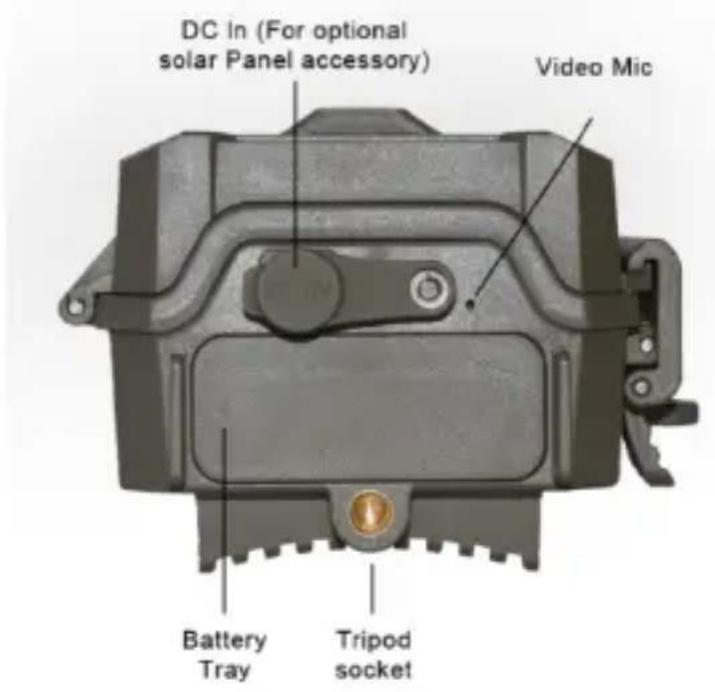
Figura 2
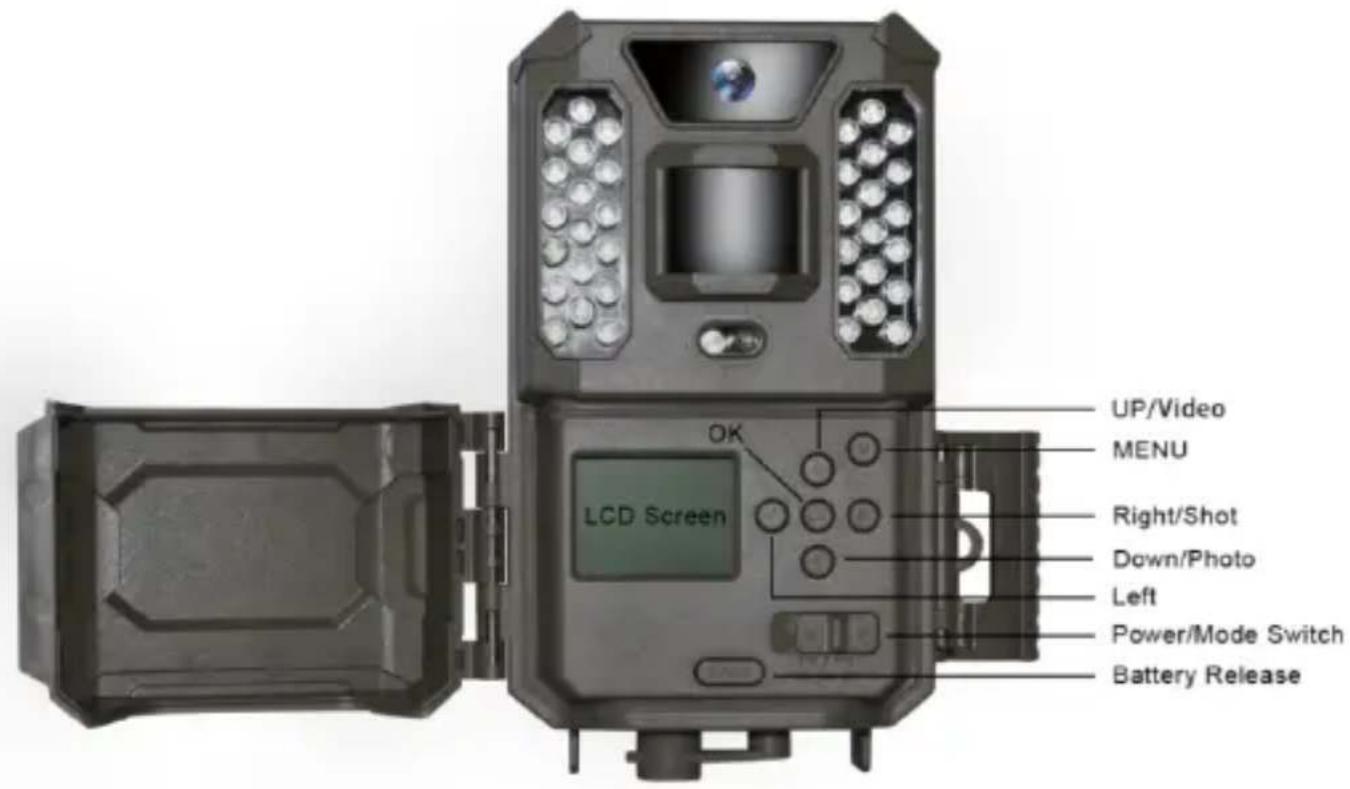
Figura 3
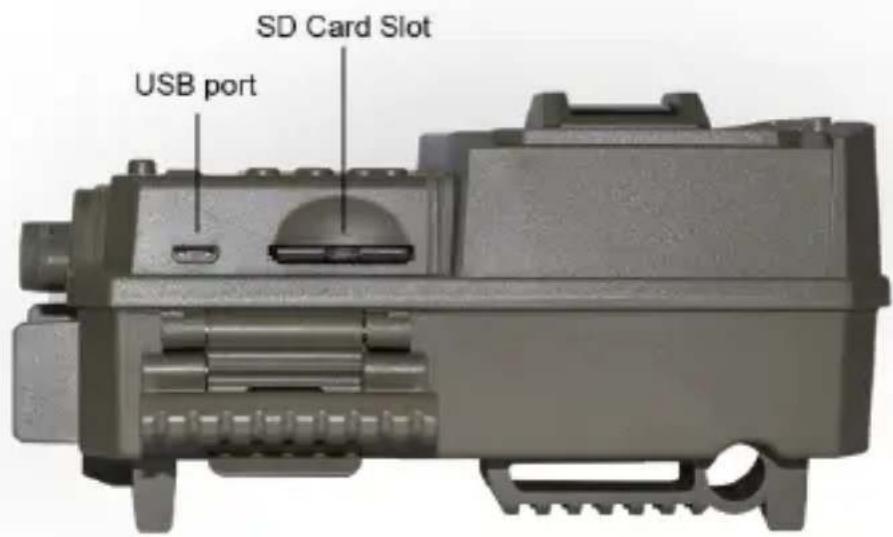
Figura 4
natural_image
Close-up of two black electronic devices with battery packs, no visible text or symbolsnatural_image
Close-up of a black plastic door with a red label and a circular cutout, no visible text or symbols.![Video Mode Video Resolution HD 01-01-2020 22:19:37 [01:15:19] Available Video Recording Time](/content/2026/04/625458/images/6ab5f9ec6b1b7fea5bab56b0a0a1628814d0400d7caa6ce93d009c0427db1dee.jpg)
(Step 1)-set Field Scan Mode to "On"
[Step 2]-select Field Scan "A" (press OK)
![Set Field Scan A [Start] 05:00 [Stop] 08:00 OK->Set M->Exit](/content/2026/04/625458/images/7381ab5d91c2b6f95829f8425aeafe68732a8b3e9dcad8763711f32237117aa7.jpg)
(Step 3)-set Field Scan "A" Stop & Start
Steps 4 & 5 are optional (only required if you want to set up a second block of Field Scan recording with different stop and start times)
Note: the Interval Setting sets the timing between each image for both Field Scan "A" and "B" recording blocks.
(Step 4) (opt)-select Field Scan "B" (press OK)
![Set Field Scan B [Start] 17:30 [Stop] 19:00 OK->Set M->Exit](/content/2026/04/625458/images/399a85f91dac9d8bf1352f44d864f6023fbde63ad2579c90b16e4c3d367ebe7b.jpg)
[Step 5] (opt)-set Field Scan "B" Stop & Start
(Step 6)-select Field Scan "Interval"
![Set Mode [interval] 15π OK->Set M->Exit](/content/2026/04/625458/images/b9943fc9d85a23d513be923742a659880cbe8ec7f7888f5466f763d4dcfddef3.jpg)
(Step 7)-set Field Scan Interval
Bushnell Outdoor Products Bushnell Outdoor Products
Attn.: Repairs Attn.: Repairs
9200 Cody 140 Great Gulf Drive, Unit B
Overland Park, Kansas 66214 Vaughan, Ontario L4K 5W5
©2020 Bushnell Outdoor Products
DECLARACIÓN DE
CUMPLIMIENTO
DE LA FCC:
CE FC UK CA
Bushnell Outdoor Products
9200 Cody, Overland Park, Kansas 66214
(800) 423-3537
www.bushnell.com
©2020 Bushnell Outdoor Products

Bushnell®
natural_image
Top-down view of a black tactical camera device with multiple lenses and a central display (no visible text or symbols)FOTOTRAPPOLA PRIME
Fig. 1
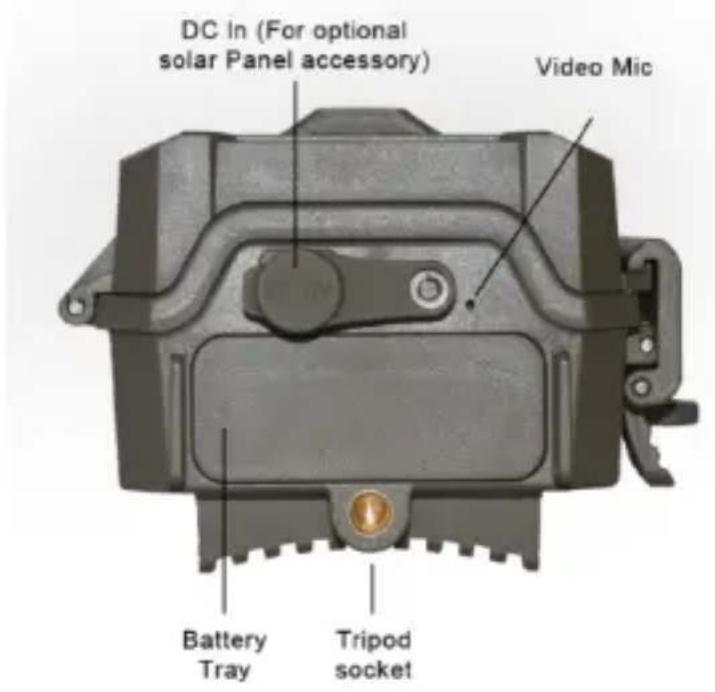
Fig. 2
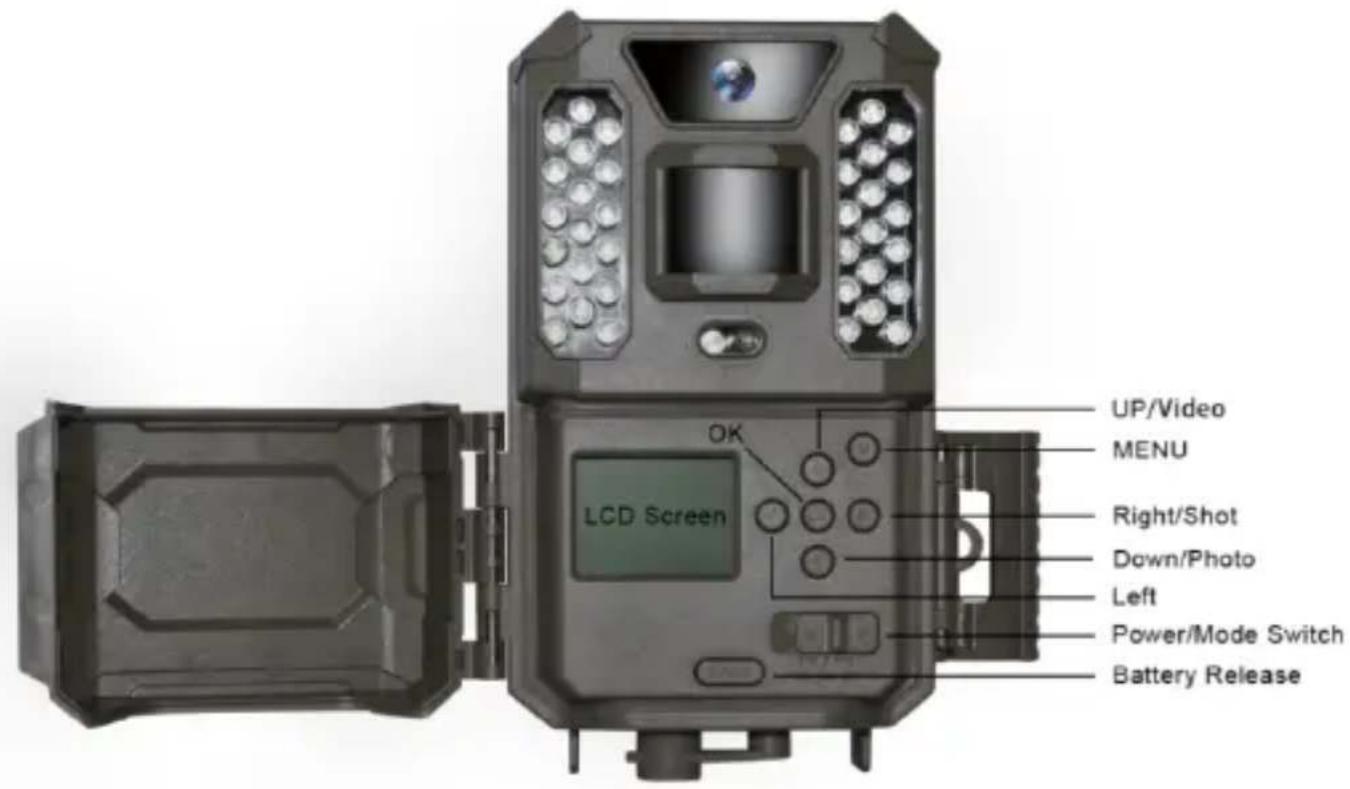
Fig. 3
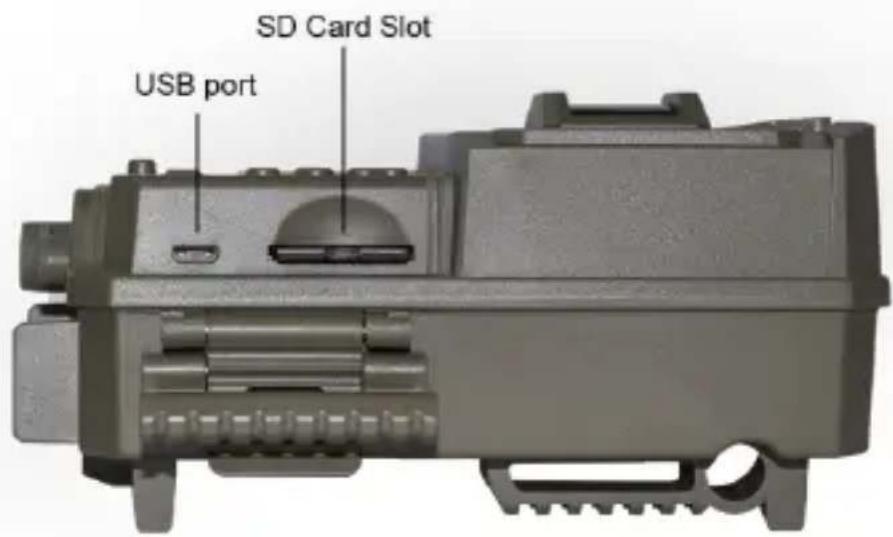
Fig. 4
natural_image
Close-up of two black electronic devices with battery modules and control knobs (no visible text or symbols)natural_image
Close-up of a black mechanical lock or bracket with a red label reading 'Sandisk' on the side (no other text or symbols visible)UTILIZZO DELLA fototrappola Prime
LE MODALITÀ OFF, ON E AIM
UTILIZZO DEL MENU SETUP PER MODIFICARE LE IMPOSTAZIONI
Field Scan (Scansione campo) A: [Start]
08:00 Field Scan (Scansione campo) B:
[Start] ([Avvio]): 17:30[Stop]:
(Step 1)-set Field Scan Mode to "On"
(Step 2)-select Field Scan "A" (press OK)
![Set Field Scan A [Start] 05:00 [Stop] 08:00 OK->Set M->Exit](/content/2026/04/625458/images/f152795b666d88a62ca4071e7fffd10c13ba15f16d5f8506d666d147f9c62386.jpg)
(Step 3)-set Field Scan "A" Stop & Start
Steps 4 & 5 are optional (only required if you want to set up a second block of Field Scan recording with different stop and start times)
[Step 4] (opt)-select Field Scan "B" (press OK)
![Set Field Scan B [Start] 17:30 [Stop] 19:00 OE->Set M->Exit](/content/2026/04/625458/images/96a984e3bbd3a5323cc788225267fa7f16f6a07608b94c2f2e67139c737f0f1b.jpg)
[Step 5] (opt)-set Field Scan "B" Stop & Start
Note: the Interval Setting sets the timing between each image for both Field Scan "A" and "B" recording blocks.
(Step 6)-select Field Scan "Interval"
![Set Mode [interval] 15π OK->Set II->Exit](/content/2026/04/625458/images/86b2b3763cf8281eaf146e26eee18914311fcd1b82ad901d41c2eca536977142.jpg)
(Step 7)-set Field Scan Interval
natural_image
Diagram of a strap buckle with mesh insulation and central frame (no text or symbols)Bushnell Outdoor Products Bushnell Outdoor Products
Attn.: Repairs Attn.: Repairs
9200 Cody 140 Great Gulf Drive, Unit B
Overland Park, Kansas 66214 Vaughan, Ontario L4K 5W5
Bushnell Germany GmbH European Service
Centre Mathias-Brüg-
gen-Str. 80
D-50827 Colonia GERMANIA
Bushnell Outdoor Products
9200 Cody, Overland Park, Kansas 66214
(800) 423-3537
www.bushnell.com
©2020 Prodotti Bushnell Outdoor
© Bushnell®
natural_image
Top-down view of a black tactical camera device with multiple lenses and a central screen (no visible text or symbols)PRIME WILDKAMERA
BEDIENUNGSANLEITUNG
Abb. 1
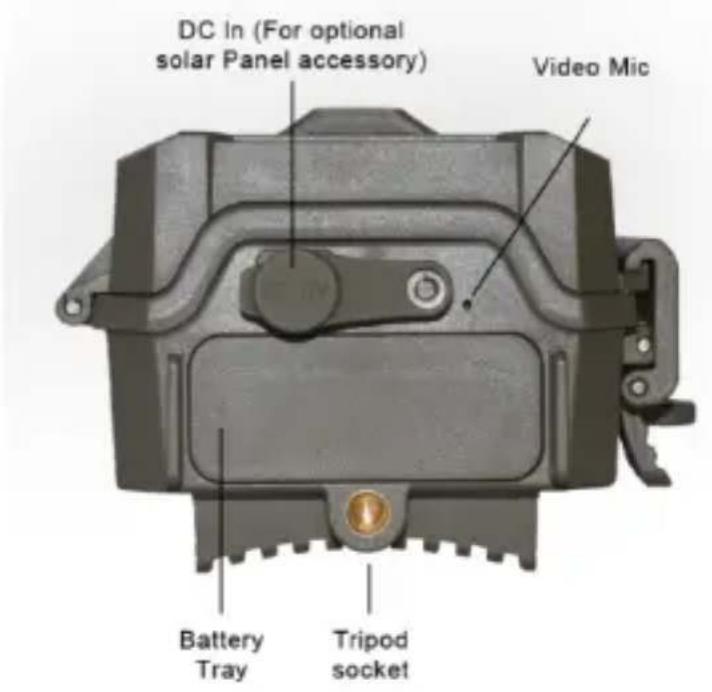
Abb. 2
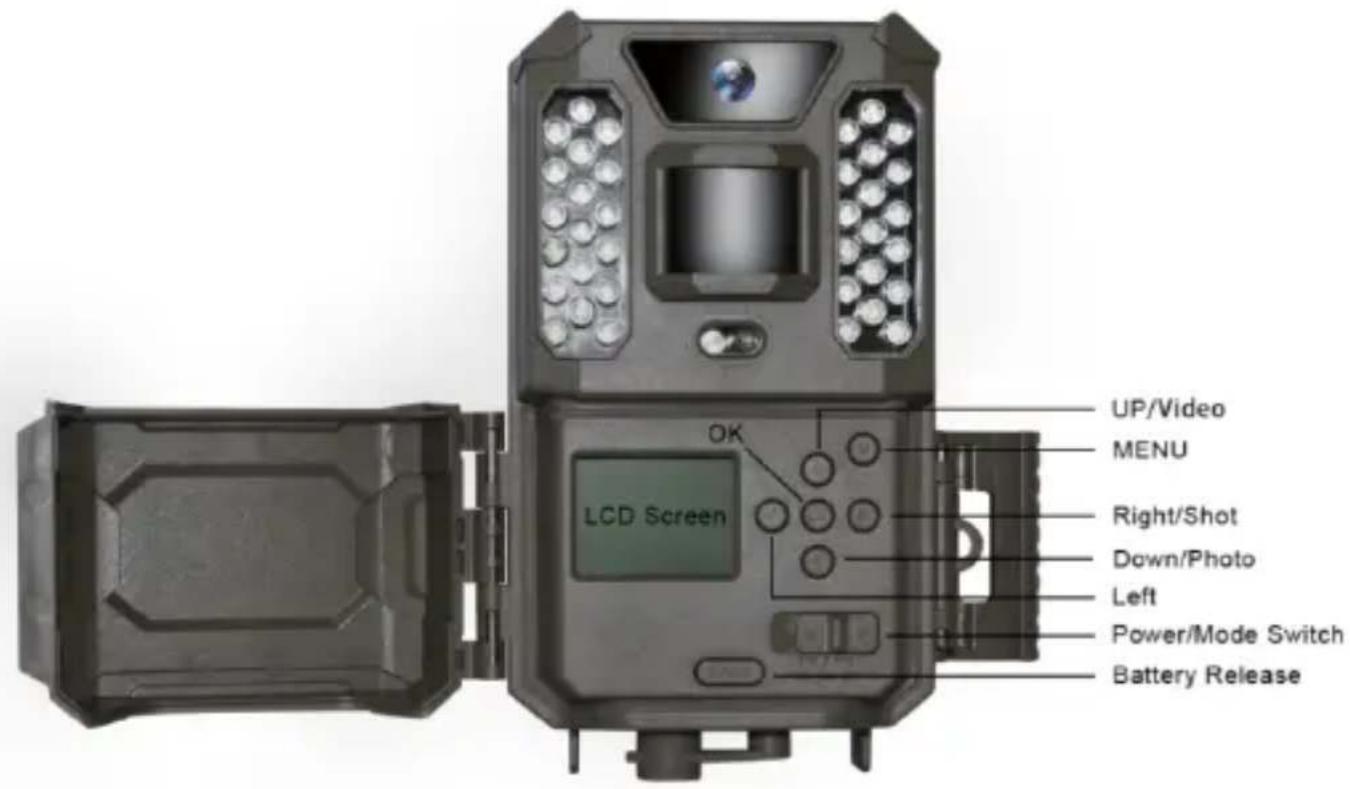
Abb. 3
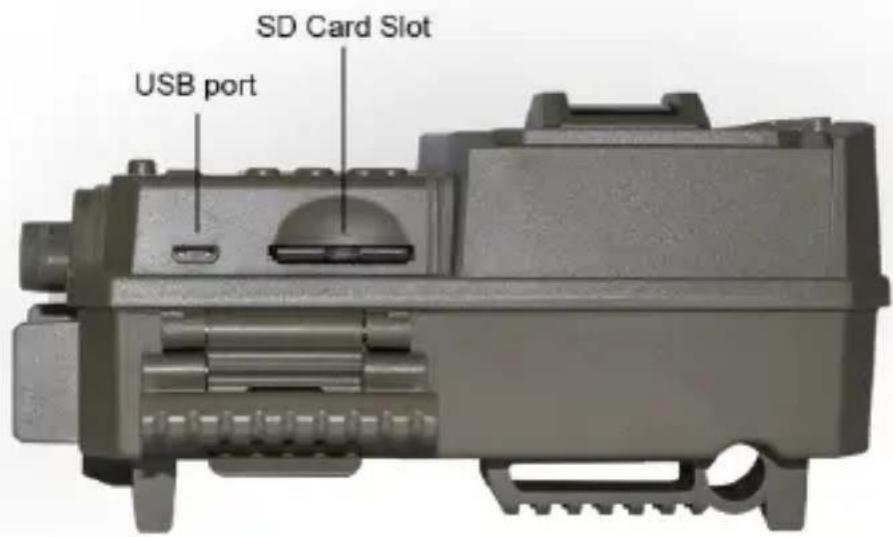
Abb. 4
natural_image
Close-up of two black electronic devices with battery modules and indicator lights (no visible text or symbols)natural_image
Close-up of a black mechanical component with a red label and circular cutout (no readable text or symbols)GEBRAUCH DER Prime Wildkamera
Field Scan A: [Start]: 6:00 [Stop]: 8:00
Field Scan B: [Start]: 17:30 [Stop]: 19:00
Interval: 15M
(Step 1)-set Field Scan Mode to "On"
(Step 2)-select Field Scan "A" (press OK)
![Set Field Scan A [Start] 05:00 [Stop] 08:00 OK->Set M->Exit](/content/2026/04/625458/images/62881531dbd45c91fcea0305451aa96659d95b141d3bcb074d17839645c05a2f.jpg)
(Step 3)-set Field Scan "A" Stop & Start
Steps 4 & 5 are optional (only required if you want to set up a second block of Field Scan recording with different stop and start times)
[Step 4] (opt)-select Field Scan "B" (press OK)
![Set Field Scan B [Start] 17:30 [Stop] 19:00 OE->Set M->Exit](/content/2026/04/625458/images/1ecdff4a543fabb910326ec1c836276fb6252247c4d04af914da8aaff1d6e6d7.jpg)
[Step 5] (opt)-set Field Scan "B" Stop & Start
Note: the Interval Setting sets the timing between each image for both Field Scan "A" and "B" recording blocks.
(Step 6)-select Field Scan "Interval"
![Set Mode [interval] 15π OK->Set II->Exit](/content/2026/04/625458/images/ce543f8eb8f05e2f531c3d8072795fe497c1d27b72060b9ec4681501992a2094.jpg)
(Step 7)-set Field Scan Interval
Bushnell Outdoor Products Bushnell Outdoor Products
Attn.: Repairs Attn.: Repairs
9200 Cody 140 Great Gulf Drive, Unit B
Overland Park, Kansas 66214 Vaughan, Ontario L4K 5W5
©2020 Bushnell Outdoor Products
ERKLÄRUNG ZUR
EINHALTUNG DER
FCC
BESTIMMUNGEN:
CE FC UK CA
Bushnell Outdoor Products
9200 Cody, Overland Park, Kansas 66214
(800) 423-3537
www.bushnell.com
©2020 Bushnell Outdoor Products

- PRIME TRAIL CAMERA
- INSTRUCTION MANUAL
- IMPORTANT NOTE
- INTRODUCTION
- Applications
- PARTS AND CONTROLS
- INSTALLING THE BATTERIES AND SD CARD
- Inserting the SD Card
- USING THE Prime Trail Camera
- THE OFF, ON, AND AIM MODES
- OFF MODE
- ON MODE
- AIM MODE
- AIM Mode Shortcut Keys/Functions
- of Photos
- USING THE SETUP MENU TO CHANGE SETTINGS
- Changing Parameter Settings in SETUP Mode
- Parameter Setting Display
- EXAMPLES-Changing the Settings of Some Common Parameters
- Field Scan 2x with Live Trigger Feature
- MOUNTING AND POSITIONING THE
- Mounting
- Sensing Angle and Distance Test
- Switching ON the Camera
- PLAYING BACK/DELETING THE PHOTOS/VIDEOS
- Reviewing Images Directly From the SD Card
- Deleting Photos or Videos
- TROUBLESHOOTING / FAQ
- Camera takes continuous images of no subject
- Battery life is shorter than expected
- Camera battery life.
- Camera won't power up
- Still Photo and/or Video Quality Problems
- Date/Time Stamp not appearing on images
- Photos Do Not Capture Subject of Interest
- PIR Sensor LED Flashes/Doesn't Flash
- LCD Screen Issues
- Camera won't retain settings
- Field Scan (Time Lapse) not working properly
- TWO YEARS LIMITED WARRANTY
- FCC COMPLIANCE
- STATEMENT:
- CE FC UK CA
- Bushnell®
- CAMÉRA DE SENTIERS PRIME
- INSTALLATION DES PILES ET DE LA CARTE SD
- UTILISER LA CAMÉRA DE SENTIERS PRIME
- UTILISER LE MENU DE CONFIGURATION POUR MODIFIER LES PARAMÈTRES
- DÉCLARATION DE CONFORMITÉ DU FCC :
- © Bushnell®
- CÁMARA DE CAMINO PRIME
- of Photos Taken
- DECLARACIÓN DE
- CUMPLIMIENTO
- DE LA FCC:
- FOTOTRAPPOLA PRIME
- UTILIZZO DELLA fototrappola Prime
- LE MODALITÀ OFF, ON E AIM
- UTILIZZO DEL MENU SETUP PER MODIFICARE LE IMPOSTAZIONI
- PRIME WILDKAMERA
- BEDIENUNGSANLEITUNG
- GEBRAUCH DER Prime Wildkamera
- ERKLÄRUNG ZUR
- EINHALTUNG DER
- FCC
- BESTIMMUNGEN:
Brand : BUSHNELL
Model : Prime Trail 119932C
Category : Camera