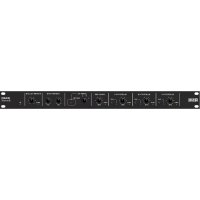
Black&Blue - Mixer Rane - Free user manual and instructions
Find the device manual for free Black&Blue Rane in PDF.



User questions about Black&Blue Rane
0 question about this device. Answer the ones you know or ask your own.
Ask a new question about this device
Download the instructions for your Mixer in PDF format for free! Find your manual Black&Blue - Rane and take your electronic device back in hand. On this page are published all the documents necessary for the use of your device. Black&Blue by Rane.
USER MANUAL Black&Blue Rane
User Guide (English)
Introduction
Thank you for purchasing the Black & Blue. At Rane, performance and reliability mean as much to us as they do to you. That's why we design our equipment with only o mind—to make your performance the best it can be.
Box Contents
Black & Blue
Power Cable
Euroblock
(3) Bluetooth antennas
User Guide
Rack Ears (attached to unit)
Safety & Warranty Manual
Support
For the latest information about this product (documentation, technical specifications, system requirements, compatibility information, etc.) and product registration, visit rane.com.
For additional product support, visit rane.com/support.
Setup Diagram
Items not listed under Introduction > Box Contents are sold separately.

text_image
Computer Bluetooth Sources ((•)) ((•)) ((•)) Bluetooth Antennas RANE AMPLIFIER OUTPUT 20 MATT MASTER OUTPUT COMPUTER 80 WORLD / PLAYBACK BLUTTER/TH ANTENNA A BEETRUTH ANTENNA BLACK&BLUE BLUTTER/MASS Tablet Power Loudspeaker 4 - 8 Ω or 70 V or 100 V Amplifier LoudspeakersApplication Examples
Meeting Room
This example shows:
- a head-worn Bluetooth microphone paired to Bluetooth input A
- the Amplifier output connected to full-range speakers
- the Mix button is depressed to monitor a mix of the Bluetooth A and Computer sources

text_image
Tablet ((•)) Bluetooth microphone RANG AMPLIFIER OUTPUT 20 WATT MASTER OUTPUT COMPUTER 4V RECORD / PLAYBACK BLUKTOTH ANTENNA A BLUKTOTH ANTENNA BLACK&BLUE BEUTTER/WEET Computer Power Loudspeaker 4 - 8 Ω or 70 V or 100 VCoffee Bar
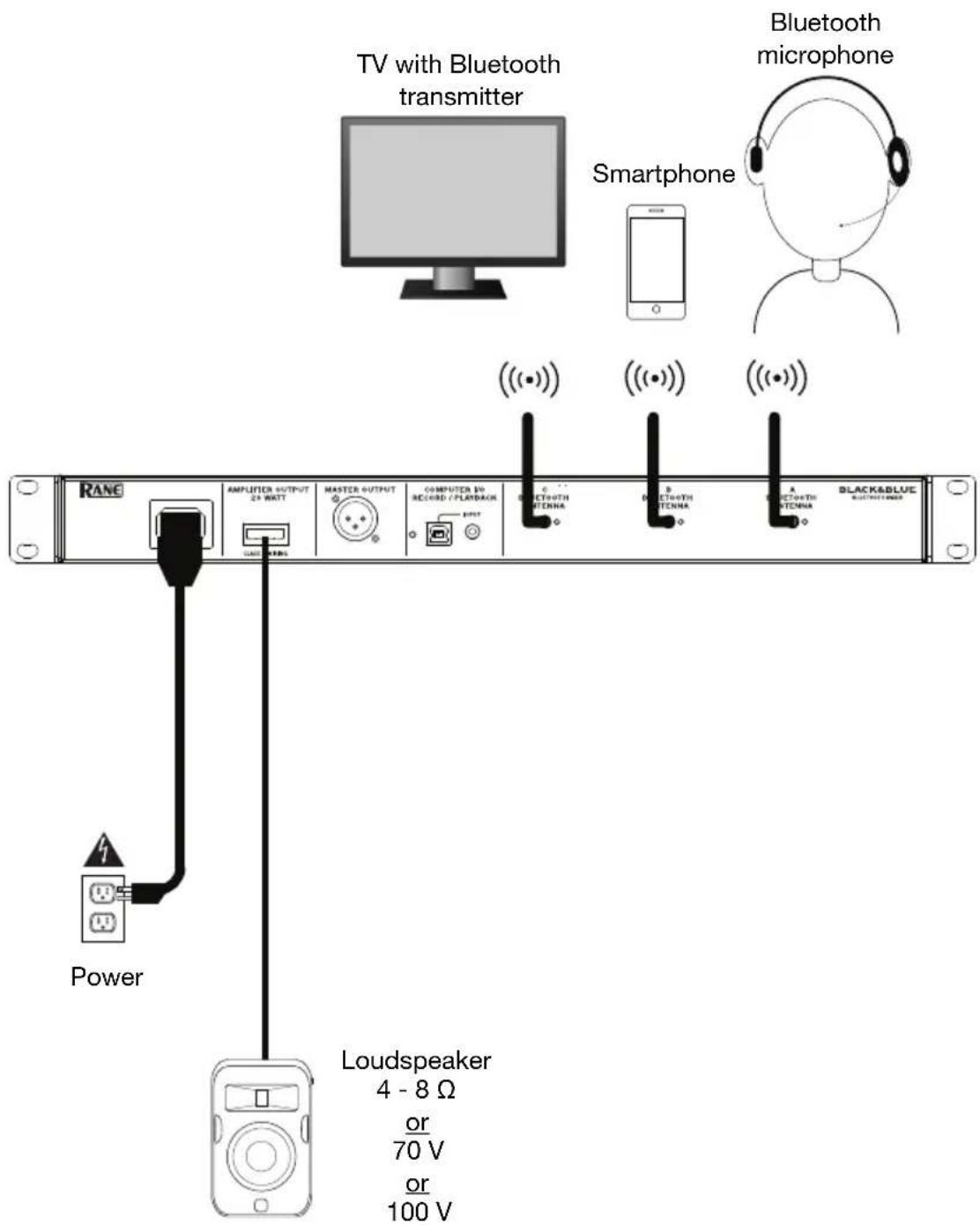
This example shows:
- a head-worn Bluetooth microphone paired to Bluetooth input A
- a smartphone paired to Bluetooth input B
- a TV with a Bluetooth transmitter paired to Bluetooth input C
- the Amplifier output connected to full-range speakers
text_image
TV with Bluetooth transmitter Smartphone Bluetooth microphone RANE AMPLIFIER OUTPUT 24 WATT MASTER OUTPUT COMPUTER DO RECORD / PLANTBACK C B A BLACK&BLUE MULTIQUIDER POWER Loudspeaker 4 - 8 Ω or 70 V or 100 VFeatures
Front Panel

text_image
RANE 2 4 2 4 2 4 6 7 1 3 1 3 1 3 5 10 13 11 12 14 BLACK & BLUE BLUE BLUE Black &- Bluetooth Signal LED: This LED will illuminate green when the Bluetooth signal exceeds -40 dBFS.
- Input Level Knob: Turn this knob to adjust the input signal level for the individual Bluetooth channels.
- Pairing LED: This LED flashes when the Pair button is pressed and held for 3 seconds and is lit solid when paired to a Bluetooth source.
- Pair Button: Press and hold this button for 3 seconds to pair to a Bluetooth source. Press and hold this button for 3 seconds to disconnect from a Bluetooth source.
- Computer Signal LED: This LED will illuminate green when the computer USB signal exceeds -40 dBFS.
- Computer Level Knob: Turn this knob to adjust the level for the computer USB playback or the 1/8" (3.5 mm) TRS input.
- Listen To Knob: Turn this knob to select which input signal (Bluetooth A, B, C, or Computer) is sent to the Master output and Amplifier output.
- Mix LED: This LED illuminates yellow when Mix mode is selected.
- Mix Button: Depress this button to monitor a blend of the Bluetooth A, B, C, and Computer sources.
- Low EQ: Adjust this knob to increase or decrease the low (bass) frequencies for all signals.
- High EQ: Adjust this knob to increase or decrease the high (treble) frequencies for all signals.
- Signal LED: This LED illuminates green when the master volume exceeds -40 dBFS, illuminates yellow when the signal exceeds -10 dBFS, and illuminates red when the signal exceeds 0 dBFS. When the LED illuminates red, reduce the Input Level knob settings to prevent “clipping” and distortion.
- Master Volume Knob: Turn this knob to increase or decrease the signal level sent to the Master output, Amplifier output, and USB port.
- Power LED: This LED illuminates yellow when the unit is powered on.
Rear Panel

text_image
RANE AMPLIFIER OUTPUT 20 MATT MASTER OUTPUT MASTER 10 BLUETOOTH ANTENNA BLUETOOTH ANTENNA BLACK&BLUE BLUETOOTH AREA 1234 6 7- Power Input: Connect the included power cable here.
- Power Amplifier Output: This sends the master signal to your loudspeaker. 4 – 32 ohms, 70 V, and 100 V connections are provided. Connect this to your loudspeaker using a properly terminated 4-pin Euroblock connector and appropriately sized wire. See the section Operation > Euroblock Setup for more information.
Note: This output always provides a mono signal. - Master Output: Connect this balanced mono XLR output to a powered speaker.
Note: This output is always summed to a mono signal. - USB LED: This LED will illuminate when the USB port is connected to a computer's USB port.
- USB Port: Connect a USB cable from here to a computer's USB port for audio playback and recording.
Note: This output always provides a mono signal. - 1/8" (3.5 mm) TRS Input: Connect a line-level device such as a smartphone, tablet, CD player, etc. here.
Note: Connecting to this jack disconnects USB input ( playback). USB output (recording) is unaffected. This allows for recording of three Bluetooth signals and the 1/8" (3.5 mm) TRS input to the computer using the USB port. - Bluetooth Antenna: Connect the 3 included Bluetooth antennas here for pairing to Bluetooth sources.
Operation
Pairing Bluetooth Sources
- Connect the 3 included Bluetooth antennas to the connectors on Black & Blue's rear panel.
- Power on Black & Blue. The power LED will illuminate solid.
- Press and hold the Pair button for 3 seconds for the particular Bluetooth input you desire to connect to for your Bluetooth source. The Pair LED will flash.
- Pair your Bluetooth source to Black & Blue.
a. Smartphone: open Bluetooth settings in your smartphone, find Black & Blue-A, and connect. The pair LED on Black & Blue will be lit solid when connected.
b. Bluetooth headset mic: turn on the headset mic. The mic LED will flash quickly when searching for Black & Blue. When paired successfully, the mic LED will flash slowly and Black & Blue's pair LED will be lit solid.
Note: Bluetooth audio cannot be sent to a headset's headphones. Bluetooth audio will only be sent from a Bluetooth headset's microphone to Black & Blue.
To disconnect from a Bluetooth source, press and hold the Bluetooth input's Pairing button for 3 seconds.
Note: If the mic connects with a different Bluetooth source which is not desired (for example, Black & Blue-A), press the search button on the Bluetooth headset mic and connect to the next Bluetooth source (Black & Blue-B or Black & Blue-C).
Note: Repeat the above steps to connect additional Bluetooth sources.
Selecting Sources
- Connect the included Bluetooth antennas to the connectors on Black & Blue's rear panel.
- Press and hold the Pair button(s) for 3 seconds to connect to your Bluetooth source(s).
- Connect a USB cable from Black & Blue's USB port to an available USB port on your computer.
- Adjust the Listen To knob to select Bluetooth A, B, C, or Computer as source. Press the Mix button to hear a blend of all sources from the Master output and Power Amplifier output.
- Turn the Master Volume knob to adjust the signal level sent to the Master output and Power Amplifier output.
Recording
-
Connect a USB cable from Black & Blue's USB port to an available USB port on your computer.
-
See the section Computer Setup > Setting Black & Blue as the Default Recording Deviceto set Black & Blue as the default recording device.
-
On your computer, open your preferred recording software.
Note: To hear music while it's playing or to monitor recording content, listen through your computer's speakers, or connect Black & Blue's Master output to an amplifier or powered speakers.
Playback
You can listen to the music on your computer through Black & Blue. See the section Computer Setup > Setting Black & Blue as the Default Playback Device before playing back your computer music.
Euroblock Setup
-
Connect a device to the 1/8" (3.5 mm) TRS Input or pair Bluetooth source to Black & Blue.
-
Strip approximately 1/4 inch (6 mm) insulation off the wire ends. When using stranded wires, twist the cable ends to form a taut lead. This will help avoid short circuits due to loose strands. Insert the wire end into the appropriate port. Push the wire until it reaches the lowest point in connector. Use a

text_image
yoursmall (-) screwdriver to secure each wire. Ensure the connections fit securely, but not too tight. Check the connection by attempting to pull the wire out of the connector. If it comes out, loosen the screw and repeat the process to secure more firmly.
-
Attach the Euroblock connector to the Amplifier Output on Black & Blue.
-
Make sure all Level knobs are set to "0".
-
Connect the included power cable from the power input to a power outlet; power on Black & Blue.
-
Adjust the individual channel input Level knobs and the Master Volume knob to get a strong signal without distortion or "clipping". Reduce the Master Volume setting when Signal LED continuously illuminates red.
-
Adjust the Low and High tone knobs to contour the sound for your liking. Note: The Low tone knob affects rumbles, thumps, and other bass sounds. Reduce this setting when only speech signals are being mixed. The High tone knob affects brightness and clarity. Reduce this setting when the content sounds shrill or harsh.
Computer Setup
Setting Black & Blue as the Default Recording Device
- Windows XP: Click Start Menu ▶ Control Panel (or Settings ▶ Control Panel in Classic View) ▶ Sound and Audio Devices. Click the Audio tab and under Sound recording, select USB Audio Codec as the default device. Select Properties and click the Advanced tab to select the Default Format, 44100 Hz or 48000 Hz.
- Windows Vista: Click Start Menu ▶ Control Panel (or Settings ▶ Control Panel in Classic View) ▶ Hardware and Sound ▶ Sound. Click the Recording tab and select USB Audio Codec as the default device. Select Properties and click the Advanced tab to select the Default Format, 44100 Hz or 48000 Hz.
- Windows 7: Click Start Menu ▶ Control Panel ▶ Sound. Click the Recording tab and select USB Audio Codec as the default device. Select Properties and click the Advanced tab to select the Default Format, 44100 Hz or 48000 Hz.
- Windows 8: From the Start Menu, click the lower-left corner of the screen to bring yourself to the Desktop. In the bottom-right corner of the Taskbar, locate the Volume Control "Speaker" icon. Right-click the speaker and select Playback Devices. In the Windows Sound control panel select the Recording tab. If USB Audio Codec does not have a green "check mark" symbol next to it, right-click it and select "Set as Default Device". Select Properties and click the Advanced tab to select the Default Format, 44100 Hz or 48000 Hz.
- Windows 10: Click Start Menu ▶ Control Panel (or Settings ▶ Control Panel in Classic View) ▶ Hardware and Sound ▶ Sound. In the Windows Sound control panel select the Recording tab. If USB Audio Codec does not have a green "check mark" symbol next to it, right-click it and select "Set as Default Device". Select Properties and click the Advanced tab to select the Default Format, 44100 Hz or 48000 Hz.
- Mac OS X 10.4-10.11: Click the upper-left "apple" icon then click System Preferences ▶ Sound. Click the Input tab. From the menu, select USB Audio Codec as the device. Under Format, select 44100 Hz or 48000 Hz.
Setting Black & Blue as the Default Playback Device
- Windows XP: Click Start Menu ▶ Control Panel (or Settings ▶ Control Panel in Classic View) ▶ Sound and Audio Devices. Click the Audio tab and under Sound playback, select USB Audio Codec.
- Windows Vista: Click Start Menu ▶ Control Panel (or Settings ▶ Control Panel in Classic View) ▶ Hardware and Sound ▶ Sound. Click the Playback tab and select USB Audio Codec.
- Windows 7: Click Start Menu ▶ Control Panel ▶ Sound. Click the Playback tab and select USB Audio Codec as the default device.
- Windows 8: From the Start menu, click the lower-left corner of the screen to bring yourself to the Desktop. In the bottom-right corner of the Taskbar, locate the Volume Control "Speaker" icon. Right-click the speaker and select Playback Devices. The Windows Sound control panel should appear set on the Playback tab. If USB Audio Codec does not have a green "check mark" symbol next to it, right-click it and select "Set as Default Device".
- Windows 10: Click Start Menu ▶ Control Panel ▶ Sound. Click the Playback tab and select USB Audio Codec as the default device.
- Mac OS X 10.4-10.11: Click the upper-left "apple" icon then click System Preferences ▶ Sound. Click the Output tab. From the menu, select USB Audio Codec as the device.
natural_image
Diagram showing a connector with wires and a close-up view of internal components (no text or symbols)Assistance technique
natural_image
Diagram showing a connector with wires and a close-up view of internal components (no text or symbols)natural_image
Diagram showing a connector with wires and a close-up view of internal components (no text or symbols)natural_image
Diagram showing a connector with wires and a close-up view of internal components (no text or symbols)Technical Specifications
| Bluetooth Specifications | Version: 4.2Profile: A2DP, AVRCP, HFP, HSPRange: Up to 88'; 27 m *Maximum Transmission Power: 8 dBmFrequency: 2402-2480 MHz |
| Connectors | (1) 1/8" (3.5 mm) TRS input(1) USB Type-B port(1) IEC power cable input(1) XLR output(1) 4-position Euroblock output (5.08 mm)(3) Bluetooth antenna connectors |
| Inputs/Outputs | Amplifier Output: Mono, 20W. @ 4 Ω, 70 V and 100 VXLR Balanced Output: Frequency Response: 20 Hz - 20 kHzTHD+N: < 0.05%3.5 mm TRS Unbalanced Input: THD+N < 0.05%Frequency Response: 20 Hz - 20 kHzUSB: 44.1 kHz, 24 bit |
| Power | power cableConnection: IECVoltage: 100-240VAC, 50/60 HzConsumption: 30 W |
| Dimensions(width x depth x height) | 19" x 11" x 1.7"483 x 286 x 44 mm |
| Weight | 9.15 lbs.4.15 kg |
* Bluetooth range is affected by walls, obstructions, and movement. For optimal performance, place the product in a location that is unobstructed by walls, furniture, etc.
Specifications are subject to change without notice.
Trademarks & Licenses
Rane is a trademark of inMusic Brands, Inc., registered in the U.S. and other countries.
The Bluetooth word mark and logos are registered trademarks owned by Bluetooth SIG, Inc. and any use of such marks by Rane is under license.
All other product names, company names, trademarks, or trade names are those of their respective owners.
rane.com