SMART1004 - Measuring equipment Perel - Free user manual and instructions
Find the device manual for free SMART1004 Perel in PDF.


| Brand | Perel |
| Model | SMART1004 |
| Product type | Smart Plug |
| Plug type | Schuko (type F, French earth) |
| Supply voltage | 230 V~, 50 Hz |
| Maximum power | 3000 W |
| Maximum current | 13 A |
| Wireless range (open field) | ≤ 20 m |
| Operating frequency | 2.4 GHz |
| Maximum RF power | 44.67 mW |
| Protection rating | IP44 |
| Maximum ambient temperature | 35 °C |
| Connectivity | Wi-Fi 2.4 GHz + Bluetooth |
| Mobile application | Tuya (iOS/Android) |
| Main functions | Remote control, scheduling, timer, voice control (via assistant) |
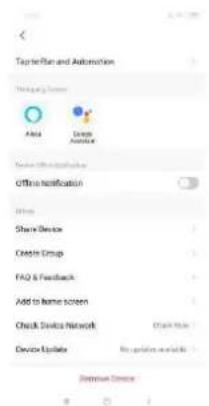
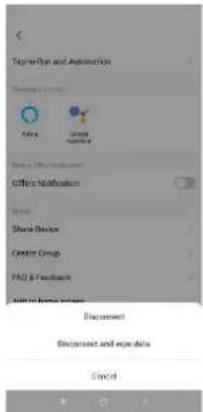
| Reset | Via app: Remove Device then Disconnect |
| Maintenance | Unplug before cleaning; clean with a damp cloth |
| Safety | Do not immerse; do not expose to extreme temperatures |
| Spare parts | No user-serviceable parts; order from dealer |
| Warranty | 24 months (Velleman general terms) |
| Compliance | Directive 2014/53/EU |
Frequently Asked Questions - SMART1004 Perel
User questions about SMART1004 Perel
0 question about this device. Answer the ones you know or ask your own.
Ask a new question about this device
Download the instructions for your Measuring equipment in PDF format for free! Find your manual SMART1004 - Perel and take your electronic device back in hand. On this page are published all the documents necessary for the use of your device. SMART1004 by Perel.
USER MANUAL SMART1004 Perel
natural_image
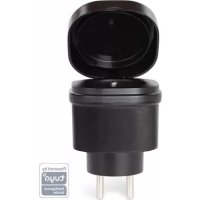
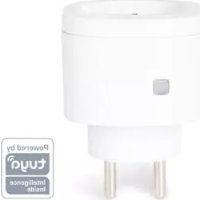
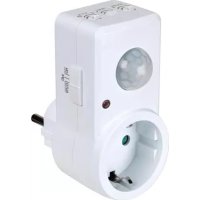
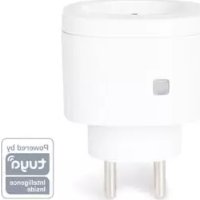
Close-up of a black plastic electrical socket with a lid, showing internal components and mounting holes (no text or symbols visible)SMART1002
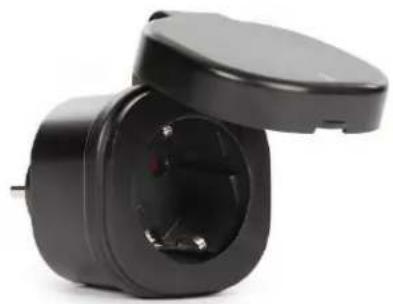
natural_image
Close-up of a black electrical socket with a lid, showing internal socket and housing (no text or symbols visible)SMART1004
USER MANUAL 2
HANDLEIDING 6
MODE D'EMPLOI 10
MANUAL DEL USUARIO 14
To all residents of the European Union
Important environmental information about this product
This symbol on the device or the package indicates that disposal of the device after its lifecycle could harm the environment. Do not dispose of the unit (or batteries) as unsorted municipal waste; it should be taken to a specialized company for recycling. This device should be returned to your distributor or to a local recycling service. Respect the local environmental rules.
If in doubt, contact your local waste disposal authorities.
Thank you for choosing Perel! Please read the manual thoroughly before bringing this device into service. If the device was damaged in transit, do not install or use it and contact your dealer.
2. Safety Instructions

Read and understand this manual and all safety signs before using this appliance.
Switch of micro-gap construction.
- This device can be used by children aged from 8 years and above, and persons with reduced physical, sensory or mental capabilities or lack of experience and knowledge if they have been given supervision or instruction concerning the use of the device in a safe way and understand the hazards involved. Children shall not play with the device. Cleaning and user maintenance shall not be made by children without supervision.
- There are no user-serviceable parts inside the device. Refer to an authorized dealer for service and/or spare parts.
- Do not immerge the device in any liquid. Keep the main unit away from high humidity, high heat and fire.
3. General Guidelines
- Refer to the Velleman ^ Service and Quality Warranty on the last pages of this manual.
- All modifications of the device are forbidden for safety reasons. Damage caused by user modifications to the device is not covered by the warranty.
- Only use the device for its intended purpose. Using the device in an unauthorised way will void the warranty.
- Damage caused by disregard of certain guidelines in this manual is not covered by the warranty and the dealer will not accept responsibility for any ensuing defects or problems.
- Nor Velleman nv nor its dealers can be held responsible for any damage (extraordinary, incidental or indirect) – of any nature (financial, physical...) arising from the possession, use or failure of this product.
- Keep this manual for future reference.
4. Operation
4.1 General Operation
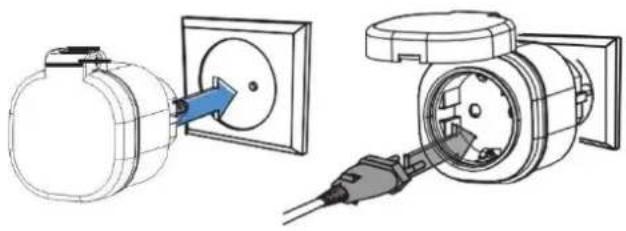
- Plug the smart socket into an appropriate electrical outlet.
- Plug your appliance into the smart socket.
natural_image
Technical line drawing showing two electrical components: a cylindrical device connected to an open electrical outlet and a plug inserted into a socket (no text or symbols present)4.2 Using the Tuya App
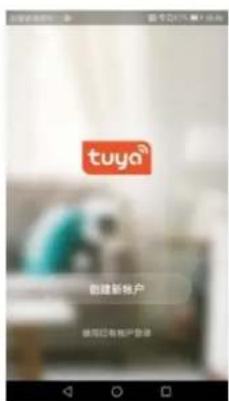
text_image
创建新帐户 请可回收帐户登录- Enable the Bluetooth function on your mobile device. Download the Tuya app from your app store.
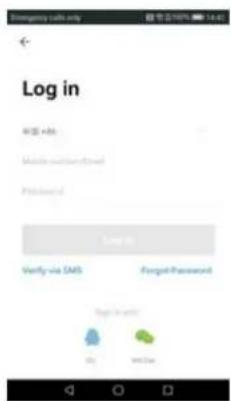
text_image
Log in Web add Mobile download Password Log in Verify via SMS Forgot Password Tags in info! Buy Not Use- Register to the cloud by inputting your e-mail address and password. Login.
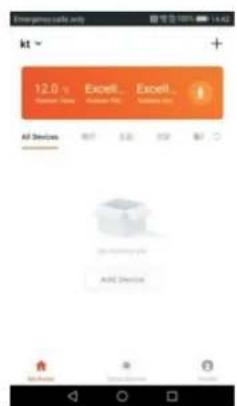
text_image
Emergency calls only kt 12.0 v Excellent Excellent All Devices 80 3.0 95 67 A&E Devices- Press + to add the smart socket.
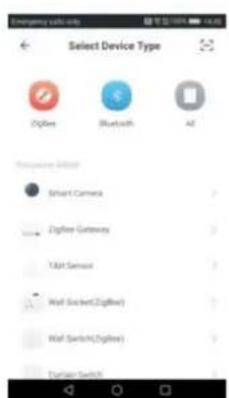
text_image
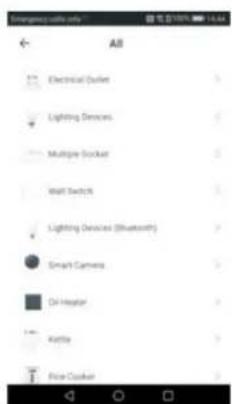
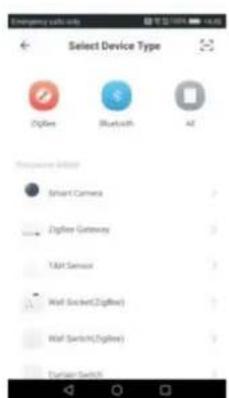
Select Device Type DigiRx Bluetooth AI Frequency Select Smart Camera Digital Gateway Yatt Sensor Wall Socket(ZigiRx) Wall Switch(ZigiRx) Digital Switch- Click on All Devices. Click on the device you want to add. Click on the smart socket.
text_image
Emerging traffic only AB Electrical Outlet Lighting Devices Multiple Socket Wall Switch Lighting Devices (Bluetooth) Smart Camera Oil Heater Kettle Price Cooker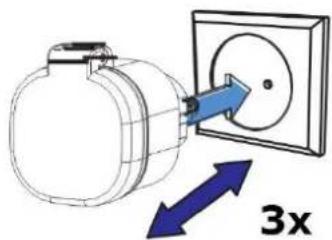
text_image
3x- Plug the smart socket into an electrical outlet and unplug. Repeat within an interval of 3 seconds. Finally, plug the smart socket into the electrical outlet without unplugging.
text_image
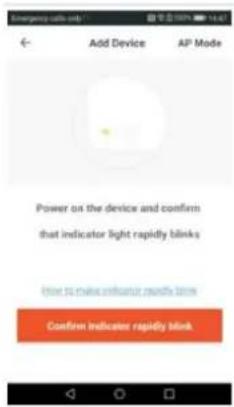
Add Device AP Mode Power on the device and confirm that indicator light rapidly blinks How to make enhancer sounds blinks Confirm indicator rapidly blink- The Wi-Fi link starts blinking. Click Confirm.
text_image
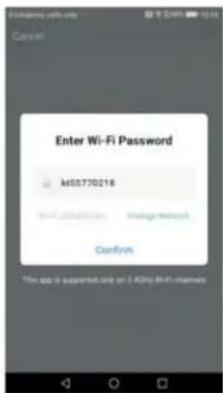
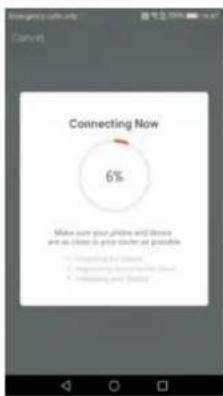
Enter Wi-Fi Password k50770218 In-PC Configuration Change Network Confirm This app is supported only on 2 GHz Wi-Fi interface- Check whether the connect Wi-Fi name and password are correct. Click Confirm. The smart socket will automatically connect to the network indicating that the device is added successfully. Modify the device name and select in which room the smart socket is being used.
text_image
Connecting Now 6% Make sure your photo and device and as close to your corner at possible • Connecting for iPhone • Connecting for Windows • Connecting out Windows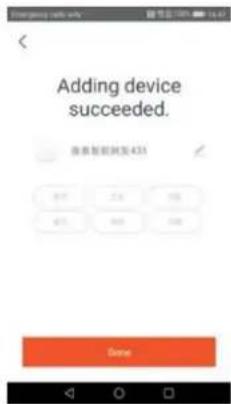
text_image
Adding device succeeded. 登录控制到发435 OK 2.6 100 OK 9.8 100 Done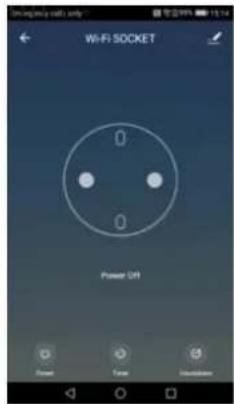
text_image
WIFI SOCKET 0 0 Power Off Power Tow Unstable- You can now control the smart socket through your mobile device.
4.3 Resetting
text_image
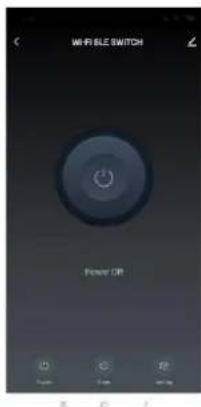
WIRE BLE SWITCH Power OFF- Click the pen symbol in the upper right corner.
text_image
Taylor and Automation Add Delete Add to Home Screen Check Device Network Check Note Device Update No updates available Receive Store- Click Remove Device.
text_image
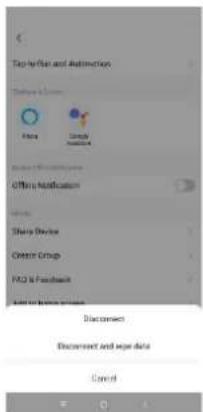
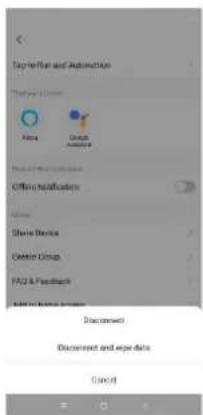
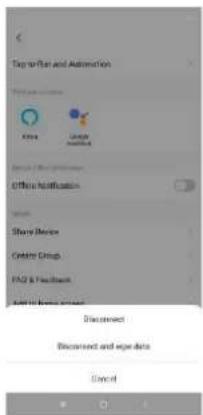
Tagwriting and Automation Store Store Store Store Store Store Store Store Store Store Store Store Store Store Store Store Store Store Store Store Store Store Store Store Store Store Store Store Store Store Store Store Store Store Store Store Store Store Store Store Store Store Store Store Store Store Store Store Store Store Order Order Order Order Order Order Order Order Order Order Order Order Order Order Order Order Order Order Order Order Order Order Order Order Order Order Order Order Order Order Order Order Order Order Order Order Order Order Order Order- Click Disconnect.
5. Care and Maintenance
Care
Unplug the smart socket from the electrical outlet before cleaning.
Cleaning
Occasionally wipe with a damp cloth to keep it looking new. Do not use harsh chemicals, cleaning solvents or strong detergents.
6. Technical Specifications
socket type
SMART1002 .......French
SMART1004 Schuko
voltage....230 V\~, 50 Hz
max. power....3000 W
max. current....13 A
operating range.... ≤ 20 m in open area
operation frequency 2.4 GHz
max. radio frequency power....44.67 mW
max. environmental temperature.... t _a 35 °C
IP rating IP44
dimensions ....
weight....
Hereby, Velleman NV declares that the radio equipment type SMART1002/SMART1004 is in compliance with Directive 2014/53/EU. The full text of the EU declaration of conformity is available at the following internet address: www.velleman.eu.
Use this device with original accessories only. Velleman nv cannot be held responsible in the event of damage or injury resulting from (incorrect) use of this device. For more info concerning this product and the latest version of this manual, please visit our website www.velleman.eu. The information in this manual is subject to change without prior notice.
© COPYRIGHT NOTICE
The copyright to this manual is owned by Velleman nv. All worldwide rights reserved. No part of this manual may be copied, reproduced, translated or reduced to any electronic medium or otherwise without the prior written consent of the copyright holder.
HANDLEIDING
1. Inleiding
natural_image
Technical line drawing showing two electrical components: a cylindrical device connected to an open electrical outlet and a plug inserted into a socket (no text or symbols present)text_image
Emergency calls only kt 12.0 v Excellent Excellent All Devices No Answer 3.0 5.0 6.0 A&E Device No Answertext_image
Emerging traffic only AB Electrical Outlet Lighting Devices Multiple Socket Wall Switch Lighting Devices (Bluetooth) Smart Camera Oil Heater Kettle Price Cooker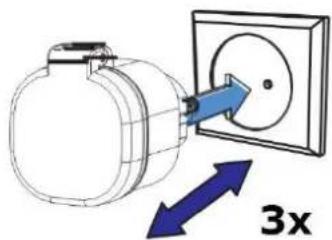
text_image
3x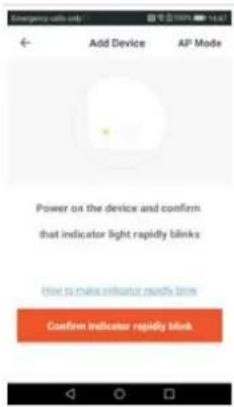
text_image
Add Device AP Mode Power on the device and confirm that indicator light rapidly blinks How to make sensitive sounds blinks Confirm indicator rapidly blinktext_image
Enter Wi-Fi Password k55770218 Login/Authentication Change Wi-Fi Confirm This app is supported only on 2.4GHz WiFi channels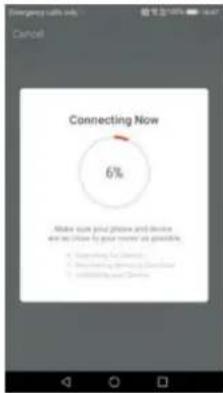
text_image
Connecting Now 6% Make sure your phone and device and so close to your own as possible. • Supporting for Existing • Supporting for Existing • Supporting for Existing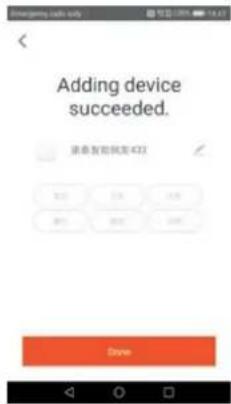
text_image
Adding device succeeded. 请参见到您关注 123 24 35 46 57 68 79 80 81 82 83 84 85 86 87 88 89 90 91 92 93 94 95 96 97 98 99 100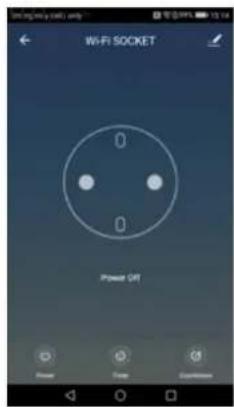
text_image
WIFI SOCKET 0 0 Power OK Power Close Experiencestext_image
Take-Rail and Automation Details Options Add Create Add to Home Screen Offsite notification Share Device Create Group FAQ & Feedback Add to Home Screen Check Device Network Device Update No updates available Remove Service- Klik op Remove Device.
text_image
Take to file and animation Share a video None Google Aircraft Show the information Office notification Share Device Center Group FAQ & Feedback Edit in business environment Disconnect Disconnect and copy data Cancel- Klik op Disconnect.
natural_image
Technical line drawing showing two electrical components: a cylindrical device connected to an open electrical outlet and a plug inserted into a socket (no text or symbols present)4.2 Utiliser l'application Tuya
text_image
创建新帐户 请可回收帐户登录text_image
Emergency calls only kt 12.0 v Excellent Excellent All Devices No Answer 3.0 5.0 6.0 A&E Device No Answertext_image
Emerging traffic only AB Electrical Outlet Lighting Devices Multiple Socket Wall Switch Lighting Devices (Bluetooth) Smart Camera Oil Heater Kettle Price Cookertext_image
Add Device AP Mode Power on the device and confirm that indicator light rapidly blinks How to make enhancer sounds blinks Confirm indicator rapidly blinktext_image
Enter Wi-Fi Password k50770218 m-43 (Copyright) Change Network Confirm This app is supported only on 2 GHz WiFi home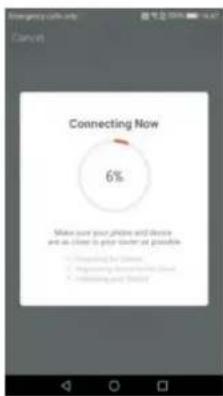
text_image
Connecting Now 6% Make sure your photo and device and as close to your corner at possible • Connecting for iPhone • Connecting for Windows • Connecting out Windows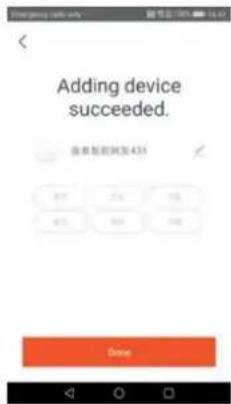
text_image
Adding device succeeded. 登录控制到发435 OK 2.6 100 OK 9.8 100 Done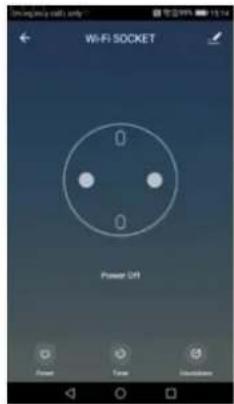
text_image
WIFI SOCKET 0 0 Power Off Power Tow Unstabletext_image
Wi-Fi BLE SWITCH Power ORtext_image
Taylor fan and Automation Testing Server Add Delete Add to Home Screen Add to home screen Add to home screen Check Device Network Check Note Device Update By update available Reverse Updatetext_image
Tags and Automation Allure Group Shared Office Notification Share Device Create Group FAQ & Feedback Send to Email Document Decordnet and export data Cancelnatural_image
Technical line drawing showing two electrical components: a cylindrical device connected to an open electrical outlet and a plug inserted into a socket (no text or symbols present)text_image
Emergency calls only kt 12.0 v Excellent Excellent All Devices No Answer 3.0 5.0 6.0 A&E Device No Answertext_image
Emerging traffic only AB Electrical Outlet Lighting Devices Multiple Socket Wall Switch Lighting Devices (Bluetooth) Smart Camera Oil Heater Kettle Price Cooker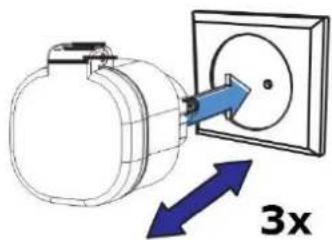
natural_image
Diagram of a mechanical component with directional arrows indicating 3x speed (no text or symbols)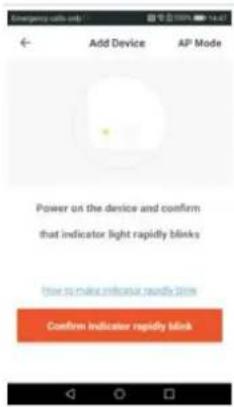
text_image
Add Device AP Mode Power on the device and confirm that indicator light rapidly blinks low so make indicator sounds blink Confirm indicator rapidly blinktext_image
Enter Wi-Fi Password k55770218 Wi-Fi Password Change network Confirm This app is supported only on 2 KBip WiFi credentials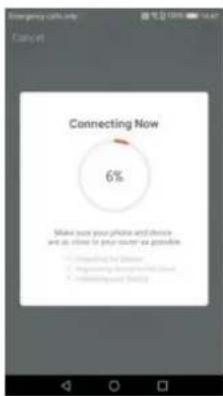
text_image
Connecting Now 6% Make sure your photo and device and do close to your user as possible • Composing for iPhone • Connecting the iPhone and other • Unconnected iPhone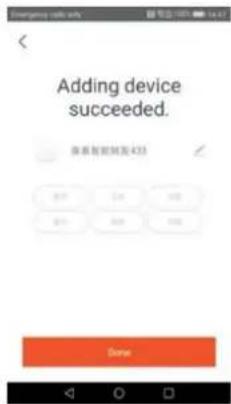
text_image
Adding device succeeded. 保养智能转发 4235 Done
text_image
WIFI SOCKET 0 0 Power Off Power Time Unknowntext_image
Snapferran and Automation Designing Tools Asia Local Assist Device Use/Usage Offline Notification Share Device Create Group FAQ & Feedback Add to Home screen Check Device Network Device Update No updates available Remote Device- Haga clic en "Remove Device".
text_image
Triggerset and Automation Open Area Delete Add to new devices Office Notification Options Static Device Center Group FAQ & Feedback Add to new devices Documents Decomnet and export data Cancel- Haga clic en "Disconnect".
natural_image
Technical line drawing showing two electrical components: a cylindrical device connected to an open socket and a plug inserted into a housing (no text or symbols present)text_image
Log in WEI add Mobile password Password Save it Verify via SMS Forgot Password Log in only OK Canceltext_image
Select Device Type Zigbee Bluetooth AI Accounting Options Smart Camera Zigbee Gateway TMT Sensor Wall Socket(Zigbee) Wall Switch(Zigbee) Delete Search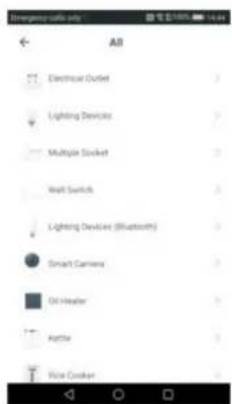
text_image
Emerging traffic only AB Electrical Outlet Lighting Devices Multiple Slocket Wall Switch Lighting Devices (Bluetooth) Smart Camera Off Header Air Turkey Vise Cookertext_image
Add Device AP Mode Power on the device and confirm that indicator light rapidly blinks How to make enhancer sounds blinks Confirm indicator rapidly blinktext_image
Enter Wi-Fi Password k50770218 m-43 (Copyright) Change Network Confirm This app is supported only on 2 GHz WiFi home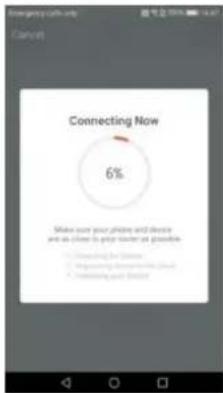
text_image
Connecting Now 6% Make sure your photo and device and as close to your user at possible • Connecting for iPhone • Connecting for Windows • Connecting out of the world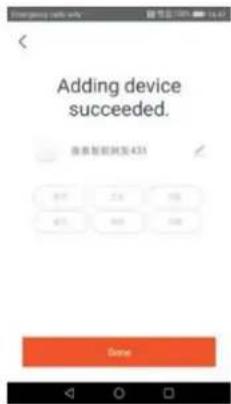
text_image
Adding device succeeded. 登录控制到发435 OK 2.6 100 OK 9.8 100 Done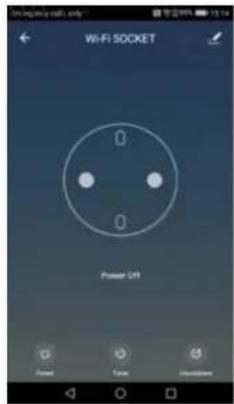
text_image
WIFI SOCKET 0 0 Power Off Power Tow Unstabletext_image
WiFi BLE SWITCH Power OFFtext_image
Taylor and Automation Add Delete Add to Home Screen Check Device Network Check Note Device Update No updates available Receive Storetext_image
Tagwriting and Automation Store Store Store Store Store Store Store Store Store Store Store Store Store Store Store Store Store Store Store Store Store Store Store Store Store Store Store Store Store Store Store Store Store Store Store Store Store Store Store Store Store Store Store Store Store Store Store Store Store Store Order Order Order Order Order Order Order Order Order Order Order Order Order Order Order Order Order Order Order Order Order Order Order Order Order Order Order Order Order Order Order Order Order Order Order Order Order Order Order Ordernatural_image
Technical line drawing showing two electrical components: a cylindrical device connected to an open electrical outlet and a plug inserted into a socket (no text or symbols present)text_image
Emergency calls only kt 12.0 v Excellent Excellent All Devices No Answer 3.0 5.0 6.0 A&E Device No Answertext_image
Emerging traffic only AB Electrical Outlet Lighting Devices Multiple Socket Wall Switch Lighting Devices (Bluetooth) Smart Camera Oil Heater Kettle Price Cooker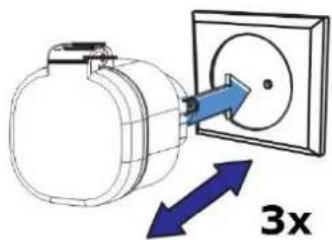
text_image
3x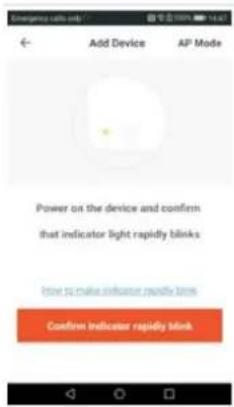
text_image
Add Device AP Mode Power on the device and confirm that indicator light rapidly blinks How to make indicator quickly blinks Confirm indicator rapidly blinktext_image
Enter Wi-Fi Password k550770218 Wi-Fi Password Change Network Confirm This app is supported only on 2.4GHz WiFi channels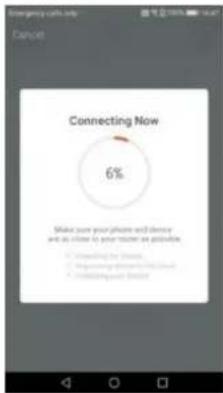
text_image
Connecting Now 6% Make sure your phone and device and do close to your phone as follows: • Comparing for iPhone • Comparing for iPhone or other iPhone • Comparing for iPhone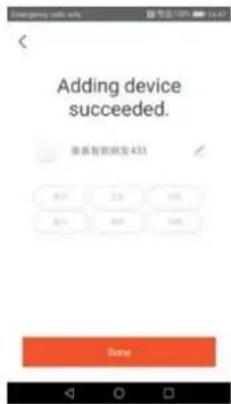
text_image
Adding device succeeded. 保养智能网发435 OK 2.5 100 OK 9.0 100 Done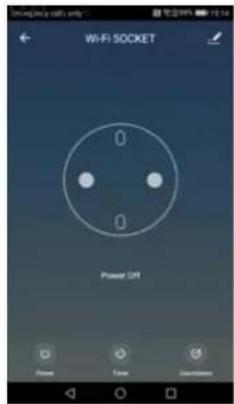
text_image
WIFI SOCKET 0 0 Power On Power View Downstreamtext_image
WIFI BLE SWITCH Power UPtext_image
Tap to Fire and Automation Temporary Options Alexa License Microsoft Office Office notification Share Device Centro Group FAQ & Feedback Add to Home screen Check Device Network Device Update Log update available Receive Device- Kliknij Remove Device.
text_image
Tag to Run and Automation Kono Linker Options Options Options Share Device Custom Group FAC & FAC/Server Add to New or New Disconnect Disconnect and use data Cancel- Kliknij Disconnect.
natural_image
Technical line drawing showing two electrical components: a cylindrical device connected to an open electrical outlet and a plug inserted into a socket (no text or symbols present)text_image
Emergency calls only kt 12.0 v Excellent Excellent All Devices No Answer 3.0 5.0 6.0 A&E Device No Answer- Pressione + para adicionar a ficha inteligente.
text_image
Select Device Type DigiRx Bluetooth AI Frequency Select Smart Camera Digital Gateway Yatt Sensor Wall Socket(ZigiRx) Wall Switch(ZigiRx) Digital Switch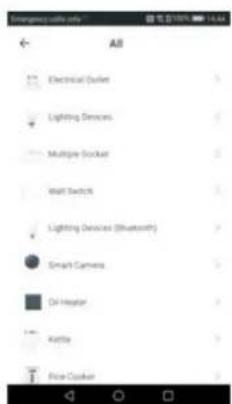
text_image
Emerging traffic only AB Electrical Outlet Lighting Devices Multiple Socket Wall Switch Lighting Devices (Bluetooth) Smart Camera Oil Heater Kettle Price Cookertext_image
Add Device AP Mode Power on the device and confirm that indicator light rapidly blinks How to make enhancer sounds blinks Confirm indicator rapidly blinktext_image
Enter Wi-Fi Password k50770218 m-43 (Copyright) Change Network Confirm This app is supported only on 2 GHz WiFi home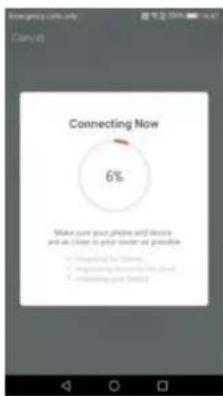
text_image
Connecting Now 6% Make sure your photo and device and as close to your corner at possible • Connecting for iPhone • Connecting for Windows • Connecting out Windows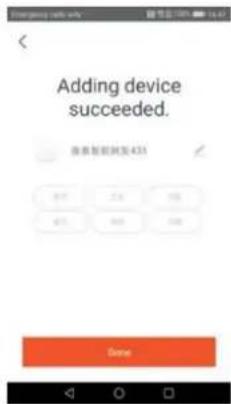
text_image
Adding device succeeded. 登录控制转发 435 OK 2.6 100 OK 9.8 100 Done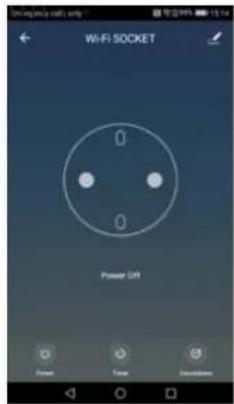
text_image
WIFI SOCKET 0 0 Power Off Power Tow Unstabletext_image
Wi-Fi BLE SWITCH Power ORtext_image
Taylor fan and Automation Testing Server Add Delete Add to Home Screen Add to home screen Add to home screen Check Device Network Check Note Device Update By update available Reverse Updatetext_image
Tags and Automation Allure Group Shared Office Notification Share Device Create Group FAQ & Feedback Send to Email Document Decordnet and export data Cancel- Clique em Desligar.
Velleman® Service and Quality Warranty
Since its foundation in 1972, Velleman® acquired extensive experience in the electronics world and currently distributes its products in over 85 countries.
All our products fulfil strict quality requirements and legal stipulations in the EU. In order to ensure the quality, our products regularly go through an extra quality check, both by an internal quality department and by specialized external organisations. If, all precautionary measures notwithstanding, problems should occur, please make appeal to our warranty (see guarantee conditions).
General Warranty Conditions Concerning Consumer Products (for EU):
- All consumer products are subject to a 24-month warranty on production flaws and defective material as from the original date of purchase.
- Velleman® can decide to replace an article with an equivalent article, or to refund the retail value totally or partially when the complaint is valid and a free repair or replacement of the article is impossible, or if the expenses are out of proportion.
You will be delivered a replacing article or a refund at the value of 100% of the purchase price in case of a flaw occurred in the first year after the date of purchase and delivery, or a replacing article at 50% of the purchase price or a refund at the value of 50% of the retail value in case of a flaw occurred in the second year after the date of purchase and delivery.
- Not covered by warranty:
- all direct or indirect damage caused after delivery to the article (e.g. by oxidation, shocks, falls, dust, dirt, humidity...), and by the article, as well as its contents (e.g. data loss), compensation for loss of profits;
- consumable goods, parts or accessories that are subject to an aging process during normal use, such as batteries (rechargeable, non-rechargeable, built-in or replaceable), lamps, rubber parts, drive belts... (unlimited list);
- flaws resulting from fire, water damage, lightning, accident, natural disaster, etc....;
- flaws caused deliberately, negligently or resulting from improper handling, negligent maintenance, abusive use or use contrary to the manufacturer's instructions;
- damage caused by a commercial, professional or collective use of the article (the warranty validity will be reduced to six (6) months when the article is used professionally);
- damage resulting from an inappropriate packing and shipping of the article;
- all damage caused by modification, repair or alteration performed by a third party without written permission by Velleman®.
- Articles to be repaired must be delivered to your Velleman® dealer, solidly packed (preferably in the original packaging), and be completed with the original receipt of purchase and a clear flaw description.
- Hint: In order to save on cost and time, please reread the manual and check if the flaw is caused by obvious causes prior to presenting the article for repair. Note that returning a non-defective article can also involve handling costs.
• Repairs occurring after warranty expiration are subject to shipping costs.
- The above conditions are without prejudice to all commercial warranties.