R7 Mk3 - Radio Ruark Audio - Free user manual and instructions
Find the device manual for free R7 Mk3 Ruark Audio in PDF.



| Product type | Hi-Fi system with DAB+/FM radio, Internet radio, CD player, Bluetooth, DLNA streaming and music services |
| Dimensions (without feet) | H165 × W1000 × D400 mm |
| Weight (with feet) | 27.8 kg |
| Power supply | 100-120/200-240 V~, 50-60 Hz, rated consumption 25 W, standby 2 W |
| Amplifier | Class AB, 180 W |
| Drivers | 2 two-way speakers 5.5 inches, 1 subwoofer 8 inches |
| Radio connectivity | DAB/DAB+, FM (RDS), Internet radio (Wi-Fi) |
| CD player | CD, CD-ROM, CD-R/RW; formats MP3, WMA, AAC |
| Wi-Fi | 802.11b/g/n, security WEP/WPA/WPA2 |
| Bluetooth | Version 4.0, SBC, AAC aptX, aptX HD |
| Audio inputs | 1 phono MM (RCA), 2 optical TOSLINK, 2 line in (RCA), USB (5 W/1 A) |
| Audio outputs | 1 line out (RCA), 1 headphone 3.5 mm |
| Main features | Alarms (2), sleep timer, equalizer (bass/treble/subwoofer), 3D sound, Loudness, multiroom (Ruark compatible), UNDOK app |
| Box contents | R7 Mk3, 4 tapered feet with screws, remote control (CR2032 battery), antenna key, wire antenna, telescopic antenna, power cable, user guide |
| Care and cleaning | Use a dry or slightly damp lint-free cloth. Do not spray liquid. Avoid exposure to direct sunlight and humidity. |
| Safety | Do not open the device. Do not expose to rain. Use only the indicated voltage. Keep batteries out of reach of children. |
| Warranty | 2 years standard, extendable to 3 years on registration (UK). For other countries, contact the local distributor. |
Frequently Asked Questions - R7 Mk3 Ruark Audio
User questions about R7 Mk3 Ruark Audio
0 question about this device. Answer the ones you know or ask your own.
Ask a new question about this device
Download the instructions for your Radio in PDF format for free! Find your manual R7 Mk3 - Ruark Audio and take your electronic device back in hand. On this page are published all the documents necessary for the use of your device. R7 Mk3 by Ruark Audio.
USER MANUAL R7 Mk3 Ruark Audio
R7 mk3 High Fidelity Radiogram
User guide
Thank you for choosing our R7 mk3 High Fidelity Radiogram.
Inspired by classic mid-century design, the R7 is an evolution of our original iconic design and with its stunning looks and amazing audio quality, we guarantee that you'll be rediscovering the joy of music all over again.
Please take the time to read this user guide as it will help you get the best from your R7.
With due care, we're confident your R7 will give you many years of listening pleasure and if you should need any help or advice, please do not hesitate to contact us. As a British, family-run company, we pride ourselves on our customer service and will always do our utmost to help.
Once again, thank you for choosing Ruark Audio.
Alan O. Raurke
Alan O'Rourke
Founder and managing director
Contents
What's in the box 4
Controls 5
Overview 6
Fitting legs or feet 7
Getting started 8
Common functions 10
System settings 13
FM radio 15
DAB radio 16
Internet radio 17
CD player 19
Bluetooth 20
Music player 22
DLNA media streaming 24
Music streaming services 25
Line in and optical 26
Phono 26
Input level adjustment 26
Multi-room 27
App control 28
Alarms, snooze and sleep 28
Specifications 29
Safety and regulatory information 30
Troubleshooting 31
Guarantee information 32
General care 32
Copyright and trademarks 32
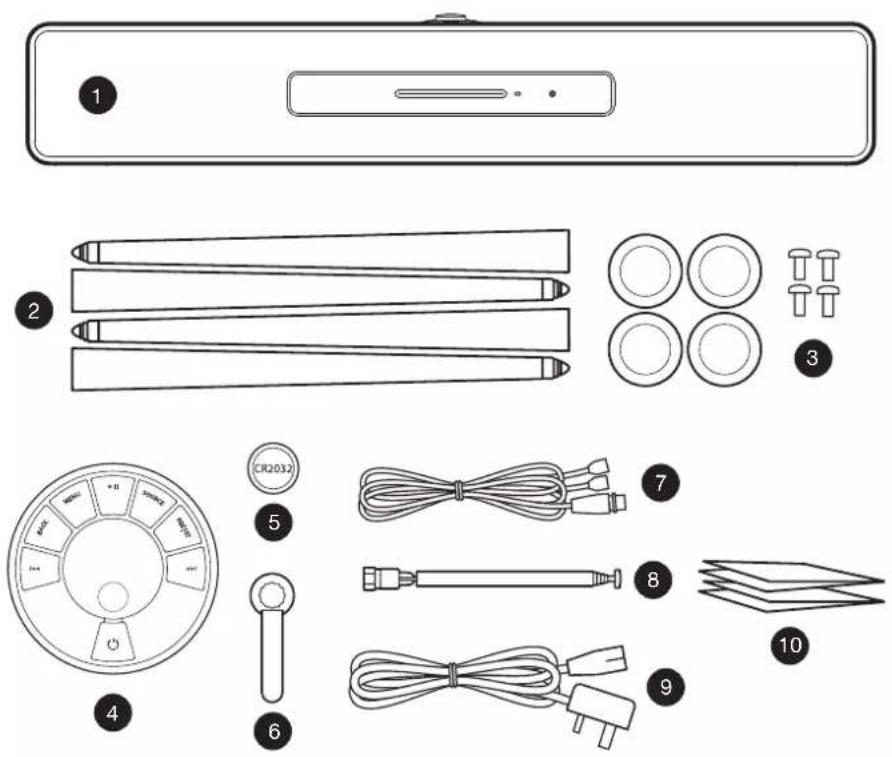
What's in the box
Ensure that all parts listed below are in the box.
If any part is missing, do not use the R7 and contact us directly if purchased in the UK, or your Ruark Audio dealer if purchased outside the UK.
- R7
- Four spindle legs
- Four feet & fixing screws
- Remote control
- Remote battery (CR2032)
- Antenna spanner
- Wire antenna
- Telescopic antenna
- Mains power cord
- User guide & other documents
If possible, please retain the carton and all packaging materials.
Controls
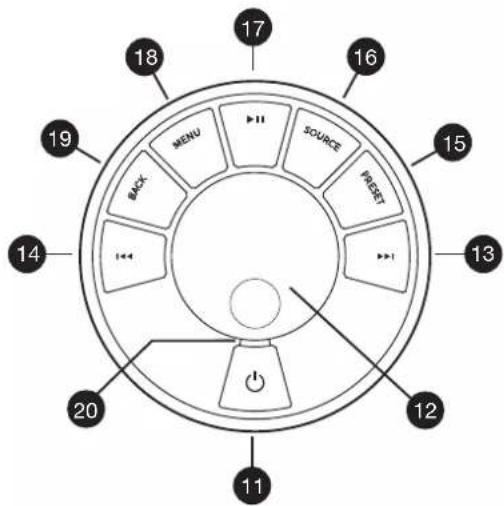
The controls on the R7 are exactly the same as on the remote control.
- ⏻ - STANDBY
- CONTROL KNOB / SELECT
Rotate to adjust volume from a Now Playing screen
Rotate to browse menus, tracks or station lists*
Press to SELECT
- ▶▶▶ – press to skip to next station or track, press and hold to fast forward
-
- press to skip to previous station or track, press and hold to rewind
- PRESET – press to recall a saved station or playlist, press and hold for two seconds to save a station or playlist
- SOURCE – press to change audio source
- ▶II – press to play/pause a track or mute audio inputs and radio
- MENU - press to view the menu
- BACK – press to return to the previous menu or list screen
- INDICATOR LIGHT
On the R7 it indicates your music system is on and flashes when Bluetooth is ready to pair or when using the remote.
On the remote it flashes when pressing a key or using the control knob and when the battery is low, the light will change from blue to amber.
*You can also press▶or to browse menus, tracks, sources or station lists
How long you press a key is important
Press = tap or press and immediately release
Press and hold = press and release after two seconds
Overview
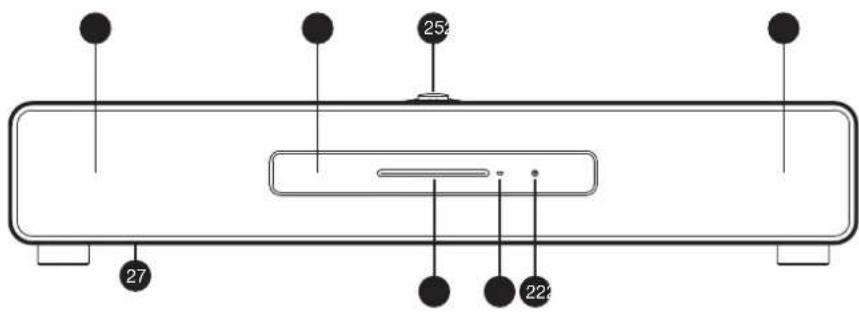
Front
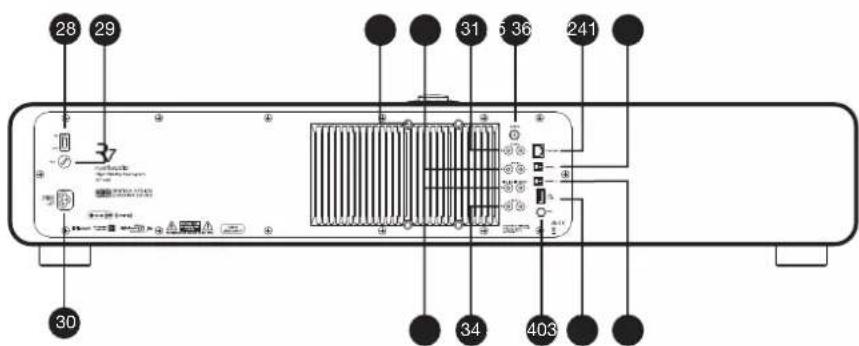
Back
- Dual concentric stereo drivers
- Headphone out (3.5mm jack)
- CD loading slot
- CD eject button
- Controls
- OLED Display
- Subwoofer
- Mains power switch
- Mains power fuse
- Mains power cord inlet
- Phono input
- Line in 1
- Line in 2
- Line out
- DAB-FM antenna
- Ethernet
- Optical input 1
- Optical input 2
- USB
- Grounding terminal
- AV mount fixing points (4xM8)
Fitting legs or feet
Get help with moving your R7 as it is heavy and easily damaged!
Carefully take your R7 out of its protective bag and place it on its side on a stable, clean and non-marking surface like a rug or the bag.
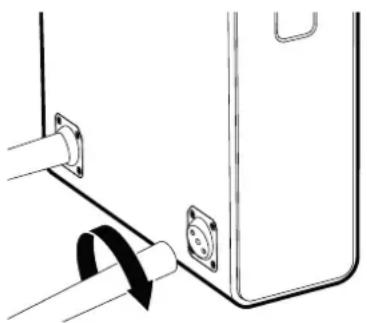
To mount your R7 on legs, screw the four legs into the mounting plates on the underside of the cabinet and hand-tighten each leg so that it is secure but take care not to overtighten. Carefully turn your R7 over and move it into its final position and, if necessary, adjust the leg tips to ensure it is completely stable.
To mount your R7 on feet, place a foot onto each of the four mounting plates on the underside of the cabinet, ensuring each is correctly aligned. Use a suitable screwdriver to secure them with the screws provided. Carefully turn your R7 over and place it on a suitably strong and secure surface.
natural_image
Diagram of a device with a black curved arrow pointing to a component, no text or symbols present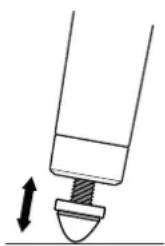
natural_image
Simple line drawing of a mechanical component with an upward arrow indicating motion (no text or symbols)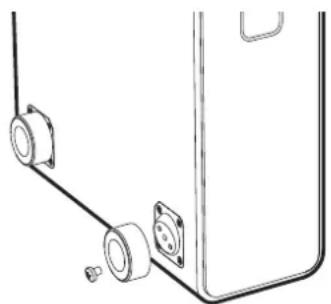
natural_image
Technical line drawing of a mechanical assembly with two components and a bracket (no text or symbols)Take care not to damage the speaker grilles when moving your R7.

The R7 is heavy and improper handling can result in damage or personal injury.
Getting started
1 Fit remote battery
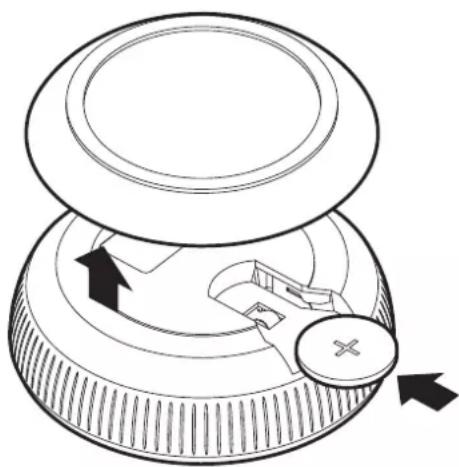
Gently pull off the magnetic steel base and with the remote face down, slide the battery (type CR2032) into the slot, ensuring the flat side marked with + faces up. Replace the steel base.
natural_image
Diagram of a mechanical knob or knob with directional arrows indicating movement, no text or symbols presentPlease note that the remote may not work until it is paired with the main system (see step 6).
2 Connect the aerial
Fit either the wire or telescopic aerial to the DAB/FM antenna socket on the back of your R7 and gently tighten it using the supplied spanner. Use the aerial that works best for you although for best reception we highly recommend using an external, professionally installed, aerial.
3 Connect to AC mains
Plug the mains power cord into the mains power socket on the back of your music system and then plug it into an AC mains outlet.
4 Switch on
Switch the mains power switch on the back of your music system to the ON position. Your R7 is now in standby.
To turn your R7 on, press STANDBY on the controls on the cabinet and the R7 logo will appear on the screen.

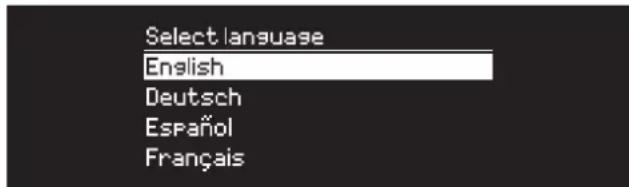
5 Select language
Rotate the CONTROL KNOB until your preferred choice is highlighted, then press SELECT.
6 Pair your remote
When you are prompted to pair your remote control, hold it very close to the display and then press and hold SELECT on the remote until "Remote paired" is displayed.
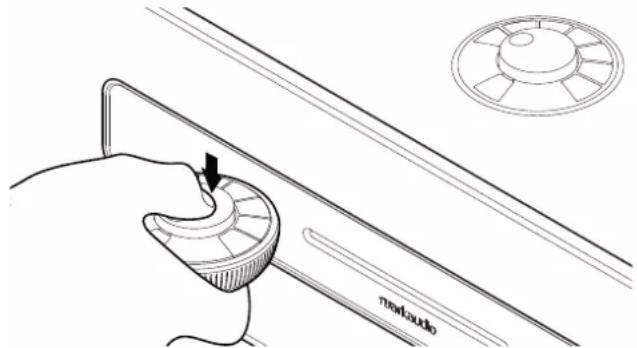
Press SELECT to continue.
You won't normally need to pair it again but if you if do, simply hold it very close to the screen and press and hold any key until you see the confirmation message. You can do this in any mode.
7 Setup wizard
When you turn on your R7 for the first time, setup wizard will help you configure the clock and connect to your network.
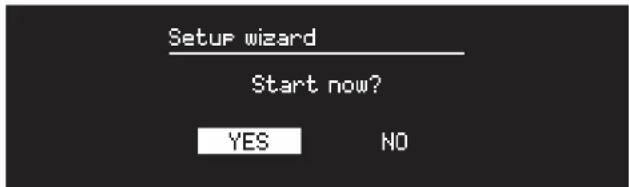
To start the setup wizard, rotate the CONTROL KNOB to highlight YES and then press the knob to SELECT. If you choose NO, your R7 will start without configuring time/date and network settings.
8 Select a source
When your setup is complete, your R7 will display a menu with a list of the available sources. Use the CONTROL KNOB to choose a source and press SELECT.
9 Enjoy your music!
Common functions
Switch on and to standby
Press STANDBY to turn your music system on. Press again to switch to standby.
Now Playing screens
Unless you're adjusting a setting, the screen will look similar to the example below with the clock above and station/track/album/artist information below.
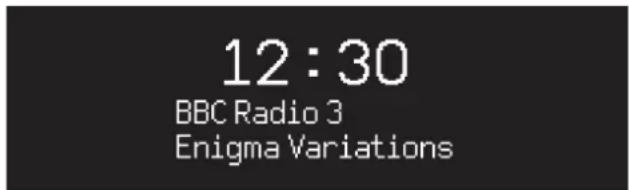
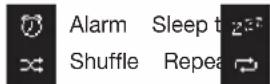
The on-screen icons below are shown when their respective functions are active.
Menu screens
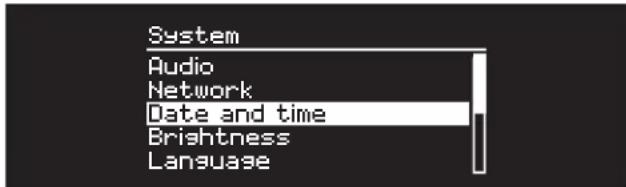
The menus enable you to set the various options such as adjusting the bass and treble. To change a setting, press MENU to display the list of available options, rotate the CONTROL KNOB to highlight the one you wish to change, then press the knob to confirm your selection.
Browsing menus, track and station lists
To change settings – press MENU
To scroll through options – rotate CONTROL KNOB
To select option – press CONTROL KNOB
To exit menu – press MENU or wait for a few seconds
To return to the previous menu/list – press BACK
How long you press a key is important
Press = tap or press and immediately release
Press and hold = press and release after two seconds
Adjust volume
Rotate the CONTROL KNOB from any Now Playing screen.
Speaker volume and headphone volume are adjusted separately, so when headphones are plugged in the volume is shown as Volume (HP).
NOTE: rotating the CONTROL KNOB when a menu or track/station list is displayed will scroll through the menu and not change the volume.
Change audio source
Press SOURCE to view the current source, rotate the CONTROL KNOB to cycle through the list of sources, then press the knob to select one currently displayed. (You can also press SOURCE repeatedly to cycle through the list of sources instead of rotating the knob.)
Internet radio
Multi-room
This device is fully compatible with Ruark Audio multi-room and enables you to stream music seamlessly from one room to another. See ‘Multi-room’ section for more details.
Pause track or mute audio
Press ▶ and then press again to resume listening.
Play next/previous track
Press ▶to skip to the next track in the folder or album, press ◀◀◀ to skip to the start of the current track, press again to skip to the previous track.
Fast forward or rewind track
Press and hold ▶ or (may not work with Bluetooth).
Change FM radio station
Press ▶ or to seek the next or previous station. See 'FM' section for more details.
Change DAB radio station
Press ▶ or to tune to the next or previous station.
You can also view the multiline station list by selecting
MENU > Station list.
See 'DAB' section for more details.
Change station or track information
Change the station/track information displayed by selecting one of the options from MENU > Info.
To return to the previous menu level or station list, press BACK
Save radio station preset
Press and hold PRESET until 'Save preset' is shown then rotate the CONTROL KNOB to choose the preset number and press the knob to save the current station. Presets are either marked with the station name, frequency or as '[Not set]'.
![Save Preset 1. [Not set] 2. Planet Rock 3. [Not set] 4. BBC Radio 4 5. [Not set]](/content/2026/04/614437/images/a3bb6ca7e6f7dfc925516b1b0fa862ad47256518a313e0bb3bc27fb9221b77f1.jpg)
If you save a station over an existing preset, the new station will replace it.
Recall radio station preset
Press PRESET, rotate the CONTROL KNOB to scroll through the preset station list, then press the knob to select a station.
![Recall Preset 1. [Not set] 2. Planet Rock 3. [Not set] 4. BBC Radio 4 5. [Not set]](/content/2026/04/614437/images/da2878d830ebef1c64c3fd3333a09b5a19150e5cf11129f9c897edb8fe53e059.jpg)
Connect a Bluetooth device
When you change the source to Bluetooth, your R7 will attempt to automatically connect to the last connected device. If you have not yet paired your device or the previous device is not available, your R7 will enter into pairing mode. See 'Bluetooth' section for more details.
Headphones
Connect your headphones to the 3.5mm stereo jack socket on the front of your R7.
Headphone volume is adjusted independently from speaker volume, so when headphones are plugged in the volume is shown as Volume (HP).
USB charging
The USB socket on your R7 is rated at 5W (5V 1.0A) and will power most smart devices and USB powered accessories.
Please note that: MENU > System > Audio means press MENU, select System and finally select Audio
System settings
Bass, treble and sub
MENU > System > Audio > Bass, Treble or Sub level Adjust the bass and treble levels using the CONTROL KNOB then press it to save the setting.
Loudness
Loudness automatically boosts the treble and bass frequencies at lower volumes.
MENU > System > Audio > Loudness
3D sound
3D widens the stereo sound stage and creates a more immersive and involving sound.
MENU > System > Audio > 3D
Date and time
MENU > System > Date and time
The time and date are automatically synchronised with national time signals broadcast over DAB, network and FM (FM time synchronisation may not always be available).
You can also set the time manually by turning auto update off and change the time and date format.
Display brightness
MENU > System > Brightness
Independently adjust the brightness of the display when your R7 is on and in standby.
When the brightness is set to 0 the display will automatically switch off after a few seconds. The display will then briefly illuminate whenever any key is pressed.
You can also adjust the standby brightness when your R7 is in standby by pressing ▶▶ or ◀◀
Language
MENU > System > Language
Change the menu language.
Software update
MENU > System > Software update
Your R7 is set to automatically check for software updates. If one is available, you will be asked whether you want to download and install it.
CAUTION: Disconnecting the power during a software update could permanently damage your R7.
Factory reset
MENU > System > Factory reset
Resets all settings and clears presets.
Currently saved settings are marked with an asterisk (*)
Setup wizard
MENU > System > Setup wizard
Runs the setup wizard to guide you through setting up the clock and network.
Inactive standby
Your R7 is set to automatically switch itself to standby if there is no audio for more than 20 minutes. To change this select MENU > System > Inactive standby.
Network wizard
For a guided process to help you connect to a wired or Wi-Fi network, select MENU > System > Network > Network wizard.
Network profiles
Your R7 will automatically attempt to connect to any network it has previously connected to.
To see the list of saved networks, select MENU > System > Network > Network profile. To delete an unwanted network, highlight it, press the CONTROL KNOB and select YES.
Keep network connected
MENU > System > Network > Keep connected
Choose whether your R7 always remains connected to your network, even in standby (default). We recommend you set it to keep connected as it will ensure your R7 is always accessible using Spotify or DLNA music streaming. We also recommend this if you have set your clock to update from Network.
System information
Shows details of your R7 including the software version, unique radio ID code and friendly name.
Advanced network settings
There are other advanced network settings for experienced users for manual configuration or diagnosing and fixing network problems.
Friendly name
The friendly name is how your R7 shows up on networks, Spotify and Bluetooth. You can change this to something more descriptive like “Archie’s R7” or “Living room R7”.
You can view your R7's status and change its friendly name by viewing its web page in a browser. In Windows, your R7 will typically show up as a Media Device, double clicking on the icon will open the configuration page in your browser.
For more information visit www.ruarkaudio.com/support
FM radio
When listening to FM, your R7 displays the station name and other RDS/RBDS* programme information when available.
*Radio Data System/Radio Broadcast Data System
14:08
BBC Radio 4
The Archers
Change station
Press ▶ to automatically tune to the next available FM station. If RDS/RBDS is unavailable the frequency is displayed instead.
14:08
93.90 MHz
[No RadioText]
Scan setting
You can change the scan setting to only stop at stations with a strong signal by selecting Menu > Scan setting > Strong stations only.
Programme information
Choose from radio text, programme type, frequency, signal strength and date by selecting MENU > Info.
Manual tune
Select MENU > Manual tune then either rotate the CONTROL KNOB or press ▶ to change the frequency.
Save preset
You can store 10 FM stations in your preset list. The station name will be stored only when RDS/RBDS is available. See 'Common functions' section.
Recall preset
See 'Common functions' section.
Mono
As an FM signal becomes weaker, the level of hiss will increase. To reduce this, select Menu > Mono.
To further reduce hiss on weaker FM stations, we recommend turning 3D sound OFF
DAB radio
When listening to DAB/DAB+, your R7 displays the station name and other DLS* programme information when available.
The first time you use your R7, or if the station list is empty, it will automatically perform a full scan to identify available stations.
*Dynamic Label Segment
Change station
Press ▶ or to tune to the next/previous station.
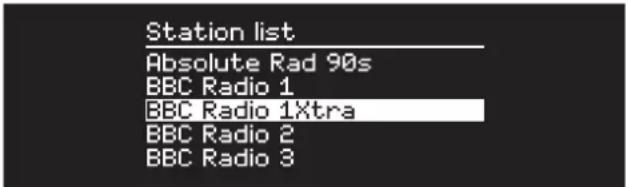
Station list
To view a list of available DAB stations select MENU > Station list or press ▶or . Highlight the station you wish to listen to and press SELECT.
Programme information
Choose from radio text, programme type, signal strength, signal format and date by selecting MENU > Info.
Save preset
You can store 10 DAB stations in your preset list. See 'Common functions' section.
Recall preset
See 'Common functions' section.
Secondary services
Some DAB radio stations have one or more secondary stations associated with them. If a secondary station is available ‘>>’ is shown after the current station name in the station list.
Secondary stations are indicated with ‘<<’ before the station name.
Station order
The DAB station list can be ordered by Alphanumeric, Ensemble or Valid. Alphanumeric puts the stations in alphabetical order, Ensemble groups stations from the same broadcaster together, Valid shows available stations first and places invalid stations (marked with ‘?’) last.
To change station order, select Menu > Station order and select Alphanumeric (default), Ensemble or Valid.
Invalid stations have '?' in front of the station name
Station scan
If the station list is empty the radio will automatically perform a full scan as soon as you switch to DAB.
In any case, we recommend you do a full scan from time to time to update the station list because:
- New stations sometimes become available
• Stations close or may no longer be received - Reception was poor during the original scan (for example the aerial wasn't properly fitted)
- You move the radio to a different region
To do a full scan, select MENU > Scan.
Remove weak or invalid stations
Weak (burbling) or invalid stations have '?' in front of the station name and can be removed by selecting MENU > Prune invalid.
Internet radio
Your R7 can play thousands of internet radio stations and podcasts from all over the world (internet connection required).
Main menu
The first time you listen to internet radio you will see the main menu for this mode.
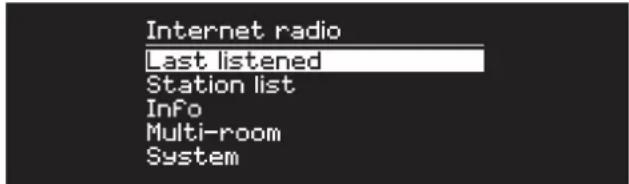
If you have listened to internet radio stations on your R7 before, it will automatically play the last listened station.
Last listened
To access a list of recently listened to stations select MENU > Last listened.
When you use your R7 for the first time, the list will be empty.
Station list
You can browse or search the extensive list of stations by selecting MENU > Station list and selecting from the various options, including genre, location and popularity.
Now playing information
The station name is shown along with additional information like artist and track name. To change what is displayed select MENU > Info and choose from radio text, genre, signal quality, track name, location, and date.
Search for a station
Search for a station by selecting MENU > Station list > Stations > Search stations and then entering the name of the station you're looking for.
Podcasts
Many stations will have associated podcasts which you can browse and search for just like internet radio stations.
Mute
Press ▶10 mute and press again to resume listening.
Save a preset
You can store 10 Internet radio stations in your preset list. See 'Common functions' section.
Recall a preset
See 'Common functions' section.
CD player
To insert a CD, gently push it into the CD slot. Once loaded it will play automatically.
Now playing information
Generally, track number and time is shown on audio CDs and track and album name is shown on MP3 CDs.
19:15
Kings of Leon
Use Somebody
To change what is displayed select MENU > Info and choose from album and artist information, progress bar or filename (options will vary according to the type of CD).
Play / Pause
Press ▶ play or pause a track
Stop play
Long press ▶II
Skip track
Press ▶ or to skip to the next or previous track
Fast-forward or rewind
Press and hold ▶ or to fast-forward or rewind
Eject
Press the eject button next to the CD slot
Shuffle
To play tracks in random order select
MENU > Shuffle > On
Repeat
To repeat a single track or all tracks, select
MENU > Repeat > One or All
Any folder structure on MP3/WMA/AAC disks will be ignored and the tracks will show in a single list
Rights-protected WMA and AAC cannot be played
Bluetooth
Your R7 supports aptX for CD quality streaming and aptX HD for 24-bit hi-res streaming. It will automatically connect to your bluetooth device using the highest quality connection supported by your device.
Pairing your Bluetooth device
When you have changed the source to Bluetooth, wait until Awaiting connection... is shown and the indicator light on top flashes.
Use the Bluetooth setup on your smart device to pair and connect it to your R7. It will appear in the list of paired devices as Ruark R7*. When connected, BT Connected + your device name (eg Archie's phone) is displayed.
It may take a few seconds for your R7 to appear in the list on your device, and in some cases you may need to input "0000" as the pairing password.
If you do not connect within a few minutes, your R7 will stop attempting to connect and show No connection. To connect, select MENU > Connect device.
Connecting your Bluetooth device
As soon as you switch to Bluetooth, your R7 will display Connecting as it attempts to connect to the last device it was paired with.
If that device isn't available, it displays Awaiting connection... To connect to your R7, ensure the Bluetooth function on your device is on and select Ruark R7* from the paired devices list on your Bluetooth device.
Friendly name
*Your R7 will shown up as Ruark R7 on Bluetooth devices, however, you can change this to something more descriptive like "Archie's R7" or "Living room R7". See 'System settings'.
Play audio
Once connected, audio from your Bluetooth device will play through your R7. For more information on playing audio from your Bluetooth device, refer to your device's documentation.
NOTE: you may need to select your Ruark R7 or Bluetooth as your audio output on your device.
Pause track
Press ▶ and then press again to play.
Play next/previous track
Press ▶ skip to the next track in the folder or album, press ▶ to skip to the start of the current track, press again to skip to the previous track.
Adjust volume
We recommend that you adjust the volume on your Bluetooth device so that the playback volume is about the same as other sources. You can then use the volume control on your R7 to adjust overall playback volume.
Now Playing information
Artist, album and track name will show if your Bluetooth device and app support Bluetooth metadata. You can also show the name of the connected device. Select what is shown from MENU > Info.
Operating range
This is typically up to 10 metres (30 feet) from your R7, although obstructions such as walls will reduce this.
Connect device
To disconnect the current device and connect a new one, select MENU > Connect device.
Pairing additional devices
You can pair up to 7 devices, although you will only be able to play audio from one device at a time.
Clearing the paired devices list
If you are having trouble connecting your Bluetooth device, we recommend you clear all pairing information. To do this, select MENU > Clear devices.
You will also need to delete Ruark R7 from the paired devices list on your Bluetooth device before pairing it to your R7 again. For more information visit www.ruarkaudio.com/support
You cannot use the Bluetooth function on your R7 to connect to Bluetooth headphones
Music player
Music player enables you to play audio files stored on a computer on your network, a USB memory stick or portable hard drive.
USB music player
To play audio from a USB mass-storage device (must be FAT32 format) such as a USB Flash stick or USB hard drive, connect it to the USB socket on the back of your R7.
When you first connect a USB mass-storage device, your R7 will automatically ask if you want to view the track list. Otherwise, to view the track list select Menu > USB.
Music Player
Shared media
USB
My Playlist
Clear My Playlist
Repeat Play: OFF
Network music player
Your R7 is fully DLNA compatible and will play music stored in shared media libraries on other devices on your network. A shared library might be on a laptop, smartphone or tablet, but it could also be on a dedicated music server such as a NAS drive (Network Attached Storage).
Most computers running Windows are already configured as media servers as are most NAS drives and some routers will
also work as media servers. There are many apps available for Mac, iOS, Linux, Android, Windows phone, Blackberry, Symbian, etc. that will turn your MP3 player, smartphone or tablet into a music server.
To play music shared by devices on your network select Menu > Shared media. After your R7 has scanned your network for shared media you will see a list of music servers consisting of the computer name and shared media name, for example
The menus after this are generated by the media server, although in most cases you will find options to browse by genre, folder, artist, album etc.
If your R7 is not connected to a network it will attempt to connect.
For more information visit www.ruarkaudio.com/support
Browse and play music
Rotate the CONTROL KNOB to scroll though the track lists, then press the knob to open the highlighted folder/album or play the track.
To go back to the previous screen press BACK.
Pause track
Press ▶ and then press again to play.
Rights-protected WMA and AAC tracks cannot be played on your R7.
Skip track
Press ▶to skip to the next track in the folder or album, press ◀◀ to skip to the start of the current track, press again to skip to the previous track.
Fast-forward or rewind
Press and hold ▶ or to fast-forward or rewind.
Shuffle
To play tracks in random order, select MENU > Shuffle and press the CONTROL KNOB to toggle shuffle play on and off. NOTE: It may not be possible to use this function if the folder contains a large number of tracks.
Repeat
To repeat a single track or all the tracks in the current folder, select MENU > Repeat and press the CONTROL KNOB to choose one, all or off.
My playlist
You can create your own playlist and queue of up to 500 tracks. These can be a mixture of tracks from any available media servers and an attached USB device. To manage your playlist, select Menu > My playlist.
To add a track or folder to your playlist, highlight it then press and hold the CONTROL KNOB for two seconds.
To remove a track from your playlist, highlight the track in My playlist and then press and hold the CONTROL KNOB for two seconds.
Please note that your playlist will stored as long as your R7 remains on or in standby but will be cleared if you turn it off.
Now Playing information
Typically, the track name is shown with additional information below. To change what is displayed select MENU > Info and choose from album and artist information, show the progress bar or data format.
Prune servers
Your R7 will automatically store the name of media servers it has connected to and that are not currently available are shown with a question mark before their name eg '?Home-Laptop'. You can remove them from the list by selecting MENU > Prune servers > YES.
DLNA media streaming
You can also stream audio to your R7 from a Digital Living Network Alliance (DLNA) compatible media server. This is where you browse for music on the server itself and play it through your R7. There are many apps available for Mac, iOS, Linux, Android, Windows phone, etc that will turn your smartphone, tablet or laptop into a DLNA media server.
Windows Media Player even has a 'Play to' function built in that allows you to stream music stored on your computer directly to your R7.
With DLNA media streaming, your R7 functions as a Digital Media Renderer (DMR) so you browse for music on your smartphone or laptop and then stream it to your R7 over your network.
Your R7 will automatically change to DMR mode when you select your R7* as your chosen player – DMR is not a mode that can be selected using the SOURCE key.
Similarly, all the Now playing information will be controlled by the server so there are no settings you can change.
For more details refer to the documentation for your device or app or visit www.ruarkaudio.com/support.
DLNA media streaming requires that your R7 is connected to your network so we recommend that you set it to keep network connected. See system settings section.
Music streaming services
Your R7 supports the music streaming services shown below.
Spotify Connect
Use your phone, tablet or computer as a remote control for Spotify. Go to spotify.com/connect to learn how.
Amazon Music
For more details, visit www.amazon.com
Deezer
For more details, visit dzr.fm/airable
TIDAL
For more details, visit tidal.com/try-now Please note that TIDAL high quality is not supported in multi-room mode. To listen to TIDAL in multi-room mode, change the audio quality to normal using the Ruark Link app.
The range of supported music services may change without notice.



EN-25
EN
Line in and optical
You can listen to audio from an external analogue audio source by connecting it to Line in 1 or 2 or a digital source by connecting it to Optical 1 or 2.
Phono
Your R7 includes a high-fidelity phono stage pre-amplifier for use with a moving magnet (MM) turntable cartridge.
It is not designed for a moving coil type cartridge.
To connect a turntable to your R7, we recommend high quality phono leads.
Input level adjustment
For best audio performance, we recommend you balance the volume level of an external device (eg portable music player or turntable) so its volume is about the same as inbuilt sources like CD or USB.
If the volume is lower, increase the input level.
If the volume is higher or distorts, decrease the input level.
You can adjust the input level by selecting MENU > Input level and choose your desired level.
If your external audio source has a volume control you may also need to adjust that.
Line in input levels
-3dB (devices with unusually high output)
+0dB (devices with standard 2.1Vrms line level output)
+6dB (default)
+12dB (eg smartphones with high headphone output)
+18dB (eg smartphones with standard headphone output)
+24dB (eg smartphones with low headphone output)
Phono input levels
These are designed to work with the most common moving magnet (MM) cartridges, please check the specification of your cartridge and select the most appropriate setting.
-3dB (6-8mV)
+0dB (4-6mV)
+3dB (3-4mV)
+6dB (2-3mV)
For best audio performance, we recommend you balance the volume level of external devices by adjusting input levels
Ground loops
(Eliminating hum and buzz)
In some circumstances, you may hear hum or buzz when connecting an external audio source via Line in or Phono input, for example playing from an external mains powered device or one powered from the USB socket on your R7.
Unfortunately, this is a relatively common problem that is not always simple to fix. However, your R7 includes two features that should help with this issue.
Swap between Line in 1 and Line in 2
Line in 2 is ground isolated and Line in 1 is not, so you may find that one input is quieter than the other.
Use the grounding terminal on the back panel
If this doesn't work or you are using the Phono input, try linking the ground from your external device to the grounding terminal on the back of your R7.
For more information visit www.ruarkaudio.com/support
IMPORTANT
Please remove mains cable from your R7 before connecting to its ground terminal. If you are unsure how to connect the ground of your external device to the R7, please seek advice!
Multi-room
This device is fully compatible with Ruark Audio multi-room and enables you to stream music seamlessly from one room to another.
To create a group select MENU > Multi-room > Create new group, enter a name for the group and select OK. From the list of other compatible devices found on your network, select up to 5 devices to join the group and then press MENU to confirm your selection and exit. All devices in the group will now play synchronised audio.
To add devices to the current group, select MENU > Multi-room > Add to group
To remove other devices to the current group, select MENU > Multi-room > Remove from group
To remove the current device from the group select MENU > Multi-room > Leave group
To delete the current group select MENU > Multi-room > Dissolve group. The group is dissolved and multi-room playback will stop.
You can also setup and control multi-room playback using the UNDOK app.
For more information visit www.ruarkaudio.com/support
Multi-room mode does not support FLAC format
App control
You can also control your R7 and set up multi-room playback using the UNDOK app. Find it on the Apple/Android app store.
For more information visit www.ruarkaudio.com/app.

App access PIN
Set up a PIN to restrict access to your R7 so only authorised users can control it from the UNDOK app.
MENU > System > Network > App access PIN.
Alarms, snooze and sleep
Setting an alarm
An active alarm is indicated by the alarm icon and when it sounds, the icon flashes.
Select MENU > System > Date and time > Alarms and choose alarm 1 or alarm 2 using the CONTROL KNOB.
Choose when the alarm will sound (off, daily, once, weekends or weekdays), set the time and then choose to have the alarm play a radio station, CD or sound a tone and choose the volume. Finally, select save to save the alarm and exit the set up menu.
NOTE: it is not possible to use a Bluetooth source, USB or network music server for the alarm.
Snooze
Press the CONTROL KNOB to temporarily silence a sounding alarm, press it again to increase the snooze period (5, 10, 15 or 30 minutes).
To cancel an alarm that is sounding or in snooze mode, press and hold the CONTROL KNOB for two seconds.
Sleep timer
To set the time after which your R7 will automatically switch to standby, select MENU > System > Date and time > Sleep.
Choose the delay in minutes (Off, 15, 30, 45, 60) and finally press the knob to confirm your selection. The display then dims to standby brightness, returns to the Now-playing screen and displays the sleep icon.
Specifications
Amplifiers and drivers
2 × 5.5in dual concentric drivers
1 × 8in long-throw subwoofer
180W discrete Class AB power amplifier
Integrated MM phono preamplifier
Enhanced digital 3D audio processor
Tuner
DAB, DAB+ and FM Tuner with RDS
75 Ohm F-type DAB/FM aerial input
CD player
CD, CD-ROM, CD-R/RW disks
MP3, WMA, AAC 320kbps
Digital audio
Audiophile 32-bit 112dB audio stereo DAC
Internet radio, Spotify Connect, Amazon Music, Deezer, TIDAL, UPnP™ DLNA
802.11b/g/n Wi-Fi supports WEP, WPA & WPA2 security
MP3 48kHz 320kbps, AAC 96kHz 320kbps,
FLAC 24-bit 48kHz, WAV 16-bit 48kHz / 24 bit 44.1kHz, WMA 44.1kHz 320kbps
Bluetooth V4.0, SBC, AAC, A2DP, aptX, aptX HD
Inputs and outputs
1 x MM phono input (RCA) 2-8mV
2 x Digital optical (TOSLINK) 24-bit 192kHz
2 x Line inputs (RCA) 2.3Vrms
1 x Line line out (RCA) 2.0Vrms
1 x Ethernet (RJ45)
5W (5V 1A) USB
3.5mm headphone jack, 25mW into 16-32 Ohm
Power
Mains input: 100-120/200-240 VAC 50 - 60Hz
Fuse: 250V T 6.3A
Nominal consumption: 25W
Standby consumption: 2.0W
Physical
Dimensions without legs:
H165 × W1000 × D400mm
(H6.5 x W39.4 x D15.7in)
Weight (with legs): 27.8kg (61.3lbs)
Specification and design subject to modification without notice. Digital Tick certification obtained using the supplied wire dipole aerial.
Safety and regulatory information
- Read this user guide and follow all instructions, it will help you set up and operate your product properly.
- Heed all warnings and keep this user guide for future reference.
- Do not attempt to use a damaged device as this could result in a dangerous electric shock.
- Do not open the unit or remove any panels to expose the electronics. No user serviceable parts inside.
- Refer all servicing to qualified service personnel. Servicing is required when the device has been damaged in any way, such as power-supply cord or plug is damaged, liquid has been spilled or objects have fallen into the device, the device has been exposed to rain or moisture, does not operate normally, or has been dropped.
- This device is intended to be operated ONLY from the AC voltages listed on the back panel or included power supply. Operation from voltages other than those indicated may cause irreversible damage to the device and void the product warranty.
- Ensure that the mains plug or mains connector into the unit is readily accessible in case disconnection from the mains is required.
- The mains adapter, mains plug or mains connector must be removed from the socket to completely disconnect the system from mains power.
- Do not place any naked flame sources, such as lighted candles, on or near the device. Do not install near any heat sources such as radiators, stoves, or other devices (including amplifiers) that produce heat.
-
Avoid exposure to extreme heat or cold.
-
Only use attachments/accessories specified for this device. Make no modifications to the system or accessories. Unauthorised alterations may compromise safety, regulatory compliance, and system performance.
- Only use the supplied aerial or an approved replacement.
- To reduce the risk of fire or electrical shock, do not expose the device to rain or moisture. Do not expose this device to dripping or splashing, and do not place objects filled with liquids, such as vases, on or near the device. As with any electronic products, use care not to spill liquids into any part of the system. Liquids can cause a failure and/or a fire hazard.
- Unplug this device during lightning storms or when unused for long periods of time to prevent damage to this device.
- To prevent risk of fire or electric shock, avoid overloading wall outlets, extension cords, or integral convenience receptacles.
- Long-term exposure to loud music may cause hearing damage. It is best to avoid extreme volume when using headphones, especially for extended periods.
- Do not install this device in a confined space. Always leave a space of at least 10cm around the device for ventilation and ensure that curtains or other objects never cover ventilation openings on the device.

LITHIUM COIN CELL SAFETY NOTICE. The remote control contains a lithium coin cell battery which if ingested, may cause chemical burns. Keep new and used batteries out of reach of small children. If you think batteries may have been ingested, seek immediate medical attention. Do not handle leaking or damaged batteries. Danger of explosion if battery is incorrectly replaced. Replace only with the same or equivalent type.

This device is labelled in accordance with European Directive 2012/19/EU concerning waste electrical and electronic equipment. This symbol indicates that the product or associated batteries should not be disposed of as general household waste. As with any electrical equipment, please dispose of it according to local regulations.

CE COMPLIANCE INFORMATION
This product conforms to all EU Directive requirements as applicable by law. Hereby, Ruark Audio, declares that this device complies with the essential requirements and other relevant provisions of the European Radio Equipment Directive 2014/53/EU.
You can download the full CE Declaration of Conformity at www.ruarkaudio.com/doc/R7mk3doc.pdf

UK CONFORMITY ASSESSMENT INFORMATION
This product conforms to all UK Conformity Assessment regulations as applicable by law. You can download the full UKCA Declaration of Conformity at www.ruarkaudio.com/doc/R7mk3UKCA.pdf
Troubleshooting
For help with your product, please refer to the FAQ (Frequently Asked Questions) page in the support area of our website.
For more information visit www.ruarkaudio.com/support
EN
Guarantee
Register your product to get an extended three-year guarantee.
As standard, this product is guaranteed to be free from defects for a period of two years from date of purchase, but this is extended to three years if you register your product at www.ruarkaudio.com.
This guarantee remains valid providing this product has been treated with due care and attention. Product failure through accidental damage, excessive wear and tear, negligence or unauthorised modification will void this guarantee.
If this product was purchased in the UK and it develops a fault, please contact the retailer from which it was purchased, or contact us directly via our website www.ruarkaudio.com/support.
For products purchased outside the UK the distributor in the country of purchase guarantees the product. For details, please contact the local Ruark distributor or outlet.
If returning this product, please ensure it is packed in its original packaging and a proof of purchase is included.
This guarantee in no way varies or removes the purchaser's statutory rights.
Errors and omissions excepted.
General care
- Clean with a soft, lint-free duster or slightly dampened cloth. Do not use wax sprays or other substances as these may damage the surface finish or impair performance.
- Do not expose your unit to direct sunlight, high humidity, dust, excessive vibration or extreme temperatures, all of which can affect the finish, performance and reliability of the unit.
- Recommended operating temperature range is 5^ to 40^ .
- Natural wood finish cabinets will vary and lighten or darken with age, particularly when exposed to sunlight.
Copyright and trademarks
© Ruark Audio. All rights reserved. Ruark Audio, the Ruark Audio logo, and other Ruark Audio marks are owned by Ruark Audio and may be registered. All other trademarks are the property of their respective owners. Ruark Audio assumes no responsibility for any errors that may appear in this manual and the information contained in it may change without notice.
Bluetooth® and associated logos are registered trademarks owned by Bluetooth SIG, Inc.
Qualcomm aptX and aptX HD are products of Qualcomm Technologies International, Ltd.
The Spotify software is subject to third party licenses found here: www.spotify.com/connect/third-party-licenses
All other trademarks are the property of their respective owners.
ruarkaudio
R7 mk3 High Fidelity Radiogram
Brugervejledning
Tak fordi du har valgt vores R7 mk3 High Fidelity radiogram.
natural_image
Diagram of a device with a cable and connector, showing no text or symbols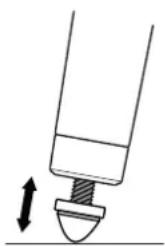
natural_image
Simple line drawing of a mechanical component with an upward arrow indicating motion (no text or symbols)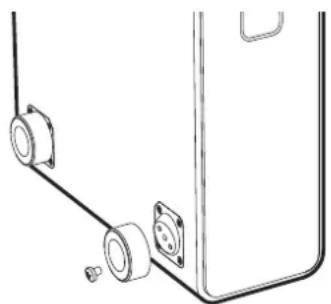
natural_image
Technical line drawing of a mechanical assembly with two components and a bracket (no text or symbols)natural_image
Diagram of a mechanical knob or knob with directional arrows indicating movement, no text or symbols presentGennemse menuer, spor- og stationslister
For at skifte indstillinger – tryk på MENU
For at rulle igennem valg – drej KONTROLKNAPPEN
MENU > System > Date and time
MENU > System > Network > Keep connected
*Dynamic Label Segment
Skift station
Kings of Leon Use Somebody
1 × 8in long-throw subwoofer
Internet radio, Spotify Connect, Amazon Music, Deezer, TIDAL, UPnP™ DLNA
802.11b/g/n Wi-Fi understøttet WEP-, WPA- og WPA2-sikkerhed
MP3 48kHz 320kbps, AAC 96kHz 320kbps,
FLAC 24-bit 48kHz, WAV 16-bit 48kHz / 24 bit 44.1kHz, WMA 44.1kHz 320kbps
Bluetooth V4.0, SBC, AAC, A2DP, aptX, aptX HD
Indgange og udgange
1 x MM phono indgang (RCA) 2-8mV
2 x digital optisk (TOSLINK) 24-bit 192kHz
2 x Line indgang (RCA) 2.3Vrms
H165 × W1000 × D400mm
natural_image
Simple diagram of a rectangular device with a circular button labeled '1' and a horizontal bar inside, no text or symbols present.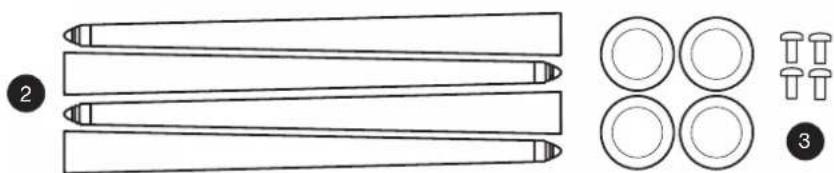
natural_image
Diagram showing three parallel cylindrical objects with different end caps and circular features, labeled 2, 3, and 4 (no text or symbols on the objects themselves)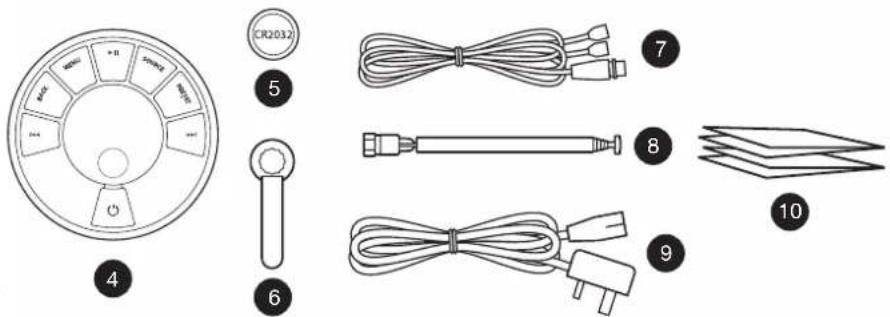
Steuerung
natural_image
Technical line drawing showing a door panel being inserted into a socket, with an arrow indicating the insertion direction (no text or symbols present)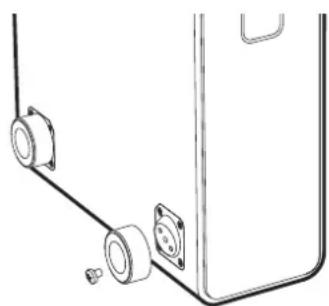
natural_image
Technical line drawing of a mechanical component with two cylindrical pins and a separate rectangular housing (no text or symbols)natural_image
Diagram of a mechanical knob or dial with directional arrows indicating rotation and movement (no text or symbols)The provided image is completely black and contains no text or visible content. Therefore, there is no OCR result to output.
*Dynamic Label Segment
Sender wechseln
Kings of Leon Use Somebody
Download on the App Store

GET IT ON Google Play
MP3, WMA, AAC 320 kbit/s
Digitalaudio
Internet radio, Spotify Connect, Amazon Music, Deezer, TIDAL, UPnP™ DLNA
H165 × B1000 × T400mm
natural_image
Diagram of a device with a black curved arrow pointing to a component, no text or symbols present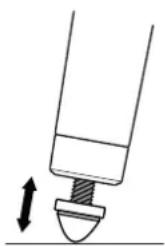
natural_image
Simple line drawing of a mechanical component with an upward arrow indicating motion (no text or symbols)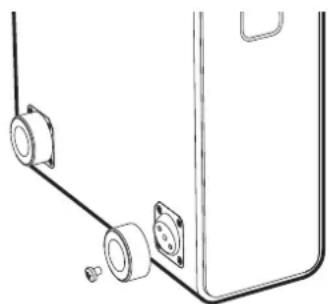
natural_image
Technical line drawing of a mechanical assembly with two components and a bracket (no text or symbols)natural_image
Diagram of a mechanical knob or dial with directional arrows indicating rotation and movement (no text or symbols)*Dynamic Label Segment
Cambiar emisora
Line in et Optical 26
Tourne-disque 26
Audio multi-pieces 27
natural_image
Diagram of a device with a black curved arrow pointing to a component, no text or symbols present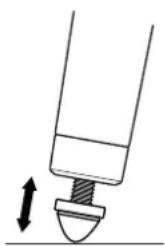
natural_image
Simple line drawing of a mechanical component with an upward arrow indicating motion (no text or symbols)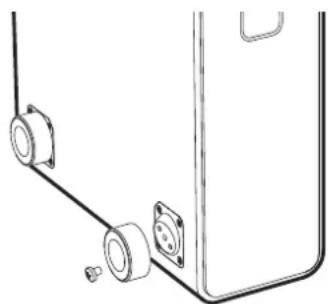
natural_image
Technical line drawing of a mechanical component with two cylindrical parts and a base, no text or symbols presentnatural_image
Diagram of a mechanical knob or knob with directional arrows indicating movement, no text or symbols presentChanger de station radio FM
Changer de station radio DAB
*Dynamic Label Segment
Changer de station
Radio Internet, Spotify Connect, Amazon Music, Deezer, TIDAL, UPnP™ DLNA
2 prises Line, RCA 2.3Vrms
1 prise Line out, RCA 2.0Vrms
1 prise Ethernet (RJ45)
5W (5V 1A) USB
CE INFORMATIONS SUR LA CONFORMITÉ À LA CE
Ingressi Line in e optical 26
Phono 26
Livelli in entrata 26
Multi-room 27
Controllo app 28
natural_image
Diagram showing a device with a cable being inserted into a housing, and a close-up of the cable being inserted (no text or symbols present)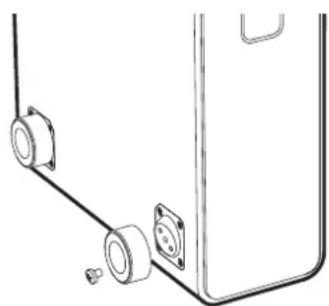
natural_image
Technical line drawing of a mechanical component with two cylindrical pins and a separate rectangular housing (no text or symbols)natural_image
Diagram of a mechanical component with arrows indicating motion or force direction (no text or symbols)MENU > System > Date and time
MENU > System > Network > Keep connected
*Dynamic Label Segment
Cambio di stazione
Kings of Leon Use Somebody
Ingressi Line in e optical
Download on the App Store

GET IT ON Google Play
Radio DAB, DAB+ FM con RDS
MP3, WMA, AAC 320 kbit/s
Audio digitale
DAC stereo da 112dB 32 bit
Radio Internet, Spotify Connect, Amazon Music, Deezer, TIDAL, UPnP™ DLNA
802.11b/g/n Wi-Fi con sicurezza WEP, WPA e WPA2
MP3 48kHz 320kbps, AAC 96kHz 320kbps,
FLAC 24-bit 48kHz, WAV 16-bit 48kHz / 24 bit 44.1kHz, WMA 44.1kHz 320kbps
Bluetooth V4.0, SBC, AAC, A2DP, aptX, aptX HD
Ingressi e uscite
Consumo in stand-by: 2,0 W
natural_image
Diagram of a device with a cable being inserted into a wall-mounted socket (no text or symbols present)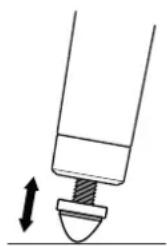
natural_image
Simple line drawing of a mechanical component with an upward arrow indicating motion (no text or symbols)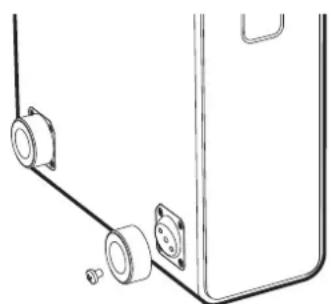
natural_image
Technical line drawing of a mechanical assembly with two cylindrical components and a separate curved component (no text or symbols)natural_image
Diagram of a mechanical component with arrows indicating motion or force direction (no text or symbols)Browsen in menu's, track- en stationslijsten
Fast-forward of rewind track
MENU > System > Date and time
MENU > System > Network > Keep connected
Van station wisselen
Van station wisselen
Fast-forward of rewind
Netwerkmuziekspeler
Fast-forward of rewind
1 × 8in long-throw subwoofer
180 W discrete Klasse AB versterker
75 Ohm F-type DAB/FM-antenne-invoer
CD-speler
CD, CD-ROM, CD-R/RW disks
MP3, WMA, AAC 320kbps
Digitaal audio
Audiofiele 32-bits 112dB audiostereo DAC
Internetradio, Spotify Connect, Amazon Music, Deezer, TIDAL, UPnP™ DLNA
802.11b/g/n Wi-Fi ondersteunt WEP, WPA & WPA2 veiligheid
MP3 48kHz 320kbps, AAC 96kHz 320kbps,
FLAC 24-bit 48kHz, WAV 16-bit 48kHz / 24 bit 44.1kHz, WMA 44.1kHz 320kbps
Bluetooth V4.0, SBC, AAC, A2DP, aptX, aptX HD
natural_image
Diagram of a device with a black curved arrow pointing to a component, no text or symbols present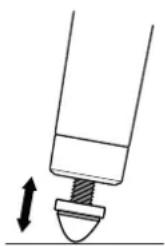
natural_image
Simple line drawing of a mechanical component with an upward arrow indicating motion (no text or symbols)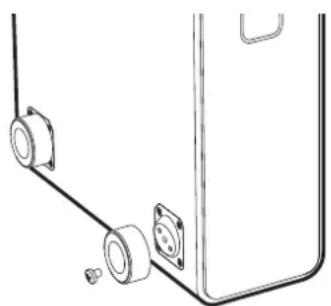
natural_image
Technical line drawing of a mechanical assembly with two circular components and a separate rectangular component (no text or symbols)natural_image
Diagram of a mechanical knob or knob with directional arrows indicating movement, no text or symbols presentMENU > System > Network > Keep connected
*Dynamic Label Segment
Endre stasjon
75 Ohm F-type DAB/FM antenne-inngang
CD spiller
CD, CD-ROM, CD-R/RW disker
MP3, WMA, AAC 320kbps
Digital lyd
Audiofil 32-bit 112dB lydstereo DAC
Internett radio, Spotify Connect, Amazon Music, Deezer, TIDAL, UPnP™ DLNA
802.11b/g/n Wi-Fi støtter WEP, WPA & WPA2 sikkerhet
MP3 48kHz 320kbps, AAC 96kHz 320kbps,
FLAC 24-bit 48kHz, WAV 16-bit 48kHz / 24 bit 44.1kHz, WMA 44.1kHz 320kbps
Bluetooth V4.0, SBC, AAC, A2DP, aptX, aptX HD
natural_image
Silhouette of a tree with no text or symbols visibleGenerelt vedlikehold
59 Tailors Court, Temple Farm Industrial Estate,
Southend on Sea, Essex, SS2 5TH, UK
www.ruarkaudio.com


20210304.1