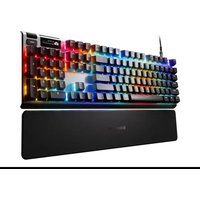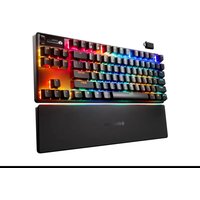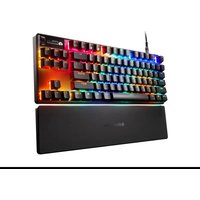
Apex Pro TKL Wireless - Keyboard STEELSERIES - Free user manual and instructions
Find the device manual for free Apex Pro TKL Wireless STEELSERIES in PDF.



| Product Type | Wireless Gaming Keyboard |
| Brand | SteelSeries |
| Model | Apex Pro TKL Wireless |
| Layout | TKL (Tenkeyless, without numeric keypad) |
| Connectivity | Wireless 2.4 GHz, Bluetooth 5.0, USB-C wired |
| Switch Technology | Omnipoint adjustable actuation (magnetic switches) |
| Integrated Display | Smart OLED Display |
| Backlighting | Per-key RGB, software adjustable |
| Internal Memory | Built-in configuration profiles |
| Programmable Functions | On-the-fly macros, key remapping |
| Wrist Rest | Included, magnetic |
| Adjustable Feet | Three tilt levels |
| System Compatibility | PC, Mac, Xbox, PlayStation |
| Customization Software | SteelSeries Engine (via GG) |
| Battery | Rechargeable lithium-ion (estimated 30-40 hours battery life) |
| Charging | USB-C, LED indicator on the ESC key |
| Included Cable | Detachable braided USB-C to USB-A cable |
| Included Accessories | Keycap puller, USB-C dongle, extension adapter |
| Keycap Material | PBT (double-shot, wear-resistant) |
| Dimensions (approx.) | 360 x 140 x 40 mm (without wrist rest) |
| Weight (approx.) | 1,050 g (with cable and wrist rest) |
| Maintenance | Dust with a microfiber cloth; removable keycaps for deep cleaning |
| Safety | Compliant with IC and FCC standards; short-circuit protected battery |
| Repairability | Spare parts available on steelseries.com (keycaps, cable, wrist rest) |
Frequently Asked Questions - Apex Pro TKL Wireless STEELSERIES
User questions about Apex Pro TKL Wireless STEELSERIES
0 question about this device. Answer the ones you know or ask your own.
Ask a new question about this device
Download the instructions for your Keyboard in PDF format for free! Find your manual Apex Pro TKL Wireless - STEELSERIES and take your electronic device back in hand. On this page are published all the documents necessary for the use of your device. Apex Pro TKL Wireless by STEELSERIES.
USER MANUAL Apex Pro TKL Wireless STEELSERIES
PRODUCT INFORMATION GUIDE
TABLE OF CONTENTS
General 3
Product Overview 4
Setup 6
Functions 7
Swappable Keycaps 8
Battery Indicator 9
Bluetooth 9
Translations 10
Deutsch 10
Español 12
Français 14
Italiano 16
Polski 18
Português 20
Русский 22
日本語 24
简体中文 26
繁體中文 28
한국어 30
ไทย 32
Regulatory 36
PACKAGE CONTENTS
Apex Pro TKL Wireless
Detachable Braided USB-C to USB-A Cable
USB-C Wireless Dongle
Extension Adapter
Keycap Puller
Wrist Rest
SYSTEM COMPATIBILITY
PC
Mac
Xbox
PlayStation
SOFTWARE
text_image
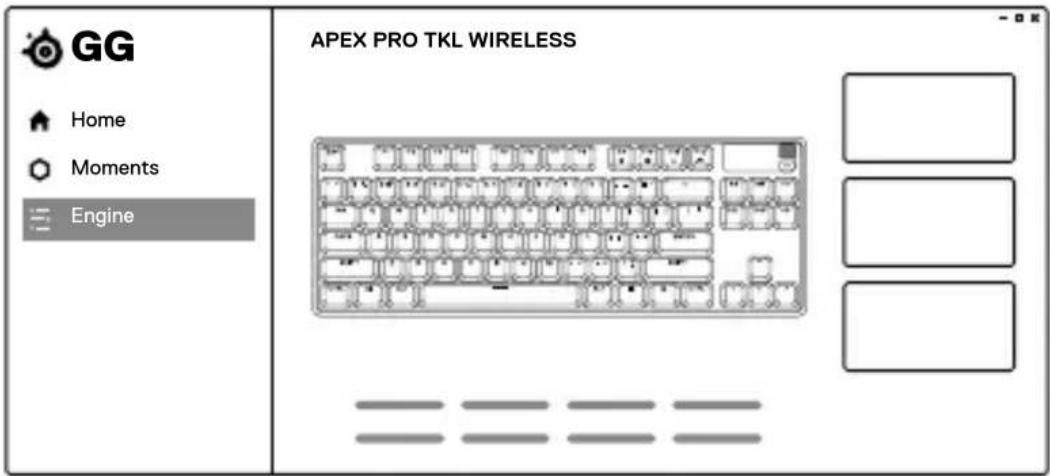
GG Home Moments Engine APEX PRO TKL WIRELESSUse Engine inside SteelSeries GG to customize your lighting, macros and more.
GG also has other amazing apps like Moments, which makes it easier and faster to clip and share highlights with friends.

DOWNLOAD NOW
steelseri.es/gg
KEYBOARD
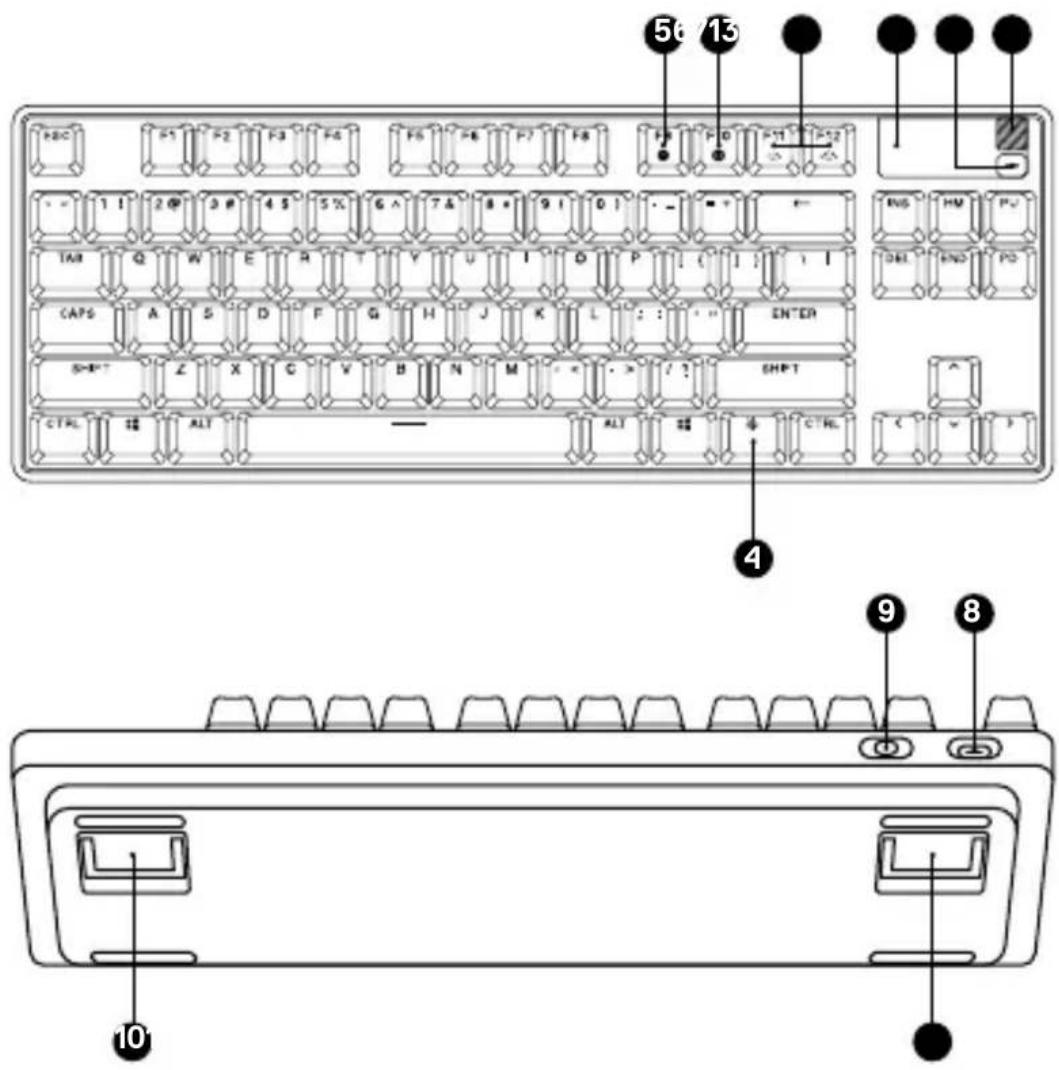
1 OLED Smart Display
2 OLED Menu Button
3 Multimedia Volume Roller
4 SteelSeries Function Key
5 Profile Switching Key
6 On-the-Fly Macro Recording Key
7 Illumination Brightness Key (Up / Down)
8 USB-C Jack
9 Wireless Mode Switch
10 Tri-Level Feet
text_image
Diagram of a computer control panel with labeled keys and buttons, showing internal layout and terminal connections.ACCESSORIES\*
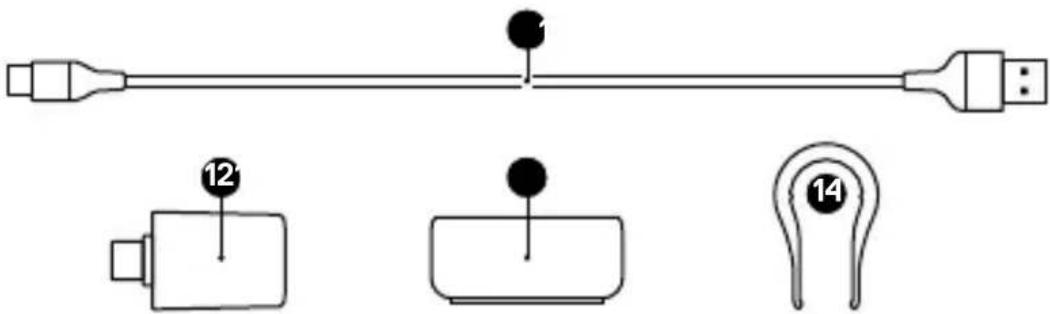
11 Detachable Braided USB-C to USB-A Cable*
12 USB-C Wireless Dongle
13 Extension Adapter
14 Keycap Puller
text_image
Diagram showing three labeled components: a USB connector, a battery pack with two pins (12 and 14), and a terminal connector.CONNECTING VIA 2.4 GHZ WIRELESS
1 Connect the USB-C Wireless Dongle (12) to an available USB port on your device.
2 Toggle the Wireless Mode Switch (9) to the "2.4 GHz" position.
3 The Keyboard and USB-C Wireless Dongle (12) will automatically pair.
4 To further customize your Keyboard, or re-pair a Wireless Dongle, download the SteelSeries Engine software from steelseries.com/engine
BASIC PAIRING VIA BLUETOOTH
1 Initiate Bluetooth pairing mode on your Bluetooth 5.0 or higher enabled device.
2 Toggle the Wireless Mode Switch (9) to the Bluetooth *position to turn on your Keyboard.
3 The Keyboard lighting will start blinking blue when searching for a connection.
4 Select "Apex Pro TKL Wireless" on your Bluetooth-enabled device.
OMNIPOINT ADJUSTABLE ACTUATION
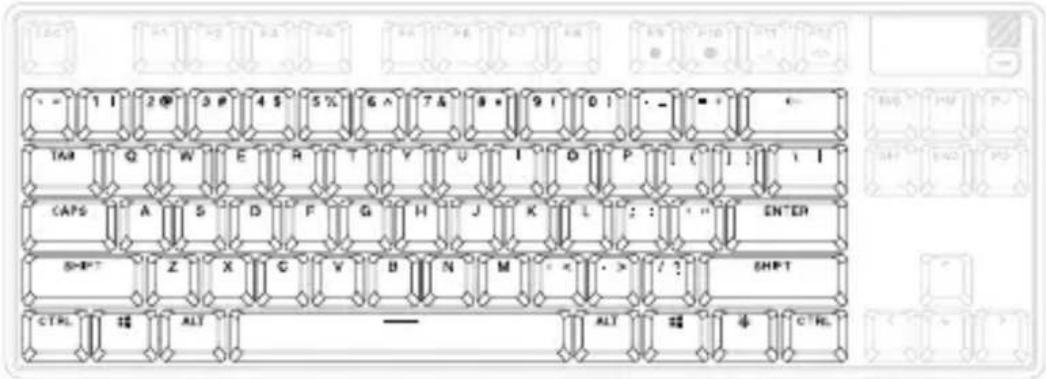
To configure the actuation of the highlighted keys, download SteelSeries Engine or access the respective settings via the OLED Menu.
text_image
TAB TAG CAPS SHIFT CTRL 20 3 P 4 S 5 % G ^ T & 8 * 9 I 0 ! - - - - Q W E R T V U I D P [ ( ] : I A S D F G H J K L : : " EN"ER Z X C V B N M - < - > / ? SHIFT ALT ALT 半 CTRLPROFILE SWITCHING
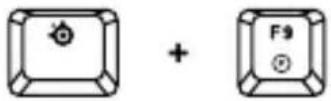
Press the SteelSeries Function Key (4) + Profile Switching Key (5) repeatedly to cycle through the profiles.
1 Press and hold the SteelSeries Function Key (4) + On-the-Fly Macro Recording Key (6) for 3 seconds to start recording.
2 Type your desired key combinations.
3 Press the SteelSeries Function Key (4) + On-the-Fly Macro Recording Key (6) to end Macro Recording.
4 Lastly, select a key to which you would like to bind the recorded macro.
text_image
Diagram showing three labeled buttons with symbols: a plus sign, a F11 button, and a plus sign with F12.Press the SteelSeries Function Key (4) + Illumination Brightness Key (Down) (7) to reduce Illumination Brightness.
Press the SteelSeries Function Key (4) + Illumination Brightness Key (Up) (7) to increase Illumination Brightness.
MULTIMEDIA CONTROLS
Multimedia Volume Roller (3)
Volume Up Scroll Wheel Up
Volume Down Scroll Wheel Down
Mute/Unmute Toggle Press Wheel
OLED Menu Button (2)
Play / Pause Single Press
Forward/Skip Track Double Press
Back/Previous Track Triple Press
OLED SMART DISPLAY INPUT
OLED Menu Button (2)
Enter OLED Menu Long Press (2 sec)
Back/Exit Single Press
Multimedia Volume Roller (3)
Navigate Menu Up Scroll Wheel Up
Navigate Menu Down Scroll Wheel Down
Select Highlighted Item Press Wheel
SWAPPABLE KEYCAPS
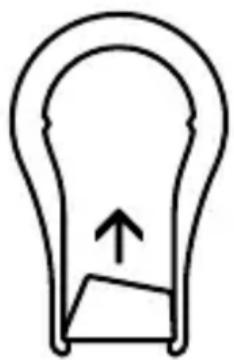
Each Keycap on the Apex Pro TKL Wireless can be removed and replaced. Use the Keycap Puller (14) located on the bottom of your Keyboard to easily pull off each Keycap. Replacement and additional designer Keycap Sets are available for purchase on steelseries.com.
natural_image
Simple line drawing of a light bulb with an upward arrow inside, no text or symbols present.LOW BATTERY INDICATOR
When battery is below 5 %, the keyboard will pulse red.
CHARGING INDICATOR
When charging, the ESC key will flash green. When fully charged, the ESC key will turn solid green.
BLUETOOTH
PAIRING
Apex Pro TKL Wireless can pair with and store three Bluetooth device profiles (1 for device one, 2 for device two, or 3 for device three).
To initiate pairing mode, hold SteelSeries Function Key (4) + Enter + 1, 2, or 3.

text_image
Diagram showing three labeled rectangular blocks with internal symbols and directional arrows, likely illustrating a basic electrical or mechanical concept.The keyboard will blink blue until successfully paired with a Bluetooth device. If no device is found, Bluetooth pairing will time out.
BLUETOOTH PROFILE SWITCHING
To cycle through the three paired device profiles, press the SteelSeries Function Key (4) + Enter + 1, 2, or 3. Your keyboard will then automatically connect to the previously paired device.

text_image
Diagram showing three labeled rectangular blocks with internal symbols and directional arrows, possibly indicating a logic or logic operation.DEUTSCH
ALLGEMEIN
LIEFERUMFANG
Apex Pro TKL Wireless
Erweiterungsadapter
USB-C-Wireless-Dongle
KOMPATIBILITÄT
PC, Mac, Xbox, PlayStation
SOFTWARE
12 USB-C-Wireless-Dongle
14 Tastenheber
Leiser Scrollrad runter
Apex Pro TKL Wireless
Apex Pro TKL Wireless
Apex Pro TKL Wireless
Prolunga
Dongle wireless USB-C
Poggiapolso
COMPATIBILITÀ DEL SISTEMA
PC, Mac, Xbox, PlayStation
SOFTWARE
INSERIMENTO DISPLAY SMART OLED
Pulsante menu OLED (2)
Apex Pro TKL Wireless
Apex Pro TKL Wireless
Apex Pro TKL Wireless
Apex Pro TKL Wireless
取外し可能な編み込みUSB-C & USB-A
ケーブル
USB-Cワイヤレスドングル
延長アダプター
キーキャッププーラーリストレスト
システム互換性
Apex Pro TKL Wireless
USB-C 无线收发器
Apex Pro TKL Wireless
擴充轉接器
Europe – EU Declaration of Conformity
Hereby, SteelSeries ApS. declares that the equipment which is compliance with directive RoHS 2.0 (2015/863/EU), R.E.D (2014/53/EU), EMC Directive (2014/30/EU), and LVD (2014/35/EU) which are issued by the Commission of the European Community.
The full text of the EU declaration of conformity is available at the following internet address: https://support.steelseries.com/hc/en-us/categories/360001256111-Other-Stuff
Operating Temperature: 0^ C to +40^ C
SteelSeries ApS. hereby confirms, to date, based on the feedback from our suppliers indicates that our products shipping to the EU territory comply with REACH (Registration, Evaluation, Authorization, and Restriction of Chemicals – (EC) 1907/2006) compliance program. We are fully committed to offering REACH compliance on the products and posting accurate REACH compliance status for the all of products.
Frequency bands and Powers (Keyboard and Transceiver)
a. Frequency band(s) in which the radio equipment operates: 2.400–2.4835 GHz
b. Maximum radio-frequency power transmitted in the frequency band(s) in which the radio equipment operates:
• EIRP: GFSK: 9.99 dBm (Keyboard /BLE))
• EIRP: GFSK: 8.86 dBm (Keyboard /SRD)
• EIRP: GFSK: 5.13 dBm (Transceiver/SRD)
c. Firmware Version: Keyboard v3.3.4 / Transceiver v2.3.2
UK CA
UK Declaration of Conformity
Hereby, SteelSeries ApS. declares that the following equipment which is compliance with Electromagnetic Compatibility Regulations 2016, Electrical Equipment (Safety) Regulations 2016 and The Restriction of the Use of Certain Hazardous Substances in Electrical and Electronic Equipment Regulations 2012 issued by the Department for Business, Energy& Industrial Strategy.
The full text of the UK declaration of conformity is available at the following internet address: https://support.steelseries.com/hc/en-us/categories/360001256111-Other-Stuff
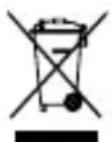
WEEE
This product must not be disposed of with your other household waste or treat them in compliance with the local regulations or contact your local city office, your household waste disposal service or the shop where you purchased the product.
Turkey RoHS Compliance
Republic of Turkey: In conformity with the EEE Regulation
Safety Guideline for Lithium Battery
This battery must not be disposed of with your other household waste or treat them in compliance with the local regulations or contact your local city office, your household waste disposal service or the shop where you purchased the product.

Federal Communication Commission Interference Statement
This device complies with Part 15 of the FCC Rules. Operation is subject to the following two conditions:
- This device may not cause harmful interference, and
- this device must accept any interference received, including interference that may cause undesired operation.
This equipment has been tested and found to comply with the limits for a Class B digital device, pursuant to Part 15 of the FCC Rules. These limits are designed to provide reasonable protection against harmful interference in a residential installation. This equipment generates, uses and can radiate radio frequency energy and, if not installed and used in accordance with the instructions, may cause harmful interference to radio communications. However, there is no guarantee that interference will not occur in a particular installation. If this equipment does cause harmful interference to radio or television reception, which can be determined by turning the equipment off and on, the user is encouraged to try to correct the interference by one of the following measures:
• Reorient or relocate the receiving antenna.
- Increase the separation between the equipment and receiver.
- Connect the equipment into an outlet on a circuit different from that to which the receiver is connected.
- Consult the dealer or an experienced radio/TV technician for help.
FCC Caution:
Any changes or modifications not expressly approved by the party responsible for compliance could void the user's authority to operate this equipment.
This transmitter must not be co-located or operating in conjunction with any other antenna or transmitter.
Radiation Exposure Statement:
The device has been evaluated to meet general RF exposure requirement, the device can be used in portable exposure condition without restriction.
FCC ID: ZHK-KB19 (Keyboard)
FCC ID: ZHK-KB19TX(Transceiver)
Industry Canada Statement
This device complies with Industry Canada license-exempt RSS standard(s). Operation is subject to the following two conditions:
- this device may not cause interference, and
- this device must accept any interference, including interference that may cause undesired operation of the device.
This Class B digital apparatus complies with Canadian ICES-003.
This device and its antenna(s) must not be co-located or operating in conjunction with any other antenna or transmitter, except tested built-in radios.
The County Code Selection feature is disabled for products marketed in the US/ Canada.
The appliance must not be exposed to splashes or drops of water and it should not be used as a support for any object filled with liquid, such as a vase.
Radiation Exposure Statement
The device has been evaluated to meet general RF exposure requirement, The device can be used in portable exposure condition without restriction.
RISK OF EXPLOSION IF BATTERY PACK IS NOT REPLACE BY SAME TYPE AS SPECIFIED BY THE MANUFACTURER.
Please keep follow all listed important warnings and cautions below while using this battery pack to avoid any damage or hazard.
- The battery polarity (+) and (-) shall not be connected and charged reversely. Risk of explosion if the battery polarity (+) and (-) is reversed.
- Please keep this battery pack away from fire and high heat sources due to the explosion that might happen. Do not place your battery pack close to any heater or hot location.
- This battery pack shall not be hit or impacted. This battery pack shall not be dealt with any sharp or keen objects either.
- This battery pack shall not be exposed to moisture, dripping or splashing.
- If any electrolyte flows out of this battery pack when touching the user's eyes and skin, please seek medical advice immediately.
"MISE EN GARDE!"
RISQUE D'EXPLOSION SI LE BLOC-PILES N'EST PAS REMPLACÉ PAR LE MÊME TYPE QUE SPÉCIFIÉ PAR LE FABRICANT.
IC: 9638A-KB19TX (Transceiver)

Restriction on Hazardous Substances statement (India)
This product complies with the “India E-waste Rule 2011” and prohibits use of lead, mercury, hexavalent chromium, polybrominated biphenyls or polybrominated diphenyl ethers in concentrations exceeding 0.1 weight % and 0.01 weight % for cadmium, except for the exemptions set in Schedule 2 of the Rule.
The RoHS test method is based on the standards JIS C 0950 and CNS 15663.
| 設備名稱: 無線鍵盤 型號 (型式): KB19Equipment name: Wireless Keyboard Type designation: KB19 | ||||||
| 單元Unit | 限用物質及其化學符號Restricted substances and its chemical symbols | |||||
| 鉛Lead(Pb) | 汞Mercury(Hg) | 鎘Cadmium(Cd) | 六價鉻Hexavalent chromium(Cr+6) | 多溴聯苯Polybro-minated biphenyls(PBB) | 多溴二苯醚Polybro-minated diphenyl ethers(PBDE) | |
| 塑膠部件Plastic | ○ | ○ | ○ | ○ | ○ | ○ |
| 電路板及元件PCBA | - | ○ | ○ | ○ | ○ | ○ |
| 線材Cables | ○ | ○ | ○ | ○ | ○ | ○ |
| 金屬部件Metal | ○ | ○ | ○ | ○ | ○ | ○ |
| 備考1. “超出0.1 wt %”及“超出0.01 wt %”係指限用物質之百分比含量超出百分比含量基準值。Note 1: “Exceeding 0.1 wt %” and “exceeding 0.01 wt %” indicate that the percentage content of the restricted substance exceeds the reference percentage value of presence condition.備考2. ○係指該項限用物質之百分比含量未超出百分比含量基準值。Note 2: ○indicates that the percentage content of the restricted substance does not exceed the percentage of reference value of presence.備考3. -係指該項限用物質為排除項目。Note 3: -indicates that the restricted substance corresponds to the exemption | ||||||
| Region Address Telephone | ||
| Asia亞洲 | 4F.-4, No. 186, Jian 1st Rd., Zhonghe Dist., New Taipei City 235603, Taiwan新北市中和區建一路186號4樓及4樓之4 | +886 2 8227 1999 |
| Europe Havneholmen 8, 1 ^st Floor,2450 Copenhagen SV, Denmark | +45 702 500 75 | |
| USA 656 W Randolph St., Suite 3E,Chicago, IL 60661, USA | +1 312 258 9467 | |
More information and support from steelseries.com

ACMA Compliance
(Australia/ New Zealand)
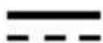
Direct Current

Malaysia Approval (SIRIM)
Product Name (產品名稱/產品名称): Wireless Keyboard (無線鍵盤/无线鍵盤)
Model No. (型號/型号): KB19
Rated (規格/规格): 5V = 0.9A/9V = 1.2A/12V = 1.2A
Operating Temperature: 0 to +40 °C
產品使用環境溫度: 0 - 40度
Accessories information (配件資訊/配件信息)
Product Name (產品名稱/产品名称): Transceiver (收發器/收发器)
Model No. (型號/型号): KB19TX
Rated (規格/规格): 5V = 20mA v