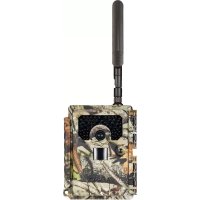
DTC 1200 - Camera MINOX - Free user manual and instructions
Find the device manual for free DTC 1200 MINOX in PDF.



| Product type | Surveillance camera (trail camera) |
| Brand | Minox |
| Model | DTC 1200 |
| Dimensions (H x W x D) | Approx. 140 x 95 x 57 mm |
| Weight (without batteries) | 400 g |
| Power supply | 12 LR6 (AA) 1.5 V batteries or 12 NiMH rechargeable batteries 2000 mAh; external power adapter 6 V, 2 A min. |
| Image sensor | 1/3", CMOS 3 megapixels |
| Photo resolution | 3 MP (2048 x 1536), interpolation up to 20 MP |
| Video resolution | Full HD 1080p (30 fps), HD Ready 720p (30 fps), WVGA (30 fps) |
| Lens | F/1.8, FOV 58°, automatic IR filter |
| IR flash range | Up to 15 m (60 infrared LEDs) |
| Trigger distance | Up to 20 m |
| Trigger time | Approx. 0.6 s |
| Sensor capture angle | 40° |
| Display | 2" TFT LCD color display |
| Storage | SD/SDHC/microSD card up to 32 GB, class 10 |
| Connectivity | 4G LTE (bands B1, B3, B5, B7, B8, B20, B38, B40, B41), micro-USB 2.0, GPS |
| Applications | Minox DTC 1200 (iOS 11+ / Android 5.1+) |
| Protection | IP54 (dust-proof and splash-proof) |
| Standby battery life | Up to 6 months with 12 AA batteries |
| Operating temperature | -20°C to +60°C |
| Care and cleaning | Wipe with a slightly damp cloth; do not immerse in water; do not use harsh cleaners |
| Security | Lockable; Minox user account to prevent unauthorized use |
Frequently Asked Questions - DTC 1200 MINOX
User questions about DTC 1200 MINOX
0 question about this device. Answer the ones you know or ask your own.
Ask a new question about this device
Download the instructions for your Camera in PDF format for free! Find your manual DTC 1200 - MINOX and take your electronic device back in hand. On this page are published all the documents necessary for the use of your device. DTC 1200 by MINOX.
USER MANUAL DTC 1200 MINOX
natural_image
Close-up of a camouflage-based surveillance camera with visible targeting screen and camouflage pattern (no text or symbols)MINOX
BEDIENUNGSANLEITUNG | INSTRUCTION MANUAL | MODE D'EMPLOI | MANUAL DE INSTRUCCIONES | ISTRUZIONE D'USO
DTC 1200
WILDKAMERA | TRAIL CAMERA | CAMÉRA DE SURVEILLANCE | CÁMARA DE CAZA | FOTOTRAPPOLA
EINLEITUNG
App Minox DTC 1200....16
Aufbewahrung....19
Reinigung....19
Fehlerbehebung 22
Technische Daten 24
LERNE DEINE WILDKAMERA MINOX DTC 1200 KENNEN
Congratulations on the purchase of your MINOX DTC 1200 trail camera. These instructions should help you to discover and maximise the full performance spectrum of your trail camera.
Notes: We have made every effort to ensure that these operating instructions are as complete and accurate as possible. Nevertheless, it cannot be guaranteed that errors or omissions will not have occurred during the printing process. The manufacturer is not liable for damages caused by unauthorised attempts to update the software, nor for any loss of data during repair. Please backup your files! We are not liable for data loss caused by a damaged device or damage due to unreadable media or drives.
Notes: The accessories included in the delivery may differ slightly from those described. This package can be changed without prior notice.
Notes: Please always format the SD card. Other files from other media may affect its functionality. Further information about accessories for the DTC 1200 can be found on the MINOX website: www.minox.com/zubehoer
CONTENTS
Introduction 26
Contents 27
Getting to know your trail camera 28
Overview of control elements 29
Scope of delivery....29
General Information 30
Features 31
Using your trail camera for the first time....32
Operating your trail camera 35
Connecting to a computer 39
MINOX DTC 1200 App....40
Storage 43
Cleaning 43
Troubleshooting 46
Technical Data 48
GETTING TO KNOW YOUR TRAIL CAMERA
True 4G broadcast standard
■ Innovative operating concept with integrated SIM card
■ User-friendly app to receive and share photos sent from the camera
■ With national roaming, always connected to the best mobile network in all hunting grounds
■ Unlimited number of photos at a flat monthly fee
Data storage in Germany
GPS function to locate the camera's exact location
■ Battery magazine for easy change of batteries

OVERVIEW OF CONTROL ELEMENTS
1 | Infrared LEDs
2 | Comfort latch
3 | Lens
4 | Motion sensor
5 | Antenna
6 | Antenna connector
7 | Operating mode switch
8 | SD card slot
9 | Battery compartment release
10 | 2.0" colour display
11 | Control buttons
12 | 6V DC Port
13 | Lock hole
SCOPE OF DELIVERY
MINOX DTC 1200 Trail Camera
4G antenna
Mounting strap
■ Micro SD card with adapter
Quickstart guide
■ Safety instructions
Required accessories, not included in delivery:
■ 12 type LR6 (AA) 1.5 V or equivalent NiMH batteries
Smartphone or tablet
A stable data connection to download the app
GENERAL INFORMATION
This instruction manual is part of the DTC 1200 trail camera (hereinafter named only "trail camera" of "camera"). It is part of the product and contains important information on commissioning, handling and disposal. Please carefully read the operating instructions, especially the safety instructions, before using the trail camera for the first time. Non-compliance with these operating instructions can cause loss of data or damage to your trail camera. The operating instructions are based on the standards and rules applicable within the European Union. Observe also country-specific guidelines and laws if used outside the EU! Keep the operating instructions for further use. If you pass the trail camera on to a third party, be sure to include this user manual.
The trail camera can be operated using an external power adapter with 6 V and at least 2 A.
The trail camera is protected against dust and splashes of water when closed tightly and used with the protective cover, and can be operated outdoors.
This trail camera is an information electronics device to be used for indoor and outdoor surveillance.
Examples:
■ Photo trap for hunting.
■ animal or event observation,
30 3130 31
■ security camera for house or office,
■ any indoor and outdoor surveillance, where proof of infringement is required.
The trail camera is intended exclusively for private use and is not suitable for commercial use.
Use the trail camera only as described in this manual. Any other utilisation is considered improper and may result in damage to property or loss of data. The manufacturer or dealer assumes no liability for damages resulting from improper or incorrect use and for unauthorised modifications.
EXPLANATION OF SYMBOLS
The following symbols and signal words are used in these operating instructions, on the device or on the packaging.
! DANGER!
This symbol/signal word indicates a hazard with a high degree of risk, which if not avoided, will result in death or serious injury.
WARNING!
This signal word warns of possible damage to property.
6V-2A
The trail camera can be operated using an external power adapter with 6 V and at least 7 A.
- C +
This symbol indicates a barrel connector with the positive polarity in the middle.
IP54
IP54: The trail camera is protected against dust and splashes of water when closed tightly and used with the protective cover and can be operated outdoors.

Products bearing this symbol are operated with direct current.
FEATURES
■ 3-megapixel CMOS sensor.
■ Colour photos by day, black & white photos at night.
Up to 6 months standby operation.
■ Wide angle of detection and fast response time.
Control via app.
■ Image data transfer and settings via LTE to the MINOX Cloud.
■ Invite additional viewers to your trail camera via invitation
codes.
Integrated SIM card.
Use in extreme temperatures from -20°C to +60°C
Compact size - suitable for covert use.
■ Fast shutter release.
■ Dust and splash-proof according to IP54.
■ Easy mounting on walls, ceilings, trees or similar.
Easy alignment of the trail camera.
■ Time stamp on photos and videos.
Lockable.
Low battery power alarm.
■ Sound recording via Integrated microphone.
■ Easy battery change with the removable magazine.
As long as the trail camera is bound to your MINOX account, nobody else can use the camera.
USING YOUR TRAIL CAMERA FOR THE FIRST TIME
Check scope of delivery

DANGER!
There is a danger of suffocation for children who may play with the packaging film. Do not let children play with the packaging film. They can get caught in it and choke to death.
-
Remove the trail camera out of the packaging and remove all protective foils.
-
Check whether the delivery is complete
MINOX DTC 1200 Trail Camera
G antenna
mounting strap
micro 5D card with adapter
quickstart guide
Safety instructions
- Check whether the trail camera or individual parts are damaged. If this is the case, do not use it. Refer to the Quickstart Guide and contact our service team as indicated.
Inserting the batteries and memory card
The battery compartment and memory card slot are on the inside of the trail camera. (8 | 9)
Opening the trail camera
Release the latch on the side of the trail camera and open it. (2)
Inserting or changing batteries
Before inserting the batteries, make sure that the contacts in the battery compartment and on the batteries are clean and intact. Clean them if necessary.
■ Using non-rechargeable batteries: Use only type LR6 (AA) batteries.
■ Using rechargeable batteries:
As an alternative to the type LR6 (AA) batteries, you can use rechargeable ones in the same size with 2,000 mAh or more. Recommended are NIMh batteries with a low self-discharge.
- Push the "EJECT" button on the bottom edge of the camera and pull the battery compartment out. (9)
First remove any batteries from the battery compartment Insert 12 fully charged batteries. When inserting the batteries, pay attention to the correct polarity, which is indicated inside the battery compartment for each battery. Eight batteries are inserted at the front of the magazine and four at the back.
■ Push the battery magazine back into the slot until it clicks into place.
■ When the battery power is low, the low-battery message will
be indicated on display. Please replace all batteries with new ones.
- Check the batteries regularly. Replace old or discharged batteries.
If you do not intend to use the trail camera for a longer period of time, remove the batteries to prevent leakage.
Inserting the memory card
■ Open the trail camera and turn it off. (2 | 7)
Check the write protection on the SD card. If necessary, push the write protection upwards (towards the gold contacts) to deactivate the protection.
- Carefully push the SD card into the card slot until it audibly clicks into place. (8)
If you want to take a photo or video and the SD card is write protected, you will see "Card protected" in the display while in SETUP mode. In this case, remove the SD card and push the write protection up. Attention: Always make sure that the write protection of the SD card is deactivated. Otherwise the trail camera will not take any pictures.
To remove the SD card, lightly push up on the end of the card. The SD card will then be partially ejected. Remove the SD card.
SD/SDHC and microSD/SDHC memory cards with up to 32 GB capacity are supported.
- Use only Class 10 memory cards. Cards with a lower speed can cause errors.
- Photos and videos can only be taken if a memory card has been inserted.
It is recommended to format the memory card before inserting it. Note that any data on the memory card will be deleted during formatting. First back up your data to a computer
Closing the trail camera

WARNING!
The dust and splash water protection is only guaranteed when the trail camera is completely closed.
■ Make sure that the trail camera is closed and that the latch is firmly in place.
■ Make sure that the protection cap is covering the 6V DC port. (12)
Pay attention to the correct fit of the seal, which is bordering the inside of the camera front. If necessary, push the seal back into the proper position.
Close the camera
■ Fasten the latch onto the hooks on the cover. (2)
■ Push the latch firmly downwards until snug.
Attach a lock (not included in delivery) to the lock hole to secure the two camera halves. (13)
External power supply
In addition to battery operation, the trail camera can also be permanently powered by an external power adapter (not included). You need a mains adapter with 6 V and at least 2 A, which has a barrel plug with an outer diameter of 4 mm and an inner diameter of 1.5 mm (positive pole inside, negative pole outside). Rechargeable batteries cannot be charged in the trail camera using an external power supply. When connecting the trail camera to an external power supply, the IP54 protection cannot be ensured.
■ Open the protection cap of the 6 V DC port. (12)
■ Connect the external power adapter to the 6 V DC port.
Fastening the mounting strap
- Select a location to mount the trail camera where it is not exposed to direct sunlight.
■ Make sure that there are no branches within the effective range of the sensor.
Moving branches can, under certain circumstances, trigger unwanted recordings.
Use the mounting strap to attach the trail camera to a tree or other object.
■ Feed the strap through the mounting brackets. - Attach the trail camera e.g. to a tree and thread the strap through the buckle
■ Tighten the strap until the camera has a firm hold, and then clamp the strap with the buckle.
Pull up on the tab of the buckle to release the mounting strap.
| Mode Function | |
| OFF(Off Mode) | The trail camera is completely switched off. |
| SETUP(Test-Mode) | You can make and view recordings while in test mode (see further below in the "Operation" section). You can use the live view to align the camera. Camera settings can only be changed using the app. |
| ON(Live-Mode) | The trail camera is activated and will independently record images (Live Mode). |
Control buttons
- Push the mode switch to SETUP, to activate the display. The red LED in the LED window will light up for a moment to indicate movement in front of the motion sensor. (1 | 7)
Use the control buttons to view the current camera settings view photos on the SD card and manually upload a photo to the MINOX Cloud. (11)
Note that a photo can only be sent if the trail camera has been bound to your MINOX account via the app, and data transfer has been activated.
The following control buttons are available for this purpose:
Control button Function
| MENU Settings menu | |
| SHOT > | Manually record an image or video |
| OK > | Switch to Playback Mode |
To turn the trail camera off, set the mode switch to OFF. The battery symbol in the display indicates the available battery charge.
Setup mode
In the Setup Mode, you can record photos or videos with your trail camera, or view previously recorded files. This allows you to better align the trail camera on site and check the image transmission.
■ Push the mode switch to SETUP.
■ Push the SHOT button to record an image.
■ Push the OK button to view the image.
- Push the MENU button to enter the menu for further settings.
- Choose SEND to upload your image to your user account in the MINOX Cloud.
Playback mode
While in the SETUP Mode, push the OK button to enter the playback mode. The following is a description of the control buttons in Playback Mode.
| Control Buttons Function | |
| OK Exit the Playback Mode | |
| MENU Enter the next mode for further settings | |
| ▲ | Scroll forward through existing recordings. |
| ▼ | Scroll backward through existing recordings. |
Further settings
While In Playback Mode, push the MENU button to enter the menu for further settings. The following is a description of the control buttons while in the further settings menu.
Control buttons Function
| OK Select a menu item | |
| MENU Exit further settings (EXIT) | |
| ▲ | Scroll forward through the menu |
| ▼ | Scroll backward through the menu |
Send currently selected photo (SEND)
Use the arrow buttons to navigate to SEND in the menu and verify with the OK button to send your selected photo to the MINOX Cloud.
Diagnosis
Use the arrow buttons to navigate to DIAGNOSE in the menu and verify with the OK button to run a self-test of your trail camera. When the diagnosis is complete, a file is stored on the SD card, which can then be made available to the MINOX Customer Service for further analysis without having to send in the trail camera.
Delete recordings
Use the arrow buttons to navigate to the menu items DELETE ONE or DELETE ALL and select the desired function with the OK button to either delete the selected photo (ONE) or all (ALL) images on the SD card.
Night recordings
For night shots, the infrared LEDs on the front of the trail camera provide the necessary light to capture images. The trail camera uses infrared LEDs with a high wavelength to keep the amount of red light to an absolute minimum. The existing number of infrared LEDs produces a wide beam of light to enable night shots at a distance of approx. 3 m to 15 m without overexposing the object. However, reflective objects can cause an overexposure even within this range (e.g. road signs). Note that night shots are recorded in black and white.
Operating principle of the motion sensor
As soon as wild animals or other objects move directly within the detection range of the motion sensor, the trail camera is automatically activated and begins to take photos and/or record videos. If no further movements are detected for one minute after the previous recording (adjustable in the app menu), the trail camera will return to standby mode.
Advantages of motion sensors
As soon as the motion detector has registered movement, the trail camera is activated and begins to record images. The period of time between activation and the start of the recording is called the shutter release time. However, when wild animals pass by very quickly, it is possible that only the rear part of the body or possibly nothing at all can be seen in the image. With a detection angle of approx. 50° and a shutter speed of 0.6 seconds, this problem is almost completely solved.
Recording images (LIVE MODUS)
The trail camera is typically used in the so-called Live Mode. In this mode, recordings are either triggered by the motion sensor as required or periodically in accordance with a fixed schedule (depending on the setting in the app).
To activate the Live Mode, push the mode switch to ON. The red status LEDs on the front of the camera will blink for approximately 30 seconds, after which the trail camera will enter the Live Mode.
Setting up your trail camera
The Test Mode (switch at SETUP) is very helpful when determining the optimal image area and motion sensor range for the scene at a particular location.
■ Push the mode switch to SETUP.
Mount your trail camera at a height of approx. 1-2 m on a tree and aim it in the desired direction.
Close the camera.
From a short distance away and within the motion sensor's range, slowly move from one side of the camera to the other. Remain parallel to the camera and try various angles and distances.
If the red LED on the front of the camera lights up, the motion sensor has been activated.
In this way, you can determine the best position and direction of the trail camera.
When In Live Mode, the LED does not light up. To avoid false signals that will lead to unnecessary recordings, be sure to observe the instructions concerning the location of your trail camera in the chapter "FASTENING THE MOUNTING STRAP". The best direction to mount your trail camera is to the north or the south. The detection angles of the motion sensor and the camera lens is approximately 50°.
You will achieve the best results with your MINOX DTC 1200 at a distance of about 5 m. The focus of the camera has been set to this distance.
38 3958 39
Also make sure that the trail camera has been mounted at an appropriate height in relation to the area to be observed. If necessary, the trail camera should be tilted slightly in order to achieve optimum alignment.
The trail camera complies with IP protection class 54. The trail camera is dust and splash-proof, and can be used regardless of the weather.
File formats
The trail camera stores photos and videos in a folder called "DCIM" on the memory card. The file format for photos is JPG (example: "IMAGE_0010.JPG") and for videos, the ending is "AVI". While in the Setup Mode, you can transfer your files to a computer. Alternatively, you can insert your memory card into a card reader and connect this with your PC to transfer your files. The video files can be played using a standard application such as Windows Media Player, Quick-Time etc.
CONNECTING TO A COMPUTER
You can connect your trail camera directly to a computer using a USB cable.
■ Switch the camera to Setup Mode.
Connect a standard micro-USB cable to the camera's micro-USB port and then connect the standard USB end to the computer.
The trail camera will automatically switch to USB mod ("Mass Storage").
The trail camera will then install itself as an additional drive and will be labelled "SD".
■ Double click on this drive; you will find the "DCIM" folder there.
The photos and videos will be found in the "DCIM" subfolder. You can now copy or move your photo and video files to
your computer.
On Mac computers, a new drive will appear on the desktop. If you click on this drive, the Finder will start.
System requirements
Windows®
Hardware: Pentium® III or newer
Operating system: Windows® XP/Vista/7/8/10 Memory: 512 MB RAM
FHard drive space: 1 GB available
Display resolution: 1.024 × 768 or higher Port: 1x USB 2.0
(五) 本次股东大会决议
Macintosh
Hardware: PowerPC G3/G4/G5
Operating system: OS 10.3.9 or newer Memory: 512 MB RAM
Hard drive space: 1 GB available Display resolution: 1.024 × 768 or
Port 1x USB 2.0
Smartphone
IOS: IOS 11 or newer
Android: Android 5.1 or newer
APP MINOX DTC 1200

Android
105

The full range of functions can only be used in combination with the "MINOX DTC 1200" app, Download the free "MINOX DTC 1200" onto your smartphone. Set up your personal MINOX user account to access the MINOX Cloud. If you add a new trail camera in the "Camera" menu, you must scan the QR code found on the inside of the front cover. This adds the camera to your MINOX user account and protects it against "third parties". Be sure to sign up for mobile data usage, because without an active data connection, the trail camera will not be able to communicate with the cloud and with the app.
Once the mobile data transmission has been enabled, you can receive images and change settings. Communication between the app and the trail camera is asynchronous, i.e. settings from the app are stored in the cloud and are only transferred to the trail camera when it contacts the cloud through an event. Such an event is when a photo has been made and sent to the cloud.
Important!
The trail camera must be in Live Mode to communicate with the cloud (switch to ON).
40 4140 41
Setting up a trail camera in the app
After starting the app, either set up a new user account in the MINOX Cloud or sign in to an existing account. It is sufficient to use your first and last names and a valid email address. Under "Camera", you can scan your own trail camera by clicking "Add". The scanning function will begin - simply scan the QR code on the inside of the camera cover. Once the QR code has been successfully added to your MINOX user account, you will be taken to a payment details page to begin transferring data from your trail camera to the cloud. By the way, if you invite additional viewers to your trail camera, no additional costs will be incurred! Note that linking to your MINOX user account will make the trail camera unable to others. This pairing will only be removed when you delete the camera from your app.
Photos
The „Photos" option gives you access to the photos taken by the camera. If you have selected "Video" as the recording mode, only a single photo from the video file will be sent to the app. The videos will remain stored on the SD card until you transfer the files manually. The preview of photos and videos may take a few seconds to appear on the display, depending on the number of shots.
Change view / select photos
Using the 3-point menu in the top right-hand corner of the photo preview, you have the option of selecting several pictures and then favouring or deleting them. In the submenu, Change
View', you can select which camera should display your images and by which criteria these images should be sorted.
Favourites
Your favoured images will appear here.
... more
Here you have access to your MINOX account data and to all of your legally relevant documents. You can get in touch with MINOX and receive additional support via the corresponding menu items.
Cameras
Here you will find a list of each of your cameras. The GPS locations reported by the respective trail cameras are graphically displayed in the upper section.
Click on "Add" to choose whether you want to add your own camera to your MINOX account (scan your own camera) or whether you want to accept an invitation to join someone else's trail camera.
Settings
With one click on each camera in the Cameras menu, you can make all necessary camera-specific settings, view and manage data transfers, define the camera name, view the SD card status, configure notifications, create invitation codes and even remove your trail camera from the list.
With those trail cameras that you have joined as a viewer, you
can only view the settings but not change them.
The individual setting options for each category are explained in the following chapter.
Data transfer
Here you can subscribe for and make changes to your data transfer subscription and view your invoices. Please note that only with an activated data transfer subscription, can the full range of your MINOX DTC 1200 functions be used.
Memory (SD card)
Information about the current memory status of your SD card. The trail camera can neither take pictures nor send recordings if the memory card has not been inserted or is full.
You can use the "Overwrite" setting to ensure that there is always enough memory available on your card. When overwriting, the oldest recordings will be automatically deleted.

Notifications
You can allow notifications if you wish to be informed about all new recordings and other important camera events. These can appear as a push message directly to your mobile phone or be sent as an email to the address used when setting up your MINOX account.
Settings
The functions for recording images and videos can be easily made here, no matter where you are. You can also set the camera's GPS location, set the menu language on the camera (you can control the app's display language in the „More“ menu) and check the remaining memory on your SD card.
Location
These are the last reported GPS coordinates of your trail camera.
Name
Display and change the name of your trail camera.
User
If you want to invite additional viewers to your trail camera, you can generate invitation codes here and also see which viewers are already registered to your trail camera.
Delete & unblock
If you want to resell your trail camera or take it out of service for any other reason, you can unblock it here.
Please note that you must first cancel your data transfer subscription. Only then can you delete the trail camera from your list.
ATTENTION!
Deleting a camera from your list means that all images in the cloud that were taken by your camera will be lost. However, data on the SD card will be retained.
ATTENTION!
After deleting the camera, another user can rescan the code in the cover of the camera and use the trail camera as their own.
STORAGE
When not in use, disconnect the trail camera from the power supply and store it in a clean and dry place, out of the reach of children. Remove the batteries before storing.
To avoid damage during transport, pack the trail camera in the original packaging.
CLEANING
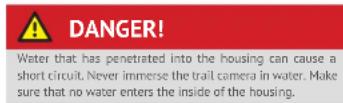
Do not use any aggressive solvents / cleaning agents, brushes with metal or nylon bristles, or sharp or metallic cleaning objects such as knives, hard spatulas and the like. These can damage the surfaces.
- Never put the trail camera into a dishwasher. This will destroy the trail camera.
1. If the camera is connected to a power adapter, disconnect i before cleaning the camera.
2. Disconnect all other connections.
3. Remove all batteries.
4. Use a slightly moistened cloth to wipe the outer surface of the camera. Leave the trail camera to dry completely.

Image 1: create account image 3: settingsImage 2: scan QR code image 4: options screen image 5: position view

| Camera does not turn on. Replace the batteries with fresh ones (see chapter "INSERTING OR CHAN-GING BATTERIES") | |
| Camera does not capture images / videos. Check the batteries and change them if necessary. Insert a freshly formatted SD card. | |
| Night images are too dark. Check that the power saving mode is set to "ON" and replace the batteries. | |
| Only photos are being sent, even though the trail camera is set to "video" mode. | In the app you will only see photos. When a video is made, a single sample photo is sent to the app. If you want to access the videos, please retrieve the data directly from the SD card. |
| "Low battery" is displayed. The batteries are almost empty and must be changed. | |
| Photos without animals. Make sure that there are no branches or other objects within the sensor's operating range that could cause faulty recordings due to movement. | |
| Overexposed night images | Select a location to mount your camera so that it is not affected by reflective signs and windows or the like. |
| Camera is not sending photos Check if the data transmission has been activated in the app. | |
Problem Solution
| After changing locations, the camera is not sending images | If the camera has already found a strong network, it will repeatedly attempt to log in to establish the fastest possible connection. At a new location, this may cause delays during the first connection setup. You can speed this up by manually uploading one or two images. To do this, you must perform the following actions on the trail camera: Activate SETUP mode OK MENU > Send > OK If the signal strength of your original network is too weak at the new location, a corresponding error message will appear ("Signal strength weak"). Immediately carry out the manual transmission procedure again. In this way, your camera learns "the hard way" that a new network is available. |
TECNICAL DATA
| MODEL DTC 1200 | |
| Image sensor 1/3", 3-megapixel CMOS sensor | |
| Photo resolution | 3 MP: 2048 x 1536Interpolated: 20 MP, 16 MP, 12 MP, 8 MP, 5 MP |
| Display 2" TFT LCD colour display | |
| External memory | SD/SDHC and microSD/ SDHC memory cards,Speed Class 10 up to 32 GB |
| Video resolution HD 1080p (30fps), HD Ready 720p (30fps), WVGA (30fps) | |
| Lens F/NO = 1.8; FOV=58"; Auto IR-filter | |
| Focal range Day: 1 m - infinity; Night: up to 15 m | |
| Motion detector range up to 20 meters | |
| Trigger release approx. 0.6 seconds | |
| IR flash range 15 meters | |
| IP protection class IP54 (protected against dust and splashing water) | |
| File formats Photo: JPEG; Video: AVI motion: JPEG | |
| Ports | Micro USB 2.0 |
| Transmission standard Up to 4G | |
| Frequency band | B1, B3, B5, B7, B8, B20, B38, B40, B41 |
| Power supply | 12x type LR6 (AA) alkaline or 12x type HR6 (AA) NiMH batteries of at least 2,000 mAh and with low self-discharge; external 6 V power adapter, at least 2 A |
48 4948 49
| MODEL DTC 1200 | |
| Standby time | approx. 6 months (with 12 AA batteries) |
| Dimensions approx. 140 mm (H) x 95 mm (W) x 57 mm (D) | |
| Light source | 60 infrared LEDs |
| Suggested storage temperature: | -20° to +40° Celsius |
| Suggested temperature for use: | -20° to +40° Celsius |
| Weight | 400 g (without batteries) |
| Detection angle | Motion sensor: 40° |
INTRODUCTION
Application MINOX DTC 1200....64
Conservation 67
Nettoyage 67
APPLICATION MINOX DTC 1200

Android

105
VISTA DEGLI ELEMENTI DI COMANDO
We reserve the right to make changes in construction and design.
The MINOX brand is a registered trademark of MINOX GmbH.

- DTC 1200
- EINLEITUNG
- LERNE DEINE WILDKAMERA MINOX DTC 1200 KENNEN
- CONTENTS
- GETTING TO KNOW YOUR TRAIL CAMERA
- OVERVIEW OF CONTROL ELEMENTS
- SCOPE OF DELIVERY
- GENERAL INFORMATION
- EXPLANATION OF SYMBOLS
- ! DANGER!
- WARNING!
- 6V-2A
- - C +
- IP54
- FEATURES
- USING YOUR TRAIL CAMERA FOR THE FIRST TIME
- DANGER!
- Inserting the batteries and memory card
- Opening the trail camera
- Inserting or changing batteries
- ■ Using rechargeable batteries:
- Inserting the memory card
- External power supply
- Fastening the mounting strap
- Control buttons
- Setup mode
- Playback mode
- Further settings
- Send currently selected photo (SEND)
- Diagnosis
- Delete recordings
- Night recordings
- Operating principle of the motion sensor
- Advantages of motion sensors
- Recording images (LIVE MODUS)
- Setting up your trail camera
- File formats
- CONNECTING TO A COMPUTER
- System requirements
- APP MINOX DTC 1200
- Important!
- Setting up a trail camera in the app
- Photos
- Change view / select photos
- Favourites
- ... more
- Cameras
- Settings
- Data transfer
- Memory (SD card)
- Notifications
- Location
- Name
- User
- Delete & unblock
- ATTENTION!
- STORAGE
- CLEANING
- INTRODUCTION
- APPLICATION MINOX DTC 1200
- VISTA DEGLI ELEMENTI DI COMANDO
Brand : MINOX
Model : DTC 1200
Category : Camera