MultiSync LCD225WNX - Monitor NEC - Free user manual and instructions
Find the device manual for free MultiSync LCD225WNX NEC in PDF.



| Brand | NEC |
| Model | MultiSync LCD225WNX |
| Product Type | Color LCD Monitor |
| Optimal Resolution | 1680 x 1050 pixels |
| Weight (max) | 6.3 kg |
| Power Supply | 100–240 V AC, 50/60 Hz |
| Video Inputs | DVI-D (digital), D-Sub 15-pin (analog) |
| Audio Input | 3.5 mm audio jack |
| Headphone Output | Yes (3.5 mm jack) |
| Screen Adjustment | Tilt (30°), pivot (landscape/portrait), height adjustable |
| Rotation | 90° clockwise and counterclockwise rotation |
| VESA Mount | 100 x 100 mm |
| Cable Cover | Included |
| OSD (On-Screen Display) | 9 languages, OSD lock, auto adjustment, auto contrast |
| Included Accessories | Power cord, D-Sub cable, DVI-D cable, manual, CD-ROM, cable cover |
| Maintenance | Soft non-abrasive cloth |
| Safety | CE compliance, EN 60950-1, EN 55022, EN 61000-3-2, EN 61000-3-3, EN 55024 |
Frequently Asked Questions - MultiSync LCD225WNX NEC
User questions about MultiSync LCD225WNX NEC
0 question about this device. Answer the ones you know or ask your own.
Ask a new question about this device
Download the instructions for your Monitor in PDF format for free! Find your manual MultiSync LCD225WNX - NEC and take your electronic device back in hand. On this page are published all the documents necessary for the use of your device. MultiSync LCD225WNX by NEC.
USER MANUAL MultiSync LCD225WNX NEC
natural_image
Illustration of a flat-screen computer monitor with a circular base (no text or symbols visible)TCO'03
TcODevelopment

Congratulations!
The display you have just purchased carries the TCO'03 Displays label. This means that your display is designed, manufactured and tested according to some of the strictest quality and environmental requirements in the world. This makes for a high performance product, designed with the user in focus that also minimizes the impact on our natural environment.
Some of the features of the TCO'03 Display requirements:
Ergonomics
- Good visual ergonomics and image quality in order to improve the working environment for the user and to reduce sight and strain problems. Important parameters are luminance, contrast, resolution, reflectance, color rendition and image stability.
Energy
- Energy-saving mode after a certain time – beneficial both for the user and the environment
- Electrical safety
Emissions
- Electromagnetic fields
- Noise emissions
Ecology
- The product must be prepared for recycling and the manufacturer must have a certified environmental management system such as EMAS or ISO 14 001
-
Restrictions on:
-
chlorinated and brominated flame retardants and polymers
- heavy metals such as cadmium, mercury and lead.
The requirements included in this label have been developed by TCO Development in co-operation with scientists, experts, users as well as manufacturers all over the world. Since the end of the 1980s TCO has been involved in influencing the development of IT equipment in a more user-friendly direction. Our labelling system started with displays in 1992 and is now requested by users and IT-manufacturers all over the world.
For more information, please visit
www.tcodevelopment.com
Manufacturer's Recycling and Energy Information
NEC DISPLAY SOLUTIONS is strongly committed to environmental protection and sees recycling as one of the company's top priorities in trying to minimize the burden placed on the environment. We are engaged in developing environmentally-friendly products, and always strive to help define and comply with the latest independent standards from agencies such as ISO (International Organisation for Standardization) and TCO (Swedish Trades Union).
Disposing of your old NEC product
The aim of recycling is to gain an environmental benefit by means of re-use, upgrading, reconditioning or reclamation of material. Dedicated recycling sites ensure that environmentally harmful components are properly handled and securely disposed. To ensure the best recycling of our products, NEC DISPLAY SOLUTIONS offers a variety of recycling procedures and gives advice on how to handle the product in an environmentally sensitive way, once it has reached the end of its life.
All required information concerning the disposal of the product and country-specific information on recycling facilities can be found on our following websites:
http://www.nec-display-solutions.com/greencompany/ (in Europe),
http://www.nec-display.com (in Japan) or
http://www.necdisplay.com (in USA).
Energy Saving
This monitor features an advanced energy saving capability. When a VESA Display Power Management Signalling (DPMS) Standard signal is sent to the monitor, the Energy Saving mode is activated. The monitor enters a single Energy Saving mode.
| Mode Power | consumption LED color | |
| Normal Operation A | Approx. 57W (LCD205WNXM) Green Approx. 60W (LCD225WNXM) Approx. 48W (LCD225WNX) | |
| Energy Saving Mode | Less than 2W Orange | |
| Off Mode Less than 1W Unlit | ||
WEEE Mark (European Directive 2002/96/EC)


Within the European Union
EU-wide legislation, as implemented in each Member State, requires that waste electrical and electronic products carrying the mark (left) must be disposed of separately from normal household waste. This includes monitors and electrical accessories, such as signal cables or power cords. When you need to dispose of your NEC display products, please follow the guidance of your local authority, or ask the shop where you purchased the product, or if applicable, follow any agreements made between yourself and NEC.
The mark on electrical and electronic products only applies to the current European Union Member States.
Outside the European Union
If you wish to dispose of used electrical and electronic products outside the European Union, please contact your local authority so as to comply with the correct disposal method.
Chinese RoHS-information relevant for Chinese market
TO PREVENT FIRE OR SHOCK HAZARDS, DO NOT EXPOSE THIS UNIT TO RAIN OR MOISTURE. ALSO, DO NOT USE THIS UNIT'S POLARIZED PLUG WITH AN EXTENSION CORD RECEPTACLE OR OTHER OUTLETS UNLESS THE PRONGS CAN BE FULLY INSERTED REFRAIN FROM OPENING THE CABINET AS THERE ARE HIGH VOLTAGE COMPONENTS INSIDE. REFER SERVICING TO QUALIFIED SERVICE PERSONNEL.

CAUTION
RISK OF ELECTRIC SHOCK • DO NOT OPEN

CAUTION: TO REDUCE THE RISK OF ELECTRIC SHOCK, DO NOT REMOVE COVER (OR BACK). NO USER SERVICEABLE PARTS INSIDE. REFER SERVICING TO QUALIFIED SERVICE PERSONNEL. This symbol warns user that uninsulated voltage within the unit may have sufficient magnitude to cause electric shock. Therefore, it is dangerous to make any kind of contact with any part inside this unit. This symbol alerts the user that important literature concerning the operation and maintenance of this unit has been included. Therefore, it should be read carefully in order to avoid any problems.
Declaration of the Manufacturer
We hereby certify that the color monitors MultiSync LCD205WNXM (L206T8)/MultiSync LCD225WNXM/LCD225WNX (L226T9) are in compliance with
Council Directive 73/23/EEC: - EN 60950-1
and marked with
Council Directive 89/336/EEC: - EN 55022 - EN 61000-3-2 - EN 61000-3-3 - EN 55024

NEC Display Solutions, Ltd. 4-13-23, Shibaura, Minato-Ku Tokyo 108-0023, Japan
CAUTION: Please use the power cord provided with this display in accordance with the table below. If a power cord is not supplied with this equipment, please contact your supplier. For all other cases, please use a power cord that matches the AC voltage of the power outlet and has been approved by and complies with the safety standard of your particular country.
| Plug Type North America | European Continental | U.K. Chinese | Japanese | ||
| Plug Shape | |||||
| Country | U.S.A./Canada U.K. | China JapanEU (except U.K.) | |||
| Voltage | 120* | 230 | 230 | 220 | 100 |
- When operating the MultiSync LCD205WNXM/LCD225WNXM/LCD225WNX monitor with its AC 125-240V power supply, use a power supply cord that matches the power supply voltage of the AC power outlet being used.
NOTE: This product can only be serviced in the country where it was purchased.
Contents
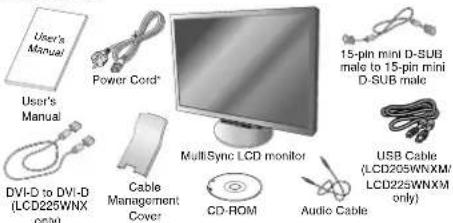
DVI-D to DVI-D (LCD225WNX only)
Cable Management Cover
* Type of power cord included will depend on the where the LCD monitor is to be shipped.
Your new NEC MultiSync LCD monitor box* should contain the following:
- MultiSync LCD monitor with tilt base
- Audio Cable
• Power Cord - V ideo Signal Cable (15-pin mini D-SUB male to 15-pin mini D-SUB male)
• V ideo Signal Cable (DVI-D to DVI-D) (LCD225WNX only) - USB Cable (LCD205WNXM/LCD225WNXM only)
- User's Manual
• Cable Management Cover - CD-ROM
Remember to save your original box and packing material to transport or ship the monitor.
Quick Start
Macintosh Cable Adapter (not included)
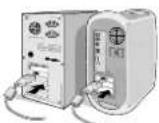
Figure A.1 Figure A.2
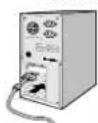
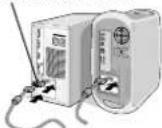
Figure A.3
To attach the MultiSync LCD monitor to your system, follow these instructions:
-
Turn off the power to your computer.
-
For the PC or MAC with DVI digital output: Connect the DVI-D signal cable (not included for the U.S. and China) to the connector of the display card in your system (Figure A.1). Tighten all screws.
For the PC with Analog output: Connect the 15-pin mini D-SUB signal cable to the connector of the display card in your system (Figure A.2). Tighten all screws.
For the MAC: Connect the MultiSync Macintosh cable adapter (not included) to the computer. Attach the 15-pin mini D-SUB signal cable to the MultiSync Macintosh cable adapter (Figure A.3). Tighten all screws.
NOTE: Some Macintosh systems do not require a Macintosh cable adapter.
sh-1
English
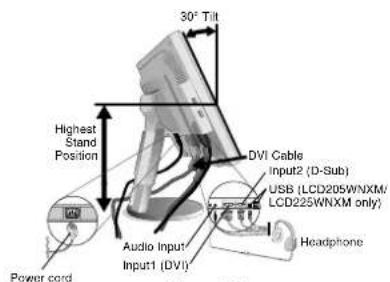
Figure B.1
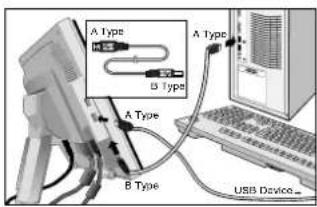
Figure C.1
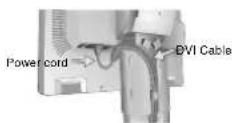
Figure C.2
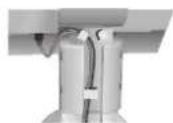
Figure C.3
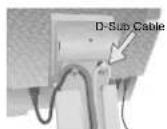
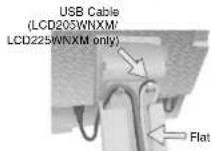
Figure C.4
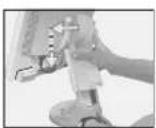
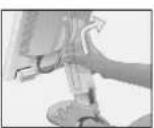
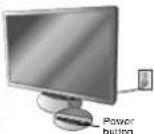
Figure D.1 Figure D.2 Figure D.3
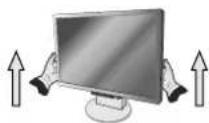
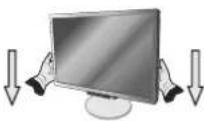
Figure RL.1
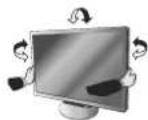
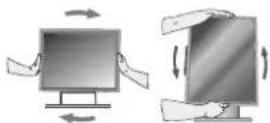
Figure TS.1 Figure R.1
- Place hands on each side of the monitor to tilt the LCD panel 30-degree angle and lift up to the highest position (Figure B.1).
- Connect all cables to the appropriate connector on the back of the monitor (Figure B.1). Using the USB cable, connect the B type connector to the USB upstream port on the bottom of the monitor and A type connector to the downstream port on the computer (Figure C.1). If you can use the cord from the USB device, use one of the downstream ports on the side or bottom of the monitor. Connect Headphones (not included) to the appropriate connector at the rear side of the monitor, if desired (Figure B.1).
NOTE: If connecting both DVI and D-Sub cables, the DVI cable must be connected along side the rib on the power cord side (Figure C.2).
-
For successful cable management, place the cables in this order into the cable management; power cable and DVI cable.
-
Place DVI cable and power cable into the specific hooks as indicated in Figure C.3.
-
Place the D-Sub and the USB cables (LCD205WNXM/LCD225WNXM only) into the specific hooks indicated in Figure C.4.
-
Make sure all cables are resting flat against the stand (Figure C.4).
-
Hold all the cables firmly and place the cable cover onto the stand (Figure D.1). To remove the cable cover, lift the cover off as shown in Figure D.2.
NOTE: Handle with care when placing the cable cover and avoid pinching your fingers.
- Connect the power cord to the power outlet (Figure D.3).
NOTE: If you have difficulty removing the cable cover, please push the lower opening upward to remove it, as show in Figure E.1.
NOTE: Please refer to the Caution section of this manual for proper selection of power cord.
-
Turn on the monitor with the front power button and the computer (Figure D.3).
-
No-touch Auto Adjust automatically adjusts the monitor to optimal settings upon initial setup for most timings (Analog input only). For further adjustments, use the following OSD controls:
-
Auto Contrast
• Auto Adjust
Refer to the Controls section of this User's Manual for a full description of these OSD controls.
NOTE: If you have any problem, please refer to the Troubleshooting section (CD-ROM).

Figure E.1
Raise and Lower Monitor Screen
The monitor may be raised or lowered. To raise or lower screen, place hands on each side of the monitor and lift or lower to the desired height (Figure RL.1).
NOTE: Handle with care when raising or lowering the monitor screen.
Tilt and Swivel
Grasp both sides of the monitor screen with your hands and adjust the tilt and swivel as desired (Figure TS.1).
NOTE: Handle with care when tilting and swivelling the monitor screen.
Screen Rotation
Before rotating, the screen must be raised to the highest level to avoid knocking the screen on the desk or pinching with your fingers. To raise the screen, place hands on each side of the monitor and lift up to the highest position (Figure RL.1).
To rotate screen, place hands on each side of the monitor screen and turn clockwise from Landscape to Portrait or counter-clockwise from Portrait to Landscape (Figure R.1).



Non-abrasive surface
Figure R.2
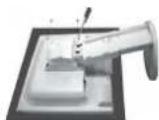
Figure R.3
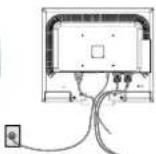
Figure R.4
Specifications
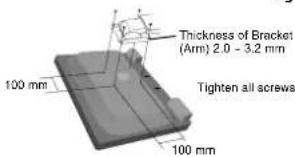
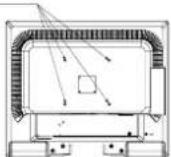
4-SCREWS (M4)
MAX depth: 8.5mm
If use other screw,
check length of screw.
Weigh1 of LCD assembly: 5.9 kg (MAX) [LCD205WNXM]
6.3 kg (MAX) (LCD225WNXM/LCD225WNX)
Remove Monitor Stand for Mounting
To prepare the monitor for alternate mounting purposes:
- Place hands on each side of the monitor and lift up to the highest position. Remove the cable cover.
NOTE: If you have difficulty removing the cable cover, please push the lower opening upward to remove it, as shown in the figure beside.
-
Disconnect all cables.
-
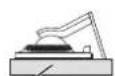
Place monitor face down on a non-abrasive surface (Figure R.2).
-
Remove the 4 screws connecting the monitor to the stand and remove the stand (Figure R.3).
The monitor is now ready for mounting in an alternative manner.
-
Connect all cables to the back of the monitor (Figure R.4).
-
Reverse this process to re-attach stand.
NOTE: Use only VESA-compatible alternative mounting method.
NOTE: Handle with care in order to avoid damage or dropping the stand.
Connecting a Flexible Arm
This LCD monitor is designed for use with a flexible arm. Please use the attached screws (4pcs) as shown in the picture when installing. To meet the safety requirements, the monitor must be mounted to an arm which guarantees the necessary stability under consideration of the weight of the monitor. The LCD monitor shall only be used with an approved arm (e.g. GS mark).
Controls
OSD (On-Screen-Display) control buttons on the front of the monitor function as follows:
- Basic function at pressing each key
| Button | SELECT | - | + | 1<->2 / RESET |
| At No OSD showing | Showing OSD. Shortcut to Brightness adjust Menu. | Shortcut to Volume adjust Menu. | Input signal select. | |
| At OSD showing (Icon selection stage) | Go to Adjustment stage. Cursor goes to left. Cursor goes to right. | |||
| At OSD showing (Adjustment stage) | Go to Icon selection stage. Adjust value decrease or Cursor for adjust goes to left. | Adjust value increase or Cursor for adjust goes to right. | Reset operation. Muto off/on switch on Volume adjustment Menu. | |
- OSD structure
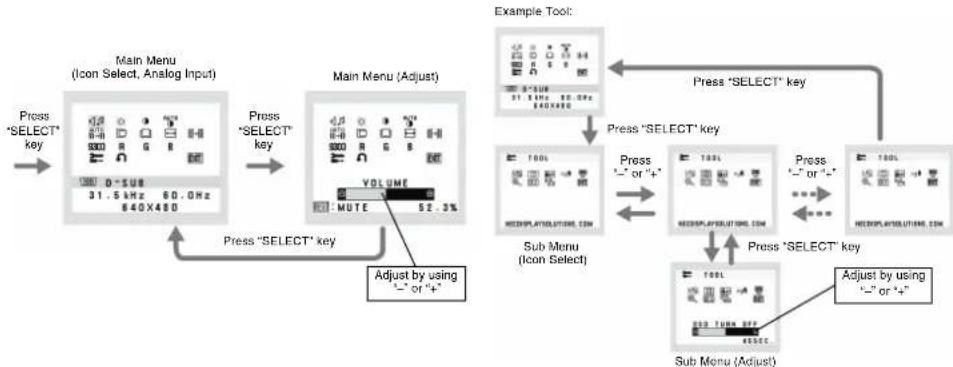
flowchart
graph TD
    A["Main Menu (Icon Select, Analog Input)"] -->|Press "SELECT" key| B["Main Menu (Adjust)"]
    B -->|Press "SELECT" key| C["Sub Menu (Icon Select)"]
    C -->|Press "SELECT" key| D["Sub Menu (Adjust)"]
    D -->|Press "SELECT" key| E["Example Tool"]
    E -->|Press "SELECT" key| F["Sub Menu (Approx)"]
    F -->|Press "SELECT" key| G["Sub Menu (Adjust)"]
    G -->|Press "SELECT" key| H["Sub Menu (Adjust)"]
    H -->|Press "SELECT" key| I["Sub Menu (Adjust)"]
    I -->|Press "SELECT" key| J["Sub Menu (Adjust)"]
    J -->|Press "SELECT" key| K["Sub Menu (Adjust)"]
    K -->|Press "SELECT" key| L["Sub Menu (Adjust)"]
    L -->|Press "SELECT" key| M["Sub Menu (Adjust)"]
    M -->|Press "SELECT" key| N["Sub Menu (Adjust)"]
    N -->|Press "SELECT" key| O["Sub Menu (Adjust)"]
    O -->|Press "SELECT" key| P["Sub Menu (Adjust)"]
    P -->|Press "SELECT" key| Q["Sub Menu (Adjust)"]
    Q -->|Press "SELECT" key| R["Sub Menu (Adjust)"]
    R -->|Press "SELECT" key| S["Sub Menu (Adjust)"]
    S -->|Press "SELECT" key| T["Sub Menu (Adjust)"]
    T -->|Press "SELECT" key| U["Sub Menu (Adjust)"]
    U -->|Press "SELECT" key| V["Sub Menu (Adjust)"]
    V -->|Press "SELECT" key| W["Sub Menu (Adjust)"]
    W -->|Press "SELECT" key| X["Sub Menu (Adjust)"]
    X -->|Press "SELECT" key| Y["Sub Menu (Adjust)"]
    Y -->|Press "SELECT" key| Z["Sub Menu (Adjust)"]
    Z -->|Press "SELECT" key| AA["Sub Menu (Adjust)"]
    AA -->|Press "SELECT" key| AB["Sub Menu (Adjust)"]
    AB -->|Press "SELECT" key| AC["Sub Menu (Adjust)"]
    AC -->|Press "SELECT" key| AD["Sub Menu (Adjust)"]
    AD -->|Press "SELECT" key| AE["Sub Menu (Adjust)"]
    AE -->|Press "SELECT" key| AF["Sub Menu (Adjust)"]
    AF -->|Press "SELECT" key| AG["Sub Menu (Adjust)"]
    AG -->|Press "SELECT" key| AH["Sub Menu (Adjust)"]
    AH -->|Press "SELECT" key| AI["Sub Menu (Adjust)"]
    AI -->|Press "SELECT" key| AJ["Sub Menu (Adjust)"]
    AJ -->|Press "SELECT" key| AK["Sub Menu (Adjust)"]
    AK -->|Press "SELECT" key| AL["Sub Menu (Adjust)"]
    AL -->|Press "SELECT" key| AM["Sub Menu (Adjust)"]
    AM -->|Press "SELECT" key| AN["Sub Menu (Adjust)"]
    AN -->|Press "SELECT" key| AO["Sub Menu (Adjust)"]
    AO -->|Press "SELECT" key| AP["Sub Menu (Adjust)"]
    AP -->|Press "SELECT" key| AQ["Sub Menu (Adjust)"]
    AQ -->|Press "SELECT" key| AR["Sub Menu (Adjust)"]
    AR -->|Press "SELECT" key| AS["Sub Menu (Adjust)"]
    AS -->|Press "SELECT" key| AT["Sub Menu (Adjust)"]
    AT -->|Press "SELECT" key| AU["Sub Menu (Adjust)"]
    AU -->|Press "SELECT" key| AV["Sub Menu (Adjust)"]
    AV -->|Press "SELECT" key| AW["Sub Menu (Adjust)"]
    AW -->|Press "SELECT" key| AX["Sub Menu (Adjust)"]
    AX -->|Press "SELECT" key| AY["Sub Menu (Adjust)"]
    AY -->|Press "SELECT" key| AZ["Sub Menu (Adjust)"]
    AZ -->|Press "SELECT" key| BA["Sub Menu (Adjust)"]
    BA -->|Press "SELECT" key| BB["Sub Menu (Adjust)"]
    BB -->|Press "SELECT" key| BC["Sub Menu (Adjust)"]
    BC -->|Press "SELECT" key| BD["Sub Menu (Adjust)"]
    BD -->|Press "SELECT" key| BE["Sub Menu (Adjust)"]
    BE -->|Press "SELECT" key| BF["Sub Menu (Adjust)"]
    BF -->|Press "SELECT" key| BG["Sub Menu (Adjust)"]
    BG -->|Press "SELECT" key| BH["Sub Menu (Adjust)"]
    BH -->|Press "SELECT" key| BI["Sub Menu (Adjust)"]
    BI -->|Press "SELECT" key| BJ["Sub Menu (Adjust)"]
    BJ -->|Press "SELECT" key| BK["Sub Menu (Adjust)"]
    BK -->|Press "SELECT" key| BL["Sub Menu (Adjust)"]
    BL -->|Press "SELECT" key| BM["Sub Menu (Adjust)"]
    BM -->|Press "SELECT" key| BN["Sub Menu (Adjust)"]
English-3

English
◀
VOLUME
Control the sound volume of speakers and headphone. To mute the speaker sound, press the 1<->2/RESET key.
☀️
BRIGHTNESS
Adjusts the overall image and background screen brightness.
①
CONTRAST
Adjusts the image brightness in relation to the background.
AUTO
AUTO CONTRAST (Analog Input only)
Adjusts the image displayed for non-standard video inputs.
AUTO 3→11
AUTO ADJUST (Analog Input only)
Automatically adjusts the Image Position, the H. Size and Fine setting.
[Figure]
LEFT/RIGHT (Analog Input only)
Controls Horizontal Image Position within the display area of the LCD.
□
DOWN/UP (Analog Input only)
Controls Vertical Image Position within the display area of the LCD.
←
H. SIZE (Analog Input only)
Adjusts the horizontal size by increasing or decreasing this setting.
\\|
FINE (Analog Input only)
Improves focus, clarity and image stability by increasing or decreasing this setting.
9300
Five color presets (9300/7500/sRGB/USER/NATIVE) select the desired color setting.
The sRGB and NATIVE, color presets are standard and cannot be changed.
R
COLOR RED
Increase or decreases Red. The change will appear on screen.
G
COLOR GREEN
Increase or decreases Green. The change will appear on screen.
B
COLOR BLUE
Increase or decreases Blue. The change will appear on screen.
1
TOOL
Selecting TOOL allows you to get into the sub menu.
∩
FACTORY PRESET
Selecting Factory Preset allows you to reset all OSD control settings back to the factory settings. The RESET button will need to be held down for several seconds to tage effect. Individual settings can be reset by highlighting the control to be reset and pressing the RESET button.
EXIT
EXIT
Selecting EXIT allows you exit OSD menu/ sub menu.
34
LANGUAGE
OSD control menus are available in nine languages.
[NO TEXT]
OSD TURN OFF
The OSD control menu will stay on as long as it is in use. In the OSD Turn OFF submenu, you can select how long the monitor waits after the last touch of a button to shut off the OSD control menu. The preset choices are 10 - 120 seconds by 5 seconds step.
0
OSD LOCK OUT
This control completely locks out access to all OSD control functions without Volume, Brightness and Contrast. When attempting to activate OSD controls while in the Lock Out mode, a screen will appear indicating the OSD are locked out. To activate the OSD Lock Out function, press "1<->2/RESET", then "+" key and hold down simultaneously. To deactivate the OSD Lock Out, press "1<->2/RESET", then "+" key and hold down simultaneously.
xy
RESOLUTION NOTIFIER
If ON is selected, a message will appear on the screen after 45 seconds, notifying you that the resolution is not at optimal resolution.
[NO TEXT]
MONITOR INFO
Indicates the model and serial numbers of your monitor.
E
EXPANSION
Selects the zoom mode.
FULL: The image is expanded to 1680 x 1050, regardless of resolution.
ASPECT: The image is expended without changing the aspect ratio.
[Unreadable]
DDC/CI
Turns ON or OFF the two way communication and control of the monitor.
图
INPUT RESOLUTION (Analog Input Only)
Sets of the resolution of input signal to one of the following: When vertical active size is 768, you can select resolution from 1024 x 768, 1280 x 768, 1360 x 768.
When vertical active size is 1050, you can select resolution from 1400 x 1050. 1680 x 1050.
OSD Warning
OSD Warning menus disappear with SELECT button.
NO SIGNAL: This function gives a warning when there is no signal present. After power is turned on or when there is a change of input signal or video is inactive, the No Signal window will appear.
RESOLUTION NOTIFIER: This function gives a warning of use with optimized resolution. After power is turned on or when there is a change of input signal or the video signal doesn't have proper resolution, the Resolution Notifier window will open. This function can be disabled in the TOOL menu.
OUT OF RANGE: This function gives a recommendation of the optimized resolution and refresh rate. After the power is turned on or there is a change of input signal or the video signal doesn't have proper timing, the Out Of Range menu will appear.

WARNUNG

NEC Display Solutions, Ltd. 4-13-23, Shibaura.
Minato-Ku Tokyo 108-0023, Japan
Directiva 89/336/CEE:
- EN 55022
- EN 61000-3-2
- EN 61000-3-3
- EN 55024

NEC Display Solutions, Ltd.
4-13-23, Shibaura.
Minato-Ku
NEC Display Solutions, Ltd.
4-13-23, Shibaura,
Minato-Ku
Tokyo 108-0023, Japon
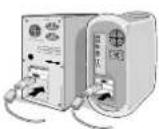
Figure A.1 Figure A.2
Figure D.1 Figure D.2 Figure D.3
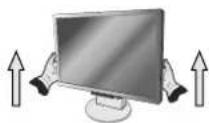
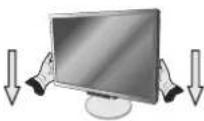
Figure RL.1
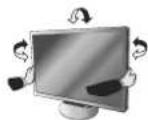
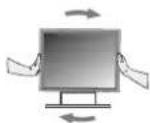
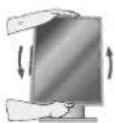
Figure TS.1 Figure R.1
NEC Display Solutions, Ltd. 4-13-23, Shibaura, Minato-Ku Tokyo 108-0023, Giappone
NEC Display Solutions, Ltd. 4-13-23, Shibaura, Minato-Ku Tokyo 108-0023, Japan
natural_image
Two identical illustrations of a computer monitor with hands holding and standing upright, showing upward and downward motion (no text or symbols)Рисунок RL.1
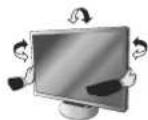
NEC Display Solutions, Ltd. 4-13-23, Shibaura.
Minato-Ku Tokyo 108-0023, Japonya
natural_image
Two horizontal bar designs with grayscale shades and a central crosshair (no text or symbols)NEC

Printed on recycled paper
Printed in China
Part Number: ____


- TCO'03
- TcODevelopment
- Congratulations!
- Ergonomics
- Energy
- Emissions
- Ecology
- Manufacturer's Recycling and Energy Information
- Disposing of your old NEC product
- Energy Saving
- WEEE Mark (European Directive 2002/96/EC)
- Within the European Union
- Outside the European Union
- CAUTION
- Declaration of the Manufacturer
- Contents
- Quick Start
- Raise and Lower Monitor Screen
- Tilt and Swivel
- Screen Rotation
- Remove Monitor Stand for Mounting
- Connecting a Flexible Arm
- Controls
- English
- ◀
- VOLUME
- ☀️
- BRIGHTNESS
- ①
- CONTRAST
- AUTO
- AUTO CONTRAST (Analog Input only)
- AUTO 3→11
- AUTO ADJUST (Analog Input only)
- [Figure]
- LEFT/RIGHT (Analog Input only)
- □
- DOWN/UP (Analog Input only)
- ←
- SIZE (Analog Input only)
- \→\|
- FINE (Analog Input only)
- 9300
- R
- COLOR RED
- G
- COLOR GREEN
- B
- COLOR BLUE
- 1
- TOOL
- ∩
- FACTORY PRESET
- EXIT
- 34
- LANGUAGE
- [NO TEXT]
- OSD TURN OFF
- 0
- OSD LOCK OUT
- xy
- RESOLUTION NOTIFIER
- MONITOR INFO
- E
- EXPANSION
- [Unreadable]
- DDC/CI
- 图
- INPUT RESOLUTION (Analog Input Only)
- OSD Warning
- WARNUNG
- NEC
Brand : NEC
Model : MultiSync LCD225WNX
Category : Monitor