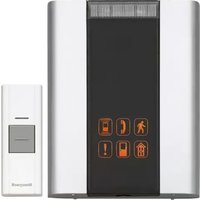
RDWL313P2000 - Doorbells HONEYWELL - Free user manual and instructions
Find the device manual for free RDWL313P2000 HONEYWELL in PDF.


| Brand | Honeywell |
| Model | RDWL313P2000 |
| Product type | Plug-in wireless doorbell |
| Doorbell power supply | Mains (electrical outlet) |
| Push button power supply | CR2032 lithium battery |
| Battery life | Up to 2 years (5 activations/day) |
| Operating frequency | 916.8 MHz (ActivLink) |
| Maximum range | 76 m (250 ft) in open field |
| Sound level | 84 dBA (typical) |
| Maximum number of accessories | 4 (buttons, sensors, detectors) |
| Operating temperature (doorbell) | -5 °C to 40 °C |
| Operating temperature (button) | -20 °C to 50 °C |
| Functions | Multiple melodies, light sequences, secret melody, adjustable volume |
| Maintenance | Periodic replacement of button battery |
| Safety | FCC/IC compliant, minimum distance 20 mm from body |
| Warranty | 1 year limited (excluding batteries) |
| Box contents | Doorbell, push button, adhesive mount, CR2032 battery, screws |
Frequently Asked Questions - RDWL313P2000 HONEYWELL
User questions about RDWL313P2000 HONEYWELL
0 question about this device. Answer the ones you know or ask your own.
Ask a new question about this device
Download the instructions for your Doorbells in PDF format for free! Find your manual RDWL313P2000 - HONEYWELL and take your electronic device back in hand. On this page are published all the documents necessary for the use of your device. RDWL313P2000 by HONEYWELL.
USER MANUAL RDWL313P2000 HONEYWELL
Installation and Operation Guide
Plug-In Wireless Doorbell
natural_image
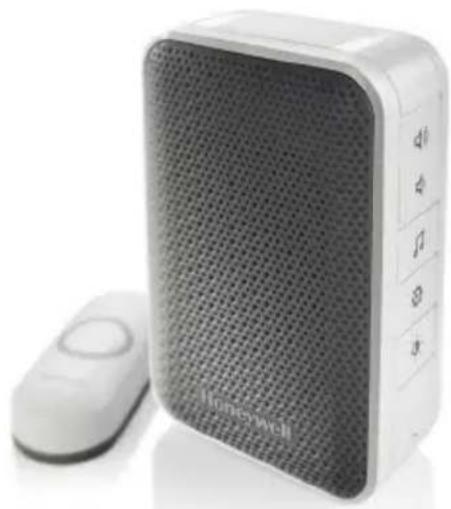
White wireless audio device with mesh grille and control buttons, no visible text or symbols on the device body.RDWL313P2000
Preparation
In the box you will find
natural_image
Blank rectangular frame with rounded corners (no text or symbols)Doorbell
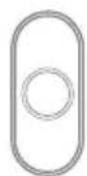
Push Button
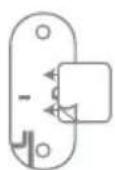
Push Button Mounting Bracket and Adhesive Pad

CR2032
Battery

Flat Head Screws
To install you will need


Phillips Screwdriver Standard Screwdriver
Overview
Just follow these simple steps:
- Install the push button battery and plug in the doorbell.
- Set up the doorbell and your preferences.
- Install the push button.
Indoor use only. Do not expose to liquid, vapor, or rain.
Power-up
- Choose an outlet location that is not near a heat source, where the doorbell will be easy to see and hear, and plug in the doorbell.
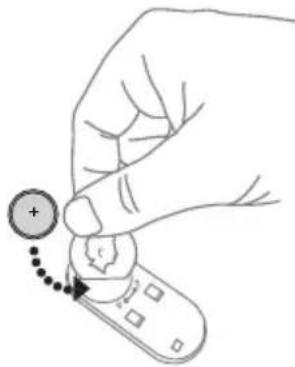
- Open the push button battery cover and install the CR2032 battery.
Setup and Operation
natural_image
Hand holding a remote control with a plus sign and dotted arrow indicating action (no text or symbols)Press the push button to test whether it is paired with the doorbell. The doorbell will light up and ring. If it does not, see "Connect a Push Button" on page 4.
Change the Light Setting
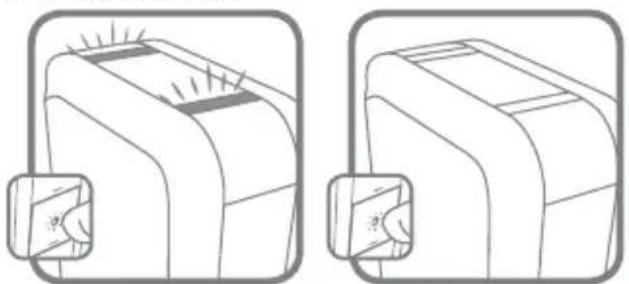
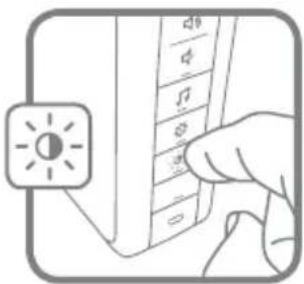
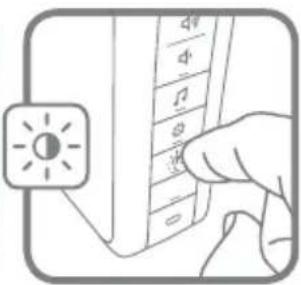
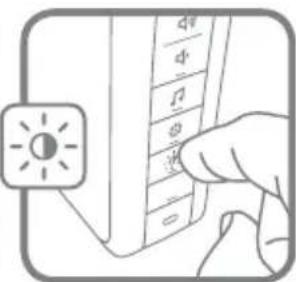
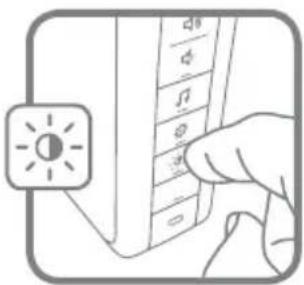
Press the Sunlight button to change the lights that flash when the doorbell rings.
Press the Sunlight button
1 time 2 times
natural_image
Two identical line drawings of a device with a magnified inset showing internal components (no text or symbols)Top lights only No lights.
Change the Tune
Press the Music button to change the doorbell tune.
Every time you press the Music button, the tune will change. Stop pressing the Music button when you hear the tune you want:
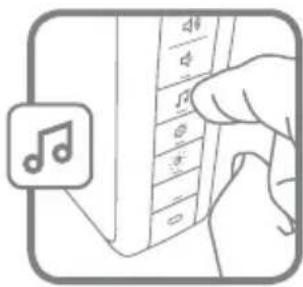
Ding Dong Westminster Piano Fantasy Soft Alert Smart Sax
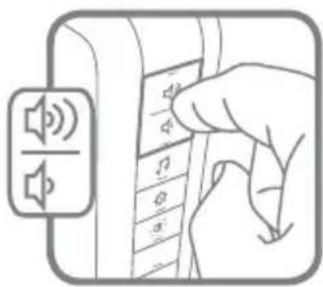
Adjust the Volume
Press the Volume Up or Volume Down buttons to adjust the volume of the Doorbell.
natural_image
Illustration of a hand pressing down on a device with speaker icons (no text or symbols)Install Push Button
-
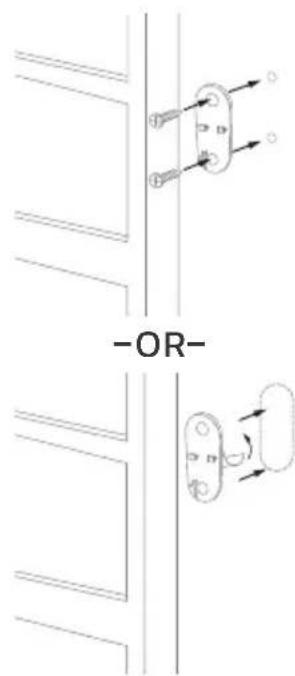
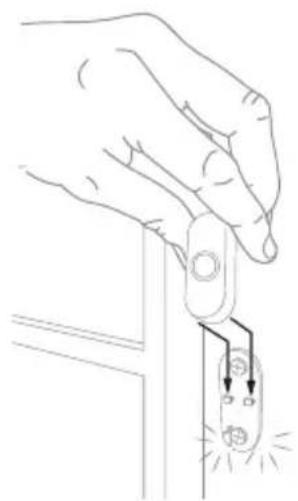
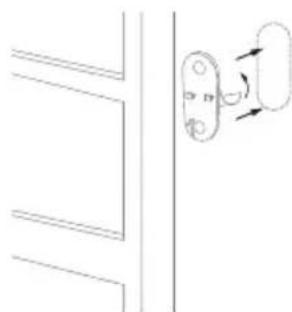
Mount the push button bracket in the desired location Use the screws -OR- Use the adhesive backing. If using the adhesive backing, clean the surface first.
-
Snap the push button onto the mounting bracket.
natural_image
Line drawing of a hand holding a switch with a small electrical socket connected to a wall (no text or symbols)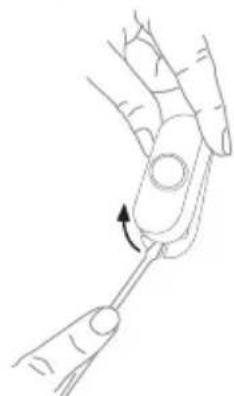
natural_image
Line drawing of a hand holding a tool with an arrow indicating rotation (no text or symbols)Note: If you need to remove the push button, use a small screwdriver to release the tab.
Accessories
You can connect 4 accessories to your doorbell, including other push buttons, window or door opening sensors, and motion sensors.
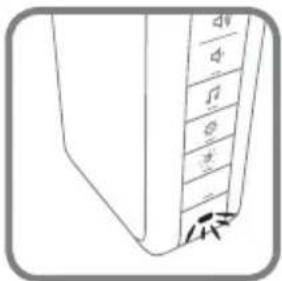
If you try to connect more accessories than the max number, the LED on the side blinks red.
Connect a Motion Sensor
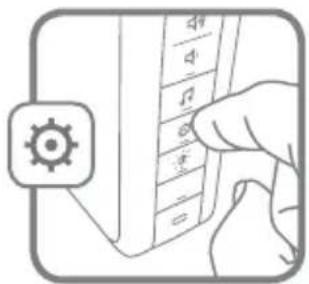
- Press and hold the Setting button on the doorbell for three seconds.
The LED on the side turns on with an amber color.
- Within 20 seconds of pressing the Setting button, wave or make some other kind of motion in front of the motion sensor.
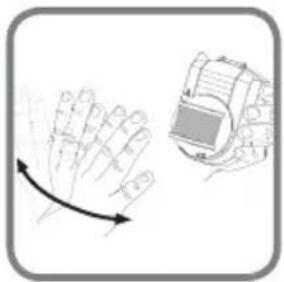
natural_image
Illustration of a hand with a curved arrow and a device on top (no text or symbols)Connect a Push Button
Follow these steps to change the ring and light settings for an existing doorbell, too.
-
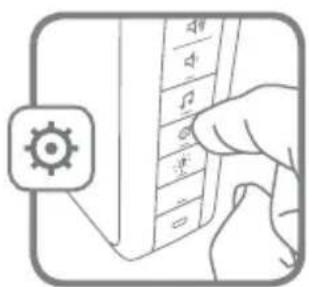
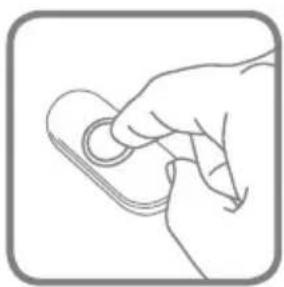
Press and hold the Setting button on the doorbell for three seconds. The LED on the side turns on with an amber color.
-
Press the push button.
-
Within 12 seconds of pressing the push button, press the Music button to select the ring for that push button.
-
Within 12 seconds of pressing the doorbell, press the Sunlight button to select light setting for that push button.
natural_image
Line drawing of a hand holding a small object, no text or symbols present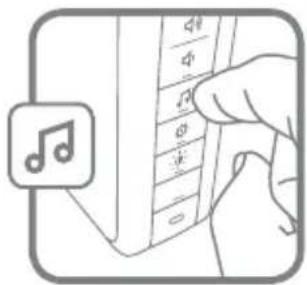
Secret Knock
You can set up a Secret Knock that makes a different ring and light setting for each push button. The Secret Knock is triggered by pressing the push button quickly 3 times.
- Press the push button 3 times quickly.
- Within 12 seconds of pressing the push button, press the Music button to select the ring for the Secret Knock
- Within 12 seconds of pressing the push button, press the Sunlight button to select a light setting for the Secret Knock.
Maintenance
Your doorbell and push button require no maintenance except to periodically change the battery.
If using the correct battery, its life should be approximately:
- Up to 2 years for the push button; replace with CR2032 lithium battery
Low Battery Notification
When the push button batteries are low, two beep sounds are heard after the normal tune.
Reset
This process removes all pairings, including the push button that came with this doorbell:
- Unplug the doorbell.
- Press and hold the Setting button, and plug the doorbell back in at the same time.
- The doorbell will beep several times rapidly, and is returned to its factory default settings.
Specifications
| Doorbell Push Button | ||
| Operating Temperature 23°F to 104°F (-5°C to 40°C) -4°F to 122°F (-20°C to 50°C) | ||
| Honeywell ActivLinkTM 916.8 MHz 916.8 MHz | ||
| Range (open field) 250 ft. (76 m) 250 ft. (76 m) | ||
| Sound Level (typical) 84dBA - | ||
| RF Power - <1.2W | ||
| Battery Type - CR2032 | ||
| Battery Life (5 activations/day) - Up to 2 years | ||
| Rain proof N/A Pass UL1598 rain test. | ||
Troubleshooting
| If | Then |
| The doorbell does not work | 1. Make sure the correct batteries (1 CR2032) are installed with the correct polarity.2. The doorbell might be out of range; try the doorbell in a different location.3. Reconnect the doorbell. See “Connect a Push Button”. |
| Two ‘beep’ sounds are heard after the normal tune | Replace push button battery with a new CR2032. |
| Range is reduced | 1. Metal structures including uPVC door frames can reduce the range. Don’t mount the the doorbell or push button on or near metal structures.2. Move the doorbell closer to the push button.3. Weak batteries will reduce range. In cold conditions (below 41°F [5°C]), batteries may need to be replaced more often. |
For help please visit yourhome.honeywell.com or call 1-800-468-1502.
FCC Regulations
This device complies with part 15 of the FCC Rules. Operation is subject to the following two conditions: (1) This device may not cause harmful interference, and (2) this device must accept any interference received, including interference that may cause undesired operation.
The grantee is not responsible for any changes or modifications not expressly approved by the party responsible for compliance. Such modifications could void the user's authority to operate the equipment.
This equipment has been tested and found to comply with the limits for a Class B digital device, pursuant to part 15 of the FCC Rules. These limits are designed to provide reasonable protection against harmful interference in a residential installation. This equipment generates, uses and can radiate radio frequency energy and, if not installed and used in accordance with the instructions, may cause harmful interference to radio communications.
However, there is no guarantee that interference will not occur in a particular installation. If this equipment does cause harmful interference to radio or television reception, which can be determined by turning the equipment off and on, the user is encouraged to try to correct the interference by one or more of the following measures:
- Reorient or relocate the receiving antenna.
- Increase the separation between the equipment and receiver.
- Connect the equipment into an outlet on a circuit different from that to which the receiver is connected.
- Consult the dealer or an experienced radio/TV technician for help.
This transmitter must not be co-located or operating in conjunction with any other antenna or transmitter. This equipment should be installed and operated with a minimum distance of 20 millimeters between the radiator and your body.
FCC ID: HS9-RDWL313P, HS9-RPWL400
IC Regulations
CAN ICES-3(B)/ NMB-3(B)
This device complies with Industry Canada licence-exempt RSS standard(s). Operation is subject to the following two conditions: (1) this device may not cause interference, and (2) this device must accept any interference, including interference that may cause undesired operation of the device.
CAN ICES-3(B)/NMB-3(B)
The device meets the exemption from the routine evaluation limits in section 2.5 of RSS 102 and compliance with RSS-102 RF exposure, users can obtain Canadian information on RF exposure and compliance.
This transmitter must not be co-located or operating in conjunction with any other antenna or transmitter. This equipment should be installed and operated with a minimum distance of 20 millimeters between the radiator and your body.
IC ID: 573R-RDWL313P, 573R-RPWL400
Warranty
1-year limited warranty
Honeywell warrants this product, excluding battery, to be free from defects in workmanship or materials, under normal use and service, for a period of one (1) year from the date of first purchase by the original purchaser. If at any time during the warranty period the product is determined to be defective due to workmanship or materials, Honeywell shall repair or replace it (at Honeywell's option).
If the product is defective,
(i) return it, with a bill of sale or other dated proof of purchase, to the place from which you purchased it; or (ii) call Honeywell Customer Care at 1-800-468-1502. Customer Care will make the determination whether the product should be returned to the following address:
Honeywell Return Goods, Dock 4 MN10-3860, 1885 Douglas Dr. N., Golden Valley, MN 55422, or whether a replacement product can be sent to you.
This warranty does not cover removal or reinstallation costs. This warranty shall not apply if it is shown by Honeywell that the defect was caused by damage which occurred while the product was in the possession of a consumer.
Honeywell's sole responsibility shall be to repair or replace the product within the terms stated above.
HONEYWELL SHALL NOT BE LIABLE FOR ANY LOSS OR DAMAGE OF ANY KIND, INCLUDING ANY INCIDENTAL OR CONSEQUENTIAL DAMAGES RESULTING, DIRECTLY OR INDIRECTLY, FROM ANY BREACH OF ANY WARRANTY, EXPRESS OR IMPLIED, OR ANY OTHER FAILURE OF THIS PRODUCT. Some states do not allow the exclusion or limitation of incidental or consequential damages, so this limitation may not apply to you.
THIS WARRANTY IS THE ONLY EXPRESS WARRANTY HONEYWELL MAKES ON THIS PRODUCT. THE DURATION OF ANY IMPLIED WARRANTIES, INCLUDING THE WARRANTIES OF MERCHANTABILITY AND FITNESS FOR A PARTICULAR PURPOSE, IS HEREBY LIMITED TO THE ONEYEAR DURATION OF THIS WARRANTY. Some states do not allow limitations on how long an implied warranty lasts, so the above limitation may not apply to you.
This warranty gives you specific legal rights, and you may have other rights which vary from state to state.
If you have any questions concerning this warranty, please write Honeywell Customer Care, 1985 Douglas Dr, Golden Valley, MN 55422 or call 1-800-468-1502.
Automation and Control Solutions
Honeywell International Inc.
1985 Douglas Drive North
Golden Valley, MN 55422
yourhome.honeywell.com
Honeywell
natural_image
White portable electronic device with mesh grille and control buttons, no visible text or symbols on the device body.RDWL313P2000
Préparation
natural_image
Blank rectangular frame with rounded corners (no text or symbols)Sonnette
Bouton-
poussoir
Indoor use only. Do not expose to liquid, vapor, or rain.
Mise sous tension
natural_image
Hand holding a remote control with a plus button and cursor icon (no text or symbols)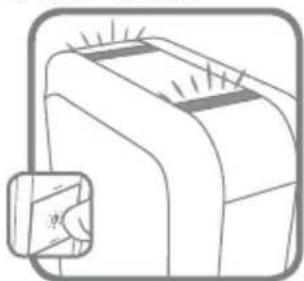
natural_image
Diagram of a device with heat sinks and a magnified inset showing a small component (no text or symbols)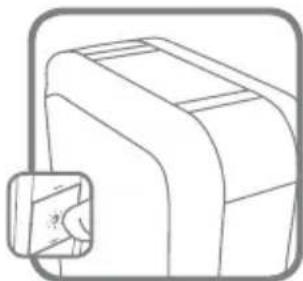
natural_image
Line drawing of a mechanical component with a magnified inset showing a small circular feature (no text or symbols)Ding Dong
Westminster
Piano
Fantaisie
Alerte douce
Smart Sax
Réglage du volume
natural_image
Illustration of a hand pressing down on a device with speaker icons (no text or symbols)natural_image
Pure electrical circuit lines without any symbols-OU-
natural_image
Simple line drawing of a door handle with a scroll wheel, no text or symbols present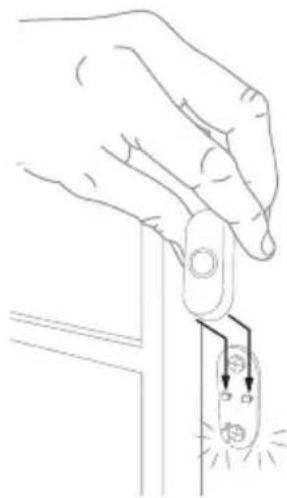
natural_image
Line drawing of a hand holding a switch with a small electrical component, emitting sparks (no text or symbols)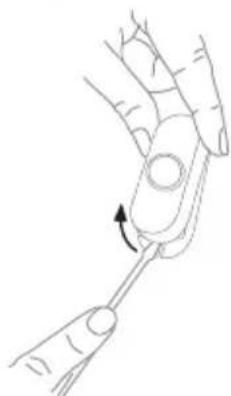
natural_image
Line drawing of a hand holding a finger with a tool, showing a curved arrow indicating rotation (no text or symbols)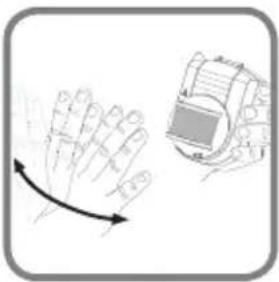
natural_image
Illustration of a hand with a curved arrow and a device outline (no text or symbols)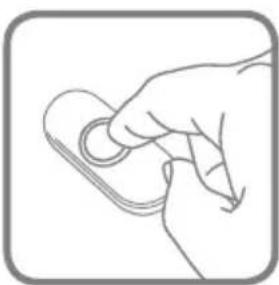
natural_image
Line drawing of a hand holding a small object with a circular ring (no text or symbols)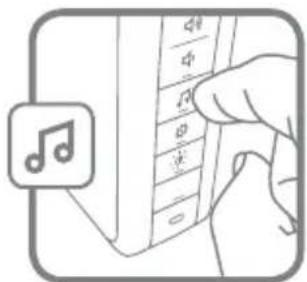
Honeywell International Inc.
1985 Douglas Drive North
Golden Valley, MN 55422
yourhome.honeywell.com
Honeywell
natural_image
White HomePower home audio jack with mesh grille and control panel (no visible text or symbols)RDWL313P2000
Preparación
natural_image
Blank rectangular frame with rounded corners (no text or symbols)Timbre
Indoor use only. Do not expose to liquid, vapor, or rain.
Accionamiento
natural_image
Hand holding a remote control with a plus sign and dotted arrow indicating action (no text or symbols)natural_image
Diagram of a device with indicator lights and a magnified inset showing a small component (no text or symbols)natural_image
Line drawing of a mechanical component with a magnified inset showing a small circular detail (no text or symbols)Sin iluminación
Ding Dong
Westminster
Piano
Fantasía
Alerta suave
Saxofón inteligente
natural_image
Illustration of a hand pressing down on a device with speaker icons (no text or symbols)Instale el pulsador
natural_image
Line drawing of a hand holding a small electronic component with two wires emitting light (no text or symbols)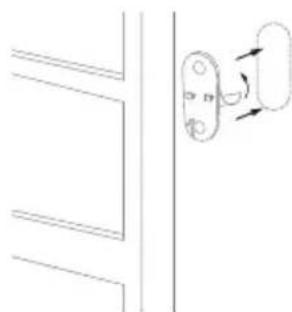
natural_image
Simple line drawing of a door handle with a scroll wheel, no text or symbols present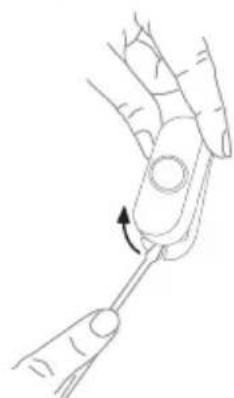
natural_image
Line drawing of a hand holding a finger with a tool, showing a curved arrow indicating rotation (no text or symbols)natural_image
Illustration showing a hand holding a device with a gear icon and a close-up of the hands adjusting a circular button (no text or symbols present)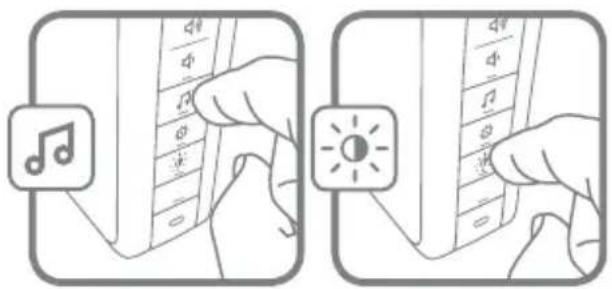
Honeywell International Inc.
1985 Douglas Drive North
Golden Valley, MN 55422
yourhome.honeywell.com

LISTED E302157 APPLIANCE CONTROL
Honeywell