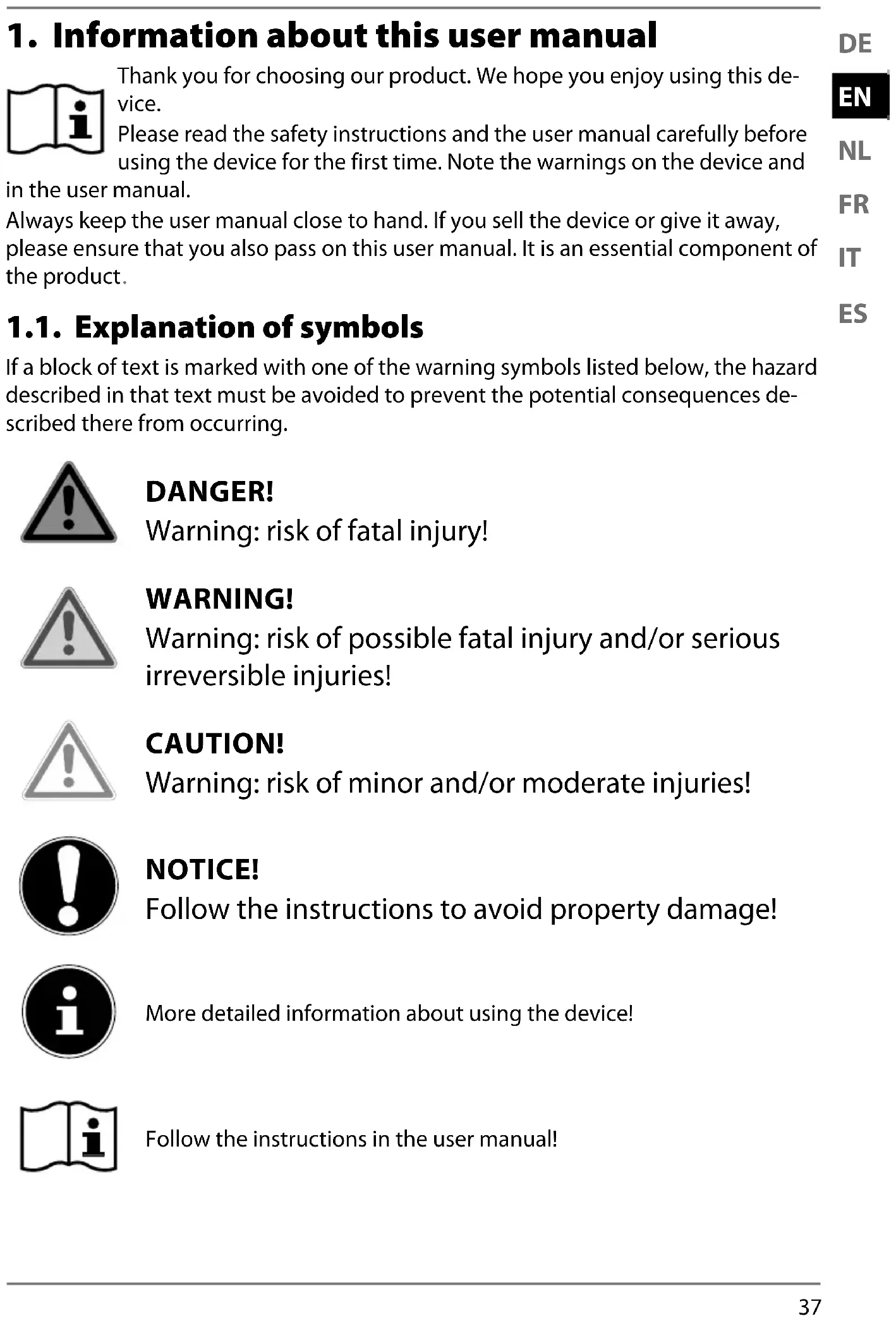
MEDION LIFE E66050 (MD 43320) - Radio

LIFE E66050 (MD 43320) - Radio MEDION - Free user manual and instructions

Find the device manual for free LIFE E66050 (MD 43320) MEDION in PDF.

📄 194 pages English EN 💬 AI Question
Notice MEDION LIFE E66050 (MD 43320) - page 36

Download the instructions for your Radio in PDF format for free! Find your manual LIFE E66050 (MD 43320) - MEDION and take your electronic device back in hand. On this page are published all the documents necessary for the use of your device. LIFE E66050 (MD 43320) by MEDION.

USER MANUAL LIFE E66050 (MD 43320) MEDION
1. Information about this user manual

Thank you for choosing our product. We hope you enjoy using this de- vice. Please read the safety instructions and the user manual carefully before using the device for the first time. Note the warnings on the device and in the user manual. Always keep the user manual close to hand. If you sell the device or give it away, please ensure that you also pass on this user manual. It is an essential component of the product

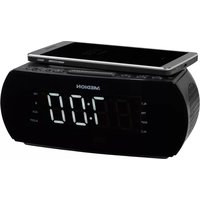
1.1. Explanation of symbols If a block of text is marked with one of the warning symbols listed below, the hazard described in that text must be avoided to prevent the potential consequences de- scribed there from occurring. DANGER!

Warning: risk of fatal injury!

Warning: risk of possible fatal injury and/or serious

irreversible injuries! CAUTION!

Warning: risk of minor and/or moderate injuries!

NOTICE! Follow the instructions to avoid property damage! More detailed information about using the device! Follow the instructions in the user manual! 43320 ML Content Final.indb 3743320 ML Content Final.indb 37 12.07.2022 09:31:2312.07.2022 09:31:2338 WARNING!

Warning: risk of electric shock!

  • Bullet point/information on steps during operation Instruction to be carried out

Safety instructions to be observed

This is a home entertainment device. The site radio is used to play audio material which can be played via Bluetooth or AUX. In addition, radio stations can be played. The specified reception frequency range represents the techni- cal possibilities of the device. Information received outside this range may not be used or further distributed. The respective na- tional laws must be observed. Please note that we shall not be liable in cases of improper use:

  • Do not modify the device without our consent and do not use any auxiliary equipment that we have not approved or sup- plied.
  • Only use replacement parts or accessories that we have sup- plied or approved.
  • Comply with all the information in this user manual, especial- ly the safety instructions. Any other use is considered improp- er and can cause personal injury or property damage. 43320 ML Content Final.indb 3843320 ML Content Final.indb 38 12.07.2022 09:31:3212.07.2022 09:31:3239
  • Do not use the device in potentially explosive atmospheres. This includes petrol stations, fuel storage areas and are- as where solvents are processed. This device must also not be used in areas with particle-laden air (for example, flour or wood dust).
  • Do not use the device outdoors.
  • Do not expose the device to extreme conditions. Avoid: – high humidity or wet conditions – extremely high and low temperatures – direct sunlight – naked flames.

3. Safety instructions

WARNING! Risk of injury! Risk of injury to children and persons with limited phys- ical, sensory or mental abilities (for example, partial- ly disabled people or older people with limited physi- cal and mental abilities) or to those without experience and knowledge (such as older children). Keep the device and its accessories out of the reach of children. This device can be used by children over the age of 8 and by persons with reduced physical, sensory or mental abilities or by those without experience and/or knowledge, if they are supervised or have been instructed in the safe use of the de- vice and have understood the dangers that result from it. Chil- dren must not be allowed to play with the device. Cleaning and user maintenance must not be carried out by children. Children do not recognise the dangers that can arise when handling electrical devices. Please be particularly careful while using the device if there are children nearby. 43320 ML Content Final.indb 3943320 ML Content Final.indb 39 12.07.2022 09:31:3312.07.2022 09:31:3340 Children younger than 8 should be kept away from the device and the connection cable. Keep all packaging materials used (bags, pieces of polysty- rene etc.) out of reach of children. 3.1. Setting up the device safely If the device has been moved from a cold room to a warm room, wait before connecting it to the power supply. The re- sulting condensation may damage the device. The device can be operated safely as soon as it has reached room tempera- ture. Take care to ensure the following: – Allow at least 10 cm clearance at the sides and top of the device if it is placed in a rack or a similar enclosed space. – Do not expose the device to direct sources of heat (e.g. heaters). – Do not leave the device in direct sunlight. – Do not expose the device to extreme temperatures. – Do not place the device close to magnetic fields (for exam- ple, televisions or other loudspeakers). – Do not place naked flames (for example, lit candles) near or on the device. – Do not place containers that are filled with liquid, e.g. vas- es, on or near the device. Such containers may tip over and the liquid may impair the electrical safety of the device. 3.2. Power supply The device must be close to the mains socket, which must al- ways be easily accessible. Position the cables so that no one can tread on them or trip over them. To disconnect the device from the power supply, remove the plug from the mains socket. Always hold the plug firmly when unplugging it. To prevent damage, never pull on the cable. Only operate the device from an earthed, easily accessible 43320 ML Content Final.indb 4043320 ML Content Final.indb 40 12.07.2022 09:31:3412.07.2022 09:31:3441

100–240 V ~ 50/60 Hz mains socket. Contact the local energy supplier if you have any questions about the power supply at the installation location. Do not use the power cable if either the plug or cable is dam- aged. When the plug is plugged into a live mains socket, the site ra- dio is constantly supplied with power in order to charge the battery, even in standby mode. DANGER! Risk of electric shock! There is a risk of electric shock due to live parts. Never open the device housing. Touching live parts or at- tempting to modify the device’s electrical or mechanical func- tionality puts you at risk, and may also damage the device. 43320 ML Content Final.indb 4143320 ML Content Final.indb 41 12.07.2022 09:31:3512.07.2022 09:31:3542 Unplug the device from the power socket if it is not go- ing to be used for a longer period of time, or during a thunderstorm. If the device is not in use, unplug the plug from the mains socket or use a switchable multi-outlet strip to prevent the device from using electricity when it is switched off. The site radio plug serves as a separating device. As long as the site radio is connected to the power supply, the parts in- side it also carry current when switched off. Do not touch the power cable or plug with wet hands. Do not insert any objects into the openings. Danger of an electric shock! Do not use the site radio and accessories if they are damaged, generate smoke or emit unusual operating noises. In this case, disconnect the power supply immediately. The light source of this light is not replaceable; when the light source has reached the end of its life, the en- tire device must be replaced. 3.3. Handling the rechargeable batteries The site radio is powered by a built-in rechargeable battery and users cannot simply replace it themselves. Never attempt to re- place the battery yourself. Please note the following: 43320 ML Content Final.indb 4243320 ML Content Final.indb 42 12.07.2022 09:31:3512.07.2022 09:31:3543

WARNING! Risk of explosion! There is a risk of explosion if the rechargeable battery is replaced incorrectly. Replace batteries only with the same or equivalent type. Do not throw the device into a fire, and do not short-circuit it or dismantle it. The site radio should not be left unattended while it is being charged. 3.4. Cleaning and storage Before cleaning, pull the mains adapter out of the mains sock- et. Use a soft, dry cloth to clean the device. Avoid the use of chemical solutions and cleaning products because these may damage the device surface and/or the labels on it. If the device is not going to be used for a long period of time, pull the plug out of the mains socket. 43320 ML Content Final.indb 4343320 ML Content Final.indb 43 12.07.2022 09:31:3612.07.2022 09:31:3644 3.5. Water spray protection The radio is protected against damage from dust and water spray according to IP54. Please note that protection against water spray is only guaran- teed when the site radio is in the upright (normal) position. The mains adapter is not protected against damage from water spray. The protection against water spray is only guaranteed if the mains adapter connection is sealed with the rubber protective cap. NOTICE! Risk of damage! Risk of damage to the device if installed incorrectly. Please note that protection against water spray is only guaranteed when the site radio is in the upright (normal) position. 43320 ML Content Final.indb 4443320 ML Content Final.indb 44 12.07.2022 09:31:3712.07.2022 09:31:3745

word mark and logos are registered trademarks of Bluetooth SIG, Inc. and are used by Medion under licence. Other trademarks are the property of their respective owners.

Remove the product from the packaging and remove all packaging materials. Check your purchase to ensure that all items are included and in perfect condi- tion. If anything is missing or damaged, please contact us within 14 days of pur- chase. In the event of damage, only use the device after consultation with cus- tomer services. The following items are supplied with your product:

  • User manual and warranty card DANGER! Risk of choking and suffocation! Packaging film can be swallowed or used improperly, creating a risk of choking and suffocation. Keep all packaging materials used (bags, pieces of polysty- rene etc.) out of reach of children. Do not let children play with the packaging material. THE PACKAGING MATERIAL IS NOT A TOY! 43320 ML Content Final.indb 4543320 ML Content Final.indb 45 12.07.2022 09:31:3912.07.2022 09:31:3946

1 Station memory slot 1

2 Station memory slot 2

  • Navigate in the menu, select track, select station, confirm settings

4+ Station memory slot 4

3 Station memory slot 3

  • Switch the device on/off

Mode • Select the operating mode

Aux in Audio connection for external device

Risk of damage to the device if installed incorrectly. Please note that protection against water spray is only guar- anteed when the site radio is in the upright (normal) position. 7.1. Connecting the mains plug Plug the mains plug into an easily accessible 100–240 V ~ 50–60 Hz mains socket. If you do not need to use the device for a long period of time, please take it out of operation. To do this, unplug the mains plug. 7.2. Battery operation/charging the device The device can also be operated without an external power source via the integrat- ed rechargeable battery. As soon as the battery reaches a low charge level, the indicator on the display begins to flash. Only charge the device when it is dry and indoors. Ensure that the de- vice is completely dry before charging. To charge the battery, connect the mains cable as described in the previous sec- tion. During charging, lights up on the display. To extend the battery life, disconnect the device from the external power source when the battery is fully charged. 43320 ML Content Final.indb 4943320 ML Content Final.indb 49 12.07.2022 09:31:4312.07.2022 09:31:4350

8.1. Control You can control how tracks are played, the volume and a range of special functions on your external device and on the radio. The functions available to you depend on your external device and the software you are using. In principle, these buttons on the device are intended for control via Bluetooth

Under basic settings, configure settings that apply to all modes. Use the Enter Tune -/+ controller to select the menu or the required setting. Press the Enter Tune -/+ controller to confirm your selection. Press the Menu button to return to the previous menu item. The current setting is indicated by a * in the menu. 8.2. Switching the device on/off Briefly press and hold the button to switch on the radio. Briefly press and hold the button to switch off the radio. 8.3. Setting the language Set the system language here. The language is set to English by default. To simplify the initial setup, only English terms are specified in the user manual. Briefly press and hold the button to switch on the radio. Press the Menu button in any playback mode. Use the Enter Tune -/+ controller to select the <System> menu and press the Enter Tune -/+ controller to confirm your selection. Next, use the Enter Tune -/+ controller to select the <Language> menu and press the Enter Tune -/+ controller to confirm your selection. Next, use the Enter Tune -/+ controller to select the required language and press the Enter Tune -/+ controller to confirm your selection. 43320 ML Content Final.indb 5043320 ML Content Final.indb 50 12.07.2022 09:31:4712.07.2022 09:31:4751

8.4. Setting the time The time and date must be set manually: Switch the device on. Briefly press and hold the button to switch on the radio. Press the Menu button in any playback mode. Use the Enter Tune -/+ controller to select the <System> menu and press the Enter Tune -/+ controller to confirm your selection. Use the Enter Tune -/+ controller to select the <Time> menu and press the En- ter Tune -/+ controller to confirm your selection. Now, use the Enter Tune -/+ controller to select the <Set Time/Date> menu and press the Enter Tune -/+ controller to confirm your selection. Now, use the Enter Tune -/+ controller to select the current hour and press the Enter Tune -/+ controller to confirm your selection. Next, use the Enter Tune -/+ controller to select the current minutes and press the Enter Tune -/+ controller to confirm your selection. Next, use the Enter Tune -/+ controller to select the current date and press the Enter Tune -/+ controller to confirm your selection. Now, use the Enter Tune -/+ controller to select the current month and press the Enter Tune -/+ controller to confirm your selection. Next, use the Enter Tune -/+ controller to select the current year and press the Enter Tune -/+ controller to confirm your selection. The date and time are now stored automatically.

Your device allows you to update the time automatically via the DAB or FM signal. Press the Menu button in any playback mode. Use the Enter Tune -/+ controller to select the <System> menu and press the Enter Tune -/+ controller to confirm your selection. Use the Enter Tune -/+ controller to select the <Time> menu and press the En- ter Tune -/+ controller to confirm your selection. Use the Enter Tune -/+ controller to select the <Auto update> menu and press the Enter Tune -/+ controller to confirm your selection. Use the Enter Tune -/+ controller to select the <Update from Any> menu and press the Enter Tune -/+ controller to confirm your selection. Use the Enter Tune -/+ controller to select the <Update from DAB> menu and press the Enter Tune -/+ controller to confirm your selection. The device obtains the time and date settings from the DAB signal. Use the Enter Tune -/+ controller to select the <Update from FM> menu and press the Enter Tune -/+ controller to confirm your selection. The device obtains the time and date settings from the FM signal. Use the Enter Tune -/+ controller to select the <no update> menu and press the Enter Tune -/+ controller to confirm your selection. The device no longer automatically updates the time. 43320 ML Content Final.indb 5143320 ML Content Final.indb 51 12.07.2022 09:31:5012.07.2022 09:31:5052

8.4.2. Changing the time format displayed

Press the Menu button in any playback mode. Use the Enter Tune -/+ controller to select the <System> menu and press the Enter Tune -/+ controller to confirm your selection. Use the Enter Tune -/+ controller to select the <Time> menu and press the En- ter Tune -/+ controller to confirm your selection. Use the Enter Tune -/+ controller to select the <Set 12/24 hour> menu and press the Enter Tune -/+ controller to confirm your selection. Use the Enter Tune -/+ controller to select the <Set 12 hour> menu and press the Enter Tune -/+ controller to confirm your selection. The time is now displayed in 12-hour format. Use the Enter Tune -/+ controller to select the <Set 24 hour> menu and press the Enter Tune -/+ controller to confirm your selection. The time is now displayed in 24-hour format.

8.4.3. Changing the date format displayed

Press the Menu button in any playback mode. Use the Enter Tune -/+ controller to select the <System> menu and press the Enter Tune -/+ controller to confirm your selection. Use the Enter Tune -/+ controller to select the <Time> menu and press the En- ter Tune -/+ controller to confirm your selection. Use the Enter Tune -/+ controller to select the <Set Date Format> menu and press the Enter Tune -/+ controller to confirm your selection. Use the Enter Tune -/+ controller to select the <MM/DD/YY> menu and press the Enter Tune -/+ controller to confirm your selection. The date is now displayed in the format (month/month/day/day/year). Use the Enter Tune -/+ controller to select the <DD/MM/YY> menu and press the Enter Tune -/+ controller to confirm your selection. The date is now displayed in the format (day/day/month/month/year). 8.5. Backlight Press the Menu button in any playback mode. Use the Enter Tune -/+ controller to select the <System> menu and press the Enter Tune -/+ controller to confirm your selection. Use the Enter Tune -/+ controller to select the <Backlight> menu and press the Enter Tune -/+ controller to confirm your selection. Use the Enter Tune -/+ controller to select the <Timeout> menu and press the Enter Tune -/+ controller to confirm your selection. Set a time after which the display is to switch off if the device is not used, or deacti- vate the timeout here. Use the Enter Tune -/+ controller to select the required setting and press the En- ter Tune -/+ controller to confirm your selection. Use the Enter Tune -/+ controller to select the <On Level> menu and press the 43320 ML Content Final.indb 5243320 ML Content Final.indb 52 12.07.2022 09:31:5012.07.2022 09:31:5053

Enter Tune -/+ controller to confirm your selection. Set the display brightness here for when the display comes on. Use the Enter Tune -/+ controller to select the required setting and press the En- ter Tune -/+ controller to confirm your selection. 8.6. Equaliser Press the Menu button in any playback mode. Use the Enter Tune -/+ controller to select the <System> menu and press the Enter Tune -/+ controller to confirm your selection. Press the Menu button in any playback mode. Use the Enter Tune -/+ controller to select the <Equaliser> menu and press the Enter Tune -/+ controller to confirm your selection. Select a preset equaliser setting (Normal, Classic, Jazz, Pop, Rock or My EQ) here. Use the Enter Tune -/+ controller to select the required setting and press the En- ter Tune -/+ controller to confirm your selection. Select <My EQ> to store an equaliser setting. Use the Enter Tune -/+ controller to select the <My EQ> menu and press the En- ter Tune -/+ controller to confirm your selection. Use the Enter Tune -/+ controller to select the <Treble> menu and press the En- ter Tune -/+ controller to confirm your selection. Select the required amplification of high frequencies (-7 to +7) here. Use the Enter Tune -/+ controller to select the <Bass> menu and press the En- ter Tune -/+ controller to confirm your selection. Select the required amplification of low frequencies (-7 to +7) here. 8.7. Sleep Press the Menu button in any playback mode. Use the Enter Tune -/+ controller to select the <System> menu and press the Enter Tune -/+ controller to confirm your selection. Press the Menu button in any playback mode. Use the Enter Tune -/+ controller to select the <Sleep> menu and press the En- ter Tune -/+ controller to confirm your selection. Set a time after which the device is to switch off, or deactivate the sleep mode here. Use the Enter Tune -/+ controller to select the required setting and press the En- ter Tune -/+ controller to confirm your selection. The symbol is shown on the display as soon as a sleep timer has been set. 43320 ML Content Final.indb 5343320 ML Content Final.indb 53 12.07.2022 09:31:5012.07.2022 09:31:5054 8.8. SW version Press the Menu button in any playback mode. Use the Enter Tune -/+ controller to select the <System> menu and press the Enter Tune -/+ controller to confirm your selection. Use the Enter Tune -/+ controller to select the <SW version> menu and press the Enter Tune -/+ controller to confirm your selection. The device now displays the software version installed on the device. 8.9. Factory reset Press the Menu button in any playback mode. Use the Enter Tune -/+ controller to select the <System> menu and press the Enter Tune -/+ controller to confirm your selection. Use the Enter Tune -/+ controller to select the <Factory reset> menu and press the Enter Tune -/+ controller to confirm your selection. Use the Enter Tune -/+ controller to select <yes> and press the Enter Tune -/+ controller to confirm your selection and to perform the reset to factory settings. Use the Enter Tune -/+ controller to select <no> and press the Enter Tune -/+ controller to confirm your selection to cancel the reset to factory settings. The basic settings have now been configured. You can also reset the device with the aid of a pointed object and the re- set opening on the back of the device. To do so, simply insert a thin ob- ject into the reset opening.

9. Turning on the device

The following operating functions are available in all modes: When the device is switched on, press the Mode button several times to select the required operating mode (DAB, BT, FM, AUX). When the device is in use, turn the Mute/Vol -/+ controller towards - to decrease the volume. When the device is in use, turn the Mute/Vol -/+ controller towards + to in- crease the volume. When the device is in use, turn the Enter Tune -/+ controller towards - to switch to the previous track in BT mode and to switch to the previous station in radio mode (DAB/FM). When the device is in use, turn the Enter Tune -/+ controller towards - to switch to the next track in BT mode and to switch to the next station in radio mode (DAB/FM). When the device is in use, press the Mute/Vol -/+ controller to mute the device. When the device is in use, press the Menu button to navigate to the respective menu. 43320 ML Content Final.indb 5443320 ML Content Final.indb 54 12.07.2022 09:31:5112.07.2022 09:31:5155

You can listen to radio via DAB in this mode. Fold up the antenna. Briefly press and hold the button to switch on the radio. If necessary, press the Mode button several times until DAB is shown on the dis- play. When the device is used for the first time, it automatically starts in DAB mode and independently performs a complete search for stations re- ceived. DAB and the antenna symbol with the current reception strength are shown on the display. In principle, the more vertical bars that are displayed, the better the reception. If you have poor reception or no reception, adjust the antenna position or the device location.

If you have moved the device to a different location, (new station area such as a dif- ferent region), you should perform a new full station search manually. Press the Menu button. Use the Enter Tune -/+ controller to select the <Full scan> menu and press the Enter Tune -/+ controller to confirm your selection. The device now automatically carries out a station search and all DAB+ stations that can be received are stored.

Manually set the required frequency band here. Press the Menu button. Use the Enter Tune -/+ controller to select the <Manual tune> menu and press the Enter Tune -/+ controller to confirm your selection. Use the Enter Tune -/+ controller to select the required frequency band and press the Enter Tune -/+ controller to confirm your selection. 43320 ML Content Final.indb 5543320 ML Content Final.indb 55 12.07.2022 09:31:5212.07.2022 09:31:5256 The set frequency band is now played. If no station is available on this band, there will be nothing to hear. In DAB mode, we recommend simply using the automatic station search “Full Scan”.

10.9.3. Storing favourites

Store the required station in a programme position that you have selected. Start DAB mode. Use the Enter Tune -/+ controller to select the required station. Press and hold one of the 4 station memory buttons 1, 2, 3, 4+. Use the Enter Tune -/+ controller to select a memory slot from 1–40 and press the Enter Tune -/+ controller to confirm your selection. Memory slots 1–4 can be called up directly using station memory but- tons 1–4.

In this case, use the so-called DRC mode. DRC mode reduces the difference between loud and quiet sounds. Press the Menu button. Use the Enter Tune -/+ controller to select the <DRC> menu and press the Enter Tune -/+ controller to confirm your selection. Use the Enter Tune -/+ controller to select the required frequency band and press the Enter Tune -/+ controller to confirm your selection. Select the required setting Low, High or deactivate DRC mode with Off here.

The device features the option to delete DAB stations from the station list that are no longer transmitting or that have changed frequency. Press the Menu button. Use the Enter Tune -/+ controller to select the <prune> menu and press the En- ter Tune -/+ controller to confirm your selection. Use the Enter Tune -/+ controller to select <yes> and press the Enter Tune -/+ controller to confirm your selection. Inactive stations are deleted. Use the Enter Tune -/+ controller to select <no> and press the Enter Tune -/+ controller to confirm your selection. The prune function is deactivated. 43320 ML Content Final.indb 5643320 ML Content Final.indb 56 12.07.2022 09:31:5612.07.2022 09:31:5657

You can listen to radio via the FM band in this mode. Fold up the antenna. Briefly press and hold the button to switch on the radio. If necessary, press the Mode button several times until FM is shown on the dis- play. Unlike in DAB mode, a station search must first be started here. The selected FM frequency and the antenna symbol with the current reception strength are shown on the display. In principle, the more vertical bars that are displayed, the better the reception. If you have poor reception or no reception, adjust the antenna position or the device location. 11.1. Scan setting Set which ratio stations are to be stored in case of an automatic station search. Press the Menu button. Use the Enter Tune -/+ controller to select the <Scan setting> menu and press the Enter Tune -/+ controller to confirm your selection. Use the Enter Tune -/+ controller to select <Strong stations only> and press the Enter Tune -/+ controller to confirm your selection. Only stations with good, strong reception are stored. Use the Enter Tune -/+ controller to select <All stations> and press the Enter Tune -/+ controller to confirm your selection. All stations received are stored. 11.2. Auto scan Press and hold the Enter Tune -/+ controller to start an automatic station search. All stations found are stored by frequency. 43320 ML Content Final.indb 5743320 ML Content Final.indb 57 12.07.2022 09:31:5812.07.2022 09:31:5858 11.3. Audio setting In the audio setting menu, you can set whether the radio is to play in mono only or stereo. In case of poor reception, switching to mono may improve station playback. Press the Menu button. Use the Enter Tune -/+ controller to select the <Audio Setting> menu and press the Enter Tune -/+ controller to confirm your selection. Use the Enter Tune -/+ controller to select <forced Mono> and press the Enter Tune -/+ controller to confirm your selection. All stations are played in mono. Use the Enter Tune -/+ controller to select <stereo allowed> and press the En- ter Tune -/+ controller to confirm your selection. Stations with sufficiently strong reception are played in stereo.

11.3.1. Setting stations manually

Manually set the required frequency band here. Use the Enter Tune -/+ controller to select the required FM frequency. The set frequency is now played.

11.3.2. Storing favourites

Store the required station in a programme position that you have selected. Use the Enter Tune -/+ controller to select the required station. Press and hold one of the 4 station memory buttons 1, 2, 3, 4+. Use the Enter Tune -/+ controller to select a memory slot from 1–40 and press the Enter Tune -/+ controller to confirm your selection. Memory slots 1–4 can be called up directly using station memory but- tons 1–4. Press and hold the 4+ button to select further memory slots 43320 ML Content Final.indb 5843320 ML Content Final.indb 58 12.07.2022 09:32:0212.07.2022 09:32:0259

mode You can use Bluetooth to play tracks wirelessly from external devices (such as MP3 players or mobile phones with Bluetooth

) on this site radio. If necessary, press the Mode button several times until Bluetooth is shown on the display. 12.1. Connecting Bluetooth

devices for the fi rst time Briefly press and hold the button to switch on the radio. If necessary, press the Mode button several times until Bluetooth is shown on the display. Enable the Bluetooth function on your external device. flashes on the display. The device is in pairing mode. Perform pairing on the external device. Refer to the user manual for your exter- nal device for more information. The audio system’s name is “MD 43320”. now lights up permanently on the display. You have now set up the connec- tion and can use the external device with the site radio. If you want to stop data transfer via Bluetooth, switch off the Bluetooth function on the external device or press the Mode button to switch to a different mode. Press and hold the Enter Tune -/+ controller to disconnect the current Bluetooth connection. Known external devices, which have already been paired once, will be connected again automatically in the future. It is not necessary to pair the devices again. To re- connect, simply activate Bluetooth mode on both devices.

12.1.1. Start/pause playback

Briefly press the Enter Tune -/+ controller to start playing tracks. To pause playback, press the Enter Tune -/+ controller again. Playback is paused. Press the Enter Tune -/+ controller again to resume playback.

12.1.2. Track selection

Turn the Enter Tune -/+ controller towards - to return to the previous track. Turn the Enter Tune -/+ controller towards + to skip to the next track. 43320 ML Content Final.indb 5943320 ML Content Final.indb 59 12.07.2022 09:32:0312.07.2022 09:32:0360

You can use the AUX IN jack to connect an external playback device (for example a smartphone or MP3 player). Switch the site radio to standby mode. Switch off your external device. Open the protection against water spray for external devices. Plug the end of a 3.5 mm jack cable into the AUX IN socket on the side of the ra- dio. Connect the other end of the cable to your external device. Switch on your external device. Start audio playback on your external device. Place the external device inside the storage compartment door and lock it. Switch on the site radio. If necessary, press the Mode button several times until AUX is shown on the dis- play. The audio signal from your external device will now be played back. 13.1. Displaying the battery status Press the Menu button several times until Battery and a value from 0 to 100 is given. In principle, the higher the displayed value, the more change the battery has.

Before cleaning, pull the plug out of the mains socket. Use a soft, dry cloth to clean the device. Avoid the use of chemical solutions and cleaning products because these may damage the device surface and/or the labels on it.

PROBLEM POSSIBLE CAUSE REMEDY

The device can- not be switched on. The battery may be dead. The mains adapter is not connected properly.

  • Ensure that the mains adapter is properly connected. Incorrect dis- play of time and date The time/date is set in- correctly.
  • Set the desired time. The device switches off when it is in use. The battery may be dead.

PROBLEM POSSIBLE CAUSE REMEDY

No or poor ra- dio reception The station signals are too weak.

  • Adjust the frequency of the sta- tions.
  • If necessary, change the loca- tion of the radio. No sound The volume is set too low.
  • Increase the volume as re- quired.

PACKAGING Your device has been packaged to protect it from damage in transit. The packaging is made of materials that can be recycled in an environmen- tally friendly manner. DEVICE All electrical or electronic devices marked with the symbol shown must not be disposed of in normal household waste. Instead, the end con- sumer must dispose of these devices at a collection point separately from unsorted urban waste at the end of their service life. End consumers must separate used batteries and accumulators that are not enclosed in the waste equipment from the equipment, as well as bulbs that can be removed from the waste equipment, without caus- ing damage before it is handed over at a collection centre and taken to a separate collection point. Distributors with a sales area for electrical and electronic devices of at least 400 square metres and distributors of foodstuffs with a total sales area of at least 800 square meters, who offer electrical and electronic de- vices several times a calendar year or on a permanent basis and make them available on the market, are obliged to take back waste equip- ment free of charge if the end consumer buys a new piece of electrical or electronic equipment of the same type and functionality at the point of supply or in the immediate vicinity and of up to three items of waste equipment per device type that are less than 25 cm in length on their longest side at the request of the end consumer in the retail store or in the immediate vicinity. In case of distribution by means of remote communication, all storage and shipping areas for electrical and electronic devices of the distribu- tors are considered to be the sales area and all storage and shipping are- as as the total sales area. In addition, the collection of waste equipment in categories 1, 2 and 4 of Annex 1 as defined in Section 2 Para. 1 (heat exchangers, screens, monitors and devices containing screens with a 43320 ML Content Final.indb 6143320 ML Content Final.indb 61 12.07.2022 09:32:0512.07.2022 09:32:0562 surface area of more than 100 cubic centimetres, large devices), free of charge is also applicable to distribution through remote communication when new electrical or electronic devices are purchased by and deliv- ered to a private household. Free collection centres and, if applicable, additional collection points for the recycling of waste equipment are available to take back waste equipment in your area. You can obtain the relevant addresses from your local authority. If the waste equipment contains data storage, all data must be backed up externally and then permanently, irretrievably deleted from the waste equipment. End consumers are solely responsible for ensuring that all personal data is deleted from the waste equipment to be dis- posed of. The rechargeable battery is an integral component of the device, which means that users cannot simply replace it themselves. The device is fitted with a built-in battery. At the end of its service life, do not dispose of the device in the normal household rubbish. Instead, contact your local authority to find out how to dispose of it in an envi- ronmentally friendly manner at collection points for electrical and elec- tronic scrap. 43320 ML Content Final.indb 6243320 ML Content Final.indb 62 12.07.2022 09:32:0812.07.2022 09:32:0863

Rechargeable battery Manufacturer Shenzhen Zhouneng New Energy Corporation Limited Model INR18650S 3.6 V Output voltage DC 3.6 V 2500 mAh, 9.0 Wh Radio Power supply 100–240 V Output power 15 W RMS UKW frequency band 87.5–108 MHz Bluetooth version V 5.0 Bluetooth operating frequency 2402 to 2480 MHz Bluetooth max. transmission power

Environmental conditions In operation: 10°C ~ +45°C < 90% humidity Not in operation: -10°C ~ +55°C < 90% humidity Protection class IP54 Dimensions with extended antenna (WxHxD) Approx. 330 x 152 x 275 mm Weight Approx. 2.4 kg

18. Declaration of conformity

Medion AG hereby declares that this device complies with the funda- mental requirements and the other relevant provisions of:

  • EMC Directive 2014/53/EU
  • Ecodesign Directive 2009/125/EC (and Ecodesign Regulation 2019/1782)

Please contact our Customer Service team if your device ever stops working the way you want or expect it to. There are several ways for you to contact us:

  • In our Service-Community, you can meet other users, as well as our staff, and you can exchange your experiences and pass on your knowledge there. You will find our Service-Community at community.medion.com.
  • Alternatively, use our contact form at www.medion.com/contact.
  • You can also contact our Service team via our hotline or by post. Opening times Hotline number UK Mon – Fri: 08.00 – 20.00 Sat – Sun: 10.00 – 16.00

Service address MEDION Electronics Ltd. 120 Faraday Park, Faraday Road, Dorcan Swindon SN3 5JF, Wiltshire United Kingdom You can download this and many other sets of operating instruc- tions from our service portal at www.medionservice.com. You can also scan the QR code on the side of the screen, to download the operating instructions onto your mobile device from the service portal. 43320 ML Content Final.indb 6443320 ML Content Final.indb 64 12.07.2022 09:32:1112.07.2022 09:32:1165

Copyright © 2022 Date: 06.07.2022 All rights reserved. This user manual is protected by copyright. Mechanical, electronic and any other forms of reproduction are prohibited without the written permission of the manufacturer. Copyright is owned by the company: MEDION AG Am Zehnthof 77 45307 Essen Germany Please note that you cannot use the above address for returns. Please always con- tact our customer service team first. 43320 ML Content Final.indb 6543320 ML Content Final.indb 65 12.07.2022 09:32:1212.07.2022 09:32:1266

21. Privacy statement

Dear Customer, We wish to inform you that we, MEDION AG, Am Zehnthof 77, 45307 Essen, Germa- ny process your personal data as a data controller. For matters regarding data protection, we are supported by our company data pro- tection officer who can be contacted at MEDION AG, Datenschutz, Am Zehnthof 77, 45307 Essen, Germany; datenschutz@medion.com. We process your data for the purpose of warranty processing and associated processes (e.g. repairs) and rely on the sales contract concluded with us when processing your data. Your data will be provided to repair service providers contracted by us for the pur- pose of warranty processing and associated processes (e.g. repairs). We generally store your personal data for a period of three years in order to fulfil your legal war- ranty rights. You have the right to be informed of the personal data concerned as well as the right to rectification, erasure and restriction of processing, the right to object to pro- cessing and the right to data portability. In the case of the right to be informed and the right to erasure, restrictions apply ac- cording to Sections 34 and 35 of the BDSG (Federal Data Protection Act) (Art. 23 of the GDPR). You also have the right to lodge a complaint with a supervisory author- ity (Article 77 of the GDPR in conjunction with Section 19 of the BDSG). For MEDI- ON AG, this is the state official for data protection and freedom of information North Rhine-Westphalia, PO box 200444, 40212 Düsseldorf, Germany, www.ldi.nrw.de. The processing of your data is necessary for warranty processing since it is not pos- sible to process the warranty without the provision of the required data. 43320 ML Content Final.indb 6643320 ML Content Final.indb 66 12.07.2022 09:32:1212.07.2022 09:32:1267

PROBLÈME CAUSE POSSIBLE SOLUTION

PROBLÈME CAUSE POSSIBLE SOLUTION

Manual assistant
Powered by ChatGPT
Waiting for your message
Product information

Brand : MEDION

Model : LIFE E66050 (MD 43320)

Category : Radio