EasyManual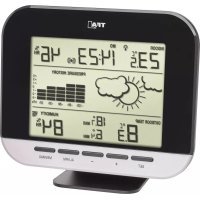
Connect 35.1143.01 - Weather Station TFA - Free user manual and instructions
Find the device manual for free Connect 35.1143.01 TFA in PDF.



User questions about Connect 35.1143.01 TFA
0 question about this device. Answer the ones you know or ask your own.
Ask a new question about this device
Download the instructions for your Weather Station in PDF format for free! Find your manual Connect 35.1143.01 - TFA and take your electronic device back in hand. On this page are published all the documents necessary for the use of your device. Connect 35.1143.01 by TFA.
USER MANUAL Connect 35.1143.01 TFA
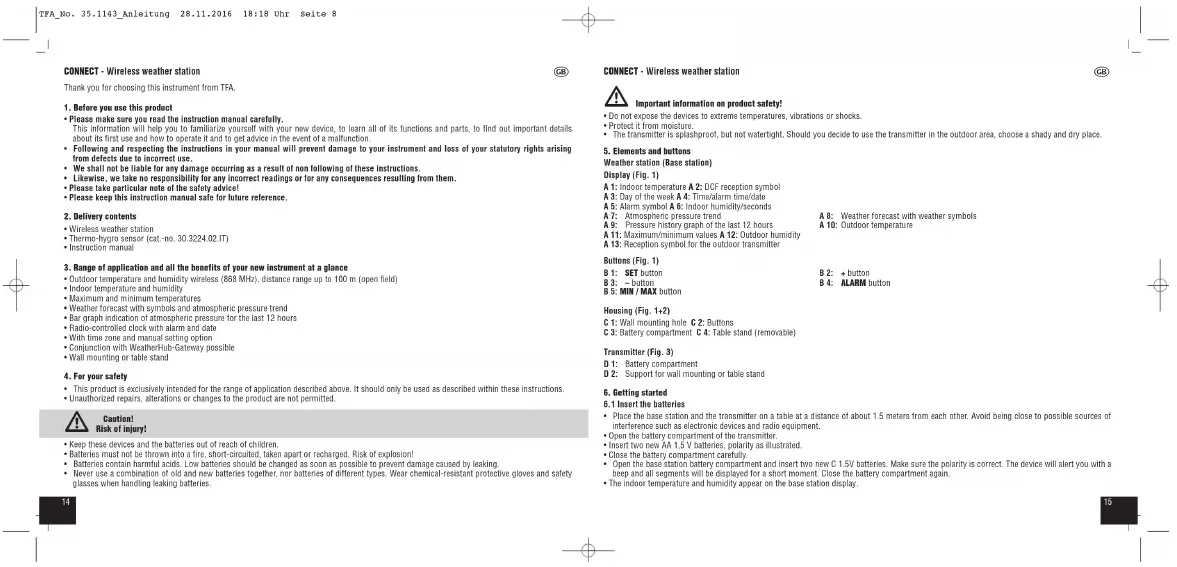
CONNECT - Wireless weather station
Important information on product safety!
- Do not expose the devices to extreme temperatures, vibrations or shocks.
- Protect it from moisture.
- The transmitter is splashproof, but not watertight. Should you decide to use the transmitter in the outdoor area, choose a shady and dry place.
5. Elements and buttons
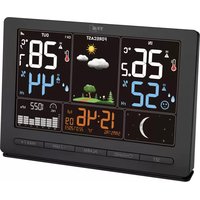
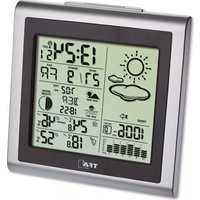
Weather station (Base station) Display (Fig. 1) A 1: Indoor temperature A 2: DCF reception symbol A 3: Day of the week A 4: Time/alarm time/date A 5: Alarm symbol A 6: Indoor humidity/seconds A 7: Atmospheric pressure trend A 8: Weather forecast with weather symbols A 9: Pressure history graph of the last 12 hours A 10: Outdoor temperature A 11: Maximum/minimum values A 12: Outdoor humidity A 13: Reception symbol for the outdoor transmitter Buttons (Fig. 1) B 1: SET button B 2: + button B 3: – button B 4: ALARM button B 5: MIN / MAX button Housing (Fig. 1+2) C 1: Wall mounting hole C 2: Buttons C 3: Battery compartment C 4: Table stand (removable) Transmitter (Fig. 3) D 1: Battery compartment D 2: Support for wall mounting or table stand
- Place the base station and the transmitter on a table at a distance of about 1.5 meters from each other. Avoid being close to possible sources of interference such as electronic devices and radio equipment.
- Open the battery compartment of the transmitter.
- Insert two new AA 1,5 V batteries, polarity as illustrated.
- Close the battery compartment carefully.
- Open the base station battery compartment and insert two new C 1.5V batteries. Make sure the polarity is correct. The device will alert you with a beep and all segments will be displayed for a short moment. Close the battery compartment again.
- The indoor temperature and humidity appear on the base station display. Thank you for choosing this instrument from TFA.
1. Before you use this product
- Please make sure you read the instruction manual carefully. This information will help you to familiarize yourself with your new device, to learn all of its functions and parts, to find out important details about its first use and how to operate it and to get advice in the event of a malfunction.
- Following and respecting the instructions in your manual will prevent damage to your instrument and loss of your statutory rights arising from defects due to incorrect use.
- We shall not be liable for any damage occurring as a result of non following of these instructions.
- Likewise, we take no responsibility for any incorrect readings or for any consequences resulting from them.
- Please take particular note of the safety advice!
- Please keep this instruction manual safe for future reference.
2. Delivery contents
- Wireless weather station
3. Range of application and all the benefits of your new instrument at a glance
- Outdoor temperature and humidity wireless (868 MHz), distance range up to 100 m (open field)
- Indoor temperature and humidity
- Maximum and minimum temperatures
- Weather forecast with symbols and atmospheric pressure trend
- Bar graph indication of atmospheric pressure for the last 12 hours
- Radio-controlled clock with alarm and date
- With time zone and manual setting option
- Conjunction with WeatherHub-Gateway possible
- This product is exclusively intended for the range of application described above. It should only be used as described within these instructions.
- Unauthorized repairs, alterations or changes to the product are not permitted. Caution! Risk of injury!
- Keep these devices and the batteries out of reach of children.
- Batteries must not be thrown into a fire, short-circuited, taken apart or recharged. Risk of explosion!
- Batteries contain harmful acids. Low batteries should be changed as soon as possible to prevent damage caused by leaking.
CONNECT - Wireless weather station
- Press and hold the SET button in normal mode.
- Lcd appears on the display and 4 (default) will be flashing.
- Press the + or – button to adjust the display contrast (0-7).
- Press the SET button again to do the settings in the following sequence: Time zone (0 - default), the DCF reception (rCC 1 - default), the auto- matic changeover Daylight Saving Time/Standard Time (dSt 1 - default),the hours, the minutes, the year, the month and the day. Press the + or – button to adjust it.
- Confirm with SET button.
- Once the DCF time signal is successfully received and the DCF reception is activated, the manually set time is overwritten.
7.1.1 Time zone setting
- In the setting mode you can make the time zone correction (-2/+5).
- The time zone correction is needed for countries where the DCF signal can be received but the time zone is different from the DCF time (e.g. +1=one hour plus).
- By default, the DCF reception is activated (rCC 1) and after successful reception of the DCF signal no manual adjustment is necessary.
- Press the + or – button if you want to deactivate the DCF reception (rCC 0).
7.1.3 Automatic changeover Daylight Saving Time/Standard Time
- By default, the automatic changeover Daylight Saving Time/Standard Time is activated (dSt 1) a) DCF reception is activated (rCC 1):
- The changeover is automatic by DCF-77 signal (if the reception is successful). b) DCF reception is deactivated (rCC 0):
- The changeover is automatic even without DCF-77 signal reception. The Daylight Saving Time begins on the last Sunday in March and ends on the last Sunday in October each year.
- Press the + or – button if you want to deactivate the automatic changeover Daylight Saving Time/Standard Time (dSt 0). The time will not be changed automatically from now on.
- Press the ALARM button in normal mode, to enter the alarm mode.
- ALM and 06:00 (default) or the last adjusted alarm time and the alarm symbol appear on the display. The alarm is activated.
- Press and hold the ALARM button.
- The hour digits flash. Press the + or – button to adjust the hours.
- Confirm the setting with the ALARM button and set the minutes in the same way.
- Press the ALARM button again.
- The current time and the alarm symbol appear on the display.
- When the adjusted alarm time is reached, the alarm rings.
- The alarm symbol flashes.
- Press any button to stop the alarm.
- If the alarm is not stopped manually, the ascending alarm tone automatically turns off after two minutes and the alarm will be reactivated at the same set time on the following day.
6.2 Outdoor values reception
- The base station will scan the outdoor values of the transmitter. The reception symbol flashes. If the reception is successful, the outdoor temper- ature and humidity appear on the base station display.
- If the reception of the outdoor values fails, “- -” appears on the base station display. Check the batteries and try it again. Check if there is any source of interference.
6.3 Radio-controlled time reception
- After the base station has completed the search for the transmitter, the device starts scanning the DCF signal (radio signal) and the DCF reception symbol flashes.
- When the time code is successfully received after 2-12 minutes, the radio-controlled time and the DCF symbol will be shown steadily on the dis- play.
- The clock receives the signal twice a day (2:00 and 3:00 am). If the reception fails, the scanning stops and will be repeated every hour. If the reception is not successfully received until 6:00 o'clock, the next DCF reception attempt will happen at 2:00 o'clock in the following morning.
- If the clock cannot detect the DCF-signal (e.g. due to interference, transmitting distance, etc.), the time can be set manually. The DCF reception symbol disappears and the clock will then work as a normal quartz clock (see: Manual settings).
- There are three different reception symbols: Symbol is flashing – reception is active Symbol stops flashing – reception is successful No symbol – reception is deactivated/turned off
6.3.1 Note on radio-controlled time
The time base for the radio-controlled time is a caesium atomic clock operated by the Physikalisch Technische Bundesanstalt based in Braun- schweig (Brunswick), Germany. It has a time deviation of less than one second in one million years. The time is coded and transmitted from Main- flingen near Frankfurt via the frequency signal DCF-77 (77.5 kHz) and has a transmitting range of approximately 1,500 km. The a djustment to Day- light Saving Time (summer/winter time) is automatic. In Daylight Saving Time the DST symbol is shown on the display. The reception quality depends mainly on geographic location. Normally there should be no reception problems within a 1,500 km radius around Frankfurt. Therefore, please note the following steps:
- The recommended distance to any interfering sources like computer screens or TV sets is at least 1.5 - 2 meters.
- Within concrete walls (reinforced with steel) such as basements, the received signal is naturally weakened. In extreme cases, please place the unit close to a window to improve reception.
- During night-time, the atmospheric interference is usually less severe and reception is possible in most cases. A single daily reception is ade- quate to keep the accuracy deviation under 1 second.
- Important: Buttons will not function while scanning the DCF or the transmitter's signal.
- Press and hold the + or – button in setting mode for fast mode.
- The device will automatically quit the setting mode if no button is pressed for 15 seconds.
CONNECT - Wireless weather station
- Once the weather trend indicator has registered a change in air pressure, it will remain permanently visualized on the LCD.
7.3.3 Air pressure history
- The right side of the second section of the LCD shows the air pressure history bar graph.
- The bar graph indicates the air pressure history trend over the last 12 hours in 5 intervals: 0h, -3h, -6h, -9h and -12h. The “0h” represents the current full hour air pressure recording. The columns represent the “hPa” (0, ±1, ±3, ±5) at specific time. The “0” in the middle of this scale is equal to the current pressure, and each change (±1, ±3, ±5) represents how high or low in “hPa” the past pressure was, compared to the current pressure.
- If the bars are rising it means that the weather is getting better due to the increase of air pres- sure. If the bars go down, it means the air pressure has dropped and the weather is expected to get worse from the present time “0h”. Note:
- If the weather station is moved to another location significantly higher or lower than its initial standing point (for example from the ground floor to the upper floors of a house), discard the weather forecast for the next 12-24 hours. By doing this, the weather station will not mistake the new location as being a possible change in atmospheric pressure, when in reality it is simply due to the slight change of altitude. Attention: The weather forecast will not be transferred to the WeatherHub app.
7.4 Temperature and humidity
- The highest indoor temperature is displayed since the last reset.
- Press the MIN / MAX button again.
- The lowest indoor temperature is displayed since the last reset.
- Press the MIN / MAX button again.
- The highest outdoor temperature with time of recording since the last reset is displayed.
- Press the MIN / MAX button again.
- The highest outdoor temperature with date of recording since the last reset is displayed.
- Press the MIN / MAX button again.
- The lowest outdoor temperature with time of recording since the last reset is displayed.
- Press the MIN / MAX button again.
- The lowest outdoor temperature with date of recording since the last reset is displayed
- Press the MIN / MAX button once more, to go back to the current values display.
- Press and hold the MIN / MAX button for two seconds while the maximum or minimum values are displayed to clear the recorded readings.
7.2.1 Activate/deactivate alarm
- Press the ALARM button in normal mode, to activate or deactivate the alarm function.
- The alarm symbol appears/disappears.
- Weather icons can be displayed in any of the following combinations: Sun Sun with cloud Cloud with rain
- For every sudden or significant change in the atmospheric pressure, the weather icons will update accordingly to represent the change in weather. If the icons do not change, then it means either the atmospheric pressure has not changed or the change has been too slow for the weather sta- tion to register. However, if the icon displayed is the Sun or Cloud with rain, there will be no change of icon if the weather gets any better (with Sun icon) or worse (with Cloud with rain icon) since the represent the weather at their extremes.
- The icons displayed forecasts the weather in terms of getting better or worse and not necessarily a sunny day or a rainy day as each icon may suggest. For example, if the current weather is cloudy and the Cloud with rain is displayed, it does not mean that the product is faulty because it is not raining. It simply means that the atmospheric pressure has dropped and the weather is expected to get worse but not necessarily rainy. Note:
- After setting up the weather station, the readings for the weather forecasts should be ignored for the next 12-24 hours. This will allow sufficient time for the weather station to collect atmospheric pressure data at a constant altitude and therefore result in a more accurate forecast.
- Common to weather forecasting, absolute accuracy cannot be guaranteed. The weather forecasting feature is estimated to have an accuracy level of about 75% due to the varying areas the weather station has been designed for use. In areas that experience sudden changes in weather (for example from sunny to rain), the weather station will be more accurate compared to use in areas where the weather is stagnant most of the time (e.g. mostly sunny).
7.3.2 Weather trend indicator
- The trend indicator (located on the left of the weather icons) works together with the weather icons. When the arrow points upwards, it means that the air pressure is increasing and the weather is expected to improve; When the arrow points downwards, the air pressure is dropping and the weather is expected to become worse.
- By taking this into account, you can see how the weather has changed or is expected to change. For example, if the arrow is pointing downwards together with Sun with cloud icon, then the last noticeable change in weather was when it was sunny (the Sun icon only). Therefore, the next change in weather will be Cloud with rain icon, since the arrow is pointing downwards. TFA_No. 35.1143_Anleitung 28.11.2016 18:18 Uhr Seite 102120 CONNECT - Wireless weather station
CONNECT - Wireless weather station
No DCF reception ➜ Activate DCF reception in setting mode (rCC 1) ➜ Wait for an attempt reception during the night ➜ Choose another place for your product ➜ Check if there is any source of interference ➜ Restart the instrument according to the manual ➜ Set the clock manually Incorrect indication ➜ Change the batteries ➜ Restart the instrument according to the manual
This product has been manufactured using high-grade materials and components which can be recycled and reused. Never dispose of empty batteries and rechargeable batteries in ordinary household waste. As a consumer, you are required by law to take them to your retail store or to an appropriate collection site depending on national or local regulations in order to protect the environment. The symbols for the contained heavy metals are: Cd = cadmium, Hg = mercury, Pb = lead This product is labelled in accordance with the EU Waste Electrical and Electronic Equipment Directive (WEEE). Please do not dispose of this product in ordinary household waste. As a consumer, you are required to take end-of-life devices to a designated collection point for the disposal of electrical and electronic equipment, in order to ensure environmentally-compatible dis- posal.
Base station Measuring range - Temperature -10°C…60°C (14°F…140°F) Humidity 20%...95% RH Resolution 0,1°C (0,1 °F) and 1% RH Power consumption Batteries 2 x 1,5 V C (not included) Housing dimension 160 x 36 (56) x 130 (145) mm Weight 256 g (device only)
8. Setting of the WeatherHub connection (only in conjunction with the WeatherHub system)
- You can connect the base station with the gateway of the WeatherHub system. Your data will be transmitted wirelessly through the gateway and the Internet directly to a server. Once connect ed, you can monitor the values measured at your home on your smartphone.
- Open the WeatherHub App and the overview will be displayed. Tap “Add new sensor” and scan the QR code on the back of the base station.
- For more information and a detailed description, go to www.tfa-dostmann.de/weatherhub
9. Positioning and mounting of the base station and the transmitter
- When placed outdoors, choose a shady and dry place for the transmitter. Direct sunlight may trigger incorrect measurement and continuous humidity damages the electronic components needlessly.
- Place the base station in any room of the house. Avoid the vicinity of any source of interference such as computer screens, TV sets or solid metal objects.
- Once the desired location is chosen, check whether the transmission from the transmitter to the base station is possible (transmission range of up to 100m in open areas). Within solid walls, especially ones with metal parts, the transmission range can be reduced considerably.
- If necessary choose another position for the transmitter and/or base station.
- Once the transmission is successful, you can wall mount the transmitter or place it onto a flat surface using the stand.
10. Care and maintenance
- Clean the device with a soft damp cloth. Do not use solvents or scouring agents.
- Remove the batteries from all instruments if you do not use the products for a long period of time.
- Keep the devices in a dry place.
10.1 Battery replacement
- Change the batteries of the outdoor transmitter, when the battery symbol appears on the outdoor values display.
- Change the batteries of the base station, when the battery symbol appears on the weather forecast display.
- Please note: When the batteries are changed, the contact between the transmitter and the base station must be restored – so always insert new batteries into both devices or restart the instrument according to the manual.
Problem Solution No display ➜ Ensure the batteries' polarity are correct ➜ Change the batteries No transmitter reception ➜ No transmitter installed Display “---” ➜ Check the transmitter batteries (do not use rechargeable batteries!) ➜ Restart the transmitter and the base station according to the manual ➜ Choose another place for the transmitter and/or the base station ➜ Reduce the distance between the transmitter and the base station ➜ Check if there is any source of interference TFA_No. 35.1143_Anleitung 28.11.2016 18:18 Uhr Seite 112322 CONNECT - Wireless weather station