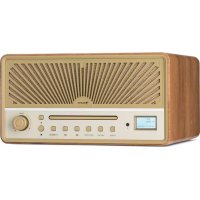
Glastonbury DAB - Radio Auna - Free user manual and instructions
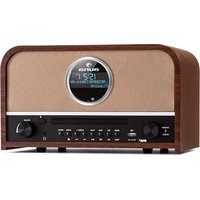
Find the device manual for free Glastonbury DAB Auna in PDF.



| Product Type | Radio with CD player, DAB+, FM, Bluetooth, USB, AUX |
| Power Supply | AC adapter 100-240 V ~ 50/60 Hz, output 12 V, 2 A |
| Radio Frequency Bands | FM 87.5 – 108 MHz; DAB 174.928 – 239.200 MHz |
| Supported CD Formats | CD, MP3, WMA |
| Bluetooth | Frequency range 2402-2480 MHz, transmission power 2 dBm |
| Main Functions | Clock, alarm, snooze, sleep timer, repeat, track programming |
| Display | LCD screen |
| Antenna | Deployable telescopic antenna |
| Remote Control | Yes, with CR2032 button cell |
| Safety | Class 1 laser product; do not open the case; use only the supplied adapter |
| Maintenance and Cleaning | Clean with a soft, dry cloth; do not use abrasive products or solvents |
| Spare Parts and Repairability | No user-serviceable parts; contact customer service for any repairs |
| General Information | Item numbers: 10041146, 10041147; declaration of conformity available online |
Frequently Asked Questions - Glastonbury DAB Auna
User questions about Glastonbury DAB Auna
0 question about this device. Answer the ones you know or ask your own.
Ask a new question about this device
Download the instructions for your Radio in PDF format for free! Find your manual Glastonbury DAB - Auna and take your electronic device back in hand. On this page are published all the documents necessary for the use of your device. Glastonbury DAB by Auna.
USER MANUAL Glastonbury DAB Auna
Member of Berlin Brands Group
Handwerkerstr. 11
15366 Dahlwitz-Hoppegarten
Deutschland
Berlin Brands Group UK Ltd
PO Box 1145
Oxford, OX1 9UW
United Kingdom
Congratulations on purchasing this equipment. Please read this manual carefully and take care of the following hints to avoid damages. Any failure caused by ignoring the items and cautions mentioned in the instruction manual are not covered by our warranty and any liability. Scan the QR code to get access to the latest user manual and other information about the product.
CONTENTS
Technical Data 22
Safety Instructions 23
Product Overview 25
BT Mode 27
AUX IN Mode 27
USB Mode 27
CD mode 28
FM Mode 29
DAB Mode 29
Settings 31
Troubleshooting 34
Disposal Considerations 35
Declaration of Conformity 35
TECHNICAL DATA
| Item number 10041146, 10041147 | |
| Power supply Adapter input Adapter output | 100-240 V ~ 50/60 Hz 12 V = 2 A |
| CD player Supported disc formats CD/MP3/WMA | |
| FM radio Frequencies 87.5–108 MHz | |
| DAB radio Frequencies 174.928–239.200 MHz | |
| BT | |
| BT frequency range 2402 GHz - 2480 MHz | |
| BT transmission power 2 dBm | |
General safety instructions

CAUTION
Risk of injury. Do not listen to music at excessive volume as this may result in a loss of hearing.
- This device may be only used by children 8 years old or older and persons with limited physical, sensory and mental capabilities and / or lack of experience and knowledge, provided that they have been instructed in use of the device by a responsible person who understands the associated risks.
- Only put CDs in the CD compartment.
- Never open the device cover. Do not attempt to repair the device by yourself.
- Consult qualified personnel for repairs. The device does not contain user-serviceable device components.
- Improper handling may damage the device and therefore void the warranty.
Power Connection
- Use only the supplied power adapter. Use of any other adapter will void the warranty and / or cause irreparable damage to the device.
- Unplug the device from the main power supply during thunderstorms.
- Be sure to turn off the power before unplugging the power cord.
- If you are using a multiple socket power strip or the plug as a splitting device, ensure that the plugs are always accessible and ready for use.
- Never throw batteries into an open fire and do not attempt to open their outer shells.
- Batteries are harmful if swallowed and should therefore be stored out of the reach of small children. If you think batteries have been swallowed or may have entered any part of your body, seek medical attention immediately.
Ventilation
-
Do not block or cover the ventilation holes, vents, or openings of the unit with anything, such as carpet, cloth, or similar, as otherwise the openings may not be able to ensure functionality and / or ventilation for safe use.
-
The bottom of the unit may become warm if the unit is used for an extended period of time. This is normal.
Location
- Make sure the unit is standing on a flat and stable surface.
- Do not place the device more than 4.5 feet (1.4 meters) away from the nearest outlet. Make sure that the power cord and speaker cords do not create a tripping hazard.
- Place the device at least 3.25 feet (1 meter) away from other electrical devices in order to avoid noise interference.
- Make sure the device has enough room for the antenna to be properly aligned.
- Never place the unit directly on antique or polished surfaces.

CAUTION Risk of injury. Never touch the optical lens in the CD compartment or look directly into it.
- This device is a Class 1 laser product
- The use of controls not listed in the operating instructions or unauthorised modification of the unit may result in the harmful release of laser radiation.
PRODUCT OVERVIEW
Front panel
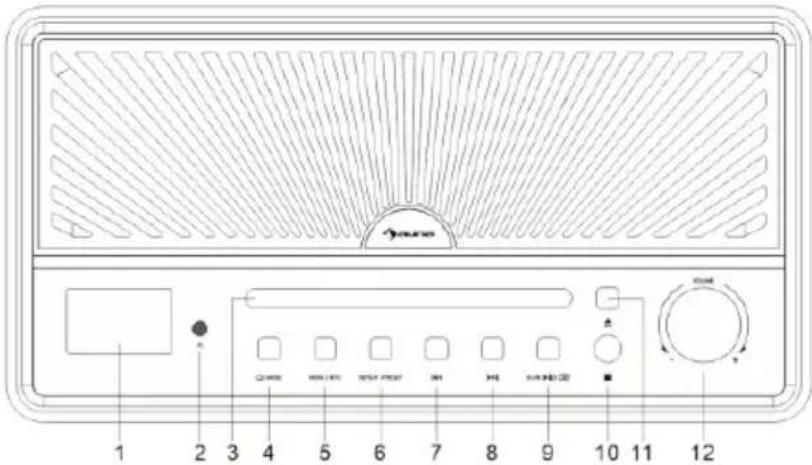
1 Display
2 Remote control censor
3 Disc tray
4 POWER / MODE button
5 MENU / INFO button
6 REPEAT / PRESET button
7 Previous track / station
8 Next track / station
9 Scan / play or pause / enter button
10 Stop button
11 Eject
12 Volume knob
Rear panel
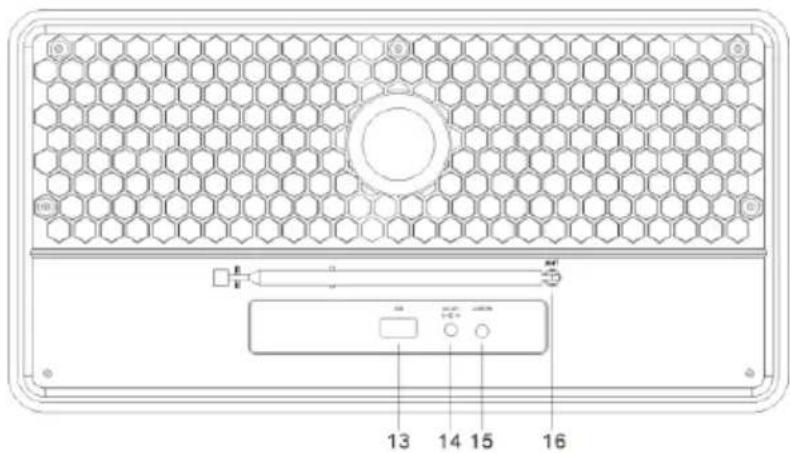
13 USB port
14 Power input jack
15 Audio input jack
16 Antenna
Remote control
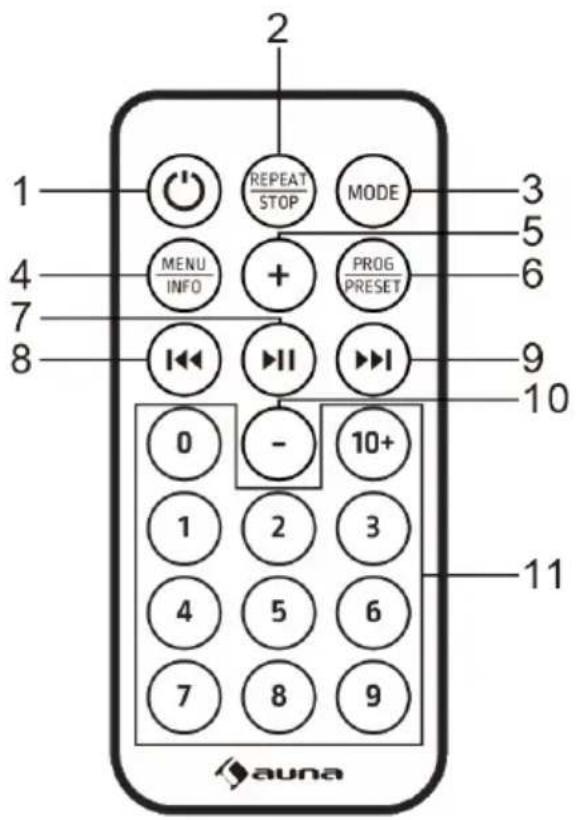
Buttons
1 Power button
2 REPEAT/STOP button
3 MODE button
4 MENU / INFO button
5 Volume up
6 PROGRAM / PRESET button
7 Play or pause / enter / search for station
8 Previous track / station
9 Next track / station
10 Volume down
11 Number button
Getting started
- Press and Hold the POWER button to turn on the unit. The unit will enter standby mode. The display will show "00:00" and flash. The date and time is automatically set once it receives local broadcast signals(and when such info is available).
- Press to POWER button again to enter menu. (Note: By pressing the POWER button you switch between "ON" mode and "Standby" mode (showing clock and date).
BT MODE
The first time you use your BT device with this speaker, you will need to or pair it with the speaker first.
- Press the MODE button to select BT mode. The display will show "Pairing" indicating that the system has entered pairing mode and will be searchable by your BT enabled device.
- Activate your BT enabled device and select the search mode. "Glastonbury Go" will appear on your BT device list. Select "Glastonbury Go" in the pairing list.
- There will be a prompt sound after the successful pairing. The display will show "Connected". If the pairing device is disconnected, the unit will also issue a prompt sound.
AUX IN MODE
Press the MODE button to select AUX mode. use 3.5mm audio cable (not provided) to connect player with other audio output devices(such as:mobile phone, etc):
USB MODE
Press the MODE button to select USB mode. Insert a USB flash drive with MP3 documents, the device will play the MP3 files automatically.
CD MODE
- Press Mode button to enter CD mode.If there is no disc on the tray, it shows "NO DISC".
- Press the OPEN/CLOSE button on the unit to open the CD door.
- Insert a CD in the disc tray with the label facing up and press the button to close the CD door.
- Use the controls on the unit or the remote to begin playing the loaded disc.
STOP Function
- In CD mode, press the STOP button on the unit or hold and press the REPEAT/STOP button on the remote, the player will enter stop state. Press this button will start from first song and play in sequence.
Repeat Function
- In CD/USB mode, when playing music, pressing REPEAT for the first time will repeat current playing. Pressing REPEAT twice will repeat the whole disc. Press REPEAT three times to cancel repeat function.
Program Function
Programming tracks of disc are only possible when playback is stopped.
- Press the STOP button on the unit or hold and press REAPEAT/STOP on the remote control to enter STOP state.
- Press PRESET button to enter program menu. The display will show "PG".
- Press "PREV/NEXT" button or number button to select the desired track to be programmed. And press PRESET button to confirm. The display will show P01.
- Repeat the above step to store other desired tracks until all tracks are programmed.
- Press the PLAY/PAUSE button to start playback from the first programmed track.
(Note: Hold and press STOP button twice to clear the program when the disc is stopped).
FM MODE
- This radio antenna is on the back of the machine. When you need to listen to radio, please extend the antenna.
- Press the MODE button to select FM mode.
-
Search for station
-
Hold and press the SCAN button to automatically search for station. The unit will store radio stations automatically after the search is complete. Press the or button to select the station.
- Press the SCAN to manually search for station.
- Hold and press the or button to tune up or down the frequency band.
Audio Setup
This unit can select audio type between Mono and Stereo in FM mode.
- In FM mode, hold and press MENU|INFO to enter menu. "Audio setting" is showing on the display. And then press enter.
- Press the or button to select the available options: Stereo allowed, Forced mono. And the press the STANDHIRM
DAB MODE
- This radio antenna is on the back of the machine. When you need to listen to radio, please extend the antenna.
- Press the MODE button to select DAB mode.
- Press the SCAN button to automatically search for station. The unit will store radio stations automatically after the search is complete.
- Press the or button to select the station in the station list. And then press the "Play/Pause" to confirm.
Prune
This feature removes any stations that in the DAB station list but have no service in your area.
- In DAB mode, hold and press the MENU|INFO to enter menu. Press the or button until "System". And the press the SCAN to enter.
-
Press the or button to "Prune" and press Start.
-
Press the or button to choosing "Yes" to remove invalid stations from the station list. And the press STANDPOINT
DRC (Dynamic Range Control)
This DRC adds or removes a degree of compensation for the difference in the dynamic range between radio stations.
- In DAB mode, hold and press MENU|INFO to enter menu. Press the or button until "System". And the press Scan nnt H
- Press the or button to "DRC" and press SteaNdiH.
-
Press the or button to select the available options: off, high, low. And the press
-
off: no compensation applied
- high: maximum compensation applied
Low: medium compensation applied
Station Order
- In DAB mode, hold and press MENU|INFO to enter menu. Press the or button until "System".And the press save
- Press the or button to "Station order" and press SCAN|TO enter.
- Press the or button to select the available options: Alphanumeric, Active, Multiplex. And the press the SOTN firm.
Storing preset station
The unit can store up to 20 stations as preset stations.
- In DAB/FM mode, tune to a station.
- Hold and press MENU|INFO to enter menu. Press the or button until "Preset" showing on the display. And the press enter.
- Press the or button to select a preset number.
- Hold and press the SCAN to store the station.
- To listen to a preset station, hold and press PRESET to enter preset station list. Press the or button to select a desired preset station. And the press send to listen the station.
SETTINGS
Time Setup
- Hold and press MENU|INFO to enter menu. Press the or button to "System" showing on the display. And then press Enter.
- Press the or button to "Time setup" position and press SCAN to enter.
- Press the or button to cycle through the below options.
- Set clock: Press SCAN to enter "Set clock". Press the or button to cycle through the number to desired position and press SCAN to confirm.
- Set date: Press SCAN to enter "Set date". Press the or button to cycle through the number to desired position and press SCAN to confirm. The date is displayed in DD-MM-YYYY.
- Auto update (To synchronize time from radio): Press SCAN|to enter "Auto update". Press the or button to select the available options: From radio / No update. And the press confirm
- Set 12/24 hour: Press SCAN to enter "Set 12/23 hour". Press the or button to select the available options:Set 12 hour / Set 24 hour. And the press send
Alarm Setting
- Hold and press MENU|INFO to enter menu. Press or button to "System" showing on the display. And then press Enter.
- Press or button to "Alarm" position and press SCAN to enter.
-
Press or button to cycle through the below options.
-
On/Off: Press SCAN to turn the alarm on/off.
- Time: Press or button to "Time" position and press Press SCAN to enter. And press or button to set time and press SCAN to confirm.
- Days: Press or button to "Days" position and press SCAN to enter. And press or button to select the available options: Daily, Once, Weekdays, Weekends and press Scan
Mode: Press or button to "Mode" position and press SCAN to enter. And press or button to select the sound source of the alarm. Source options: DAB, FM, Buzzer. And then press SCAN to confirm
Volume: Press or button to "Volume" position and press
SCAN to enter. And press or button to select the alarm volume level and press scnchfim
- Last listened: Press or button to "Last listened" position and press SCAN to enter. And press or button to select the desired preset station as alarm source. And press (Note: The function is available when the preset station is set.)
- Save: When the above setting is finished, press or button the "Save" position and press save the alarm setting. When the alarm setting is active, the corresponding alarm 1 or alarm 2 icon will show on the display.
Note:
At the set time, the alarm will sound. The volume will increase gradually until it reaches the set volume level. The corresponding alarm icon will also flash on the display.
When the alarm goes off, press any button(except VOLUME knob) on the panel to turn off the alarm.
SNOOZE Function: When the alarm goes off, rotate VOLUME knob on the unit or VOL key on the remote control to activate SNOOZE function and snooze for 10 minutes. Press any button(except VOLUME knob) on the panel to turn off the alarm.
Sleep Timer Setup
This unit can switch to standby automatically after a period.
- Hold and press MENU|INFO to enter menu. Press the or button to "System" showing on the display. And then press ENTER.
- Press the or button to "Sleep" position and press SCAN to enter.
- Press the or button to select the time period: off, 15, 30, 45, 60, 90. And the press the
Language Setup
- Hold and press MENU|INFO to enter menu. Press the or button to "System" showing on the display. And then press Enter
- Press the or button to "Language" position and press SCAN to enter.
- Press the or button to select the desired language. And the press the
Backlight Setup
- Hold and press MENU|INFO to enter menu. Press the or button to "System" showing on the display. And then press Enter.
- Press the or button to "Backlight" position and press SCAN 1 to enter.
-
Press the or button to cycle through the below options.
-
Timeout (To define the duration of the backlight before it it dimmed.): Press SCAN▶▶ to enter "Timeout". Press the or button to select the timeout options: On(the backlight does not dim), 10 Sec, 20 Sec, 30 Sec, 45 Sec, 60 Sec, 90 Sec, 120 Sec, 180 Sec, and press "to confirm.
- On Level (To define the brightness level when the backlight is switched on): Press SCAN▶▶ to enter "On level". Press the or button to select the brightness levels: High/Low/Medium and press SCAN▶▶ to confirm.
Factory reset
- Hold and press MENU|INFO to enter menu. Press the or button to "System" showing on the display. And then press enter.
- Press the or button to "Factory reset" position and press SCAN 1 to enter.
- Press the or button to select "Yes". And the press the SCAN to confirm factory reset.
SW Version-Software Version Display
- Hold and press MENU|INFO to enter menu. Press the or button to "System" showing on the display. And then press Enter.
- Press the or button to "SW version" position and press SCAN to enter.
- The system software version will be displayed.
TROUBLESHOOTING
If you are suffering from following problem, please refer to following supplied method. If the problem still can't be solved, please contact the customer support.
| Problem Solution | |
| There is no sound. 1. Check the player | connection between the mobile phone or other audio output device. 2. The volume is turned down. Adjust the volume. |
| The CD player does not play a disc. 1. | Check whether the disc is put in the proper direction. 2. To check whether there is disc in the tray. 3. The disc is dirty. Please clean the disc. |
| The remote control does not work. 1. | Remove obstacles between remote control and player. 2. If the battery is exhausted, replace it with a new one (button cell CR 2032). 3. The insulation sheet has been inserted in the battery compartment when shipped from the factory. Pull it out before use. |
| Buttons do not work. It may be caused by the power wave or other abnormality, please turn off the power and turn it on again after 10 seconds. | |
DISPOSAL CONSIDERATIONS
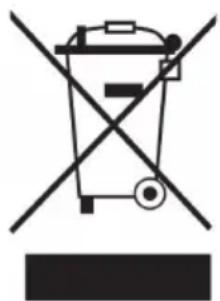
If there is a legal regulation for the disposal of electrical and electronic devices in your country, this symbol on the product or on the packaging indicates that this product must not be disposed of with household waste. Instead, it must be taken to a collection point for the recycling of electrical and electronic equipment. By disposing of it in accordance with the rules, you are protecting the environment and the health of your fellow human beings from negative consequences. For information about the recycling and disposal of this product, please contact your local authority or your household waste disposal service.
This product contains batteries. If there is a legal regulation for the disposal of batteries in your country, the batteries must not be disposed of with household waste. Find out about local regulations for disposing of batteries. By disposing of them in accordance with the rules, you are protecting the environment and the health of your fellow human beings from negative consequences.
DECLARATION OF CONFORMITY

Manufacturer:
Chal-Tec GmbH, Wallstrasse 16, 10179 Berlin, Germany.
Importer for Great Britain:
Berlin Brands Group UK Ltd PO Box 1145 Oxford, OX1 9UW United Kingdom
Hereby, Chal-Tec GmbH declares that the radio equipment type Gastonbury DAB is in compliance with Directive 2014/53/EU. The full text of the EU declaration of conformity is available at the following internet address: use.berlin/10041146
For Great Britain: Hereby, Chal-Tec GmbH declares that the radio equipment type Glastonbury FM is in compliance with the relevant statutory requirements. The full text of the declaration of conformity is available at the following internet address: use.berlin/10041146
Cher client, chere cliente,
Berlin Brands Group UK Ltd
PO Box 1145
Oxford, OX1 9UW
United Kingdom


- Member of Berlin Brands Group
- Handwerkerstr. 11
- Dahlwitz-Hoppegarten
- Deutschland
- CONTENTS
- General safety instructions
- CAUTION
- Power Connection
- Ventilation
- Location
- PRODUCT OVERVIEW
- Front panel
- Rear panel
- Remote control
- Buttons
- Getting started
- BT MODE
- AUX IN MODE
- USB MODE
- CD MODE
- STOP Function
- Repeat Function
- Program Function
- FM MODE
- Audio Setup
- DAB MODE
- Prune
- DRC (Dynamic Range Control)
- Station Order
- Storing preset station
- SETTINGS
- Time Setup
- Alarm Setting
- Note:
- Sleep Timer Setup
- Language Setup
- Backlight Setup
- Factory reset
- SW Version-Software Version Display
- TROUBLESHOOTING
- DISPOSAL CONSIDERATIONS
- DECLARATION OF CONFORMITY
- Manufacturer:
- Cher client, chere cliente,
Brand : Auna
Model : Glastonbury DAB
Category : Radio