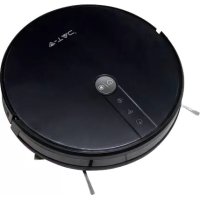
VT5555 - Vacuum Cleaner V-TAC - Free user manual and instructions
Find the device manual for free VT5555 V-TAC in PDF.



| Product type | Robot vacuum with mopping function |
| Brand | V-TAC |
| Model | VT5555 |
| Power supply | Rechargeable Li-ion battery, mains adapter |
| Charging time | Approximately 5 hours |
| Estimated runtime | Approximately 90-120 minutes |
| Cleaning modes | Auto, single room, edge, manual control |
| Functions | Timer scheduling, remote control, V-TAC Smart Light app |
| Compatible voice assistants | Amazon Alexa, Google Assistant |
| Water tank | Yes, for floor mopping |
| Dustbin | With high-efficiency filter and primary filter |
| Brushes | Main brush + side brushes (L/R) |
| Sensors | Downward-facing sensor, anti-drop sensors |
| Charging station | Included, with contact pins |
| Estimated dimensions | Approximately 33 cm diameter, 8 cm height |
| Estimated weight | Approximately 3 kg |
| Connectivity | Wi-Fi (2.4 GHz), iOS/Android app |
| Box contents | Robot, charging station, adapter, remote control, side brushes, water tank, cleaning pad, cleaning tool, user manual |
| Maintenance | Regular cleaning of dustbin, filters, brushes and sensors |
| Long-term storage | Fully charge and recharge every 3 months |
Frequently Asked Questions - VT5555 V-TAC
User questions about VT5555 V-TAC
0 question about this device. Answer the ones you know or ask your own.
Ask a new question about this device
Download the instructions for your Vacuum Cleaner in PDF format for free! Find your manual VT5555 - V-TAC and take your electronic device back in hand. On this page are published all the documents necessary for the use of your device. VT5555 by V-TAC.
USER MANUAL VT5555 V-TAC
natural_image
Simple line drawing of a circular mechanical component with a central hole and two side supports (no text or symbols)
works with the Google Assistant

works with amazon alexa
INTRODUCTION
Thank you for selecting and buying V-TAC product. V-TAC will serve you the best. Please read these instructions carefully before starting the installing and keep this manual handy for future reference. If you have any another query, please contact our dealer or local vendor from whom you have purchased the product. They are trained and ready to serve you at the best.
MULTI-LANGUAGE MANUAL
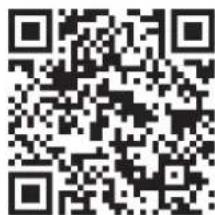
QR CODE
text_image
QR code image containing encoded data, no visible human-readable textPlease scan the QR code to access the manual in multiple languages.
(FR) INTRODUCTION
| Safety Regulations & Warning | 3 |
| Package Contents | 4 |
| Product Composition / Part Name | 5 |
| Product Usage - Preparation | 7 |
| Charging The Product | 8 |
| Cleaning The Product | 9 |
| Functions - Pause, Wake up and Shut down | 10 |
| Time Scheduling Settings | 10 |
| Using The Water Tank | 11 |
| Maintenance - Dust Box | 12 |
| Maintenance - Water Tank & Mopping Pad | 15 |
| Maintenance - Main Brush and Side Brush | 16 |
| Maintenance - Charging Dock Pins, Down View Sensor, Drive Wheel and Universal Wheel | 17 |
| Troubleshooting | 18 |
| Technical Specifications | 19 |
| App Installation Instructions | 20 |
Safety Regulations
Before using this product, please read the following safety instructions and follow all routine safety precautions.
Please read the instructions carefully, please keep the instructions.Any operation inconsistent with this instruction manual may cause damage to this product.
Note:
- Only authorized technicians can disassemble this product. Users are not recommended to disassemble this product by themselves.
- This product can only use the power adapter provided by the factory. If other adapters are used, the product may be damaged.
- Do not touch wires, sockets or power adapters when your hands are wet.
- Do not use cloth curtains or body parts to roll into the product drive wheels.
- Do not place this product near cigarette butts, lighters and other smoldering fires. Please clean the product after charging.
- Do not bend wires excessively or place heavy objects and sharp objects on the machine.
- This..product is an indoor household product. Do not use it outdoors.
- Do not sit on the product.
- Do not use this product (e.g. bathroom) in wet environment.
- Before using this product, please remove all vulnerable items (e.g. glasses, lamps, etc.) on the ground as well as items (e.g. wires, pa per sheets, curtains) that may entangle the side brushes and air suction passages.
- Do not put this product in a place where it is easy to fall (e.g. on desks and chairs).
- Please carefully check whether the power adapter is connected to the socket before use, otherwise the battery may be damaged.
- To prevent tripping, please inform other members of the house when this product works.
- Please empty the dust box before using this product when the dust box is full.
- The temperature used for this product is 0 to 40 degrees celsius.
- Do not use this product in high temperature environment.
- Please remove the battery from the machine before the product isscrapped.
- Please make sure that this product is not powered on when removing the battery.
- Please recycle the discarded batteries safely.
Warning:
- Use only the original rechargeable battery and charging seat specially equipped by the manufacturer. Non - rechargeable batteries are strictly prohibited, please refer to "product parameters" for battery specification information.
- It is forbidden to use products in environments with open flames or fragile objects.
- It is forbidden to use products in extremely hot (above 40°C) or extremely cold (below 0°C).
- It is forbidden for human hair, clothes, fingers and other parts to approach the opening and operating parts of the product.
- It is forbidden to use products on wet or stagnant ground.
- It is forbidden for products to absorb any articles such as stones and waste paper that may clog products.
- It is forbidden for products to absorb any inflammable substances, such as petrol, toner and toner for printers or photocopies. Prohibit the use of products in clean areas with flammable items.
- It is forbidden for products to absorb any burning articles, such as cigarettes, matches, ashes and other articles that may cause fire.
- It is forbidden to place articles at the suction opening. Do not use the product when the suction port is blocked. Clean up dust, cotton wool, hair, etc. at the suction opening to ensure smooth air circulation at the suction opening.
- Use the power cord carefully to avoid damage. It is forbidden to use the power cord to drag or pull the product and the product charging seat. It is forbidden to use the power cord as a handle. It is forbidden to clamp the power cord in the crack of the door. It is forbidden to pull the power cord at sharp corners and corners. It is forbidden for the product to run on the power cord while the power cord should be far away from the heat source.
- Do not use damaged charging seat.
- Even if the product has been severely damaged, burning of the product is prohibited, which may lead to explosion of the battery of the product.

This marking indicates that this product should not be disposed of with other household wastes.
Package Contents
 Robot Robot | 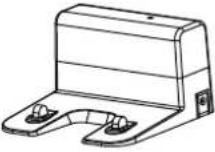 Charging dock Charging dock | 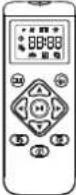 Remote Control Remote Control | 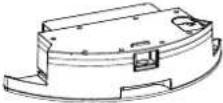 Water Tank Water Tank |
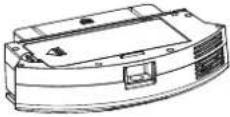 Dust Box Dust Box | 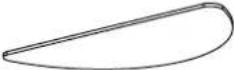 Mopping Pad Mopping Pad | 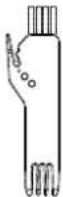 Cleaning Brush Cleaning Brush | 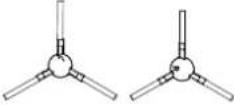 Side Brush x2 Side Brush x2 |
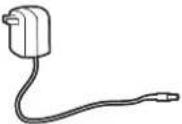 Adapter Adapter |  Instruction manual Instruction manual | 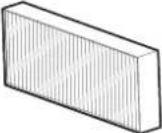 Hepa filter Hepa filter |
Product Composition / Part Name
Front Robot
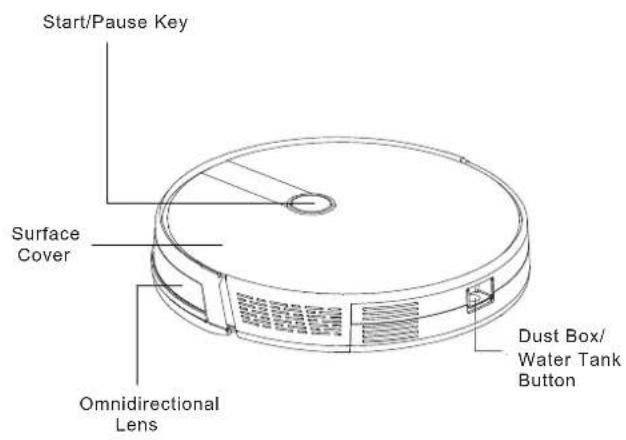
text_image
Start/Pause Key Surface Cover Omnidirectional Lens Dust Box/ Water Tank ButtonBack Robot
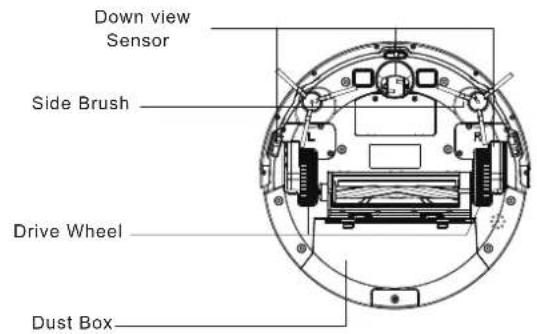
text_image
Down view Sensor Side Brush Drive Wheel Dust Box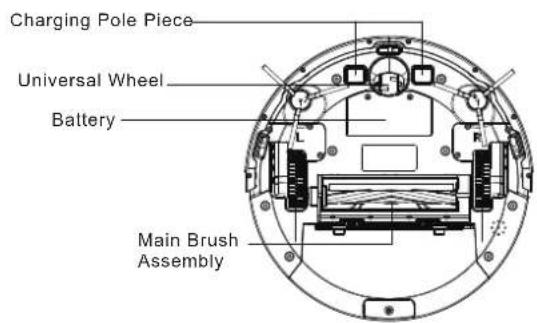
text_image
Charging Pole Piece Universal Wheel Battery Main Brush AssemblyProduct Composition / Part Name
Dust box
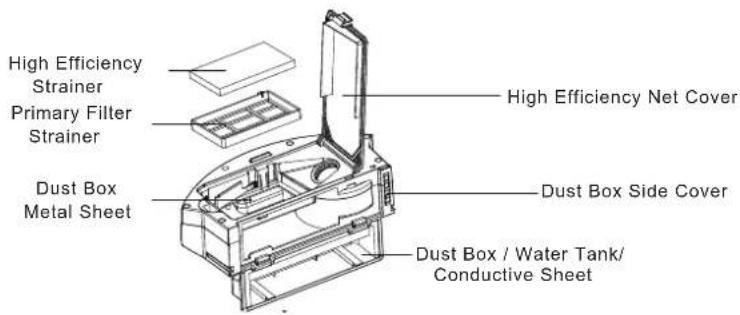
text_image
High Efficiency Strainer Primary Filter Strainer Dust Box Metal Sheet High Efficiency Net Cover Dust Box Side Cover Dust Box / Water Tank/Conductive SheetWater Tank and Mopping Pad
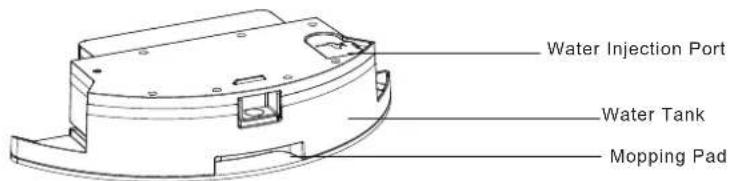
text_image
Water Injection Port Water Tank Mopping PadCharging Dock
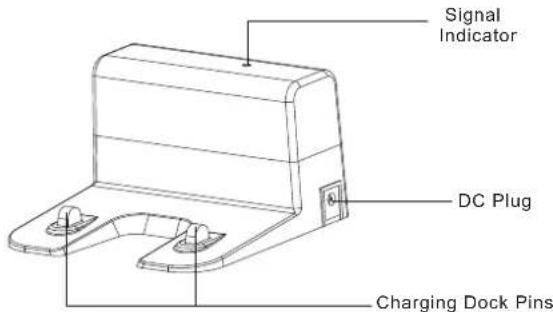
text_image
Signal Indicator DC Plug Charging Dock PinsRemote Control
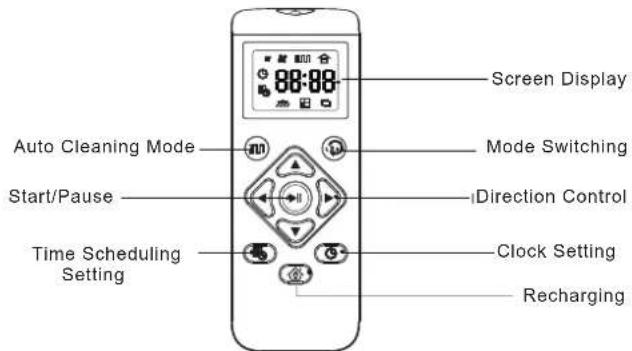
text_image
Screen Display Auto Cleaning Mode Start/Pause Time Scheduling Setting Mode Switching Direction Control Clock Setting RechargingProduct Usage - Preparation
Remove Protection
Before using the Robot, remove the protective strip on the Robot.
Remove the protective strip
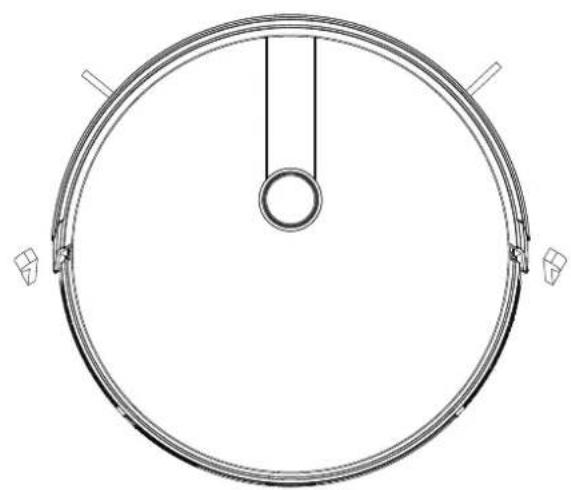
natural_image
Top-down schematic of a circular mechanical component with central bore and side supports (no text or symbols)FIG 1
Charging The Product
- Placing and charging: The charging seat is placed against the wall and is to be placed on a flat ground. Do not place articles within the range of 0.5m left and right and 1.5m ahead.
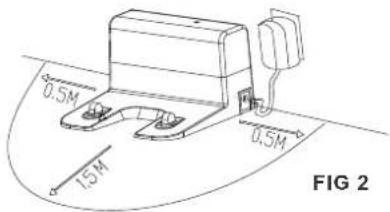
text_image
0.5M 15M 0.5M FIG 2- Power Supply: Connect the power adapter to the DC plug.
- Installing side brush: Install the side brush according to the left and right (L/R).
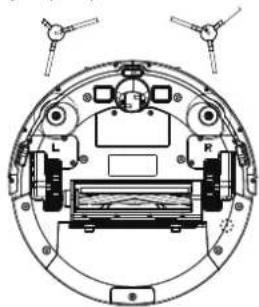
natural_image
Technical diagram of a mechanical assembly with labeled components (L, R) and no readable text or symbolsFIG 3
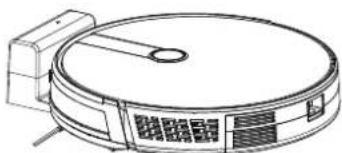
- Charging: Place the Robot on the charging seat to charge (during charging, the indicator light flashes and once complete the light is constant. The charging time is about 5 hours.)
natural_image
Line drawing of a circular vacuum cleaner with attached components (no text or symbols)FIG 4
During the cleaning process, the host can sense that its power is insufficient and automatically start the recharging mode, it automatically find the charging dock to charge. You can also command the device to start the recharging mode by tapping on back charging key of the remote controller.
Charging attention:
- The charging seat cannot be used in environments with strong reflection such as direct sunlight and nearby mirrors. If there is any object with strong reflection, please cover it 7 cm from the bottom.
- In order to ensure the normal working hours of the host computer, please fully charge it before use. The charging time is about 5 hours.
- When charging, do not start the water tank assembly, so as to ensure the safety of charging and prevent wet rags from damaging the floor.
Cleaning The Product
According to different cleaning needs, this product has a variety of cleaning mode to choose from. You can start various cleaning mode through Robot, remote control or V-TAC Smart Light App.
Auto Cleaning:
Applicable scenario: The most commonly used cleaning method is that the main engine uses a bow-shaped path to plan and clean the whole house according to the actual home environment.
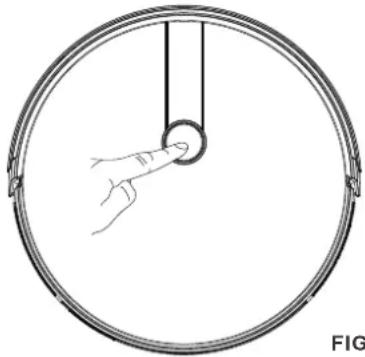
Setting method: In the shutdown state, press the key for longtime, when the indicator light of the host is on, it indicates that the Robot is powered on. When the key is pressed for a short time, or press the automatic cleaning bottom ☐) on the remote control, the Robot starts automatic cleaning.
For the Robot to start super sunction mode, Press the in one more time again.
natural_image
Simple line drawing of a hand pressing down on a circular component, enclosed in a ring (no text or symbols)FIG 5
Single Room Cleaning:
Applicable scenario: Cleaning single room
Setting method: Click the remote control mode switch button Ⓤ to select the single room cleaning mode to start the single room cleaning. Warm Tip: When it is only necessary to clean a single room, please close the door and the host will do centralized cleaning in the room If this room does not have a charging seat, the device will return to the original point.
Single room cleaning mode is always the super sunction cleaning mode.
Edge Cleaning:
Applicable scenario: For indoor corner cleaning, the Robot cleans along the perimeter of fixed objects (such as walls), and returns to the charging seat after the edge cleaning is finished.
Setting method: Click the remote control mode switch button to select the Edge cleaning mode to start the edge cleaning.
Manual Control:
Applicable scenario: Suitable for manual control cleaning.
Setting method: Click on the button of the remote controller to control the machine to move forward and backward and turn.
Functions - Pause, Wakeup & shutdown
Pause: During the operation of the Robot, press the pause key or the remote control pause key to ▶ pause the operation of the Robot.
Awaken: If the Robot stops working for more than ten minutes, it will automatically enter sleep mode (The Robot lights will turn off). You can wake up the
Robot by clicking the Start/Pause Key(Robot key) on the device, then click the Robot key or any key of the remote controller and app to restart
Shutdown: After the Robot stops working, press the Start/Pause Key(Robot key) for a long time, and the indicator light of the Robot machine goes switches off to indicate that the machine has been shut down.
*After the Robot finishes its work, it is recommended not to shut it down, so as to keep it in a state of charge, in order to better carry out next time.
Function - Time Scheduling Setting
Scheduling Press the remote control button 📄 to set the Robot time scheduling. Press the button 📄, then press the key

to set the Scheduling time, once done press the button 📄 again to complete the settings. The Robot will automatically clean up at the scheduled time.
PS: Before the time scheduling setting, you need to use the button ☐ to set the clock of the Robot first. Press the button ☐
then press the key ☐ to set the time of Robot, when you have selected the time then done press ☐, then the setting is completed.
Using The Water Tank
*Do not use the floor mopping function on carpets.
Note: After mopping the floor, please empty the water tank and remove the mopping pad.
Add water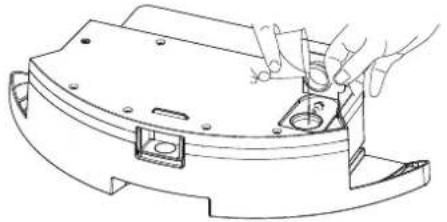 FIG 6 FIG 6 | Install the Water Tank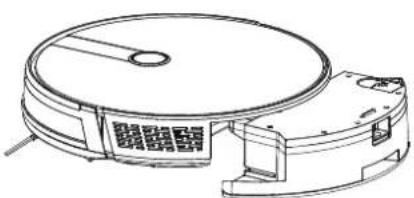 FIG 7 FIG 7 |
Install Mopping Pad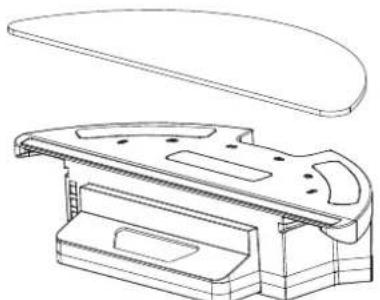 FIG 8 FIG 8 | Start Mopping the Floor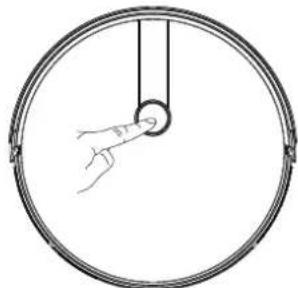 FIG 9 FIG 9 |
Maintenance - Dust Box
A. Press the dust box button to take out the dust box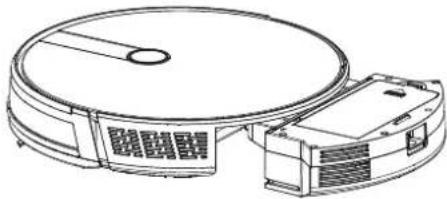 FIG 10 FIG 10 | C. Dumping garbage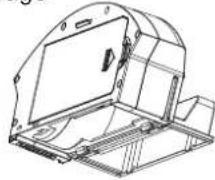 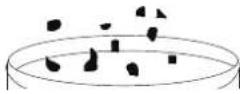 FIG 12 FIG 12 |
B. Open the dust box side cover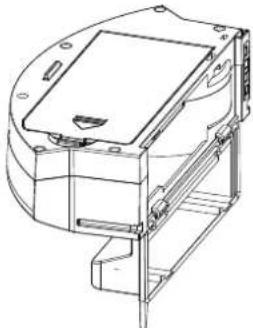 FIG 11 FIG 11 | D. Open the high efficiency filter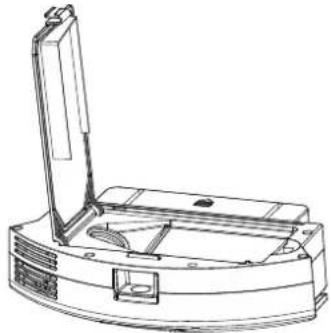 FIG 13 FIG 13 |
Maintenance - Dust Box
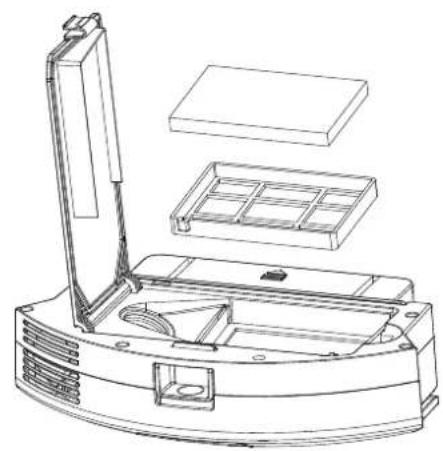
E. Open the high-efficiency screen cover and take out the high-efficiency screen and the primary-efficiency screen. High-efficiency screen is not recommend for water washing. Tap gently to remove dust.
natural_image
Technical line drawing of a mechanical device with internal components and housing (no text or symbols)FIG 14
F. Rinse the primary filter screen
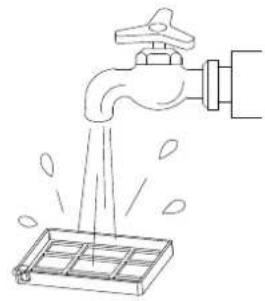
natural_image
Line drawing of a faucet releasing water from a drain into a container (no text or symbols)FIG 15
G. The dust box is to be scrubbed clean with dishcloth. Do not allow water to seep into the fan port while cleaning.
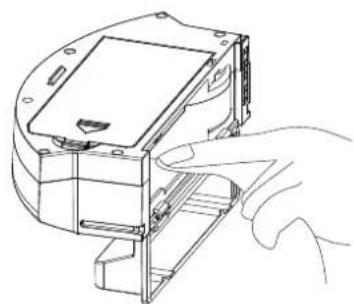
natural_image
Line drawing of a hand inserting a component into a device housing (no text or symbols)FIG 16
Maintenance - Dust Box
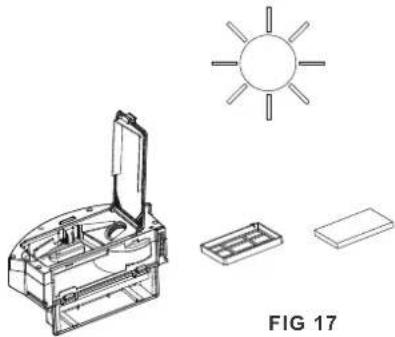
H. Dry the dust box and assemble the filter, and keep it dry to ensure its service life.
Note: It is recommended to wash the primary strainer with water 15 - 30 days after it is used. The maximum service life of the high efficiency filter screen is 3 months.
natural_image
Technical line drawing of a device with a sun symbol and two separate components (no text or labels)I. Replace the primary filter screen and the high efficiency filter screen into the dust box;
Note: 1. Before installing the filter screen, please ensure that the high efficiency filter screen and the primary filter screen are in a dry state. 2. Do not expose the high efficiency strainer and primary strainer to the sun.
J. Cover the dust box cover and install the dust box on the Robot
Note: Do not allow water to seep into the fan port when cleaning.
Maintenance - Water Tank & Mopping Pad
1.Remove the water tank.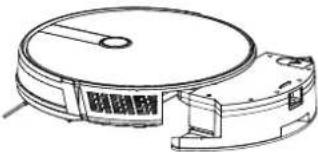 FIG 18 FIG 18 | 4.Clean the mopping pad.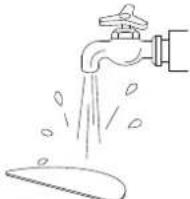 FIG 21 FIG 21 |
2.Remove the mopping pad.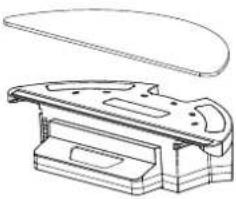 FIG 19 FIG 19 | 5. Dry the mopping pad.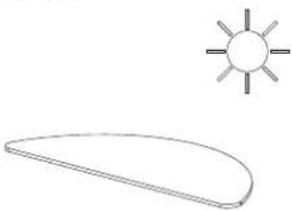 FIG 22 FIG 22 |
3.Empty/Drain the Water Tank.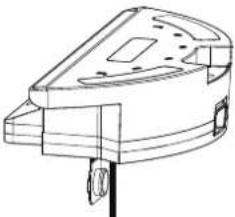 FIG 20 FIG 20 | 6. Dry or naturally dry the water tank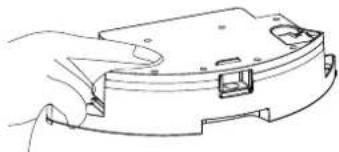 FIG 23 FIG 23 |
Maintenance - Main Brush & Side Brush
- Open the main brush cover assembly

natural_image
Technical line drawing of a mechanical device with internal components (no text or symbols)FIG 24
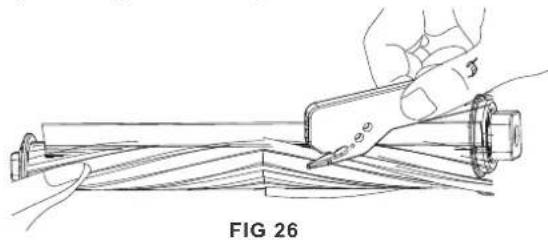
- Use the utility tool for cleaning tangled hair (Cleaning main brush)
natural_image
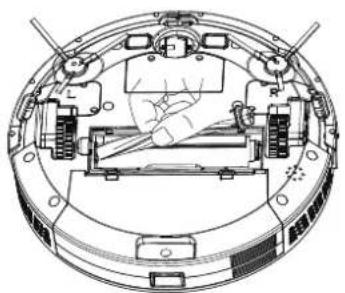
Line drawing of hands using a tool to cut or mark a mechanical component, labeled 'FIG 26' (no text or symbols on the diagram itself)- Remove the main brush shaft(as shown below)
natural_image
Technical line drawing of a mechanical assembly with gears and housing (no text or symbols)FIG 25
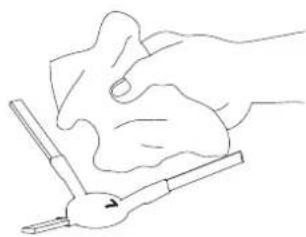
- Cleaning side brush
natural_image
Line drawing of a hand holding a tool with a cloth, no text or symbols presentFIG 27
Maintenance - Charging dock pins, Down view sensor, Drive & universal wheel
Warm Tip: The interior of the charging pole piece, the down-view sensor and the striking plate all contain sensitive electronic components, please use dry dishcloth when cleaning, and do not use wet dishcloth to prevent damage caused by water inflow.
Clean up charging dock pins
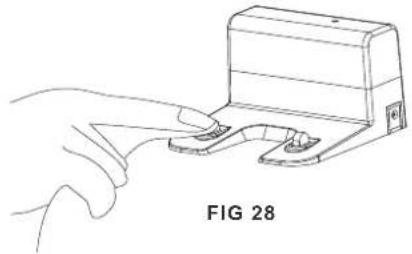
natural_image
Line drawing of a hand pressing a button on a device (no text or symbols)Clean the down-view sensor
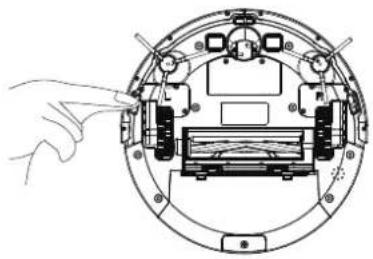
natural_image
Diagram of a mechanical assembly with a hand pointing to a component, showing internal components and no text or symbols.FIG 29
Clean drive wheels and universal wheel
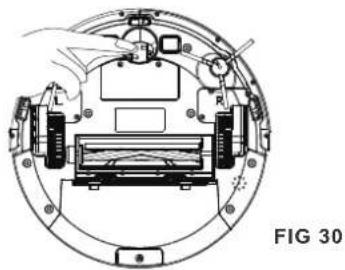
natural_image
Technical line drawing of a mechanical assembly with no visible text or symbolsIf you do not use the product for a longtime, please fully charge it before storing. Turn off the host and charge the device every 3 months to prevent the battery from over discharge.
If the battery is over discharged or is not used for a long time, the product may not charg. Please contact our company for after-sales maintenance, do not disassemble it yourself.
Troubleshooting
| No. | Prompt Tone Cause of Failure Solution | ||
| 1 | Wheels off the ground Robot suspended | Please put the Robot back to the ground and press the cleaning button again. | |
| 2 | Dust box not installed Dust box removed and not installed | Install the dust box to the Robot and press the cleaning key again. | |
| 3 | Battery failure Abnormal battery charging Contact after-sales test battery | ||
| 4 | Please check if the wheel is stuck Wheel jammed | Check whether the wheel is entangled with foreign objects and clean up the entangled objects. | |
| 5 | Please check if the front collision is stuck | Front impact bracket stuck Check whether the front collision can rebound normally | |
| 6 | Robot connection failed Machine failed to connect to server | Check whether the wireless network connected during distribution can connect to the internet | |
| 7 | The battery is low, please charge the machine | Battery power less than 20 % The machine automatically enters the recharge mode | |
| 8 | Please check whether the side brush is tangled or jammed | Abnormal edge brushing | Check whether the side brush is entangled by wire and fix the wire. |
| 9 | Please move the machine to an open area. | The machine failed to get out | Please move the Robot to an empty place and press the cleaning button again. |
Technical Specifications
| Classification Projects Parameter | ||
| Structural class | Diameter 330 mm | |
| Height 76mm | ||
| Net weight 2.7 kg | ||
| Battery | Voltage 14.4 volts | |
| Battery 2500 mah rechargeable lithium battery pack | ||
| Parameter | Dust box capacity 600 ml | |
| Water tank capacity | 350 ml | |
| Charging type Automatic charging / manual charging | ||
| Cleaning mode Auto / single room / edge / mop floor | ||
| Primary charging time About 5 hours | ||
| Working time | About 100 minutes | |
| Robot | Rated power (w) 28 | |
| Operating voltage (v) 14.4 | ||
APP INSTALLATION INSTRUCTIONS
Step 1: Turn the power button ON of the device.
Step 2: Scan the given QR code, or download "V-TAC Smart Light" from the App Store (iOS) or the Google Play Store (Android).
Step 3: Open the V-TAC Smart Light app and tap on register for creating a new account. If you already have an existing account, please proceed to logging in [Fig 1].
V-TAC Smart Light
ANDROID QR CODE

text_image
QR code with red and black triangular logo in center, likely for digital link or paymentIOS QR CODE

text_image
QR code with red and black pixelated logo in center, likely linking to a digital resource or websiteLogin

Fig 1
Step 4:
A) Mobile Number: Select the country, then enter your mobile number. Once done, tap 'Next' [Fig 2].
B) E-Mail: Enter your email id and tap on 'Next' [Fig 2].
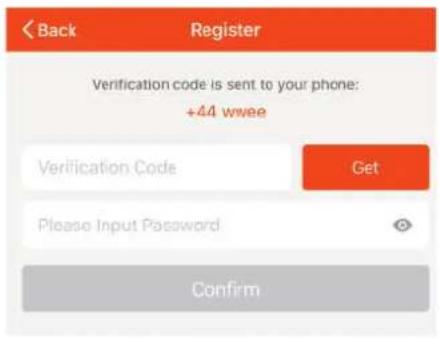
Step 5: Enter the verification code which will be sent to your mobile number/email id, then assign a new password to your account and tap on "Confirm" to complete the registration process [Fig 3]. Once done you will be redirected to V-TAC Smart Light Home page.
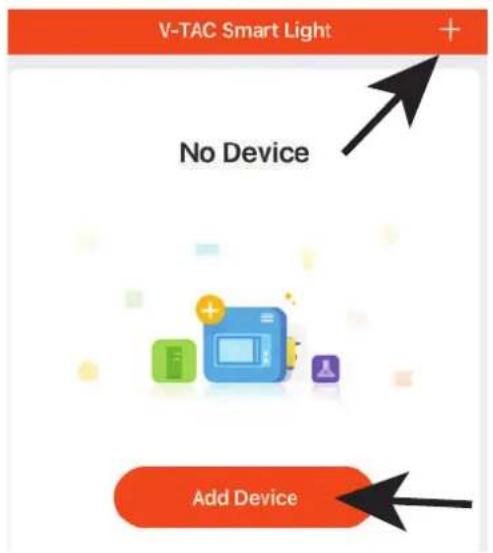
Step 6: Tap on 'Add Device' or the + sign. Make sure the device is switched on [Fig 4].
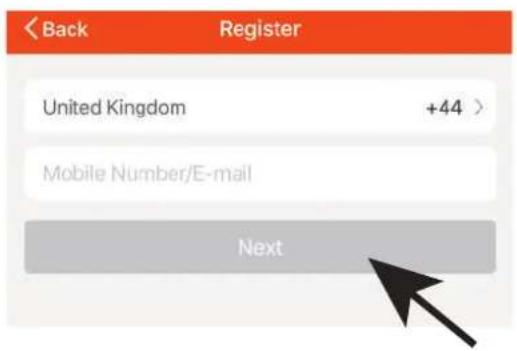
text_image
< Back Register United Kingdom +44 > Mobile Number/E-mail NextFig 2
text_image
Back Register Verification code is sent to your phone: +44 wwee Verification Code Get Please Input Password ConfirmFig 3
text_image
V-TAC Smart Light + No Device Add DeviceFig 4
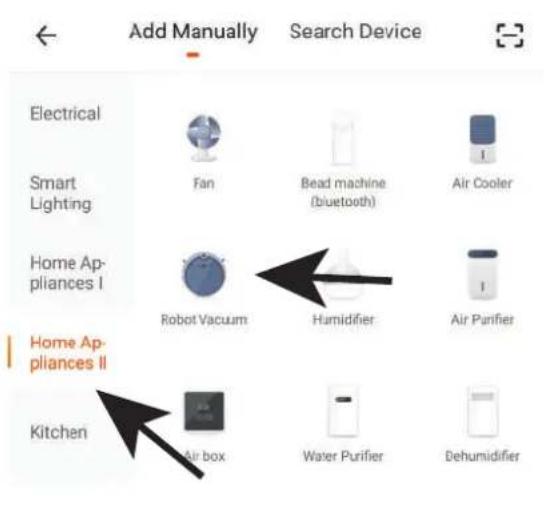
Step 7: To select the device, tap on Home appliances, and then choose 'Robot Vaccum' to start Pairing process of the device to the app [Fig 5].
Step 8: Pairing Process
A) Turn On the vacuum cleaner by tapping on the power button once.
B) Tap on the power button two times continuously to switch ON the WiFi mode for pairing.
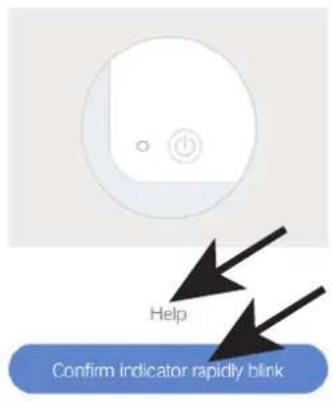
Note: If you are facing issue with pairing please tap on Help as shown below to see further instructions [Fig 6].
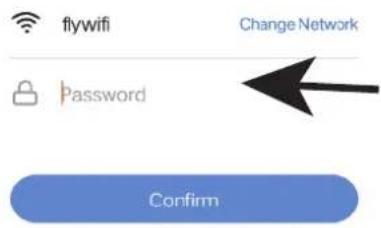
C) Confirm if the light blinks rapidly, Enter wifi password and click "Confirm" [Fig 6 & 7].
text_image
Add Manually Search Device Electrical Fan Bead machine (bluetooth) Air Cooler Smart Lighting Home Appliances I Robot Vacuum Humidifier Air Purifier Home Appliances II Kitchen Air box Water Purifier DehumidifierFig 5 Fig 7
Add Device
Power on the device and confirm that indicator light rapidly blinks
text_image
Help Confirm indicator rapidly blinkFig 6
Enter Wi-Fi Password
Only support 2.4GHz Wi-Fi network
text_image
flywifi Change Network Password ConfirmStep 9: Once you have successfully completed step 8, you will be redirected to "Connecting Now" page, where the App searches, registers and initializes the device [Fig 8]. Once it is completed your device will be successfully paired.
Step10: Once your device is successfully paired, rename the device to your preference. And then tap on completed [Fig 9].
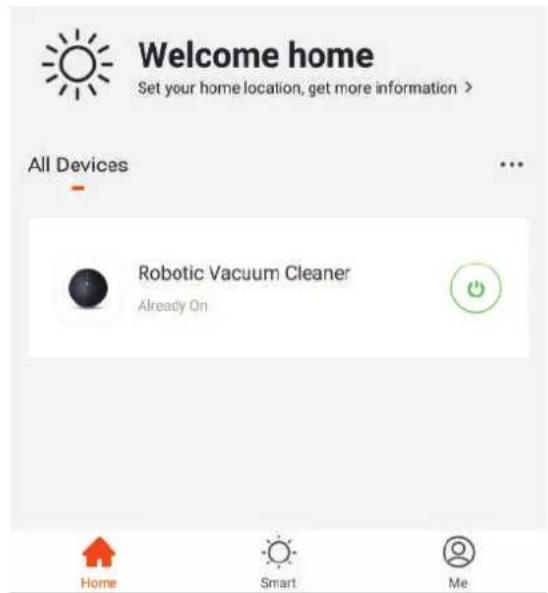
Step11: You can now start controlling your device with the App. Tap the device name on the home page to enter the controls and features of the device [Fig 10].
Connecting Now
Make sure your phone and device are as close to your router as possible.
- Searching for Device
- Registering device to the cloud
- Initializing your Device
Device added successfully

Robotic Vacuum Cleaner


Fig 9
text_image
Welcome home Set your home location, get more information > All Devices Robotic Vacuum Cleaner Already On Home Smart MeFig 8 Fig 10
Step 12: Modes And Features
1. APP Operation
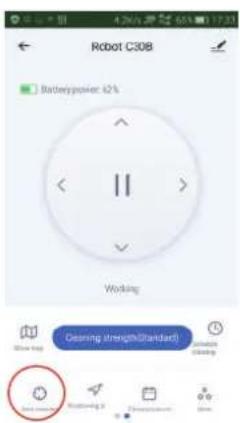
To choose preferred cleaning mode you may tap on any of the options preferred (Recharge Mode, Room Cleaning, Spot cleaning, Edge Cleaning) [Fig 11]. To choose cleaning strength mode tap on Cleaning strength [Fig 11] and select the desired cleaning mode setting which you wish to set for the device [Fig 12].
2. Scheduling
Tap on schedule setting [Fig 11] to enter the scheduling interface and choose "Add Schedule" [Fig 13] and choose preferred working time and day [Fig 14 & 15].
text_image
Robot C30B Batterypower: 42% Welding Clearing (rough/standard) Show log Sensitization Balance: 5 Discharge: 1 OK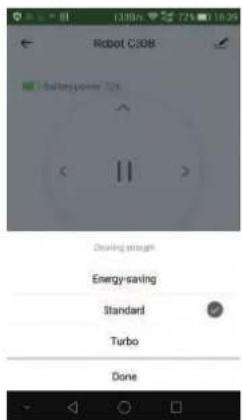
text_image
Robot C308 Batterypower 52V Clearing strength Energy-saving Standard Turbo Done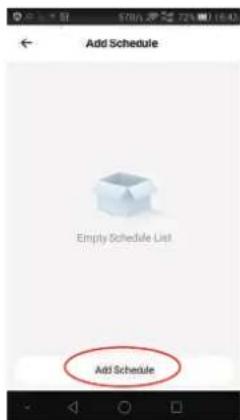
text_image
Add Schedule Empty Schedule List Add Schedule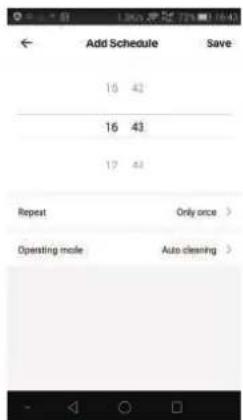
text_image
Add Schedule Save 16 42 16 43 17 44 Repeat Only once > Operating mode Auto cleaning >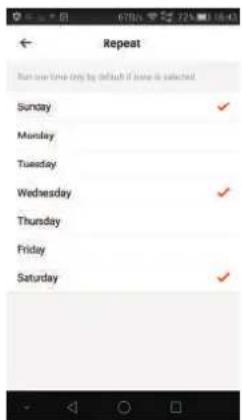
text_image
Repeat Run time only by default if none is selected Sunday Monday Tuesday Wednesday Thursday Friday SaturdayFig 11 Fig 12 Fig 13 Fig 14 Fig 15
3. Start / Pause / Standby / Sleeping mode
Press “ ” / “ ” to start / pause the robot [Fig 16];
Note: When the robot pauses over 10 minutes, it will enter sleeping mode;
If it is in sleeping mode, press “ ”, the robot will be waken up to standby mode; To start the vacuum cleaner press the preferred cleaning mode.
4. Working Map and Cleaning Record
The App will show the map of working cleaning path of the robot [Fig 17]; But it may not update in real time;
Tap "Cleaning record", it will show the cleaning records of working time and cleaned area, also you can clear the data [Fig 18].
Fig 16 Fig 17 Fig 18 Fig 19 Fig 20
5. Find robot
You may not know where the robot is when it finishes cleaning and stops. Tap on "Positioning Ⓤ" [Fig 19]; The device will prompt with a sound "Ding Dong" for you to find the Robot vacuum cleaner.
text_image
Robot C30B Mute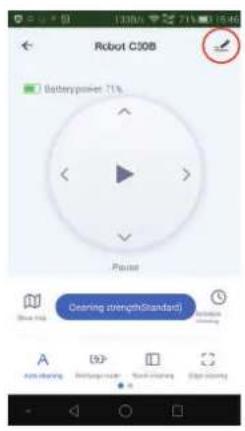
text_image
Robot C30B Batterypower 71% Pause Clearing strength(Standard)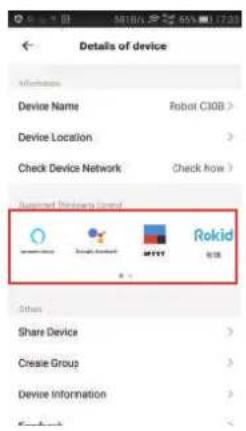
text_image
Details of device Device Name Rebol C30B > Device Location > Check Device Network Check how > Supported Windows to Control Rokid Share Device > Create Group > Device Information >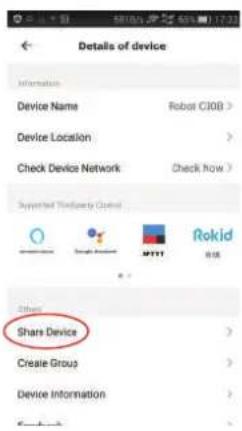
text_image
Details of device Information Device Name Robot C30B > Device Location > Check Device Network Check how > Supported To/To/To Control Rokid Others Share Device > Create Group > Device Information >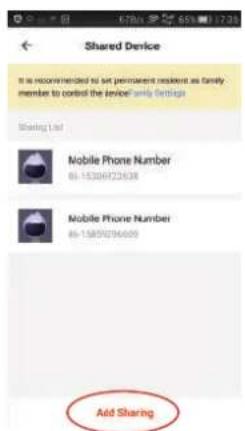
text_image
Shared Device It is recommended to set permanent resident as family member to control the device family Settings Sharing List Mobile Phone Number 65-15309723638 Mobile Phone Number 65-1589294609 Add SharingFig 21 Fig 22 Fig 23 Fig 24 Fig 25
6. Mute
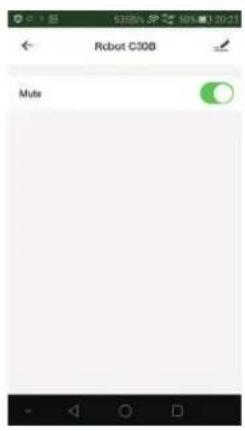
Tap "More" to enter mute function setting interface [Fig 20]; If mute function is active, the robot will cancel voice prompt [Fig 21].
7. Supported Third-party Control
The robot works with Amazon Alexa, Google Assistant, and some other third party controlled devices. Tap 📋 on the top right corner [Fig 22], then find "Supported Third-party Control" and tap corresponding icon to learn connection way [Fig 23].
8. Share Devices
Only one main ID for one single device is available. If you want to share the device to others in your family, tap ☑ on the top right corner; Choose "Share devices" [Fig 24]; type correct registered cellphone number/ email ID to add additional users [Fig 25].
Note: Other users have to register V-TAC Smart Light ID before they can be added.
9. Reset WIFI
Changing the connection from existing WIFI network to new WIFI network, you need to re-connect your robot to the new WIFI network after initializing your robot as follows: turn on the robot, after the voice prompts "Welcome to use sweeping robot", press the start button twice continuously, then the voice prompts "Connecting network", and WIFI icon begins to flash constantly, your robot can now be paired to the V-TAC Smart Light App again.
UTILISATION DU PRODUIT - PRÉPARATION
RETIRER LA PROTECTION
RECHARGER LE PRODUIT
To choose cleaning strength mode tap on Cleaning strength [SI. 11] and select the desired cleaning mode setting which you wish to set for the device [SI. 12].
- Planiranje rada