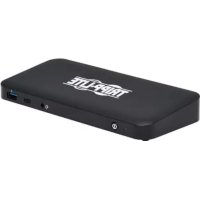
U442DOCK8BINT - USB C Dock Tripp Lite - Free user manual and instructions
Find the device manual for free U442DOCK8BINT Tripp Lite in PDF.


User questions about U442DOCK8BINT Tripp Lite
0 question about this device. Answer the ones you know or ask your own.
Ask a new question about this device
Download the instructions for your USB C Dock in PDF format for free! Find your manual U442DOCK8BINT - Tripp Lite and take your electronic device back in hand. On this page are published all the documents necessary for the use of your device. U442DOCK8BINT by Tripp Lite.
USER MANUAL U442DOCK8BINT Tripp Lite
Triple-Display USB-C Docking Station with International Power Supply
Model: U442-DOCK8-BINT
Español 21 • Français 41 • Русский 61 • Deutsch 81
WARRANTY REGISTRATION
Register your product today and be automatically entered to win an ISOBAR® surge protector in our monthly drawing!
tripplite.com/warranty

text_image
TRIPP·LITE1111 W. 35th Street, Chicago, IL 60609 USA • tripplite.com/support
Copyright © 2022 Tripp Lite. All rights reserved. USB Type-C® and USB-C® are registered trademarks of USB Implementers Forum.
Product Features
- HDMI and DisplayPort connectors each support single-monitor 4K applications up to 3840 x 2160 @ 60 Hz*
- Extends 1080p desktop image across 3 external screens at the same time at resolutions up to 1920 x 1080 @ 30 Hz*
- Extends 1080p desktop image across 2 external screens at the same time at resolutions up to 1920 x 1080 @ 60 Hz*
- RJ45 port supports true 10/100/1000 Mbps (1 Gbps) network speeds when Wi-Fi is weak or unavailable
- USB-C PD 3.0 port supports 85W power output for charging host device
- USB-A hub ports support USB 3.2 Gen 2 speeds up to 10 Gbps; one dedicated port supports up to 5V 1.5A (7.5W) for charging mobile devices, 2.4A for Apple® devices
- USB-C hub port supports USB 3.2 Gen 2 speeds up to 10 Gbps for reading, writing and transferring data
- 3.5 mm microphone/speaker combo port supports 2.1-channel audio
- Plug-and-play operation with no software required for easy, immediate installation
*Maximum resolution is determined by what your connected device can support. See Cable Matrix for resolution breakdown.
Package Contents
• U442-DOCK8-BINT
• USB-C to USB-C Cable, 1m (3.3 ft)
- External Power Supply with BS 1363 UK and CEE 7/8 EU Power Cords
- Owner's Manual
Optional Accessories
• N201-Series Cat6 Gigabit Snagless Patch Cables
• P312-Series 3.5 mm Mini Stereo Audio Cables
• P569-Series High-Speed HDMI Cables
• P580-Series DisplayPort Cables with Latches
• U420-Series USB 3.2 Gen 2 C/C Cables
• U428-Series USB 3.2 Gen 1 A/C Cables
• M100-Series USB Sync/Charge A/Lightning Cables
Product Overview
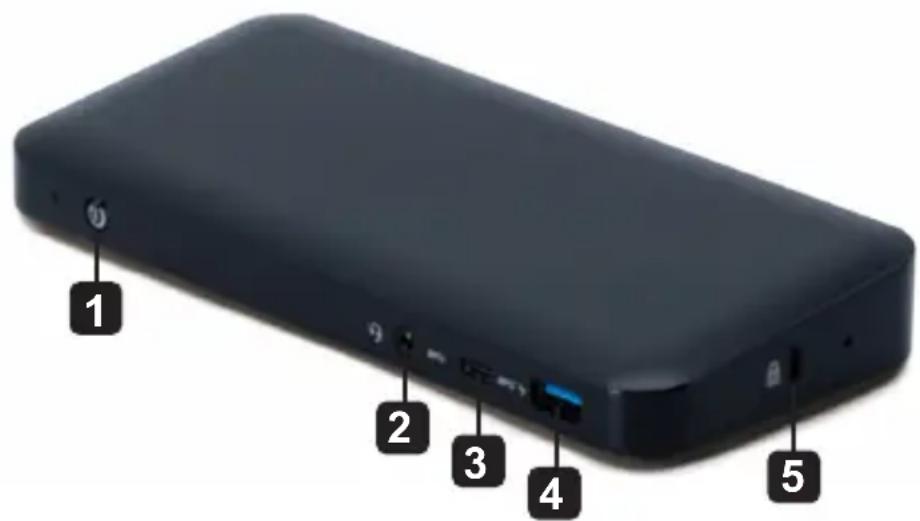
Front
text_image
Diagram of a black electronic device with five labeled ports and connectors, showing front, back, and side views.1 Power: Turns the unit off and on. Blue LED indicates when power is turned on.
2 3.5 mm Mini Stereo Combo Port: Connects user-supplied speaker or microphone.
3 USB-C Data Port: Transmits data at USB 3.2 Gen 2 speeds up to 10 Gbps.
4 USB-A Charging Port: Supports 5V 1.5A (7.5W) charging for mobile devices, 2.4A for Apple devices.
5 Anti-TheftLock: Connects your computer/laptop security-cable chain lock.
Product Overview
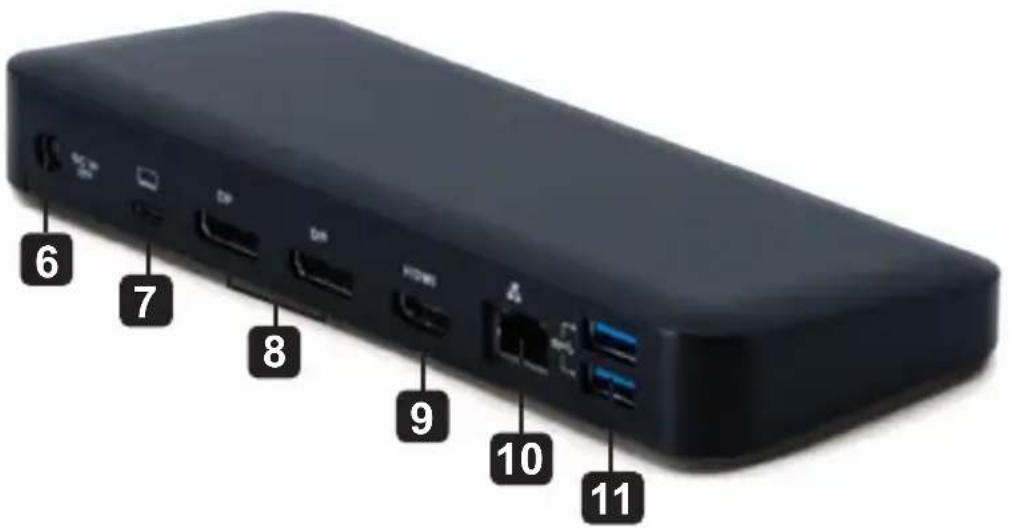
Rear
text_image
6 7 8 9 10 116 DC Power Jack: Connect the included external power supply to both this port and an AC outlet.
7 USB-C PD Charging Port: Connects to the host device with the included USB-C cable.
8 (2x) DisplayPort Outputs: Connect to DisplayPort monitors with user-supplied cables.
9 HDMI Output: Connects to HDMI monitor with user-supplied cable.
10 RJ45 Port: Connects to Gigabit Ethernet network with user-supplied Cat6 cable.
11 (2x) USB-A Hub Ports: Connects USB peripherals or devices at USB 3.2 Gen 2 speeds up to 10 Gbps.
Cable Matrix
| DP1.2 HBR2 Platform | |||
| Ports HDMI DP1 DP2 | |||
| 1 External Display Connected 4K/ | 30 Hz N/A N/A | ||
| N/A 4K/30 Hz N/A | |||
| N/A N/A 4K/30 Hz | |||
| 2 External Displays Connected 10 | 80p/60 Hz 1080p/60 Hz N/A | ||
| 1080p/60 Hz N/A 1080p/60 Hz | |||
| N/A 1080p/60 Hz 1080p/60 Hz | |||
| 3 External Displays Connected 10 | 80p/30 Hz 1080p/30 Hz 1080p/30 Hz | ||
| DP1.4 HBR3 Platform | |||
| Ports HDMI DP1 DP2 | |||
| 1 External Display Connected 4K/ | 60 Hz N/A N/A | ||
| N/A 4K/60 Hz N/A | |||
| N/A N/A 4K/60 Hz | |||
| 2 External Displays Connected 14 | 40p/60 Hz 1440p/60 Hz N/A | ||
| 1440p/60 Hz N/A 1440p/60 Hz | |||
| N/A 1440p/60 Hz 1440p/60 Hz | |||
| 3 External Displays Connected 10 | 80p/60 Hz 1080p/60 Hz 1080p/60 Hz | ||
| DP1.4 HBR3 Platform with DSC Support | |||
| Ports HDMI DP1 DP2 | |||
| 1 External Display Connected 4K/ | 60 Hz N/A N/A | ||
| N/A 4K/60 Hz N/A | |||
| N/A N/A 4K/60 Hz | |||
| 2 External Displays Connected 4K/ | 60 Hz 4K/60 Hz N/A | ||
| 4K/60 Hz N/A 4K/60 Hz | |||
| N/A 4K/60 Hz 4K/60 Hz | |||
| 3 External Displays Connected 4K/ | 30 Hz 4K/30 Hz 4K/30 Hz | ||
Installation
Installation Notes
- After all devices are connected to the unit, be sure the power adapter is properly connected and the power button is turned on.
- Connect the host computer or laptop to the U442-DOCK8-BINT's USB-C PD Charging port using the included USB-C cable. This cable will charge and power the host device.
- Screenshots may vary based on operating system.
- The computer or laptop will keep your previous display settings every time you power on/off.
- Check your computer or laptop's display settings and set up in Extend Mode for normal installation.
- If you change monitors, you may need to reset the display settings.
- Some 4K monitors will occupy the entire 4K bandwidth and cause the third connected display to function incorrectly.
- If your system runs Mac OS, external monitors connected will only support Mirror Mode (all displays will have the same output).
- If your system is a Windows system and supports MST Mode, refer to below MST installation notes.
Installation
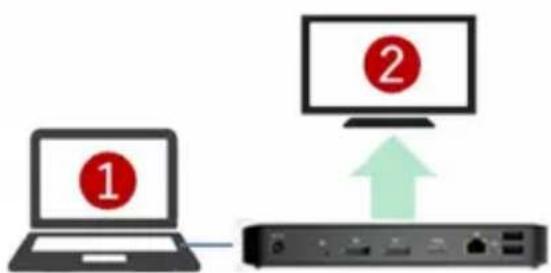
Single External Display Installation
1X
1x External displays + 1x NB screen
flowchart
graph TD
    A["Device ①"] --> B["Router"]
    C["Device ②"] --> B
    B -->|Green Up arrow| C
Resolution (NB)
1080p @ 60 Hz
Resolution (Monitor)
HBR2 2160p @ 30 Hz
HBR3 2160p @ 60 Hz
Connect an HDMI or DisplayPort cable (see Optional Accessories) between the U442-DOCK8-BINT and a compliant display.
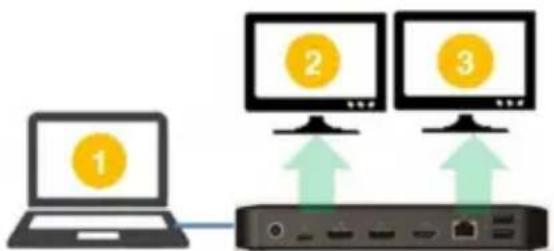
Double-Extended External Display Installation
flowchart
graph TD
    A["Laptop 1"] --> B["Server"]
    C["Computer 2"] --> B
    D["Computer 3"] --> B
    B --> E["Port 1"]
    B --> F["Port 2"]
    B --> G["Port 3"]
Resolution (NB)
1080p @ 60 Hz
Resolution (Monitor)
1080p @ 60 Hz 1080p @ 60 Hz
A. Connect either both DisplayPort outputs or one DisplayPort and one HDMI port to compliant displays.
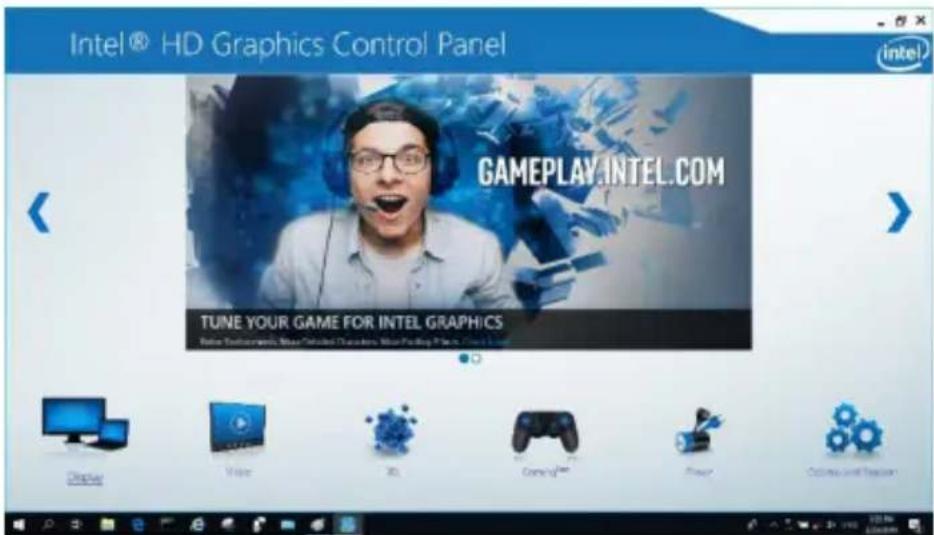
B. In desktop mode, right-click the desktop and select Graphics Properties.
Installation
C. Click Display Settings.
text_image
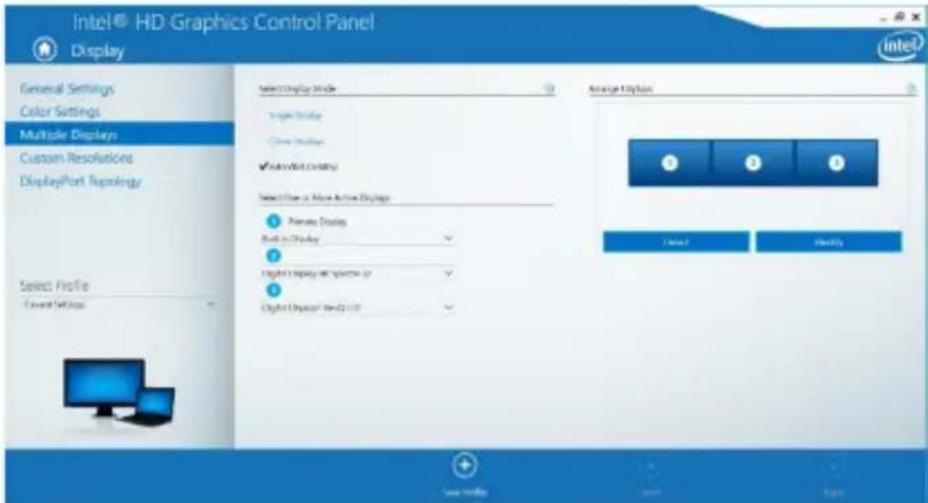
Intel® HD Graphics Control Panel intel GAMEPLAY.INTEL.COM TUNE YOUR GAME FOR INTEL GRAPHICS Refer: In touch, or selected characters. Blue Painting Pines. (New) 100% Display View 3D GamePlay Power Color and TensionD. In Multiple Displays, click Identify Your Monitors.
text_image
Intel HD Graphics Control Panel Display General Settings Color Settings Multiple Displays Custom Resolutions DisplayPort Topology Select Profile Current Settings Select Display Mode Single Display Cross Display ✓ Active/Not Active Select Drive or Active Active Display 1 Primary Display Built-in Display 2 Digital Display (Windows 5) 3 Digital Display (Twin 2.0) Alternate Edition 1 2 3 Cancel Modify Save History Next ApplyInstallation
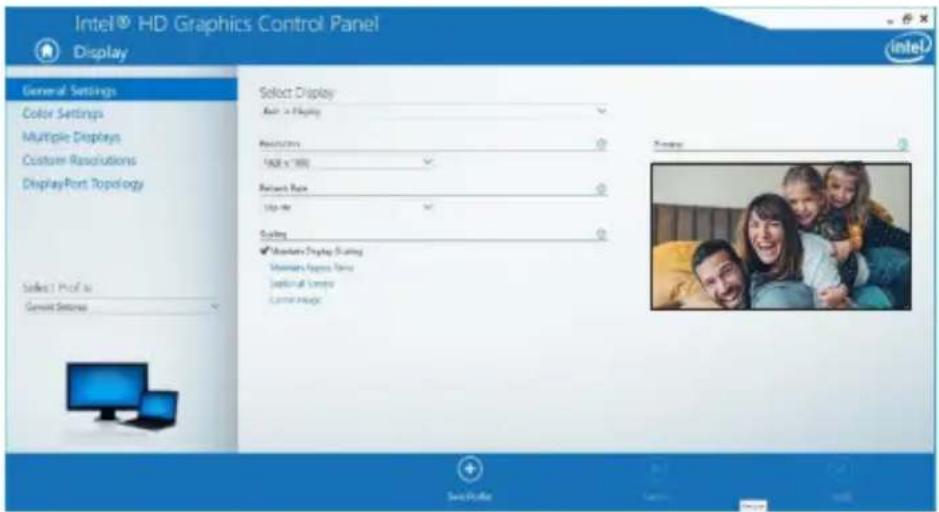
E. In General Settings, adjust the extended monitor resolution to 1920 x 1080 and the refresh rate to 60 Hz. Click Apply to save settings.
Note: The primary display default is the laptop screen. Displays 2 and 3 should be extended monitor.
text_image
Intel® HD Graphics Control Panel Display General Settings Color Settings Multiple Displays Customer Resolutions DisplayPort Topology Select 1 Pro# to General Settings Select Display Built-in Display Resolutions 100 x 1000 Patient Rate Up line Scaling ✓ Moderate Display Scaling Stainless Express Name Install Full Company Locked Image Inventory [Image]F. In Dual Extended mode, a 4K monitor will automatically downgrade to 1080p @ 60 Hz to provide the best video quality.
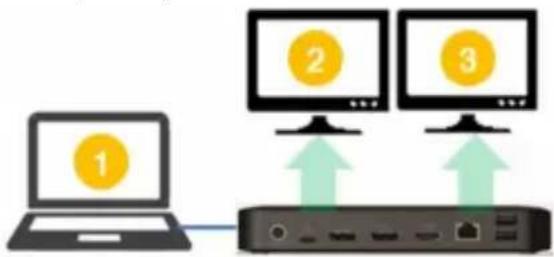
flowchart
graph TD
    A["Laptop 1"] --> B["Router"]
    C["Monitor 2"] --> B
    D["Monitor 3"] --> B
    B --> E["Switch"]
    style A fill:#f9f,stroke:#333
    style C fill:#ccf,stroke:#333
    style D fill:#cfc,stroke:#333
| Resolution (NB) | |
| 1080p @ 60 Hz | |
| Resolution (Monitor) | |
| 1080p @ 60 Hz | 1080p @ 60 Hz |
Installation
G. If your monitor has a fixed resolution of 4K @ 30 Hz, your second monitor will automatically downgrade to 800 x 600 or may not even work at all.
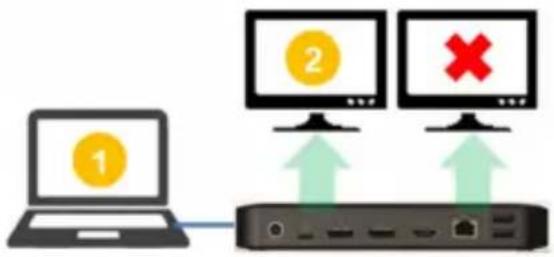
flowchart
graph TD
    A["Laptop with yellow circle 1"] --> B["Router"]
    C["Computer monitor 2"] --> B
    D["Computer monitor 2"] --> B
    B --> E["Switch"]
    style A fill:#f9f,stroke:#333
    style C fill:#ccf,stroke:#333
    style D fill:#cfc,stroke:#333
| Resolution (NB) | |
| 1080p @ 60 Hz | |
| Resolution (Monitor) | |
| 4K @ 30 Hz | X |
| 4K @ 30 Hz | 800 x 600 |
| 1080p @ 60 Hz | 1080p @ 60 Hz |
H. To fix this, go to General Settings and adjust the extended monitor resolution to 1920 x 1080 and the refresh rate to 60 Hz. Click Apply to save settings.
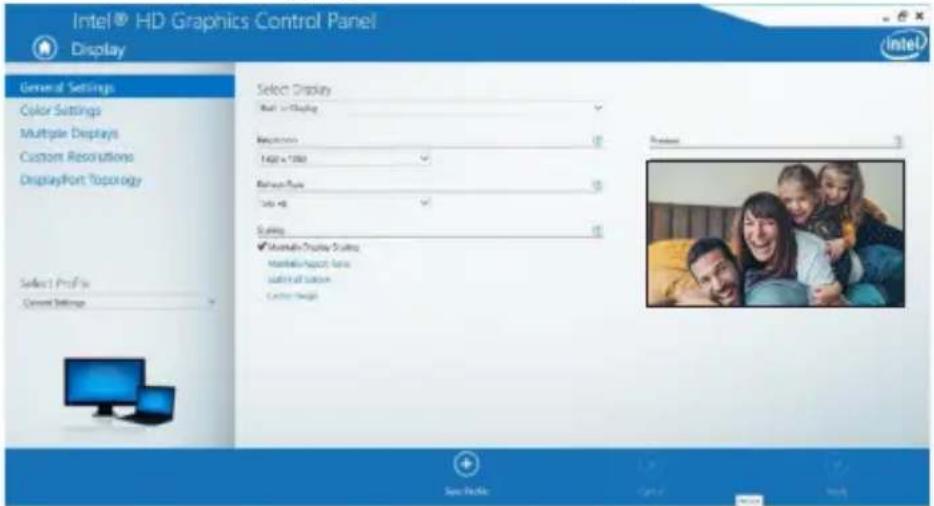
text_image
Intel® HD Graphics Control Panel Display General Settings Color Settings Multiple Displays Custom Resolutions DisplayPort Topology Select 1 Profi Current Settings Select Display Next in Display References 1400 x 1000 Refine Type 3.50 x 2 Surve ✓ Marketable Display Scales Markets Impact Items Switch All Buttons Copper Shape Product 3 Save InsideInstallation
Triple-Extended External Display Installation
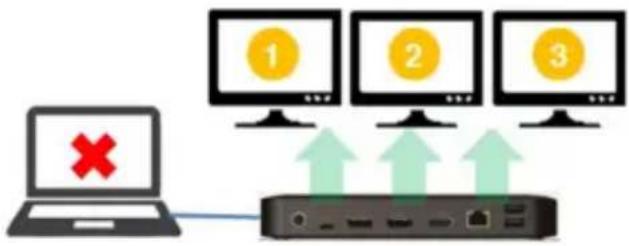
flowchart
graph TD
    A["Laptop with X"] --> B["Monitor 1"]
    A --> C["Monitor 2"]
    A --> D["Monitor 3"]
    B --> E["Router"]
    C --> E
    D --> E
    style A fill:#f9f,stroke:#333
    style B fill:#ccf,stroke:#333
    style C fill:#ccf,stroke:#333
    style D fill:#ccf,stroke:#333
Max. Resolution (Monitor)
1080p @ 30 Hz 1080p @ 30 Hz 1080p @ 30 Hz
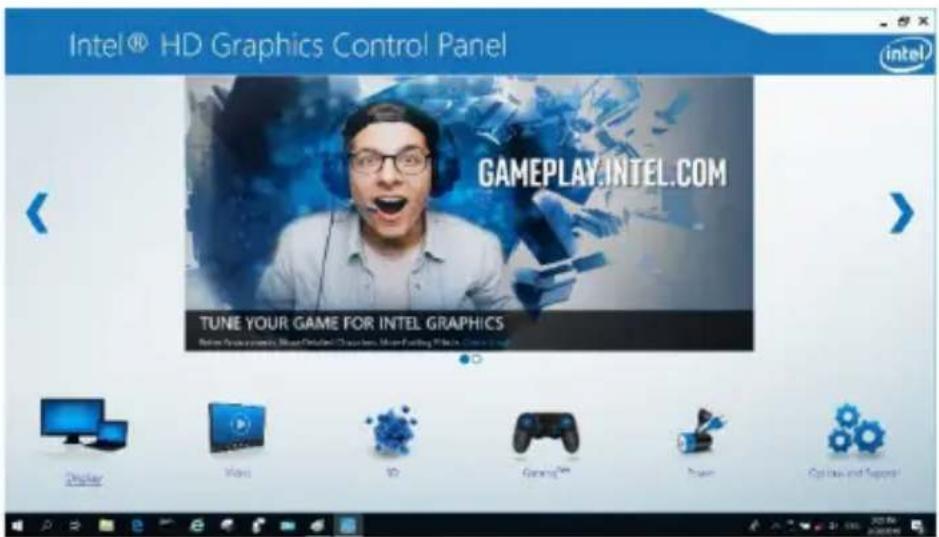
A. Connect all video ports to compliant displays. Only 2 of the 3 displays will work right away.
B. In desktop mode, right-click the desktop and select Graphics Properties.
C. Click Display Settings.
text_image
Intel® HD Graphics Control Panel intel GAMEPLAY.INTEL.COM TUNE YOUR GAME FOR INTEL GRAPHICS Display Video 3D Gaming™ Power Options and SupportInstallation
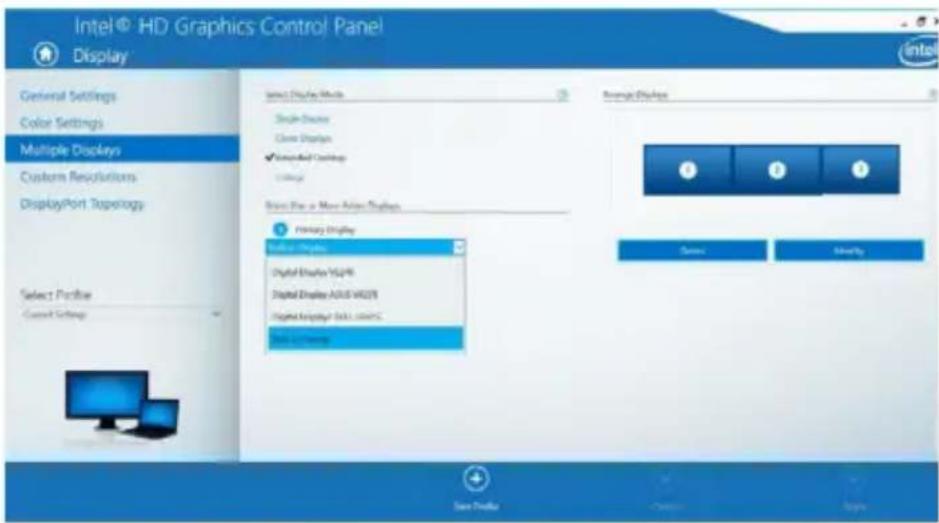
D. In Multiple Displays, click Identify Your Monitors.
E. Click the Primary Display dropdown box, and select the third active monitor. Click Apply to save settings.
text_image
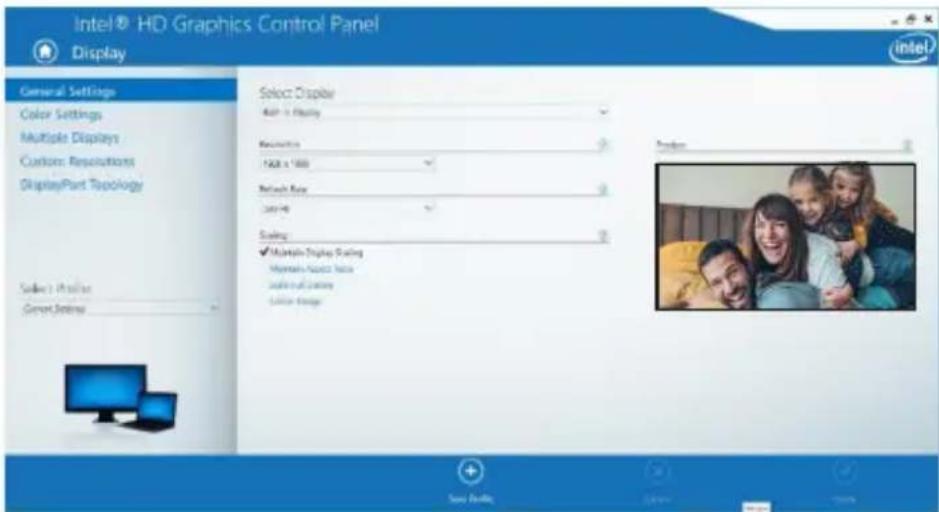
Intel® HD Graphics Control Panel Display General Settings Color Settings Multiple Displays Custom Revisions DisplayPort Topology Select Profile Current Settings Select Display Method Single-Source Close Display ✓ Extended Display Cable Direct Pro or More Active Displays Primary Display Single Display Digital Display Y52498 Digital Display AUS5 V60278 Digital Display Data: com/CC Solid Display Reverse Display Search Modify Save Display Cancel ApplyF. In General Settings, adjust the extended monitor resolution to 1920 x 1080 and the refresh rate to 30 Hz. Click Apply to save settings.
text_image
Intel® HD Graphics Control Panel Display General Settings Color Settings Multiple Displays Custom Resolutions DisplayPlant Topology Select Display 400 x 100% Resolution 1628 x 1000 Network Box 340-40 Scaling ✓ Multiple Display Scaling My own Space Note Single Full Scaling Single Image Preference Save Defaults Add Remove HelpInstallation
Multi-Monitor Configuration in MST Mode
A. Be sure to first follow the above installation procedures.
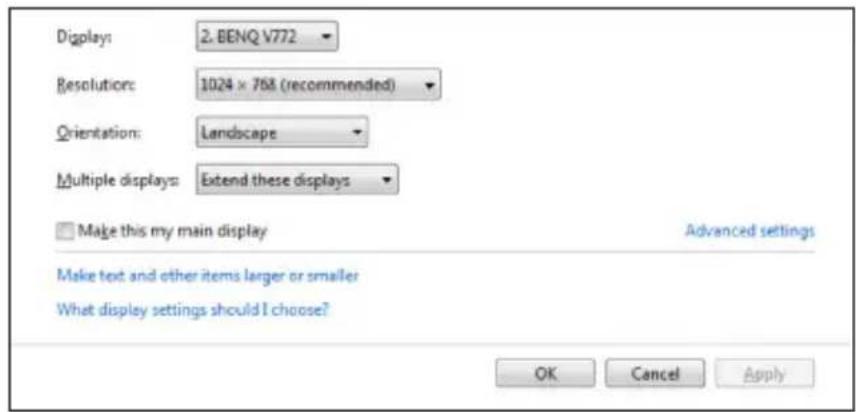
B. One the extra monitors are connected, they can be configured to Extend Mode, Mirror Mode or Set the Primary Display.
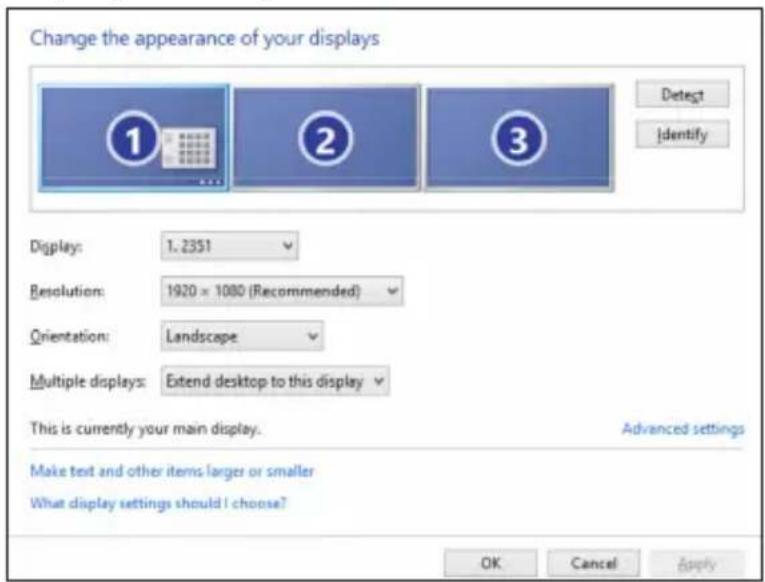
C. Go to Display Settings and select Screen Resolution.
text_image
Change the appearance of your displays 1 2 3 Detect Identify Display: 1.2351 Resolution: 1920 x 1080 (Recommended) Orientation: Landscape Multiple displays: Extend desktop to this display This is currently your main display. Advanced settings Make text and other items larger or smaller What display settings should I choose? OK Cancel Apply- Extend Mode steps
a) Always refer to the Multi-Monitor Configuration section to bring up the configuration window.
b) In the Display dropdown menu, select the preferred monitor.
c) Select Multiple Displays > Extend these displays
d) Click OK to confirm and exit.
e) Once the setting is completed, drag and drop the application icons or the opened windows to the add-on monitor.
Installation
text_image
Displays: 2. BENQ V772 Resolution: 1024 × 768 (recommended) Orientation: Landscape Multiple displays: Extend these displays Make this my main display Advanced settings Make text and other items larger or smaller What display settings should I choose? OK Cancel Apply- Mirror Mode steps
a) Always refer to the Multi-Monitor Configuration section to bring up the configuration window
b) In the Display dropdown menu, select the preferred monitor.
c) Select Multiple Displays > Duplicate these displays
d) Click OK to confirm and exit.
- Set the Primary Display steps
a) Always refer to the Multi-Monitor Configuration section to bring up the configuration window.
b) In the Display dropdown menu, select the preferred monitor.
c) Check the Make this my Main Display box.
Note: For some computers, you may need to disable the main display by unchecking the Extend the desktop onto this monitor box or the Extend my Windows desktop onto this monitor box.
d) Click OK to confirm and exit.
Installation
Troubleshooting for MST Mode
- Did your cursor disappear? If the status remains in Extend Mode, but the U442-DOCK8-BINT is disconnected, the desktop will still be panned to the add-on monitor. The cursor may not be found on the primary monitor in such a case. If it happens, connect the add-on monitor through the docking station again or keep moving the mouse.
- Video playback issues in Extend Mode? If the video playback quality is poor, please use the playback on the primary monitor instead of the add-on monitor.
Installation
Non-Video Port Installation
Note: Be sure the power adapter is properly connected and the power button of the unit is turned on. This should occur once all your devices are properly plugged in.
- Connect up to 3 USB-A peripherals including speeds up to 10 Gbps. The dedicated charging port supports up to 5V 1.5A (7.5W) of charging power.
- Connect an Ethernet network through the RJ45 port to achieve speeds up to 10/100/1000 Mbps (1 Gbps).
- Connect the 3.5 mm Mini Stereo port to a headset, microphone or speaker. If the audio is not automatically changed to USB Audio Device, open the control panel and select the hardware and sound icon. Then click Sound > Manage Audio Devices and select USB Audio Device.
- Transfer data up to 10 Gbps using the USB-C data port.
- (Optional) If you have a security-cable chain lock, connect it to the anti-theft lock port.
Specifications
| Input | USB-C (Female) |
| Output(s) | (x2) DisplayPort (Female) |
| HDMI (Female) | |
| (x3) USB 3.2 Gen 2 Type-A (Female) | |
| (x1) USB 3.2 Gen 2 Type-C (Female) | |
| RJ45 (Female) | |
| 3.5 mm (Female) | |
| Max Supported Video Resolution | Single Display (DP or HDMI): 3840 x 2160 @ 30 Hz |
| Dual Display (Both DP or DP and HDMI): 1920 x 1080 @ 60 Hz | |
| Triple Display: 1920 x 1080 @ 30 Hz | |
| Audio (3.5 mm) | 2.1-Channel Surround Sound |
| Ethernet (RJ45) | 10/100/1000 Mbps (1 Gbps) |
| Power Supply | Input: 100–240V, 50/60 Hz, 2A, Output: 20V 5A |
| HDMI Specification | HDMI 2.0 |
| HDCP Specification | HDCP 1.4/2.2 |
| DisplayPort Specification | DP 1.4 |
| 5V 1.5A Charging Compliant | Yes |
| Operating Temperature | 32° to 104°F (0° to 40°C) |
| Storage Temperature | -4° to 158°F (-20° to 70°C) |
| PD Charging Specification | PD 3.0 (up to 85W) |
| Unit Dimensions (H x W x D) | 3.4 x 7.5 x 1.1 in (8.5 x 19 x 2.7 cm) |
| Unit Weight | 0.55 lb. (0.25 kg) |
| Support Color Depth (HDMI) | 36-Bit True Color |
| Chroma Subsampling (HDMI) | 4:4:4 |
Warranty and Product Registration
1-Year Limited Warranty
Seller warrants this product, if used in accordance with all applicable instructions, to be free from original defects in material and workmanship for a period of one (1) year from the date of initial purchase. If the product should prove defective in material or workmanship within that period, Seller will repair or replace the product, at its sole discretion.
THIS WARRANTY DOES NOT APPLY TO NORMAL WEAR OR TO DAMAGE RESULTING FROM ACCIDENT, MISUSE, ABUSE OR NEGLECT. SELLER MAKES NO EXPRESS WARRANTIES OTHER THAN THE WARRANTY EXPRESSLY SET FORTH HEREIN. EXCEPT TO THE EXTENT PROHIBITED BY APPLICABLE LAW, ALL IMPLIED WARRANTIES, INCLUDING ALL WARRANTIES OF MERCHANTABILITY OR FITNESS, ARE LIMITED IN DURATION TO THE WARRANTY PERIOD SET FORTH ABOVE; AND THIS WARRANTY EXPRESSLY EXCLUDES ALL INCIDENTAL AND CONSEQUENTIAL DAMAGES. (Some states do not allow limitations on how long an implied warranty lasts, and some states do not allow the exclusion or limitation of incidental or consequential damages, so the above limitations or exclusions may not apply to you. This warranty gives you specific legal rights, and you may have other rights which vary from jurisdiction to jurisdiction.)
WARNING: The individual user should take care to determine prior to use whether this device is suitable, adequate or safe for the use intended. Since individual applications are subject to great variation, the manufacturer makes no representation or warranty as to the suitability or fitness of these devices for any specific application.
PRODUCT REGISTRATION
Visit tripplite.com/warranty today to register your new Tripp Lite product. You'll be automatically entered into a drawing for a chance to win a FREE Tripp Lite product!* *No purchase necessary. Void where prohibited. Some restrictions apply. See website for details.
Use of this equipment in life support applications where failure of this equipment can reasonably be expected to cause the failure of the life support equipment or to significantly affect its safety or effectiveness is not recommended.
Tripp Lite has a policy of continuous improvement. Specifications are subject to change without notice. Photos and illustrations may differ slightly from actual products.

text_image
TRIPP·LITE1111 W. 35th Street, Chicago, IL 60609 USA • tripplite.com/support
text_image
Diagram of a black electronic device with five labeled ports or connectors, numbered 1 to 5.flowchart
graph TD
    A["Laptop with icon 1"] --> B["Router"]
    C["Computer with icons 2 and 3"] --> B
    B --> D["User/Port interface"]
Resolución (NB)
1080p @ 60 Hz
Resolución (Monitor)
1080p @ 60 Hz 1080p @ 60 Hz
text_image
Intel® HD Graphics Control Panel intel GAMEPLAY.INTEL.COM TUNE YOUR GAME FOR INTEL GRAPHICS Play Instruments, Make Digital Command, Make Playing Key, Create New Display Power iOS Gameplay Power Options and Settingstext_image
Intel® HD Graphics Control Panel Display General Settings Color Settings Multiple Displays Custom Resolutions DisplayPort Topology Select Display Mode Single Display Close Display ✓ Selected Display Select One or More Active Displays 1. Average Display Built-in Display 2. Digital Display - Open (I) 3. Digital Display - Open (I) Select Display Mode: 0.0000000000000000000000000000000000000000000000000000000000000000000000000000000000000000000000000 Select Profile Current Settings Average Display 1 2 3 Select Display Mode: 1 1 2 3 Select Display Mode: 4 1 2 3Instalación
text_image
Intel® HD Graphics Control Panel Display General Settings Color Settings Multiple Displays Customer Resolutions DisplayPort Topology Select 1 Pro# to General Settings Select Display Built-in Display Residuals 100 x 1000 Network Rate Up line Scaling ✓ Maximum Display Scaling Standard Express Name Install Full Address Locked Image Inventory [Image]text_image
Intel® HD Graphics Control Panel Display General Settings Color Settings Multiple Display Custom Resolutions DisplayPort Topology Select Display Red + Blue+1 Specifications 1.64x 0.00 Default Rate Only 48 Scaling ✓ Multiple Display Scaling Minimum Modest Data Standard Modest Data Current Image Designer + Save While OK Cancel HelpInstalación
1080p @ 30 Hz 1080p @ 30 Hz 1080p @ 30 Hz
text_image
Intel HD Graphics Control Panel Display General Settings Color Settings Multiple Displays Custom Resolutions DisplayPort Topology Select Display Ball or Display Resolution: 100 x 1000 Refine Rate: 346.40 Scaling: ✓ Maintain Display Scaling Maximum space value Minimum space value Custom Image Preference Save Profile Save... HelpInstalación
text_image
Change the appearance of your displays 1 2 3 Detect Identify Display: 1.2351 Resolution: 1920 x 1080 (Recommended) Orientation: Landscape Multiple displays: Extend desktop to this display This is currently your main display. Advanced settings Make text and other items larger or smaller What display settings should I choose? OK Cancel Applytext_image
Display: 2. BENQ V772 Resolution: 1024 × 768 (recommended) Orientation: Landscape Multiple displays: Extend these displays Make this my main display Advanced settings Make text and other items larger or smaller What display settings should I choose? OK Cancel Apply• Pasos del Modo Espejo
1111 W. 35th Street, Chicago, IL 60609 EE UU • tripplite.com/support
1111 W. 35th Street, Chicago, IL 60609 USA • tripplite.com/support
text_image
Diagram of a black electronic device with numbered labels pointing to ports or featurestext_image
Intel® HD Graphics Control Panel intel.com GAMEPLAY.INTEL.COM TUNE YOUR GAME FOR INTEL GRAPHICS Real Transformers, New Digital Commanders, New Finding Files, Open Web Display Video VR GamePlay Power Options and Supportstext_image
Intel® HD Graphics Control Panel Display General Settings Color Settings Multiple Displays Custom Resolutions DisplayPort Topology Select Profile Current Settings Select Display Left to Playing Resolutions 100% x 100% Balance Box Up to Down Mountain Display Setting Mountain Display Style South East Bottoms Lower Image Preference Search Preview Cancel Helptext_image
Intel® HD Graphics Control Panel Display General Settings Color Settings Multiple Displays Custom Requisitions DisplayPort Topology Select 1 Profile Current Settings Select Display Next > Display Revisions 1.00 x 100 Refresh Rate 100 Hz Cycling ✓ Update Display Tracking Show the Project Status Switch All Locations Current Image Preview 2 See Preview 50% 90%Installation
text_image
Intel® HD Graphics Control Panel Display General Settings Color Settings Multiple Displays Customs Resolutions DisplayPort Topology Select Profile Connect Settings Select Display Mode Single Display Close Display ✓ Connected Display USB Select One or More Active Displays Primary Display Multi-Display Digital Display MS24R Digital Display A350 MS27R Digital Display MS100 MS28R Multi-Display Average Display Search Modify Save Profile Cancel Applytext_image
Intel® HD Graphics Control Panel Display General Settings Color Settings Multiple Displays Custom Resolutions Display Port Topology Select Display Add to Display Recovery: ADD & 1000 Refresh Rate: 300-40 Scaling: ✓ Maintain Display Scaling Maximum Speed: 500 Max Full Duration: Current Image Save SystemInstallation
text_image
Change the appearance of your displays 1 2 3 Detect Identify Displays: 1,2351 Resolution: 1920 x 1080 (Recommended) Orientation: Landscape Multiple displays: Extend desktop to this display This is currently your main display. Advanced settings Make text and other items larger or smaller What display settings should I choose? OK Cancel Applytext_image
Display: 2. BENQ V772 Resolution: 1024 × 768 (recommended) Orientation: Landscape Multiple displays: Extend these displays Make this my main display Advanced settings Make text and other items larger or smaller What display settings should I choose? OK Cancel Apply1111 W. 35th Street, Chicago, IL 60609 USA • tripplite.com/support
1111 W. 35th Street, Chicago, IL 60609 USA • tripplite.com/support
text_image
Diagram of a black electronic device with numbered labels pointing to ports and buttonstext_image
Intel® HD Graphics Control Panel intel GAMEPLAY.INTEL.COM TUNE YOUR GAME FOR INTEL GRAPHICS New Games with Most Defined Chapter, More Founding Plans, or Display Video 3D GamePlay Power Top One and Repairtext_image
Intel® HD Graphics Control Panel Display General Settings Color Settings Multiple Displays Current Resolutions DisplayPort Topology Select Profile Current Settings Select Display Mode Single Display Three Display ✓ Extended Version Select True or More & More Displays 1 Preview Display Block + Display 2 Digital Display - Specific ID 3 Digital Display - Next ID Average Display ① ② ③ Cancel CancelУстановка
text_image
Intel® HD Graphics Control Panel Display General Settings Color Settings Multiple Displays Customer Resolutions DisplayPort Topology Select 1 Pro# to General Settings Select Display Built-in Display Resources 500 x 1000 Network Rate Size mir Scaling ✓ Moderate Display Scaling Maintenance Response Table Bluetooth Spectro Lucro Image Tempo: [Image]flowchart
graph TD
    A["Laptop with yellow icon"] --> B["Router"]
    C["Computer with green arrow"] --> B
    D["Computer with yellow icon"] --> B
    B --> E["Server with ports and port labels"]
text_image
Intel® HD Graphics Control Panel Display General Settings Color Settings Multiple Displays Custom Resolutions DisplayPort Topology Select PC Files Current Settings Select Display Rear 1 Display Resolution 1600 x 1000 Refresh Rate 500 Hz Scaling ✓ Intervisible Display Scaling Intervisible Adjusted Value Adjust Full Scale Control Image Save Preview Cancel FinishУстановка
text_image
Intel® HD Graphics Control Panel intel GAMEPLAY.INTEL.COM TUNE YOUR GAME FOR INTEL GRAPHICS Data: Microsoft Excel/Intel/Oracle, Netflix, Google, IBM, Sony, and others.Установка
text_image
Intel® HD Graphics Control Panel Display General Settings Color Settings Multiple Displays Custom Resolutions Display/Part Topology Select Profile Current Settings Select Display Mode Single Display Current Display ✓ Extended Desktop Package Select One or More Active Displays Primary Display Default Display Digital Display: V6478 Digital Display: MS31-V6279 Digital Display: MS31-MS4015 Send to Preview Average Display Server Identity Save, Delete Cancel Finishtext_image
Intel® HD Graphics Control Panel Display General Settings Color Settings Multiplier Displays Custom Resolutions DisplayPort Topology Select Profile General Settings Select Display Main > Display Resolution 1600 x 500 Network Flow Local H Scaling ✓ Microsoft Display Scaling Windows Apparent Style guides and colors Local Image Preview New Traffic Enter HelpУстановка
text_image
Change the appearance of your displays 1 2 3 Detect Identify Display: 1.2351 Resolution: 1920 × 1080 (Recommended) Orientation: Landscape Multiple displays: Extend desktop to this display This is currently your main display. Advanced settings Make text and other items larger or smaller What display settings should I choose? OK Cancel Applytext_image
Display: 2. BENQ V772 Resolution: 1024 × 758 (recommended) Orientation: Landscape Multiple displays: Extend these displays Make this my main display Advanced settings Make text and other items larger or smaller What display settings should I choose? OK Cancel Apply1111 W. 35th Street, Chicago, IL 60609 USA • tripplite.com/support
Bedienungsanleitung
1111 W. 35th Street, Chicago, IL 60609 USA • tripplite.com/support
text_image
Diagram of a black electronic device with numbered labels pointing to ports and buttonstext_image
Intel® HD Graphics Control Panel Display General Settings Color Settings Multiple Displays Custom Resolutions DisplayPort Topology Select Profile Current Settings Select Display Mode Single Display Close Display ✓ Active/Default Display Select Flow or Active Active Display 1. Primary Display Built-in Display 2. Digital Display (Select to) 3. Digital Display (Next to) Average Options 1 2 3 Cancel CancelInstallation
text_image
Intel® HD Graphics Control Panel Display General Settings Color Settings Multiple Displays Customer Resolutions DisplayPort Topology Select Profile Current Settings Select Display Roll-in Display Resolutions 1500x 1000 Balance Box Up to Down Mountain Display Rating Mountain Display Size Short Full Sizes Lower Sizes Preference: Searchfinder Cancel Helptext_image
Intel® HD Graphics Control Panel Display General Settings Color Settings Multiple Displays Custom Resolutions DisplayPort Topology Select 1 Plot In Current Settings Select Display Multi-Display Reactions 1000 x 1000 Refresh Rate 3.5% @ Rating ✓ Maintain Double Sliding Maximum response rate Match-in Launch Current Image Selects 2Installation
text_image
Intel® HD Graphics Control Panel Display General Settings Color Settings Multiple Displays Custom Resolutions DisplayPort: Topology Select Profile Current Settings Single Display Mode Single Display Library Display Screened Display Library Single Print or More Active Displays Primary Display Software Help Digital Display MSAPR Digital Display ADJEC MSAPR Digital Display DVD - MSAPR Multi-Display Average Display Save Modify Save Profile OK Cancel Helptext_image
Intel® HD Graphics Control Panel Display General Settings Color Settings Multiple Displays Custom Resolutions Display Port Topology Select Display Green Settings Select Display Ball to Display Resolution 100 x 1000 Network Rate 300 Hz Durating ✓ Maintain Display Quality Percentage Impact Value 500% Pull Service Current Design Save Playoff Cancel HelpInstallation
text_image
Change the appearance of your displays 1 2 3 Detect Identify Display: 1.2351 Resolution: 1920 x 1060 (Recommended) Orientation: Landscape Multiple displays: Extend desktop to this display This is currently your main display. Advanced settings Make text and other items larger or smaller What display settings should I choose? OK Cancel Applytext_image
Display: 2. BENQ V772 Resolution: 1024 × 768 (recommended) Orientation: Landscape Multiple displays: Extend these displays Make this my main display Advanced settings Make text and other items larger or smaller What display settings should I choose? OK Cancel Apply1111 W. 35th Street, Chicago, IL 60609 USA • tripplite.com/support