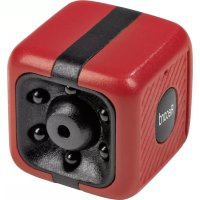
04809 - Surveillance Camera EasyMaxx - Free user manual and instructions
Find the device manual for free 04809 EasyMaxx in PDF.



| Product type | Surveillance camera |
| Brand | EasyMaxx |
| Model | 04809 |
| Model number | YDSXT |
| Battery | Rechargeable Li-Po, 200 mAh, 3.7 V DC |
| Charging voltage | 5 V DC |
| Interface | Micro USB |
| Photo format | JPG |
| Video format | AVI |
| Video resolution | 720p |
| Frame rate | 30 fps |
| Video encoding | MJPG |
| Image resolution | 1.3 Megapixels |
| System requirements | Microsoft Windows XP/7/8 |
| Maximum recording time | 45 minutes |
| Operating temperature | 0 °C – 40 °C |
| Included memory card | microSD 8 GB |
| Night vision | Yes (infrared LED) |
| Motion detection | Yes (auto start/stop) |
| Mounting | Clip, adhesive mount, screws/wall plugs |
| Recommended use | Indoor, home use |
| Included accessories | Clip, mount, USB cable, adhesive tape, screws (2) + wall plugs (2), 8 GB memory card, user manual |
Frequently Asked Questions - 04809 EasyMaxx
User questions about 04809 EasyMaxx
0 question about this device. Answer the ones you know or ask your own.
Ask a new question about this device
Download the instructions for your Surveillance Camera in PDF format for free! Find your manual 04809 - EasyMaxx and take your electronic device back in hand. On this page are published all the documents necessary for the use of your device. 04809 by EasyMaxx.
USER MANUAL 04809 EasyMaxx
Before Initial Use 16
Control Lamp 16
Charging Up the Battery 17
Video Recordings and Photos 18
Transferring and Viewing Video Recordings and Photos ____ 19
Using the Clip and Bracket 20
Cleaning and Storage 21
Technical Data 21
Disposal 21
Troubleshooting 22
Dear Customer,
We are delighted that you have chosen this mini video camera.
Before using the device for the first time, please read through these operating instructions carefully and keep them for future reference and other users. They form an integral part of the device.
The manufacturer and importer do not accept any liability if the information in these operating instructions is not complied with.
If you have any questions about the device and about spare parts/accessories, please contact the customer service department via our website:
Explanation of the Symbols
Danger symbols: These symbols indicate risks of injury (e.g. from electricity or fire). Read through the associated safety notices carefully and follow them.

Supplementary information
Explanation of the Signal Words
DANGER warns of serious injuries and danger to life
WARNING warns of possible serious injuries and danger to life
CAUTION warns of slight to moderate injuries
NOTICE warns of material damage
Items Supplied
(See front fold-out page for illustration)
1 Camera (1 x)
2 Clip (1 x)
3 Bracket (1 x)
4 USB cable (A connector to Micro B connector) (1 x)
5 Adhesive strip (1 x)
6 microSD memory card, 8 GB (1 x)
Not shown:
Screws (2 x) and dowels (2 x), operating instructions (1 x)
A USB mains adapter is also required for charging at the plug socket.
Device Overview
(See front fold-out page for illustration)
7 Micro USB socket
8 Slot for the microSD memory card
9 Groove for attaching the clip
10 Lens
11 Infrared LEDs (do not emit visible light)
12 Microphone (in the housing)
13 Record button (switch on / off, start recording, switch between photo and video)
14 Control lamp
15 Top
Intended Use
- Follow the national laws and regulations governing video surveillance and data protection!
- The device is intended to be used to record videos and take photos indoors. It is not suitable for fixed installation outdoors. Do not use the device in rooms with high humidity.
- The device is for personal domestic use only and is not intended for commercial applications.
- The device should only be used as described in the operating instructions. Any other use is deemed to be improper.
- The warranty does not cover faults caused by incorrect handling, damage or attempted repairs. The same applies to normal wear and tear.
Safety Notices
This device may be used by children aged 8 and over and by people with reduced physical, sensory or mental abilities or a lack of experience and knowledge if they are supervised or have received instruction on how to use the device safely and have understood the dangers resulting from this.
■ Children younger than 8 years of age and animals must be kept away from the device!
- The device is not a toy! Children must be supervised to ensure that they do not play with the device.

WARNING – Danger of Injury
- Keep small children and animals away from the device and accessories. There is a danger of suffocation from small parts that can be swallowed and a danger of poisoning from battery acid which could be fatal.
If the battery leaks, do not allow your skin, eyes and mucous membranes to come into contact with the battery acid. If you touch battery acid, rinse the affected areas with abundant clear water straight away and seek medical assistance immediately. There is a danger of burns from battery acid.

Danger of Fire and Explosion
- Do not use the device in rooms containing easily ignitable or explosive substances. Never operate the device in the vicinity of a gas source.
- Do not expose the device to high temperatures of more than 40°C. Do not expose to direct sunlight for a prolonged period, use in the immediate vicinity of fire or place on a radiator.
- Do not squash or pierce a device with a built-in battery. High pressure on the battery may cause an internal short circuit and overheating.

DANGER – Danger of Electric Shock
■ Never take apart the housing of the device.
If the device falls into water while it is connected to the mains power, switch off the power supply immediately. Do not attempt to pull the device out of the water while it is still connected to the mains power!
- Never touch the USB mains adapter with wet hands when it is plugged in the plug socket.
NOTICE – Risk of Damage to Material and Property
- Only ever use a proper USB mains adapter and only connect it to a properly installed plug socket that matches its technical data. The socket must be readily accessible so that the connection to the mains can quickly be isolated.
The device is not waterproof. Do not immerse the device in water or other liquids and make sure that it cannot fall into water. Do not expose the device to rain!
■ Protect the device from impacts and persistent moisture. -
Keep the memory card and therefore also the device away from magnets and electromagnetic fields (created for example by televisions, speakers, mobile phones) to prevent any loss of data.
-
Do not place any heavy objects on the device.
- Lay the connecting cable in such a way that it does not become squashed or bent and does not come into contact with hot surfaces.
■ Remove the USB mains adapter from the plug socket before a thunderstorm.
In the event of damage/faults, switch the device off / disconnect it from the mains power immediately. Do not start using the device if there are visible signs of damage or liquid has penetrated into the device.
Do not make any modifications to the device. If the device is damaged, it must be repaired or replaced by the manufacturer, customer service department or a similarly qualified person (e.g. specialist workshop).
■ Use only original spare parts from the manufacturer in order to guarantee that there is no interference
■ that may prevent the device from working and to prevent possible damage.
Before Initial Use

PLEASE NOTE
- Keep children and animals away from plastic bags and films. There is a danger of suffocation.
- Check the items supplied for completeness and transport damage. If you find any damage, do not use the device (!), but rather contact the customer service department.
- Charge the battery (see the "Charging Up the Battery" chapter).
- Set the date and time on the memory card (see the “Transferring and Viewing Video Recordings and Photos” – “Setting the Date and Time”).
Control Lamp
The light signals of the control lamp (14) have the following meanings:
| Control lamp Meaning | |
| Lit up constantly red The battery is charged. The camera is switched on (in video mode). | |
| Flashes red every second The battery charge is less than 10%. | |
| Flashes red and green The battery is charging on a computer. | |
| Flashes red every 3 seconds The battery is charging at a plug socket. | |
| Lit up constantly green The camera is in photo mode. | |
| Flashes green once | A photo has been taken. |
| Flashes green 8 times and goes out | No memory card is inserted. |
Charging Up the Battery
The camera (1) has a built-in battery which is charged up on a computer or at a plug socket via the USB cable (4) which is supplied with it.
To check whether the battery needs to be charged, hold down the Record button (13) for approx. 4 seconds (Picture A). The control lamp (14) indicates the battery charge as follows:
- The control lamp lights up constantly red when the battery is fully charged.
- The control lamp flashes red once a second when the battery charge is less than 10% and the battery needs to be charged.

While the device is charging, the record function is blocked.
Charging Up the Battery on a Computer
(Picture B)
- Connect the USB cable at the Micro USB socket (7) of the camera.
-
Plug the USB cable into the USB port of a computer that is switched on.
The charging process begins. During this process, the control lamp (14) flashes red and green.
When the battery is fully charged, it lights up constantly red. -
First disconnect the USB cable from the computer and then from the camera.
Charging Up the Battery at a Plug Socket
A USB mains adapter is also required. This is not supplied with the device.
- Connect the USB cable at the Micro USB socket (7) of the camera.
- Plug the USB cable into a USB mains adapter.
-
Connect the USB mains adapter to an easily accessible plug socket whose voltage corresponds to the specification on the rating plate of the USB mains adapter.
The charging process begins. During this process, the control lamp flashes red at 3-second intervals.
When the battery is fully charged, it lights up constantly red. -
First pull the USB mains adapter out of the plug socket and then disconnect the USB cable from the camera.
Video Recordings and Photos

PLEASE NOTE
■ Make sure that the video camera is aligned correctly. The top side must be at the top so that the recordings are made at the correct angle.
As the camera (1) has infrared LEDs, it is also possible to make recordings in the dark. The infrared LEDs do not emit visible light (Picture C).
Memory Card
For video recordings or photos, a microSD memory card (6) must be inserted in the camera (1).
It is inserted with the chip facing down into the slot (8) (Picture D).
To pull it out again, push it in slightly. This will eject it a little from the slot and it can then be removed.

If a memory card is inserted in the camera, the control lamp (14) flashes green 8 times after the camera is switched on and then goes out.
Switching On / Off
For both switching on and switching off, hold down the Record button (13) for 4 seconds (Picture A).
Video Recording
Hold down the Record button (13) for 4 seconds to switch on the camera (1) in video mode.
Following this, the video recording is activated and the control lamp (14) lights up constantly red. If the camera does not register any movement for one minute, it stops recording but remains switched on. If there is any new movement, it starts to film again.
Photography
- Hold down the Record button (13) for 4 seconds to switch on the camera (1) in video mode.
- In video mode, hold down the Record button for 2 seconds to switch to photo mode. In photo mode, the control lamp (14) lights up constantly green.
- To take a photo, press the Record button briefly. After each photo is taken, the control lamp flashes green once to indicate that a photo has been taken.
- To switch to video mode, hold down the Record button for 2 seconds.
Transferring and Viewing Video Recordings and Photos
The recordings are played back using a video playback or picture viewing program on a computer. The recordings can be transferred to the computer either via the USB cable (4) or a card reader / adapter (not supplied with the device).
Using a Card Reader
- Switch off the camera (1). To do this, hold down the Record button (13) for 4 seconds.
- Remove the memory card (6) from the camera. To do this, push in the memory card slightly to release it and then pull it out.
- Insert the memory card into the card reader / adapter and connect it to the computer (Picture E).
Using the USB Cable
- As with charging the battery, connect the USB cable first to the USB socket (7) of the camera (1) and then to the USB port of the computer (Picture B).
- Switch on the camera. To do this, hold down the Record button (13) for 4 seconds. It will connect to the computer.
Transferring Files
Call up the computer's file management program and open the "DICM" directory. Here you will find all the files saved on the microSD card. Depending on your requirement, they can be played / displayed, copied to the computer's memory or deleted.
Setting the Date and Time
To ensure that the recordings are dated correctly, enter the current date and time before using the memory card:
- Connect the memory card to the computer in the manner described above.
- The memory card contains the text file "time set.txt". Open the file.
- Enter the date and time and select whether this should be displayed on the recordings (enter "Y") or not (enter "N").
- Save the file.
Using the Clip and Bracket
The clip (2) and bracket (3) can be used to attach the camera (1) in various places.
Attaching to Clothing
The clip can be used to attach the camera to clothing.
- Press the four arms of the clip into the two grooves (9) on the side of the camera housing until they engage (Picture F).
- Attach the clip to clothing (Picture G).
To detach it, push the camera out of the clip arms.
Placing on a Table
If the bracket is also used with the clip, the camera can be set up.
Clamp the clip to the smaller part of the bracket (Picture H). This can be moved on all sides so that the camera can be aligned as you wish.
Affi xing to Smooth Surfaces
The clip, the bracket and the adhesive strip (3) that is also supplied are required. The bracket can be affixed to both horizontal and vertical surfaces.
- Make sure that the surface to which the bracket is affixed and the bottom of the bracket are free of any grease or dirt.
- Peel one of the two protective films off the adhesive strip and stick it onto the bottom of the bracket (Picture I). Do not cover up the hole in the bracket!
- Peel off the second protective film from the adhesive strip, stick the bracket onto the surface you want and press it on.
- Clamp the clip to the smaller part of the bracket. This can be moved on all sides so that the camera can be aligned as you wish (Picture J).

To fix the position, use a screwdriver to tighten the screw of the bracket (Picture K).
Wall Mounting
The clip, the bracket and the screws and dowels that are supplied are required.
- Make sure there are no cables in the wall at the drilling point.
- Position the bracket against the place where it is to be attached and use a pen to mark out 2 drill holes.
- Choose a drill to match the dowel size and drill the holes at the markings.
- Insert the dowels into the drill holes.
- Screw the bracket securely in place.
- Clamp the clip to the smaller part of the bracket. This can be moved on all sides so that the camera can be aligned as you wish.

To fix the position, use a screwdriver to tighten the screw of the bracket (Picture K).
Cleaning and Storage

PLEASE NOTE
No liquid must be allowed to enter the device. Never immerse the device in water!
■ Only ever wipe down the lens with a soft cloth.
- Do not use any corrosive or abrasive cleaning agents!
- Wipe down the camera (1) with a clean, slightly damp cloth if necessary.
- Store the camera out of the reach of children and animals in a dry, clean, cool but frost-free place.
Technical Data
Article number: 04809
Model number: YDSXT
Battery: Li-Po battery; 200 mAh; 3.7 V DC
Charging voltage: 5 V DC
Interface: Micro USB
Photo fi le format: JPG
Video fi le format: AVI
Film resolution: 720 p
Frame rate: 30 fps
Video coding: MJPG
Image resolution: 1.3 m pixels
System requirements: Microsoft Windows XP/7/8
Recording length: max. 45 minutes
Operating temperature: 0^ C – 40^ C
Memory card: microSD card, 8 GB
ID of instructions: Z 04809 M DS V1 1218

Disposal

Dispose of the packaging material in an environmentally friendly manner so that it can be recycled.


This device is governed by the European Directive 2012/19/EU on waste electrical and electronic equipment (WEEE). Do not dispose of the device with built-in battery as normal domestic waste, but rather in an environmentally friendly manner via an officially approved waste disposal company.
Troubleshooting
If the device does not work properly, first check whether you are able to rectify the problem yourself. If the problem cannot be solved with the following steps, contact the customer service department.

Do not attempt to repair an electrical device yourself!
| Problem Possible cause Fix | ||
| The camera (1) does not record. | The battery is empty. Charge up the battery. | |
| The camera is in photo mode. | Set it to video mode. | |
| The memory card (6) is not (correctly) inserted. | Insert or remove the memory card and insert it back into the slot (8). It must engage. | |
| The memory card is full. Delete fi les from the memory card (see the “Transferring and Viewing Video Recordings and Photos” chapter). | ||
| The memory card is damaged. | Insert a new memory card. Keep it away from magnets and electromagnetic fi elds. | |
| The battery is not charging up. | The USB cable (4) is not connected correctly. | Correct the connection. |
| Charging on a computer: The computer is switched off. | Pull out the USB cable, switch on the computer and connect it again. | |
| Charging at a plug socket: The plug socket is defective. | Try another plug socket. | |
| Charging at a plug socket: The USB mains adapter is defective. | Try another USB mains adapter. | |
| Charging at a plug socket: There is no mains voltage. | Check the fuse of the electrical distributor (fuse box). | |
Contenu
Composition 24
- Explanation of the Symbols
- Explanation of the Signal Words
- Items Supplied
- Device Overview
- Intended Use
- Safety Notices
- WARNING – Danger of Injury
- Danger of Fire and Explosion
- DANGER – Danger of Electric Shock
- NOTICE – Risk of Damage to Material and Property
- Before Initial Use
- PLEASE NOTE
- Control Lamp
- Charging Up the Battery
- Charging Up the Battery on a Computer
- (Picture B)
- Charging Up the Battery at a Plug Socket
- Video Recordings and Photos
- Memory Card
- Switching On / Off
- Video Recording
- Photography
- Transferring and Viewing Video Recordings and Photos
- Using a Card Reader
- Using the USB Cable
- Transferring Files
- Setting the Date and Time
- Using the Clip and Bracket
- Attaching to Clothing
- Placing on a Table
- Affi xing to Smooth Surfaces
- Wall Mounting
- Cleaning and Storage
- Technical Data
- Disposal
- Troubleshooting
- Contenu
Brand : EasyMaxx
Model : 04809
Category : Surveillance Camera