appTB701BV2 - Tablet Aqprox - Free user manual and instructions
Find the device manual for free appTB701BV2 Aqprox in PDF.



| Brand | Aqprox |
| Model | appTB701BV2 |
| Product type | Touchscreen tablet |
| Screen size | 7 inches |
| Screen technology | Capacitive multi-touch |
| Operating system | Android 4.0.3 Ice Cream Sandwich |
| Processor | 1.2 GHz |
| RAM | 1 GB DDR3 |
| Wi-Fi connectivity | 150 Mbps, N standard |
| Front camera | Yes |
| Rear camera | Yes |
| Weight | 273 grams |
| Thickness | 14 mm |
| Power supply | Charger 5V - 2A |
| Battery life | Varies by usage, full charge recommended (5 hours minimum) |
| Ports | Mini USB, Mini USB Host, headphone jack, Micro SD slot |
| Sensors | Accelerometer (not specified but typical) |
| Maintenance | Clean with a soft, dry cloth |
| Safety | Avoid shocks and moisture |
| Package contents | Tablet, quick guide, earphones, USB cable, USB Host adapter, charger |
Frequently Asked Questions - appTB701BV2 Aqprox
User questions about appTB701BV2 Aqprox
0 question about this device. Answer the ones you know or ask your own.
Ask a new question about this device
Download the instructions for your Tablet in PDF format for free! Find your manual appTB701BV2 - Aqprox and take your electronic device back in hand. On this page are published all the documents necessary for the use of your device. appTB701BV2 by Aqprox.
USER MANUAL appTB701BV2 Aqprox
PbKOBOCTBOHa notpe6nteY
Ghid de utiliser
Chapter 1. Introduction and Product Description
1.1 Product description
Thank you for choosing our tablet APPTB701BV2.
The new Tablet APPTB701BV2 Cheesecake incorporates the latest multi-touch capacitive touchscreen 7", the latest Android 4.0.3 ICS system, 1.2 GHz processor and 1GB DDR3 memory, to enjoy and share on the internet all of your photos, videos, music with an endless array of multimedia content, at unimaginable speeds, thanks to its new 150 Mbps wireless N card. The tablet weighs only 273 grams with a thickness of 14 mm giving it a sleek and compact ideal for demanding users.
Discover the new way to surf the net and enjoy the latest technology!
Chapter 2. Package Contents
APPTB701BV2
- Quick installation guide
- Earphones
USB 2.0 Cable
- USB-Mini USB host cable adapter
- Charger
Note: Make sure your package contains the elements described above. If you find something is missing or damaged, please contact your dealer.
Chapter 3. System requirements
- 1 USB port
- Operating Systems: Windows 2000/XP/VISTA/7 (32 bits and 64 bits), Linux or MAC OSX 10.4.6
Chapter 4. Installation
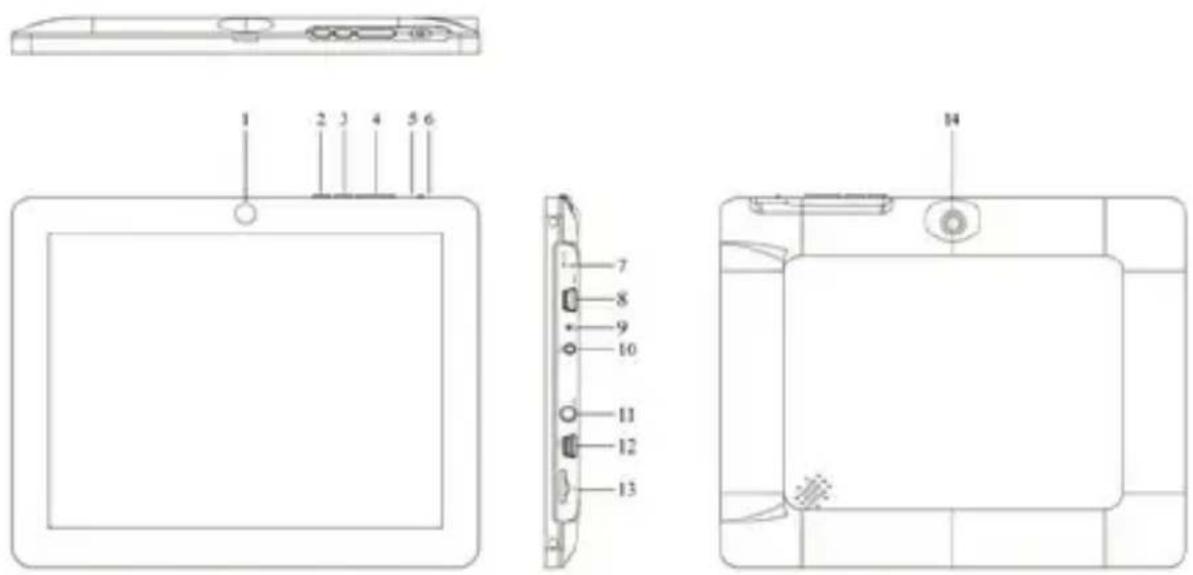
1 Frontal Camera
2 Menu
3 Escape
4 Volume down/Volume up
- 5 On/Off and screen lock
- 6 Screen lock.
- 7 Reset: resets the tablet to factory defaults
- 8 Mini USB Host port for further use of Mouse, keyboard, 3G USB adapter, Ethernet, USB Flash pen drive of Flash drive directly via an adapter cable.
9 Microphone
10 Input VDC charger (5V, 2A)
11 Earphones input
12 Mini USB connector for connection to PC.
13 Mini SD slot
14 Rear camera
Before anything, please read this information
Charging the battery
Use the supplied power adapter and plug into the DC-5V for charging your device fully before use.
The charging and discharging of the battery must be complete, never less than 5 hours. Do not disconnect the charger without fully charging the battery; otherwise it will shorten the life of the battery.
On/Off button
To turn on the table, press the On/Off button until the screen lights on.
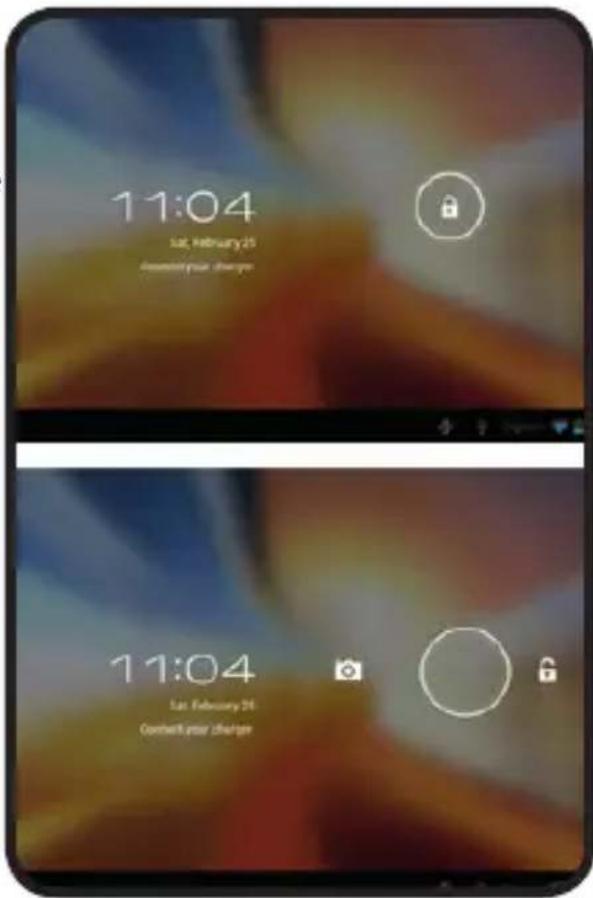
Once the system loads, click on the padlock icon and drag to the right as shown in the image below:
If you press and drag to the left the camera application will be directly show.
To turn off, hold the position On/Off until the turn off message device message appears on the screen.
When the battery is low, the device will turn off automatically.
Lock and unlock the screen
Screen lock: Lightly press the On/Off button and the screen will be locked and in power-saving mode.
Unlock the screen:: Lightly press the On/Off button and the screen will show the padlock icon press it and drag it to the right hand side to unlock it.
Connect the tablet to a PC to transfer files
Turn on the device and once unlocked connect via the USB cable to the PC and you
will see the interface "USB Connection". Press and drag to the bottom of the screen, select "USB connected" then click on "Enable USB storage" the storage tool will appear through memory storage of the tablet on your PC. You can now transfer data between your PC and the tablet.
Notice: If your computer is XP system, please install a Windows Media Player 11 to your computer before transfer media files as android 4.0 system needs Windows Media Player 11 support.
Wifi Connection
Select "Settings", "Wireless connections and Networks", "Wifi" and activate it. The device will automatically start to search for networks. In "'Wireless Settings' you can see the list of found networks, select the desired one and enter the password if network is protected. Once connected the Wireless icon will appear, as connected to the main screen.
Chapter 5. Technical Support
For more information on installing and config guring this product or to obtain a full user guide please go to our website www.approx.es, support section or call to 902364692.
The content of this guide is subject to typographical errors
aqprox!
www.printyourideas.com