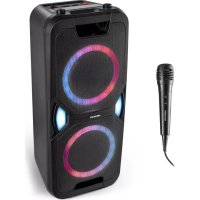
LIFE P61468 (MD 44468) - Docking station MEDION - Free user manual and instructions
Find the device manual for free LIFE P61468 (MD 44468) MEDION in PDF.



| Product type | Bluetooth® party audio system with docking station |
| Brand | Medion |
| Model | LIFE P61468 (MD 44468) |
| Dimensions (W x H x D) | 262 mm x 605 mm x 263 mm |
| Weight | 7.7 kg |
| Mains power supply | AC 100-240 V ~ 50/60 Hz, 35 W |
| Built-in battery | Lead-gel 12 V, 4000 mAh, 48 Wh, charging time 5-6 hours |
| Output power | 2 x 22 W RMS |
| FM radio | Band 87.5 - 108 MHz, 30 presettable stations |
| Bluetooth | Version 5.0, profiles A2DP 1.3 and AVRCP 1.0, range up to 10 m |
| USB host port | USB standard 1.1, up to 32 GB, FAT16/FAT32 formats, MP3 |
| USB charging port | 5 V ⎓ 1000 mA max for charging external devices |
| AUX input | 3.5 mm jack socket |
| Microphone inputs | 2 x 6.3 mm jack socket, microphone included |
| Audio functions | Super Bass, equalizer (Flat, Classic, Rock, Pop, Jazz), party light effects (5 modes) |
| Karaoke | Supports up to 2 microphones with echo effect |
| Standby consumption | 0.42 W (battery charged) |
| Operating temperature | +5 °C to +35 °C, max. relative humidity 85% |
| Storage temperature | 0 °C to +40 °C |
| Maintenance and cleaning | Soft dry cloth, avoid solvents and liquids |
| Safety | Do not open the housing, avoid moisture and heat sources, use on a stable surface |
| Package contents | Audio system, power cord, microphone, quick start guide |
| Protection class | II |
Frequently Asked Questions - LIFE P61468 (MD 44468) MEDION
User questions about LIFE P61468 (MD 44468) MEDION
0 question about this device. Answer the ones you know or ask your own.
Ask a new question about this device
Download the instructions for your Docking station in PDF format for free! Find your manual LIFE P61468 (MD 44468) - MEDION and take your electronic device back in hand. On this page are published all the documents necessary for the use of your device. LIFE P61468 (MD 44468) by MEDION.
USER MANUAL LIFE P61468 (MD 44468) MEDION
natural_image
Black portable electronic device with glowing circular screens and a 'medion' label (no readable text beyond branding)Bluetooth® Party-Soundsystem Système audio de fête Bluetooth® Bluetooth® party-audiosysteem Sistema de sonido Bluetooth® para fi estas Sistema audio per feste Bluetooth® Bluetooth® Party Sound System
MEDION LIFE P61468 (MD 44468)
Inhaltsverzeichnis
DE
- Information about this user manual 117
1.1. Explanation of symbols .....117
FR
-
Proper use 117
-
General safety instructions.... 118 NL
-
Package contents 119
-
Device overview ...... E\$20
-
Setting up the device ....123
6.1. General safety instructions for installation 123
IT
6.2. Mains operation - connecting the mains cable 124
6.3. Battery operation....124
6.4. Switch the device on/off....125
6.5. Aerial reception....125
-
Connecting an external playback device....125
-
Inserting USB memory devices ....126
-
Connecting a device via Bluetooth ® 126
-
Operation 127
10.1. Adjusting the volume.... 127
10.2. Super bass.... 127
10.3. Equaliser 127
10.4. Party light effect.... 128
10.5. Start/pause playback....128
10.6. Track selection, fast forward/rewind 128
10.7. Playback options in USB mode 128
10.8. Repeat function.... 129
10.9. Random playback....129
- Radio mode....129
11.1. Tuning the stations.... 129
11.2. Storing and selecting stations 129
- Connecting a microphone 130
12.1. Echo sound effects....130
-
Charging an external device via USB 130
-
Cleaning.... 131
-
Storing the device when not in use.... 131
-
Fault 131
16.1. General information in the event of faults 131
-
Technical specifications.... 131
-
EU Declaration of Conformity....133
18.1. Trademark information .... 133
-
Disposal....133
-
Service information.... 134
-
Legal Notice....135
1. Information about this user manual

Thank you for choosing our product. We hope you enjoy using this device.
Please read the safety instructions and the user manual carefully before using the device for the first time. Note the warnings on the device and in the user manual.
Always keep the user manual close to hand. If you sell the device or give it away, please ensure that you also pass on this user manual. It is an essential component of the product.
1.1. Explanation of symbols
If a block of text is marked with one of the warning symbols listed below, the hazard described in that text must be avoided to prevent the potential consequences described there from occurring.

DANGER!
Warning: risk of fatal injury!

NOTICE!
Follow these instructions to prevent damage to the device!

More detailed information about using the device!

Follow the instructions in the user manual!
2. Proper use
The Bluetooth ® party sound system is used to receive and play back radio stations and audio material that can be played via USB, Bluetooth ® or AUX IN.
The device can also be used as a karaoke system or announcement amplifier.
Please note that we shall not be liable in cases of improper use:
Comply with all the information in this user manual, especially the safety instructions.
Any other use is considered improper and can cause personal injury or property damage.
3. General safety instructions
■ This device is not intended for use by people (including children aged 8 years or older) with reduced physical, sensory or mental abilities or by those without experience and/or knowledge, unless they are supervised by a person responsible for their safety or they have been instructed in its use by that person.
■ Children under the age of 8 must be supervised to ensure that they do not play with the device.
- Keep the device and its accessories out of the reach of children.
■ Cleaning and user maintenance on the device must not be carried out by children unless they 8 years or older and properly supervised.
■ Before using the appliance for the first time, check the appliance and mains adapter for damage. A defective or damaged radio or mains adapter must not be used.
■ Do not place containers filled with liquid, e.g. vases, on or near the appliance, and protect all the parts from dripping or sprayed water. Such containers may tip over and the liquid may impair the electrical safety of the device.
■ Do not place open flames such as lit candles on or near the device.
■ Never open the product housing or power supply housing and do not push objects into the product/power supply through the slots and openings.
If the mains adapter, connection cable or device is damaged, immediately unplug the mains adapter from the socket. This also applies if liquids or foreign objects have penetrated inside the appliance.
■ Unplug the mains adapter from the socket if you are away for a long period or there is a thunderstorm.
■ Do not use the appliance outdoors.
■ Do not expose the device extreme conditions. Avoid:
– high humidity or wet conditions
- extremely high or low temperatures
- direct sunlight
- naked flames.
■ Do not use the device in potentially explosive atmospheres. This includes petrol stations, fuel storage areas and areas where solvents are processed. This device must also not be used in areas with particle-laden air (for example flour or wood dust).
■ Do not modify the device without our consent and do not use any auxiliary equipment that we have not approved or supplied.
■ Only use replacement parts or accessories that we have supplied or approved.
10. Package contents

DANGER!
Risk of choking and suffocation!
There is a risk of choking and suffocation if plastic film or small parts are inhaled or swallowed.
- Keep packaging away from children.
■ Do not allow children to play with the packaging material.
■ The packaging material is not a toy!
Remove the product from the packaging and remove all packaging materials.
▶ Check your purchase to ensure that all items are included and in perfect condition. If anything is missing or damaged, please contact our customer service team within 14 days of purchase.
Before each use, check the sound system for any damage. Contact our Service Centre if you find damage.
The following items are supplied with your product:
- Bluetooth® Party Sound System
- Mains cable
- Microphone
- Short manual
5. Device overview
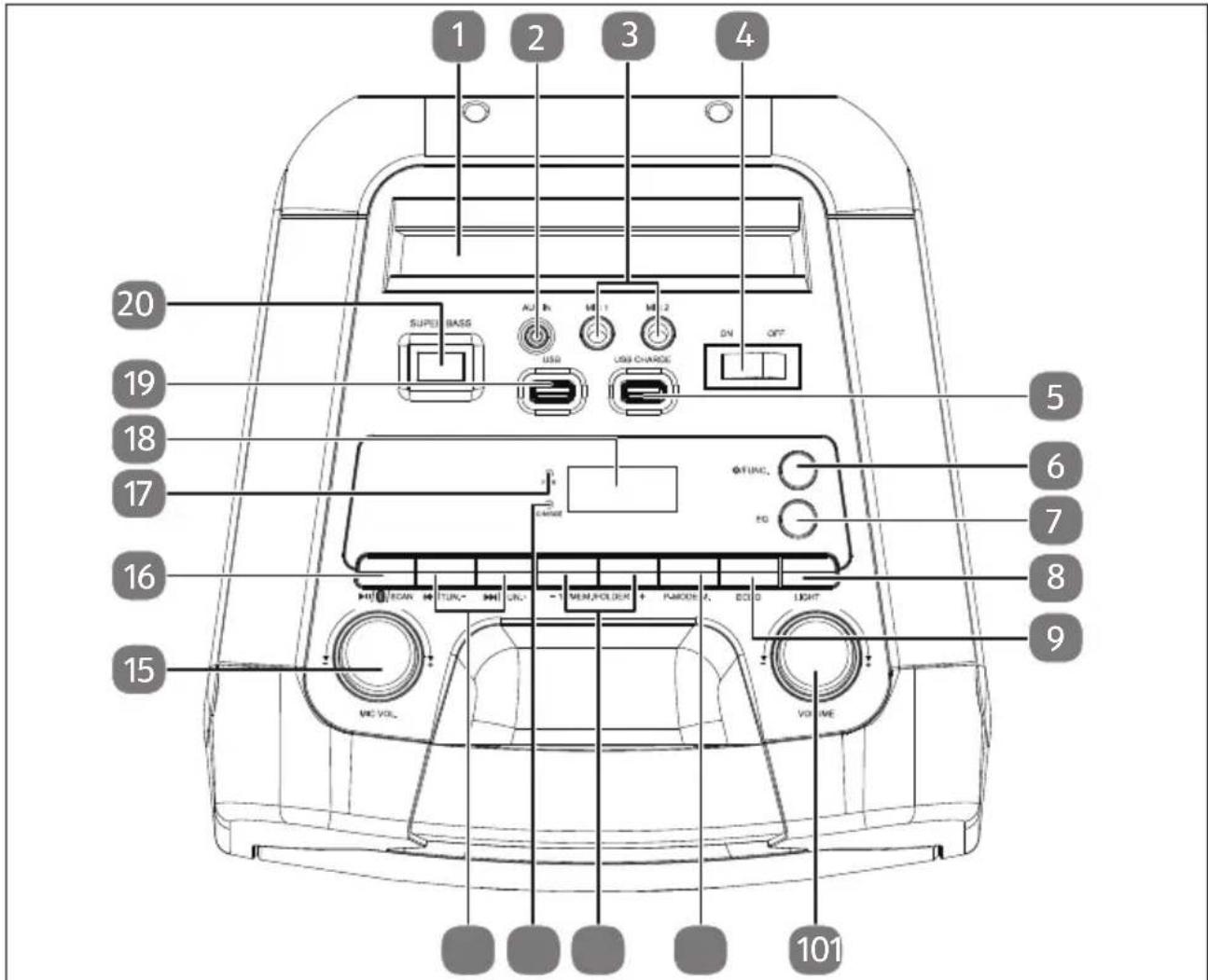
Abb. 1 - Top
- Tablet PC/smartphone storage
- AUX IN – Input (3.5 mm jack plug)
- MIC 1/MIC 2 – Microphone input (6.3 mm jack plug)
- ON/OFF – Switch device on/off
- USB CHARGE – USB port for charging external devices
- ⏻/FUNC. – Select operating mode; Switch the device back on from standby mode
- EQ – Select equaliser setting
- LIGHT – Press briefly: select party light effect, switch on/off; Press and hold: switch on/off the lighting around the volume controller and side LED light
- ECHO – Switch the microphone echo sound effect on/off
-
- VOLUME + - Volume control
- P-MODE/M. – Activate repeat function/shuffle playback; Store radio stations
- -10/MEM./FOLDER + – Select programme position (descending/ascending); store radio station; select (MP3) folder (previous/next); track selection in steps of 10 (back/forward)
- CHARGE – Charging LED
- ◀/▶TUN. -/+ – Press briefly: play previous/next track; Press and hold: fast forward/rewind; station search (back/forward)
-
- MIC VOL. + — Volume control
- ▶ II / *can – Press briefly: start playback; Press and hold: Disconnect Bluetooth® connection; Automatic station search
- PAIR – Bluetooth LED
- LCD display
- USB – USB port for playing MP3 files
- SUPER BASS – Switch the bass amplification on/off
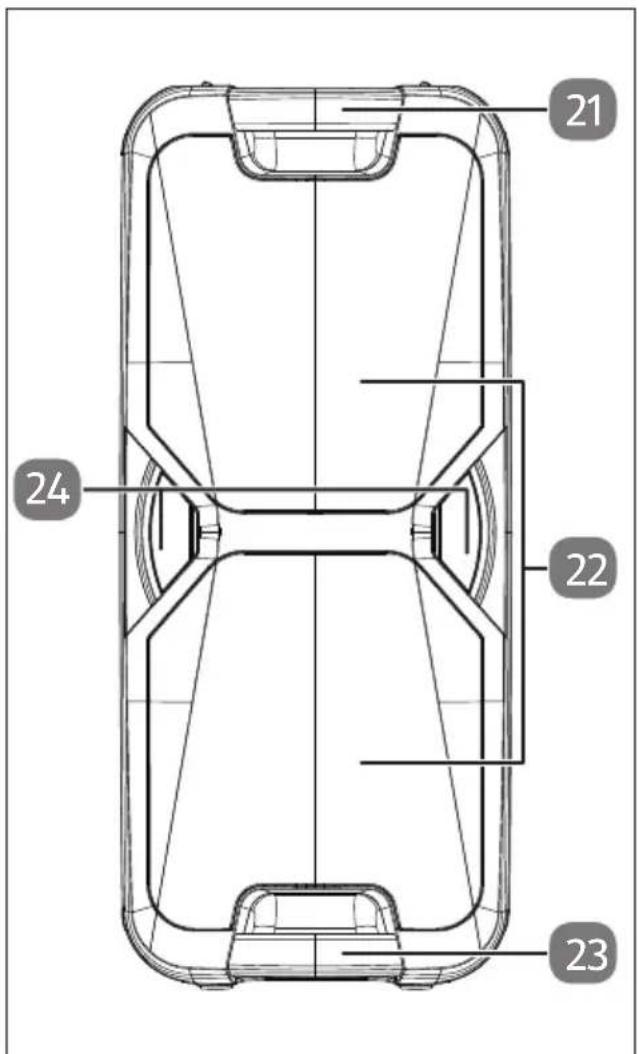
Abb. 2 - Front
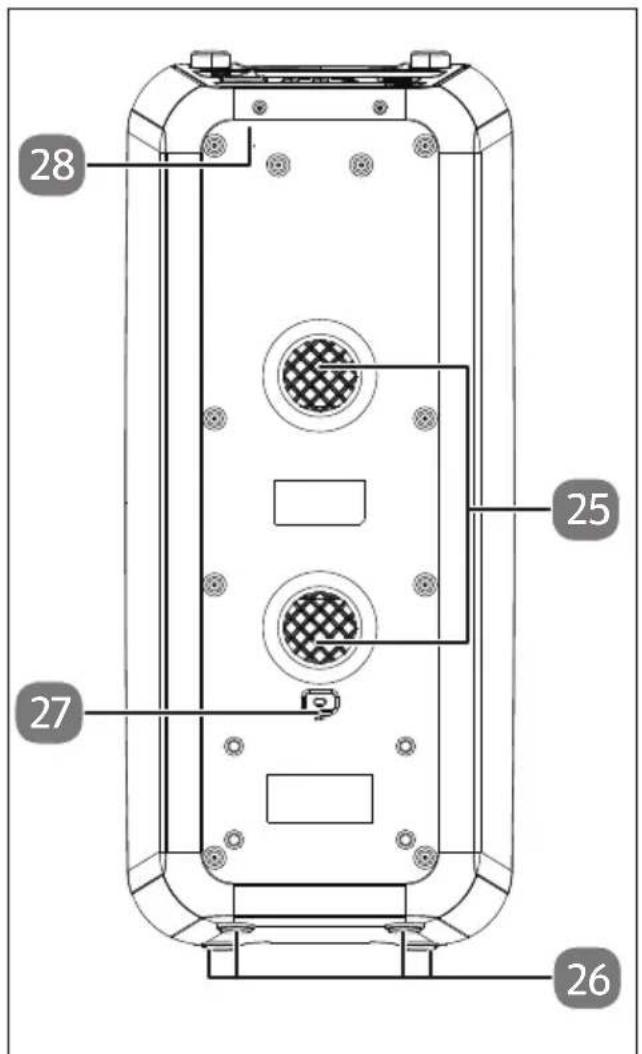
Abb. 3 - Back
- Upper carry handle
- Party LED light
- Lower carry handle
-
Side LED light
-
Bass reflex ports
- Feet
- AC\~ - Power supply
(AC 1 0 0 - 2 4 0 5 0 / 6 0 Hz)
- Permanently installed FM wire aerial
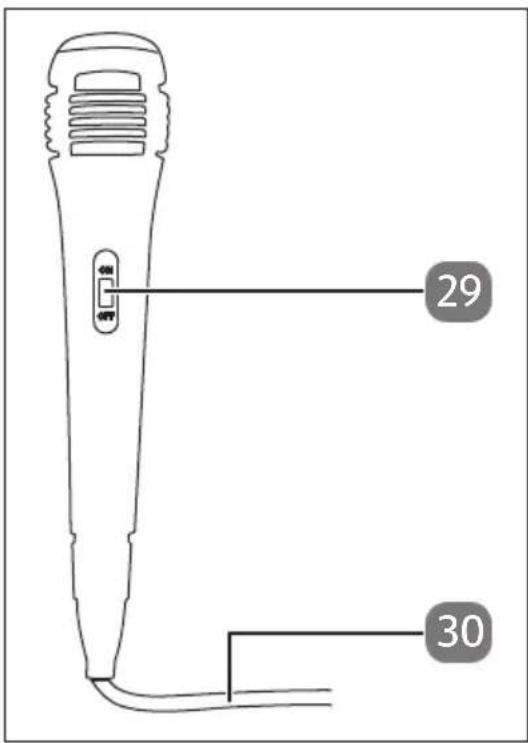
Abb. 4 - Microphone
- ON/OFF – Switch microphone on/off
- Connection cable
6. Sett ing up the device
6.1. General safety instructions for installation

NOTICE!
Risk of damage!
Major changes in temperature or fluctuations in humidity can cause moisture to build up within the device due to condensation – this can cause an electrical short circuit.
■ After transporting the device, wait until it has reached ambient temperature before switching it on.
■ Operate the device on a stable, level and vibration-free surface to prevent the device from falling. Several aggressive varnishes can corrode the rubber feet on the device. If necessary, place the device on a suitable underlay.
- Keep the device at a distance of at least one metre from sources of high-frequency or magnetic interference (televisions, other loudspeakers, mobile telephones etc.) to avoid malfunctions.
■ Do not cover the device (with newspapers, covers etc.) to prevent overheating.
■ Ensure that there is adequate ventilation around the device. The back panel must be located at least 5 cm away from walls or other objects and both sides of the device must be at least 1 cm away.
■ The device can be operated at an ambient temperature of +5°C to +35°C.
■ When switched off, the device can be stored at temperatures of between 0irc C and +40irc C.
■ Never use the device anywhere that is damp or wet.
6.2. Mains operation - connecting the mains cable

NOTICE!
Risk of damage!
Improper use of the mains cable or use of a non-compatible mains cable can result in damage to the device.
■ Only connect the device to a properly installed, earthed and fused socket.
The mains voltage must match the technical specifications for the appliance.
■ The socket must be near the device and easily accessible.
■ Position the cables so that no one can tread on them or trip over them.
■ To disconnect the device from the power supply, remove the plug from the mains socket.
Always hold the plug firmly when unplugging it. To prevent damage, never pull on the cable.
■ All multimedia devices that are connected to the device must comply with the requirements of the Low Voltage Directive.
■ Disconnect the device from the power supply during thunderstorms or when the product will not be used for a prolonged period.
■ Do not place any objects on the cables as they may be damaged.
- Check the device and the connection cable for damage before using the device for the first time, and after each use.
■ Do not use the device if you notice that it, or its mains cable, is damaged.
You can operate the device using the mains cable supplied.
Connect the mains cable connector to the connection socket on the back of the device and the mains plug of the mains cable to an easily accessible mains socket.

NOTICE!
Risk of damage!
The device may be damaged if the connector is plugged in loosely during operation. Only operate the device with the connector fully plugged in.
■ Before operating the party sound system from the mains, make sure that the connector is fully inserted into the connection socket (AC 100–240 \~ 50/60Hz).
6.3. Batt ery operation
As soon as the sound system is connected to a power socket, the built-in rechargeable battery begins charging automatically. The CHARGE LED continuously lights up red during charging.
When charging is complete and the internal built-in battery is fully charged, the CHARGE LED continuously lights up green.
If the battery charge level is too low, the CHARGE LED flashes red.

The rechargeable battery is an integral component of the device and users must not repair or replace it themselves.
6.4. Switch the device on/off
▶ Shift the On/Off switch to the ON position to switch on the device.
The display lights up.
▶ Shift the On/Off switch to the OFF position to switch off the device.
The display turns off.
Even when switched off, the internal battery is charged until it is fully charged. As long as the sound system is connected to the power supply, it continues to consume a small amount of power even when the battery is fully charged.
▶ Disconnect the device from the power supply to switch it off completely.

If the device receives no signal in Bluetooth®/USB/AUX mode for 15 minutes, it automatically switches to standby mode.
Press the button to switch the sound system back on from automatic standby mode.
6.5. Aerial reception
You will find a permanently installed FM wire aerial on the back of the sound system. Unwind the antenna completely and position it for the best-possible radio reception.

If the playback volume on the external device is set too low, the sound system may receive insufficient audio signal and automatically switches to standby mode.
In this case, increase the playback volume on the external device and re-establish the connection with the sound system.
▶ Press the button to switch the sound system back on from automatic standby mode.
7. Connecting an external playback device

Unplug the mains cable from the sound system before connecting it to an external device.
Use the AUX IN jack to establish a connection with an external playback device (for example a CD player or MP3 player).
▶ Switch off the sound system.
▶ Switch off your external device.
Plug the end of a 3.5 mm jack cable (not supplied with the device) into the AUX IN jack on the top of the device.
Connect the other end of the cable to your external device.
▶ Switch on your external device.
▶ Switch on the sound system.
▶ Press the /FUNC. button once or several times until AUX is shown on the display. The audio signal from your external device will now be played back.
When signals are being transmitted via a cable, it is not possible to control all operating functions using the buttons on the sound system. In this case, you have to rely on the controls on your external device.
8. Inserting USB memory devices
If necessary, remove the protective cap and insert the USB memory device into the USB port on the top of the device.
▶ Press the /FUNC. button once or several times until USB is shown on the display.
Observe the following instructions regarding usable USB memory devices:
- As there are numerous different file systems and file formats, the connected storage media cannot be guaranteed to function.
- Depending on the size of the data medium, it may take some time for the system to be detected.
- USB storage devices with a maximum memory capacity of up to 32 GB are supported.
- Supported file systems are FAT16 and FAT32. The supported file format is MP3.
- External hard disks are not supported.
- USB extension cables are not supported.

The USB CHARGE port is intended exclusively for charging external devices (e.g. smartphones) using an appropriate USB charging cable (not supplied), see section "13. Charging an external device via USB" on page 130.
9. Connecting a device via Bluetooth®
In Bluetooth mode, you can receive wireless audio signals from an external Bluetooth-enabled audio output device. Make sure the two devices are not more than 10 metres apart.

Only one Bluetooth device can be paired with the sound system at a time.
To connect a Bluetooth-enabled audio output device, proceed as follows:
▶ Switch on the sound system.
▶ Press the /FUNC. button once or several times as required to switch back to Bluetooth mode.
▶ bt is shown on the display and the device is in search mode. During the search, the Bluetooth LED PAIR flashes blue quickly.

The sound system attempts to automatically connect itself to the last audio output device connected via Bluetooth. If this is not possible, the device remains in search mode.
▶ Switch on the Bluetooth function on your audio output device and activate search mode on it to pair the two devices.

You will find more information about the Bluetooth function of your audio output device in its user manual.
The device name of the party speaker "MD 44468" will be displayed in the device list on your audio output device as soon as the signal is found.
▶ Select the sound system and pair the two devices. If you are prompted to enter a password, enter "0000".
Device pairing is complete when the Bluetooth LED PAIR continuously lights up blue and a signal tone sounds on the sound system.
▶ Start audio playback on your audio output device or press the ▶ II button on the sound system.

When signals are being transmitted via Bluetooth, it may not be possible to control all operating functions using the buttons on the sound system.
We also recommend setting the volume on your audio output device to maximum, and fine-tuning the volume on the sound system.
To disconnect an existing Bluetooth connection, press and hold the button.
A signal tone sounds and the Bluetooth LED PAIR flashes blue quickly. The sound system is now in search mode again and you can perform a new device pairing.
10.Operation
10.1. Adjusting the volume
▶ Turn the MASTER VOLUME control towards + to increase the volume, or towards - to decrease the volume.

Immediately after being switched on, the always starts at the set volume regardless of the last volume setting.
10.2. Super bass
▶ Press the SUPER BASS button to enhance low frequencies and switch on bass amplification.
▶ BASS is shown on the display.
▶ Press the SUPER BASS button again to switch off bass amplification.
BASS disappears from the display.
10.3. Equaliser
▶ Press the EQ button once or several times to activate one of the preset equaliser settings (Flat, Classic, ROCK, Pop or JAZZ).
The selected equaliser setting is then shown on the display.
10.4. Party light effect
▶ Press the LIGHT button once or several times to activate preset party light effect L-1 to L-5.
▶ Press the LIGHT button several times until LOFF is shown on the display to deactivate all party light effects.
▶ Press and hold the LIGHT button for approx. 2 seconds to switch on the lighting around the volume controller and the side LED light.
To switch off lighting around the volume controller and the side LED light, press and hold the LIGHT button again for approx. 2 seconds.
10.5. Start/pause playback
▶ Press the ▶ II button to start playing tracks.
▶ To pause playback, press the II button again. Press the button again to resume play-back.
10.6. Track selection, fast forward/rewind
▶ Press the ◀ button to skip back to the start of the track that is currently being played. Press the button twice in quick succession to skip to the previous track.
▶ Press the button to skip to the next track.
▶ Press and hold the button to fast rewind within a track or press and hold the ▶ button to fast forward. Release the respective button at the desired point in the track to resume playback from that point.
10.7. Playback options in USB mode
Once the USB memory device is plugged in, playback of the available stored tracks in numerical order starts.
10.7.1. Folder selection for MP3 fi les
MP3 files can be stored in different folders on the USB memory device, if applicable.
To switch between folders on an MP3 data medium, press and hold the - FOLDER or FOLDER + button.
10.7.2. Track selection in blocks of 10
If a large number of MP3 files are stored on the USB memory device used, you can skip forwards or backwards through the tracks in blocks of 10 to select a track more quickly.
▶ Press the - 10 or 10 + to skip 10 tracks backward or forward.
▶ If applicable, then press the ▶ or ◀ button to skip forwards or backwards by an individual track.
10.8. Repeat function
▶ Press the P-MODE button until ← lights up on the display to repeat the track you are currently playing.
▶ Press the P-MODE button several times until ↔ lights up on the display to continuously repeat all tracks on the USB memory device.

In case of USB memory devices where the files are stored in several folders, you also have the option to continuously repeat all tracks in the currently selected folder.
To do so, press the P-MODE button several times until ⬆ FOLDER is shown on the display.
To deactivate the repeat function, press the P-MODE button until all above-mentioned indicators disappear from the display.
10.9. Random playback
▶ Press the P-MODE button several times until RAND lights up on the display to activate random playback.
▶ Press the P-MODE button again to deactivate random playback.
▶ RAND disappears from the display.
11. Radio mode
▶ Press the /FUNC. once or several times to switch to radio mode.
▶ FM and the current frequency are shown on the display.
11.1. Tuning the stations
▶ Press one of the TUN. + or TUN. - buttons several times to manually set a specific frequency.
▶ Press and hold TUN. + or TUN. - to automatically search for the next receivable frequency.
The automatic search stops as soon as the next station is found.
11.2. Storing and selecting stations
11.2.1. Storing stations manually
▶ Manually set the station frequency you want to store.
▶ Press the M.button.
The programme position (e.g. P01) flashes in the display.
▶ Use the - MEM. or MEM. + button to select the programme position where the radio station is to be stored.
▶ Press the M. button to complete the process.

You can store up to 30 stations.
11.2.2. Storing stations automatically
▶ Press and hold the SCAN button until the station search starts automatically.
All stations found are now automatically stored in sequence and assigned to a programme position P01-P30.
After the search is complete, the sound system plays the station stored in programme position P01.
▶ Press the TUN. + or TUN. - button to stop the automatic storage.
11.2.3. Selecting stations
▶ Press one of the - MEM. or MEM. + buttons once or several times to select the desired programme position and play the station stored under it.
The programme position (e.g. P01) is shown on the display.
12. Connecting a microphone
You can connect up to two microphones to the sound system at the same time. One microphone is included with the device.
Microphones can be used in all operating modes.
To connect a microphone, proceed as follows:
▶ Switch off the sound system.
Connect the microphone to microphone input MIC1 or MIC2.
▶ Set the On/Off switch on the microphone to the ON position.
▶ Use the - MIC VOL. + control to set the microphone volume you require.
12.1. Echo sound effects
▶ Press the ECHO button to activate the echo sound effect for the connected microphones.
▶ Press the ECHO button again to deactivate the echo sound effect for the connected microphones.
▶ After use, set the On/Off switch on the microphone to the OFF position.
13. Charging an external device via USB
The sound system has one USB port for charging external devices (e.g. smartphones). Please note the current output voltage at the USB CHARGE port: 5 V = max. 1000 mA
Connect the external device using a USB charging cable (not supplied) to the USB CHARGE port on the top of the device.
The battery from your external device is now charged.
14. Cleaning
Before cleaning the device, always disconnect it from the power supply by unplugging the mains plug.

NOTICE!
Risk of damage!
Risk of damage to the device due to improper use of the device.
- Only use a dry, soft cloth to clean the device. Do not use chemical solutions or cleaning products because these may damage the device's surface and/or markings.
■ Make sure that no liquid gets inside the sound system.
15. Storing the device when not in use
If you do not intend to use the device over a longer period of time, unplug it from the power supply and store in a cool, dry place.
▶ Ensure that the device is protected from dust, dirt and extreme temperature variations.
16. Fault
16.1. General information in the event of faults
▶ Check the device and its accessories for possible damage before each use.
Do not use the sound system or mains cable if they are damaged, generate smoke or emit unusual operating noises. In this case, disconnect the power supply immediately.
▶ Never try to open and/or repair a device component yourself. There is a risk of electric shock.
In the event of a fault, contact our Service Centre.
17. Technical specifications
| General information | |
| Dimensions (WxHxD): 262 mm x 605 mm x 2 | 63 mm |
| Ambient temperature (during operation): +5°C to +35°C at a relative air humidity of max. 85% (non-condensing) | |
| Ambient temperature (storage): 0°C to +40°C at a relative air humidity of max. 85% (non-condensing) | |
| Weight: 7.7 kg | |
| Power supply | |
| Voltage: AC 100–240 V ~ 50/60 Hz | |
| Power consumption: 35 W | |
| Power consumption in standby mode (when the battery is charged): | 0.42 W |
| Power output: 2 x 22 W RMS | |
| Degree of protection: Protection class II | |
| Integrated battery | |
| Lead gel battery: 12 V, 4000 mAh, 48 Wh | |
| Charging time: 5–6 hours | |
| Radio | |
| UKW band: FM 87.5–108 MHz | |
| Station memory: 30 | |
| FM antenna: Permanently installed FM wire aerial | |
| Connections | |
| AUX input: 3.5 mm jack | |
| Microphone 1 input: 6.3 mm jack | |
| Microphone 2 input: 6.3 mm jack | |
| USB port: Standard host 1.1 to 32 GB | 5 V--- max. 200 mA |
| Connections | |
| USB charge port: 5 V max. 1000 mA | --- |
| Bluetooth® | |
| Bluetooth version: 5.0 | |
| Bluetooth profile: | A2DP 1.3, AVRCP 1.0 |
| Bluetooth frequency range: | 2402–2480 MHz |
| Max. Bluetooth transmission power: | 3.57 dBm |
| Range: | Up to 10 m (depending on ambient conditions) |
| Microphone | |
| Frequency response: | 30 Hz–15 kHz |
| Sensitivity: | -73 dB +/- 3 dB |
| Impedance: | 600 Ω +/- 30% |
18. EU Declaration of Conformity

MEDION AG hereby declares that the radio equipment type MD 44468 complies with the directive 2014/53/EU [(RE directive), as well as the directive 2009/125/EC (ecodesign directive) and the directive 2011/65/EU (RoHS directive)]. The complete EU declaration of conformity is available at: www.medion.com/conformity.
18.1. Trademark information
The Bluetooth ® word mark and logos are registered trademarks of Bluetooth SIG, Inc. and are used by the manufacturer under licence.
The USB ™ word mark and logos are registered trademarks of the USB Implementers Forum, Inc. and are used by the manufacturer under licence.
Other trademarks are the property of their respective owners.
19. Disposal

PACKAGING
Your device has been packaged to protect it from damage in transit. The packaging is made of materials that can be recycled in an environmentally friendly manner.
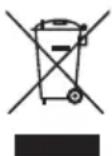
APPLIANCE
Old devices that carry the symbol illustrated may not be disposed of in ordinary household waste.
In accordance with Directive 2012/19/EU, these devices must be disposed of correctly at the end of their service life.
This involves separating the materials in the appliance for the purpose of recycling as well as minimising the environmental impact and negative effects on human health.
Take old appliances to an electrical scrap collection point or a recycling centre.
Contact your local waste disposal company or your local authority for more information on this subject.
The rechargeable battery is an integral component of the device, which means that users cannot simply replace it themselves.
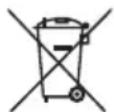
RECHARGEABLE BATTERIES
Do not dispose of used rechargeable batteries with household rubbish. Rechargeable batteries must be disposed of correctly. For this purpose, retailers that sell batteries and local collection points provide containers in which you can dispose of them. Contact your local waste disposal company or your local authority for more information.
In connection with the sale of rechargeable batteries or the supply of equipment containing batteries, we are obliged to draw your attention to the following:
As the end user, you are legally required to return used rechargeable batteries.
The crossed-out wheelie bin symbol means that the rechargeable batteries must not be disposed of with household rubbish.
20. Service information
Please contact our Customer Service team if your device ever stops working the way you want or expect it to. There are several ways for you to contact us:
- In our Service-Community, you can meet other users, as well as our staff, and you can exchange your experiences and pass on your knowledge there.
You will find our Service-Community at community.medion.com.
• Alternatively, use our contact form at www.medion.com/contact. - You can also contact our Service team via our hotline or by post.
| Opening times Hotline number UK | |
| Mon – Fri: 08.00 – 20.00Sat – Sun: 10.00 – 16.00 | 0333 3213106 |
| Service address | |
| MEDION Electronics Ltd.120 Faraday Park, Faraday Road, DorcanSwindon SN3 5JF, WiltshireUnited Kingdom | |
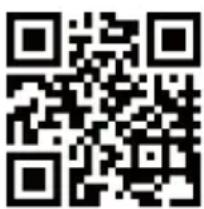
You can download this and many other sets of operating instructions from our service portal at www.medionservice.com.
We have stopped providing printed copies of our warranty terms and conditions as part of our commitment to sustainability, but you can access the warranty terms and conditions on our service portal.
You can also scan the QR code on the side of the screen, to download the operating instructions onto your mobile device from the service portal.
21. Legal Notice
Copyright 2024
Date: 03. April 2024
All rights reserved.
These operating instructions are protected by copyright.
Mechanical, electronic and any other forms of reproduction are prohibited without the written permission of the manufacturer.
Copyright is owned by the company:
MEDION AG
Am Zehnthof 77
45307 Essen
Germany
Please note that you cannot use the address above for returns. Please always contact our Customer Service team first.
DE
FR
NL
ES
IT
EN
- Inhaltsverzeichnis
- Information about this user manual
- Explanation of symbols
- DANGER!
- NOTICE!
- Proper use
- General safety instructions
- Package contents
- Risk of choking and suffocation!
- Device overview
- Sett ing up the device
- General safety instructions for installation
- Risk of damage!
- Mains operation - connecting the mains cable
- Batt ery operation
- Switch the device on/off
- Aerial reception
- Connecting an external playback device
- Inserting USB memory devices
- Connecting a device via Bluetooth®
- 10.Operation
- Adjusting the volume
- Super bass
- Equaliser
- Party light effect
- Start/pause playback
- Track selection, fast forward/rewind
- Playback options in USB mode
- Folder selection for MP3 fi les
- Track selection in blocks of 10
- Repeat function
- Random playback
- Radio mode
- Tuning the stations
- Storing and selecting stations
- Storing stations manually
- Storing stations automatically
- Selecting stations
- Connecting a microphone
- Echo sound effects
- Charging an external device via USB
- Cleaning
- Storing the device when not in use
- Fault
- General information in the event of faults
- Technical specifications
- EU Declaration of Conformity
- Trademark information
- Disposal
- PACKAGING
- APPLIANCE
- RECHARGEABLE BATTERIES
- Service information
- Legal Notice
- MEDION AG
Brand : MEDION
Model : LIFE P61468 (MD 44468)
Category : Docking station