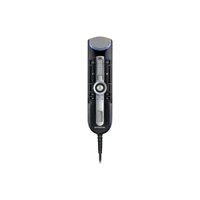
RecMic RM4110S - Microphone OLYMPUS - Free user manual and instructions
Find the device manual for free RecMic RM4110S OLYMPUS in PDF.



| Product Type | Dictation Microphone |
| Brand | Olympus |
| Model | RecMic RM4110S |
| Dimensions (approx.) | 150 x 50 x 30 mm |
| Weight | 100 g |
| Power Supply | Via USB port |
| Connectivity | USB 2.0 |
| Main Functions | Dictation recording, voice recognition, noise analyzer, 4 recording modes, programmable keys, configuration via RecMic Configuration Tool |
| Recording Modes | Quiet (blue), Noisy recognition (green), Noisy dictation (red) |
| Preset Keys | F1 (Olympus), F2 (Custom), F3 (Dragon), F4 (Windows) |
| Maintenance and Cleaning | Clean with a soft, dry cloth. Do not use chemical products. |
| Safety | Use in a dry environment. Do not expose to humidity or extreme temperatures. |
| Spare Parts | Not available individually. Repair by Olympus authorized service. |
| Repairability | Repair possible only by an Olympus authorized center. |
| Software Compatibility | Dragon NaturallySpeaking, Windows Speech Recognition |
| Configuration | Via RecMic Configuration Tool (free download on Olympus website) |
| Warranty | Standard manufacturer warranty (refer to manual) |
Frequently Asked Questions - RecMic RM4110S OLYMPUS
User questions about RecMic RM4110S OLYMPUS
0 question about this device. Answer the ones you know or ask your own.
Ask a new question about this device
Download the instructions for your Microphone in PDF format for free! Find your manual RecMic RM4110S - OLYMPUS and take your electronic device back in hand. On this page are published all the documents necessary for the use of your device. RecMic RM4110S by OLYMPUS.
USER MANUAL RecMic RM4110S OLYMPUS
1. How to achieve the best recording result
The RecMic series has been designed to capture dictation in high quality.
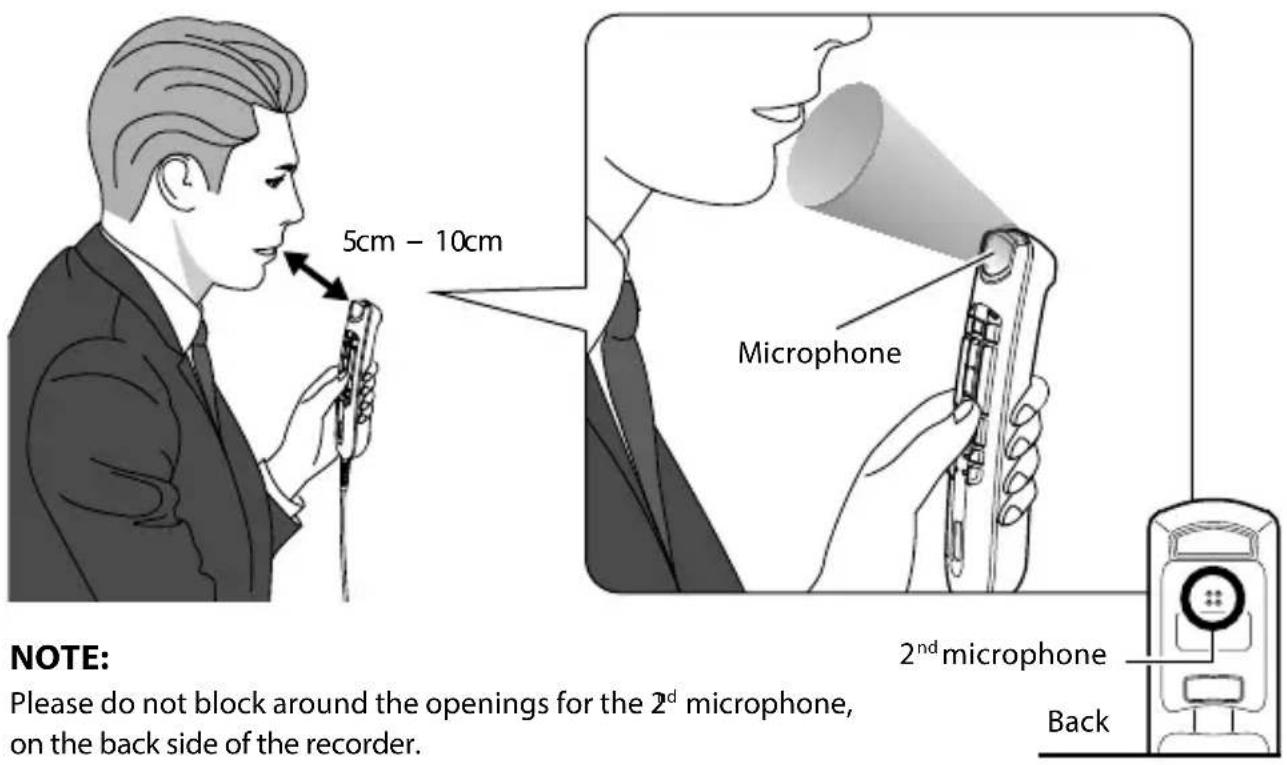
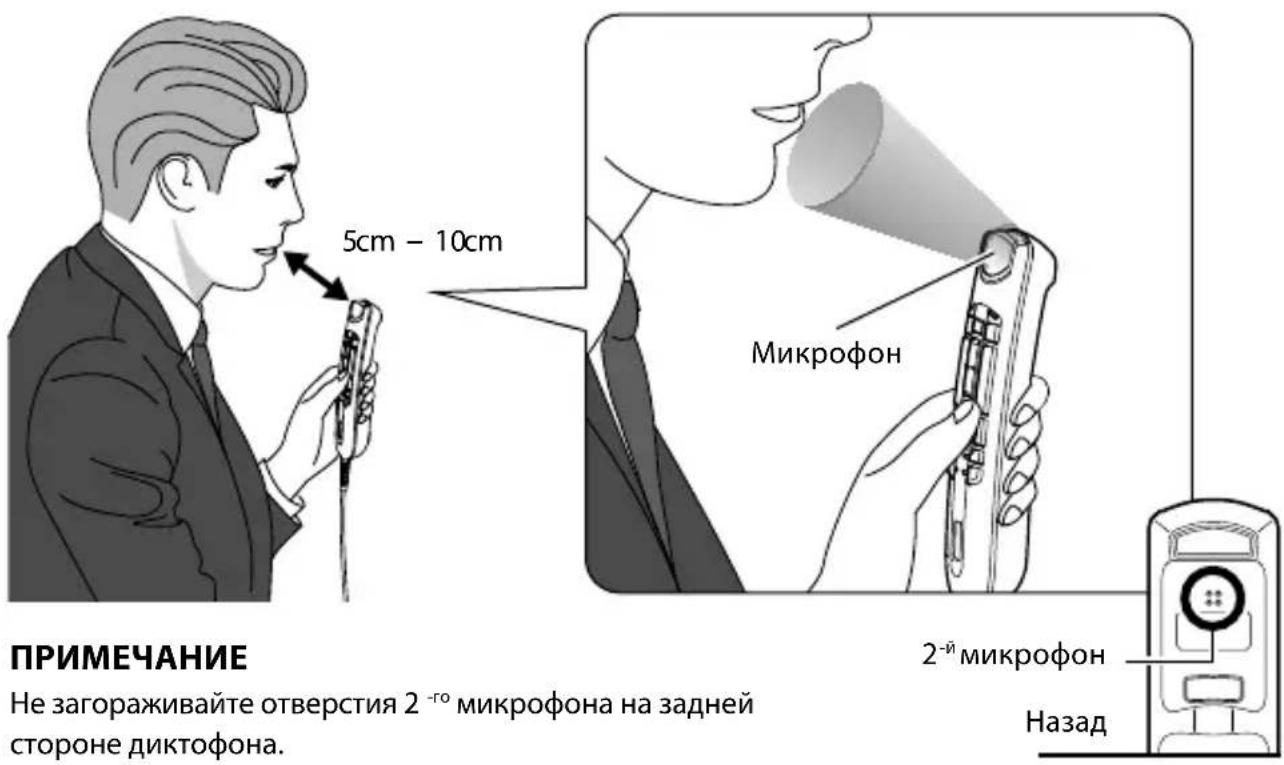
While recording, it is recommended to hold the device as you see in the following diagram, to assure that your voice is recorded in the best possible quality. To achieve high accuracy for speech recognition, the RecMic should be kept in a consistent distance/angle between your mouth and the microphone.
Recommended position

Check your recording environment
The noise analyzer function checks if your recording environment is good for speech recognition. Press the F1 and F3 button for more than 5 seconds as you see in on the right. If the noise level is too high, the LED on the top will flash. It is recommended to change the environment when you see this sign.

2. Choose the recording mode which best match the use scene
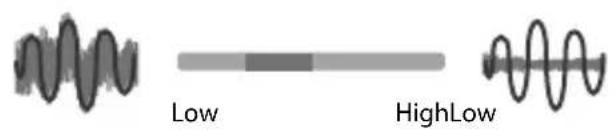
In order to achieve good recording quality and speech recognition results, it is important that you select the preset recording mode which matches to your environment. The recording mode controls the directionality and the noise reduction level during recording. Especially during speech recognition, the background noise should be kept at a minimum level.
Directionality: Noise cancellation:


High
Recording Modes
| LED Color Recording Mode | Settings | ||
| Directionality Noise | Cancellation | ||
| Blue Quiet Environment (Default) OFF OFF | |||
| Green | Noisy Environment for Speech Recognition | HIGH | MID |
| Red Noisy Environment for Classic Dictation HIGH HIGH | |||
How to change the modes
Press the F1 and INSERT button for more than 5 seconds as you see in on the right. By repeating this operation, it will toggle between the modes. You can confirm the recording modes by the color of the LEDs.

3. Preset button modes for speech recognition software
The RecMic series comes with preset button modes which are configured for Dragon Software and Windows Speech Recognition. For the button settings, please refer to page 59.

| Position | Preset Button Modes | Description |
| F1 Olympus Mode Default Setting used for Olympus Software. | ||
| F2 * Custom Mode | Custom setting is offered via the RecMic Configuration Tool. (Refer to the next page) | |
| F3 * Dragon Mode Button setting is optimized for Dragon Software from Nuance. | ||
| F4 * Windows Mode Button setting is optimized for Windows Speech Recognition. | ||
*These modes are HID Keyboard Mode.
How to change the modes
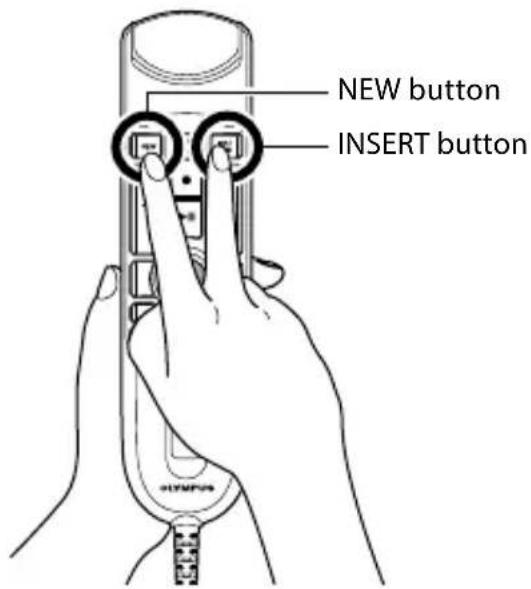
Press the NEW and INSERT button as you see in on the right. LEDs from F1 to F4 will flash for 15 seconds. During this time, choose your preferred preset button modes from F1 to F4.
4. RecMic Configuration Tool
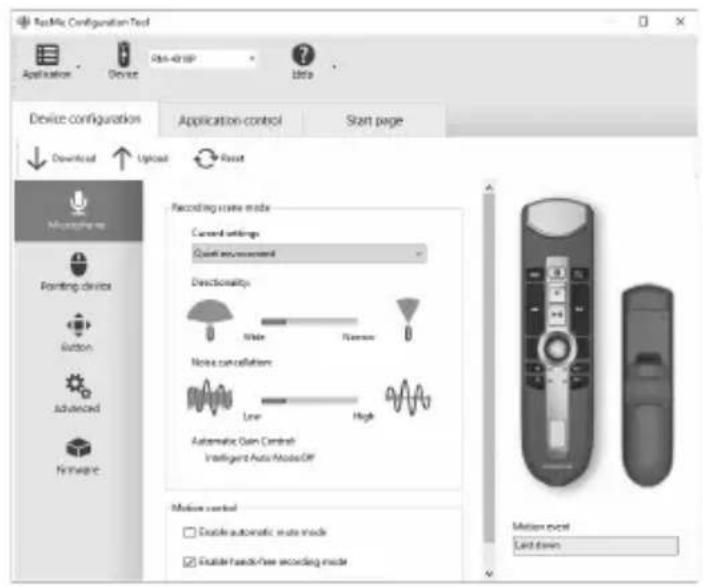
The RecMic can be further configured with the RecMic Configuration Tool. The application is free and can be downloaded from each local Olympus Websites.
The tool supports the following features
Device Configuration
Recording Mode Setting
- Mouse Control Setting
Custom Keyboard Setting
Firmware Update
Other General Setting
Application Control
Edit Command
Keyboard Template
In order to download the tool, please access the website in your respective region.
http://www.olympus.eu/sds-downloads/
(Europe, Middle east and Africa)
http://www.olympusamericaprediction.com/products/
(The Americas)
https://www.olympus.com.au/support/
(Oceania)
https://www.olympus.com.au/support/
(Oceanie)

1. Sādan opnár du de bedste optagelser
https://www.olympus.com.au/support/
(Oceanien)

https://www.olympus.com.au/support/
(Ozeanien)

https://www.olympus.com.au/support/
(Oceania)

https://www.olympus.com.au/support/
(Oseania)

https://www.olympus.com.au/support/
(Océanie)
https://www.olympus.com.au/support/
(Oceania)

https://www.olympus.com.au/support/
(Okeanija)

https://www.olympus.com.au/support/
(Okeanija)

https://www.olympus.com.au/support/
Oceanië

https://www.olympus.com.au/support/
(Oceania)

1. KaKdo6ntb8HaHnIyUwerope3yIbTaTa npN 3aIMcN
MnKpoOhb RecMic npedHa3HaueHb Ira 3aIncu NIKTOBKn B BBICOKOM KaueCTBe.
Bo Bpemr 3aHnCn peKOMeHnyetcra ydepXnBaTb ycToiCTBO TaK, KaK NOKa3aHO Ha pncyHKe, TTO6bI rapaHTnpOBaTb HauLyuuee KaueCTBO 3aHnCn roLoCa. TTo6bl Do6ntbc BAICOKoYeTKOCTn pacNo3HaBaHHn peuH, Heo6xOJIMO depKaTb MkP0oOH RecMic Ha ODNOM I TOM JKe paCtOHHN IN oDHNM IN TEM JKe YrIOM OTHCNTelbHO Pta Ha npOTJKeHHN BCero CeAHCA 3aHNCN.
PeKOMeHIOBaHHoe NIOJoxKeHne

KoHnIpyaunyctpoNCTBa:
- YctaHObKapeXIMa 3aHNCu
HactpoKa ynpaBneHmMbIsbIO
HacpoKa nOb3OBaTeNbckoKnaBnAtypbl - O6HOBNeHne BCTpoeHHoro IIO
-
Ipoyne o6uine HacTroyn
-
YnpaBHeHne npINOxKeHHaMn:
KomahdapeaaktnopoBaHnA
- Ⅲa6noH KJIaBnAtypbI

YTo6bI cKaaTaB npNJIOJKeHne, IocETnTe Be6-caT B CBOem perNoHe.
http://www.olympus.eu/sds-downloads/
(EBpona, BnJxHn BoCTOK n AΦpuka)
http://www.olympusamericaprodiction.com/products/
(Amepnka)
https://www.olympus.com.au/support/
(Океанna)
https://www.olympus.com.au/support/
(Oceanien)

5. Product overview
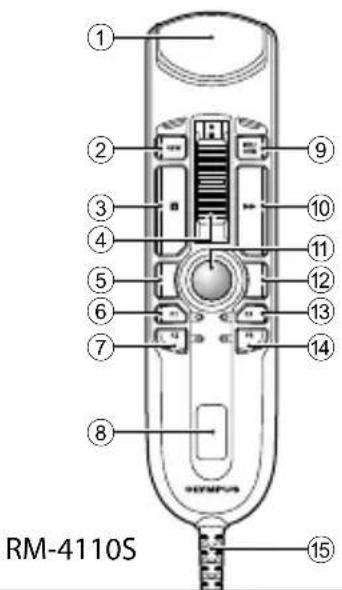


① Main microphone
② NEW button
③ i button
④ Slide switch (▶: Record / ■: Stop / ▷: Play / ▲: Review)
⑤ Mouse L
⑥ F1 (Function 1) button
⑦ F2 (Function 2) button
⑧ Speaker
INS/OVR button
(10) (Fast Forward) button
11 Trackball
12 Mouse R
F3 (Function 3) button
(14) F4 (Function 4) button
15 USB cable
16 2 nd microphone
⑰ Back button
18 a (Function a) button
19 b (Function b) button
20 c (Function c) button
(21) (Record) button
22 (Rewind) button
23 II (Play/Pause) button
6. Button modes for Dragon and Windows speech recognition
Dragon mode
| Button/Switch Command Shortcut (PC keyboard) Model (RM) | |||
| NEW | Tab backwards | {shift+Tab} | 4110S, 4100S, 4010P, 4015P, 4000P |
| i | Mark backwards {Ctrl+Shift+Left} 4110S, 4100S | ||
| Show dictation box {Ctrl+Shift+D} 4010P, 4015P, 4000P | |||
| INS/OVR | Tab forward | {Tab} | 4110S, 4100S, 4010P, 4015P, 4000P |
| ← | — | — | 4110S, 4100S |
| Mark backwards {Ctrl+Shift+Left} 4010P, 4015P, 4000P | |||
| ● | Dragon microphone on/off | {Numkey+} | 4110S, 4100S, 4010P, 4015P, 4000P |
| ■ | — | — | 4110S, 4100S, 4010P, 4015P, 4000P |
| II / ▲ | — | — | 4110S, 4100S |
| Enter | {Enter} | 4010P, 4015P, 4000P | |
| ▶ | Next field | {Ctrl+Shift+N} | 4110S, 4100S, 4010P, 4015P, 4000P |
| F1 | Force command recognition | {Ctrl} | 4110S, 4100S, 4010P, 4015P, 4000P |
| F2 | Transfer text | {Ctrl+Shift+T} | 4110S, 4100S, 4010P, 4015P, 4000P |
| F3 | Force dictation recognition | {Shift} | 4110S, 4100S, 4010P, 4015P, 4000P |
| F4 | Show dictation box {Ctrl+Shift+D} 4110S | ||
| — | — | 4100S, 4010P, 4015P, 4000P | |
| Mouse L | — | — | 4110S, 4010P, 4015P |
| a Show dictation box {Ctrl+Shift+D} 4100S, 4000P | |||
| Track ball & CenterClick | — | — | 4110S, 4010P, 4015P |
| b | Transfer text | {Ctrl+Shift+T} | 4100S, 4000P |
| Mouse R | — | — | 4110S, 4010P, 4015P |
| c | Hidden dictation box | {Ctrl+Shift+H} | 4100S, 4000P |
Windows Speech Recognition mode
| Button/Switch Command Shortcut (PC keyboard) Model (RM) | |||
| NEW | Skip backwards | {Ctrl+Left} | 4110S, 4100S, 4010P, 4015P, 4000P |
| i | Mark backwards {Ctrl+Shift+Left} | 4110S, 4100S | |
| Tab forward | {Tab} | 4010P, 4015P, 4000P | |
| INS/OVR | Skip forward | {Ctrl+Right} | 4110S, 4100S, 4010P, 4015P, 4000P |
| ← | — | — | 4110S, 4100S |
| Mark backwards {Ctrl+Shift+Left} | 4010P, 4015P, 4000P | ||
| ● | Windows microphone on/off | {Ctrl+Windows} | 4110S, 4100S, 4010P, 4015P, 4000P |
| ■ | — | — | 4110S, 4100S, 4010P, 4015P, 4000P |
| ■II / ▲ | — | — | 4110S, 4100S, |
| Enter | {Enter} | 4010P, 4015P, 4000P | |
| ▶ | Mark forwards | {Ctrl+Shift+Right} | 4110S, 4100S, 4010P, 4015P, 4000P |
| F1 | Copy | {Ctrl+C} | 4110S, 4100S, 4010P, 4015P, 4000P |
| F2 | Maximize current Window | {Windows+Up} | 4110S, 4100S, 4010P, 4015P, 4000P |
| F3 | Paste | {Ctrl+V} | 4110S, 4100S, 4010P, 4015P, 4000P |
| F4 | Close Application | {Alt+F4} | 4110S, 4100S, 4010P, 4015P, 4000P |
| Mouse L | — | — | 4110S, 4010P, 4015P |
| a | Page Up | {Page Up} | 4100S, 4000P |
| Track ball & CenterClick | — | — | 4110S, 4010P, 4015P |
| b | Open Cortana | {Windows+C} | 4100S, 4000P |
| Mouse R | — | — | 4110S, 4010P, 4015P |
| c | Page Down | {Page Down} | 4100S, 4000P |

- How to achieve the best recording result
- Recommended position
- Check your recording environment
- Choose the recording mode which best match the use scene
- Directionality: Noise cancellation:
- Recording Modes
- How to change the modes
- Preset button modes for speech recognition software
- RecMic Configuration Tool
- Sādan opnár du de bedste optagelser
- KaKdo6ntb8HaHnIyUwerope3yIbTaTa npN 3aIMcN
- PeKOMeHIOBaHHoe NIOJoxKeHne
- Product overview
- Button modes for Dragon and Windows speech recognition
- Dragon mode
- Windows Speech Recognition mode
Brand : OLYMPUS
Model : RecMic RM4110S
Category : Microphone