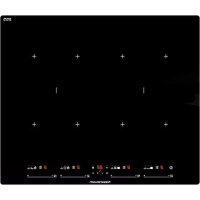
KI6750.0SR - Cooker Küppersbusch - Free user manual and instructions
Find the device manual for free KI6750.0SR Küppersbusch in PDF.



| Product Type | Induction Hob |
| Brand | Küppersbusch |
| Model | KI6750.0SR |
| Number of Cooking Zones | 4 zones (2 Flex zones) |
| Control Type | Touch with slide control |
| Power Supply | 230 V ~ / 400 V 2N~ / 400 V 3N~ (depending on connection) |
| Maximum Total Power | Approx. 7,200 W (limitless via power management function) |
| Special Functions | Power Boost, Stop&Go, Lock, Timer, Power Management, Chef Functions (Keep Warm, Melt, Boil, Rapid Boil, Grill, Pan Frying, Deep Frying) |
| Flex Zone Function | Combination of two cooking zones for large cookware |
| Flex Complete Function | Combination of four cooking zones |
| Pan Detection | Yes, automatic shut-off if absent or unsuitable cookware |
| Display | Digital indicators with LED lights |
| Timer | Countdown timer (1 to 99 minutes) for each zone |
| Safety | Child lock, automatic safety shut-off, overheat detection, automatic disconnect |
| Cooking Surface | Ceramic glass |
| Cleaning and Maintenance | Ceramic glass cleaner, scraper, no steam cleaner, avoid hot sugar |
| Installation | Separation panel if drawer under hob (20 mm between bottom and hob) |
| Warranty | Refer to the provided warranty certificate |
| Weight (estimate) | Approx. 10-15 kg |
| Dimensions (estimate) | Approx. 77 cm width, 52 cm depth (typical cut-out) |
Frequently Asked Questions - KI6750.0SR Küppersbusch
User questions about KI6750.0SR Küppersbusch
0 question about this device. Answer the ones you know or ask your own.
Ask a new question about this device
Download the instructions for your Cooker in PDF format for free! Find your manual KI6750.0SR - Küppersbusch and take your electronic device back in hand. On this page are published all the documents necessary for the use of your device. KI6750.0SR by Küppersbusch.
USER MANUAL KI6750.0SR Küppersbusch
natural_image
Four white circles arranged in a 2x2 grid on a black background (no text or symbols)
text_image
DE ES PT EN FR IT NL GR RUKI6750.0SR
text_image
KüppersbuschPlease read the users and installation instructions carefully before installation of the appliance and before starting to use it.
text_image
Diagram illustrating a mechanical assembly process with three steps: pressing a component, folding a slide, and adding clicks.Movádeç σε mm / Unidades en mm / Unidades em mm / Units in mm / Einheiten in mm / Unités en mm / Unità in mm / Eenheden in mm / Размеры в мм /
other
Figure 1: Diagrams showing three voltage conditions (400V, 230V, 230V) each with four types of components labeled by type and symbol (grün-gelb, blau, grau, braun, schwarz). Diagrams are shown in two rows: left row shows '400V 2N~' with N and L1/L2 symbols; right row shows '230V 1~' with N and L symbols. Diagrams include: - Left side: '400V 2N~' with N and L1/L2 symbols. - Right side: '230V 1~' with N and L symbols. - Bottom label: 'Abb. 1'.Abb. 2

text_image
1 3 4° 9° 22° 17° ① 8. 器 3 4° 9° 23° 17° 7° 6 12 13 8° 15 8. 器 3 4° 9° 20° 17° 8. 器 3 4° 9° 20° 17° 8. 器 3 4° 9° 20° 17° 8. 器 3 4° 9° 20° 17° 8. 器 3 4° 9° 20° 17° 8. 器 3 4° 9° 22° 17° 8. 器 3 4° 9° 22° 17° 8. 器 3 4° 9° 22° 17° 8. 器 3 4° 9° 22° 17° 8. 器 3 4° 9° 22° 17° 8. 器 3 4° - + + + + + + + + + + + + + + + + + + + + + + + + + + + + + + + + + + + + + + + + + + + + + + + + + + + + + + + + + + + + + + + + + + + + + + + + + + + + + + + + + + + + + + + + + + + + + + + + + + + + + B- + ② ⑤ B- + ② ⑤ B- + ② ⑤ B- + ② ⑤ B- + ② ⑤ B- + ② ⑤ B- + ② ⑤ B- + ② ⑤ B- + ② ⑤ B- + ② ⑤ B- + ② ⑤ B- + ② ⑤ C- + ② ⑤ C- + ② ⑤ C- + ② ⑤ C- + ② ⑤ C- + ② ⑤ C- + ② ⑤ C- + ② ⑤ C- + ② ⑤ C- + ② ⑤ C- + ② ⑤ C- + ② ⑤ C - + ② ⑤ C - + ② ⑤ C - + ② ⑤ C - + ② ⑤ C - + ② ⑤ C - + ② ⑤ C - + ② ⑤ C - + ② ⑤ C - + ② ⑤ C - + ② ⑤ C - + ② ⑤ C -+ ② ⑤ C - + ② ⑤ C - + ② ⑤ C - + ② ⑤ C - + ② ⑤ C - + ② ⑤ C - + ② ⑤ C - + ② ⑤ C - + ② ⑤ C - + ② ⑤ C - + ② ⑤ C - + #natural_image
Simple diagram with circles and a cross, no text or symbols presentnatural_image
Two simple geometric diagrams with circles, squares, and a cross mark, no text or symbols present.DE
flowchart
graph TD
    A["Step 1: Grid with 4x4 cells in top-left quadrant"] --> B["Step 2: Grid with 4x4 cells in top-right quadrant"]
    B --> C["Step 3: Grid with 4x4 cells in bottom-left quadrant"]
    C --> D["Step 4: Grid with 4x4 cells in bottom-right quadrant"]
Abb. 6

text_image
① - + - + - + - + - + + ① - + - + - + - + - + +Abb. 8

natural_image
Simple diagram with four quadrants and scattered dots, no text or symbols present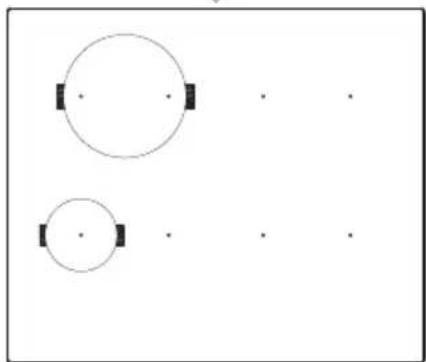
natural_image
Two simple geometric shapes: a large circle with two small squares and a smaller circle with two small squares, all on a plain background (no text or symbols)natural_image
Simple diagram with a rectangle containing nine dots and an arrow pointing downward (no text or symbols)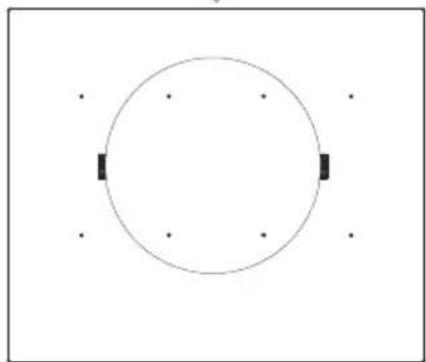
natural_image
Simple circular diagram with two black rectangular blocks on each side, no text or symbols present.natural_image
Simple diagram with circles and a cross, no text or symbols presentTabla 1
natural_image
Two simple geometric diagrams with circles, squares, and a cross mark, no text or symbols presentflowchart
graph TD
    A["Step 1: Grid with 4x4 cells in top-left quadrant"] --> B["Step 2: Grid with 4x4 cells in top-right quadrant"]
    B --> C["Step 3: Grid with 4x4 cells in bottom-left quadrant"]
    C --> D["Step 4: Grid with 4x4 cells in bottom-right quadrant"]
Fig. 6

text_image
Cropped image showing two sets of musical notation symbols with Chinese characters and numbers, possibly representing simplified or rhythm patterns.
text_image
ES Fig. 8 ① - - - - - - - - - - - - - + - - + - + - + - + - + - + - + - + - + - + - + - + - + - + - + - + - + - + - + - + - + - + - + - + - + - + - + - + - + - + - + - + - + - + - + - + - + - + - + - + - + - + - + - + - + - + - + - + - + - + - + - - + - + - + - + - + - + - + - + - + - + - + - + - + - + - + - + - + - + - + - + - + - + - + - + - + - + - + - + - + - + - + - + - + - + - + - + - + - + - + - + - + - + - + - + - + - + - + - + - + -+flowchart
graph TD
    A["Step 1: Grid with 4x4 and 2x2 grids"] --> B["Step 2: Grid with 2x2 grids"]
    B --> C["Step 3: Circular arrangement with two dots"]
    C --> D["Step 4: Circular arrangement with one dot"]
natural_image
Simple diagram with circles and a cross, no text or symbols presentTabela 1
Função Stop&Go
natural_image
Simple geometric diagram with four rectangles and a horizontal bar (no text or symbols)natural_image
Two simple geometric diagrams with circles, a cross, and a downward arrow, no text or symbols present.flowchart
graph TD
    A["Step 1: Grid with 4x4 cells in dashed boxes"] --> B["Step 2: Grid with 4x4 cells in dashed boxes"]
    B --> C["Step 3: Grid with two circles in a row of dots"]
    C --> D["Step 4: Grid with one circle in a row of dots"]
Fig. 6

text_image
Electrical circuit symbols and component labels for two configurations, showing logic gates, resistors, and capacitors with polarity indicators.PT Fig. 8

text_image
① - ■ ■- 0. ■ ■■ - ∞ - ■ □□, - ■ □□ ■- + ■- + ○ - + ■ - + ■ - +⚠ Warning. If the ceramic glass breaks or cracks, immediately unplug the stovetop to avoid electric shocks.
⚠ This appliance is not designed to work with an external timer (not built into the appliance) or a separate remote control system.
⚠️Do not steam clean this device.
⚠ Warning. The device and its accessible parts may heat up during operation. Avoid touching the heating elements. Children younger than 8 years old must stay away from the hob unless they are permanently supervised.
This device may solely be used by children 8 years old or older, people with impaired physical, sensory or mental abilities, or those who lack experience and knowledge, ONLY when supervised or if they have been given adequate instruction on the use of the device and understand the dangers its use involves. User cleaning and maintenance may not be done
by unsupervised children.
Children must not play with the device.
⚠ Warning. It is dangerous to cook with fat or oil without being present, as these may catch fire. NEVER try to extinguish a fire with water! In this event disconnect the device and cover the flames with a lid, a plate or a blanket.
⚠ Do not store any object on the cooking areas of the induction hob. Prevent possible fire hazards.
⚠ The induction generator complies with current EU legislation We however recommend that anyone fitted with a device such as a pacemaker should refer to their physician, or if in doubt abstain from using the induction areas.
⚠ Metal object such as knives, forks, spoons and lids may not be placed on the surface of the hob as they may overheat.
⚠️ After use always disconnect the hot plate, do not simply remove the pot or pan. Otherwise a malfunction may
occur if inadvertently another pot or pan is placed on it within the detection period. Prevent possible accidents!
⚠️ If the supply cord is damaged, it must be replaced by the manufacturer, its service agent or similarly qualified persons in order to avoid hazard.
⚠ WARNING: Use only stovetop protectors designed by appliance manufacturer or indicated by the manufacturer in the instructions for use as adequate or stovetop protectors incorporated into the device. The use of inadequate protectors can cause accidents.
⚠ It is necessary to allow the appliance disconnection after installation. Disconnection devices must be incorporated to the fixed electrical installation, according to the installation regulations.
Installation
Installation with cutlery drawer
If you wish to install furniture or a cutlery drawer under the hob, a separation board must be fitted between the two. Accidental contact with the hot surface of the device's housing is thus prevented.
EN
The board must be fitted 20 mm beneath the under part of the stovetop.
Electrical connection
Before you connect the stovetop to the mains, check that the voltage and frequency match those specified on the stovetop nameplate, which is underneath it, and on the Guarantee Sheet, or if applicable on the technical data sheet, which you must keep together with this manual throughout the product's service life.
Ensure that the inlet cable does not come into contact with the induction top housing or the oven housing, if it is installed in the same unit.
Warning:
The electrical connection must be properly grounded, following current legislation, otherwise the induction hob may malfunction.
⚠️ Unusually high power surges can damage the control system (like with any electrical appliance).
It is advised to refrain from using the induction hob during the pyrolytic cleaning function in the case of pyrolytic ovens, due to the
high temperature that this type of device attains.
Only the Küppersbusch official technical service can handle or repair the appliance, including replacement of the power cable.
Before disconnecting the hob form the mains, we recommend switching off the cutoff switch and waiting for approximately 25 seconds before disconnecting from the mains. This time is required to allow for the complete discharge of the electronic circuitry and thus preclude the possibility of electric shock from the cable terminals.
Keep the Guarantee Certificate or the technical data sheet together with the instructions manual throughout the product's service life. These contain important technical information.
Use and Maintenance

text_image
400V 2N~ green-yellow blue grey brown black N L1 L2 400V 2N~ green-yellow blue grey brown black N1 N2 L1 L2 230V 1~ green-yellow blue grey brown black N L 230V 3~ green-yellow blue grey brown black L3 L1 L2 400V 3N~ green-yellow blue grey brown black N L1 L2 DO NOT USE L3 Fig. 1User instructions of the Touch Control
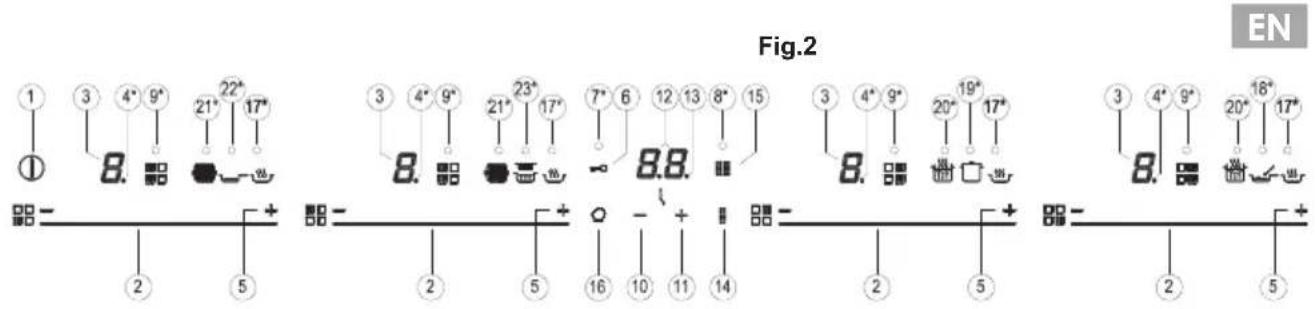
HANDLING ELEMENTS (fig. 2)
① General on/off sensor.
② Cursor slider for controlling power.
③ Power and/or residual heat indicator*.
④ Decimal dot of power and/of residual heat indicator.
⑤ Direct access to "Power" function.
⑥ Activation sensor for "Block" or "Stop&Go" functions.
⑦ Pilot indicator light "Block" function activated*.
⑧ Activation sensor for "Full Flex" function.
⑨ Pilot indicator light "Flex Zone" function activated*.
⑩ "Minus" sensor for timer.
⑪ "Plus" sensor for timer.
⑫ Timer indicator.
⑬ Decimal dot of the timer.*
14 Activation sensor for "Flex Zone" function.
15 Activation sensor for "Full Flex" function.
16 Activation sensor for "Chef" functions.
⑰ Pilot indicator light "Keep Warm" function activated*.
18 Pilot indicator light" Melting" function activated*.
19 Pilot indicator light "Simmering" function activated*.
20 Pilot indicator light "Quick Boiling" function activated*.
21 Pilot indicator light "Grilling" function activated*.
22 Pilot indicator light "Pan Frying" function activated*.
23 Pilot indicator light "Deep Frying" function activated*.
* Only visible while running.
The manoeuvres are done by means of the touch keys. You do not need to exert force on the desired touch key, you only need to touch it with your fingertip to activate the required function
text_image
Fig.2 EN 1 3 4° 9° 21° 22° 17° ① 8. 23° 17° 7° 6 12 13 8° 15 8. 8. 8. 19° 17° ② + 5 + - + ② 5 16 10 11 14 ② + 5 + - + ② 5Each action is verified by a beep.
Use the cursor slider (2) to adjust power levels (0 - 9) by sliding your finger over it. Sliding towards the right increases the value, whereas sliding towards the left decreases it.
It's also possible to directly select a power level by placing your finger directly on a desired point of the cursor slider (2)
In order to select a plate on these models, directly touch the cursor slider (2).
SWITCHING ON THE DEVICE
1 Touch the On touch key (h) for at least one second. The touch control will become active, a beep will be heard and the indicators (3) will light up displaying a “-”. If any cooking area is hot, the related indicator will flash an H.
If you do not take any action in the next 10 seconds the touch control will switch off automatically.
When the touch control is activated, you can disconnect it at any time by touching the touch button (1), even if it has been locked (lock function activated). The touch button (1) always has priority to disconnect the touch control.
ACTIVATING PLATES
Once the Touch Control is activated with sensor ①(1), any plate can be turned on by following these steps:
1 Slide the finger or touch in any position of one of the cursors "slider" (2). The zone has been selected and simultaneously the power level will be set between 0 and 9. That power value will be shown on the corresponding power
indicator and its decimal dot (4) will keep light up during 10 seconds.
2 Use the cursor slider (2) to choose a new cooking level between 0 and 9.
As long as the plate is selected, in other words, with the decimal (4) dot light up, its power level can be modified.
TURNING OFF A PLATE
Using the touch slider key (2) lower the power to level 0. The hotplate will switch off.
When a hot plate is switched off an H will appear in its power indicator (3), if the glass surface of the related cooking area is hot and there is a risk of burns. When the temperature drops, the indicator (3) switches off (if the hob is disconnected), or otherwise a “-” will light up if the hob is still connected.
TURNING ALL PLATES OFF
All plates can be simultaneously disconnected by using the general on/off sensor(1). All plate indicators (3) will turn off. If the heating zone turned off is hot, its indicator shows an H..
Pan detector
Make sure that the bottom of the vessel, covers one or more of the references (+) on the surface of the hob; (see fig.3 and table 1).
Induction cooking zones have a built-in pan detector. This way, the plate will stop working if there is no pan present or if the pan is not suitable.
The power indicator (3) will show a symbol to designate "there is no pan U" if, while the zone is on, no pan is detected or the pan is not suitable
If a pan is taken off the zone while it is running, the plate will automatically stop supplying energy and it will show the symbol for "there is no pan". When a pan is once again placed on the cooking zone, energy supply will resume at the same power level previously selected.
The time for pan detection are 30 seconds. If a pan is not placed within this time period, or the pan is unsuitable, the cooking zone shuts off.
When finished, turn off the cooking zone by using the touch controls. Otherwise an undesired operation could occur if a pan is accidentally placed on the cooking zone during the 30 seconds. Avoid possible accidents!
Block Function
With the Block Function, you can block the other sensors, except for the on/off sensor (1), in order to avoid undesired operations. This function is useful as a childproof safety.
To activate this function, touch sensor (6) for at least one second. Once you have done so, the pilot (7) turns on indicating that the control panel is blocked. To deactivate the function, simply touch sensor (6) again.
If the on/off sensor ①(1) is used to turn off the appliance while the block function is activated, it won't be possible to turn the cooktop on again until it unblocks.
Silencer of the beep
When the hob is on, if one presses the touch key (11) and the locking touch
EN
key (8) simultaneously for three seconds, the beep that accompanies each action will be deactivated. The time indicator (12) will display "OF".
This deactivation will not be applied to all the functions, as for example the beep for on/off, the ending of the timer or the locking/unlocking of the touch keys always remain activated.
To once again activate all the beeps that accompany each action, again simultaneously press the touch key + (11) and the locking touch key - (6) for three seconds. The time indicator (12) will display "On"
Stop&Go Function
This function puts the cooking process on pause. The timer will also be paused if it is activated.
Activating the Stop&Go function.
Touch the Stop &Go sensor -9(6). The power indicators will show the symbol // to indicate cooking has been paused.
Deactivating the Stop&Go function
Fig.3

natural_image
Simple diagram with circles and a cross, no text or symbols presentTouch Stop&Go sensor—(6) again. The cooking is resumed under the same power and timer settings that were established before the pause.
Power Function
This function supplies “extra” power to the plate, above the nominal value. Said power depends on the size of the plate, with the possibility of reaching the maximum value permitted by the generator.
1 Slide the finger above the corresponding cursor slider (2) until the power indicator (3) shows "9" and keep the finger pressed for one second, or touch directly on "(11)" and keep pressed the finger for one second.
2 The power level indicator (3) will show the symbol P, and the plate will start to supply extra power.
The Power function has a maximum duration specified in Table 1. After this time, the power level will automatically adjust to 9. A beep sounds.
Deactivation of Power Function, before its working time passes, can be done either by means of touching cursor "slider" modifying its power level or repeating step 3.
Timer Function (countdown clock)
This function facilitates cooking given that you don't have to be present: You can set a timer for a plate, and it will turn off once the desired time is up. For these models, you can simultaneously program each plate
for durations ranging from 1 to 90 minutes.
Setting a timer on a plate.
Once the power level is set on the desired zone, and while the decimal dot of the zone keeps on, the zone will be able to be timed.
To that end:
1 Touch sensor—(10) or (11). Timer Indicator (12) will show "00" and corresponding zone indicator (3) will show the symbol blinking alternately with its current power level.
2 Immediately afterwards set a cooking time between 1 and 99 minutes, using the sensors (10) ó (11). With the first one the value will start at 60, whereas with the second it will start at 01. By keeping sensors (10) ó (11) pressed, the value will be restored to 00. When there is less than one minute left, the clock will begin to count down in seconds.
- When the timer indicator (12) stops flashing, it will start to count down the time automatically. The indicator (3) relating to the timed hotplate will alternately display the selected power level and the symbol
Once the selected cooking time has elapsed, the heating zone being timed is turned off and the clock emits a series of beeps for several seconds. To turn off the audible signal, touch any sensor. The timer indicator (12) will display a flashing 00 beside of the decimal dot (4) of the selected zone. If the heating zone turned off is hot, its power indicator (3) will display alternately the H symbol and a “-”.
If you wish to time another hotplate at the same time, repeat steps 1 to 3.
If one or more zones are already timed, the timer indicator (12) will show by default the shortest remaining time to finish, showing a "t" on the related zone. Rest of timed zones will show on their corresponding indicator zones the decimal dot blinking. When
Table 1
| MINIMUM DIAMETER OF THE VESSEL’S BOTTOM FOR ANY COOKING ZONE | |||
 | centered on 1 point | 2 points covered | 4 points vertical covered |
| 8 cm 19 cm | 24 cm | ||
cursor "slider" of another timed zone is pressed, the timer will show the remaining time of that zone for a few seconds and its indicator will show its power level and the "t" alternately.
Changing the programmed time.
For modifying programmed time, cursor "slider" (2) of timed zone has to be pressed. Then it will be possible to read and modify the time.
Through sensors (10) and (11), you can modify the programmed time.
Disconnecting the clock
If you wish to stop the clock before the programmed time is up, this can be done at any time by simply adjusting its value to ‘--’.
1 Select the desired plate.
2 Adjust the value of the clock to "00" by using the sensor (10) . The clock is cancelled. This can also be done more quickly by pushing the "sensors (10) and (II) at the same time.
Power Management function
This model is equipped with a power limiting function (Power Management). This function allows the total power generated by the hob to be set to different values selected by the user. To do this, for the first minute after having connected the hob to the power supply, it is possible to access the power limiting menu.
1 Press the +(11) touch key for three seconds. The letter PL will appear on the timer indicator (12)
2 Press the locking touch key (6). The different power values to which the hob can be limited will appear and these can be changed using the +11) and (10) sensors.
3 Once the value has been selected, once again press the locking touch key (6). The hob will be limited to the chosen power value.
If you want to change the value again, you must unplug the hob and plug it in again after a few seconds. Thus you will again be able to enter the power limiting menu.
Every time the power level of a hotplate is changed, the power limiter will calculate the total power the hob is generating. If you have reached the total power limit, the touch control will not allow you to increase the power level of that hotplate. The hob will beep and the power indicator (3) will blink at the level that cannot be exceeded. If you wish to exceed that value, you must lower the power of the other hotplates. Sometimes it will not be enough to lower another by a single level as this depends on the power of each hotplate and the level it is set at. It is possible that to raise the level of a hotplate that of several smaller ones must be turned down.
If you use the quick switch-on at maximum power function and the said value is above the value set by the limit, the hotplate will be set to the maximum possible level. The hob will beep and the said power value will blink twice on the indicator (3).
Special functions: CHEF
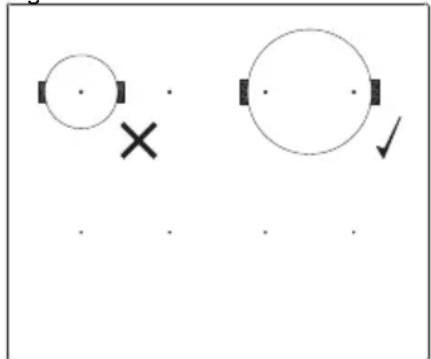
These functions require that the bottom of the vessel used covers the two "P" of the cooking zone; (see fig.4).
Fig.4
natural_image
Two simple geometric diagrams with circles, a cross, and a checkmark, no text or symbols present.The Touch Control has special features that help the user to cook through the CHEF sensor (16).
To activate a special feature on a zone:
1 First it should be selected; and then, the decimal point (4) will be active on the power indicator (3).
2 Now click on the CHEF sensor 📋 (16). The sequentially successive presses will go over all the Cooking functions available in each zone one by one. These functions will show the activation with the corresponding leds (17), (18), (19) (20), (21), (22) and (23).
If you want to cancel a special active function at any time, you should touch the "slider" cursor sensor (2) of the related zone to select it. The decimal point (4) of the power indicator (3) will light up. Then, touch again the "slider" (2) cursor in the position "0".
KEEP WARM FUNCTION
This function sets an automatic power control suitable for keeping the cooked food hot.
To activate it, select the plate, and press on the CHEF sensor (16) until the led (17) located on the icon lights up. Once the function is activated, the symbol R will appear on the power indicator (3).
You can override the function at any time by turning off the plate, by changing the power level or by choosing a different special function.
MELTING FUNCTION
This function sets an automatic power control suitable for maintaining a low temperature in the cooking zone. Ideal for defrosting food or for slowly melting other food types as chocolate, butter, etc.
To activate it, select the plate, and press on the CHEF sensor (16) until the led (18) located on the icon lights up. Once the function is activated, the symbol R will appear on the power indicator (3).
You can override the function at any time by turning off the plate, by changing the power level or by choosing a different special function.
SIMMERING FUNCTION
This function sets an automatic power control suitable for keeping simmering.
EN
After the food is boiled, enable the plate by selecting it, and press the CHEF sensor (16) until the led (19) located on the icon lights up. Once the function is activated, the symbol will appear on the power indicator (3).
You can override the function at any time by turning off the plate, by changing the power level or by choosing a different special function.
QUICK BOILING FUNCTION (depending on the model)
This function enables the automatic boiling control, which is a great help for cooking pasta, rice, eggs, boil some food, etc. It is available only in zones where the symbol appears.
Conditions of the container
For a proper operation of the Quick Boiling function, you need to use a container that meets the following preconditions:
- Bottom size as close as possible to the diameter of the plate.
-WITHOUT CAP.
- Filled to over half its capacity at room temperature water (never use warmed or hot water).
Failure to comply with these conditions will distort the proper control of boiling.
WARNING: do not use this feature for a different cooking purpose other than boiling water. Never use oil, it may lead to overheat and generate a flame.
Activation of the function
To activate the function, select the plate, and press the CHEF sensor
(16) until the led (20) located on the icon lights up.
Once the feature is activated, on the power indicator (3); a moving segment will appear, indicating that the cooking is under system's control.
When the system detects that it is about to start boiling, a first beep will be heard. Take this opportunity to prepare your food for boiling or baking as desired.
After 30 seconds, a second beep will be heard; if you have not already done so, it's time to pour the food in the pan.
After the second beep, the system will activate the timer and stopwatch for you so that you can control how long the food is to be boiled and the symbol R will appear on the power indicator (3).
30 seconds after activating the stopwatch, a third beep will sound to warn that from that moment on, the system will decrease the power supplied in order to maintain a gentle and continuous boil. The timer will remain active until the end of cooking.
If desired, you can disable the timer and set a time for the countdown and automatic shutdown of the plate (see section Timer Function).
Deactivation of the function
You can override the function at any time by turning off the plate, by changing the power level or by choosing a different special function.
GRILLING FUNCTION
This function sets an automatic power control suitable for cooking on the grill.
To activate it, select the plate, and press on the CHEF sensor (16), until the led (21) located on the icon lights up. Once the function is activated, on the power indicator (3) a moving segment will appear indicating that the cooking is in the preheating
Fig. 5

flowchart
graph TD
    A["Step 1: Grid with dots at intersections"] --> B["Step 2: Grid with dots at intersections"]
    B --> C["Step 3: Grid with dots at intersections"]
    C --> D["Step 4: Grid with dots at intersections"]
    D --> E["Final Step"]
Fig. 6

text_image
Electrical circuit symbols and component labels for a ladder logic or motor drive, showing connections between components like capacitors, inductors, and switches.Fig. 8

phase of the vessel. Once this phase is finished, the sign R will appear on the power indicator (3) and a beep will be heard, indicating to the user that he must add the food.
You can override the function at any time by turning off the plate by changing the power level or by choosing a different special function.
FUNCIÓN PAN FRYING
This function sets an automatic power control suitable for frying with little oil or sautéing.
To activate it, select the plate, and press on the CHEF sensor (16), until the led (22) located on the icon lights up. Once the function is activated, on the power indicator (3) a moving segment will appear indicating that the cooking is in the preheating phase of the vessel. Once this phase is finished, the sign R will appear on the power indicator (3) and a beep will be heard, indicating to the user that he must add the food.
You can override the function at any time by turning off the plate by changing the power level or by choosing a different special function.
FUNCIÓN DEEP FRYING
This function sets an automatic power control suitable for frying with plenty of oil.
To activate it, select the plate, and press on the CHEF sensor (16), until the led (23) located on the icon lights up. Once the function is activated, on the power indicator (3) a moving segment will appear indicating that the cooking is in the preheating phase of the vessel. Once this phase is finished, the sign R will appear on the power indicator (3) and a beep will be heard, indicating to the user that he must add the food.
You can override the function at any time by turning off the plate by changing the power level or by
Fig. 7

flowchart
graph TD
    A["Step 1: Grid with 4x4 and 2x4 grids"] --> B["Step 2: Grid with 2x4 grids"]
    B --> C["Step 3: Grid with 2x4 grids"]
    C --> D["Step 4: Grid with 2x4 grids"]
choosing a different special function.
Flex Zone function
Through this function is possible to enable two cooking zones, those on the left or those on the right, work together, and to select a power level and to activate the timer function for both zones. This function allows you to increase the cooking zone dimension and to use bigger vessels; (see fig.5).
To activate this function, press the sensor (14). You can choose the desired flexible zone (left or right) by pressing this sensor successively. By doing so, the decimal point (4) of one of the linked zones will light up and the value "0" will be shown on its power indicator (3). The clock timer indicator (12) will show three segments indicating the flexible zone selected (see fig. 6). You will have a few seconds to perform the next operation, otherwise the function will be disabled automatically. You can assign the power by touching the activated slider cursor (2). Once the power has been selected, the leds (9) on the icon □ or the icon □ will light up.
To disable this function, you should touch the slider cursor (2) in the position "0".
Full Flex Function
Through this function is possible to enable four cooking zones work together, and to select a power level and to activate the timer function for all zones. This function allows you to increase the cooking zone dimension and to use bigger vessels; (ver fig.7).
To activate this function, press the sensor (15). By doing so, the decimal point (4) of one of the linked zones will light up and the value "0" will be shown on its power indicator (3). The clock timer indicator (12) will show six segments indicating the flexible zone selected (see fig. 8). You will have a few seconds to perform the next operation; otherwise the function will be disabled automatically. You can assign the power by touching the
EN
activated slider cursor (2). Once the power has been selected, the led (8) on the icon 5.
To disable this function, you should touch the slider cursor (2) in the position "0".
Safety switch off function
If due to an error one or several heating zones do not switch off, the appliance will be automatically disconnected after a set amount of time (see table 2).
Table 2
| Selected power level | MAXIMUN OPERATING TIME (in hours) |
| 0 | 0 |
| 1 | 8 |
| 2 | 5 |
| 3 | 5 |
| 4 | 4 |
| 5 | 3 |
| 6 | 3 |
| 7 | 2 |
| 8 1,5 | |
| 9 1,5 | |
| P | 10 minutes, readjusts to level 9 |
* Depends on model
When the "safety switch off" function has been triggered, a 0is displayed if the glass surface temperature is not dangerous for the user or an H if there is a burn risk.

Keep the control panel of the ng areas clean and dry at all s.

In the event of operating pro- s or incidents not mentioned this manual, disconnect the liance and contact the persbusch technical service.
Suggestions and recommendations
* Use pots or pans with thick, completely flat bottoms.
* Pots/pans with a smaller diameter than the shown heating area are not recommended.
* Do not slide pots and pans over the glass because they could scratch it.
* Although the glass can take knocks from large pots and pans without sharp edges, try not to knock it.
* To avoid damaging the ceramic glass surface, do not drag pots and pans over the glass and keep the undersides of them clean and in good condition.

Try not to spill sugar or pro- s containing sugar on the glass while the surface is hot these d damage it.
Cleaning and maintenance
To keep the appliance in good condition, clean it using suitable products and implements once it has cooled down. This will make the job easier and avoid the build-up of dirt. Never use harsh cleaning products or tools that could scratch the surface, or steam-operated equipment.
Light dirt not stuck to the surface can be cleaned using a damp cloth and a gentle detergent or warm soapy water. However, for deeper stains or grease use a special cleaner for ceramic hot plates and follow the instructions on the bottle. Dirt that is firmly stuck due to being burned repeatedly can be removed using a scraper with a blade.
Slight tinges of colour are caused by pots and pans with dry grease residue underneath or due to grease between the glass and the pot during cooking. These can be removed using a nickel scourer with water or a special cleaner for ceramic hot plates. Plastic objects, sugar or food containing a lot of sugar that have melted onto the surface must be removed immediately using a scraper.
Metallic sheens are caused by dragging metal pots and pans over the glass. These can be removed by cleaning thoroughly using a special cleaner for ceramic glass hot plates, although you may need to repeat the cleaning process several times.
Warning:

A pot or pan may become k to the glass due to a product ing melted between them. Do try to lift the pot while the ring zone is cold! This could k the glass.

Do not step on the glass or on it as it could break and cau-jury. Do not use the glass as a face for placing objects.
Küppersbusch Hausgeräte GmbH reserves the right to make changes to its manuals that it deems necessary or useful, without affecting the product's essen-tial features.
Environmental considerations
The symbol ■ the product or its packaging means that this product cannot be treated like ordinary household waste. This product must be taken to a recycling collection point for electrical and electronic appliances. By ensuring that this product is disposed of correctly, you will avoid harming the environment and public health, which could happen if this product is not handled properly. For more detailed information about recycling this product, please contact your local authority, household waste service or the store where you purchased the product.
The packaging materials used are environmentally friendly and can be recycled completely. Plastic components are marked >PE<, >LD<, EPS<, etc. Dispose of packaging materials, like household waste, in your local container.
Fulfillment with Energy Efficiency of the appliance: -Appliance has been tested according to standard EN 60350-2 and the obtained value, in Wh/Kg, is available in the appliance's rating plate.
Following advices will help you to save energy anytime you cook:
* Use the correct lid for each pot whenever is possible. Cooking without lid uses more energy.
* Use pans with flat bases and appropriate base diameters in order to match size of the cooking zone. Pan manufacturers usually provide top diameter of the pot that is always larger than base diameter.
* When water is used for cooking, use little quantities in order to preserve vitamins and minerals of vegetables and set the minimum power level that allows maintaining the cooking. High power level is unnecessary and a waste of energy.
* Use small pots with small quantities of food.
If something does not work
Before calling the technical service, perform the verifications described below.
The appliance does not work: Ensure that the power cable is plugged in.
The induction zones do not produce heat:
The container is not appropriate (it does not have a ferromagnetic bottom or is too small). Check that the bottom of the container attracts a magnet, or use a larger container.
A humming is heard when starting to cook in the induction zones:
With containers which are not very thick or not of one piece, the humming results from the transmission of energy directly to the bottom of the container. The humming is not a defect, but if you wish to avoid it anyway, reduce the power level slightly or use a container with a thicker bottom, and/or of one piece.
The touch control does not light up or, despite lighting, does not respond:
No heating zone has been selected. Be sure to select a heating zone before operating it.
There is humidity on the sensors, and/or your fingers are wet. Keep the touch control surface and/or your fingers clean and dry. The locking function is activated. Unlock the controls.
The sound of a fan is heard while cooking, which continues even after cooking has ended: The induction zones have a fan to keep the electronics cool. This only operates when the electronic circuits get hot. It stops again when the circuits cool whether the hob is turned on or not.

The symbol will appear — on the power indicator of a hotplate:
The induction system does not find a pot or pan on a hotplate or it is of an unsuited type.
The hotplate will switch off and the message C81 or C82 will appear on the indicators:
Excessive temperature in the electronics or on the glass. Wait for a while for the electronics to cool down or remove the pot or pan so that the glass can cool.
The appliance switches off and the message C90 appears on the power indicators (3):
The touch control detects on/off (1) sensor is covered and doesn't allow switching on the cooktop. Remove the possible objects or liquids keeping the touch control surface, clean and dry until the message disappears.
FR
natural_image
Simple diagram with circles and a cross, no text or symbols presentnatural_image
Two simple geometric diagrams with circles, squares, and a cross mark, no text or symbols presentflowchart
graph TD
    A["Step 1: Grid with 4x4 cells in dashed boxes"] --> B["Step 2: Grid with 4x4 cells in dashed boxes"]
    B --> C["Step 3: Grid with 4x4 cells in dashed boxes"]
    C --> D["Step 4: Grid with 4x4 cells in dashed boxes"]
    D --> E["Final Step: Grid with 4x4 cells in dashed boxes"]

text_image
Scanned image showing two sets of symbols with Chinese characters and operators, possibly representing a musical or electronic notation.Fig. 8

text_image
① - 2 2 2 2 2 2 2 2 2 2 2 2 2 2 2 2 2 2 2 2 2 2 2 2 2 2 2 2 2 2 2 2 2 2 2 2 2 2 2 2 + 2 - + + - + + - + +FONCTION FRITURE À LA POÊLE
flowchart
graph TD
    A["Step 1: Grid with 4x4 and 2x4 grids"] --> B["Step 2: Grid with 2x4 grids"]
    B --> C["Step 3: Grid with 2x4 grids"]
    C --> D["Step 4: Grid with 2x4 grids"]
ACCENSIONE DEL DISPOSITIVO
natural_image
Simple diagram with circles and a cross, no text or symbols presentnatural_image
Two simple geometric diagrams with circles, squares, and a cross mark, no text or symbols presenttext_image
Diagram showing two sets of symbols with labeled components and operators, possibly representing a logic or logic circuit layout.flowchart
graph TD
    A["Step 1: Grid with 4x4 cells in top-left quadrant"] --> B["Step 2: Grid with 4x4 cells in top-right quadrant"]
    B --> C["Step 3: Grid with 2x2 cells in bottom-left quadrant"]
    C --> D["Step 4: Grid with 2x2 cells in bottom-right quadrant"]
FUNZIONE MELTING
natural_image
Simple diagram with four quadrants and arrows, no text or symbols present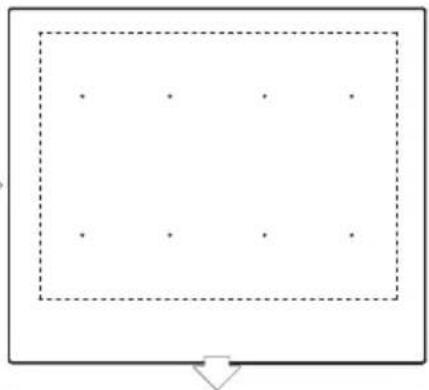
natural_image
Simple diagram with a rectangle containing nine dots and an arrow pointing downward (no text or symbols)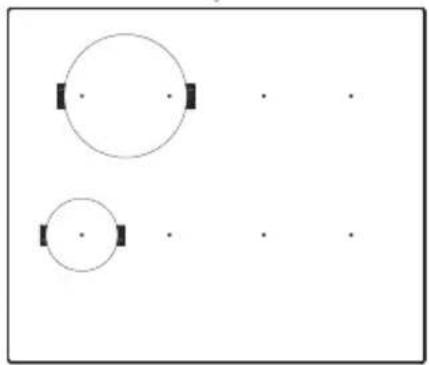
natural_image
Two simple geometric shapes: a large circle with two smaller circles and three dots, arranged horizontally (no text or symbols)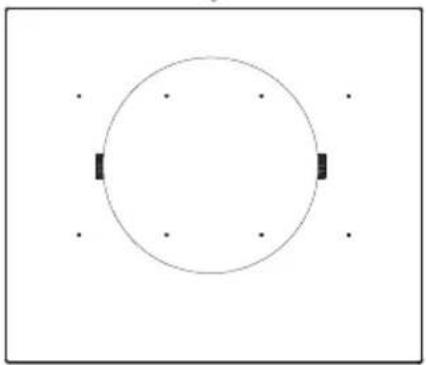
natural_image
Simple circular diagram with four dots at the corners and two black rectangular markers inside (no text or symbols)HET APPARAAT INSCHAKELEN
natural_image
Simple diagram with circles and a cross, no text or symbols presentTabel 1
natural_image
Two simple geometric diagrams with circles, squares, and a cross mark, no text or symbols presentflowchart
graph TD
    A["Step 1: Grid with 4x4 cells in top-left quadrant"] --> B["Step 2: Grid with 4x4 cells in top-right quadrant"]
    B --> C["Step 3: Grid with 2x2 cells in bottom-left quadrant"]
    C --> D["Step 4: Grid with 2x2 cells in bottom-right quadrant"]
natural_image
Simple diagram with four quadrants and scattered dots inside a dashed rectangle (no text or symbols)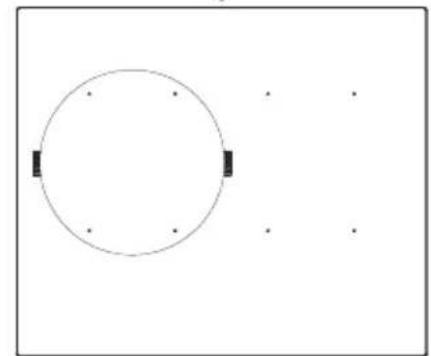
natural_image
Simple diagram with a circle and two black rectangular blocks on the left side, no text or symbols present.Afb.6

text_image
Diagram showing two sets of symbols with labeled components and operators, possibly representing a logic or logic puzzle.
text_image
① - 18 ■-■ 0. 18 ■=■ - ∞ 三 ■ - ■ □□ ■ - ■ □√■ ■- + ■- + ○ - + ■ - + ■- +natural_image
Simple diagram with circles and a cross, no text or symbols presentΠίνακας 1
natural_image
Two simple geometric diagrams with circles, a cross, and a checkmark, no text or symbols present.natural_image
Simple diagram with four quadrants and scattered dots, no text or symbols present
natural_image
Simple diagram with four rectangular regions outlined in dashed lines and three small dots inside, no text or symbols present.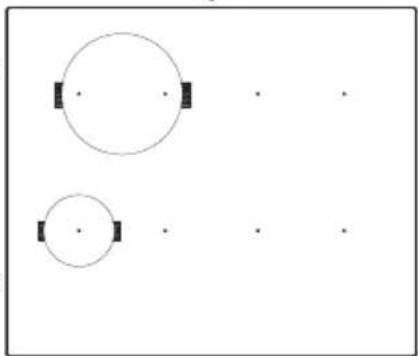
natural_image
Two circular diagrams with black rectangular markers, no text or symbols present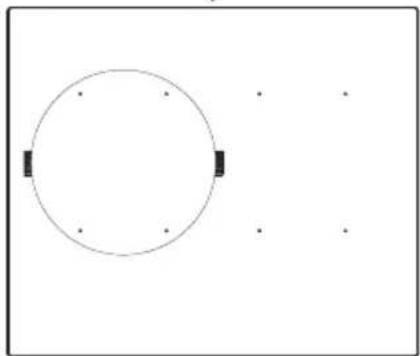
natural_image
Simple diagram with a circle and two black rectangular blocks on the left side, no text or symbols present.εικ. 6

text_image
Scanned image showing two sets of symbols with accompanying icons, possibly representing musical notation or pattern recognition.εικ. 8

natural_image
Simple diagram with four quadrants and scattered dots, no text or symbols present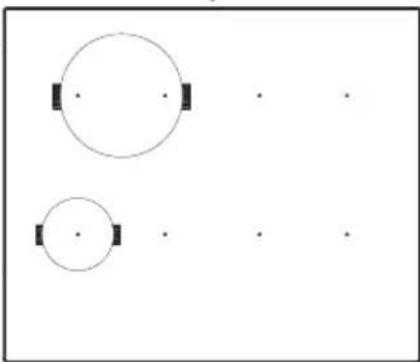
natural_image
Two circular diagrams with black rectangular markers, no text or symbols presentnatural_image
Empty rectangular frame with dashed border and eight evenly spaced black dots (no text or symbols)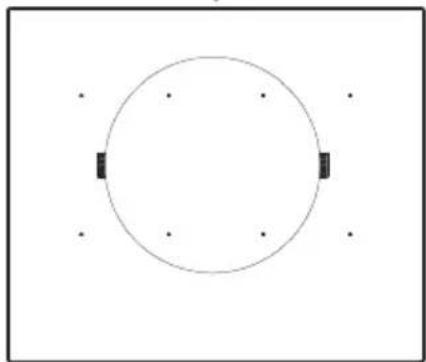
natural_image
Simple circular diagram with four dots at the corners and two black rectangular blocks inside, no text or symbols present.natural_image
Simple diagram with circles and a cross, no text or symbols presentТаблица 1
natural_image
Two simple geometric diagrams with circles, a cross, and a checkmark, no text or symbols present.flowchart
graph TD
    A["Step 1: Grid with dots at intersections"] --> B["Step 2: Grid with dots at intersections"]
    B --> C["Step 3: Grid with dots at intersections"]
    C --> D["Step 4: Grid with dots at intersections"]
    D --> E["Final Step"]
Рис. 6

text_image
Cropped image showing two sets of musical notation symbols with Chinese characters and numbers, possibly representing simplified measures or lyrics.RU
Рис. 8

natural_image
Simple diagram with four quadrants and arrows, no text or symbols present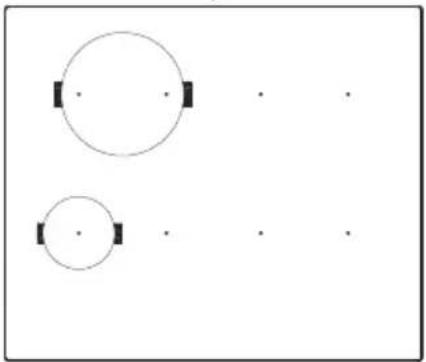
natural_image
Two simple geometric shapes: a large circle with two small squares and a smaller circle with two small squares, all on a plain background (no text or symbols)Таблица 2
natural_image
Simple diagram with a rectangle containing nine dots and a downward arrow at the bottom (no text or symbols)