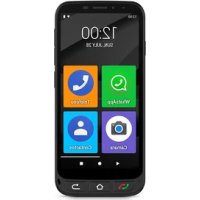
USER MANUAL Zeus 4G Pro SPC
Esta situado abajo a la izquierda. Es un uncommon botón con doble funcionalidad de descolverlllllllllllllllllllllllllllllllllllllllllllllllllllllllllllllllllllllllllllllllll
5.2 CÓMOCONFIGURARLO?
Para configurarlo:
- Turning on the telephone for the first time 36
1.1. Telephone preparation 36
1.2. Initial start up 37
1.3.End screen text size adjustment and Easy Mode explanation 37
- SPC Easy Mode 39
2.1. Enable Easy Mode/Application "Mode". 39
2.2. Main screen and Applications 43
2.3. Move applications around and place applications on the home screen 45
2.4. Favourite contacts: Where they are, how to create them and how to put a photo on them 47
- Shortcuts Application 50
3.1.List of settings available in this App 50
4.Physical keys 52
4.1. Hang up and pick up button 52
4.2. Home and Back button 53
4.3. Flashlight button 53
4.4.SOS button 53
5.SOS function 53
5.1.What is it and how does it work? 53
5.2.How to configure it 54
5.3.What happens when I press the button? 57
5.4. How to stop the call in case of error? 58
- Smart Help 59
6.1. Remote setup 60
6.2. Smart notifications 62
6.3. Smart ringer 63
- Base and Charging 64
7.1. Led light 65
7.2. Charging base (ZEUS 4G PRO) 65
1. TURNING ON THE TELEPHONE FOR THE FIRST TIME
1.1 TELEPHONE PREPARATION
Before starting up the phone, it is necessary to open it and insert the SIM cards, memory cards and the battery in their corresponding places. To do this, follow these instructions.
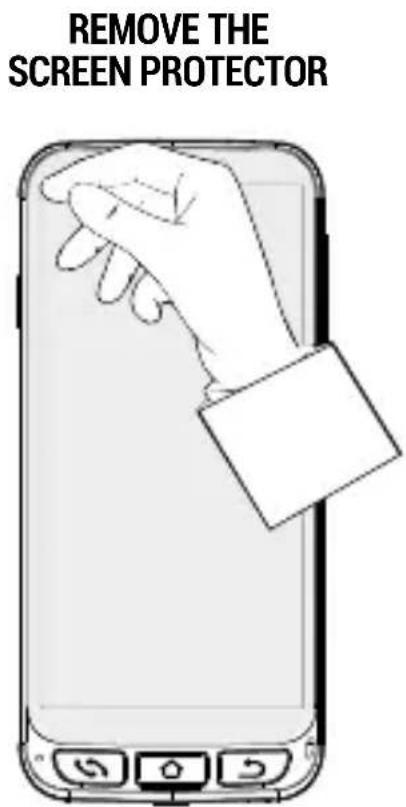
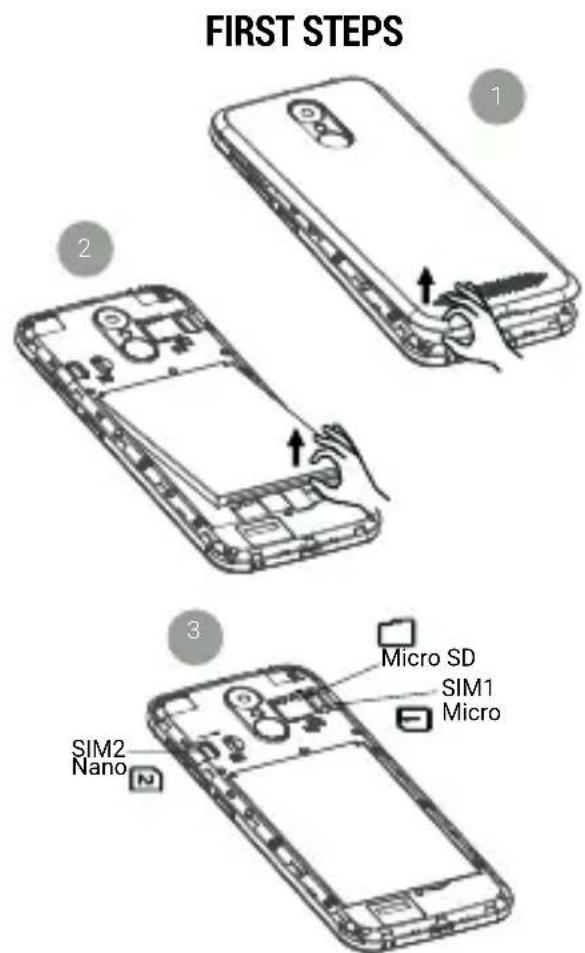
You must place the battery with the side shown in the following figure facing up, matching the two tabs in the upper corners with their corresponding notches:

1.2 INITIAL START UP
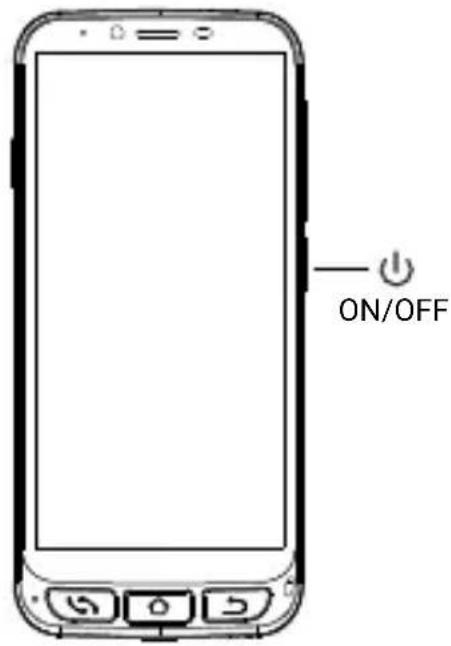
Once ready, you can start up the ZEUS 4G/ ZEUS 4G PRO by pressing and holding the side ON/OFF button.
The ZEUS 4G/ ZEUS 4G PRO will start up like any Android device, asking for the SIM card PIN and language selection. You must continue with the normal Android configuration process for your telephone (WiFi, Google account...).
1.3 END SCREEN TEXT SIZE ADJUSTMENT AND EASY MODE EXPLANATION
Finally, the Easy Mode Activation Information and Font Size Adjustment screen appears:
By clicking on Font size we can select the font size that best suits our tastes: small, default, large or as large as possible. After selecting it, press Back to return to the setting screen.
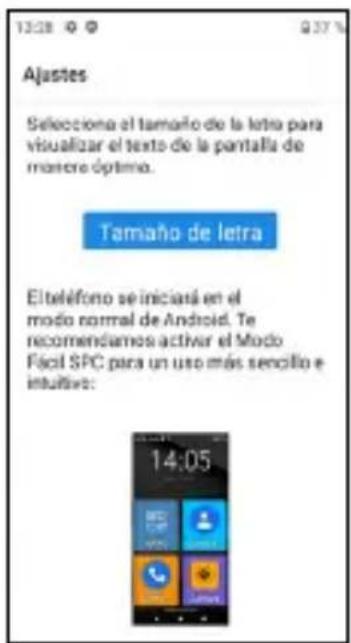
At the bottom of the setting screen it is reported how the default launcher is selected.
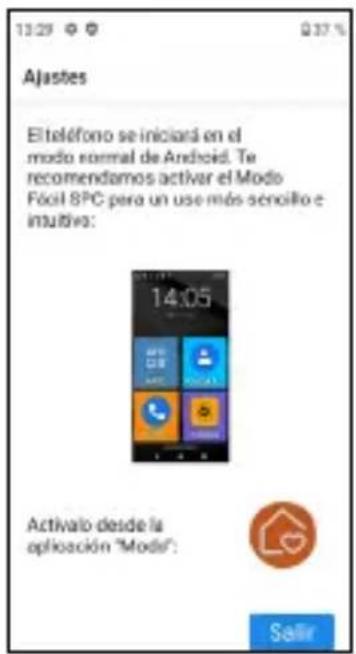
The launcher is the user interface, the way in which the different applications that you have installed on the telephone, the contacts, access to settings, etc. are displayed on the screen. Android defaults to a standard launcher, Normal Mode, and this device has a launcher called Easy Mode.
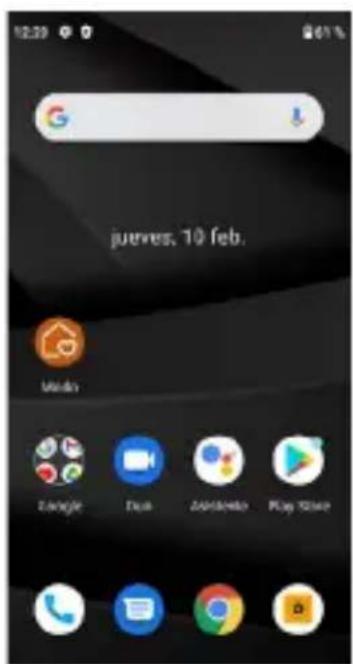
NORMAL ANDROID LAUNCHER
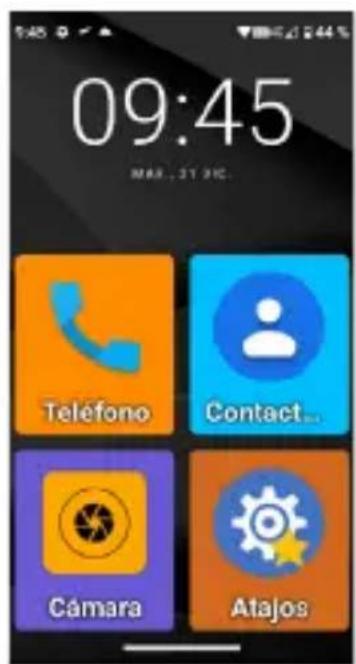
EASY MODE LAUNCHER
The Easy Mode launcher is the one we recommend for this telephone, as it is optimised for the characteristics of this model and allows easier and faster access to the applications you use the most.
After reading the message and pressing Exit, the initial setup phase of the ZEUS 4G/ ZEUS 4G PRO is complete, with the launcher in Android Normal Mode.
2. SPC EASY MODE
2.1 ENABLE EASY MODE/APPLICATION "MODE"
The default launcher of ZEUS 4G/ ZEUS 4G PRO is Android Normal Mode:
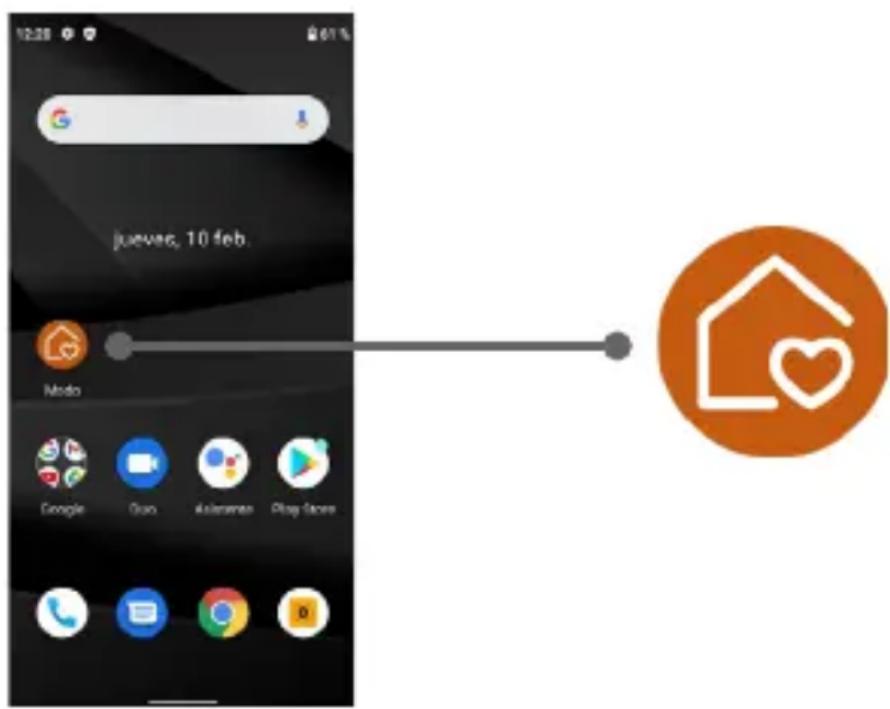
On this home screen, the first icon is the Launcher Mode selection icon.
Through this application you can change the launcher to Easy Mode. To do this, click on the Mode icon, the following menu will appear:
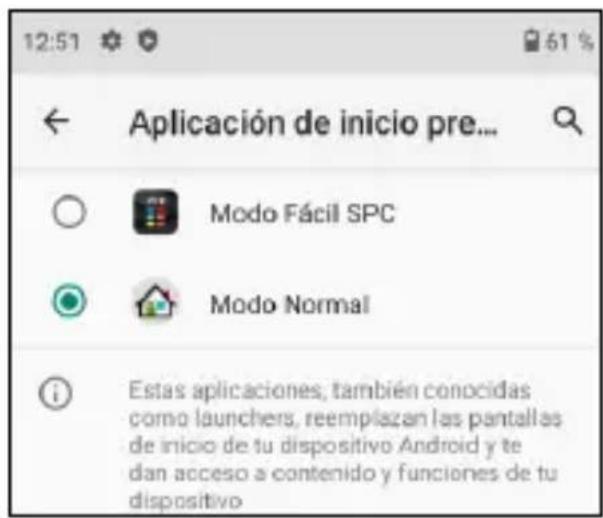
By default, Android's Normal Mode (called Normal Mode) is selected. Select SPC Easy Mode to switch launchers. The application will request various access permissions that you must accept in order for it to work correctly. The first one is to create the screen ("widget") with time information:
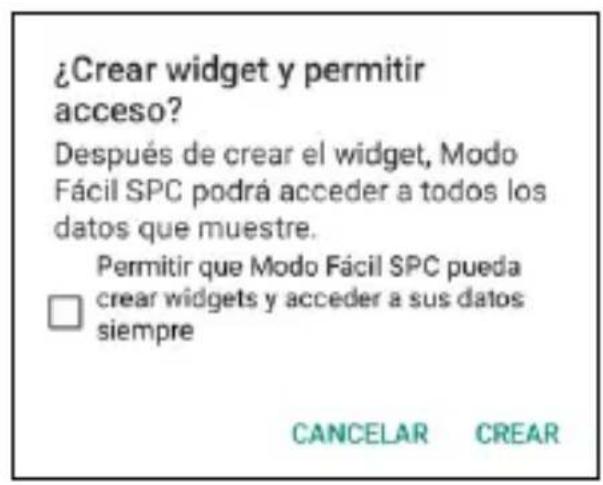
Click on the box and click on CREATE. Another permission request appears:
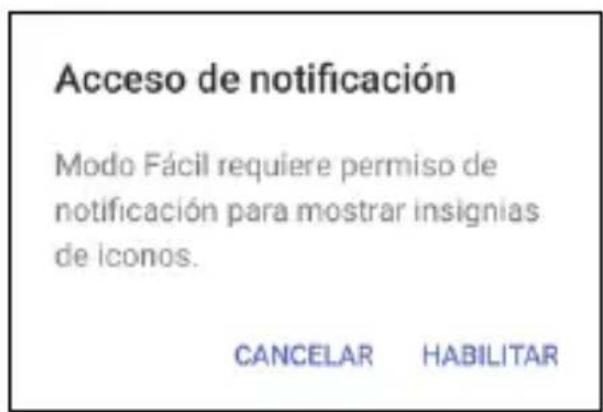
This permission is for Easy Mode to correctly access notifications from other applications (such as a new message, missed call...). Click on ENABLE. The screen to allow access to notifications from applications appears:
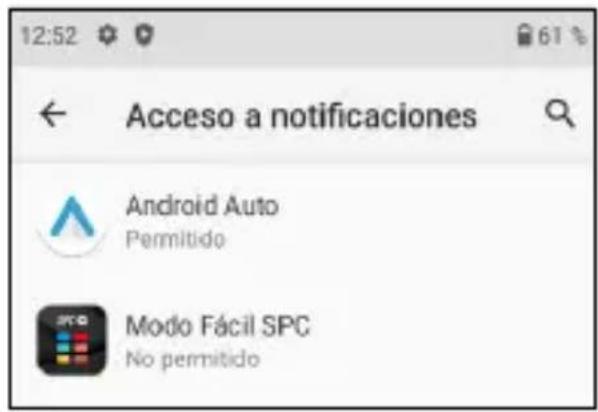
Since it's set to Not allowed, select SPC Easy Mode to enable it:
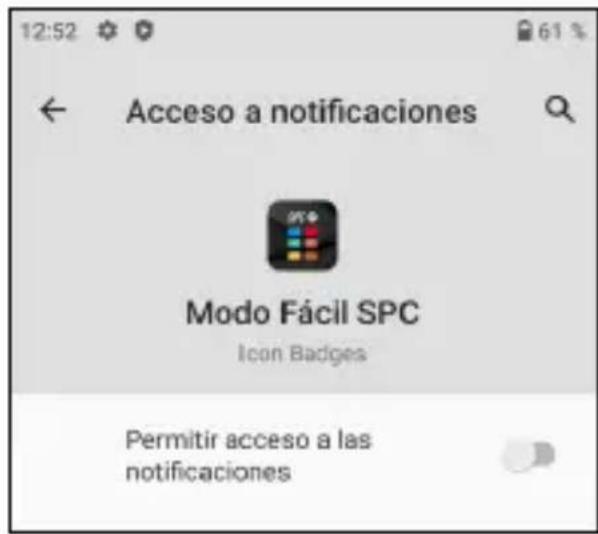
Press to toggle the switch to enabled, an informational message appears:
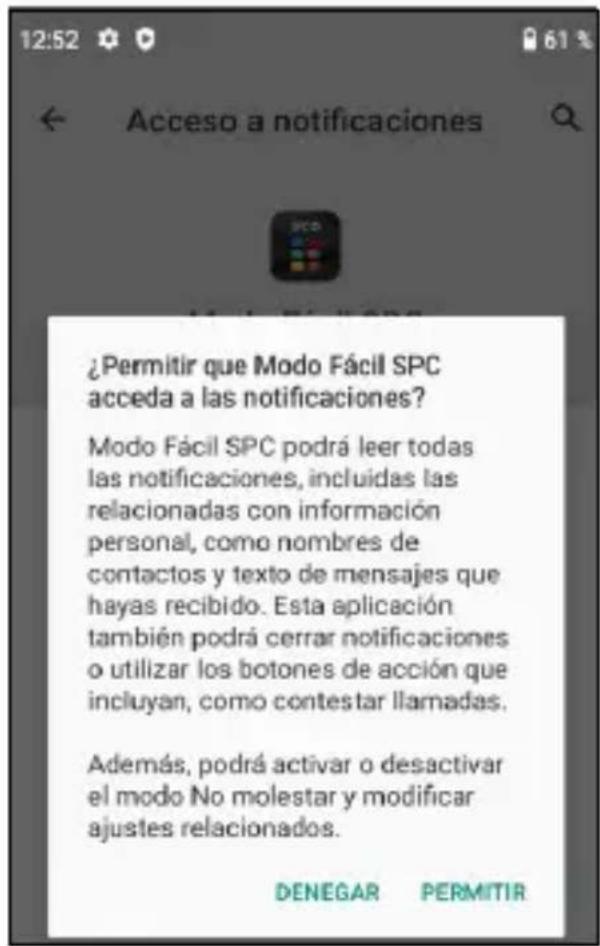
Click on ALLOW, the application now appears enabled:
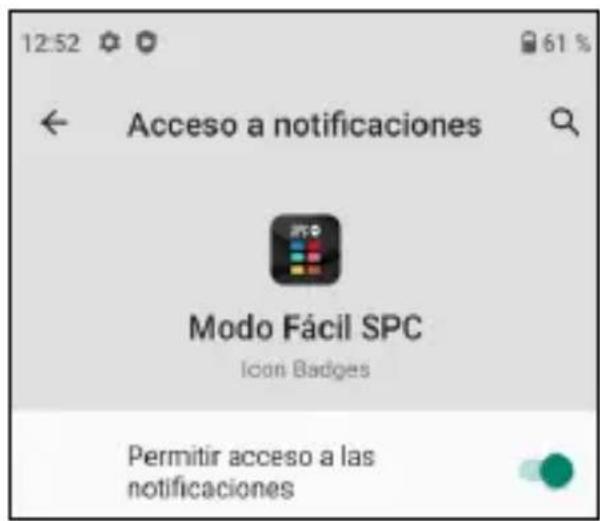
Notifications are now allowed, go back by pressing the back arrow on the screen or on the Back key on the key -board
The Easy Mode is already selected by default and working.
2.2 MAIN SCREEN AND APPLICATIONS
This is the main Easy Mode screen:
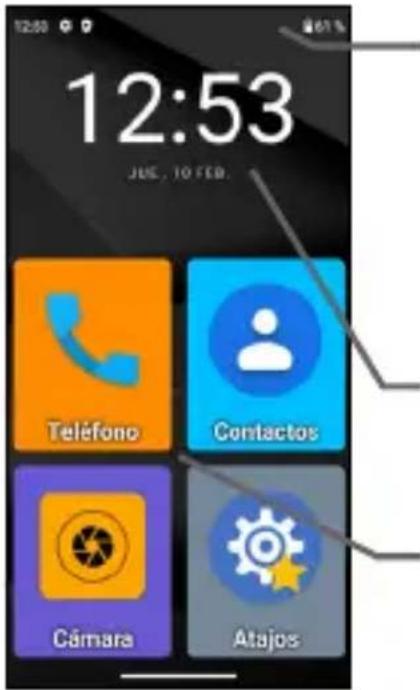
At the top is the Status Bar. It is similar to Android Normal Mode and contains generic telephone status information: connections and battery.
Next is the informative date and timescreen.
Below, the shortcuts to applications.
This is the desktop or main screen. There are other screens to the left and right, and they are accessed by sliding your finger across the screen to the left or right, like turning a page.
On the left is the Contacts screen:
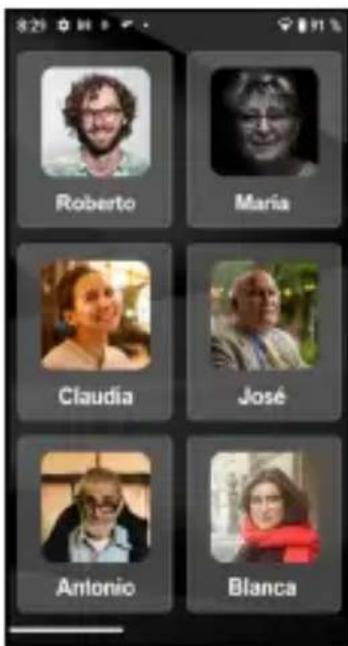
On the right is the second page of applications:
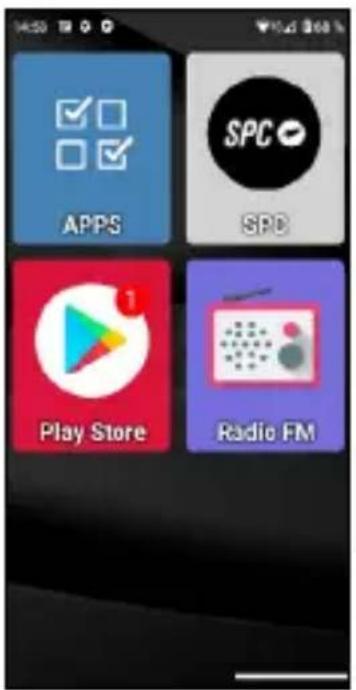
We can add more screens to the right as we add applications to the desktop.
By default, the most used applications appear on the desktop: Telephone, Contacts, Camera, Shortcuts, APPS, SPC, Play Store and FM Radio.
One of them, APPS (Applications), is the one that manages which applications of all of them will appear with an icon on the desktop in Easy Mode. It has this icon:
It opens by clicking once on its icon. This screen appears:
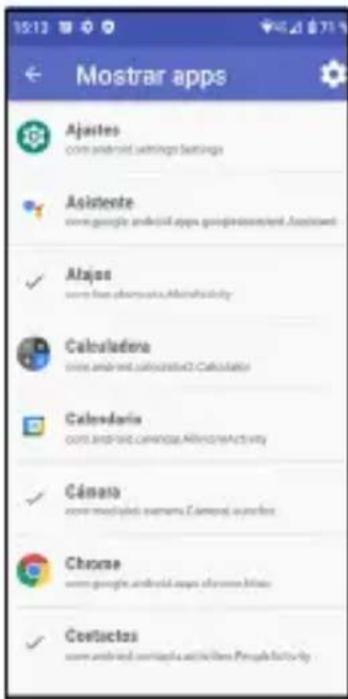
In the list you can see all the applications available on the telephone, whether pre-installed and installed later. By clicking on each of them you can select or deselect them. The selected ones appear with a sign and will be the ones that later appear with their icon on the desktop in Easy Mode.
You can exit APPS by pressing the back arrow on the screen or on the Back key on the keyboard
2.3 MOVE APPLICATIONS AROUND AND PLACE APPLICATIONS ON THE HOME SCREEN
By default, the main and secondary pages show the applications in a predetermined order. You can change this order to your liking.
When you install a new application from the Play Store, the new application will automatically be added to the first free slot on the Easy Mode desktop.
To move one of the icons, lightly hold your finger on the icon
and move it to a free position:
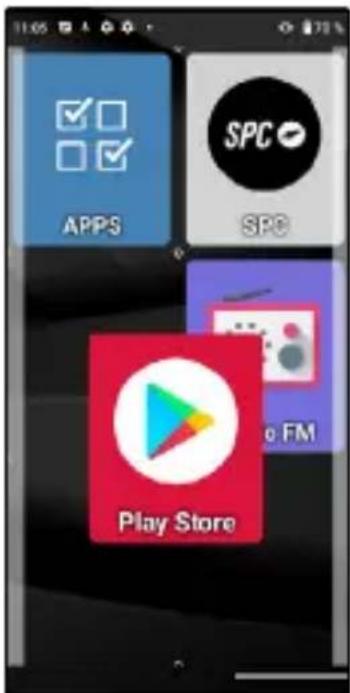
If you want to move one of the icons to the main screen, you must first move one of them to another screen to make room available.
If you move the icon on top of another, a group will be created, an icon that will contain the applications that you have moved to it:
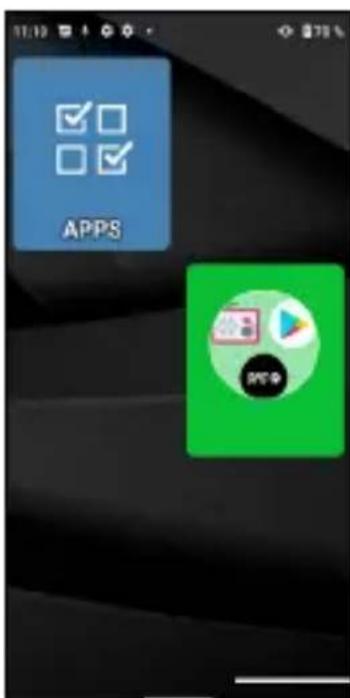
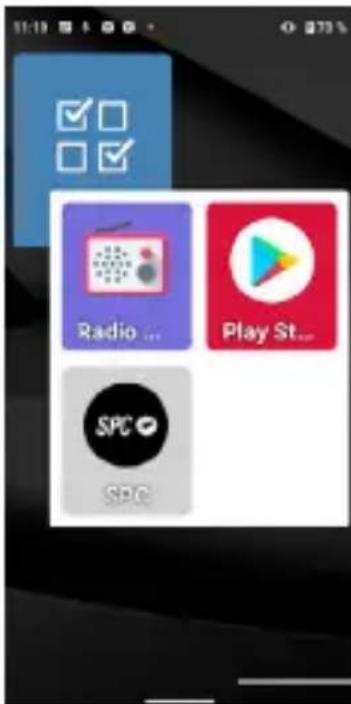
Clicking on the group, the applications it contains will be displayed and you can select the one you want to open:
To remove an application from the group, tap on it, select the application with your finger and move it out of the group to an available slot.
2.4 FAVOURITE CONTACTS: WHERE THEY ARE, HOW TO CREATE THEM AND HOW TO PUT A PHOTO ON THEM
On the left screen ( swipe right) the contacts screen is found. On this screen you can define up to six favourite contacts that you can easily access. Initially, out of the box the contacts screen looks like this:
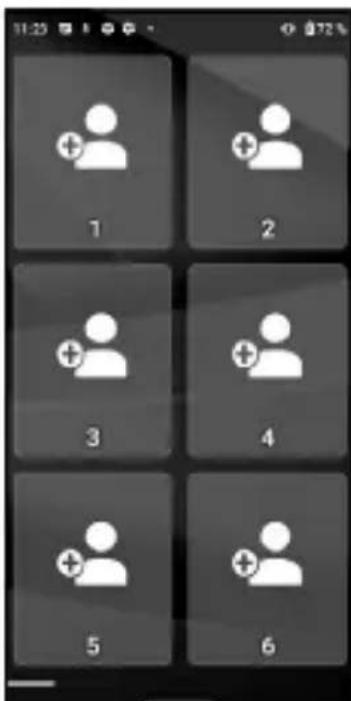
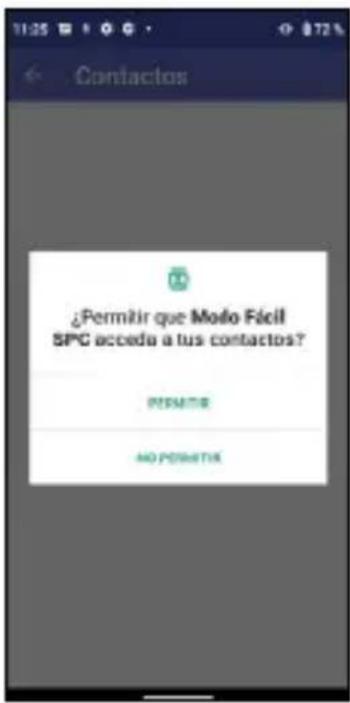
To add a contact, click on one of the empty boxes. A notification appears to grant access permission to telephone's contacts, select ALLOW:
The telephone's Contacts application will then open:
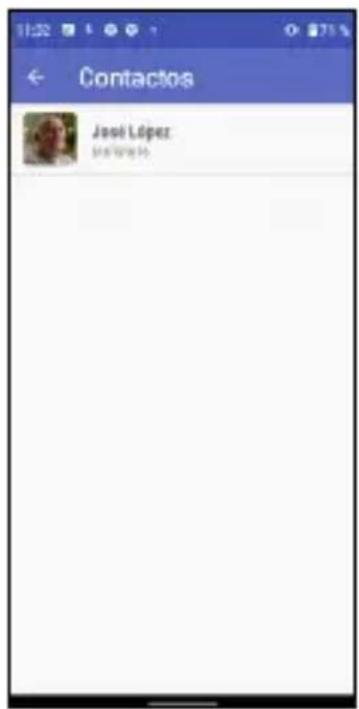
Click on the contact to be added. The contact is added to the contacts screen:
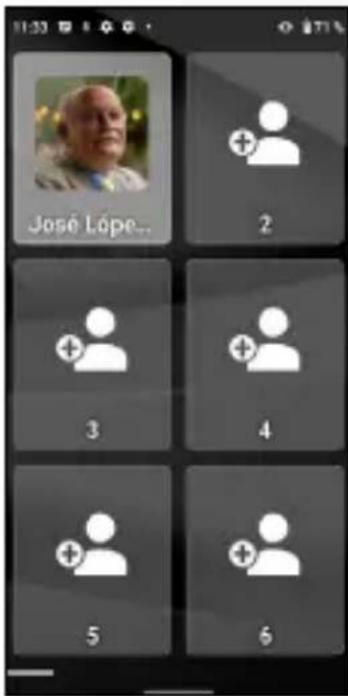
If the contact has a photo, it will appear on this screen. If you don't have one, you can add it from the Contacts application by editing the corresponding contact.
You can add contacts as described. Once configured, clicking on one of them opens the corresponding contact, allowing you to make a telephone call or send an SMS text message:
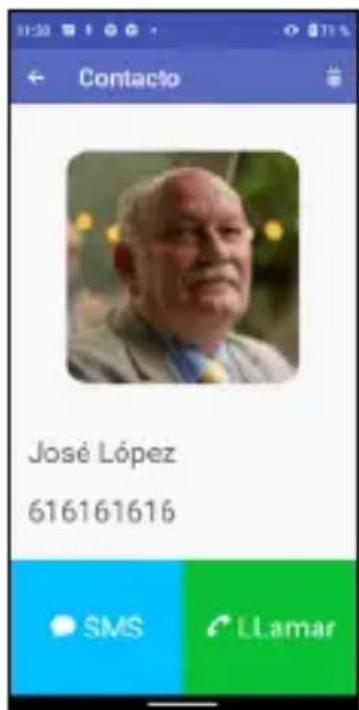
NOTE: To add a favourite contact, the number must be previously saved in the Contacts application.
3. SHORTCUTS APPLICATION
3.1 LIST OF SETTINGS AVAILABLE IN THIS APP
The Shortcuts application is a utility that allows you to make quick device setting changes. It has this icon:

It opens by clicking once on its icon. This screen appears:
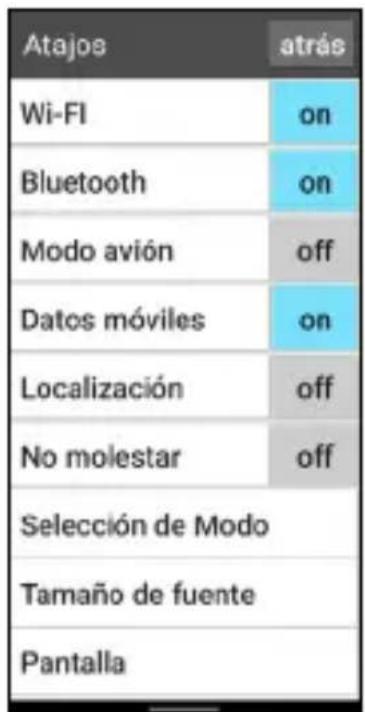
On the left are the different elements to adjust, and on the right their ON (activated) or OFF (deactivated) status. By briefly pressing on that area we can activate or deactivate the corresponding function. The colour changes to blue when activated.
By clicking on the text of the function itself, we access all of its settings.
These functions are:
- Wi-Fi: Wi-Fi wireless network settings.
- Bluetooth.
- Flight mode: In "on" it disables the radio connections of the device.
- Mobile data.
- Location.
- Do Not Disturb: Turn off telephone sounds.
Mode Selection: to change the telephone launcher.
- Font size.
- Screen.
- SOS: Emergency function.
- Smart help: "Smart Help" functions.
- Audio profiles.
- Alarm.
- Settings: All advanced settings.
You can exit Shortcuts by pressing the back arrow on the screen or on the Back key on the keyboard
4. PHYSICAL KEYS
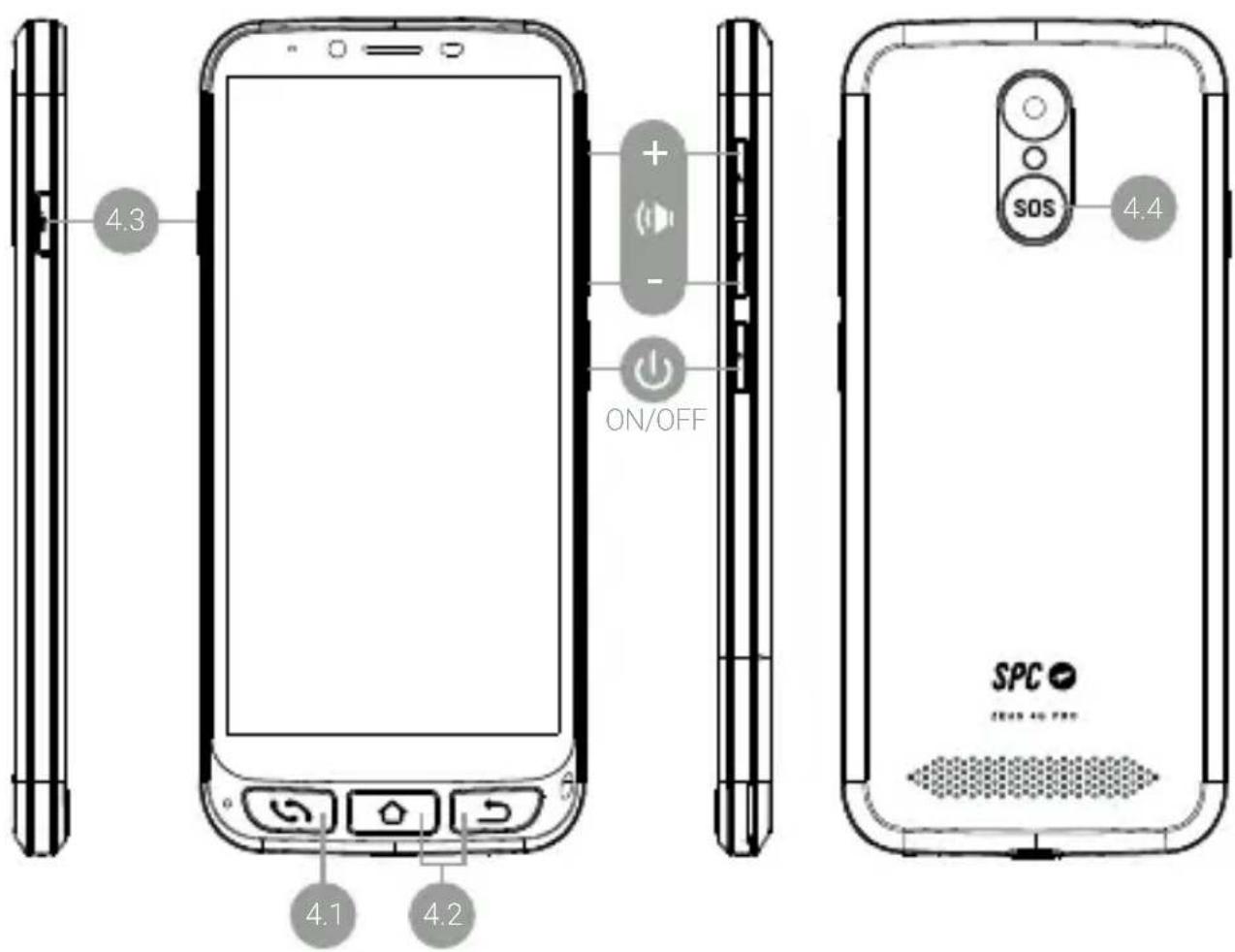
It is located at the bottom left. It is a single button with double functionality of picking up calls (green) and hanging up calls (red). Its functions in detail are:
- With the telephone turned on, pressing directly opens the Telephone application. Here you can enter a telephone number, select a contact to call or access call history.
- Within the Telephone application, if there is a contact open, you have entered a telephone number or selected one of the numbers from the history, the telephone dials.
- When receiving a call, pressing this button answers the call.
- During a conversation, this button hangs up the ongoing call.
They are located at the bottom right. They have the same functionality as the two buttons located on the screen at the bottom left, but they have the advantage of being more accessible and more manageable:

- The Home button allows you to return to the main screen or desktop.
- The Back button allows you to return to the previous screen.
It is located on the left side of the telephone. You must keep the button pressed to activate the flashlight. To turn it off, you must press and hold it in the same way.
It is located on the back of the telephone. The SOS function is explained in the next section.
5. SOS FUNCTION
5.1 WHAT IS IT AND HOW DOES IT WORK?
The SOS (emergency) function is a security function consisting of a button that can be operated in an emergency, which automatically generates emergency calls and messages to pre-established telephone numbers.
You can configure different emergency numbers (for example, of close relatives), up to a maximum of 3. If you have a problem, just by pressing the SOS button, calls will be made to these numbers sequentially and for three cycles, until one of the contacts answers.
- From Easy Mode, go to Shortcuts, and then swipe down to see and access the SOS option:
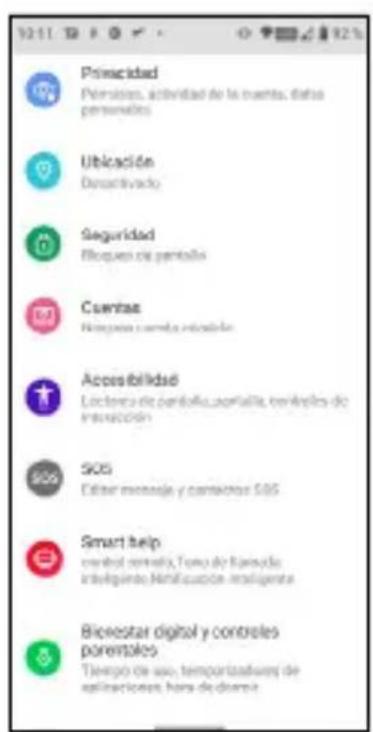
From Normal Mode, go to Settings, and then to SOS:
- By pressing the SOS button, if the SOS function is not configured, you directly access the configuration menu.
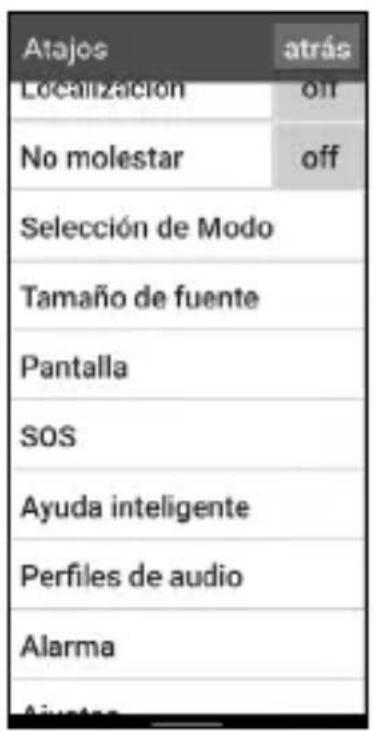
MODO NORMALMODO FÁCIL

In any of the above cases, the SOS configuration menu is accessed:
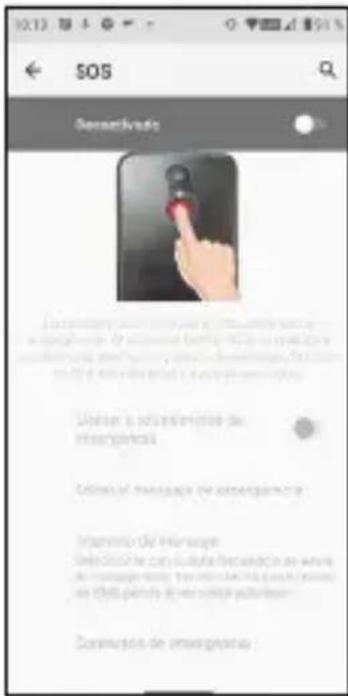
By default, it is disabled. Click on the switch to activate it:
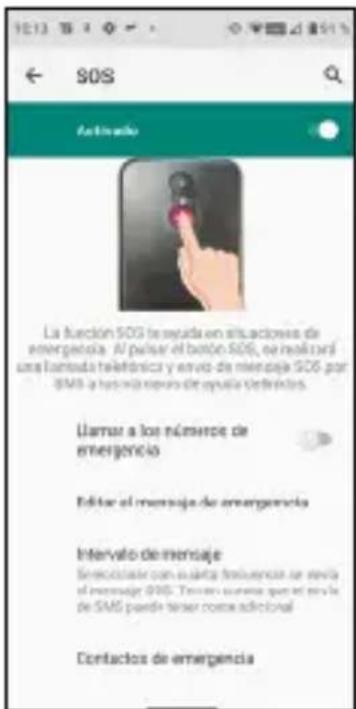
If you want SOS to make telephone calls, not just send SMS messages, you must activate the Call emergency numbers button:

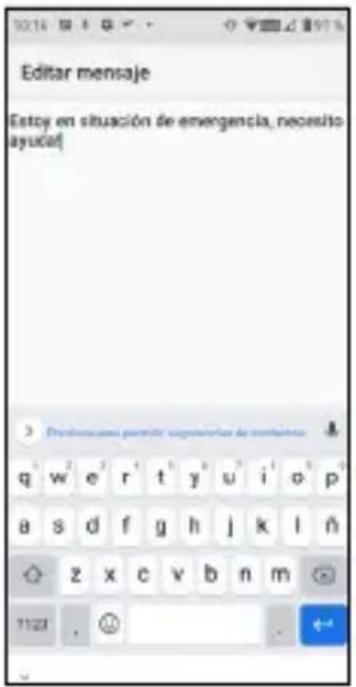
Click on Edit message to modify the SMS message:
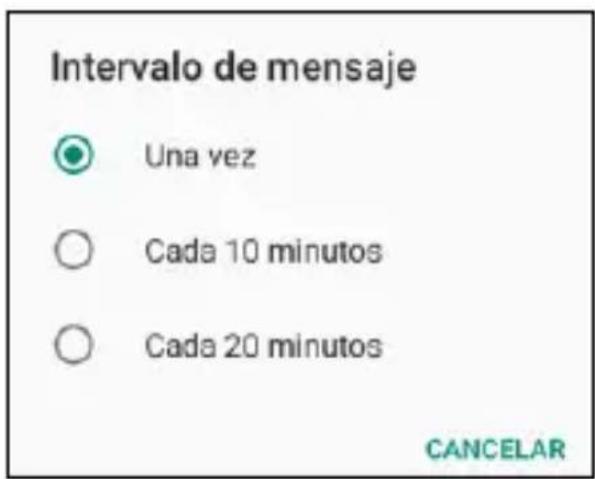
You can also define the SMS message interval, by default it is Once, but you can change it:
Finally, you must configure the emergency contacts by clicking on that option:
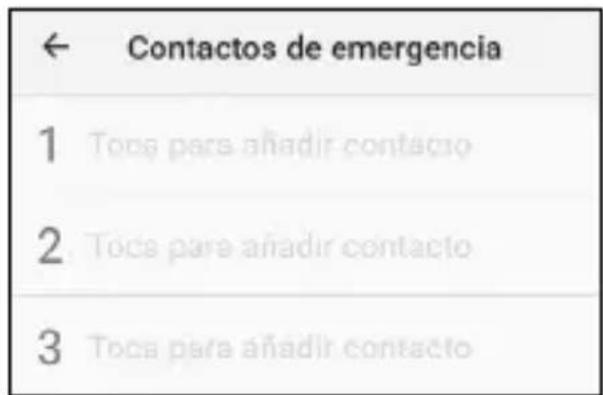
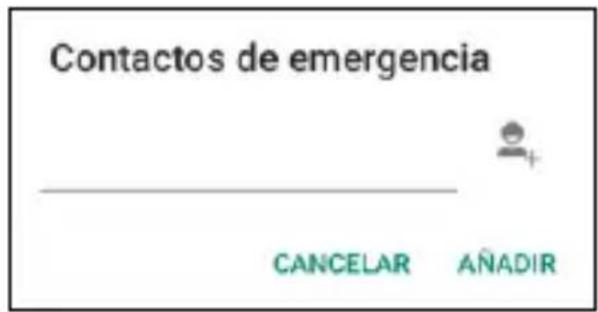
Tap on each of the three to set the number, enter it and select ADD:
As SOS calls sequentially, it is convenient to put first the telephone that you consider the highest priority (for example, the next of kin) and then the others in order of priority.
It is not necessary to enter three numbers, you can enter two or one. The SOS process will work in the same way as described above whether there are one, two or three contacts entered. For example, if you only set up one number, a cycle of three calls will be made to that number until you answer or the three cycles end.
If configured and activated, pressing the SOS button for a few seconds activates the emergency sequence. This sequence consists of:
- An alarm siren sounds through the loudspeaker.
- The telephone automatically sends an SMS message with help text and mobile location information to the first emergency telephone number, and makes a hands-free phone call.
- If the first phone number answers the call, hands-free communication is successfully established and the SOS process ends.
- If the first number doesn't answer the call, the telephone
sends the text message and makes the call to the second of the numbers.
- If the second number doesn't answer the call, the telephone sends the text message and makes the call to the third of the numbers.
- If the third number does not answer the call, the message is sent again and the first number is called, starting a second cycle of SOS calls.
- If during the second cycle of calls to the three numbers no one answers, a third cycle of messages and calls is initiated. Afterwards, the SOS process ends.
NOTE: If during the call the voice mail answers, the telephone will consider the call answered and the SOS process ends.
NOTE: SMS may increase the monthly bill depending on the type of contract you have with your operator.
If the SOS function is not configured, pressing the SOS button directly accesses the configuration menu for this function.
5.4 HOW TO STOP THE CALL IN CASE OF ERROR?
If the SOS button is pressed by mistake while the function is activated, the call sequence can be cancelled by pressing the end call button:

6. SMART HELP
Smart Help is a set of smart help features that allow ZEUS 4G and ZEUS 4G PRO users to use this smartphone with peace of mind and help their trusted contacts take care of them even when they are away. For this, Smart Help allows you to remotely configure ZEUS 4G and ZEUS 4G PRO from another telephone, send notifications from ZEUS 4G and ZEUS 4G PRO to another telephone and activate the ringer of ZEUS 4G and ZEUS 4G PRO to maximum in case of unanswered calls. The following section describes each of these functions.
To configure these features:
- From Easy Mode, go to Shortcuts, and then swipe down to see and access the SOS option:
- From Normal Mode, access Settings, and then Smart Help:
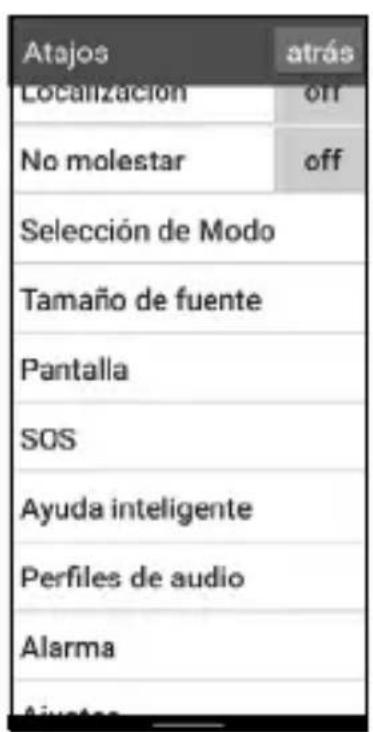
NORMAL MODEEASY MODE
In both cases, the configuration menu for these functions is accessed:
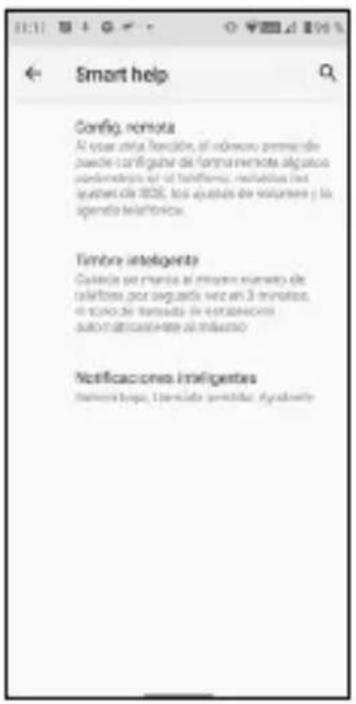
6.1 REMOTE SETUP
This function allows you to configure some of the ZEUS 4G/ ZEUS 4G PRO settings from another telephone and remotely, just by sending predefined codes via SMS to ZEUS 4G/ZEUS 4G PRO.
To do this you must activate the function and set the Allowed Numbers that can send these messages:
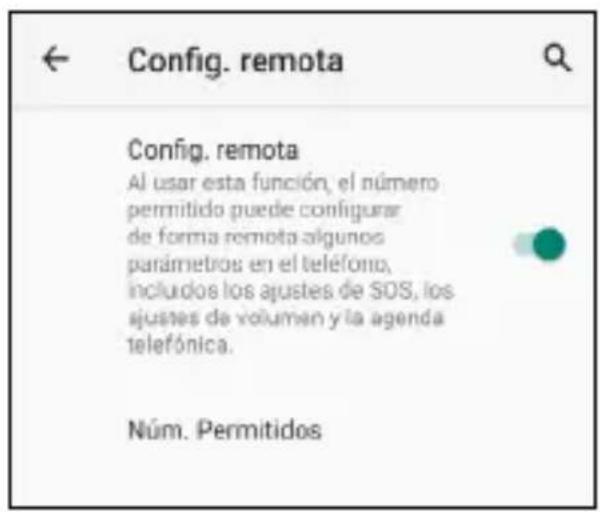
Clicking on Num. Allowed up to 5 numbers are defined:
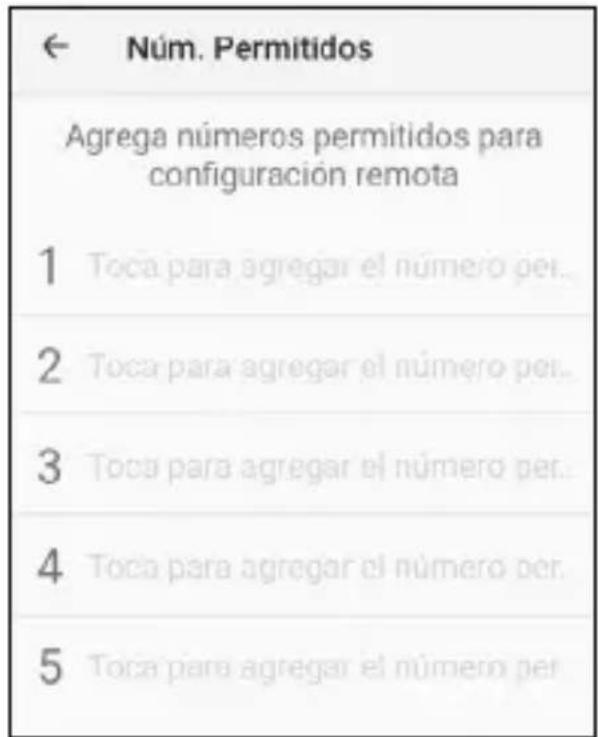
Once configured, allowed phones can send predefined SMS text messages to the ZEUS 4G/ ZEUS 4G PRO to change certain settings. These messages are:
SOS settings:
- Activate/deactivate the SOS function:
*SOS#1# ACTIVATE SOS
*SOS#0# DISABLE SOS
*SOS#2#1#111111111
Set the number 1 SOS to 111111111
*SOS#2#2#222222222
Set the number 2 SOS to 222222222
*SOS#2#3#33333333
Set the ringer volume to maximum:
*VOL#MAX
Set the ringer volume to maximum
6.2 SMART NOTIFICATIONS
Smart notifications are SMS text messages sent by ZEUS 4G/ ZEUS 4G PRO to a helper telephone. These notifications tell the receiver that something has happened to be aware of on the ZEUS 4G/ ZEUS 4G PRO: the battery is low (less than 15% ) or there has been a missed call.
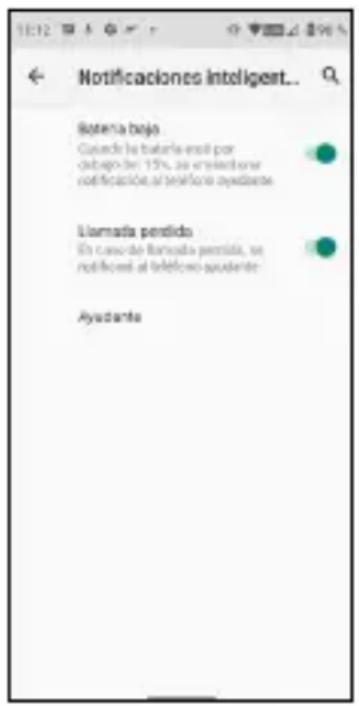
Click on the functionality you want to activate or deactivate.
The helper telephone is the one that will receive the notifications.
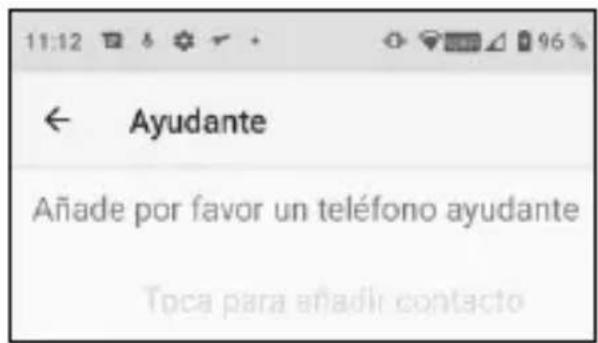
By clicking on it the following menu appears:
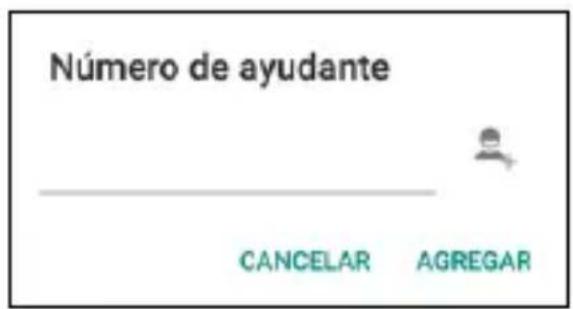
Enter the number and confirm by pressing ADD or click on the person's icon to select a number from your contact list.
6.3 SMART RINGER
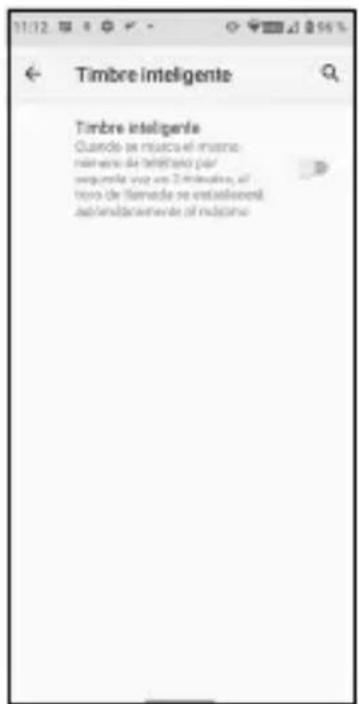
This feature raises the ringer of a call to the maximum automatically if, after a missed call, the same number calls again in less than 3 minutes. This option is very helpful for those who need a loud ringer level to hear an incoming call.
Click on the switch to activate or deactivate the functionality.
7. BASE AND CHARGING
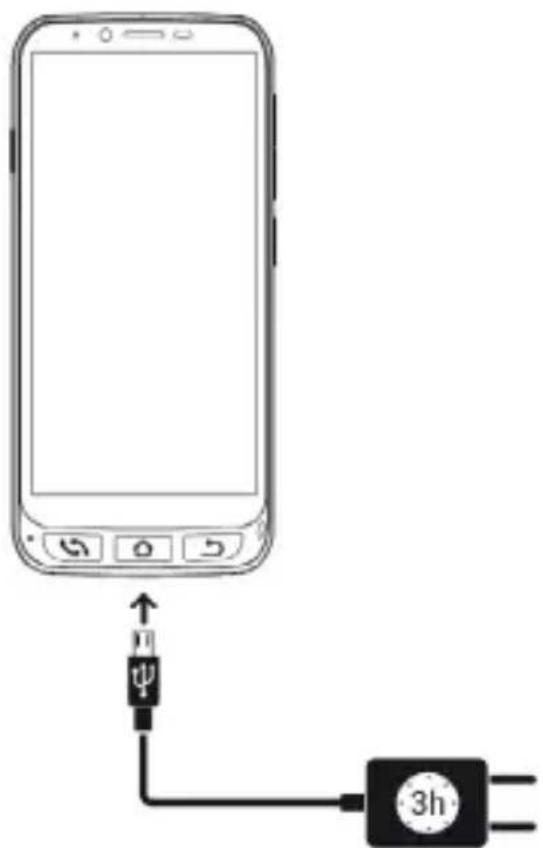
The ZEUS 4G/ ZEUS 4G PRO has a USB Type-C port at the bottom for charging and data transfer.
To charge the terminal, connect the cable to the USB C connector of the telephone.
7.1 LED LIGHT
During charging, a white light comes on the front of the telephone indicating that charging is in progress. When charging is complete, this light turns off.
7.2 CHARGING BASE (ZEUS 4G PRO)
The ZEUS 4G PRO, in addition to the charging mode described above, has a charging base that facilitates this operation:
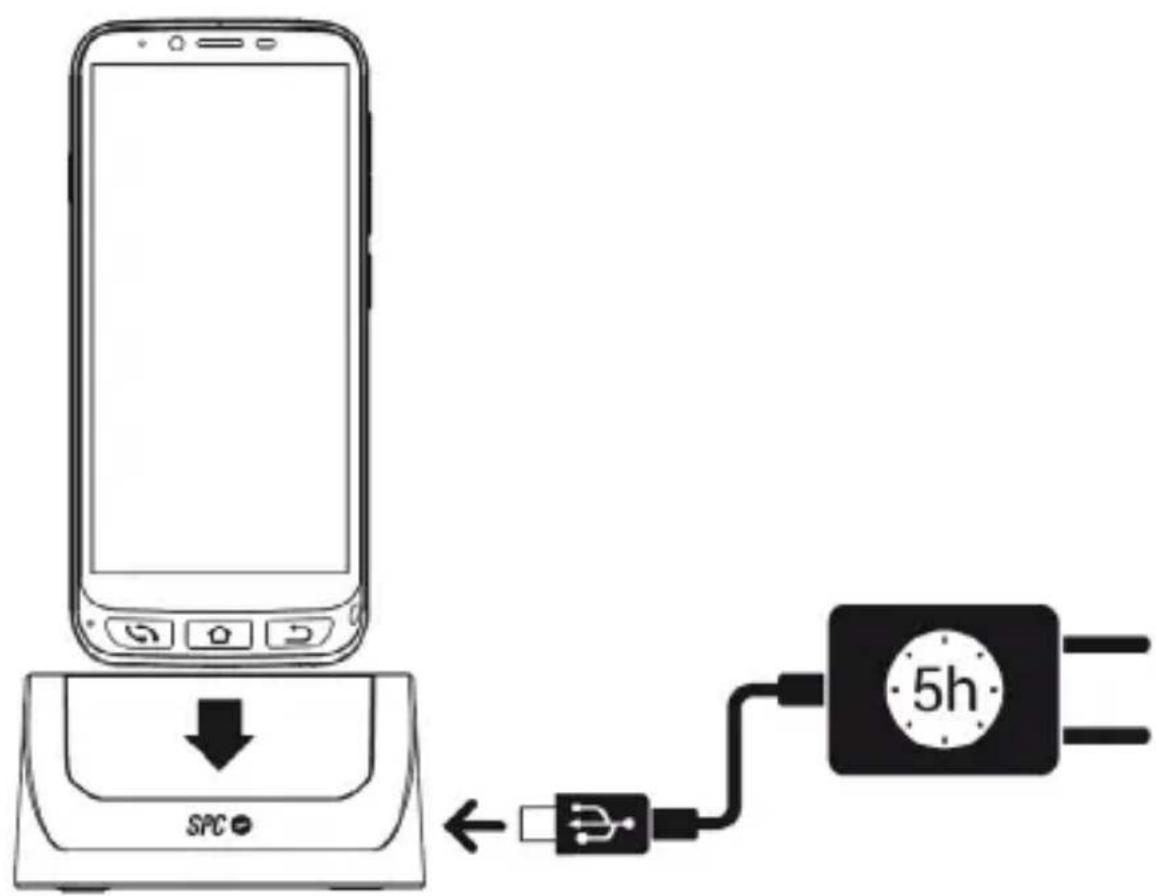
You must connect the cable to the charging base.
INDICE
- Ligar o telephoneILA primaira vez 68
2.2 ÉCRAN PRINCIPAL ET APPLICATIONS
3. APPLICATION RACCOURCIS
3.1 LIST DES PARAMÉTRES DISPONIBLES DANS CETTE APPLICATION