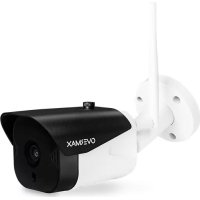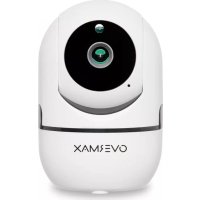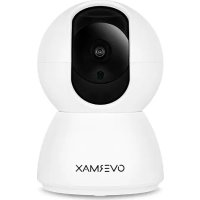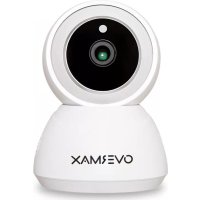
Camspot 3.7 - Surveillance Camera Overmax - Free user manual and instructions
Find the device manual for free Camspot 3.7 Overmax in PDF.


| Product type | Surveillance camera |
| Brand | Overmax |
| Model | Camspot 3.7 |
| Night vision | Yes, integrated twilight sensor |
| Two-way audio | Yes (microphone and speaker) |
| Wi-Fi connectivity | 2.4 GHz (does not support 5 GHz) |
| Wired connectivity | RJ-45 Ethernet port |
| Power supply | Power adapter (plug as disconnection device) |
| Local storage | microSD card (FAT32 format, class 10 minimum, continuous recording) |
| Cloud storage | Via Overmax Control / Tuya Smart app |
| Mobile app | Overmax Control (iOS and Android), compatible with Tuya Smart |
| Motion detection | Yes, with phone notifications |
| Operating temperature | -10 °C to +50 °C |
| Reset | Reset button on the device |
| Setup | QR code scan via the app |
| Remote viewing | Mobile app or web browser (https://ipc-eu.ismartlife.me/login) |
| Advanced functions | Screenshot, recording, volume control, video playback |
| Network compatibility | 2.4 GHz Wi-Fi router, password without special characters recommended |
Frequently Asked Questions - Camspot 3.7 Overmax
User questions about Camspot 3.7 Overmax
0 question about this device. Answer the ones you know or ask your own.
Ask a new question about this device
Download the instructions for your Surveillance Camera in PDF format for free! Find your manual Camspot 3.7 - Overmax and take your electronic device back in hand. On this page are published all the documents necessary for the use of your device. Camspot 3.7 by Overmax.
USER MANUAL Camspot 3.7 Overmax
OVERMAX
CE
EN: The product complies with requirements of EU directives.
Pursuant to the Directive 2012/19/EU, this product is subject to selective collection. The product must not be disposed of along with domestic waste as it may pose a threat to the environment and human health. The worn-out product must be handed over to the electrics and electronics recycling center.
Tuya Smart app Overmax Control app

2


Note: We are not satisfied, but we have a psychological problem. There is no effect on the outcome of
4
5

6
6

Screenshot
7

Speak
8

Record
9

Schwarzania
10

Cloud storage
11

Direction
Wprowadzenie
PL
Drogi Kliencie!
Thank you for placing trust in us and choosing Overmax.
Thanks to high-quality materials and modern solutions, we provide you with a product perfect for everyday use. We are convinced that the product will satisfy your requirements as it has been manufactured with utmost care. Before you use the product, please read this manual carefully.
Should you have any remarks or questions concerning the product, please do not hesitate to contact us: pomoctechniczna@overmax.pl
Attention! Plug on the power supply cord is used as the disconnect device - during installation, ensure that the socket-outlet is easily accessible.
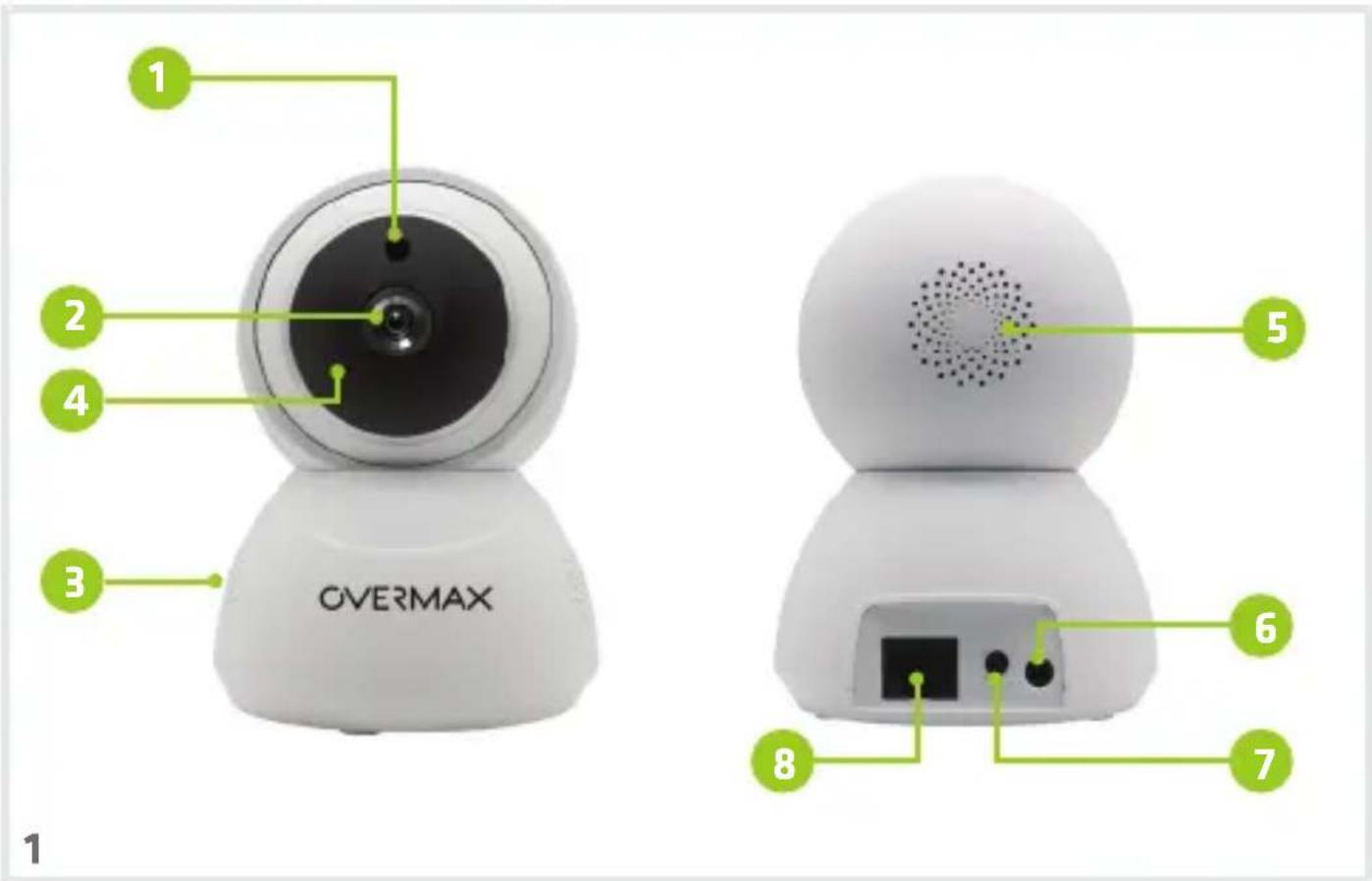
Description (see fig. 1)
- Dusk detector
- Lens
- Loudspeaker
-
Microphone
-
Loudspeaker
- Power port (or power supply)
- Reset
- RJ-45 port
1. Download through application (see fig. 2)
Search “Overmax Control” application in iOS Store / Google Play or scan QR code and download the application. You can download it for iOS and Android. The device works also with the Tuya Smart app.
2. Register new user (see fig. 3 and 4)
- To register in the application, click „register” and then read and accept the Privacy Policy.
• Enter your phone number or e-mail address to receive the verification code. - Enter the verification code in the empty field.
- Enter your private password and click „finish”.
3. Log into account (see fig. 4)
- To log into your account, click „login through existing account”.
- Select your Country/Region.
• Enter correct phone number or e-mail address and password, and then log in.
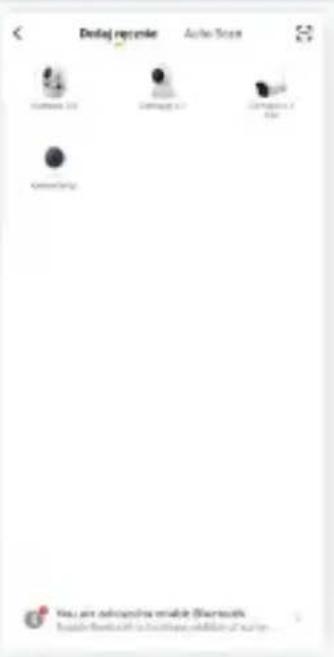
4. Add device manually (see fig. 5)
The product supports Wi-Fi 2.4 GHz network only, it does not support Wi-Fi 5 GHz. Before you configure Wi-Fi, set router parameters. Wi-Fi password must not include special characters.
• Make sure the router and camera are close to each other to allow fast
configuration of the device.
- Connect the mobile device to local Wi-Fi network which the camera will be connected to, next click „My home”. Click the field called „Add device” and „Add manually”, and then select and click „Camspot 3.7”.
- Moving on, enter the correct name of the network and Wi-Fi password.
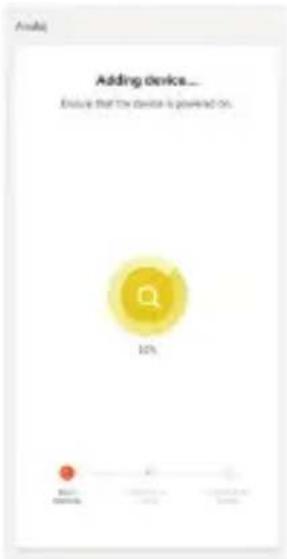
5. Scan camera with QR code (see fig. 6)
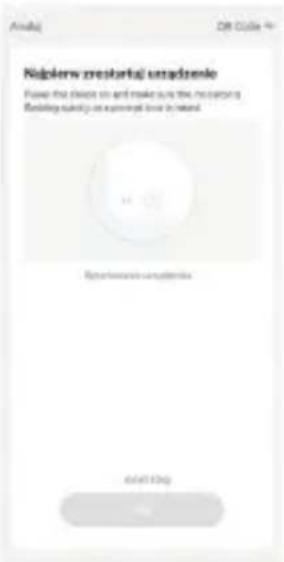
- Reset the camera by clicking „Reset” (7, fig. 1) to restore factory settings. Select next step and move on.
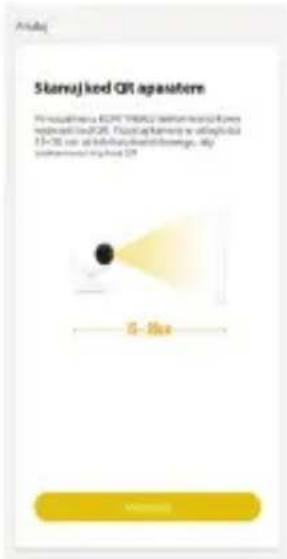
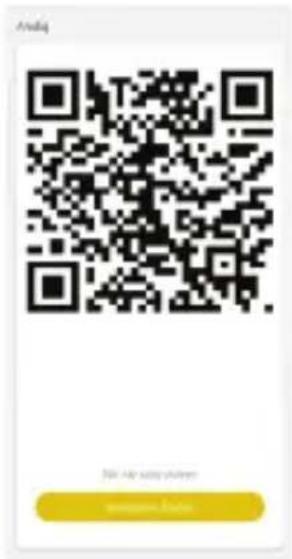
• To pair the camera, scan QR code from the mobile screen through the camera lens, keep it at a distance of 15-20 cm. Try not to shake the mobile phone when scanning. - When you can hear a „sound“, click „I heard a sound“. Wait until the device completes configuration.
- After adding the device, click „finish“ to finish adding the device.
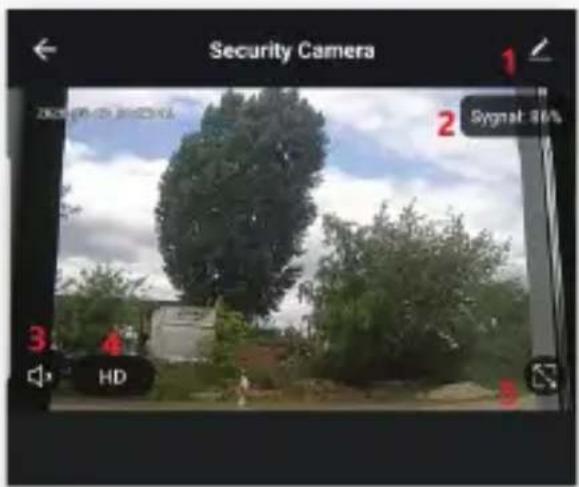
6. Description of mobile application functions (see fig. 7)
Real-time preview interface.
- Settings and management
- Wi-Fi signal strength
- Volume
- SD/HD
- Full screen
- Screenshot
- Microphone
- Record
- Play video
- Cloud
- Control
To have access to camera image preview through online browser, run „Overmax Control” application, click add a device, then scan QR code displayed in your PC browser.
Live camera preview available on: https://ipc-eu.ismartlife.me/login
7. Record saving
Videos recorded on the memory card must at first be saved in the mobile device memory through OverMax Control application. Data on the card are encoded so if you fail to save them in the device memory, you will not be able to read them afterwards.
8. Troubleshooting
| Question Answer | |
| Why cannot I add any device when pairing the network? | Make sure the phone and camera have been connected to router 2.4 GHz and Wi-Fi password is correct. |
| What to do if I still cannot add a device after another scanning? | Reset or switch the camera off and try again. |
| Why can’t the device display a preview? | Check Wi-Fi signal. You can place the camera near the router. If this does not help, reset the device and try again. |
| Why is the device still on the list after resetting the device? | „Reset device” option resets camera network configuration only and cannot change configuration in the application. You have to log in the application to delete camera from the list. |
| How to connect the camera to other router? | At first log in the application to delete and reset the device, and then re-configure the device through the application. |
| Why can’t the camera identify SD card? | The SD card must be removed from the device when it is switched off, otherwise damage to the memory card and/or the camera motherboard may result.The process of inserting or removing the card should be done when the camera is disconnected from the power source.Check if SD card works properly and if it is in FAT32 format. The application will suggest „cannot find SD card” if the device or mobile phone network are unstable.Recommended Internet connection value:download: 16 mbpsupload: 16 mbpsThe memory card must be a minimum of Class 10 and be suitable for continuous recording. |
| The device is in online mode and has emergency event but the phone does not receive notifications. | At first confirm the application allows notifications in your phone settings. In normal circumstances, after detecting irregularities, the phone notification bar shows a message. In phone please set the notification sound or vibrations.Additionally, when watching a video in application in real time, camera alarm will not set off. By default the device detects that the user focuses on the video image and there is not need to alarm. |
Note: Temperature fluctuations can cause water to condense in the device.
Device operating temperature: from - 10°C to + 50°C
The figures are for information purposes only. The real design of products may differ from the pictures presented.
Einführung
Real-time preview interface.