secuENTRY 5670 - Smart Home Burg Wächter - Free user manual and instructions
Find the device manual for free secuENTRY 5670 Burg Wächter in PDF.



| Product Type | Connection bridge for secuENTRY cylinder |
| Brand | Burg Wächter |
| Model | secuENTRY 5670 |
| Power supply | USB-C (5V, 1A) via power adapter not included; 2m USB-C/type A cable provided |
| Connectivity | Wi-Fi 2.4 GHz for cloud connection; Bluetooth for firmware updates |
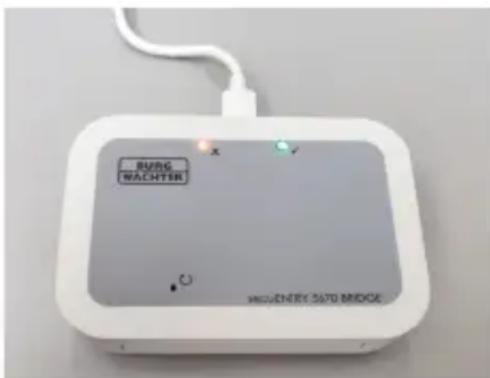
| LED indicators | Flashing green (learning mode), solid green (Wi-Fi connection), red (Wi-Fi connection without Internet) |
| QR code | Unique to each device, required for firmware updates; keep safe |
| Compatible app | secuENTRY KeyApp (check smartphone compatibility at burg.biz) |
| Main functions | Remote administration of secuENTRY cylinders, remote unlocking, creation of temporary access codes, transmission of configuration files |
| Firmware update | Via Bluetooth; hold the reset button while reconnecting USB, then use the KeyApp |
| Maintenance and cleaning | Disconnect power in case of malfunction; do not dispose of with household waste; recycle at a waste disposal site |
| Safety | CE declaration of conformity; data transmitted via secure Burg-Wächter Bridge Cloud |
| Warranty | Return to dealer with proof of purchase and QR code |
| Network compatibility | Wi-Fi 2.4 GHz only; smartphone and bridge must be on the same network |
| Weight | Approx. 50 g (estimate) |
| Dimensions | Approx. 80 x 80 x 25 mm (estimate) |
Frequently Asked Questions - secuENTRY 5670 Burg Wächter
User questions about secuENTRY 5670 Burg Wächter
0 question about this device. Answer the ones you know or ask your own.
Ask a new question about this device
Download the instructions for your Smart Home in PDF format for free! Find your manual secuENTRY 5670 - Burg Wächter and take your electronic device back in hand. On this page are published all the documents necessary for the use of your device. secuENTRY 5670 by Burg Wächter.
USER MANUAL secuENTRY 5670 Burg Wächter
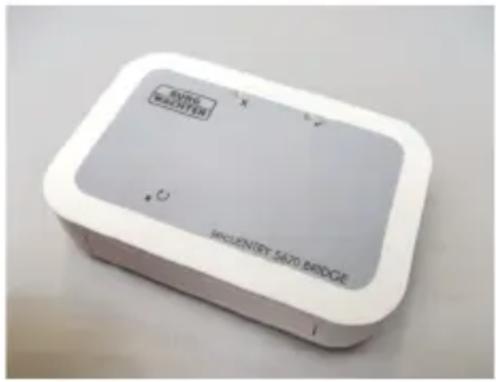
The secuENTRY 5670 BRIDGE gives you the ability to manage secuENTRY cylinders from afar using the secuENTRY KeyApp* combined with an internet connection. This includes transmitting configuration files, remote opening and creating temporary access codes.
- Please check at: www.burg.biz/secuentry/description to see whether your smartphone is compatible with the app.
QR code
Each secuENTRY 5670 BRIDGE has an enclosed QR code. This QR code is needed for perform firmware updates.
Attention! If the QR code is lost, a firmware update of the secuENTRY 5670 BRIDGE is no longer possible. Please take care to save the QR code!
Tip: The QR code can also be scanned in electronic form or saved as a photo on a secured data carrier.
Initial setup
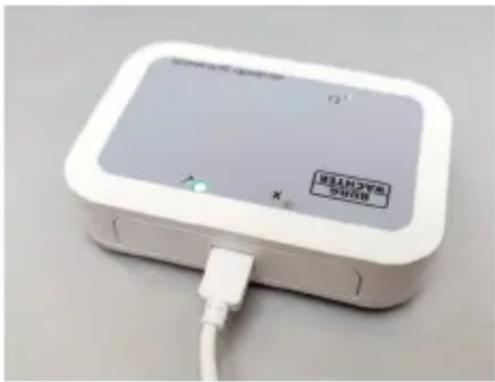
Connect the secuENTRY 5670 BRIDGE to a 5V USB power adapter (not included) using the enclosed 2m USB type C to type A cable; the power adapter should supply a minimum of 1A to run the device.
- Place the device no more than two meters away from your lock.
- Plug the power adapter into the socket.
-
The green LED on the secuENTRY 5670 BRIDGE will flash every two seconds.
-
If this does not happen, use a thin object to hold the reset button for five seconds until the green LED flashes.
-
The flashing signifies that the device is in learning mode.
First, you need to download the secuENTRY KeyApp and create a Burg-Wächter Bridge Cloud account (please see the KeyApp instructions in sections 1 and 2 for more information on this).
- Open the App Store on your smartphone and search for "secuENTRY KeyApp" to download the app.
- Open the App and register. Select the option to create a Cloud account.
- Choose "No account yet? Create one."
- Enter a password and click "GET VERIFICATION CODE."
- You will receive an e-mail with the code at the e-mail address you entered.
- Enter this code into the app and press "REGISTER."
Now you can add your device to the KeyApp.
- Press the back button.
- Press the menu button and select "secuENTRY Bridge."
- Press "secuENTRY Bridge and Assignment."
- Add a Bridge by pressing the "+" button.
- Enter the name of the Bridge and the password for your WLAN network.
Attention: your smartphone and your Bridge must be located in the same 2.4GHz network!
- Press "CONFIGURATION."
Now your Bridge will connect to your WLAN network and your Burg-Wächter Bridge Cloud account. The various features of the secuENTRY 5670 BRIDGE are explained in detail in the KeyApp instructions.
Firmware update via Bluetooth
Firmware updates can only be installed via Bluetooth at this time.
To install an update, proceed through the following steps:
- Unplug the device's USB cable and wait ten seconds.
- Use a thin object to press the reset button and plug the USB cable back in.
- Hold down the reset button until both LEDs flash simultaneously.
- ThesecuENTRY 5670 BRIDGE is now ready to receive firmware updates for the next two minutes.
Now open the KeyApp on your smartphone.
- Press the menu button and select "firmware update."
- Choose the "secuENTRY 5670 Bridge" product series.
- Choose the "secuENTRY 5670 Bridge" product.
- Select the newest firmware update.
- Scan your device's QR code (Type: KEYPAD_FP is displayed).
- Press "OK" and then press the "START" button.
The firmware update will now be installed. Do not disconnect the device from power while the LEDs are still flashing. If only the green LED is lit, the firmware update has successfully completed; however, if the red LED lights up for three seconds, this means the firmware update has failed.
FAQ and repeated setup
No LEDs on the device light up:
If your device is switched on after the initial setup and neither the green nor red LEDs are lighting up, this means there is no connection to the WLAN network.
The red LED on the device lights up:
If the red LED is lit, this means your device is connected to your WLAN network, but is not connected to the internet.
The device does not function properly:
If this happens, switch off your device by unplugging the USB cable. Wait five seconds and then switch the device back on. If this does not help, remove your device from the KeyApp by swiping the name of your device to the left, and add it again (see KeyApp instructions, section 5.4.2).
Warranty
In order to provide you with a flawless and high-quality product and to help you in the event of service or repair, it is necessary that faulty or defective devices be presented to your dealer with the original proof of purchase and the QR code.
Disposal of the device
Dear customer,
please help us avoid unnecessary waste. Should you intend to dispose of this device at any time, please remember that many components of this device contain valuable materials that can be recycled. Please do not throw out your device with residual waste. Instead, enquire at the appropriate site for collecting electronic waste in your community.
Empty batteries may not be disposed of with household waste. Please deposit batteries at local retailers or communal recycling centres. Returning
batteries is free and required by law.
Please contact info@ burg.biz if you have questions about the EC conformity declaration.
Mode d'emploi
Printing and typographical errors as well as technical alterations reserved.