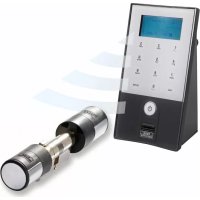
ENTRYeasy 5602 FP - Smart Home Burg Wächter - Free user manual and instructions
Find the device manual for free ENTRYeasy 5602 FP Burg Wächter in PDF.

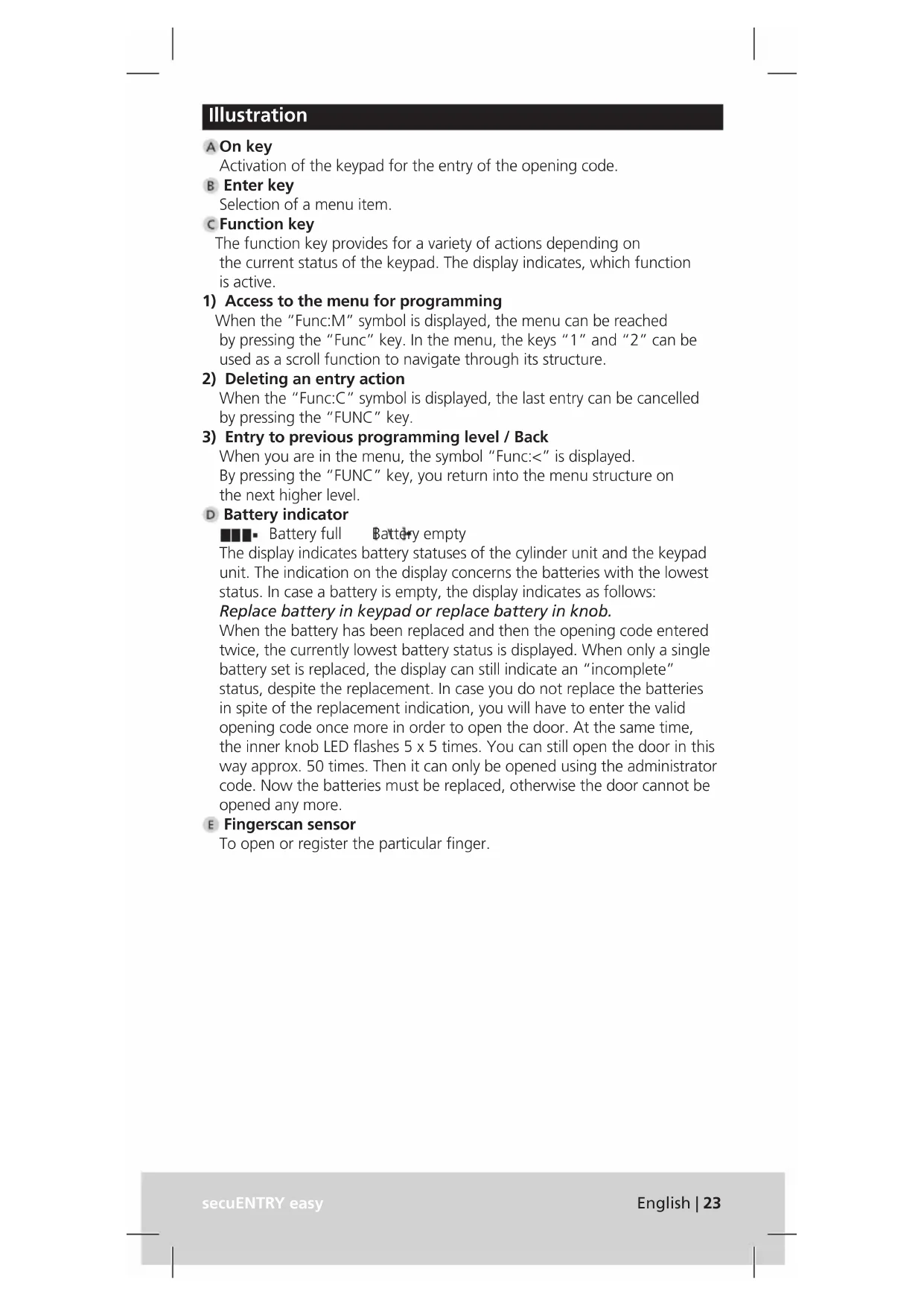


| Product type | Electronic locking system with cylinder and keypad (fingerprint version) |
| Model | ENTRYeasy 5602 FP |
| Brand | Burg Wächter |
| Category | Smart home |
| Keypad power supply | 2 LR6 AA alkaline batteries (1.5 V) |
| Cylinder power supply | 2 LR6 AA alkaline batteries (1.5 V) |
| Maximum number of users | 50 (including 24 fingerprints) |
| Opening methods | 6-digit PIN code, fingerprint, KeyApp (Bluetooth), mechanical emergency key |
| Wireless communication | Bluetooth Low Energy (2.402 - 2.483 GHz, max power 7.5 dBm) |
| Keypad protection type | IP65 (PINCODE version) / IP55 (FINGERPRINT version) |
| Cylinder protection type | IP65 |
| Operating temperature | -15°C to +50°C |
| Operating humidity | Up to 95% RH (non-condensing) |
| Compatible door thickness | Up to 118 mm (59/59 mm at screw center) |
| Display | Backlit display, adjustable in 12 languages |
| Automatic locking | No (manual opening by turning the knob) |
| Lockout after incorrect codes | 3 attempts: 1 minute, then 3 minutes per new attempt |
| Low battery indication | Screen display and flashing LED; 50 remaining openings after alert |
| Recommended cleaning | Damp cloth, no alcohol-based or harsh products |
| Package contents | Cylinder, keypad, exterior knob, covers, screws, T8 screwdriver, Allen key, QR codes, mounting plate, privacy film |
Frequently Asked Questions - ENTRYeasy 5602 FP Burg Wächter
User questions about ENTRYeasy 5602 FP Burg Wächter
0 question about this device. Answer the ones you know or ask your own.
Ask a new question about this device
Download the instructions for your Smart Home in PDF format for free! Find your manual ENTRYeasy 5602 FP - Burg Wächter and take your electronic device back in hand. On this page are published all the documents necessary for the use of your device. ENTRYeasy 5602 FP by Burg Wächter.
USER MANUAL ENTRYeasy 5602 FP Burg Wächter
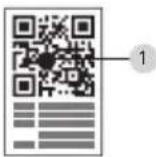
1 Keyboard (SN; MAC; AES; Type) 2 Cylinder (SN; MAC; AES; ADM)
Functions
Battery replacement secuENTRY easy keyboard
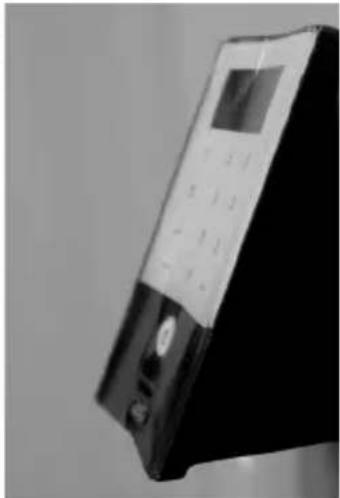
Activation of the keypad for the entry of the opening code.
B Enter key
Selection of a menu item.
c Function key
The function key provides for a variety of actions depending on the current status of the keypad. The display indicates which function is active.
1) Access to the menu for programming
When the "Func:M" symbol is displayed, the menu can be reached by pressing the "Func" key. In the menu, the keys "1" and "2" can be used as a scroll function to navigate through its structure.
2) Deleting an entry action
When the "Func:C" symbol is displayed, the last entry can be cancelled by pressing the "FUNC" key.
3) Entry to previous programming level / Back
When you are in the menu, the symbol "Func:<" is displayed.
By pressing the "FUNC" key, you return into the menu structure on the next higher level.
D Battery indicator
Battery full Battery empty
The display indicates battery statuses of the cylinder unit and the keypad unit. The indication on the display concerns the batteries with the lowest status. In case a battery is empty, the display indicates as follows:
Replace battery in keypad or replace battery in knob.
When the battery has been replaced and then the opening code entered twice, the currently lowest battery status is displayed. When only a single battery set is replaced, the display can still indicate an "incomplete" status, despite the replacement. In case you do not replace the batteries in spite of the replacement indication, you will have to enter the valid opening code once more in order to open the door. At the same time, the inner knob LED flashes 5 x 5 times. You can still open the door in this way approx. 50 times. Then it can only be opened using the administrator code. Now the batteries must be replaced, otherwise the door cannot be opened any more.
E Fingerscan sensor
To open or register the particular finger.
Dear customer,
Thank you very much for your decision for the secuENTRY electronic lock system manufactured by BURG-WÄCHTER. This system has been developed and manufactured using the latest technical potential and satisfies high security requirements.
The electronic cylinder can be used easily without any drilling in any door prepared for profile cylinder up to a door thickness of 118 mm (59 / 59, measured at the central detent bolt), and is perfectly appropriate for new installation as well as for retrofitting.
Depending on the specific system, various opening media are available. With systems containing a keypad, user administration is additionally integrated. You can find out more on the following pages.
Remove the battery protection strip from the inner knob in order to energise the cylinder.
Important: Please read the entire User Manual before you start programming. We hope you enjoy your new locking system.
General information about secuENTRY easy
secuENTRY is available in two equipment configurations:
• secuENTRY easy PINCODE • secuENTRY easy FINGERPRINT
In the set configurations secuENTRY easy PINCODE and secuENTRY easy FINGERPRINT, the keypad is already registered in the cylinder.
Administrator code / QR code
The QR Code is required for both the setup of opening options using the BURG-WÄCHTER KeyApp and for the subsequent attaching and registration of a keypad or a cylinder. In secuENTRY Pincode and secuENTRY Fingerprint, the administrator code is factory-set to 1-2-3-4-5-6 (please never forget to change it).
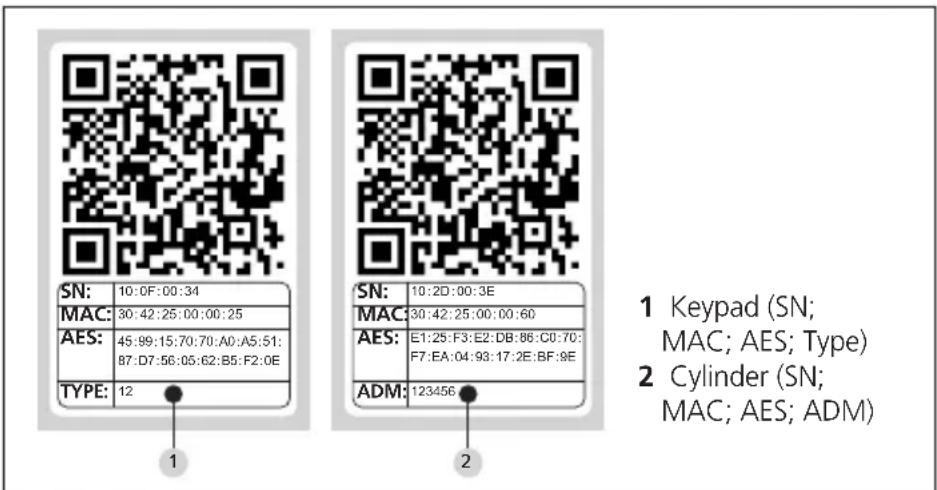
Attention! In case you lose your administrator code and / or your QR code, any reprogramming and any use of administrator functions becomes impossible. Please store it carefully!
Hint: The QR code can also be stored in an electronic form as a scanned file or a photograph on a protected data carrier.
Additional functions available using the optional secuENTRY easy Software, for example:
- User administration
- Assignment of authorisations • History functions
Power supply
- 2 x MIGNON LR6 AA ALKALINE for the keypad
- 2 x MIGNON LR6 AA ALKALINE for the cylinder
Optical signalling
Optical signalling in the form of a LED is incorporated in the knob on the inner side of the door. This LED informs you on the following:
• 1 x brief: cylinder coupled - 2 x brief: cylinder uncoupled - 1 x brief, 1 x long, 2 sec pause, repeating: lock in programming mode - 5 x briefly, 2 sec pause, repeating at 20 sec: battery in cylinder empty
Technical data
| Blocking times After 3 × wrong code is entered 1 minute, then always 3 minutes | |
| Display Adjustable to 12 languages | |
| Permissible ambient conditions* | -15 °C/+50 °C/up to 93%rel. air humidity (noncondensing)Allowed temperature range: -20 °C / +50 °CAs a result of extreme temperature changes, the display can react slowly or darken. |
| Keypad protection class | Protection class keypad PINCODE IP65Protection class keypad Fingerprint IP55 |
| Transmitting power and frequency range: | Bluetooth Low EnergyMaximum Transmit Output Power 7,5dBmFrequency usage range 2,402GHz ... 2,483 GHz |
* In case the temperature exceeds the specified range, a corresponding warning message is indicated on the display. Provide for appropriate corrective action!
Opening
secuENTRY can be operated, depending on the equipment configuration, using a 6 digit numerical code, the Burg-Wächter KeyApp or with fingerprints.
Opening with PIN code
- Press the Key
- Enter the 6 digit PIN code (factory-set to 1-2-3-4-5-6). The display indicates "Please use rotating knob!" and the LED integrated in the cylinder flashes once when the opening is successful.
- Turn the cylinder knob
Opening with Fingerprint
- Press the Key
- Move the registered finger from the top to the bottom centrally over the sensor. The display indicates "Please use rotating knob!" and the LED integrated in the cylinder flashes once when opening is successful.
- Turn the cylinder knob
Opening with BURG-WÄCHTER KeyApp
- Hold your smart device in front of the cylinder knob and press the opening key of the KeyApp.
- The LED integrated in the cylinder flashes once when opening is successful.
- Turn the cylinder knob.
BURG-WÄCHTER KeyApp
You can download the BURG-WÄCHTER KeyApp from the App Store or the Google Play Store. For this purpose, simply enter the search item "secuENTRY" or "KeyApp".
Compatible with Samsung Galaxy S4, S4 mini, S5 and S5 mini from Android 4.3 KitKat or 5.0 Lollipop, Apple iPhone 4S, 5, 5S, 6, 6P or newer, from IOS 8.1.3.
Please check under:
www.burg.biz/secuentry/description
whether other Smartphones are compatible with the app.
secuENTRY easy PINCODE
Generally
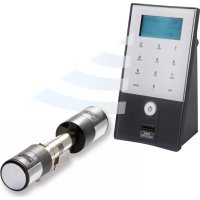
The electronic cylinder is operated by entering a PIN code. Additionally, the lock can also be operated using the BURG-WÄCHTER KeyApp.
Contents of delivery
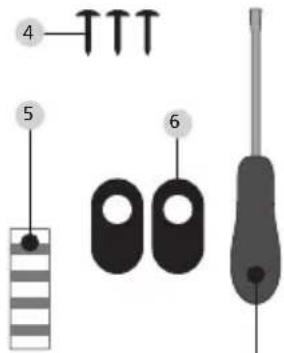
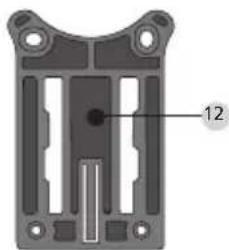
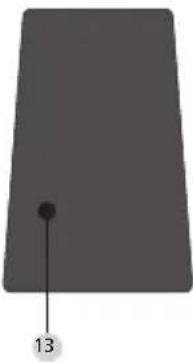
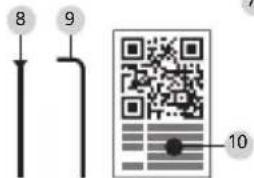
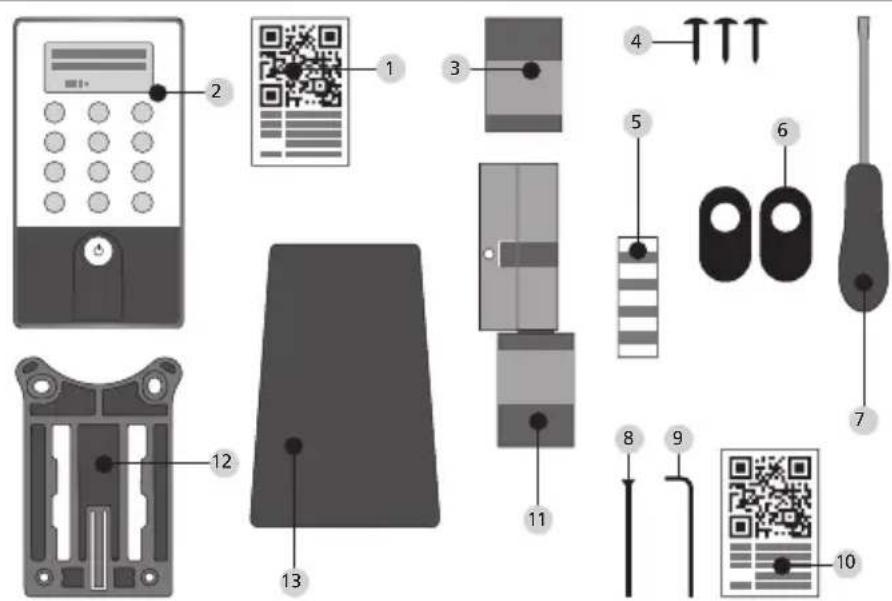
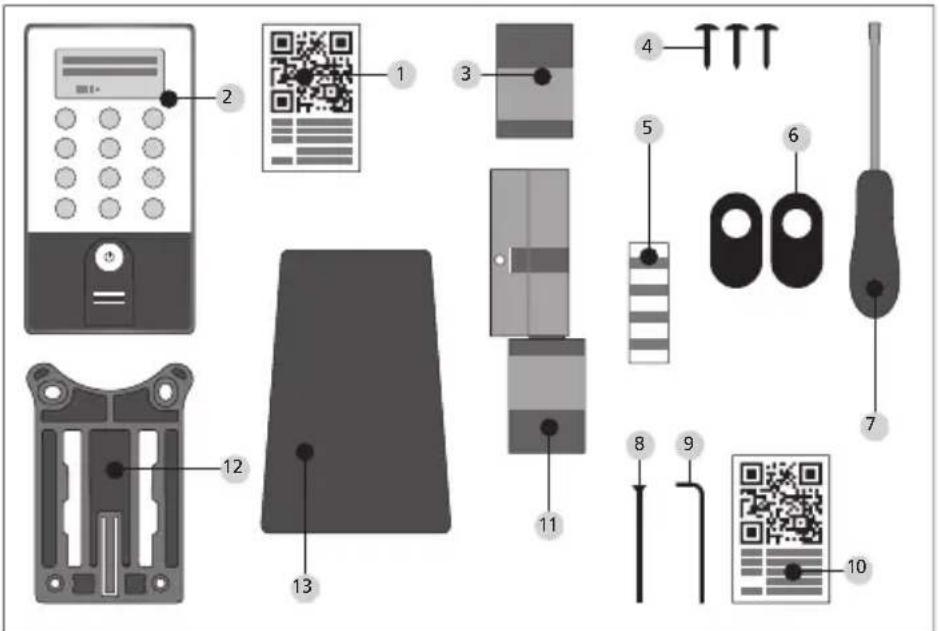
1 QR code keypad 2 Keypad 3 Outer knob 4 Fixing materials 1 keypad 5 Fixing materials 2 keypad (adhesive pads) 6 Rubber shell
7 Tx (size 8) 8 Detent bolt 9 Allen key (size 3) 10 QR code cylinder 11 Cylinder 12 Wall mounting plate 13 Shield foil
Functions
• Total number of users: up to 50
secuENTRY easy FINGERPRINT
Generally
The electronic cylinder is operated using a scanned finger. Up to 24 fingers can be programmed using the keypad. The users are created separately (USER XXX_FP).
If a code and/or a transponder should be additionally assigned to a user, it is to be created separately. Additionally, the lock can also be operated using a PIN code, or the BURG-WÄCHTER KeyApp.
Contents of delivery
1 QR code keypad 2 Keypad 3 Outer knob 4 Fixing materials 1 keypad 5 Fixing materials 2 keypad (adhesive pads) 6 Rubber shell 7 Tx (size 8) 8 Detent bolt 9 Allen key (size 3) 10 QR code cylinder 11 Cylinder 12 Wall mounting plate 13 Shield foil
Attention! The fingerprint sensor must not be cleaned with detergents. Please use a slightly moistened cloth for this purpose.
Functions
- Total number of users: up to 50, out of whom number of fingerprints: up to 24
Basic indication of menu functions
Structure of the menu
Code change menu
Sprache/Language menu
Administrator menu
Create user menu
Create: Code
Create: Fingerprint
Delete menu
Additional functions menu
Date adjustment not available in the standard version
Time adjustment not available in the standard version
Setup menu
Register
Reorganise
FP reset menu
Info menu
Description of the menu functions
The following text describes the functions for the products secuENTRY easy Pincode and secuENTRY easy FINGERPRINT.
Code change menu
Changing the administrator code and the user codes
- Activate the keypad using the ⏻ key
- Then press FUNC
The Code Change menu is displayed
- Confirm your selection using
- Now you can use the keys 1 or 2 to scroll until the administrator / user, whose user code should be changed, is displayed
- Confirm with
- Enter the code valid so far (existing code) and press
- Enter the new code and confirm it with ←
- Repeat your entry and confirm it again with ←.
"Code change accomplished" is displayed after a correct entry
Sprache / Language menu
Language setup
- Activate the keypad using the ⚡ key
- Then press FUNC, the Code Change menu is displayed
- Scroll using the 2 key till reaching the above menu item
- Confirm with ←
- Use the keys 1 or 2 to scroll until the required language is displayed
- Confirm with
Administrator menu
Various submenus are available under the Administrator menu
Submenu create User with Code
- Activate the keypad using the ⏻ key
- Then press FUNC, the Code Change menu is displayed
- Scroll using the 2 key till reaching the Administrator menu
- Confirm with ←. The "Create User" menu item appears
- Confirm with
- Scroll using the 2 key till reaching "Create User: Code"
- Confirm with ←
- Enter the administrator code in order to acquire the authorisation for programming
- The next free memory space is indicated (e.g. USER.003)
- Enter the 6 digit code and confirm it 2 times with
- "Data has been saved" is displayed
Submenu create User with Fingerprint
(This function is only active with secuENTRY easy Fingerprint)
- Activate the keypad using the ⏻ key
- Then press FUNC, the Code Change menu is displayed
- Scroll using the 2 key till reaching the Administrator menu
- Confirm with ← The "Create User" menu item appears
- Confirm with
- Scroll using the 2 key till reaching the "Create User: Fingerprint" item
- Confirm with
- Enter the administrator code in order to acquire the authorisation for programming
- "Register finger" is displayed
- Move the finger to be registered several times centrally over the sensor (the number of moves is indicated on the display)
- "User_XXX_FP successfully registered" is displayed
Submenu Delete
Using this menu, you can delete a user.
- Activate the keypad using the ⏻ key
- Then press FUNC, the Code Change menu is displayed
- Scroll using the 2 key till reaching the Administrator menu
- Confirm with
- Scroll using the 2 key till reaching the "Delete" item
- Enter the administrator code in order to acquire the authorisation for programming
- Scroll till reaching the user or the identification medium (transponder) you wish to delete and confirm your selection 2 × with
- "Data has been deleted" is displayed
Time Functions submenu (Premium only)
This is intended for setting the time and date
Setting the time:
Not available as a standard function.
Setting the date:
Not available as a standard function.
Setup submenu
General system settings
Register
After a replacement of the cylinder or the keypad, the two units have to be newly aligned, so that they can resume communication.
Registration of a keypad
- Activate the keypad using the ⏻ key
- Then press FUNC, the Code Change menu is displayed
- Scroll using the 1 or 2 keys till reaching the Administrator menu
- Confirm with
- Now scroll using the 1 or 2 keys until reaching the Admin. Setup menu
- Confirm with ←
- Enter the admin code of the unit to be registered
- "Data has been saved" is displayed after a successful registration
Attention! Make sure that no other powered secuENTRY unit is placed within a direct reach of the device when registering a new keypad or a new cylinder, as such unit could be mistakenly addressed instead of the intended one. When in doubt, disconnect such units from power before the registration (remove batteries).
Reorganise
The use of this function is recommended when several users have been deleted.
- Activate the keypad using the ⚡ key.
- Then press FUNC, the Code Change menu is displayed.
- Scroll using the 2 key until reaching the Administrator menu.
- Confirm with.
- Scroll using the 2 key until reaching the "Setup" menu item.
- Confirm with.
- The "Reorganise" menu item appears.
- Confirm with.
- Enter the administrator code in order to acquire the authorisation for programming.
- "Reorganisation in progress" is displayed.
Submenu FP Reset.
(This function is only active with secuENTRY easy Fingerprint and with the secuENTRY KP FP keypad.) All the stored fingerprints are deleted, however, the corresponding users are retained. Please select this menu and follow the instructions on the display in case of repeated error functions related to the use of fingerprints.
Info menu.
The version and serial number of the system are displayed using this function. For security reasons, the complete serial number is indicated only in the administrator mode.
- Activate the keypad using the ⚡ key.
- Then press FUNC, the Code Change menu is displayed.
- Scroll using the 2 key till reaching the Info menu.
- Confirm with ←. The serial numbers of the keypad (EA) and of the cylinder (AA) are displayed.
Remark: For security reasons, the serial number (AA) of the cylinder is not completely displayed before the entry of a valid administrator code.
Installation Instructions for secuENTRY easy cylinder.
Please read these Installation Instructions carefully before the assembly and then store them at a safe place.
The cylinder has a special detent system, offering you a possibility of using the cylinder for doors with a thickness up to 118 mm (59 / 59 mm, measured at the central detent bolt). No prior adjustment is necessary.
Attention: Be careful to not bang the knob anywhere, as the knob can break in such case. The lock should not be greased or oiled.
An incorporated locking screw in each knob is to fix the rotary knobs.
Attention: Never pull the inner knob completely from the shaft, as this might cause damage to the electronics! The locking screw, which ensures the detent on the shaft, may be loosened only lightly and it always remains in the plastic knob, providing protection against pulling it out.
Outer side Inner side
Outer knob Inner knob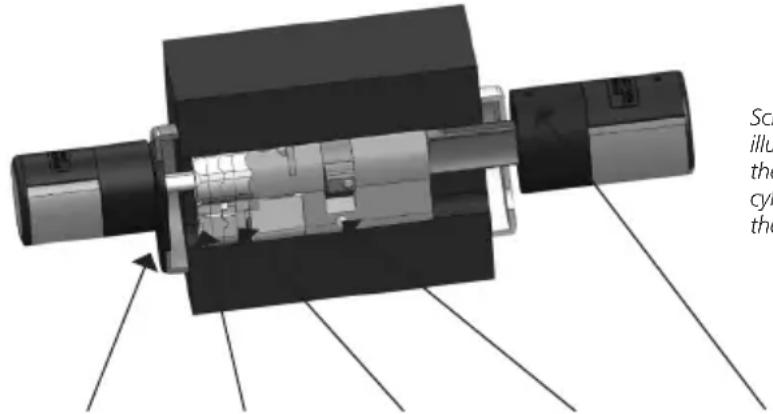
Schematic illustration of the mounted cylinder including the two adapters: Cover, Adapter 2, Adapter 1, Detent bolt, Locking screw for fixation onto the shaft.
Remark
The base size of the cylinder is 30 mm per side. When delivered, the cylinder is completely collapsed (the smallest door thickness). Before you insert the cylinder into the door, you should adjust it to your door thickness.
When installing the cylinder, proceed as follows:
1. Take a rough measurement of the door thickness (incl. fittings). 2. Pull the outer knob from the shaft, move the inner knob over the detent system (spacing 2.85 mm) to the required dimension.
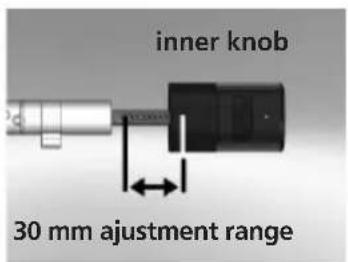
Schematic illustration of setup of the inner knob adjustment.
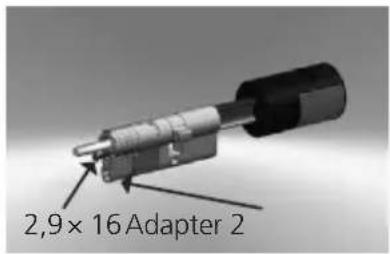
3. Depending on the door thickness, you can affix an appropriate adapter on the outer side, in order to improve the path for the emergency key.
The following combinations are possible:
| Space detent bolt / fitting (mm) on the outer side | Adapter 1 Adapter 2 |
| < 43 -- | |
| 44-53X - | |
| 54-60XX |
Tab. 1: Space detent bolt / mounting [mm] on the outer side and the required adapter.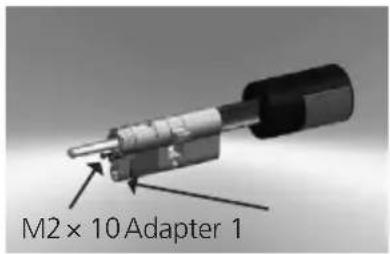
4. Move the secuENTRY easy cylinder from inside to outside through the mortise lock into the door and then tighten the detent bolt.
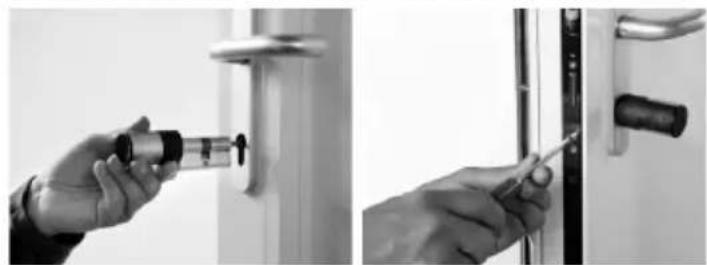
5. Shift the inner knob over the shaft until attaining the required dimension. Please make sure that the clearance between the rotary knob and the door mounting is at least 1 mm. Then fix the rotary knob using the hex key.
6. Before you fix the outer knob, please consider whether you wish to use the attached cover panel for the profile cylinder section. If so, remove the protective sheet and fix the cover panel onto the lock section.
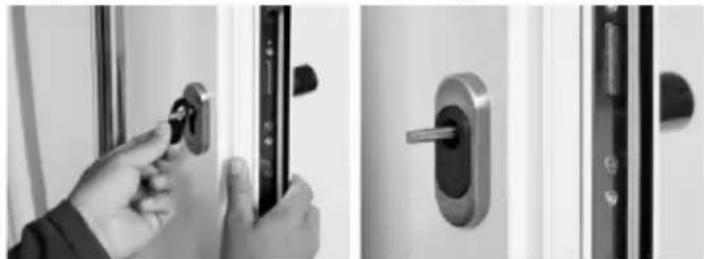
7. Shift the outer knob into the required position on the shaft and fix it with a clearance of at least 1 mm from the mounting using the hex key!
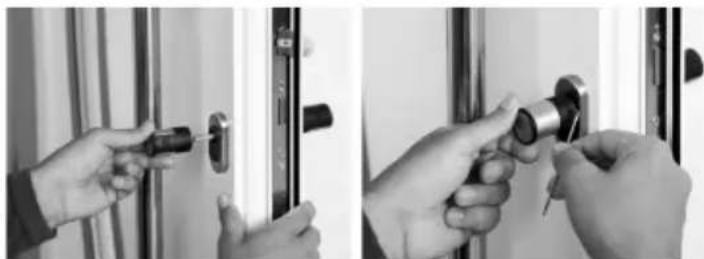
8. The function test must be made with the door open.
secuENTRY easy keypad installation
The keypad is only included in secuENTRY easy Pincode and secuENTRY easy Fingerprint sets.
Attention! Please remember that the keypad should not be attached to the door itself, otherwise it would transmit shocks when the door is being shut. The membrane affixed to the keypad rear side should not be sealed with glue and / or any other substance under any circumstances! Exchange of air must also be possible after the installation!
- Determine the installation place for the keypad. For that purpose, enter the opening code (e.g., PIN code, fingerprint, etc.) at the desired mounting place and check whether the lock opens.
- Place the keypad correspondingly.
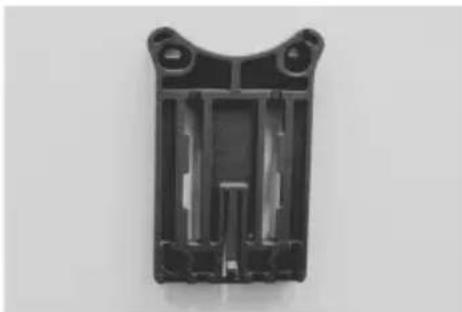
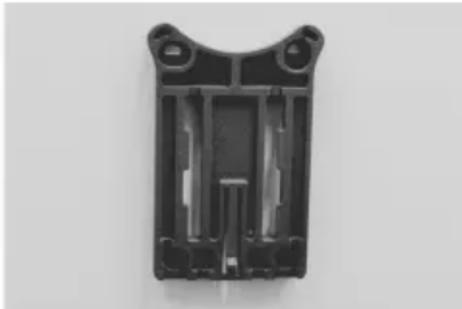
You can then decide whether you want to glue the wall holder directly on the wall or whether you prefer having it screwed on. The slotted holes in the wall holder provide for an exact alignment.
If you decide to glue the wall holder, please be sure to provide for clean surfaces free from fat, oil, and silicon films and any other impurities. Remove completely the protective film from the included adhesive pads, attach all the pads on the wall holder, and then press the whole firmly to the required position. When mounting in colder temperatures, please remember that the full adhesive force cannot be achieved before 72 hours at 20 °C, with warmth accelerating the process (e.g., at 65 °C, the full adhesive force will be achieved in one hour).
When gluing the holder plate on the colour sight protection film, the above described conditions relating to cleanliness of surfaces and firmness of the adhesive pad should be observed.

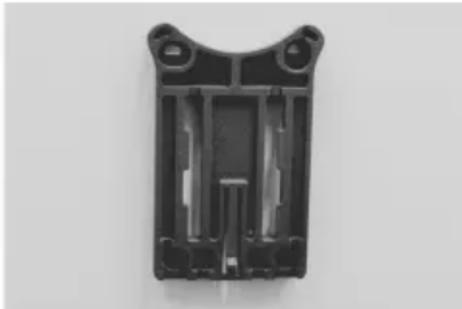
To provide for a bubble-free application of the colour sight protection film, please proceed as follows:
- Pour some water with a couple of drops of dishwashing detergent into a glass, stir it cautiously free of foam, and then use it to moisture gently the surface on which the film is to be applied.
- At an edge, pull off the white protective sheet from 1 cm of film and straighten it out. To change the position, lift this surface carefully and attach it again as required.
- Then swipe the adhesive film, e.g., with a plastic spatula, out from the contact surface in the direction of the protective sheet still attached.
Attention! Do not use more liquid than absolutely necessary.
- Slide the keypad in from above until the locking peg of the mounting plate engages into the keypad housing. In this way, the keypad is protected against undesired removal.
- Perform a function test of the unit with the door open. For this purpose, enter repeatedly a valid opening code (e.g., PIN code, fingerprint, etc.).
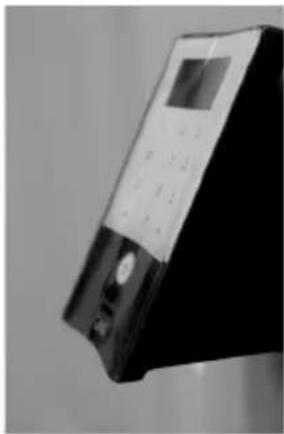
Battery replacement for the secuENTRY easy keypad
- Remove the housing cover on the bottom side by loosening the 2 screws (Tx 8).
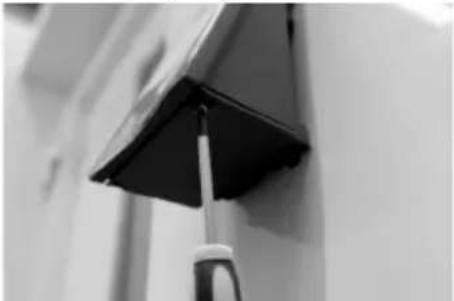
- Pull the battery compartment lid downwards until it disengages and replace the batteries.
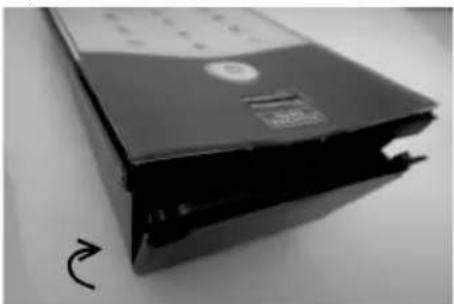
When inserting the new batteries, be careful to observe the correct polarity as indicated on the housing.
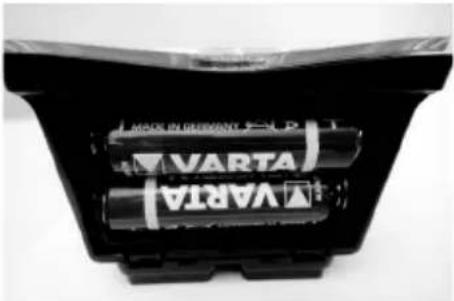
- To close the battery compartment, first press the battery compartment lid close to the screw holes to make them slide into the recesses, then snap the bottom side into position by pressing on it.
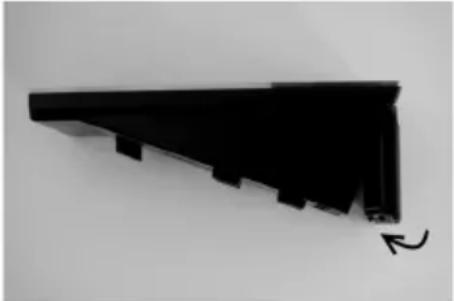
- Fasten the battery compartment lid with screws.
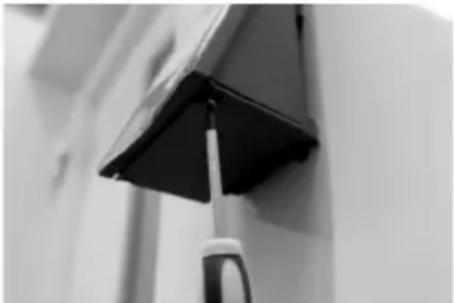
Attention! Make sure that no moisture enters the keypad when replacing the battery.
Cleaning instruction secuENTRY easy keypad
The surface finish of the keypad prevents adherence of impurities. Dust or dirt can be removed from the surfaces using a damp cloth. No alcohol-based detergents (spirit, SIDOLIN® etc.) or aggressive detergents (acetone etc.) may be used, as they can damage the surface or the sensor.
Replacement of batteries – knob (inner side)
1 Using the attached hex key, loosen the top locking screw on the cylinder cover. It can be turned out only up to the opening of the cover and will not fall out.
2 Open the cover.
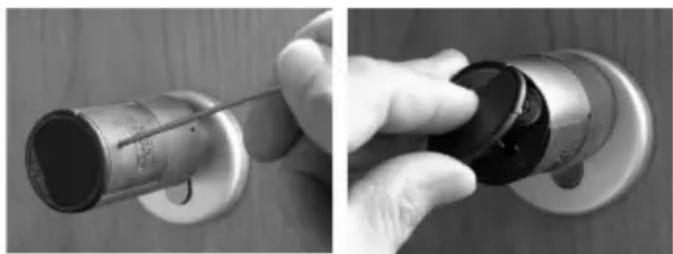
3 Replace the batteries. Make sure the batteries are inserted with the correct polarity, indicated at the marked point on the housing.
4 Replace the cover.
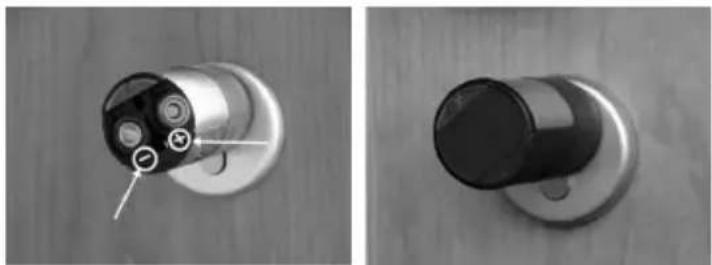
Emergency key function (outer side)
Using the mechanical emergency key, you can provide access in case of failure of the system.
1 Swing the emergency key open and then insert it into the indicated slot in the cover panel.
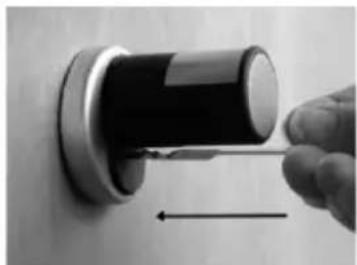
2 Turn the key 90° clockwise. If required, move the outer knob slightly to the right and left in order to release the mechanism. 3 Turn the outer knob. The lock opens when fully turned at the latest.
Turn the key to its initial position and take it out. To close the emergency lock, turn the knob twice fully in both directions.
Dismantling of secuENTRY easy keypad from wall holder
Remove the housing cover on the bottom side by loosening the 2 screws (Tx 8).
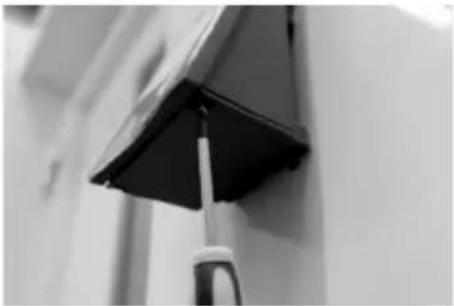
Pull the battery compartment lid downwards until it disengages and replace the batteries.
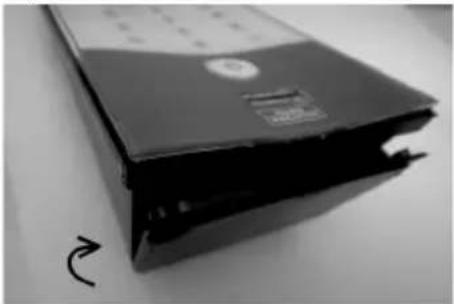
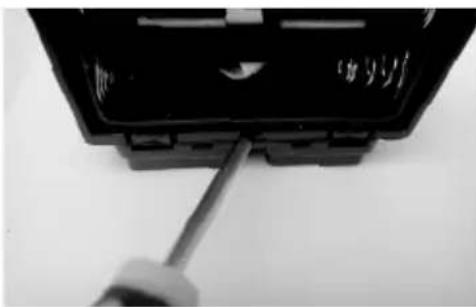
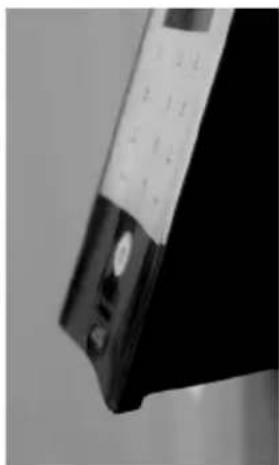
Press the latch using a narrow tool (e.g. flat-bladed screwdriver) downwards and slide the keypad upwards.
Interference from Bluetooth devices
Bluetooth devices use the same frequency band (2.4 GHz) as WiFi devices. This can cause interference leading to errors or even to communication failure. In such case, any devices not required should be kept disconnected from power.
Warranty
In order to be able to provide you with perfectly flawless and high quality products and an optimal support when you need servicing or repair, we need you to present faulty or defective devices to your vendor together with a valid administrator code and the QR code(s), with the original purchase document attached.
When you return a device component based on your right of withdrawal from the purchase agreement, such component shall be adjusted to factory settings and the seal on the cylinder and on the knob shall be intact. In case of noncompliance with this, the warranty becomes invalid.
Disposal
Dear customer,
Please help us avoid unnecessary waste.
Should you intend to dispose of this device at any time, please remember that many components of this device contain valuable materials, which can be recycled.

Please be aware that electrical and electronic equipment and batteries shall not be disposed of as household waste, but rather collected separately. Please obtain information on the collecting points for electrical waste from the responsible authority of your municipality.

BURG-WÄCHTER KG hereby declares that this device complies with Directive 2014/53/EU, (RED) 2014/30/EU, (EMC) and 2011/65/EU (RoHS). The full text of the EU Declaration of Conformity can be found on the following website
www.burg.biz
Illustration
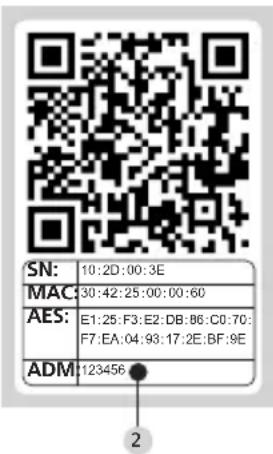
1 Keypad (SN; MAC; AES; Type) 2 Cylinder (SN; MAC; AES; ADM)
Features
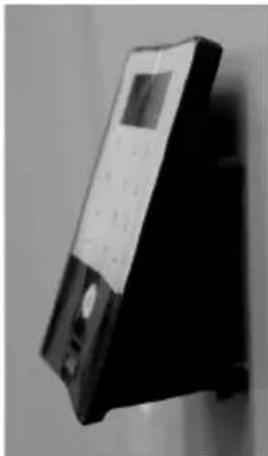
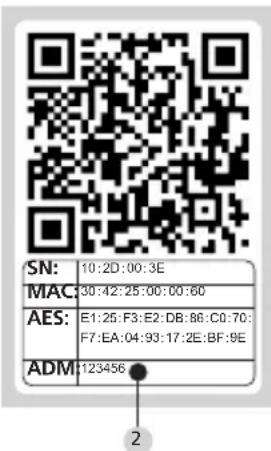
1 Keypad (SN; MAC; AES; Type) 2 Keypad (SN; MAC; AES; ADM)
Functions

- FUNCTIONS
- BATTERY REPLACEMENT SECUENTRY EASY KEYBOARD
- B ENTER KEY
- C FUNCTION KEY
- ACCESS TO THE MENU FOR PROGRAMMING
- DELETING AN ENTRY ACTION
- ENTRY TO PREVIOUS PROGRAMMING LEVEL / BACK
- D BATTERY INDICATOR
- E FINGERSCAN SENSOR
- REMOVE THE BATTERY PROTECTION STRIP FROM THE INNER KNOB IN ORDER TO ENERGISE THE CYLINDER
- GENERAL INFORMATION ABOUT SECUENTRY EASY
- ADMINISTRATOR CODE / QR CODE
- ADDITIONAL FUNCTIONS AVAILABLE USING THE OPTIONAL SECUENTRY EASY SOFTWARE, FOR EXAMPLE
- POWER SUPPLY
- OPTICAL SIGNALLING
- OPENING
- OPENING WITH PIN CODE
- OPENING WITH FINGERPRINT
- OPENING WITH BURG-WÄCHTER KEYAPP
- BURG-WÄCHTER KEYAPP
- SECUENTRY EASY PINCODE
- GENERALLY
- CONTENTS OF DELIVERY
- SECUENTRY EASY FINGERPRINT
- BASIC INDICATION OF MENU FUNCTIONS
- STRUCTURE OF THE MENU
- DESCRIPTION OF THE MENU FUNCTIONS
- CODE CHANGE MENU
- SPRACHE / LANGUAGE MENU
- LANGUAGE SETUP
- ADMINISTRATOR MENU
- VARIOUS SUBMENUS ARE AVAILABLE UNDER THE ADMINISTRATOR MENU
- SUBMENU CREATE USER WITH CODE
- SUBMENU CREATE USER WITH FINGERPRINT
- SUBMENU DELETE
- TIME FUNCTIONS SUBMENU (PREMIUM ONLY)
- SETTING THE TIME
- SETTING THE DATE
- SETUP SUBMENU
- REGISTER
- REGISTRATION OF A KEYPAD
- REORGANISE
- SUBMENU FP RESET
- INFO MENU
- INSTALLATION INSTRUCTIONS FOR SECUENTRY EASY CYLINDER
- REMARK
- WHEN INSTALLING THE CYLINDER, PROCEED AS FOLLOWS
- SECUENTRY EASY KEYPAD INSTALLATION
- ATTENTION! DO NOT USE MORE LIQUID THAN ABSOLUTELY NECESSARY
- BATTERY REPLACEMENT FOR THE SECUENTRY EASY KEYPAD
- CLEANING INSTRUCTION SECUENTRY EASY KEYPAD
- REPLACEMENT OF BATTERIES – KNOB (INNER SIDE)
- EMERGENCY KEY FUNCTION (OUTER SIDE)
- DISMANTLING OF SECUENTRY EASY KEYPAD FROM WALL HOLDER
- INTERFERENCE FROM BLUETOOTH DEVICES
- WARRANTY
- DISPOSAL
- ILLUSTRATION
- FEATURES
Brand : Burg Wächter
Model : ENTRYeasy 5602 FP
Category : Smart Home