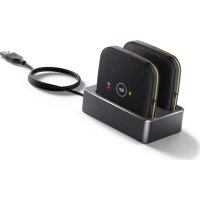
CPW65 - Microphone Yealink - Free user manual and instructions
Find the device manual for free CPW65 Yealink in PDF.


| Product Type | Wireless Extension Microphone |
| Brand | Yealink |
| Model | CPW65 |
| Main Functions | 360° sound pickup, 3-meter range, wireless connection up to 20 meters, mute button, LED indicators |
| Power Supply | Built-in rechargeable battery, charging via micro USB |
| Compatibility | Yealink CP965 conference phone |
| Connectivity | Wireless, 20-meter range |
| LED Indicators | Mute, battery, charging cradle |
| Operating Temperature | 0°C to 40°C |
| Operating Humidity | 5% to 90% non-condensing |
| Storage Temperature | -30°C to 70°C |
| Maintenance and Cleaning | Clean with a slightly damp antistatic cloth; disconnect before cleaning |
| Safety | Do not expose to water, heat; use only authorized accessories |
| Spare Parts and Repairability | No detachable parts provided; repair by authorized technician |
| General Information | Made in China; Yealink Network Technology Co., Ltd. |
Frequently Asked Questions - CPW65 Yealink
User questions about CPW65 Yealink
0 question about this device. Answer the ones you know or ask your own.
Ask a new question about this device
Download the instructions for your Microphone in PDF format for free! Find your manual CPW65 - Yealink and take your electronic device back in hand. On this page are published all the documents necessary for the use of your device. CPW65 by Yealink.
USER MANUAL CPW65 Yealink
DECT Wireless Microphone
CPW65-DECT-Duo
Quick Start Guide (V1.0)
Packaging Contents
The following items are included in your package. If you find anything missing, contact your system administrator.
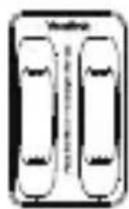
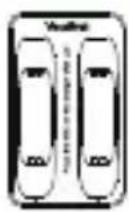
DECT Microphone×2
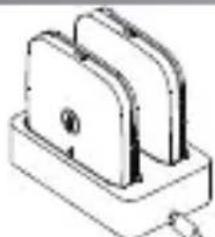
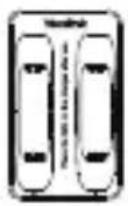
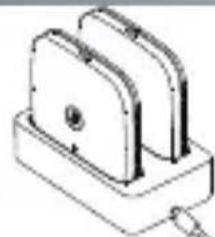
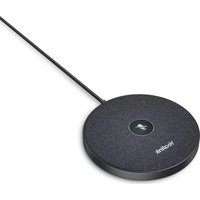
Charger Cradle
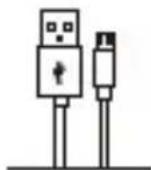
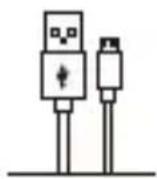
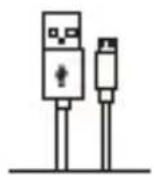
Micro USB Cable
Quick Start Guide
Hardware Overview

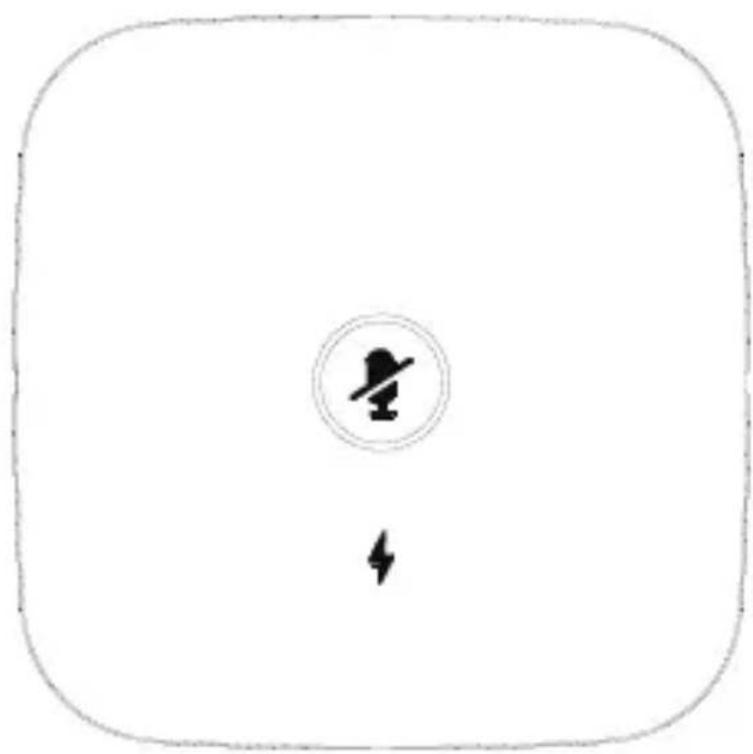
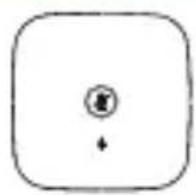
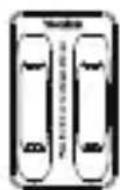
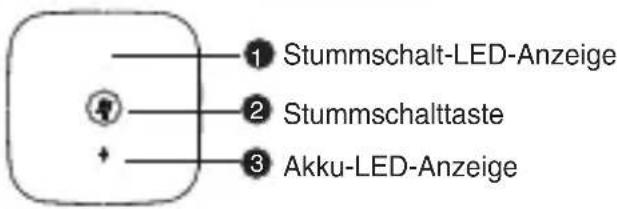
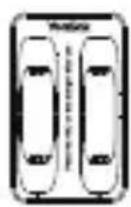
1 Mute LED Indicator
2 Mute Button
3 Battery LED Indicator
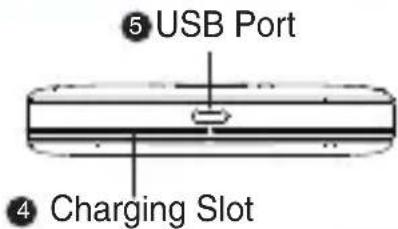
Charging the CPW65



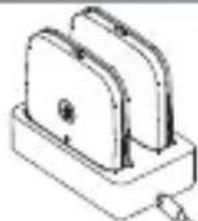
Micro USB Cable
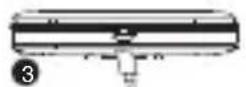
Method 1:
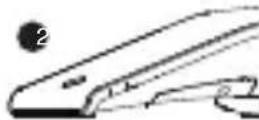
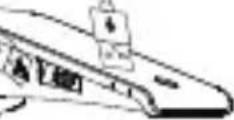
1 Put the CPW65 on the charger cradle.
2 Plug the provided micro USB cable into the micro USB port on the charger cradle, and into the USB port on the CP965.
Method 2:
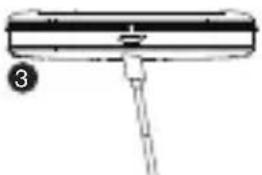
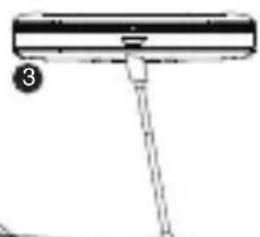
3 Plug the provided micro USB cable into the micro USB port on the CPW65, and into the USB port on the CP965.
When charging, the battery LED indicator on the CPW65 glows red. When it is fully charged, the battery LED indicator on the CPW65 will glow green.
The CPW65 starts up automatically when charging. Or you can long tap the Mute button on the CPW65 for 3 seconds to turn it on.
Note: If it is the first time you use the CPW65, you need to fully charge it for normal use.
If the CPW65 is not in use, we still recommend charging it even when the battery is full.
Registering the CPW65 to the CP965 Conference Phone
You can skip this chapter if the CPW65 has registered with the CP965 conference phone.
Otherwise, follow the steps below to register the CPW65 to the CP965 conference phone. The CPW65 works as the audio input device of the CP965 conference phone.
To register the CPW65 to the CP965 conference phone:
-
On the CP965, tap More->Mic->+
-
Turn on the CPW65.
The CPW65 enters the registration mode automatically. And the mute LED indicator on the CPW65 fast flashes yellow. The CPW65 registers with the CP965 conference phone automatically. If the registration is successful, the mute LED indicator on the CPW65 goes out and the touch screen of CP965 conference phone prompts the CPW65 information: battery, work time and standby time.
Note: You can connect up to two CPW65 to a CP965 conference phone.
LED Instruction
There are three indicators on the CPW65. The indicators display the CPW65 work status.
LED indicator on the Charger Cradle:
| LED Status Description | |
| Solid white The CPW65 is being charged. | |
| Off | The CPW65 is not being charged. |
Mute LED indicator on the CPW65:
| LED Status | Description |
| Solid green | The phone enters the pre-dialing screen. The phone is in a call and unmuted. |
| Fast flashing red | The phone is receiving an incoming call. |
| Solid red | The phone is muted. |
| Fast flashing yellow | The CPW65 is in the registration mode. |
| Slowly flashing yellow | The CPW65 has registered with the phone, but the CPW65 is out of range. The CPW65 has registered with the phone, but the CP965 is turned off. |
| Flashing red and green alternately | The phone is searching for the CPW65 which has registered with it. |
| Off | The CPW65 is idle. |
Battery LED indicator on the CPW65:
| LED Status Description | |
| Solid green for one second and then off | The CPW65 is turned on. |
| Solid green for 3 seconds and then off | The CPW65 is idle. |
| Solid green | The CPW65 is fully charged. |
| Solid red The CPW65 is being charged. | |
| Fast flashing red 3 times and then off | The battery capacity is too low to turn on the CPW65. |
| LED Status Description | |
| Slowly flashing red The battery capacity is less than 10%. | |
| Off | If you tap the mute button and the battery LED indicator on the CPW65 is still off, it means the CPW65 is turned off. |
Placing the CPW65
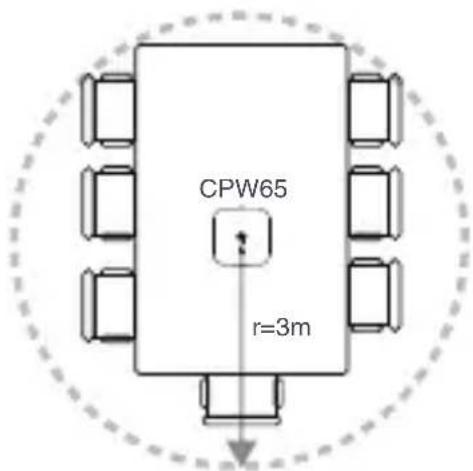
The CPW65 is a wireless expansion mic that can work as the audio input device of the CP965 conference phone. It supports 360-degree audio pickup at a radius of up to 3 meters. You can place the CPW65 on a confer-ence table.
Do the following to ensure optimal voice quality:
- The CPW65 should be less than 20 meters from the CP965 conference phone, and there are no obstacles between them.
- Place the CPW65 on a stable surface and keep it away from obstacles, so that they can achieve the best performance.
Muting or Unmuting the CPW65
When the CPW65 works as an audio input device for the CP965 conference phone and the CP965 conference phone is in a call, you can tap the Mute button on the CPW65 to mute or unmute the CPW65.
Frequently Asked Questions
- How to turn off the CPW65?
Long tap the Mute button on the CPW65, until the battery LED indicator the CPW65 glows red for 3 seconds and then goes out.
- How to find the CPW65 which has registered with the CP965 conference phone?
1) On the CP965, tap More->Mic.
2) Select the desired microphone, and then tap Find.
The mute LED indicator on the CPW65 flashes red and green alternately.
- How to register the CPW65 to another CP965 conference phone?
The CPW65 can only be registered to one CP965 conference phone. If you register the CPW65 to another CP965 conference phone, the CPW65 will deregister from the previous CP965 conference phone automatically.
To register the CPW65 to another CP965 conference phone:
1) On the CP965, tap More->Mic->+
2) Charge the CPW65.
3) Long tap the Mute button on the CPW65 for 5 seconds.
The CPW65 enters the registration mode. And the mute LED indicator on the CPW65 fast flashes yellow.
The CPW65 registers with the new CP965 conference phone automati-cally.
- How to deregister the CPW65?
1) On the CP965, tap More->Mic.
2) Select the desired mic, and then tap Detail.
3) Tap Unbind to deregister the CPW65.
Verpackungsinhalt
DECT-Mikrofon×2
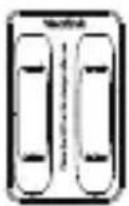
Ladestation
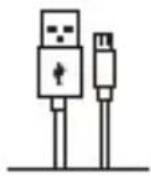
Micro-USB-Kabel
Kurzanleitung
Hardwareübersicht
Microphone sans fil DECT ×2
Socle du chargeur
Câble micro USB



Câble micro USB
Méthode 1 :
Micrófono DECT ×2
La base de recarga
Cable Micro USB


1
Cable Micro USB
2
Método 1:
Declaration of Conformity
We,
YEALINK(XIAMEN) NETWORK TECHNOLOGY CO.,LTD
Address: 309, 3rd Floor, No.16, Yun Ding North Road, Huli District, Xiamen City, Fujian, P.R. China
CE DATE: 15 th February/2022
declare that the product
Type: DECT Wireless Microphone
meets the essential requirements and other relevant provisions according to the following EC directive
Directive: 2014/30/EU, 2014/35/EU, RED 2014/53/EU;
The presumption of conformity with the essential requirement is ensure according to :
Article 3.1 a :(protection of the health &the safety of the user)
Safety: EN 62368-1:2014+A11:2017
SAR: ETSI EN 50663:2017, EN 62479:2010
Article 3.1 b :(protection requirement with respect to electromagnetic compatibility)
EMC: EN55032:2015 and EN55032:2015/A11:2020, EN55035:2017, EN 55035:2017/A11:2020, EN 61000-3-2:2014, EN 61000-3-2:2014, EN 61000-3-3:2013/A1:2019, EN 61000-3-3:2013/A1:2019 EN301489-6 V2.2.1, EN301489-1 V2.2.3
Article 3.2 (effective use of the radio spectrum)
Radio: ETSI EN 301406 V2.2.2
Directive 2011/65/EU and (EU)2015/863 of the European Parliament and of the Council of 8 June 2011 and 4 June 2015 on the restriction of the use of certain hazardous substances in electrical and electronic equipment(RoHS 2.0)
Directive 2012/19/EU of the European Parliament and of the Council of 4.July.2012 on Waste electrical and electronic equipment(WEEE)
Regulation (EC) No.1907/2006 of the European Parliament and of the Council of 18.December:2006 on Registration, Evaluation, Authorization, and Restriction of Chemicals (REACH)
NAME: Huahu Wang
DATE: 15 th February/2022
TITLE: Senior Manager
Liu hui Wang
Regulatory Notices
Operating Ambient Temperatures
- Operating temperature: +32 to 104°F (0 to 40°C) - Relative humidity: 5% to 90%, noncondensing
• Storage temperature: -22 to +160°F (-30 to +70°C)
Warranty
Our product warranty is limited only to the unit itself, when used normally in accordance with the operating instructions and the system environment. We are not liable for damage or loss resulting from the use of this product, or for any claim from a third party. We are not liable for problems with Yealink device arising from the use of this product, we are not liable for financial damages, lost profits, claims from third parties, etc., arising from the use of this product.
DC symbol
is the DC voltage symbol.
Restriction of Hazardous Substances Directive (RoHS)
This device complies with the requirements of the EU RoHS Directive. Statements of compliance can be obtained by contacting support@yealink.com.
Safety Instructions
Save these instructions. Read these safety instructions before use!
The following basic safety precautions should always be followed to rescue risk at five, electrical shock, and other personal injury.

General Requirements
- Before you install and use the device, read the safety instructions carefully and observe the situation during operation.
- During the process of storage, transportation, and operation, please always keep the device dry and clean.
- During the process of storage, transportation, and operation, please avoid collision and crash of the device.
- Please attempt not to dismantle the device by yourself. In case of any discrepancy, please contact the appointed maintenance center for repair.
- Without prior written consent, no organization or individual is permitted to make any change to the structure or the safety design of the device. Yealink is under no circumstance liable to consequences or legal issues caused by such changes.
- Please refer to the relevant laws and statutes while using the device. Legal rights of others should be respected as well.

Environmental Requirements
- Place the device at a well-ventilated place. Do not expose the device under direct sunlight.
- Keep the device dry and free of dusts.
- Place the device on a stable and level platform.
- Please place no heavy objects on the device in case of damage and deformation caused by the heavy load.
- Keep at least 10 cm between the device and the closest object for heat dissipation.
- Do not place the device on or near any inflammable or fire-vulnerable object, such as rubber-made materials.
- Keep the device away from any heat source or bare fire, such as a candle or an electric heater.
- Keep the device away from any household appliance with strong magnetic field or electromagnetic field, such as a microwave oven or a refrigerator

Operating Requirements
- Do not let a child operate the device without guidance.
- Do not let a child play with the device or any accessory in case of accidental swallowing.
- Please use the accessories provided or authorized by the manufacturer only.
- The power supply of the device shall meet the requirements of the input voltage of the device. Please usethe provided surge protection power socket only.
- Before plugging or unplugging any cable, make sure that your hands are completely dry.
-
Do not spill liquid of any kind on the product or use the equipment near water, for example, near a bathtub, washbowl, kitchen sink, wet basement or
-
Do not tread on, pull, or over-bend any cable in case of malfunction of the device.
- During a thunderstorm, stop using the device and disconnect it from the power supply. Unplug the power plug and the Asymmetric Digital Subscriber Line (ADSL) twisted pair (the radio frequency cable) to avoid lightning strike.
- If the device is left unused for a rather long time, disconnect it from the power supply and unplug the power plug.
- When there is smoke emitted from the device, or some abnormal noise or smell, disconnect the device from the power supply, and unplug the power
plug immediately. Contact the specified maintenance center for repair. - Do not insert any object into equipment slots that is not part of the product or auxiliary product.
• Before connecting a cable, connect the grounding cable of the device first. Do not disconnect the grounding cable until you disconnect all other cables.

Cleaning Requirements
- Before cleaning the device, stop using it and disconnect it from the power supply.
- Use a piece of soft, dry and anti-static cloth to clean the device.
- Keep the power plug clean and dry. Using a dirty or wet power plug may lead to electric shock or other perils.

ENVIRONMENTAL RECYCLING
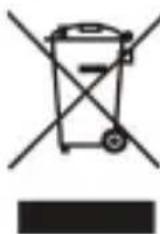
Never dispose of the device with domestic waste
Ask your Town Council about how to dispose of it in an environmentally friendly way. The cardboard box, plastic packaging and player components may be recycled in accordance with prevailing recycling regulations in your country.
Always adhere to prevailing regulations
Those who fell to do so may be tried or introduced in accordance with the law. The crossed out garbage can that appears on the device means that when it has reached the end of its useful life, it should be taken to
a special waste disposal centre and treated separately to general urban waste.
Troubleshooting
The unit cannot supply power to Yealink device.
There is a bad connection with the plug.
-
Clean the plug with a dry cloth.
-
Connect it to another wall outlet.
The usage environment is out of operating temperature range.
- Use in the operating temperature range.
The cable between the unit and the Yealink device is connected incorrectly.
- Connect the cable correctly
You cannot connect the cable properly.
-
You may have connected a wrong Yealink device.
-
Use the correct power supply.
Some dust, etc., may be in the port.
- Clean the port.
Contact your dealer or authorized service facility for any further questions.
Contact Information
YEALINK NETWORK TECHNOLOGY CO.,LTD.
309, 3rd Floor, No.16, Yun Ding North Road, Hull District, Xiamen City, Fujian, P.R.C YEALINK (EUROPE) NETWORK TECHNOLOGY B.V.
Strawinskylaan 3127, Atrium Building, 8th floor, 1077ZX Amsterdam, The Netherlands
YEALINK (USA) NETWORK TECHNOLOGY CO., LTD.
999 Peachtree Street Suite 2300, Fulton, Atlanta, GA, 30309, USA Made in China
About Yealink
Yealink (Stock Code: 300628) is a global brand that specializes in video conferencing, voice communications and collaboration solutions with best-in-class quality, innovative technology and user-friendly experience. As one of the best providers in more than 140 countries and regions, Yealink ranks No.1 in the global market share of SIP phone shipments (Global IP Desktop Phone Growth Excellence Leadership Award Report, Frost & Sullivan, 2019).
Technical Support
Visit Yealink WIKO (http://support.yealink.com/) for the latest firmware, guides, FAQ, Product documents, and more. For better service, we sincerely recommend you to use Yealink Ticketing system (https://ticket.yealink.com) to submit all your technical issues.

YEALINK(XIAMEN) NETWORK TECHNOLOGY CO.,LTD.
Web: www.yealink.com
Copyright©2021 YEALINK(XIAMEN) NETWORK TECHNOLOGY
CO.,LTD.All rights reserved.
309, 3rd Floor, No. 16, Yun Ding North Road, Huli District, Xiamen City, Fujian, VR China YEALINK (EUROPE) NETWORK TECHNOLOGY B.V.
Gorewinskysen 0127, Artum Building, 6th floor, 10972X Ammsbaum, Nederhafo
YEALINK (USA) NETWORK TECHNOLOGY CO., LTD
999 Peachtree Street Suite 2300, Fulton, Atlanta, GA, 30309, USA
Adresse: 309, 3rd Floor, No.16, Yun Ding North
Road, Huli District, Xiamen City, Fujian, P.R.C
Copyright©2021 YEALINK(XIAMEN) NETWORK
TECHNOLOGY CO.,LTD.All rights reserved.
309, 3rd Floor, No.16, Yun Ding North Road, Huli District, Xiamen City, Fujian, Chine
YEALINK (EUROPE) NETWORK TECHNOLOGY B.V.
Sorewinskylean 9137, Arikum Building, 8th floor, 1077ZX Amsterdam, Paya-Bas
YEALINK (USA) NETWORK TECHNOLOGY CO., LTD
Assistance technique
Adresse: 309, 3rd Floor, No.16, Yun Ding North Road, Huli
District, Xiamen City, Fujian, P.R.C
Copyright©2021 YEALINK(XIAMEN) NETWORK
TECHNOLOGY CO.,LTD.All rights reserved.
Explanation of the symbols
- Símbolo CC
430104001914

309, 3rd Floor, No.16, Yun Ding North Road, Huli District, Xiamen City, Fujian, P.R.C YEALINK (EUROPE) NETWORK TECHNOLOGY B.V.
Screwwiselean 3127, Athum Building, this foot: 10712X Amsterdam. The Netherlands
YEALINK (USA) NETWORK TECHNOLOGY CO., LTD.
999 Peachtree Street Suite 2300, Fulton, Atlanta, GA, 30309, USA
Made in China
YEALINK(XIAMEN) NETWORK TECHNOLOGY CO.,LTD.
CO.,LTD. Página web: www.yealink.com
Dirección: 309, 3rd Floor, No.16, Yun Ding North
Road, Huli District, Xiamen City, Fujian, P.R.C
Copyright©2021 YEALINK(XIAMEN) NETWORK
TECHNOLOGY CO.,LTD.All rights reserved.
- DECT WIRELESS MICROPHONE
- CPW65-DECT-DUO
- PACKAGING CONTENTS
- HARDWARE OVERVIEW
- CHARGING THE CPW65
- METHOD 1
- METHOD 2
- REGISTERING THE CPW65 TO THE CP965 CONFERENCE PHONE
- LED INSTRUCTION
- PLACING THE CPW65
- MUTING OR UNMUTING THE CPW65
- FREQUENTLY ASKED QUESTIONS
- VERPACKUNGSINHALT
- HARDWAREÜBERSICHT
- DECLARATION OF CONFORMITY
- REGULATORY NOTICES
- OPERATING AMBIENT TEMPERATURES
- WARRANTY
- DC SYMBOL
- RESTRICTION OF HAZARDOUS SUBSTANCES DIRECTIVE (ROHS)
- SAFETY INSTRUCTIONS
- GENERAL REQUIREMENTS
- ENVIRONMENTAL REQUIREMENTS
- OPERATING REQUIREMENTS
- CLEANING REQUIREMENTS
- TROUBLESHOOTING
- CONTACT INFORMATION
- ABOUT YEALINK
- TECHNICAL SUPPORT
- ASSISTANCE TECHNIQUE
Brand : Yealink
Model : CPW65
Category : Microphone