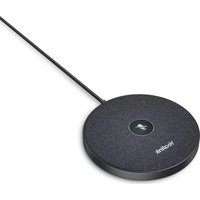
VCM35 - Microphone Yealink - Free user manual and instructions
Find the device manual for free VCM35 Yealink in PDF.


| Product Type | Wired Microphone Array |
| Brand | Yealink |
| Model | VCM35 |
| Compatibility | Yealink video conferencing systems (e.g., VC200, VC400, VC880) |
| Microphone Type | Omnidirectional MEMS microphone array |
| Pickup Range | Up to 6 meters (20 feet) |
| Number of Microphones | 8 built-in microphones |
| Connection | USB 2.0 (Type-B) or proprietary cable |
| Cable Length | 5 meters (16.4 feet) |
| Power Supply | Powered via USB (5V DC, 500mA) |
| Dimensions (W x D x H) | 360 x 55 x 25 mm (14.2 x 2.2 x 1.0 in) |
| Weight | Approximately 0.5 kg (1.1 lbs) |
| Audio Features | Noise reduction, echo cancellation, automatic gain control |
| LED Indicator | Mute status and power indicator |
| Button | Mute/Unmute touch button |
| Operating Temperature | 0°C to 40°C (32°F to 104°F) |
| Storage Temperature | -20°C to 60°C (-4°F to 140°F) |
| Humidity | 10% to 90% non-condensing |
| Cleaning | Wipe with soft dry cloth; avoid liquids |
| Spare Parts | Contact Yealink authorized resellers for replacement cables |
| Repairability | Professional repair only; no user-serviceable parts |
| Certifications | CE, FCC, RoHS |
| Included Accessories | Microphone, USB cable, quick start guide |
Frequently Asked Questions - VCM35 Yealink
User questions about VCM35 Yealink
0 question about this device. Answer the ones you know or ask your own.
Ask a new question about this device
Download the instructions for your Microphone in PDF format for free! Find your manual VCM35 - Yealink and take your electronic device back in hand. On this page are published all the documents necessary for the use of your device. VCM35 by Yealink.
USER MANUAL VCM35 Yealink
VCM35 Video Conferencing MicrophoneVCM35 Video Conference
IntroductionIntroduction
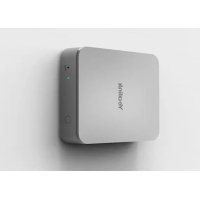
Yealink VCM35 is a wired video conferencing microphone array specially designed for the new generation of Yealink Video Conferencing System. Its built-in 3-microphone array with a 20ft (6m) and 360° voice pickup range is an ideal solution for any conference room that needs the best audio experience. With the Yealink Acoustic Echo Canceling and Yealink Noise Proof Technology, Yealink VCM35 can effectively reduce ambient noise up to 90 dB and give you a high-quality audio experience in full-duplex calls. Yealink VCM35 supports star-cascaded deployment, and its extremely high scalability and flexibility make deployment more convenient and faster and can fully cover conference rooms of various sizes.
VCM35 CompatibilityVCM35 Compatibility
For the VCM35 compatibility, please refer to Teams Room Accessories Compatibility Lists.
How to Use How to Use
Connect MVC to VCM35Connect MVC to VCM35
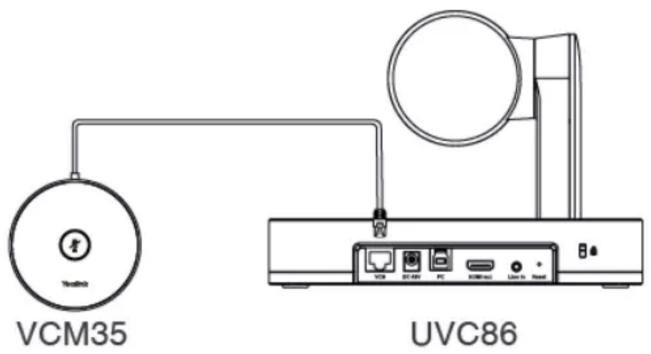
Method 1: Connect to the VCH port of the UVC camera/AVHub:Method 1: Connect to the VCH port of the UVC camer
Method 2: Connect via the PoE switchMethod 2: Connect via the PoE switch

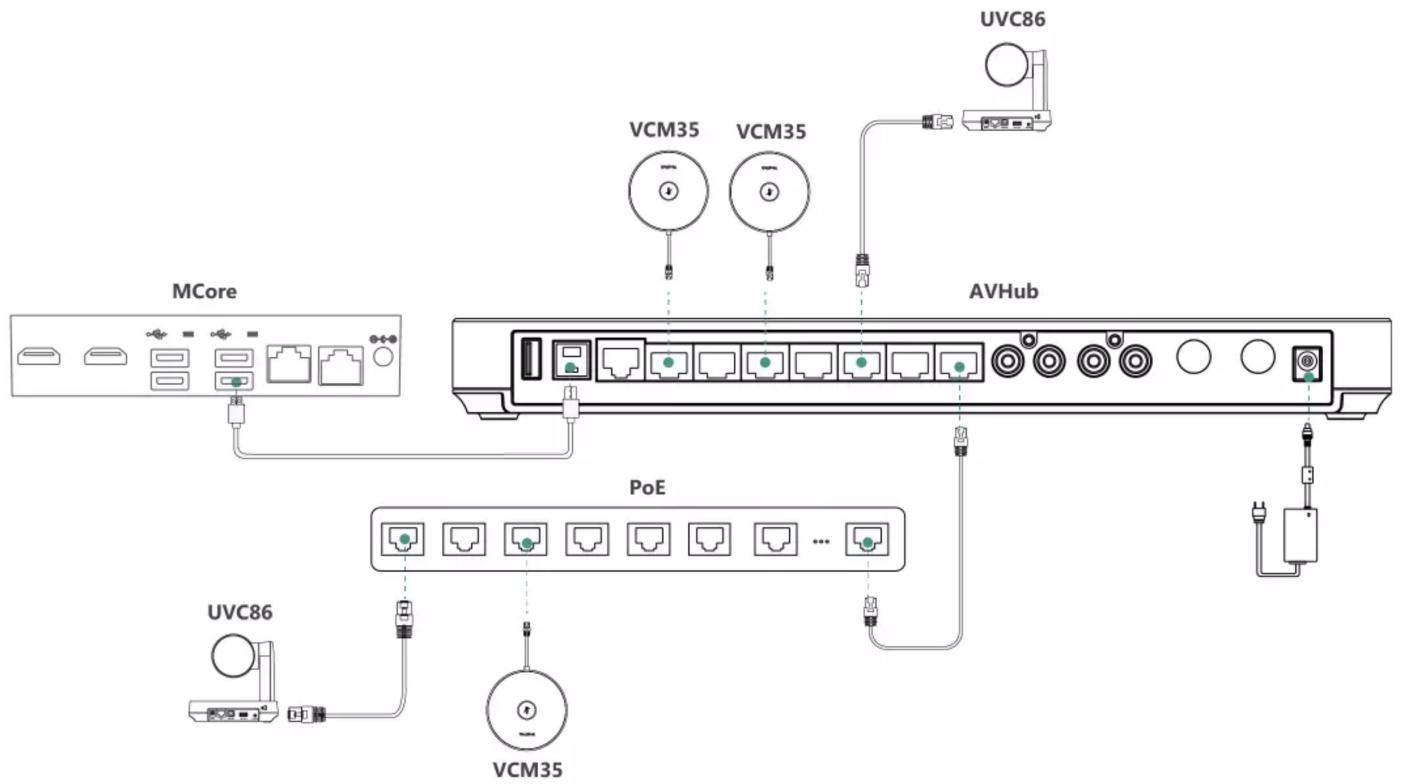
Method 2: Connect via AVHubMethod 2: Connect via AVHub
You can connect the UVC cameras and VCM35 to the AVHub simultaneously.
When you connect the UVC84/UVC86 directly to the AVHub, the total number of connections must be no more than 4 devices. If the total number of connections exceeds 4 devices, you need to connect a PoE switch (the PoE switch must meet the 802.3 AT (PoE+) standard).
LED IndicatorLED Indicator
Please refer to: LED Indicator.
Mute/Unmute MicrophoneMute/Unmute Microphone
Please refer to: Mute/Unmute Microphone.
Audio SettingsAudio Settings
If you want to manually set the specified audio input device after connecting the VCM35 to the MVC device, please refer to Audio Settings.
Update VCM35Update VCM35
After connecting the VCM35 to the MVC device, it will automatically obtain the ROM package from the MVC device to update.
You can also manually update through the Yealink Device Management Platform. For more information, please refer to Firmware Update.
FAQFAQ
Can VCM35 and MVC's built-in microphone pick up sound at the same time?
The VCM35 is an external microphone and does not support simultaneous sound pickup with the built-in microphone. You can set which microphone to use for pickup on MTouch II. For the operation method, please refer to Audio Settings.
After connecting the MVC to the VCM35, the VCM35 cannot pick up the audio/there is no response when touching the VCM35 mute button. touching the VCM35 mute button.
MVC does not support the simultaneous use of multiple microphone devices. Please check whether other microphones are connected at the same time. For more information, please refer to Does MVC support multiple microphone devices simultaneously?
How to reset the VCM35 microphone? How to reset the VCM35 microphone?
The VCM35 microphone has no reset feature.
Brand : Yealink
Model : VCM35
Category : Microphone