CS1CU - Conference system Monacor - Free user manual and instructions
Find the device manual for free CS1CU Monacor in PDF.



| Product type | Conference system with control unit and microphone stations |
| Brand and model | Monacor CS1CU |
| Dimensions of control unit | 360 × 150 × 90 mm |
| Weight of control unit | 1.7 kg |
| Dimensions of a microphone station (without microphone) | 170 × 115 × 65 mm |
| Weight of a microphone station | 1.1 kg |
| Power supply | 230 V ~ / 50 Hz, max. consumption 90 VA |
| Max. number of microphone stations | 50 (25 per Trunk connector) |
| Operating modes | Over Ride, Chairman Only, Open, Timer |
| Main functions | Clock, stopwatch, key lock, system test, general and individual volume adjustment, multiple inputs/outputs (RCA, XLR, DIN) |
| Available microphone stations | CS-1DU (delegate) and CS-1CH (chairman with priority key) |
| Additional microphone input | Female XLR with 12 V phantom power, suitable for balanced microphones |
| Recording output | RCA (fixed level, independent of volume) |
| Operating temperature range | 0–40 °C |
| Maintenance and cleaning | Dry, soft cloth, no chemicals or water |
| Safety | Do not open the control unit (dangerous voltage), protect from water and heat, disconnect if damaged |
| Repairability | Repair by a qualified technician only |
| Spare parts | Replacement fuse (identical type required) |
| General information | Indoor use only, do not block ventilation slots, disposal according to local regulations |
Frequently Asked Questions - CS1CU Monacor
User questions about CS1CU Monacor
0 question about this device. Answer the ones you know or ask your own.
Ask a new question about this device
Download the instructions for your Conference system in PDF format for free! Find your manual CS1CU - Monacor and take your electronic device back in hand. On this page are published all the documents necessary for the use of your device. CS1CU by Monacor.
USER MANUAL CS1CU Monacor
natural_image
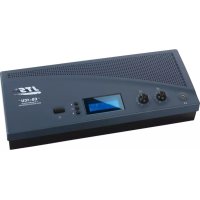
Exterior view of a JTS CS-1CU sound analyzer system with two microphones (no visible text or symbols on the device body)CS-1CU
text_image
Telephone Insertion Recorder Line in out Gain Gain Trunk in/out Microphone 1 2 Phantom Power 12V 10 11 12 13 14 15 16 17 18 19 20②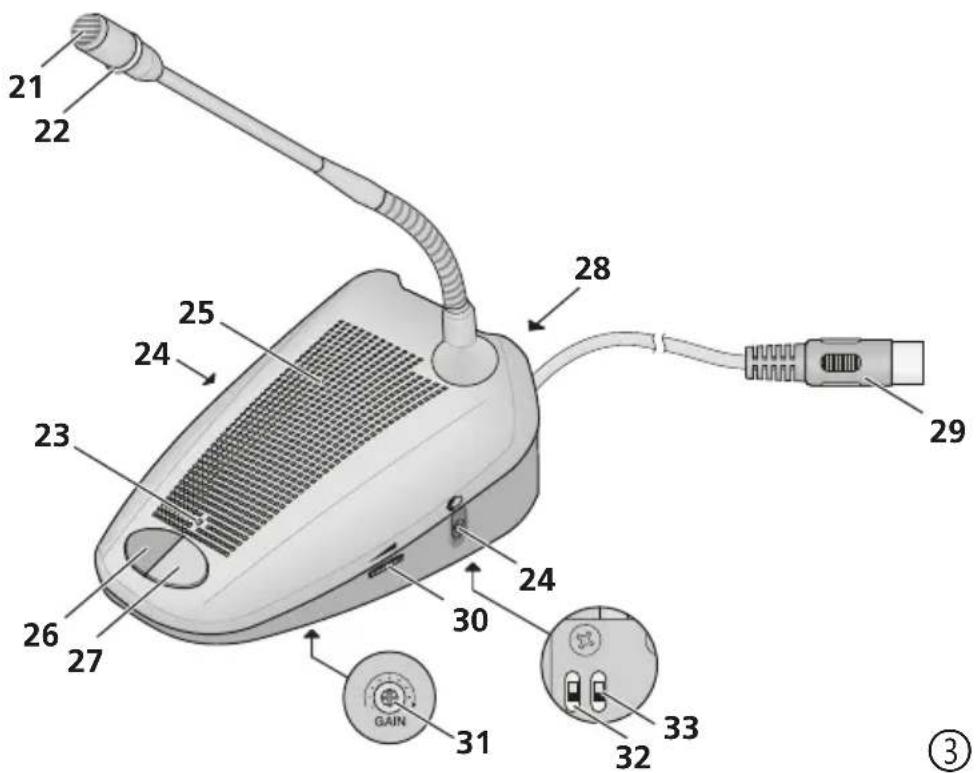
text_image
21 22 25 24 28 29 23 26 27 24 30 31 32 33 ③JTS®
Deutsch Seite 4
English Page 14
Français Page 24
Español Página 34
3 = Audiosignal (Lautsprecher)
4 = Steuerleitung 1
5 = Steuerleitung 2
6 = Versorgung +
7 = Versorgung -
Stromversorgung: ..... \~ 100–264 V/
50–60 Hz
These instructions are intended for users with basic knowledge of audio technology. Please read the instructions carefully prior to operation and keep them for later reference.
Contents
1 Overview 14
1.1 Controller CS-1CU (top side) ..... 14
1.2 Controller CS-1CU (rear panel) ..... 15
1.3 Microphone station CS-1CH (CS-1DU). . . . . 15
2 Safety Notes and Instructions for Use . . . . 16
3 Applications 16
4 Connections 16
4.1 Microphone stations. 16
4.2 Additional microphone ..... 17
4.3 Recorder....17
4.4 Signal source with line level ..... 17
4.5 Amplifier system.....17
4.6 Telephone coupler....17
4.7 Inserting external signal processing ..... 17
4.8 Headphones 17
4.9 Power supply 17
5 Operation 17
5.1 Selecting the operating mode ..... 17
5.2 Operation of the microphone stations CS-1DU 18
5.3 Microphone stations for chairpersons CS-1CH 18
5.4 Volume adjustments on the controller ..... 19
5.5 Setting the date and the time ..... 19
5.6 Stopwatch feature. 20
5.7 Test feature ..... 20
5.8 Key lock 20
6 Combining Conference Systems ..... 20
7 Specifications 22
7.1 Controller CS-1CU....22
7.2 Microphone stations CS-1CH and CS-1DU. . . 22
All operating elements and connections described can be found on the page 2.
1 Overview
1.1 Controller CS-1CU (top side)
1 Speaker
2 Headphone output (3.5 mm jack); when a plug is connected to this jack, the speaker (1) will be switched off
3 Volume control for the headphone jack (2) and the speaker (1)
4 Control ☑ (rotary switch with 11 positions) for the volume of all speakers and the maximum volume of all headphones connected to the controller and to all microphone stations
5 Display
6 Button ▲ to start and stop the stopwatch feature
in the setup menu: to select the operating mode and to change a setting
7 Button ▼ to reset the stopwatch feature (when counting has stopped)
in the setup menu: to select the operating mode and to change a setting
8 Button SET
press briefly to switch between indication of date / time and stopwatch mode;
keep pressed (approx. 2 seconds) to open the setup menu
in the setup menu: to confirm the menu item selected or a setting
9 POWER switch ①
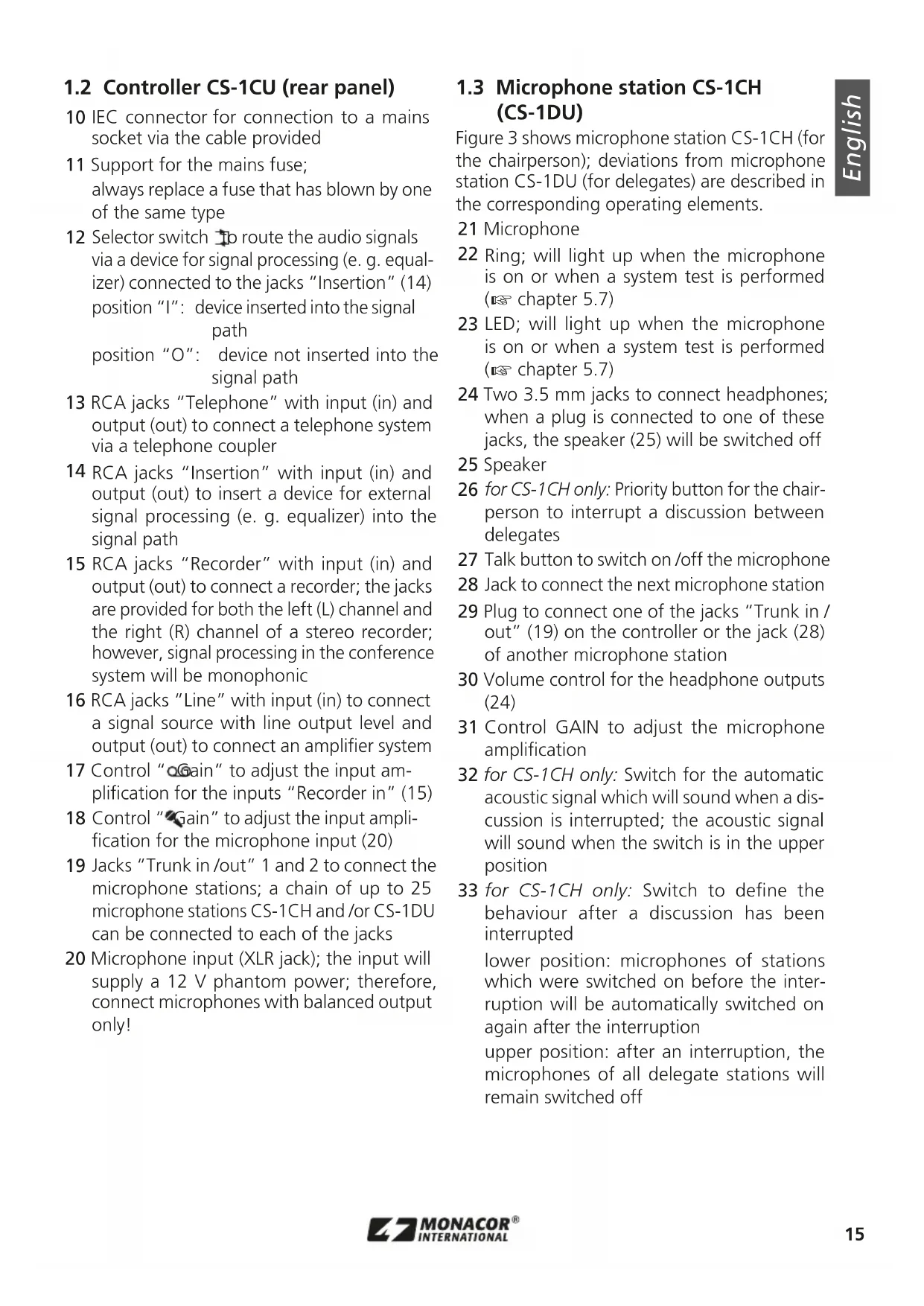
1.2 Controller CS-1CU (rear panel)
10 IEC connector for connection to a mains socket via the cable provided
11 Support for the mains fuse;
always replace a fuse that has blown by one of the same type
12 Selector switch to route the audio signals via a device for signal processing (e.g. equalizer) connected to the jacks "Insertion" (14) position "I": device inserted into the signal path
position "O": device not inserted into the signal path
13 RCA jacks "Telephone" with input (in) and output (out) to connect a telephone system via a telephone coupler
14 RCA jacks "Insertion" with input (in) and output (out) to insert a device for external signal processing (e.g. equalizer) into the signal path
15 RCA jacks "Recorder" with input (in) and output (out) to connect a recorder; the jacks are provided for both the left (L) channel and the right (R) channel of a stereo recorder; however, signal processing in the conference system will be monophonic
16 RCA jacks "Line" with input (in) to connect a signal source with line output level and output (out) to connect an amplifier system
17 Control "again" to adjust the input amplification for the inputs "Recorder in" (15)
18 Control "Gain" to adjust the input amplification for the microphone input (20)
19 Jacks "Trunk in /out" 1 and 2 to connect the microphone stations; a chain of up to 25 microphone stations CS-1CH and/or CS-1DU can be connected to each of the jacks
20 Microphone input (XLR jack); the input will supply a 12 V phantom power; therefore, connect microphones with balanced output only!
1.3 Microphone station CS-1CH (CS-1DU)
Figure 3 shows microphone station CS-1CH (for the chairperson); deviations from microphone station CS-1DU (for delegates) are described in the corresponding operating elements.
21 Microphone
22 Ring; will light up when the microphone is on or when a system test is performed (chapter 5.7)
23 LED; will light up when the microphone is on or when a system test is performed (chapter 5.7)
24 Two 3.5 mm jacks to connect headphones; when a plug is connected to one of these jacks, the speaker (25) will be switched off
25 Speaker
26 for CS-1CH only: Priority button for the chairperson to interrupt a discussion between delegates
27 Talk button to switch on /off the microphone
28 Jack to connect the next microphone station
29 Plug to connect one of the jacks "Trunk in / out" (19) on the controller or the jack (28) of another microphone station
30 Volume control for the headphone outputs (24)
31 Control GAIN to adjust the microphone amplification
32 for CS-1CH only: Switch for the automatic acoustic signal which will sound when a discussion is interrupted; the acoustic signal will sound when the switch is in the upper position
33 for CS-1CH only: Switch to define the behaviour after a discussion has been interrupted
lower position: microphones of stations which were switched on before the interruption will be automatically switched on again after the interruption
upper position: after an interruption, the microphones of all delegate stations will remain switched off

2 Safety Notes and Instructions for Use
The products (the controller CS-1CU and the microphone stations CS-1DU/CS-1CH) correspond to all relevant directives of the EU and are therefore marked with C€
The products correspond to the relevant UK legislation and are therefore marked with UKCA.
WARNING

The controller uses dangerous mains voltage. Leave servicing to skilled personnel only. Inexpert handling or modification of the device may result in electric shock.
- The products are suitable for indoor use only. Protect them against dripping water and splash water, high air humidity and heat (admissible ambient temperature range 0 – 40 °C).
- Do not place any vessel filled with liquid on the products, e. g. a drinking glass.
- The heat produced inside the controller must be dissipated by air circulation; never cover the air vents.
-
Do not operate the controller and immediately disconnect the mains plug from the socket
-
if one of the devices or the mains cable is visibly damaged,
- if a defect might have occurred after a device was dropped or suffered a similar accident,
- if malfunctions occur.
In any case, the devices must be repaired by skilled personnel.
- Never pull the mains cable to disconnect the mains plug from the socket; always seize the plug.
- For cleaning only use a dry, soft cloth; never use water or chemicals.
No guarantee claims for the products and no liability for any resulting personal damage or material damage will be accepted if the products are used for other purposes than originally intended, if they are not correctly connected or operated, or if they are not repaired in an expert way.
If the product is to be put out of operation definitively, dispose of the product in accordance with local regulations.
3 Applications
The CS-1 system is used for technical support of conferences and discussion events with up to 50 microphone stations. Additional audio connections on the controller CS-1CU make it easy to integrate other devices (such as recorders, amplifiers, wireless microphone systems, equalizers, telecommunications).
Each microphone station (CS-1DU and CS-1CH) is equipped with a high-quality microphone capsule, a speaker and two headphone jacks with volume control. The microphone stations for chairpersons (CS-1CH) have a priority button, allowing the chairperson to interrupt the discussions of other delegates for their own messages.
Various discussion modes (e. g. a defined number of delegates talking at the same time or a talking time with automatic limit), an indication of date and time, a separate stopwatch feature, a key lock feature for the controller and a test feature for all microphone stations connected make the system extremely versatile.
If more than 50 microphone stations are required, the CS-1EXM and CS-1EXS devices, available as accessories, can be used to combine two or three conference systems to create a system that may contain up to 150 microphone stations.
4 Connections
Always switch off the devices before making or changing any connections!
4.1 Microphone stations
For connecting the microphone stations, the two jacks "Trunk in /out" (19) are provided on the controller. Each of these two jacks can be used to connect a chain of up to 25 microphone stations of type CS-1CH and /or CS-1DU.
1) Connect the plug (29) of the first microphone station to one of the jacks "Trunk in /out" (19).
2) Connect the plug (29) of the second microphone station to the jack (28) on the rear of the first microphone station (or to the other jack "Trunk in /out" on the controller).
3) Proceed in the same way to connect further microphone stations. CS-1CH and CS-1DU
devices can be connected in any order. The number of microphone stations connected to the two jacks on the controller may also be different.
4.2 Additional microphone
It will be possible to connect an additional microphone or the receiver of a wireless microphone via the jack "Microphone" (20). For microphones requiring phantom power, a voltage of 12 V is present at this jack. Therefore, do not connect any microphones or wireless receivers with unbalanced output signal to this jack; they may be damaged.
4.3 Recorder
To record a discussion, connect the input of a recorder to the RCA jacks "Recorder out" (15). The signal level at these jacks is independent of the speaker volume adjusted.
To reproduce a recording, connect the output of the recorder to the RCA jacks “Recorder in”. These jacks are provided both for the left (L) channel and the right (R) channel of a stereo recorder; however, signal processing in the conference system is monophonic.
4.4 Signal source with line level
A mono signal source with line level (e. g. output of a mixer) can be connected to the RCA jack "Line in" (16).
If only a stereo signal source is available and the input "Recorder in" is not used, the signal source can be connected to this input.
4.5 Amplifier system
To reproduce the discussion via an amplifier system, connect the input of the amplifier or mixer to the jack "Line out" (16).
4.6 Telephone coupler
To include a person in the discussion over the phone, a telephone coupler can be connected to the jacks "Telephone" (13). This telephone coupler will provide the necessary electrical connection between the telephone network and the conference system.
Caution: Never try to directly connect a telephone line to the conference system!
4.7 Inserting external signal processing
To insert an additional device for signal processing (e. g. an equalizer for adjusting the sound or a compressor for limiting the dynamic range) into the signal path of the conference system, connect the input of the device to the jack "Insertion out" (14) and its output to the jack "Insertion in".
To activate external sound processing, set the switch (12) to position "I".
4.8 Headphones
As an alternative to listening via speakers, headphones can be used. For this purpose, the controller is provided with a jack (2), the microphone stations are equipped with a jack (24) both on the left and on the right. When a plug has been connected to a jack, the corresponding speaker will be switched off.
4.9 Power supply
Finally connect the mains cable provided to the IEC connector (10) first, then connect it to a mains socket.
5 Operation
Note: If no device for external sound processing is connected to the jacks "Insertion" (14) or if a device connected to these jacks is not used, set the switch (12) to position "O".
Set the volume control ▶(4) to "1" first, then switch on the controller with the POWER switch (9). The display (5) will show the last operating mode selected and also the date (format: year – month – day) and the time (format: hour : minute : second). To set the clock chapter 5.5.
5.1 Selecting the operating mode
1) Keep the button SET (8) pressed for approx. 2 seconds. Instead of the date, 📄 will keep flashing while the setup menu is open.
2) Use the buttons▲(6) or ▼(7) to select one of the following operating modes:
"Over Ride Mode"
To switch on the microphone of a delegate, briefly press the talk button (27). The LED (23) on this microphone station and the ring (22)

of this microphone will light up while the microphone is on. To switch it off, press the button again.
As soon as another delegate switches on their microphone, the microphone of the delegate speaking at that moment will be switched off automatically.
The microphone of a chairperson using a microphone station CS-1CH will not be switched off. It can be switched on /off independently of the other microphone stations.
"Chairman Only"
Only a chairperson using a microphone station CS-1CH will be able to switch on or off their microphone via the talk button (27); the microphones of the delegates will remain switched off.
"Open Mode"
A defined number of delegates will be able to talk at the same time. If the maximum number of microphones is switched on, it will not be possible to add another microphone. A delegate requesting to speak will have to wait until one of the delegates has switched off their microphone.
This restriction does not apply to a chairperson using a microphone station CS-1CH. Chairpersons can use the talk button (27) to switch on or off their microphone at any time.
"Timer Mode"
This operating mode is similar to "Open Mode", but in "Timer Mode", a microphone will be automatically switched off after being on for 30 seconds. This will prevent delegates from permanently blocking the discussion of other delegates if, for example, they forget to switch off their microphones.
3) For "Open Mode" and "Timer Mode" only:
Press the button SET: the icon 📁 will flash.
Use the button ▲ or ▼ to adjust the maximum number of delegates talking at the same time (1–4).
4) Press the button SET to confirm.
The display will briefly show "Saving" and the setup menu will disappear.
5.2 Operation of the microphone stations CS-1DU
1) To switch on the microphone, briefly press the talk button (27). The LED (23) and the ring (22) will light up as soon as the microphone has been switched on.
Note: If switching on is not possible, it may be prevented by the controller (chapter 5.1) or via the priority button of the microphone station for the chairperson (chapter 5.3.1).
2) When headphones are connected to one of the jacks (24), the speaker (25) of the microphone station will be switched off. Depending on the maximum volume adjusted on the controller, the headphone volume can be adjusted for both jacks together with the control (30) on the right of the microphone station.
CAUTION

Never adjust the headphones to a very high volume. Permanent high volumes may damage your hearing!
3) To switch off the microphone, press the talk button (27) once again. The LED (23) and the light ring (22) will go out.
Note: The microphone can be switched off at any time by the controller (chapter 5.1) or via the priority button of the microphone station for the chairperson (chapter 5.3.1).
5.2.1 Adjusting the microphone sensitivity
Each microphone station has a control GAIN (31) on its lower side. Use a small screwdriver to adjust the gain and thus adapt the sensitivity of the microphone to the person speaking.
5.3 Microphone stations for chairpersons CS-1CH
Switching on and off the microphone via the talk button and adjusting the headphone volume and microphone sensitivity of the microphone stations for chairpersons CS-1CH is the same as for the microphone stations for the other delegates (chapter 5.2). However, the chairperson can switch the microphone on at any time and only the chairperson can switch it off again.
5.3.1 Priority button
The priority button allows the chairperson to interrupt a discussion between delegates. As long as the priority button (26) is kept pressed, the microphones of all delegate stations will remain switched off. The adjustment of the two switches on the lower side of the microphone station for the chairperson will define the behaviour when the priority button is pressed or released:
left switch (32)
upper position: when the priority button is pressed, a signal will sound lower position: when the priority button is pressed, no signal will sound
right switch (33)
upper position: when the priority button is re leased, the microphones of all delegate stations will remain switched off
lower position: all microphones of delegate stations which were on before the priority button was pressed, will be automatically switched on again when the button is released
5.4 Volume adjustments on the controller
5.4.1 Total volume
Use the control ▶ (4) to adjust the volume of all speakers and the maximum volume of all headphone connections on the controller and on all microphones stations connected. In case of feedback noise, e. g. when the microphone stations are too close together and the microphone sensitivity on the microphone stations is set to a very high level (chapter 5.2.1), turn back the control accordingly. The control offers 11 positions, in position "0", all speakers and headphones will be switched off. The signal level at the output "Recorder out" (15) will not be affected by this control.
5.4.2 Speaker and headphones on the controller
Use the control (3) to adjust the volume for the headphone jack (2) and the speaker (1). When headphones are connected to the jack, the speaker will be switched off.
CAUTION

Never adjust the headphones to a very high volume. Permanent high volumes may damage your hearing!
5.4.3 Volume for external microphone
If required, match the volume for a microphone connected to the jack "Microphone" (20) or for a receiver of a wireless microphone: Use a small screwdriver to turn up the control "Gain" (18) only to such an extent that the sound reproduced is not distorted.
5.4.4 Volume for the input "Recorder in"
If required, match the volume for a signal source connected to the jacks "Recorder in" (15): Use a small screwdriver to turn up the control "Gain" (17) only to such an extent that the sound reproduced is not distorted.
5.5 Setting the date and the time
The controller is provided with its own clock showing the date and the time in the bottom line of the display (5) in the following format: year-month-day hour:minute:second Setting the clock:
1) Press the button SET for approx. 2 seconds. Instead of the date, will keep flashing while the setup menu is open.
2) Press the button ⚠(6) or ⏱7) repeatedly until "Set Date/ Time" is indicated.
3) Briefly press the button SET. The year will be highlighted.
4) Use the button ▲(6) or ▼(7) to set the year and press the button SET to confirm. The month will be highlighted.
5) Set the month, the day, the hour, the minute in the same way. When the minute is set, the seconds value will be set to zero.
6) To save the setting, press the button SET. The display will briefly show "Saving" and the setup menu will disappear.

5.6 Stopwatch feature
In addition to the clock, the controller offers a stopwatch feature.
1) To switch from clock mode to stopwatch mode, briefly press the button SET (8). In the bottom line, the display (5) will show "Counter 0:00:00"
2) Press the button ▲ (6) to start the stop-watch feature. The indication will change to "Counting" and counting will start.
3) After the time to be measured, press the button ▲once again. The indication will change to "Stopped" and counting will stop.
4) To reset the stopwatch when counting has stopped, press the button ▼(7).
5) To switch to the time indication and back to the stopwatch mode at any time, even when the stopwatch is counting, briefly press the button SET.
5.7 Test feature
To test if all microphone stations are connected:
1) Press the button SET (8) for approx. 2 seconds. Instead of the date, SET will keep flashing while the setup menu is open.
2) Press the button ▲(6) or ▼7) repeatedly until "System Test" is indicated. The LEDs (23) and rings (22) of all microphone stations connected will light up, but the microphones will remain switched off.
3) To exit the setup menu, press the button or ▼ repeatedly until "Exit" is indicated, then press the button SET.
5.8 Key lock
To prevent inadvertent actuation of buttons, a key lock feature is provided. When the key lock is activated, will appear on the top right of the display (5) and the stopwatch feature will not be available. For normal operation, the key lock must be deactivated again.
To activate /deactivate the key lock feature:
1) Keep the button SET (8) pressed for approx. 2 seconds. 📄 will flash on the display.
2) If "Key Lock" fails to appear on the display immediately, press the button ▲(6) or ▼(7) repeatedly until "Key Lock" is indicated. Press the button SET to confirm.
3) Use the button ▲ and select "Yes" to activate the key lock or use the button ▼ and select "No" to deactivate the key lock. Press the button SET to confirm.
6 Combining Conference Systems
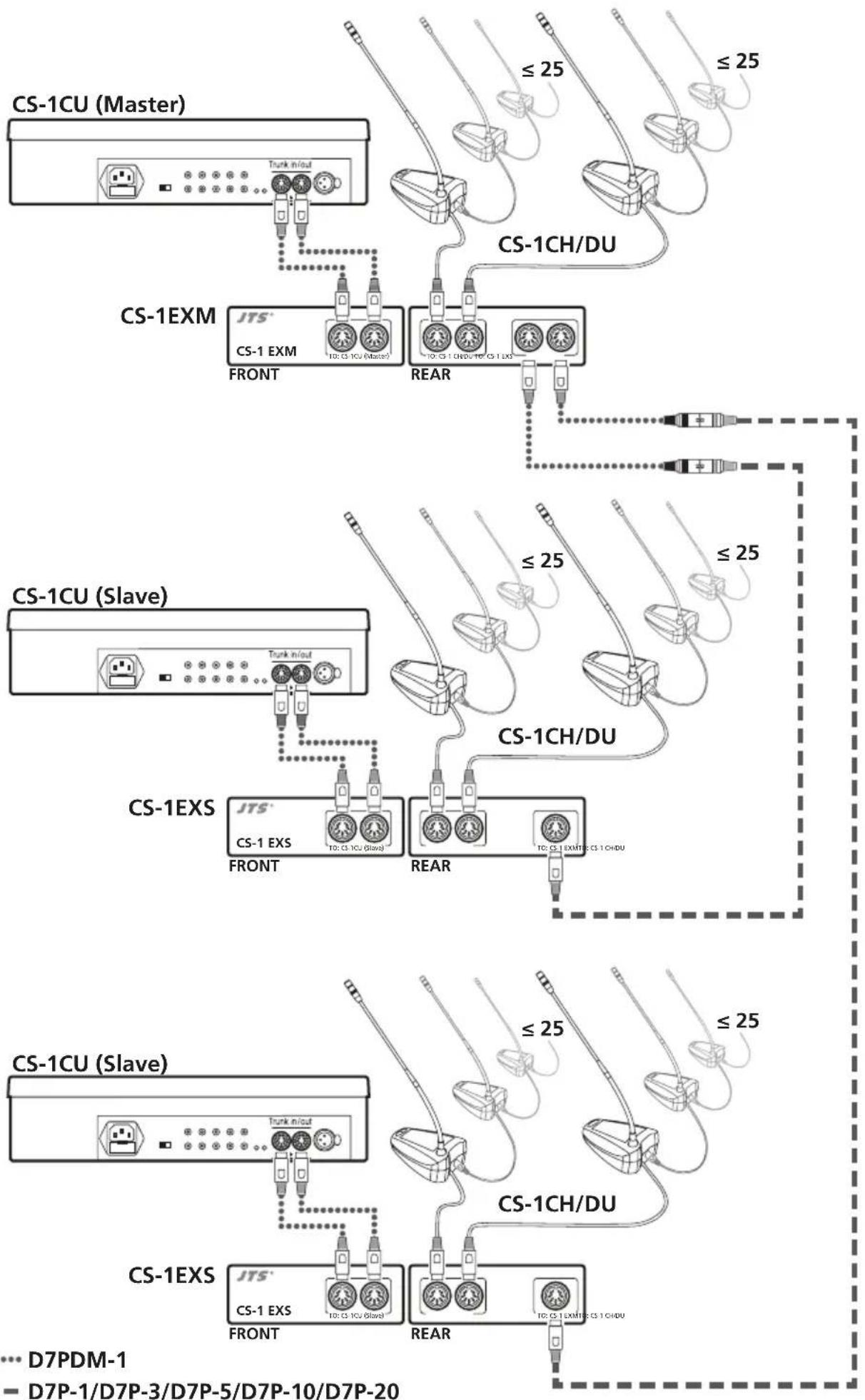
If more than 50 microphone stations are required, two or three conference systems can be combined to create a system that may contain up to 150 microphone stations. To do this, the microphone stations are connected by means of the extension devices CS-1EXM and CS-1EXS as shown in figure 4.
In this case, one CS-1CU controller is used as the main device (master) and will control the entire system. However, the other CS-1CU controllers (slaves) are required to supply power to the additional microphone stations.
To connect the devices, cables of type D7PDM-1 and extension cables D7P-..., available in various lengths, are required.
flowchart
graph TD
    subgraph CS-1CU (Master)
        A["Terminal"] --> B["TSNK n/Out"]
        B --> C["CS-1EXM FRONT"]
        C --> D["CS-1 EXM FRONT"]
        D --> E["CS-1 CH/DU"]
        E --> F["CS-1 CH/DU"]
        F --> G["CS-1EXS FRONT"]
        G --> H["CS-1 EXS FRONT"]
        H --> I["CS-1 CH/DU"]
        I --> J["CS-1EXS FRONT"]
        J --> K["CS-1 EXS FRONT"]
        K --> L["CS-1 CH/DU"]
        L --> M["CS-1EXS FRONT"]
        M --> N["CS-1 EXS FRONT"]
        N --> O["CS-1 CH/DU"]
        O --> P["CS-1EXS FRONT"]
        P --> Q["CS-1 EXS FRONT"]
        Q --> R["CS-1 CH/DU"]
        R --> S["CS-1EXS FRONT"]
        S --> T["CS-1 EXS FRONT"]
        T --> U["CS-1 CH/DU"]
        U --> V["CS-1EXS FRONT"]
        V --> W["CS-1 EXS FRONT"]
        W --> X["CS-1 CH/DU"]
        X --> Y["CS-1EXS FRONT"]
        Y --> Z["CS-1 EXS FRONT"]
        Z --> AA["CS-1 CH/DU"]
        AA --> AB["CS-1EXS FRONT"]
        AB --> AC["CS-1 EXS FRONT"]
        AC --> AD["CS-1 CH/DU"]
        AD --> AE["CS-1EXS FRONT"]
        AE --> AF["CS-1 EXS FRONT"]
        AF --> AG["CS-1 CH/DU"]
        AG --> AH["CS-1EXS FRONT"]
        AH --> AI["CS-1 EXS FRONT"]
        AI --> AJ["CS-1 CH/DU"]
        AJ --> AK["CS-1EXS FRONT"]
        AK --> AL["CS-1 EXS FRONT"]
        AL --> AM["CS-1 CH/DU"]
        AM --> AN["CS-1EXS FRONT"]
        AN --> AO["CS-1 EXS FRONT"]
        AO --> AP["CS-1 CH/DU"]
        AP --> AQ["CS-1EXS FRONT"]
        AQ --> AR["CS-1 EXS FRONT"]
        AR --> AS["CS-1 CH/DU"]
        AS --> AT["CS-1EXS FRONT"]
        AT --> AU["CS-1 EXS FRONT"]
        AU --> AV["CS-1 CH/DU"]
        AV --> AW["CS-1EXS FRONT"]
        AW --> AX["CS-1 EXS FRONT"]
        AX --> AY["CS-1 CH/DU"]
        AY --> AZ["CS-1EXS FRONT"]
        AZ --> BA["CS-1 EXS FRONT"]
        BA --> BB["CS-1 CH/DU"]
        BB --> BC["CS-1EXS FRONT"]
        BC --> BD["CS-1 EXS FRONT"]
        BD --> BE["CS-1 CH/DU"]
        BE --> BF["CS-1EXS FRONT"]
        BF --> BG["CS-1 EXS FRONT"]
        BG --> BH["CS-1 CH/DU"]
        BH --> BI["CS-1EXS FRONT"]
        BI --> BJ["CS-1 EXS FRONT"]
        BJ --> BK["CS-1 CH/DU"]
        BK --> BL["CS-1EXS FRONT"]
        BL --> BM["CS-1 EXS FRONT"]
Combining 3 conference systems ④

7 Specifications
7.1 Controller CS-1CU
Number of microphone
stations: 50 max. (25 max.
per connection)
Maximum cable length: . 100m
Inputs
"Line in", "Telephone in", "Insertion in"
Connection:.... RCA
Sensitivity: 200mV
Maximum level: ..... 3.5V
Impedance: 33 kΩ
Input "Recorder in"
Connection: ..... RCA
Sensitivity: 100mV
Maximum level: ..... 1.8V
Impedance: 47kΩ
Input "Microphone"
Connection: ..... XLR
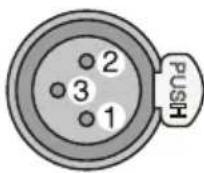
1 = ground /
phantom power supply –
2 = signal + /
phantom power supply +
3 = signal - /
phantom power supply +
Sensitivity: 1.6mV
Maximum level: ..... 2V
Impedance: 1.3kΩ
Phantom power supply: = 12 V ± 1 V
via 2 × 680 Ω
Outputs
"Line out", "Telephone out", "Insertion out"
Connection:.... RCA
Rated output level: ..... 200mV
Maximum output level:.3.5V
Impedance: 500Ω
Output "Recorder out"
Connection:.... RCA
Rated output level: . . . . 32 mV
Maximum output level:.1 V
Impedance: 500Ω
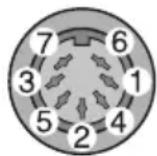
Connections "Trunk in/out"
of microphone stations
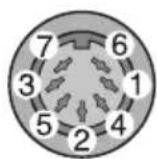
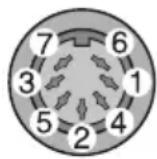
Connection: ..... 7-pole DIN jacks
1 = audio signal (microphones)
2 = ground
3 = audio signal (speakers)
4 = control line 1
5 = control line 2
6 = power supply +
7 = power supply -
Power supply: .... \~ 100–264 V/
50-60Hz
Power consumption: . . . . 90 VA max.
Ambient temperature: .. 0–40°C
Dimensions: 360 × 150 × 90 mm
Weight: 1.7 kg
7.2 Microphone stations CS-1CH and CS-1DU
Type of microphone: .... back electret
Pick-up pattern: ..... cardioid
Frequency range: ..... 50–18000 Hz
Max. SPL: 125 dB at 1 % THD
Cable length: 2m
Dimensions
(without microphone): .. 170 × 115 × 65 mm
Length of gooseneck: . . . 400 mm
Weight: 1.1 kg
Subject to technical modification.
All rights reserved by MONACOR® INTERNATIONAL GmbH & Co. KG. No part of this instruction manual may be reproduced in any form or by any means for any commercial use.
1.3 Station micro CS-1CH (CS-1DU) ..... 25
1.3 Station micro CS-1CH (CS-1DU)
Branchement: ..... XLR
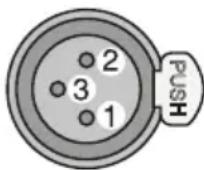
1 = masse /alimentation fantôme -
2 = signal + / alimentation fantôme +
3 = signal - / alimentation fantôme +
1 = signal audio (micros)
2 = masse
3 = signal audio (haut-parleurs)
4 = câble de commande 1
5 = câble de commande 2
6 = alimentation +
7 = alimentation -
Alimentation : .... \~ 100–264 V/50–60 Hz
"Line in", "Telephone in", "Insertion in"
Conexión:.... RCA
Salida "Recorder out"
Conexión:.... RCA
Nivel de salida nominal: 32 mV
© MONACOR INTERNATIONAL
All rights reserved