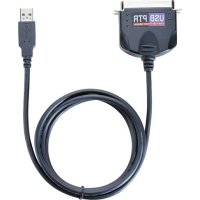
PA096E - Computer Cable TARGUS - Free user manual and instructions
Find the device manual for free PA096E TARGUS in PDF.



| Product Type | USB to Parallel Adapter Cable |
| Brand | Targus |
| Model | PA096E |
| Connectors | USB Type A male, DB25 female parallel port |
| Compatible Operating Systems | Windows 2000 / XP / Vista (no driver required); Windows 98 / ME (driver required) |
| Power | Self-powered via USB port |
| Main Functions | Connect a parallel printer to a computer via USB; port extension |
| Installation | Install driver before connecting cable (Windows 98/ME); plug into an available USB port |
| Troubleshooting | Unplug/replug; check connections; redirect print port to USB001 if necessary |
| Warranty | 2 years against material and workmanship defects |
| Regulatory Compliance | FCC Class B |
| Recycling | Take to an appropriate recycling center |
| Technical Support | Targus website or phone numbers by country |
Frequently Asked Questions - PA096E TARGUS
User questions about PA096E TARGUS
0 question about this device. Answer the ones you know or ask your own.
Ask a new question about this device
Download the instructions for your Computer Cable in PDF format for free! Find your manual PA096E - TARGUS and take your electronic device back in hand. On this page are published all the documents necessary for the use of your device. PA096E by TARGUS.
USER MANUAL PA096E TARGUS
text_image
USB to parallel printer cable Targus® USER GUIDE PMS Black 15% PMS Black 100% Visit our Website at www.targus.com Features and specifications subject to change without notice. © 2007 Targus Group International, Inc. and Targus Group (UK) Lfd. PA088E / 410-6212-0038 FCC CE N2953Table of Contents
English
Targus USB to Parallel Printer Cable.... 3
Deutsch
Targus USB-zu-Parallel-Druckerkabel 12
Español
Cable impresora de paralelo USB de Targus... .....21
Français
Congratulations on your purchase of the Targus USB to Parallel Printer Cable. This ultra portable expansion cable directly connects to your computer via a Universal Serial Bus (USB) port.
This user's guide describes how to connect the adapter to your computer, install software and hardware drivers, and attach and configure devices.
System Requirements
Hardware
- PC with a Pentium ^® processor or equivalent
- USB V.1.1 compliant port
- CD-ROM driver
Operating System
- Windows ^ 2000 / XP / Vista ^TM operating system (No Driver Installation required)
- Windows ^® 98 / ME operating system (Driver Installation required)
Installing the Device and Drivers
To use the parallel printer cable, you must first install its driver software onto your computer if it has Windows ^® 98 / ME as the operating system.

WARNING: YOU MUST INSTALL THE DRIVER SOFTWARE BEFORE CONNECTING THE ADAPTER TO YOUR COMPUTER. OTHERWISE, THE ADAPTER WILL NOT WORK PROPERLY.
Installing the Driver Software and Connecting the Adapter Cable to Your Computer
1 Insert the driver software CD into your computer's CD-ROM drive.
2 If setup does not begin automatically, click Start, Run, then enter D:\Setup.exe (where D: is the path of your CD-ROM drive) and then click OK.
The Welcome screen appears.
3 Click Next.
4 The Important Information screen appears. Click Next.
The Setup program begins installing the software drivers.

NOTE: IF YOU GET A WARNING SCREEN, PLEASE CLICK "CONTINUE ANYWAY"
The Setup Complete Screen appears.
5 You must restart your computer. A prompt will appear with the default setting to restart. Click Finish.

NOTE: IF YOU ARE RUNNING THE WINDOWS® 2000/XP/VISTA™ OPERATING SYSTEM, YOU ONLY NEED TO PLUG AND PLAY.
You can now connect the adapter to your computer. To do this, plug the standard USB end of the cable into an available USB port to your computer.
Connecting Devices to the Adapter Cable
You may be prompted to install one or more of the hardware drivers:
To install the drivers:
1 Select Install the software automatically (Recommended) and click Next.
The Found New Hardware Wizard program begins installing the hardware drivers.
2 Follow any on-screen instructions and repeat as needed for each device.
3 Restart your computer.
Parallel Port Adapter Cable
Connecting and Configuring a Printer for the First Time
To connect a parallel printer:
1 Plug the printer cable into the parallel port on the adapter.
2 Install the printer software driver according to he instructions that come with the device.
3 If prompted to select a port, choose USB001 (USB port). If this port does not appear in the list, choose the LPT1 port, complete the manufacturer's setup for your printer, and refer to the instructions below to redirect your printer.
Checking and Redirecting the Printer Port Settings
Follow these instructions to check the printer port settings and redirect your printer from the LPT 1 port to the USB001 (USB port) on the adapter.
1 With the printer connected to the adapter's parallel port, select Start, Settings, and then Printers.
2 Right-click the printer device you are reassigning and select Properties.
3 In the Printer Properties window, select Details or Connection for the Printer. (Section titles vary, so check your printer's user manual for specific instructions.)
4 Change the setting to USB001 (USB port) to redirect printing to the adapter.
Troubleshooting
Device Not Working
- Disconnect the adapter from your computer's USB port, then reconnect it.
- Check that your computer is turned on, that is charged (if running on a battery) and that the device is plugged in and turned on (if applicable).
- Make sure that the adapter is firmly connected to both your computer and the device.
- Disconnect the device from the adapter, then reconnect it and restart your computer.
- Verify that you ran the Setup or Install program for the device.
- Make sure that the device appears in Device Manager. For more information refer to the following instructions.
Verifying Devices are Installed
You can view the devices installed on your computer from the Device Manager Window in System Properties.
Right-click My Computer, then click Properties, Hardware tab, and the Device Manager button.
From the Device Manager window expands the Universal Serial Bus controllers - displays the USB printing support.
Printer Not Found
If your parallel printer is not working, refer to “Checking and Redirecting the Printer Port Settings” on page 6 for instructions on how to verify and change the port settings.
Technical Support
For technical questions, please visit:
Internet:
English http://www.targus.com/uk/support.asp
German http://www.targus.com/de/support.asp
Spanish http://www.targus.com/sp/support.asp
Italian http://www.targus.com/it/support.asp
Our knowledgeable staff are also available to answer your questions through one of the following telephone numbers.
$$ \begin{array}{l} A u t r i a + 4 3 1 - 7 9 5 - 6 7 6 - 4 2 \ \text { Belgium } + 3 2 (0) 2 - 7 1 7 - 2 4 5 1 \ \text { Denmark } + 4 5 \text { 35 - 25 - 87 - 51 } \ \text { Finland } + 3 5 8 (0) 9 2 2 9 4 8 0 1 6 \ \text { France } + 3 3 (0) 1 - 6 4 5 3 - 9 1 5 1 \ \text { Germany } + 4 9 (0) 2 1 1 - 6 5 7 9 - 1 1 5 1 \ \text { Italy } + 3 9 (0) 2 - 4 8 2 7 - 1 1 5 1 \ \text { Netherlands } + 3 1 (0) 2 0 - 5 0 4 6 7 1 \ \text {Norway} + 4 7 2 2 5 7 7 7 2 9 \ \end{array} $$
Portugal +351 21-415-4123
Spain +34 91-745-6221
Sweden +46 (0)8-751-4058
Switzerland +41 44-212-0007
United Kingdom +44 (0)20-7744-0330
Eastern Europe & others +31 (0)20-504671
Product Registration
Targus recommends that you register your Targus accessory shortly after purchasing it. To register your Targus accessory, go to: http://www.targus.com/registration.asp
You will need to provide your full name, email address, phone number and company information (if applicable).
Warranty
Targus warrants this product to be free from defects in materials and workmanship for two years. If your Targus accessory is found to be defective within that time, we will promptly repair or replace it. This warranty does not cover accidental damage, wear and tear, or consequential or incidental loss. Under no conditions is Targus liable for loss of, or damage to a computer; nor loss of, or damage to, programs, records, or data; nor any consequential or incidental damages, even if Targus has been informed of their possibility. This warranty does not affect your statutory rights.
Product Registration: http://www.targus.com/registration.asp
Regulatory Compliance
This device complies with Part 15 of the FCC Rules. Operation is subject to the following two conditions: (1) This device may not cause harmful interference, and (2) This device must accept any interference received, including interference that may cause undesired operation.
FCC Statement
Tested to Comp ly
This equipment has been tested and found to comply with the limits of a Class B digital device, pursuant to Part 15 of the FCC Rules. These limits are designed to provide reasonable protection against harmful interference in a residential installation. This equipment generates, uses, and can radiate radio frequency energy and if not installed and used in accordance with the instructions, may cause harmful interference to radio communications. However, there is no guarantee that interference will not occur in a particular installation.
If this equipment does cause harmful interference to radio or television reception, which can be determined by turning the equipment off and on, the user is encouraged to try to correct the interference by one or more of the following measures:
- Reorient or relocate the receiving antenna;
- Increase the separation between the equipment and receiver;
- Connect the equipment into an outlet on a circuit different from that to which the receiver is connected;
- Consult the dealer or an experienced radio/TV technician for help.
Changes or modifications not authorized by the party responsible for compliance could void the user's authority to operate this product.
Targus Recycling Directive
At the end of this product's useful life please dispose at an appropriate recycling collection point provided in your country. Targus recycling policy is available for viewing at:
www.targus.com/recycling.
Features and specifications subject to change without notice. Microsoft, Windows and Windows Vista are either registered trademarks or trademarks of Microsoft Corporation in the United States and/or other countries. All other trademarks are the property of their respective owners. All rights reserved. © 2007, Targus Group International, Inc. and Targus (UK), Inc
TARGUS USB-ZU- PARALLEL- DRUCKERKABEL
Einführung
Austria +43 1-795-676-42
Bélgica +32 (0)2-717-2451
Dinamarca +45 0 35-25-8751
Finlandia +358 (0)922948016
Francia +33 (0)1-6453-9151
www.targus.com/recycling.
www.targus.com/recycling.
Inglese http://www.targus.com/uk/support.asp
Targus Recycling Directive
CABO IMPRESSORA TARGUS USB PARA PARALELA
Introdução
Alemão http://www.targus.com/de/support.asp
Espanhol http://www.targus.com/sp/support.asp
Italiano http://www.targus.com/it/support.asp