AMU41US - Backpack TARGUS - Free user manual and instructions
Find the device manual for free AMU41US TARGUS in PDF.


User questions about AMU41US TARGUS
0 question about this device. Answer the ones you know or ask your own.
Ask a new question about this device
Download the instructions for your Backpack in PDF format for free! Find your manual AMU41US - TARGUS and take your electronic device back in hand. On this page are published all the documents necessary for the use of your device. AMU41US by TARGUS.
USER MANUAL AMU41US TARGUS
text_image
Laser Stow-N-Go™ Notebook Mouse Targus® USER GUIDE CLAS1 Laser Product CE FC NT953 AMU41US / 410-1207-001A PMS Black 30% PMS Black 100%
text_image
CLASS 1 LASER PRODUCTCAUTION
LASER RADIATION. DO NOT STARE INTO THE BEAM OR VIEW DIRECTLY WITH OPTICAL INSTRUMENTS. CLASS I LASER PRODUCT.
NEVER POINT A LASER BEAM INTO A PERSON'S EYES OR VIEW A LASER BEAM DIRECTLY, AS PROLONGED EXPOSURE CAN BE HAZARDOUS TO THE EYES.
MOMENTARY EXPOSURE FROM A LASER POINTER, SUCH AS AN INADVERTENT SWEEP OF THE LIGHT ACROSS A PERSON'S EYES, MAY CAUSE TEMPORARY FLASH BLINDNESS SIMILAR TO THE EFFECT OF A CAMERA FLASH BULB. ALTHOUGH THIS CONDITION IS TEMPORARY, IT CAN BECOME MORE DANGEROUS IF THE EXPOSED PERSON IS ENGAGED IN A VISION-CRITICAL ACTIVITY SUCH AS DRIVING.
TARGUS LASER STOW-N-GO™ NOTEBOOK MOUSE
Introduction
Congratulations on your purchase of the Targus Laser Stow-N-Go™ Notebook Mouse. This mouse features a tracking resolution switch for users who require more precision or speed with various applications. The Stow-N-Go™ USB tip clips onto the mouse for ease of use while traveling or on the go. This mouse also features a 4-way scrolling tilt wheel which allows for both vertical and horizontal navigation.
System Requirements
- Hardware - USB port
- Windows® 2000/XP
- Windows Vista™
• Mac OS X 10.2.8 (or greater)
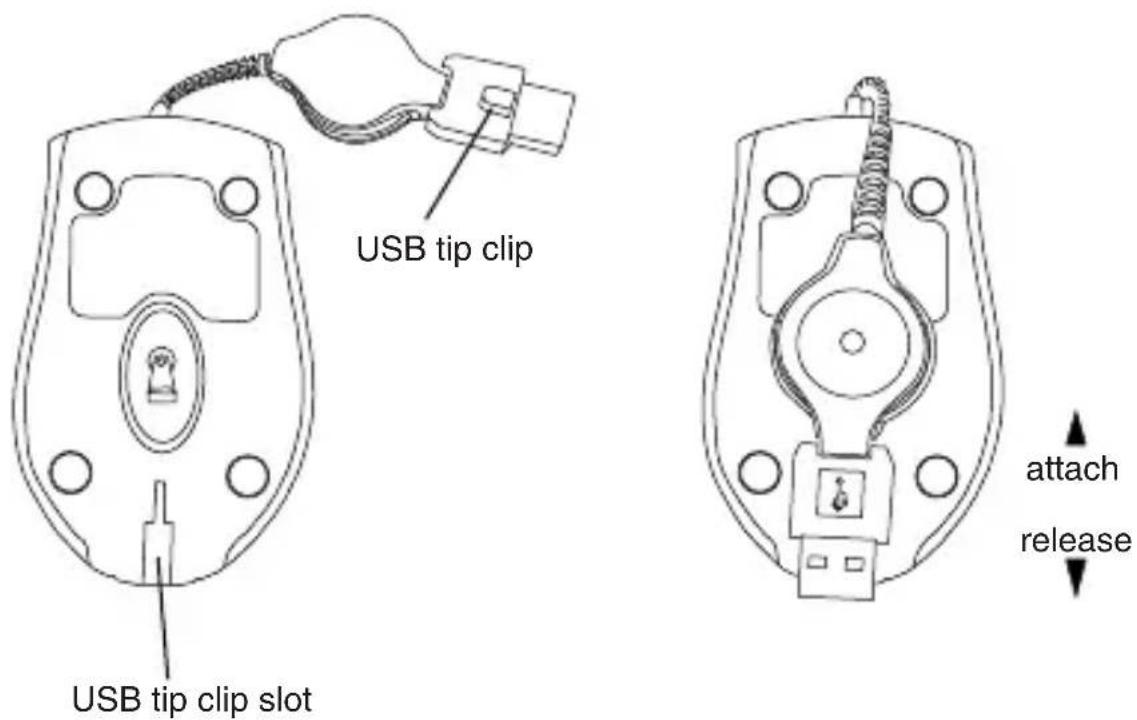
Using the Cable clip
The retractable cable can be attached to the bottom of the mouse for ease of carrying.
text_image
USB tip clip USB tip clip slot attach releaseOperating Instructions
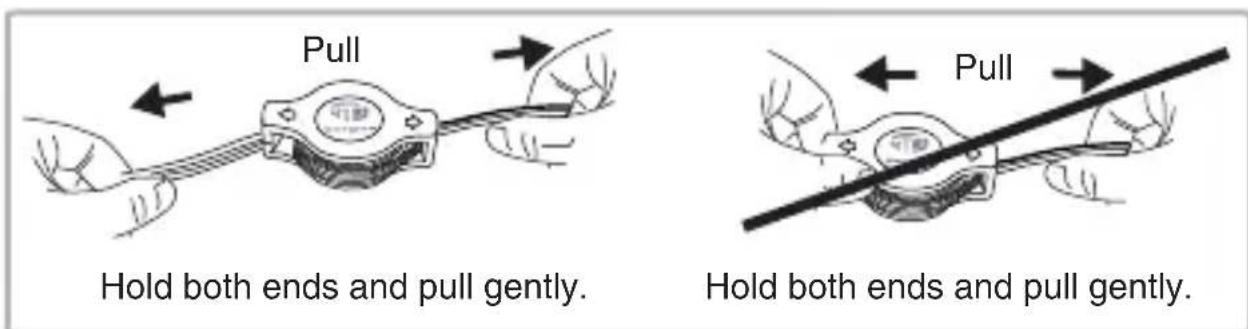
To extend the cable, pull both ends of the USB cable away from the mouse's cord wheel at the same time. Continue pulling both ends until the cable reaches the length you want. To retract the cable, or shorten the length, draw both ends of the USB cable slightly and quickly release until the cable reaches the length you want or is completely retracted. Plug the standard USB end of the cable into an available USB port on your computer. You are now ready to use the mouse.
text_image
Pull Hold both ends and pull gently. Pull Hold both ends and pull gently.Connecting the mouse to your computer
1 Plug the standard USB end of the cable into an available USB port on your computer.
2 The Found New Hardware Wizard appears. If it does not, the operating system has installed the default driver automatically. No other steps are necessary.
3 Click Next. The wizard searches for the appropriate device driver.
4 Click Next.
5 Click Finish to complete the driver installation.
You are now ready to use the mouse.
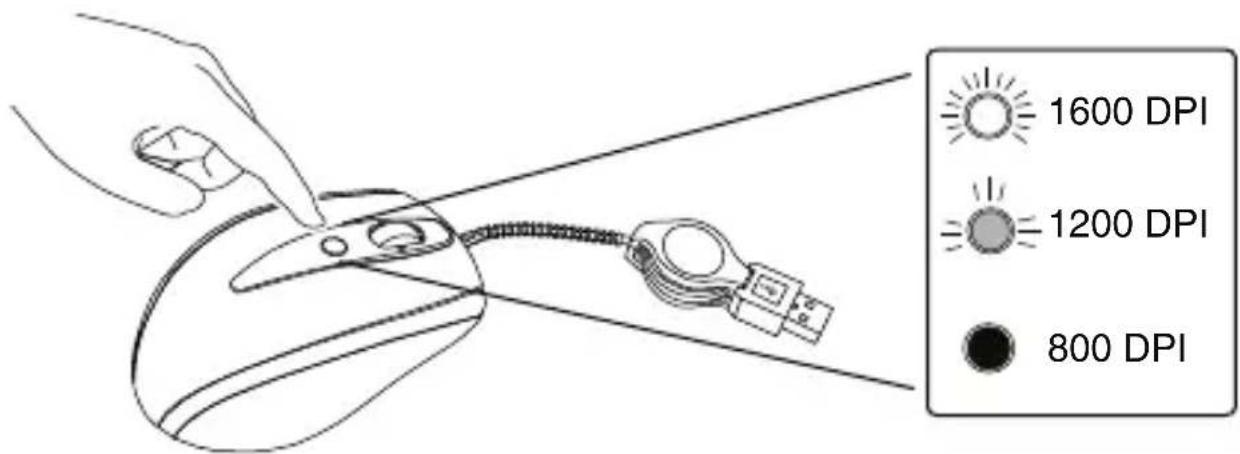
Adjusting the DPI Setting
This mouse features 3 selectable resolution settings (1600 / 1200 / 800 DPI). By pressing the resolution switch, you can instantly adjust the tracking speed of the mouse. When the DPI is set at 1600, the indicator light will glow brightest and when it is set at 1200, the light will become dimmer. The indicator will be off when the DPI is set at 800 DPI.
text_image
1600 DPI 1200 DPI 800 DPIWindows XP:
After selecting the desired resolution, you can also fine tune the sensitivity. This can be adjusted in the “control panel” of the Windows operating system.
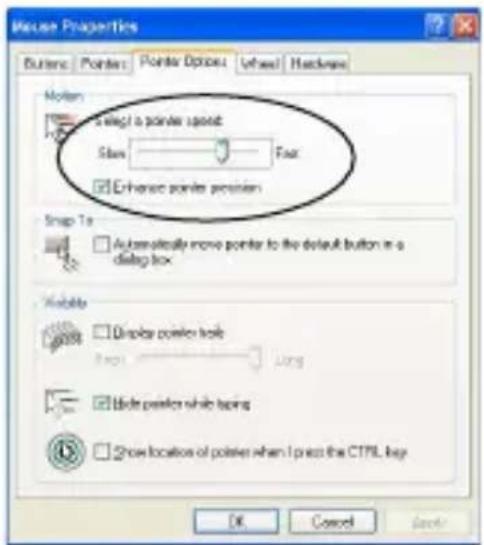
Click on Start --> Setting --> Control Panel --> Mouse
In the “mouse properties” window, locate the “pointer options” tab. Under “motion”, use the slider to change the speed of the mouse. Click apply to confirm the changes.
text_image
Mouse Properties Button: Point: Point: Options Wheel: Hardware Motion Select a point speed Size: Fast Enhance point position Snap To Automatically move point to the default button in a dislop box Visible Display position tool Free: Long Wide position while typing Show location of points when I press the CTRL key OK Cancel CloseWindows XP
Mac OS:
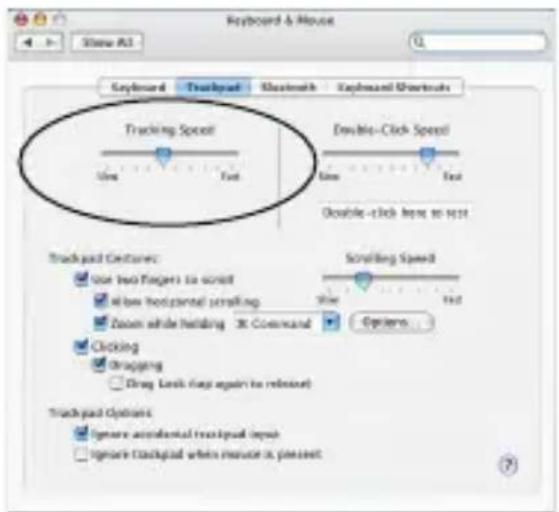
After selecting the desired resolution, you can also fine tune the sensitivity. This can be adjusted in the “System Preference” of the Mac operating system.
Click on the Apple logo --> System Preference --> Keyboard & Mouse In the "Keyboard & Mouse" window, locate the "Trackpad" tab. Under "tracking speed", use the slider to change the speed of the mouse.
text_image
Keyboard & Mouse Keyboard Touchpad Sketchbook Keyboard Sketchpad Tracking Speed Double-Click Speed Slow Fast Double-click here to set Trackpad Gestones: Scralling Speed Use two fingers to scroll Allow horizontal scrolling Zoom while holding 3x Command Options Clicking Drapping Drag Lock flag again to release Trackpad Options Ignore accidental touchpad input Ignore Goonplad when mouse is presentMac OS
Installing the tilt-wheel software driver
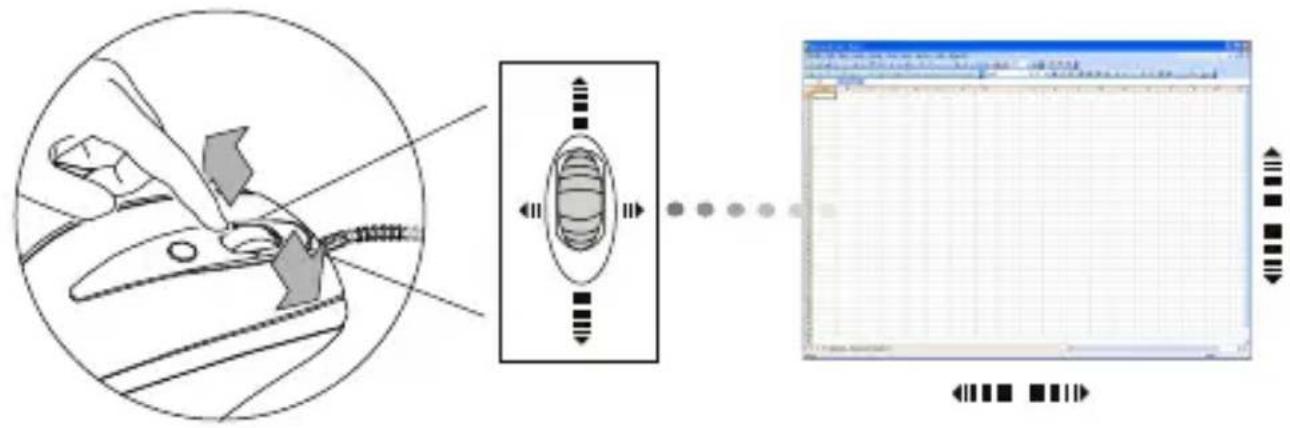
This mouse is equipped with a 4-way scrolling function.
To enable the tilt-wheel function, the software driver must be installed.

NOTE: THE TILT-WHEEL FEATURE IS SUPPORTED BY THE MAC OPERATING SYSTEM. NO DRIVER INSTALLATION IS NECESSARY. THE FOLLOWING STEPS ARE FOR WINDOWS OPERATING SYSTEMS ONLY.
- Please download the software driver (Model # AMU41) from the official Targus web site: http://www.targus.com
Save the setup.exe file to your computer and double click on the icon to launch the installation process.

setup.exe
Tilt Mouse Software Setup
- The Installation Wizard window will prompt.
Follow the on-screen instructions to complete the installation.

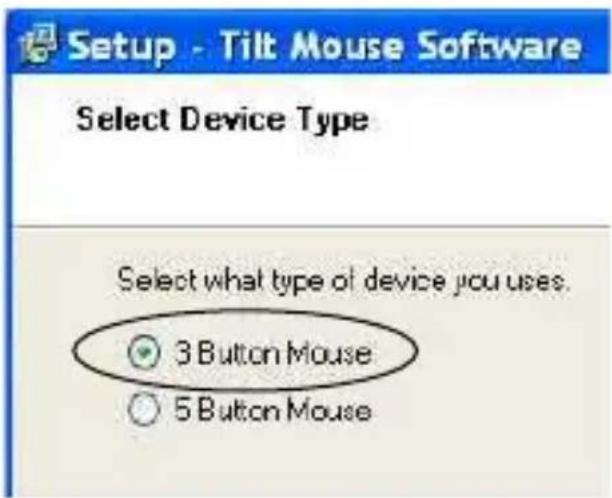
NOTE: PLEASE SELECT THE "3 BUTTON MOUSE" OPTION WHEN PROMPTED TO DO SO.
text_image
Setup - Tilt Mouse Software Select Device Type Select what type of device you uses. 3 Button Mouse 5 Button MouseAfter the software driver is successfully installed, there will be a “Tilt Mouse” icon located in the task bar.

text_image
Tilt MouseUsing the 4-way scrolling tilt-wheel
Pressing the scroll-wheel left or right, enables the horizontal scrolling feature.
text_image
Diagram illustrating car steering wheel and dashboard control, showing gear shift, vehicle positioning, and screen display.
NOTE: DOUBLE CLICK ON THE "TILT MOUSE" ICON IN THE TASK BAR WILL LAUNCH THE MOUSE SETTINGS SCREEN. YOU CAN EDIT THE SETTINGS AND PREFERENCES IN THIS WINDOW.
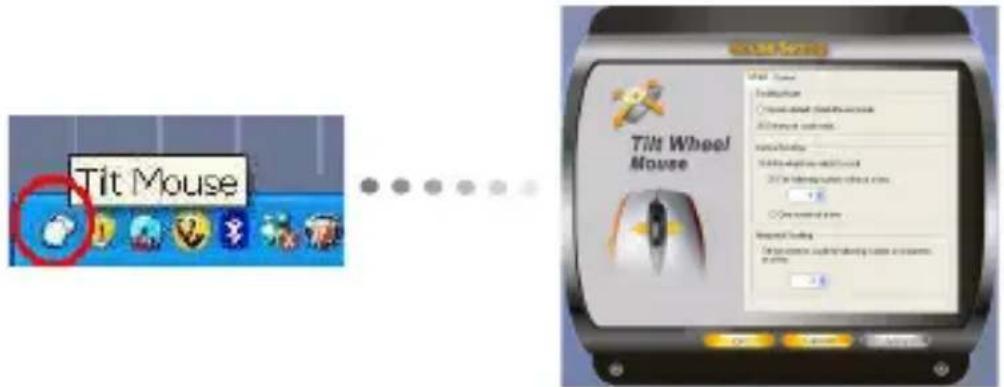
text_image
Tilt Mouse Tilt Wheel MouseActivating the Universal Zoom function
The Universal Zoom function can be enabled in the Mouse Setting screen.
In the Mouse Setting screen, under the Button tab, scroll down the function list and select the Universal Zoom function then click Apply.
Press on the scroll wheel to activate the zoom function.
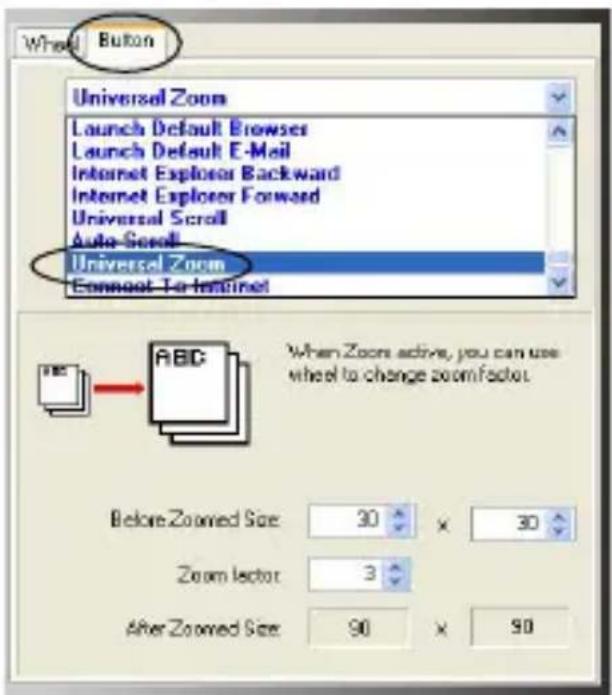
text_image
Wheel Button Universal Zoom Launch Default Browsers Launch Default E-Mail Internet Explorer Backward Internet Explorer Forward Universal Scroll Auto Scroll Universal Zoom Connect To Internet When Zoom active, you can use wheel to change zoom factor. Before Zoomed Size 30 × 30 Zoom Iector 3 After Zoomed Size 90 × 90Safety Measures
- To avoid possible eye damage, never point the mouse's laser at people, especially their faces, or look directly into the mouse's laser beam.
- Avoid pointing the mouse's laser beam at a mirror or other highly reflective surface.
- Keep the mouse away from young children.
- Never view the mouse's laser beam using telescopic devices, such as a microscope or binoculars.
- Any attempt to disassemble, adjust or repair the mouse may result in exposure to laser light or other safety hazards.
• This is a Class I Laser Product.
Product Specification
| Interface • USB 1.1 | |
| Power • USB Bus P | Powered 5V DC |
Technical Support
For technical questions, please visit:
US Internet: www.targus.com/support.asp
Australia Internet: www.targus.com/au
Email: infoaust@targus.com
Telephone: 1800-641-645
New Zealand Telephone: 0800-633-222
Product Registration
Targus recommends that you register your Targus accessory shortly after purchasing it. Go to:
http://www.targus.com/registration.asp. You will need to provide your full name, email address, phone number, and company information (if applicable).
Warranty
Targus warrants this product to be free from defects in materials and workmanship for one year. If your Targus accessory is found to be defective within that time, we will promptly repair or replace it. This warranty does not cover accidental damage, wear and tear, or consequential or incidental loss. Under no conditions is Targus liable for loss of, or damage to a devices nor loss of, or damage to, programs, records, or data; nor any consequential or incidental damages, even if Targus has been informed of their possibility. This warranty does not affect your statutory rights.
Regulatory Compliance
This device complies with Part 15 of the FCC Rules. Operation is subject to the following two conditions: (1) This device may not cause harmful interference, and (2) This device must accept any interference received, including interference that may cause undesired operation.
FCC Statement Tested to Comply
This equipment has been tested and found to comply with the limits of a Class B digital device, pursuant to Part 15 of the FCC Rules. These limits are designed to provide reasonable protection against harmful interference in a residential installation. This equipment generates, uses, and can radiate radio frequency energy and if not installed and used in accordance with the instructions, may cause harmful interference to radio communications. However, there is no guarantee that interference will not occur in a particular installation. If this equipment does cause harmful interference to radio or television reception, which can be determined by turning the equipment off and on, the user is encouraged to try to correct the interference by one or more of the following measures:
- Reorient or relocate the receiving antenna;
- Increase the separation between the equipment and receiver;
- Connect the equipment into an outlet on a circuit different from that to which the receiver is connected;
- Consult the dealer or an experienced radio/TV technician for help.
Changes or modifications not authorized by the party responsible for compliance could void the user's authority to operate this product.
FCC Radiation Exposure Statement
This equipment complies with FCC RF radiation exposure limits set forth for an uncontrolled environment. This equipment should be installed and operated with a minimum distance of 20 centimeters between the radiator and your body.
Declaration of Conformity
Hereby, Targus, declares that this device is in compliance with the essential requirements and other relevant provisions of Directive 1999/5/EC.
Microsoft, Windows, and Windows Vista are either registered trademarks or trademarks of Microsoft Corporation in the United States and/or other countries. All trademarks and registered trademarks are the properties of their respective owners. All rights reserved.