AMW28AU - Solar panel TARGUS - Free user manual and instructions
Find the device manual for free AMW28AU TARGUS in PDF.


User questions about AMW28AU TARGUS
0 question about this device. Answer the ones you know or ask your own.
Ask a new question about this device
Download the instructions for your Solar panel in PDF format for free! Find your manual AMW28AU - TARGUS and take your electronic device back in hand. On this page are published all the documents necessary for the use of your device. AMW28AU by TARGUS.
USER MANUAL AMW28AU TARGUS
text_image
Wireless laser Stow-N-Go™ Rechargeable Notebook Mouse Targus® USER GUIDE CLASS 1 LASER PRODUCT CE FC N2953 AMM29AU / 410-1444-009A PMS Black 30% PMS Black 100%
text_image
CLASS 1 LASER PRODUCTCAUTION
LASER RADIATION. DO NOT STARE INTO THE BEAM OR VIEW DIRECTLY WITH OPTICAL INSTRUMENTS. CLASS I LASER PRODUCT.
NEVER POINT A LASER BEAM INTO A PERSON'S EYES OR VIEW A LASER BEAM DIRECTLY, AS PROLONGED EXPOSURE CAN BE HAZARDOUS TO THE EYES.
MOMENTARY EXPOSURE FROM A LASER POINTER, SUCH AS AN INADVERTENT SWEEP OF THE LIGHT ACROSS A PERSON'S EYES, MAY CAUSE TEMPORARY FLASH BLINDNESS SIMILAR TO THE EFFECT OF A CAMERA FLASH BULB. ALTHOUGH THIS CONDITION IS TEMPORARY, IT CAN BECOME MORE DANGEROUS IF THE EXPOSED PERSON IS ENGAGED IN A VISION-CRITICAL ACTIVITY SUCH AS DRIVING.
WIRELESS LASER STOW-N-GOTM RECHARGEABLE NOTEBOOK MOUSE
Introduction
Congratulations on your purchase of the Wireless laser Stow-N-Go™ Rechargeable Notebook Mouse. This mouse features a resolution changing function for users who require more precision with different types of applications. The Stow-N-Go receiver clips onto the mouse for ease of use while traveling or on the go. This mouse also features a 4-way scrolling tilt-wheel which allows for both vertical and horizontal navigation.
System Requirements
Hardware
- USB interface
Operating System
- Microsoft Windows® 2000
- Microsoft Windows® Windows Vista™
• Mac OS X 10.2.8 (or greater)
Installing the Batteries
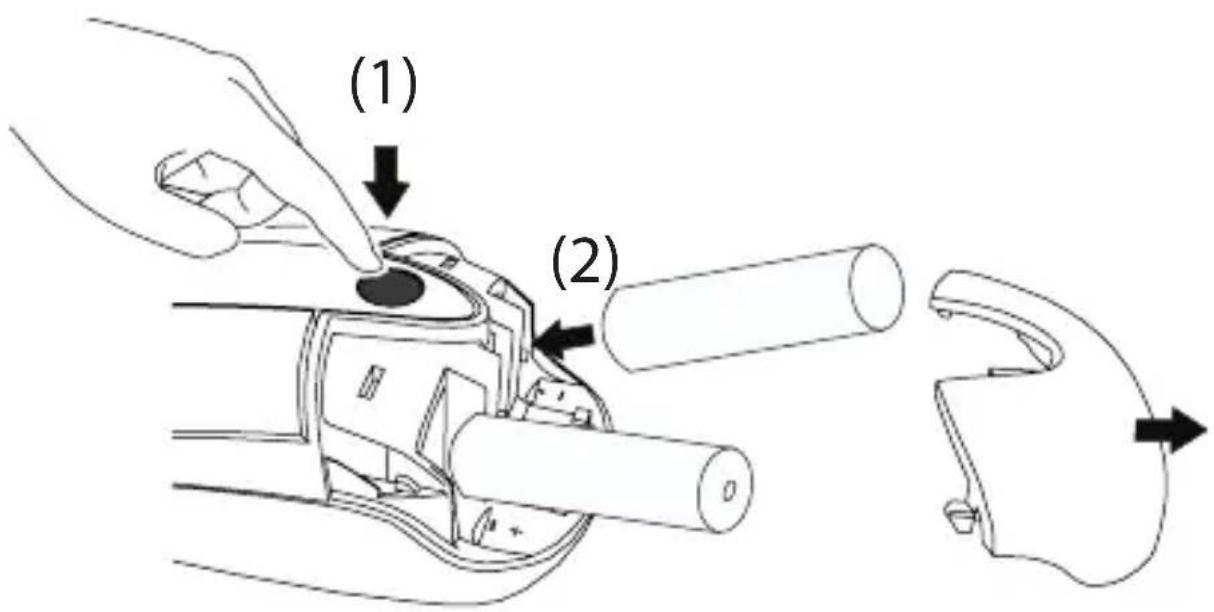
- Remove the battery cover from the back of the mouse. Lift the cover off from the back of the mouse.
text_image
(1) (2)- Insert two AAA-size batteries, making sure that the positive (+) and negative (-) ends of each battery match the polarity indicators inside the battery compartment. To replace the battery cover, place the cover on top of the mouse and slide forward until it clicks into place.

NOTE: WHEN POWER IS ON, THE MOUSE GOES INTO "SLEEP MODE" AFTER 8 MINUTES OF INACTIVITY. TO ACTIVATE THE MOUSE, PRESS ANY MOUSE KEY.

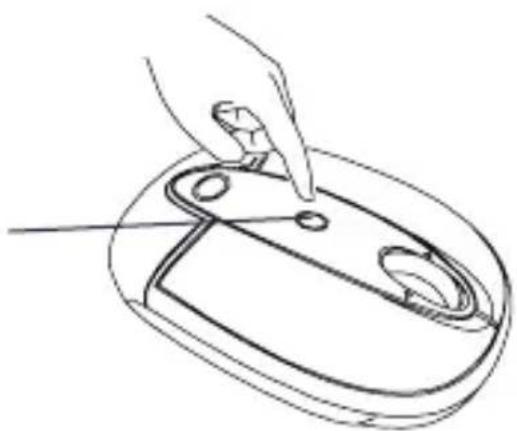
DPI switching button
natural_image
Line drawing of a hand holding a small object on a computer mouse (no text or symbols)
NOTE: WHEN THE BATTERY IS LOW, THE LOW POWER INDICATOR LIGHT LOCATED IN THE DPI SWITCHING BUTTON WILL FLASH.
Charging the Mouse
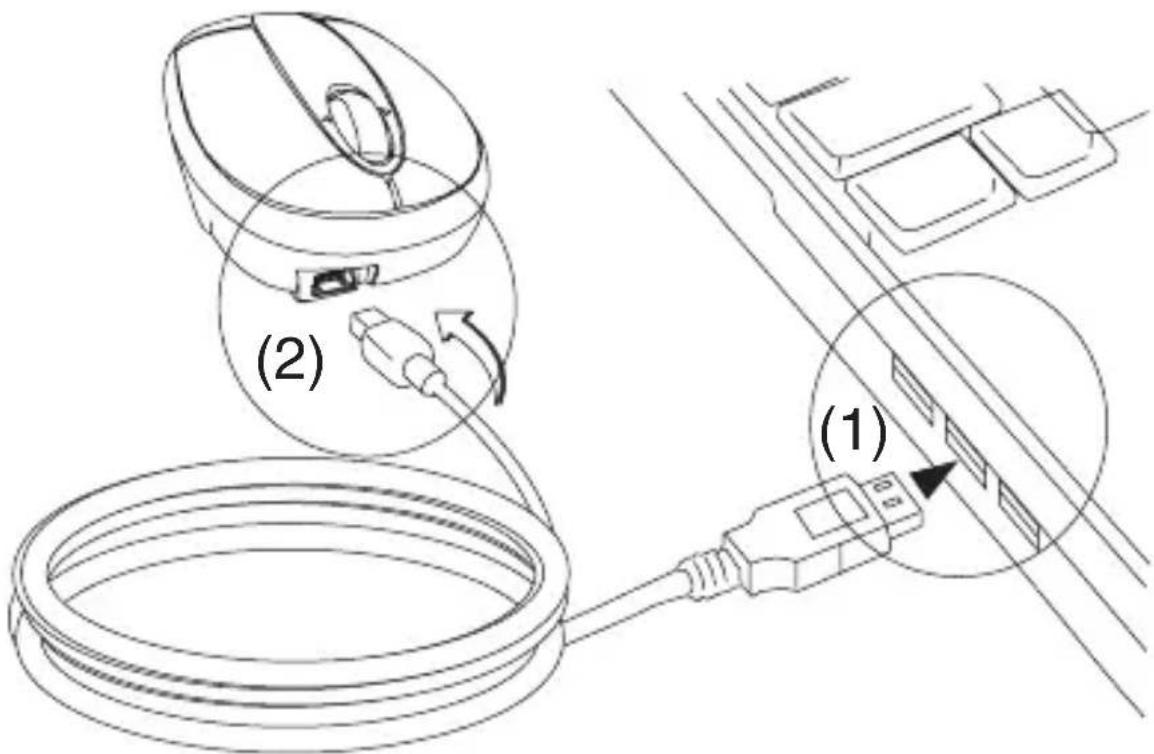
This mouse comes with rechargeable batteries. For best results, you should charge the mouse, via the supplied USB charge cable, at least 8 hours before using it. To do this:
1 Connect the cable's USB connector into an available USB port on your computer.
2 Connect the other end to the mouse.
text_image
(1) (2)
NOTE: TO CONTINUOUSLY CHARGE THE MOUSE VIA THE USB CHARGE CABLE, YOUR COMPUTER MUST BE ON AND AWAKE. FOR BEST RESULTS, TURN OFF YOUR COMPUTER'S POWER MANAGEMENT FEATURE WHILE CHARGING THE MOUSE. YOU MAY CONTINUE TO USE THE MOUSE WHILE IT IS RECHARGING.
Operating Notes for Wireless Mice with Recharging Feature via USB Cable
-
Charge the mouse for at least 8 hours before using it. And please make sure only rechargeable batteries (the ones that come with your product) are used.
-
Your computer needs to stay powered on for the mouse to charge. Follow these steps to prevent your computer from going in to Standby or Hibernate:
a) Click "Start"
b) Click "Control Panel"
c) Click "Performance and Maintenance" (Skip in Classic View)
d) Click "Power Options"
e) Make sure "System Standby:" and "System Hibernates:" under "Plugged in" are set to "Never"
- If you use your notebook computer's LCD monitor, please do not close the lid. (Please ignore this step if you use an external monitor with your notebook lid closed.)
- If your mouse does not respond after a period of inactivity, please wake it up by pressing one of the buttons on the mouse or moving the mouse around.
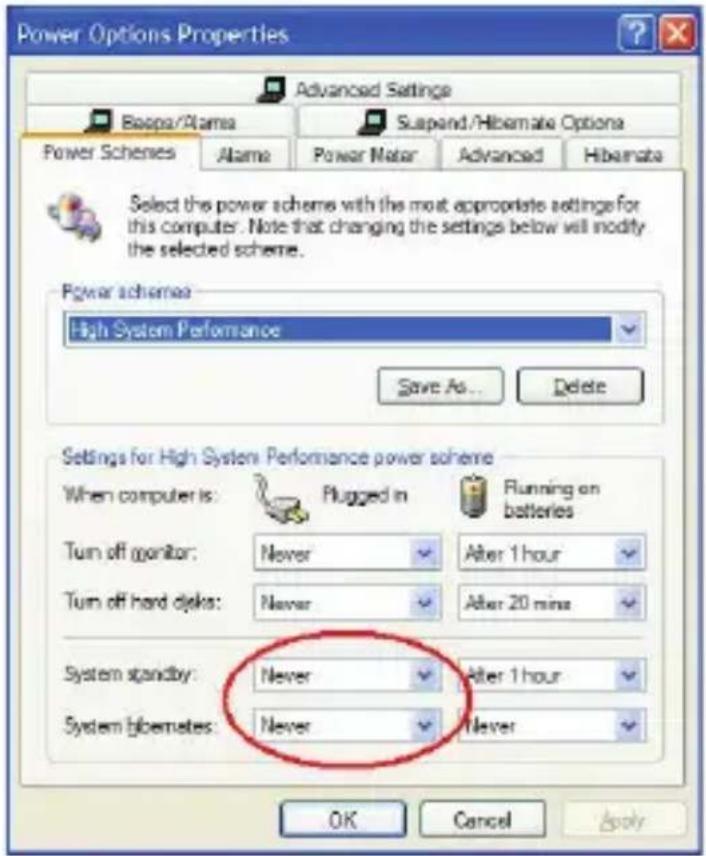
text_image
Power Options Properties Advanced Settings Baoa/Alama Suspend/Hibemate Options Power Schemes Alama Power Matar Advanced Hibemata Select the power scheme with the most appropriate settings for this computer. Note that changing the settings below will modify the selected scheme. Power schemes High System Performance Save As... Delete Settings for High System Performance power scheme When computer is: Plugged in Running on batteries Turn off monitor: Never After 1 hour Turn off hard disks: Never After 20 mins System standby: Never After 1 hour System hibemates: Never Never OK Cancel ApplyEstablishing the Connection
(A) Remove the USB receiver from the bottom of the mouse. This will activate the on/off switch.

NOTE: TO TURN THE MOUSE OFF, SIMPLY PLACE THE USB RECEIVER BACK INTO THE STORAGE SLOT. THIS WILL MAXIMIZE BATTERY LIFE WHEN NOT IN USE.
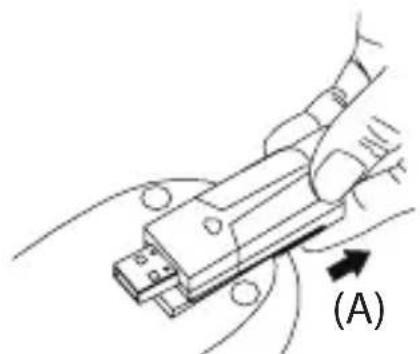
natural_image
Diagram of a hand holding a USB connector with a labeled arrow (A), no text or symbols present.(B) Plug the USB receiver into an available USB port on your computer.
(C) Press and release the setup key on the receiver.
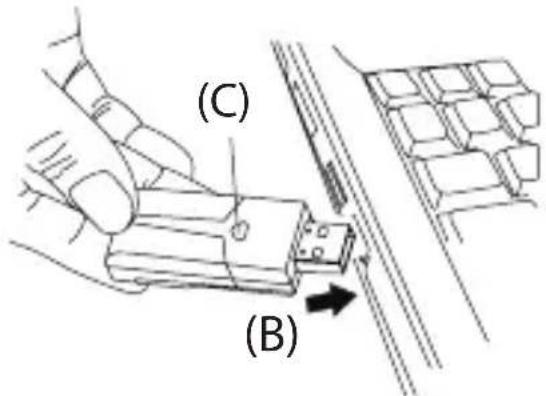
text_image
(C) (B)(D) Press the setup key on the bottom of the mouse.
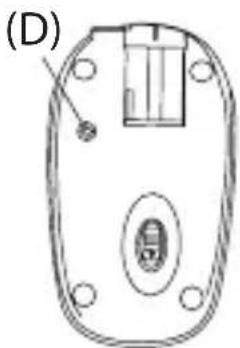
natural_image
Technical line drawing of a computer mouse head with internal components and mounting holes (no text or symbols)This device has 256 identification codes that allow the mouse and its receiver to operate without interference from other radio frequency devices. If you experience interference during use, repeat steps C and D to change the connection channel.
Installing the tilt-wheel software driver
This mouse is equipped with a 4-way scrolling function.
To enable the tilt-wheel function, the software driver must be installed.

NOTE: THE TILT-WHEEL FEATURE IS SUPPORTED BY THE MAC OPERATING SYSTEM. NO DRIVER INSTALLATION IS NECESSARY. THE FOLLOWING STEPS ARE FOR WINDOWS OPERATING SYSTEMS ONLY.
- Please download the software driver (Model # AMW28) from the official Targus web site: http://www.targus.com
Save the setup.exe file to your computer and double click on the icon to launch the installation process.

setup.exe
Tilt Mouse Software Setup
- The Installation Wizard window will prompt.
Follow the on-screen instructions to complete the installation.

NOTE: PLEASE SELECT THE "3 BUTTON MOUSE" OPTION WHEN PROMPTED TO DO SO.
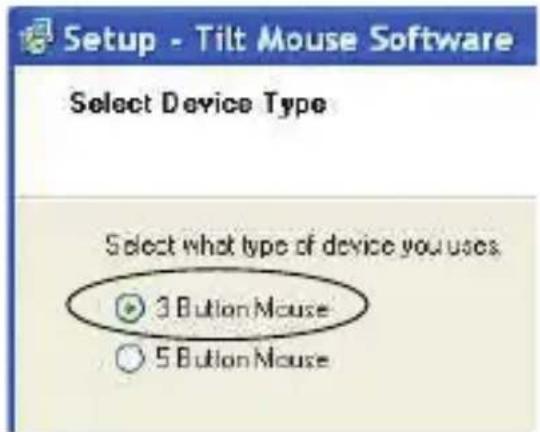
text_image
Setup - Tilt Mouse Software Select Device Type Select what type of device you uses 3 Button Mouse 5 Button MouseAfter the software driver is successfully installed, there will be a "Tilt Mouse" icon located in the task bar.

text_image
Tilt MouseUsing the 4-way scrolling tilt-wheel
Pressing the scroll-wheel left or right, enables the horizontal scrolling feature.
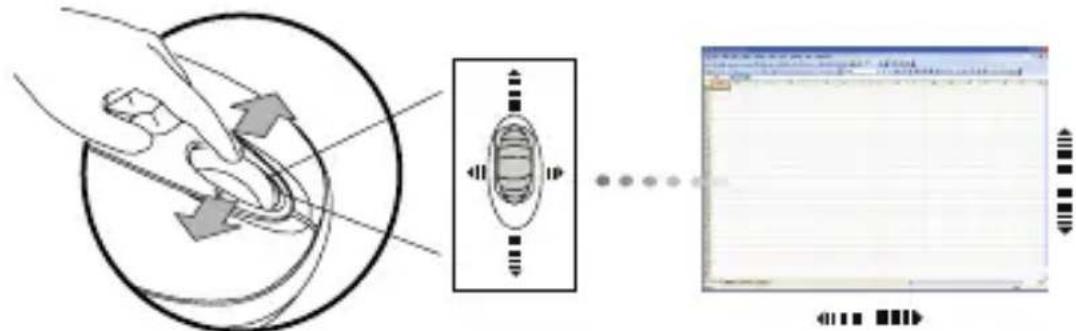
text_image
Diagram illustrating a medical procedure with labeled components and a corresponding software interface showing waveform or data flow.
NOTE: DOUBLE CLICK ON THE "TILT MOUSE" ICON IN THE TASK BAR WILL LAUNCH THE MOUSE SETTINGS SCREEN. YOU CAN EDIT THE SETTINGS AND PREFERENCES IN THIS WINDOW.
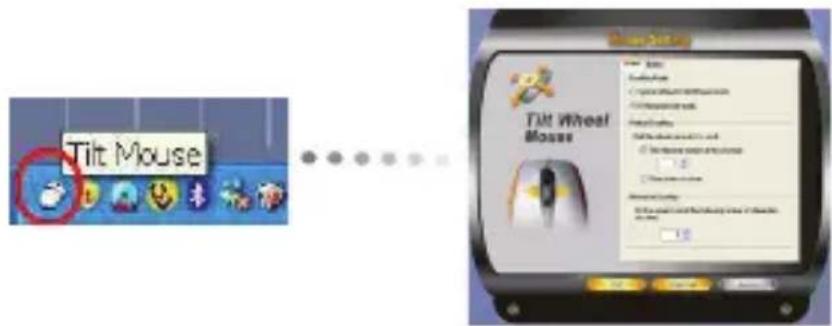
text_image
Tilt Mouse Tilt Wheel MouseAdjusting the DPI Setting
This mouse features 3 selectable resolution settings (1600 / 1200 / 800 DPI). By pressing the resolution switch, you can instantly adjust the tracking speed of the mouse. When the DPI is set at 1600, the indicator light will glow brightest and when it is set at 1200, the light will become dimmer. The indicator will be off when the DPI is set at 800 DPI. The setting will be saved when the mouse is turned off. The indicator light will shut off in 10 seconds after selecting the desired resolution.
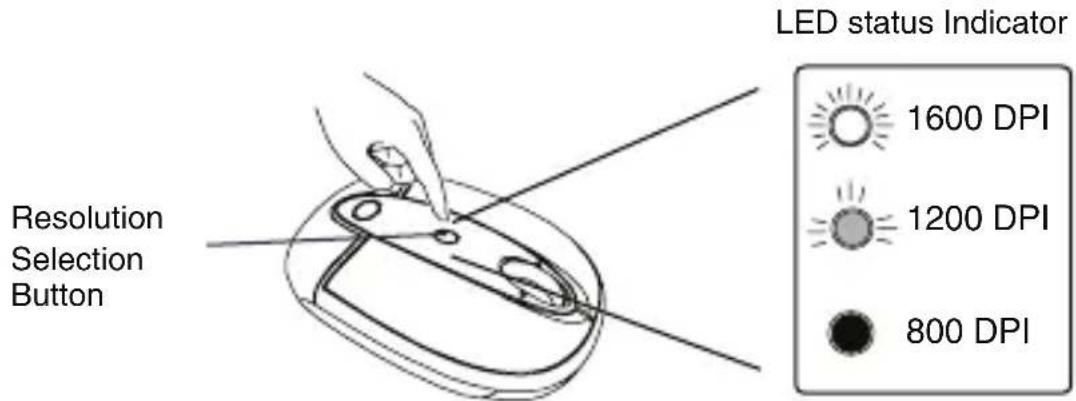
text_image
Resolution Selection Button LED status Indicator 1600 DPI 1200 DPI 800 DPIWindows XP:
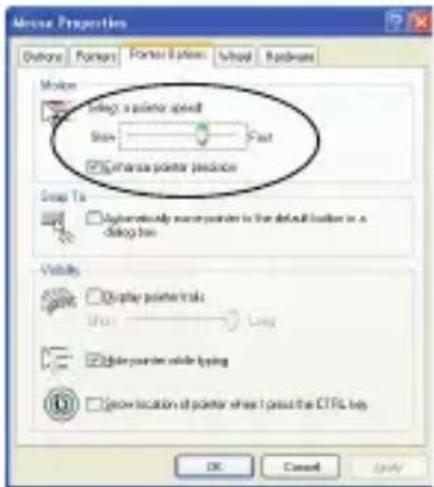
After selecting the desired resolution, you can also fine tune the sensitivity. This can be adjusted in the “control panel” of the Windows operating system.
Click on Start --> Setting --> Control Panel --> Mouse
In the “mouse properties” window, locate the “pointer options” tab. Under “motion”, use the slider to change the speed of the mouse. Click apply to confirm the changes.
text_image
Motion Properties Options Patterns Forward Options Word Hardware Motion Size: a pointer speed Size: fast ✓ cut area pointer position Group To ✓ automatically mouse pointer to the default position in a dialog box Visibility ✓ Display polarizer trials Effect ✓ Use pointer color typing ✓ Grow location of pointer when I press the CTRL key OK Cancel ApplyMac OS:
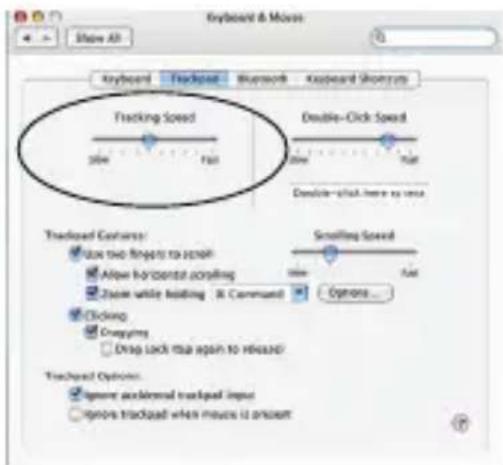
After selecting the desired resolution, you can also fine tune the sensitivity. This can be adjusted in the “System Preference” of the Mac operating system.
Click on the Apple logo --> System Preference --> Keyboard & Mouse
In the “Keyboard & Mouse” window, locate the “Trackpad” tab. Under “tracking speed”, use the slider to change the speed of the mouse.
text_image
Keyboard & Move Show All Keyboard Trackpad Bluetooth Keyboard Showcut Tracking Speed Double-Click Speed 300 750 Double-Click here to miss Trackpad Options: Use two fingers to check Allow horizontal coupling Zoom white holding & Command Smoothing Speed 100 Full Options... Clicking Cragging Drop Lock up again to release Trackpad Options: Ignore acclonal trackpad input Ignore trackpad when mouse is unclearTechnical Support
For technical questions, please visit:
US Internet: www.targus.com/support.asp
Australia Internet: www.targus.com/au
Email: infoaust@targus.com
Telephone: 1800-641-645
New Zealand Telephone: 0800-633-222
Product Registration
Targus recommends that you register your Targus accessory shortly after purchasing it. Go to:
http://www.targus.com/registration.asp.
You will need to provide your full name, email address, country of residence and product information.
Warranty
Targus warrants this product to be free from defects in materials and workmanship for one year. If your Targus accessory is found to be defective within that time, we will promptly repair or replace it. This warranty does not cover accidental damage, wear and tear, or consequential or incidental loss. Under no conditions is Targus liable for loss of, or damage to devices; nor loss of, or damage to, programs, records, or data; nor any consequential or incidental damages, even if Targus has been informed of their possibility. This warranty does not affect your statutory rights.
Regulatory Compliance
This device complies with Part 15 of the FCC Rules. Operation is subject to the following two conditions: (1) This device may not cause harmful interference, and (2) This device must accept any interference received, including interference that may cause undesired operation.
FCC Statement Tested to Comply
This equipment has been tested and found to comply with the limits of a Class B digital device, pursuant to Part 15 of the FCC Rules. These limits are designed to provide reasonable protection against harmful interference in a residential installation. This equipment generates, uses, and can radiate radio frequency energy and if not installed and used in accordance with the instructions, may cause harmful interference to radio communications. However, there is no guarantee that interference will not occur in a particular installation. If this equipment does cause harmful interference to radio or television reception, which can be determined by turning the equipment off and on, the user is encouraged to try to correct the interference by one or more of the following measures:
- Reorient or relocate the receiving antenna;
- Increase the separation between the equipment and receiver;
- Connect the equipment into an outlet on a circuit different from that to which the receiver is connected;
- Consult the dealer or an experienced radio/TV technician for help.
Changes or modifications not authorized by the party responsible for compliance could void the user's authority to operate this product.
Declaration of Conformity
Hereby, Targus, declares that this device is in compliance with the essential requirements and other relevant provisions of Directive 1999/5/EC.
Microsoft, Windows, and Windows Vista are either registered trademarks or trademarks of Microsoft Corporation in the United States and/or other countries. All trademarks and registered trademarks are the property of their respective owners. All rights reserved. Features and specifications are subject to change without notice. © 2008. Targus Group International, Inc. and Targus, Inc., Anaheim, CA 92806 USA