BE3600 Pro - Wi-Fi Router Xiaomi - Free user manual and instructions
Find the device manual for free BE3600 Pro Xiaomi in PDF.


| Product Type | Wi-Fi Mesh Router (Mesh System) |
| Brand | Xiaomi |
| Model | RN09 (BE3600 Pro) |
| Wireless Technology | Wi-Fi 2.4 GHz (up to 688 Mbps) and 5 GHz (up to 2882 Mbps), 2x2 MIMO, Bluetooth LE 5.0, NFC |
| Network Ports | 4 auto-sensing WAN/LAN ports (1× 2.5 Gbps + 3× 1 Gbps) |
| Power Supply | 12 V, 1.5 A |
| Network Standby Power Consumption | 8.4 W (all wired and wireless ports enabled) |
| Mesh Functionality | Supports up to 10 Xiaomi mesh routers |
| Multifunction Button | Mesh / Reset (long press 5 seconds to reset) |
| LED Indicators | Multi-color LED indicator: off, orange (startup/error), blinking orange (satellite connection/update), blue (normal operation), blinking blue (satellite detection/connection) |
| Configuration | Via Xiaomi Home app (iOS/Android) or web browser (miwifi.com or 192.168.31.1) |
| NFC Area | Quick Wi-Fi connection by touching the router with an unlocked Android phone (NFC enabled) |
| Operating Temperature | 0°C to 40°C |
| Operating Frequencies | Wi-Fi 2.4 GHz: 2412-2472 MHz; Wi-Fi 5 GHz: 5150-5350 MHz, 5470-5725 MHz; Bluetooth: 2402-2480 MHz; NFC: 13.56 MHz |
| Usage Restrictions | Indoor use only for 5150-5350 MHz band; 5470-5725 MHz band not allowed in Egypt and Morocco |
| Wireless Security | WPA2 encryption, blacklist, management password |
| Certifications | CE, Directive 2014/53/EU, 2011/65/EU, 2009/125/EC |
| Maintenance | Clean with a dry, soft cloth; do not use liquid or abrasive products; unplug before cleaning |
| Included Accessories | Power adapter (12 V, 1.5 A), Ethernet cable (not specified), quick start guide |
| Manufacturer | Beijing Xiaomi Electronics Co., Ltd. |
Frequently Asked Questions - BE3600 Pro Xiaomi
User questions about BE3600 Pro Xiaomi
0 question about this device. Answer the ones you know or ask your own.
Ask a new question about this device
Download the instructions for your Wi-Fi Router in PDF format for free! Find your manual BE3600 Pro - Xiaomi and take your electronic device back in hand. On this page are published all the documents necessary for the use of your device. BE3600 Pro by Xiaomi.
USER MANUAL BE3600 Pro Xiaomi
Xiaomi Mesh System BE3600 Pro User
Manual · 01
Xiaomi Mesh-System BE3600 Pro
Read this manual carefully before use, and retain it for future reference.
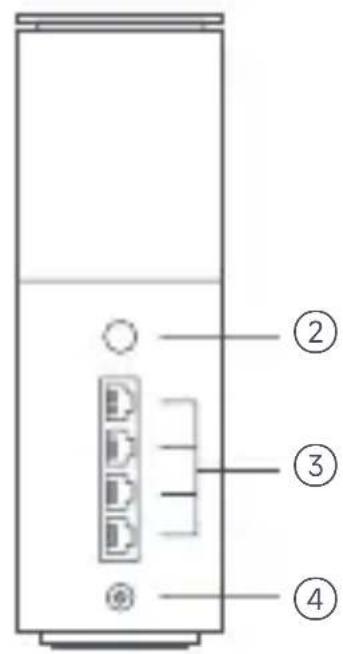
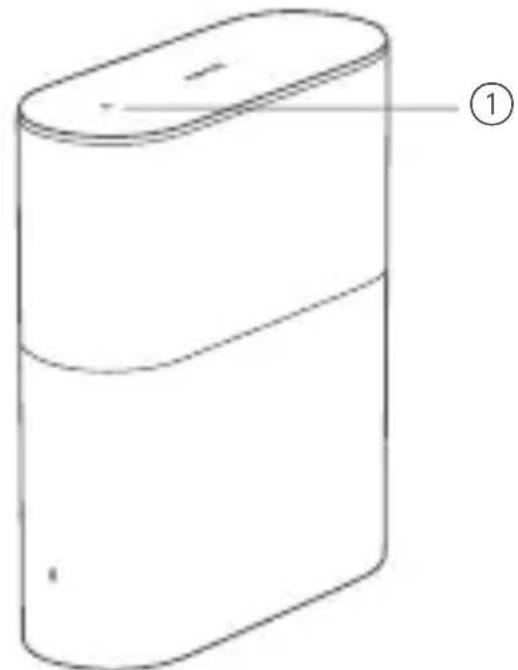
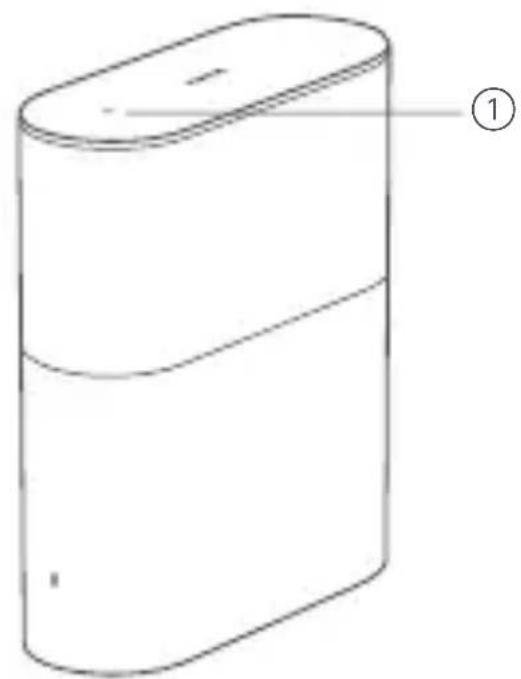
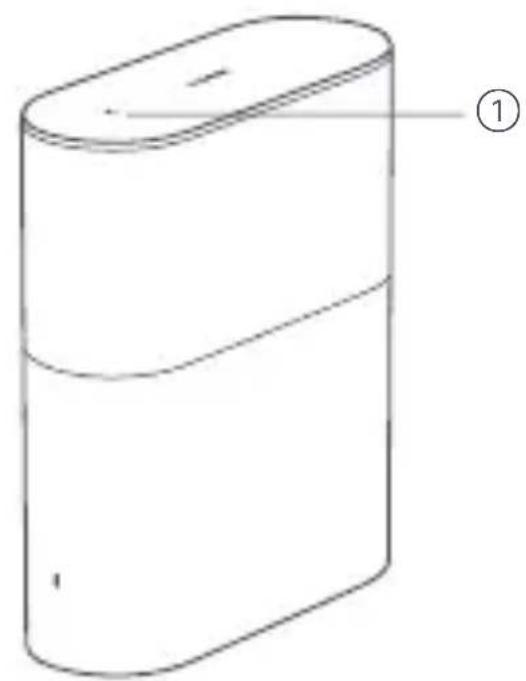
| ① | NFC area | Simply touch the NFC area of your phone to the top of the router to quickly connect to Wi-Fi. To use this feature, enable the NFC function on your Android phone, and keep your phone unlocked. |
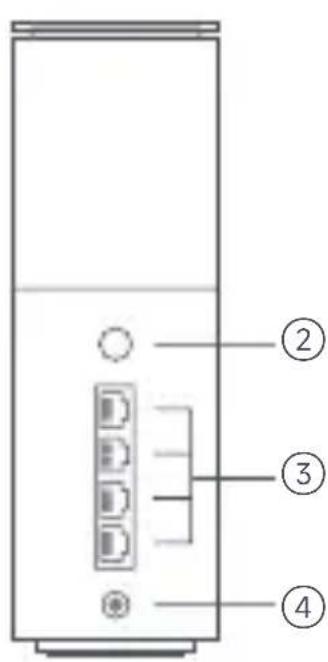
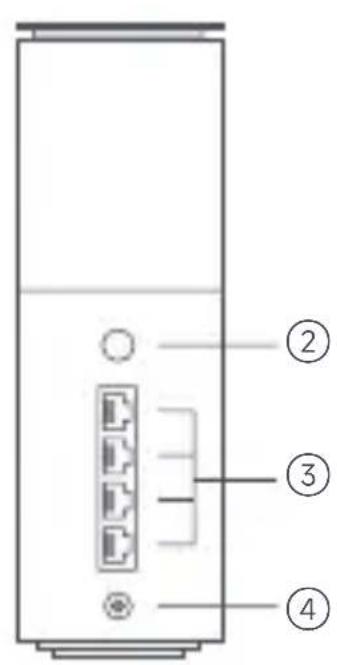
| ② | Mesh/Reset button | Press the button to have Mesh networking with routers that support the Xiaomi Mesh function. Press and hold the button for 5 seconds to restore the router to its factory settings. |
| ③ | Network port | 4 WAN/LAN auto-sensing ports (1 × 2.5 Gbps + 3 × 1 Gbps). |
| ④ | Power port | Connect the power adapter to the router. |
Note: Illustrations of product, accessories, and user interface in the user manual are for reference purposes only. Actual product and functions may vary due to product enhancements.
| Indicator Status | Description |
| Off The router is off or unplugged. | |
| Orange | The system is starting up or a network connection error occurred. |
| Blinking orange | The new added satellite router is connecting to the Mesh networking or the system is updating. |
| Breathing orange | The router is started and the system is ready for configuration. |
| Blue | The router is working properly. |
| Breathing blue | A new satellite router is discovered. The indicator will automatically turn blue if there is no operation for Mesh networking within 2 minutes. |
| Blinking blue | The satellite router is connecting to the main router. |
Network Configuration
Preparation before the Configuration
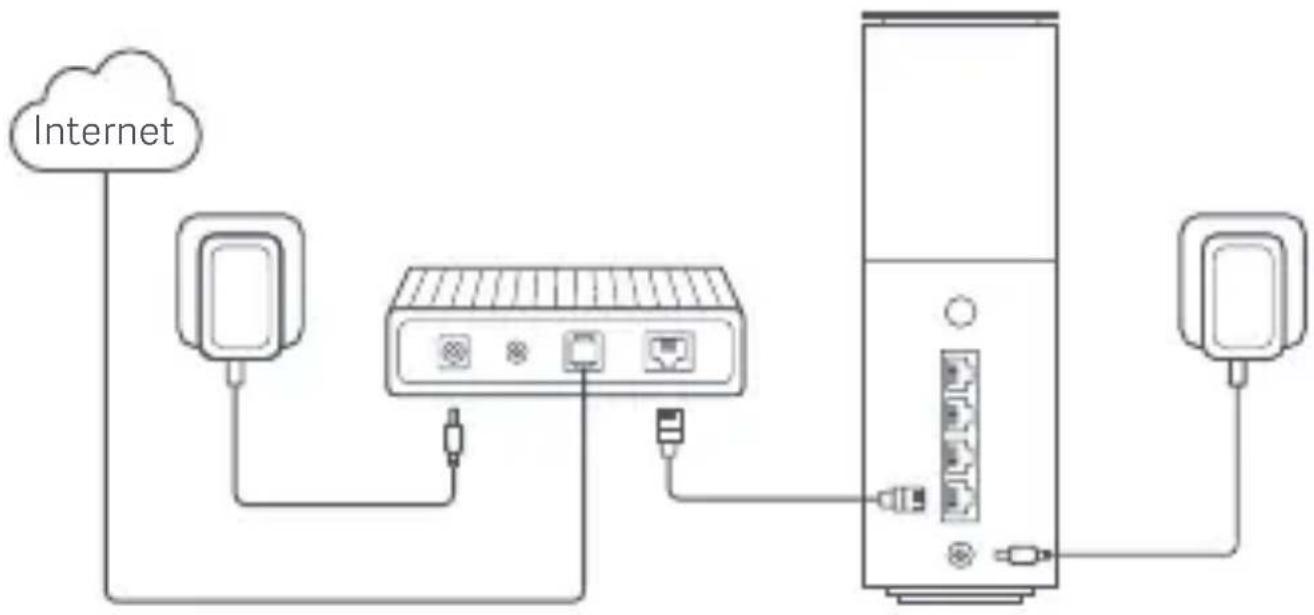
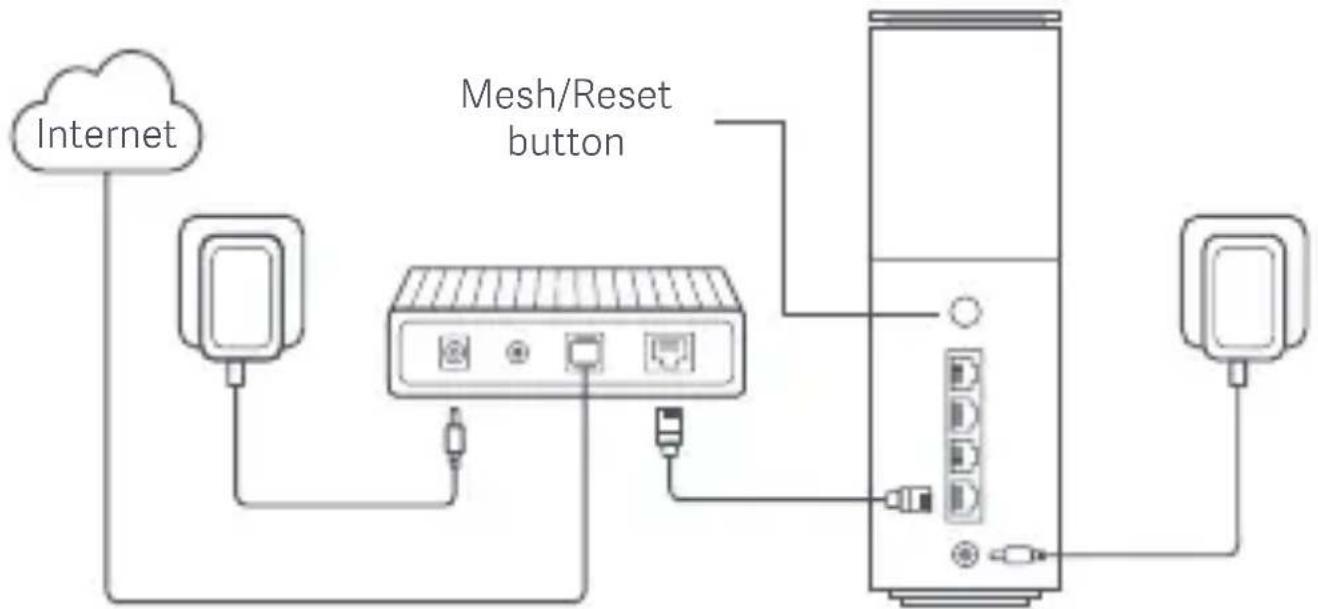
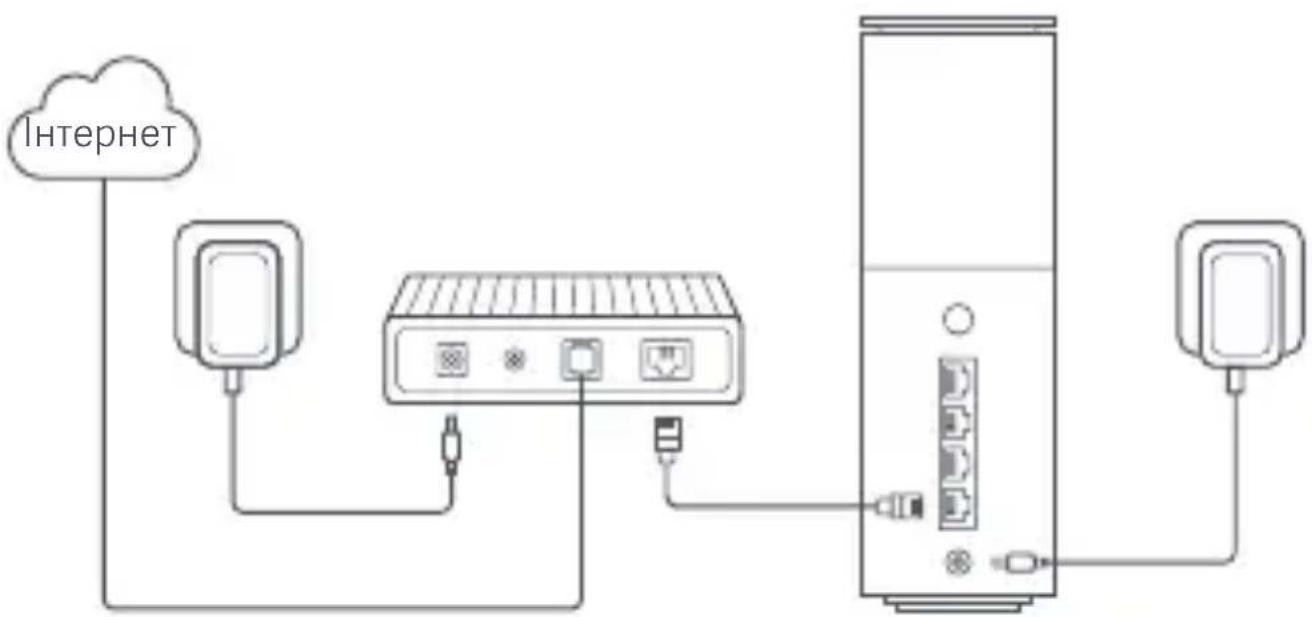
- Connect the router to power, then the router will automatically turn on. Note: For the product of 2-pack or 3-pack version, connect any of the routers as the main router to power. Then the router will automatically turn on.
- Restart your modem.
Note: The modem is provided by your Internet service provider.
- Plug one end of the network cable into either of the router's port, and the other end into the LAN port of the modem.
Note: If you use the Ethernet wall socket instead of the modem, directly plug the network cable into it.
Method 1 Network Configuration via Xiaomi Home app
- Scan QR code to download Xiaomi Home app. Or search for "Xiaomi Home" in the app store to download and install it.

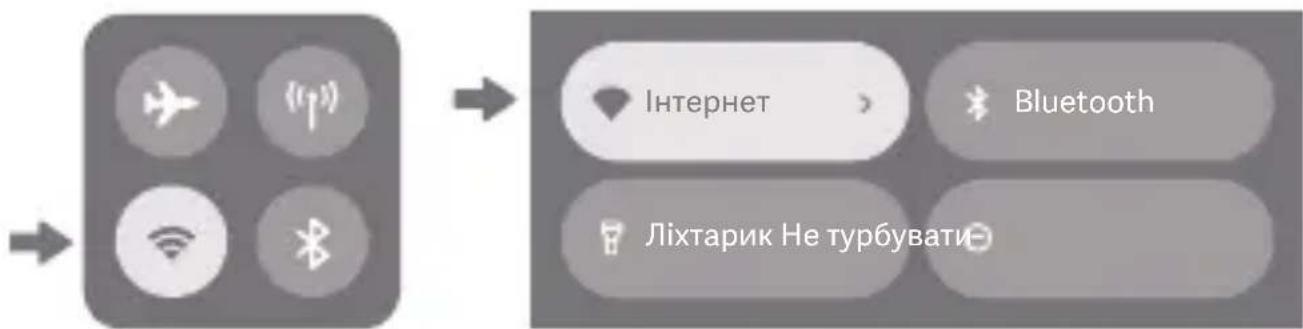
- Swipe down from the top of the screen to access the Control Center (iOS) or Quick Settings (Android), and turn on Wi-Fi.
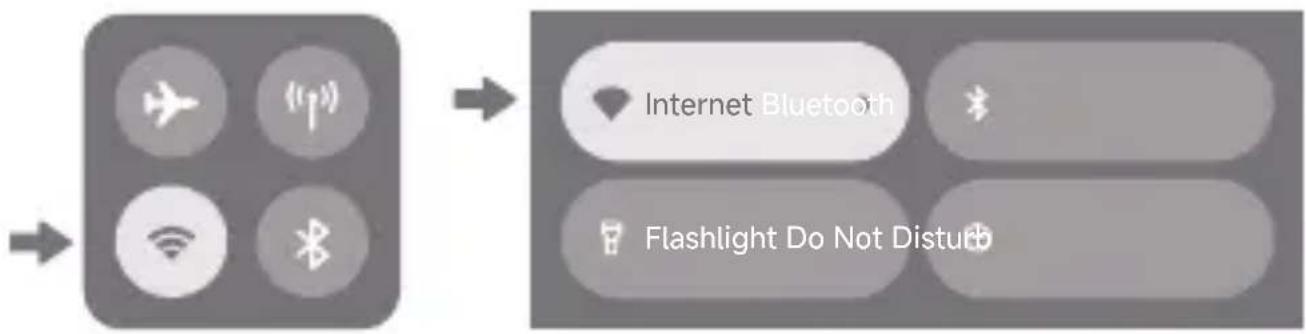
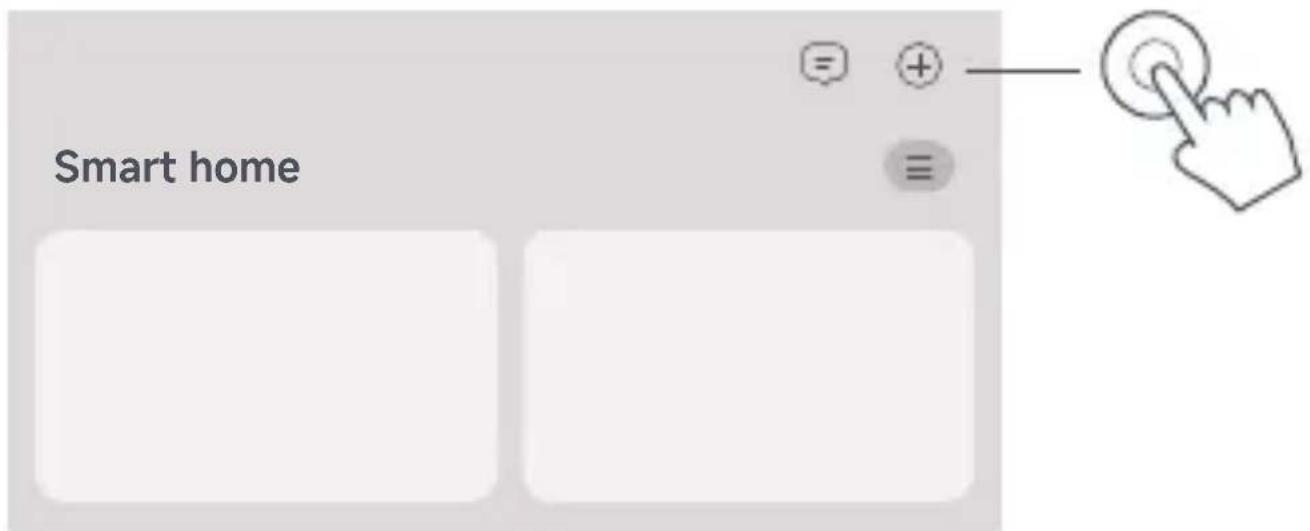
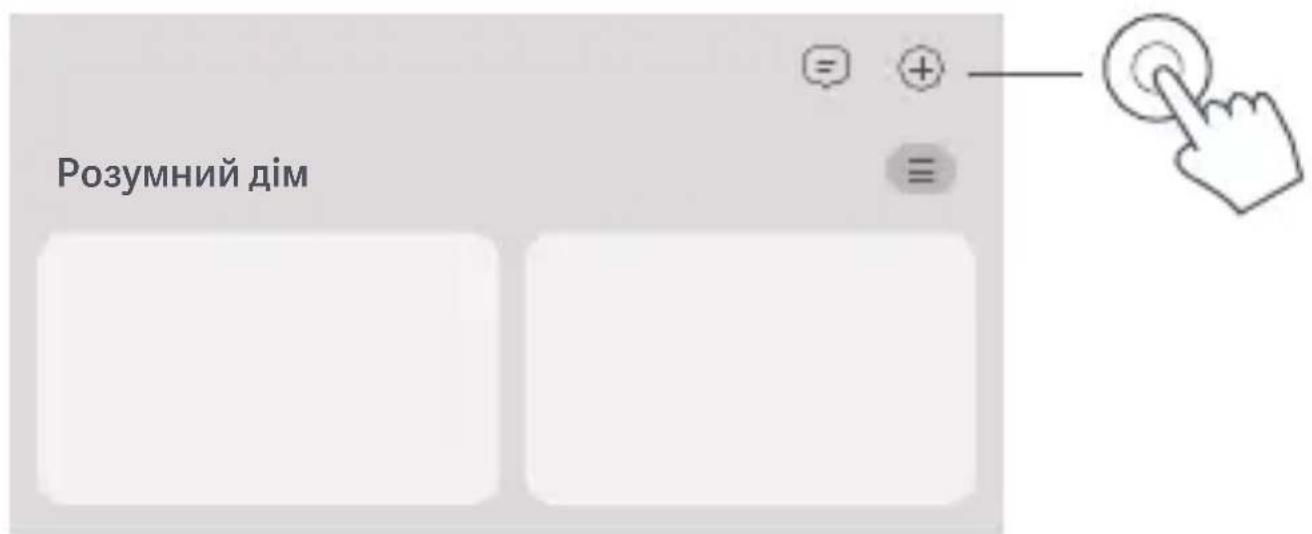
- Open Xiaomi Home app, tap "+" on the upper right, choose the right product model, and then follow the instructions to complete the network configuration.
Notes:
- The version of the app might have been updated, please follow the instructions based on the current app version.
- For the product of 2-pack or 3-pack version, the routers in the box have been pre-paired when leaving the factory. When the network configuration of one router is completed, just power on the rest of routers and they will Mesh networking automatically.
Method 2 Network Configuration via Web Browser
- Check the Wi-Fi name on the label at the bottom of the router and then connect your phone or computer to the Wi-Fi.
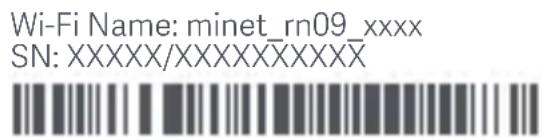
- Then an automatic redirection will take you to the network setup page. If not, open the web browser and enter miwifi.com or 192.168.31.1.
- Follow the instructions on the setup page to complete the network configuration.
Note: Contact your Internet service provider to get the details if you are not familiar with the Internet connection type.
- After the configuration of the router is completed, the Wi-Fi module will restart. Try to search the Wi-Fi again later.
Notes:
- For the product of 2-pack or 3-pack version, the routers in the box have been pre-paired when leaving the factory. When the network configuration of one router is completed, just power on the rest of routers and they will Mesh networking automatically.
- After completing the network configuration, you can also add the router via the Xiaomi Home app. Refer to the QR code in the Method 1 to download and install the Xiaomi Home app. Make sure that the settings of country or region in Xiaomi Home app is not Chinese mainland; otherwise, adding the router will be failed.
Xiaomi Mesh Networking
Xiaomi Mesh networking technology supports Mesh networking of up to 10 routers to achieve broader network coverage. Follow the steps below to configure the Mesh networking.
- Make sure the main router is connected to the network. Connect the satellite router to power and place it near but at least one meter away from the main router. Otherwise, they will interfere with each other and affect the networking.
- After the satellite router powers on, the main router will automatically discover it, and the indicator of the main router will start breathing blue. Note: If the satellite router is already configured, press its reset button to restore it to the factory settings first.
- Press the mesh button on the main router, and the indicators of the main router and satellite router will start blinking. It will take about 2 minutes to complete the Mesh networking.
- When the Mesh networking is completed, the indicator of the satellite router turns into blue.
Troubleshooting
| Issue | Possible Cause and Solution |
| I cannot access the internet. | ·Make sure the network cable is plugged into the Ethernet port of the modem. If your modem has multiple Ethernet ports, leave the others unplugged. ·Turn off your modem and wait for 5 minutes, then turn it on and have a reset. ·Directly connect a computer to the modem via a network cable to check if the internet is working. If not, contact your Internet service provider. ·Log in to the router's web management page, and go to the Network Settings to verify the internet IP address. If valid, set your primary DNS to 8.8.8.8, and secondary to 8.8.4.4. If invalid, make sure the hardware connections are connected properly or contact your Internet service provider. |
| My wireless devices cannot connect to the Wi-Fi. | ·Ensure the Wi-Fi name and password do not contain special characters during configuration. ·Make sure the Wi-Fi you selected and the password you entered are correct. ·Verify if your device is blacklisted. If yes, remove it from the blacklist to allow connection. ·Choose WPA2 encryption for your router to enhance compatibility. ·Restart both your router and device then try again. |

Regulatory Compliance Information
Operating Frequency and Radio Frequency Power
Wi-Fi 2412 MHz-2472 MHz (≤20 dBm)
5150 MHz-5350 MHz (≤23 dBm)
5470 MHz-5725 MHz (≤30 dBm)
Note: 5470-5725 MHz is not authorized in Egypt and Morocco.
5650-5725 MHz is not authorized in Malaysia.
Bluetooth 2402 MHz-2480 MHz (≤20 dBm)
NFC 13.56 MHz
Hereby, Beijing Xiaomi Electronics Co., Ltd. declares that the radio equipment type RN09 is in compliance with Directive 2014/53/EU,
Directive 2011/65/EU and Directive 2009/125/EC. The full text of the EU declaration of conformity is available at the following internet address:
http://www.mi.com/global/service/support/declaration.html

All products bearing this symbol are waste electrical and electronic equipment (WEEE as in directive 2012/19/EU) which should not be mixed with unsorted household waste. Instead, you should protect human health and the environment by handing over your waste
equipment to a designated collection point for the recycling of waste electrical and electronic equipment, appointed by the government or local authorities. Correct disposal and recycling will help prevent potential negative consequences to the environment and human health. Please contact the installer or local authorities for more information about the location as well as terms and conditions of such collection points.
- Warning: To comply with CE RF exposure requirements, the device must be installed and operated 20cm (8 inches) or more between the product and all person's body. Operation of this equipment in a residential environment could cause radio interference.
- The power adapter shall be installed near the equipment and easily accessible.
- Refer to the detailed product specifications on the label at the bottom of the device.
Warning:
Operation of this equipment in a residential environment could cause radio interference.
This device is restricted to indoor use only when operating in 5150-5350 MHz frequency range in following countries:
| AT | BE | BG | HR | CY | CZ | DK | EE | FI |
| FR | DE | EL | HU | IE | IT | LV | LT | LU |
| MT | NL | PL | PT | RO | SK | SI | ES | SE |
| UK(NO) | IS | LI | NO | CH | TR | |||
Specification
| Name | Xiaomi Mesh System BE3600 Pro |
| Model | RN09 |
| Input | 12 V = 1.5 A |
| Wired Technology | 4 WAN/LAN auto-sensing ports (1 × 2.5 Gbps + 3 × 1 Gbps) |
| Wireless Technology | 2.4 GHz Wi-Fi (688 Mbps), 2 × 2 MIMO 5 GHz Wi-Fi (2882 Mbps), 2 × 2 MIMO Bluetooth LE 5.0 NFC |
| Operating Temperature | 0°C to 40°C |
Notes:
- The network standby power consumption is 8.4 W if all wired network ports are connected and all wireless network ports are activated.
- You can activate or deactivate the Wi-Fi network in the "Settings" of the management page (miwifi.com).
Manufacturer: Beijing Xiaomi Electronics Co., Ltd.
Address: Room 802, Floor 8, Building 5, No.15 KeChuang 10th Road, Beijing Economic and Technological Development Zone, Beijing City, China For further information, please go to www.mi.com
Produktübersicht
http://www.mi.com/global/service/support/declaration.html

Adresse: Room 802, Floor 8, Building 5, No.15 KeChuang 10th Road, Beijing Economic and Technological Development Zone, Beijing City, China
Indirizzo: Room 802, Floor 8, Building 5, No.15 KeChuang 10th Road, Beijing
Economic and Technological Development Zone, Beijing City, China
http://www.mi.com/global/service/support/declaration.html

Dirección: Room 802, Floor 8, Building 5, No.15 KeChuang 10th Road, Beijing Economic and Technological Development Zone, Beijing City, China
http://www.mi.com/global/service/support/declaration.html

YBaXHo npouHTaIe TIO IHCTpyKcIIO 36peEkeiT II IJIra NpOaIbWoO R BnKOpNCtAHH.
PnroTyBaHHnpeHnHaAaHTyBaHHm
1.Пдклочь Маршутнзаторdo джеретаЖИВленнЯ.Mapшутнзатор abTOMATUHOBBIMKHeTbcra.
Приитka:якwoВерсяnpodуКТСКладаETbCЯ3ДBoxa60TpboxMapшpyтзаторiB,пдкючITb 6yd-яки i3 Hnxяк ГольнйdoДжеретаЖИВЛeHHЯ.Маршpyтзатор aBTOMATUHOBVBIMKHeTbCЯ.
2. Ipepe3anyctitb moDEM.
Ppimitka:MoemHaadae iHTepHET-npoBaIdep.
3.Пдкючыоин ки龟ь мержевога kaбелю do 6yd-яков noptу Марштулзатopa, a дугий ки龟ь —do LAN-nopty mo dema.
Ipnmitka: kio 3amictb moema BnKOpncToByeTbcra po3etka Ethernet, iiknoiMbpexeBn Ka6elb do Hei.
Cnoci6 1. HanahtyBaHnHa Mepexi uepe3 nporpamy Xiaomi Home
- 3iCKaHyIe QR-koI, 06 3aBaHTaJNTn nporpamy Xiaomi Home. A6o 3HaNdItb Xiaomi Home y mara3nHi nporpam, 06 3aBaHTaJNTn yCTaHOBtN.

446A956A
- Пюведы пальем унз вд Верх hbо Краю ekрана, lo6 ВдКрптп сentр керува на (iOS) aboшвдки hyaштува на (Android), i BBIMKHiTb Wi-Fi.
- BiДкрип Te nporpamy Xiaomi Home, TopKHITbCЯ «+» y BepxHbOMy npaBOMy KyTi, Bn6epiTb Notpi6Hy MODEЛь npoDyKTy, a NOTIM BnKOHaIte Bka3iBKN 3 HanaStTyBaHHЯ Мерекi.
PpIMiTkn:
BepciIO nporpaMn MoKe 6yTn OHOBJeHo. IOpTpIMyIteCb Bka3iBOK dIa nOtouHOi Bepci II nporpaMn.
-ЯкwoBerci npodukty cknadaetbc3ДBox abo Tpbox mappytn3atopib,ix6ylo nikluyeho oDnH do OndHO ha 3aBoDi. HalaHTyBaBm MepekyHa OndHomy MappTytn3aTopi, npocTo BBIMKnHt b yci iHwi MappTytn3atopn BOHN aBTOMATNUHO NOHyTB pauOBAuN B peKmI ciTchaToI MepexI.
Cnoci6 2. HalaustyBaHnЯ Мерекi 3a доноMuOIO Be66pay3epa
https://www.mi.com/global/service/support/declaration.html
XapakTepeNCTnKn
Ampeca: Room 802, Floor 8, Building 5, No.15 KeChuang 10th Road, Beijing Economic and Technological Development Zone, Beijing City, China
Uo6 i3nca 6iIbwe, iDviaTe caT www.mi.com
Morada: Room 802, Floor 8, Building 5, No.15 KeChuang 10th Road, Beijing Economic and Technological Development Zone, Beijing City, China Para mais informações, consulte o site www.mi.com
Urüne Genel Bakış
http://www.mi.com/global/service/support/declaration.html

Adres: Room 802, Floor 8, Building 5, No.15 KeChuang 10th Road, Beijing Economic and Technological Development Zone, Beijing City, China
http://www.mi.com/global/service/support/declaration.html

Producent: Beijing Xiaomi Electronics Co., Ltd.
Adres: Room 802, Floor 8, Building 5, No.15 KeChuang 10th Road, Beijing Economic and Technological Development Zone, Beijing City, China
Wiecej informaci: www.mi.com
Jooo 1g>U u b oio g plxowll Jy LjLl l
aegill jgeo fNFC aobio wol swo
aagjoo.0jouol oio ploaiwJ.Wi-Fi aKwJluu
.1000 Android 123456789
NFC aobio ①
oo alol aol jol jol jol jol
Xiaomi Mesh aKbgs
Jg j5 00 Jl c
a 1
aC
ooI/laol
buol
WAN/LAN 4
()111111 1× 3 + 1111111 2.5× 1)
aui jao ③
a|b|1 jao.o.4jg> a|
p 10000000000000000000000000000000000000000000000000000000000000000
(blg 20≥) jj2472-jj2412
Wi-Fi aS.
(bg 23≥)j5350-5150
(bg 30≥)jJ525-jj5470
5725-5470 1
.
(bg 20≥) jj2480-2402
jJ 13.56
Bluetooth
NFC
jBeijing Xiaomi Electronics Co., Ltd.
2011/65/EU 2014/53/EU RN09

2009/125/EC
http://www.mi.com/global/service/support/declaration.html:
aaggglg aaylal lalal jolll Jaojll alaae
aJzjIJIJIJIJIJIJIJIJIJIJIJIJIJIJIJIJIJIJIJIJIJIJIJIJIJIJIJIJIJIJIJIJIJIJIJIJIJIJIJIJIJIJIJIJIJIJIJIJIJIJIJIJIJIJIJIJIJIJIJIJIJIJIJIJIJIJIJIJIJIJIJIJIJIJIJIJIJIJIJIJIJIJIJIJIJIJIJIJIJIJIJIJIJIJIJIJIJIJIJIJIJ
a 100000000000000000000000000000000000000000000000
aalll lblwll gl aogkall jg no aee aaoo goo aboJl llae
y 1
Beijing Xiaomi Electronics Co., Ltd. :
Room 802, Floor 8, Building 5, No.15 KeChuang 10th Road, Beijing :
Economic and Technological Development Zone, Beijing City, China
www.mi.com wzjg jyj
Přehled o vyrobku
Adresa: Room 802, Floor 8, Building 5, No.15 KeChuang 10th Road, Beijing
Economic and Technological Development Zone, Beijing City, China
Xiaomi Technology Netherlands B.V.
Prinses Beatrixlaan 582, 2595BM, The Hague, The Netherlands
contact@support.mi.com
UK REP.
Xiaomi Technology UK Limited
Davidson House, Forbury Square, Reading, Berkshire RG1 3EU
contact@support.mi.com

Bluetooth
The Bluetooth® word mark and logos are registered trademarks owned by Bluetooth SIG, Inc. and any use of such marks by Xiaomi Inc. is under license Other trademarks and trade names are those of their respective owners.


项目名称
(RN09) Xiaomi Mesh System BE3600 Pro
版本号 设计时间
V2.0 2024.11.20
物料名称 设计师
欧规说明书 姜玮洁
材质工艺要求

- Network Configuration
- Preparation before the Configuration
- Method 1 Network Configuration via Xiaomi Home app
- Notes:
- Method 2 Network Configuration via Web Browser
- Xiaomi Mesh Networking
- Troubleshooting
- Regulatory Compliance Information
- Operating Frequency and Radio Frequency Power
- Warning:
- Produktübersicht
- PnroTyBaHHnpeHnHaAaHTyBaHHm
- Cnoci6 1. HanahtyBaHnHa Mepexi uepe3 nporpamy Xiaomi Home
- PpIMiTkn:
- Cnoci6 2. HalaustyBaHnЯ Мерекi 3a доноMuOIO Be66pay3epa
- Urüne Genel Bakış
- Přehled o vyrobku
- Bluetooth
- 材质工艺要求
Brand : Xiaomi
Model : BE3600 Pro
Category : Wi-Fi Router