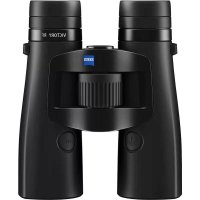
Victory RF 10x42 - Binoculars ZEISS - Free user manual and instructions
Find the device manual for free Victory RF 10x42 ZEISS in PDF.



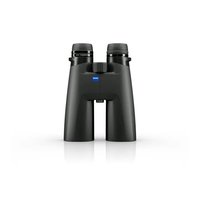
| Product Type | Binoculars with integrated laser rangefinder |
| Brand | Zeiss |
| Model | Victory RF 10x42 |
| Magnification | 10x |
| Objective diameter | 42 mm |
| Weight | 915 g (32.3 oz) |
| Length | 166 mm (6.5 in) |
| Width | 121 mm (4.8 in) for an interpupillary distance of 65 mm |
| Power supply | 1 CR2 lithium battery, 3V |
| Battery life | More than 2 500 measurements at +20 °C |
| Measurement range | 15 - 2 300 m (16 - 2 500 yds) |
| Measurement accuracy | ± 1 m up to 600 m, ± 0.5% beyond |
| Measurement time | Less than 0.3 seconds |
| Prism system | Abbe-König |
| Lens coatings | T* and LotuTec |
| Focusing | Central with diopter correction |
| Diopter correction | ± 3 dpt |
| Eye relief | 14 mm |
| Interpupillary distance range | 53.5 - 76 mm |
| Operating temperature | -25 °C to +63 °C (-13 °F to +145 °F) |
| Waterproofing | 400 mbar (nitrogen filling) |
| Contents | Binoculars, objective and eyepiece caps, strap, case, CR2 battery, cleaning cloth, instruction manual, Quick Guide |
| Care and cleaning | Clean with a dry cloth; do not use liquids. Blow off coarse impurities. LotuTec coating facilitates cleaning. |
| Safety | Never look at the sun or laser sources. Do not leave exposed to the sun without caps. Keep batteries and small parts out of reach of children. |
| Spare parts and repairability | Contact Zeiss customer service or an authorized dealer. Do not disassemble yourself. |
| General information | Manufacturer's warranty 10 years. Registration possible at zeiss.fr. |
Frequently Asked Questions - Victory RF 10x42 ZEISS
User questions about Victory RF 10x42 ZEISS
0 question about this device. Answer the ones you know or ask your own.
Ask a new question about this device
Download the instructions for your Binoculars in PDF format for free! Find your manual Victory RF 10x42 - ZEISS and take your electronic device back in hand. On this page are published all the documents necessary for the use of your device. Victory RF 10x42 by ZEISS.
USER MANUAL Victory RF 10x42 ZEISS
natural_image
Icon of a book with a wrench and a bookmark, symbolizing knowledge or tools (no text present)ZEISS Victory RF
8x42 | 10x42 | 8x54 | 10x54
Gebrauchsanleitung
This product may be covered by one or more of the following United States patents: US6542302, US6816310, US6906862
For further United States patents which may cover this product see our website.
Patents: www.zeiss.com/sports-optics/us/patents


The Ground Truth image displays a single, solid horizontal line. According to Rule 2 (UNDERSCORE & LINE RULES), this is a stylistic or background line, not a placeholder underscore. Therefore, the OCR result must ignore it and output nothing or only meaningful text. The provided OCR content is "____", which consists of four underscores. This is an incorrect interpretation of the line as a placeholder, violating the rule that stylistic lines must be ignored. The OCR has hallucinated underscores where none should exist based on the GT's visual context. Hence, the OCR result is inconsistent with the Ground Truth.
natural_image
Simple line drawing of two eyes with no text or symbols
natural_image
Simple line drawing of a pair of eyeglasses with eyes drawn (no text or symbols)
Fig. 6


Fig. 8
natural_image
Two circular diagrams showing a deer silhouette within each, with arrows indicating direction (no text or symbols)
natural_image
Simple line drawing of a deer inside a circle with mountain background (no text or symbols)
natural_image
Line drawing of binoculars with no text or symbols
natural_image
Diagram of binoculars with directional arrows indicating rotational motion (no text or labels)Fig. 7
Fig. 13
Instructions for use
This product may be covered by one or more of the following United States patents: US6542302, US6816310, US6906862
For further United States patents which may cover this product see our website.
Patents: www.zeiss.com/sports-optics/us/patents

IDENTIFICATION OF THE COMPONENTS
1 Eye cup
2 Central focusing
3 Diopter compensation
4 Diopter compensation for display
5 Eyelet for fixing the carrying strap
6 Range finder button
7 Set button
8 Battery cover/battery compartment
INSTRUCTIONS FOR USE
Congratulations on the purchase of your new binoculars with integrated laser range finder.
ZEISS products are famous for outstanding optical performance, precision engineering and a long service life.
Please observe the following instructions for use in order to obtain the best from your binoculars and to ensure that they remain your constant companion for many years to come.
INFORMATION FOR YOUR SAFETY
Environmental influences
■ Caution: Do not use the binoculars to look at the sun or at laser light sources. This could result in serious injury to the eyes and in considerable damage to the product.
■ Caution: Never leave the binoculars in the sun for extended periods of time without the protective lens cap. The objective lens and eyepiece can function as a burning glass and damage the interior components.
Danger of swallowing
Caution: Do not leave the batteries and removable exterior parts within reach of children (danger of swallowing).
Further information and safety instructions be found in the QuickGuide provided. This guide can also be found at the Download Center on our website.
Battery disposal
Batteries do not belong in household rubbish!
Please use a recycling facility in your area to dispose of used batteries. Please only recycle discharged batteries.
As a rule, batteries are discharged if the device being run
■ shuts off and signals "Battery empty".
■ no longer functions properly after extended use of the batteries. To prevent short circuits, cover the battery contacts with an adhesive strip.
Caution: Use only battery types recommended by the manufacturer. Handle used batteries in accordance with the manufacturer's instructions. Under no circumstances should batteries be thrown into a fire, heated up, recharged, taken apart or broken open.

Germany: As a consumer, you have a legal obligation to return used batteries. You can hand in your batteries for free to wherever the batteries were purchased or to the public collection points in your city or community.
You will find these symbols on batteries that contain harmful substances: Pb = Battery contains lead
Cd = Battery contains cadmium
Hg = Battery contains mercury
Li = Battery contains lithium

9 LED sighting mark
10 4-figure LED display
11 Unit yard display
12 Unit meter display
13 Bluetooth display
14 Battery display
15 Carrying strap
16 Eyepiece cap
17 Protective lens caps
User information for the disposal of electrical and electronic equipment (private households)

This symbol on products and/or accompanying documents indicates that used electrical and electronic products are not to be mixed with ordinary household waste. Take these products to the appropriate collection point for proper handling, recovery and recycling, where they will be taken back for free. In some states, it may also be possible to hand in these products to your local dealer when purchasing a corresponding new product. The proper disposal of this product serves to protect the
environment and prevents possible harmful effects on human beings and their surroundings, which may arise as a result of incorrect handling of waste. More detailed information on your nearest collection point is available from your local authority. According to state law, fines may be issued for the incorrect disposal of this type of waste.
For business customers within the European Union
To dispose of electrical and electronic equipment, please contact your dealer or supplier, who will be able to provide you with more information.
Information on disposal in other countries outside of the European Union
This symbol is applicable only in the European Union. Please contact your local authority or your dealer if you wish to dispose of this product and enquire about how to dispose of it.
CE Labelled in accordance with the statutory guidelines 2014/53/EU and 2011/65/EU.
SCOPE OF SUPPLY
ZEISS Victory ^® RF binoculars:
| Product Order number | Scope of supply | ||
| Victory RF 8x42 | 52 45 48 | ZEISS Victory RFProtective lens capsEyepiece capCarrying strapBag with strapCR2 batteryLens cleaning clothQuick Guide Part 1 & 2 | |
| Victory RF 10x42 | 52 45 49 | ||
| Victory RF 8x54 | 52 56 48 | ||
| Victory RF 10x54 | 52 56 49 | ||
| TECHNICAL DATA | 8x42 | 10x42 | 8x54 | 10x54 | |
| Magnification | 8 10 8 10 | ||||
| Effective lens diameter mm | 42 42 54 54 | ||||
| Exit pupil diameter mm | 5.3 4.2 6.8 5.4 | ||||
| Twilight factor | 18.3 20.5 20.8 23.2 | ||||
| Field of view | m/1000m (ft/1000yds) | 135 (405) | 115 (345) | 120 (360) | 110 (330) |
| Subjective angle of view | ° | 62 66 55 63 | |||
| Close-up setting limit | m (ft) | 2.5 (8.2) | 3.5 (11.5) | ||
| Diopter adjustment range | dpt | +/- 3 | +/- 3 | ||
| Eye relief | mm | 17 (0.7) | 14 (0.6) | ||
| Pupil Distance | mm | 53.5 - 76 | 58.5 - 76 | ||
| Lens type | FL | FL | |||
| Prism system | Abbe-König | Abbe-König | |||
| Coating | T*/LotuTec * | T*/LotuTec * | |||
| Nitrogen filling | √ | √ | |||
| Waterproof | mbar | 400 | 400 | ||
| Operating temperature | °C (°F) | -25 / +63 (-13 / +145) | -25 / +63 (-13 / +145) | ||
| Length | mm (in) | 166 (6.5) | 166 (6.5) | 195 (7.7) | 195 (7.7) |
| Width with an eye spacing of 65 mm | mm (in) | 121 (4.8) | 121 (4.8) | 136 (5.4) | 136 (5.4) |
| Weight | g (oz) | 895 (31.6) | 915 (32.3) | 1,095 (38.6) | 1,115 (39.3) |
| Measuring range2 | m (yds) | 15 - 2,300 (16 - 2,500) | 15 - 2,300 (16 - 2,500) | ||
| Measuring precision | mrad | ± 1 - 600 / ± 0.5 % > 600 | ± 1 - 600 / ± 0.5 % > 600 | ||
| Measuring lime | Sek. (sec.) | < 0.3 | < 0.3 | ||
| Laser shaft length | nm | 905 | 905 | ||
| Laser beam divergence | mrad | 1.6 x 0.5 | 1.6 x 0.5 | ||
| Battery | 1 x 3V / CR2 | 1 x 3V / CR2 | |||
| Battery life at +20°C | >2,500x | >2,500x | |||
Subject to changes in design and scope of supply due to technical improvements.
^1 Battery is subject to a lower temperature limit.
Product also functions under -10 °C / 14 °F.
^2 The range is influenced by the size and the degree of reflection of the object as well as by the weather and sun beams.

natural_image
Diagram of a binoculars with labeled components and a battery, no readable text or symbols present.Fig. 3
PREPARATION
Inserting/Removing the battery
The laser range finder is powered by a type CR 2 lithium battery.
To insert and replace the battery, unscrew the battery cover (Fig. 3/8) – using a coin or similar – by turning anticlockwise. Insert the battery with the positive end forward (according to the symbol in the battery compartment).
Then screw the battery cover back on by turning clockwise.
At 20 °C, a new battery will last for over 2,500 measurements.
Depending on the conditions of use, however, low temperatures or frequent use of the scan mode for example may result in the battery life being considerably shorter. Low battery is indicated by the appearance of the battery symbol on the display. If the equipment will be unused for a long period, remove the battery in order to prevent damage by leakage from the battery. Use only high quality brand batteries.


Fig. 4

natural_image
Line drawing of a pair of XeXIS binoculars with labeled parts (17), no text or symbols present.Fig. 5
Attaching the carrying strap and the protective caps
The carrying strap (Fig. 4/15) and the eyepiece cap (Fig. 4/16) are attached as shown in the illustrations.
Note: Feed the carrying strap only once through the eyelet on the eyepiece cap. Depending on personal taste, use the carrying strap to connect the eyepiece cap either on both sides or on one side only. The eyepiece cap is held onto the eye cups by a catch.
Before using the binoculars, remove the eyepiece cap with the index finger. After observation, replace the eyepiece cap in order to protect the eyepieces.
The protective lens covers (Fig. 5/17) are fitted on the binoculars as shown.

natural_image
Simple line drawing of two eyes with no text or symbols
natural_image
Simple line drawing of a pair of eyeglasses with eyes drawn (no text or symbols)
Fig. 6


Fig. 8
Observation with and without glasses
When observing without glasses, use the equipment with the eye cup extended. To do this, turn the eye cup (Fig. 6/1) upwards and to the left (anticlockwise) until it locks in the highest position.
The eye cup can be locked in four positions – in the upper and lower plus in two intermediate positions. This adjustment option allows variation of the distance from the eye to the exit pupil and thus individual adjustment for each user.
When observing with glasses, turn the eye cup downwards and to the right (clockwise) until it locks in the lowest position (Fig. 6).
Cleaning and replacing the eyecups
To replace the eyecups or for cleaning, they can be completely screwed off of the binoculars. Turn the eyecups out as shown in Fig. 6 to the top click stop position and turn one more thread in the same direction until the eyecup is completely screwed out.
After cleaning, or replacing the eyecup, turn it to the right (clockwise) completely on the eyepiece. Using a slight jerk to the right the thread of the eyepiece clicks into the lowest setting. Finally, you can again set your desired distance between the eye and eyepiece using the click stops.

natural_image
Two circular diagrams showing a deer silhouette within each, with arrows indicating direction (no text or symbols)
natural_image
Simple line drawing of a deer inside a circle with mountain background (no text or symbols)
natural_image
Line drawing of a binoculars with no text or symbols
natural_image
Diagram of binoculars with directional arrows indicating rotational motion (no text or labels)Fig. 7
Focusing the aiming mark and diopter compensation
Use the range finder button (Fig. 1/6) to switch on the aiming mark (Fig. 2/9) and hold down the button. Focus the aiming mark and the display by turning the right hand diopter compensation (Fig. 1/4) to the left or the right. Then carefully use the central focusing (Fig. 1/2) for sharp focusing of the image in the right hand binocular tube.
Next, use the left hand diopter compensation (Fig. 1/3) for sharp focusing on the same object of the image in the left hand binocular tube. The values that are set can be read from the "+" or "-" scale on the back of the binoculars.
Menu settings in the rangefinder
Press the SET button for approx. two seconds to load the menu of your ZEISS Victory RF. You can then switch between the individual menu options by pressing the SET button once for each option.
Table 1
| Menu 1 Brightness Press SET button for 2 seconds | |
| Menu 2 Ballistics settings | Press SET button for 2 seconds+ press the SET button once |
| Menu 3 Display settings | Press SET button for 2 seconds+ press the SET button twice |
| Menu 4 Unit of measure | Press SET button for 2 seconds+ press the SET button three times |
| Menu 5 Measuring mode | Press SET button for 2 seconds+ press the SET button four times |
| Menu 6 Key layout | Press SET button for 2 seconds+ press the SET button five times |
| Menu 7 Turn off | Press SET button for 2 seconds+ press the SET button six times |
Brightness
The brightness settings are located in menu 1 (press the SET button for 2 seconds). The ZEISS Victory RF has 11 brightness curves. By pressing the range finding button, you can select one of the 11 different brightness curves (curve 1 ≜ darkest setting possibility; curve 11 ≜ lightest setting possibility).
In addition to this, your ZEISS Victory RF also has automatic brightness adjustment for each of the selected brightness curves.
Simply release the range finding button (Fig. 1/6) when it reaches the appropriate setting for you. The brightness curve displayed most recently will then be saved. To check, you can always display the saved settings in the menu.
Adjusting the interpupillary distance
By folding the halves of the binoculars about the central axis, the eye relief can be adjusted such that a circular image is formed when observing with both eyes (Fig. 7).
Note: Depending on the set of the interpupillary distance, the aiming mark and display may be slightly angled.
Ballistics Settings (BIS II)
You can select the appropriate ballistics curve in menu 2 (press the SET button for 2 seconds + press the SET button once). As standard, you can choose between nine different ballistics curves, which cover almost all calibres. The ballistics curves are numbered consecutively in your ZEISS Victory RF and are labelled bA 1 - bA 9. Choose the most appropriate bullet trajectory dependant on the calibre, bullet type and bullet weight used. Knowledge of the ballistic data (bullet drop) for the load used is a prerequisite for selecting the corresponding bullet trajectory. In table 1 (below), on the basis of the bullet drop of the load, select the row with the value that corresponds most precisely. By pressing the range finding button
(Fig. 1/6), you can simply select the appropriate ballistics curve for you. By releasing the button, the ballistics curve is saved. To check, you can always display the saved settings in the menu.
In addition to the 9 default curves, you can upload up to 9 additional personalised ballistics curves to your ZEISS Victory RF. In your ZEISS Victory RF, the curves are labelled bAu 1 – bAu 9.
(More information can be found in the „Settings with the ZEISS Hunting App" section).
Simply release the range finding button (Fig. 1/6) on the appropriate setting for you. The ballistics curve displayed most recently is then saved. To check, you can always display the saved settings in the menu.
Caution: Please note that the ballistic information system BIS II is not to be used as a replacement for the hunter's assessment of the situation, but rather to support and increase hunting safety. We recommend shooting exercises from different ranges, which can be used to check the correct match of the specifications with the actual points of impact.
Table 2
Compensation for the bullet drop with ASV+ at distance, in meters and yards
| Curve | (Distance) m / yard | 100 | 150 | 200 | 250 | 300 | 325 | 350 | 375 | 400 | 425 | 450 | 475 | 500 | 525 | 550 | 575 | 600 |
| 1 | Corr. cm / m | 0 | -1,5 | -4,0 | -10,0 | -21,0 | -29,3 | -35,0 | -45,0 | -56,0 | -68,0 | -81,0 | -95,0 | -110,0 | -131,3 | -148,5 | -172,5 | -198,0 |
| Corr. Inches / Yards | -0,5 | -1,4 | -3,6 | -7,6 | -10,5 | -12,6 | -16,2 | -20,2 | -24,5 | -29,2 | -34,2 | -39,6 | -47,3 | -53,5 | -62,1 | -71,3 | ||
| 2 | Corr. cm / m | 0 | -1,5 | -4,0 | -12,5 | -24,0 | -32,5 | -42,0 | -52,5 | -64,0 | -76,5 | -90,0 | -109,3 | -130,0 | -152,3 | -176,0 | -201,3 | -234,0 |
| Corr. Inches / Yards | -0,5 | -1,4 | -4,5 | -8,6 | -11,7 | -15,1 | -18,9 | -23,0 | -27,5 | -32,4 | -39,3 | -46,8 | -54,8 | -63,4 | -72,5 | -84,2 | ||
| 3 | Corr. cm / m | 0 | -1,5 | -8,0 | -17,5 | -30,0 | -39,0 | -49,0 | -60,0 | -72,0 | -85,0 | -99,0 | -118,8 | -135,0 | -152,3 | -176,0 | -195,5 | -222,0 |
| Corr. Inches / Yards | -0,5 | -2,9 | -6,3 | -10,8 | -14,0 | -17,6 | -21,6 | -25,9 | -30,6 | -35,6 | -42,8 | -48,6 | -54,8 | -63,4 | -70,4 | -79,9 | ||
| 4 | Corr. cm / m | 0 | -3,0 | -10,0 | -20,0 | -36,0 | -45,5 | -59,5 | -71,3 | -84,0 | ||||||||
| Corr. Inches / Yards | -1,1 | -3,6 | -7,2 | -13,0 | -16,4 | -21,4 | -25,7 | -30,2 | ||||||||||
| 5 | Corr. cm / m | 0 | -3,0 | -10,0 | -22,5 | -39,0 | -52,0 | -63,0 | -78,8 | -96,0 | ||||||||
| Corr. Inches / Yards | -1,1 | -3,6 | -8,1 | -14,0 | -18,7 | -22,7 | -28,4 | -34,6 | ||||||||||
| 6 | Corr. cm / m | 0 | -4,5 | -12,0 | -27,5 | -48,0 | -58,5 | -73,5 | -90,0 | -108,0 | ||||||||
| Corr. Inches / Yards | -1,6 | -4,3 | -9,9 | -17,3 | -21,1 | -26,5 | -32,4 | -38,9 | ||||||||||
| 7 | Corr. cm / m | 0 | -4,5 | -14,0 | -30,0 | -51,0 | -65,0 | -80,5 | -97,5 | -120,0 | ||||||||
| Corr. Inches / Yards | -1,6 | -5,0 | -10,8 | -18,4 | -23,4 | -29,0 | -35,1 | -43,2 | ||||||||||
| 8 | Corr. cm / m | 0 | -4,5 | -16,0 | -32,5 | -57,0 | -74,8 | -91,0 | -108,8 | -132,0 | ||||||||
| Corr. Inches / Yards | -1,6 | -5,8 | -11,7 | -20,5 | -26,9 | -32,8 | -39,2 | -47,5 | ||||||||||
| 9 | Corr. cm / m | 0 | -6,0 | -18,0 | -37,5 | -66,0 | -87,8 | -105,0 | -127,5 | -156,0 | ||||||||
| Corr. Inches / Yards | -2,2 | -6,5 | -13,5 | -23,8 | -31,6 | -37,8 | -45,9 | -56,2 |
Display Settings
You can select the appropriate display settings in menu 3 (press the SET button for 2 seconds + press the SET button twice).
As standard, you can choose between seven different display settings. The display settings are numbered consecutively in your ZEISS Victory RF and are labelled dl 1 - dl 7.
Table 3
Display in your ZEISS Victory RF Function
| dl 1 | Distance |
| dl 2 | Distance & angle |
| dl 3 | Distance & equivalent horizontal distance |
| dl 4 | Distance & holdover in cm/in |
| dl 5 | Distance & holdover in MOA |
| dl 6 | Distance & holdover in MIL |
| dl 7 | Distance & number of clicks |
In addition to the 7 standard settings, you can 3 more personalised display settings to your ZEISS Victory RF. On your ZEISS Victory RF, the curves are labelled dlu 1 – dlu3.
(Further information can be found in the „Settings with the ZEISS Hunting App“ section).
Simply release the range finding button (Fig. 1/6) on the appropriate setting for you. The display setting last show will then be saved. To check, you can always display the saved settings in the menu.
Unit
Choose the appropriate unit in Menu 4 (press the SET button for 2 seconds + press the SET button three times).
The distance can be shown in either meters or yards. You can change the settings with the range finding button (Fig. 1/6). On your ZEISS Victory RF, the units have the indicators unitM (for meters) and unitY (for yards). To check, you can always display the saved settings in the menu.

Fig. 9
Measuring Mode
You can select the appropriate measuring mode for you in menu 5 (press the SET button for 2 seconds + press the SET button four times). You can select whether you are shown the best measurement (tA b) or the furthest measurement (tA L). You can change the settings with the range finding button (Fig. 1/6).
Fig. 9 Illustrates the options. The animal in the background is, in this case, the furthest measured point (tA L). Since a higher proportion of the measuring points encounter the tree in the foreground, this point is equivalent to the best measurement (tA b).
To check, you can always display the saved settings in the menu.
Key Assignment
You can select the most appropriate key assignment for you in menu 6 (press SET button for 2 seconds + press the SET button five times). By pressing the range finding button (Fig. 1/6), you can choose between the standard setting („5__°” is shown on your ZEISS Victory RF) and the reverse setting („°__5” is shown on your ZEISS Victory RF). As standard, your ZEISS Victory RF is configured for right-handed users. In this setting, the measuring button is operated with the right hand and the SET button is operated with the left hand. In the reverse setting, you measure with your left hand and the SET button is in your right hand. To check, you can always display the saved settings in the menu.
Turn off
You can turn off your ZEISS Victory RF menu by pressing the range finding button in menu 7 (press SET button for 2 seconds + press the SET button six times). There are two other ways to shut down your ZEISS Victory RF. Either hold the SET button down for 2 seconds or don't press either of the buttons for around 10 seconds.
Adjustment with the ZEISS Hunting APP
With the ZEISS Hunting App, you have the option of carrying out all the adjustments mentioned above with your smartphone, in a simple and user-friendly way. You also have the option of making two further, personalised adjustments. Firstly, you can enter your own ballistics profile, created in the ZEISS Hunting App, and you can also set up to three different displays in the display settings.

Fig. 10

Fig. 11

Fig. 12

Fig. 13
ESTABLISHING A CONNECTION BETWEEN THE ZEISS HUNTING APP AND ZEISS VICTORY RF
Initial Connection
When you first want to connect your ZEISS Victory RF, „Connect Your ZEISS Product“ will appear on the screen in the Connected Products section (Fig. 10). By clicking the Connect Button once, your ZEISS Hunting App begins connection set-up. As described in Fig. 11, you must then hold the SET button down for only 10 seconds.
Then, the word „CON_“ appears on your ZEISS Victory RF. After you release the SET button, the word „PAIR“ appears on the display and you confirm this by pressing the measuring button once. Now your ZEISS Victory RF is connected with your ZEISS Hunting App as shown in
Fig. 12. You only need to confirm the „PAIR“ for your first connection.
Repeated Connection
After you have initially connected your ZEISS Victory RF with your ZEISS Hunting App, the Start screen changes the Connected Product Section, as shown in Fig. 13. Above the (+) button on the bottom right, you can connect ZEISS Victory RF with your ZEISS Hunting App again. Furthermore, by simply clicking on the stored ZEISS Victory RF you can make adjustments on your device (Fig. 14) and then sync these.

Fig. 14

Fig. 15

Fig. 16

Fig. 17
MAKING ADJUSTMENTS
Ballistics Settings
In the ballistics settings (Fig. 15) in your ZEISS Hunting App, as well as selecting the nine standard profiles, you also have the option of adding up to nine more personalised profiles and subsequently syncing with your ZEISS Victory RF. To add a personalised profile, click on the button "Add Profile" in the ballistics menu. Then you can select all previously created ballistics profiles (you can create these in the "Ballistics" section of the Toolbox) (Fig. 16).
You also have the option of setting one of your profiles as a „favourite“. The favourite is the setting that is active on your ZEISS Victory RF and is indicated by a blue star.
In the ZEISS Hunting App display settings (Fig. 17), as well as the choice of the seven standard profiles, you have the option of adding up to three more personal profiles and subsequently syncing them with your ZEISS Victory RF. To add a personal profile, click on the button "Add Configuration" in the ballistics menu. Unlike the standard profiles (Fig. 18), you can combine up to three display modes in your personal profiles. Here, the distance is always set as the first display mode. You also have the option to save one of your configurations as a "favourite". The favourite is the setting that is active on your ZEISS Victory RF and is indicated with a blue star.

Fig. 18 Fig. 19 Fig. 20

Device Settings
In the device settings, you have the option carry out all the adjustments shown in Fig. 19 in the user-friendly ZEISS Hunting App. Precise information about the individual adjustment options can be found in the preceding section.
Measurement Data
In the "measurement data" field (Fig. 20), you have the option of selecting the measured distances from your ZEISS Victory RF. As well as the individual measurements, the average of all the measurements is shown, as well as the average of a specific time period, defined by you. It should be noted that only the last 100 measurements from ZEISS Victory RF are transferred. However, the average values are based on all measurements carried out in the defined time period.
Measuring the Distance
By pressing the range finding button (Fig. 1/6), the target mark is switched on (Fig. 3/9). The object to be measured is targeted with the target mark. The measurement is started by releasing the range finding button (Fig. 1/6). After a maximum of approx. 1 second, the measured distance is shown on the display for approx. 3 seconds (Fig. 3/10). If no measurement can take place, because the range is exceeded or the reflection of the object is not sufficient, 4 lines are shown
“____”. A new measurement is possible right away. After displaying the result, the range finder shuts off automatically.
Scan Operation
You can still measure with your ZEISS Victory RF in continuous operation (scan operation). For this, hold the range finding button (Fig. 1/6) down for longer than approx. 3 seconds. The device subsequently switches to scan operation and continually performs measurements. Continuous operation is ended as soon as you release the measuring button. You will see this on the distance indicator, which issues new measurement values approx, every 1.5 seconds. Scan operation is helpful when calculating small or moving targets.
Accuracy of Range Finding
The accuracy of the range finder can be up to +/- 1 meter/yard. The maximum range in accordance with the technical data is reached in optimal environmental conditions.
The following environmental factors affect the range:
Table 4:
| Range is further when there is | Range is shorter when there is | |
| Atmospheric conditions Clear view Mist, fog | ||
| Brightness Low brightness High brightness (sun) | ||
| Colour of the object White object colour Black object colour | ||
| Angle to the object 90° (perpendicular) angle Acute angle | ||
| Object structure | Homogenous structure(sign, wall) | Inhomogeneous structure (bush, tree) |

CARE AND MAINTENANCE
The binoculars feature the ZEISS LotuTec ^® coating. The effective protective coating for the lens surfaces noticeably reduces contamination of the lenses through a special smooth surface and the strong beading effect connected with it. All types of contamination adhere less and can be quickly and easily removed, smear-free. The LotuTec coating is also durable and abrasion resistant.
Please do not wipe coarse particles (e.g. sand) from the lenses. Blow them off the lens, or use a soft brush! Over time, fingerprints can corrode the lens surface. Breathing on the lens and polishing with a clean optical cleansing cloth is the easiest method of cleaning the lens surface. Dry storage and keeping the outer lens surfaces well ventilated, especially in the tropics, helps to prevent a possible mould film forming on the optics. Your ZEISS Victory RF binoculars require no further special care.
The product should be cleaned with a dry cloth; liquids and cleaning products should be avoided. Clean the product when it is turned off. Never attempt to repair or tamper with the product yourself. Dismantling can cause damage to the product, which is not covered in the guarantee.
In the event of a repair issue, please contact our customer services team. Our customer service team is available from Monday to Friday from 8:00 am until 6:00 pm (CET) should you have any questions.
Tel.: +49 (0) 64 41-4 67 61
Fax: +49 (0) 64 41-4 83 69
service.sportsoptics@zeiss.com
Replacement parts for ZEISS Victory RF
Should you require spare parts for your binoculars, e. g. a protective cover, please contact your specialist retailer or our after-sales service. You can find the after-sales addresses for your country at: www.zeiss.com/sports-optics/service-points
Accessories for ZEISS Victory RF\*
www.zeiss.com/sports-optics/binoculars-accessories
* Accessories are not included in the scope of supply!
ZEISS is a byword for reliability and a high level of quality. Therefore, quite independently of the seller's warranty obligations to the customer, we the manufacturer offer a ten year guarantee on this ZEISS product.
The scope of the guarantee can be seen by accessing the following link: www.zeiss.com/sports-optics/premium-warranty-conditions
For US, please follow this link:
www.zeiss.com/sports-optics/us-warranty-conditions
Register your product at: www.zeiss.com/sports-optics/registration
Subject to changes in design and scope of supply due to technical improvements. No liability for mistakes and printing errors.
Carl Zeiss Sports Optics GmbH
ZEISS Group
Gloelstraße 3 – 5
35576 Wetzlar
Germany
www.zeiss.com/sports-optics
ZEISS Victory RF
8x42 | 10x42 | 8x54 | 10x54
Mode d'emploi
This product may be covered by one or more of the following United States patents: US6542302, US6816310, US6906862
For further United States patents which may cover this product see our website.
Patents: www.zeiss.com/sports-optics/us/patents

DÉSIGNATION DES COMPOSANTS
Bonnettes
natural_image
Simple line drawing of two eyes with no text or symbols
natural_image
Simple line drawing of a pair of eyeglasses with eyes drawn (no text or symbols)
Fig. 6


Fig. 8
natural_image
Two circular diagrams showing a deer silhouette within each, with arrows indicating direction (no text or symbols)
natural_image
Simple line drawing of a deer inside a circle with mountain background (no text or symbols)
natural_image
Line drawing of a binoculars with no text or symbols
natural_image
Diagram of binoculars with directional arrows indicating rotational motion (no text or labels)Fig. 7
Fig. 16

Fig. 17
EXÉCUTION DE RÉGLAGES
www.zeiss.com/sports-optics/premium-warranty-conditions
This product may be covered by one or more of the following United States patents: US6542302, US6816310, US6906862
For further United States patents which may cover this product see our website.
Patents: www.zeiss.com/sports-optics/us/patents

natural_image
Technical line drawing of binoculars with a battery and labeled component (8), no readable text or symbols beyond labelsFig. 3
PREPARAZIONE
natural_image
Technical line drawing of a binocular device with labeled parts (17), no readable text or symbols beyond labelsFig. 5
natural_image
Simple line drawing of two eyes with no text or symbols
natural_image
Simple line drawing of a pair of eyeglasses with eyes drawn (no text or symbols)
Fig. 6


Fig. 8
natural_image
Two circular diagrams showing a deer silhouette within each, with arrows indicating direction (no text or symbols)
natural_image
Simple line drawing of a deer inside a circle with mountain background (no text or symbols)
natural_image
Line drawing of a binoculars with no text or symbols
natural_image
Diagram of binoculars with directional arrows indicating rotational motion (no text or labels)Fig. 7
Fig. 13
COME CREARE IL COLLEGAMENTO TRA L'APP DA CACCIA ZEISS E ZEISS VICTORY RF
Primo collegamento
www.zeiss.com/sports-optics/premium-warranty-conditions
www.zeiss.it/sports-optics
ZEISS Victory RF
8x42 | 10x42 | 8x54 | 10x54
Modo de empleo
This product may be covered by one or more of the following United States patents: US6542302, US6816310, US6906862
For further United States patents which may cover this product see our website.
Patents: www.zeiss.com/sports-optics/us/patents

natural_image
Technical line drawing of binoculars with a battery and labeled component (8), no readable text or symbols beyond labelsFig. 3
PREPARACIÓN
Fig. 4

natural_image
Technical line drawing of a binocular device with labeled parts (17), no readable text or symbols beyond labelsFig. 5
natural_image
Simple line drawing of two eyes with no text or symbols
natural_image
Simple line drawing of a pair of eyeglasses with eyes drawn (no text or symbols)
Fig. 6


Fig. 8
natural_image
Two circular diagrams showing a deer silhouette within each, with arrows indicating direction (no text or symbols)
natural_image
Simple line drawing of a deer inside a circle with mountain background (no text or symbols)
natural_image
Line drawing of a binoculars with no text or symbols
natural_image
Diagram of binoculars with directional arrows indicating rotational motion (no text or labels)Fig. 7
Fig. 13
www.zeiss.com/sports-optics/premium-warranty-conditions
This product may be covered by one or more of the following United States patents: US6542302, US6816310, US6906862
For further United States patents which may cover this product see our website.
Patents: www.zeiss.com/sports-optics/us/patents

AANDUIDING VAN DE COMPONENTEN

The Ground Truth image displays a single, solid horizontal line. According to Rule 2 (UNDERSCORE & LINE RULES), this is a stylistic or background line, not a placeholder underscore. Therefore, the OCR result must ignore it and output nothing or only meaningful text. The provided OCR content is "____", which consists of four underscores. This is an incorrect interpretation of the line as a placeholder, violating the rule that stylistic lines must be ignored. The OCR has hallucinated underscores where none should exist based on the GT's visual context. Hence, the OCR result is inconsistent with the Ground Truth.
natural_image
Simple line drawing of two eyes with no text or symbols
natural_image
Simple line drawing of a pair of eyeglasses with eyes drawn (no text or symbols)
Fig. 6


Fig. 8
natural_image
Two circular diagrams showing a deer silhouette within each, with arrows indicating direction (no text or symbols)
natural_image
Simple line drawing of a deer inside a circle with mountain background (no text or symbols)
natural_image
Line drawing of binoculars with no text or symbols
natural_image
Diagram of binoculars with directional arrows indicating rotational motion (no text or labels)Fig. 7
Fig. 10

Fig. 11

Fig. 12

Fig. 13
KOPPELING TUSSEN ZEISS HUNTING APP EN ZEISS VICTORY RF TOT STAND BRENGEN
Fig. 14

Fig. 15

Fig. 16

Fig. 17
INSTELLEN UITVOEREN
Fig. 18 Fig. 19 Fig. 20

Apparaatinstellingen
This product may be covered by one or more of the following United States patents: US6542302, US6816310, US6906862
For further United States patents which may cover this product see our website.
Patents: www.zeiss.com/sports-optics/us/patents

BETECKNING PÅ KOMPONENTERNA
1 Ögonmussla
natural_image
Technical line drawing of a binoculars with labeled components (no text or symbols present)Fig. 3
FÖRBEREDELSER
natural_image
Simple line drawing of two eyes with no text or symbols
natural_image
Simple line drawing of a pair of eyeglasses with eyes drawn (no text or symbols)
Fig. 6


Fig. 8
natural_image
Two circular diagrams showing a deer silhouette within each, with arrows indicating direction (no text or symbols)
natural_image
Simple line drawing of a deer inside a circle with mountain background (no text or symbols)
natural_image
Line drawing of a pair of binoculars (no text or symbols)
natural_image
Diagram of binoculars with directional arrows indicating rotational motion (no text or labels)Fig. 7
Fig. 10

Fig. 11

Fig. 12

Fig. 13
ETABLERA UPPKOPPLING MELLAN ZEISS HUNTING APP OCH ZEISS VICTORY RF
Första uppkoppling
Fig. 14

Fig. 15

Fig. 16

Fig. 17
ATT GÖRA INSTÄLLNINGAR
This product may be covered by one or more of the following United States patents: US6542302, US6816310, US6906862
For further United States patents which may cover this product see our website.
Patents: www.zeiss.com/sports-optics/us/patents

RAKENNEOSIEN NIMET
1 Silmäkuppi
natural_image
Technical line drawing of a binoculars with labeled components (no text or symbols present)Fig. 3
VALMISTELU
natural_image
Simple line drawing of two eyes with no text or symbols
natural_image
Simple line drawing of a pair of eyeglasses with eyes drawn (no text or symbols)
Fig. 6


Fig. 8
natural_image
Two circular diagrams showing a deer silhouette within each, with arrows indicating direction (no text or symbols)
natural_image
Simple line drawing of a deer inside a circle with mountain background (no text or symbols)
natural_image
Line drawing of a binoculars with no text or symbols
natural_image
Diagram of binoculars with directional arrows indicating rotational motion (no text or labels)Fig. 7
Fig. 10

Fig. 11

Fig. 12

Fig. 13
YHTEYDEN LUOMINEN HUNTING APP SOVELLUKSEN JA ZEISS VICTORY RF:N VÄLILLE
Fig. 14

Fig. 15

Fig. 16

Fig. 17
ASETUSTEN TEKEMINEN
www.zeiss.com/sports-optics/premium-warranty-conditions
This product may be covered by one or more of the following United States patents: US6542302, US6816310, US6906862
For further United States patents which may cover this product see our website.
Patents: www.zeiss.com/sports-optics/us/patents

OZNAČENÍ DÍLŮ
natural_image
Technical line drawing of a binoculars with labeled components (no text or symbols present)Fig. 3
PŘÍPRAVA
natural_image
Simple line drawing of two eyes with no text or symbols
natural_image
Simple line drawing of a pair of eyeglasses with eyes drawn (no text or symbols)
Fig. 6


Fig. 8
natural_image
Two circular diagrams showing a deer silhouette within each, with arrows indicating direction (no text or symbols)
natural_image
Simple line drawing of a deer inside a circle with mountain background (no text or symbols)
natural_image
Line drawing of a binoculars with no text or symbols
natural_image
Diagram of binoculars with directional arrows indicating rotational motion (no text or labels)Fig. 7
Fig. 10

Fig. 11

Fig. 12

Fig. 13
PROPOJENÍ ZEISS HUNTING APP S ZEISS VICTORY RF
První propojení
Fig. 14

Fig. 15

Fig. 16

Fig. 17
PROVEDENÍ NASTAVENÍ
Nastavení balistiky
Nastavení prístroje
www.zeiss.com/sports-optics/premium-warranty-conditions
Zaregistrujte si výrobek: www.zeiss.com/sports-optics/registration
This product may be covered by one or more of the following United States patents: US6542302, US6816310, US6906862
For further United States patents which may cover this product see our website.
Patents: www.zeiss.com/sports-optics/us/patents

NAZWY CZEŚCI SKŁADOWYCH
natural_image
Technical line drawing of a binoculars with labeled components (no text or symbols beyond labels)Fig. 3
PRZYGOTOWANIE
natural_image
Line drawing of a binocular device with labeled parts (17), no readable text or symbols beyond labelsFig. 5
natural_image
Simple line drawing of two eyes with no text or symbols
natural_image
Simple line drawing of a pair of eyeglasses with eyes drawn (no text or symbols)
Fig. 6


Fig. 8
natural_image
Two circular diagrams showing a deer silhouette within each, with arrows indicating direction (no text or symbols)
natural_image
Simple line drawing of a deer inside a circle with mountain background (no text or symbols)
natural_image
Line drawing of a binoculars with no text or symbols
natural_image
Diagram of binoculars with directional arrows indicating rotational motion (no text or labels)Fig. 7
Fig. 10

Fig. 11

Fig. 12

Fig. 13
POŁĄCZENIE APLIKACJI ZEISS HUNTING APP Z ZEISS VICTORY RF
Pierwsze połączenie
Fig. 14

Fig. 15

Fig. 16

Fig. 17
WYKONANIE USTAWIEN
Fig. 18 Fig. 19 Fig. 20

This product may be covered by one or more of the following United States patents: US6542302, US6816310, US6906862
For further United States patents which may cover this product see our website.
Patents: www.zeiss.com/sports-optics/us/patents

AZ ALKATRÉSZEK ELNEVEZÉSE
Szemkagyló

The Ground Truth image displays a single, solid horizontal line. According to Rule 2 (UNDERSCORE & LINE RULES), this is a stylistic or background line, not a placeholder underscore. Therefore, the OCR result must ignore it and output nothing or only meaningful text. The provided OCR content is "____", which consists of four underscores. This is an incorrect interpretation of the line as a placeholder, violating the rule that stylistic lines must be ignored. The OCR has hallucinated underscores where none should exist based on the GT's visual context. Hence, the OCR result is inconsistent with the Ground Truth.

m = 311
natural_image
Technical line drawing of a binoculars with labeled components (no text or symbols present)Fig. 3
ELÖKÉSZÍTÉS
natural_image
Line drawing of a binocular device with labeled parts (17), no readable text or symbols beyond labelsFig. 5
natural_image
Simple line drawing of two eyes with no text or symbols
natural_image
Simple line drawing of a pair of eyeglasses with eyes drawn (no text or symbols)
Fig. 6


Fig. 8
natural_image
Two circular diagrams showing a deer silhouette within each, with arrows indicating direction (no text or symbols)
natural_image
Simple line drawing of a deer inside a circle with mountain background (no text or symbols)
natural_image
Line drawing of a binoculars with no text or symbols
natural_image
Diagram of binoculars with directional arrows indicating rotational motion (no text or labels)Fig. 7
Fig. 10

Fig. 11

Fig. 12

Fig. 13
KAPCSOLAT LÉTREHOZÁSA A ZEISS HUNTING APP ÉS A ZEISS VICTORY RF KÖZÖTT
Fig. 14

Fig. 15

Fig. 16

Fig. 17
BEÁLLÍTÁSOK VÉGZÉSE
Fig. 18 Fig. 19 Fig. 20

Készülékbeállítások
www.zeiss.com/sports-optics/service-points
TARTOZÉKOK A ZEISS Victory RF-HEZ\*
www.zeiss.com/sports-optics/binoculars-accessories
www.zeiss.com/sports-optics/premium-warranty-conditions
This product may be covered by one or more of the following United States patents: US6542302, US6816310, US6906862
For further United States patents which may cover this product see our website.
Patents: www.zeiss.com/sports-optics/us/patents

НАИМЕНОВАНИЕ ДЕТАЛЕЙ

The Ground Truth image displays a single, solid horizontal line. According to Rule 2 (UNDERSCORE & LINE RULES), if the GT contains lines used for stylistic emphasis or as background (like ruled paper), the OCR result must ignore them. The provided OCR content is "____", which consists of four underscores. This is an incorrect interpretation of the line as a placeholder symbol, violating the rule that stylistic lines must be ignored. Therefore, the OCR output is inconsistent with the Ground Truth.
Fig. 4

Fig. 5
natural_image
Simple line drawing of two eyes with no text or symbols
natural_image
Simple line drawing of a pair of eyeglasses with eyes drawn (no text or symbols)
Fig. 6


Fig. 8
natural_image
Two circular diagrams showing a goat inside and an arrow pointing outward, no text or symbols present.
natural_image
Simple line drawing of a goat inside a circle with mountain background (no text or symbols)
natural_image
Line drawing of a pair of binoculars (no text or symbols)
natural_image
Diagram of binoculars with directional arrows indicating rotational motion (no text or labels)Fig. 7
Fig. 10

Fig. 11

Fig. 12

Fig. 13
Fig. 14

Fig. 15

Fig. 16

Fig. 17
ВЫПОЛНЕНИЕ НАСТРОЕК
www.zeiss.com/sports-optics/service-points
This product may be covered by one or more of the following United States patents: US6542302, US6816310, US6906862
For further United States patents which may cover this product see our website.
Patents: www.zeiss.com/sports-optics/us/patents


各部の名称
natural_image
Technical line drawing of a binoculars with labeled components and a battery, no text or symbols present準備
電池の取付け/取外し
Fig. 4

natural_image
Technical line drawing of a binocular device with labeled parts (17), no readable text or symbols beyond labelsFig. 5
natural_image
Simple line drawing of two eyes with no text or symbols
natural_image
Simple line drawing of a pair of eyeglasses with eyes drawn (no text or symbols)
Fig. 6


Fig. 8
メガネと双眼鏡の使用
natural_image
Two circular diagrams showing a deer silhouette within each, with arrows indicating direction (no text or symbols)
natural_image
Simple line drawing of a deer inside a circle with mountain background (no text or symbols)
natural_image
Line drawing of a binoculars with no text or symbols
natural_image
Diagram of binoculars with directional arrows indicating rotational motion (no text or labels)Fig. 7
Fig. 10

Fig. 11

Fig. 12

Fig. 13
ZEISS ハンティング アプリと
Fig. 14

Fig. 15

Fig. 16

Fig. 17
設定の実施
パリスティックの設定
Fig. 19

Fig. 20
装置の設定
This product may be covered by one or more of the following United States patents: US6542302, US6816310, US6906862
For further United States patents which may cover this product see our website.
Patents: www.zeiss.com/sports-optics/us/patents

部件名称
natural_image
Line drawing of a pair of Xeless binoculars with labeled parts, no text or symbols presentFig. 5
装上挂绳和护罩
natural_image
Simple line drawing of two eyes with no text or symbols
natural_image
Simple line drawing of a pair of eyeglasses with one eye and the other on the other face (no text or symbols)
Fig. 6


Fig. 8
戴或不戴眼镜观察
natural_image
Two circular diagrams showing a deer silhouette within each, with arrows indicating direction (no text or symbols)
natural_image
Simple line drawing of a deer inside a circle with mountain background (no text or symbols)
natural_image
Line drawing of a binoculars with no text or symbols
natural_image
Diagram of binoculars with directional arrows indicating rotational motion (no text or labels)Fig. 7
目标标记调焦和屈光补偿
用距离测量按钮(图1/6)打开目标标记
Fig. 10

Fig. 11

Fig. 12

Fig. 13
连接蔡司狩猎应用程序
和蔡司 VICTORY RF
首次连接
Fig. 14

Fig. 15

Fig. 16

Fig. 17
进行设置
弹道设置
Fig. 19

Fig. 20
设备设置
www.zeiss.com/sports-optics/service-points
ZEISS Victory RF 配件\*
www.zeiss.com.cn/sports-optics/binoculars-accessories
* 配件不包含在供货范围之内!
www.zeiss.com/sports-optics/premium-warranty-conditions
请在以下网页注册您的产品:www.zeiss.com.cn/product-registration

- ZEISS Victory RF
- 8x42 | 10x42 | 8x54 | 10x54
- Gebrauchsanleitung
- IDENTIFICATION OF THE COMPONENTS
- INSTRUCTIONS FOR USE
- INFORMATION FOR YOUR SAFETY
- Environmental influences
- Danger of swallowing
- Battery disposal
- User information for the disposal of electrical and electronic equipment (private households)
- For business customers within the European Union
- Information on disposal in other countries outside of the European Union
- SCOPE OF SUPPLY
- PREPARATION
- Inserting/Removing the battery
- Attaching the carrying strap and the protective caps
- Observation with and without glasses
- Cleaning and replacing the eyecups
- Focusing the aiming mark and diopter compensation
- Menu settings in the rangefinder
- Brightness
- Adjusting the interpupillary distance
- Ballistics Settings (BIS II)
- Display Settings
- Unit
- Measuring Mode
- Key Assignment
- Turn off
- Adjustment with the ZEISS Hunting APP
- ESTABLISHING A CONNECTION BETWEEN THE ZEISS HUNTING APP AND ZEISS VICTORY RF
- Initial Connection
- Repeated Connection
- MAKING ADJUSTMENTS
- Ballistics Settings
- Device Settings
- Measurement Data
- Measuring the Distance
- Scan Operation
- Accuracy of Range Finding
- CARE AND MAINTENANCE
- Replacement parts for ZEISS Victory RF
- Accessories for ZEISS Victory RF\*
- Carl Zeiss Sports Optics GmbH
- Mode d'emploi
- DÉSIGNATION DES COMPOSANTS
- Bonnettes
- EXÉCUTION DE RÉGLAGES
- PREPARAZIONE
- COME CREARE IL COLLEGAMENTO TRA L'APP DA CACCIA ZEISS E ZEISS VICTORY RF
- Primo collegamento
- www.zeiss.com/sports-optics/premium-warranty-conditions
- Modo de empleo
- PREPARACIÓN
- AANDUIDING VAN DE COMPONENTEN
- KOPPELING TUSSEN ZEISS HUNTING APP EN ZEISS VICTORY RF TOT STAND BRENGEN
- INSTELLEN UITVOEREN
- Apparaatinstellingen
- BETECKNING PÅ KOMPONENTERNA
- FÖRBEREDELSER
- ETABLERA UPPKOPPLING MELLAN ZEISS HUNTING APP OCH ZEISS VICTORY RF
- Första uppkoppling
- ATT GÖRA INSTÄLLNINGAR
- RAKENNEOSIEN NIMET
- VALMISTELU
- YHTEYDEN LUOMINEN HUNTING APP SOVELLUKSEN JA ZEISS VICTORY RF:N VÄLILLE
- ASETUSTEN TEKEMINEN
- OZNAČENÍ DÍLŮ
- PŘÍPRAVA
- PROPOJENÍ ZEISS HUNTING APP S ZEISS VICTORY RF
- První propojení
- PROVEDENÍ NASTAVENÍ
- Nastavení balistiky
- Nastavení prístroje
- NAZWY CZEŚCI SKŁADOWYCH
- PRZYGOTOWANIE
- POŁĄCZENIE APLIKACJI ZEISS HUNTING APP Z ZEISS VICTORY RF
- Pierwsze połączenie
- WYKONANIE USTAWIEN
- AZ ALKATRÉSZEK ELNEVEZÉSE
- Szemkagyló
- ELÖKÉSZÍTÉS
- KAPCSOLAT LÉTREHOZÁSA A ZEISS HUNTING APP ÉS A ZEISS VICTORY RF KÖZÖTT
- BEÁLLÍTÁSOK VÉGZÉSE
- Készülékbeállítások
- TARTOZÉKOK A ZEISS Victory RF-HEZ\*
- www.zeiss.com/sports-optics/binoculars-accessories
- НАИМЕНОВАНИЕ ДЕТАЛЕЙ
- ВЫПОЛНЕНИЕ НАСТРОЕК
- 各部の名称
- 準備
- 電池の取付け/取外し
- メガネと双眼鏡の使用
- (Number)
- 設定の実施
- パリスティックの設定
- 装置の設定
- 部件名称
- 装上挂绳和护罩
- 戴或不戴眼镜观察
- 目标标记调焦和屈光补偿
- 连接蔡司狩猎应用程序
- 和蔡司 VICTORY RF
- 首次连接
- 进行设置
- 弹道设置
- 设备设置
- ZEISS Victory RF 配件\*
Brand : ZEISS
Model : Victory RF 10x42
Category : Binoculars