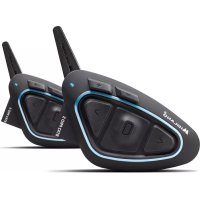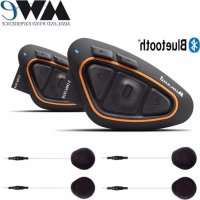
BTX1 Pro S - Headphones MIDLAND - Free user manual and instructions
Find the device manual for free BTX1 Pro S MIDLAND in PDF.



| Product type | Intercom headset for motorcyclists |
| Brand | Midland |
| Model | BTX1 Pro S |
| Power supply | Rechargeable lithium battery, battery life 20 hours, charging time 2 hours (first charge 3 hours) |
| Intercom range | Up to 800 m in direct line of sight |
| Number of intercom users | Up to 3 people in conference mode, 4 in two-way mode |
| Bluetooth | Version 4.2, hands-free, A2DP, AVRCP profiles |
| Main functions | Intercom, FM radio with RDS, music sharing, Talk2All (intercom with other brands), support for 2 phones, GPS connection, PMR446 Bluetooth connection |
| Voice activation | Adjustable VOX (4 sensitivity levels) and manual |
| Automatic volume control | Adjustable AGC according to ambient noise, can be disabled |
| Water resistance | Rain resistant, rubber caps on connectors |
| Audio kit | Stereo earbuds, boom microphone for modular helmet, wired microphone for full-face helmet |
| Mounting | Sliding mounting kit with double-sided adhesive plate |
| Update and configuration | Via PC software BT PRO Updater or smartphone app BT SET-APP, USB connection |
| Safety | Keep more than 5 cm from body; do not use at high volume for extended periods to avoid hearing loss |
| Maintenance | Clean surfaces, check sealing caps, recharge regularly |
| Reparability | Reset pairings, return to factory settings, firmware update via USB |
| Warranty | 24 months for main device, 6 months for accessories |
Frequently Asked Questions - BTX1 Pro S MIDLAND
User questions about BTX1 Pro S MIDLAND
0 question about this device. Answer the ones you know or ask your own.
Ask a new question about this device
Download the instructions for your Headphones in PDF format for free! Find your manual BTX1 Pro S - MIDLAND and take your electronic device back in hand. On this page are published all the documents necessary for the use of your device. BTX1 Pro S by MIDLAND.
USER MANUAL BTX1 Pro S MIDLAND
Concession Conference fino a 3 persona
Technical specifications of Midland BTX1 PRO S. 18
Charging batteries 19
Switching ON and OFF your Midland BTX1 PRO S 21
Operative "mode" 21
How to pair two Midland BTX1 PRO S units. 21
How to pair the Midland BTX1 PRO S to more than two units 22
Conference 23
Universal Intercom Talk 2 All, with different brand unit. 24
Pairing the Midland BTX1 PRO S to Bluetooth devices 25
Background feature. 25
How to pair the Midland BTX1 PRO S to a Phone 26
How to listen to the FM Radio. 29
Setup and special configurations 29
Setup and Firmware update 30
Warranty. 30
European CE Notice Certification and Safety Approval Information 30
MIDLAND BTX1 PROS
Advanced Intercom System
Midland BTX1 PRO S is an intercom system solution designed for motor cyclists. It can be paired via Bluetooth to other devices, such as mobile phone/MP3 Player or GPS navigator; while if paired to another BTX1 PRO S, it becomes a wireless intercom system for Driver and Passenger, and allows Bike-to-Bike communications up to a distance of 800m and Conference mode up to 3 people. Thanks to its slim, aerodynamic design and to the three big buttons on the front side, Midland BTX1 PRO S is the most advanced solution for motorbikers.
Main features
Intercom "one to one" up to 800m distance.
Conference 3 people
Connect up to 3 people for "one to one" intercom communication
Universal Intercom Talk2All feature to connect other brand intercom
FM Radio Stereo with RDS
MWE Noise Killer
Music Share (Driver and Passenger)
Connect your phone to receive and place phone call and listen to stereo music
Support for 2 phones
Connect your GPS for voice street indications
Connection for PMR466 radio with internal or external Bluetooth
Setup and Firmware update via USB connection to a PC
Midland BTX1 PRO S is available in two versions:
Single Midland BTX1 PRO S Intercom kit with one unit only
Twin Midland BTX1 PRO S Intercom kit with with two units
Depending on the model purchased, the package contains the following parts:
Midland BTX1 PRO S single
1 BTX1 PROS communication unit
1 Slide-in mounting kit with two stereo speakers
1 microphone with boom and 1 wired microphone
plate with bi-adhesive strip to fix the unit onto the helmet
1 micro USB wall-mounting power supply
Midland BTX1 PRO S Twin
2 BTX1 PRO S communication units
2 Slide-in mounting kit with two stereo speakers
2 microphones with boom and 2 wired microphones
2 plates with bi-adhesive strip to fix the unit onto the helmet
1 micro USB wall-mounting power supply with double plug
The units included in the TWIN kit are already paired on Middle button and therefore can be immediately used in Intercom mode.
Technical specifications of Midland BTX1 PRO S
General:
Bluetooth ver. 4.2 Stereo (Handsfree/A2DP/AVRCP protocol)
Frequency: 2.4 GHz - Max power 100mW
AGC system automatically controls the volume in relation to background noise
Voice (VOX) or manual communications activation
Manual controls to enable: telephone and intercom
Fully waterproof
Lithium battery with 20 hours talk time
Recharge time: app. 2 hours
Bluetooth connections:
With identical device for Rider to Pillion or Bike-to-Bike Intercom mode, up to a maximum distance range of 800m without obstructions and interferences (the riders must be always in sight).
Bluetooth devices:
Mobile phone with MP3 player Stereo (A2DP protocol) and GPS navigator
PMR446 transceivers (with built-in or external Bluetooth connection) for group bike-to-bike communications.
Attention: Midland BTX1 PRO S is designed to withstand rain and water. However, if it is raining, always verify that the rubber cap protecting the recharging sockets is fully fitted.
Charging batteries
Attention: Make sure that the unit is fully charged before use. Allow at least 3 hours for a full charge before using the unit for the first time.
Charge the unit by inserting the wall-charger into the charging socket (lift the rubber cover to insert the plug). The red LED on the unit will start flashing when charging begins.
Allow the headset to charge until the unit stops flashing or the blue LED turns on.
When the charge is complete (the red LED is not flashing), release the headset from the charger. Normally, after the first time, it takes 2 hours for a full charge.
Attention: every time the micro USB recharging plug is inserted (or detached), the device is automatically turned off. To use it while it is in charge, you should turn the device on with the plug already inserted.
Unit and fixing system description
BTX1 PRO S description
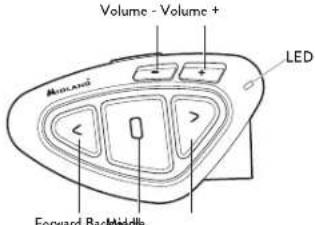
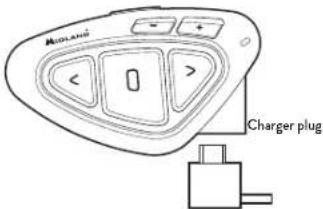
The BTX1 PRO S has five buttons on the front; the main three big buttons are multi functions buttons: the Forward (on the left), the middle button and the Backward (on the right), the two squared buttons are the Volume + and Volume -
Description of the wired connections
On the bottom of the unit you can find the Charger jack that enables to recharge the unit using a standard microUSB power supply
Description of the audio kit
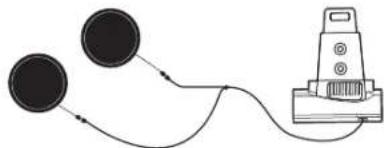
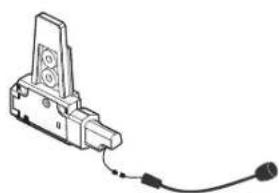
The audio system includes two HI-Fl stereo speakers and two interchangeable microphones, which are both supplied with a bracket and wired connection. The mini connector on the microphone allows you to choose the microphone that best suits the helmet you are using.
Fixing the stereo speakers
The two stereo speakers have a Velcro/adhesive strip that aids their fixing into your helmet. Boware not to keep the volume too high, you must always be able to listen to the traffic sound.
Fixing the microphone
Boom Microphone
Place the section with the Velcro/adhesive strip between the padding and the rigid cover of the helmet, so that the microphone is correctly positioned in front of your mouth and that the white symbol is facing your mouth. This type of microphone is suited for Open Faced and Flip Front helmets. For open helmets it is also available a specific optional microphone cod. C1253.
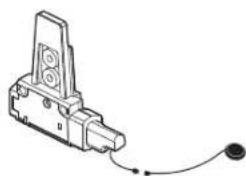
Wired microphone
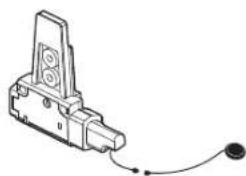
Using the Velcro/adhesive strip, place the microphone inside the helmet in front of your mouth. This type of microphone is more suited for Full Faced helmets. The mini connector on the microphone allows you choose the microphone that best suits the helmet you are using.
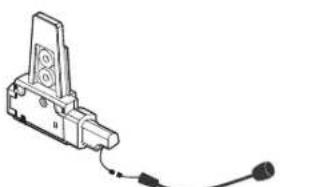
Boom microphone Wired microphone
Description of the Slide-in mounting kit
To fix the Midland BTX1 PRO S onto the helmet, you have to install the slide-in mounting kit by using the plate with bi-adhesive strip. This method allows you to safely "fix" the BTX1 PRO S unit onto your helmet and to remove it at any time in order to recharge or store it.
Plate with bi-adhesive strip
The Bi-adhesive plate is already assembled on the slide-in mounting kit.
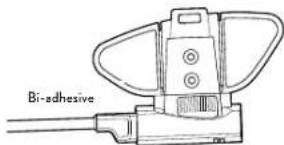
Clean the application area on the helmet surface, fold the two little wings to better stick to the curved surface of the helmet, remove the bi-adhesive film and place the fixing plate on the left side of the helmet by keeping it contact with the surface for a few seconds.
Fitting and removing your Midland BTX1 PRO S
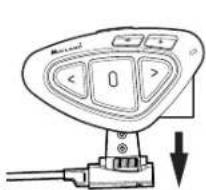
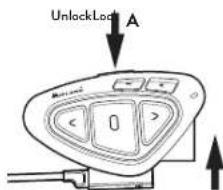
The BTX1 PRO S can be easily fitted onto the helmet by sliding it downwards on the sliding mounting kit. BTX1 PRO S is maintained in position thanks to the fixing clip located on the upper section (A). To detach the BTX1 PRO S, simply press the fixing clip and push the unit upwards.
www.midlandeurope.com
Switching ON and OFF your Midland BTX1 PRO S
Switching the unit on:
Press and hold "Middle" button for approximately 3 seconds until the BLUE indicator lights.
Switching the unit off:
Press and hold both "Middle" and "Backward" buttons together for approximately 3 seconds until the RED indicator flashes 3 times, thus lessening the chances that you might turn off the unit accidentally (especially whilst wearing gloves).
Operative "mode"
The BTX1 PRO S can operate in three main "mode": Intercom, Phone and FM Radio.
The 3 multi function buttons can have different functionality depending on which mode the unit is at that moment.
In "Intercom mode" the three buttons let you manage the Intercom communications between driver and passenger or bike to bike.
In "Phone mode" you can manage your Bluetooth mobile phone to place/ answer a phone call or to listen to the music or GPS App. announcement (in stereo mode). Please use your phone responsibly and safely.
In "FM Radio mode" you can listen to your favourite radio station in stereo, seek for a specific radio station and save it (6 memories are available).
You can switch (toggle) from one mode to the other simply pressing the Middle button for 3 seconds. A voice announcement will tell in which mode you are on.
The toggle sequence is the following:
Intercom mode (if another unit has been paired)
FM Radio
Phone mode (if a phone has been paired)
Every time you turn on the unit, the default mode is the last used mode.
The Intercom mode and Phone mode are available only if it was previously paired to another unit or to a phone.
www.midlandeurope.com 21
If you need to know in which mode the unit currently is, press briefly the "Volume +" and "Volume -" buttons together. A voice announcement will tell you the current mode.
Maximum Distance
You can reach 800m intercom distance if you are in line of sight without obstructions and interferences (the riders must be always in sight).
How to pair two Midland BTX1 PRO S units
The two units supplied in the same Midland BTX1 PRO S box, are already paired and ready to use, it means you don't need to perform this procedure. The units are already paired using the Middle button. If the devices are not part of the same kit, or the units have been purchased separately, you need to first pair it in order to use it.
To pair the Midland BTX1 PRO S to another Midland BTX1 PRO S unit
To pair the Midland BTX1 PRO S to another Midland BTX1 PRO S unit, you must first enter the setup mode:
-
Turn off the unit.
-
Press and hold down the middle button about 7 sec., until the Red light is on permanently.
- Now press the Middle button for 3 seconds. The Blue and Red lights will flash.
- Do the same procedure on the other unit. When successfully paired, each unit will have the Blue light on for one second and then go back to the setup mode (Red light always on).
- Now the pairing procedure is complete, you just need to exit the setup mode before you can use the units.
- Double click on the Middle button, the Red light will turn off and the Blue light will start flashing.
You can use now your Midland BTX1 PRO S.
Attention: remember to switch off all the other Bluetooth device that are not part of the pairing procedure, only the two devices involved in the pairing must be turned on.
How to use the Intercom with two units
To use the intercom feature, be sure that both units are turned on and correctly paired together.
Manual activation
Press the Middle button on one of the two units in "Intercom" mode. Communication is enabled and remains active until you press again the middle button. The intercom need some seconds to activate, you will hear a beep tone when the intercom is open.
Voice activation (VOX)
Simply say something, after some seconds the communication will be opened and will remain active for the time you are talking. If there is no conversation the intercom will be closed after 40 seconds. If needed you can close the intercom manually without waiting 40 seconds (just press the middle button). If needed, you can enable/disable the VOX feature simply by pressing the Backward button for 7 sec. A voice announcement will advise you when the VOX is disabled. To turn the VOX on again, just press the same button and a voice announcement will advise you that the VOX is now active/deactivated. This setting is remembered also if you turn off the unit.
Attention: The Voice activation (VOX) can open the intercom communication only to the unit that was paired with the Middle button. If you choose to use a different button (Forward or Backward), you will be able to active the intercom only manually.
Adjusting the volume
Your Midland BTX1 PRO S uses AGC technology, which automatically adjusts the listening volume in relation to background noises.
However, it is also possible to manually adjust the volume by means of the "Volume +" and "Volume -" buttons. The volume setting is independent for each audio source: intercom, stereo music, phone call, FM radio.
Attention: volume can be adjusted only when an audio connection is active.
Set up of the AGC system
To adjust the sensitivity of the AGC system you can use the "BT PRO UPDA-TER" Pc Software or the smartphone "BT SET-APP" application. You can choose different set up based on your motorbike type (naked, touring, sport) or if you are riding as a passenger.
Attention: you can disable the AGC system pressing "Volume +" and "Volume -" together for 3 sec.
How to pair the Midland BTX1 PRO S to more than two units
One Midland BTX1 PRO S unit can be paired to maximum three other BT units.
The Midland BTX1 PROS has three main buttons (Forward, Middle and Rear). To pair the devices, use the Central or Backward button.
The same button you will use to pair the unit will be also used to open/close the intercom communication.
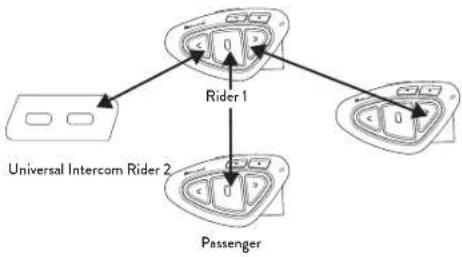
For example you can pair your passenger to the Middle button and other motorbikers to the Backward and Forward button. Everytime you open the "Intercom" connection to one person, the previous connection will be closed. The connection is not a "chain", when two persons are talking it is not possible to break (interrupt) the communication by one of the other units.
Pair the Midland BTX1 PRO S to another Midland BTX1 PRO S unit
To pair the Midland BTX1 PRO S to another Midland device unit, you must first enter the setup mode:
- Turn off the unit.
- Press and hold down the middle button about 7 sec., until the Red light is on permanently.
- Now press the Middle or the Backward or the Forward button for 3 seconds. The Blue and Red lights will flash.
- Do the same procedure on the other unit, when successfully paired, each unit will have the Blue light on for one second and then go back to the setup mode (Red light always on).
- Now the pairing procedure is complete, you can go on pairing other units on different button or just exit the setup mode to start using the units:
- Double click on the Middle button, the Red light will turn off and the Blue light will start flashing.
You can use now your BTX1 PRO S.
How to use the Intercom with more than two units
To use the intercom feature, be sure that all the units are turned on and correctly paired together.
Manual activation in Intercom mode
Press the button corresponding to the unit you would like to communicate with. After some seconds the intercom communication will open.
The communication remains active until you press again the same button. To quickly open the intercom to another person, just press the button corresponding to the other unit, the intercom will be automatically closed and the new connection will be opened.
Voice activation (VOX)
The voice activation feature can open the intercom only to the unit paired to the Middle button.
Hint: this feature is very useful when you have a specific person that you like to talk to more often (for example your passenger). In this way you don't need to press a button to open the communication.
www.midlandeurope.com 23
Unit already busy in a conversation
If you try to open an intercom connection to another person that is already talking with some one else (or is in a middle of a phone conversation), you will hear a "busy" double beep tone. Just wait sometime and try again, maybe this time the "line" is not busy.
The person who is called, will be advised that someone is trying to call and will hear a voice announcement with the number of the button from which the request is coming.
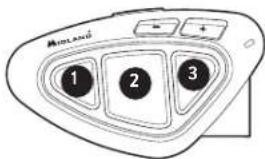
In this way as soon as the first conversation is over, the person can easily contact the caller by opening the intercom of the specific button number (indicated by the voice announcement).
Conference
The "Conference" mode allows the communication with three people simultaneously. The Midland BTX1 PRO S unit can work as usually, with "one to one" communication up to 3 people ("classic" Intercom mode) or with 3 people conference intercom (Conference mode).
How to use the conference mode
First of all you need to pair all the units in a "chain" mode, second the "Conference" feature must be active on the central unit.
Pairing
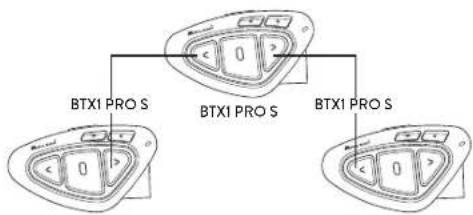
To use the Conference feature up to 3 people, the three devices must be paired in a "chain" configuration.
Pair the Forward button of the BTX1 PRO S in the middle to the Backward button of BTX1 PRO S (1).
Pair the Backward button of the BTX1 PRO S in the middle to the Forward button of the BTX1 PRO S (3).
See picture.
The first and third devices must NOT be paired each other (the chain must not be closed) and can be other Midland units.
Only for BTX1 PRO, BTX1 FM and BTX2 FM you have to use the Central button.
Activate Conference mode
After having paired the units in a sort of "chain", now it is necessary to activate the Conference mode on the device BTX1 PRO S in the middle.
In any mode (no matter which mode is activated) and no active audio, keep pressed the Central and Forward buttons for 3 seconds. The voice announcement "Conference" will tell you that it is active.
When the Conference mode is active the "Phone" mode is not available because all the devices paired on Vol+ and Vol - are temporary disconnected to guarantee the stability of the conference mode.
How to use the conference mode
When the conference mode is active, is possible to open the intercom communication pressing both the FWD and BWD button.
"One Click Talk" function
When the conference mode is active, it is possible to open the intercom communication to all users just in "one click". Press short the CTRL (middle) button and you will automatically open the conference to all units connected.
Disable the "conference" mode
The conference mode can be disabled in every moment, just pressing the Forward and Central buttons for 3 seconds. You will hear the voice announcement "Intercom" and from that moment your Midland BTX1 PRO S will start working with "one to one" intercom and all the devices paired on Vol+ and Vol- are back, together with the "Phone" mode and the "Talk2All-Universal intercom" feature.
Attention: when the "conference" mode is active, the "Talk2All-Universal intercom" (to talk with not Midland brand intercom) is not available.
Also if one unit was paired on the CTRL (middle) button, it is temporary unavailable, you need to disable the "Conference" mode and go back to the standard "one to one" Intercom mode.
Universal Intercom Talk 2 All, with different brand unit.
Thanks to the "Talk2 All - Universal Intercom" feature it is now possible to pair your Midland BTX1 PRO S to a different brand intercom available on the market.
You can pair a not Midland Intercom on the "Forward" button.
On the Midland BTX1 PRO S enter the setup mode (with the unit OFF press and hold down the Middle button about 7 sec. until the Red light is on permanently).
- Keep pressed the "Forward" button for 7 seconds: the Red and Blu LED light will start flashing fast, then (while you still keep the button pressed) the Red and Blu LED lights will change to slow flashing. Now you can stop pressing the button.
On the other intercom (not Midland brand) follow the procedure to pair to a phone, because the BTX1 PRO S is paired as a Phone.
If successfully paired the red/blue light will stop flashing and the blu light will slowly flash.
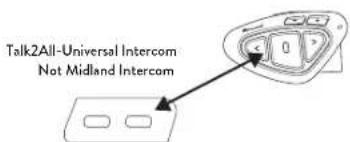
Attention: remember to switch OFF all other Bluetooth devices during the pairing procedure, only the two devices involved in the pairing must be turned on.
To open/close the "Universal Intercom" communication on the Midland BTX1 PRO S press very long (7 sec) in "Intercom" mode the Forward button. On the other intercom just press the phone redial or voice dial button.
Maybe it will be necessary to press the radial button two times, depending on the model of the not Midland intercom.
Attention: In order to use the "Talk2All-Universal Intercom" feature the pairing on the other unit must be done as a phone. The other intercom (not Midland brand) will be able to be paired to a phone only if two phones are supported.
You can pair also a Midland unit as Talk2All, that means the pairing must be done as a phone (one unit use the Talk2All procedure and the other unit use the pairing to "Phone" procedure).
Compatibility with Midland BT line units
The BTX1 PRO S is compatible with Midland BT devices. When paired the max distance of the intercom is defined from the lower possible.
The BTX1 PRO S is compatible with the previous line of Midland BT (BT Next, BTX2 and BTX1) only if you update the firmware.
Pairing the Midland BTX1 PRO S to Bluetooth devices
The Midland BTX1 PRO S unit can be paired to other Bluetooth devices, like Phone, GPS Navigator or PMR446 Radio with built-in or external Bluetooth (dongle).
The pairing procedure must be done using the "Volume +" or the "Volume -" buttons.
Pairing to the "Volume +" button: for Phone with music A2DP stereo,
www.midlandeurope.com 25
GPS Navigator with A2DP audio or external mono/Stereo A2DP dongle. All devices paired to "Volume +" button have higher priority and will interrupt all the other communications (like Intercom, FM Radio and Music).
- Pairing to the "Volume -" button: for a second phone with mono audio (Hands Free Protocol) for GPS navigators/ Radar detector and other devices with mono audio.
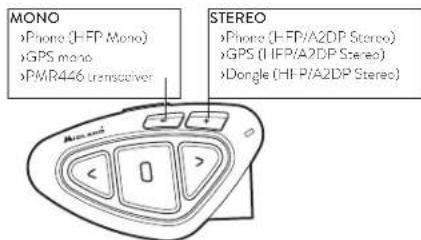
When a device is paired to the "Vol +" or "Vol - " buttons the "Phone" mode is activated.
Attention: A2DP audio source are supported only on Vol+. The second phone paired on Vol- can support only mono audio (HFP).
Background feature
It is possible to keep always in background the audio connection of the device paired on "Vol-" button. In this way the Intercom communication will not be interrupted, for example, by the GPS's street indication or other audio mono device. To activate the "Background" feature just press long the "Vol-" button, the voice "Background ON" will tell you that now is active.
To deactivate the "Background" feature just press again long the "Vol." button, the voice "Background disable" will tell you that now is not active anymore.
Pairing with one or two phones
The cellular phone can be paired to the "Vol +" (if the support for stereo A2DP is requested) or to the "Vol -".

When a phone is paired to the "Vol+ or "Vol-" the "Phone" mode is activated. An incoming call has always the higher priority, that means all other communications will be closed (Intercom, FM Radio, Music). If another incoming call will arrive on the second phone, an alert sound will notify it.
How to pair the Midland BTX1 PRO S to a Phone
To pair the BTX1 PRO S to a Phone, you must first enter the setup mode:
- Turn off the unit
- Press and hold down the middle button about 7 sec., until the Red light is on permanently.
- Now press for 3 seconds the "Volume +" or "Volume -" button, the Blue and Red lights will flash.
- Enable the Bluetooth device search feature on your mobile phone. After some seconds, "Midland BTX1 PRO S" will be displayed on your mobile phone. Follow the pairing procedure of your Phone. If a pin code is requested you must enter "0000" (four time zero).
- When successfully paired, the Blue light of the unit will be on for one second and then the unit will exit the setup mode and switch to the working mode (the Blue light will start flashing).
You can use now your Midland BTX1 PRO S together with the Phone.
How to use a Phone
After pairing your phone to the BTX1 PRO S unit you must switch to the
"Phone" mode in order to use it.
Press the middle button until you hear "Phone" from the voice announcement.
Now all the three main buttons are dedicated to the phone (see Table B).
Answering a call
When you hear the phone ring, you can answer in two different ways:
Vocally:
3 seconds after the first ring, simply say one word to answer the call and start talking.
Manually:
Tap the "Forward" button and start talking.
Rejecting a call
If you don't wish to answer, you can let the mobile phone ring or press the "Forward" button for 3 seconds (you will hear one audio confirmation tone).
Making a call
There are several ways to make a call.
From the mobile keypad:
Dial the number on the mobile keypad:
Press "Send" on the mobile phone.
To redial the lost number:
Phone on Vol+: Press"Forward" button for 3 seconds in order to radial the last number (you will hear one audio confirmation tone).
Phone on Vol:- Press "Backward" button for 3 seconds in order to radial the last number (you will hear one audio confirmation tone).
To make a voice call
Phone on Vol+: Briefly press "Forward" button. If your mobile phone supports voice calls, you will be asked to speak the name of the contact you wish to call.
Phone on Vol:- Briefly press"Backward"button. If your mobile phone supports voice calls, you will be asked to speak the name of the contact you wish to call.
Priority: Calls have a high priority, which means that all other communications are temporarily disabled when a call arrives.
Ending a call
There are several ways to end a call:
Wait for the called person to end the call.
Press the "Forward" button (you will hear an audio confirmation tone).
Press "End" button on the mobile phone.
Speed dial
You can store one phone number in the unit memory and use it when needed. You must first save the number using the "BT PRO UPDATEER" Pc software or the smartphone "BT SET-APP" application. Then when you are in phone mode, just press 7 sec. the "Forward" button.
Using the MP3 player feature of the mobile phone
The mobile phone, when paired on "Volume +" can be used as stereo MP3 players.
The Midland BTX1 PRO S device fully supports the A2DP and AVRCP protocols that enable you to listen to stereo music and remotely control your mobile phone's MP3 player.
You can even use the buttons on the Midland BTX1 PRO S unit to control the following play options: Play, Pause, Forward and Backward the songs.
Available controls:
To play/pause music: click on the "Middle" button.
To skip forward to the next song: press the "Forward" button.
To skip backwards to the previous song: press the "Back" button.
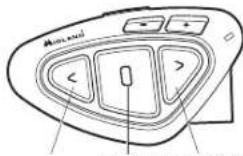
Play/PauseForward Backward
Priority: the music listening mode has the lowest priority. Therefore, it will always be disabled when another audio communication comes in.
To change the priority behaviour you can use the "BT PRO UPDATER" Pc Software or the smartphone "BT SET-APP" application
Attention: It is possible to control A2DP Stereo music only in "Phone Mode"
If you are listening to A2DP music and you move from "Phone" mode to "FM Radio" or "Intercom" mode, you can still listening to A2DP music but you don't have all the controls buttons available. Only Play/Pause is available with double click on the "Middle" button.
Music Share
To start sharing your A2DP music with the passenger already paired on the middle button (maximum distance 10mt), you must press the "Backward" button long (3 sec.) while the music is playing. The passenger must be either in "Phone" or "Intercom" mode without any open audio. The passenger can only stop the music share pressing short the middle button (but cannot control the music). The driver can stop the music sharing just pressing again the "Backward" button long. With music share active you can not keep open the Intercom communication.
Attention: to enable the Music Share, make sure you sent a play command from the Intercom device.
Attention: while in Music Share mode, the driver can open the intercom to the passenger with a double-click on the Central button.
B-Phone mode
| Mode Forward button (Phone on Vol+) Middle button Backward button (Phone on Vol-) | |||
| Phone Short press: Voice dial /accept or close if it is in progress | Long press: Change mode | Short press: Voice dial /accept or close if it is in progress | |
| Long press: radial last number/ or reject | Long press: radial last number/ or reject | ||
| Phone (when music is plain and paired on "Vol +") | Short press: Forward the song Short press: Play/pause Long press: Change mode | Short press: Backward the song | |
GPS Navigator
The GPS Navigator can be paired using the "Volume+or the "Volume- button.
Volume + button (support for stereo A2DP audio and HFP mono). If the audio of the Navigator street indication is stereo (like when you are using a smartphone with a navigation app), you must pair it on the "Vol+ button.
Volume - button (support for HFP mono audio also in background). If the audio of the Navigator street indication is mono you can pair it on the "Vol" button. If the "Background" feature is activated, the street indication are always in background and will not interrupt the Intercom communication.
Attention: we can not guarantee the correct functionality of the background fe- ature, because it is depending on third part device
In case the GPS Navigator can support a phone directly connect to it self, we suggest to connect the phone to the Navigator and the Navigator to the Vol+ button.
GPS Stereo (A2DP) voice announcement
Midland BTX1 PRO S supports Stereo (A2DP) voice announcement from GPS Navigators or smartphone application when paired on "Vol+ button. When a voice announcement "brake in", Intercom or FM radio is interrupted to give priority to the announcement itself.
By default this feature is ON; it's possible to change the priority using the "BT PRO UPDATE" PC Software or BT SET-APP smartphone application.
GPS Navigator with stereo music player
If the GPS is also a stereo MP3 player and you want to listen to stereo music, you must pair the GPS to the "Volume +" button.
In this configuration the GPS street voice announcements will interrupt all other communications (Intercom, FM Radio, Music).
When the GPS is paired to the "Volume +" button the "Phone" mode is activated.
Attention: It is possible to control A2DP Stereo music from the GPS only in "Phone Mode".
How to pair the Midland BTX1 PRO S to a GPS
In general it is possible to pair the Midland BTX1 PRO S to all the GPS for motorbike that support Bluetooth headset connection.
To pair the Midland BTX1 PRO S to a GPS, you must first enter the setup mode:
- Turn off the unit.
- Press and hold down the "Middle" button about 7 sec., until the Red light is on permanently.
- Now press firmly (3 sec) the "Volume +" or "Volume -" button, the Blue and Red lights will flash.
- Enable the Bluetooth device search feature on your GPS.
- After some seconds, "Midland BTX1 PRO S" will be displayed on your GPS.
- Follow the pairing procedure of your GPS. If a pin code is requested you must enter "0000" (four times zero).
When successfully paired, the Blue light of the unit will be on for one second and then the unit will exit the setup mode and switch to the working mode (the Blue light will start flashing).
You can now use your Midland BTX1 PRO S and the GPS street voice announcement are always in background.
If you pair the GPS to the Volume + button (because for example the "Volume - button was already used), you lose the possibility to pair the phone to the Midland BTX1 PRO S unit.
You can overcome this limit by pairing the phone directly to the GPS and then the GPS to the Midland BTX1 PRO S unit. All the phone features are therefore managed by the GPS itself.
Pairing to a PMR446 radio with integrated or external Bluetooth
The PMR446 Radio can be paired to the "Volume +" or "Volume -" button. If paired on "Volume -" and the "Background" feature is activated, the PMR446 radio is always in the background even when you talk on the intercom.
Pairing procedure
Turn off the unit.
Press and hold down the "Middle" button about 7 sec., until the Red light is on permanently.
Now press firmly (3 sec) the "Vol +" or "Vol -" button, the Blue and Red
www.midlandeurope.com
light will flash.
Follow now the pairing procedure explained on the manual of the transceiver itself.
How to listen to the FM Radio
The FM Radio receiver is integrated inside the unit. You just need to switch to the "FM Radio" mode in order to use it. Long press the middle button until you hear "FM radio" from the voice announcement. Now all the three main buttons are dedicated to the FM Radio (See Table C).
Press short the Forward or the Backward button to seek the FM Radio station. When you press long the Forward or the Backward button, you can scan up or down the 6 recorded stations. A voice announcement will tell you the number of which memory you are entering.
To save the station you are listening to, press the Forward and Backward buttons together for 3 sec. You will hear a beep tone for confirmation.
The station is saved over the last recorded station used.
Thanks to the RDS system, the FM Radio will choose the strongest signal available for the radio station you like to listen. The RDS system is OFF by default, if needed you can toggle on/off the RDS pressing together the "Volume +" and "Volume -" buttons for 3 sec when the radio is on. A voice announcement will tell you the RDS status.
How to Disable/Enable the FM Radio
By default the FM radio is on.
Disabling:
Enter the "Setup" mode: turn off the unit and hold down the "Middle" button about 7 sec., until the Red light is on permanently.
Press "Middle" and "Volume+2" buttons together for 3 seconds. The blue LED will flash three times.
Double click on the "Middle" button to exit the "Setup" mode and use the Midland BTX1 PRO S.
Enabling:
Follow the same procedure up described; now the blue LED will flash once.
To exit the "Setup" mode, double click the "Middle" button.
FM Radio with intercom
When you are in "FM Radio" mode is not possible to manually open the intercom, you can only open it using VOX feature (just talk) to the unit paired on the "Middle" button. To manually activate the intercom you must switch to "Intercom" mode.
Setup and special configurations
Resetting all paired devices
Sometimes you may find it necessary to delete all the pairing references stored in the Midland BTX1 PRO S unit (reset operation).
To perform this operation you must first enter the setup mode:
Turn off the unit.
Press and hold down the "Middle" button 7 sec., until the Red light is on permanently.
Then simultaneously press and hold down the "Volume +" and "Volume -" buttons for 3 seconds. The Blue Light will be lit on for 1 sec and then back to steady RED.
Double click on the "Middle" button to exit the "Setup" mode.
C-Radio FM mode
Mode Forward button Middle button Rear button
FM Radio Short press: seek station up
Long press: Scan recorded
Short press: On/off
Long press: Change mode
Short press: seek station up
Long press: Scan recorded
This procedure deletes all the paired Bluetooth devices stored in the memory and it is therefore possible to start a new "clean" pairing session.
Back to factory setting
Sometimes you may find it necessary to go back to the factory setting, to reset all the changes/setup already made and have a "clean" unit.
To perform this operation you must first enter the setup mode:
Turn off the unit
Press and hold down the "Middle" button about 7 sec., until the Red light is on permanently.
Then simultaneously press and hold down all the three buttons "Forward" - "Middle" - "Backward" for 3 seconds. The Blue Light will be lit on for 1 sec and then back to steady RED.
Double click on the "Middle" button to exit the "Setup" mode and use the Midland BTX1 PRO S
Adjusting/Disabling the VOX feature (Intercom and telephone)
The Intercom feature can be enabled both manually and vocally (VOX). The VOX activation is influenced by the helmet type, the background noise and therefore by the speed.
For optimum results, it is possible to choose one of the following four microphone sensitivity levels: high, medium, low and very low. The default setting of Midland BTX1 PRO S is "High". It is also possible to disable the VOX feature in order to activate the Intercom and phone call answering features in manual mode only.
These adjustments can be set through the program "BTPro Updater" suitable for PC/MAC
Setup and Firmware update
It is possible to configure and update the firmware of your Midland BTX1 PRO S using the USB connection to your PC. On the Midland web site www.midlandeurope.com in the Midland BTX1 PRO S page you can find the PC software and the new firmware updates if available.
ATTENTION:DO NOT CONNECT THE UNIT TO THE PC BEFORE YOU DOWNLOAD AND INSTALL THE SOFTWARE
Use at your own risk
The use of the device will impair your ability to hear other sounds and others around you.
Listening to music or speaking on a telephone may prevent you from hearing others around you and distract you from riding safely. The use of such device while riding may endanger you and others, and its use, in some areas, could not be allowed.
Using this device at a high volume may result in permanent hearing loss.
If you experience ringing in your ear or any other hearing related pain, reduce the volume or discontinue using this device. With continued use at high volume, your ears may become accustomed to the sound level, which may result in permanent damage to your hearing. Please use this device at a safe volume level.
Warranty
The warranty lasts 24 months for the main device and 6 months for the accessories (batteries, chargers, antennas, headsets and microphones). For further information about the warranty, please visit www.midlandeurope.com.
European CE Notice Certification and Safety Approval Information
This product is CE marked according to the RED Directive 2014/53/UE and is free use in all the EU countries. Users are not permitted to make any changes or modifications to the device. Modifications which are not expressly approved by the producer invalidate the warranty card. For further information, please go to our website: www.midlandeurope.com.
Inhalt
Hauptmerkmale 34
Boom microphone Wired microphone
Hereby Cte International Srl declares that this product is in compliance with the essential requirements and other relevant provisions of Directive 2014/53/UE. The declaration of conformity is available on the web site http://www.midlandeurope.com/it/page/10090-certifications
AT/DE/CH/LI
http://www.midlandeurope.com/it/page/10090-certifications
FR/1U/CH
http://www.midlandeurope.com/it/pagina/10090-certifications
NL
midlandeurope.com/it/pagea10090-certifications RO
Cte International Srl.declare ca acest model estine in conformitate cu cerintele esentiale si elle prevederi ale Direcstiti 2014/53/UE.Declaratio de confortitato este disponibilita si pe site-ul http://www.midlandeurope.com/it/
pageia/10090-certifications. BG
CnactoTTOCTE International Srl deKnapna,pe
PnoDyTA C B CbOBTCTBVE COCHONHTE MNCKBAHN
CBOTBEHTHE MOJKAHNA HA OIMPeKTHBa 2014/53/UE.
DeKnapnAITa 3a CBMECTMNOCTe HANHHa cRaTa:
http://www.midlandeurope.com/it/page/s10090-
certifications
NO
CTEINTERNATIONAL Srl erkräer at prodktet er ioverenssttemmelsme med de viktgste kravene og andro relevanto sotingolscr i Dektroit 2014/53/UE Samsvarserklaering finnes tigiengelp ma nettstedet http://www.midlandvarevo.com/fit/paing/10090
certifications
DK
Harmed erklarer Cte International Srl., at ditte apparat o i overonscommiss mod kravne og andro relevante bestemmelser direktiv 2014/53/UE.
Overenstommeseerklarungen findes pwe webstedet http://www.midlandeurope.com/it/page/10090-certifications
SE
http://www.midlandeurope.com/it/page/10090-certifications
F1
CTE INTERNATIONAL Sriyaukutla, eta. taole taitya direkivin 2014/53/UE.Vaetimuksenmukasiuysaukutus on saatayilv.
http://www.midlandeurope.com/it/page/10090-certifications-verkkosivilla.
HR
Cte International Srl ovime izjavjujo de je imo oog modola u suglasmoste se bitin zehjevime te ostim relevantn odredbama Propisa 2014/53/FU. Ova Izjova o suglasmostje dostupna na web stranici http://www.midlandeurope.com/ it/page/10090-certifications.
EE
Ksesleva ginkinab Cte International Srl sele mudei
vasevust drektivi 2014/53/UE. Vasevusdekleratsion on
kittenasaday vebeileh
http://www.midlandeurope.com/it/page/10090-certifications
LT
CTE International patvirtina, kad bis models attinka visus esminus Direktyvos 2014/UE. Aukkies deklareciya yra patekisia internetina 2014/vejta neje
http://www.midlandeurope.com/it/page/10090-
certifications
LV
CTE INTERNATIONAL Srl deklare, ka produits eulbst. pamatrasibam un citiemar ar to saestafjagem Direktvs 2014/53/7 UL. Atabilstes deklaraci jir pieejma majas lepa:
http://www.midlandeurope.com/it/page/10090-certifications
SK
Tymto Cte International Sri prehlasuj, Ze tento nazov model je vzhode so zakladnmi poziadvarka di dalismi prilusinymi ustanovioniemi smornico 2014/53/UE.Vynlasonie o zhocek i dispizicna webovych strankach
http://www.midlandeurope.com/it/page/10090-certifications
SI
Cte International Srl deklarata da je ta model skladen z bistvenmi zanlevam in drugimi rei evertini dolocii EU directive 2014/53/UE. Deklaracija o skladnosti je na voljo na splotri strani http://www.midlandeurope.com/fit/ pagina/10090-certifications
CZ
CTE INTERNATIONAL SRL prohlasej, ze vrobek je v. souladu s 2014/53/UF. Prohlasei o smode je k disposizni wobovych stranskach
http://www.midlandeurope.com/it/pages/10090-certifications
H
M, a CTF International Srl. sajat felelosege kijentjuk, hogy xzen elnevesesL ternek megfeile 2014/53 /UE.A megfelelosegi mylatkozat elerhotewiboldalunka http://www.midlandeurope.com/it/page/10090-certifications cimen.

Important: The equipment must be used at least 2000 miles away from the body of use.
A/D/CH/FL
Produced or imported by:
CTE INTERNATIONAL srl
Via R.Sevardi 742124 Reggio Emilia Italy.
Read the instructions carefully before installation and use.
Vertrieb durch: