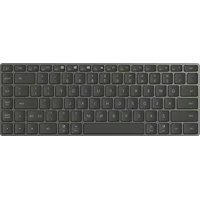
Ultrathin Keyboard CD34 - Keyboard HUAWEI - Free user manual and instructions
Find the device manual for free Ultrathin Keyboard CD34 HUAWEI in PDF.



| Product Type | Ultra-slim wireless keyboard |
| Brand | Huawei |
| Model | Ultrathin Keyboard CD34 |
| Connection Technology | Bluetooth (up to 3 devices) and USB-C wired |
| Power Supply | Built-in rechargeable battery, charges via USB-C |
| Quick Switch Buttons | Flash-Switch keys to switch between devices |
| Huawei Share Function | Built-in NFC for quick sharing |
| Battery Indicator | LED light: blinks red if battery < 10% |
| Compatibility | Windows, macOS, iOS, Android, EMUI |
| Charging Port | USB-C (cable not included) |
| Operating Temperature | 0°C to 35°C |
| Storage Temperature | -10°C to +45°C |
| Frequency Bands (Bluetooth) | 2400-2483.5 MHz, power 13 dBm |
| NFC Band | 13.56 MHz |
| Maximum Number of Paired Devices | Up to 3 via Bluetooth |
| Mode Selection Switch | Win or Mac for key compatibility |
| Built-in Battery | Not user-replaceable |
| Maintenance and Cleaning | Avoid dust, humidity, magnetic fields; clean with a dry cloth |
| Safety Instructions | Keep away from children, do not expose to heat, do not disassemble |
| Repair | By Huawei or authorized service provider |
Frequently Asked Questions - Ultrathin Keyboard CD34 HUAWEI
User questions about Ultrathin Keyboard CD34 HUAWEI
0 question about this device. Answer the ones you know or ask your own.
Ask a new question about this device
Download the instructions for your Keyboard in PDF format for free! Find your manual Ultrathin Keyboard CD34 - HUAWEI and take your electronic device back in hand. On this page are published all the documents necessary for the use of your device. Ultrathin Keyboard CD34 by HUAWEI.
USER MANUAL Ultrathin Keyboard CD34 HUAWEI
KpaTkoe pyKOBOCTBO NOIb3OBaTeJI
n
Panduan Mulai Cepat
ケイックstsたトガイド
Guía de inizio=rápido
Turn the power switch to Win or Mac to power on the keyboard.

If the keyboard is connected to a Windows, EMUI, or Android device, it is recommended that you turn the power switch to Win. If the keyboard is connected to an iOS or macOS device, it is recommended that you turn the power switch to Mac. Otherwise, there may be compatibility issues with some keys.
Connecting
1 Place the keyboard close to a device and press and hold any Flash-Switch key for more than three seconds to start pairing. (After the keyboard is powered on for the first time, it will automatically start pairing without the need for you to press and hold a Flash-Switch key.)
2 A prompt will then be displayed on the device. Follow the onscreen instructions to finish pairing.

- The proximity pairing feature is available on devices running operating systems such as Windows and EMUI. The actual support may vary depending on the product.
- If a device does not support the proximity pairing feature, pair the keyboard with the device via Bluetooth.
- You can also use a USB-C cable to connect the keyboard to the device.
Switching
The keyboard can be paired with a maximum of three devices via Bluetooth. To switch between devices, press and hold the Flash-Switch key selected during pairing. If the indicator blinks and is then steady on for five seconds, it indicates that the switching is successful.
Charging
When the keyboard is being used wirelessly and the power indicator blinks red, it indicates that the battery level is lower than 10% . You can use a USB-C cable that supports charging to charge the keyboard.

The product is not delivered with a USB-C cable. You need to purchase a USB-C cable separately.
More details
Visit https://consumer.huawei.com/en/support and search by device name to try more features.
Safety Information
- Please consult your doctor and the device manufacturer to determine if using your device may interfere with the operation of your medical device.
- Avoid using the device in a dusty, damp, or dirty place, or near a magnetic field.
- Ideal temperatures: 0^ to 35^ for operating, -10^ to +45^ for storage.
- The device nameplate is on the bottom of the device.
- Keep the battery away from fire, excessive heat, and direct sunlight. Do not place it on or in heating devices. Do not disassemble, modify, throw, or squeeze it. Do not insert foreign objects into it, submerge it in liquids, or expose it to external force or pressure, as this may cause it to leak, overheat, catch fire, or even explode.
- Do not attempt to replace the battery yourself — you may damage the battery, which could cause overheating, fire, and injury. The built-in battery in your device should be serviced by Huawei or an authorized service provider.
- Keep this device and its accessories that may contain small components out of the reach of children. Otherwise, children may damage this device and its accessories by mistake, or swallow the small components, which may cause choking.
Disposal and recycling information

The symbol on the product, battery, literature, or packaging means that the products and batteries should be taken to separate waste collection points designated by local authorities at the end of the lifespan. This will ensure that EEE waste is recycled and treated in a manner that conserves valuable materials and protects human health and the environment. For more information, please contact your local authorities, retailer, or household waste disposal service or visit the website https://consumer.huawei.com/en/.
Reduction of hazardous substances
This device and its electrical accessories comply with local applicable rules on the restriction of the use of certain hazardous substances in electrical and electronic equipment, such as EU REACH regulation, RoHS and Batteries (where included) directive. For declarations of conformity about REACH and RoHS, please visit the website https://consumer.huawei.com/certification.
RF Exposure Information
Your device is a low-power radio transmitter and receiver. As recommended by international guidelines, the device is designed to comply with the limits established by the market that the device will be placed on.
EU Regulatory Conformance
Hereby, Huawei Device Co., Ltd. declares that this device CD34 is in compliance with the following Directive: RED 2014/53/EU, RoHS 2011/65/EU. The full text of the EU declaration of conformity, and most recent information about accessories & software are available at the following internet address:
https://consumer.huawei.com/certification.
Frequency Bands and Power
Bluetooth 2400-2483.5 MHz: 13 dBm
NFC: 13.56 MHz
ISED Canada Compliance
ISED Statement
This device complies with CAN ICES-3 (B)/NMB-3(B).
This device complies with the Innovation, Science and Economic Development Canada (ISED) license-exempt RSS standard(s). Operation is subject to the following two conditions: (1) this device may not cause interference, and (2) this device must accept any interference, including interference that may cause undesired operation of the device.
Radiation Exposure Statement
This device complies with the Canada portable RF exposure limit set forth for an uncontrolled environment and are safe for intended operation as described in this manual. The further RF exposure reduction can be achieved if the product can be kept as far as possible from the user body or set the device to lower output power if such function is available.
Copyright © Huawei 2022. All rights reserved.
The Bluetooth® word mark and logos are registered trademarks owned by Bluetooth SIG, Inc. and any use of such marks by Huawei Technologies Co., Ltd. is under license. Huawei Device Co., Ltd. is an affiliate of Huawei Technologies Co., Ltd.
Other trademarks, product, service and company names mentioned may be the property of their respective owners.
Open Source Software Notice
For details about the Open Source Software Notice, please visit https://consumer.huawei.com/en/opensource/detail/.
Privacy Policy
To better understand how we protect your personal information, please see the privacy policy at https://consumer.huawei.com/privacy-policy.

ALL PICTURES AND ILLUSTRATIONS IN THIS GUIDE, INCLUDING BUT NOT LIMITED TO THE DEVICE COLOR, SIZE, AND DISPLAY CONTENT, ARE FOR YOUR REFERENCE ONLY. THE ACTUAL DEVICE MAY VARY. NOTHING IN THIS GUIDE CONSITUTES A WARRANTY OF ANY KIND, EXPRESS OR IMPLIED.
English (United Kingdom) Introduction
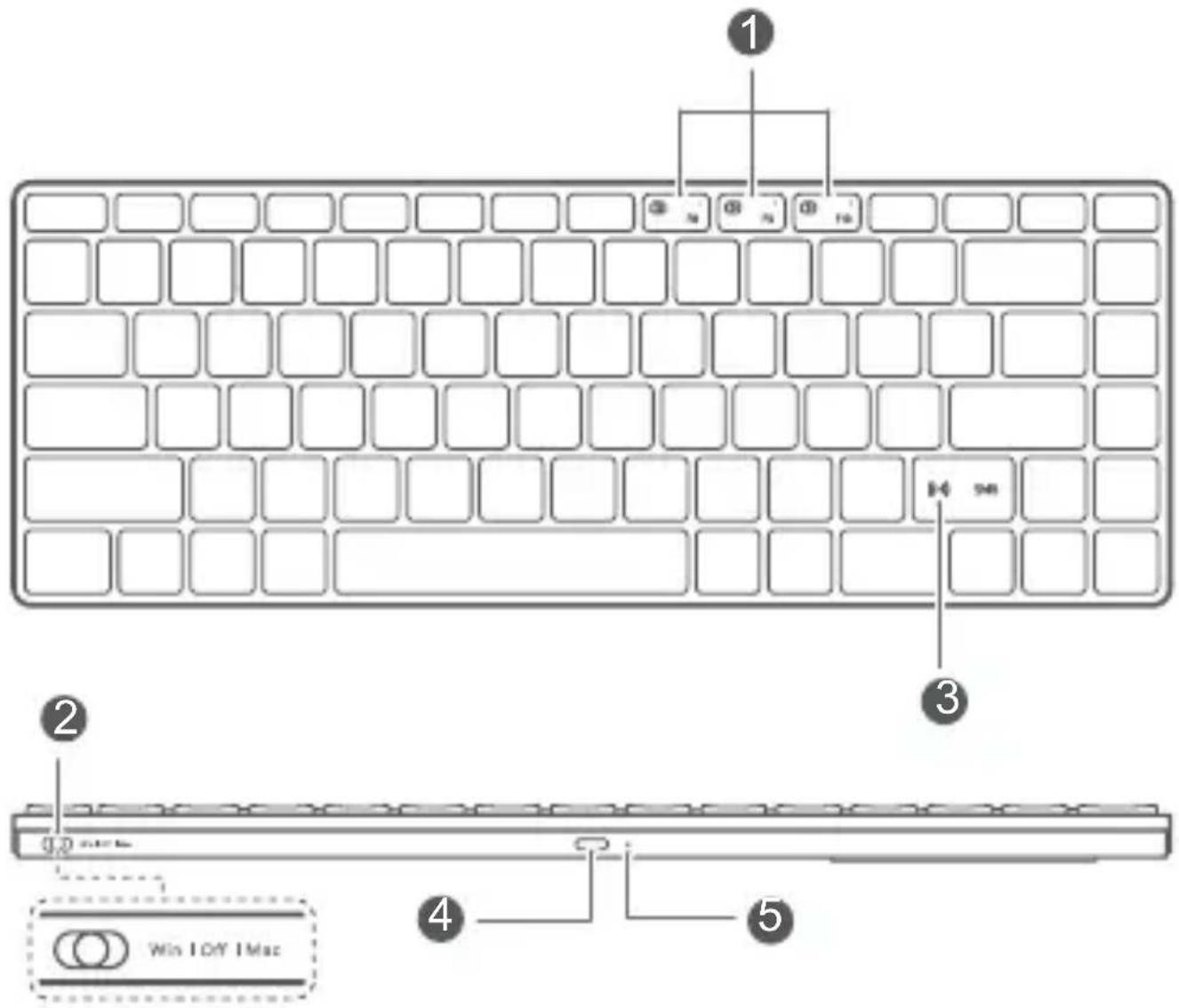
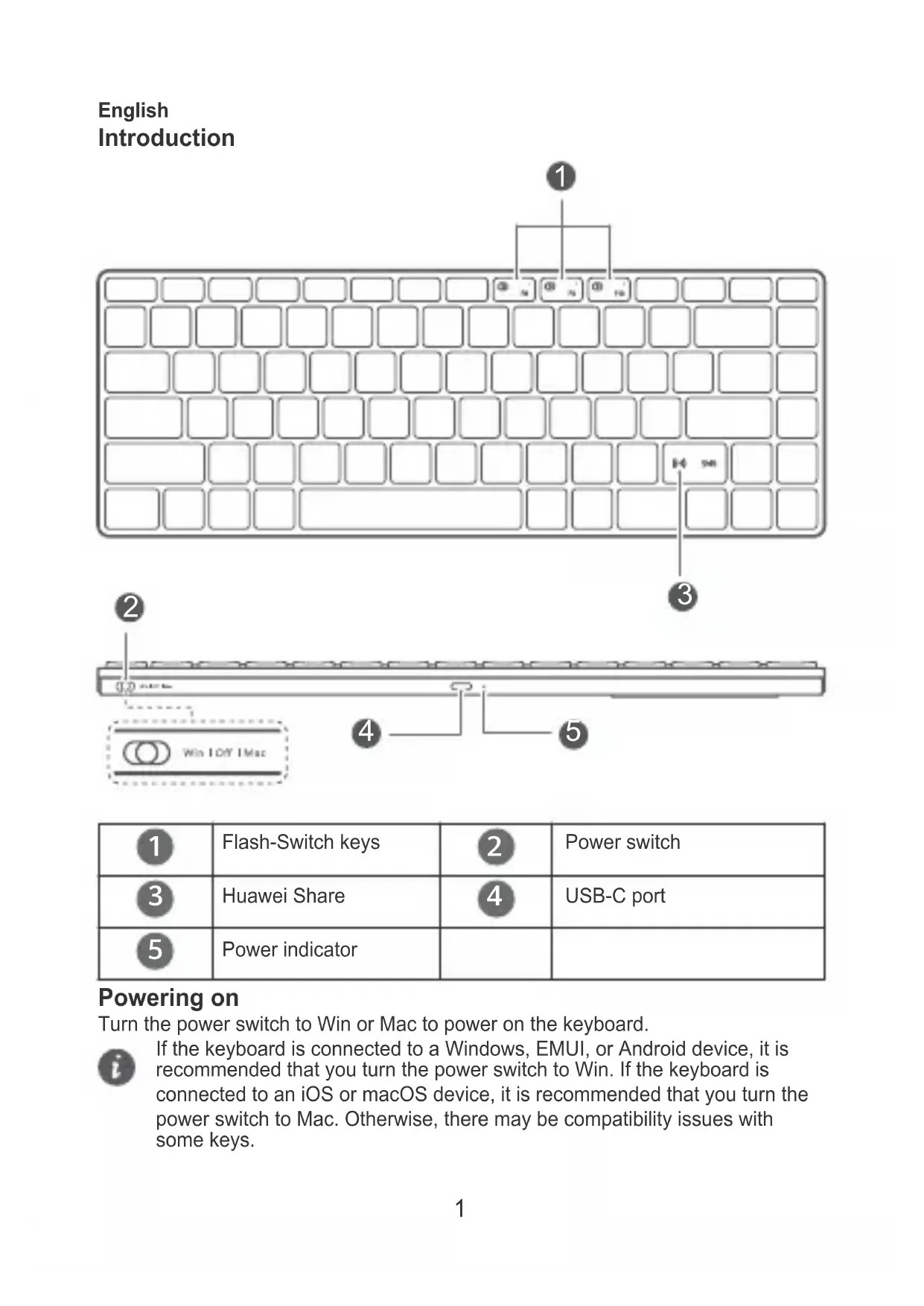
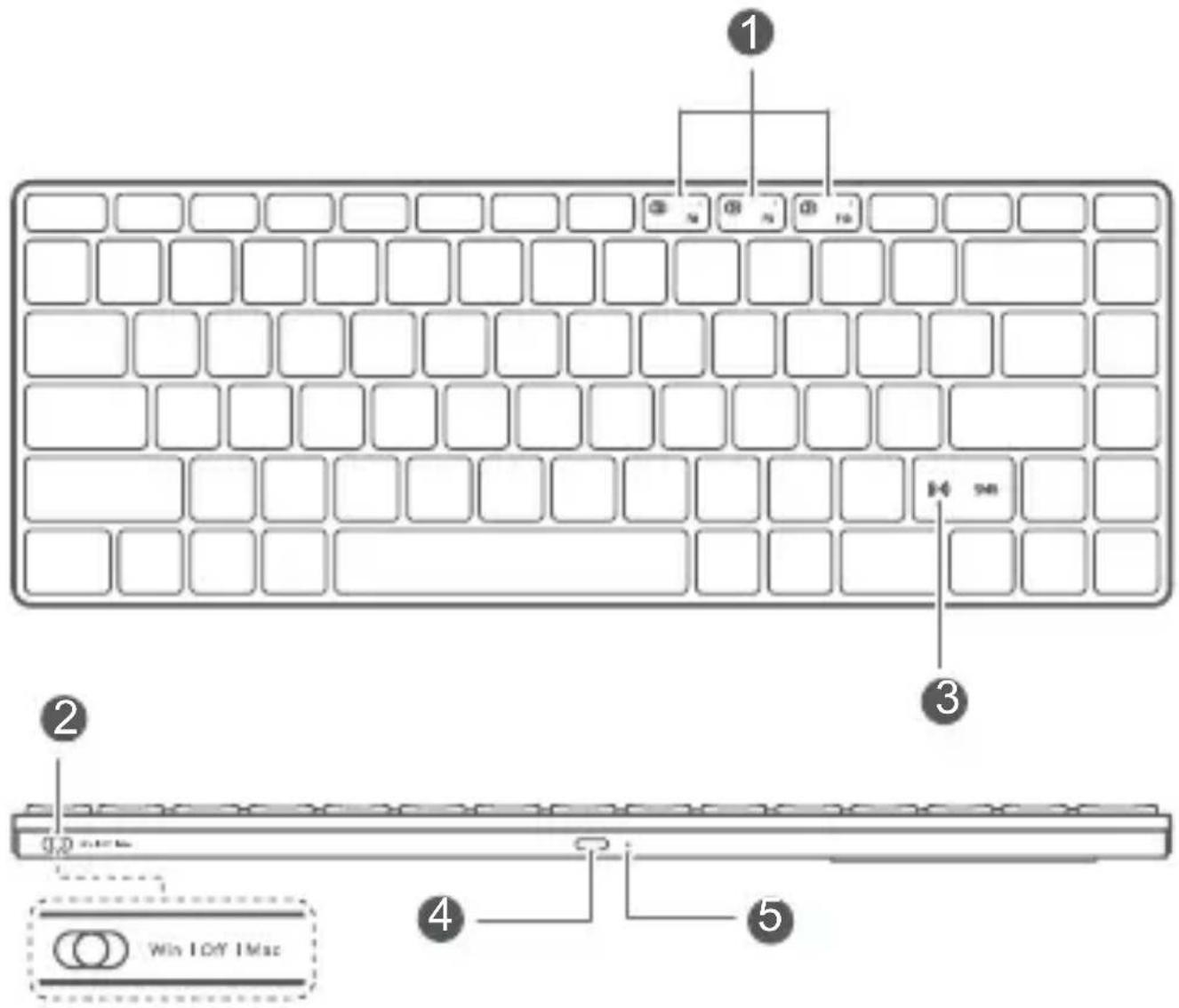
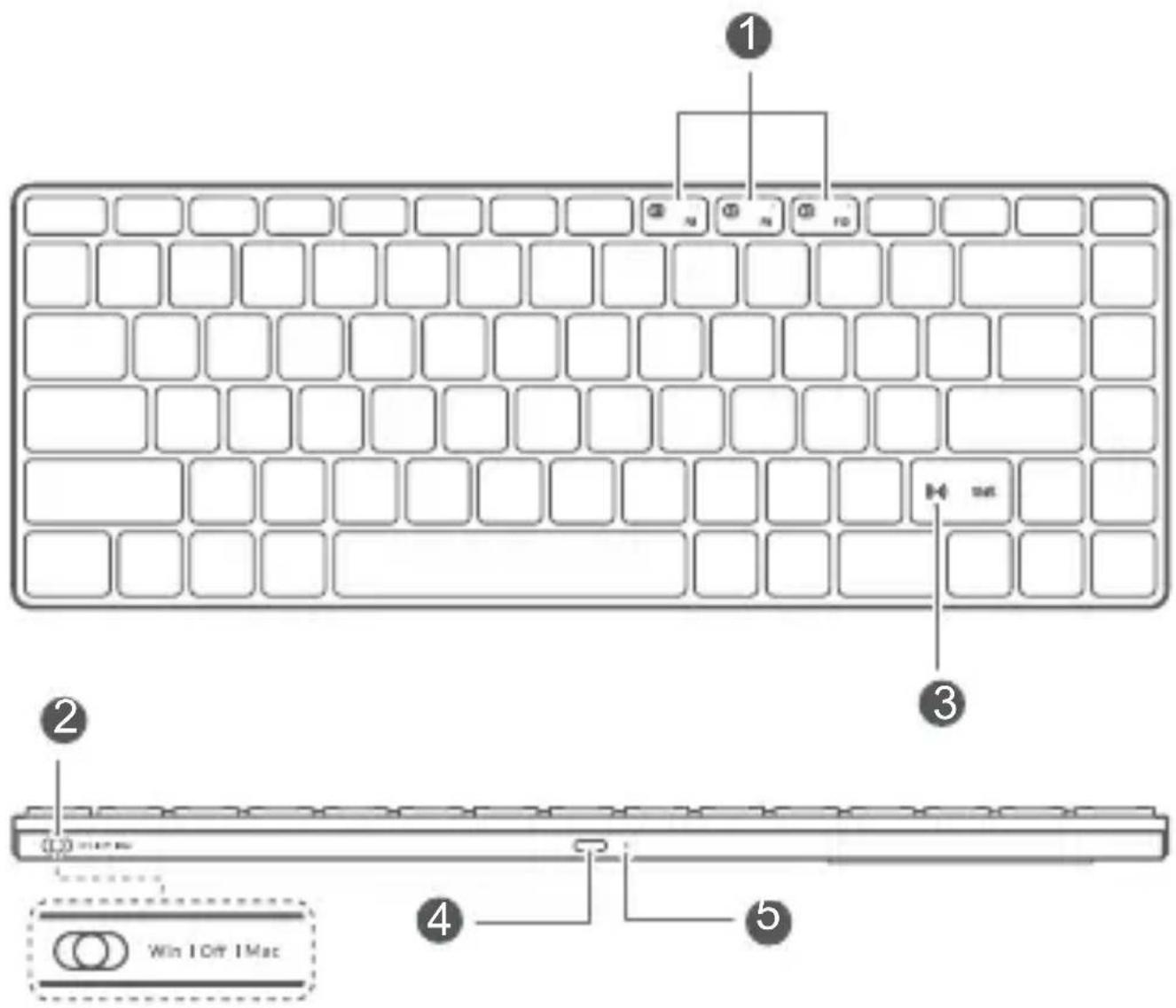
| 1 | Flash-Switch keys | 2 | Power switch |
| 3 | Huawei Share | 4 | USB-C port |
| 5 | Power indicator |
Powering on
Turn the power switch to Win or Mac to power on the keyboard.

If the keyboard is connected to a Windows, EMUI, or Android device, it is recommended that you turn the power switch to Win. If the keyboard is connected to an iOS or macOS device, it is recommended that you turn the power switch to Mac. Otherwise, there may be compatibility issues with some keys.
Connecting
1 Place the keyboard close to a device and press and hold any Flash-Switch key for more than three seconds to start pairing. (After the keyboard is powered on for the first time, it will automatically start pairing without the need for you to press and hold a Flash-Switch key.)
2 A prompt will then be displayed on the device. Follow the onscreen instructions to finish pairing.

- The proximity pairing feature is available on devices running operating systems such as Windows and EMUI. The actual support may vary depending on the product.
- If a device does not support the proximity pairing feature, pair the keyboard with the device via Bluetooth.
- You can also use a USB-C cable to connect the keyboard to the device.
Switching
The keyboard can be paired with a maximum of three devices via Bluetooth. To switch between devices, press and hold the Flash-Switch key selected during pairing. If the indicator blinks and is then steady on for five seconds, it indicates that the switching is successful.
Charging
When the keyboard is being used wirelessly and the power indicator blinks red, it indicates that the battery level is lower than 10% . You can use a USB-C cable that supports charging to charge the keyboard.

The product is not delivered with a USB-C cable. You need to purchase a USB-C cable separately.
More details
Visit https://consumer.huawei.com/uk/support and search by device name to try more features.
Safety Information
- Please consult your doctor and the device manufacturer to determine if using your device may interfere with the operation of your medical device.
- Avoid using the device in a dusty, damp, or dirty place, or near a magnetic field.
- Ideal temperatures: 0^ to 35^ for operating, -10^ to +45^ for storage.
- The device nameplate is on the bottom of the device.
- Keep the battery away from fire, excessive heat, and direct sunlight. Do not place it on or in heating devices. Do not disassemble, modify, throw, or squeeze it. Do not insert foreign objects into it, submerge it in liquids, or expose it to external force or pressure, as this may cause it to leak, overheat, catch fire, or even explode.
- Do not attempt to replace the battery yourself — you may damage the battery, which could cause overheating, fire, and injury. The built-in battery in your device should be serviced by Huawei or an authorised service provider.
- Keep this device and its accessories that may contain small components out of the reach of children. Otherwise, children may damage this device and its accessories by mistake, or swallow small components, which may cause choking.
Disposal and recycling information

The symbol on the product, battery, literature, or packaging means that the products and batteries should be taken to separate waste collection points designated by local authorities at the end of the lifespan. This will ensure that EEE waste is recycled and treated in a manner that conserves valuable materials and protects human health and the environment. For more information, please contact your local authorities, retailer, or household waste disposal service or visit the website https://consumer.huawei.com/en/.
Reduction of hazardous substances
This device and its electrical accessories comply with local applicable rules on the restriction of the use of certain hazardous substances in electrical and electronic equipment, such as EU REACH regulation, RoHS and Batteries (where included) directive. For declarations of conformity about REACH and RoHS, please visit the website https://consumer.huawei.com/certification.
RF Exposure Information
Your device is a low-power radio transmitter and receiver. As recommended by international guidelines, the device is designed to comply with the limits established by the market that the device will be placed on.
EU Regulatory Conformance
Hereby, Huawei Device Co., Ltd. declares that this device CD34 is in compliance with the following Directive: RED 2014/53/EU, RoHS 2011/65/EU. The full text of the EU declaration of conformity, and most recent information about accessories & software are available at the following internet address:
https://consumer.huawei.com/certification.
UK Regulatory Conformance
Hereby, Huawei Device Co., Ltd. declares that this radio equipment is in compliance with the relevant statutory requirements in the UK. The full text of the declaration of conformity is available at the following internet address:
https://consumer.huawei.com/certification.
Frequency Bands and Power
Bluetooth 2400-2483.5 MHz: 13 dBm
NFC: 13.56 MHz
Copyright © Huawei 2022. All rights reserved.
The Bluetooth® word mark and logos are registered trademarks owned by Bluetooth SIG, Inc. and any use of such marks by Huawei Technologies Co., Ltd. is under license. Huawei Device Co., Ltd. is an affiliate of Huawei Technologies Co., Ltd.
Other trademarks, products, services and company names mentioned herein may be the property of their respective owners.
Open Source Software Notice
For details about the Open Source Software Notice, please visit https://consumer.huawei.com/en/opensource/detail/.
Privacy Policy
To better understand how we protect your personal information, please see the privacy policy at https://consumer.huawei.com/privacy-policy.

ALL PICTURES AND ILLUSTRATIONS IN THIS GUIDE, INCLUDING BUT NOT LIMITED TO THE DEVICE COLOUR, SIZE, AND DISPLAY CONTENT, ARE FOR YOUR REFERENCE ONLY. THE ACTUAL DEVICE MAY VARY. NOTHING IN THIS GUIDE CONSISTS A WARRANTY OF ANY KIND, EXPRESS OR IMPLIED.
François
Présentation
Per dettagli sull'Avviso software open source, visita https://consumer.huawei.com/en/opensource/detail/.
https://consumer.huawei.com/tr/support/warranty-policy/
https://consumer.huawei.com/tr/legal/privacy-policy/
No.2 of Xincheng Road, Songshan Lake Zone, Dongguan, Guangdong 523808, People's Republic of China
Tel:0086-755-28780808
Web: www.huawei.com
E-mail: mobile.tr@huawei.com
https://consumer.huawei.com/tr/
mobile.tr@huawei.com

Yetkili Servisler:
https://consumer.huawei.com/privacy-policy.

ALLE BILLEDER OG ILLUSTRATIONER I DENNE VEJLEDNING, HERUNDER,
MENIKKE BEGRAENSET TIL, ENHEDENS FARVE, STORRELSE OG
SKAERMINDHOLD, TJENER UDELUKKENDE SOM REFERENCE. DEN
FAKTISKE ENHED KAN VARIERE. INGEN DEL AF DENNE VEJLEDNING
UDGØR EN GARANTI AF NOGEN ART, HVERKEN UDTRYKKELIGT ELLER STILTIENDE.
Norsk Introduksjon
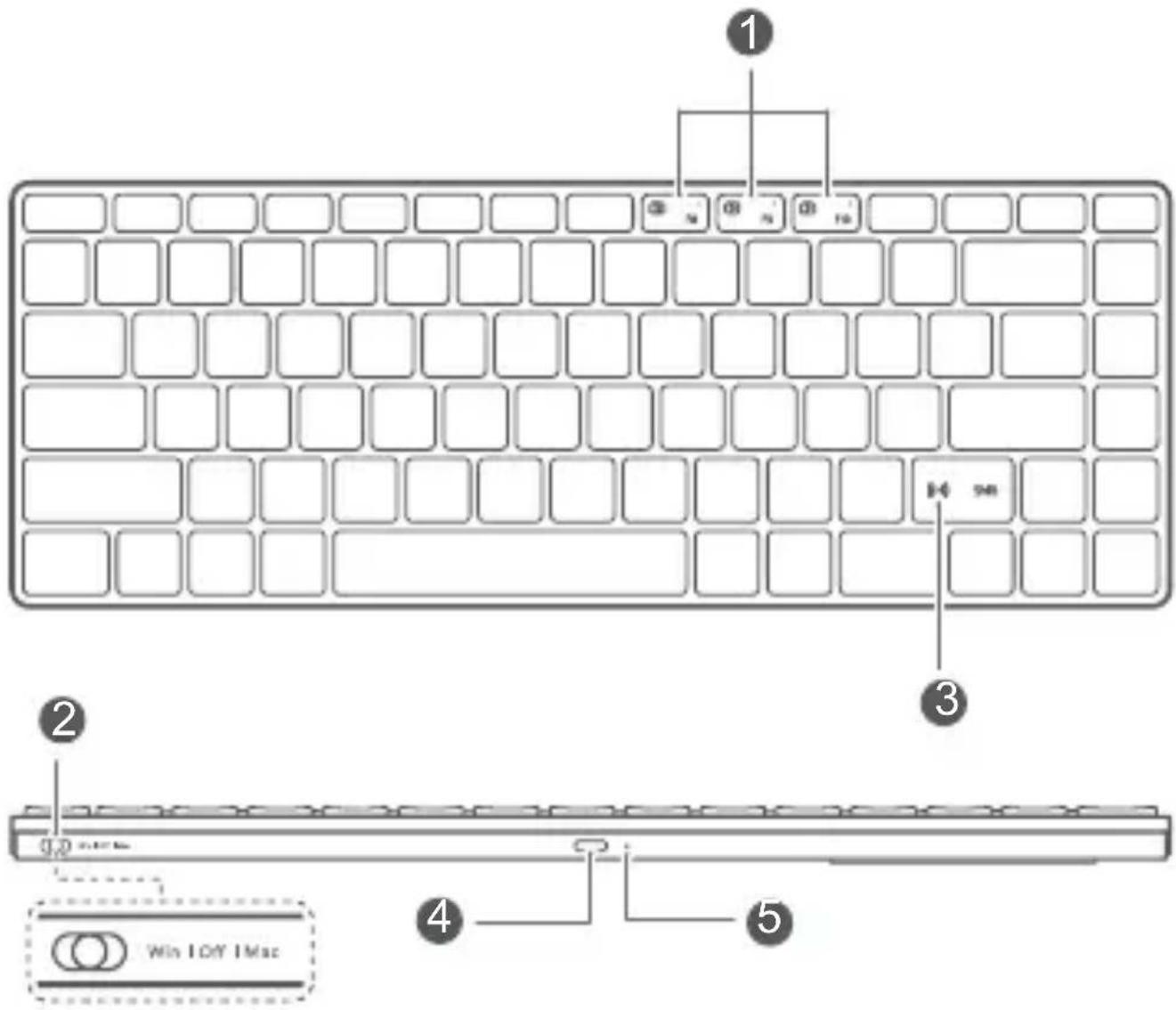
| 1 | Hurtigbytte-taster | 2 | Strømbryter |
| 3 | Huawei Share | 4 | USB-C-port |
| 5 | Strømindikator |
Slå på
https://consumer.huawei.com/certification.
https://consumer.huawei.com/certification.
Copyright © Huawei 2022. BCE npaba 3aunuehbl.
CNoBeChbI 3HaK n IoroTnbluTooth BnIaHOTc3apeHnCTpnpOBaHHbIMN TOBapHBIM 3HaKaAMn BluTooth SIG, Inc. n NcNoJIb3yOTc KOMNaHnei Huawei Technologies Co., Ltd. B pAmkax IIneH3nn. Huawei Device Co., Ltd. RaJIaETc aΦΦnIIpuOBaHHbIM IInoM Huawei Technologies Co., Ltd.
Дугп TeВарьtie 3нakи, HanMeHOBaHnЯ n3delen, yCnyI KOMpaHni,УПOMЯнTuB e B HAcToяшeM pyKOBODCTBe, npHaJdJeXaT IX BlaJaTeMbIaM.
YBeDomJIeHne o IIO c OTKpbITbIM NcXoJHbIM KODOM
Для полуеня бolyee поробноинфорmaциоб увedingлени O ПО с OTКьТьIM ИСХODньIM КODOM, пожалуноста, сM. pa3дeн https://consumer.huawei.com/en/opensource/detail/.
Политка кондець�数и
Mepbl, npHnMaemble KOMpaHne dIy 3aunTbI BaWeJ LInHoN IHOpMaUH, ONcAHBI NOLITKe KOHpndEHCuaJIbHOCTN, Ony6NIKOBaHHoH NaCaHTe https://consumer.huawei.com/privacy-policy.

BCE N3OBPAXEHN B DAHHOM PYKOBOJCTBE, BKJIIOUAY LCBET IN PA3MEP YCTPOINCTBA, A TAKKE N3OBPAXEHN HA 3KPAHE, PIPNBDEHbI DnA CnPABKN. PPNO6PENEHHOE YCTPOINCTBO MOXET OTNIuATbcr OT N3OBPAXEHNHO B DAHHOM PYKOBOJCTBE. NOLOXEHN HACTOJIeTO PYKOBOJCTBA HE IODPA3UMEBAIOT HNKAKNX TAPAHN, RHBbIX NII IN HEABHbIX.
| 1 | zhouxuàn | 2 | zhi xièng |
| 3 | Huawei Share | 4 | wǎo rén USB-C |
| 5 | wěnmiān wǎn měi nián /wǎn |
75
Wnwnnnn nn nnnn nn nnnnnnnnnnnnnnnnnnnnnnnnnnnnnnnnnnnnnnnnnnnnnnnnnnnnnnnnnnnnnnnnnnnnnnnnnnnnnnnnnnnnnnnnnnnnnnnnnnnnnnnnnnnnn
WANNNN NNNNNNNN NNNN NNNN NNNN NNNN NNNN NNNN NNNN NNNN NNNN NNNN NNNN NNNN NNNN NNNN NNNN NNNN NNNN NNNN NNNN NNNN NNNN NNNN NNNN NNNN NNNN NNNN NNNN NNNN NNNN NNNN NNNN NNNN NNNN N
yaa
https://consumer.huawei.com/en/support
yuaanuuaon
H
naananaanrnnnnaaannnnnnaan nnnnnaan
- 35 °C a 'n'uunur u u n -10 °C +45 °C
U 1
- 1
WwWwWwWwWwWwWwWwWwWwWwWwWwWwWwWwWwWwWwWwWwWwWwWwWwWwWwWwWwWwWwWwWwWwWwWwWwWwWwWwWwWwWwWwWwWwWwWwWwWwW

aannnnnnaanennnnnnnnnnnnnnnnnnnnnnnnnnnnnnnnnnnnnnnnnnnnnnnnnnnnnnnnnnnnnnnnnnnnnnnnnnnnnnnnnnnnnnnnnnnnnnnnnnnnnnnnnnnnnnnn
nE EEE 000000000000000000000000000000000000000000000000000000000000000000000000000000000
nnaananaonnn
https://consumer.huawei.com/certification
wawvwnn nnnnnnnnnnnnnnnnnnnnnnnnnnnnn
yunrnnnnsnnnnnnnnnnnnnnnnnnnnnnnnnnnnnnnnnnnnnnnnnnnnnnnnnnnnnnnnnnnnnnnnnnnnnnnnnnnnnnnnnnnnnnnnnnnnnnnnnnnnnnnnnnnnnnnn
Wn Wn nnnnnnnnnnnnnnnnnnnnnnnnnnnnnnnnnnnnnnnnnnnnnnnnnnnnnnnnnnnnnnnnnnnnnnnnnnnnnnnnnnnnnnnnnnnnnnnnnnnnnnnnnnnnnnnnnnnnnnnnnnnnnnnnnnnnnnnnnnnnnnnnnnnnnnnnnnnnnnnnnnnnnnnnnnnn nn nn nn nn nn nn nn nn nn nn nn nn nn nn nn nn nn nn nn nn nn nn nn nn nn nn nn nn nn nn nn nn nn nn nn nn nn nn nn nn nn nn nn nn nn nn nn nn nn nn nn nn nn nn nn nn nn nn nn nn nn nn nn nn nn nn nn nn nn nn nn nn nn nn nn nn nn nn nn nn nn nn nn nn nn nn nn nn nn nn nn nn nn nn nn nn nn nn nn nn aan annannnnaaannnnaanennnnaanennnnaanennnnaanennnnaanennnnaanennnnaanennnnaanennnnaanennnnaanennnnaanennnnaanennnnaanennnnaanennnnaanennnnaanennnnaanennnnaanennnnaanennnnaanennnnaanennnnaanennnnaanennnnaanennnnaanennnnaanannnnaanennnnaanennnnaanennnnaanennnnaanennnnaanennnnaanennnnaanennnnaanennnnaanennnnaanennnnaanennnnaanennnnaanennnnaanennnnaanennnnaanennnnaanennnnaanennnnaanennnnaanennnnaanennnnaanennnnaanennnna anannannnanannannannannannannannannannannannannannannannannannannannannannannannannannannannannannannannannannannannannannannannannannannannannannannannannannannannannannannannannannannannannannannannannannannannannannannannannannannannannannannannannannannannannannannannannannannannannannannannannannannannann
Huawei Device Co., Ltd. 550000000000000000000000000000000000000000000000000000000000000000000000000000000000000000000000000000
https://consumer.huawei.com/certification
Bluetooth 2400-2483.5 MHz: 13 dBm
NFC: 13.56 MHz
Huawei 2022 Huawei 2022 Huawei 2022 Huawei 2022 Huawei 2022 Huawei 2022 Huawei 2022 Huawei 2022 Huawei 2022 Huawei 2022 Huawei 2022 Huawei 2022 Huawei 2022 Huawei 2022 Huawei 2022 Huawei 2022 Huawei 2022 Huawei 20
n 1
T 1
https://consumer.huawei.com/en/opensource/detail/
uunnnaa
W
y
https://consumer.huawei.com/privacy-policy
i
https://consumer.huawei.com/certification.
https://consumer.huawei.com/certification
周波数带 出力
Bluetooth: 2.4GHz
技術基準適合情報
Copyright © Huawei 2022. All rights reserved.
https://consumer.huawei.com/certification.