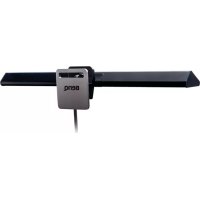
ScreenBar Lite AR18_C - Lamp BENQ - Free user manual and instructions
Find the device manual for free ScreenBar Lite AR18_C BENQ in PDF.



| Brand | BenQ |
| Model | ScreenBar Lite AR18_C |
| Product Type | LED Monitor Lamp for Computer |
| Power Supply | USB 5V DC, 1A (computer USB port) |
| Max Power Consumption | 5W |
| Dimensions (L x D x H) | 260 x 43 x 46 mm |
| Color Temperature | 8 settings from 2700K to 6500K |
| Brightness Levels | 15 levels |
| Adjustable Lamp Angle | 85 degrees |
| Ambient Light Sensor | Yes (for automatic dimming mode) |
| Favorite Mode | Yes (saveable and recallable) |
| Light Source Type | LED |
| Mounting | On screen: frame thickness 3 to 8 mm |
| Intended Use | Indoor only |
| Care and Cleaning | Soft, lint-free cloth, mild detergent (no alcohol or solvents) |
| Safety | Do not disassemble, do not use in humid environments, unplug if malfunction occurs |
| Warranty | Warranty void if disassembled |
Frequently Asked Questions - ScreenBar Lite AR18_C BENQ
User questions about ScreenBar Lite AR18_C BENQ
0 question about this device. Answer the ones you know or ask your own.
Ask a new question about this device
Download the instructions for your Lamp in PDF format for free! Find your manual ScreenBar Lite AR18_C - BENQ and take your electronic device back in hand. On this page are published all the documents necessary for the use of your device. ScreenBar Lite AR18_C by BENQ.
USER MANUAL ScreenBar Lite AR18_C BENQ
ScreenBar Lite (AR18_C)
筆電智能掛燈
智能笔记本挂灯
User Guide
Benutzerhandbuch
Guide d'utilisation
使用說明書
使用说明书
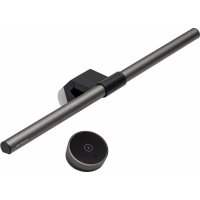
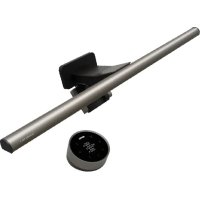
Package Contents
Check the packaging for the status of the product. If damaged, please contact the place of purchase immediately.

The illustrations in this guide are for your reference only and may look different from the appearance of the actual product.
For Your Safety
- Connect the USB power cable to USB port power (5V DC, IA) only. Otherwise the lamp will fail to work normally or result in a fire hazard.
- In order to prevent any damages to the lamp, do not hang or place any objects on the lamp.
- Route the USB power cable so as to avoid it from being pinched by items placed upon it or against it.
- If the lamp will not be used for a long period of time, unplug it from the USB port.

-
In case of the following situations, unplug the lamp from the USB port immediately and contact the authorized service center or a qualified service person for inspection or repair:
-
When the outer casing of the lamp is broken
- When there are strange odors coming from the lamp
- When the LED light source flickers
-
When the insulation of the lamp's wiring is damaged or frayed, and the metal strings inside can be seen
-
Do not use the lamp in a humid environment (like in a bathroom or outdoors). Otherwise the components inside may short-circuit and result in accidents.
- This lamp is designed for indoor use only. Do not use it outdoors.
- Never disassemble the lamp or remove any components from it, as doing so may result in accidents and will void the product warranty.
Installation
- Clamp the ScreenBar Light lamp onto the center of the top side of your computer's screen bezel (as indicated by 0 in the figure on the right). The range of clampable screen bezel thickness is 3mm - 8mm
- Connect the USB power cable to the USB port of your computer (as indicated by 2n the figure on the right).

- Do not use a USB extension cable. Otherwise the lamp will not function properly.
- It is recommended that the lamp's power be supplied by the USB port of your computer. If a portable power bank or AC power adapter is to be used as the power source for the lamp, the power output shall meet the requirement (output voltage: 5V, output current: 1A or above) in order for the lamp to function normally.
- If the Color Temperature Adjustment
and Brightness Adjustment buttons keep flashing, check if a USB extension cable is used. Do not use a USB extension cable.

Using the Lamp
Turning on/off the Lamp and Entering Auto Dimmer Mode
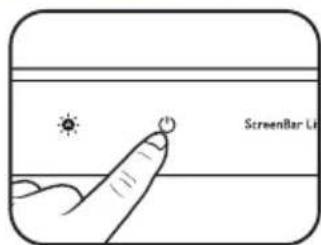
Turningoff the Lamp
To turn on the lamp, touch the Power Button. To turn off the lamp, touch the Power Button again.
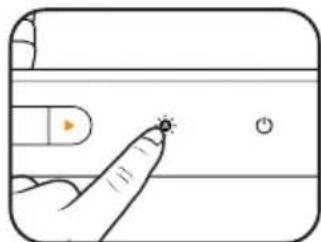
Entering Auto Dimmer Mode
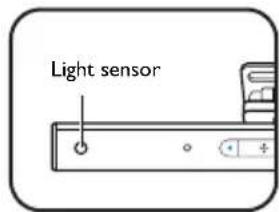
To enter Auto Dimmer Mode, touch the Auto Dimmer Mode button when the lamp is on. The Auto Dimmer Mode button will light up. The Auto Dimmer Mode automatically adjusts the lamp's brightness according to the ambient lighting condition and optimizes the color temperature setting.

- Do not block the light sensor on the lamp. Otherwise the Auto Dimmer Mode will not function properly.
- If the Auto Dimmer Mode is turned on, the lamp will monitor the ambient lighting condition and dynamically adjust the brightness and color temperature settings.
- The Auto Dimmer Mode will exit automatically when you manually adjust brightness or color temperature.
Manually Adjusting Brightness and Color Temperature
Adjusting Brightness
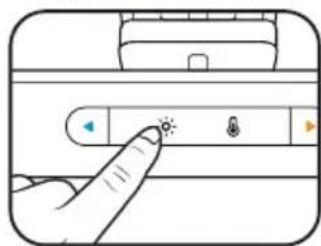
- When the lamp is on, touch the Brightness Adjustment button to enter the brightness adjustment mode. The Brightness Adjustment button will light up.
- Touch the button to increase brightness, or the button to decrease it. You can select from 15 brightness levels.
Adjusting Color Temperature
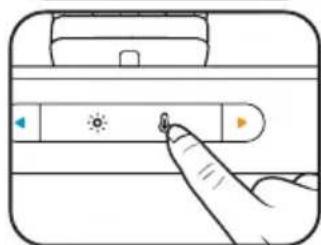
- When the lamp is on, touch the Color Temperature Adjustment button to enter the color temperature adjustment mode. The Color Temperature Adjustment button will light up.
- Touch the button for yellowish, or the button for blueish light. You can select from 8 color temperature settings: 6500K (daylight), 5700K (cool white), 5000K, 4500K (neutral white), 4000K, 3500K (warm white), 3000K and 2700K (soft white).

If power supply to the lamp is interrupted unexpectedly, the lamp will resume the last used brightness and color temperature settings upon the recovery of power supply.
My Favorite Mode
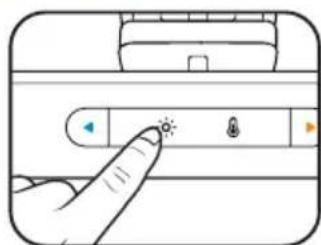
After you manually adjust the lamp's brightness and color temperature settings, you can use this function to save them as your favorite mode.
I. Adjust the lamp's brightness and color temperature settings according to your preference.
2. When done, touch and hold the My Favorite Mode button for approximately 3 seconds. All buttons on the lamp will flash 3 times simultaneously to indicate that the settings are saved successfully.
To access My Favorite Mode, touch the My Favorite Mode button.
Adjusting Lamp Angle
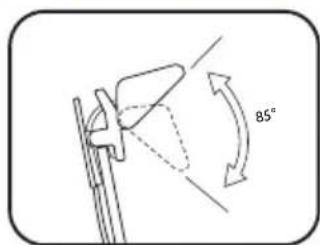
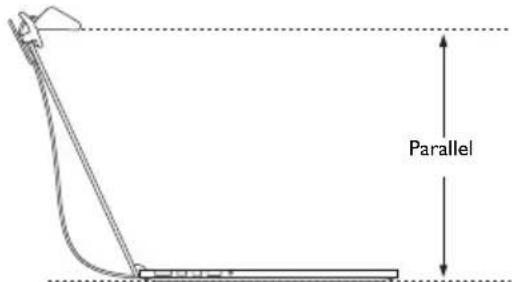
According to your screen size and preference, you can adjust the angle of the lamp within the range of 85 degrees. To achieve the optimum lighting effect, it is recommended that you adjust the angle of the lamp so that the bottom side of the lamp and the desk surface are parallel to each other.
Maintenance and Troubleshooting
-
Turn off the lamp first, and unplug the lamp from the USB port. Wipe any smears or dusts off the lamp's outer casing using a soft, lint-free cloth lightly moistened with a mild detergent solvent. Do not use alcohol or any other chemical solvents like kerosene, naphtha and so on, as the lamp's casing may become damaged.
-
Do not rinse the lamp or any of its components directly with water.
- If the lamp does not turn on, check to make sure that there are no loose connections between the USB cable and USB ports.
- If the problem persists, please contact the original place of purchase for help.
Specifications
| Model AR18_C | |
| DC power input 5V, 1A | |
| Max. power consumption 5W | |
| Dimensions 260 x 43 x 46 mm (Width x Depth x Height) | |
Lieferumfang
Disposal of Waste Electrical and Electronic Equipment and/or Battery by users in private households in the European Union.
This symbol on the product or on the packaging indicates that this can not be disposed of as household waste. You must dispose of your waste equipment and/or battery by handling it over to the applicable take-back scheme for the recycling of electrical and electronic equipment and/or battery. For more information about recycling of this equipment and/or battery, please contact your city office, the shop where you purchased the equipment or your household waste disposal service. The recycling of materials will help to conserve natural resources and ensure that it is recycled in a manner that protects human health and environment.
Recycling information: See http://www.beng.com/support/recycle for details.


DECLARATION OF CONFORMITY
The device complies with the requirements set out in the Council Directives on the Approximation of the Laws of the Member States relating Electromagnetic Compatibility (2004/108/EC) and Low Voltage Directive (2006/95/EC) and Radio and Telecommunications Terminal Equipment Directive (1999/5/EC), the Restriction of The Use of Certain Hazardous Substances in Electrical And Electronic Equipment Directive (2011/65/EU), Turkish EEE Directive; Turkish ErP (Decision 2010/643);the Commission Regulation (EC) No 1275/2008 implementing Directive 2005/32/EC of the European Parliament and of the Council with regard to eco-design requirements for standby and off mode electric power consumption of electrical and electronic household and office equipment, and the Commission Regulation (EC) No 1194/2012 implementing Directive 2009/125/EC of the European parliament and of the council establishing a framework for the setting of eco-design requirements for energy-related products.
Deutsch
Federal Communication Commission Interference Statement
This equipment has been tested and found to comply with the limits for a Class B digital device, pursuant to Part 15 of the FCC Rules. These limits are designed to provide reasonable protection against harmful interference in a residential installation. This equipment generates, uses and can radiate radio frequency energy and, if not installed and used in accordance with the instructions, may cause harmful interference to radio communications. However, there is no guarantee that interference will not occur in a particular installation. If this equipment does cause harmful interference to radio or television reception, which can be determined by turning the equipment off and on, the user is encouraged to try to correct the interference by one of the following measures:
Reorient or relocate the receiving antenna.
- Increase the separation between the equipment and receiver.
- Connect the equipment into an outlet on a circuit different from that to which the receiver is connected.
- Consult the dealer or an experienced radio/TV technician for help.
This device complies with Part 15 of the FCC Rules. Operation is subject to the following two conditions: (1) This device may not cause harmful interference, and (2) this device must accept any interference received, including interference that may cause undesired operation.
FCC Caution: Any changes or modifications not expressly approved by the party responsible for compliance could void the user's authority to operate this equipment.
- Package Contents
- For Your Safety
- Installation
- Using the Lamp
- Turning on/off the Lamp and Entering Auto Dimmer Mode
- Turningoff the Lamp
- Entering Auto Dimmer Mode
- Manually Adjusting Brightness and Color Temperature
- Adjusting Brightness
- Adjusting Color Temperature
- My Favorite Mode
- Adjusting Lamp Angle
- Maintenance and Troubleshooting
- Specifications
- Lieferumfang
- DECLARATION OF CONFORMITY
- Deutsch
- Federal Communication Commission Interference Statement
Brand : BENQ
Model : ScreenBar Lite AR18_C
Category : Lamp