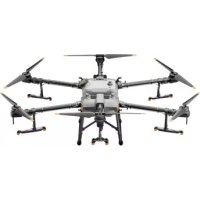
Agras T30 - Drone DJI - Free user manual and instructions
Find the device manual for free Agras T30 DJI in PDF.



| Product Type | Agricultural Spraying Drone |
| Brand | DJI |
| Model | Agras T30 |
| Dimensions (unfolded) | 2858 × 2685 × 790 mm (arms and propellers unfolded) |
| Dimensions (folded) | 1170 × 670 × 857 mm (arms and propellers folded) |
| Total Weight (without battery) | 26.3 kg |
| Max Takeoff Weight (spraying) | 66.5 kg (at sea level) |
| Max Takeoff Weight (spreading) | 78 kg (at sea level) |
| Tank Capacity | 30 L |
| Number of Sprayers | 16 |
| Max Spraying Flow Rate | 7.2 L/min (XR11001VS nozzles) |
| Flight Battery | LiPo 29000 mAh, 51.8 V (model BAX501) |
| Flight Time (hovering) | 20.5 min (with 36.5 kg takeoff weight) |
| Max Flight Speed | 10 m/s |
| Transmission Range | Up to 7 km (FCC) |
| Radar System | Omnidirectional digital radar + upward-facing radar |
| Protection Rating | IP67 |
| Operating Temperature | 0 to 45 °C |
| Main Functions | Automatic spraying, route planning, obstacle avoidance, return to home, terrain follow |
| Maintenance and Cleaning | Clean with water after each use, clean nozzles and filters |
| Safety | Do not fly in strong wind, comply with local regulations, use pesticides carefully |
| Spare Parts and Repairability | Parts available (propellers, batteries, nozzles, filters); repair by DJI or authorized centers |
| Remote Controller | Smart Controller Enterprise, 5.5-inch screen, internal+external battery, 4 h battery life |
Frequently Asked Questions - Agras T30 DJI
User questions about Agras T30 DJI
0 question about this device. Answer the ones you know or ask your own.
Ask a new question about this device
Download the instructions for your Drone in PDF format for free! Find your manual Agras T30 - DJI and take your electronic device back in hand. On this page are published all the documents necessary for the use of your device. Agras T30 by DJI.
USER MANUAL Agras T30 DJI
natural_image
Line drawing of a multi-rotor drone with four propellers and wings (no text or symbols)Contents
EN Quick Start Guide 2
JP クイックスタートガイド 14
TH คู่มือเริ่มใช้งานฉบับย่อ 26
VI Hướng dẫn Khởi động Nhanh 38
DE Kurzanleitung 50
ES Guía de inicio rápido 62
FR Guide de démarrage rapide 74
PT-BR Guia de Início Rápido 86
Agras T30
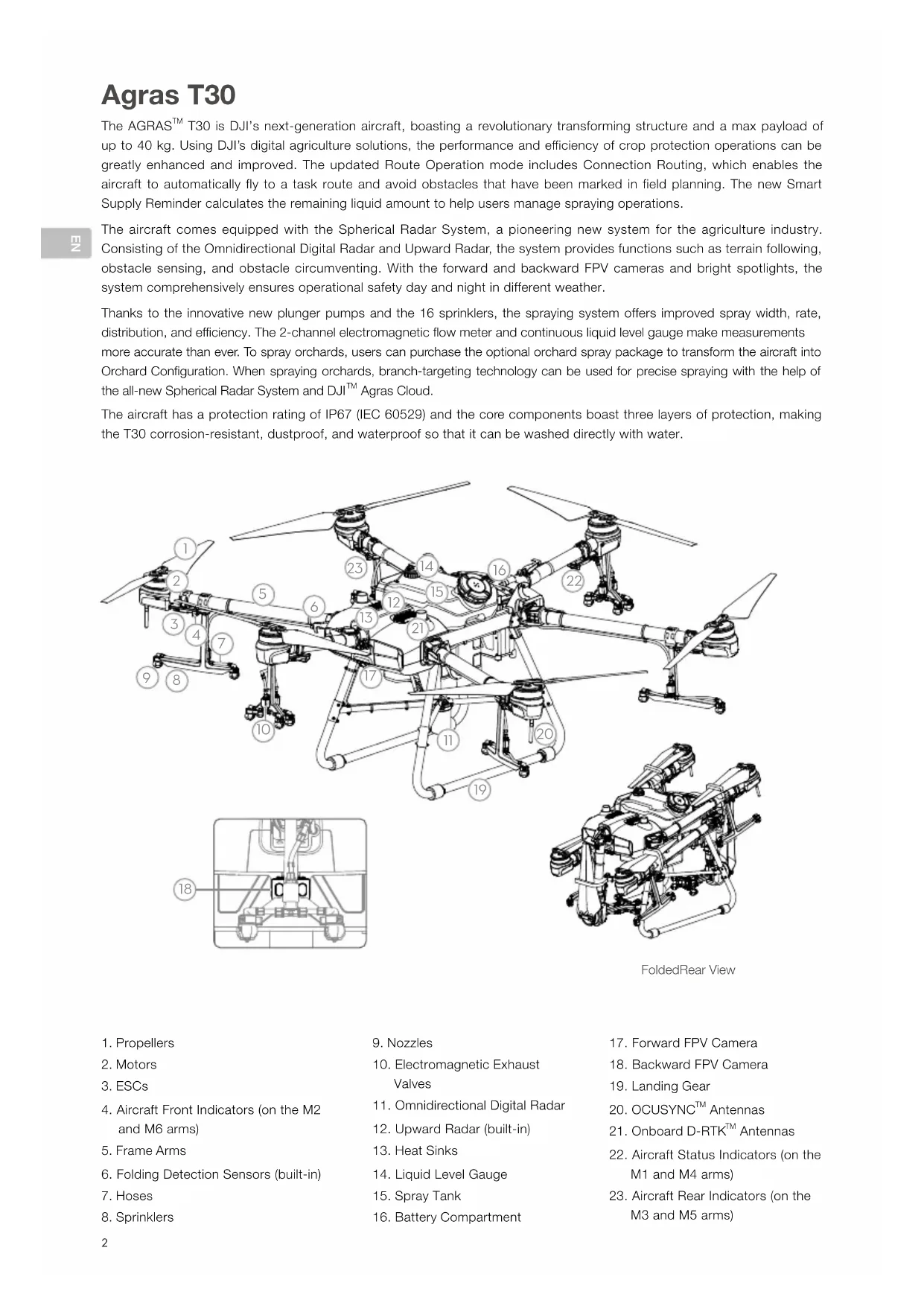
The AGRAS™ T30 is DJI's next-generation aircraft, boasting a revolutionary transforming structure and a max payload of up to 40 kg. Using DJI's digital agriculture solutions, the performance and efficiency of crop protection operations can be greatly enhanced and improved. The updated Route Operation mode includes Connection Routing, which enables the aircraft to automatically fly to a task route and avoid obstacles that have been marked in field planning. The new Smart Supply Reminder calculates the remaining liquid amount to help users manage spraying operations.
The aircraft comes equipped with the Spherical Radar System, a pioneering new system for the agriculture industry. Consisting of the Omnidirectional Digital Radar and Upward Radar, the system provides functions such as terrain following, obstacle sensing, and obstacle circumventing. With the forward and backward FPV cameras and bright spotlights, the system comprehensively ensures operational safety day and night in different weather.
Thanks to the innovative new plunger pumps and the 16 sprinklers, the spraying system offers improved spray width, rate, distribution, and efficiency. The 2-channel electromagnetic flow meter and continuous liquid level gauge make measurements more accurate than ever. To spray orchards, users can purchase the optional orchard spray package to transform the aircraft into Orchard Configuration. When spraying orchards, branch-targeting technology can be used for precise spraying with the help of the all-new Spherical Radar System and DJI™ Agras Cloud.
The aircraft has a protection rating of IP67 (IEC 60529) and the core components boast three layers of protection, making the T30 corrosion-resistant, dustproof, and waterproof so that it can be washed directly with water.

FoldedRear View
- Propellers
- Motors
- ESCs
- Aircraft Front Indicators (on the M2 and M6 arms)
- Frame Arms
- Folding Detection Sensors (built-in)
- Hoses
-
Sprinklers
-
Nozzles
- Electromagnetic Exhaust Valves
- Omnidirectional Digital Radar
- Upward Radar (built-in)
- Heat Sinks
- Liquid Level Gauge
- Spray Tank
-
Battery Compartment
-
Forward FPV Camera
- Backward FPV Camera
- Landing Gear
- OCUSYNC ^TM Antennas
- Onboard D-RTK ^TM Antennas
- Aircraft Status Indicators (on the M1 and M4 arms)
- Aircraft Rear Indicators (on the M3 and M5 arms)
Remote Controller
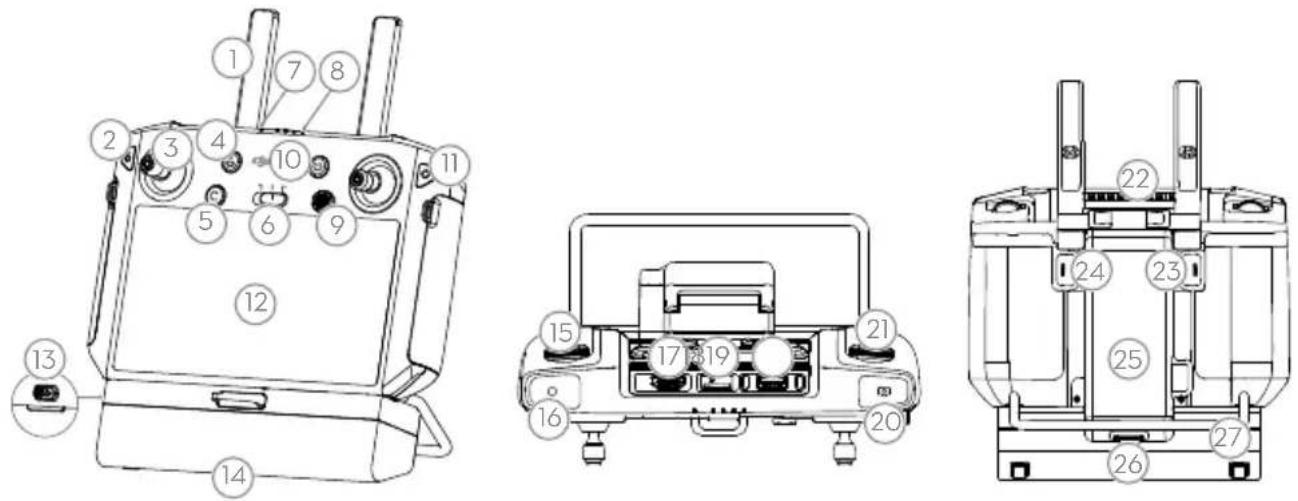
The Smart Controller Enterprise uses DJI OcuSync Enterprise transmission technology, has a max transmission distance of up to 7 km*, and supports Wi-Fi and Bluetooth. The remote controller has a 5.5-inch bright, dedicated screen and comes with the updated DJI Agras app built-in, delivering a smooth and easy-to-use experience. Operations can be planned to centimeter-level precision when the RTK dongle is connected to the remote controller. The Multi-Aircraft Control mode* of the remote controller can be used to coordinate the operation of multiple aircraft at the same time, enabling pilots to work efficiently. Both the built-in battery and external battery can be used to supply power to the remote controller. The remote controller has a working time of up to 4 hours, making it ideal for long and high-intensity operations.
- Antennas
- Back/Function Button
- Control Sticks
- RTH Button
- Button C3 (customizable)
- Flight Mode Switch
- Status LED
- Battery Level LEDs
-
5D Button (customizable)
-
Power Button
- Confirm Button
- Touch Screen
- USB-C Charging Port
- Dongle Compartment Cover
- Spray Rate Dial
- Spray Button
- HDMI Port
-
microSD Card Slot
-
USB-A Port
- FPV/Map Switch Button
- Reserved Dial
- Air Outlet
- Button C1 (customizable)
- Button C2 (customizable)
- Battery Cover
- Battery Cover Release Button
- Handle
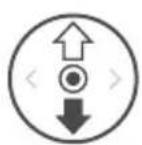
The figure below shows the function that each control stick movement performs and uses Mode 2 as an example. In Mode 2, the left stick is used to control the altitude and heading of the aircraft while the right stick is used to control the forward, backward, left, and right movements.
Left Stick Right Stick
Up
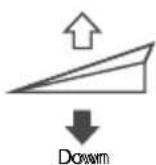
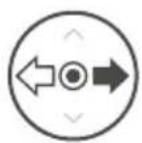
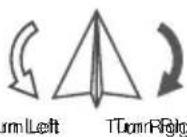
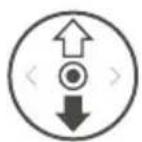
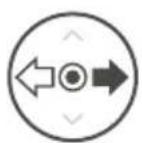
Forward
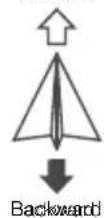
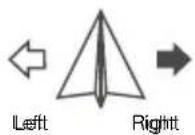
* The remote controller is able to reach its maximum transmission distance (FCC/NCC: 7 km (4.35 mi); SRRC: 5 km (3.11 mi); CE/KCC/MIC: 4 km (2.49 mi)) in an open area with no electromagnetic interference, and at an altitude of approximately 2.5 m (8.2 ft). Make sure to comply with local laws and regulations when using Multi-Aircraft Control mode.
Fly Safe
It is important to understand some basic flight guidelines, both for your protection and for the safety of those around you.
- Flying in Open Areas: pay attention to utility poles, power lines, and other obstacles. DO NOT fly near or above water, people, or animals.
- Maintain Control at All Times: keep your hands on the remote controller and maintain control of the aircraft when it is in flight, even when using intelligent functions such as the Route and A-B Route operation modes and Smart Return to Home.
- Maintain Line of Sight: maintain visual line of sight (VLOS) with your aircraft at all times and avoid flying behind buildings or other obstacles that may block your view.
- Monitor Your Altitude: for the safety of manned aircraft and other air traffic, fly at altitudes lower than 100 m (328 ft) and in accordance with all local laws and regulations.

Visit https://www.dji.com/flysafe for more information on critical safety features such as GEO zones.
Flight Environment Requirements
- DO NOT use the aircraft to spray in winds exceeding 18 kph (11 mph).
- DO NOT use the aircraft in adverse weather conditions such as winds exceeding 28 kph (17 mph), heavy rain exceeding 25 mm (0.98 in) in 12 hours, snow, or fog.
- DO NOT fly more than 4.5 km (14,763 ft) above sea level.
- The DJI Agras app will intelligently recommend the payload weight limit for the tank according to the current status and surroundings of the aircraft. Do not exceed the recommended payload weight limit when adding material to the tank. Otherwise, the flight safety may be affected.
- Make sure that there is a strong GNSS signal and the D-RTK antennas are unobstructed during operation.
Return to Home (RTH)
The aircraft will automatically return to the Home Point in the following situations:
Smart RTH: user presses and holds the RTH button.
Failsafe RTH: the remote controller signal is lost.*
If there is an obstacle within 20 m of the aircraft, the aircraft decelerates and brakes and hovers. The aircraft will exit RTH and wait for further commands.
If RTH is triggered during Route operations, the aircraft can plan a flight path for RTH to circumvent the obstacles added when planning a field.
* The aircraft will RTH or hover if the remote controller signal is lost. The action can be set in the app. Failsafe RTH will only be available if RTH is set.

- Obstacle avoidance is disabled when the aircraft is in Attitude mode, which it enters in situations such as when the GNSS signal is weak. Note that obstacle avoidance is unreliable when using the aircraft in environments where the radar module cannot operate normally. Extra caution is required in such situations.
Pesticide Usage
- Avoid the use of powder pesticides as much as possible as they may reduce the service life of the spraying system.
- Pesticides are poisonous and pose serious risks to safety. Only use them in strict accordance with their specifications.
- Use clean water to mix the pesticide and filter the mixed liquid before pouring into the spray tank to avoid blocking the strainer.
- Effective use of pesticides depends on pesticide density, spray rate, spray distance, aircraft speed, wind speed, wind direction, temperature, and humidity. Consider all factors when using pesticides.
- DO NOT compromise the safety of people, animals, or the environment during operation.

It is important to understand the basic flight guidelines, both for your protection and for the safety of those around you. Make sure to read the disclaimer and safety guidelines.
Using the T30
1. Preparing the Intelligent Flight Battery
Only use official DJI flight batteries (model: BAX501-29000mAh-51.8V). Check the battery level before flying and charge according to the corresponding manual document.
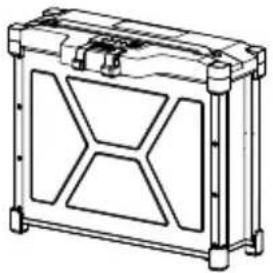
natural_image
Technical line drawing of a rectangular mechanical housing with internal compartments (no text or symbols)艺
2. Preparing the Aircraft
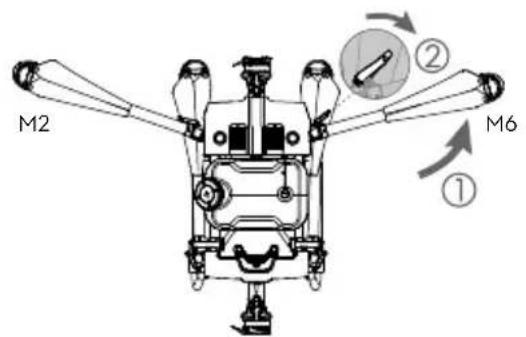
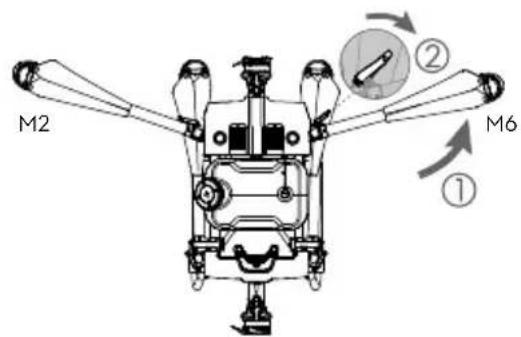
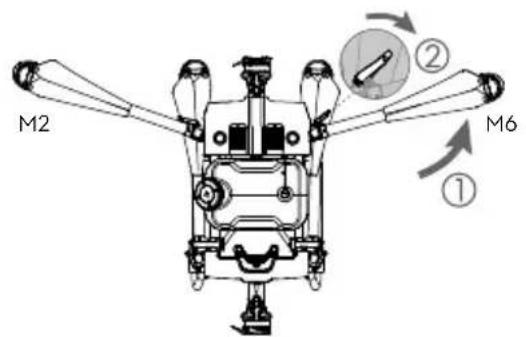
Unfold the M2 and M6 arms, and fasten the two arm locks. Avoid pinching fingers.
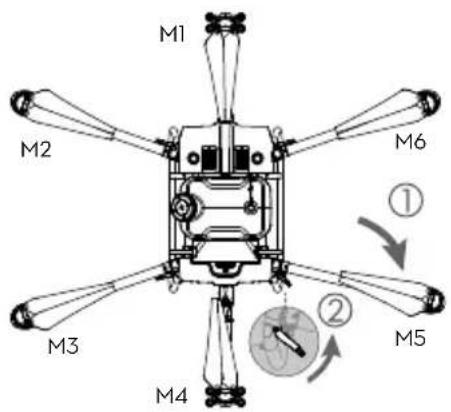
Unfold the M3 and M5 arms followed by M1 and M4 and fasten the four arm locks. Avoid pinching fingers.
natural_image
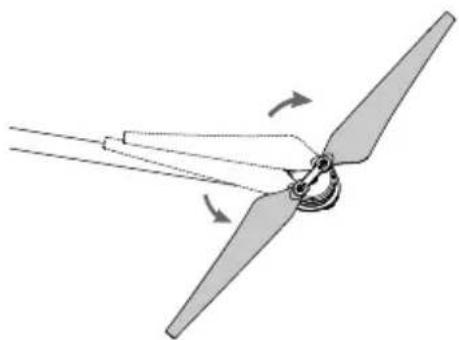
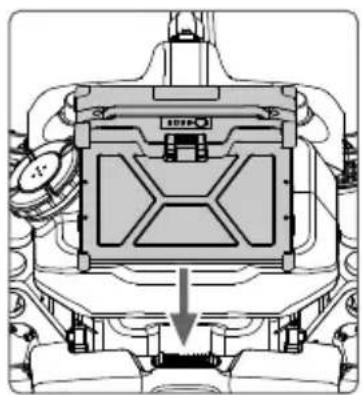
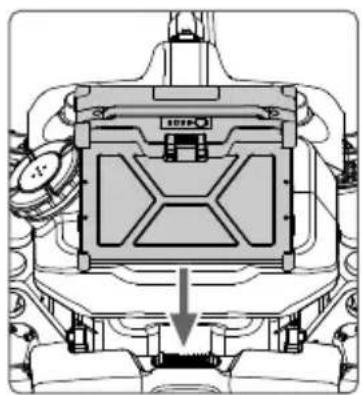
Diagram of a propeller blade assembly with directional arrows indicating rotation (no text or labels)Unfold the propeller blades. Insert the Intelligent Flight Battery into the aircraft until you hear a click.
natural_image
Technical diagram of a mechanical assembly with no visible text or symbols
- Make sure that the battery is firmly inserted into the aircraft. Only insert or remove the battery when the aircraft is powered off.
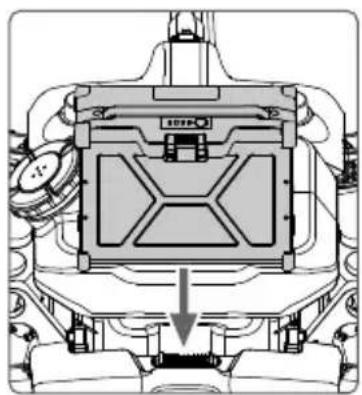
• To remove the battery, press and hold the clamp and lift the battery up. - Fold the M3 and M5 arms followed by the M2 and M6 arms and make sure that the arms are inserted into the storage clamps on both sides of the aircraft. Otherwise, the arms may be damaged. Lift and lower the M1 and M4 arms gently to reduce wear and tear.
3. Preparing the Remote Controller
Charging the Batteries
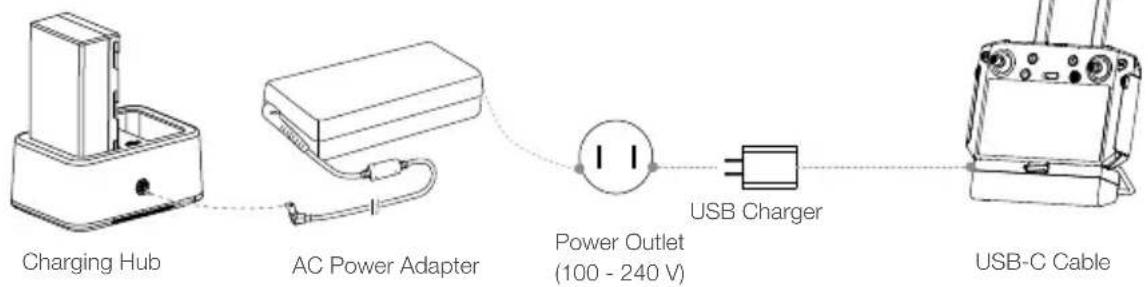
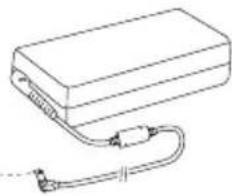
Charge the external Intelligent Battery using the charging hub and AC power adapter. Charge the internal battery of the remote controller using the USB charger and USB-C cable. Fully charge the batteries before using for the first time.
Mounting the External Battery
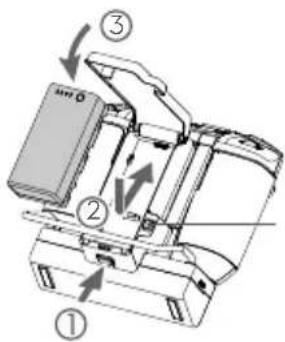
① Press the battery cover release button on the back of the remote controller down to open the cover.
② Insert the Intelligent Battery into the compartment and push it to the top.
③ Close the cover.

- To remove the Intelligent Battery, press and hold the battery release button and push the battery downward.
Battery Release Button
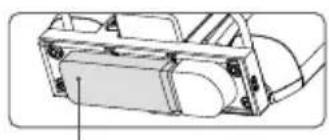
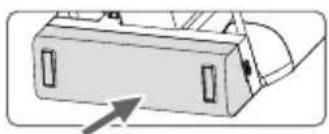
Mounting the 4G Dongle and SIM Card

- Only use a DJI-approved dongle. The dongle supports various network standards. Use a SIM card that is compatible with the chosen mobile network provider and select a mobile data plan according to the planned level of usage.
- The dongle and SIM card enable the remote controller to access specific networks and platforms such as the DJI Agras Management Platform. Make sure to insert them correctly. Otherwise, network access will not be available.
natural_image
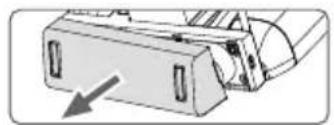
Diagram of a mechanical component with a directional arrow indicating movement (no text or symbols present)Remove the dongle compartment cover.
natural_image
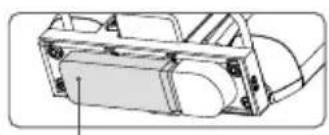
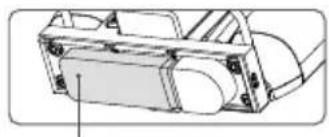
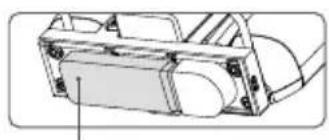
Technical line drawing of a mechanical housing or enclosure with mounting holes and internal components (no text or symbols)Make sure the SIM card is inserted into the dongle. Insert the dongle into the USB port and test the dongle.*

natural_image
Simple line drawing of a device with an arrow pointing to it, no text or symbols present.Reattach the cover firmly.
* Test procedure: press the remote controller power button and press again and hold to power on the remote controller. In DJI Agras, tap 🔒 and select Network Diagnostics. The dongle and SIM card are functioning properly if the status of all the devices in the network chain are shown in green.
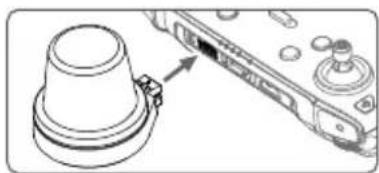
Mounting the RTK Dongle
When using the RTK planning method to plan the operation area, attach the RTK dongle to the USB-A port on the remote controller.
natural_image
Technical line drawing of a mechanical component with a cylindrical housing and a connector (no text or symbols)Checking the Battery Levels
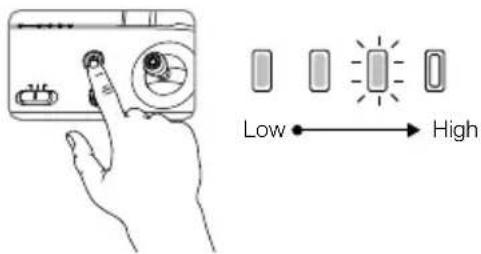
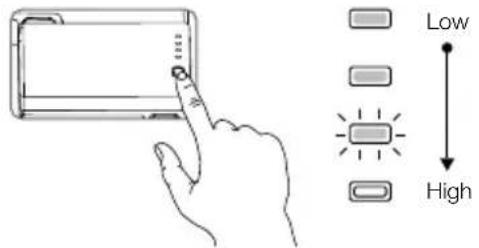
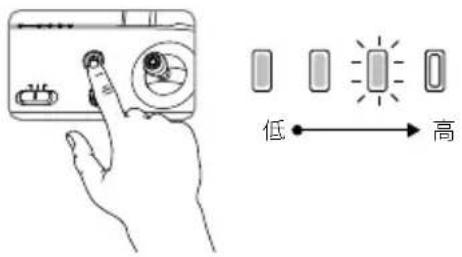
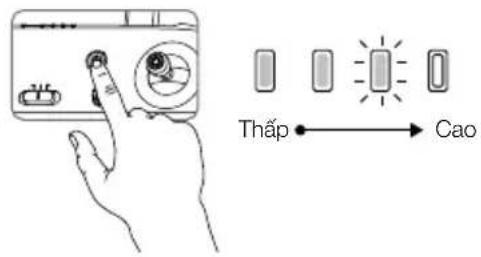
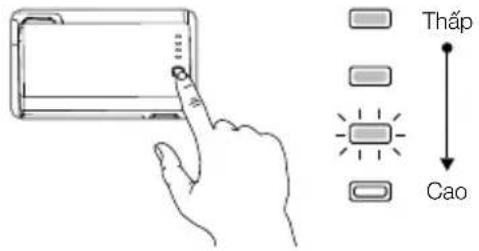
Press the power button on the remote controller once to check the internal battery level. Press once and press again and hold for two seconds to power on or off.
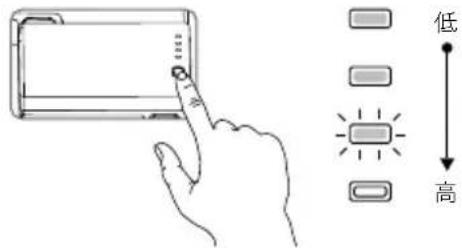
Press the battery level button on the external Intelligent Battery once to check the battery level.

- When using an external Intelligent Battery, it is still necessary to make sure that the internal battery has some power. Otherwise, the remote controller cannot be powered on.
Adjusting the Antennas
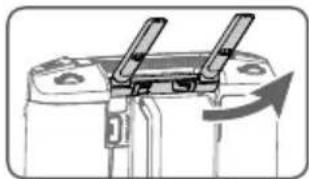
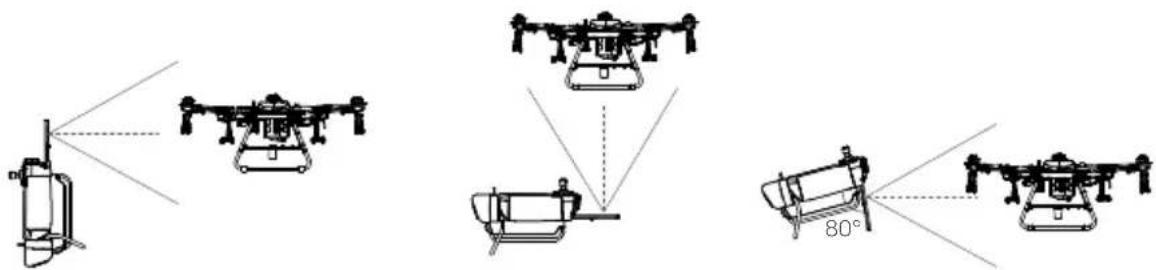
Lift and adjust the antennas. The strength of the remote controller signal is affected by the position of the antennas. For an optimal connection between the remote controller and aircraft, make sure the angle between the antennas and the back of the remote controller is 80^ or 180^ .
natural_image
Diagram of a battery rear panel with two clamps and an arrow indicating rotation (no text or symbols)Try to keep the aircraft inside the optimal transmission zone. If the signal is weak, adjust the antennas or fly the aircraft closer.
Optimal Transmission Zone
natural_image
Diagram showing four different agricultural drones with one labeled 80° angle, no text or symbols present
- Avoid using wireless devices that use the same frequency bands as the remote controller.
- If the RTK dongle is used for RTK planning, the module should be disconnected from the remote controller after planning is completed. Otherwise, it will affect the communication performance of the remote controller.
4. Getting Ready for Takeoff
A. Place the aircraft on open, flat ground with the rear of the aircraft facing toward you.
B. Make sure that the propellers are securely mounted, there are no foreign objects in or on the motors and propellers, the propeller blades and arms are unfolded, and the arm locks are firmly fastened.
C. Make sure that the spray tank and flight battery are firmly in place.
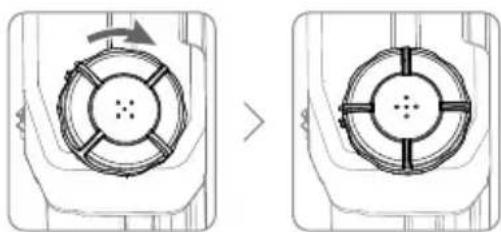
D. Pour liquid into the spray tank and tighten the cover. Make sure that the four lines on the cover are aligned to the horizontal or vertical direction.
E. Power on the remote controller, make sure that the DJI Agras app is open, and power on the aircraft.
natural_image
Diagram showing a device with a circular component before and after change, no text or symbols present
- When using for the first time, activate the aircraft using the DJI Agras app. A DJI account and internet connection are required.
Calibrating the Compass
When the app prompts that compass calibration is required, tap 📄 then 🌐 and swipe to the bottom. Select Advanced Settings, then IMU, and Compass Calibration. Tap Calibration in Compass Calibration and follow the on-screen instructions.
Discharging Trapped Air in the Hoses
The T30 features an automatic trapped air discharge function. When it is necessary to discharge trapped air, press and hold the spray button for two seconds. The aircraft will discharge automatically until the trapped air is fully discharged.
Calibrating the Flow Meter
Make sure to calibrate the flow meter before using for the first time. Otherwise, the spraying performance may be adversely affected.
A. Preparation
① Fill the spray tank with approximately 2 L of water.
② Use the automatic trapped air discharge function to discharge the trapped air. Users can also manually discharge the trapped air. Press the spray button to spray the trapped air and press the button again once all trapped air is discharged.
B. Calibration
① In the app, tap Execute Task to enter Operation View. Tap then swipe up, and tap Calibration on the right of the flow meter calibration section.
② Tap Start Calibration to begin. Calibration will be complete after 25 seconds and the results are displayed in the app.
- Users can proceed once calibration is completed successfully.
- If calibration fails, tap “?” to view and resolve the problem. Recalibrate once the problem is resolved.
5. Flight
In the app, go to Operation View. Make sure that there is a strong GNSS signal and the system status bar indicates Manual Route (GNSS) or Manual Route (RTK).* Otherwise, the aircraft cannot take off.
In order for the aircraft to automatically take off and perform an operation, it is recommended to create a plan for a field and select an operation before takeoff. Refer to the Starting Operations section for more information. For other scenarios, take off and land manually.
Takeoff
Perform a Combination Stick Command (CSC) and push the throttle stick up to take off.
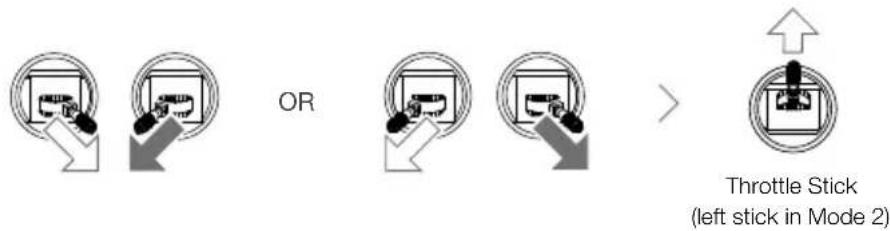
flowchart
graph LR
    A["Start"] --> B{OR}
    B --> C["Step 1"]
    C --> D["Step 2"]
    D --> E["Step 3"]
    E --> F["Step 4"]
    F --> G["Step 5"]
    G --> H["Step 6"]
    H --> I["Step 7"]
    I --> J["Step 8"]
    J --> K["Step 9"]
    K --> L["Step 10"]
    L --> M["Step 11"]
    M --> N["Step 12"]
    N --> O["Step 13"]
    O --> P["Step 14"]
    P --> Q["Step 15"]
    Q --> R["Step 16"]
    R --> S["Step 17"]
    S --> T["Step 18"]
    T --> U["Step 19"]
    U --> V["Step 20"]
Landing
To land, pull down on the throttle stick to descend until the aircraft touches the ground. There are two methods to stop the motors.
Method 1: when the aircraft has landed, push and hold the throttle stick down. The motors will stop after three seconds.
Method 2: when the aircraft has landed, push the throttle stick down, and perform the same CSC that was used to start the motors. Release both sticks once the motors have stopped.
* RTK positioning is recommended. In the app, go to Operation View, tap 🔒, then RTK to enable Aircraft RTK Positioning, and select a method for receiving RTK signals.

flowchart
graph TD
    A["Device"] --> B{OR}
    B --> C["Device"]
    C --> D["Device"]
Method 1 Method 2

- Spinning propellers can be dangerous. Stay away from spinning propellers and motors. DO NOT start the motors in confined spaces or where there are people nearby.
- Maintain control of the remote controller as long as the motors are running.
- DO NOT stop the motors mid-flight unless in an emergency situation where doing so will reduce the risk of damage or injury.
- It is recommended to use Method 1 to stop the motors. When using Method 2 to stop the motors, the aircraft may roll over if it is not completely grounded. Use Method 2 with caution.
• After landing, power off the aircraft before turning off the remote controller.
Starting Operations
After the operation area and obstacles have been measured and settings have been configured, the DJI Agras app uses a built-in intelligent operation planning system to produce a flight route based on the user's input. Users can invoke an operation after planning a field. The aircraft will begin the operation automatically and follow the planned flight route.
In scenarios with complicated terrain, Phantom 4 RTK and DJI TERRA ^™ can be used to plan flight routes and import routes to the DJI Agras app for operation. Refer to the Agras T30 User Manual for more information.
Field Planning
The DJI Agras app supports flight route planning by flying the aircraft to waypoints, obstacles, and calibration points or by walking to these points carrying a remote controller, a remote controller with an RTK dongle, or an RTK device. The following route has been planned by walking to the points with a remote controller that has a RTK dongle connected. Before planning, make sure that the RTK dongle is mounted to the remote controller.
Power on the remote controller. Launch DJI Agras.

Tap Plan Field, select Walk with RTK, and Walk with RTK Dongle.
In RTK settings, select a method for receiving RTK signals and configure the corresponding settings. Make sure the aircraft status bar at the top of the screen is green.
Walk with the remote controller alongside the boundary of the operation area and tap Add Waypoint C2 at turning points.
Walk to each obstacle in turn and tap Obstacle Mode C1.*
Walk around the obstacle and tap Add Obstacle C2 at several points around the obstacle.*
Tap Waypoint C1 to return to add edge points to the operation area.
Tap Field Editing to use the crosshair to add points, configure distance and route spacing, and adjust the route direction by tapping or dragging the icon
Save the field plan.
* Any obstacles in or out of the operation area can be marked.
Performing an Operation
Power on the remote controller and aircraft.

Tap Execute Task in the home screen of the app.

Tap and select the field from the field list.
Tap Edit to edit the waypoints and flight route again.
parameters, and confirm.
Tap Start.Tap Use, set operation Set the auto-takeoff height by setting the Connection Routing Altitude in the app and move the slider to take off. The aircraft will perform the operation automatically.

- Only take off in open areas and set an appropriate auto-takeoff height according to the operating environment.
- An operation can be paused by moving the control stick slightly. The aircraft will hover and record the breakpoint. After which, the aircraft can be controlled manually. To continue the operation, select it again from the Executing tag in ☐list. The aircraft will return to the breakpoint automatically and resume the operation. Pay attention to aircraft safety when returning to a breakpoint.
- In Route Operation mode, the aircraft is able to circumvent obstacles, which is disabled by default and can be enabled in the app. If the function is enabled and the aircraft detects obstacles, the aircraft will slow down and circumvent the obstacles and return to the original flight path.
- Users can set the action the aircraft will perform after the operation is completed in the app.
More Operation Modes and Functions
Refer to the Agras T30 User Manual for more information about the A-B Route, Manual, and Manual Plus Operation modes and on how to use functions such as Connection Routing, Operation Resumption, System Data Protection, Empty Tank, and Smart Supply Reminder.
6. Maintenance
Clean all parts of the aircraft and remote controller at the end of each day of spraying after the aircraft returns to a normal temperature. DO NOT clean the aircraft immediately after operations are completed.
A. Fill the spray tank with clean water or soapy water and spray the water through the nozzles until the tank is empty. Repeat the step twice more.
B. Remove the spray tank strainer, nozzle strainers, and nozzles to clean them and clear any blockage. Afterwards, immerse them in clean water for 12 hours.
C. Make sure that the aircraft structure is completely connected so that it can be washed directly with water. It is recommended to use a spray washer filled with water to clean the aircraft body and wipe with a soft brush or wet cloth before removing water residue with a dry cloth.
D. If there is dust or pesticide liquid on the motors, propellers, or heat sinks, wipe them with a wet cloth before cleaning the remaining water residue with a dry cloth.
E. Wipe the surface and screen of the remote controller with a clean wet cloth that has been wrung out with water.
Refer to the disclaimer and safety guidelines for more information on product maintenance.

Download the Agras T30 User Manual for more information:
https://www.dji.com/t30/downloads
Specifications
- Product Model
3WWDZ-30A
- Airframe
Max Diagonal Wheelbase 2145 mm
Dimensions 2858×2685×790 mm (arms and propellers unfolded)
2030×1866×790 mm (arms unfolded and propellers folded)
1170×670×857 mm (arms and propellers folded)
- Propulsion System
Motors
Max Power 3600 W/rotor
ESCs
Max Working Current (Continuous) 60 A
Foldable Propellers (R3820)
Diameter × Pitch 38×20 in
- Spraying System
Spray Tank
Volume Fully loaded: 30 L
Operating Payload Fully loaded: 30 kg
Nozzles
Model XR11001VS (standard), XR110015VS (optional, purchase separately),
TX-VK4/ZX-VK4 (optional for Orchard Configuration, purchase separately)
Quantity 16
Max Spray Rate XR11001VS: 7.2 L/min, XR110015VS: 8 L/min
Spray Width 4-9 m (12 nozzles, at a height of 1.5-3 m above crops)
Droplet Size XR11001VS: 130-250 μm, XR110015VS: 170-265 μm (subject to
operating environment and spray rate)
Flow Meter
Measurement Range 0.25-20 L/min
Error < ± 2%
Measurable Liquid Conductivity >50 S/cm (liquids such as tap water or pesticides that contain water)
• Omnidirectional Digital Radar
Model RD2424R
Operating Frequency SRRC/NCC/FCC/MIC/KCC/CE: 24.05-24.25 GHz
Power Consumption 12 W
Transmission Power (EIRP) SRRC: ≤13 dBm, NCC/MIC/KCC/CE/FCC: ≤20 dBm
Altitude Detection & Terrain Altitude detection range: 1-30 m
Follow ^[1] Stabilization working range: 1.5-15 m
Max slope in Mountain mode: 35°
Obstacle Avoidance ^[1] Obstacle sensing range: 1.5-30 m
FOV: Horizontal: 360°, Vertical: ±15°
Working conditions: flying higher than 1.5 m over the obstacle at a speed
lower than 7 m/s
Safety limit distance: 2.5m (distance between the front of propellers and the obstacle after braking)
Obstacle avoidance direction: omnidirectional obstacle avoidance in the
horizontal direction
IP Rating IP67
- Upward Radar
Model RD2414U
Operating Frequency SRRC/NCC/FCC/MIC/KCC/CE: 24.05-24.25 GHz
Power Consumption 4 W
Transmission Power (EIRP) SRRC: ≤13 dBm, NCC/MIC/KCC/CE/FCC: ≤20 dBm
Obstacle Avoidance ^[1]
Obstacle sensing range: 1.5-15 m
FOV: 80°
Working conditions: available during takeoff, landing, and ascending when an obstacle is more than 1.5 m above the aircraft.
Safety limit distance: 2 m (distance between the highest point of the aircraft and the lowest point of the obstacle after braking)
Obstacle avoidance direction: upward
IP Rating IP67
- FPV Cameras
FOV Horizontal: 129°, Vertical: 82°
Resolution 1280×720 15-30fps
FPV Spotlights FOV: 120°, Max brightness: 13.2 lux at 5 m of direct light
- Flight Parameters
Operating Frequency SRRC/NCC/FCC/CE/MIC/KCC: 2.4000-2.4835 GHz
SRRC/NCC/FCC/CE: 5.725-5.850 GHz ^[2]
Transmission Power (EIRP) 2.4 GHz
SRRC/CE/MIC/KCC: ≤20 dBm, FCC/NCC: ≤31.5 dBm
5.8 GHz
FCC/SRRC/NCC: ≤29.5 dBm, CE: ≤14 dBm
Total Weight (exc. battery) 26.3 kg
Max Takeoff Weight Max takeoff weight for spraying: 66.5 kg (at sea level)
Max takeoff weight for spreading: 78 kg (at sea level)
Hovering Accuracy Range (with
D-RTK enabled: Horizontal: ±10 cm, Vertical: ±10 cm
strong GNSS signal)
D-RTK disabled:
Horizontal: ±0.6 m, Vertical: ±0.3 m (Radar module enabled: ±0.1 m)
RTK/GNSS Operating Frequency RTK: GPS L1/L2, GLONASS F1/F2, BeiDou B1/B2, Galileo E1/E5
GNSS: GPS L1, GLONASS F1, Galileo E1
Battery DJI-approved flight battery (BAX501-29000mAh-51.8V)
Max Power Consumption 13000 W
Hovering Time ^[3]
20.5 min (takeoff weight of 36.5 kg with an 29000 mAh battery)
7.8 min (takeoff weight of 66.5 kg with an 29000 mAh battery)
Max Tilt Angle 15°
Max Operating Speed 7 m/s
Max Flying Speed 10 m/s (with strong GNSS signal)
Max Wind Resistance 8 m/s
Max Service Ceiling Above Sea 4500 m
Level
Recommended Operating <93%
Humidity
Recommended Operating 0^ to 45^ C ( 32^ to 113^ F)
Temperature
- Remote Controller
Model RM500-ENT
Screen 5.5-in screen, 1920×1080, 1000 cd/m
RAM 4GB
Built-in Battery 18650 Li-ion (5000 mAh @ 7.2 V)
GNSS GPS+GLONASS
Power Consumption 18 W
Operating Temperature 0^ to 45^ C ( 32^ to 113^ F)
Charging Environment 5° to 40° C (41° to 104° F)
Temperature
Storage Temperature -30^ to 60^ C (-22° to 140° F) (stored for no more than one month with a built-in battery power of 40% to 60%)
OcuSync Enterprise
Operating Frequency SRRC/NCC/FCC/CE/MIC/KCC: 2.4000-2.4835 GHz
SRRC/NCC/FCC/CE: 5.725-5.850 GHz ^[2]
Max Transmission Distance FCC/NCC: 7 km, SRRC: 5 km, MIC/KCC/CE: 4 km
(Unobstructed, free of interference)
Transmission Power (EIRP) 2.4 GHz
SRRC/CE/MIC/KCC: ≤20 dBm, FCC/NCC: ≤30.5 dBm
5.8 GHz
SRRC: ≤21.5 dBm, FCC/NCC: ≤29.5 dBm, CE: ≤14 dBm
Wi-Fi
Protocol Wi-Fi Direct, Wi-Fi Display, 802.11a/g/n/ac
Wi-Fi with 2×2 MIMO
Operating Frequency 2.4000-2.4835 GHz
5.150-5.250 GHz ^[2]
5.725-5.850 GHz ^[2]
Transmission Power (EIRP) 2.4 GHz
SRRC/CE: 18.5 dBm, NCC/FCC /MIC/KCC: 20.5 dBm
5.2 GHz
SRRC/NCC/FCC/CE/MIC: 14 dBm, KCC: 10 dBm
5.8 GHz
SRRC/NCC/FCC: 18 dBm, CE/KCC: 12 dBm
Bluetooth
Protocol Bluetooth 4.2
Operating Frequency 2.4000-2.4835 GHz
Transmission Power (EIRP) SRRC/NCC/FCC/CE/MIC/KCC: 6.5 dBm
- Remote Controller Intelligent Battery
Model WB37-4920mAh-7.6V
Battery Type 2S LiPo
Capacity 4920 mAh
Voltage 7.6 V
Energy 37.39 Wh
Charging Environment 5° to 40° C (41° to 104° F)
Temperature
• Intelligent Battery Charging Hub
Model WCH2
Input Voltage 17.3-26.2 V
Output Voltage and Current 8.7 V, 6 A
Operating Temperature 5° to 40° C (41° to 104° F)
- AC Power Adapter
Model A14-057N1A
Input Voltage 100-240 V, 50/60 Hz
Output Voltage 17.4 V
Rated Power 57 W
[1] The effective radar range varies depending on the material, position, shape, and other properties of the obstacle.
[2] Local regulations in some countries prohibit the use of the 5.8 and 5.2GHz frequencies. In some countries, the 5.2GHz frequency band is only allowed for indoor use.
[3] Hovering time acquired at sea level with wind speed lower than 3 m/s and a temperature of 25^ C ( 77^ F). For reference only. The data may vary depending on the environment. Actual results shall be as tested.
Agras T30
折りたたんだ状態背面図
natural_image
Technical line drawing of a rectangular mechanical housing with internal compartments (no text or symbols)[Unreadable]
2. 機体の準備
natural_image
Diagram of a propeller blade assembly with directional arrows indicating rotation (no text or labels)プロペラブレードを広げます。
natural_image
Technical diagram of a mechanical assembly with no visible text or symbolsバッテリー解除ボタン
4G ドングルとSIMカードの取り付け

natural_image
Diagram of a mechanical component with a directional arrow indicating movement (no text or symbols present)ドングル収納部のカバーを取り外します。
natural_image
Technical line drawing of a mechanical assembly with no visible text or symbolsnatural_image
Simple line drawing of a device with a handle and arrow indicator (no text or symbols)カバーをしっかりと取り付けます。
natural_image
Technical line drawing of a mechanical component with a cylindrical part attached to a housing (no text or symbols visible)バッテリー残量を確認する
natural_image
Diagram of a battery rear panel with two clamps and an arrow indicating rotation (no text or symbols)natural_image
Diagram showing four different agricultural drones with one labeled 80° angle, no text or symbols present
natural_image
Diagram showing a device with a circular component before and after change, no text or symbols presenthttps://www.dji.com/t30/downloads
仕様
- 製品モデル
3WWDZ-30A
- エアフレーム
最大対角ホイールベース サイズ
natural_image
Technical line drawing of a rectangular mechanical housing with internal compartments (no text or symbols)HL
natural_image
Diagram of a propeller blade assembly with directional arrows indicating rotation (no text or labels)ภายในพัตออก ใส่
natural_image
Technical diagram of a mechanical assembly with no visible text or symbolsnatural_image
Technical line drawing of a mechanical component with a rectangular housing and mounting base (no text or symbols)แทนซาร์จะเบตเตอรี่
natural_image
Simple line drawing of a rectangular electronic device connected to a cable (no text or symbols)อะแต่เตอร์แปงไฟ AC

natural_image
Line drawing of a handheld electronic device with two ports and a front panel (no text or symbols)สาย USB-C
ปุ่มปลดแบตเตอร์
natural_image
Diagram of a mechanical component with a directional arrow indicating movement (no text or symbols present)natural_image
Technical line drawing of a mechanical housing or enclosure component (no text or symbols visible)natural_image
Simple line drawing of a device with an arrow pointing to it, no text or symbols present.ปีตฝาครอบให้สนิท
natural_image
Diagram of a mechanical component with a cylindrical housing and a separate view showing internal components (no text or symbols)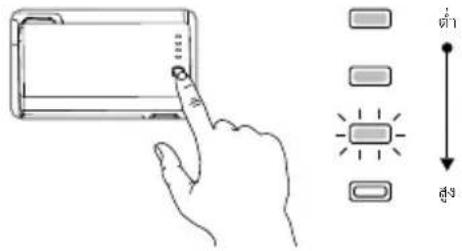
natural_image
Diagram of a battery rear panel with two clamps and an arrow indicating rotation (no text or symbols)natural_image
Diagram showing four different agricultural drones with one labeled 80° angle, no text or symbols present
natural_image
Diagram showing a hand holding a circular component before and after change, with no visible text or symbols.
https://www.dji.com/t30/downloads
ข้อมูลจำเพาะ
- รุ่นผลิตภัณฑ์
3WWDZ-30A
Airframe
SRRC/NCC/FCC/MIC/KCC/CE: 24.05-24.25 GHz
การใช้พลังงาน
12 W
กำลังการส่งสัญญาณ
SRRC: ≤13 dBm, NCC/MIC/KCC/CE/FCC: ≤20 dBm
SRRC/NCC/FCC/MIC/KCC/CE: 24.05-24.25 GHz
การใช้พลังงาน
4 W
กำลังการส่งสัญญาณ
SRRC: ≤13 dBm, NCC/MIC/KCC/CE/FCC: ≤20 dBm
SRRC/NCC/FCC/CE/MIC/KCC: 2.4000-2.4835 GHz
SRRC/NCC/FCC/CE: 5.725-5.850 GHz ^4
2.4 GHz
SRRC/CE/MIC/KCC: ≤20 dBm, FCC/NCC: ≤31.5 dBm
5.8 GHz
FCC/SRRC/NCC: ≤29.5 dBm, CE: ≤14 dBm
26.3 ก็โลกรัม
SRRC/NCC/FCC/CE/MIC/KCC: 2.4000-2.4835 GHz
SRRC/NCC/FCC/CE: 5.725-5.850 GHz ^4
FCC/NCC: 7 km, SRRC: 5 km, MIC/KCC/CE: 4 km
2.4 GHz
SRRC/CE/MIC/KCC: ≤20 dBm, FCC/NCC: ≤30.5 dBm
5.8 GHz
SRRC: ≤21.5 dBm, FCC/NCC: ≤29.5 dBm, CE: ≤14 dBm
Wi-Fi
โพริ теплоส
ความถี่การทำงาน
Wi-Fi Direct, Wi-Fi Display, 802.11a/g/n/ac
Wi-Fiแบบ 2×2 MIMO
2.4000-2.4835 GHz
5.150-5.250 GHz ^4
5.725-5.850 GHz ^12
| กําลังการส่งสัญญาณ | 2.4 GHz |
| SRRC/CE: 18.5 dBm, NCC/FCC /MIC/KCC: 20.5 dBm | |
| 5.2 GHz | |
| SRRC/NCC/FCC/CE/MICC: 14 dBm, KCC: 10 dBm | |
| 5.8 GHz | |
| SRRC/NCC/FCC: 18 dBm, CE/KCC: 12 dBm |
บลทธ
โพริ теплоอล
ความถึงการทำงาน
กำลังการส่งสัญญาณ
Bluetooth 4.2
2.4000-2.4835 GHz
SRRC/NCC/FCC/CE/MIC/KCC: 6.5 dBm
natural_image
Technical line drawing of a rectangular mechanical housing with internal compartments (no text or symbols)V
2. Chuẩn bị Máy bay
natural_image
Diagram of a propeller blade assembly with directional arrows indicating rotation (no text or labels)natural_image
Technical diagram of a mechanical assembly with no visible text or symbolsnatural_image
Diagram of a mechanical device with an arrow indicating direction (no text or symbols present)natural_image
Technical line drawing of a mechanical housing or enclosure component (no text or symbols visible)natural_image
Illustration of a mechanical device with an arrow indicating direction (no text or symbols)natural_image
Technical line drawing of a mechanical component with a cylindrical part attached to a housing (no text or symbols)Kiểm tra Mức Pin
natural_image
Diagram of a battery rear panel with two clamps and an arrow indicating rotation (no text or symbols)natural_image
Diagram showing three types of agricultural drones with one labeled 80° angle, no text or symbols present
natural_image
Diagram showing a circular component being rotated, with no text or symbols present
SRRC/NCC/FCC/CE: 5,725 - 5,850GHz ^[2]
SRRC/CE/MIC/KCC: ≤ 20dBm, FCC/NCC: ≤ 31,5dBm
5,8GHz
FCC/SRRC/NCC: ≤ 29,5dBm, CE: ≤ 14dBm
SRRC/NCC/FCC/CE: 5,725 - 5,850GHz ^[2]
SRRC/CE/MIC/KCC: ≤ 20dBm, FCC/NCC: ≤ 30,5dBm
5,8GHz
SRRC: ≤ 21,5dBm, FCC/NCC: ≤ 29,5dBm, CE: ≤ 14dBm
Wi-Fi
Giao thúc Wi-Fi Direct, Wi-Fi Display, 802.11a/g/n/ac
Wi-Fi với 2×2 MIMO
SRRC/CE: 18,5dBm, NCC/FCC /MIC/KCC: 20,5dBm
5,2GHz
SRRC/NCC/FCC/CE/MIC: 14dBm, KCC: 10dBm
5,8GHz
SRRC/NCC/FCC: 18dBm, CE/KCC: 12dBm
Bluetooth
Giao thúc Bluetooth 4.2
DE
natural_image
Technical line drawing of a rectangular mechanical housing with internal compartments (no text or symbols)natural_image
Diagram of a propeller blade assembly with directional arrows indicating rotation (no text or labels)natural_image
Technical line drawing of a mechanical assembly with no visible text or symbolsnatural_image
Diagram of a mechanical component with an arrow indicating direction (no text or symbols present)natural_image
Technical line drawing of a mechanical housing or enclosure component (no text or symbols visible)natural_image
Simple line drawing of a device with an arrow pointing to it (no text or symbols)natural_image
Technical line drawing of a mechanical component with a cylindrical housing and a rectangular housing (no text or symbols)natural_image
Diagram of a battery rear panel with two clamps and an arrow indicating rotation (no text or symbols)natural_image
Diagram showing four different agricultural drones with one labeled 80° angle, no text or symbols present
natural_image
Diagram showing a circular component being shifted from left to right, with no visible text or symbols.
https://www.dji.com/t30/downloads
Technische Daten
- Produktmodell
3WWDZ-30A
- Flugrahmen
Max. Diagonaler Achsenabstand 2.145 mm
Betriebsfrequenz SRRC/NCC/FCC/MIC/KCC/CE: 24,05–24,25 GHz
Betriebsfrequenz SRRC/NCC/FCC/MIC/KCC/CE: 24,05–24,25 GHz
Betriebsfrequenz SRRC/NCC/FCC/CE/MIC/KCC: 2,4000–2,4835 GHz
SRRC/NCC/FCC/CE: 5,725–5,850 GHz ^[2]
SRRC/CE/MIC/KCC: ≤20 dBm, FCC/NCC: ≤31.5 dBm
5,8 GHz
FCC/SRRC/NCC: ≤29,5 dBm, CE: ≤14 dBm
Betriebsfrequenz SRRC/NCC/FCC/CE/MIC/KCC: 2,4000–2,4835 GHz
SRRC/NCC/FCC/CE: 5,725–5,850 GHz ^[2]
SRRC/CE/MIC/KCC: ≤20 dBm, FCC/NCC: ≤30,5 dBm
5,8 GHz
SRRC: ≤21,5 dBm, FCC/NCC: ≤29,5 dBm, CE: ≤14 dBm
Wi-Fi
Protokoll Wi-Fi Direct, Wi-Fi-Anzeige, 802.11a/g/n/ac
WLAN mit 2×2 MIMO
SRRC/NCC/FCC/CE/MIC: 14 dBm, KCC: 10 dBm
5,8 GHz
SRRC/NCC/FCC: 18 dBm, CE/KCC: 12 dBm
Bluetooth
Protokoll Bluetooth 4.2
PlegadoVista trasera
natural_image
Technical line drawing of a rectangular mechanical housing with internal compartments (no text or symbols)natural_image
Diagram of a propeller blade assembly with directional arrows indicating rotation (no text or labels)natural_image
Technical diagram of a mechanical assembly with no visible text or symbolsnatural_image
Diagram of a mechanical component with an arrow indicating direction (no text or symbols present)Retire la tapa del compartimento del adaptador.
natural_image
Technical line drawing of a mechanical housing or enclosure component (no text or symbols visible)natural_image
Diagram of a device with a handle and arrow indicating direction (no text or symbols)natural_image
Technical line drawing of a mechanical component with a cylindrical part inserted into a housing (no text or symbols)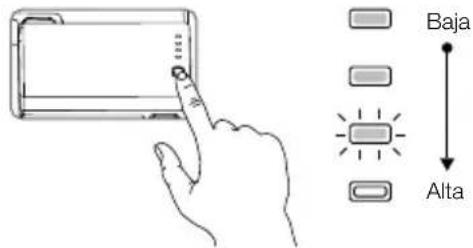
natural_image
Diagram of a battery rear panel with two clamps and an arrow indicating rotation (no text or symbols)natural_image
Diagram showing four different agricultural drones with a 80-degree angle indicator, no text or symbols present.
natural_image
Diagram showing a circular component being shifted from left to right, with no visible text or symbols
https://www.dji.com/t30/downloads
Especificaciones
SRRC/NCC/FCC/CE: 5.725-5.850 GHz ^[2]
SRRC/CE/MIC/KCC: ≤20 dBm; FCC/NCC: ≤31.5 dBm
5.8 GHz
FCC/SRRC/NCC: ≤29.5 dBm; CE: ≤14 dBm
SRRC/NCC/FCC/CE: 5.725-5.850 GHz ^[2]
Alcance de transmisión máx. (sin FCC/NCC: 7 km; SRRC: 5 km; MIC/KCC/CE: 4 km
SRRC/CE/MIC/KCC: ≤20 dBm; FCC/NCC: ≤30.5 dBm
5.8 GHz
SRRC: ≤21.5 dBm; FCC/NCC: ≤29.5 dBm; CE: ≤14 dBm
Wi-Fi
Protocolo Wi-Fi Direct, Pantalla Wi-Fi, 802.11a/g/n/ac
Wi-Fi con 2×2 MIMO
SRRC/CE: 18.5 dBm; NCC/FCC /MIC/KCC: 20.5 dBm
5.2 GHz
SRRC/NCC/FCC/CE/MIC: 14 dBm; KCC: 10 dBm
5.8 GHz
SRRC/NCC/FCC: 18 dBm; CE/KCC: 12 dBm
Bluetooth
Protocolo Bluetooth 4.2
PliéVue arrière
natural_image
Technical line drawing of a mechanical housing or enclosure with internal geometric cutouts (no text or symbols)natural_image
Diagram of a three-blade propeller with directional arrows indicating rotation (no text or labels)natural_image
Technical diagram of a mechanical assembly with no visible text or symbols
natural_image
Diagram of a mechanical component with a cylindrical housing and a separate view showing internal components (no text or symbols)natural_image
Diagram of a battery rear panel with two clamps and an arrow indicating rotation (no text or symbols)natural_image
Diagram showing four different agricultural drones with a 80° angle indicator, no text or symbols present.
natural_image
Diagram showing a device with a circular component before and after change, no text or symbols present
https://www.dji.com/t30/downloads
Hélices repliables (R3820)
SRRC/NCC/FCC/CE/MIC : 14 dBm, KCC : 10 dBm
5,8 GHz
SRRC/NCC/FCC : 18 dBm, CE/KCC : 12 dBm
Bluetooth
Protocole Bluetooth 4.2
natural_image
Technical line drawing of a rectangular mechanical housing with internal compartments (no text or symbols)2. Preparo da aeronave

natural_image
Diagram of a propeller blade assembly with directional arrows indicating rotation (no text or labels)natural_image
Technical diagram of a mechanical assembly with no visible text or symbols
Como carregar as baterias
natural_image
Diagram of a mechanical component with an arrow indicating direction (no text or symbols present)Retire a tampa do compartimento do dongle.
natural_image
Technical line drawing of a mechanical housing or enclosure with mounting holes and internal components (no text or symbols)natural_image
Simple line drawing of a device with a handle and arrow indicator (no text or symbols)Recoloque a tampa firmemente.
natural_image
Technical line drawing of a mechanical component with a cylindrical base and attached bracket (no text or symbols)natural_image
Diagram of a battery rear panel with two clamps and an arrow indicating rotation (no text or symbols)natural_image
Diagram showing four different agricultural drones with one labeled 80° angle, no text or symbols present
natural_image
Diagram showing a circular component being shifted, with no text or symbols present
https://www.dji.com/t30/downloads
Especificações
- Modelo do produto
3WWDZ-30A
- Estrutura
SRRC/NCC/FCC/CE: 5,725 a 5,850 GHz ^[2]
SRRC/CE/MIC/KCC: ≤ 20 dBm, FCC/NCC: ≤ 31.5 dBm
5,8 GHz
FCC/SRRC/NCC: ≤ 29,5 dBm, CE: ≤ 14 dBm
Peso total (exc. bateria) 26,3 kg
SRRC/NCC/FCC/CE: 5,725 a 5,850 GHz ^[2]
SRRC/CE/MIC/KCC: ≤ 20 dBm, FCC/NCC: ≤ 30,5 dBm
5,8 GHz
SRRC: ≤ 21,5 dBm, FCC/NCC: ≤ 29,5 dBm, CE: ≤ 14 dBm
Wi-Fi
Protocolo Wi-Fi Direct, Wi-Fi Display, 802.11a/g/n/ac
Wi-Fi com MIMO 2×2
SRRC/CE: 18,5 dBm, NCC/FCC/MIC/KCC: 20,5 dBm
5,2 GHz
SRRC/NCC/FCC/CE/MIC: 14 dBm, KCC: 10 dBm
5,8 GHz
SRRC/NCC/FCC: 18 dBm, CE/KCC: 12 dBm
Bluetooth
Protocolo Bluetooth 4.2
DJI Support https://www.dji.com/support

FacebookYouTube
For the latest information on Agras products, scan the Facebook or YouTube QR code.

- Contents
- Agras T30
- Remote Controller
- Fly Safe
- Flight Environment Requirements
- Return to Home (RTH)
- Pesticide Usage
- Using the T30
- Preparing the Intelligent Flight Battery
- Preparing the Aircraft
- Preparing the Remote Controller
- Charging the Batteries
- Mounting the External Battery
- Mounting the 4G Dongle and SIM Card
- Mounting the RTK Dongle
- Checking the Battery Levels
- Adjusting the Antennas
- Getting Ready for Takeoff
- Calibrating the Compass
- Discharging Trapped Air in the Hoses
- Calibrating the Flow Meter
- Preparation
- Calibration
- Flight
- Takeoff
- Landing
- Starting Operations
- Field Planning
- Performing an Operation
- More Operation Modes and Functions
- Maintenance
- Specifications
- - Product Model
- - Airframe
- - Propulsion System
- - Spraying System
- • Omnidirectional Digital Radar
- - Upward Radar
- - FPV Cameras
- - Flight Parameters
- - Remote Controller
- OcuSync Enterprise
- Wi-Fi
- Bluetooth
- - Remote Controller Intelligent Battery
- • Intelligent Battery Charging Hub
- - AC Power Adapter
- 機体の準備
- 4G ドングルとSIMカードの取り付け
- バッテリー残量を確認する
- 仕様
- - 製品モデル
- - エアフレーム
- ข้อมูลจำเพาะ
- - รุ่นผลิตภัณฑ์
- Airframe
- บลทธ
- Chuẩn bị Máy bay
- Kiểm tra Mức Pin
- Technische Daten
- - Produktmodell
- - Flugrahmen
- Especificaciones
- Preparo da aeronave
- Como carregar as baterias
- Especificações
- - Modelo do produto
- - Estrutura
Brand : DJI
Model : Agras T30
Category : Drone