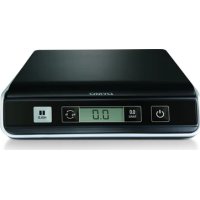
M5 - Letter scale DYMO - Free user manual and instructions
Find the device manual for free M5 DYMO in PDF.



| Product type | USB digital letter scale |
| Brand | DYMO |
| Model | M5 |
| Maximum capacity | 5 kg (11 lb) |
| Accuracy | ±6 g (half capacity) / ±12 g (above half) |
| Weight increments | 2 g (0.1 oz) |
| Units of measurement | kg/g or lb/oz (switchable) |
| Power supply | USB (computer) or 3 AAA alkaline batteries |
| Automatic shut-off | After 3 minutes of inactivity |
| Functions | Tare, Hold, zero setting |
| Interface | USB 2.0 low speed (HID) |
| Operating temperature | 10 to 40 °C (50 to 104 °F) |
| Material | Plastic (weighing platform) |
| Dimensions | Approximately 20 x 15 x 4 cm (estimated) |
| Weight | Approximately 250 g (without batteries) |
| Warranty | 2 years (extendable to 3 years upon registration) |
| Cleaning | Soft dry cloth; avoid abrasive products |
| Maintenance | Avoid shocks, moisture, dust; do not overload |
| Box contents | Scale, USB cable, user guide |
| Country of manufacture | China (likely) |
Frequently Asked Questions - M5 DYMO
User questions about M5 DYMO
0 question about this device. Answer the ones you know or ask your own.
Ask a new question about this device
Download the instructions for your Letter scale in PDF format for free! Find your manual M5 - DYMO and take your electronic device back in hand. On this page are published all the documents necessary for the use of your device. M5 by DYMO.
USER MANUAL M5 DYMO
Digital USB Postal Scale User Guide
DYMO® Digital USB Postal Scale
This User Guide provides instructions for using your DYMO® Digital USB Postal Scale.
Visit www.dymo.com/registerto register your scale.
Setting Up the Scale
The scale is powered through a USB port on your computer. When not connected to your computer, the scale can be powered by three AAA batteries.
To set up the scale
- Unpack the scale.
- Set the scale on a firm, flat surface.
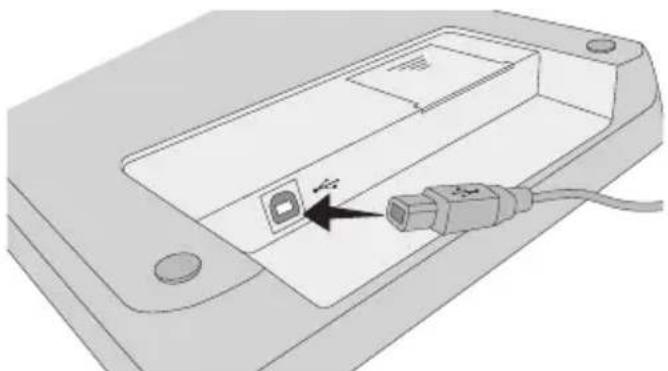
- Plug the USB cable into the USB port on the back of the scale.
- Plug the USB cable into an available USB port on your computer.
The scale is automatically recognized by your computer when the power is turned on.
When connecting the scale through a USB hub, always use a powered hub.
Inserting the Batteries
When not connected to your computer, the scale can be powered by three AAA alkaline batteries. The scale automatically turns off after three minutes of inactivity.
To insert the battery
- Disconnect the USB cable from the computer or USB hub.
- Turn the scale over.
- Remove the battery compartment cover.
- Insert three AAA batteries as shown.
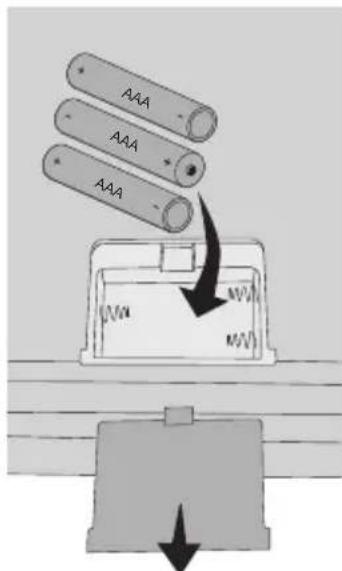
Make sure to insert the batteries correctly. Inserting the batteries backwards can damage the scale.
- Replace battery compartment cover.
! Remove the batteries if the scale will not be used for a long period of time.
Turning On the Power
The scale has an Auto Shut Off feature which automatically turns off the scale after three minutes of inactivity.
To turn the scale on
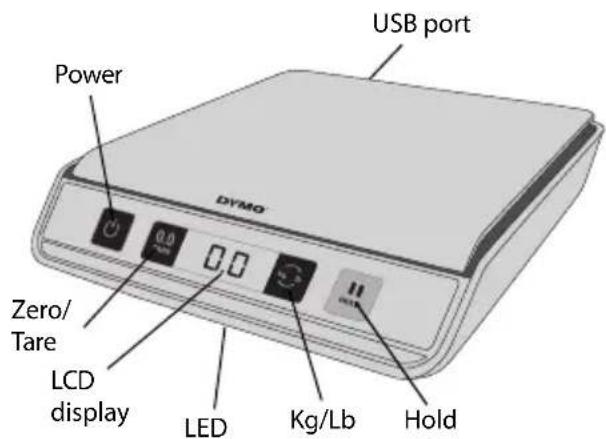
Press the front of the scale.
When the scale is first turned on, wait a few seconds for the scale to stabilize before weighing items. The display shows 0.0 when ready.
To turn the scale off
Press the front of the scale to turn the scale off.
The scale turns off automatically after three minutes of inactivity.
Using the Scale
Always wait for 0.0 to display before placing an item on the scale platform.
After placing an item on the scale, wait for several seconds for the weight to appear. When the scale is ready, a0 appears to the left of the weight.
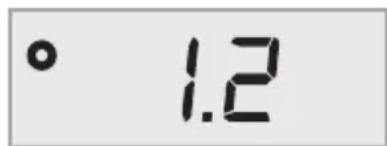
To weigh an item
Place an item on the scale platform.
Using the Tare Feature
You can weigh small items or items that cannot be easily placed on the scale platform by placing the items in a container and using the Tare/Zero button to eliminate the weight of the container.
To use the tare feature
- Place an empty container on the platform.
- When the scale is ready, press 0.0
The display is set to zero.
- Place the items to be weighed in the container.
The display shows the weight of the items, without the weight of the container. - After removing the container, press reset the scale to zero.
Using the Hold Feature
When an item being weighed extends over the front of the scale and you cannot see the display, you can freeze the display so that the weight is still displayed after removing the item.
To use the Hold feature
- Press
The LED flashes and the display shows HOLD, and then 0.0 when ready.
- Place the item on the scale.
After a few seconds, the LED stops flashing and stays illuminated.
- Remove the item from the scale.
The LED stays illuminated and the weight continues to be displayed for about ten seconds.
Changing the Units of Measure
Your scale can display weight in English (pounds) or metric (kilograms) units. The default unit of measure is metric. Each time you turn on the scale, the scale defaults to the unit of measure that was last used.
To change the units of measure
Press toggle between English and metric units.
Caring for the Scale
With proper care and handling, your scale will give you years of service. Keep the following in mind when using your scale:
-
Your scale works best when operated and stored at normal room temperature. Avoid lengthy exposure to extreme heat or cold.
-
Only operate the scale on a stable, vibration free surface.
-
Exposure to dust, dirt, moisture, vibration, and air currents; and proximity to other electronic equipment can affect the reliability and accuracy of your scale.
-
Using the scale in proximity to wireless devices, such as mobile phones, can cause the scale display to fluctuate when the device is in use.
-
Although this scale is designed to be quite durable, gently place items to be weighed on the platform. Avoid rough treatment, as this may permanently damage the internal sensor and void your warranty.
-
You can permanently damage the scale by placing significantly overweight items on the scale platform.
-
Avoid shaking, dropping, or otherwise shocking the scale. This is a precision instrument and MUST BE HANDLED WITH EXTREME CARE.
-
The scale has been calibrated at the factory and will not need to be calibrated again.
Technical Specifications
NOT LEGAL FOR TRADE
| Model M5 M10 | ||
| Capacity 5 kg (11 pounds) 10 kg (22 pounds) | ||
| Weight Increments 2 g (0.1 oz) 2 g (0.1 oz) | ||
| Accuracy | ||
| Under half the capacity | ±6 g | ±6 g |
| Over half the capacity | ±12 g | ±12 g |
| Units kg/g (lb/oz) kg/g (lb/oz) | ||
| Auto Shut Off After three minutes of inactivity | ||
| Operating Temperature 10° - 40°C (50° - 104°F) | ||
| Interface USB 2.0 Low Speed HID Scale Device | ||
| Power USB or 3 AAA alkaline batteries | ||
For information about our other scale products, visit www.dymo.com.
Troubleshooting
| Problem/Error Message | Solution |
| No display | Ensure the scale is plugged in, or replace the batteries. |
| LO is displayed | Replace the batteries. |
| Negative number is displayed | A rare value is displayed as a negative number when the items are removed from the scale. Press TO DO to reset the scale to zero. |
| 00000 is displayed | The item on the scale platform exceeds the maximum capacity of the scale. Remove the item immediately to prevent damage to the scale. |
| Display reads 0.0 with an item on the platform | This can happen because: • The Tare/Zero button, 0.0 TO DO, was pressed while an item was on the scale. • Power to the scale was disconnected or turned off and then on again with an item on the scale. In both of these cases, remove the item from the platform and press DO to return the display to 0.0. |
If you need further assistance, you can obtain support at www.dymo.com.
Warranty
TWO-YEAR LIMITED WARRANTY
Dymo scales are sold with a two-year warranty from the date of purchase against defects in design, materials and workmanship. If this product is found to be defective within that time, we will promptly repair or replace it at our cost. This warranty does not cover accidental damage, wear and tear or consequential or incidental loss.
WHAT IS COVERED?
This warranty covers this product only and only against defects in design, materials or workmanship. If, after inspection of your returned product, we find that the product is defective in design, materials or workmanship, we shall at no charge to you repair or replace the product at our discretion, and return the product to you. You are responsible for the full cost of shipping the product to Dymo, but there is no charge for the inspection or the return postage.
WHAT IS NOT COVERED?
This warranty does not cover loss of or damage to a computer or other devices connected directly or indirectly to this Dymo product. This warranty also does not cover any loss of or damage to data, programs, records or other information. This warranty does not cover any defect or loss which would not have occurred if instructions in the owner's manual had been followed. This warranty does not cover other incidental or consequential damages even if Dymo has been informed of the possibility of such damages. This warranty is in lieu of all other warranties, express or implied. This warranty gives you specific rights and you may also have other rights, which may vary from state to state or country to country.
HOW TO MAKE A WARRANTY CLAIM
To make a warranty claim, please contact customer support: www.dymoservice.com
2 + 1 Year Warranty - Register
Register now at www.dymo.com/register and extend your limited warranty for one additional year. It is easy to register online. You will be sent a three-year warranty certificate and benefit from:
- Technical support
- Special offers and other interesting information
Electrostatic Discharge Precautions
Electrostatic discharge (Static Electricity or ESD) can cause damage to any electronic device, including the scale. To avoid damage, follow these simple steps:
Always disconnect the scale from your computer or USB hub when changing the battery.
- Always discharge any accumulated static electricity from yourself before connecting the scale to your computer or USB hub. If your computer uses a three-pin, grounded connector, you can do this by touching the metal case of your computer. As an alternative, try touching a cold water faucet.
Environmental Information
The equipment that you bought has required the extraction and use of natural resources for its production. It may content hazardous substances for the health and the environment.
In order to avoid the dissemination of those substances in our environment and to diminish the pressure on the natural resources, we encourage you to use the appropriate take-back systems. Those systems will reuse or recycle most of the materials of your end life equipment in a sound way.
The crossed-bin symbol marked in your device invites you to use those systems.

If you need more information on the collection, reuse and recycling systems, please contact your local or regional waste administration. You can also contact us for more information on the environmental performance of our products.
Documentation Feedback
We are constantly working to produce the highest quality documentation for our products. We welcome your feedback.
Send us your comments or suggestions about our online Help, printed, or PDF manuals.
Please include the following information with your feedback:
Product name and version number
-
Type of document: printed manual, PDF, or online Help
-
Topic title (for online Help) or page number (for printed or PDF manuals)
-
Brief description of content (for example, step-by-step instructions that are inaccurate, information that requires clarification, areas where more detail is needed, and so on)
-
Suggestions for how to correct or improve the documentation
We also welcome your suggestions for additional topics you would like to see covered in the documentation.
Send email feedback to:
documentation@dymo.com
Please keep in mind that this email address is only for documentation feedback. If you have a technical question, please contact Customer Service.
Specifications techniques
NON LÉGAL POUR LE COMMERCE
- Cuando quite el recipient, pulse
HVAD ER IKKE DAEKKET?
www.dymo.com/register
GWARANCJA NIE OBEJMUJE
www.dymo.com/register
Nastavení váhy
A Newell Rubbermaid Brand
Distributed by / Distribué par:
DYMO bvba, Industriepark-Noord 30
B-9100 Sint-Niklaas
Belgium/Belgique
www.dymo.com
© 2010 DYMO
W008022
- DYMO® DIGITAL USB POSTAL SCALE
- SETTING UP THE SCALE
- TO SET UP THE SCALE
- INSERTING THE BATTERIES
- TO INSERT THE BATTERY
- TURNING ON THE POWER
- TO TURN THE SCALE ON
- TO TURN THE SCALE OFF
- USING THE SCALE
- TO WEIGH AN ITEM
- USING THE TARE FEATURE
- TO USE THE TARE FEATURE
- USING THE HOLD FEATURE
- TO USE THE HOLD FEATURE
- CHANGING THE UNITS OF MEASURE
- TO CHANGE THE UNITS OF MEASURE
- CARING FOR THE SCALE
- TECHNICAL SPECIFICATIONS
- TROUBLESHOOTING
- WARRANTY
- TWO-YEAR LIMITED WARRANTY
- WHAT IS COVERED
- WHAT IS NOT COVERED
- HOW TO MAKE A WARRANTY CLAIM
- 2 + 1 YEAR WARRANTY - REGISTER
- ELECTROSTATIC DISCHARGE PRECAUTIONS
- ENVIRONMENTAL INFORMATION
- DOCUMENTATION FEEDBACK
- DOCUMENTATION@DYMO.COM
- SPECIFICATIONS TECHNIQUES
- HVAD ER IKKE DAEKKET
- GWARANCJA NIE OBEJMUJE
- NASTAVENÍ VÁHY
Brand : DYMO
Model : M5
Category : Letter scale