PA40JK1A - TV Proview - Free user manual and instructions
Find the device manual for free PA40JK1A Proview in PDF.



| Brand | Proview |
| Model | PA40JK1A |
| Category | LCD Crystal Screen Television |
| Screen Size | 40 inches |
| Maximum Resolution | 1366 x 768 pixels |
| Brightness | 500 cd/m² |
| Contrast Ratio | 1200:1 |
| Power Supply | AC 100-240 V, 50/60 Hz |
| Power Consumption | 275 W (standby < 8 W) |
| Dimensions (W × H × D) | 38.8 × 12.3 × 29.9 inches |
| Weight | 66 lb (approx. 30 kg) |
| Input Connectors | 2 × composite video, 1 × S-Video, 2 × component (YPbPr), 1 × VGA, 2 × HDMI (with audio), 1 × audio input (L/R) |
| Audio Outputs | 1 × stereo (L/R), 1 × optical, 1 × coaxial, 1 × headphone |
| Built-in Tuner | ATSC high definition |
| Main Functions | PIP/POP, 3D noise reduction, film mode detection (3:2 pulldown), screen formats (Normal, Full, Wide, Zoom) |
| Parental Control | V-Chip (TV and MPAA ratings), channel and source lock |
| Menu Languages | English, French, Spanish |
| Cleaning | Dry, soft cloth; unplug before cleaning; do not use liquid or aerosol |
| Safety | Do not open the casing; do not expose to water; do not block ventilation openings; use a stable stand |
| Repairability | Repair only by qualified personnel |
Frequently Asked Questions - PA40JK1A Proview
User questions about PA40JK1A Proview
0 question about this device. Answer the ones you know or ask your own.
Ask a new question about this device
Download the instructions for your TV in PDF format for free! Find your manual PA40JK1A - Proview and take your electronic device back in hand. On this page are published all the documents necessary for the use of your device. PA40JK1A by Proview.
USER MANUAL PA40JK1A Proview
©2006 by Proview®. All rights reserved.
Copyright protection claimed includes all forms and matters of copyrightable material and information now allowed by statutory judicial law or hereinafter granted, including without limitation, material generated from the software programs which are displayed on the screen such as icons, screen displays, looks, etc.
All Proview® product names mentioned in this publication are trademarks of Proview. Other company trademarks are also acknowledged.
Changes are periodically made to this document. Changes, technical inaccuracies, and typographic errors will be corrected in subsequent editions.
HOMI
This TV incorporates High-Definition Multimedia Interface(HDMI™) technology. HDMI, the HDMI logo and High-Definition Multimedia Interface are trademarks or registered trademarks of HDMI Licensing LLC.
Federal Communications Commission Statement
This equipment has been tested and found to comply with the limits of a class B digital device, pursuant to Part 15 of the FCC Rules. These limits are designed to provide reasonable protection against harmful interference in a residential installation. This equipment generates, uses and can radiate radio frequency energy and, if not installed and used in accordance with the instructions, may cause harmful interference to radio communications. However, there is no guarantee that interference will not occur in a particular installation. If this equipment does cause harmful interference to radio or television reception, which can be determined by turning the equipment off and on, the user is encouraged to try to correct the interference by one or more of the following measures:
- Reorient/Relocate the receiving antenna.
- Increase the separation between the equipment and receiver.
- Connect the equipment into an outlet on a circuit which is different from what the receiver is connected to.
- Consult the dealer or an experienced radio/TV technician for help.

Changes or modifications not expressly approved by the manufacturer responsible for compliance could void the user authority to operate the equipment.
Warnings and Precautions
To prevent any injuries, the following safety precautions should be observed in the installation, use, servicing and maintenance of this equipment.
Before operating this equipment, please read this manual completely, and keep it nearby for future reference.
| WARNING | This symbol is intended to alert the user to avoid the risk of electric shock. This equipment must not be disassembled by anyone except qualified service personnel. |
| CAUTION | This symbol is intended to alert the user to the presence of important operating and maintenance instructions in the literature accompanying the appliance. |
| To reduce the risk of fire or electric shock, do not expose this equipment to rain or moisture. · TO REDUCE THE RISK OF ELECTRIC SHOCK, · DO NOT REMOVE COVER (OR BACK). · NO USER-SERVICEABLE PARTS INSIDE. · REFER SERVICING TO QUALIFIED SERVICE PERSONNEL. | |
| Use of controls, adjustments or performance of procedures other than those specified herein may result in hazardous radiation exposure. | |
| Important Safety Instructions | |
| This symbol indicates caution points. | |
| This symbol indicates actions that should not be done. | |
| This symbol indicates actions that must be performed. | |
| Do not place the equipment on any uneven or unstable carts, stands, tables, shelves etc. The equipment may fall, causing serious injury to children or adults and serious damage to the equipment itself. · Use only a cart or stand recommended by the manufacturer. This equipment and recommended cart or stand should be handled with care. Quick stops, excessive force, and uneven surfaces may cause the equipment and cart/stand to overturn. | |
| Do not disable the 3-wire grounding type plug. The grounding pin on the 3-prong plug is an important feature. Removing the grounding pin will increase the risk of damaging the equipment. · If you can not fit the plug into the electrical outlet, contact an electrician to install a grounding outlet. · Always operate this equipment from the type of power source indicated on the rear of the serial/model information label. · Never overload wall outlets and extensions. | |

-
Use and handle the power cord with care. Do not place any heavy objects on the AC power cord.
-
Do not pull the AC power cord. Do not handle the AC power cord with a wet hand.
-
Do not touch the power cord and antenna cable during lightning.
-
Remove the plug from the wall outlet, if the equipment will not be used for a long period of time.
-
Do not place, use or handle this equipment near water.
-
Never expose the equipment to liquid, rain, or moisture. Seek for service if any of the above is spilled into the equipment.
-
Do not expose the equipment to extreme temperature or to direct sunlight, as the equipment may heat up and suffer damage.
-
Do not install the equipment near any heat sources such as radiators, heat registers, stoves, or any other apparatus that might produce heat.
-
Do not attempt to service the equipment yourself.
-
Opening and removing the covers may expose you to dangerous voltage or other hazards and may void your warranty. Refer service to qualified personnel.
-
Do not place or drop any other objects on top.
-
Do not insert anything into the ventilation holes of your equipment. Inserting any metal or flammable objects may result in fire or electric shock.
-
Do not place the equipment on uneven or unstable carts, stands, tables, shelves etc. The equipment may fall, causing serious injury to children or adults and serious damage to the equipment itself. Always place the equipment on the floor or on a surface that is sturdy, level, stable and strong enough to support the weight of the equipment.
-
Do not block any ventilating openings. Leave an open space around the equipment. Never place the equipment : on a bed, sofa, rug, or any other similar surfaces; too close to drapes/curtains/walls, in a bookcase, built-in cabinet, or any other similar places that may cause poor ventilation.
-
Unplug this apparatus during lightning storms or when unused for long periods of time.
-
Refer all servicing to qualified service personnel. Servicing is required when the apparatus has been admaged in any way, such as power-supply cord or plug is damaged, liquid has been spilled or objects have fallen into the apparatus, the apparatus has been exposed to rain or moisture, does not operate normally, or has been dropped.

-
Always remove the power cord from the outlet before cleaning the equipment.
-
Never use liquid or aerosol cleaners on the equipment. Clean only with a soft dry cloth.

- Only use attachments/accessories specified by the manufacturer.
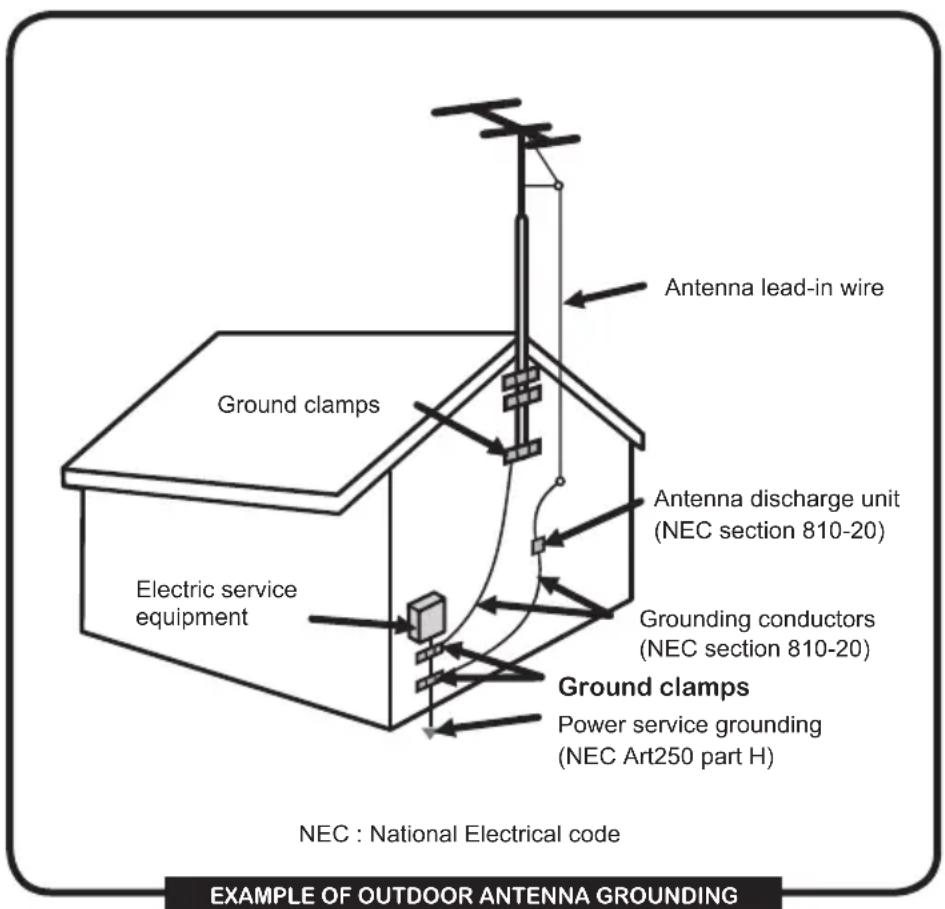
Antenna Safety Instructions
If an outdoor antenna is connected, follow the precautions below:

- An outdoor antenna should not be located in any area where it could come in contact with overhead power lines, or any other electric light or power circuits.
- When installing an outdoor antenna system, extreme caution should be taken to prevent contact with power lines. Direct contact with power lines may be fatal and should be avoided at all costs.
Section 810 of National Electrical Code (NEC) provides information with respect to proper grounding of the mast and supporting structure, grounding of the lead-in wire to an antenna discharge unit, size of grounding conductors, location of antenna discharge unit, connection to grounding electrodes, and requirements for the grounding electrode.
CONTENTS
Federal Communications Commission Statement
1
Warnings and Precautions
Important Safety Instructions 2
Antenna Safety Instructions 4
Chapter 1 Introducing the LCD TV
Key Features 6
Package Contents 7
Setting Your LCD TV. 8
Your LCD TV 11
Your Remote Control 13
Chapter 2 Installing the LCD TV
Connecting a TV Cable or an Antenna 15
Connecting a VCR 19
Connecting a Video Camera or Game Console 20
Connecting a DVD Player 21
Connecting a Digital TV Cable Box or Digital Satellite Receiver 23
Connecting an AV Equipment with HDMI Connector 24
Connecting an AV Equipment with DVI Connector 25
Connecting a PC. 26
Connecting an Audio Receiver or a Dolby Digital 5.1 Sound System.. 27
Chapter 3 USING THE FEATURES
Using Picture-In-Picture 28
Wide Screen Viewing 30
Operating the Menu 31
Setting up the HDTV Function 33
Customizing theVIDEO Settings 37
Customizing the AUDIO Settings 39
Customizing the SETUP Settings. 40
Using the V-CHIP Settings 42
Using the Parental Settings 44
Customizing the TV Settings. 45
TroubleShooting
46
Specification
48
Chapter 1 Introducing the LCD TV
Key Features
Various Audio/Video terminals for external equipment connection
- 2 set of composite A/V input terminals
1 set of S-VIDEO terminals - 2 set of component Video input terminals
1 VGA/ Audio input terminal - 2 HDMI/Auido input terminals
1 sets of Audio(L/R) output terminals - 2 SPDIF output terminals (Optical x 1 /Coaxial x 1)
1 Headphone terminal
The built-in TV tuner to receive HD ATSC
- This function allows the reception of HD broadcasting without the addition of a set top box.
High Definition Multimedia Interface (HDMI)
- High Definition Multimedia Interface (HDMI) is a small, user-friendly interconnect that can carry up to 5 Gbps of combined video and audio in a single cable. This system eliminates the cost, complexity and confusion of multiple cables used to connect current A/V systems.
Precise Touch Control Buttons
- The Precise Touch Control Buttons is a touch-sensitive technology to replace the conventional buttons.
HDTV Component Video Inputs
- Offers the best video quality for DVD(480p) and digital set-top-box (HD: 720p, 1080i) connections.
3D Digital Noise Reduction
- This function can digitally reduce image noise to provide better picture quality.
Film-Mode Detection (3:2 Reverse Pull Down)
- This function can automatically detect content derived from film and adjust the interlacer's frame matching to provide a more natural-looking, clearer image of the moving picture.
PIP Function
- Provides viewing of two programs simultaneously, in either picture-in-picture mode or picture-on-picture (side by side) mode.
Package Contents
Make sure all of the following contents are included.
LCDTV
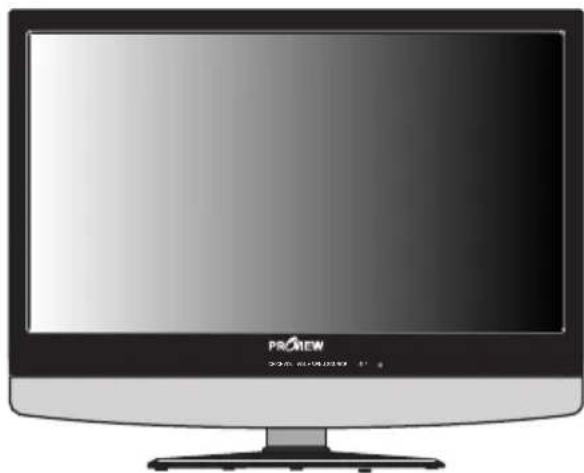
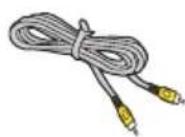
VIDEO Cable
AUDIO CableRemote Control/
AAA Batteries x 2
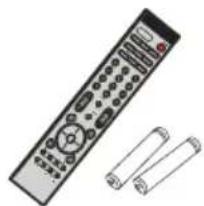
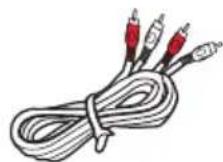
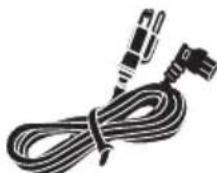
Power Cord
Quick Guide
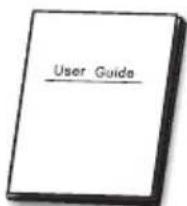
User's Guide

Warranty Card Attention Card
These items are all you need to set up and operate the LCD TV in its basic configuration.

Most devices (VCRs, DVD player, etc.) come with the necessary cable for connection. If you want to set up a complex system, you may need to buy extra cable, connector, etc.
Setting Up Your LCD TV
How to install the TV Stand
Follow the instructions below to install the TV stand:

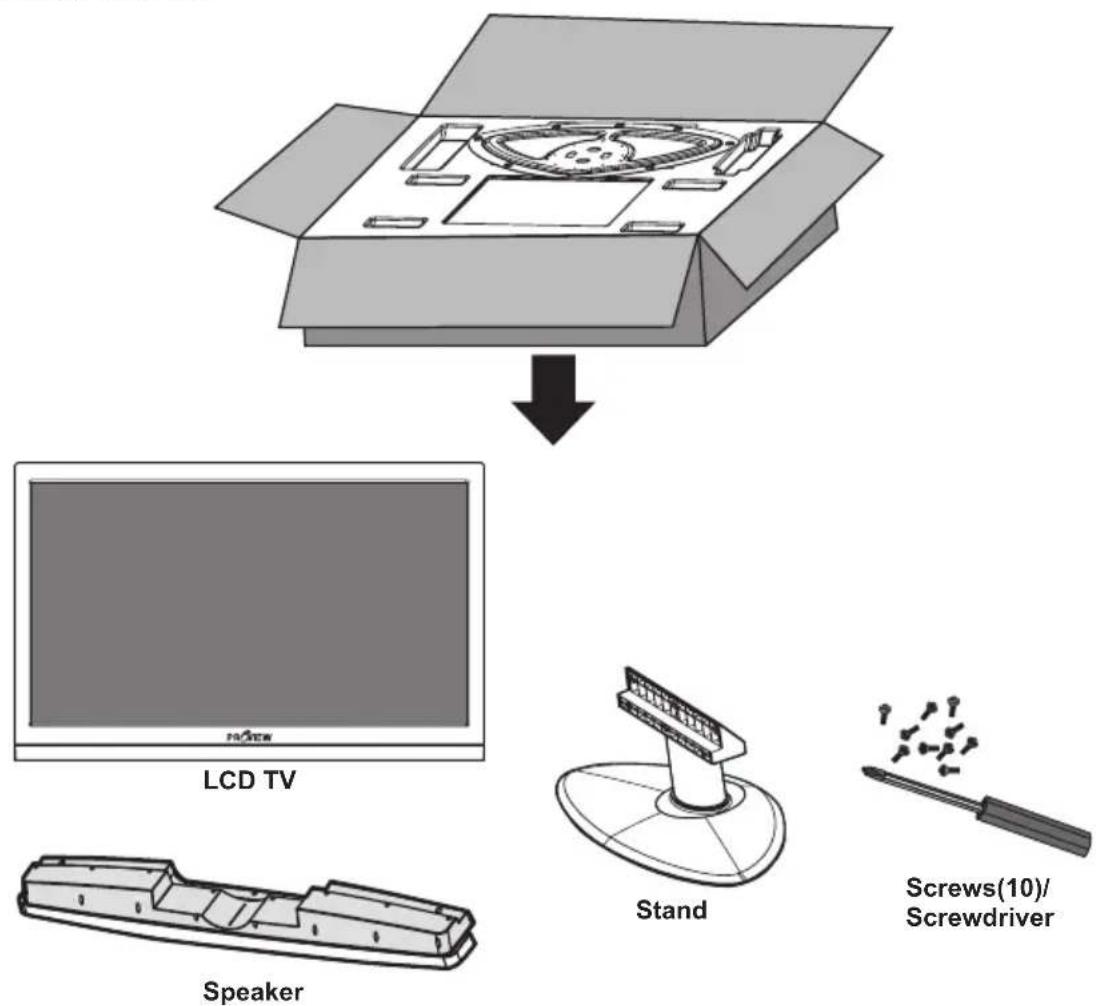
Open the box, and make sure all necessary parts are in the box.
The package contains:

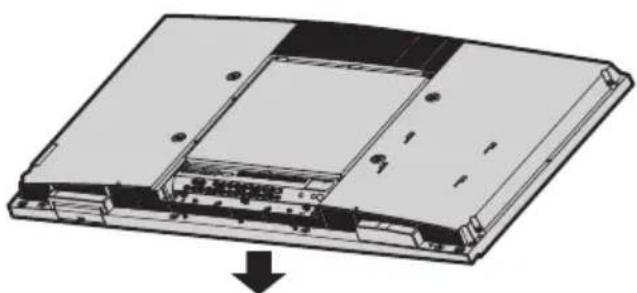
Cover an even stable surface with a soft cloth. Place the LCD TV unit face-down on the cloth.

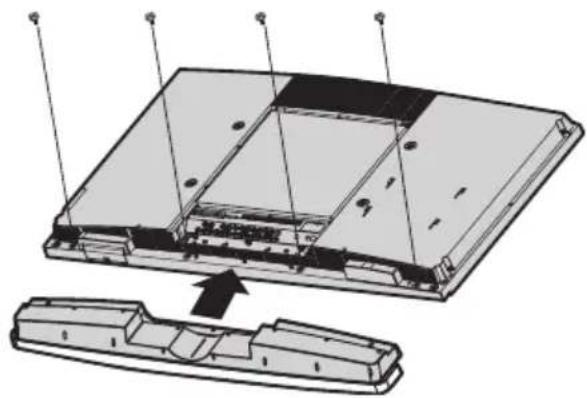
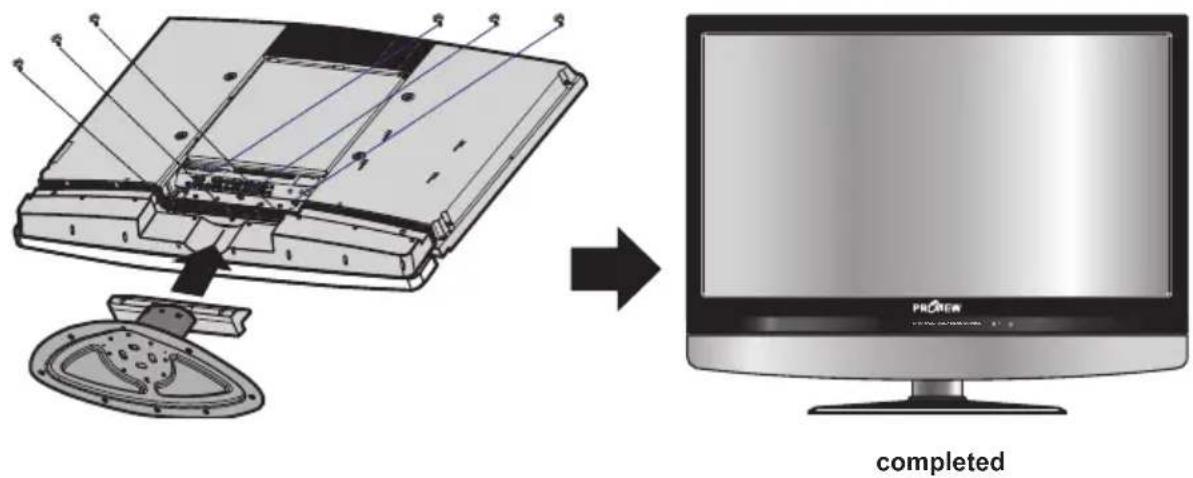
Fit the speaker onto the back of the display unit as shown below. Use the screwdriver to tighten the four screws on the rear of the speaker until the screw is firmly fixed in place.

Hold the TV stand and place it on the six screw holes on the back of the unit as shown. Use the screwdriver to tighten the six screws on the rear of the speaker until the screw is firmly fixed in place.

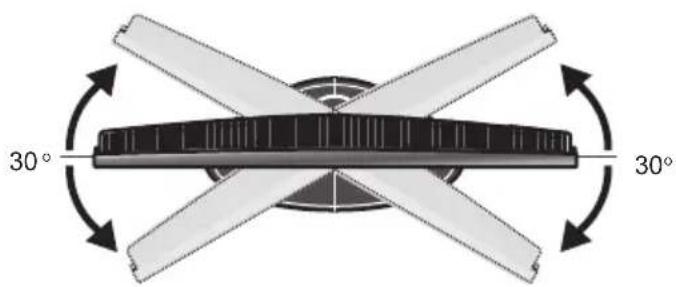
Adjust the stand to your desired angle. The stand angle can be rotated 30^ to the right and left.

If you prefer to mount your LCD TV on a wall instead of attaching it to the stand, please reference the instructions included in the wall mounting kit (not included).
How to setup the TV

Use an antenna cable to connect the VHF/UHF signal to the LCD TV's ANT. terminal (refer to page18).

Connect the AC power cord at the back of the TV and connect the power cord to wall outlet.

Insert the 2 batteries supplied in remote control.
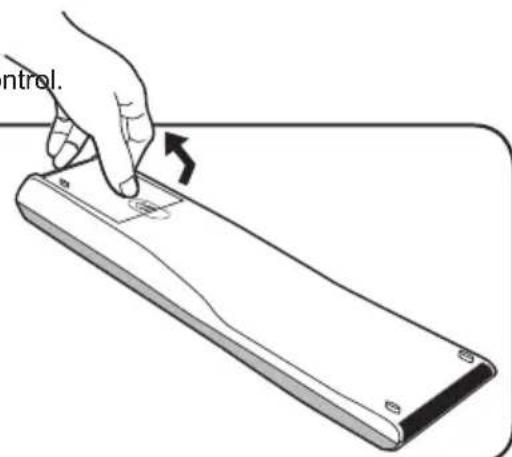
Step1 Slide the back cover up to open the battery compartment of the remote control.
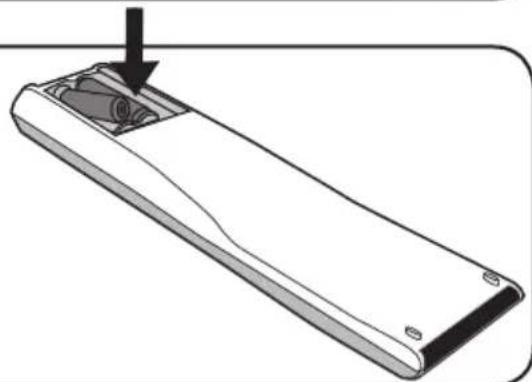
Step2 Insert two AAA size batteries. Make sure to match the (+) and (-) ends of the batteries with the (+) and (-) ends indicated in the battery compartment.
Slide the cover back into place.

Do not use caustic cleaners (porcelain, stainless steel, toilet, or oven cleaner etc.) on the remote, as it may suffer damage.

Connect other an external A/V device (refer to page 19-27).
Your LCD TV
Front/Right Side View and Controls
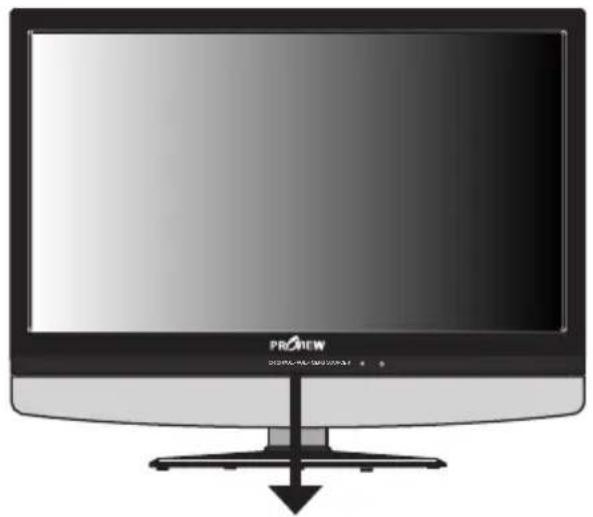
Front View
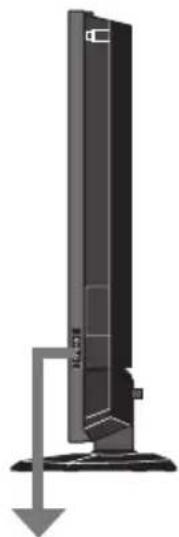
Right Side View
IR
Infrared Receiver
01
Turns the LCD TV on and into standby mode.
LED
The LED light indicates when the LCD TV is activated.
SOURCE
Chooses from different input signal sources.
MENU
Press once to display the OSD (on screen display), press again to turn the OSD off.
PROVIEW

EARPHONE
Connects to the external headache for private listening.
VIDEO1 IN
Connects to the composite Video and Audio output jacks on external video equipment.
CH
Scans up and down through channels. Selects sub-menu item when in the OSD mode.
VOL+/-
Adjusts the volume up and down. Selects the main-menu item and change values for items when in the OSD mode.
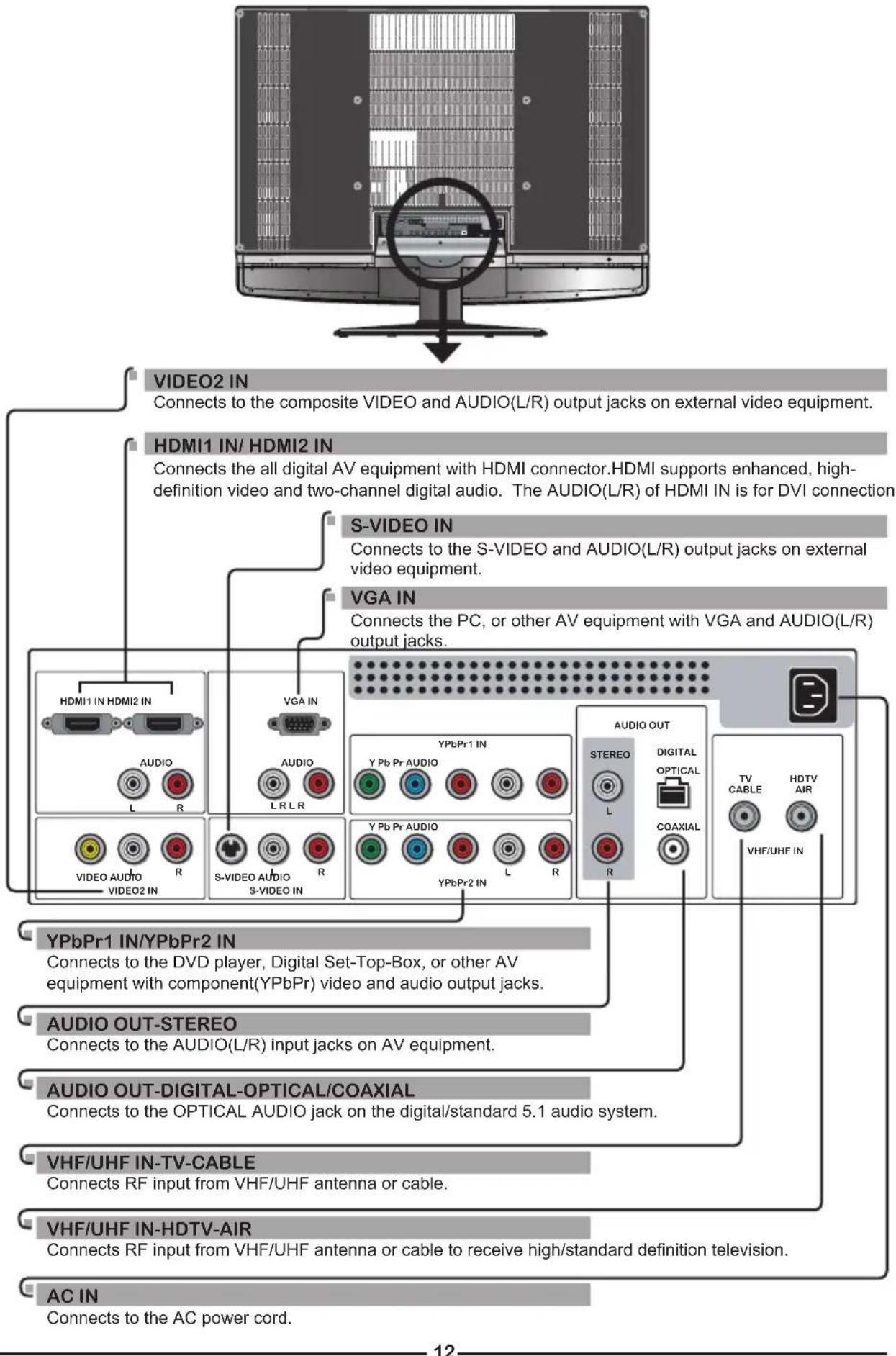
Rear View and Jacks
Your Remote Control
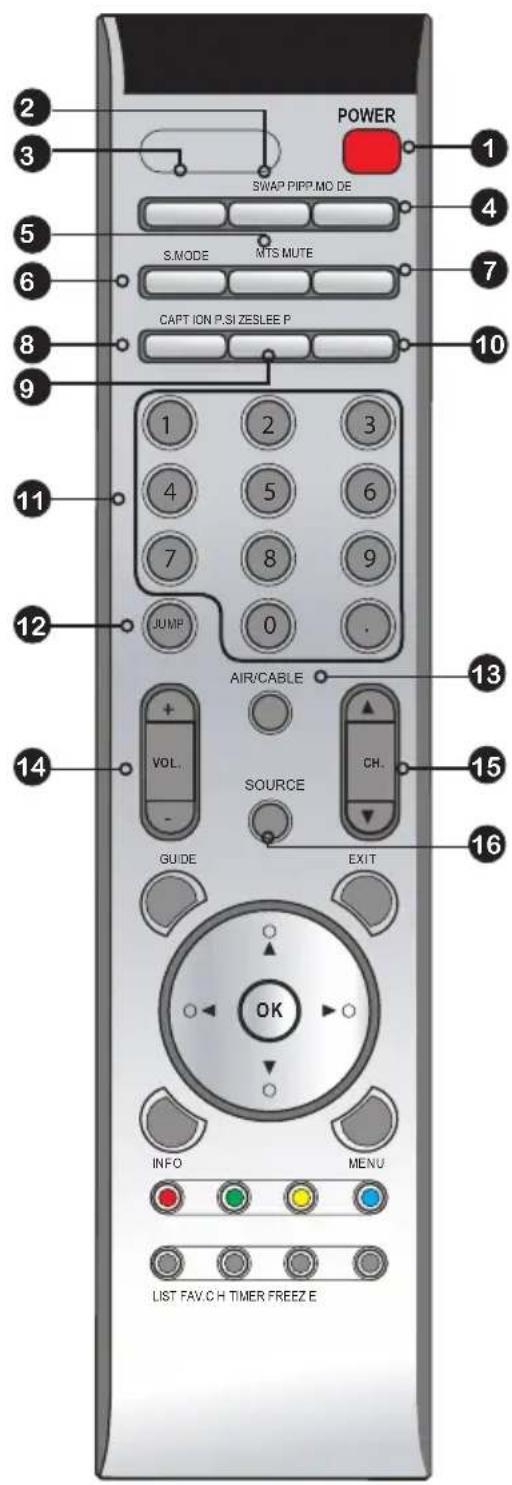
| 1 POWER Turns the LCD TV on and off | |
| 2 SWAP Swaps between the main and sub window in PIP/POP mode | |
| 3 P.MODE Selects picture mode: Vivid/Standard/Cinema/Sport/User | |
| 4 PIP Turns PIP/POP on and off | |
| 5 MTS Cycles through the multi-channels TV sound(MTS) options: SAP/MONO/STEREO | |
| 6 S.MODE Selects sound effect options: Surround/ Live/Dance/Techno/Classic/Soft/Rock/ Pop/Off | |
| 7 MUTE Mutes and restores the audio | |
| 8 CAPTION Cycles through the Closed Caption: OFF/CC1/CC2/CC3/CC4/TT1/TT2/TT3/ TT4/Off | |
| 9 SLEEP Cycles through the LCD TV sleep timer: OFF/30/60/90/120 mins | |
| 10 P-SIZE Cycles through Wide mode settings: NORMAL/FULL/WIDE/ZOOM | |
| 11 0-9 Select and switch to a channel by using 0-9 buttons | |
| • In HDTV mode, use with 0-9 and • buttons to select a digital channels | |
| 12 JUMP Returns to previously selected channel | |
| 13 AIR/CABLE Cycles through the TV receiving signal: AIR: antenna Cable: STD/IRC/HRC | |
| 14 VOL.+- Increases and decreases volume | |
| 15 CH.▲▼ Scans up and down the channels | |
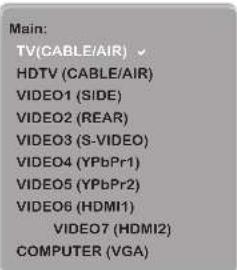
| 16 SOURCE Pressing SOURCE to display a source list use▲▼ buttons to select the video equipment connected to the video inputs of your LCD TV: TV/HDTV/VIDEO1/VIDEO2/VIDEO3/VIDEO4/VIDEO5/VIDEO6/VIDEO7/COMPUTER |
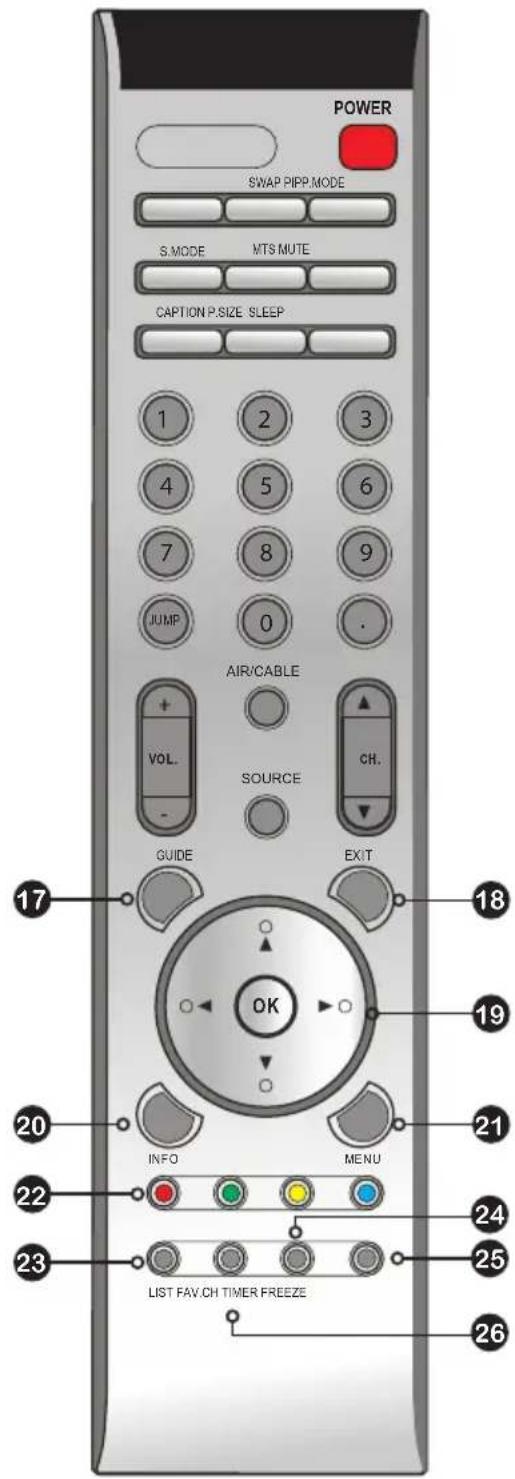

GUIDE In HDTV mode, pressing GUIDE displays the Program Guide on the screen

EXIT Exits the OSD menu

Cycles through OSD options and OK selects individual menu items. OK confirms option settings

INFO Pressing once displays a variety of information such as the current channel and the input source

MENU Displays the OSD menu on the screen

For European TV system only

LIST In HDTV mode, press LIST button to display the received channel list

TIMER Allows you to set up the time, program the TV to turn on and off, and to tune to a specific channel
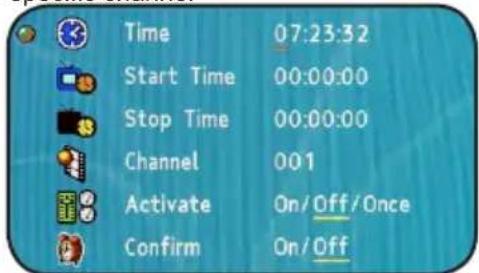
- Time: Select to set the current time by hour, minute, second
- Start Time: Select to set the time that you want the TV to turn on
- Stop Time: Select to set the time that you want the TV to turn off
- Channel: Select to set the specific channel you want the TV to tune to when turned on
Activate: Select to turn on/off/once the timer - Confirm: Select to confirm

FREEZE Pressing FREEZE to freeze the current picture, press again to restore the picture.

FAV.CH Pressing FAV.CH to display favorite channels.

Effective range: The remote can control the LCD TV from up to 5m away, if pointed directly at the receiver.
Chapter 2 Installing the LCD TV
Refer to the owner's manual of any external equipment to be connected.
When connecting any external equipment, do not connect any AC power cords to wall outlets until all other connections are completed.
Connecting a TV Cable or an Antenna
Antenna Connection
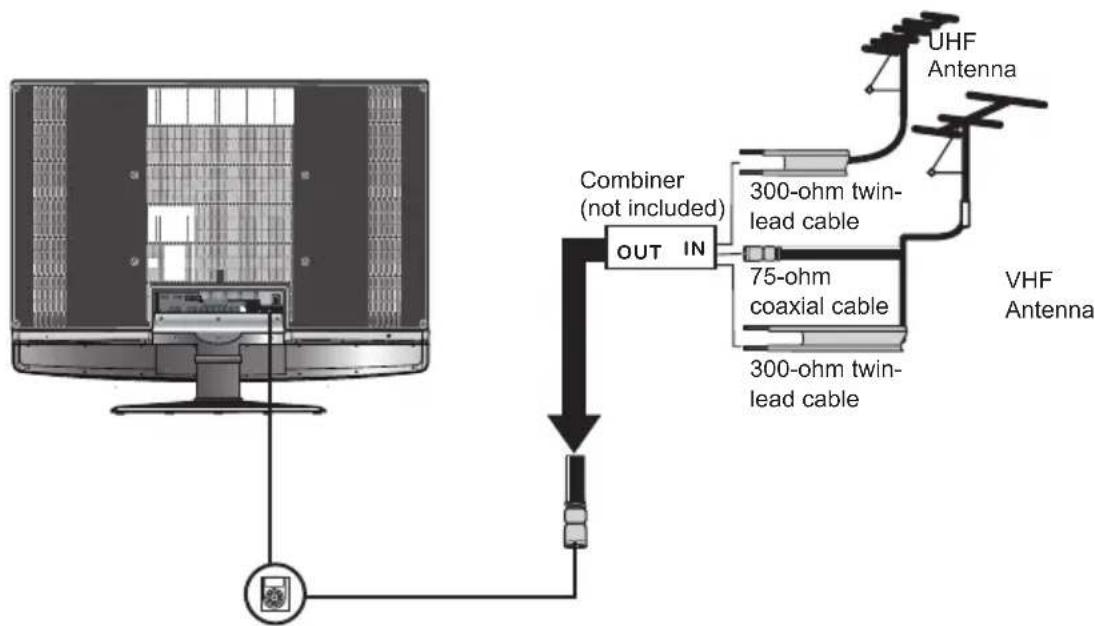
The antenna requirements for good color TV reception are more important than those for a black & white TV reception. For this reason, a good quality outdoor antenna is strongly recommended. The following is a brief explanation of the type of connection that is provided with the various antenna systems.
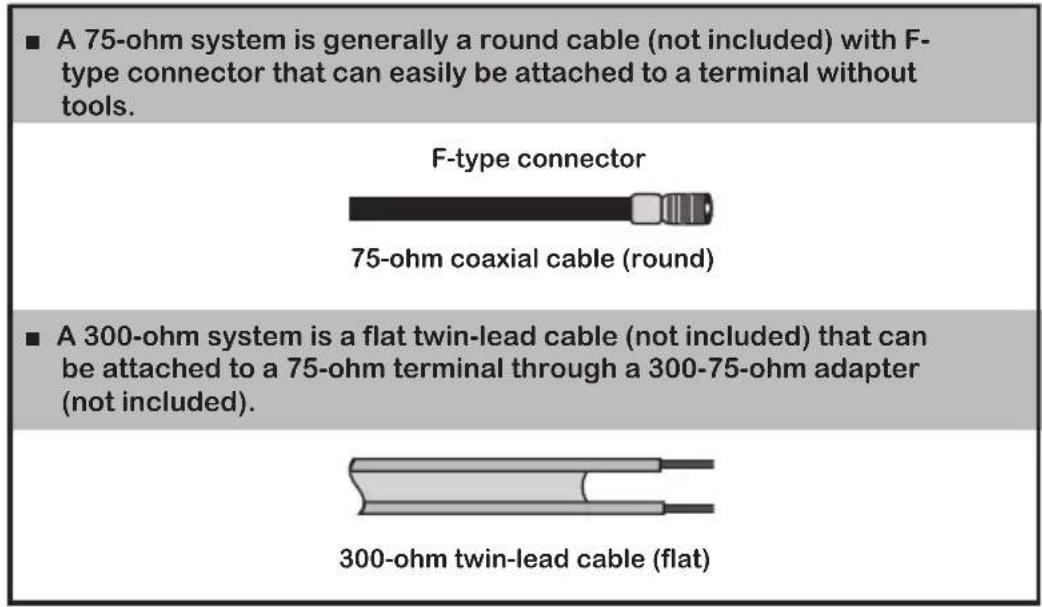
Use one of the following two diagrams when connecting an outdoor antenna.
A: Shows how to use a VHF/UHF combination outdoor antenna.
B: Shows how to use a separate VHF and/or UHF outdoor antenna.
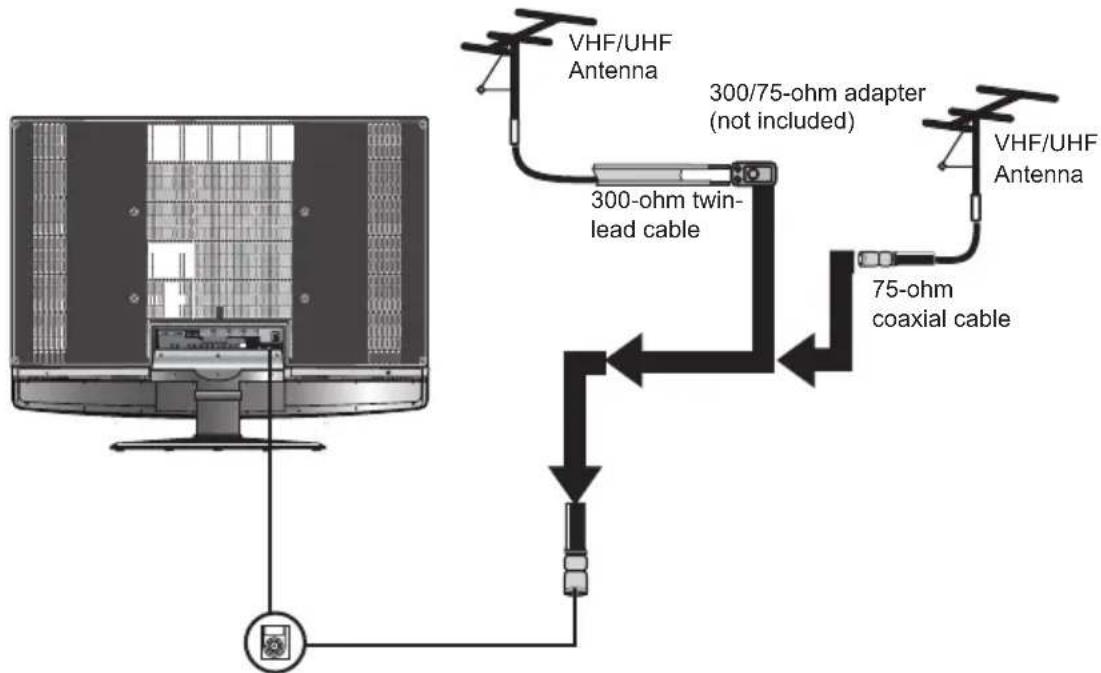
A. Combination VHF/UHF antenna
B. Separate VHF and/or UHF antennas
Cable TV (CATV) Connection
This reminder is provided to call the CATV system installer's attention to Article 820-40 of the National Electrical Code (NEC) that provides guidelines for proper grounding and, in particular, specifies that the cable ground shall be connected to the grounding system of the building accurately, or as close to the point of cable entry as possible. Use of this TV for other than private viewing of programs broadcasted on UHF, VHF or transmitted by cable companies for the use of the general public may require authorization from the broadcast/cable company, and/or program owner.
A 75-ohm coaxial cable connector is built into the set for easy hookup. When connecting the 75-ohm coaxial cable to the set, connect the 75-ohm cable into the ANT. terminal.
- Some cable TV companies offer premium pay channels. Since the signals of these premium pay channels are scrambled, a cable TV converter/descrambler is generally provided to the subscriber by the cable TV company.
This converter/descrambler is necessary for normal viewing of scrambled channels. (Set your TV to channel 3 or 4, typically one of these channels is used. If this is unknown, consult your cable TV company.) For more specific instructions on installing cable TV, consult your cable TV company. One possible method of connecting the converter/descrambler provided by your cable TV company is shown in the diagram below.
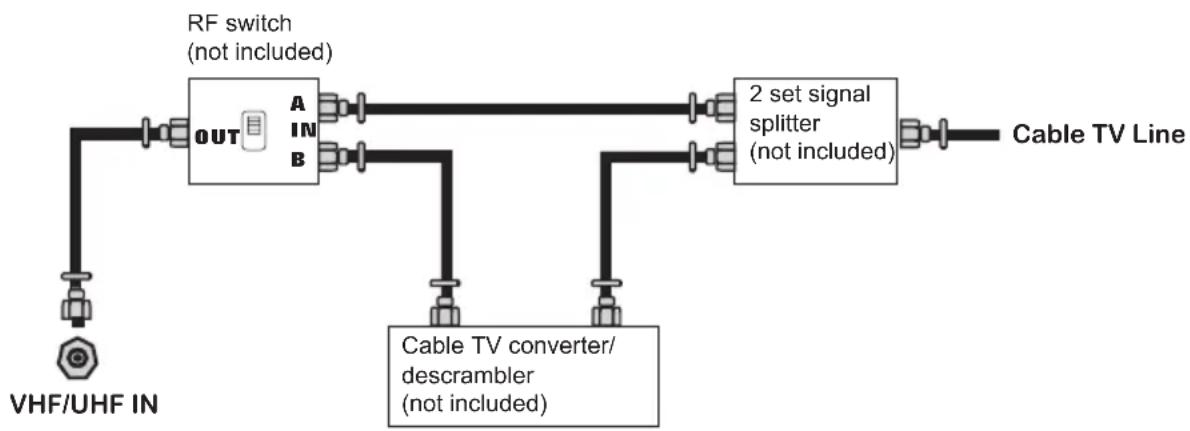

The RF switch (not included) is required to provide two inputs (A and B). Setting the RF switch to position A allows viewing of all unscrambled channels by using the TV channel keys.
- Setting the RF switch to position B allows viewing of all scrambled channels via the converter/descrambler by using the converter channel keys.

METHOD A:
Use an antenna cable to connect the NTSC signal to the LCD TV's TV CABLE terminal.
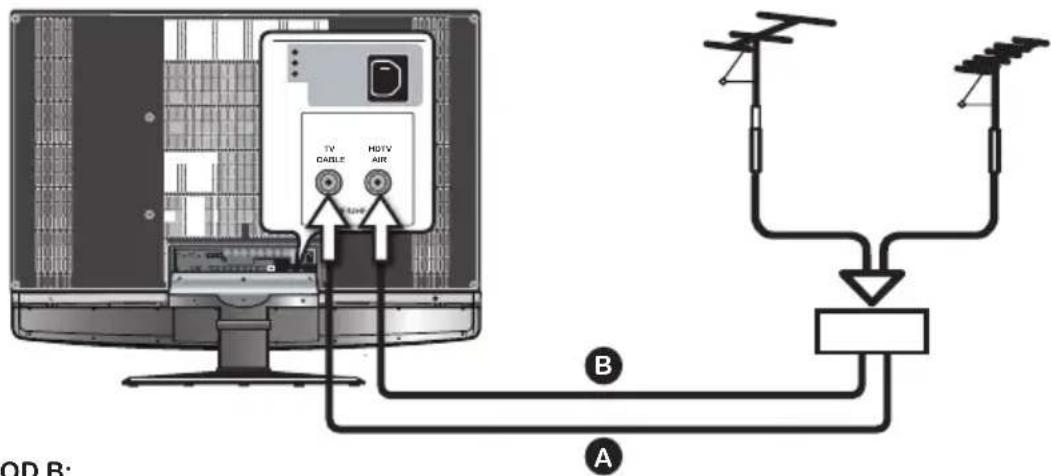
METHOD B:
Use an antenna cable to connect the ATSC signal to the LCD TV's HDTV AIR terminal.

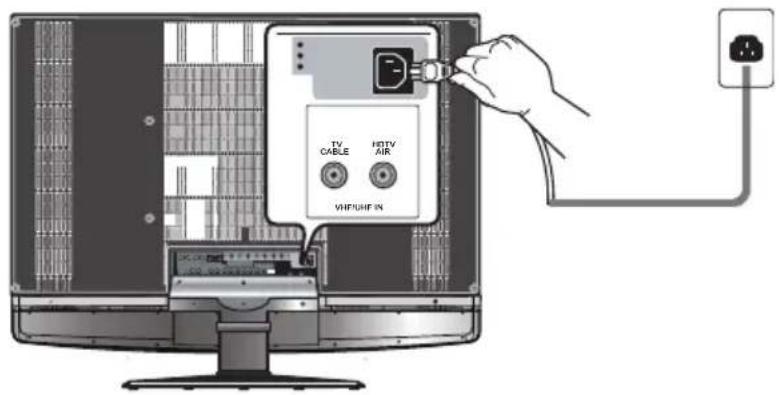
Connect the AC power cord at the back of the TV and connect the power cord to wall outlet.

Press f button on the remote to turn on the LCD TV.

Always disconnect the LCD TV from the power outlet when the LCD TV will not be used for a long period of time. The button on the front panel is only used for switching the LCD TV into standby, it does not disconnect the device from the main voltage. To completely disconnect the main voltage, please remove the power plug from the socket.

Press the SOURCE button on the remote to display the Source List. Use the buttons to select TV (METHOD A), or HDTV (METHOD B), and press the OK button.
Connecting a VCR
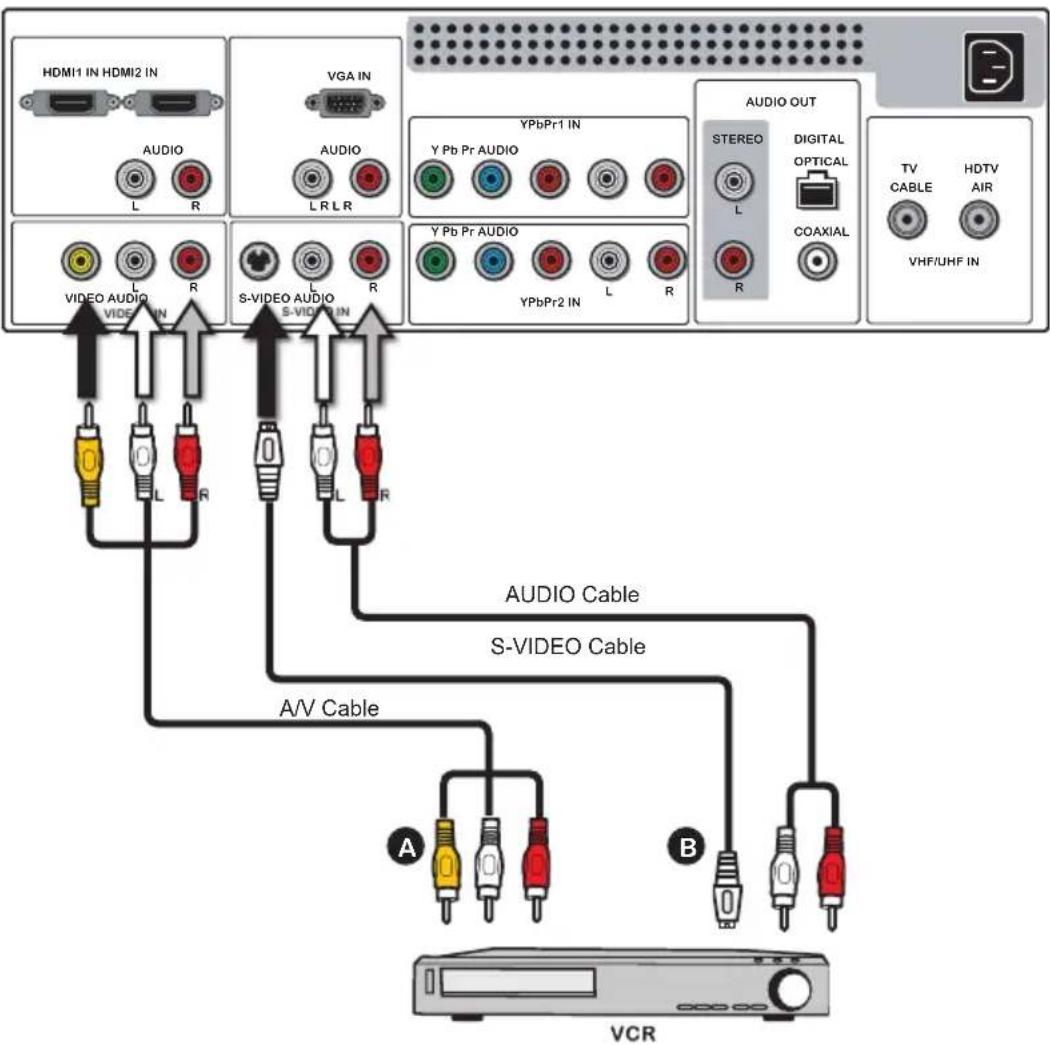
Rear of TV

METHOD A:
Use a composite cable to connect the VCR's composite video/audio jacks to the LCD TV's VIDEO2 IN jacks.
METHOD B:
Use an audio cable to connect the VCR's audio output jacks to the LCD TV's audio inputs. Use a S-Video cable to connect the VCR's S-Video output jack to the LCD TV's S-VIDEO IN input jack.

Connect all AC power sources, before turning on the power switch of the LCD TV or other connected equipment.

Press the button on the remote to turn on the LCD TV.

To watch a videotape, press the SOURCE button on the remote to select
VIDEO2 (METHOD A), or VIDEO3 (METHOD B).
Connecting a Video Camera or Game Console
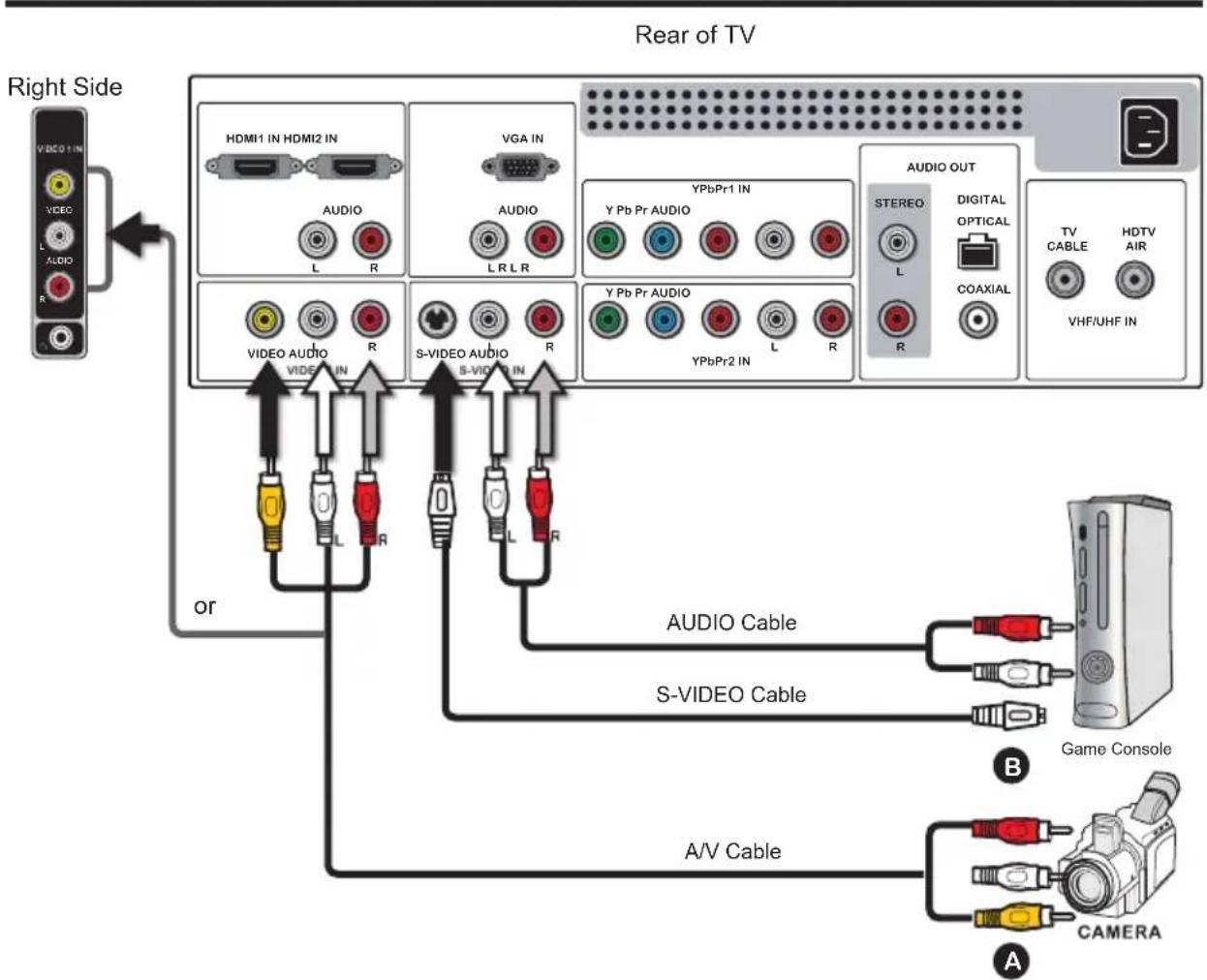
1 METHOD A:
Use a composite cable to connect the video camera's or game console's composite video/ audio jacks to the LCD TV's VIDEO2 IN jackets or VIDEO1 IN jackets.
METHOD B:
Use an audio cable to connect the video camera's or game console's audio output jacks to the LCD TV's audio inputs. Use a S-Video cable to connect the video camera's or game console's S-Video output jack to the LCD TV's S-VIDEO IN input jack.
Connect all AC power sources, before turning on the power switch of the LCD TV or other connected equipment.
3 Press the button on the remote to turn on the LCD TV.
To watch a video camera or game console, press the SOURCE button on the remote to select VIDEO01/VIDEO02 (METHOD A), or VIDEO03 (METHOD B).
! Not all cameras have the ability to connect to a TV. Please check your video camera user guide for compatibility.
Rear of TV
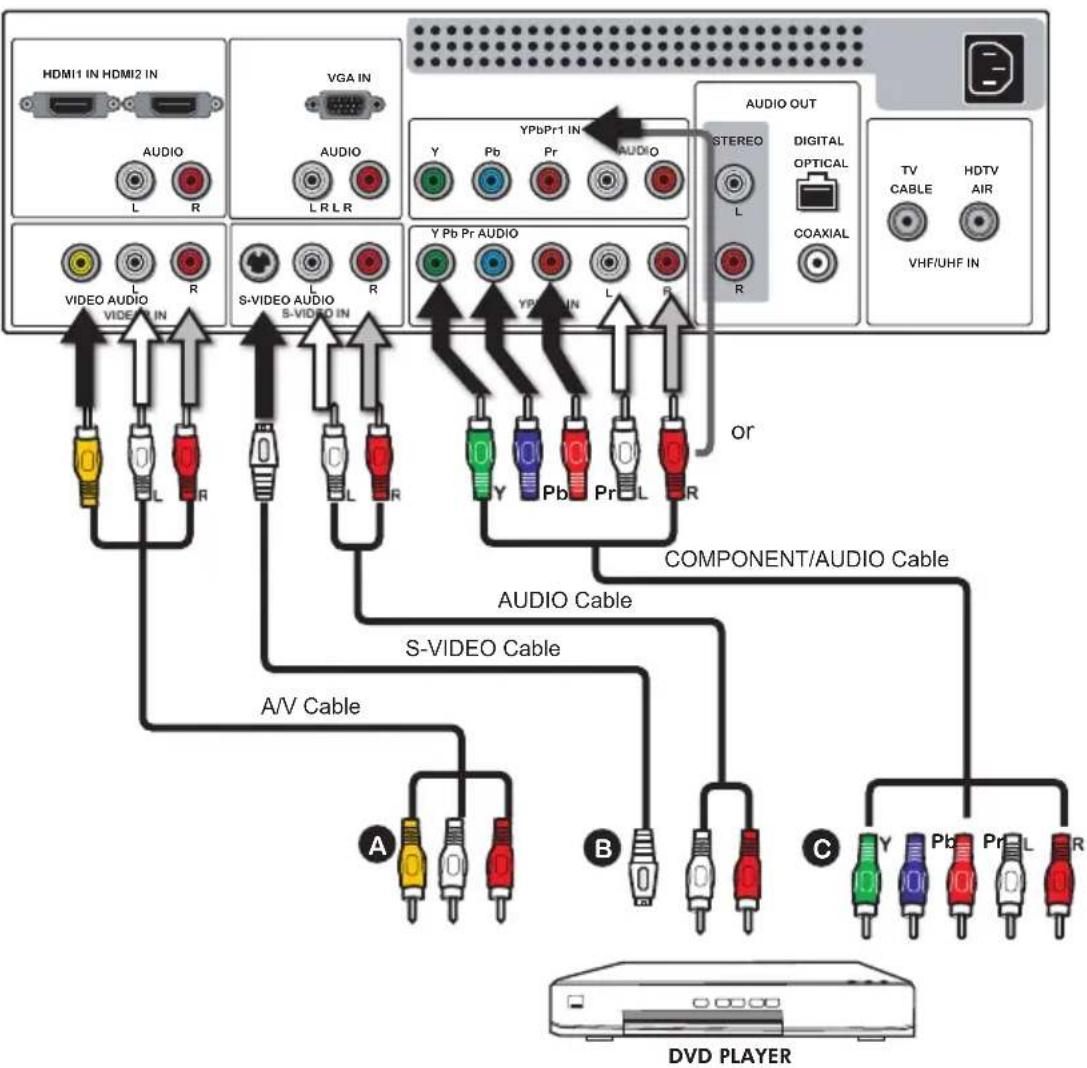

METHOD A:
Use a composite cable to connect the DVD player's composite video/audio jacks to the LCD TV's VIDEO2 IN jacks.
METHOD B:
Use an audio cable to connect the DVD player's audio output jacks to the LCD TV's audio inputs. Use a S-Video cable to connect the DVD player's S-Video output jack to the LCD TV's S-VIDEO IN input jack.
METHOD C:
Use a component cable to connect the DVD player's component output jacks to the LCD TV's YPbPr1 IN or YPbPr2 IN input jacks.
Use an audio cable to connect the DVD player's component audio jacks to the LCD TV's audio input jacks.

The component video jacks on your DVD player are sometimes labeled YPbPr, or YCbCr. For an explanation of component video, see your DVD player's user guide.

Connect all AC power sources, before turning on the power switch of the LCD TV or other connected equipment.

Press the power button on the remote to turn on the LCD TV.

To watch a DVD, press the SOURCE button on the remote to select
VIDEO2 (METHOD A), or VIDEO3 (METHOD B), or VIDEO4/VIDEO5 (METHOD C).

For best picture quality, if your equipment has component video output, use a component cable instead of a composite video or S-Video cable.
Connecting a Digital TV Cable Box or Digital Satellite Receiver
Rear of TV
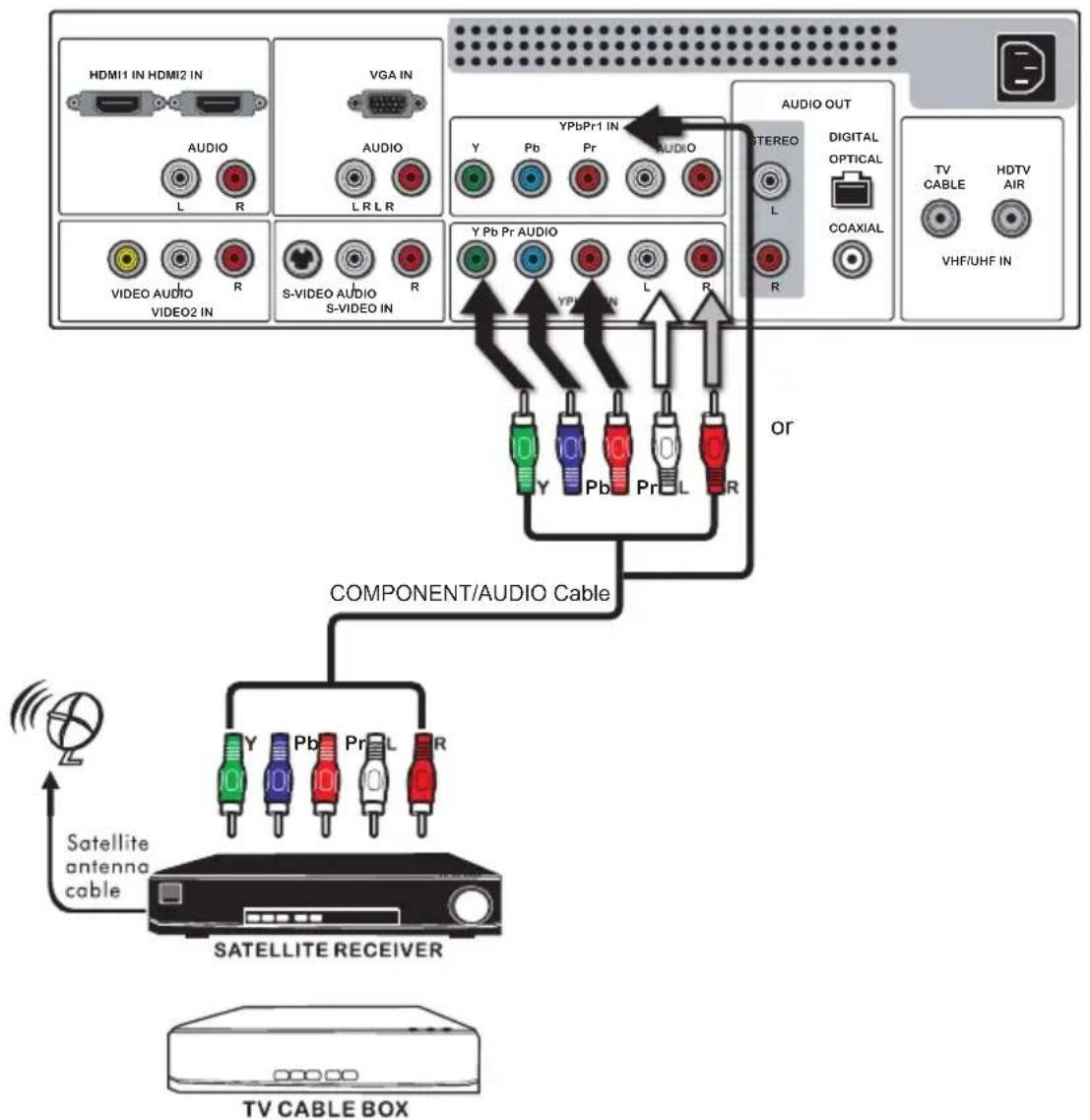

Use a component cable to connect the satellite receiver's/TV Cable Box's component (YPbPr1) output jacks to the LCD TV's component input jacks.
Use an audio cable to connect the satellite receiver's/TV Cable Box's component audio jacks to the LCD TV's audio input jacks.

Connect all AC power sources, before turning on the power switch of the LCD TV or other connected equipment.

Press the button on the remote to turn on the LCD TV.

To watch programs via satellite receiver or TV Cable Box, press the SOURCE button on the remote to selectVIDEO4/VIDEO5.
Connecting an AV Equipment with HDMI Connector
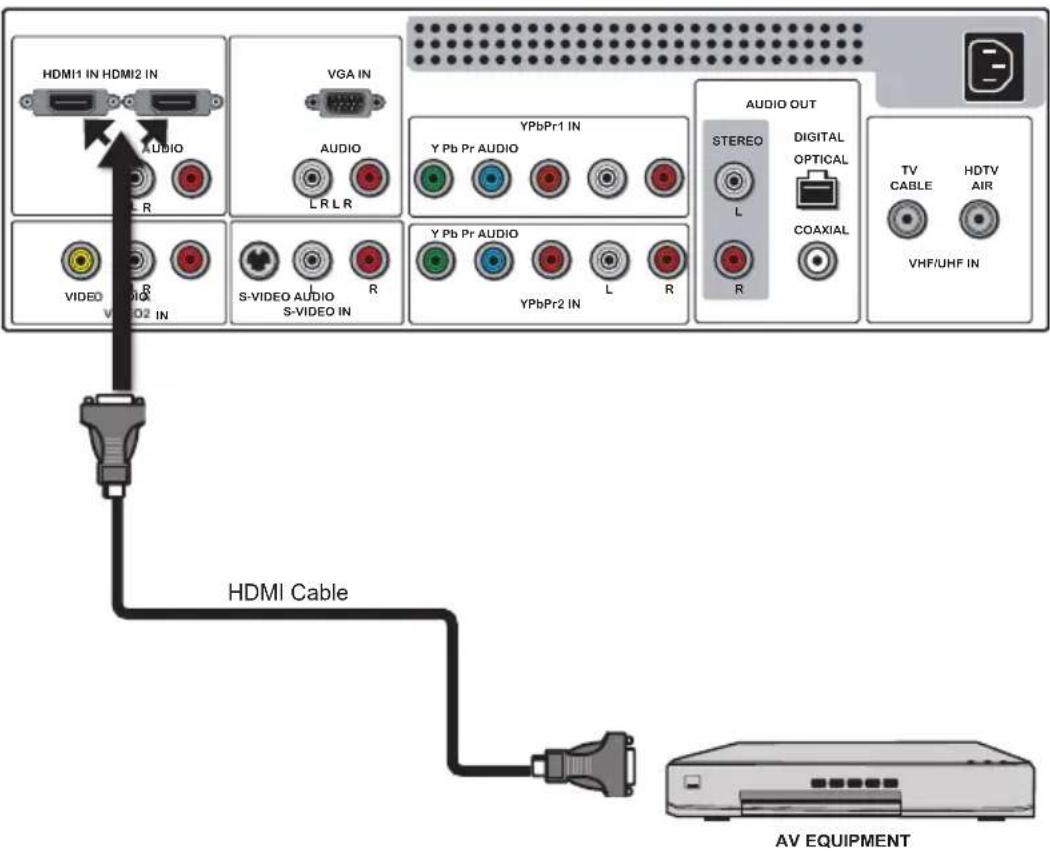
Rear of TV

Use a HDMI cable to connect the AV equipment's HDMI output jack to the LCD TV's HDMI1/HDMI2 IN jacks.

Connect all AC power sources, before turning on the power switch of the LCD TV or other connected equipment.

Press the button on the remote to turn on the LCD TV.

Press the SOURCE button on the remote to select VIDEO6 or VIDEO7.

The HDMI connector provides both video and audio signals. It's not necessary to connect the audio cable.
Connecting an AV Equipment with DVI Connector
Rear of TV
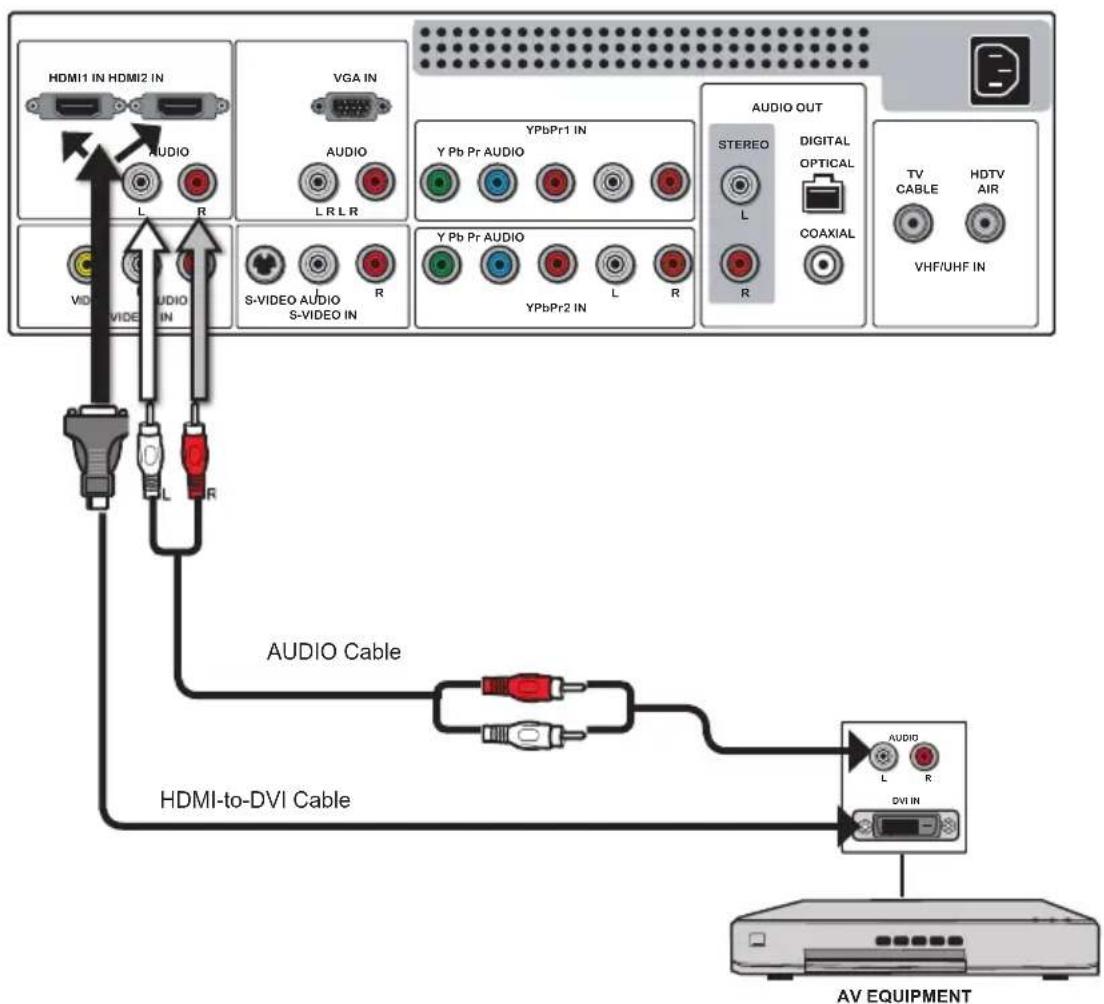

Use a HDMI-to-DVI cable to connect the AV equipment's DVI output jack to the LCD TV's HDMI1/HDMI2 IN jacks.
Use an audio cable to connect the AV equipment's audio output jacks to LCD TV's HDMI AUDIO jacks.

Connect all AC power sources, before turning on the power switch of the LCD TV or other connected equipment.

Press the

button on the remote to turn on the LCD TV.

Press the SOURCE button on the remote to selectVIDEO6 orVIDEO7.

If the LCD TV is connected to AV equipment's DVI connector, you will need a HDMI-to-DVI cable or a HDMI adapter (not included).
Connecting a PC
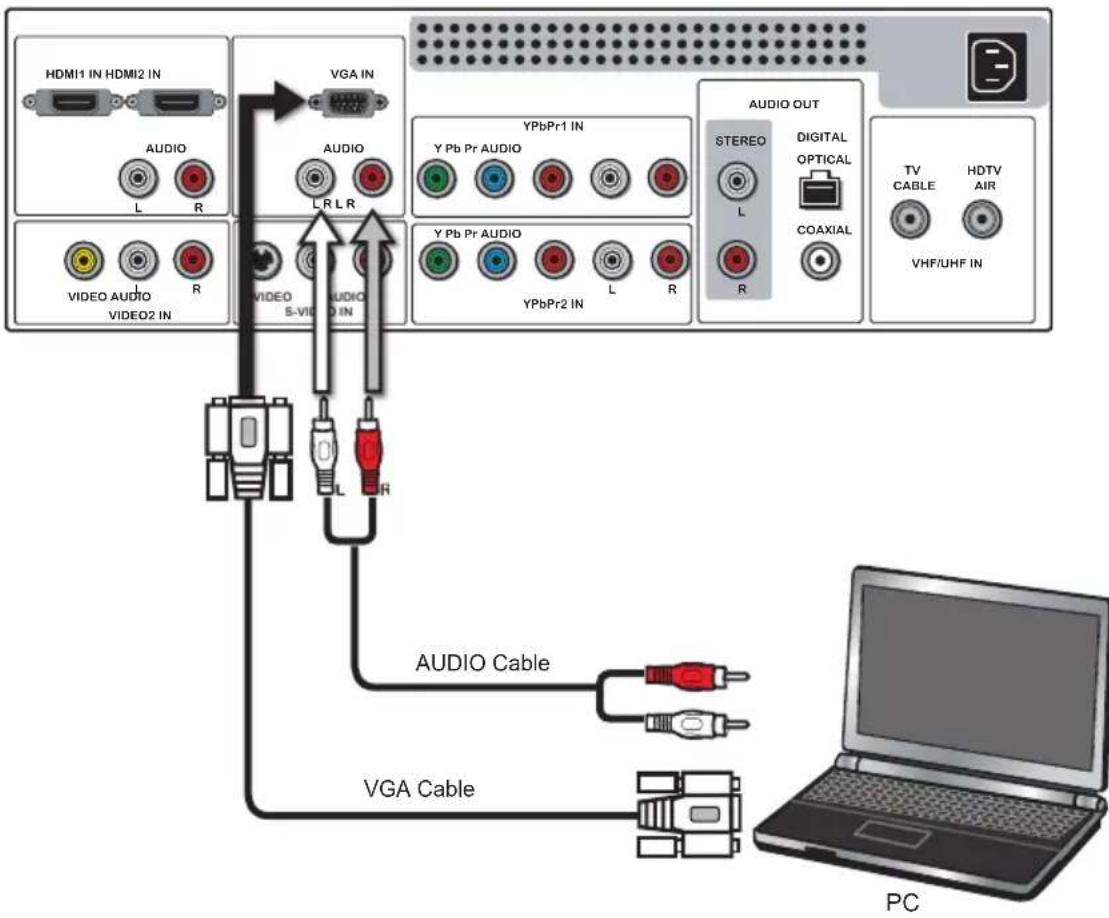
Rear of TV

Use a VGA cable to connect the PC's VGA output jack to the LCD TV's VGA input jack. Use an audio cable to connect the PC's audio output jacks to LCD TV's.

Connect all AC power sources, before turning on the power switch of the LCD TV or other connected equipment.

Press the button on the remote to turn on the LCD TV.

Press the SOURCE button on the remote to select COMPUTER.
Connecting an Audio Receiver or a Dolby Digital 5.1 Sound System
For better sound quality, you may want to play the LCD TV audio through your stereo system.
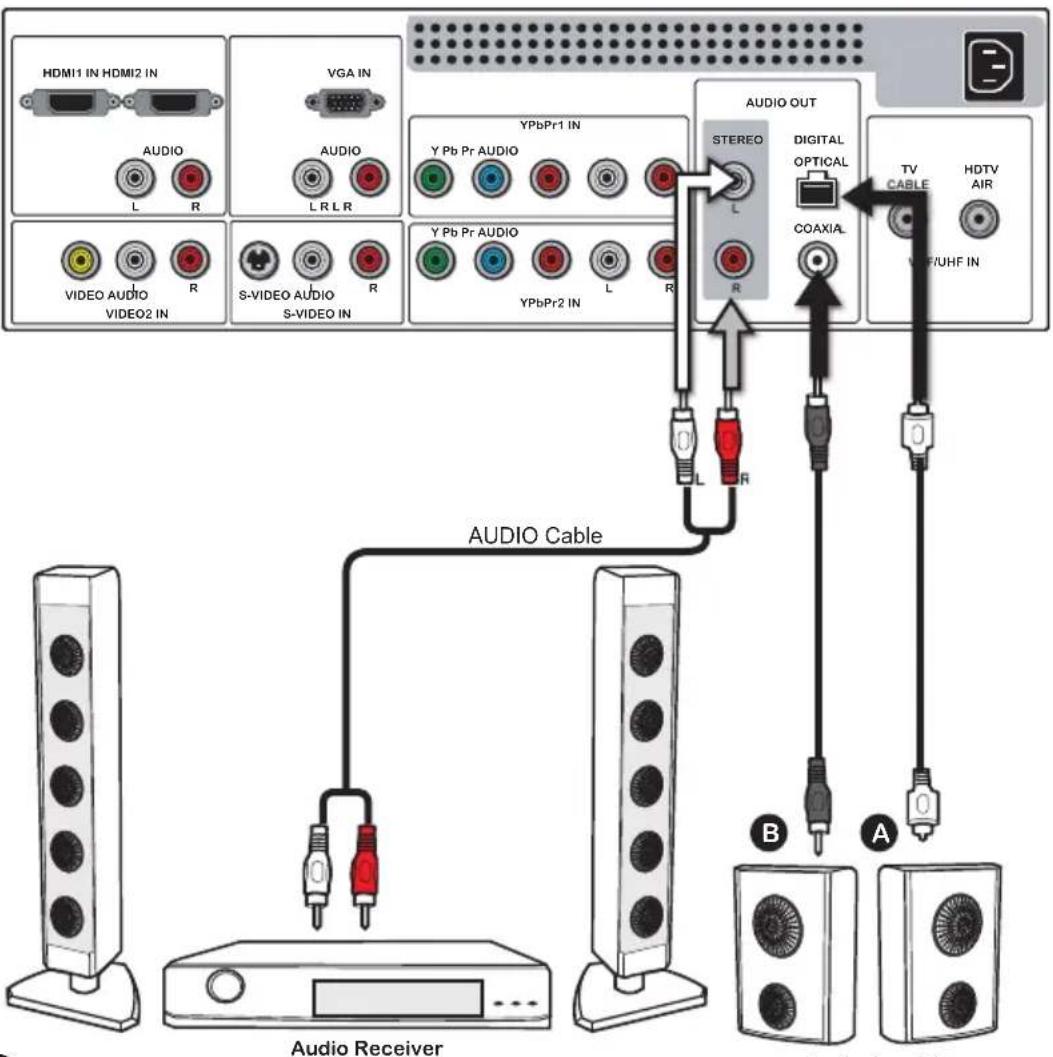
Rear of TV

Connecting to Audio Receiver:
Use an audio cable to connect the audio receiver's audio LINE IN jacks to LCD TV's AUDIO OUT jacks.

Connecting to Digital 5.1 Sound System:
METHOD A:
Use an optical cable to connect the audio amplifier's OPTICAL IN jack to LCD TV's OPTICAL OUT jack.
METHOD B:
Use a coaxial cable to connect the audio amplifier's COAXIAL IN jack to LCD TV's COAXIAL OUT jack. Note: Above mentioned function is only available under HDTV (cable/air) mode.

Connect all AC power sources, before turning on the power switch of the LCD TV or other connected equipment.

Press the button on the remote to turn on the LCD TV.
Chapter 3 USING THE FEATURES
Using Picture-In-Picture
The PIP/POP feature allows simultaneous viewing of video from two sources (TV, VCR, DVD etc). Only one source audio is played at a time. The user may select which source audio is heard.

Press the PIP button once to enter picture in picture mode.
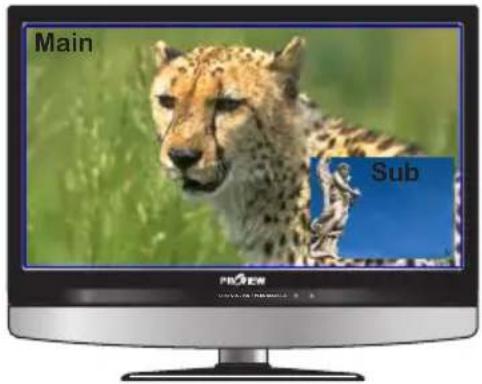
- Press to toggle the audio source between the main window and the sub window.
- Press the OK button to change the position of the second window.
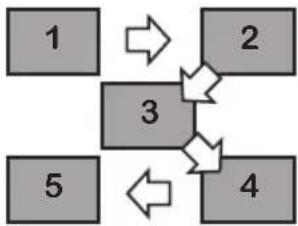
- Press to activate either the main or sub window, then press the SOURCE button to display the Input List:
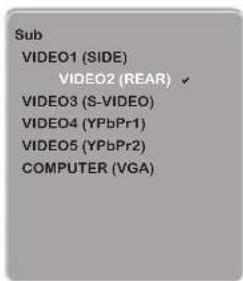
- Press to change input source and press the OK button.

Press the PIP button again to view images side by side.
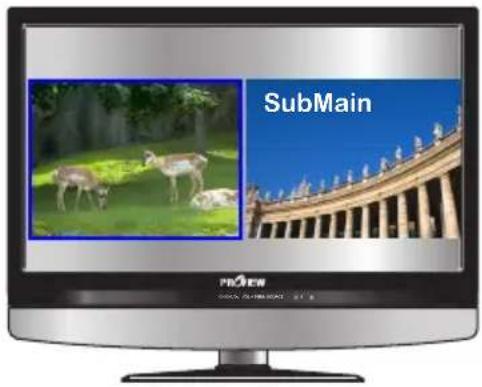
-
Press to toggle the audio source between the main window and the sub window.
-
Press the SWAP button to swap the pictures between the main and sub windows.
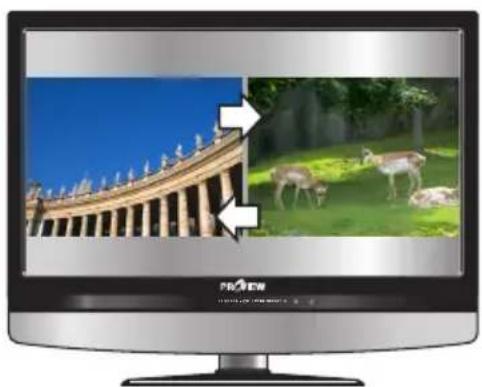
- Press to activate either the main or sub window, then press the SOURCE button to display the Input List:
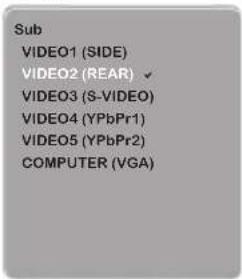
Press to change input source and press the OK button.

Press the PIP button again to exit.
Wide Screen Viewing
Wide Screen function allows viewing of 4:3/16:9 images in wide screen mode, cycling through the following wide screen settings. Press the P.SIZE button repeatedly to select the screen format you want.

NORMAL
Displays at 4:3 aspect ratio
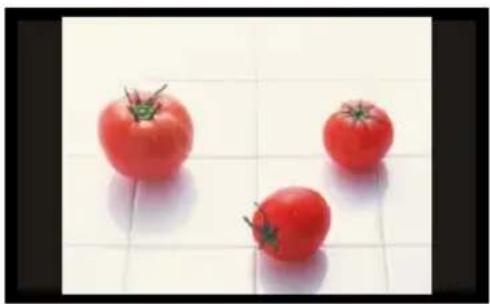

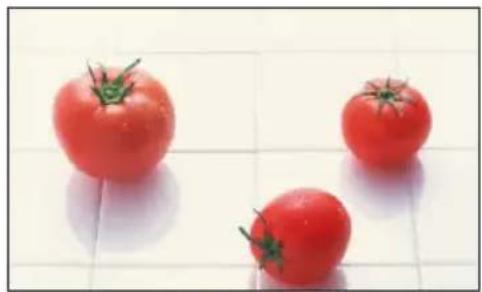
FULL
Stretches the image vertically and horizontally to keeps the image size consistent in the center of the screen and stretches the sides

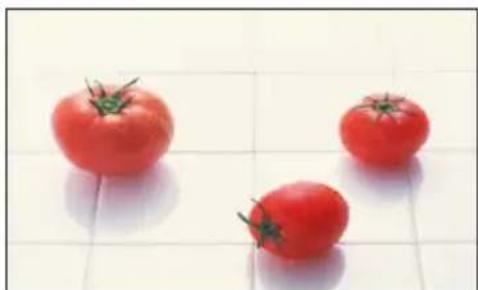
WIDE
Stretches the image vertically and horizontally to fill the screen at 1:1.85 aspect ratio

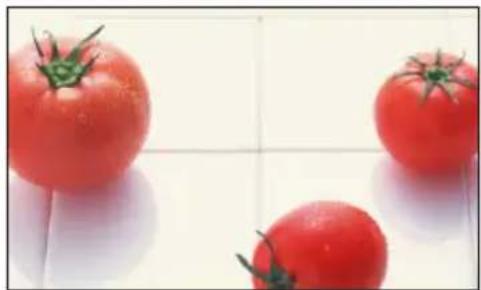
ZOOM
Stretches the image vertically and horizontally to fill the screen at 1:2.35 aspect ratio
Operating the Menu

Press t button to turn the LCD TV on.

Press the MENU button on the remote control, the on-screen menu will appear on the screen. Use the buttons to select your main menu option.
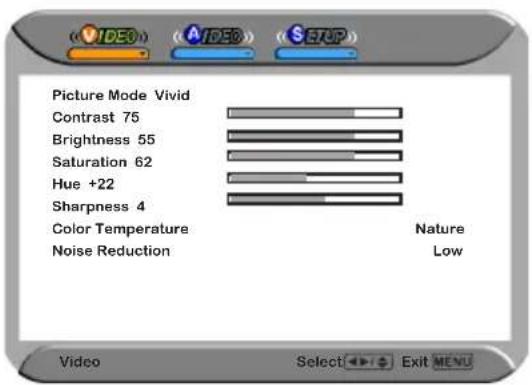
VIDEO MENU:
Allows you to make adjustments to your picture settings.
-
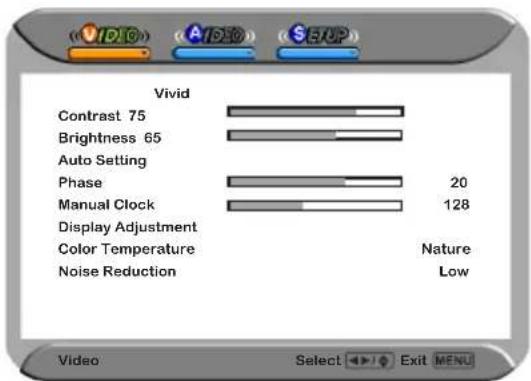
If the signal source is TV/HDTV/VIDEO/SVIDEO/YPbPr/HDMI, the VIDEO MENU appears as:
-
If the signal source is VGA, the VIDEO MENU appears as:
AUDIO MENU:
Allows you to customize the audio options and effects.
-
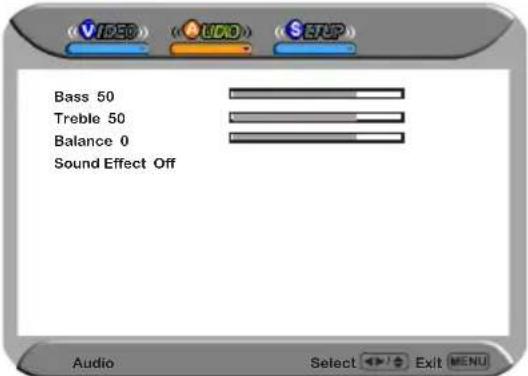
If the signal source isVIDEO/SVIDEO/YPbPr/HDMI/VGA, the AUDIO MENU appears as:
-
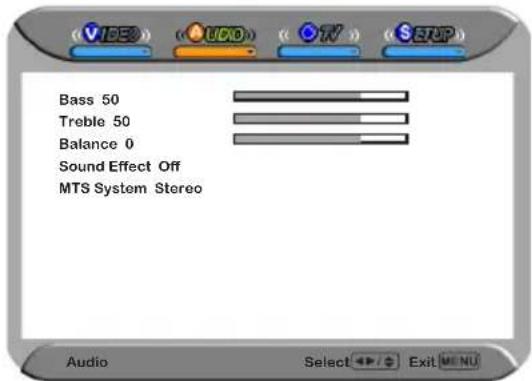
If the signal source is TV, the AUDIO MENU appears as:
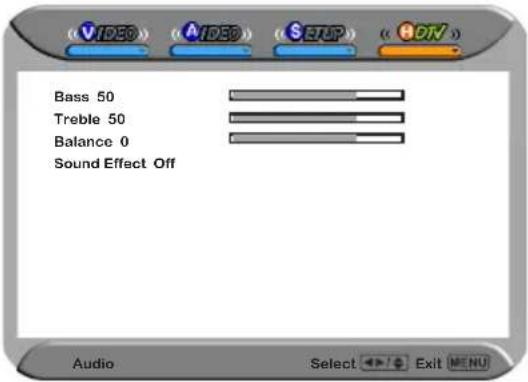
- If the signal source is HDTV, the AUDIO MENU appears as:
SETUP MENU:
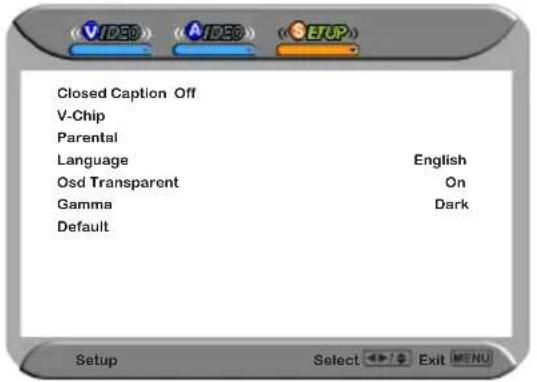
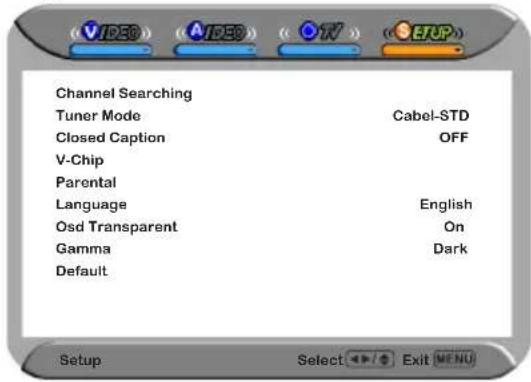
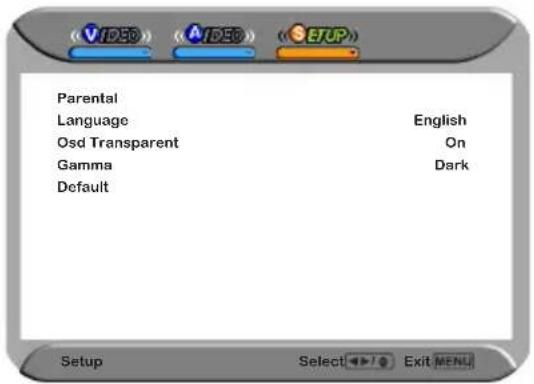
Allows you to set up a variety of features: Language, Closed Caption, factory reset, V-Chip, Parental Control, sleep timer.
- If the signal source is VIDEO/S-VIDEO, the Setup menu appears as:
- If the signal source is TV/HDTV, the Setup menu appears as:
- If the signal source is YPbPr/HDMI/VGA, the Setup menu appears as:
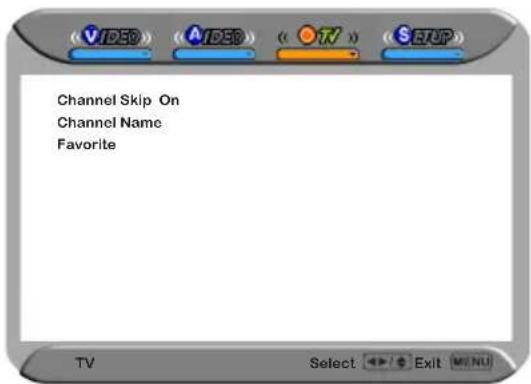
TV MENU:
Allows you to edit and label channels.
HDTV MENU:
Allows you to set up the HDTV program function.
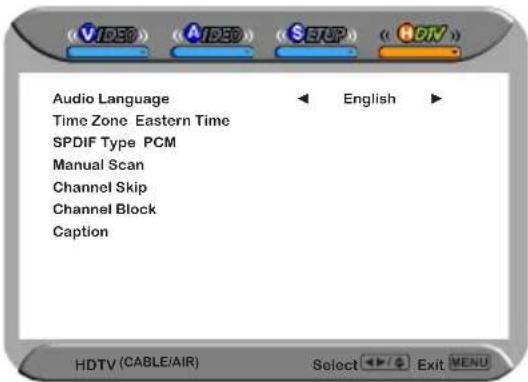

Use the buttons to select an option of the sub-menu, and press the OK button. While in adjustment mode, and use the buttons to change the value of the item.

Press the EXIT button to exit the menu.
Setting up the HDTV Function
Automatically scans and stores all the TV channels

With the LCD TV connected to a television programming source, press the SOURCE button on the remote to display the Source List. Use the buttons to select HDTV, and press the OK button.

Press the MENU button on the remote control to display the Main menu, and use the buttons to select the SETUP.
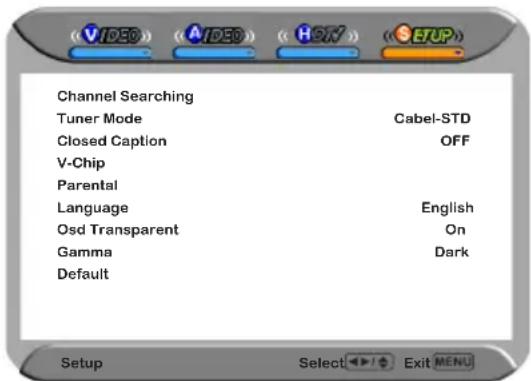

Press the button to select Channel Searching, and press the OK button. The Channel Searching automatically creates a list of receivable channels from VHF/UHF antenna or Cable TV if the source is connected. Select the Cancel button at any time to interrupt the memorization process. (the list will not be created if interrupted)
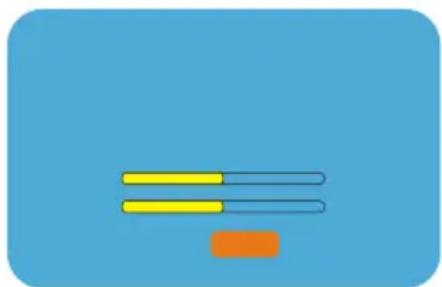

The Channel Searching will create a list of receivable channels for the current input (antenna or cable). You will be required to run Channel Searching for each RF input to create a list of available channels from both inputs.

Press the OK button or LIST button to display the received channel list, then press buttons to select a channel. Or, use the · button with 0-9 buttons to select digital channel (for example 9.1).
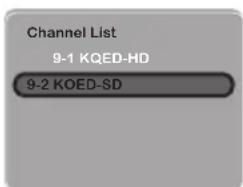

The digital main channel might include many subchannels (for example 9-1, 9-2..) that are showing program at the same time.

The HDTV menu includes the following options:
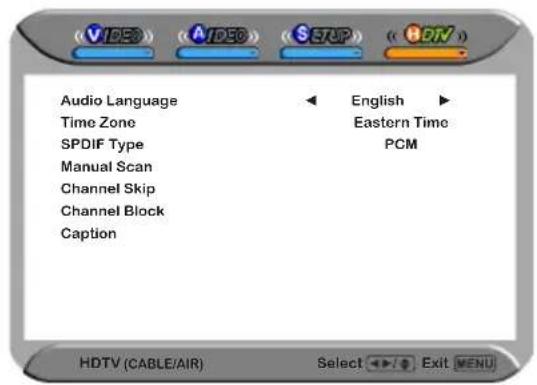
Audio Language
Allows selection of audio languages: English/Spanish/French
Time Zone
Allows selection of time zones in the USA: Eastern Time/Indiana/Central time/Mountain Time/Arizona/Pacific Time/Alaska/Hawaii
SPDIF Type
Allows selection of external audio system: PCM/OFF/Dolby Digital
PCM: The external audio system is connected to the AUDIO
OUT (L/R) of the LCD TV
- Dolby Digital: The external audio system is connected to the AUDIO
OUT DIGITAL (OPTICAL or COAXIAL) of the LCD TV
- OFF: Select OFF to turn off the external audio system
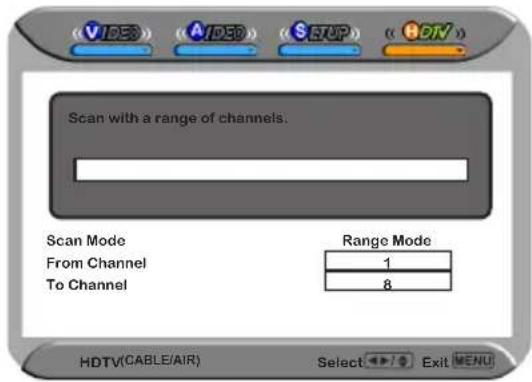
Manual Scan
Allows to set up TV channel manually
Channel Skip
Allows addition/removal of digital channels
Channel Block
Allows to block digital channels Use the Channel Block function, must enter a four-digit password. The factory password is 0000.
Caption Allows to set closed caption
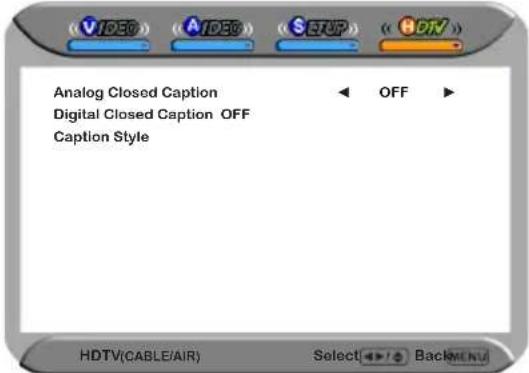
- Analog Closed Caption:
Press the buttons to select the basic analog closed caption options: OFF/CC1/CC2/CC3 CC4
Press
Digital Closed Caption:
the buttons to select the digital closed caption options: Service1/Service2/Service3/Service4/Service5/Service6/OFF
Note: The setting here will be applied to each DTV channel
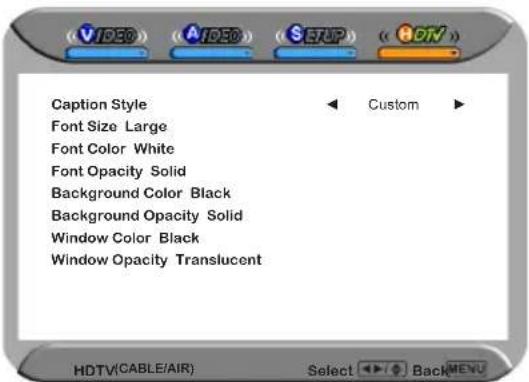
- Caption Style:
Press OK button to customize the settings for digital closed caption option:
Using the Program Guide
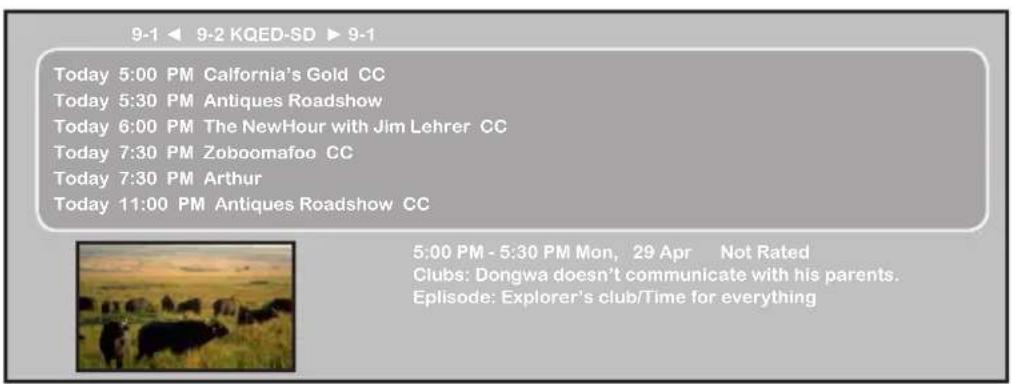
The Program Guide feature brings all sorts of information to your screen, such as program title, program duration, time remaining, rating information, closed caption, availability, etc.

With the LCD TV connected to a television programming source, press the TV button on the remote control.

Press the GUIDE button on the remote control, the Program Guide will appear on the screen:
Monday 29 April 2005 2:36:26 PM
9-2 KOED-SD

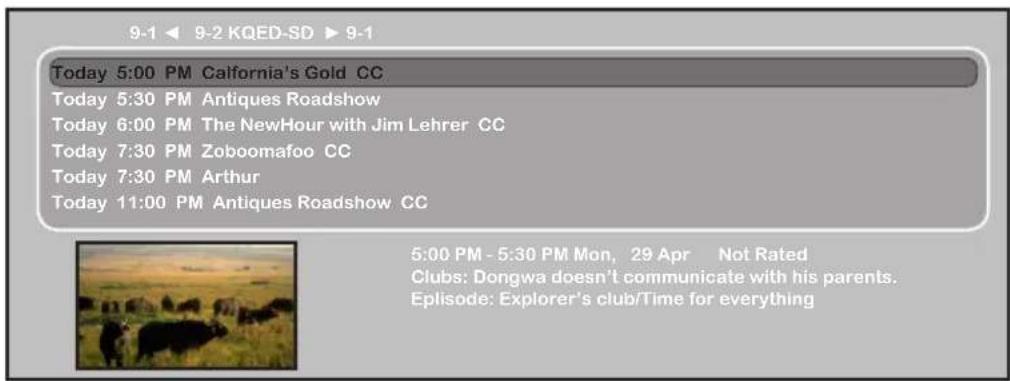
Press the button to select the program from a list, the Program Guide provides introduction about the current program being shown on each channel.
Monday 29 April 2005 2:36:26 PM
9-2 KOED-SD

Press the GUIDE button again on the remote control to exit the Program Guide
Customizing the VIDEO Settings

Press the button to turn the LCD TV on.

Press the MENU button on the remote control to display the Main menu, and use the buttons to select the VIDEO.

Use the buttons to highlight an individual VIDEO option, use the buttons to change the setting, and press the MENU to exit the menu
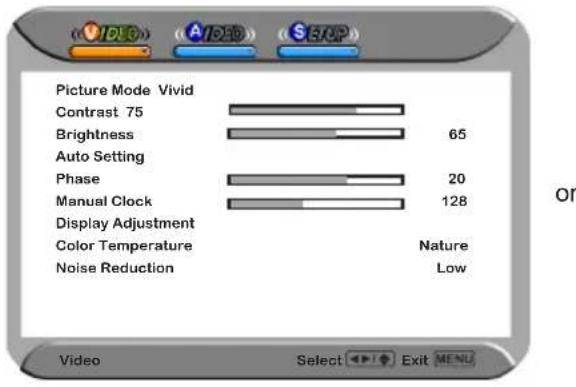
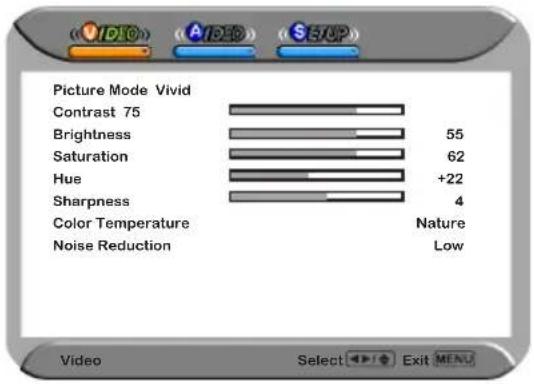

TheVIDEO menu includes the following options:
Picture Mode Cycles among display types: Vivid/Standard/Cinema/Sport/User
Contrast Controls the difference between the brightest and darkest regions of the picture
Brightness Controls the overall brightness of the picture
Saturation Controls the color intensity
Hue Controls the difference between the green and red regions of the picture
| Sharpness | Increase this setting to see crisp edges in the picture, decrease it for soft edges |
| Auto Setting | Press the OK button to automatically adjust the display settings to optimize performance based on the VGA mode |
| Phase | Controls the signal phase, which can improve focus clarity and image stability based on the VGA mode |
| Manual Clock | Controls the width of the picture based on the VGA mode |
Display adjustment
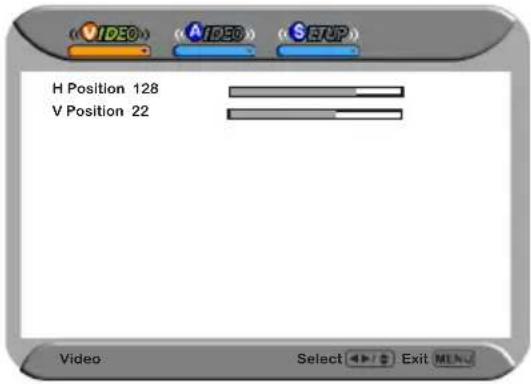
Press the OK button to enter the Display adjustment setting:
-
H Position Adjusts the position of the picture left and right in the window
-
V Position Adjusts the position of the picture up and down in the window
Color temperature
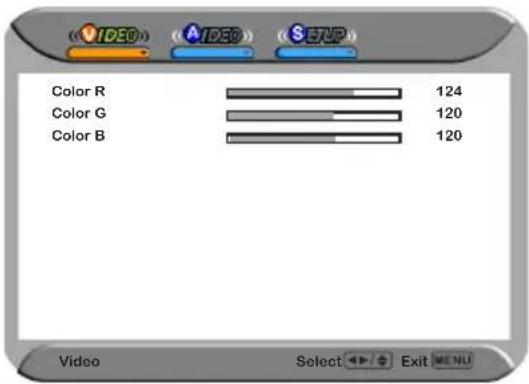
Adjusts color components independently to achieve a warm or cool effect: Cool/Middle/Warm/User
Warm: Increases red tint
Nature: Increases natural tint
Cool: Increases blue tint
- User: Allows the user to adjust red, green and blue color component levels independently
Noise Reducion:
Select to reduce the noise level of connected equipment: Off/On/Strong/Middle
Customizing the AUDIO Settings

Press the button to turn the LCD TV on.

Press the MENU button on the remote control to display the Main menu, and use the buttons to select the AUDIO.

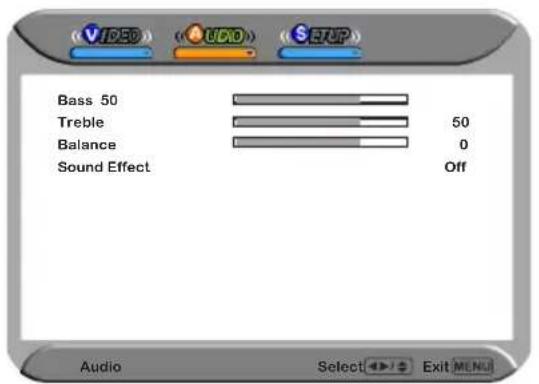
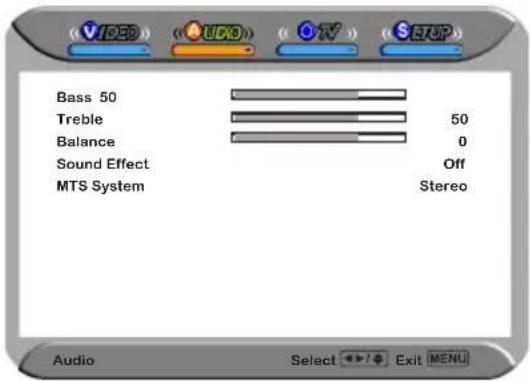
Use the buttons to highlight an individual AUDIO option, use the buttons to change the setting, and press the MENU to exit the menu
or

The AUDIO menu includes the following options:
Bass Controls the relative intensity of lower-pitched sounds
Treble Controls the relative intensity of higher pitched sounds
Balance Adjusts the relative volume of the speakers in a multiple speaker system
Sound Effect Allows selection of an audio-enhancement technique from among the following options: Surround/Live/Dance/Techno/Classic/Soft/Rock/Pop/Off
MTS System
Allows you to listen to high-fidelity stereo sound while watching TV
- Stereo:
Use separate audio tracks for left and right speakers, if available.
SAP:
You can enjoy a second audio program from the speakers while watching a scene in the original program
Mono:
Allows mono output (useful when stereo is noisy or inconsistent)
Customizing the SETUP Settings

Press the button to turn the LCD TV on.

Press the MENU button on the remote control to display the Main menu, and use the buttons to select the SETUP.

Use the buttons to highlight an individual SETUP option, use the buttons to change the setting, and press the MENU to exit the menu.
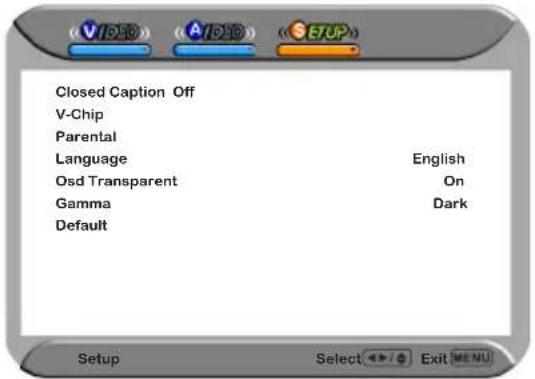
or
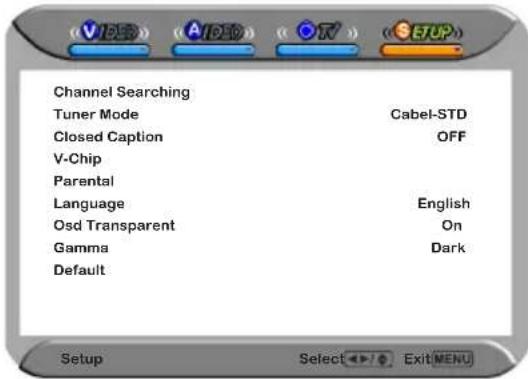
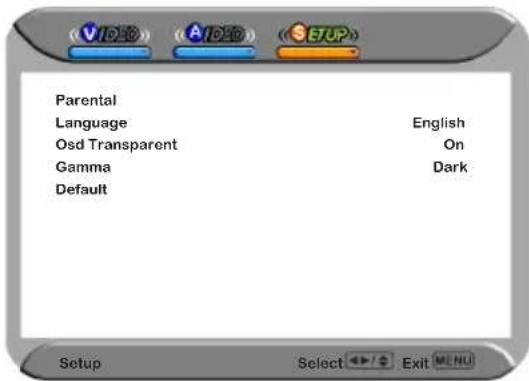

The SETUP menu includes the following options:
| Channel Searching | Press the OK button, will automatically create a list of receivable channels |
| Tuner Mode | Allows selection between CATV cable and antenna signal sources:AirChoose this setting if you are receiving TV channels with an antenna (over the air)Cable STD/IRC/HRCChoose this setting if you are receiving TV channels with a CATV (cable TV). |
Closed Caption Allows to select from 4 closed caption modes:
- CC1/CC2/CC3/CC4:
Display a printed version of the dialog and sound effects of the program being viewed
T1/T2:
Display station information presented using either half or the whole screen
T3/T4:
Extended Data Services. For example: Network name, program name, program length, etc
| V-Chip | Allows to setup the TV and MPAA Rating Lock options (refer to “Using the V-CHIP Setting”) |
| Parental Allows to setup the Parental Lock options | |
| Language | Select to display all on-screen menus in your language of choice: English/French/Spanish |
| OSD Transparent | Controls the translucence of the OSD’s (on screen display) background |
| Gamma | Allows adjustment of the display's gamma correction, which fine-tunes both brightness and red/green/blue ratios: On/Off/Middle |
| Default Restores factory settings | |
Using the V-CHIP Settings
The US has 2 rating system for viewing content: Movie blocking(MPAA) and TV Blocking.
The TV Blocking conjuncts with the V-CHIP to help parents block inappropriate programs from their children.
The Movie blocking(MPAA) is used for original movies rated by the Motion Picture Association of America(MPAA) as broadcasted on cable TV and not edited for television.
The V-CHIP can also be set to block MPAA-rated movies.

Use the button to select the V-Chip, and press the OK to display the V-Chip menu.
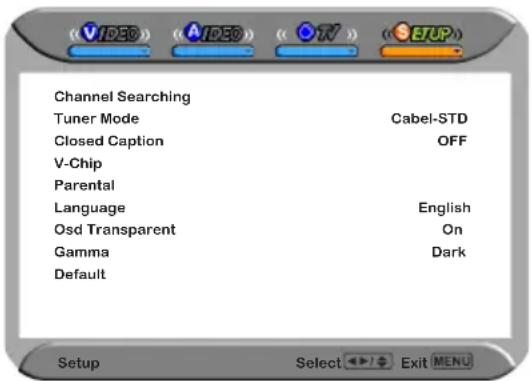

Use the V-CHIP function, must enter a four-digit password. The factory password is 0000.
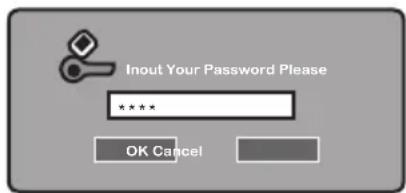

The MPAA includes the following options:
RATING DESCRIPTION
G General Audiences. Movie is appropriate for all ages.
PG Parental Guidance Suggested. May contain material not suited for younger viewers
PG-13 Contains content that may not be appropriate for viewers under the age of 13.
R Restricted. Contains adult content, no one under 17 admitted without parent.
NC-17 No one 17 and under admitted.
Use the buttons to select the rating you want and press the OK button repeatedly to select BLOCK( ) or UNBLOCK(X).

The TV GUIDELINE has 2 rating methods: Content-Based Rating and Age-Based Rating.
The TV GUIDELINE includes the following options:
AGE-BASED
| RATING | DESCRIPTION | RATING | DESCRIPTION |
| TV-Y | All children | FV | Fantasy violence |
| TV-Y7 | Directed to children age 7 and older | D | Suggestive dialogue |
| TV-G | General Audience | L | Strong language |
| TV-PG | Parental Guidance suggested | S | Sexual situations |
| TV-14 | Parents strongly cautioned | V | Violence |
| TV-MA | Mature Audience only |
| CONTENT-BASED | ||||||
| FVD L S | V | |||||
| AGE-BASED | TV-Y | |||||
| TV-Y7 | ✓ | |||||
| TV-G | ||||||
| TV-PG | ✓✓ | ✓✓ | ||||
| TV-14 | ✓✓ | ✓✓ | ||||
| TV-MA | ✓✓ | ✓ | ||||
: To block programs by both content and age.
Use the buttons to select the rating you want and press the OK button repeatedly to select BLOCK( ) or UNBLOCK(X).

The V-CHIP menu includes the following options:
Block MPAA Rating Select to activate the MPAA Rating programs
Block TV Rating Select to activate the TV Rating programs.
Block MPAA Unrated - YES:
Blocks all movies that are broadcast without a MPAA rating.
NO:
Allows all movies that are broadcast without a MPAA rating
Block TV None Rating - YES:
Blocks all movies that are broadcast without a TV rating
NO:
Allows all movies that are broadcast without a TV rating
Using the Parental Settings
The Parental blocking can be set up to the TV to block a Channel or a Video Source.

Use the V-CHIP function, must enter a four-digit password. The factory password is 0000.
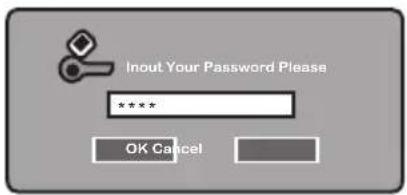

Use the button to select the Parental, and press the OK to display the Parental menu.
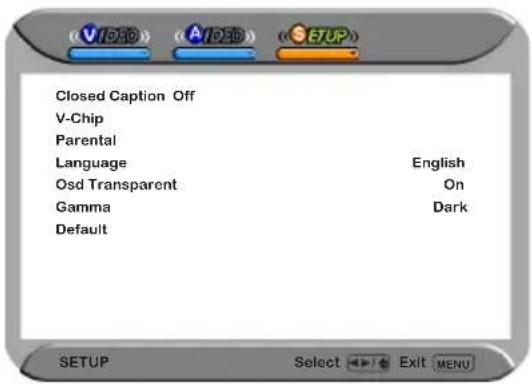

You will need your password for any future access into the V-Chip and Parental Setting.

The Parental menu includes the following options:
Channel Lock Select to block a TV channel
Video Lock Select to block a Input source signal
Change Password Select to change your password
Customizing the TV Settings

Press the POWER button to turn the LCD TV on.

Press the MENU button on the remote control to display the Main menu, and use the buttons to select the TV.

Use the buttons to highlight an individual TV option, use the buttons to change the settings, and press the MENU exits the menu.
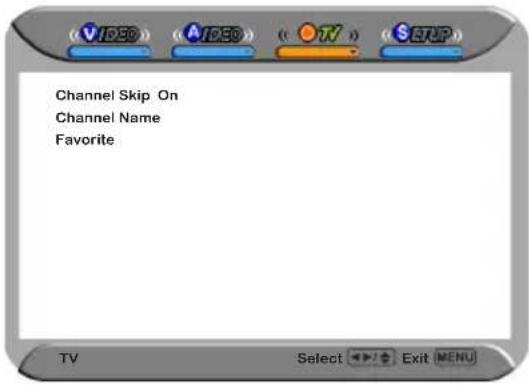

The TV menu includes the following options:
Channel Skip Allows addition/removal of channels on the channel list
Channel Name Allows channel labels to be edited
Favorite
Select Favorite from the TV option and press the OK button. Favorite Channel list appears:
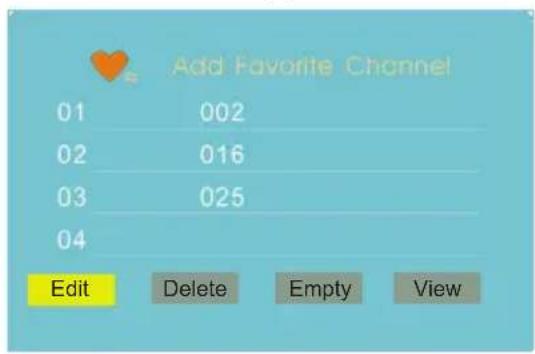
Edit
To add the current channel to the list of Favorite Channels Press 0-9 buttons to enter the desired channels
- Delete
To remove a channel from the list of Favorite Channels
Empty
To clear all Favorite Channels
View
To watch the selected channel of Favorite Channels
TROUBLESHOOTING

Before consulting service personnel, check the following chart for a possible cause of the trouble and for a possible solution.
TV will not turn on
Make sure the power cord is plugged in, then press the button on the remote.
The batteries in the remote control may be exhausted.
3 Replace the batteries.
No picture, no sound
Check the interface cable between TV and antenna/cable TV.
Press the button on the remote.
3 Press the SOURCE button on the remote, then press button to select the connected video sources.
Poor picture, sound OK
Check the interface cable between TV and antenna/cable TV.
Try another channel, the station may have broadcast difficulties.
3 Adjust the Brightness/Contrast options in the VIDEO ADJUST Menu.
Picture OK, poor sound
Sound may be muted. Press the MUTE button on the remote.
Press the TV button on the remote, then press the VOL+ button to increase the volume.
Audio noise
Move any interfering equipment away from the TV.
DISPLAY MODE
The screen resolution has been optimized during manufacture for the display modes listed below. If the signal from the system equals the standard signal mode, the screen is adjusted automatically. If the signal from the system does not equal the standard signal mode, adjusting the screen resolution by referring to your videocard user guide otherwise there may be no display.
Video signal: (VGA/DVI VESA Standard)
| Resolution | Vertical Frequency(Hz) | Horizontal Frequency(kHz) |
| 640 x 350 85 37.9 | ||
| 640 x 400 85 37.9 | ||
| 720 x 400 85 37.9 | ||
| 640 x 480 60 31.5 | ||
| 72 37.9 | ||
| 75 37.5 | ||
| 85 43.3 | ||
| 800 x 600 56 35.1 | ||
| 60 37.9 | ||
| 72 48.1 | ||
| 75 46.9 | ||
| 85 53.7 | ||
| 1024 x 768 60 48.4 | ||
| 70 56.5 | ||
| 75 60.0 | ||
| 85 68.7 | ||
| 1152 x 864 75 67.5 | ||
| 1280 x 960 60 60.0 | ||
| 1280 x768 60 47.7 | ||
| 1366 x 768 60 48.5 |
SPECIFICATIONS
| MODEL PA-32JK1A/PA-32JK1SA PA-37JK1A/PA-37JK1SA | |||
| LCD Panel Panel Size 32" TFT LCD 37" TFT LCD | |||
| Brightness 500 500 | |||
| Contrast Ratio 800:1 100:1 | |||
| Max. Resolution 1366x768 1366x768 | |||
| Input Connector VIDEO/AUDIO(L/R) 2 2 | |||
| S-VIDEO/AUDIO(L/R) | 1 1 | ||
| YPbPr/AUDIO(L/R) | 2 2 | ||
| VGA/AUDIO(L/R) | 1 1 | ||
| HDMI/AUDIO(L/R) | 2/1 | 2/1 | |
| AUDIO OUT(L/R) | 1 1 | ||
| OPTICAL/COAXIAL | 1 1 | ||
| HEADPHONE | 1 1 | ||
| Power Source | AC100~240V, 50/60HZ, | AC100~240V, 50/60HZ, | |
| Power Consumption | 180 W, standby < 5 W | 275 W, standby < 8 W | |
| Dimension | 31.2 w x 11.3 d x 26.1 h inches | 36.5 w x 12.3 d x 29.2 h inches | |
| WEIGHT | 38.5 lbs | 52.8 lbs | |
| MODEL | PA-40JK1A/PA-40JK1SA | |
| LCD Panel Panel | Size 40" TFT LCD | |
| Brightness 500 | ||
| Contrast Ratio 1200:1 | ||
| Max. Resolution 1366x768 | ||
| Input Connector V | IDEO/AUDIO(L/R) 2 | |
| S-VIDEO/AUDIO(L/R) | ||
| YPbPr/AUDIO(L/R) 2 | ||
| VGA/AUDIO(L/R) 1 | ||
| HDMI/AUDIO(L/R) 2/1 | ||
| AUDIO OUT(L/R) 1 | ||
| OPTICAL/COAXIAL 1 | ||
| HEADPHONE 1 | ||
| Power Source | AC100~240V, 50/60HZ, | |
| Power Consumption | 275 W, standby < 8 W | |
| Dimension | 38.8 w x 12.3 h x 29.9 d inches | |
| WEIGHT | 66 lbs | |
Connection a Receptor Audio:
Monday 29 April 2005 2:36:26 PM
9-1 9-2 KQED-SD 9-1
Today 5:00 PM California's Gold CC
Today 5:30 PM Antiques Roadshow
Today 6:00 PM The NewHour with Jim Lehrer CC
Today 7:30 PM Zoboomafoo CC
Today 7:30 PM Arthur
Today 11:00 PM Antiques Roadshow CC

5:00PM-5:30PM Mon,29 Apr Not Rated
Clubs: Dongwa doesn't communicate with his parents.
Episode: Explorer's club/Time for everything
9-2 KOED-SD

Monday 29 April 2005 2:36:26 PM
9-1 9-2 KQED-SD 9-1
Today 5:00 PM California's Gold CC
Today 5:30 PM Antiques Roadshow
Today 6:00 PM The NewHour with Jim Lehrer CC
Today 7:30 PM Zoboomafoo CC
Today 7:30 PM Arthur
Today 11:00 PM Antiques Roadshow CC
5:00PM-5:30PM Mon,29 Apr Not Rated
Clubs: Dongwa doesn't communicate with his parents.
Episode: Explorer's club/Time for everything
9-2 KOED-SD

Connecting an AV Equipment with DVI Connector 25
ConectarunaPC 26
Conectar un receptor audio o un sistema de sonidos Dolby Digital 5.1 27
Capitulo 3 USAR LAS CHARACTERISTICAS
AUDIO OUT-DIGITAL-OPTICAL/COAXIAL
Today 5:00 PM California's Gold CC
Today 5:30 PM Antiques Roadshow
Today 6:00 PM The NewHour with Jim Lehrer CC
Today 7:30 PM Zoboomafoo CC
Today 7:30 PM Arthur
Today 11:00 PM Antiques Roadshow CC

5:00PM-5:30PM Mon,29 Apr Not Rated
Clubs: Dongwa doesn't communicate with his parents.
Episode: Explorer's club/Time for everything
9-2 KOED-SD

Today 5:00 PM California's Gold CC
Today 5:30 PM Antiques Roadshow
Today 6:00 PM The NewHour with Jim Lehrer CC
Today 7:30 PM Zoboomafoo CC
Today 7:30 PM Arthur
Today 11:00 PM Antiques Roadshow CC
5:00PM-5:30PM Mon,29 Apr Not Rated
Clubs: Dongwa doesn't communicate with his parents.
Episode: Explorer's club/Time for everything
9-2 KOED-SD

Block MPAA Unrated · Si