MiniStation HDPCF1.0U3BD - Hard Drive BUFFALO - Free user manual and instructions
Find the device manual for free MiniStation HDPCF1.0U3BD BUFFALO in PDF.



User questions about MiniStation HDPCF1.0U3BD BUFFALO
0 question about this device. Answer the ones you know or ask your own.
Ask a new question about this device
Download the instructions for your Hard Drive in PDF format for free! Find your manual MiniStation HDPCF1.0U3BD - BUFFALO and take your electronic device back in hand. On this page are published all the documents necessary for the use of your device. MiniStation HDPCF1.0U3BD by BUFFALO.
USER MANUAL MiniStation HDPCF1.0U3BD BUFFALO
Hard Drive User Manual
Americas: www.buffaloamericas.com
Europe: www.buffalo-technology.com
Asia Pacific: www.buffalo-asia.com
35012868-04
2015.11
Table of Contents
Hard Drive User Manual (EN) 13
HD-PCFU3....13
Diagrams 13
Specifications....13
HD-PUSU3....14
Diagrams 14
Specifications....14
Specifications....15
Specifications....16
Recommended Usage....17
Dismounting the Unit ....18
For Windows....18
For Mac 18
Troubleshooting....19
I can see the DriveStation or MiniStation in My Computer but I cannot access it. (Windows)....19
I cannot see the DriveStation or MiniStation. 19
My backup program cannot save files to the DriveStation or MiniStation.. 19
natural_image
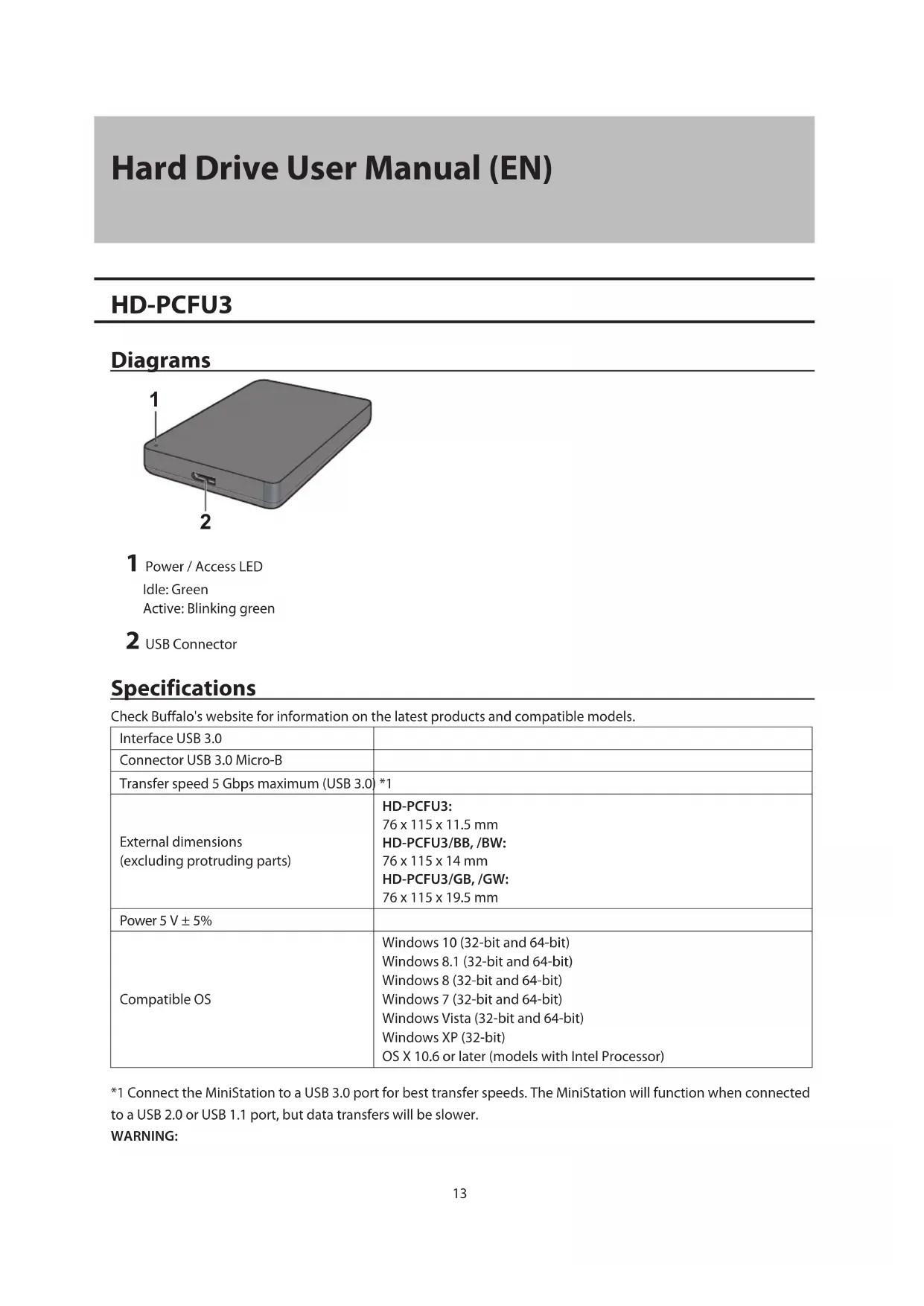
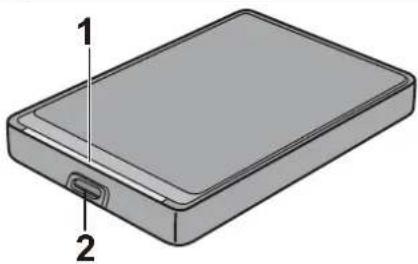
3D rendering of a rectangular electronic device with labeled parts (1 and 2), no text or symbols present.1 Power / Access LED
Idle: Green
Active: Blinking green
2 USB Connector
Specifications
Check Buffalo's website for information on the latest products and compatible models.
| Interface USB 3.0 | |
| Connector USB 3.0 Micro-B | |
| Transfer speed 5 Gbps maximum (USB 3.0) | *1 |
| External dimensions(excluding protruding parts) | HD-PCFU3:76 x 115 x 11.5 mmHD-PCFU3/BB, /BW:76 x 115 x 14 mmHD-PCFU3/GB, /GW:76 x 115 x 19.5 mm |
| Power 5 V ± 5% | |
| Compatible OS | Windows 10 (32-bit and 64-bit)Windows 8.1 (32-bit and 64-bit)Windows 8 (32-bit and 64-bit)Windows 7 (32-bit and 64-bit)Windows Vista (32-bit and 64-bit)Windows XP (32-bit)OS X 10.6 or later (models with Intel Processor) |
*1 Connect the MiniStation to a USB 3.0 port for best transfer speeds. The MiniStation will function when connected to a USB 2.0 or USB 1.1 port, but data transfers will be slower.
WARNING:
This product and its components contain chemicals known to the State of California to cause cancer and birth defects, or reproductive harm. Wash hands after handling.
HD-PUSU3
Diagrams
natural_image
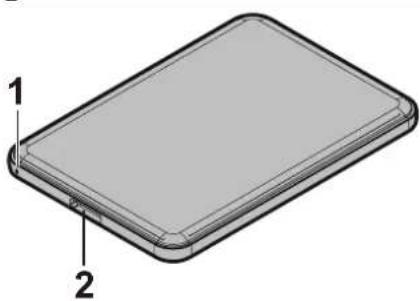
3D diagram of a rectangular electronic device with labeled parts (1 and 2), no text or symbols present.1 Power / Access LED
Idle: White
Active: Blinking white
2 USB Connector
Specifications
Check Buffalo's website for information on the latest products and compatible models.
| Interface USB 3.0 | |
| Connector USB 3.0 Micro-B | |
| Transfer speed 5 Gbps maximum (USB 3.0) | *1 |
| External dimensions(excluding protruding parts) | 79 x 115 x 8.8 mm |
| Power 5 V ± 5% | |
| Compatible OS | Windows 10 (32-bit and 64-bit)Windows 8.1 (32-bit and 64-bit)Windows 8 (32-bit and 64-bit)Windows 7 (32-bit and 64-bit)Windows Vista (32-bit and 64-bit)Windows XP (32-bit)OS X 10.5 or later (models with Intel Processor) |
*1 Connect the MiniStation to a USB 3.0 port for best transfer speeds. The MiniStation will function when connected to a USB 2.0 or USB 1.1 port, but data transfers will be slower.
WARNING:
This product and its components contain chemicals known to the State of California to cause cancer and birth defects, or reproductive harm. Wash hands after handling.
HD-PCTU3, HD-PCU3
Diagrams
natural_image
Illustration of a rectangular electronic device with labeled parts (1 and 2), no text or symbols present.1 Power / Access LED
USB 3.0
Idle: Blue
Active: Blinking blue
USB 2.0
Idle: Green
Active: Binking green
2 USB Connector
Specifications
Check Buffalo's website for information on the latest products and compatible models.
| Interface USB 3.0 | |
| Connector USB 3.0 Micro-B | |
| Transfer speed 5 Gbps maximum (USB 3.0) | *1 |
| External dimensions(excluding protruding parts) | HD-PCTU3, HD-PCU3:77 x 114 x 14 mmHD-PCTU3/BB, /BW:77 x 114 x 17 mmHD-PCTU3/GB, /GW:77 x 114 x 19.5 mm |
| Power 5 V ± 5% | |
| Compatible OS | Windows 8 (32-bit and 64-bit)Windows 7 (32-bit and 64-bit)Windows Vista (32-bit and 64-bit)Windows XP (32-bit)OS X 10.8, 10.7, 10.6, 10.5, 10.4 (models with Intel Processor) |
*1 Connect the MiniStation to a USB 3.0 port for best transfer speeds. The MiniStation will function when connected to a USB 2.0 or USB 1.1 port, but data transfers will be slower.
WARNING:
This product and its components contain chemicals known to the State of California to cause cancer and birth defects, or reproductive harm. Wash hands after handling.
Diagrams
text_image
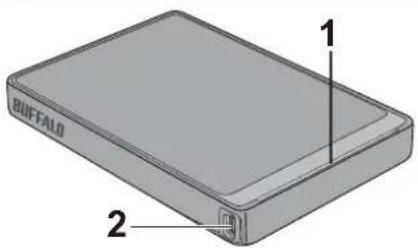
BUFFALO 1 21 Power / Access LED
Idle: Blue
Active: Blinking blue
2 USB Connector
Specifications
Check Buffalo's website for information on the latest products and compatible models.
| Interface USB 2.0 | |
| Connector USB 2.0 Mini-B | |
| Transfer speed 480 Mbps maximum (USB 2.0) *1 | |
| External dimensions(excluding protruding parts) | HD-PCTU2, HD-PCU2:77 x 114 x 14 mmHD-PCTU2/BB, HD-PCU2/BB:77 x 114 x 17 mm |
| Power 5 V ± 5% | |
| Compatible OS | Windows 8 (32-bit and 64-bit)Windows 7 (32-bit and 64-bit)Windows Vista (32-bit and 64-bit)Windows XP (32-bit)OS X 10.8, 10.7, 10.6, 10.5, 10.4 (models with Intel Processor) |
*1 Connect the MiniStation to a USB 2.0 port for best transfer speeds. The MiniStation will function when connected to a USB 1.1 port, but data transfers will be slower.
WARNING:
This product and its components contain chemicals known to the State of California to cause cancer and birth defects, or reproductive harm. Wash hands after handling.
Recommended Usage
To avoid damage to data, never do any of the following while data is being accessed:
- unplug the cables
- turn off your computer
- put your computer into standby, hibernate, or sleep mode
- log off, log on, or switch users
Never configure this unit as a destination for virtual memory.
The maximum size of a file on a FAT32 hard drive is 4 GB. To work with larger files, reformat the drive with NTFS or Mac OS extended.
Mac OS may not recognize this device at boot. If this happens, unplug the cable, then plug it again after a few seconds.
This unit supports hot-plugging.
You can plug or unplug the USB cable while the unit and your PC are on. However, never unplug the cable while data is being accessed. If you unplug the unit while the data is being accessed, your data may be damaged or lost.
Do not lean any object against this unit. It may cause the unit to malfunction.
If the unit is connected to a USB 2.0 or 1.1 plug, Windows will display a message that a high-speed USB device is connected to a non high-speed USB hub. Move the unit to a USB 3.0 port for best performance, or click [X] to continue.
You may hear some noise while the unit is working, especially while it's booting or being accessed. This is normal.
Disconnect this drive before reinstalling Mac OS.
Do not boot your operating system from this unit.
The first time you connect this unit, it may take about 20 seconds before the power/access LED turns on.
If you use this unit with multiple partitions, format each partition before use.
If your Windows computer will not boot while this unit is connected, then connect the unit to your computer after rebooting Windows. Also, refer to your computer's manual to change the BIOS setting to boot from an internal hard drive if you want to turn your computer on or off while this unit is connected.
Some computers may display a delayed write when they return from an energy-saving state. If this happens, unplug the unit before putting your computer into the energy-saving mode.
This unit drive may become hot during use.
This unit is designed to release heat through its case. The surface of the case may become quite hot in normal use. Even when the unit is off, the case may still be warm from standby current.
If the power/access LED does not turn off when you turn off your computer, unplug the USB cable from the drive.
Some computers do not support power saving mode.
Before using this unit with a Mac, reformat it with Mac OS Extended using the disk utility in Mac OS.
Dismounting the Unit
If your computer is turned on, please follow the procedure below to unplug the unit. If your computer is turned off, then it is always safe to unplug the unit. Unplugging the unit incorrectly can corrupt data. Please be careful.
For Windows
1 Click the icon, or in the system tray.
2 When the menu opens, click the device name.

text_image
Safely remove USB Mass Storage Device - Drive(E:) 5:15 PM3 A message that indicates you can safely remove the unit will appear.
For Mac
1 Drag this unit's icon to the trash to dismount the drive.
2 It's now safe to unplug the unit from your Mac.
Troubleshooting
I can see the DriveStation or MiniStation in My Computer but I cannot access it. (Windows)
The drive may require formatting. Try using DiskFormatter2. Consult the manual for DiskFormatter2 for more help.
I cannot see the DriveStation or MiniStation.
Verify that the power LED is on. If it is not, then ensure that the power switch is in the on position. Check your cables! The DriveStation or MiniStation should be connected to your computer by a USB cable. Check that both ends are correctly plugged in.
Verify that the hard drive inside the DriveStation or MiniStation is spinning. This can be verified by placing your hand on the side of the case and feeling for a slight vibration.
Also, after the DriveStation or MiniStation has been powered on for 15 minutes or longer it will begin to get warm. If neither of the proceeding tests verified that the hard drive is spinning, then please contact technical support for further assistance.
My backup program cannot save files to the DriveStation or MiniStation.
Reformat your DriveStation or MiniStation with NTFS or Mac OS Extended. FAT32 is limited to 4 GB size files.
natural_image
3D rendering of a rectangular electronic device with labeled parts (1 and 2), no text or symbols present.natural_image
3D diagram of a rectangular electronic device with labeled parts (1 and 2), no text or symbols present.natural_image
3D diagram of a rectangular electronic device with labeled parts (1 and 2), no text or symbols present.text_image
BUFFALO 1 2natural_image
3D rendering of a rectangular electronic device with labeled parts (1 and 2), no text or symbols present.natural_image
3D diagram of a rectangular electronic device with labeled parts (1 and 2), no text or symbols present.natural_image
3D diagram of a rectangular electronic device with labeled parts (1 and 2), no text or symbols present.text_image
BUFFALO 1 2natural_image
3D rendering of a rectangular electronic device with labeled parts (1 and 2), no text or symbols present.natural_image
3D diagram of a rectangular electronic device with labeled parts (1 and 2), no text or symbols present.natural_image
Illustration of a rectangular electronic device with labeled parts (1 and 2), no text or symbols present.text_image
BUFFALO 1 2natural_image
3D rendering of a rectangular electronic device with labeled parts (1 and 2), no text or symbols present.natural_image
3D diagram of a rectangular electronic device with labeled parts (1 and 2), no text or symbols present.natural_image
Illustration of a rectangular electronic device with labeled parts (1 and 2), no text or symbols present.text_image
BUFFALO 1 2natural_image
3D rendering of a rectangular electronic device with labeled parts (1 and 2), no text or symbols present.natural_image
3D diagram of a rectangular electronic device with labeled parts (1 and 2), no text or symbols present.natural_image
Illustration of a rectangular electronic device with labeled parts (1 and 2), no text or symbols present.1 LED de energia/acesso
USB 3.0
Inativo: azul
text_image
BUFFALO 1 21 LED de energia/acesso
Inativo: azul
natural_image
3D rendering of a rectangular electronic device with labeled parts (1 and 2), no text or symbols present.1 LED de energia/acesso
Ligado: verde
Acessando: verde intermitente
2 Conector USB
Especificações
natural_image
3D diagram of a rectangular electronic device with labeled parts (1 and 2), no text or symbols present.1 LED de energia/acesso
Ligado: branco
natural_image
3D diagram of a rectangular electronic device with labeled parts (1 and 2), no text or symbols present.1 LED de energia/acesso
USB 3.0
Ligado: azul
text_image
BUFFALO 1 21 LED de energia/acesso
Ligado: azul
natural_image
3D rendering of a rectangular electronic device with labeled parts (1 and 2), no text or symbols present.natural_image
3D diagram of a rectangular electronic device with labeled parts (1 and 2), no text or symbols present.natural_image
Illustration of a rectangular electronic device with labeled parts (1 and 2), no text or symbols present.text_image
BUFFALO 1 2natural_image
3D rendering of a rectangular electronic device with labeled parts (1 and 2), no text or symbols present.natural_image
3D diagram of a rectangular electronic device with labeled parts (1 and 2), no text or symbols present.natural_image
3D diagram of a rectangular electronic device with labeled parts (1 and 2), no text or symbols present.text_image
BUFFALO 1 2natural_image
3D rendering of a rectangular electronic device with labeled parts (1 and 2), no text or symbols present.1 电源/访问 LED 指示灯
空闲:亮起绿色
活动:闪烁绿色
2 USB 连接器
规格
natural_image
3D diagram of a rectangular electronic device with labeled parts (1 and 2), no text or symbols present.1 电源/访问 LED 指示灯
空闲:亮起白色
活动:闪烁白色
2 USB 连接器
规格
natural_image
3D diagram of a rectangular electronic device with labeled parts (1 and 2), no text or symbols present.1 电源/访问 LED 指示灯
USB 3.0
空闲:亮起蓝色
活动:闪烁蓝色
USB 2.0
空闲:亮起绿色
活动:闪烁绿色
2 USB 连接器
规格
text_image
BUFFALO 1 21 电源/访问 LED 指示灯
空闲:亮起蓝色
活动:闪烁蓝色
2 USB 连接器
规格
natural_image
3D rendering of a rectangular electronic device with labeled parts (1 and 2), no text or symbols present.1 圖表
閒置:亮起綠色
作用中:閃爍綠色
2 USB 連接器
規格
natural_image
3D diagram of a rectangular electronic device with labeled parts (1 and 2), no text or symbols present.1 圖表
閒置:亮起白色
作用中:閃爍白色
2 USB 連接器
規格
natural_image
3D diagram of a rectangular electronic device with labeled parts (1 and 2), no text or symbols present.1 圖表
USB 3.0
閒置:亮起藍色
作用中:閃爍藍色
USB 2.0
閒置:亮起綠色
作用中:閃爍綠色
2 USB 連接器
規格
text_image
BUFFALO 1 21 圖表
閒置:亮起藍色
作用中:閃爍藍色
2 USB 連接器
規格
natural_image
3D rendering of a rectangular electronic device with labeled parts (1 and 2), no text or symbols present.1 パワー・アクセスランプ
電源ON時:点灯(綠)
アクセス時:点滅(緑)
2 USB端子
仕様
natural_image
3D diagram of a rectangular electronic device with labeled parts (1 and 2), no text or symbols present.1 パワー・アクセスランプ
電源ON時:点灯(白)
アクセス時:点滅(白)
2 USB端子
仕様
natural_image
3D diagram of a rectangular electronic device with labeled parts (1 and 2), no text or symbols present.1 パワー・アクセスランプ
USB 3.0
電源ON時:点灯(青)
アクセス時:点滅(青)
USB 2.0
電源ON時:点灯(緑)
アクセス時:点滅(緑)
2 USB端子
text_image
BUFFALO 1 21 パワー・アクセスランプ
電源ON時:点灯(青)
アクセス時:点滅(青)
2 USB端子
仕様
natural_image
3D illustration of a rectangular electronic device with labeled parts (1 and 2), no text or symbols present.1 다이어그램
유휴 상태: 녹색
활성 상태: 녹색 깜박임
2 USB 커넥터
사양
natural_image
3D diagram of a rectangular electronic device with labeled parts (1 and 2), no text or symbols present.1 다이어그램
유휴 상태: 흰색
활성 상태: 흰색 깜박임
2 USB 커넥터
natural_image
3D diagram of a rectangular electronic device with labeled parts (1 and 2), no text or symbols present.1 다이어그램
USB 3.0
유휴 상태:파란색
활성 상태:파란색 깜박임
USB 2.0
유휴 상태: 녹색
활성 상태: 녹색 깜박임
2 USB 커넥터
text_image
BUFFALO 1 21 다이어그램
유휴 상태:파란색
활성 상태:파란색 깜박임
2 USB 커넥터
사양
natural_image
3D rendering of a rectangular electronic device with labeled parts (1 and 2), no text or symbols present.natural_image
3D diagram of a rectangular electronic device with labeled parts (1 and 2), no text or symbols present.natural_image
3D diagram of a rectangular electronic device with labeled parts (1 and 2), no text or symbols present.text_image
BUFFALO 1 2natural_image
3D rendering of a rectangular electronic device with labeled parts (1 and 2), no text or symbols present.1 لطاقة / التوصيل
خامل: أخضر
نشط: أخضر وامض
2 USB موصيل
المواصفات
natural_image
3D diagram of a rectangular electronic device with labeled parts (1 and 2), no text or symbols present.1 لطاقة / التوصيل
natural_image
Illustration of a rectangular electronic device with labeled parts (1 and 2), no text or symbols present.1 لطاقة / التوصيل
USB 3.0
خامل: أزرق
نشط: أزرق وامض
USB 2.0
خامل: أخضر
نشط: أخضر وامض
2 USB موصيل
المواصفات
| الإستعمال الحرفية للحصول على معلومات حول أحمدث المنتجات أو الطرز المتوفقة. Buffalo | |
| USB 3.0 | الإستعمال الحرفية للحصول على معلومات حول أحمدث المنتجات أو الطرز المتوفقة. Buffalo |
| USB 3.0 Micro-B | الإستعمال الحرفية للحصول على معلومات حول أحمدث المنتجات أو الطرز المتوفقة. Buffalo |
| 1 * (USB 3.0) | الإستعمال الحرفية للحصول على معلومات حول أحمدث المنتجات أو الطرز المتوفقة. Buffalo |
| :HD-PCU3 HD-PCTU3 :HD-PCTU3/BB/BW :HD-PCTU3/GB/GW :HD-PCTU3/GB/GW :HD-PCTU3/GB/GW :HD-PCTU3/GB/GW :HD-PCTU3/GB/GW :HD-PCTU3/GB/GW :HD-PCTU3/GB/GW :HD-PCTU3/GB/GW :HD-PCTU3/GB/GW :HD-PCTU3/GB/GW :HD-PCTU3/GB / 14 × 114 × 77 :HD-PCTU3/BB/BW :HD-PCTU3/GB/BW :HD-PCTU3/GB/BW :HD-PCTU3/GB/BW :HD-PCTU3/GB/BW :HD-PCTU3/GB/BW :HD-PCTU3/GB/BW :HD-PCTU3/GB/BW :HD-PCTU3/GB/BW :HD-PCTU3/GB/BW :HD-PCTU3/GB/BW :HD-PCTU3/DB/GW :HD-PCTU3/GB/GW :HD-PCTU3/GB/GW :HD-PCTU3/GB/GW :HD-PCTU3/GB/GW :HD-PCTU3/GB/GW :HD-PCTU3/GB/GW :HD-PCTU3/GB/GW :HD-PCTU3/GB/GW :HD-PCTU3/GB/GW :HD-PCTU3/DB/GW :HD-PCTU3/GB/GW :HD-PCTU3/GB/GW :HD-PCTU3/GB/GW :HD-PCTU3/GB/GW :HD-PCTU3/GB/GW :HD-PCTU3/GB/GW :HD-PCTU3/GB/GW :HD-PCTU3/GB/GW :HD-PCTU3/GB/WG :HD-PCTU3/GB/WG :HD-PCTU3/GB/WG :HD-PCTU3/GB/WG :HD-PCTU3/GB/WG :HD-PCTU3/GB/WG :HD-PCTU3/GB/WG :HD-PCTU3/GB/WG :HD-PCTU3/GB/WG :HD-PCTU3/GB/WG :HD-PCTU3/GB/WGS :HD-PCTU3/GB/WGS :HD-PCTU3/GB/WGS :HD-PCTU3/GB/WGS :HD-PCTU3/GB/WGS :HD-PCTU3/GB/WGS :HD-PCTU3/GB/WGS :HD-PCTU3/GB/WGS :HD-PCTU3/GB/WGS :HD-PCTU3/GB/WGS :HD-PCTU3/GB/WG :HD-PCTU3/GB/WGS :HD-PCTU3/GB/WGS :HD-PCTU3/GB/WGS :HD-PCTU3/GB/WGS :HD-PCTU3/GB/WGS :HD-PCTU3/GB/WGS :HD-PCTU3/GB/WGS :HD-PCTU3/GB/WGS :HD-PCTU3/GB/WG :HD-PCTU3/GB/WG :HD-PCTU3/GB/WG :HD-PCTU3/GB/WG :HD-PCTU3/GB/WG :HD-PCTU3/GB/WG :HD-PCTU3/GB/WG :HD-PCTU3/GB/WG :HD-PCTU3/GB/WG :HD-PCTU3/GB/WGO :HD-PCTU3/GB/WGO :HD-PCTU3/GB/WGO :HD-PCTU3/GB/WGO :HD-PCTU3/GB/WGO :HD-PCTU3/GB/WGO :HD-PCTU3/GB/WGO :HD-PCTU3/GB/WGO :HD-PCTU3/GB/WGO :HD-PCTU3/GB/WGO :HD-PCTU3/GB/W GO :HD-PCTU3/GB/WGO :HD-PCTU3/GB/WGO :HD-PCTU3/GB/WGO :HD-PCTU3/GB/WGO :HD-PCTU3/GB/WGO :HD-PCTU3/GB/WGO :HD-PCTU3/GB/WGO :HD-PCTU3/GB/WGO :HD-PCTU3/GB/WGO :HD-PCTU3/GB/W | |
| %5 ± 5 فولت | |
| (2) Windows 8 (2) Windows 7 (2) Windows Vista (2) Windows XP (2) Windows XP (2) Windows XP (2) Windows XP (2) Windows XP (2) Windows XP (2) Windows XP (2) Windows XP (2) Windows XP (2) Windows XP (2) Windows XP (2) Windows XP (2) Windows XP (2) Windows XP (2) Windows XP (2) Windows XP (2) Windows XP (2) Windows XP (2) Windows XP (2) Windows XP (2) WindowsXP (2) WindowsXP (2) WindowsXP (2) WindowsXP (2) WindowsXP (2) WindowsXP (2) WindowsXP (2) WindowsXP (2) WindowsXP (2) WindowsXP (2) WindowsXP (2) WindowsXP (2) WindowsXP (2) WindowsXP (2) WindowsXP (2) WindowsXP (2) WindowsXP (2) WindowsXP (2) WindowsXP (2) WindowsXP (2) WindowsX (Intel) | |
text_image
1 BUFFALO 21 لطاقة / التوصيل
natural_image
3D rendering of a rectangular electronic device with labeled parts (1 and 2), no text or symbols present.1 موش / دسترسی
بیکار: سبرز
فعال: سبز چشمک زن
2 USB رابط
مشخصات
natural_image
3D diagram of a rectangular electronic device with labeled parts (1 and 2), no text or symbols present.1 موش / دسترسی
بيکار: سفید
فعال: سفید چشک زن
2 USB رابط
مشخصات
natural_image
3D diagram of a rectangular electronic device with labeled parts (1 and 2), no text or symbols present.1 اموش / دسترسی
USB 3.0
بیکار: آبی
فعال: آبی چشک زن
USB 2.0
بیکار: سبز
فعال: سبرز چشمک زن
2 USB رابط
مشخصات
text_image
BUFFALO 1 21 موش / دسترسی