PowerEdge 2950 - Server DELL - Free user manual and instructions
Find the device manual for free PowerEdge 2950 DELL in PDF.



| Product Type | 2U Rack Server |
| Brand | Dell |
| Model | PowerEdge 2950 |
| Processor | Up to 2 Intel Xeon dual-core or quad-core processors (series 5100, 5200, 5300, 5400) |
| Memory (RAM) | Up to 64 GB (8 × 8 GB) DDR2 ECC, with support for 8 GB modules |
| Storage | Up to 6 hot-swap 3.5-inch SAS/SATA hard drive bays |
| Storage Controller | PERC 6/i or integrated SAS 6i/R, supports RAID 0, 1, 5, 6, 10 |
| Network | 2 × integrated Gigabit Ethernet, optional 4-port Intel Gigabit, iSCSI support |
| Power Supply | Redundant power supply 2 × 750 W or 1100 W (depending on configuration) |
| Dimensions (H × W × D) | 8.7 cm × 44.3 cm × 71.1 cm (standard 2U) |
| Weight | Approximately 25 kg (depending on configuration) |
| Key Features | Remote management (DRAC 5), TPM, redundant memory, demand-based power scaling, internal USB |
| Maintenance and Cleaning | Regular dusting of ventilation grilles, maintaining ambient temperature between 10 and 35 °C |
| Security | TPM chip for encryption, chassis lock, system and setup password |
| Spare Parts and Repairability | Hard drives, memory modules, fans and hot-swap power supplies, tool-less replacement |
| General Information | Manual available in 8 languages, BIOS update via support.dell.com |
Frequently Asked Questions - PowerEdge 2950 DELL
User questions about PowerEdge 2950 DELL
0 question about this device. Answer the ones you know or ask your own.
Ask a new question about this device
Download the instructions for your Server in PDF format for free! Find your manual PowerEdge 2950 - DELL and take your electronic device back in hand. On this page are published all the documents necessary for the use of your device. PowerEdge 2950 by DELL.
USER MANUAL PowerEdge 2950 DELL
NOTE: A NOTE indicates important information that helps you make better use of your computer.

CAUTION: A CAUTION indicates potential damage to hardware or loss of data if instructions are not followed.

WARNING: A WARNING indicates a potential for property damage, personal injury, or death.
Information in this document is subject to change without notice. © 2006-2009 Dell Inc. All rights reserved.
Reproduction of these materials in any manner whatsoever without the written permission of Dell Inc. is strictly forbidden.
Trademarks used in this text: Dell, the DELL logo, and PowerEdge are trademarks of Dell Inc.; Intel and Xeon are registered trademarks of Intel Corporation; Microsoft, Windows, and Windows Server and are either trademarks or registered trademarks of Microsoft Corporation in the United States and/or other countries; Red Hat and Red Hat Enterprise Linux are registered trademarks of Red Hat, Inc.; SUSE is a registered trademark of Novell Inc.
Other trademarks and trade names may be used in this document to refer to either the entities claiming the marks and names or their products. Dell Inc. disclaims any proprietary interest in trademarks and trade names other than its own.
Contents
Non-Optimal Memory Configurations 5
PowerEdge 2950 III - New System Features 5
New Performance Features 5
New High-Efficiency Power Supply and Power Monitoring Features 5
New I/O and Storage Features 6
New Security Features. 6
Optional Internal USB Memory Key 6
Installing the Optional Internal USB Memory Key. 7
Support for 8-GB Memory Modules - PowerEdge 2950 III Systems. 9
Processor Upgrades - Power 2950 II and PowerEdge 2950 III Systems 9
System Board Replacement - Safeguarding Encrypted Data 9
System Message Update 10
LCD Status Messages Update 15
System Setup Program Update. 19
Memory Screen. 19
CPU Information Screen 20
Integrated Devices Screen. 20
System Security Screen 21
Serial Communication Screen 23
Operating System Information 23
Enumeration of NICs 23
RHEL-Incorrect Processor Information. 23
System Support for Microsoft Windows 2000 24
System Diagnostics Update 24
Non-Optimal Memory Configurations
The POST may halt when a non-optimal memory configuration is detected and the following message is displayed:
Non-Optimal Memory Configuration Press F1 to continue or F2 for Setup

NOTE: Mixing DIMMs of different speeds renders the memory configuration non-optimal. The system clocks down the performance to the slowest speed in the DIMM set for the channel.
PowerEdge 2950 III - New System Features
New Performance Features
- Two dual-core or quad-core Intel ^圆 Xeon® 5400 Series and 5300 Series processors.
- 8-GB memory module support.
New High-Efficiency Power Supply and Power Monitoring Features
- Higher system efficiency on power conversion across workloads.
- Baseboard Management Control (BMC) power monitoring monitors current, voltage, and power utilization in the system.
New I/O and Storage Features
- Optional Intel quad-port Gigabit Ethernet NIC, capable of supporting 10-Mbps, 100-Mbps, and 1000-Mbps data rates, and iSCSI remote boot.
- Support for 10-Gb Ethernet cards.
- One internal USB 2.0-compliant connector supporting an optional bootable USB flash drive or USB memory key.
- Support for optional SAS 6i/R and PERC 6/i adapters.
New Security Features
- Trusted Program Module (TPM) support for improved security.
- Optional support for iSCSI boot.
Optional Internal USB Memory Key
The system provides an internal USB connector located on the sideplane board for use with a USB flash memory key. The USB memory key can be used as a boot device, security key, or mass storage device. To use the internal USB connector, the Internal USB Port option must be enabled in the Integrated Devices screen of the System Setup program. See "Integrated Devices Screen" on page 20.
To boot from the USB memory key, you must configure the USB memory key with a boot image and then specify the USB memory key in the boot sequence in the System Setup program. See "Using the System Setup Program" in the Hardware Owner's Manual. For information on creating a bootable file on the USB memory key, see the user documentation that accompanied the USB memory key.

NOTE: USB keys that contain multiple LUNs (Logical Unit Numbers) must be formatted using the format utility provided by the key manufacturer.

CAUTION: To avoid interference with components inside the system, the USB key must conform to the following maximum dimensions: 11mm thick (0.43") x 23.2mm width (0.91") x 67mm length (2.64").
Installing the Optional Internal USB Memory Key

WARNING: Only trained service technicians are authorized to remove the system cover and access any of the components inside the system. See your Product Information Guide for complete information about safety precautions, working inside the computer, and protecting against electrostatic discharge.
1 Turn off the system, including any attached peripherals, and disconnect the system from its electrical outlet.
2 Open the system. See "Opening the System" in the Hardware Owner's Manual.
3 Locate the USB connector on the sideplane board, and insert the USB memory key into the USB connector. See Figure 1-1.
4 Close the system. See "Closing the System" in the Hardware Owner's Manual.
5 Reconnect the system to power and restart the system.
6 Enter the System Setup program and verify that the USB key has been detected by the system. See "Using the System Setup Program" in the Hardware Owner's Manual.
Figure 1-1. Installing an Internal USB Key
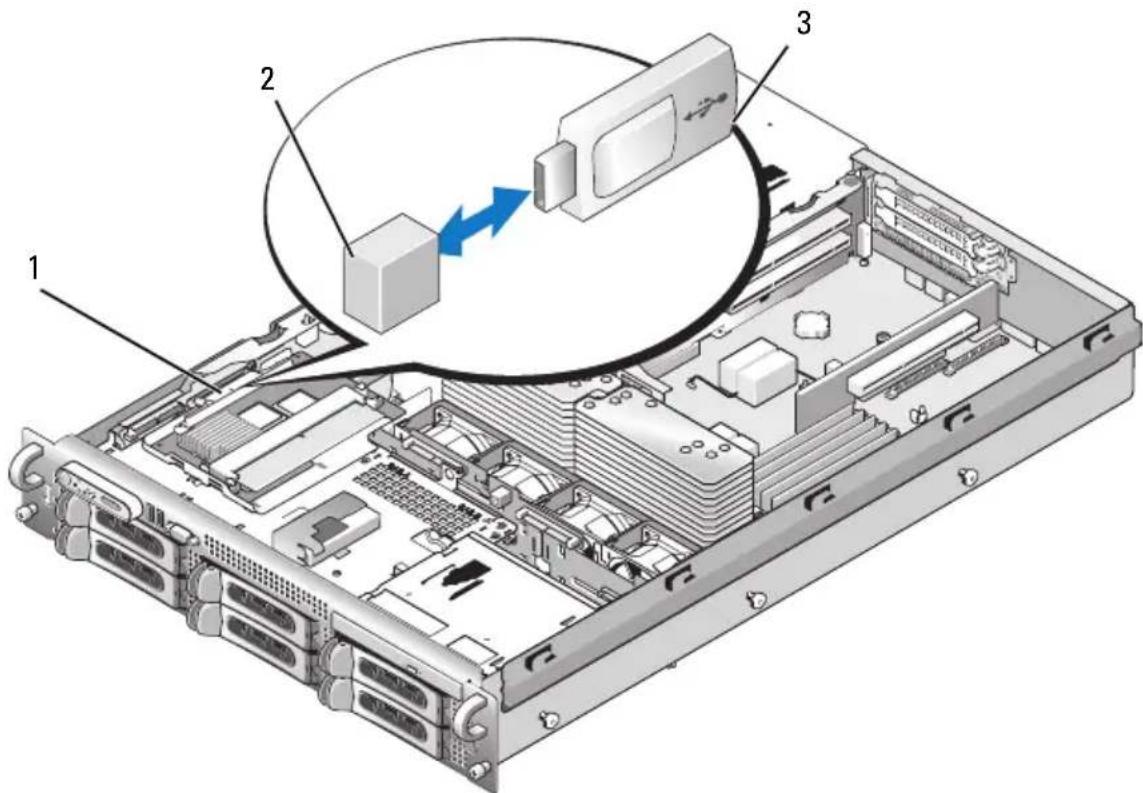
1 sideplane board 2 internal USB connector
3 USB memory key
7 Close the system. See "Closing the System" in the Hardware Owner's Manual.
8 Reconnect the system to power and restart the system.
9 Enter the System Setup program and verify that the USB key has been detected by the system. See "Using the System Setup Program" in the Hardware Owner's Manual.
Support for 8-GB Memory Modules - PowerEdge 2950 III Systems
PowerEdge 2950 III systems have added support for the following approved 8-GB memory configurations:
- 64 GB - 8 x 8-GB quad-rank memory modules
- 48 GB — 4 x 8-GB quad-rank and 4 x 4-GB dual-rank memory modules
If 64 GB of memory is installed, the system only recognizes and displays 63.75 GB during POST.

NOTE: Prior to upgrading your system, verify that the latest system BIOS version is on your system. Loading the latest BIOS version ensures that your system is fully supported.

NOTE: Some operating systems cannot support more than 4 GB of physical memory. For more information on memory support requirements and restrictions, refer to the operating system documentation that was shipped with your system.
Processor Upgrades - Power 2950 II and PowerEdge 2950 III Systems
- If the front of your system chassis is labeled with a "II", your system is upgradeable to the 5100 series of dual-core Intel Xeon processors and the 5300 series of quad-core Xeon processors.
- If the front of your system chassis is labeled with a "III", your system is upgradeable to the 5100 and 5200 series of dual-core Intel Xeon processors and 5300 and 5400 series of quad-core Intel Xeon processors.
See support.dell.com for information on the latest processor upgrade options for your system.
System Board Replacement – Safeguarding Encrypted Data
On PowerEdge 2950 III systems using Windows Server® 2008, you can use encryption programs, such as the BitLocker utility, to secure the contents of the hard drive.
If you are using the TPM with an encryption application, you are prompted to create a recovery key during system setup. Be sure to store this recovery key. If you replace the system board, you must supply the recovery key when you restart your system before you can access the encrypted files on your hard drive(s).
System Message Update
Table 1-1 lists new system messages for the PowerEdge 2950 III system and the probable cause and corrective action when the message appears. System messages appear on the screen to notify you of a possible problem with the system.

WARNING: Only trained service technicians are authorized to remove the system cover and access any of the components inside the system. See your Product Information Guide for complete information about safety precautions, working inside the computer, and protecting against electrostatic discharge.
Table 1-1. System Messages
| Message Causes Corrective Actions | ||
| Alert! Node Interleaving disabled! Memory configuration does not support Node Interleaving. | The memory configuration does not support node interleaving, or the configuration has changed (for example, a failed DIMM) so that node interleaving cannot be supported. The system runs but with rduced functionality. | Ensure that the memory modules are installed in a configuration that supports node interleaving. Check other system messages for additional information for possible causes. For memory configuration information, see "General Memory Module Installation Guidelines" in the Hardware Owner's Manual. If the problem persists, see "Troubleshooting System Memory" in the Hardware Owner's Manual. |
| !*** Error: Remote Access Controller initialization failure *** RAC virtual USB devices may not be available... | Remote Access Controller initialization failure | Ensure that the Remote Access Controller is properly installed. See “Installing a RAC Card” in the Hardware Owner's Manual. |
| Invalid PCIe card found in the Internal_Storage slot! | The system halted because an invalid PCIe expansion card is installed in the dedicated storage controller slot. | Remove the PCIe expansion card and install the internal SAS controller in the dedicated slot. |
| No boot device available | Faulty or missing optical drive subsystem, hard drive, or hard-drive subsystem, or no bootable USB key installed. | Use a bootable USB key, CD, or hard drive. Scc “Using the System Setup Program” in the Hardware Owner's Manual for information on setting the order of boot devices. |
| PCI BIOS failed to install | PCIe device BIOS (Option ROM) checksum failure detected during shadowing. Cables to expansion card(s) loose; faulty or improperly installed expansion card(s). | Reseat the expansion card(s). Ensure that all appropriate cables are securely connected to the expansion card(s). If the problem persists, see “Troubleshooting System Expansion Cards” in the Hardware Owner's Manual. |
| PCIe Degraded Link Width Error: Embedded device Expected Link Width is nActual Link Width is n | Faulty system board or riser board. | See see “Getting IHelp” in the Hardware Owner's Manual. |
| PCIe Degraded Link Width Error: Integrated device Expected Link Width is n Actual Link Width is n | The specified PCIe device is faulty or improperly installed. | For a SAS controller daughter card, rescat the card in the dedicated PCIe connector. Scc “Installing a SAS Controller Daughter Card” in the Hardware Owner's Manual. If the problem persists, scc “Getting Help” in the Hardware Owner's Manual. |
| PCIe Degraded Link Width Error: Slot n or riser board. Expected Link Width is nActual Link Width is n | Faulty system board or riser board. | Reseat the PCIe card in the specified slot number. See “Expansion Cards” in the Hardware Owner's Manual. If the problem persists, see “Getting Help” in the Hardware Owner's Manual. |
| PCIe Training Error: Embedded device | Faulty system board or riser board. | See “Getting Help” in the Hardware Owner's Manual. |
| PCIe Training Error: Integrated device | The specified PCIe device is faulty or improperly installed. | For a SAS controller daughter card, reseat the card in the dedicated PCIe connector. See “Installing a SAS Controller Daughter Card” in the Hardware Owner's Manual. If the problem persists, see “Getting Hclp” in the Hardware Owner's Manual. |
| PCIe Training Error: Slot n | Faulty or improperly installed PCIe card in the specified slot. | Reseat the PCIe card in the specified slot number. See “Expansion Cards” in the Hardware Owner's Manual. If the problem persists, see “Getting Help” in the Hardware Owner's Manual. |
| Remote Access Controller cable error or incorrect card in the RAC slot. | RAC cables not connected, or RAC card installed in wrong expansion slot. | Check that the RAC cables are connected, and that the RAC card is installed in the correct expansion slot. See “Installing a RAC Card” in the Hardware Owner's Manual. |
| NOTE: All TPM information messages appear after the BMC option ROM has been loaded during POST. | ||
| TPM configuration operation honored. | System now resets. Information only. | |
| TPM Failure A Trusted | Platform Module (TPM) function has failed. | See “Getting Help” in the Hardware Owner's Manual. |
| TPM operation is pending. Press I to Ignore or M to Modify to allow this change and reset the system. | Configuration change has been requested. | Press I to continue system boot. Press M to modify the TPM setting and restart. |
| WARNING: Modifying could prevent security. | ||
| Warning: Following faulty DIMMs are disabled: | Faulty or improperly scated memory modulc(s). | See “Troubleshooting System Memory” in the Hardware Owner's Manual. |
| DIMM n1n2 | pairs, as indicated by the n1 and n2. Check both DIMMs for a possible fault. | |
| Total memory size is reduced. | ||
| Warning: A fatal error has caused system reset! Please check the system event log! | A fatal system error occurred and caused the system to restart. | Check the SEL for information that was logged during the error. Scc the applicable troubleshooting section in Scc “Troubleshooting Your System” in the Hardware Owner's Manual. for any faulty components specified in the SEL. |
| Warning! No micro code update loaded for processor n | Micro code update failed. Update the BIOS firmware. See “Getting Help” in the Hardware Owner's Manual. | |
| Warning: The installed memory configuration is not optimal. For more information on valid memory configurations, please see the system documentation on the technical support web site. | Invalid memory configuration. The system runs but with reduced functionality. | Ensure that the memory modules are installed in a valid configuration. See “General Memory Module Installation Guidelines” in the IHardware Owner's Manual. If the problem persists, see “Troubleshooting System Memory” in the IHardware Owner's Manual. |
| Write fault Write fault on selected drive | Faulty USB device, USB mcdium, optical drive assembly, hard drive, or hard-drive subsystem. | Replace the faulty media. Rescat the USB device or USB cable. For hard drive problems, scc “Troubleshooting a IHard Drive” in the Hardware Owner's Manual. |
LCD Status Messages Update
Table 1-2 lists updates to the LCD status messages that can occur on the PowerEdge 2950 III system and the probable cause for each message. The LCD messages refer to events recorded in the system event log (SEL). For information on the SEL and configuring system management settings, see your systems management software documentation.
Table 1-2. LCD Status Messages
| Code Text Causes Corrective Actions | ||
| N/A SYSTEM NAME | A 62-character string that can be defined by the user in the System Setup program. | This message is for information only. You can change the system ID and name in the System Setup program. See "Using the System Setup Program" in the Hardware Owner's Manual. |
| The SYSTEM NAME displays under the following conditions: • The system is powered on. • The power is off and active errors are displayed. | ||
| E1000 FAILSAFE, Call Support | Check the system event log for critical failure events. | See "Getting Help" in the Hardware Owner's Manual. |
| E1118 CPU Temp Interface | The BMC is unable to determine the CPU(s) temperature status. Consequently, the BMC incurs the CPU fan speed to maximum as a precautionary measure. | Turn off power to the system and restart the system. If the problem persists, see "Getting Help" in the Hardware Owner's Manual. |
Table 1-2. LCD Status Messages (continued)
| Code Text Causes Corrective Actions | |||
| E1211 | ROMB Batt RAID battery is cither missing, bad, or unable to recharge due to thermal issues. | Rescat the RAID battery connector. See the "RAID Battery" and see "Troubleshooting System Cooling Problems" in the Hardware Owner's Manual. | |
| E1625 | PS AC Current Power source is out of acceptable range. | Check the AC power source. | |
| E1711 | PCI PERR B## D## F## | The system BIOS has reported a PCI parity error on a component that resides in PCI configuration space at bus ##, device ##, function ##. | Remove and reseat the PCIe expansion cards. If the problem persists, see "Troubleshooting an Expansion Card" in the Hardware Owner's Manual. |
| PCI PERR Slot # | The system BIOS has reported a PCI parity error on a component that resides in the specified PCIe slot. | Reinstall the expansion-card riser. See "Expansion Card Risers" in the II Hardware Owner's Manual. | |
| If the problem persists, the riser card or system board is faulty. See "Getting Help" in the II Hardware Owner's Manual. | |||
| Code Text Causes Corrective Actions | |||
| E1712 PCI SERR B##D## F## | The system BIOS has reported a PCI system error on a component that resides in PCI configuration space at bus ##, device ##, function ##. | Remove and rcscat the PCIe expansion cards. If the problem persists, see "Troubleshooting Expansion Cards" in the Hardware Owner's Manual. | |
| PCI SERR Slot # | The system BIOS has reported a PCI system error on a component that resides in the spccificd slot. | Reinstall the expansion-card riser. See "Expansion Card Risers" in the Hardware Owner's Manual. If the problem persists, the riser card or system board is faulty. See "Getting Help" in the Hardware Owner's Manual. | |
| E171F PCIE Fatal ErrB## D## F## | The system BIOS has reported a PCIe fatal error on a component that resides in PCIe configuration space at bus ##, device ##, function ##. | Remove and reseat the PCIe expansion cards. If the problem persists, see "Troubleshooting Expansion Cards" in the Hardware Owner's Manual. | |
| PCIE FatalErr Slot # | The system BIOS has reported a PCIe fatal error on a component that resides in the specified slot. | Reinstall the expansion-card riser. See "Expansion Card Risers" in the Hardware Owner's Manual. If the problem persists, the riser card or system board is faulty. See "Getting IHelp" in the Hardware Owner's Manual. | |
Table 1-2. LCD Status Messages (continued)
| Code Text Causes Corrective Actions | |||
| E1914 | DRAC5 Conn2 | DRAC 5 cable is missing or disconnected. | Reconnect the cable. See “Installing a RAC Card” in the Hardware Owner's Manual. |
| Cbl | |||
| E1B01 | USB# Overcurrent | Dvice plugged in the specified USB port caused an overcurrent condition. | Rescat the device cable. If the problem persists, replace or remove the device. |
| E2110 | MBE DIMM # & # | One of the two indicated DIMMs has had a memory multi-bit error (MBE). | See “Troubleshooting System Memory” in the Hardware Owner's Manual. |
| E2111 | SBE Log Disable DIMM # | The system BIOS has disabled memory single-bit error (SBE) logging, and does not resume logging further SBEs until the system is restarted. “#” represents the DIMM implicated by the BIOS. | See “Troubleshooting System Memory” in the Hardware Owner's Manual. |
| E2112 | Mem Spare DIMM # | The system BIOS has spared the memory because it has determined that the memory had too many errors. “# & #” represents the DIMM pair implicated by the BIOS. | See “Troubleshooting System Memory” in the IHardware Owner's Manual. |
| I1915 | Video Off (LCD lights with a blue or amber background.) | The video has been turned off by the RAC remote user. | Information only. |
| I1916 | Video Off in ## (LCD lights with a blue or amber background.) | The video was turned off in xx seconds by the RAC remote user. | Information only. |
System Setup Program Update
Memory Screen
Table 1-3 lists the descriptions for the information fields that appear on the Memory Information screen.
Table 1-3. Memory Information Screen Options
| Option Description | |
| System Memory Size Displays the amount of system memory. | |
| System Memory Type Displays the type of system memory. | |
| System Memory Speed Displays the system memory speed. | |
| Video Memory Displays the amount of video memory. | |
| System Memory Testing Specifies whether system memory tests are run at system boot. Options are Enabled and Disabled. | |
| Redundant Memory (Disabled default) | Enables or disables the redundant memory feature. When set to Spare Mode, the first rank of memory on each DIMM is reserved for memory sparing. Redundant memory feature is disabled if the Node Interleaving field is enabled. |
| Node Interleaving (Disabled default) | If this field is set to Enabled, memory interleaving is supported if a symmetric memory configuration is installed. If this field is set to Disabled, the system can support Non-Uniform Memory architecture (NUMA) (asymmetric) memory configurations. |
| NOTE: The Node Interleaving field must be set to Disabled when using the redundant memory feature. | |
| Low Power Mode (Disabled default) | Enables or disables the low power mode of the memory. When set to Disabled, the memory runs at full speed. When set to Enabled, the memory runs at a reduced speed to conserve energy. |
CPU Information Screen
Table 1-4 updates the description for the Demand-Based Power Management option.
Table 1-4. CPU Information Screen
| Option Description | |
| Demand-Based Power Management (Enabled default) | NOTE: Check your operating system documentation to verify if the operating system supports this feature. Enables or disables demand-based power management. When enabled, the CPU Performance State tables are reported to the operating system; when disabled, the CPU Performance State tables are notreported to the operating system. If any of the CPUs do not support demand-based power management, the field becomes read-only, and is automatically set to Disabled. |
Integrated Devices Screen
Table 1-5 lists new Integrated Devices screen options.
Table 1-5. Integrated Devices Screen Options
| Option Description | |
| Internal USB Port (On default) | Enables or disables the system's internal USB port. NOTE: You can only enable the internal USB port if the User Accessible USB Ports option on this screen is set to All ports On (the default value). |
| OS Watchdog Timer (Disabled default) | NOTE: This feature is usable only with operating systems that support WDAT implementations of the Advanced Configuration and Power Interface (ACPI) 3.0b specification. Microsoft® Windows Server® 2008 supports this feature, but Windows Server 2003 does not. Sets a timer that monitors the operating system for activity and aids in recovery if the system stops responding. When this field is set to Enabled, the operating system is allowed to initialize the timer. When set to Disabled, the timer is not initialized. |
| I/OAT DMA | Enables or disables the I/O Acceleration Technology (I/OAT) option. When set to Enabled, I/OAT reduces system CPU usage for applications that use TCP by offloading part of TCP receive operation to the DMA engine. |
| Engine (Disabled default) | |
| System Interrupts | This field controls the interrupt assignment for PCI devices in the system. When set to Distributed, interrupt routing is swizzled to minimize IRQ sharing among devices. |
| Assignment (Standard default) | |
Table 1-6 lists the updated information on the default value of embedded GB NIC2.
Table 1-6. Integrated Devices Screen Option
| Option | Description |
| Embedded Gb NIC2 (Enabled without PXE default) | Enables or disables the system's integrated NIC. Options are Enabled without PXE, Enabled with PXE, and Disabled. PXE support allows the system to boot from the network. Changes take effect after the system reboots. |
System Security Screen
Table 1-7 lists new options for the PowerEdge 2950 III system.

NOTE: Systems that are shipping in China are not equipped with TPM.

CAUTION: Before enabling the TPM Security option, ensure that the operating system supports TPM.
Table 1-7. New System Security Screen Options
| Option Description | |
| TPM Security (Off default) | Sets the reporting of the Trusted Platform Module (TPM) in the system. |
| When set to Off (default), presence of the TPM is not reported to the operating system. | |
| When set to On with Pre-boot Measurements, the system reports the TPM to the operating system and stores the pre-boot measurcments (compliant with Trusted Computing Group standards) to the TPM during POST. | |
| When set to On without Pre-boot Measurements, the system reports the TPM to the operating system and bypasses pre-boot measurements. | |
| TPM Activation Changes | the operational state of the TPM. |
| When set to Activate, the TPM is enabled and activated at default settings. | |
| When set to Deactivate, the TPM is disabled and deactivated. | |
| The No Change state initiates no action. The operational state of the TPM remains unchanged (all user settings for the TPM are preserved). | |
| NOTE: This field is read-only when TPM Security is set to Off. | |
| TPM Clear (No default) | CAUTION: Clearing the TPM causes loss of all encryption keys in the TPM. This prevents booting to the operating system and results in loss of data if the encryption keys cannot be restored. Be sure to back up the TPM keys prior to enabling this option. |
| When set to Yes, all the contents of the TPM are cleared. | |
| NOTE: This field is read-only when TPM Security is set to Off. | |
Serial Communication Screen
Table 1-8 lists the updated information on the default Failsafe Baud Rate.
Table 1-8. Serial Communication Screen Option
| Option Description | |
| Failsafe Baud Rate (115200 default) | Displays the failsafe baud rate used for console redirection when the baud rate cannot be negotiated automatically with the remote terminal. This rate should not be adjusted. |
Operating System Information
Enumeration of NICs
Linux operating system versions that use the udev kernel device manager enumerate the NICs differently than earlier Linux versions that used the devfs device manager. Although this does not affect system functionality, when using Red Hat® Enterprise Linux® (version 4 or version 5) or SUSE® Linux Enterprise Server 9 or 10 operating systems, the NICs are enumerated in reverse: NIC1 is configured as eth1 instead of eth0, and NIC2 is configured as eth0 instead of eth1. For information on how to change the default device enumerations, see the "Network Interface Card Naming" white paper available at linux.dell.com.
RHEL-Incorrect Processor Information
- If an Intel Xeon 54xx processor is installed in a system running RHEL Version 4 Update 5 and Demand-Based Switching is enabled in the BIOS, cat/proc/cpuinfo and cat/sys/devices/system/cpu/cpuxx/cpfreq/scalingcur_freq displays an incorrect processor frequency. (The actual processor speed is not affected.)
- If an Intel Xeon 54 xx processor is installed in a system running RHEL Version 3 Update 9, incorrect processor information is displayed in /proc/cpuinfo. (The actual processor speed is not affected.)
This behavior will be corrected in a future RHEL 4Update.
System Support for Microsoft Windows 2000
If you run the System Build and Update Utility, Microsoft Windows 2000 is included in the list of operating systems on the Server OS Install tab. This operating system is supported by the PowerEdge 2950 and 2950 II systems, but not by the PowerEdge 2950 III system.
System Diagnostics Update
In the Customize window of the system diagnostics, the Log output file pathname option enables you to specify the diskette drive or USB memory key where the test log file is saved. You cannot save the file to a hard drive.
Non-Optimal Memory Configuration
(非优化的内存配置)
Press F1 to continue or F2 for Setup
(按F1继续,按F2进行设置)

Non-Optimal Memory Configuration
(Configuration de mémoire non optimale)
Press F1 to continue or F2 for Setup
Non-Optimal Memory Configuration Press F1 to continue or F2 for Setup

Non-Optimal Memory Configuration
(×モリ構成が最適のははりせん)
Press F1 to continue or F2 for Setup
| コード | メsselジ | 原因 | 対応处置 | |
| E171F | PCIE Fatal Err | B## D## F## | PCIe 拓張力一トを取 て、バス ##、デバイ ス ##、機能 ##の PCIe 設定スローに るCONPUNET に附近、PCIeの致 命の効らを報告 せた。 | |
| PCIE Fatal | Err Slot # | PCIe 寂亡 ERR Slot # | SHSTOM BIOS ごよ て、表示いたします。 Sto#tにるCON PUNETに用 PCIeの致命の効 りが報告くださ。 リリリリリリリリリリリリリリリリリリリリリリリリリリリリリリリリリリリリリリリリリリリリリリリリリリリリリリリリリリリリリリリリリリリリリリリリリリリリリリリリリリリリリリリリリリリリリリリリリリリリR 把力一トはリリリリリリリリリリリリリリリリリリリリリリリリリリリリリリリリリリリリリリリリリリリリリリリリリリリリリリリリリリリリリリリリリリリリリリリリリリリリリリリリリリリリリリリリリリリリリリリリリリリRI | |
| E1914 DRAC5 | Conn2 Cbl | DRAC 5ケーリルがな いか、まばは外れで る。 | ||
| E1B01 USB# | Overcurrent | 表示いたします。DEAVSKEPLU to拔 POTI に接続いたします。問題が 解決いたします。問題が 解決いたします。問題は DAVPS to take DAVPS to take DAVPS to take DAVPS to take DAVPS to take DAVPS to take DAVPS to take DAVPS to take DAVPS to take DAVPS to take DAVPS to take DAVPS to take DAVPS to take DAVPS to take DAVPS to take DAVPS to take DAVPS to take DAVDS to take DAVDS to take DAVDS to take DAVDS to take DAVDS to take DAVDS to take DAVDS to take DAVDS to take DAVDS to take DAVDS to take DAVDS to take DAVDS to take DAVDS to take DAVDS to take DAVDS to take DAVDS to take DAVDS to take DAS to take DAVDS to take DAVDS to take DAVDS to take DAVDS to take DAVDS to take DAVDS to take DAVDS to take DAVDS to take DAVDS to take DAVDS to take DAVDS to take DAVDS to take DAVDS to take DAVDS to take DAVDS to take DAVDS to take MASSO TO EATL DAVDS to take DAVDS to take DAVDS to take DAVDS to take DAVDS to take DAVDS to take DAVDS to take DAVDS to take DAVDS to take DAVDS to take DAVDS to take DAVDS to take DAVDS to take DAVDS to take DAVDS to take DAVDS to take DAVJS to take DAVJS to take DAVJS to take DAVJS to take DAVJS to take DAVJS to take DAVJS to take DAVJS to take DAVJS to take DAVJS to take DAVJS to take DAVJS to take DAVJS to take DAVJS to take DAVJS to take DAVJS to take DAVJS to take DAS to take DAVDS to take DAVDS to take DAVDS to take DAVDS to take DAVDS to take DAVDS to take DAVDS to take DAVDS to take DAVDS to take DAVDS to take DAVDS to take DAVDS to take DAVDS to take DAVDS to take DAVDS to take DAvDS to take DAVDS to take DAVDS to take DAVDS to take DAVDS to take DAVDS to take DAVDS to take DAVDS to take DAVDS to take DAVDS to take DAVDS to take DAVDS to take DAVDS to take DAVDS to take DAVDS to take DAVDS to take DAVDS to take |
Integrated Devices(内増通態) 153
System Security( 154
Serial Communication( 156
运用体制展望 156
NIC 156
RHEL-扎果同的扎罗斯站
Microsoft Windows 2000
157
sinsqinpafofoe 157
俱佳在阿尼用
初胜上期天之开,日。
Non-Optimal Memory Configuration
哉默在阿尼用
Press F1 to continue or F2 for Setup
F1 2

SisStBn USB 153eIiJiJiJiJiJiJiJiJiJiJiJiJiJiJiJiJiJiJiJiJiJiJiJiJiJiJiJiJiJiJiJiJiJiJiJiJiJiJiJiJiJiJiJiJiJiJiJiJiJiJi
| 목선 썸명 | |
| Demand-Based Power Managcment(수요기반 전원GPCR) (기본的就是:Enabled( 펗성화 )) | 수:운형제가이 기증을지원해는지lichen 하려면운 썸제 썸명서를 출조 하심시오. 수요기반 전원GPCR 기증을 펗성화 하려고 썸anos내 Polyam Polyam Polyam Polyam Polyam Polyam Polyam Polyam Polyam Polyam Polyam Polyam Polyam Polyam Polyam Polyam Polyam Polyam Polyam Polyam Polyam Polyam Polyam Polyam Polyam Polyam Polyam Polyam Polyam Polyam Polyam Polyam Polyam Polyam Polyam Polyam Polyam Polyam Polyam Polyam Polyam Polyam Polyam Polyam Polyam Polyam Polyam Polyam Polyam Polyam Polyam Polyam Polyam Polyam Polyam Polyam Polyam Polyam Polyam Polyam Polyam Polyam Polyam Polyam Polyam Polyam Polyam polyam polyam polyam polyam polyam polyam polyam polyam polyam polyam polyam polyam polyam polyam polyam polyam polyam polyam polyam polyam polyam polyam polyam polyam polyam polyam polyam polyam polyam polyam polyam polyam polyam polya polya polya polya polya polya polya polya polya polya polya polya polya polya polya polya polya polya polya polya polya polya polya polya polya polya polya polya polya polya polya polya polya polya polya polya polya polya polya polya polya polya polya polya polya polya polya polya polya polya polya polya polya polya polya polya polya polya polya polya polya polya polya polya polya polya polya Polya Polya Polya Polya Polya Polya Polya Polya Polya Polya Polya Polya Polya Polya Polya Polya Polya Polya Polya Polya Polya Polya Polya Polya Polya Polya Polya Polya Polya Polya Polya Polya Polya PolyA PolyA PolyA PolyA PolyA PolyA PolyA PolyA PolyA PolyA PolyA PolyA PolyA PolyA PolyA PolyA PolyA PolyA PolyA PolyA PolyA PolyA PolyA PolyA PolyA PolyA PolyA PolyA PolyA PolyA PolyA PolyA PolyA PolyA |
Integrated Devices(내장형장지) 편면
1-5にintegrated Devices(内)音真
| 목선 썸명 | |
| 안전본류울 (기본ascus 115200) | 원YWTRMILANDJXJHJLWJHJLWJHJLWJHJLWJHJLWJHJLWJHJLWJHJLWJHJLWJHJLWJHJLWJHJLWJHJLWJHJLWJHJLWJHJLWJHJLWJHJLWJHJLWJHJLWJHJL |
运用体制预报
NIC 1
Pantalla Integrated Devices 181
Non-Optimal Memory Configuration
Press F1 to continue or F2 for Setup
(Pulse F1 paraContinuar o F2 paraAbrir el programa de configuracion delsystema)

Pantalla Integrated Devices
- Contents
- System Setup Program Update. 19
- Operating System Information 23
- System Diagnostics Update 24
- Non-Optimal Memory Configurations
- PowerEdge 2950 III - New System Features
- New Performance Features
- New High-Efficiency Power Supply and Power Monitoring Features
- New I/O and Storage Features
- New Security Features
- Optional Internal USB Memory Key
- Installing the Optional Internal USB Memory Key
- Support for 8-GB Memory Modules - PowerEdge 2950 III Systems
- Processor Upgrades - Power 2950 II and PowerEdge 2950 III Systems
- System Board Replacement – Safeguarding Encrypted Data
- System Message Update
- LCD Status Messages Update
- System Setup Program Update
- Memory Screen
- CPU Information Screen
- Integrated Devices Screen
- System Security Screen
- Serial Communication Screen
- Operating System Information
- Enumeration of NICs
- RHEL-Incorrect Processor Information
- System Support for Microsoft Windows 2000
- System Diagnostics Update
- 运用体制展望 156
- sinsqinpafofoe 157
- 俱佳在阿尼用
- Integrated Devices(내장형장지) 편면
- 运用体制预报
- NIC 1
- Pantalla Integrated Devices
Brand : DELL
Model : PowerEdge 2950
Category : Server