
Wireless Premium - Keyboard HP - Free user manual and instructions
Find the device manual for free Wireless Premium HP in PDF.
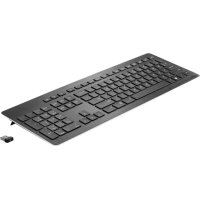

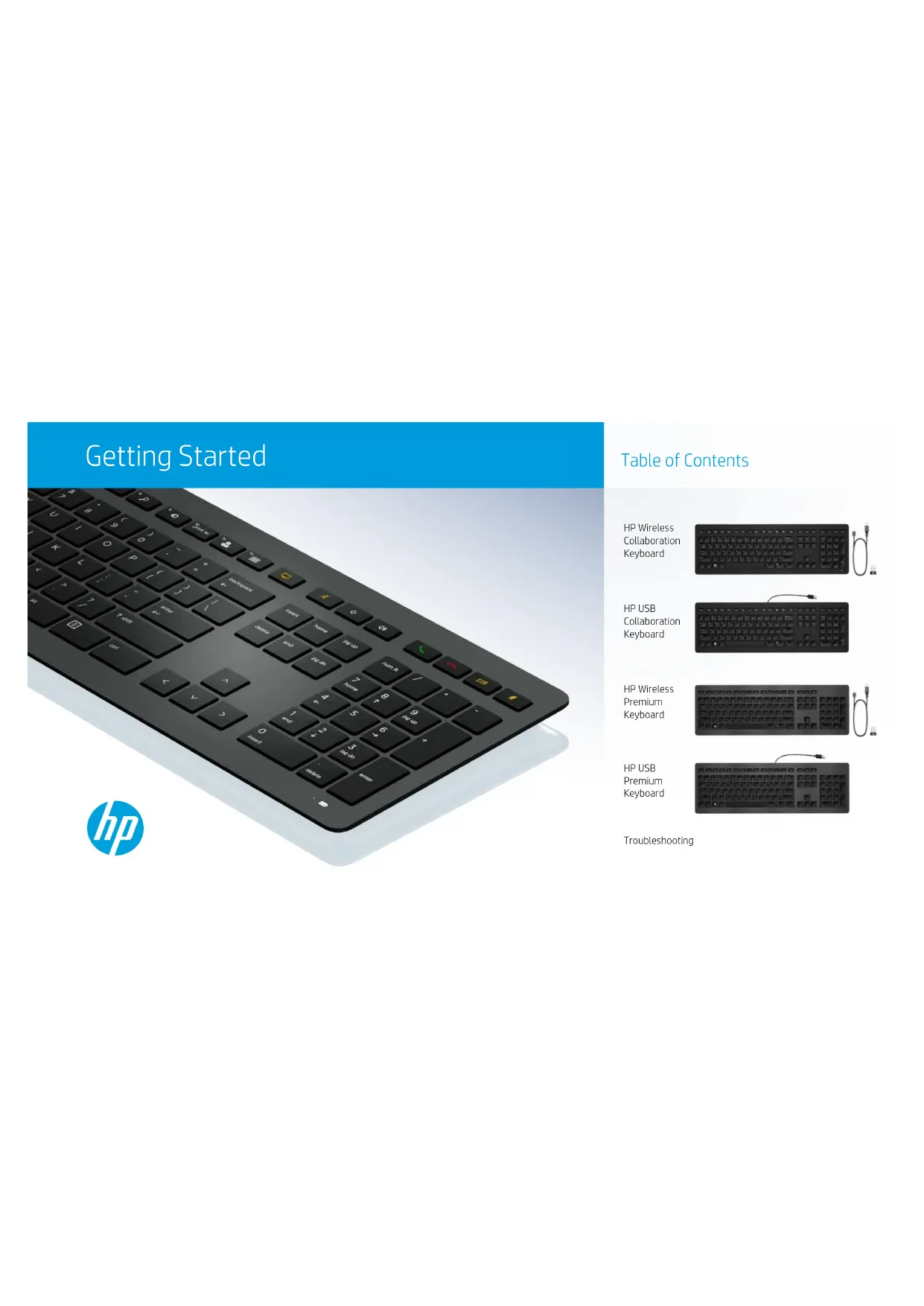


| Product type | Wireless keyboard |
| Brand | HP |
| Model | Wireless Premium |
| Connectivity | HP Link-5 USB receiver (30 cm range for pairing, standard wireless range) |
| Power | 2 AAA batteries (not included) |
| Dimensions (estimated) | 430 x 130 x 30 mm |
| Weight (estimated) | 500 g |
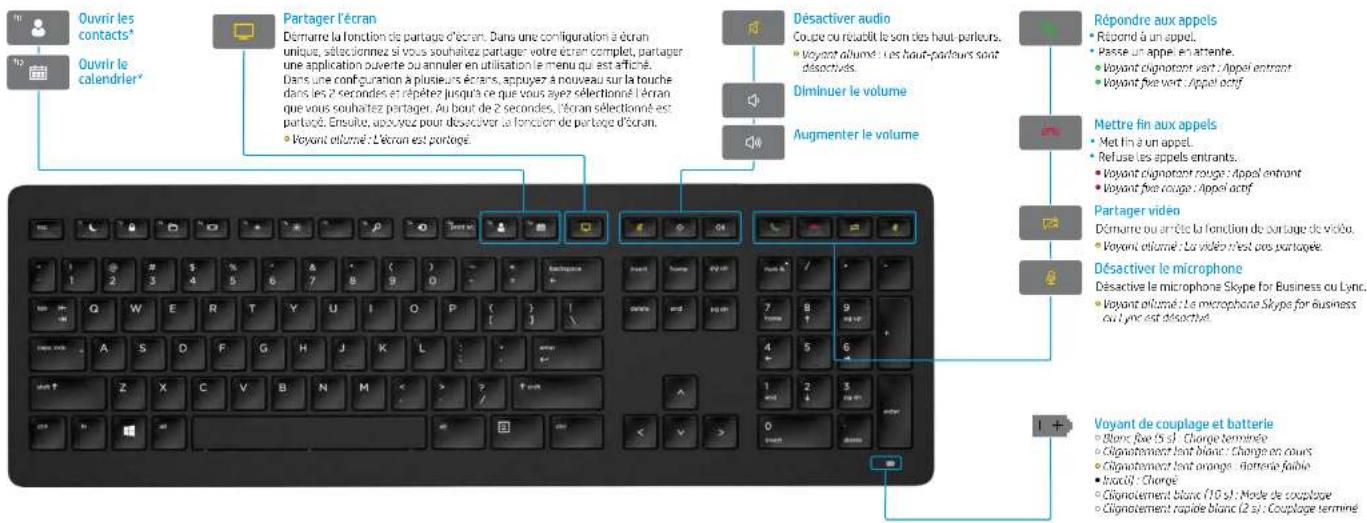
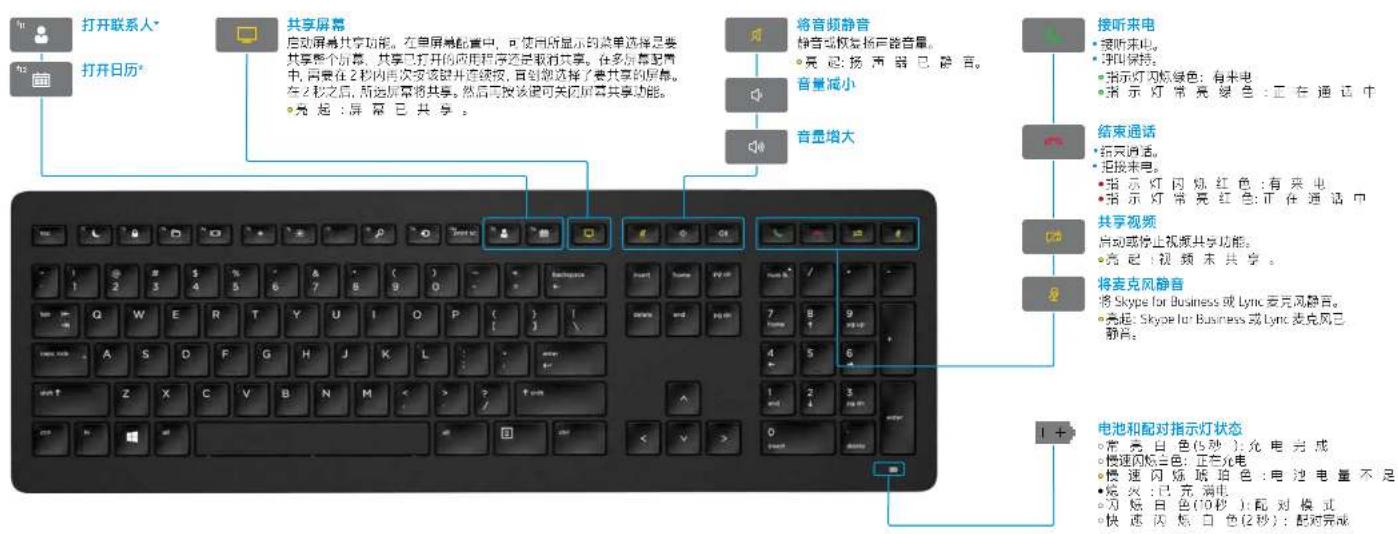
| Main functions | Multimedia keys (volume, play/pause), Skype for Business/Lync call controls (answer, end, mute, speaker), screen and video sharing, function lock (Fn Lock) |
| LED indicators | Battery/pairing LED (solid white charged, slow flashing charging, orange low battery), call LEDs (solid green active, flashing incoming; solid red active, flashing incoming) |
| Compatibility | Windows 10, Windows 8.1, Windows 7 |
| Care and cleaning | Clean with a soft, dry cloth. Avoid liquids. |
| Safety | Do not expose to moisture or extreme temperatures. Keep out of reach of children. |
| Spare parts and repairability | The Link-5 USB receiver is replaceable. Batteries are user replaceable. |
| General information | HP Link-5 technology allows connecting up to 5 compatible HP devices with a single receiver. Keyboard pre-paired with included receiver. |
Frequently Asked Questions - Wireless Premium HP
User questions about Wireless Premium HP
0 question about this device. Answer the ones you know or ask your own.
Ask a new question about this device
Download the instructions for your Keyboard in PDF format for free! Find your manual Wireless Premium - HP and take your electronic device back in hand. On this page are published all the documents necessary for the use of your device. Wireless Premium by HP.
USER MANUAL Wireless Premium HP
Getting Started
Introduction
Initial Steps
Getting Started
Introductory Guide
Before You Begin
Getting Started

Getting Started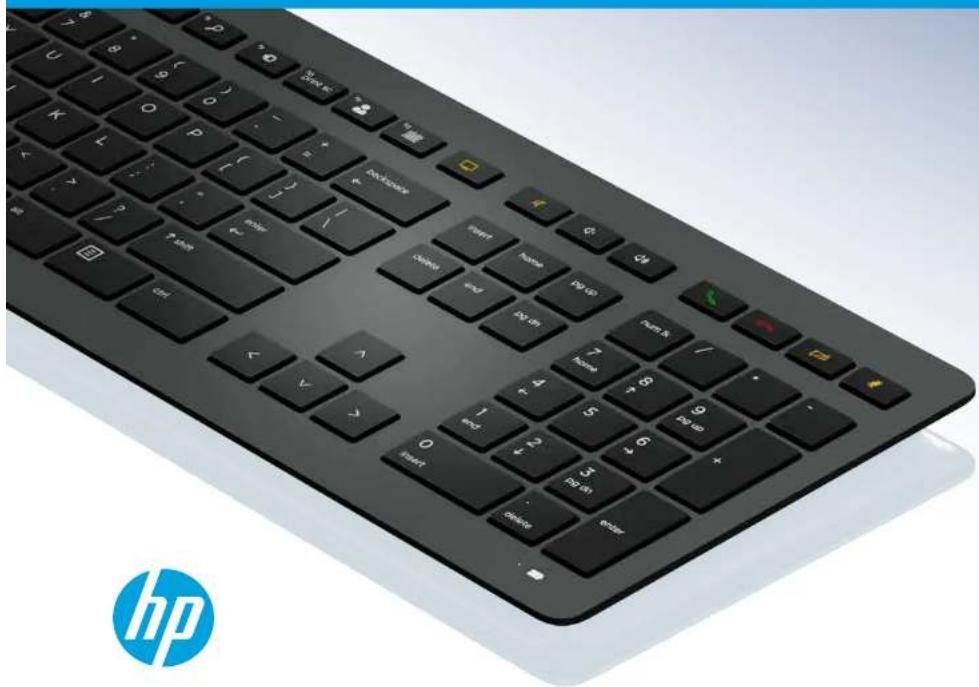
Table of Contents
HP Wireless
Collaboration
Keyboard
HP USB
Collaboration
Keyboard
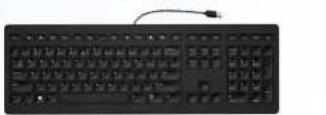
HP Wireless
Premium
Keyboard
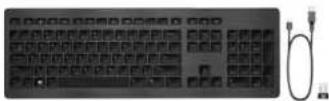
HP USB
Premium
Keyboard
Troubleshooting
HP Wireless Collaboration Keyboard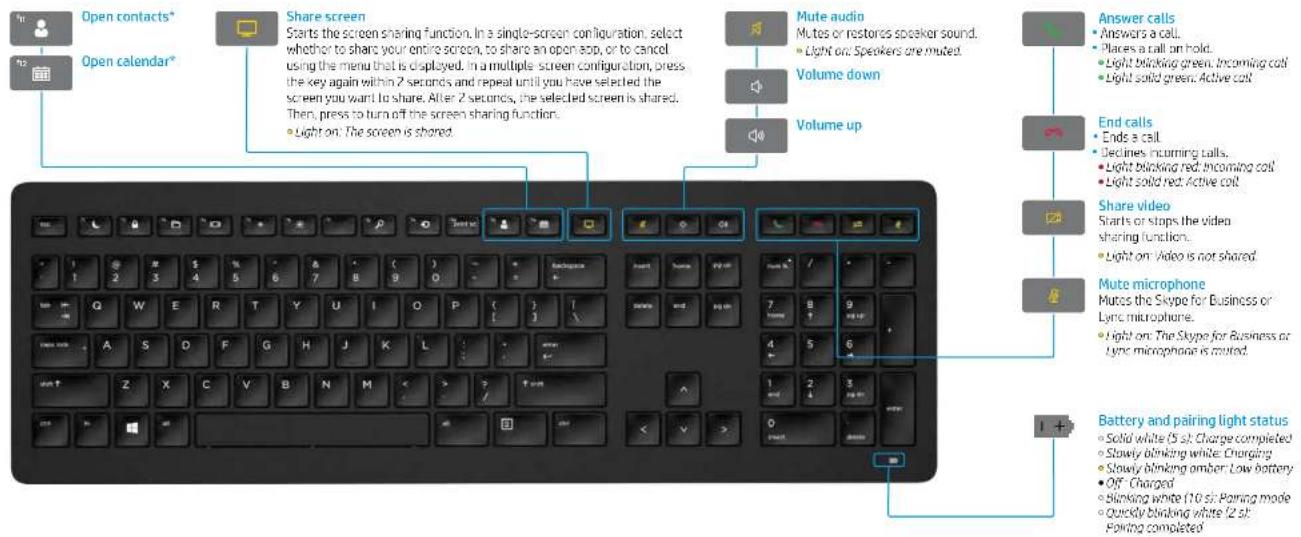
"Skype for Business" or Lynn® subscription required. If you do not have Skype for Business or Lynn installed and running on your computer, these keys open your Outlook® contacts or calendar.
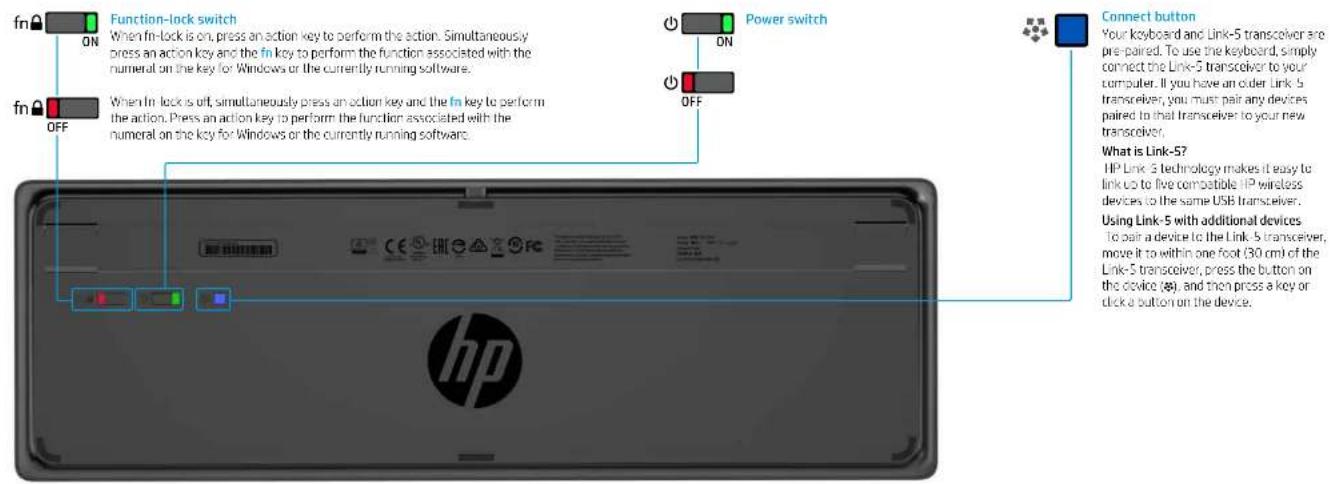
3 HP Wireless Collaboration Keyboard
HP USB Collaboration Keyboard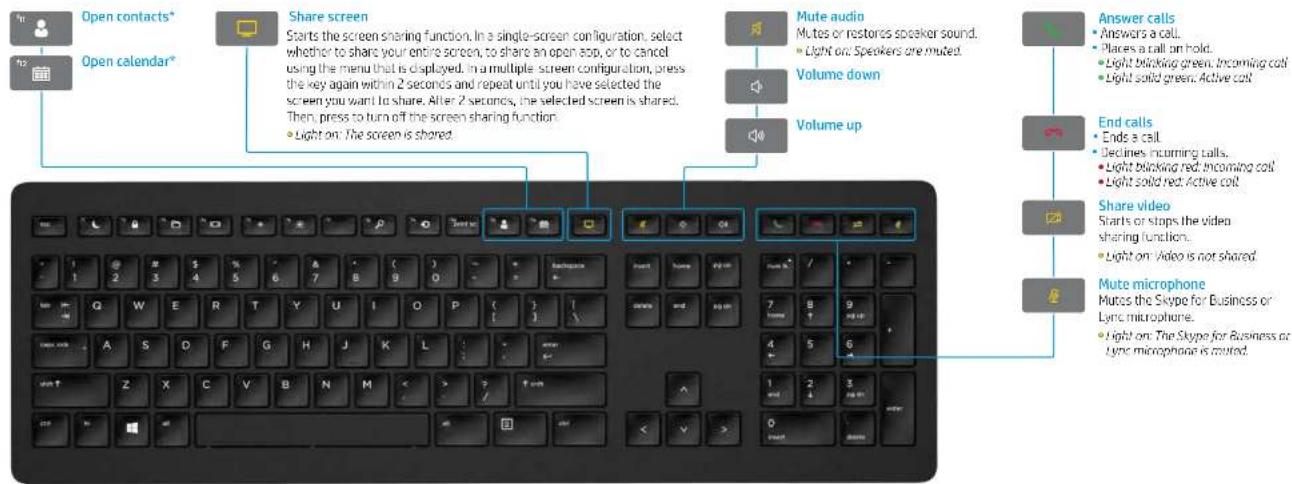
"Skype for Business or Lynn subscription required. If you do not have Skype for Business or Lynn installed and running on your computer, these keys open your Outlook contacts or calendar."
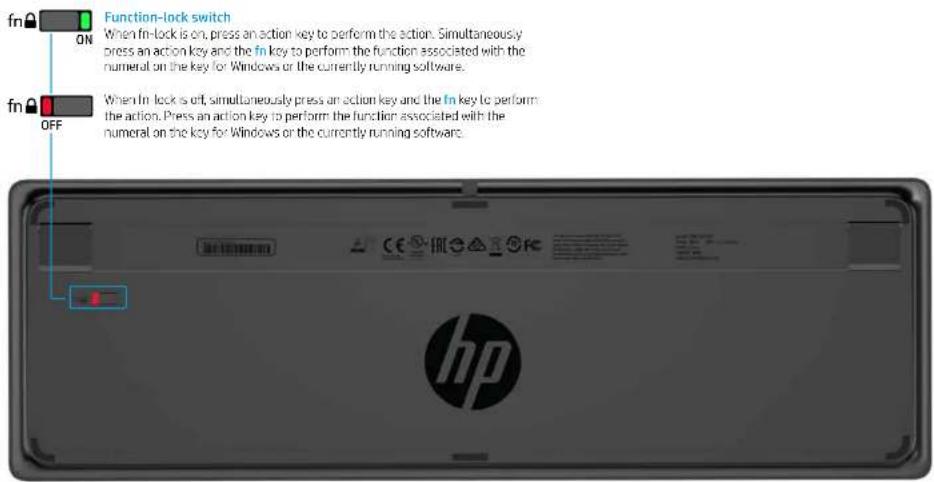
5 HP USB Collaboration Keyboard
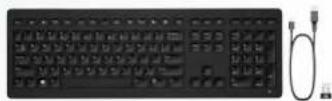
HP Wireless Premium Keyboard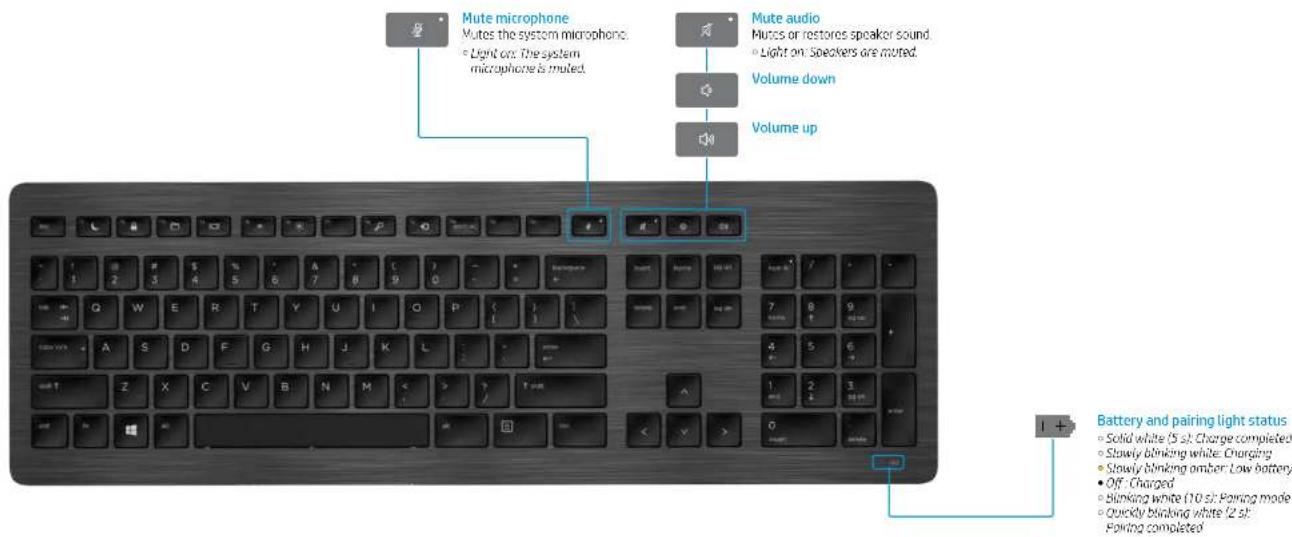
6 HP Wireless Premium Keyboard
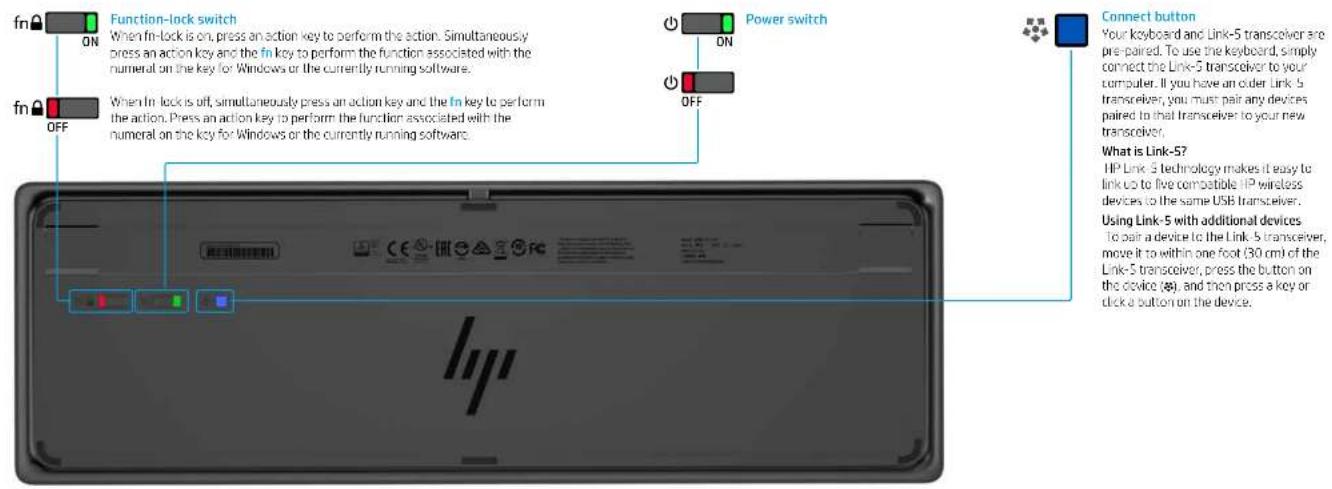
7 HP Wireless Premium Keyboard
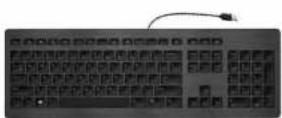
HP USB Premium Keyboard
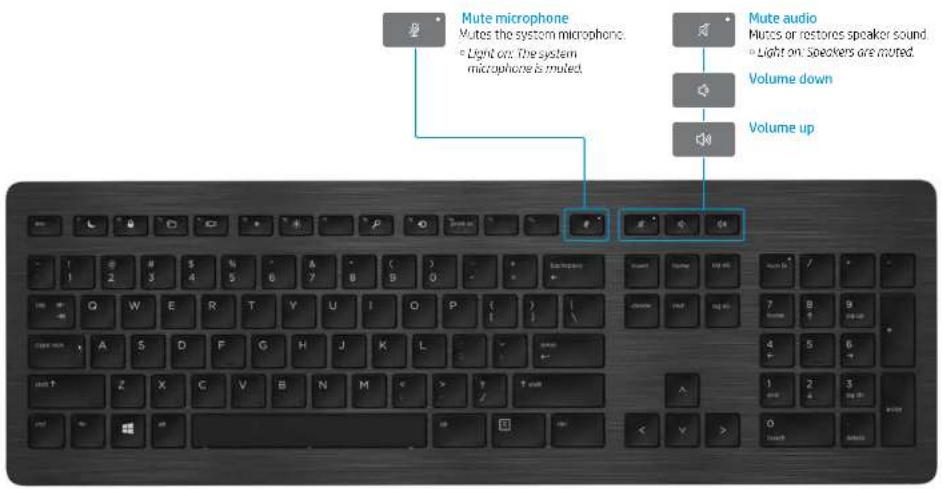
8 HP USB Premium Keyboard
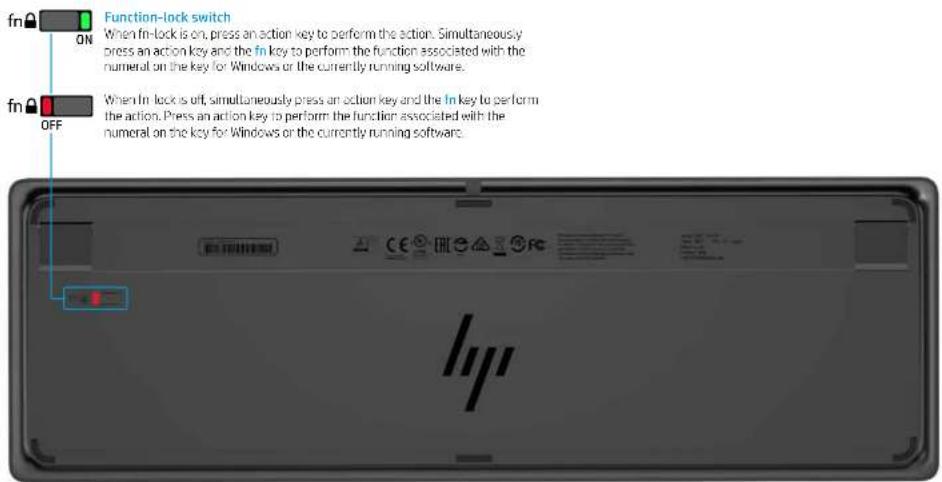
9 HP USB Premium Keyboard
Troubleshooting
Problem Possible cause Solution
| An action key or collaboration key is not working. | The keyboard software is not installed. | Go to www.hz.com/support to download and install the latest software. Select Get software and drivers, enter the model number (on the bottom of the keyboard), and then select Find my product. Select your operating system, and then download the keyboard software. |
| Neither Skype for Business nor Lync is installed on the computer. | Install Skype for Business or Lync, configure your profile, and then download the keyboard software.If you download the keyboard software and then configure your profile, you must restart the computer before using the keyboard. | |
| An unsupported Skype for Business or Lync version is installed. | Download and install the latest version of Skype for Business,.Download and install Lync 2013 version 15.0.46box or higher.Not a keyboard functions can be used with Skype for Business Basic or Lync 2013 Basic. | |
| Your computer is running an unsupported operating system. Only Windows 10, Windows 8.1, and Windows 7 are supported. | ||
| The function-lock switch is in the o1 position. | An action key performs the function indicated by the icon on the key. When fo-lock is out, simultaneously press an action key and the fn key to perform the action. | |
| The keyboard was connected after a call was made. | Before making a call, connect the keyboard to your computer. | |
| Your audio settings are not configured properly. | Confirm that the Skype for Business or Lync Audio Device settings and the System Playback Devices settings are the same. In the System Playback Devices settings, select the Skype for Business or Lync Audio Device as the Default Communication Device. | |
| You tried to share your screen or initiate a video call, but the recipient is on a device that does not support video. | Screen sharing and video calls are not supported on calls to a land line or phone. To use these functions, make a call to a device with Skype for Business or Lync installed. | |
| The 15 and 16 action keys do not adjust your monitor brightness setting. | Your device is not supported. | The 15 and 16 action keys are supported only on select HIP laptops and Alt in One computers. |
| Cannot share screen in a 1-on-1 chat window. | This action is not supported. | Make an audio or video call and share your screen in that window. In Skype for Business or Lync, you can have a 1-on-1 chat in the same window as your audio or video call. |
| The share screen light does not turn on. | The recipient has not accepted your share screen request. | The share screen light turns on after the recipient accepts your share screen request. |
| The answer call or end call lights can not turn on. | The recipient has not answered the call. | The lights turn on after the recipient answers your call. |
| The wireless keyboard does not pair with my USB transceiver. | You are trying to pair the keyboard to an unsupported USB transceiver. | Only pair the keyboard to the included Link 5 transceiver. Outer versions of the Link 5 transceiver are not supported. |
| The connection was lost. | Re-pair the keyboard to the included Link-5 transceiver. Move the keyboard to within one foot (30 cm) of the Link-5 transceiver, and then press the button on the keyboard [A]. When the light binds to indicate that the keyboard is in pairing mode, press a key on the keyboard. The light blinks more quickly for 2 seconds when the pairing is complete. | |
10 Troubleshooting
Introduction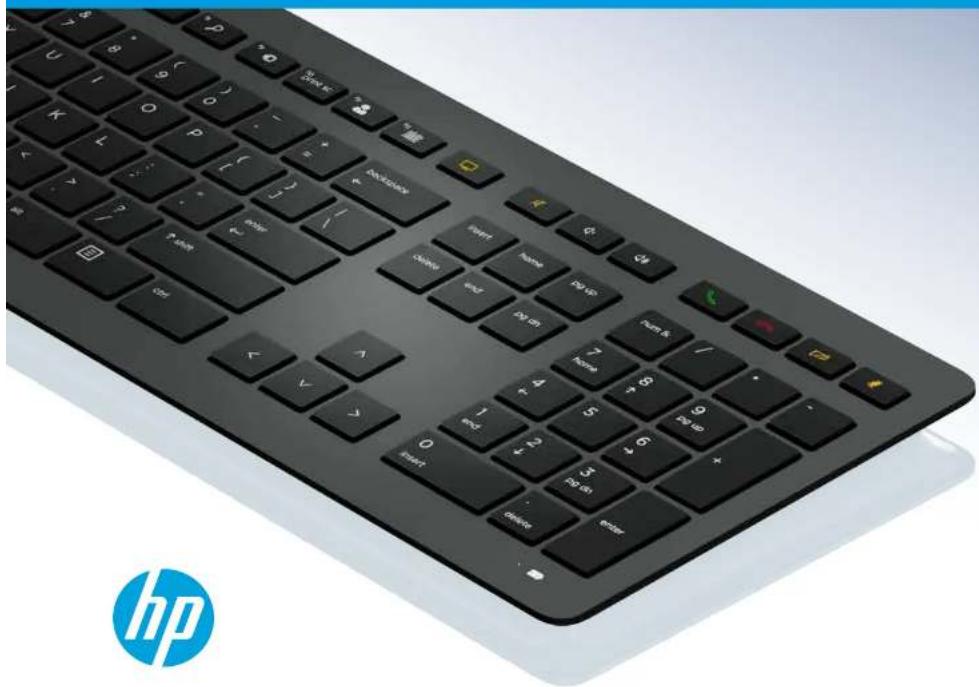
Table of Contents
HP Wireless Collaboration Keyboard
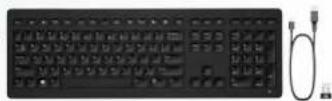
HP USB Collaboration Keyboard
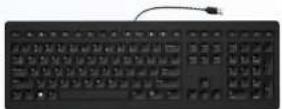
HP Wireless Premium Keyboard
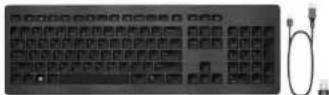
HP USB Premium Keyboard
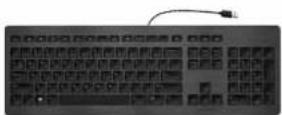
Troubleshooting
HP Wireless Collaboration Keyboard
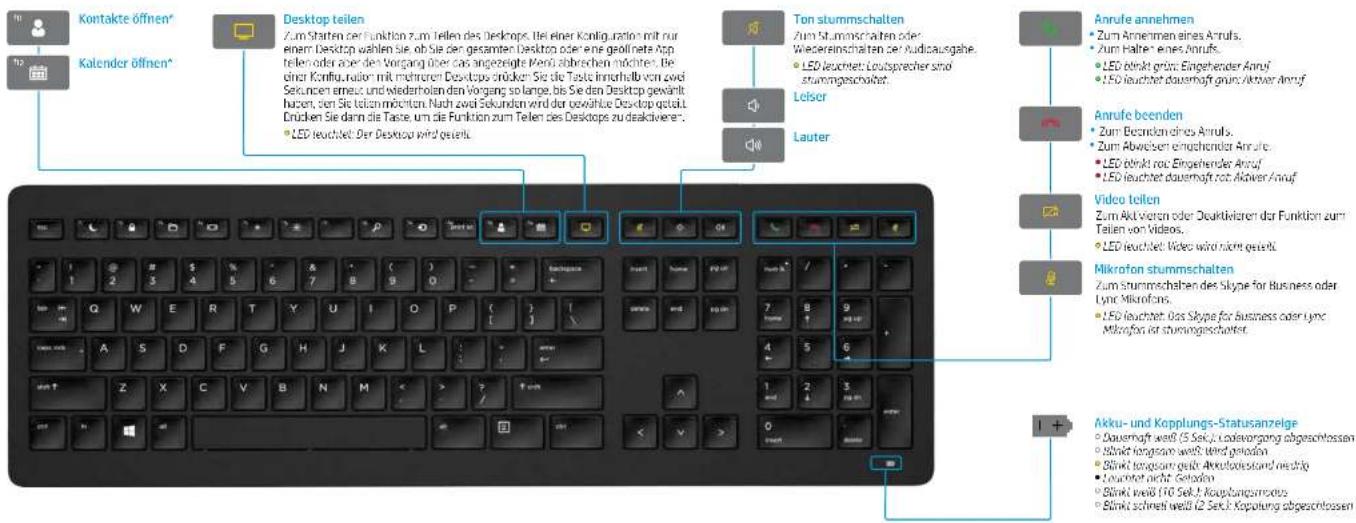
15 HF USB Collaboration Keyboard
HP Wireless Premium Keyboard
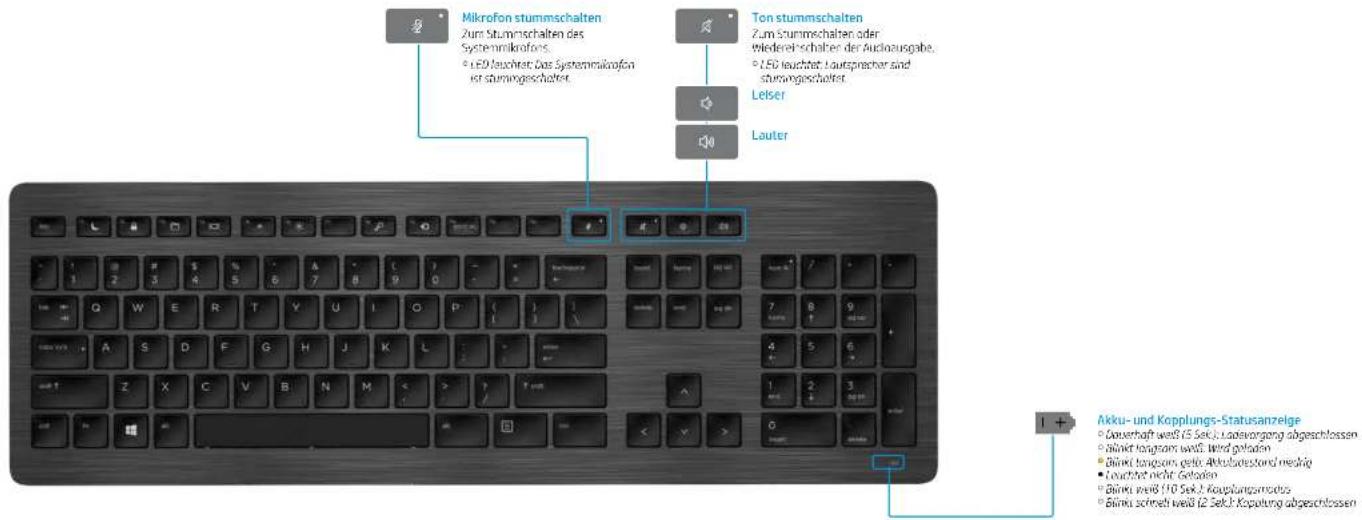
16 HP Wireless Premium Keyboard
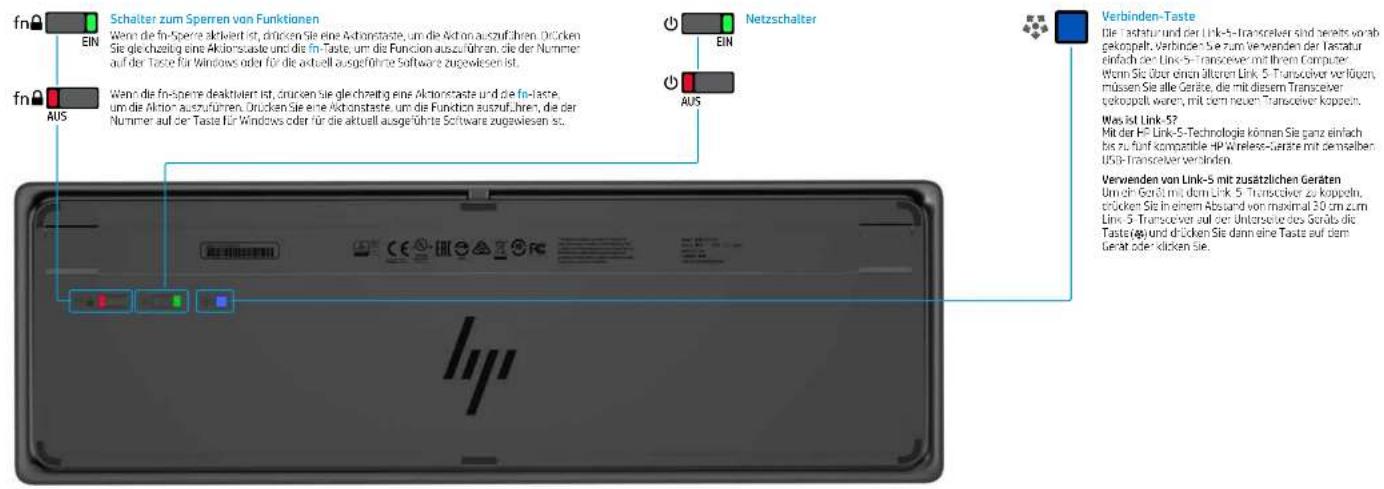
17 HF Wireless Premium Keyboard
HP USB Premium Keyboard
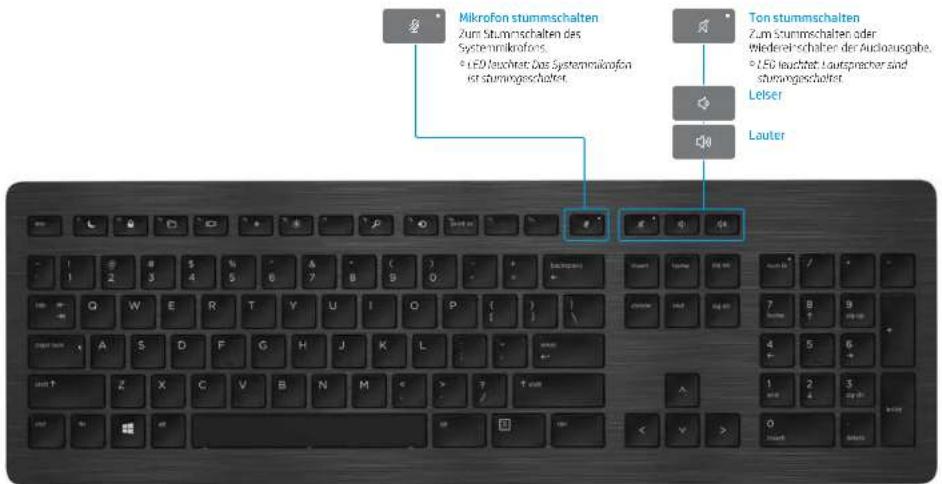
Index
Table of Contents
HP Wireless Pro Keyboard
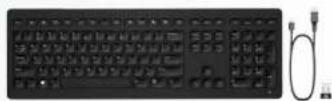
HP USB Pro Keyboard
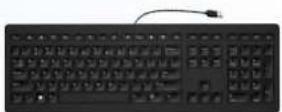
HP Wireless Premium Keyboard
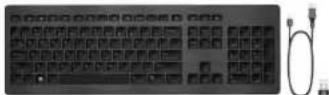
HP USB Premium Keyboard
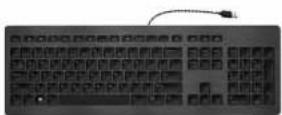
Troubleshooting
HP Wireless Pro Keyboard
Troubleshooting
Table of Contents

HP USB Premium Keyboard
Table of Contents
HP Wireless
Collaboration Keyboard
HP USB
Collaboration Keyboard
HP Wireless
Premium Keyboard
HP USB
Premium Keyboard
Troubleshooting
HP Wireless Collaboration Keyboard
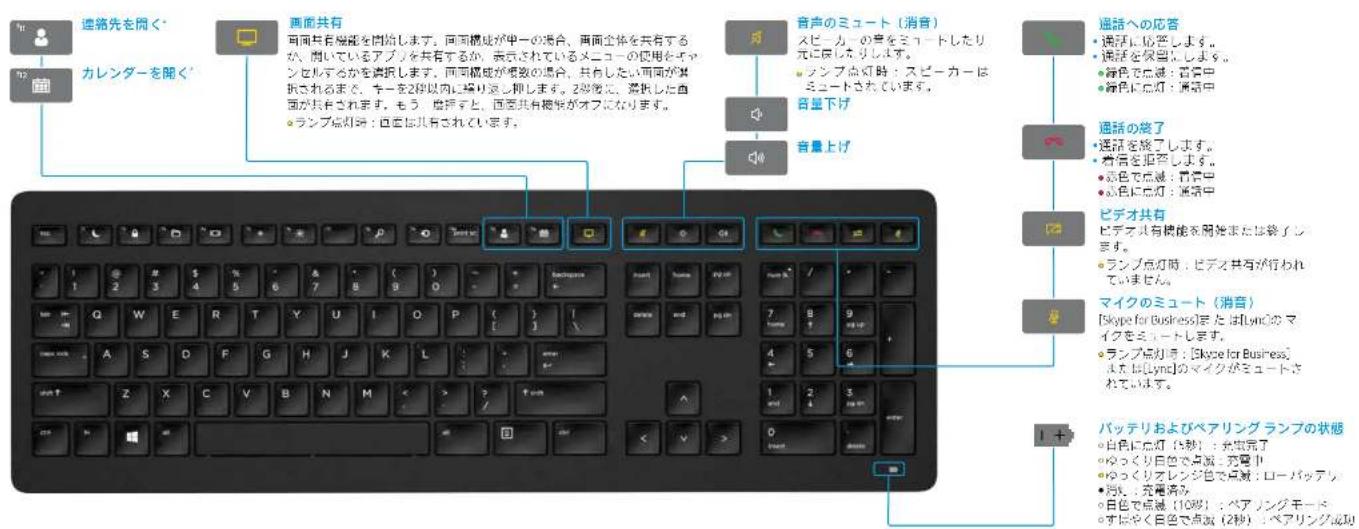
Table of Contents
HP Wireless Collaboration Keyboard
HP USB Keyboard Collaboration Edition
HP Wireless Keyboard Advanced Edition
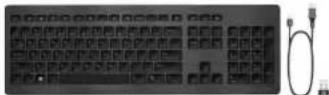
HP USB Keyboard Advanced Edition

Troubleshooting
HP Wireless Keyboard Collaboration Edition
69 HP USB Silver Advanced Edition
Troubleshooting
Problem Possible Cause Solution


Brand : HP
Model : Wireless Premium
Category : Keyboard