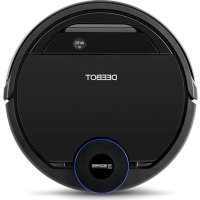
DEEBOT OZMO 937 - Vacuum Cleaner ECOVACS - Free user manual and instructions
Find the device manual for free DEEBOT OZMO 937 ECOVACS in PDF.



| Brand | ECOVACS |
| Model | DEEBOT OZMO 937 |
| Product type | Robotic vacuum cleaner |
| Power supply | Lithium battery 3200 mAh, 14.8 V DC; charging station: input 100-130 V AC, 50-60 Hz, output 20 V DC, 0.8 A |
| Main functions | Automatic cleaning, custom cleaning, zone cleaning, scheduled cleaning, virtual boundary, continuous cleaning, automatic return to charging station |
| OZMO cleaning system | Optional washing system with water tank, plate and washable microfiber cloth; automatic carpet detection and avoidance |
| Suction accessories | Main brush (for deep cleaning) and direct suction accessory (to prevent hair tangles) |
| Side brushes | 4 side brushes (removable, replacement every 3 to 6 months) |
| Filtration | Sponge filter and high-efficiency filter (washable, replacement every 4 to 6 months) |
| Mapping and navigation | SMART NAVI laser technology (LDS) to map the environment |
| Connectivity | Built-in Wi-Fi, ECOVACS app compatible with iOS 9.0+ and Android 4.0+ |
| Sensors | Drop sensors, collision sensor, carpet detection sensors |
| Charging and battery life | Initial charging time: 4 hours; automatic return when battery low |
| Maintenance | Washable dust bin and filters; washable cleaning cloth; multifunctional cleaning tool included |
| Spare parts and repairability | Side brushes, main brush, direct suction accessory, sponge filter, high-efficiency filter, cleaning cloth, cloth plate, water tank, battery replaceable by a professional |
| Safety | Automatic stop when blocked, drop detection, indoor use only, operating temperature: -5 °C to 40 °C |
| General information | Household use only; not suitable for wet or moist surfaces |
Frequently Asked Questions - DEEBOT OZMO 937 ECOVACS
User questions about DEEBOT OZMO 937 ECOVACS
0 question about this device. Answer the ones you know or ask your own.
Ask a new question about this device
Download the instructions for your Vacuum Cleaner in PDF format for free! Find your manual DEEBOT OZMO 937 - ECOVACS and take your electronic device back in hand. On this page are published all the documents necessary for the use of your device. DEEBOT OZMO 937 by ECOVACS.
USER MANUAL DEEBOT OZMO 937 ECOVACS
Congratulations on the purchase of your ECOVACS ROBOTICS DEEBOT! We hope it brings you many years of satisfaction. We believe that your new robot will help keep your home clean and provide you with more quality time to do other things.
Live Smart. Enjoy Life.
Should you have any problems programming the robot or getting your robot to function properly, please call us before contacting or returning it to the place of purchase. Call our toll-free number 1-844-ECOVACS (1-844-326-8227) or 1-330-994-1760 from outside the United States of America or Canada for assistance.
For more information, please visit the ECOVACS ROBOTICS official website: www.ecovacs.com.
The company reserves the right to make technological and/or design changes to this product for the purpose of continuous improvement.
Thank you for choosing DEEBOT!
Contents
- Important Safety Instructions 2
- Package Contents and Technical Specifications 7
2.1 Package Contents 7
2.2 Specifications 7
2.3 Product Diagram 8
- Operating and Programming 10
3.1 Notes Before Cleaning 10
3.2 Quick Start 12
3.3 Cleaning Mode Selection 15
3.4 Programming the Robot 16
3.5 Additional Settings 16
3.6 Optional OZMO Mopping System 17
3.7 Choosing a Suction Option 18
- Maintenance 20
4.1 OZMO Mopping System 20
4.2 Dust Bin and Filters 21
4.3 Main Brush, Direct Suction Option and Side Brushes 22
4.4 Other Components 23
4.5 Regular Maintenance 25
5.Troubleshooting 26
1. Important Safety Instructions
IMPORTANT SAFETY INSTRUCTIONS READ ALL INSTRUCTIONS BEFORE USING THIS APPLIANCE.
SAVE THESE INSTRUCTIONS
For Household use only
When using an electrical appliance, basic precautions should always be followed, including the following:
WARNING: Read all safety warnings and instructions. Failure to follow the warnings and instructions may result in electric shock, fire or serious injury.
- Do not allow to be used as a toy. Close attention is necessary when used by or near children.
- Clear the area to be cleaned. Remove power cords and small objects from the floor that could entangle the Appliance. Tuck rug fringe under the rug base, and lift items such as curtains and tablecloths off the floor.
- If there is a drop off in the cleaning area due to a step or stairs, you should operate the Appliance to ensure that it can detect the step without falling over the edge. It may become necessary to place a physical barrier at the edge to keep the unit from falling. Make sure the physical barrier is not a trip hazard.
- Only use as described in this manual. Only use attachments recommended or sold by the manufacturer.
- Please make sure your power source voltage matches the power voltage marked on the Docking Station.
- Do not handle plug or appliance with wet hands.
- Nonrechargeable batteries are prohibited. For battery information, please refer to Specifications section.
- Do not use without dust bin and/or filters in place.
- Do not operate the vacuum in an area where there are lit candles or fragile objects on the floor to be cleaned.
- Do not use and store in extremely hot or cold environments (below -5^ / 23^ or above 40^ / 104^ ). Please charge the robot in temperature above 0^ / 32^ and below 40^ / 104^ .
- Keep hair, loose clothing, fingers, and all parts of body away from any openings and moving parts.
- Do not operate the Appliance in a room where an infant or child is sleeping.
1. Important Safety Instructions
- For INDOOR use ONLY. Do not use the Appliance in outdoor, commercial or industrial environments. Do not use Appliance on wet surfaces or surfaces with standing water.
- Do not allow the Appliance to pick up large objects like stones, large pieces of paper or any item that may clog the Appliance.
- Do not use Appliance to pick up flammable or combustible materials such as gasoline, printer or copier toner, or use in areas where they may be present.
- Do not use Appliance to pick up anything that is burning or smoking, such as cigarettes, matches, hot ashes, or anything that could cause a fire.
- Do not put any object into openings. Do not use with any opening blocked; keep free of dust, lint, hair, and anything that may reduce air flow.
- Take care not to damage the power cord. Do not pull on or carry the Appliance or Docking Station by the power cord, use the power cord as a handle, close a door on the power cord, or pull power cord around sharp edges or corners. Do not run Appliance over the power cord. Keep power cord away from hot surfaces. Do not unplug by pulling on cord. To unplug, grasp the plug, not the cord.
- If the power cord is damaged, it must be replaced by the manufacturer or its service agent in order to avoid a hazard.
- The power supply is not to be repaired and not to be used any longer if it is damaged or defective.
- Do not use with a damaged power cord or plug. Do not use the Appliance or Docking Station if it is not working properly, has been dropped, damaged, left outdoors, or come in contact with water. It must be repaired by the manufacturer or its service agent in order to avoid a hazard.
- Turn OFF the power switch before cleaning or maintaining the Appliance.
- The plug must be removed from the receptacle before cleaning or maintaining the Docking Station.
- Remove the Appliance from the Docking Station, and turn OFF the power switch to the Appliance before removing the battery for disposal of the Appliance.
- The battery must be removed and discarded according to local laws and regulations before disposal of the Appliance.
- Please dispose of used batteries according to local laws and regulations.
1. Important Safety Instructions
- Do not incinerate the Appliance even if it is severely damaged. The batteries can explode in a fire.
- When not using the Docking Station for a long period of time, please unplug it.
- The Appliance must be used in accordance with the directions in this Instruction Manual. ECOVACS ROBOTICS cannot be held liable or responsible for any damages or injuries caused by improper use.
- Prevent unintentional starting. Ensure the switch is in the off position before connecting to battery pack, picking up or carrying the appliance. Carrying the appliance with your finger on the switch or energizing appliance that have the switch on invites accidents.
- When battery pack is not in use, keep it away from other metal objects, like paper clips, coins, keys, nails, screws or other small metal objects, that can make a connection from one terminal to another. Shorting the battery terminals together may cause burns or a fire.
- Under abusive conditions, liquid may be ejected from the battery; avoid contact. If contact accidentally occurs, flush with water. If liquid contacts eyes, additionally seek medical help. Liquid ejected from the battery may cause irritation or burns.
- Do not use a battery pack or appliance that is damaged or modified. Damaged or modified batteries may exhibit unpredictable behavior resulting in fire, explosion or risk of injury.
- Do not expose a battery pack or appliance to fire or excessive temperature. Exposure to fire or temperature above 130^ may cause explosion. The temperature of 130^ can be replaced by the temperature of 265^ .
- Follow all charging instructions and do not charge the battery pack or appliance outside of the temperature range specified in the instructions. Charging improperly or at temperatures outside of the specified range may damage the battery and increase the risk of fire.
- Have servicing performed by a qualified repair person using only identical replacement parts. This will ensure that the safety of the product is maintained.
- Do not modify or attempt to repair the appliance or the battery pack (as applicable) except as indicated in the instructions for use and care.
1. Important Safety Instructions
- Place the cords from other appliances out of the area to be cleaned.
- Do not operate the vacuum in a room that has lit candles on furniture that the vacuum may accidentally hit or bump into.
- Do not allow children to sit on the vacuum.
- Recharge only with the charger specified by the manufacturer. A charger that is suitable for one type of battery pack may create a risk of fire when used with another battery pack.
- Use appliances only with specifically designated battery packs. Use of any other battery packs may create a risk of injury and fire.
- The robot contains batteries that are only replaceable by skilled persons. To replace the robot's battery, please contact Customer Service.
- If the robot will not be used for a long time, fully charge the robot and power OFF for storage and unplug the Docking Station.
Federal Communications Commission (FCC) Interference Statement
This equipment has been tested and found to comply with the limits for a Class B digital device, pursuant to Part 15 of the FCC Rules.
These limits are designed to provide reasonable protection against harmful interference in a residential installation. This equipment generate, uses and can radiate radio frequency energy and, if not installed and used in accordance with the instructions, may cause harmful interference to radio communications.
However, there is no guarantee that interference will not occur in a particular installation. If this equipment does cause harmful interference to radio or television reception, which can be determined by turning the equipment off and on, the user is encouraged to try to correct the interference by one of the following measures:
- Reorient or relocate the receiving antenna.
- Increase the separation between the equipment and receiver.
- Connect the equipment into an outlet on a circuit different from that to which the receiver is connected.
- Consult the dealer or an experienced radio/TV technician for help.
This device complies with Part 15 of the FCC Rules. Operation is subject to the following two conditions:
(1) This device may not cause harmful interference, and (2) this device must accept any interference received, including interference that may cause undesired operation.
FCC Caution: Any changes or modifications not expressly approved by the party responsible for compliance could void the user's authority to operate this equipment.
1. Important Safety Instructions
RF exposure warning
This equipment complies with FCC radiation exposure limits set forth for an uncontrolled environment.
This equipment must be installed and operated in accordance with provided instructions and the antenna(s) used for this transmitter must be installed to provide a separation distance of at least 20~cm from all persons and must not be collocated or operating in conjunction with any other antenna or transmitter.
This device complies with Industry Canada licence-exempt RSS standard(s). Operation is subject to the following two conditions: (1) this device may not cause interference, and (2) this device must accept any interference, including interference that may cause undesired operation of the device.
Under Industry Canada regulations, this radio transmitter may only operate using an antenna of a type and maximum (or lesser) gain approved for the transmitter by Industry Canada. To reduce potential radio interference to other users, the antenna type and its gain should be so chosen that the equivalent is otropically radiated power (e.i.r.p.) is not more than that necessary for successful communication.
User manuals for transmitters equipped with detachable antennas shall also contain the following notice in a conspicuous location:
This radio transmitter (identify the device by certification number, or model number if Category II) has been approved by Industry Canada to operate with the antenna types listed below with the maximum permissible gain and required antenna impedance for each antenna type indicated. Antenna types not included in this list, having a gain greater than the maximum gain indicated for that type, are strictly prohibited for use with this device.
IMPORTANT NOTE:
Radiation Exposure Statement:
This equipment complies with "Industry Canada RSS-102 for radiation exposure limits set forth for an uncontrolled environment".
This equipment should be installed and operated with minimum distance 20cm between the radiator and your body.
To disable Wi-Fi module on DEEBOT, power the robot ON. Place the robot on the Docking Station making sure the Charging Contacts on DEEBOT and the Docking Station Pins make a connection.
Press and hold the AUTO Mode Button on the robot for 20 seconds until DEEBOT emits 3 beeps.
To enable Wi-Fi module on DEEBOT, power the robot OFF and then power ON. The Wi-Fi module is turned on when DEEBOT is restarted.
2. Package Contents and Technical Specifications
2.1 Package Contents
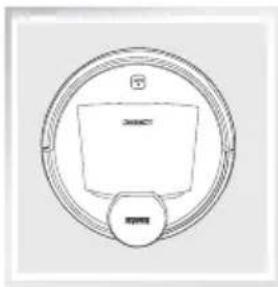
Robot
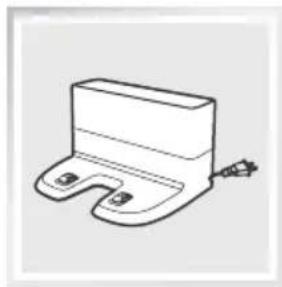
Docking Station
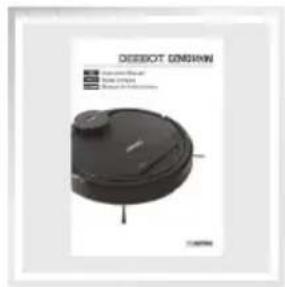
Instruction Manual
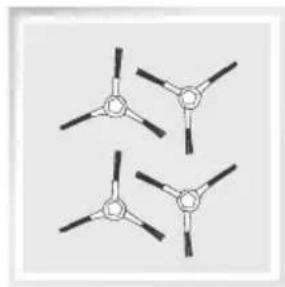
(4) Side Brushes
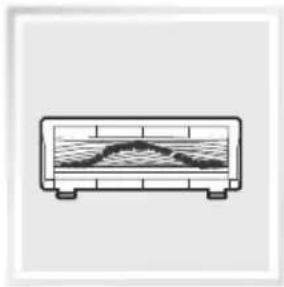
Main Brush Option (Pre-installed)
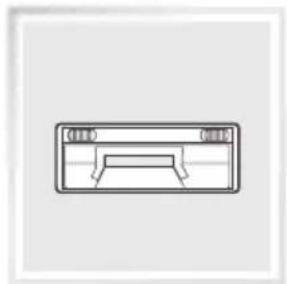
Direct Suction Option
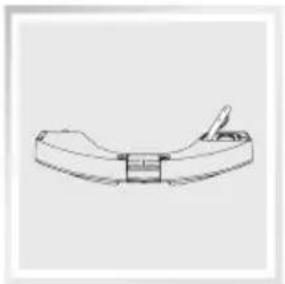
Reservoir
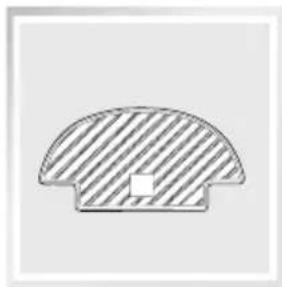
(2) Washable/ Reusable Microfiber Cleaning Cloths
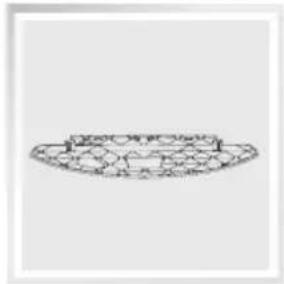
Cleaning Cloth Plate
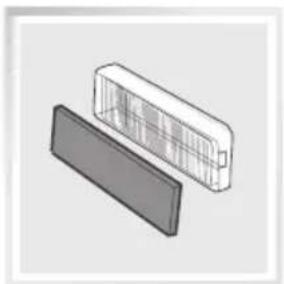
Sponge Filter and High Efficiency Filter
Note: Figures and illustrations are for reference only and may differ from actual product appearance. Product design and specifications are subject to changes without notice.
2.2 Specifications
| Model DG3G | |||
| Working Voltage | 14.8V DC | ||
| Docking Station Model CH1630A | |||
| Input 100-130V AC, 50-60Hz, 0.5A Output | 20V DC, 0.8A | ||
| Battery S01-LI-148-3200, Lithium 3200mAh, 14.8V | |||
| Laser | max. power: 2.5mWFrequency: 1.8KHzRotate Speed: 300±5 circle/min | ||
- Technical and design specifications may be changed in the course of continuous product improvement.
2. Package Contents and Technical Specifications
2.3 Product Diagram
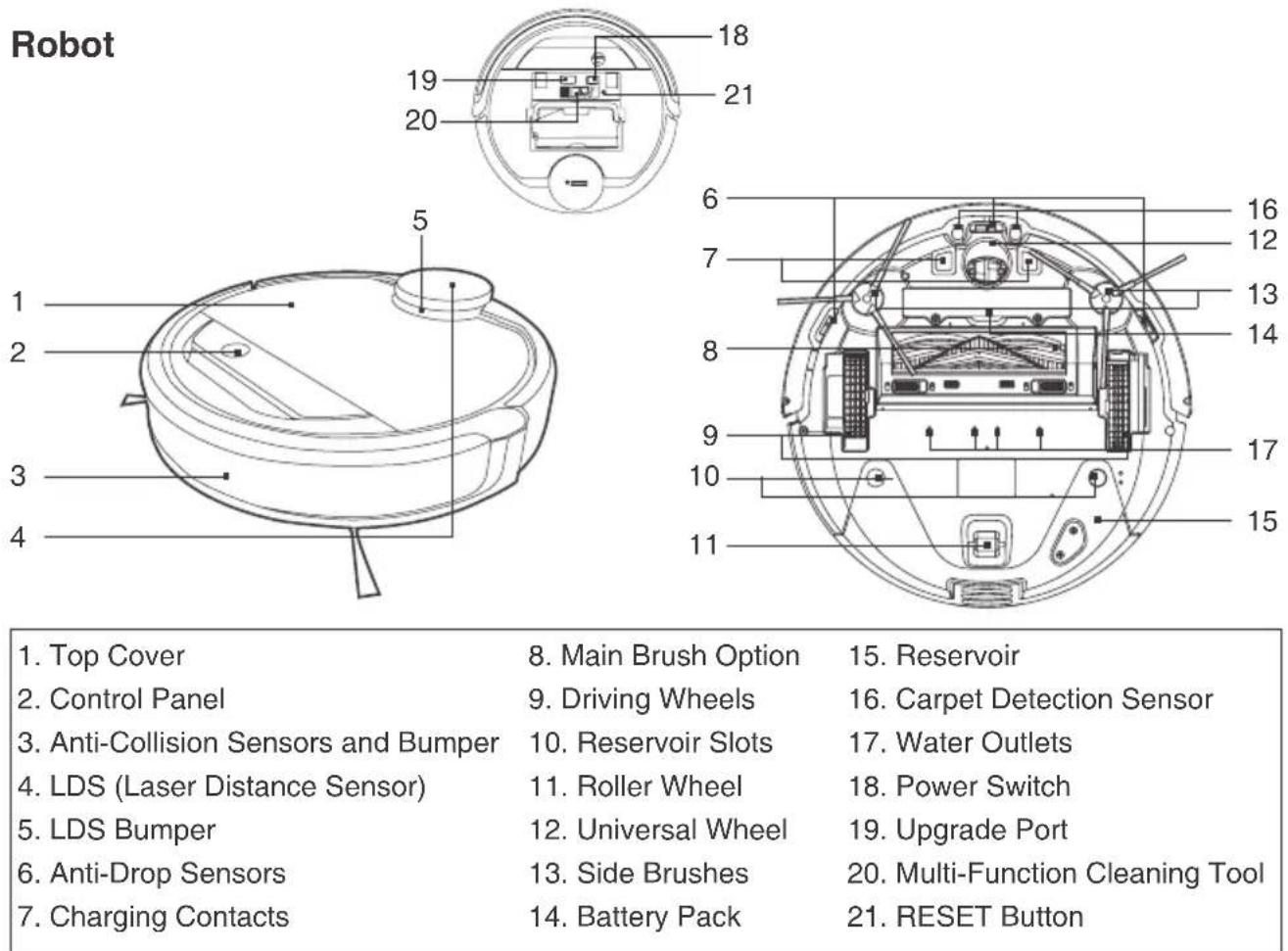
Control Panel
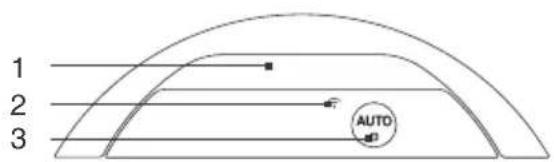
- Status Indicator Light
- Wi-Fi Indicator Light
- AUTO Mode Button
Docking Station
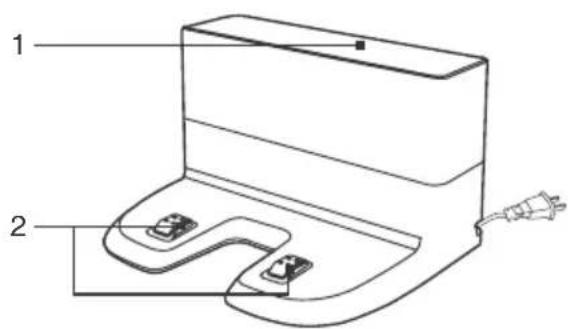
- Infrared Signal Generators
- Docking Station Pins
2. Package Contents and Technical Specifications
Dust Bin
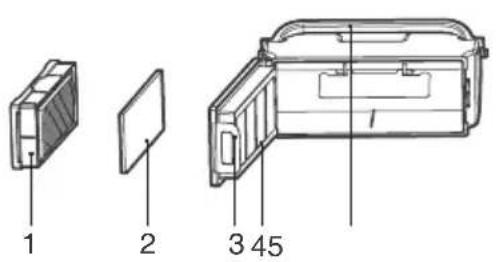
- High Efficiency Filter
- Sponge Filter
- Dust Bin Lock
- Dust Bin Cover
- Dust Bin Handle
Advanced OZMO Mopping System
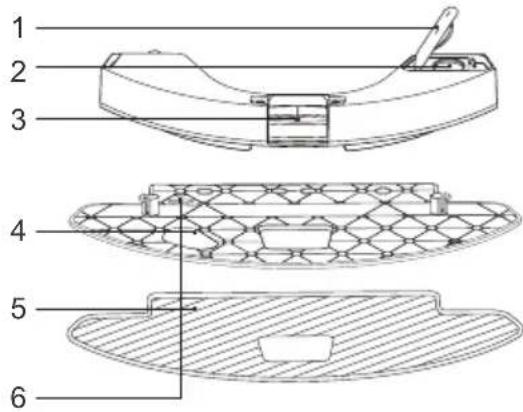
- Water Inlet Cover
- Water Inlet
- Reservoir Release Button
- Cleaning Cloth Plate
- Washable/Reusable Microfiber Cleaning Cloth
- Magnet
3. Operating and Programming
3.1 Notes Before Cleaning
WARNING: Do not use DEEBOT on wet surfaces or surfaces with standing water.
DEEBOT uses SMART NAVI technology (a proprietary laser scanning and mapping system) to scan and generate a map of the home environment. Before operating DEEBOT, take a few moments to survey the area to be cleaned and remove any obstacles.
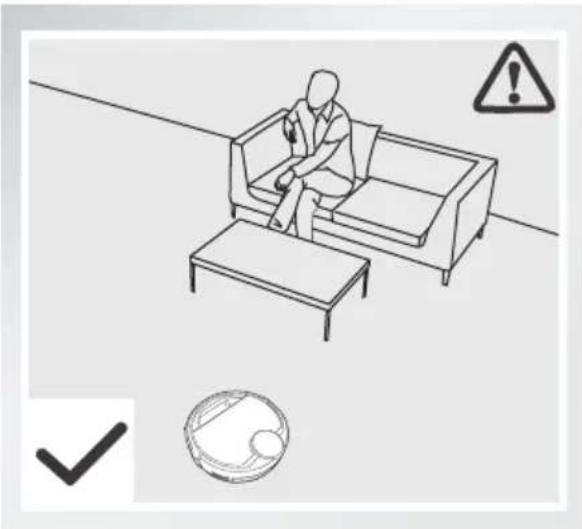
Please supervise DEEBOT during its first cleaning and assist should there be a problem.
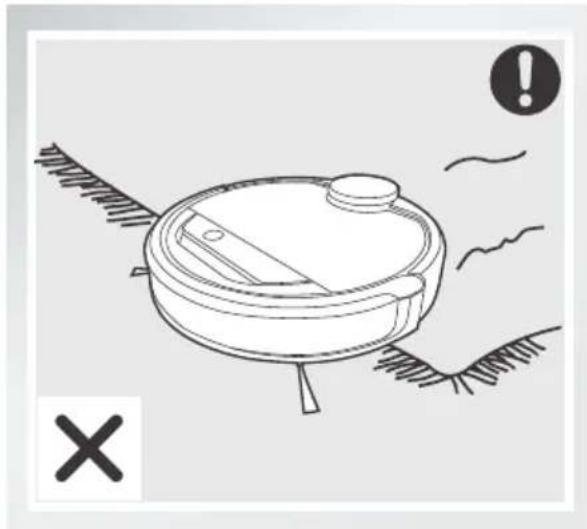
Before using the product on an area rug with tasseled edges, please fold area rug edges under themselves.
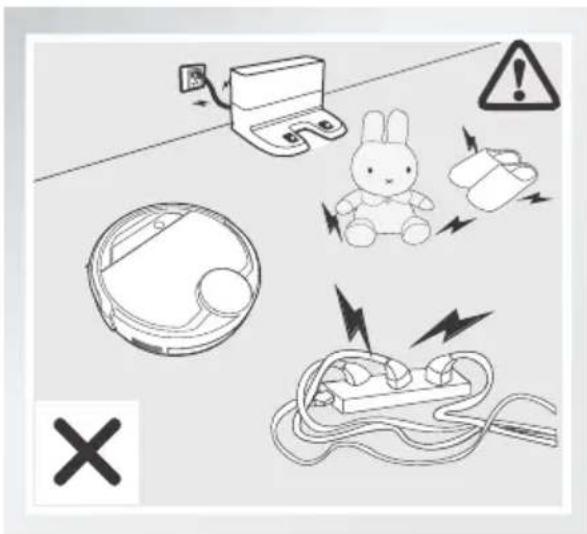
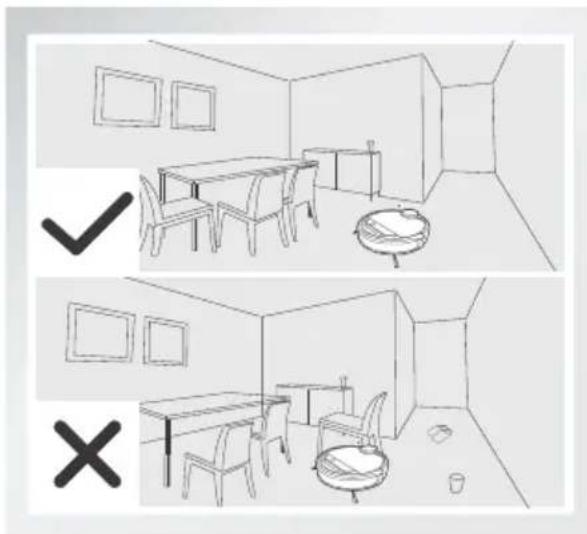
Remove power cords and small objects from the floor that could entangle the product, and tidy up the cleaning area to put furniture like chairs in their proper place.
3. Operating and Programming
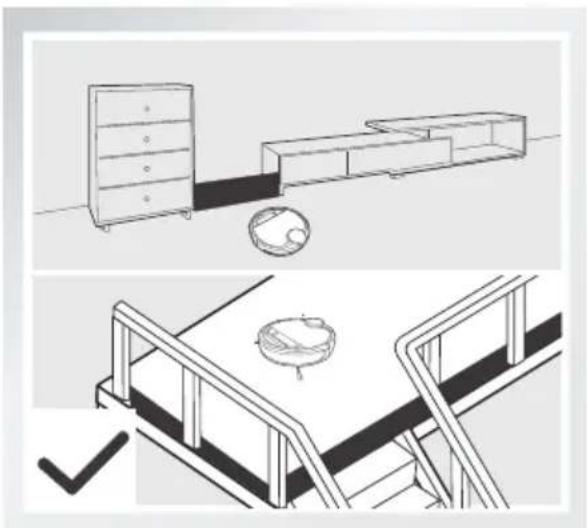
If there is a step or stairs in the cleaning area, please operate DEEBOT to ensure its Anti-Drop Sensors can detect the drop off. It may be necessary to place a physical barrier at the edge of the drop off to keep the unit from falling over the edge.
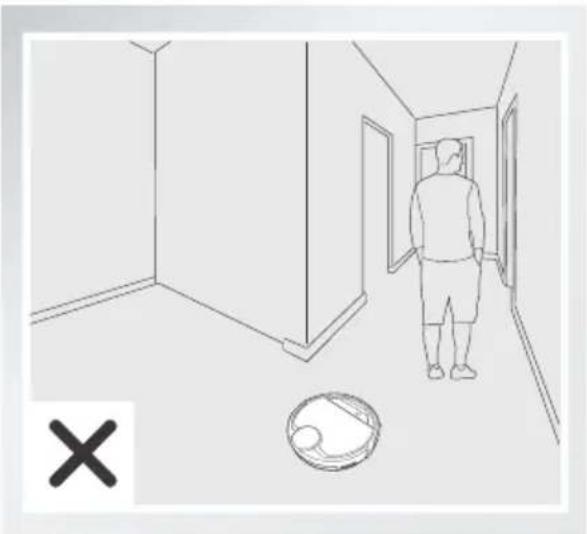
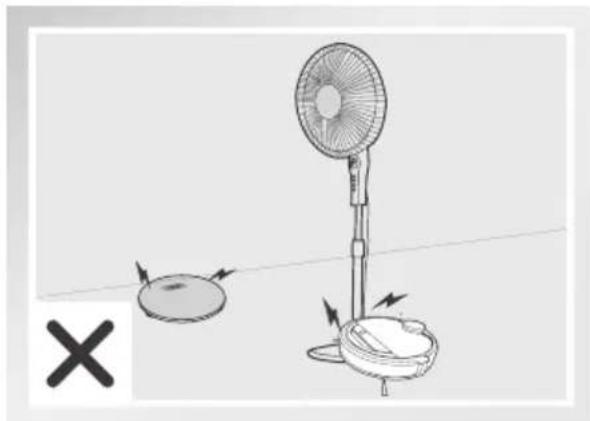
If there is a step or stairs in the cleaning Please do not stand in narrow spaces, such as hallways, or DEEBOT may fail to identify the area to be cleaned.
Please be aware that DEEBOT may climb on objects of less than 1.5cm(0.6^ ) height. Please remove these objects if possible.
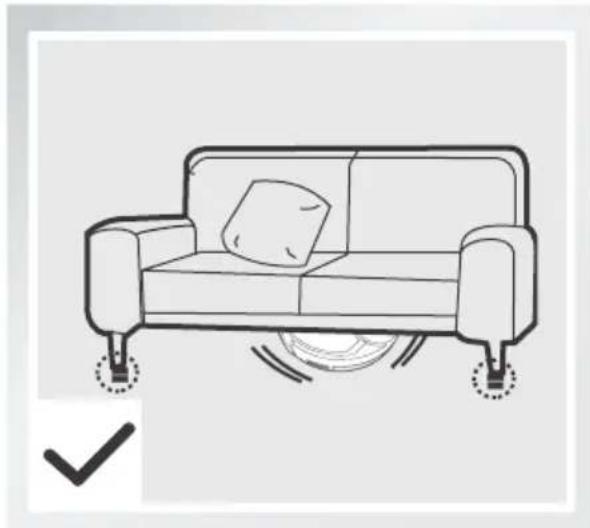
Please be aware that DEEBOT needs at least an 11cm (4.3") clearance to clean under furniture without complications.
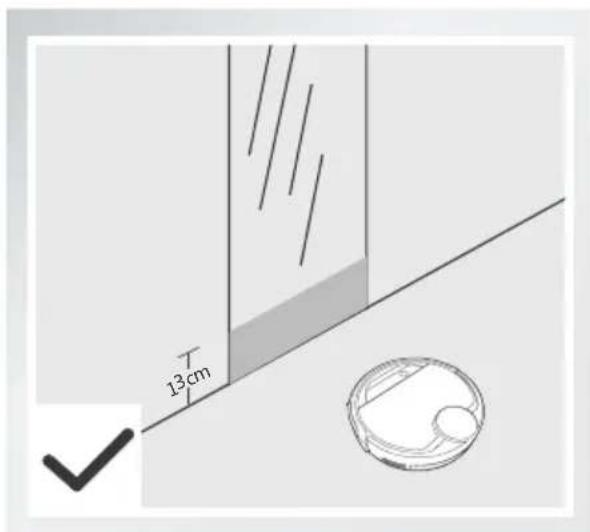
Please cover reflective surfaces 13cm (5.1") from the ground.
3. Operating and Programming
3.2 Quick Start
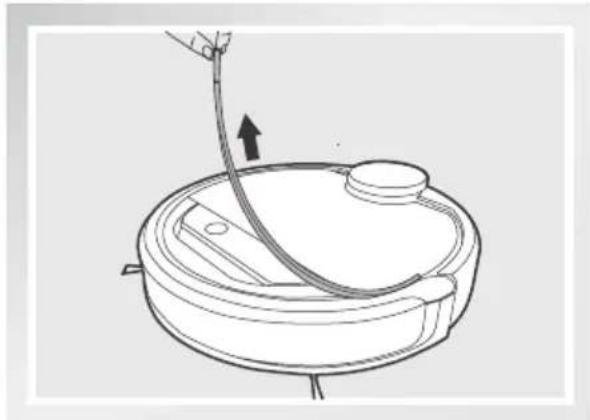
- Remove the protection strip from the robot's Bumper before use.
Docking Station Placement
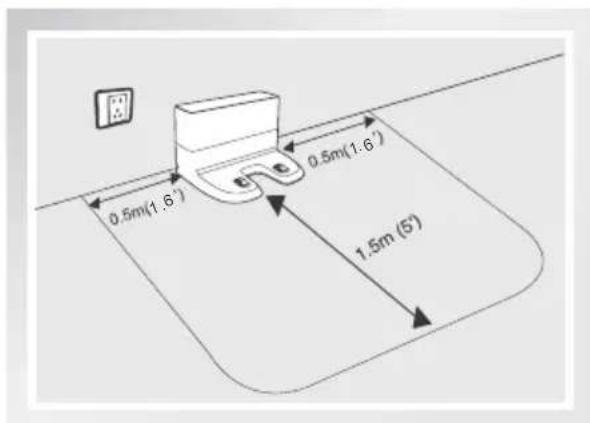
- Place the Docking Station on a level floor surface against the wall with the base perpendicular to the ground. Keep the immediate area 1.5m (5') in front of the charger and 0.5m (1.6') on both sides of the charger clear of objects and reflective surfaces.
- Plug the Docking Station in.
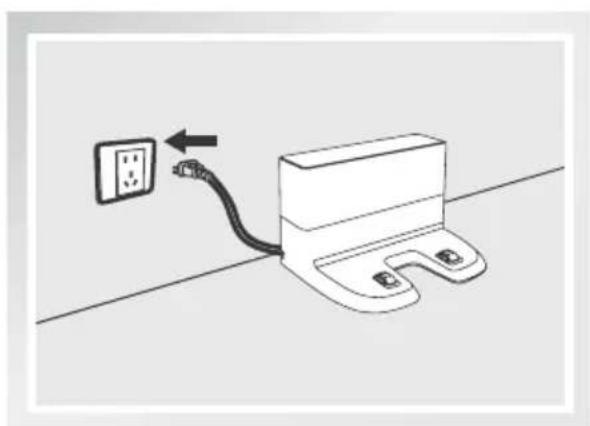
- Do not change the location of the Docking Station once DEEBOT has scanned the environment. If it is necessary to relocate Docking Station, power OFF DEEBOT and then power back ON so DEEBOT can re-scan the environment. Alternatively, use the ECOVACS App to direct the robot to rescan the environment.
3. Operating and Programming
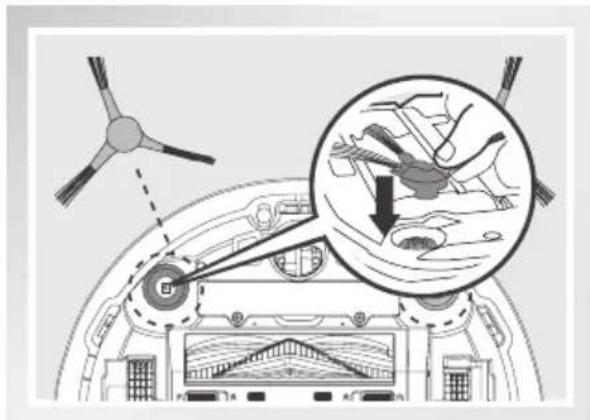
2 Install Side Brushes
- Attach Side Brushes to the bottom of DEEBOT by pressing a brush into each slot with the matching color until it clicks.
3 Power ON
-
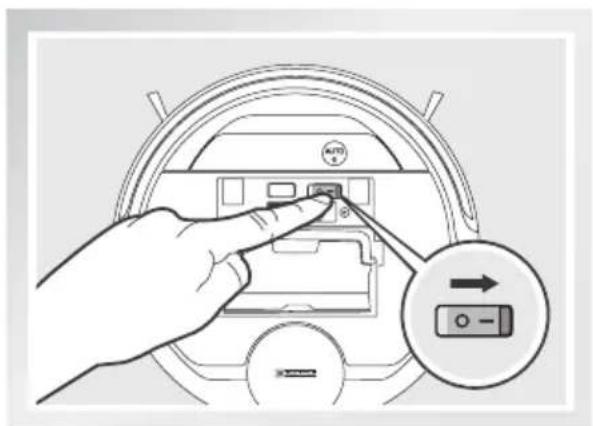
Open the Top Cover. Move the Power Switch to the ON position. "I" = power ON; "O" = power OFF. The Control Panel illuminates, and DEEBOT plays a musical tune. DEEBOT is powered ON when the Control Panel stays illuminated.
-
When DEEBOT is not cleaning, it is suggested to keep it powered ON and charging instead of powered OFF.
4 Charge DEEBOT
-
Place DEEBOT on the Docking Station making sure the Charging Contacts on DEEBOT and the Docking Station Pins make a connection.
-
Charge DEEBOT for at least 4 hours before the first use.
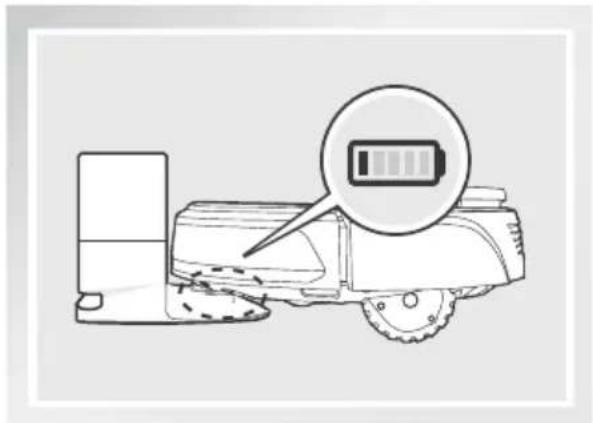
- Please make sure the Power Switch is turned ON before charging. ("O" indicates OFF and "I" indicates ON).
- AUTO Mode Button blinks slowly when DEEBOT is charging. AUTO Mode Button stops glowing when DEEBOT is fully charged.
- When DEEBOT completes the cleaning cycle or when battery power gets low, DEEBOT automatically returns to the Docking Station to recharge itself. DEEBOT can also be sent back to the Docking Station at any time by using ECOVACS App or by pressing the AUTO Button on the robot for 3 seconds.
* Empty any remaining water from the Reservoir and remove the Cleaning Cloth Plate before charging DEEBOT.
3. Operating and Programming
5 Start
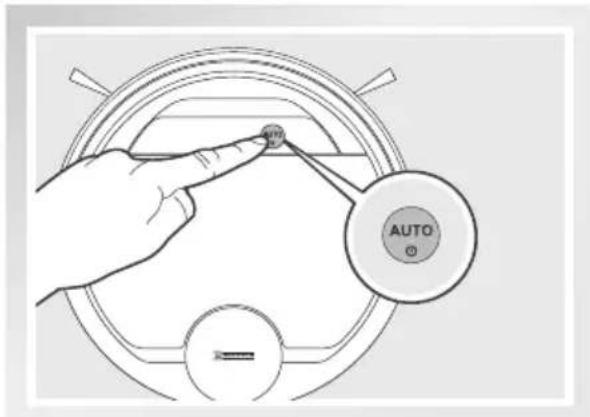
- Press the AUTO Mode Button on DEEBOT. DEEBOT moves around to scan the environment and build the map, and starts to work in AUTO Cleaning Mode at the same time.
- DEEBOT must be powered ON to clean.
To choose another Cleaning Mode, please refer to section 3.3 Cleaning Mode Selection for details. - Do not manually move the robot when it is cleaning or charging.
To add water into the Reservoir when DEEBOT is cleaning, pause the robot. Do not manually move it. Press the Reservoir Release Button, and draw out the Reservoir.
6 Pause
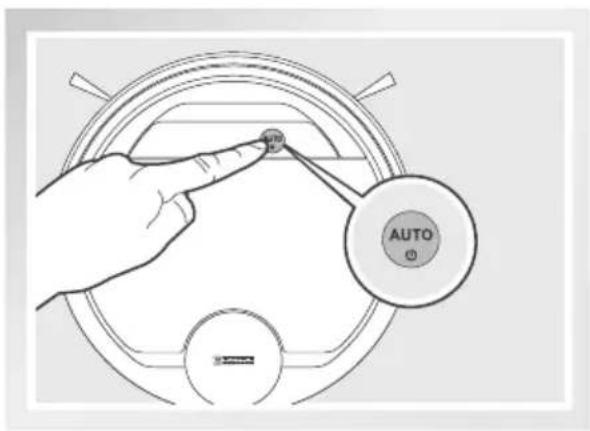
- Pause DEEBOT by pressing the AUTO Mode Button on the robot.
- The robot's Control Panel stops glowing after the robot is paused for more than 10 minutes. Press AUTO Mode Button on DEEBOT to wake up the robot.
3. Operating and Programming
7 Power OFF
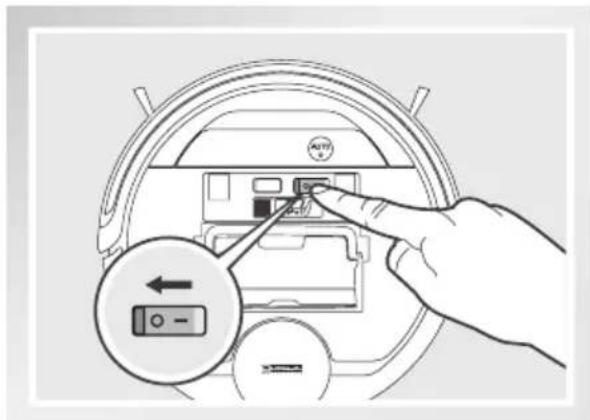
- Pause DEEBOT. Open the robot's Top Cover. Move the Power Switch to the OFF position to power OFF. "I"=power ON; "O"=power OFF.
- When DEEBOT is not working, it is suggested to keep it powered ON and charging.
- For models with app-connectivity, various functions can be performed using the ECOVACS App.
3.3 Cleaning Mode Selection
DEEBOT has several Cleaning Modes to choose from to effectively clean different floors. Cleaning Modes are selected using the or ECOVACS App.
1 AUTO Cleaning Mode
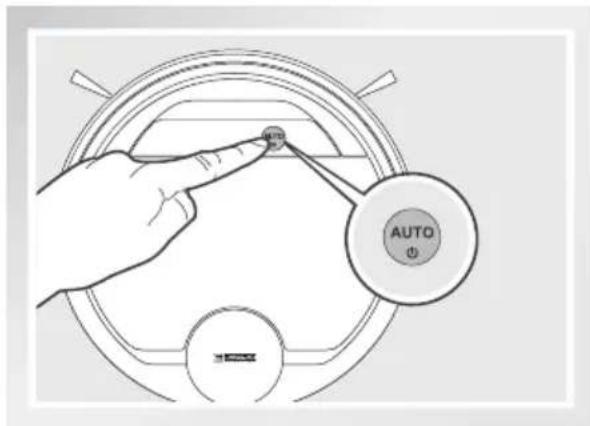
- This is the most commonly used mode. In AUTO Cleaning Mode, DEEBOT cleans in a back and forth straight-line pattern.
2 Custom Cleaning Mode
This mode is flexible for you to choose any area in your home to clean using ECOVACS App.
3 Area Cleaning Mode
- After DEEBOT has scanned and mapped the environment, specific areas on the map can be selected to be cleaned with Area Cleaning Mode using ECOVACS App.
3. Operating and Programming
3.4 Programming the Robot
Time Scheduling
DEEBOT can be programmed weekly to clean multiple times per day at specific times using the ECOVACS App.
3.5 Additional Settings
Virtual Boundary
A Virtual Boundary blocks DEEBOT from cleaning a specified area. The virtual boundary can be set using ECOVACS App.
Continued Cleaning Function
When Continued Cleaning function is turned on, once DEEBOT is fully recharged, it automatically returns to and continues to clean the uncleaned area not completed during the last cleaning task.
3. Operating and Programming
3.6 Optional OZMO Mopping System
DEEBOT has an optional OZMO Mopping System that uses a Washable/Reusable Microfiber Cleaning Cloth and a Cleaning Cloth Plate attached to a proprietary Reservoir. The Washable/Reusable Microfiber Cleaning Cloth automatically damp mops and then dries the floor to a spotless clean.
- When using the mopping system, DEEBOT automatically detects and avoids the rug.
- After DEEBOT finishes mopping, empty any remaining water from the Reservoir.
- Empty any remaining water from the Reservoir and remove the Cleaning Cloth Plate before charging DEEBOT.
- Always keep the Reservoir installed when the robot is cleaning or charging.
1 Add Water into the Reservoir
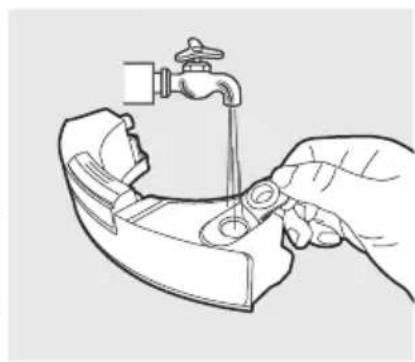
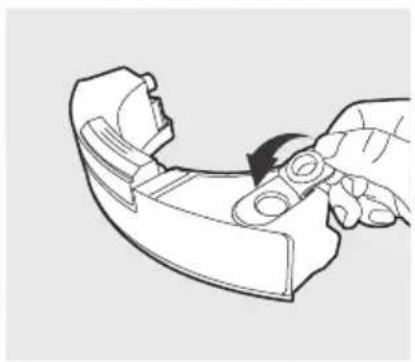
2 Attach Cleaning Cloth; Install the Cleaning Cloth Plate and the Reservoir.
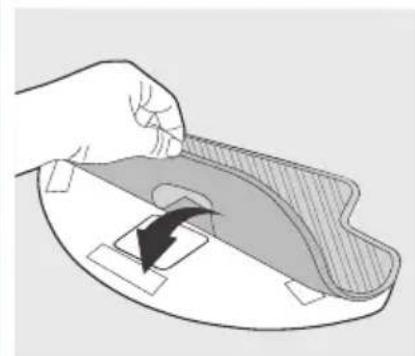
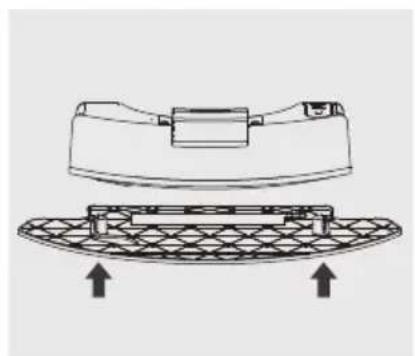
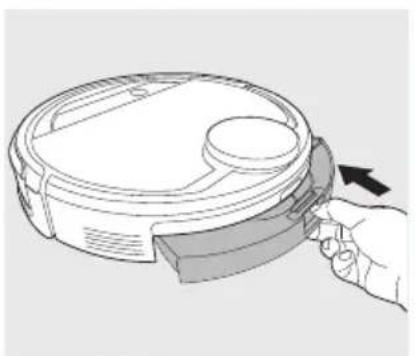
3. Operating and Programming
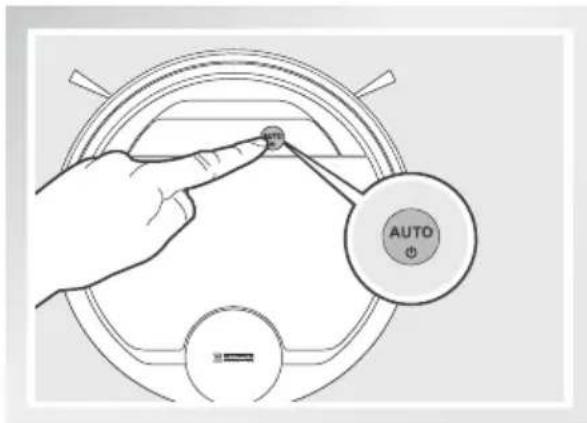
3 Start
Select the desired Cleaning Mode. DEEBOT sweeps, lifts, vacuums, mops and dries in the selected mode.
3.7 Choosing a Suction Option
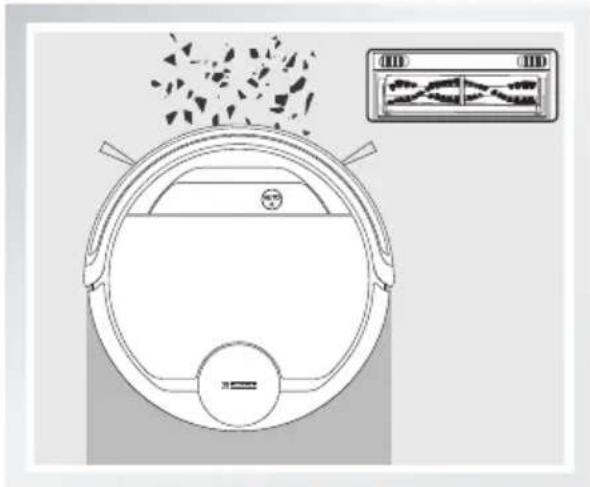
The robot has 2 interchangeable suction options for your convenience.
Main Brush Option: The best choice for deep cleaning with a combination of the Main Brush and strong suction. The Main Brush Option comes pre-installed in DEEBOT.
Direct Suction Option: The best choice for daily cleaning with the Main Brush removed for direct suction. This Suction Option is specifically designed to pick up hair without tangling.
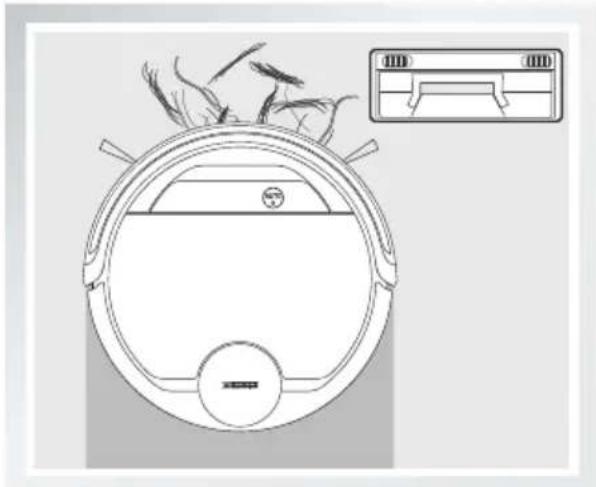
3. Operating and Programming
Install the Direct Suction Option
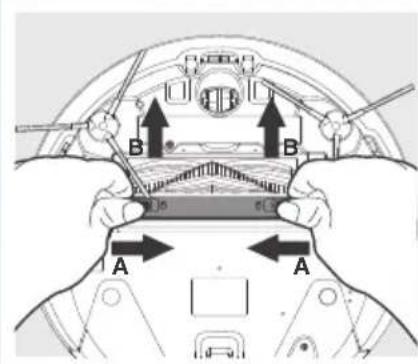
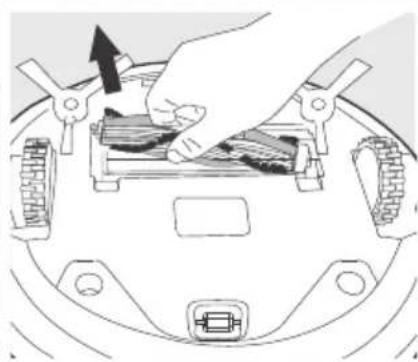
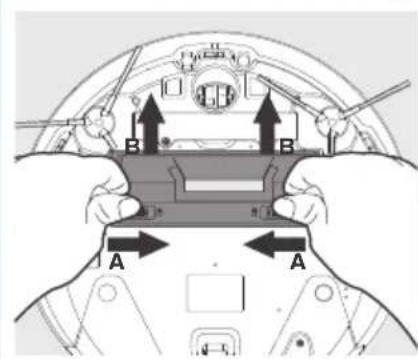
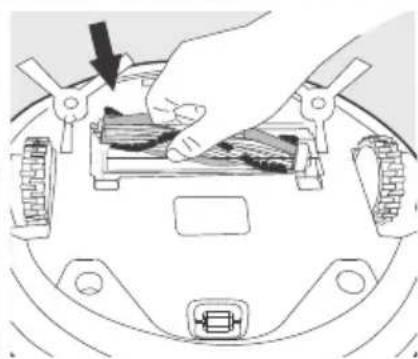
Turn the robot over. Push both buttons on the Main Brush Option and remove the Main Brush Cover. Remove the Main Brush.
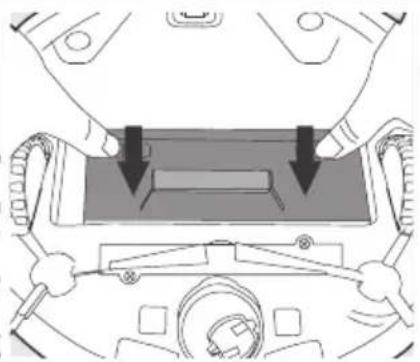
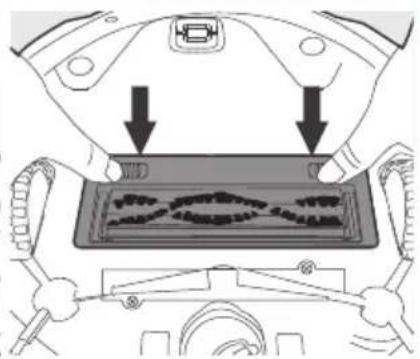
Line up the Direct Suction Option tabs with the slots on the bottom of the robot. Press until the component clicks into place.
Install the Main Brush Option
Turn the robot over. Push both buttons on the Direct Suction Option and remove Direct Suction Option. Insert the Main Brush into the bottom of the robot.
Line up the Main Brush Cover tabs with the slots on the bottom of the robot. Press until the component clicks into place.
4. Maintenance
Before performing cleaning and maintenance on DEEBOT, power OFF the robot and unplug the Docking Station.
4.1 OZMO Mopping System
After DEEBOT finishes mopping, remove the Reservoir from DEEBOT, and maintain the Reservoir, the Cleaning Cloth and the Cleaning Cloth Plate immediately.
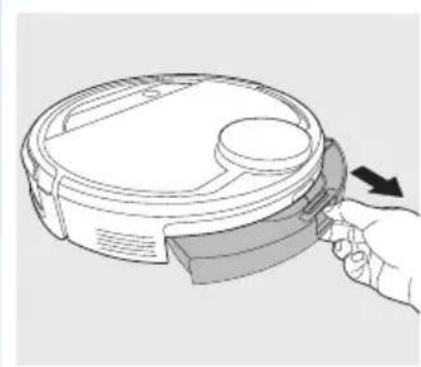
Press the Release Button and pull to remove the Reservoir. Remove the Cleaning Cloth Plate and the Cleaning Cloth.
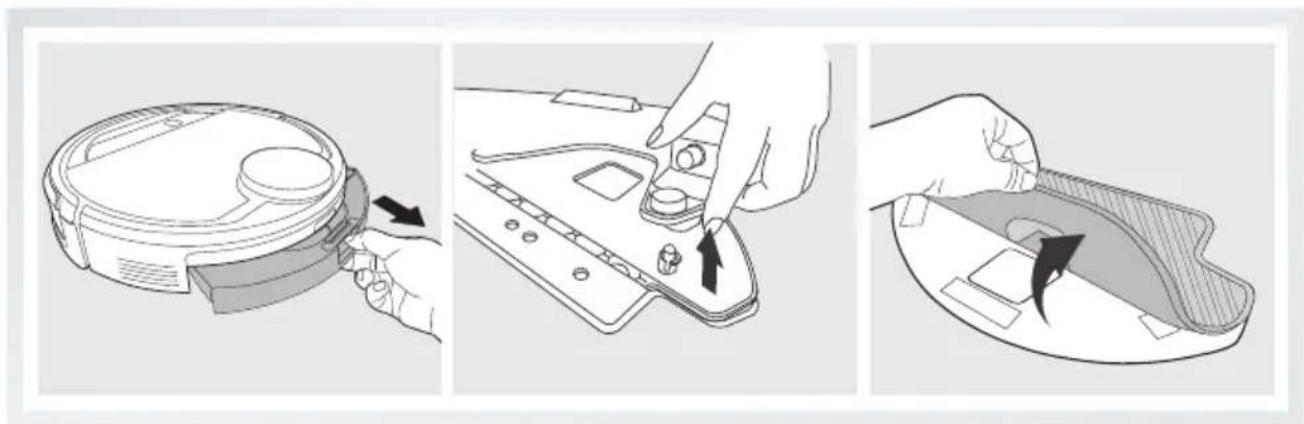
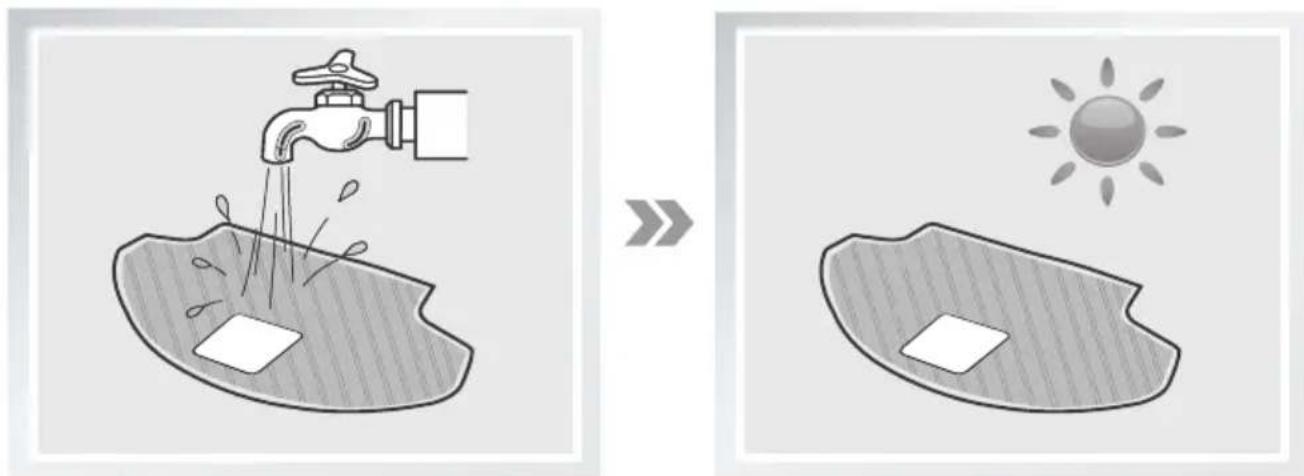
Wash the Cleaning Cloth and lay flat to dry.
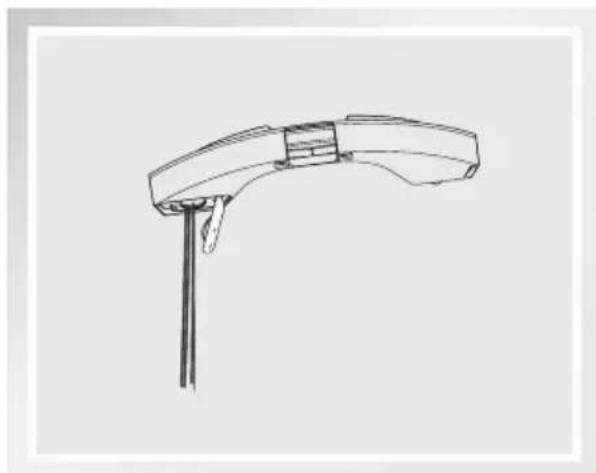
Empty any remaining water from the Reservoir.
4. Maintenance
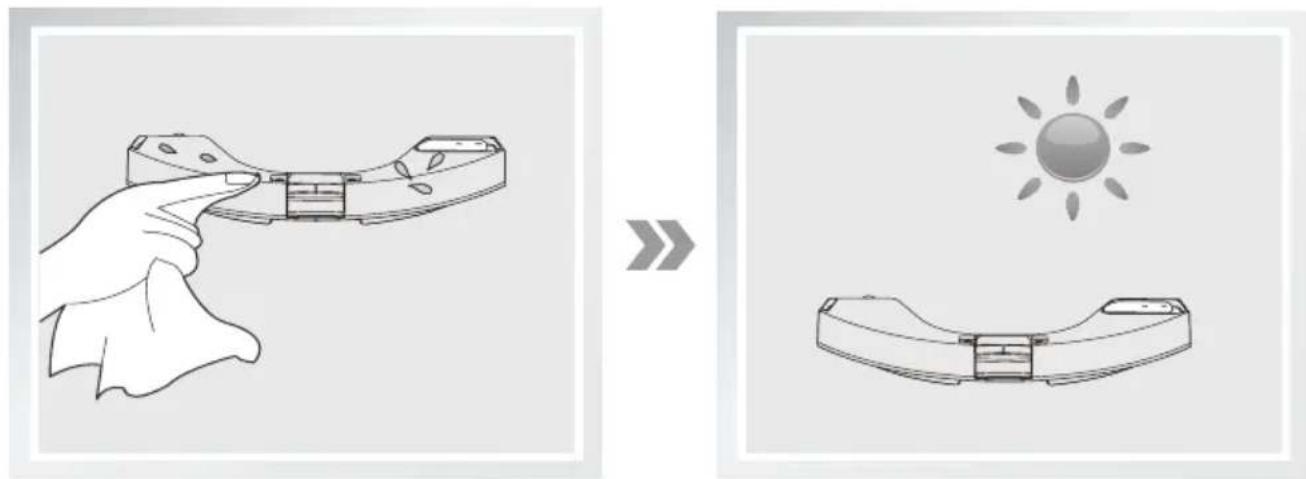
Wipe the outside of the Reservoir with a dry cloth and lay flat to dry. Avoid direct sunlight.
4.2 Dust Bin and Filters
Open the robot's Top Cover and remove the Dust Bin. Open the Dust Bin Lock and empty the Dust Bin.
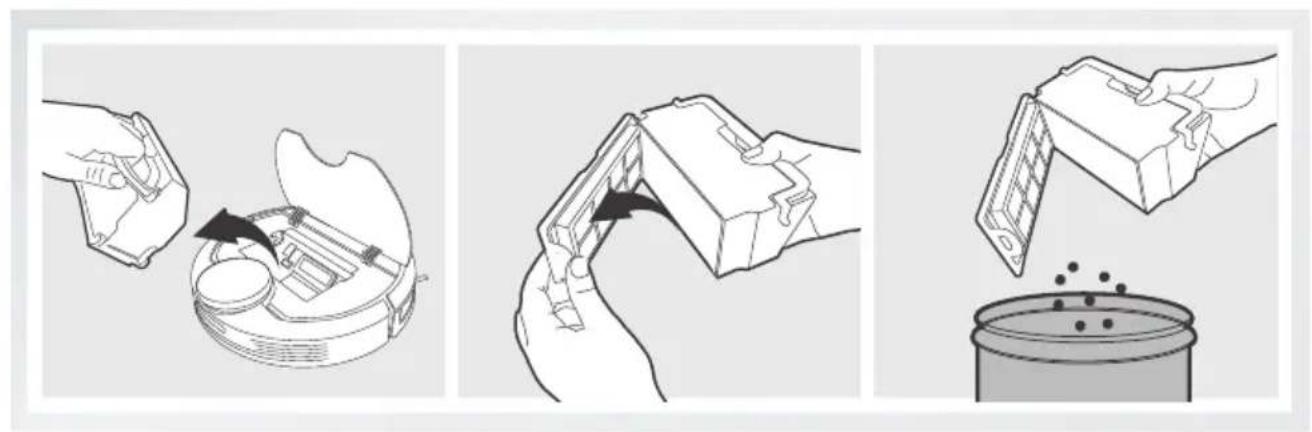
Remove the filters. Pat the High Efficiency Filter clean. Do not rinse the High Efficiency Filter under water.
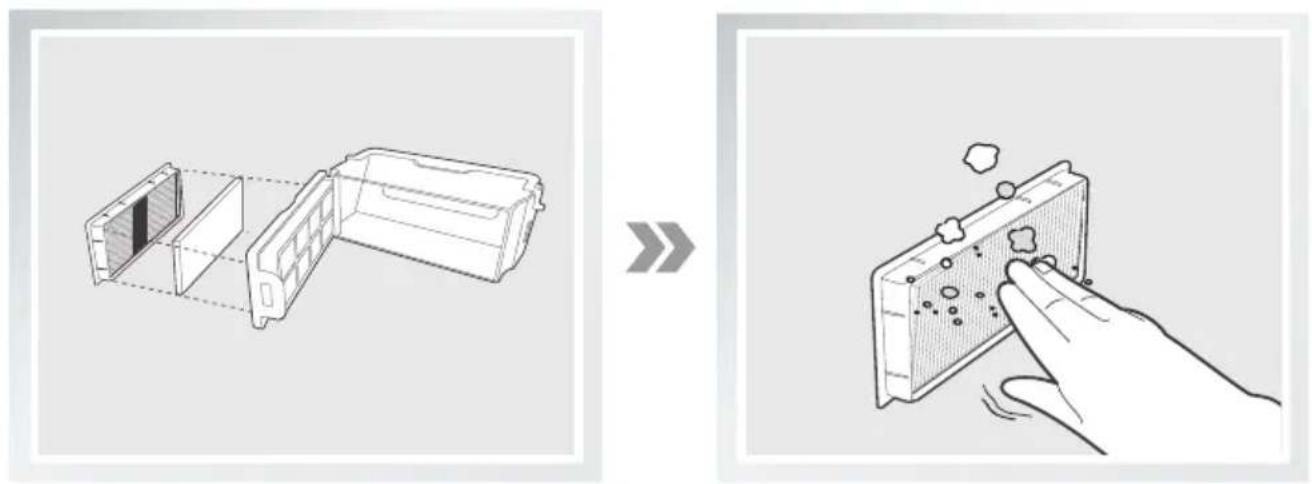
4. Maintenance
Rinse the Dust Bin and Filter Net under running water.
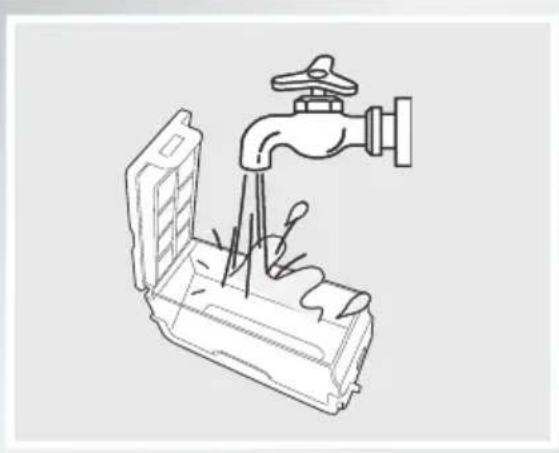
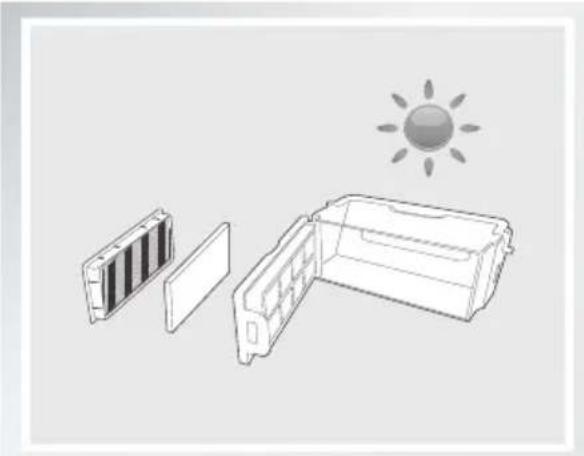
Dry the Dust Bin and Filter Net completely before reinstalling.
4.3 Main Brush, Direct Suction Option and Side Brushes
- A Multi-Function Cleaning Tool is provided for easy maintenance. Handle with care, this cleaning tool has sharp edges.
Main Brush
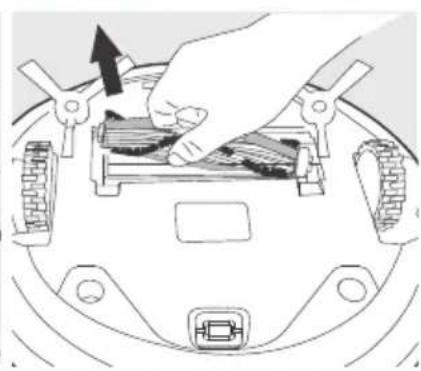
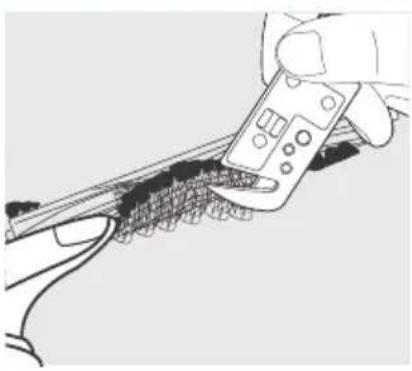
Turn the robot over. Push both buttons on the Main Brush Option and remove the Main Brush cover. Remove the Main Brush. Use the Multi-Function Cleaning Tool to cut off and remove any hair tangled around the Main Brush. Clean any tangled hair or debris from the Main Brush.
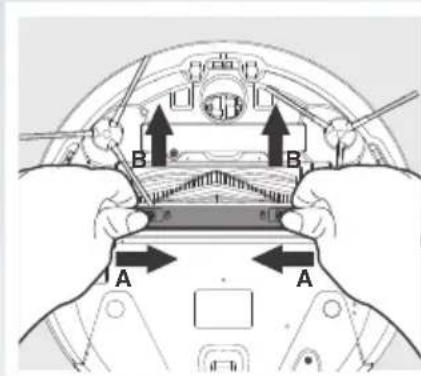
Direct Suction Option
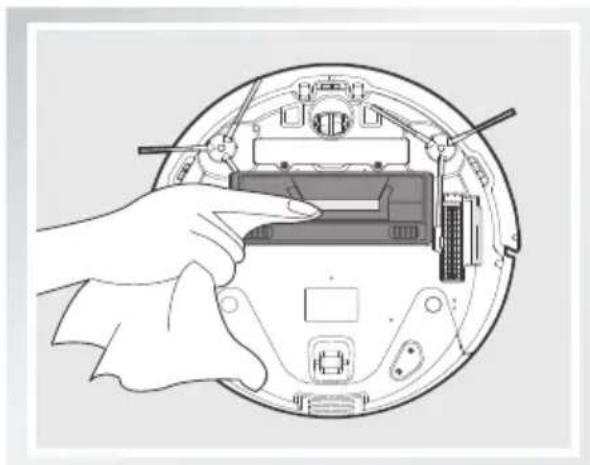
Wipe the Direct Suction Option clean with a dry cloth.
4. Maintenance
SideBrushes
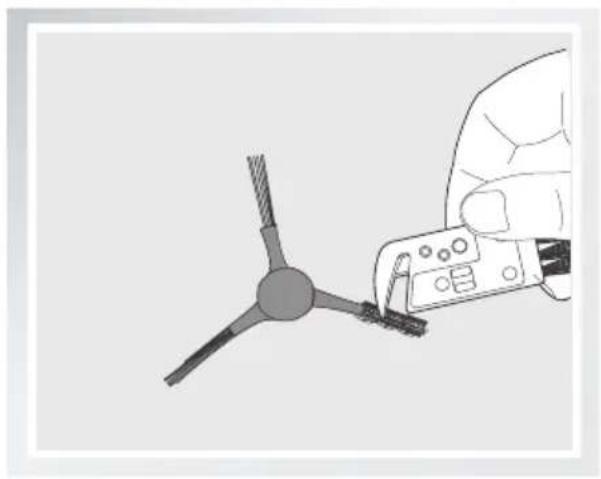
Remove the Side Brushes. Remove any hair or debris tangled around the Side Brushes with the provided Multi-Function Cleaning Tool, and wipe their slots with a clean cloth.
4.4 Other Components
Use the Multi-Function Cleaning Tool to cut off and remove any hair tangled around the Universal Wheel.
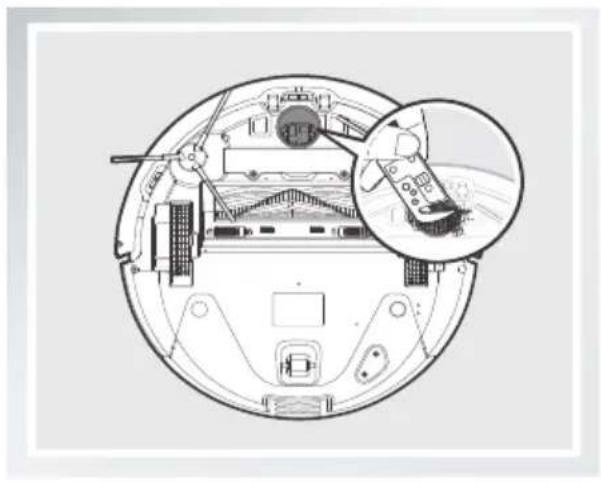
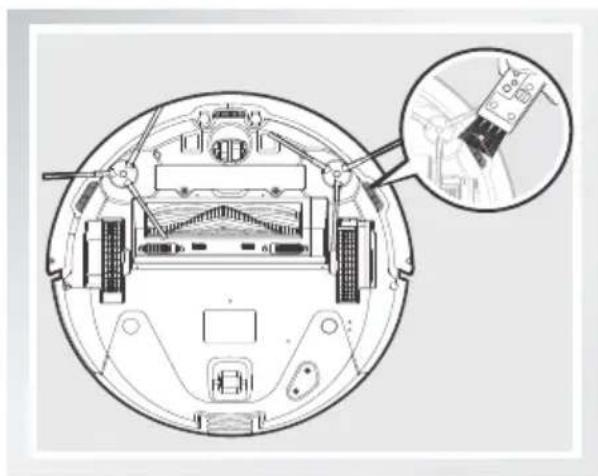
Wipe the Anti-Drop Sensors with the brush of the Multi-Function Cleaning Tool to maintain their effectiveness.
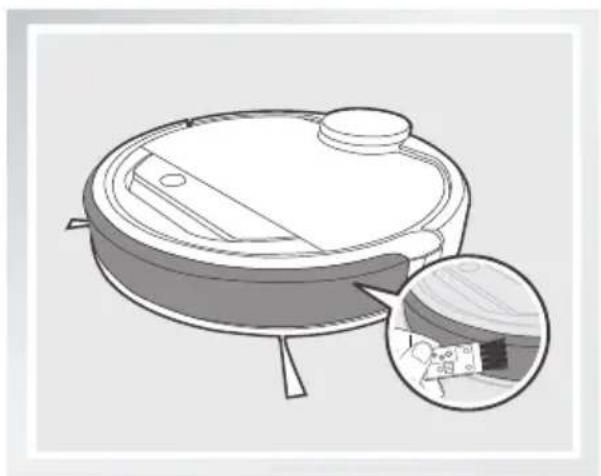
Wipe the Bumper with the brush of the Multi-Function Cleaning Tool.
4. Maintenance
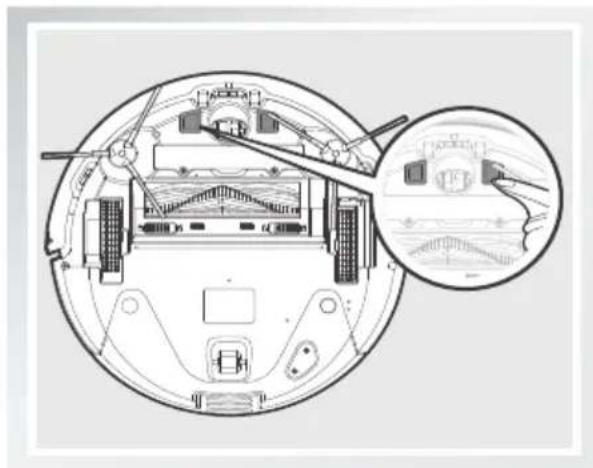
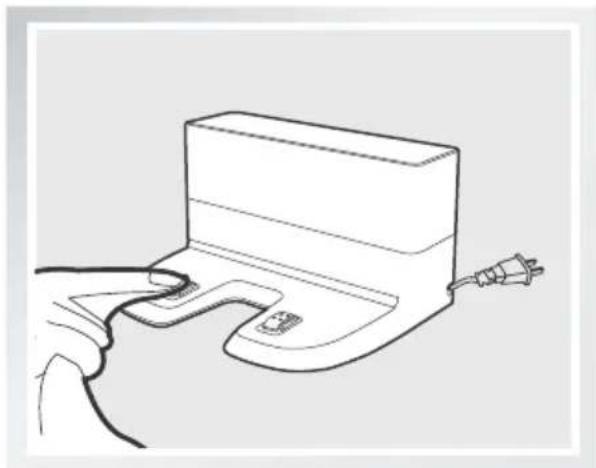
- Before cleaning the robot's Charging Contacts and Docking Station Pins, power OFF the robot and unplug the Docking Station.
Wipe the robot's Charging Contacts and Docking Station Pins with a dry cloth to maintain their effectiveness.
4. Maintenance
4.5 Regular Maintenance
To keep DEEBOT running at peak performance, perform the maintenance and replacement according to the following frequency. A multi-Function Cleaning Tool is provided for easy maintenance. Handle with care, this cleaning tool has sharp edges.
| Robot Part Maintenance | Frequency Replacement Frequency | |
| Cleaning Cloth After each use Every 50 washings | ||
| Dust Bin/Reservoir/Cleaning Cloth Plate | After each use | / |
| Side brush Once every | 2 weeks Every 3-6 months | |
| Main Brush Once per week Every 6-12 months | ||
| Sponge Filter/ High Efficiency Filter | Once per week (twice per week with pets in home) | Every 4-6 months |
| Universal Wheel Anti-Drop Sensors Bumper Charging Contacts Docking Station Pins | Once per week | / |
Note: ECOVACS manufactures various replacement parts and assemblies. Please contact Customer Service for more information on replacement parts.
5. Troubleshooting
| No. | Malfunction Pos | sible Causes Solutions | |
| 1 | DEEBOT will not charge. | DEEBOT is not powered ON. Power | ON DEEBOT. |
| DEEBOT has not made a connection with the Docking Station. | Be sure that the robot's Charging Contacts have made a connection with the Docking Station Pins. You may move the robot manually to make the connection if necessary. | ||
| Docking Station is unplugged while DEEBOT is powered ON, which causes battery consumption. | Plug in the Docking Station and ensure DEEBOT is powered ON. Keep DEEBOT on the Docking Station to make sure it has a full battery to work at any time. | ||
| The battery is completely discharged. | Re-activate the battery. Power ON. Place DEEBOT on the Docking Station by hand, remove after charging for 3 minutes, repeat 3 times; then charge normally. | ||
| 2 | DEEBOT cannot return to the Docking Station. | The Docking Station is not placed properly. | Refer to section 3.2 to place the Docking Station properly. |
| 3 | DEEBOT gets into trouble while working and stops. | DEEBOT is tangled with something on the floor (electrical cords, drooping curtains, carpet fringe etc.). | DEEBOT will try various ways to get itself out of trouble. If it is unsuccessful, manually remove the obstacles and restart. |
| 4 | DEEBOT returns to the Docking Station before it finishes cleaning. | When battery power gets low, DEEBOT automatically switches to Return to Charger Mode and returns to the Docking Station to recharge itself. | This is normal. No solution necessary. |
| Working time varies according to floor surface, room complexity and the selected Cleaning Mode. | This is normal. No solution necessary. | ||
| 5 | DEEBOT will not clean automatically at scheduled time. | Intelligent Scheduling or Time Scheduling function is cancelled. | Please refer to section 3.4 for details. |
| Continued Cleaning function is turned ON. DEEBOT has just finished cleaning the scheduled cleaning area. | This is normal. No solution necessary. | ||
| DEEBOT is powered OFF. Power ON DEEBOT. | |||
| The robot's battery is low. | Keep DEEBOT powered ON and on the Docking Station to make sure it has a full battery to work at any time. | ||
| The robot's Suction Intake is blocked and/or its components are tangled with debris. | Power OFF DEEBOT, clean the Dust Bin, and invert the robot. Clean the robot's Suction Intake, Side Brushes and the Main Brush as described in section 4. |
5. Troubleshooting
| No. | Malfunction Possible Causes Solutions | |
| 6 | DEEBOT misses cleaning area. | The cleaning area needs tidying up. Please remove small objects from the floor, and tidy up the cleaning area before DEEBOT starts cleaning. |
| 7 | The water is not coming out of the Reservoir when DEEBOT is mopping. | The Magnet on the Cleaning Cloth Plate comes off. Please contact Customer Service. |
| The Reservoir runs out of water. Add water into the Reservoir. | ||
| The water outlets on the bottom of DEEBOT are clogged. Check the water outlets on the bottom and clean. | ||
| 8 | DEEBOT is not able to connect to home Wi-Fi network. | Incorrect home Wi-Fi username or password entered. Enter the correct home Wi-Fi username and password. |
| DEEBOT is not within range of your home Wi-Fi signal. Make sure DEEBOT is within range of your home Wi-Fi signal. | ||
| Network setup started before DEEBOT was ready. Turn ON Power Switch. Press the RESET Button using a needle for 3 seconds. DEEBOT is ready for network setup when DEEBOT plays a musical tune and its Wi-Fi Indicator light flashes slowly. | ||
| Your smartphone's operating system needs to be updated. Update your smartphone's operating system. The ECOVACS App runs on iOS 9.0 and above, Android 4.0 and above. |
For a copy of the Company's Annual Report, contact:
For use only with Eviduous Robotics Co., Ltd. CHT03A-1894, UK Unilef settlement over Evertas Robotics Co., Ltd. sharmaur CH
This Device Complex with DHHS Radiation Rules, 21CFR Chapter 1.
DRHS,21CPR chape 7,souh-
CLASS I LASER PRODUCT
Carta FCG ID:2AATL-61885UF
Contains IC:12425A-6108SUF
MADE IN CHNAFAIT EN CHINEHECHO EN

Interetek
5033640
1.CSA841.C72NC041



Ecovacs Robotics Co., Ltd.
No. 18 You Xiang Road, Wuzhong District,
Suzhou City, Jiangsu Province, P.R.China